 UPDF
UPDF
 UPDF for Windows
 UPDF for Mac
 UPDF for iPhone/iPad
 UPDF for Android
 Nomostar
 UPDF AI Online
 UPDF Sign
 IvyCraft
 Edit PDF
 Annotate PDF
 Create PDF
 PDF Form
 Edit links
 Convert PDF
 OCR
OCR PDF to Word
 PDF to Image
 PDF to Excel
 Organize PDF
 Merge PDF
 Split PDF
 Crop PDF
 Rotate PDF
 Protect PDF
 Sign PDF
 Redact PDF
 Sanitize PDF
 Remove Security
 Read PDF
 UPDF Cloud
 Compress PDF
 Print PDF
 Batch Process
 About UPDF AI
 UPDF AI Solutions
 AI User Guide
 FAQ about UPDF AI
 Summarize PDF
 Translate PDF
 Chat with PDF
 Chat with AI
 Chat with image
 PDF to Mind Map
 Explain PDF
 PDF AI Tools
 Image AI Tools
 AI Chat Tools
 AI Writing Tools
 AI Study Tools
 AI Working Tools
 Other AI Tools
 AI Bookmark Generation
 AI Bookmark Summary
 AI Watermark Generation
 AI Background Generation
 AI Sticker Generation
 AI Stamp Generation
 AI Editing Suite
 UPDF Copilot
 AI Page Management
 AI Semantic Search
 PDF to Word
 PDF to Excel
 PDF to PowerPoint
 Enterprise Solution
 Enterprise Sign
 Enterprise AI
 Enterprise Plan
 Enterprise User Guide
 Enterprise Webinar
 IT
IT Education
 Construction
 Financial Service
 Healthcare
 Insurance
 Legal
Legal Manufacturing
 Government
 Researchers & PhDs
 Solopreneurs & Freelancers
 Lawyers & Legal Professionals
 Real Estate Agents & Brokers
 Education Solution
 Customer Stories
 User Guide
 UPDF Tricks
 FAQs
FAQs UPDF Reviews
 Download Center
 Blog
Blog Newsroom
 Tech Spec
 Updates
 UPDF vs. Adobe Acrobat
 UPDF vs. Foxit
 UPDF vs. PDF Expert

The “Please upload a valid PDF file” error usually means the website could not validate your document. A file can end in .pdf and still be rejected because it is not a true PDF, has an unsupported name or size, is password-protected or corrupted, or contains interactive content the portal cannot process.
Start by checking the upload rules shown on the website, then use the matching fix below. If the PDF needs to be converted, compressed, unlocked, or flattened, UPDF can help you prepare a clean copy for another upload attempt.
Windows • macOS • iOS • Android 100% secure
Quick Answer: What Should You Check First?
| What Happens | Likely Cause | Go to the Fix |
|---|---|---|
| The PDF opens but is rejected | Filename or portal restriction | Fix 1: Rename the file |
| The file is corrupted or is not a true PDF | Invalid PDF structure or format | Fix 2: Rescan or convert |
| The PDF contains layers, annotations, or hidden content | Unsupported PDF content | Fix 3: Flatten or print to PDF |
| A fillable PDF is rejected | Interactive form fields | Fix 4: Remove interactive elements |
| The file exceeds the stated limit | PDF is too large | Fix 5: Check the file size |
| The site says the PDF is restricted | Password or encryption | Fix 6: Remove the password |
Part 1. Common Reasons for “Upload a Valid PDF” Errors
Once I looked closer, it was easy to figure out that the “Please upload valid PDF file” problem happened due to the following problems:
- File Name Problems: Special characters such as &, #, or @, spaces, and double extensions like
document.pdf.pdfcan trigger a generic validation error. This corresponds to Fix 1. - Corrupted or Unreadable PDF Format: The file may be damaged, incompletely downloaded, or not structured as a true PDF even though its name ends in .pdf. A scanned JPG or PNG renamed as a PDF will also fail. See Fix 2.
- Unsupported PDF Version or Hidden Elements: Layers, annotations, digital signatures, or hidden content created by advanced tools may not be accepted by a simple upload portal. See Fix 3.
- Interactive Elements or Form Fields: Fillable fields, checkboxes, and other interactive elements can cause some portals to reject an otherwise readable PDF. See Fix 4.
- File Size Too Big or Too Small: File-size limits vary by portal and document type. Use the exact limit displayed beside the upload field; a PDF outside that range may be rejected with a generic validation error. See Fix 5.
- Encrypted or Password-Protected PDFs: Many portals do not accept protected PDFs. If you know the password and are authorized to remove it, save an unlocked copy before uploading. See Fix 6.
Part 2. How to Fix “Upload a Valid PDF” Errors
With possible factors behind this issue explained, it’s time to move on to what really matters. For getting the file to upload successfully, the following 6 easy solutions have worked for me and countless others in fixing the Please upload a valid PDF file NEET error:
Fix 1. Rename the File Cleanly
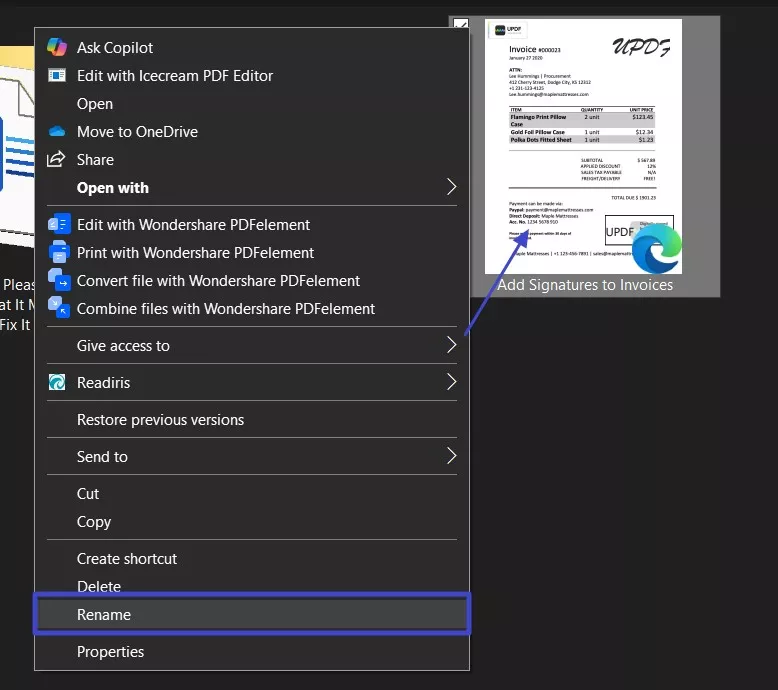
The name of the targeted PDF is the first thing I check, and so should you. It may appear to be nothing, but special characters like @, #, &, or even spaces can cause a system to reject the upload. Not to mention that sometimes the file accidentally ends up with two .pdf extensions. Since that makes it unreadable for some portals, follow these steps to fix the “Please upload a valid PDF file” error:
Instructions. Get to the targeted PDF and right-click it to choose "Rename" from the context menu. Following that, remove all special characters and the double extensions to give it a straightforward name.
Fix 2. Rescan or Convert
When renaming doesn’t solve the problem, I often take a closer look at how the document was created. That is kind of important if I scanned a document as an image. Most portals prefer proper PDFs, and it usually won’t pass the check if I’ve scanned something as a JPG or PNG. It is where a reliable tool makes all the difference.
That’s why I personally use UPDF, a simple yet powerful all-in-one PDF editor. It helps me convert scanned images to valid PDF files and compress them to match size limits.
Windows • macOS • iOS • Android 100% secure
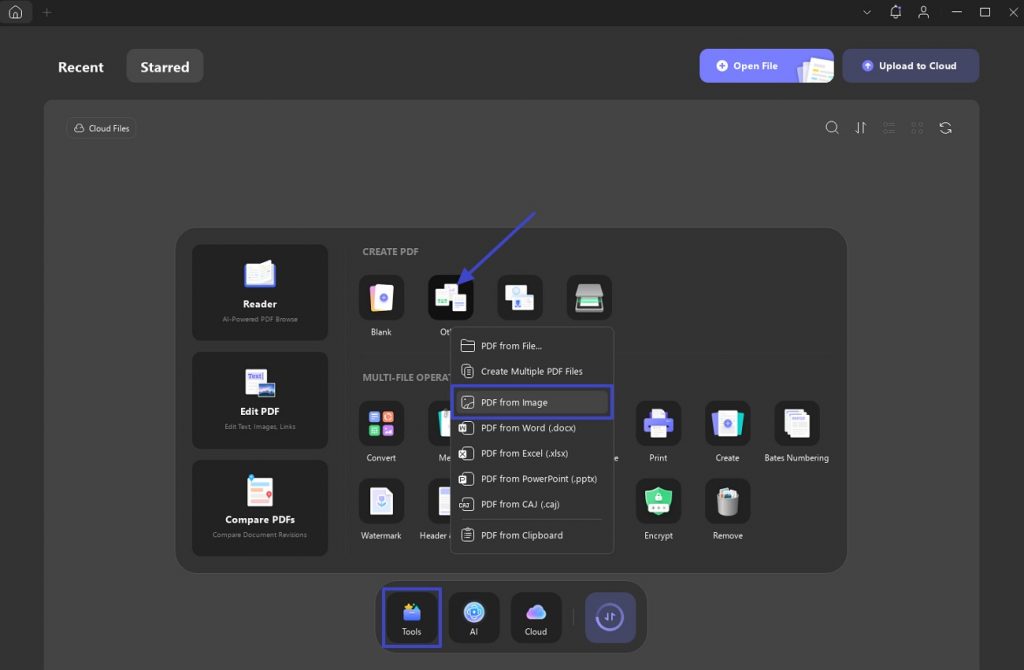
Once I have the program installed, converting a JPG to a proper PDF to fix the please upload valid PDF file problem takes just a few steps:
Step 1. Run UPDF on the system and click the "Tools" button from the main screen. Following that, select "Others" from the "Create PDF" section and opt for the "PDF from Image" option.
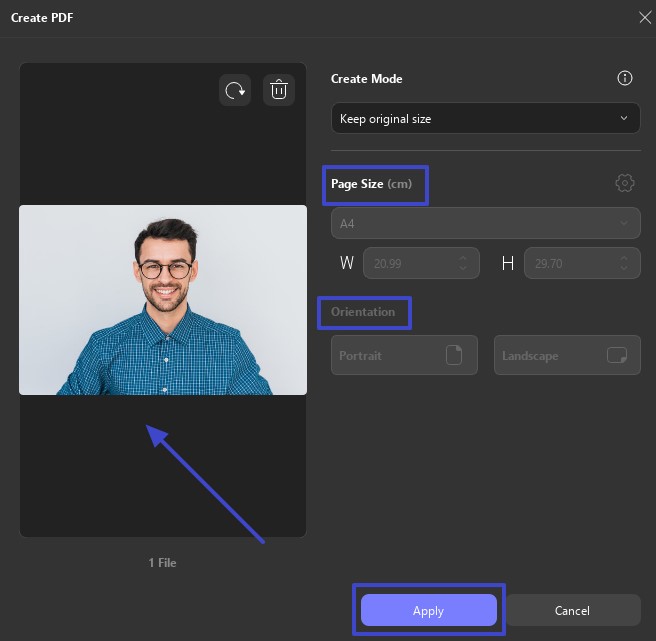
Step 2. Use "Select Files" to upload the targeted pic and decide the desired dimensions from the provided options. Lastly, select the "Page Size" and "Orientation" before hitting the "Apply" button to conclude the task.
Fix 3. Flatten the PDF / Print to PDF
Even when my file looks perfect, some portals still reject it. Mostly, that’s because the PDF has layers or background data that make it look more complex. In cases like this, I’ve found that flattening the file or using the Print to PDF method gives me a cleaner version. Flattening can make form fields and annotations static. Keep the editable original, because flattening a copy can make fields non-editable and may affect digital signatures.
Flatten PDF
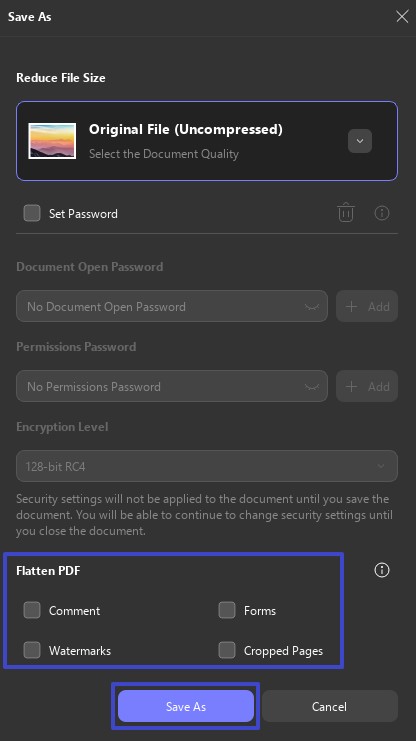
Step 1. Get the targeted document in UPDF and hit the downward arrow near the save icon to choose "Save As Flatten" from the menu.
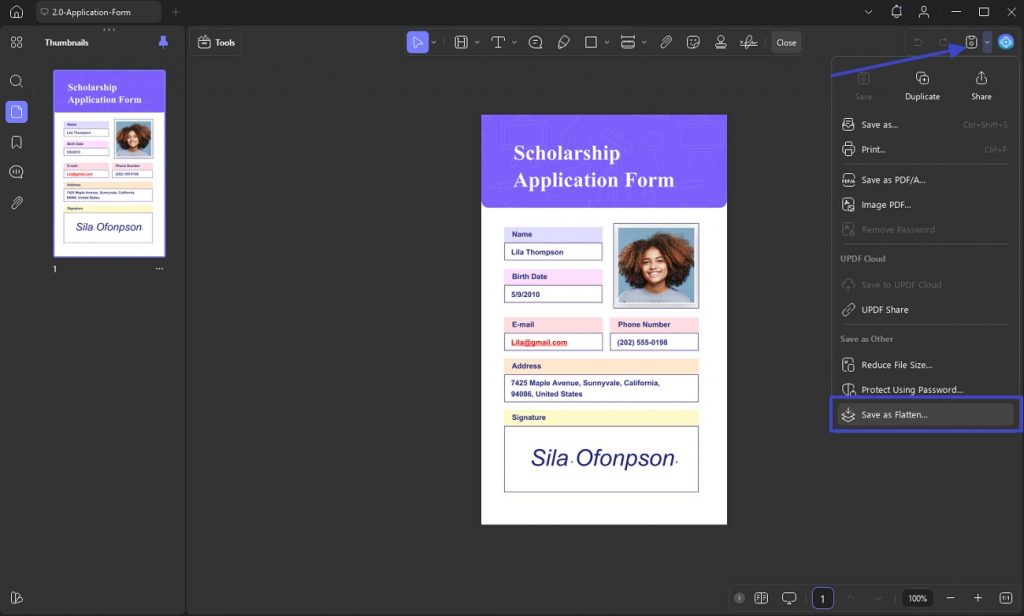
Step 2. In the "Save As" window, get to the "Flatten" section to proceed. From "Comment" and "Forms" to "Watermarks" and "Cropped Pages," make the choice and tap "Save As" to flatten the PDF.
Print PDF
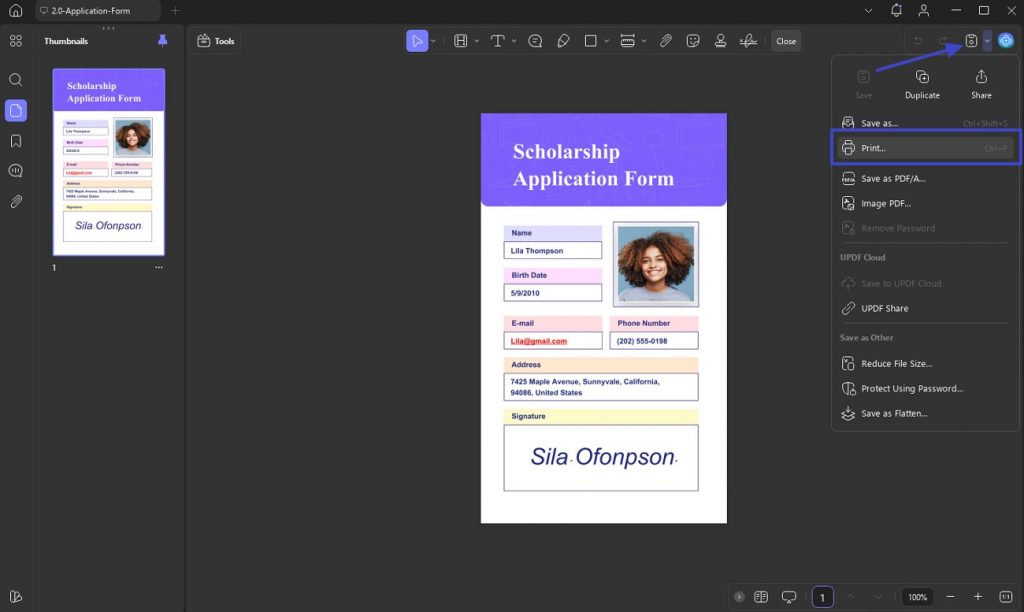
Step 1. With the file opened in UPDF, tap the downward arrow next to the save button to opt for "Print."
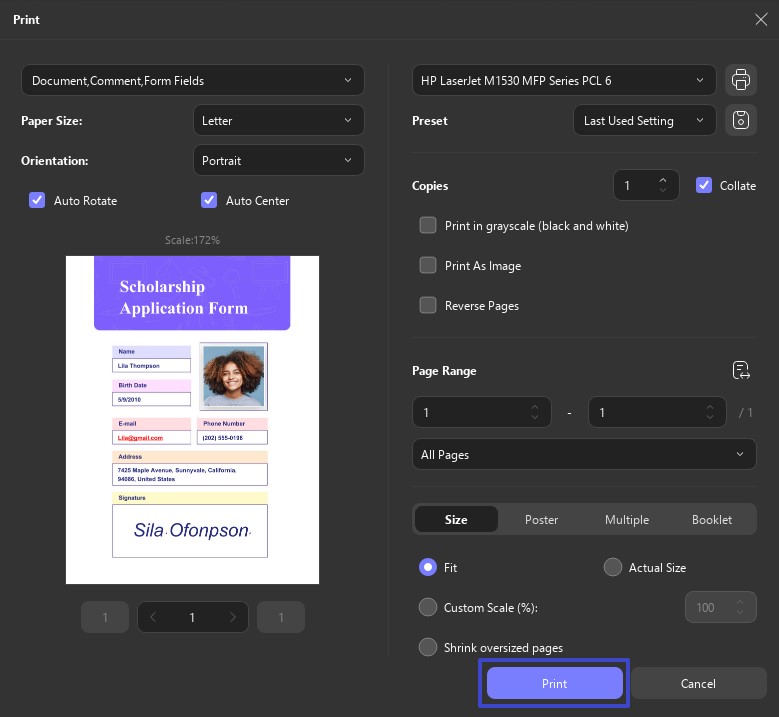
Step 2. Following that, choose from the wide range of preferences according to your needs and hit "Print" to apply them.
Fix 4. Remove Interactive Elements or Form Fields
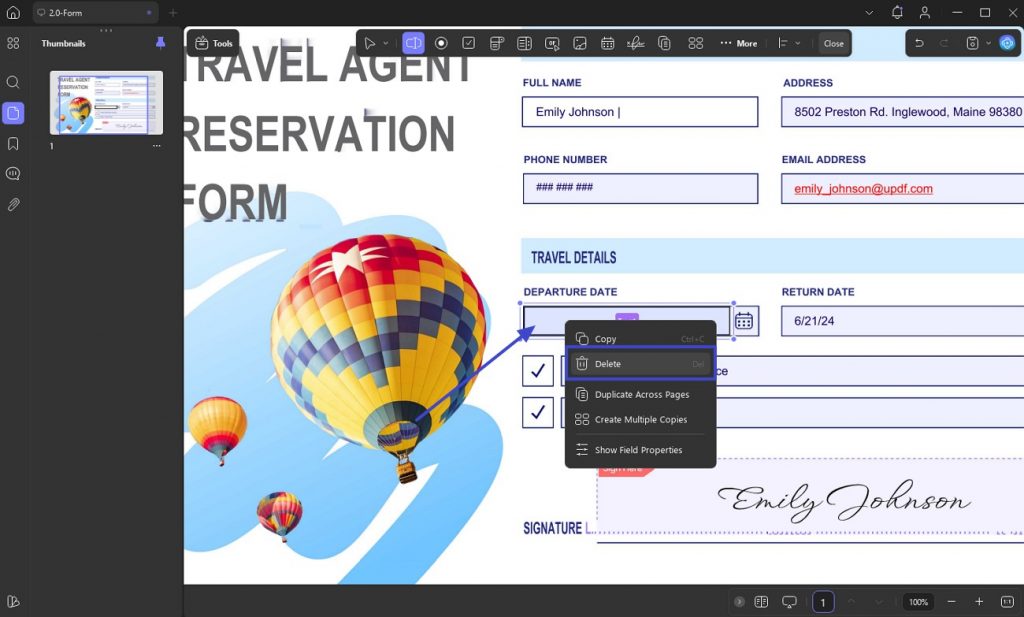
At times, the PDF may look perfectly fine, but still won’t upload. This happened to me when I submitted a file that had form fields or interactive checkboxes. Even if I didn’t fill them out, having those elements in the file can cause a portal to reject it. The solution? I remove any interactive features so that the file becomes a simple PDF using these steps:
Step 1. As you access the problematic file in UPDF, click the "Tools" button in the upper left corner and opt for the "Form" menu.
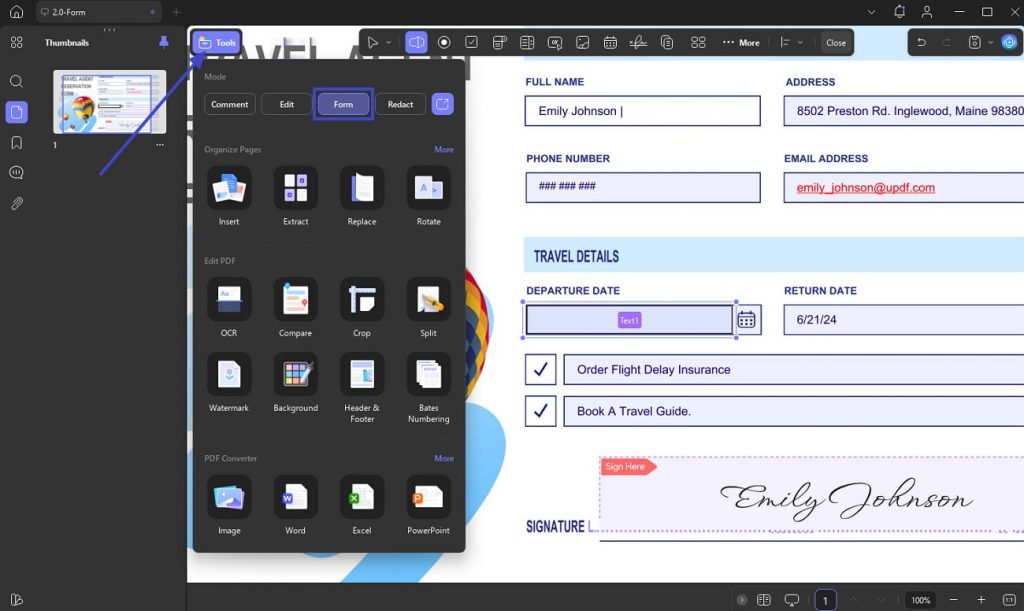
Step 2. Here, right-click on all the interactive elements or form fields you wish to eliminate and choose "Delete" to conclude the task.
Fix 5. Check File Size
A valid PDF can still fail when it exceeds the specific limit shown by the portal. Confirm that limit first, then compress the PDF only as much as needed to keep it readable.
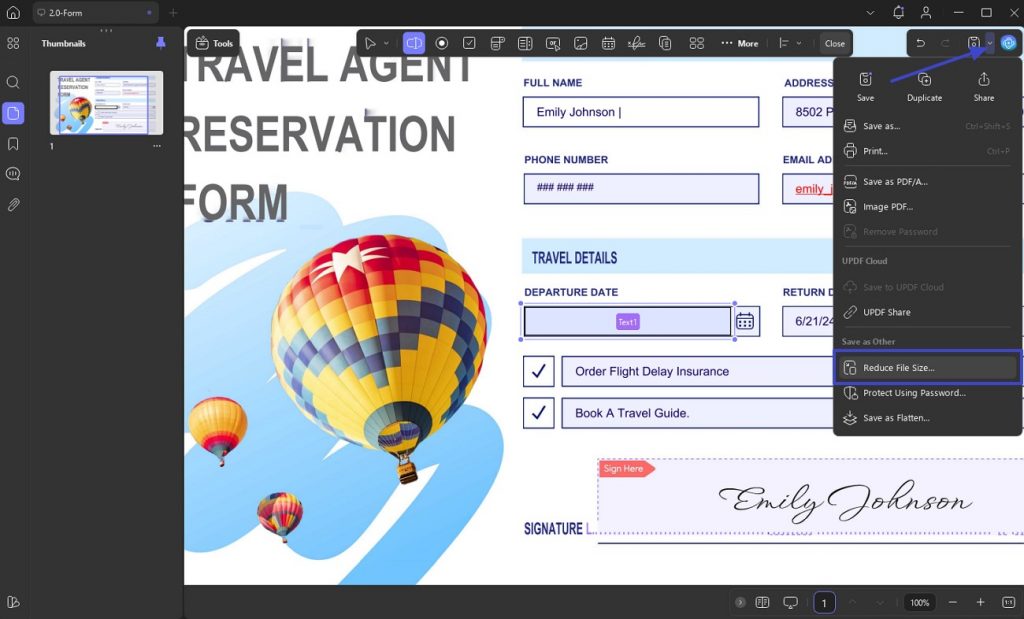
Compress PDF
Step 1. Utilize UPDF to access the targeted file and access the "Save" menu by clicking the downward arrow near the save button to opt for "Reduce File Size."
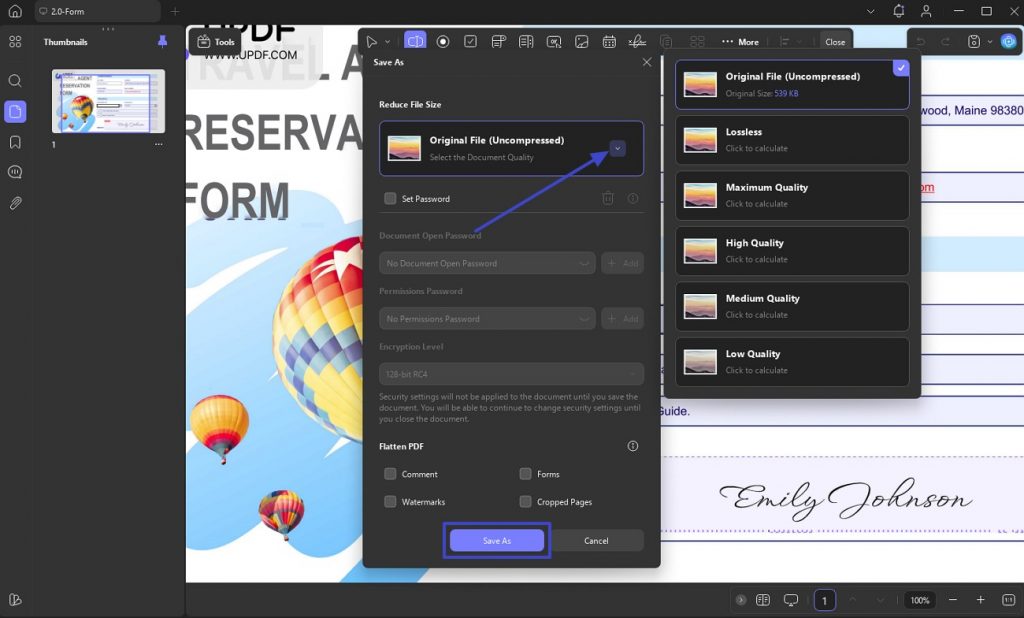
Step 2. Choose from the 6 available options in the next window and press "Save As" to lower the size of the document.
Split PDF
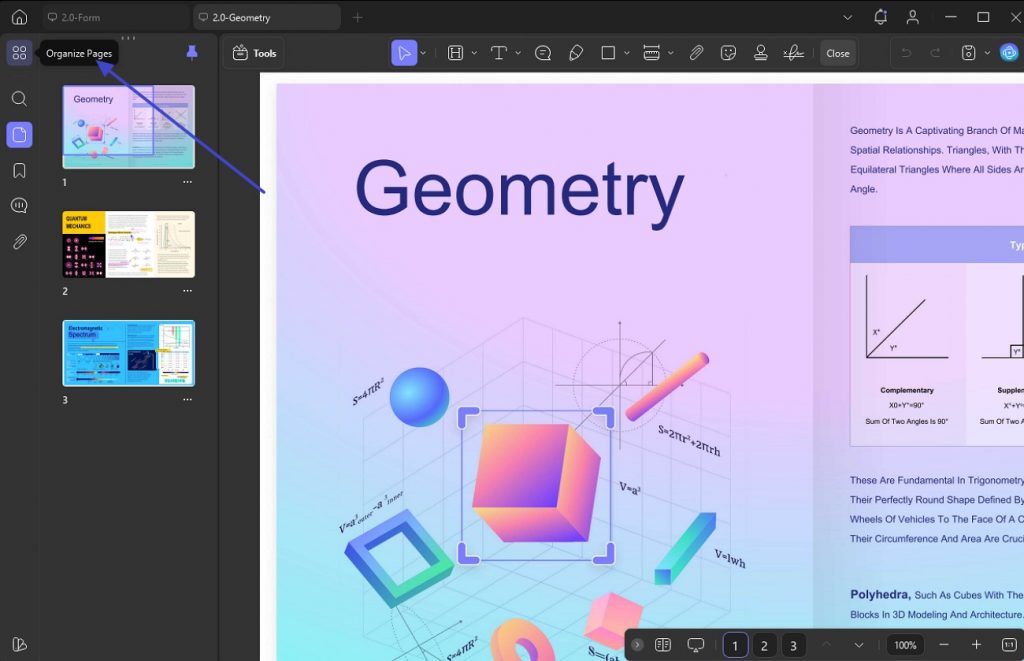
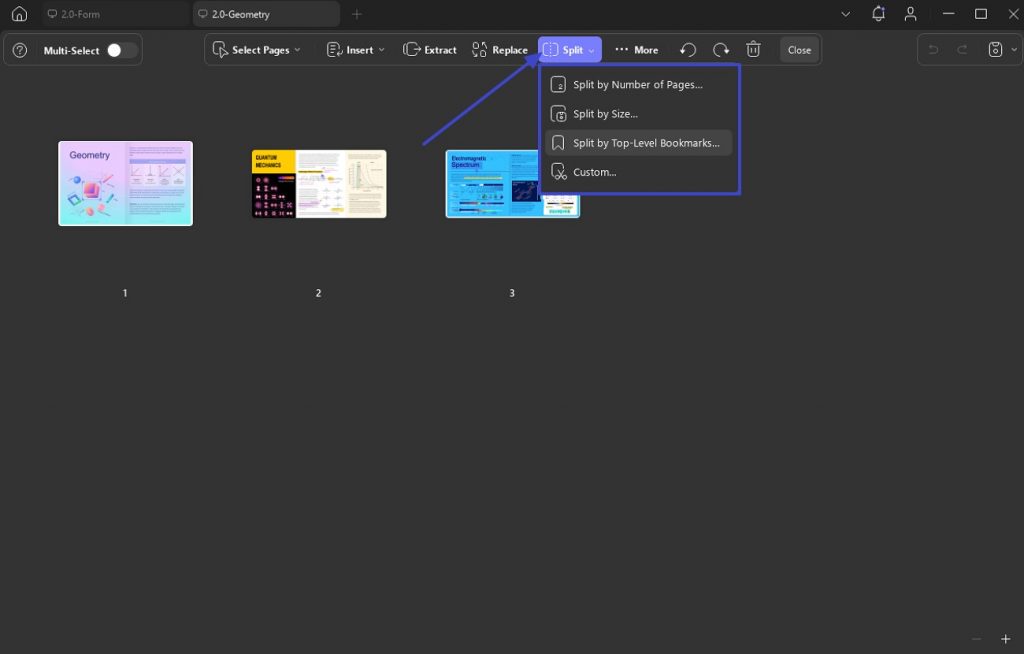
Step 1. When on the editing interface of your PDF in UPDF, click the "Organize" button from the left bar.
Step 2. On the subsequent window, hit the "Split" button and choose one of the available 4 choices to divide your large PDF into smaller ones.
Fix 6. Remove Password
Some portals reject encrypted PDFs with a generic validation message. If you know the password and have permission, you can remove the password from the PDF and save a separate unlocked copy:
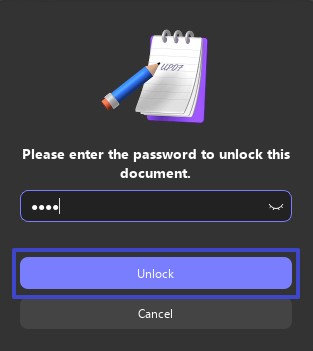
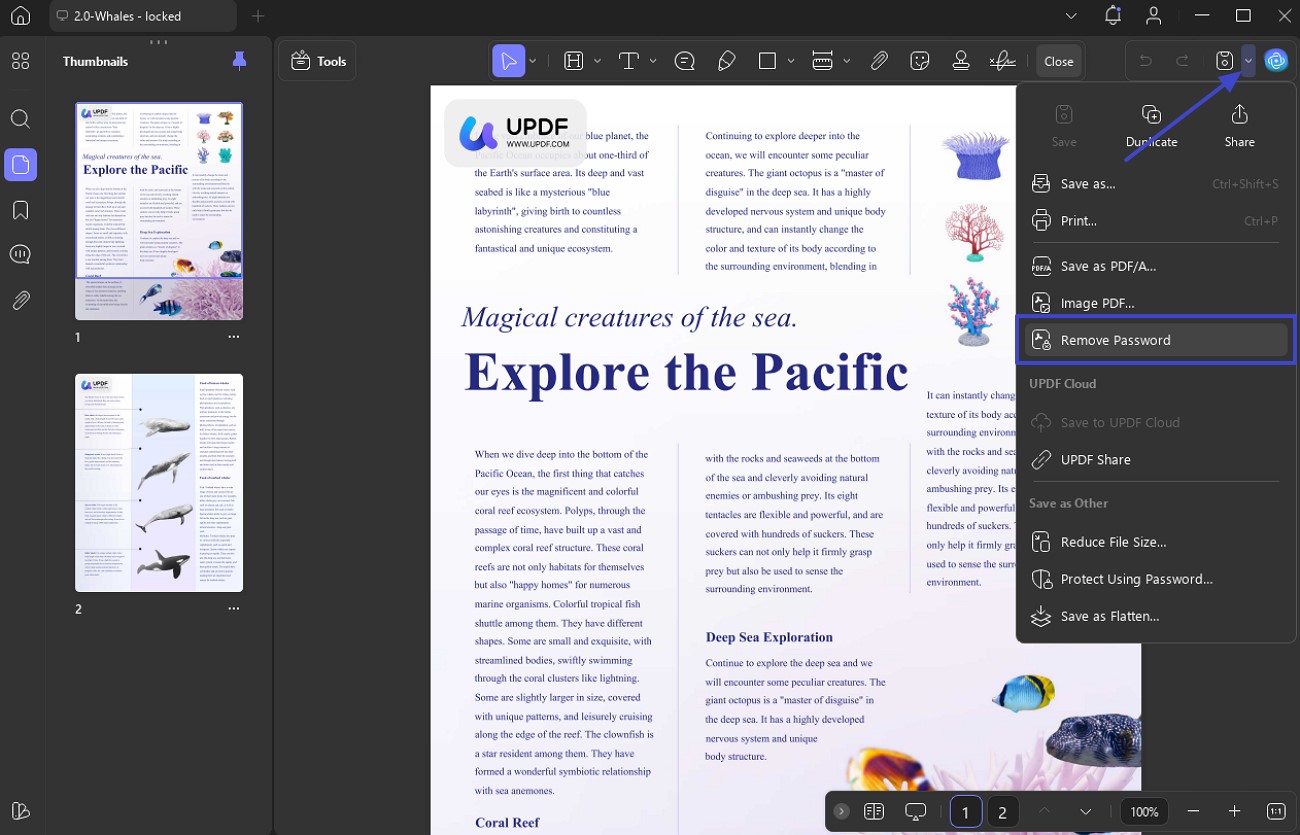
Instructions. Open the locked PDF file in UPDF and enter the password to “Unlock” it. Once accessed, click the downward arrow near the save button to choose “Remove Password” from the options. Finally, save the new unlocked file in the desired location.
Download UPDF now to solve your troubles!
Windows • macOS • iOS • Android 100% secure
Part 3. Common Platforms That Trigger This Error
After trying all these fixes, I realized that the type of portal I was dealing with often gave me clues about what exactly was wrong with my PDF. Different platforms have their own strict rules, even if they don’t spell them out clearly. The following are a few where I’ve most often seen the “Please upload a valid PDF file” error, and what usually works for each:
1. NEET/JEE Application Portals
These platforms tend to be very specific about both file size and file name format. Even if my PDF was the right size, it would still get rejected if the name had spaces or double extensions like .pdf.pdf. Plus, some scanned files or converted images didn’t work until I saved them again using UPDF.
2. Government or University Portals (e.g., OSAP, Financial Aid)
These block uploads if the file is encrypted or password-protected. I once had to upload a scholarship document, and it was rejected several times before I realized it needed to be flattened. Re-saving with UPDF usually strips out anything extra and makes the file acceptable.
3. Contract or Signing Platforms (like Adobe Sign or DocuSign)
With these, the issue often comes from interactive fields or hidden metadata. If I’ve edited the file or signed it digitally, some layers might be left behind. The best fix I’ve found is to open the file and use “Print to PDF,” as it removes everything extra and gives me a clean version.
4. Job Application System
Job portals may validate the actual file type, size, filename, and security settings. OCR is not normally required just to upload a PDF; use it only when you also need scanned text to become searchable or editable.
Part 4. Prevent PDF Upload Errors in the Future
After dealing with this error more than once, I’ve learned that preventing it is much easier than fixing it under pressure. A few small habits have helped me avoid upload issues entirely when I’m applying for something important and time is running out. Summarized below are the simple things I now do every time to prevent the “Please upload a valid PDF file” error:
- I always save my file with a single “.pdf” extension and avoid using symbols or unnecessary punctuation in the name.
- Before uploading, I confirm the file size and compress it to match what the platform specifically requires.
- When suspecting any hidden issues, I re-save the file using UPDF’s print-to-PDF option to ensure it's clean.
- I always export PDFs using common, basic settings so the file stays compatible with older and stricter systems.
- Before final submission, I keep a backup and reopen the file to make sure it displays correctly and isn’t blank.
Part 5. Prepare Upload-Ready PDFs With UPDF
After you identify the cause of the error, UPDF can help you prepare a cleaner copy for upload. You can use it to create a real PDF from an image, compress the file to the portal’s stated limit, flatten forms or annotations, remove a known password when authorized, and save a fresh copy of an incompatible file. OCR is also available when scanned text needs to become searchable or editable, although OCR is not normally required just to upload a PDF.
Download UPDF below to prepare an upload-ready copy. If you also need PDF editing, conversion, batch processing, and AI tools, visit the UPDF pricing page to compare upgrade options.
Windows • macOS • iOS • Android 100% secure
Part 6. Portal-Specific PDF Validation Errors
What Does “The Uploaded PDF Contains Unsupported or Restricted Content” Mean?
This usually means the portal detected password protection, security restrictions, interactive forms, a digital signature, or other content it cannot process. Check the portal’s rules first. If interactive content is the cause, keep the original and flatten a PDF copy.
How Can You Fix SSS_DOC_VER_INF_100?
SSS_DOC_VER_INF_100 is a document-validation error, not one universal diagnosis. Verify the true file format, simplify the filename, match the displayed size limit, remove authorized password protection, and recreate or flatten a copy if needed.
Why Does Parivahan Say “Upload a Valid PDF File”?
Parivahan and similar government portals may strictly check the real file format, filename, file size, and security settings. Follow the specifications currently displayed beside the upload field because limits can differ by service and may change.
Conclusion
In summary, after dealing with the “Please upload a valid PDF file” error more times than I’d like, I’ve learned. It is that the fix is often simple, as long as I know where to look. From renaming and resizing to flattening the file, the right tools make all the difference. That’s why I keep UPDF on hand to help me prepare clean and portal-ready PDFs without any hassle. I genuinely recommend giving it a try.
Windows • macOS • iOS • Android 100% secure






 Enrica Taylor
 Engelbert White

 Lizzy Lozano