 UPDF
UPDF
 UPDF for Windows
 UPDF for Mac
 UPDF for iPhone/iPad
 UPDF for Android
 Nomostar
 UPDF AI Online
 UPDF Sign
 IvyCraft
 Edit PDF
 Annotate PDF
 Create PDF
 PDF Form
 Edit links
 Convert PDF
 OCR
OCR PDF to Word
 PDF to Image
 PDF to Excel
 Organize PDF
 Merge PDF
 Split PDF
 Crop PDF
 Rotate PDF
 Protect PDF
 Sign PDF
 Redact PDF
 Sanitize PDF
 Remove Security
 Read PDF
 UPDF Cloud
 Compress PDF
 Print PDF
 Batch Process
 About UPDF AI
 UPDF AI Solutions
 AI User Guide
 FAQ about UPDF AI
 Summarize PDF
 Translate PDF
 Chat with PDF
 Chat with AI
 Chat with image
 PDF to Mind Map
 Explain PDF
 PDF AI Tools
 Image AI Tools
 AI Chat Tools
 AI Writing Tools
 AI Study Tools
 AI Working Tools
 Other AI Tools
 AI Bookmark Generation
 AI Bookmark Summary
 AI Watermark Generation
 AI Background Generation
 AI Sticker Generation
 AI Stamp Generation
 AI Editing Suite
 UPDF Copilot
 AI Page Management
 AI Semantic Search
 PDF to Word
 PDF to Excel
 PDF to PowerPoint
 Enterprise Solution
 Enterprise Sign
 Enterprise AI
 Enterprise Plan
 Enterprise User Guide
 Enterprise Webinar
 IT
IT Education
 Construction
 Financial Service
 Healthcare
 Insurance
 Legal
Legal Manufacturing
 Government
 Researchers & PhDs
 Solopreneurs & Freelancers
 Lawyers & Legal Professionals
 Real Estate Agents & Brokers
 Education Solution
 Customer Stories
 User Guide
 UPDF Tricks
 FAQs
FAQs UPDF Reviews
 Download Center
 Blog
Blog Newsroom
 Tech Spec
 Updates
 UPDF vs. Adobe Acrobat
 UPDF vs. Foxit
 UPDF vs. PDF Expert

Can’t delete a PDF from your Windows 11 desktop? In most cases, the file is still being used by a PDF reader, File Explorer’s Preview Pane, or a OneDrive background process. Permission problems and unusually long file names can also prevent deletion. Start with the quick checks below, then use the fix that matches the message shown on your screen.
These methods also apply if you are unable to delete a PDF file from the desktop in Windows 10. Save any open work before restarting an app or Windows process.
Quick Check: Match the Error to a Fix
| What You See | Likely Cause | Try This First |
|---|---|---|
| “File in use” | A PDF reader or Preview Pane is using the file | Close the reader and turn off Preview Pane |
| “Access denied” | Your account lacks permission to modify the file | Check the file’s Security settings |
| OneDrive or sync icon | Your Desktop folder is syncing | Pause sync or move the file outside OneDrive |
| “Could not find this item” | The file name or path is too long or invalid | Shorten the name or path |
| No clear error | File Explorer or another background process is stuck | Restart File Explorer or Windows |
Part 1. How to Fix a PDF File Not Deleting from the Desktop
If a PDF won’t delete from the desktop, begin with the least disruptive fixes. Test the file after each method instead of changing several Windows settings at once.
Fix 1. Close the PDF and Turn Off the Preview Pane
First, close the PDF in every reader and browser tab. If the app continues running in the background, right-click Start, open Task Manager, select the PDF app, and choose End task. Only end an app you recognize and save your work first.
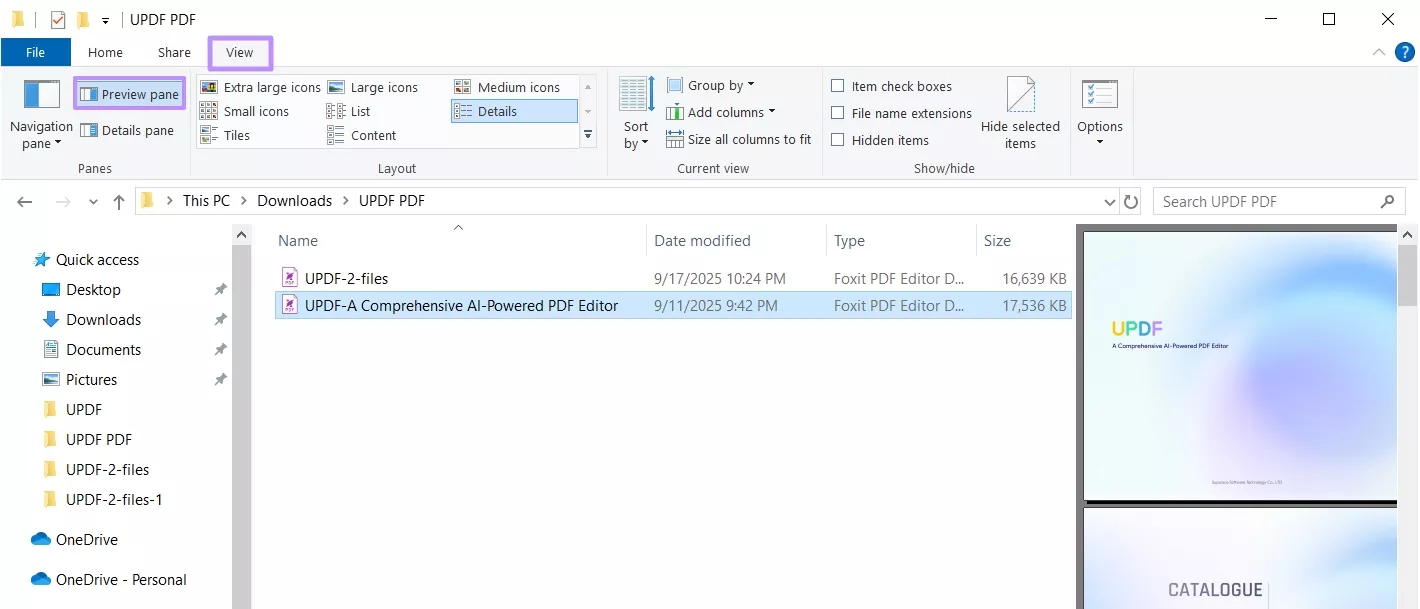
File Explorer can also keep a PDF active while generating its preview. Open File Explorer, select View > Show > Preview pane to turn it off, and then try deleting the file again. You can also press Alt + P to toggle the pane.
Fix 2. Restart File Explorer or the Computer
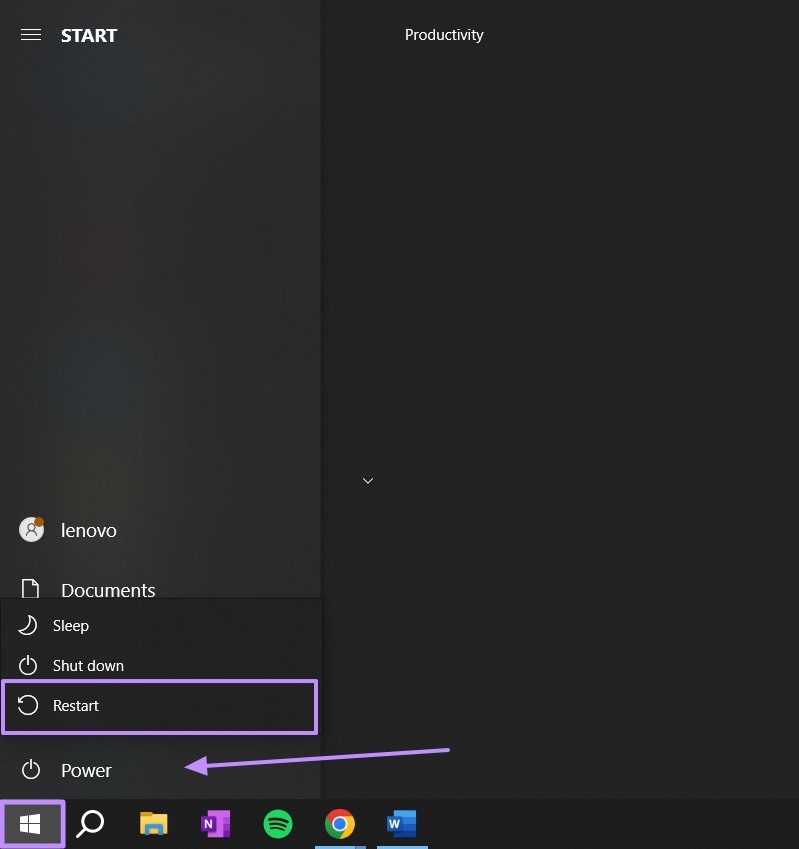
If no app appears to be using the file, File Explorer may be holding a temporary lock. Press Ctrl + Shift + Esc, find Windows Explorer in Task Manager, right-click it, and select Restart. Your taskbar and desktop may disappear briefly and then return.
If the PDF file is still not deleting from the desktop, save your work and restart the computer. After Windows reloads, try deleting the PDF before reopening any reader or browser.
Fix 3. Check Whether the Desktop Is Synced with OneDrive
On many Windows 11 computers, the Desktop folder is backed up by OneDrive. A sync process or sync error can temporarily block a file. Select the OneDrive cloud icon in the taskbar, pause syncing, close any app using the PDF, and try again. If necessary, move the PDF to a local folder outside OneDrive before deleting it.
Important: deleting a synced file may also remove it from OneDrive and other connected devices. Check its sync status and keep a backup if needed. Microsoft provides more details about deleting files from OneDrive.
Fix 4. Check the PDF’s Permissions
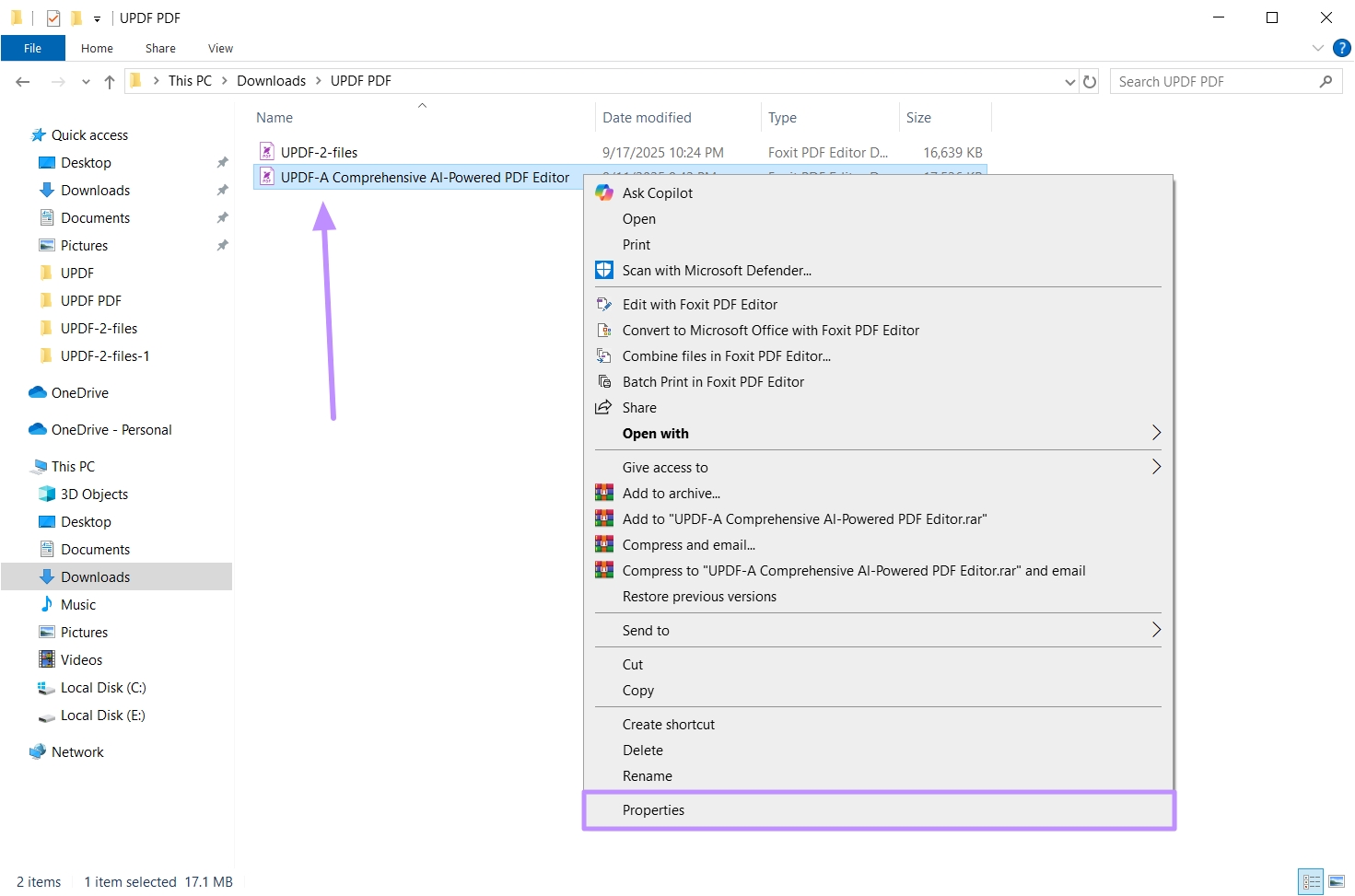
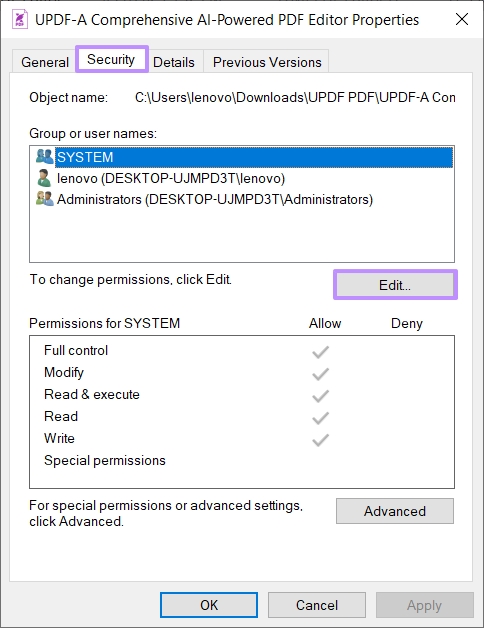
If Windows shows “Access denied,” your account may not have permission to modify the PDF. Right-click the file, select Properties, and open the Security tab.
Select your Windows account and check whether Modify is allowed. If it is not, click Edit and grant only the permission needed to modify or delete the file. Avoid enabling every permission or changing ownership on a work-managed computer; contact your administrator instead.
Fix 5. Force Delete the PDF with Command Prompt
Use this method only after closing the PDF and confirming the file path. In Windows 11, right-click the PDF and select Copy as path.
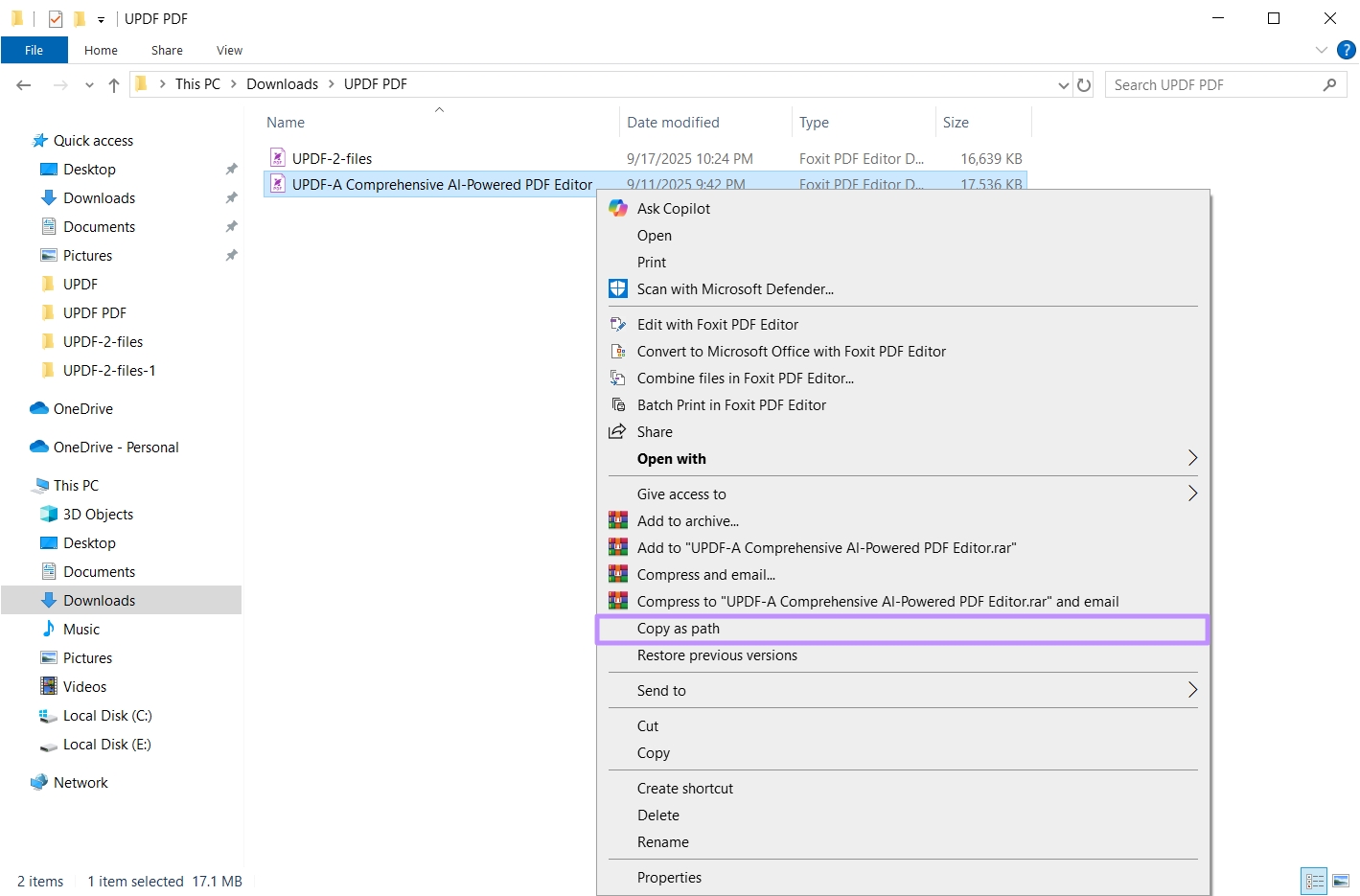
Search for Command Prompt, choose Run as administrator, and enter the following command, replacing the example path with the path you copied:
del /f "C:UsersYourNameDesktop
ile.pdf"Warning: confirm that the command contains the exact PDF path. A file deleted this way may bypass the Recycle Bin and be difficult to recover.
Fix 6. Shorten an Overly Long File Name or Path
If Windows says “Could not find this item,” shorten the PDF’s name and try again. You can also move it from a deeply nested folder to the Desktop or another short local path. If File Explorer cannot rename it, open Command Prompt in the containing folder and use the ren command to assign a shorter name before deleting it.
Fix 7. Find the Locking Process with PowerToys File Locksmith
If one PDF file is not deleting from the desktop but other files delete normally, use Microsoft PowerToys File Locksmith to identify the process holding it. After installing PowerToys, right-click the PDF, select Show more options > Unlock with File Locksmith, and review the listed processes. Close the related app normally; use End task only when you recognize the process and have saved your work. See Microsoft’s File Locksmith guide for current instructions.
Part 2. Manage PDFs More Smoothly on Windows with UPDF
UPDF is not a force-delete tool, so use the Windows fixes above to remove a locked file. However, if your current reader repeatedly keeps documents open in the background, you can close it completely and try UPDF for future PDF work. It offers a streamlined way to view PDFs on Windows 11, as well as edit, annotate, and organize them locally in one app.
Download UPDF for free and see whether it better fits your everyday PDF workflow.
Windows • macOS • iOS • Android 100% secure
Final Words
When you can’t delete a PDF from the desktop in Windows 11, first close the reader and disable Preview Pane. If that does not work, restart File Explorer, check OneDrive and file permissions, and then use the more advanced command-line or File Locksmith methods. Work through the fixes in order so you can remove the file without making unnecessary system changes.








 Delia Meyer
 Enola Miller

 Enrica Taylor