 UPDF
UPDF
 UPDF for Windows
 UPDF for Mac
 UPDF for iPhone/iPad
 UPDF for Android
 UPDF AI Online
 UPDF Sign
 Edit PDF
 Annotate PDF
 Create PDF
 PDF Form
 Edit links
 Convert PDF
 OCR
OCR PDF to Word
 PDF to Image
 PDF to Excel
 Organize PDF
 Merge PDF
 Split PDF
 Crop PDF
 Rotate PDF
 Protect PDF
 Sign PDF
 Redact PDF
 Sanitize PDF
 Remove Security
 Read PDF
 UPDF Cloud
 Compress PDF
 Print PDF
 Batch Process
 About UPDF AI
 UPDF AI Solutions
 AI User Guide
 FAQ about UPDF AI
 Summarize PDF
 Translate PDF
 Chat with PDF
 Chat with AI
 Chat with image
 PDF to Mind Map
 Explain PDF
 Scholar Research
 Paper Search
 AI Proofreader
 AI Writer
 AI Homework Helper
 AI Quiz Generator
 AI Math Solver
 PDF to Word
 PDF to Excel
 PDF to PowerPoint
 Enterprise Solution
 Enterprise Sign
 Enterprise AI
 Enterprise Plan
 Enterprise User Guide
 Enterprise Webinar
 Banking
 Healthcare
 Insurance
 Legal
Legal Manufacturing
 Government
 Education Solution
 Customer Stories
 User Guide
 UPDF Tricks
 FAQs
FAQs UPDF Reviews
 Download Center
 Blog
Blog Newsroom
 Tech Spec
 Updates
 UPDF vs. Adobe Acrobat
 UPDF vs. Foxit
 UPDF vs. PDF Expert

Reading scanned PDFs can quickly become a headache when they are blurry and low-quality. Enhancing these documents is necessary for clarity and maintaining professionalism.
To solve this blurry mess, we will discuss some easy online and offline ways to enhance scanned PDF.
We will also discuss a tool, UPDF, which can help you edit scanned PDF if you need. You can download UPDF here and give it a try now.
Windows • macOS • iOS • Android 100% secure
So, are you ready to say goodbye to those low-quality and blurry documents? Let’s dive into the details!
Part 1. How to Enhance Scanned PDF Online for Free
Let’s discuss details on enhancing the PDF quality in simple steps.
1. With i2PDF
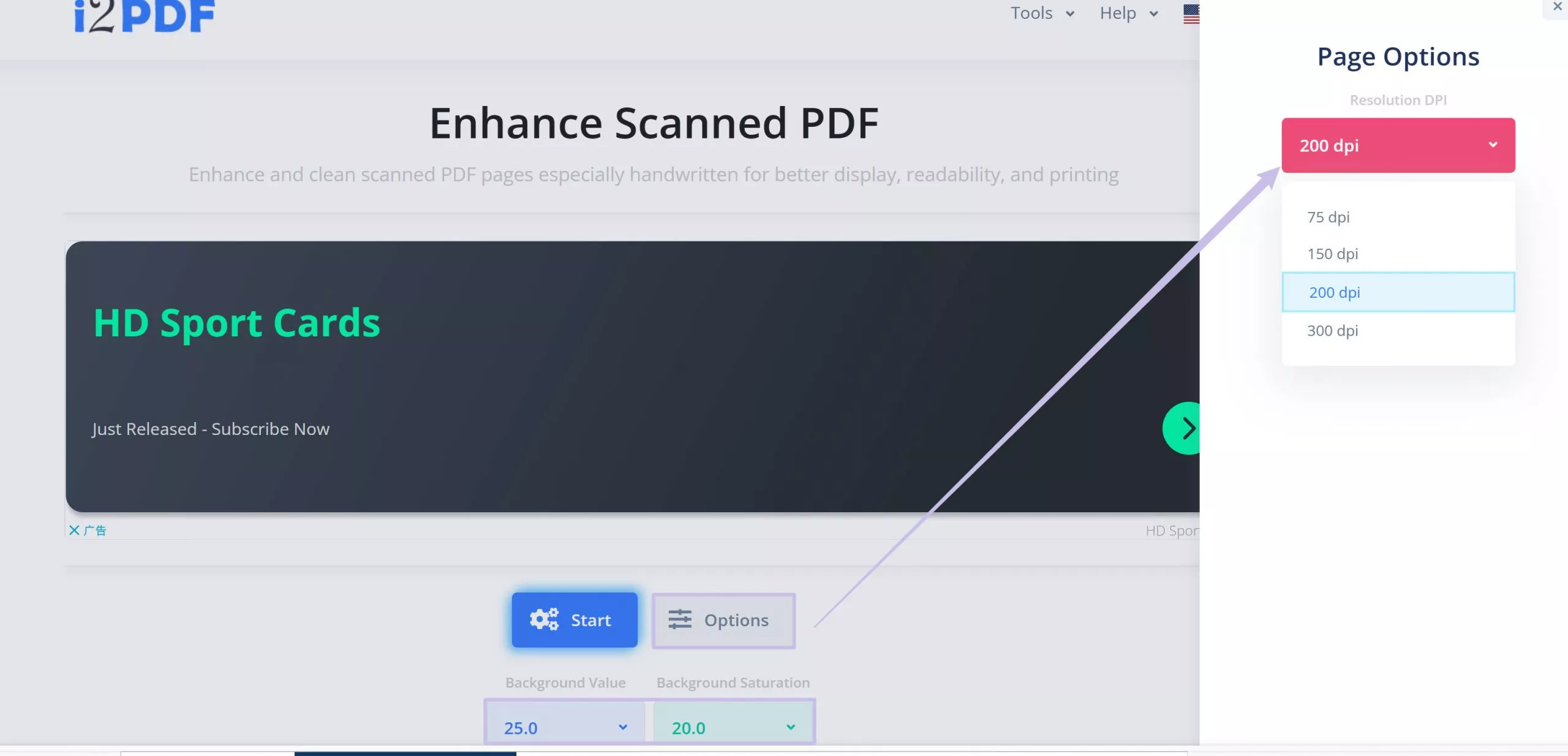
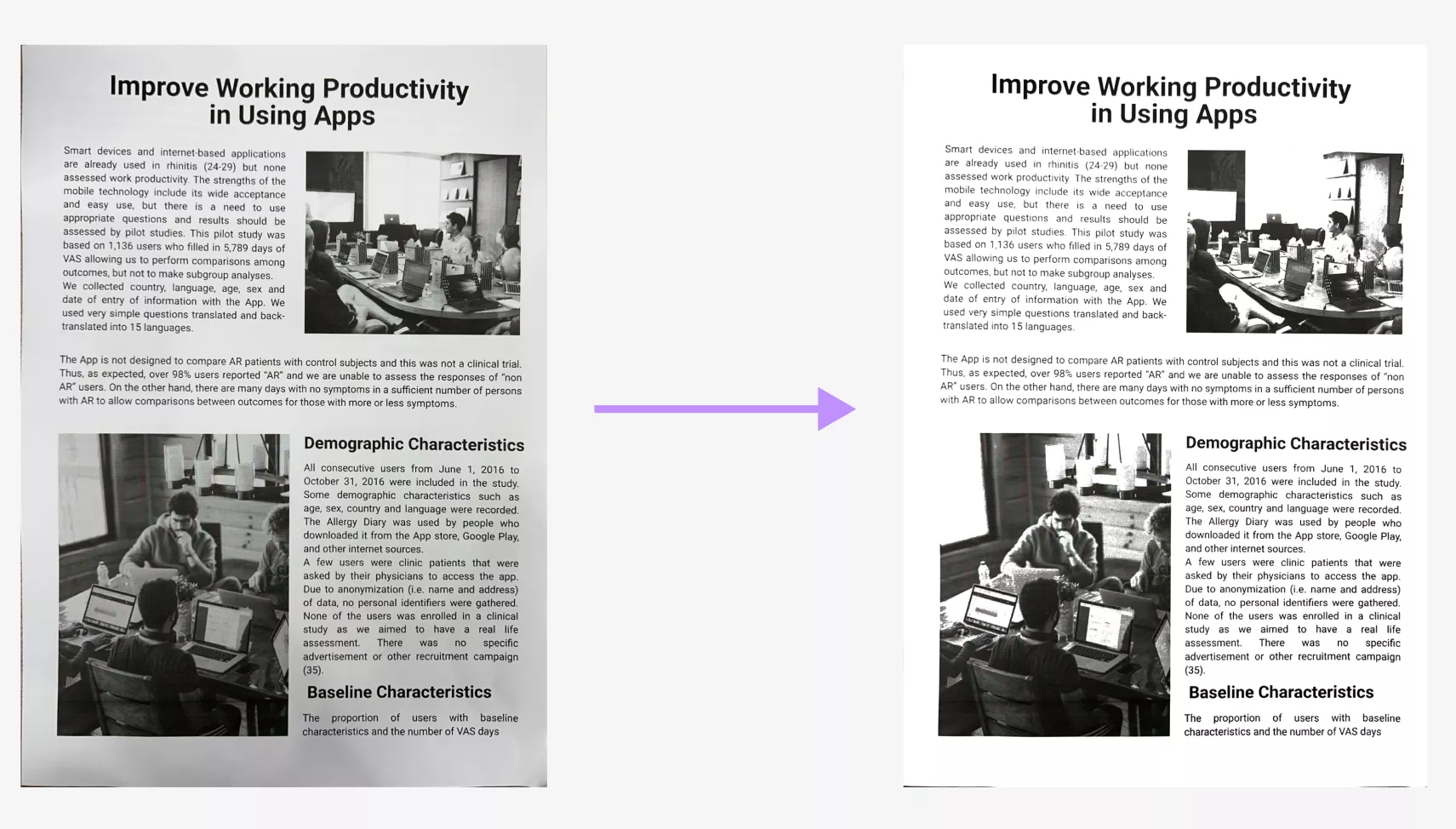
i2PDF is one of the top-quality tools to enhance scanned pdf online. This is a free online tool that improves blurry or low-quality scanned PDFs. The “Enhance Scanned PDF” feature fixes problems like smudges, shadows, and uneven lighting. It automatically makes text sharper, removes background noise, and increases contrast. You don’t need to sign up; you can use it directly in your web browser.
How to Use It, Step-by-Step?
- Visit the i2PDF site and select the “Enhance Scanned PDF” option. Or click here to open the i2PDF scanned PDF enhancer.
- Upload the PDF by clicking on the Choose Files button.

- Click on the Options button and set the page resolution as you desire.
- Choose "Background Value" and "Background Saturation" and then click the Start button. The process will begin automatically.
- After the document is ready, click the Download button to download the enhanced PDF.
Pros of Using i2PDF:
- User-friendly: Upload, enhance, and download files in seconds.
- High quality: Produces clear images, even from damaged scans.
Cons of Using i2PDF:
- Too many annoying ads. It may disturb you and lead you to click wrong buttons.
- It does not have manual controls to adjust brightness, contrast, or DPI after enhancement.
2. With Online2PDF
Next on the list is Online2PDF, a powerful online tool for improving scanned PDFs. Its “Enhance Scanned PDF” feature automatically fixes tilted pages, adjusts brightness and contrast, and removes smudges. This turns messy scans into clear, easy-to-read files. Unlike basic tools, Online2PDF can process multiple files at once and works with other PDF tools, like merging, compressing, and converting. Best of all, it’s free, requires no sign-up, and works on all devices.
How to Use It, Step-by-Step?
- Visit the Online2PDF tool and go to the Enhance Scanned PDF page on Online2PDF.
- Upload Your File: Click "Select Files" to upload your scanned PDF (max 150MB for free users), or drag and drop the file into the browser.
- To improve text clarity in PDF Scan, adjust the brightness and contrast to fix dark or faded areas. Increase the DPI (Resolution) up to 300 DPI for sharper text.
- To enhance and download your file, click the Convert button in the bottom right. Wait for 10 to 30 seconds while it processes.
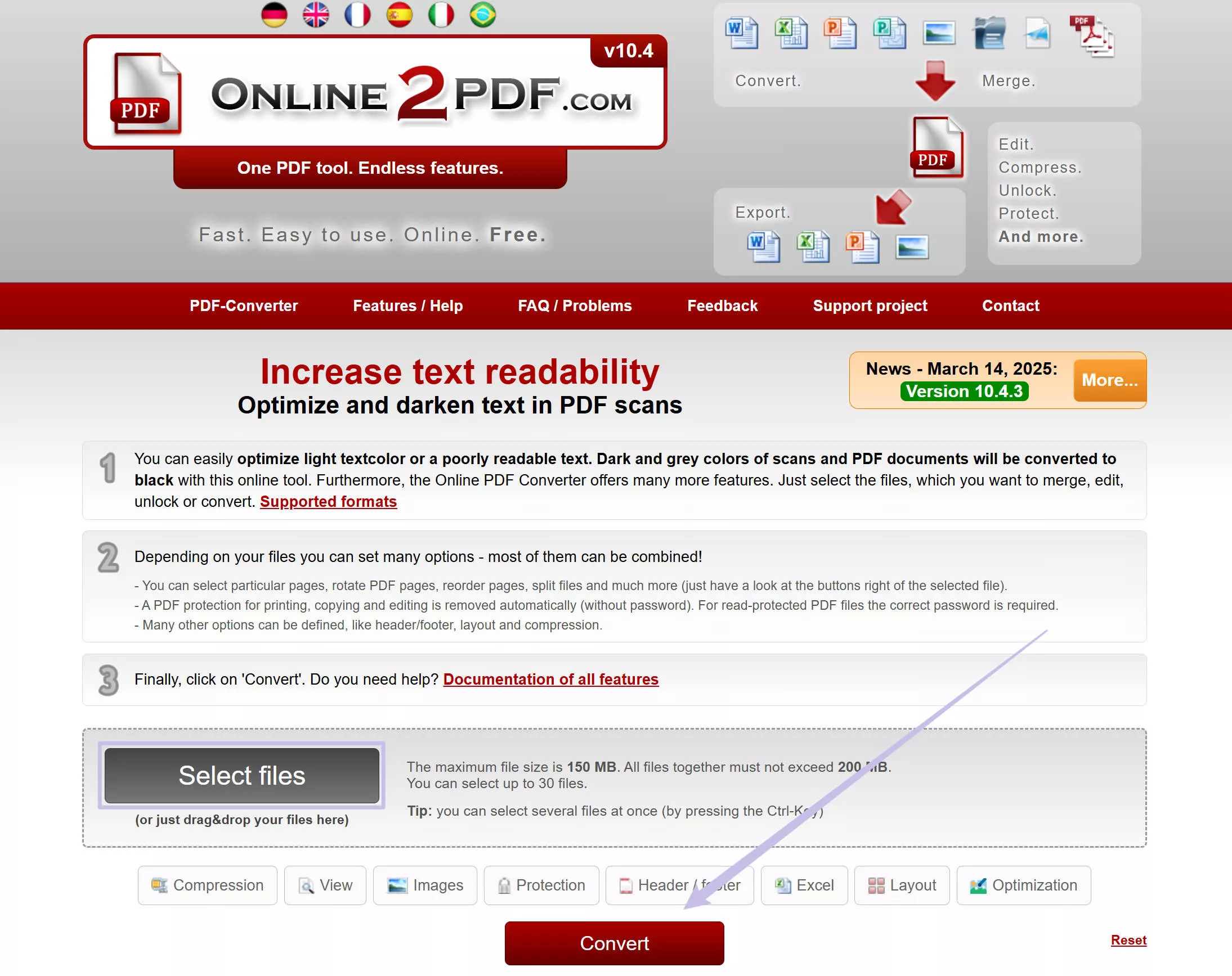
- The download process will start automatically to save your enhanced PDF.
Pros of Using Online2PDF:
- Batch Processing: Multiple documents can be processed at once.
- Multiple Options: Scanned PDFs can be enhanced in multiple dimensions.
- Multiple Formats: Optimized documents can be saved in a variety of formats.
- Optimized documents can be named in advance.
- Processed documents are automatically downloaded.
Cons of Using Online2PDF:
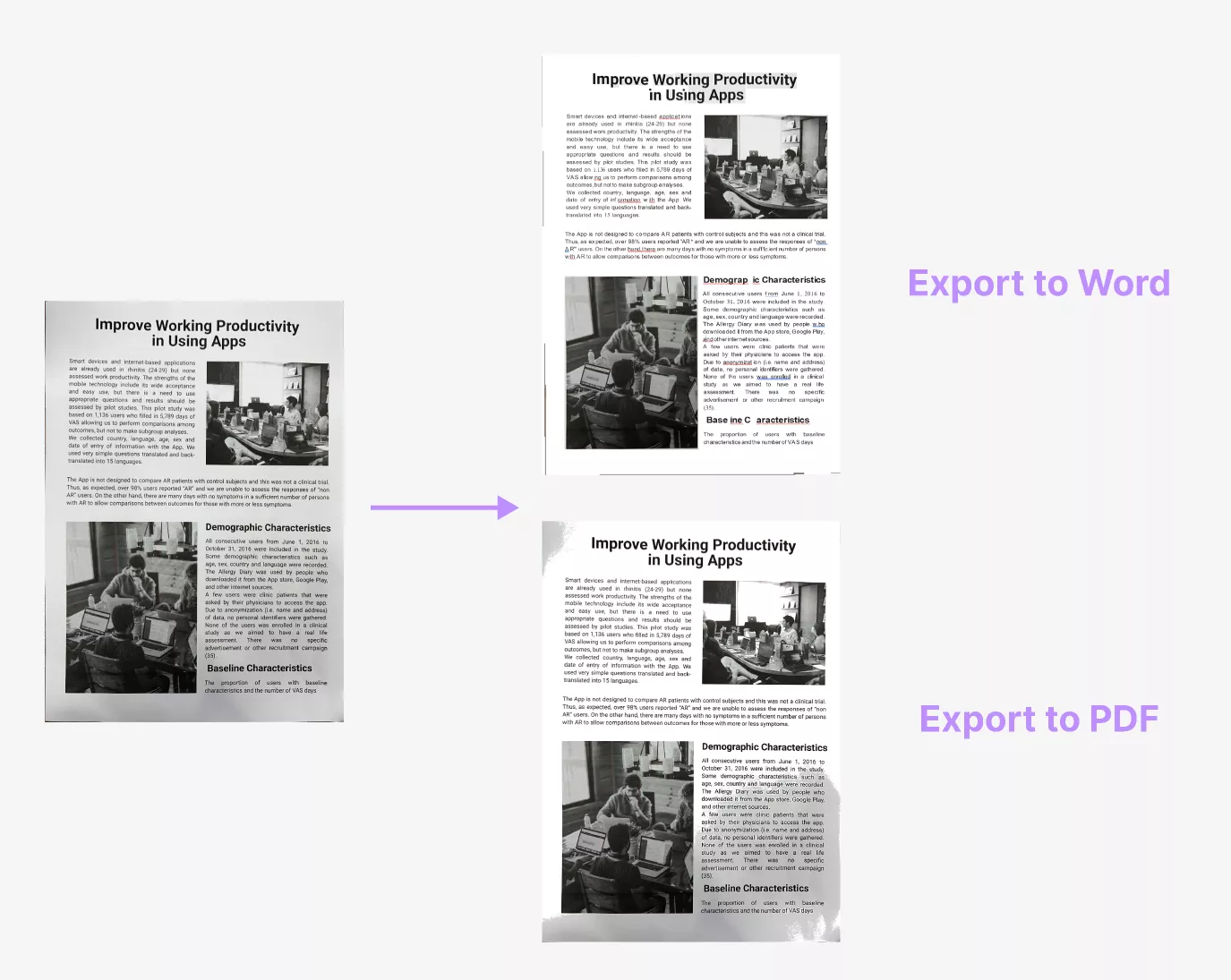
- When dealing with complex documents, saving optimization results as a PDF may not provide the best quality compared to saving them in Word. However, converting the document to Word can slightly alter the format.
Part 2. How to Enhance Scanned PDF Offline with UPDF
If you want to enhance scanned PDF to improve their readability, UPDF offers everything you need in one place. It lets you adjust PDF brightness and contrast of the entire document, recognize text with OCR, and customize fonts for better clarity. Apart from this, it is a complete solution to convert, organize, and edit PDF documents, so they’re ready to share anytime.
Steps to Enhance Scanned PDF with UPDF
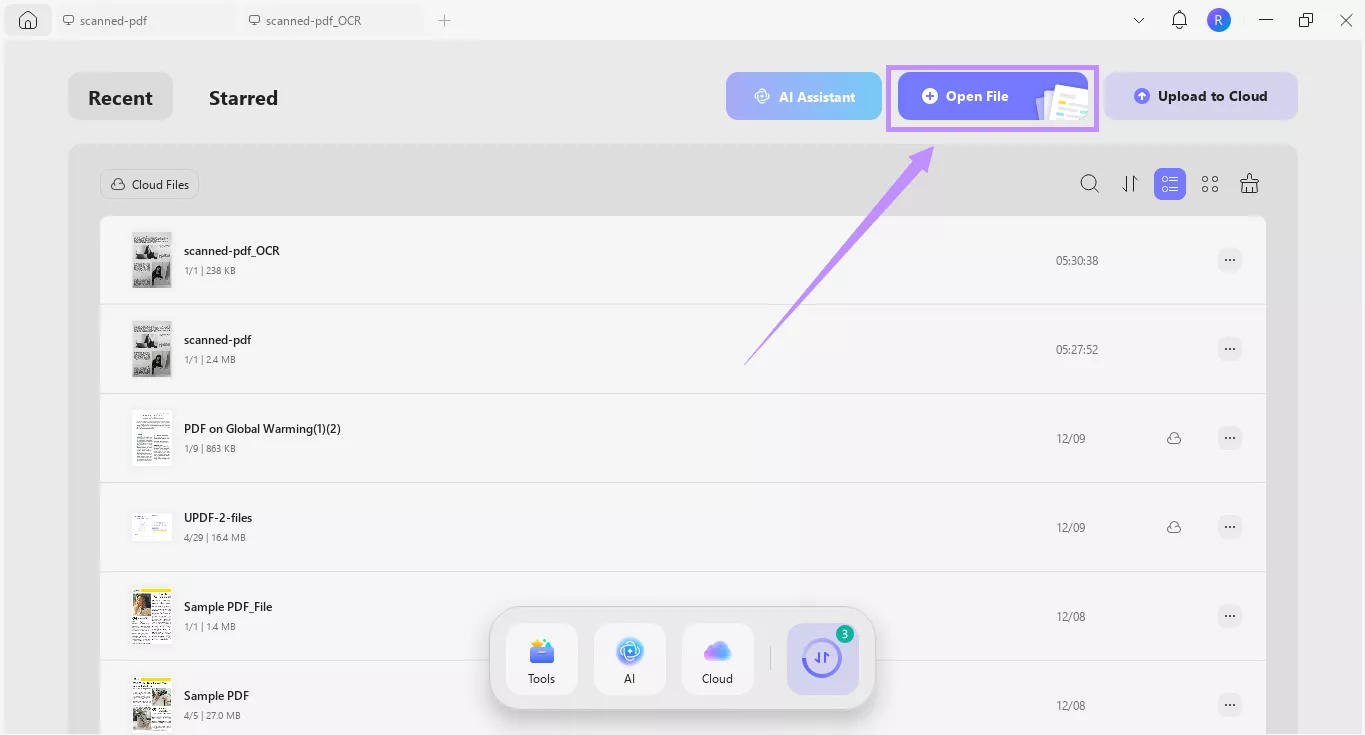
Download and install UPDF on your computer. Launch it and click “Open File” at the top. Then, import the PDF you want to adjust.
Windows • macOS • iOS • Android 100% secure
UPDF offers 3 ways to edit brightness of PDF and enhance text clarity:
1. Adjust the Brightness and Contrast of the Entire PDF:
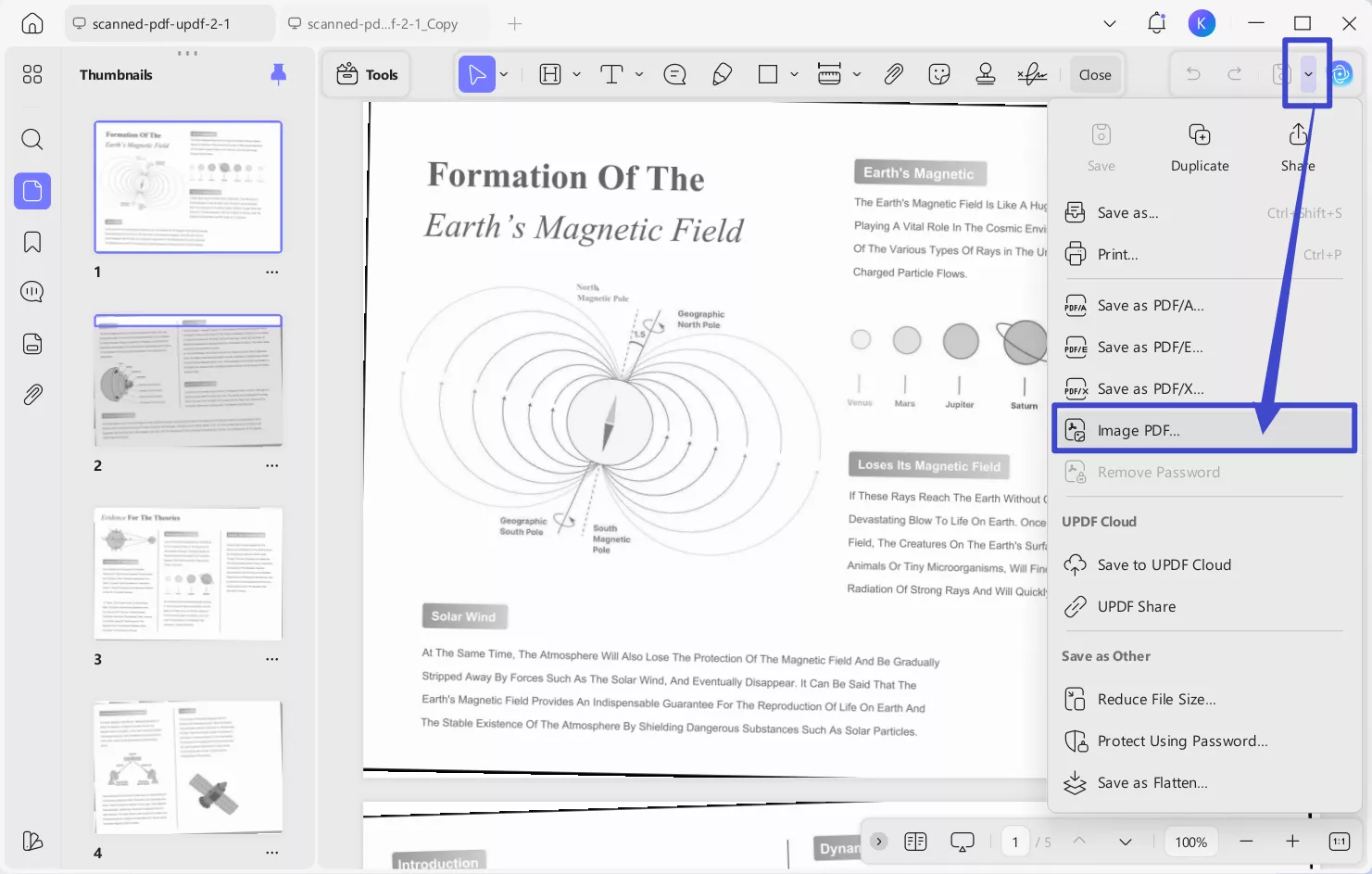
Step 1. With your PDF open, click the down arrow button at the top right. Then, choose “Image PDF” from the list.
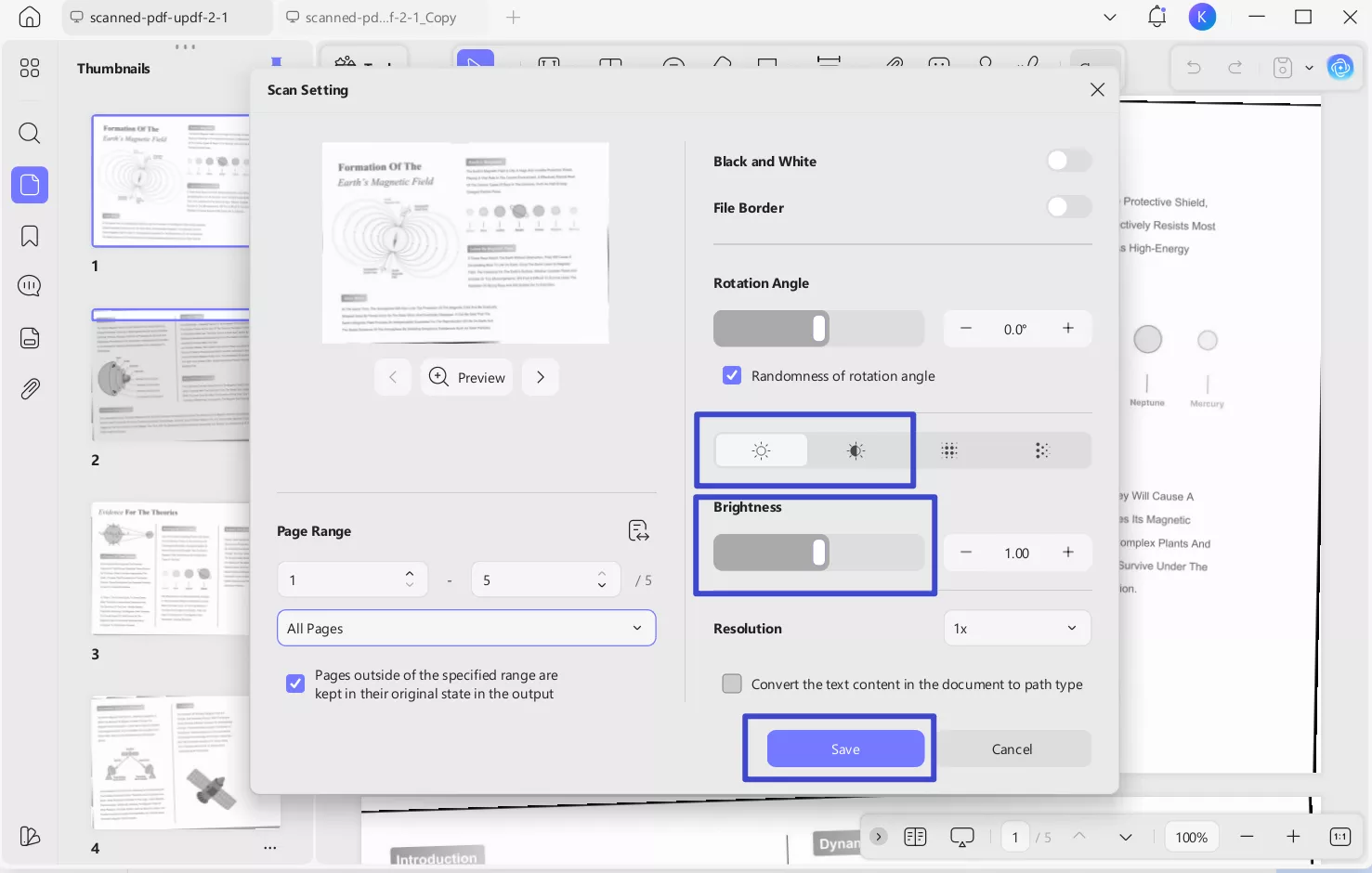
Step 2. From the new window, select the "Brightness" and "Contrast" tool on the right. Drag the slider to adjust the PDF brightness and contrast as needed. Then, click “Save” to store the file.
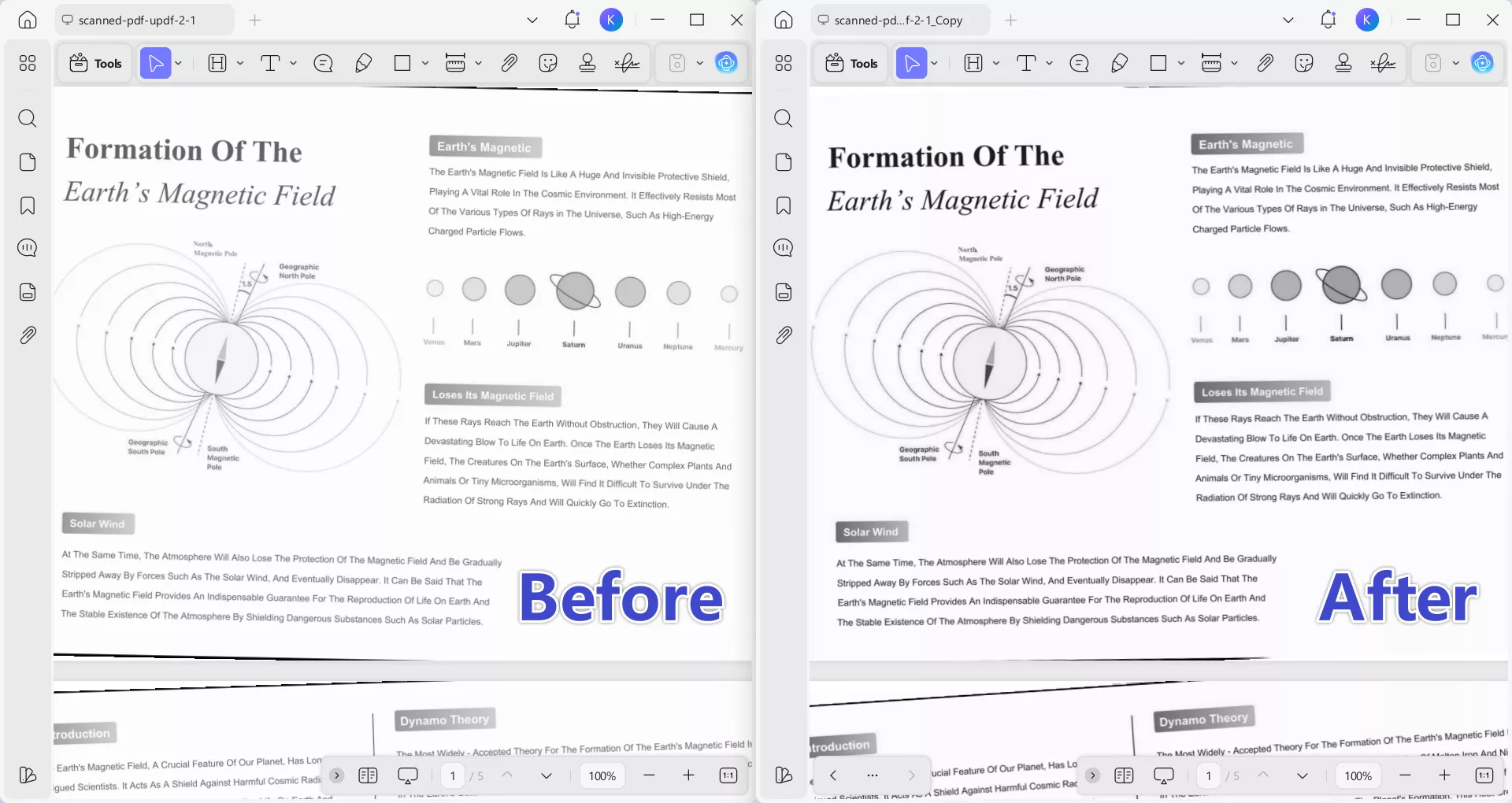
Here’s a quick comparison of the PDF before and after adjusting brightness and contrast with UPDF:
Tips:
2. Improve PDF Text Clarity:
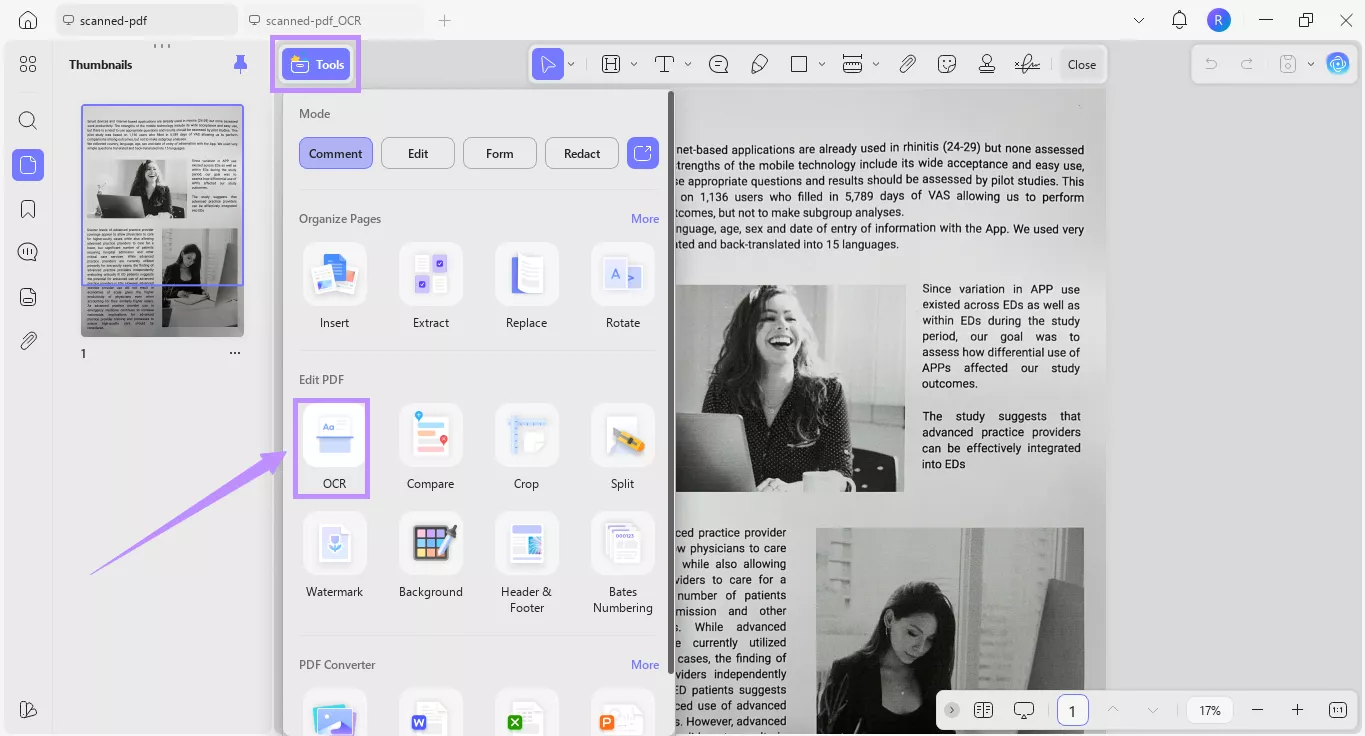
Step 1. Click “Tools” from the top and choose “OCR” under the Edit PDF section.
Windows • macOS • iOS • Android 100% secure
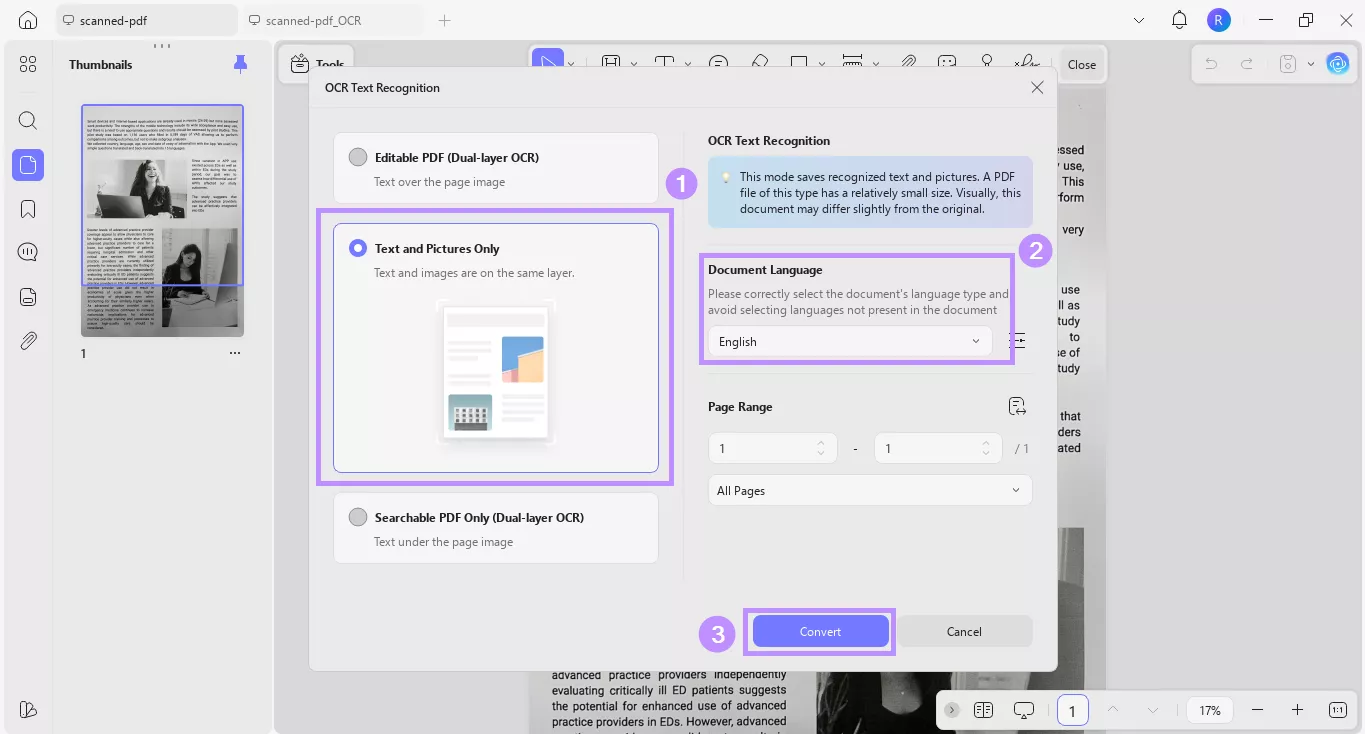
Step 2. Select the “Text and Pictures Only” mode for a clear background. Then, choose the document language and click “Convert” to save the file.
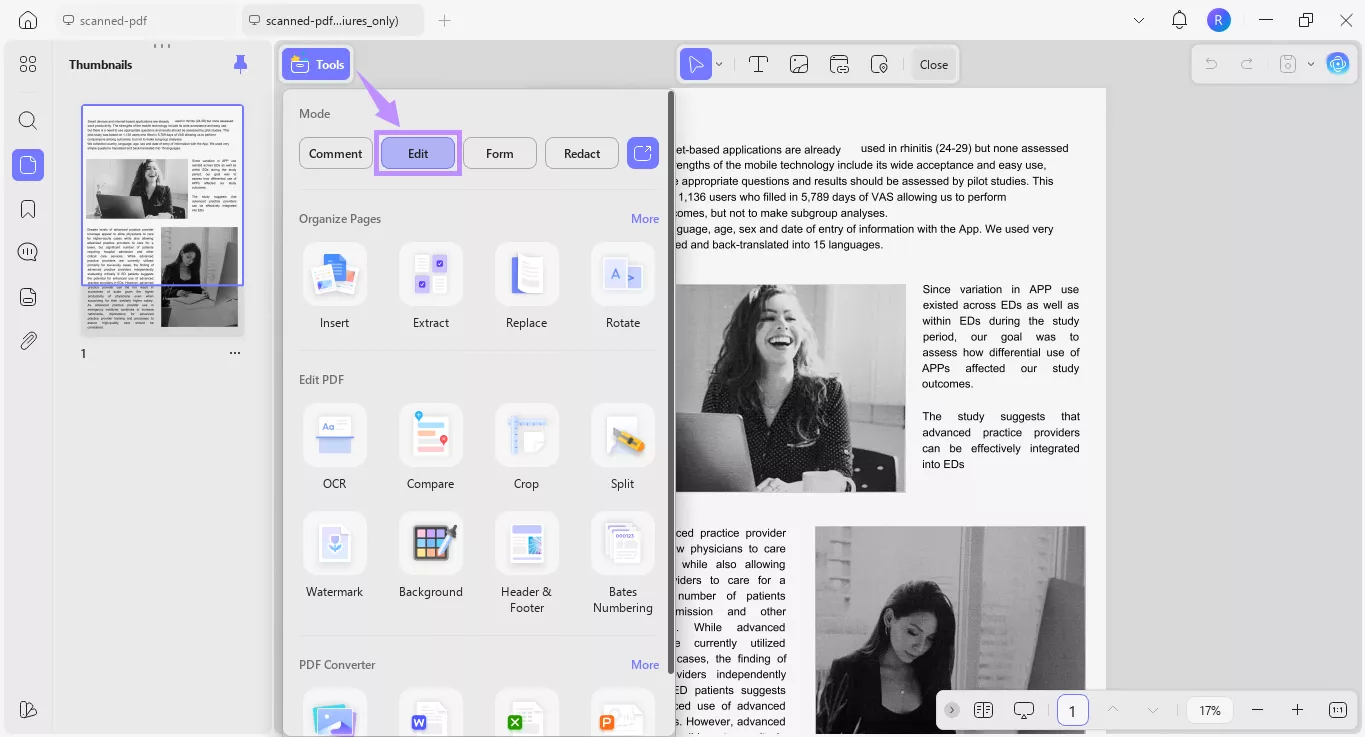
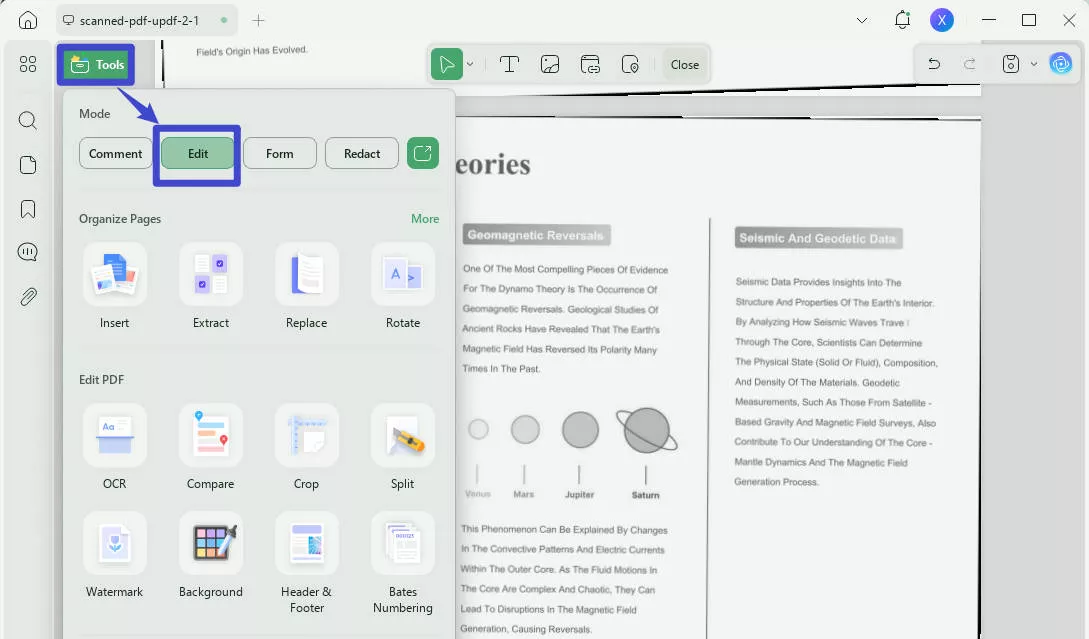
Step 3. Once the OCR is complete, your new PDF will open automatically. From here, click “Tools” and choose “Edit.”
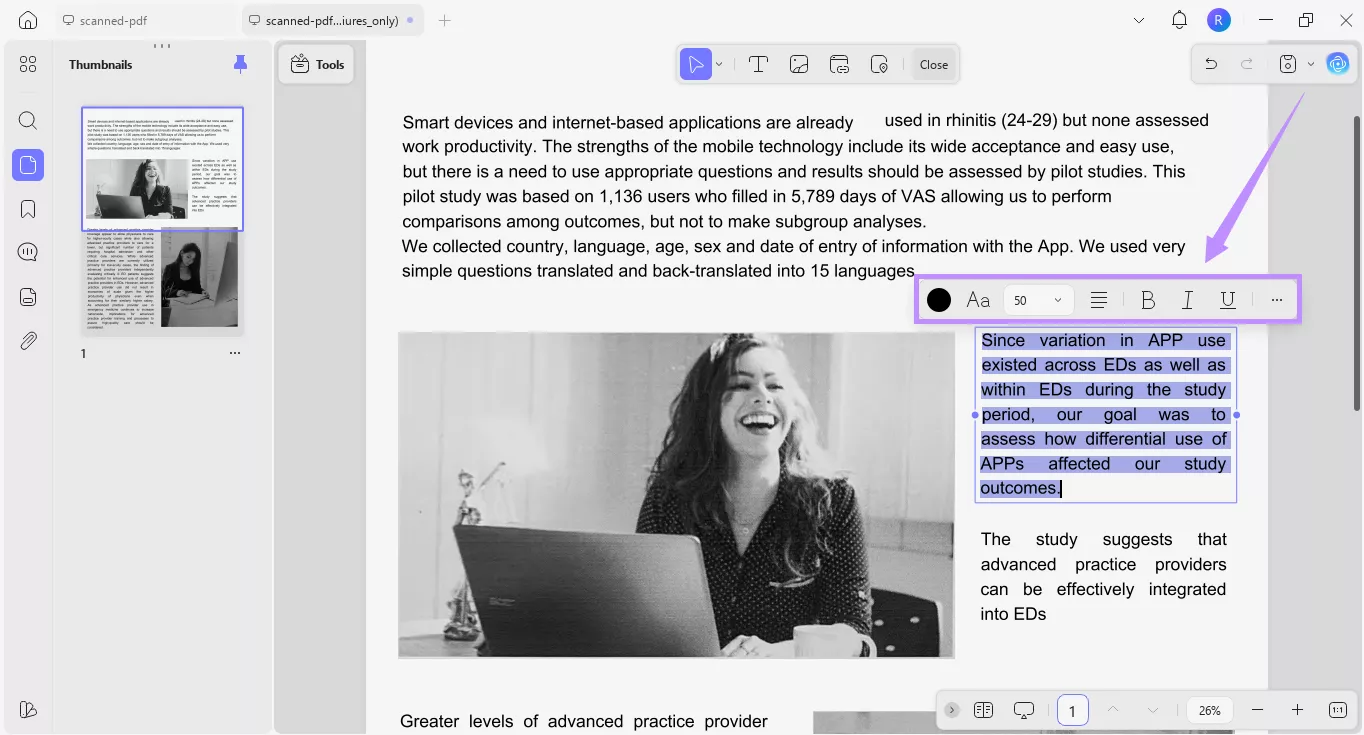
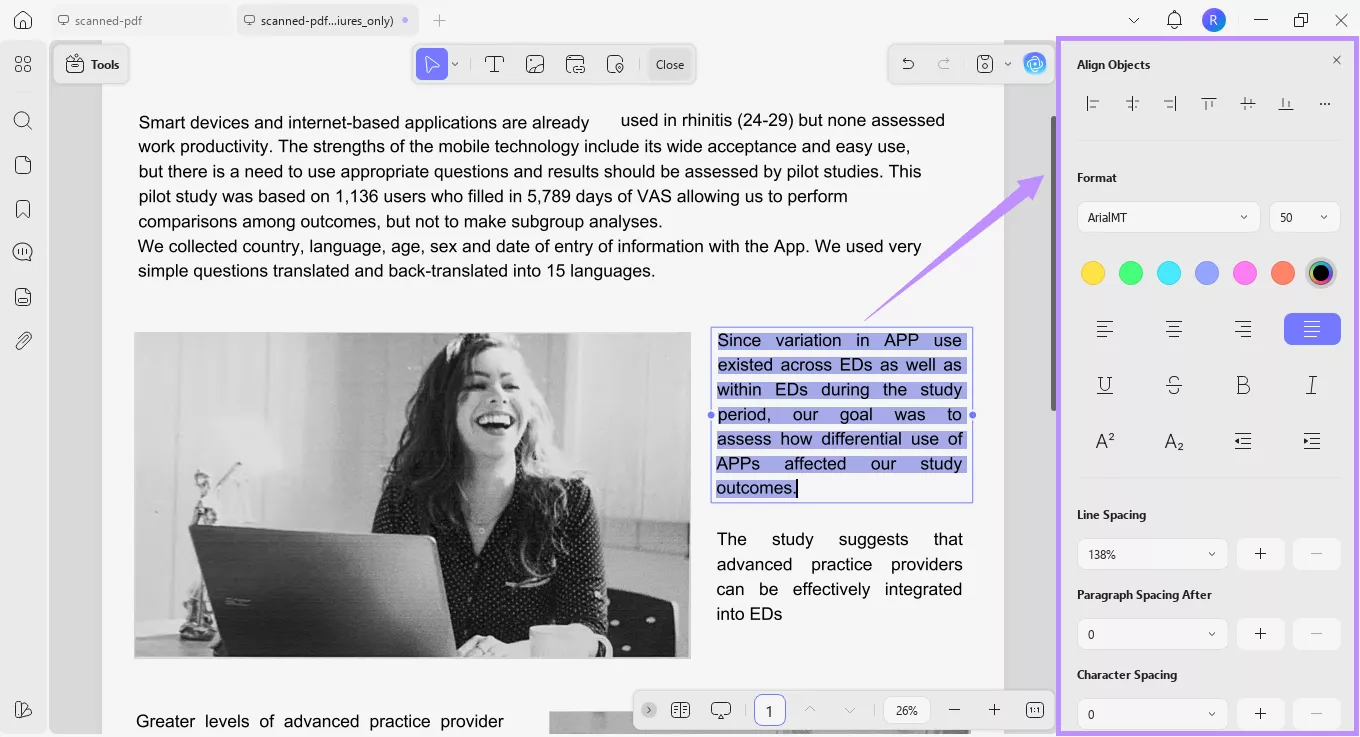
Step 4. Select the desired text. From the floating toolbar, adjust the text color, font, size, alignment, and more to make it more legible.
Step 5. Alternatively, click the “More” option from the toolbar to open a properties panel on the right. This will give you expanded options to edit the text style and layout.
3. Enhance Images in the PDF:
If you want to enhance embedded images in the PDF, you can convert your PDF to Word while performing OCR. To do this:
Step 1. Click “Tools” and choose “Word” under the PDF Converter section.
Windows • macOS • iOS • Android 100% secure
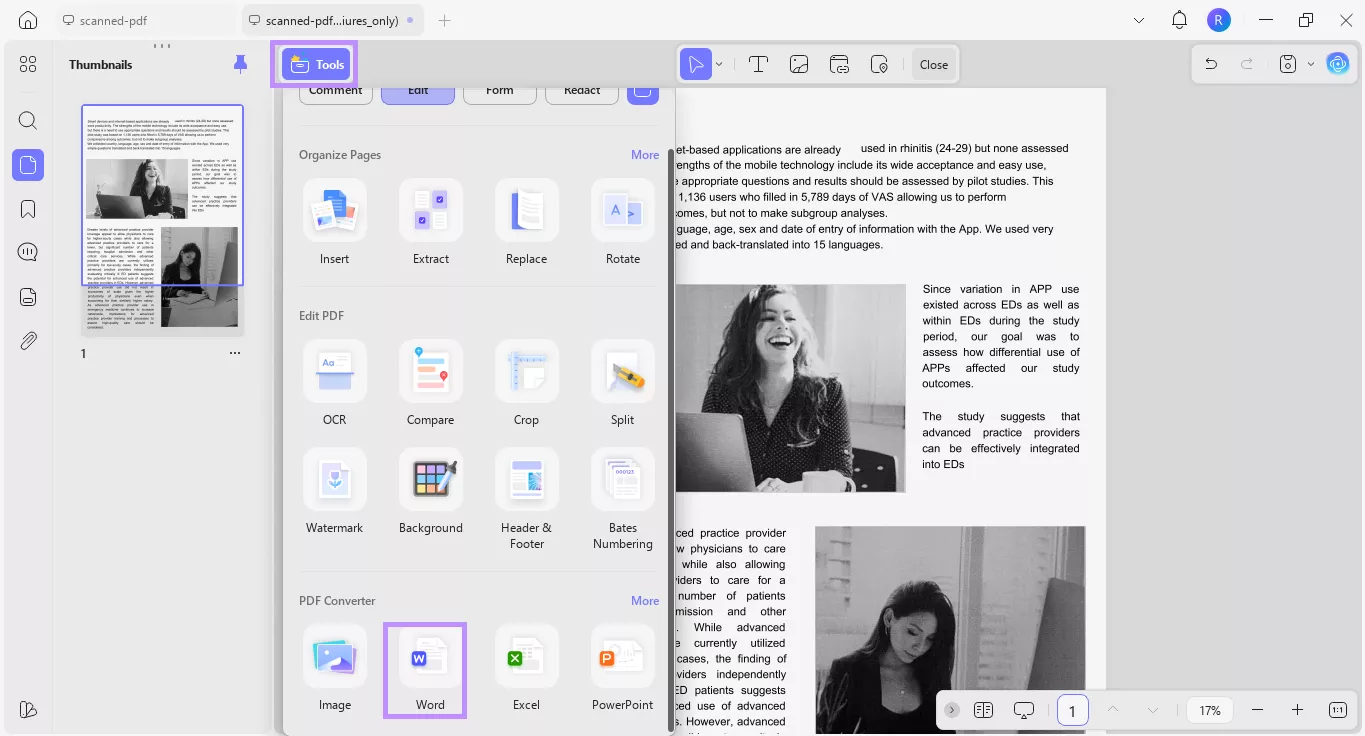
Step 2. From the new window, define the page range. Then, click the Word Content Style dropdown and choose whether to “Retain Word Flowing Style” or “Retain Word Textbox Style.”
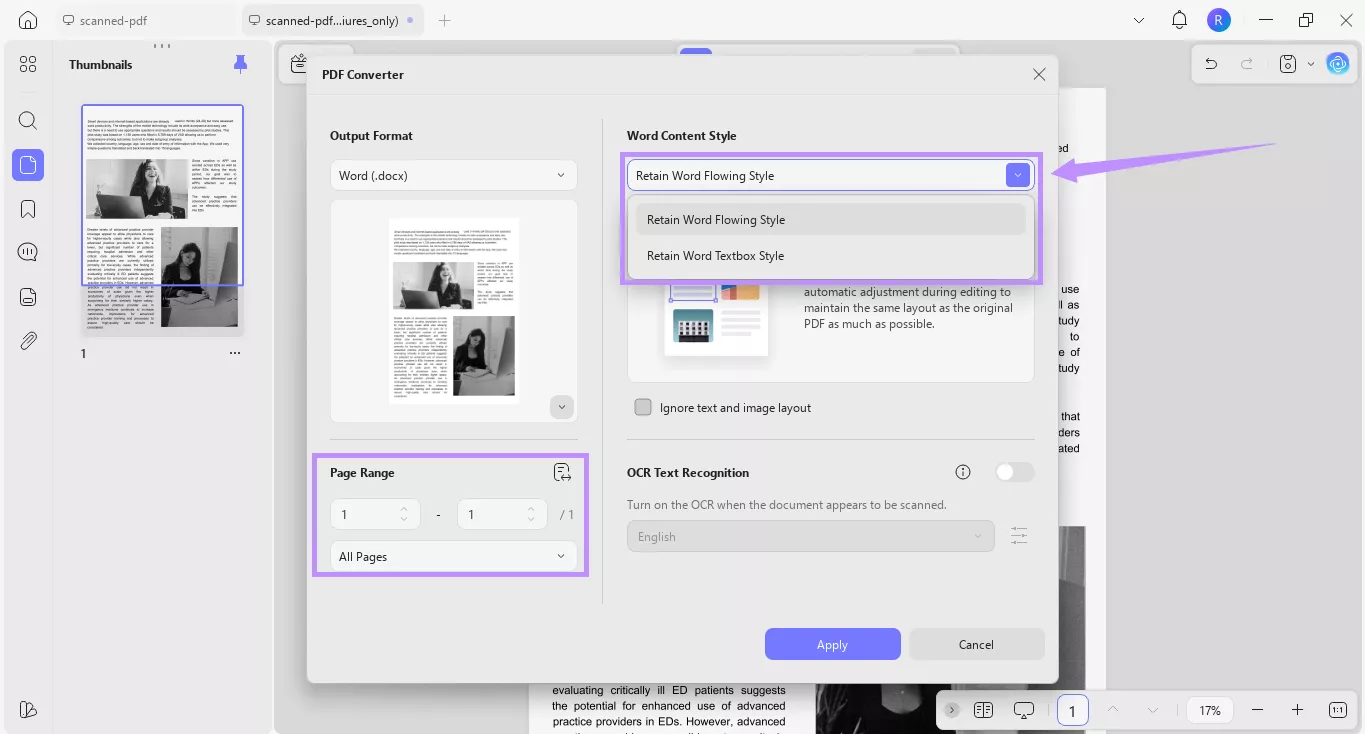
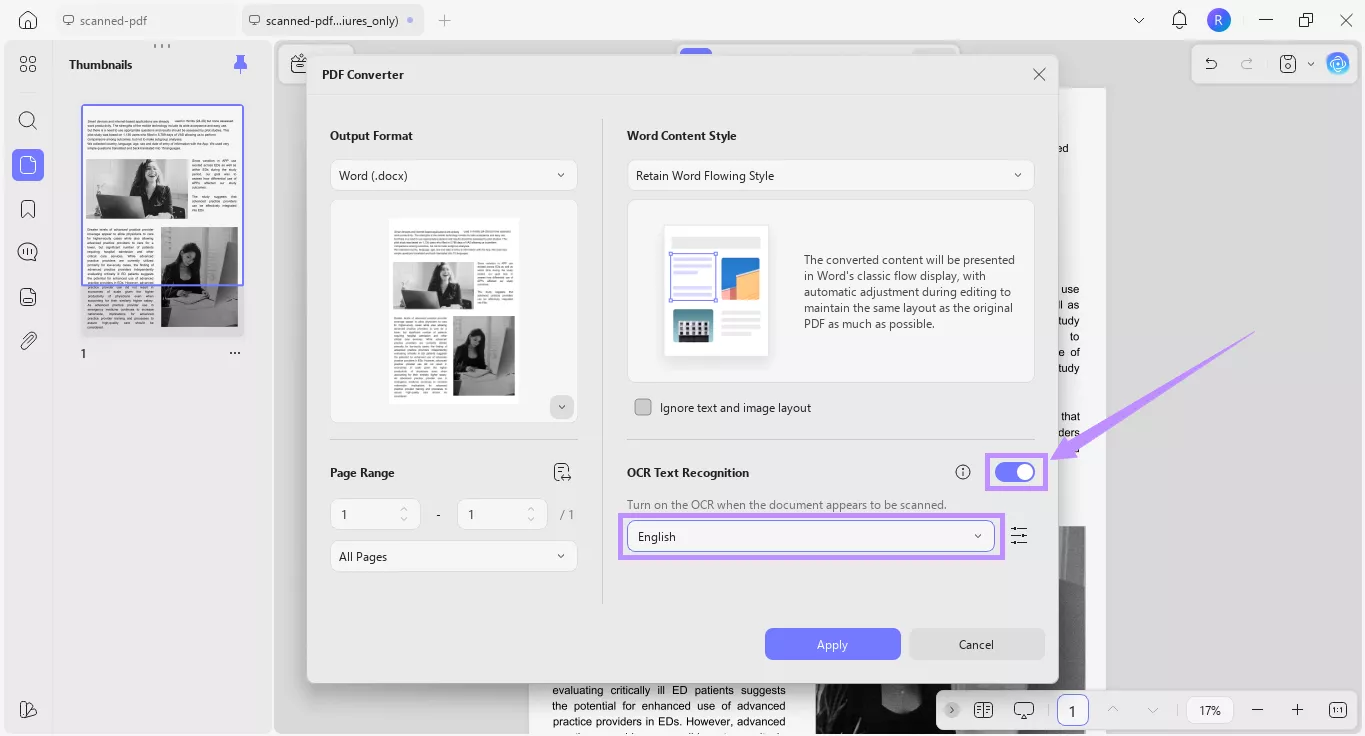
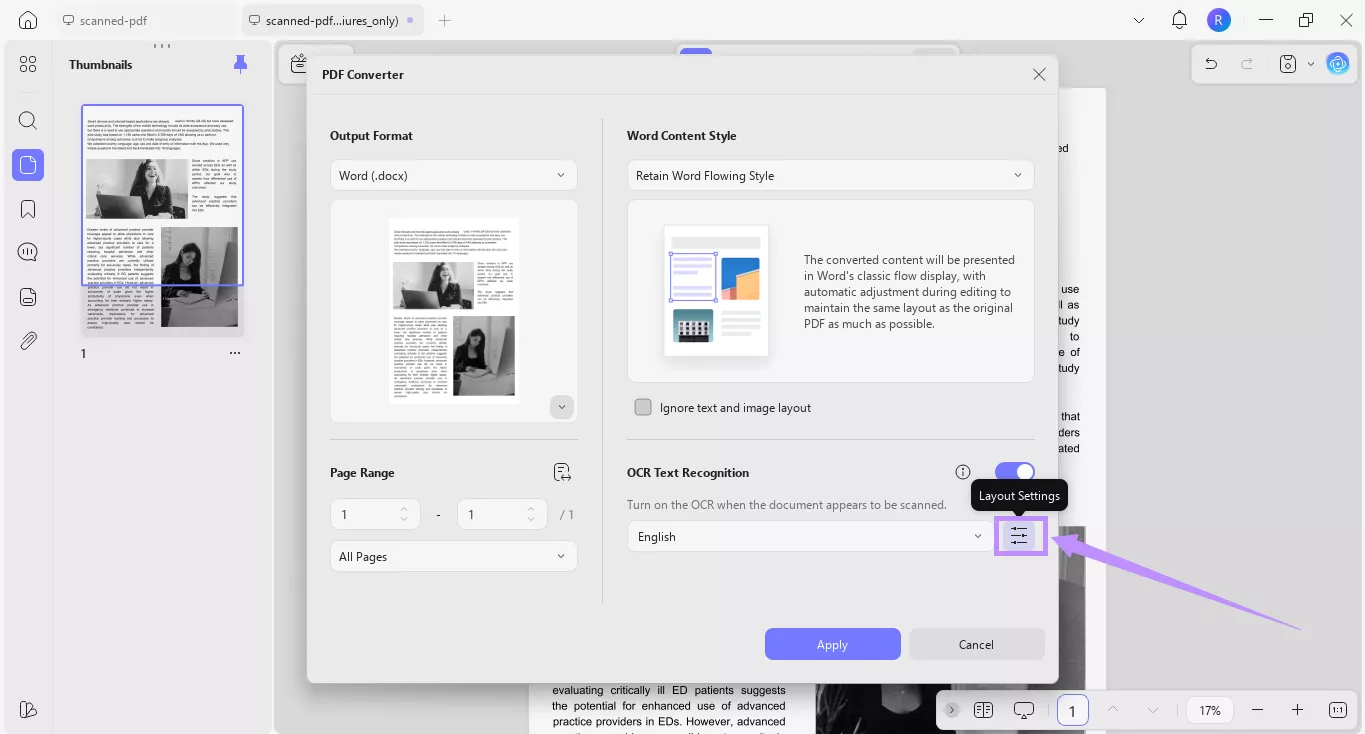
Step 3. Toggle on “OCR Text Recognition” and choose an appropriate language from the dropdown menu.
Step 4. Click the “Layout Settings” option. Then, choose the PDF elements you want to keep and even compress images using MRC. Lastly, click “Apply” and save the file.
Step 5. Now open your new Word file. Then:
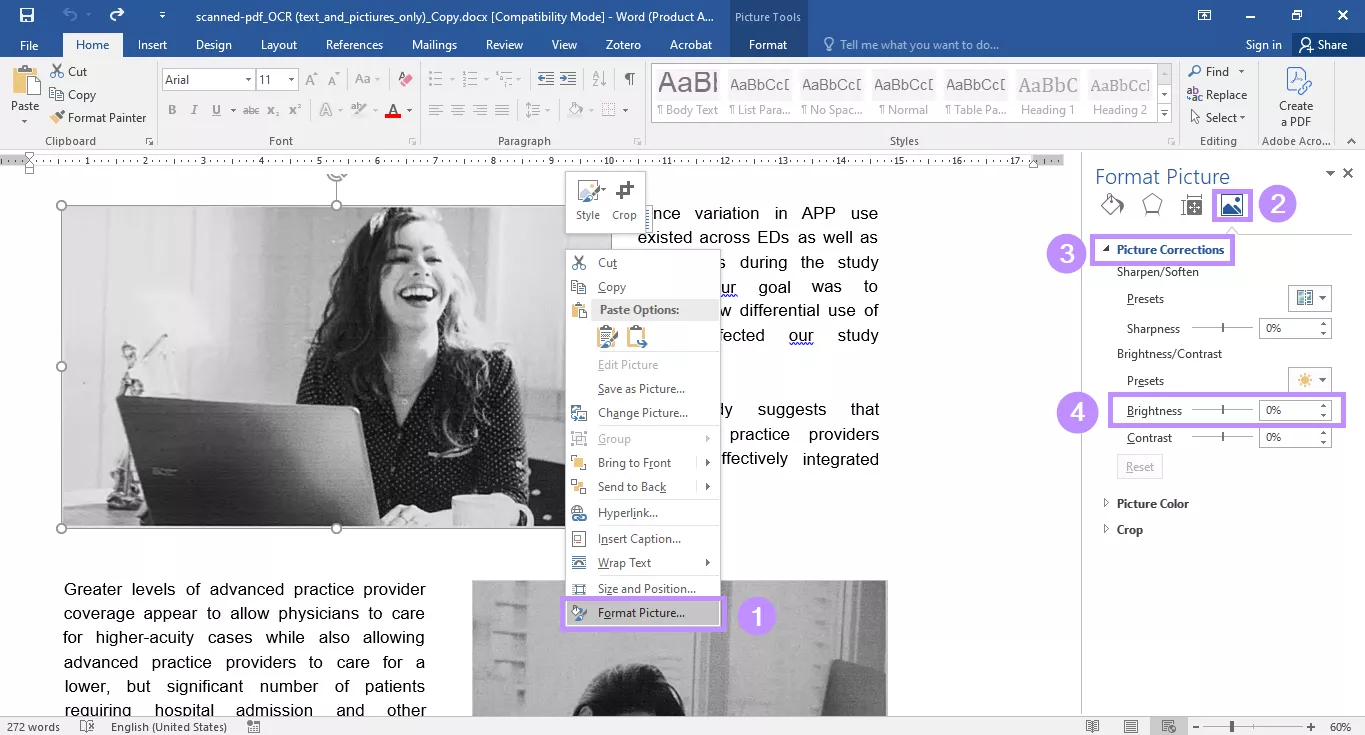
- Right-click the image you want to brighten and choose “Format Picture” or “Format Object” from the list.
- Select the “Picture” tab from the right panel. Then expand the “Picture Corrections” menu. Under “Brightness/Contrast” drag the brightness slider to adjust as needed.
Step 6. Alternatively, click the desired image. Then:
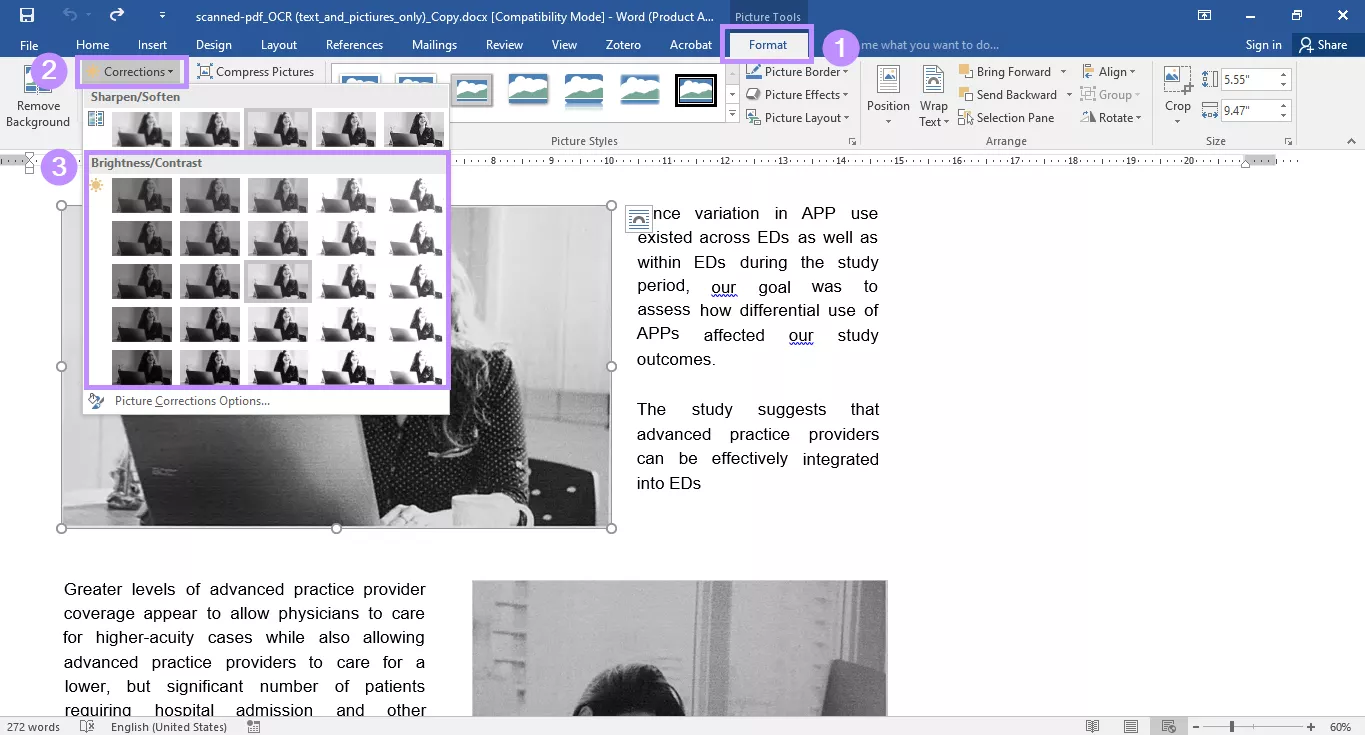
- Select the “Format” or “Picture Format” tab from the top menu.
- Click on “Corrections” and select a preset brightness filter you need.
Part 3. How to Enhance Scanned PDF Offline with Adobe Acrobat
Turn blurry scans into editable and searchable text with Adobe Acrobat's precise OCR. You can adjust brightness and contrast, remove noise, and edit layouts easily. (This is a premium feature, with a 7-day trial available.)
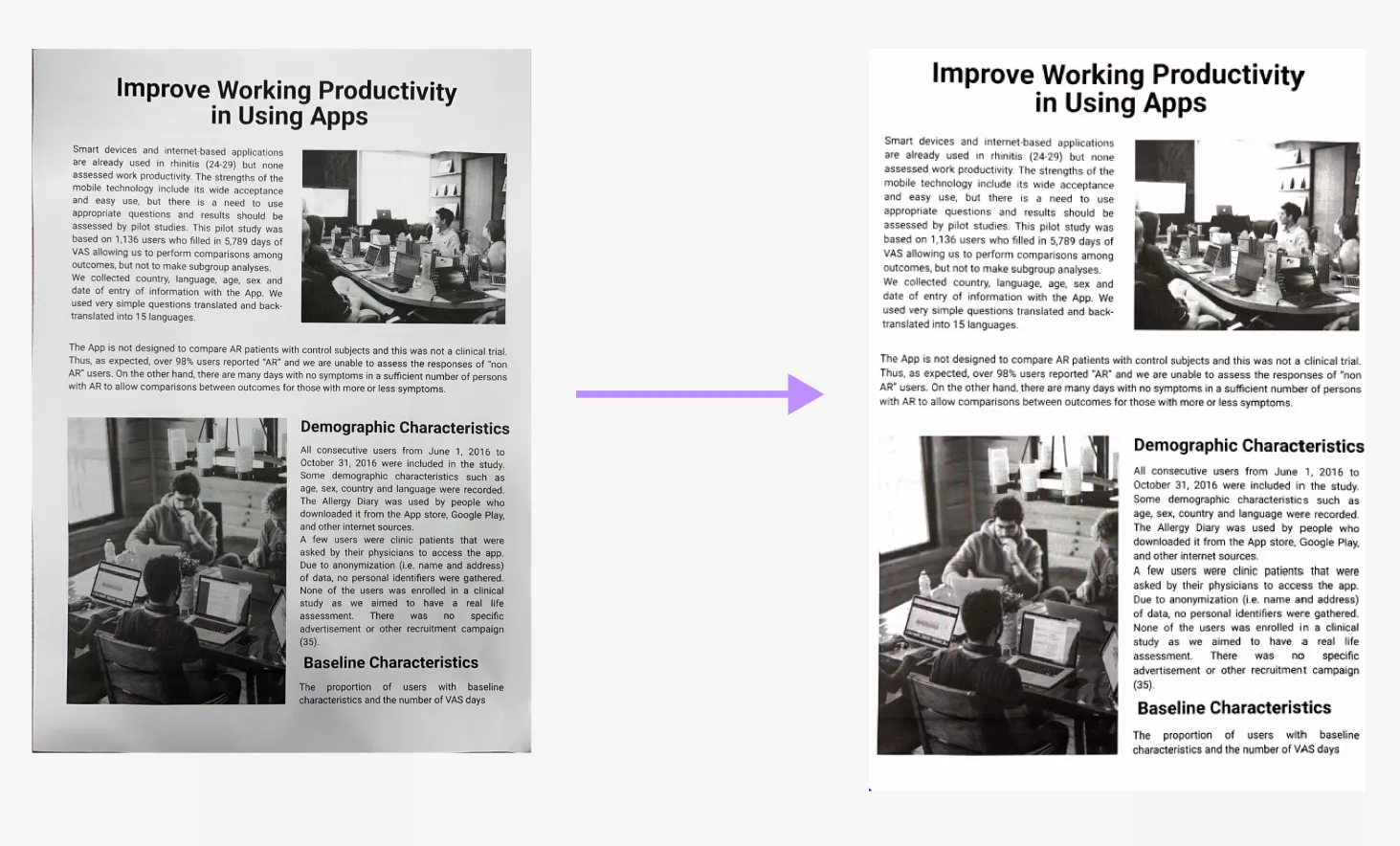
Adobe Acrobat Enhance Scans: Professional-Grade OCR & Text Editing
Adobe Acrobat’s “Enhance Scanned PDF” tool improves blurry scans, making them clear and easy to edit. It uses advanced OCR technology to turn scans into searchable text. You can adjust brightness and contrast, remove shadows, and increase resolution for better results. This tool is perfect for users who need precision and want to customize text.
How to Use It, Step-by-Step?
- Open the scanned file in Acrobat.
- From the All tools menu, select Scan & OCR > Enhance scanned file.
- Select Enhance > Camera Image, and then select the area to enhance.
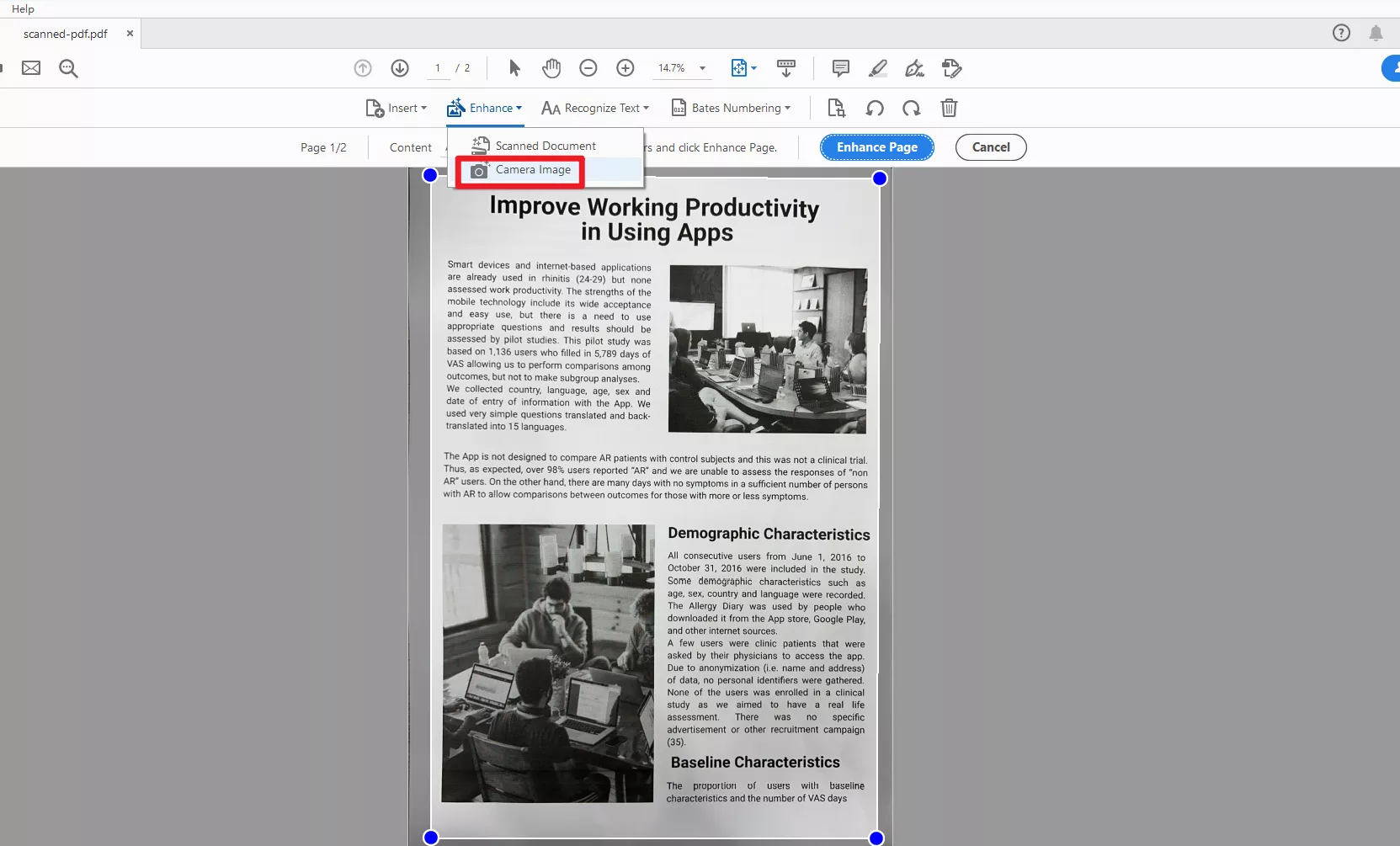
- Click on the Enhance Page button, Acrobat sharpens text, improves contrast, and uses OCR to make text searchable and editable.
- Go to File > Save As > Choose your preferred format (PDF, Word, etc.).
Pros of Using Adobe Acrobat
- Feature-rich: Combines OCR, text editing, brightness/contrast adjustments, noise removal, and page alignment.
- Professional output: Produces searchable, editable PDFs with preserved formatting.
- Advanced customization: Granular control over DPI, despeckling, and OCR language settings.
Cons of Using Adobe Acrobat
- Expensive: Requires a monthly/annual subscription (starts at $19.99/month).
- No free version: Only a 7-day trial is available.
Part 4. Bonus Tip: How to Edit Scanned PDF With Ease
After enhancing scanned PDF, you may also need to edit them. If you have this requirement, we recommend you to use UPDF. UPDF’s AI-powered OCR changes image scans into searchable documents while keeping the original layout. It’s great for students, professionals, or anyone dealing with lots of paper files. You can download UDPF via the button below to give it a test.
Windows • macOS • iOS • Android 100% secure
Why Choose UPDF?
UPDF offers more than just basic enhancements—its OCR has 99% accuracy and can read messy handwriting or low-quality scans. It supports over 38 languages, including complex scripts like Chinese, making it ideal for multilingual projects. You can then change fonts, replace images, or add notes directly in the PDF. Unlike subscription-based tools, UPDF uses a one-time payment model, making it affordable. You can check its price and upgrade here. It works offline on Windows, Mac, iOS, and Android. Simply follow the steps mentioned above to perform OCR on UPDF.
When you open the OCRed file, click on "Edit" in "Tools". You can then click on any text or image to edit it, which will show you a popup menu with editing options. Once you finish editing, press "Ctrl + S" to save your progress.
Key Features of UPDF:
Are you ready to improve more than blurry scans? UPDF is not just an OCR tool; it’s a complete PDF solution that makes your work easier.

- Edit PDFs: Change text, fonts, images, or layouts like you would in a Word document.
- Convert Formats: Convert PDFs to Word, Excel, PowerPoint, or images, and you can also convert those formats back to PDFs.
- Compress PDFs: Shrink file sizes without losing quality.
- Merge/Split: Combine reports or extract pages in seconds.
- Annotate: Highlight and add comments or sticky notes for collaboration.
- Password Protect: Protect sensitive scans by using encryption.
- E-Signatures: Sign contracts online; there is no need to print them.
Windows • macOS • iOS • Android 100% secure
To learn more about this amazing tool, watch our video below and explore the UPDF app's various features.
Conclusion
Enhanceing Scanned PDFs don’t have to be a hassle. Use free tools like i2PDF and Online2PDF for quick fixes. If you need more features, UPDF and Adobe Acrobat are good choices.
For those who need to edit the scanned PDF, try UPDF with its AI OCR and easy text editing for a one-time fee. Download UPDF to simplify your PDF editing!
Windows • macOS • iOS • Android 100% secure







 Enola Miller
 Enola Davis
 Engelbert White
 Enya Moore