 UPDF
UPDF
 UPDF for Windows
 UPDF for Mac
 UPDF for iPhone/iPad
 UPDF for Android
 Nomostar
 UPDF AI Online
 UPDF Sign
 IvyCraft
 Edit PDF
 Annotate PDF
 Create PDF
 PDF Form
 Edit links
 Convert PDF
 OCR
OCR PDF to Word
 PDF to Image
 PDF to Excel
 Organize PDF
 Merge PDF
 Split PDF
 Crop PDF
 Rotate PDF
 Protect PDF
 Sign PDF
 Redact PDF
 Sanitize PDF
 Remove Security
 Read PDF
 UPDF Cloud
 Compress PDF
 Print PDF
 Batch Process
 About UPDF AI
 UPDF AI Solutions
 AI User Guide
 FAQ about UPDF AI
 Summarize PDF
 Translate PDF
 Chat with PDF
 Chat with AI
 Chat with image
 PDF to Mind Map
 Explain PDF
 PDF AI Tools
 Image AI Tools
 AI Chat Tools
 AI Writing Tools
 AI Study Tools
 AI Working Tools
 Other AI Tools
 AI Bookmark Generation
 AI Bookmark Summary
 AI Watermark Generation
 AI Background Generation
 AI Sticker Generation
 AI Stamp Generation
 AI Editing Suite
 UPDF Copilot
 AI Page Management
 AI Semantic Search
 PDF to Word
 PDF to Excel
 PDF to PowerPoint
 Enterprise Solution
 Enterprise Sign
 Enterprise AI
 Enterprise Plan
 Enterprise User Guide
 Enterprise Webinar
 IT
IT Education
 Construction
 Financial Service
 Healthcare
 Insurance
 Legal
Legal Manufacturing
 Government
 Researchers & PhDs
 Solopreneurs & Freelancers
 Lawyers & Legal Professionals
 Real Estate Agents & Brokers
 Education Solution
 Customer Stories
 User Guide
 UPDF Tricks
 FAQs
FAQs UPDF Reviews
 Download Center
 Blog
Blog Newsroom
 Tech Spec
 Updates
 UPDF vs. Adobe Acrobat
 UPDF vs. Foxit
 UPDF vs. PDF Expert

How to Manage PDF Documents on Android with UPDF
With UPDF for Android, you can manage your PDF documents easily. You are allowed to rename, copy, duplicate, delete, favorite, move, email, share, copy to UPDF Cloud, print and create a folder for it. Here, we will show you how to manage PDF documents with UPDF on Android step by step. You can click the below button or go to the Play Store to download it.
Windows • macOS • iOS • Android 100% secure
Please note you can only have all these features when you want to manage the PDF files in the "UPDF" and "UPDF Cloud" parts.
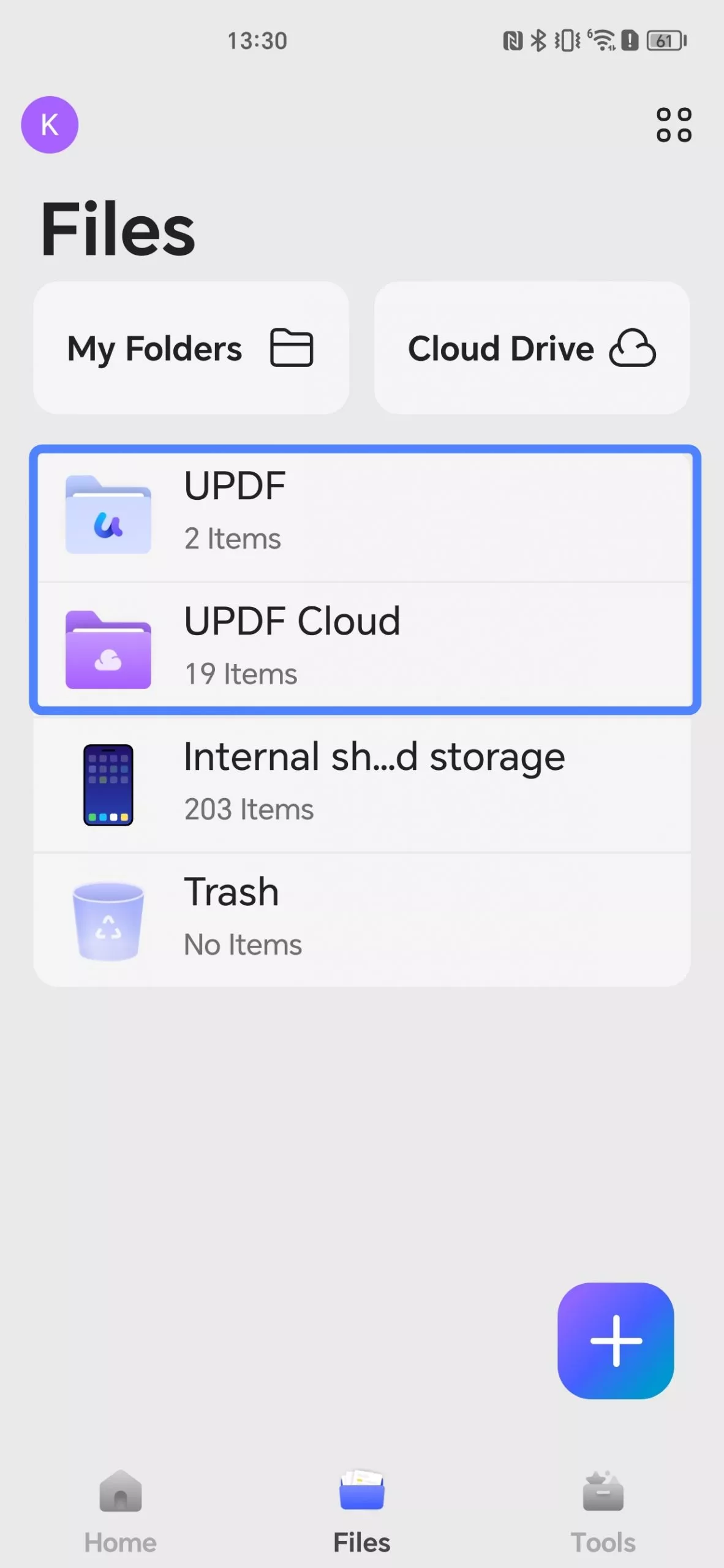
Select one of the folders with the PDF files that you want to manage, here, we will select the "UPDF" folder to show the steps. Just tap on the folder and you can see all the PDF files you saved there.
1. Rename PDF
If you want to rename the PDF,
- you can long-press on the PDF or tap on the "Three Dots" at the end of the PDF file.
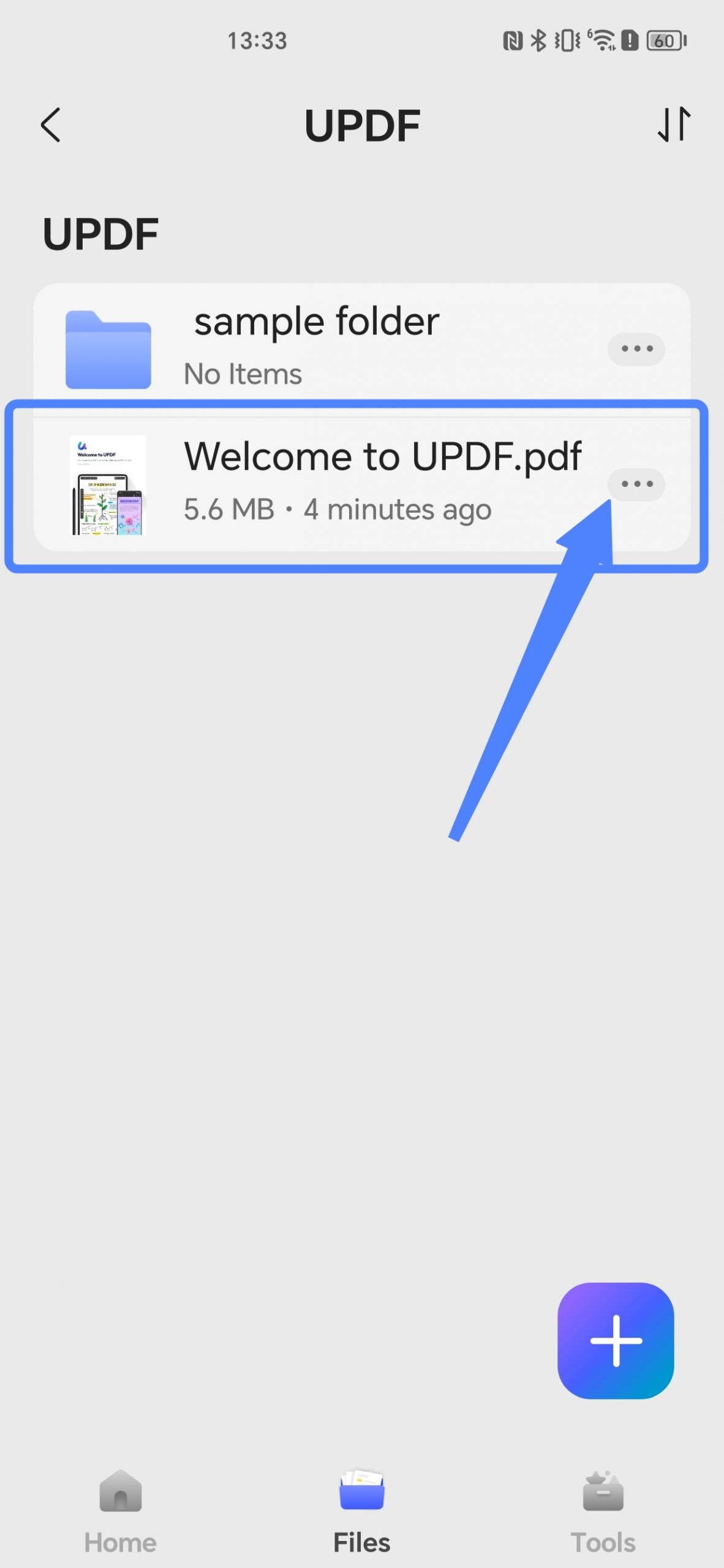
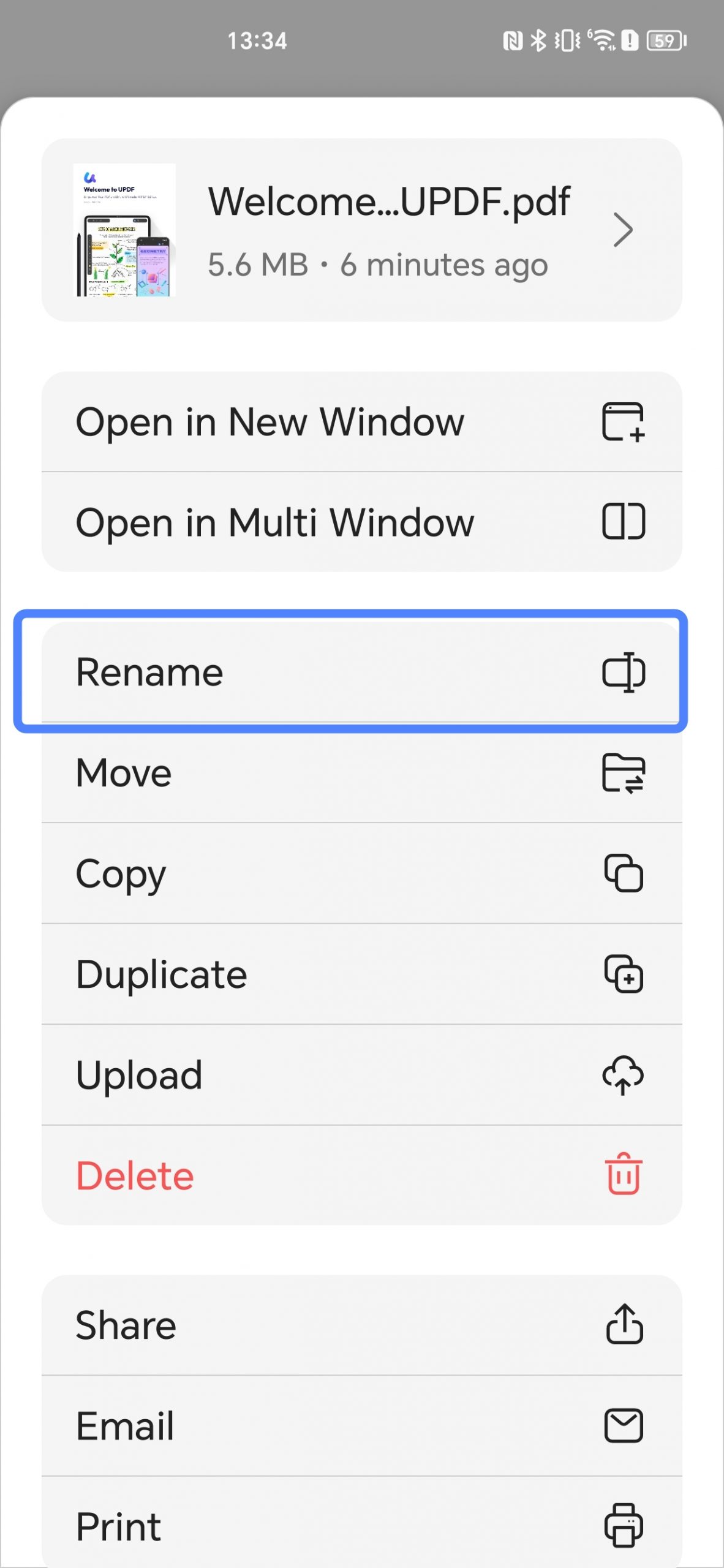
- In the new window, you can find the "Rename" option, tap on it.
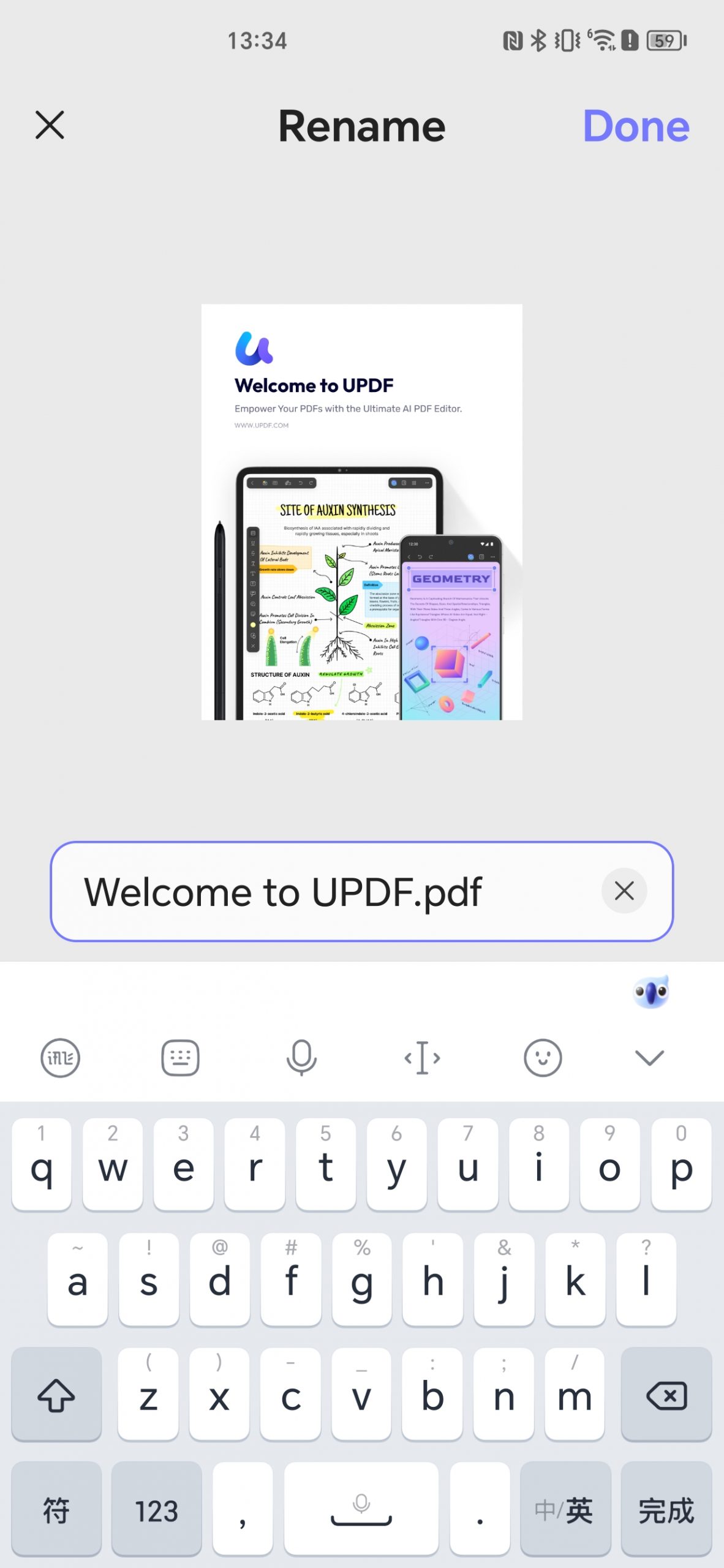
- Now, you can type the name you need, and tap on "Confirm" to save the changes. You change the name of the PDF successfully.
2. Move the PDF to Another Location
If you want to move the PDF to another location or create a new folder to manage it, you follow the below steps.
- Same as before, you need to tap on the "Three Dots", then, "Move".
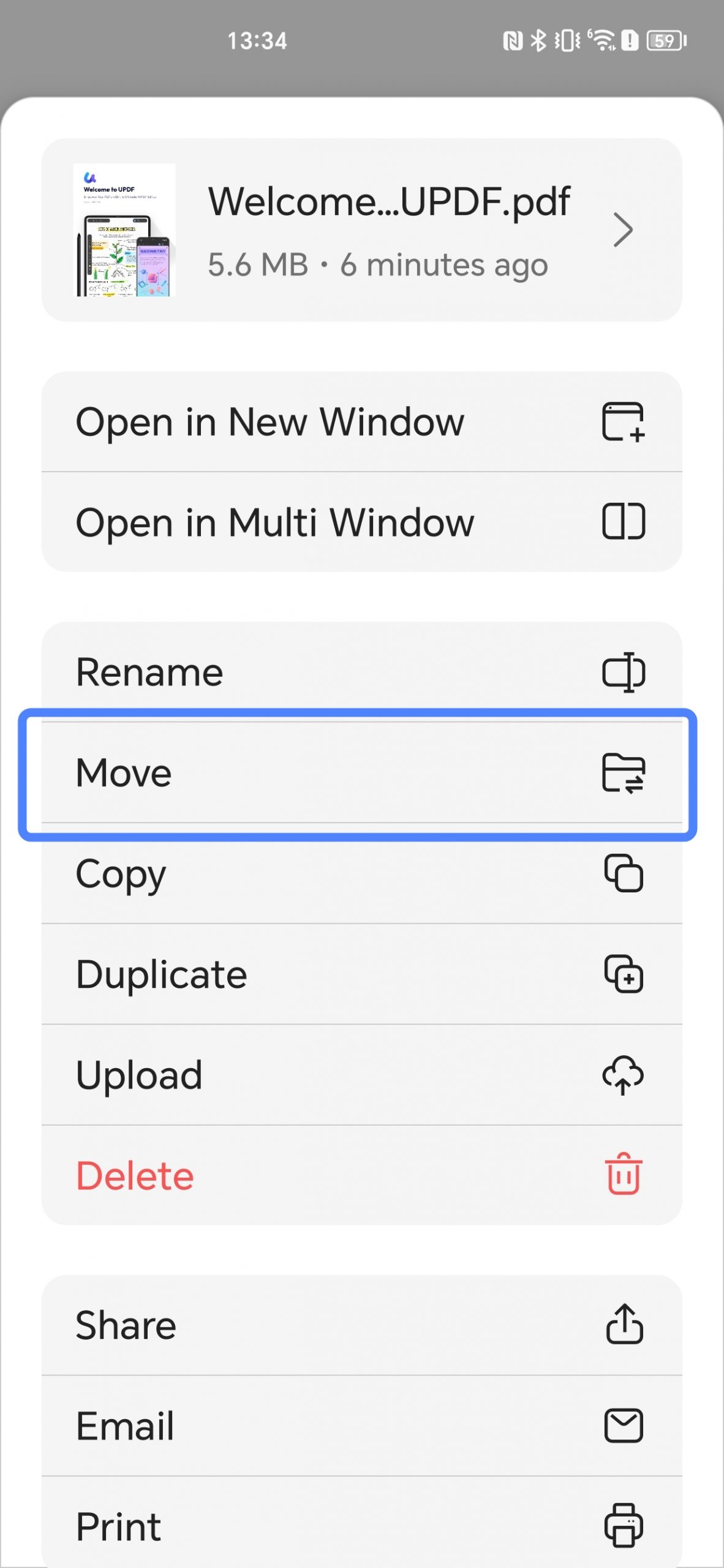
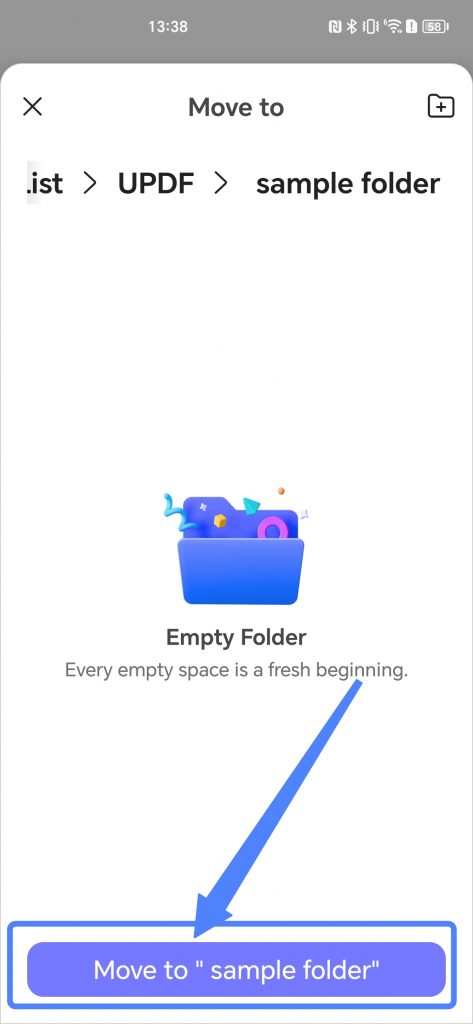
- Select the folder you want to move it to and tap on the "Move to [Folder's Name]" to confirm the move.
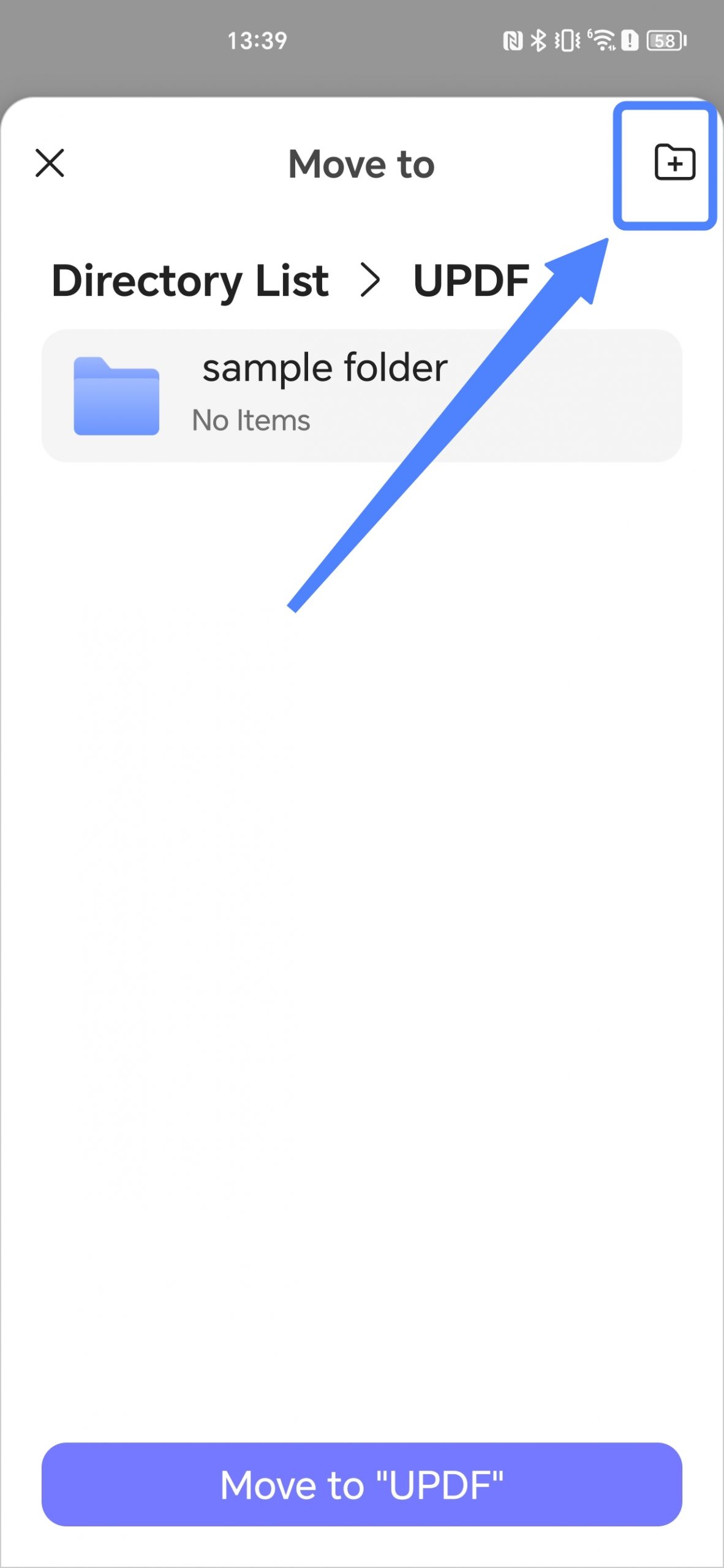
- Or you can tap on the "+" to create a new folder", name the folder, tap "Done", and then, tap on the "Move to [Folder's Name]", and UPDF will move the PDF file to your created folder.
3. Copy the PDF to Other Places
Want to keep the copies in different places? You can use the copy feature.
- After tapping on the "Three Dots", you can hit on the "Copy" icon
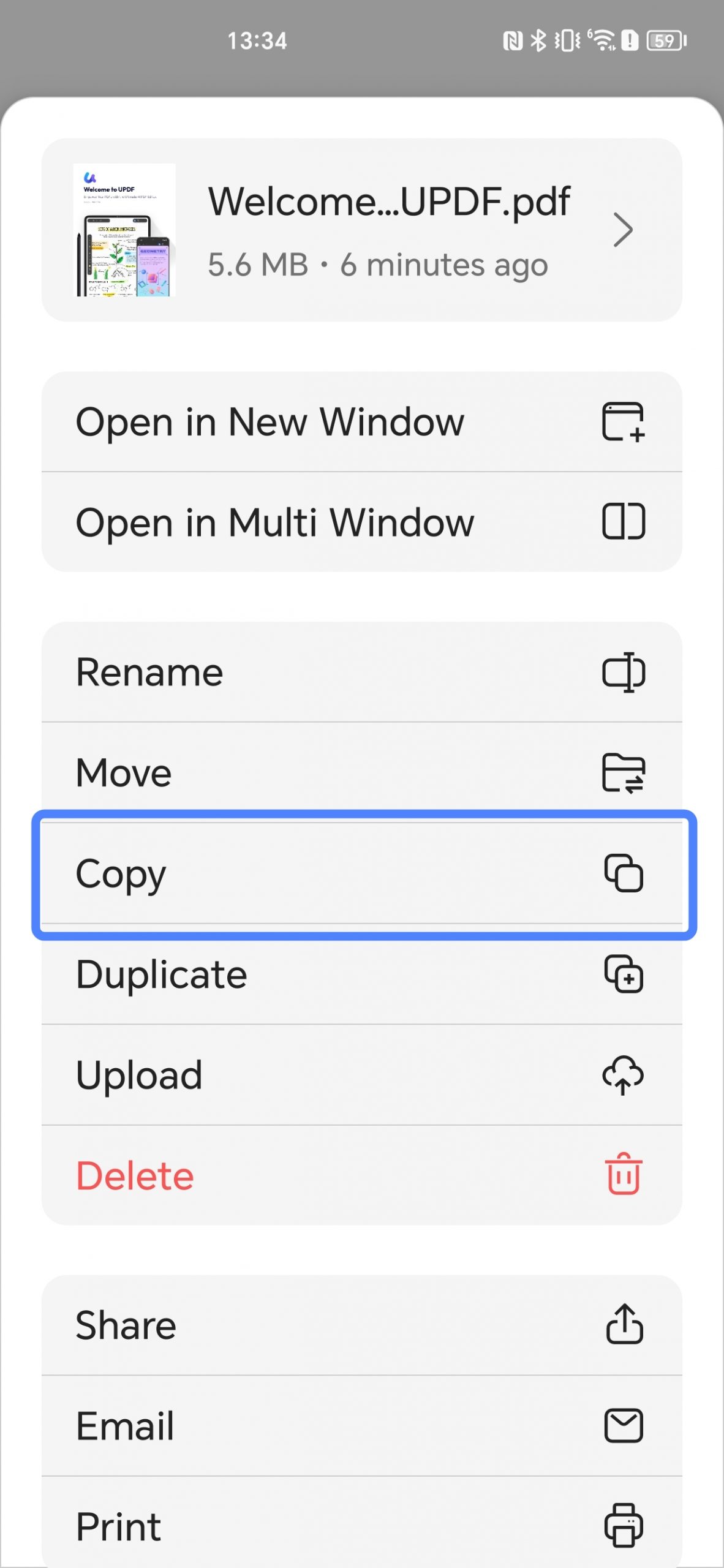
The next step is the same as the Move feature, choose the folder or create a new folder to store the copy.
4. Duplicate the PDF Files in the Same Folder
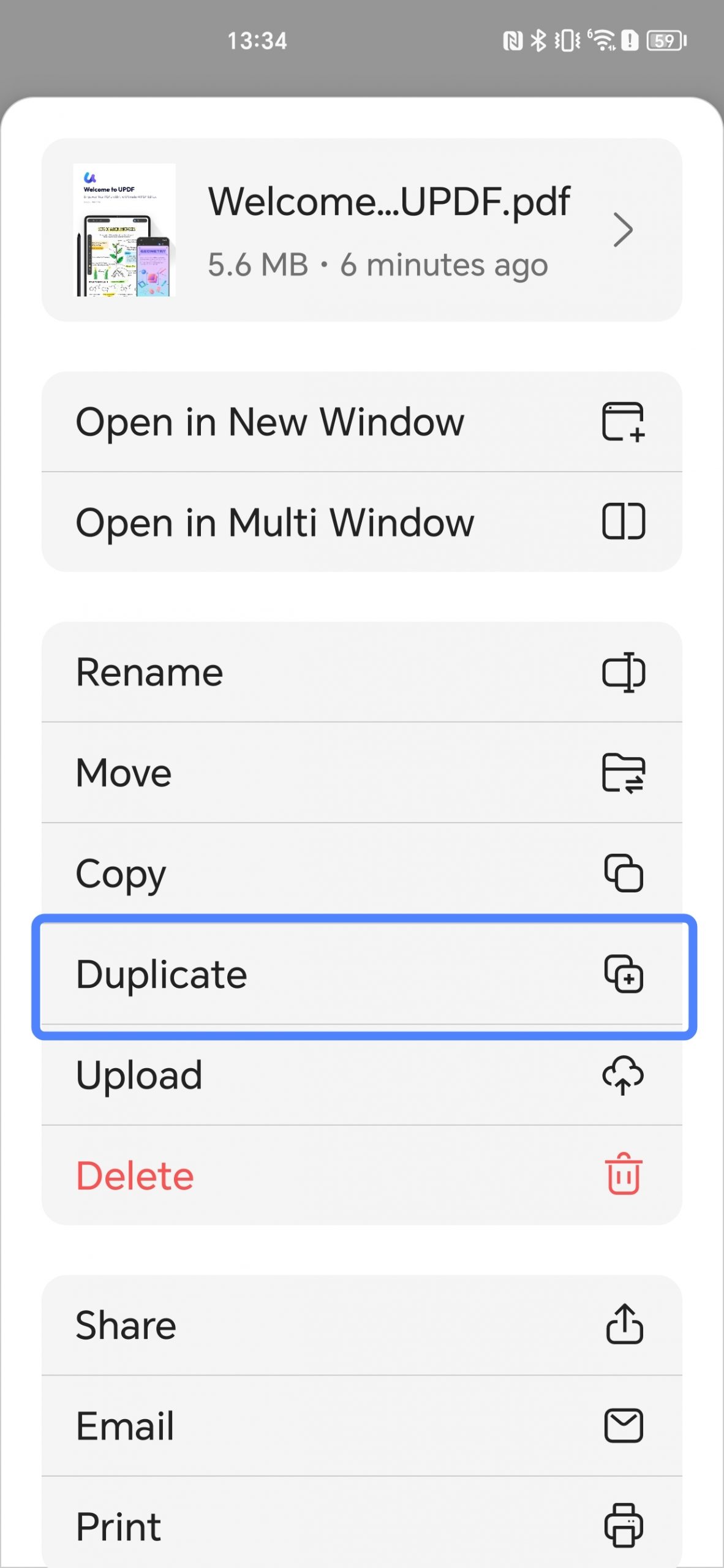
To create the copies in the same folder or location, you can use the "Duplicate" feature. Here are the steps you can follow.
- After tapping on the "Three Dots", you can tap on the "Duplicate" icon.
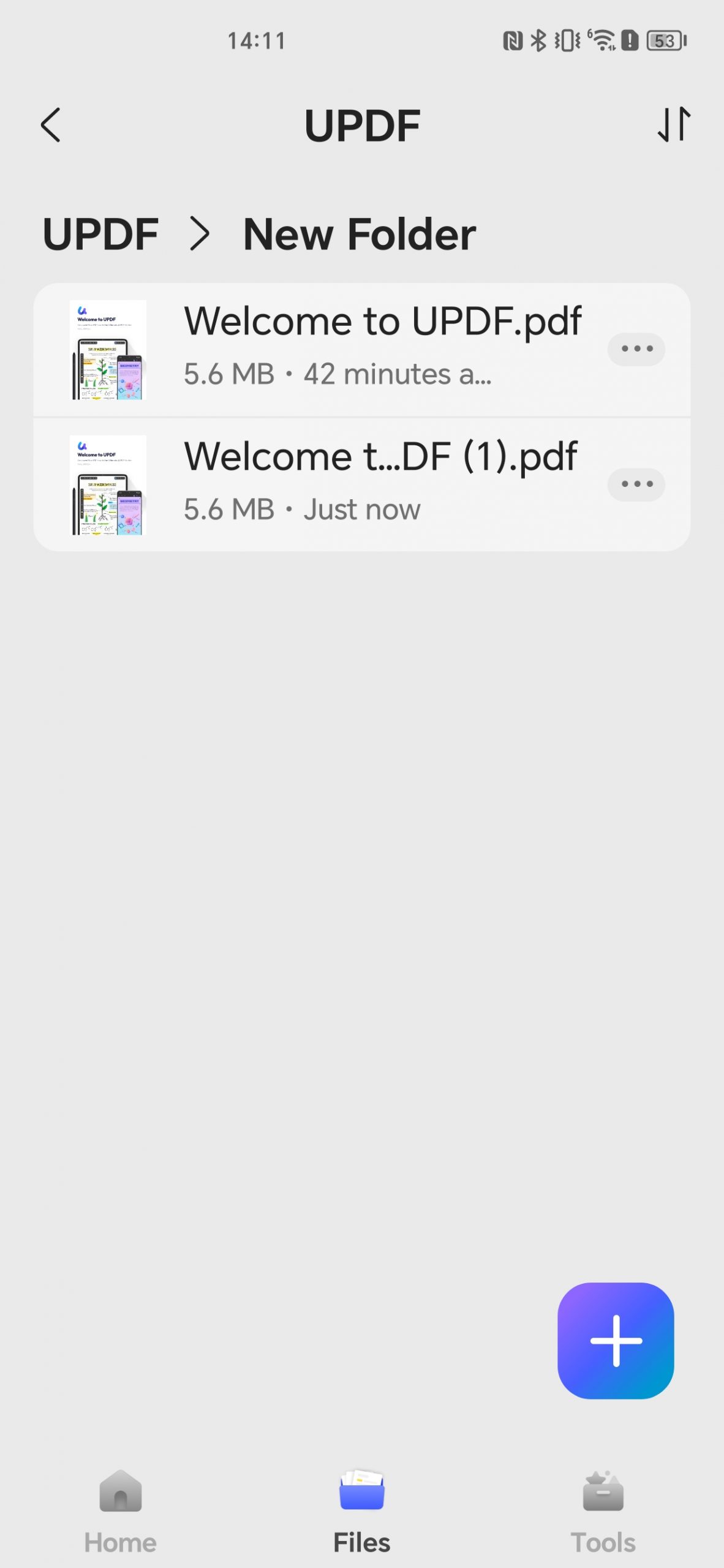
- Now, you can find another PDF copy in the same folder.
5. Sync PDF to UPDF Cloud
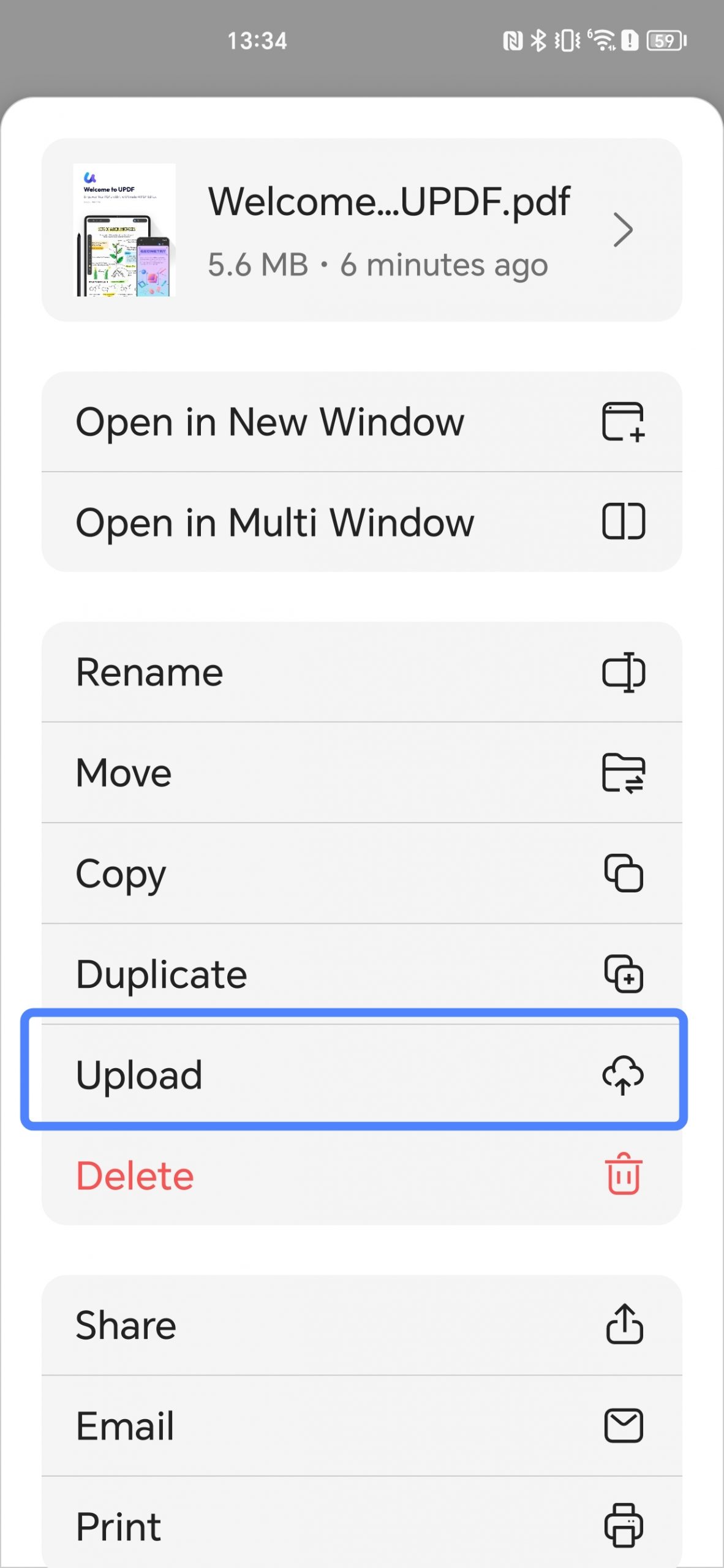
If you want to upload the PDF to UPDF Cloud and access it in other devices, you can use the "Upload" feature. Just follow the below steps to learn how to use it.
- After tapping on the "Three Dots", you can choose the "Upload" icon.
- Tap "Upload to 'UPDF Cloud'.
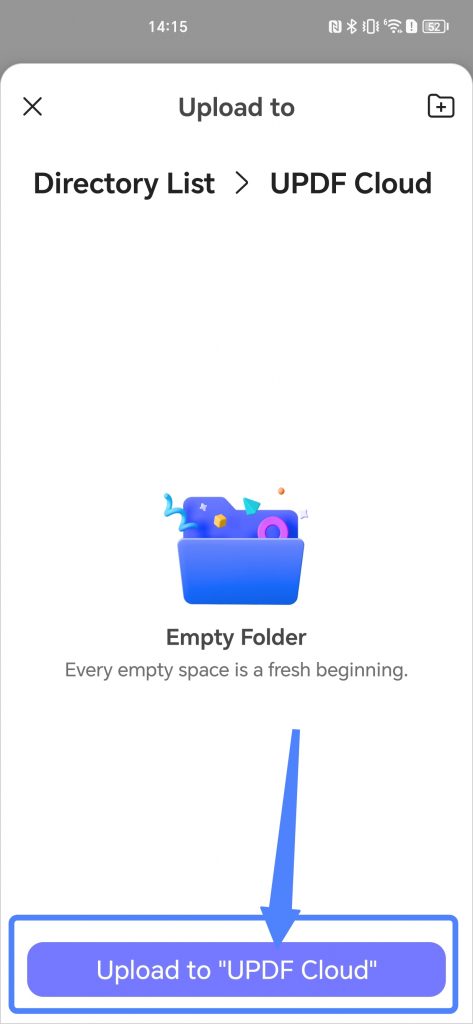
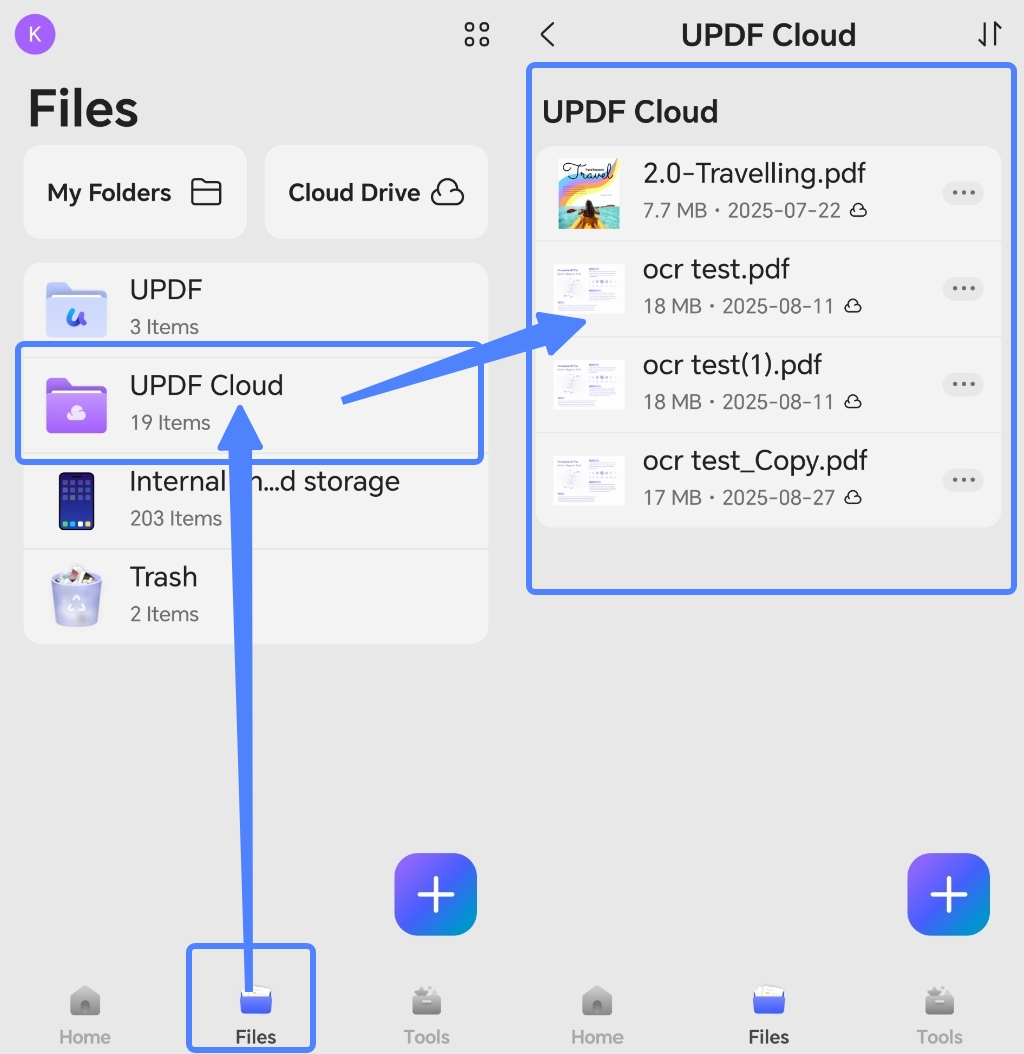
- Once you upload the PDF to UPDF Cloud, you can go to the home interface, and tap on the "UPDF Cloud" in "Files" section to find your PDF files and manage them.
6. Delete PDF Files
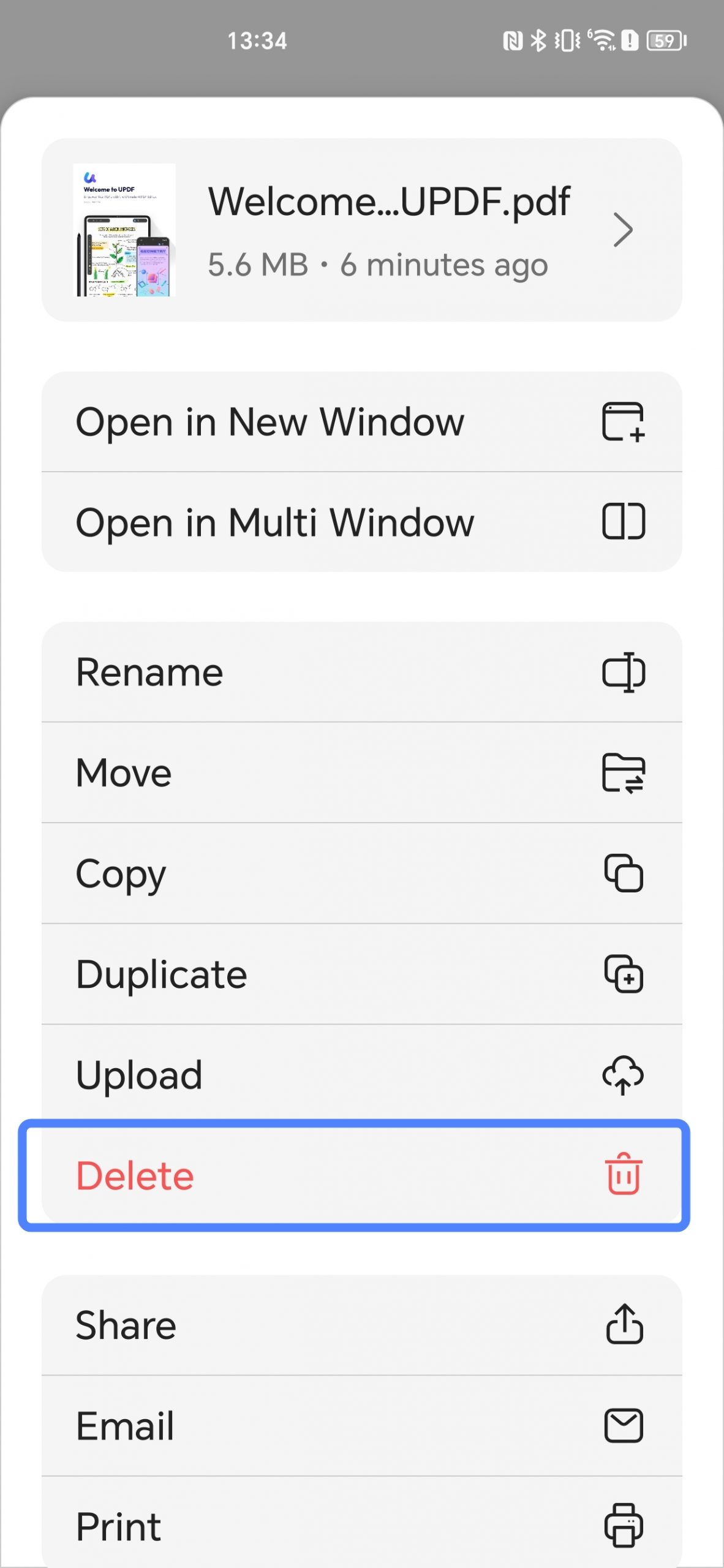
If you do not need the PDF anymore,
- you can tap on the "Delete" icon to delete them all.
7. Share PDF Files
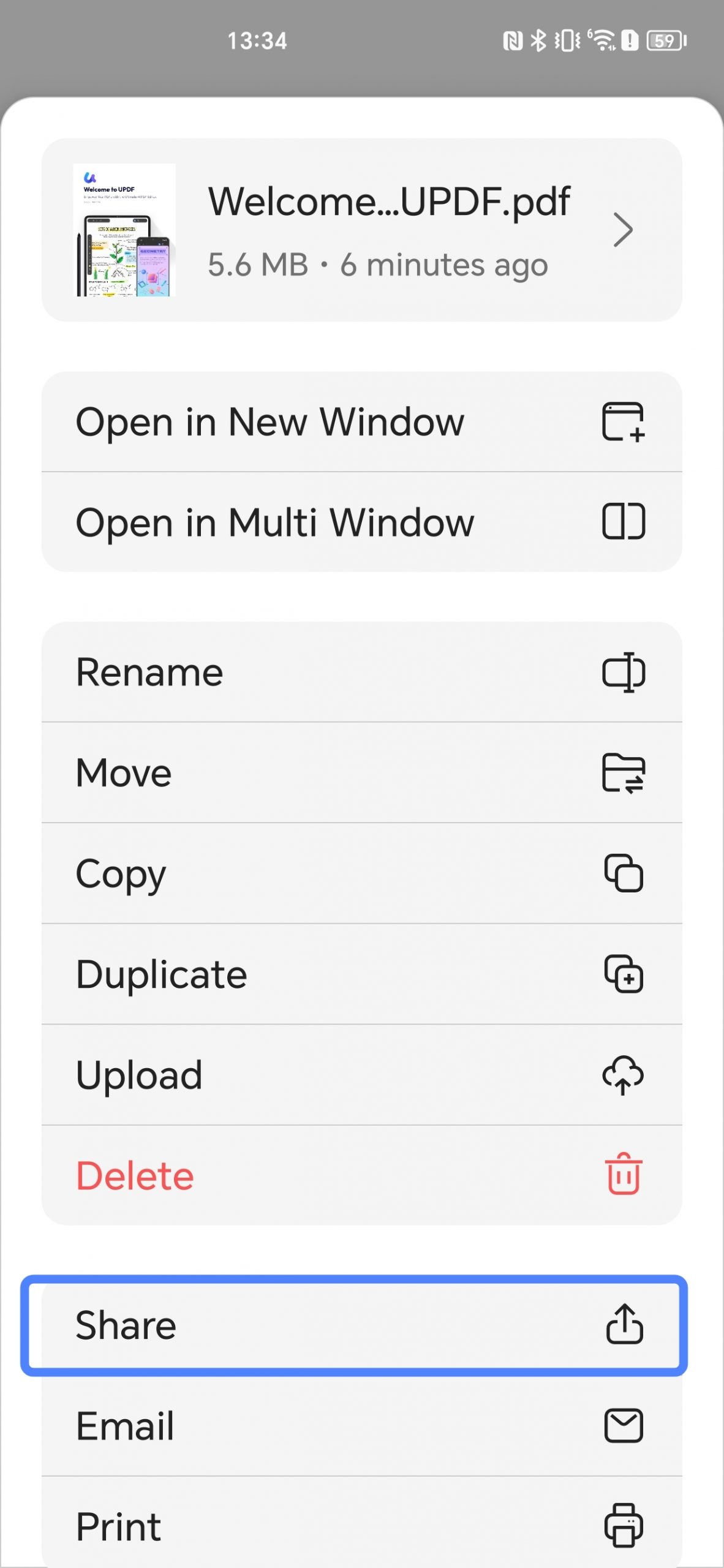
To share PDFs to social media or other chat apps,
- you can tap on the "Share" icon.
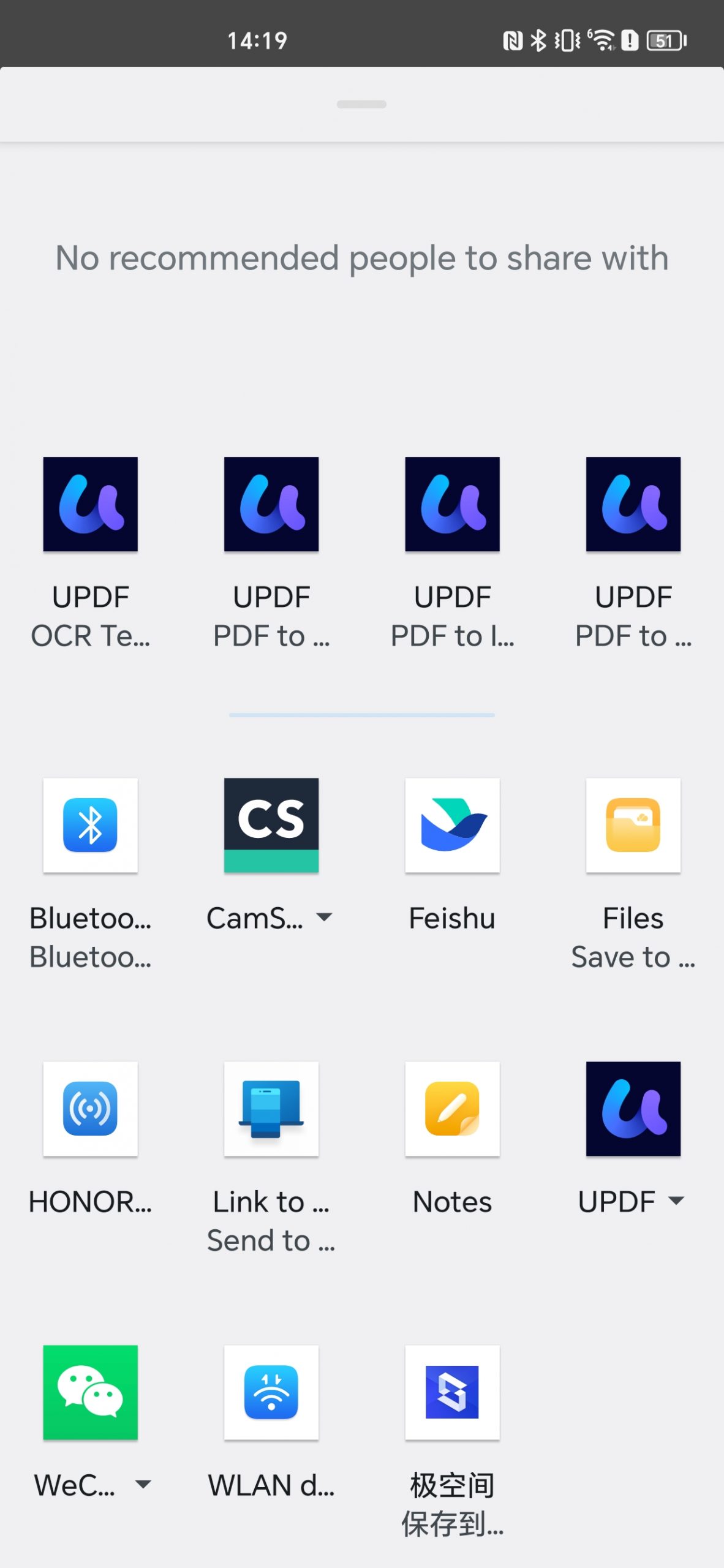
- Then, select the app on your devices to share it.
8. Email PDF Files
You can also email your PDF files. Here is the guide.
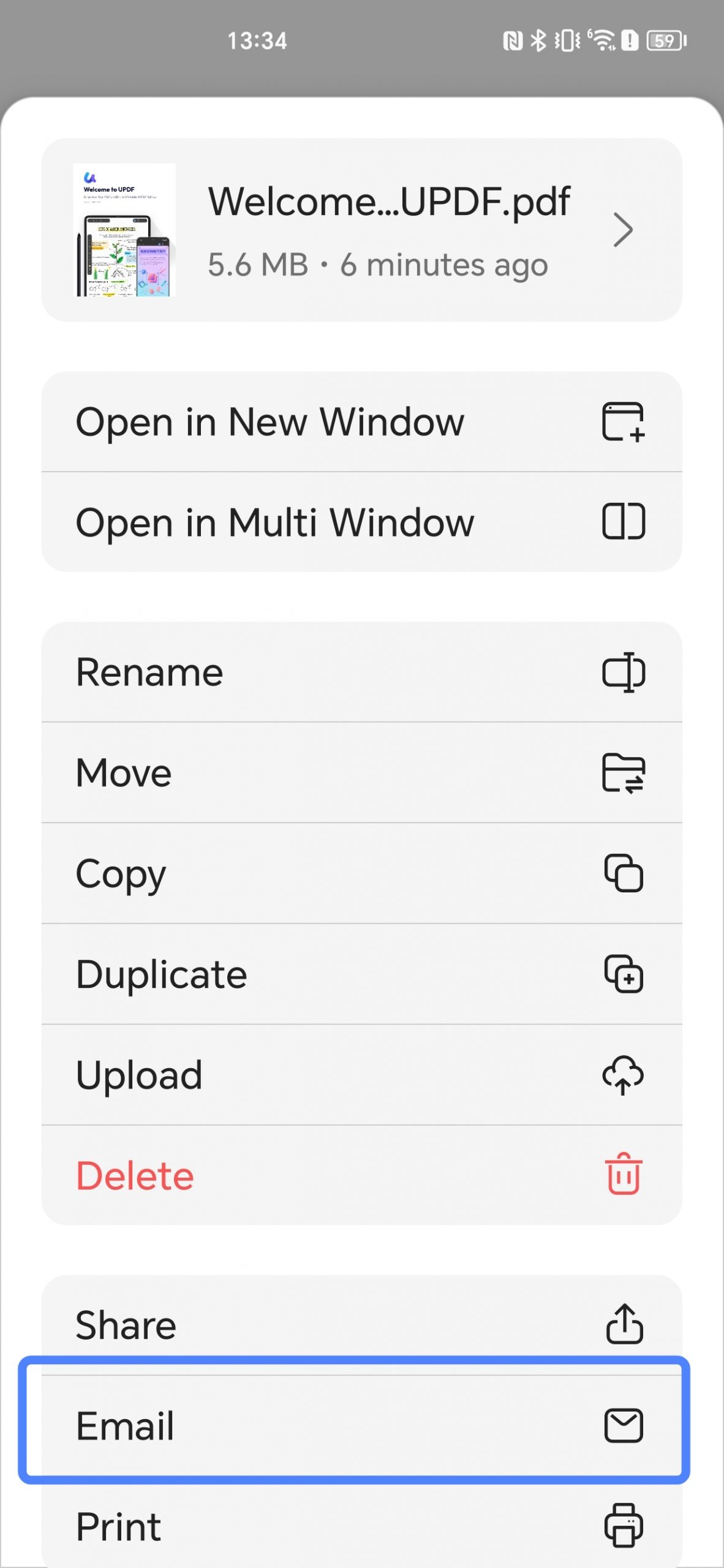
- You can tap on the "Email" icon in UPDF on Android.
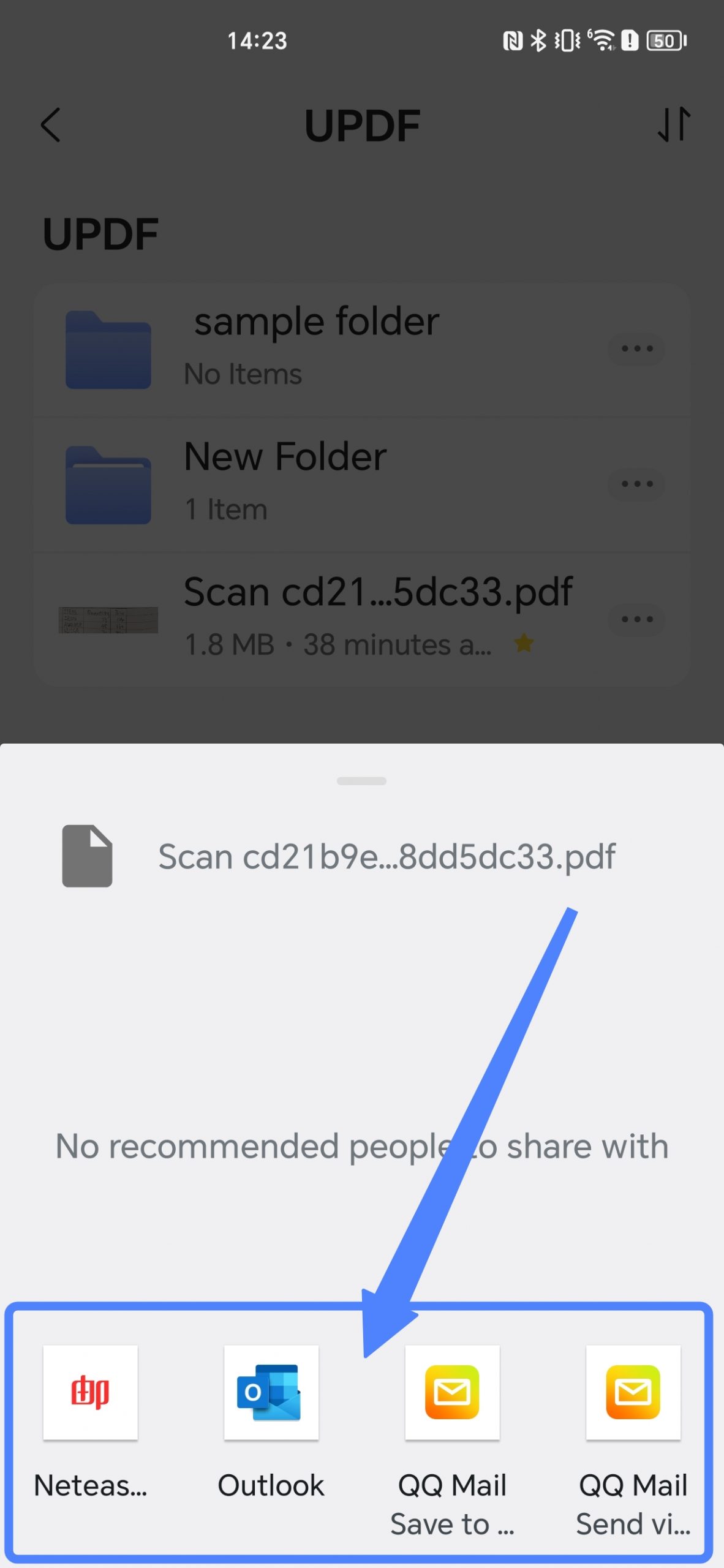
- Select the email app to send an email with PDF.
9. Print PDF Files
You can directly print PDF with UPDF.
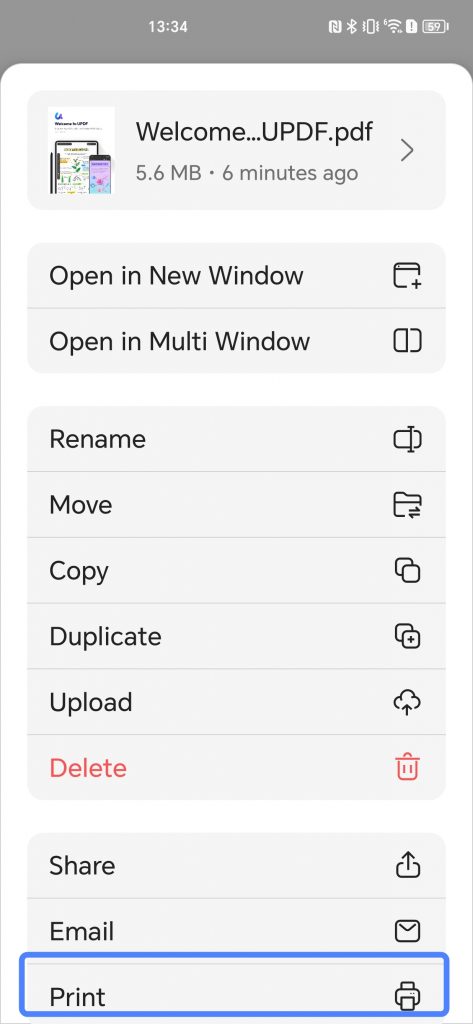
- After tapping on the "Three Dots", you can choose the "Print" icon.
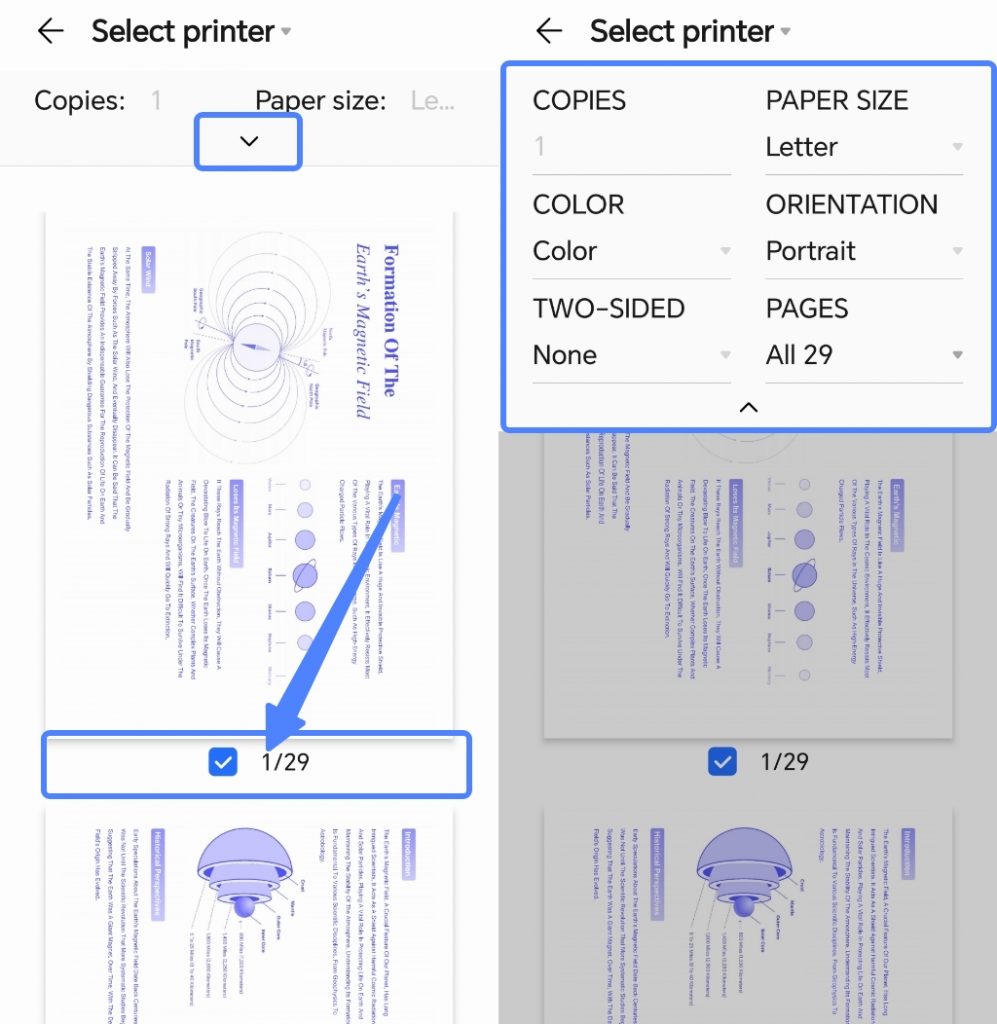
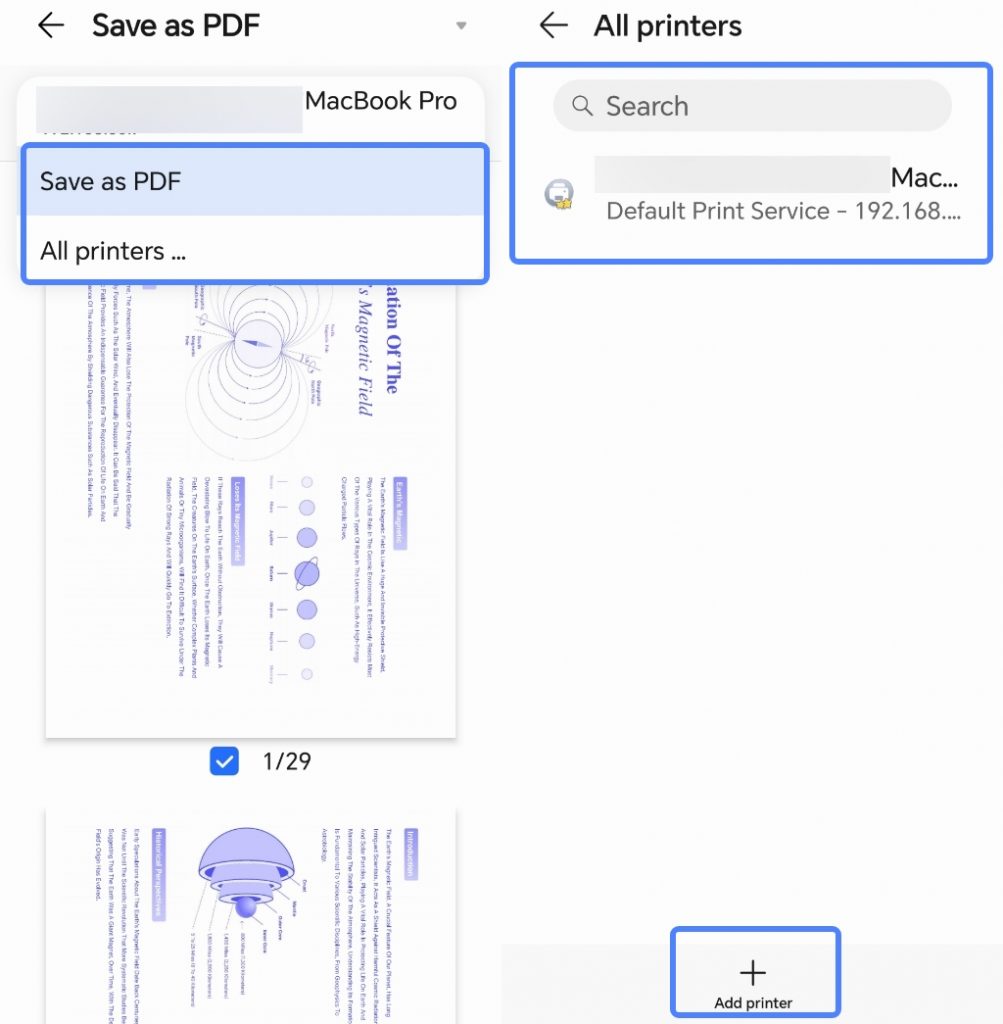
- UPDF will show you a preview of how this PDF will look when printed. You can click the dropdown arrow at the top to view the printing-related information. You can check the boxes at the bottom of the page to select the pages you want to print.
- After confirming the preview, click the "Select Printer" dropdown arrow at the top left of the page. You can choose to "Save as PDF", or click "All printers" to select a suitable printing device and print the file.
10. Add PDF to Favorites
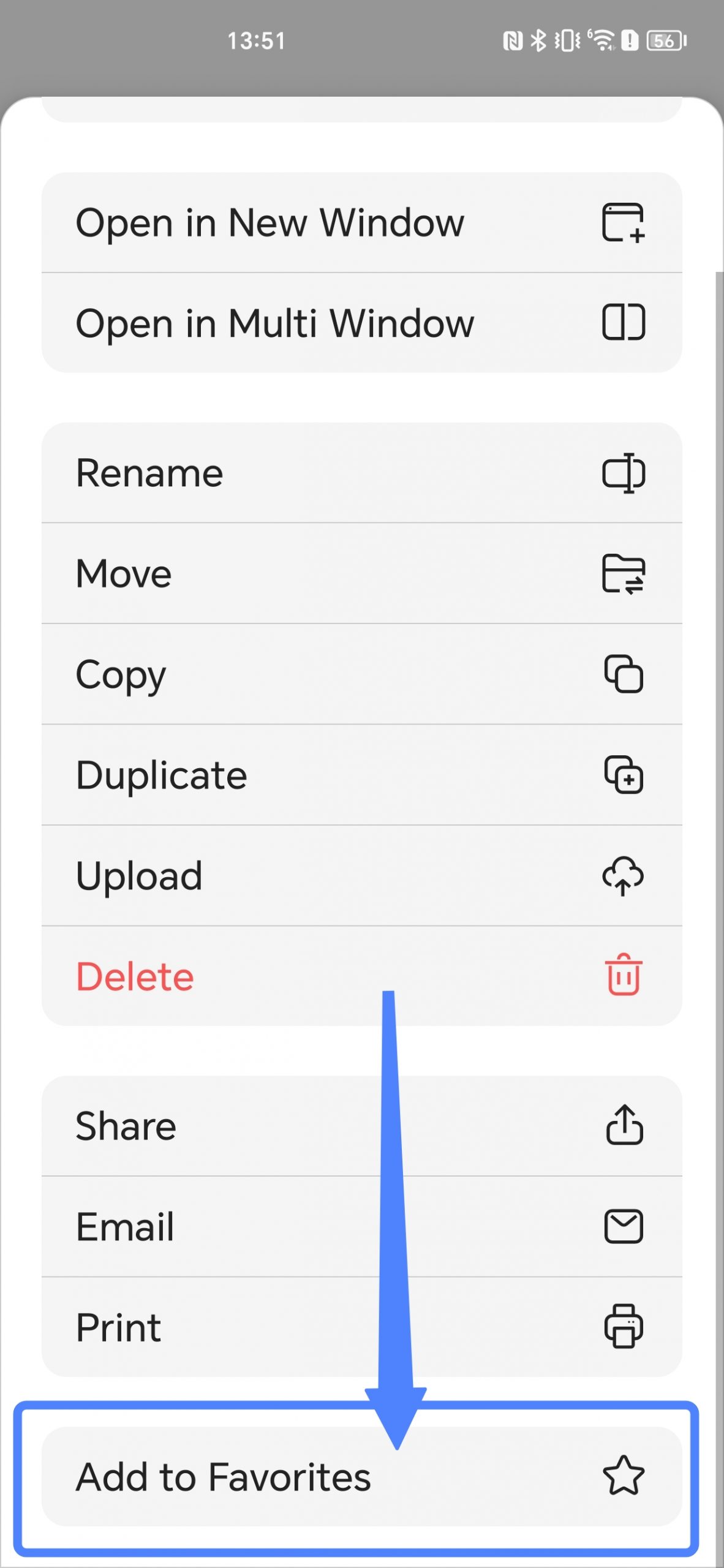
If you need to access the PDF files quickly, you can add the PDF to your favorites. It is easy to use it.
- Just tap on the "Add to Favorites" option.
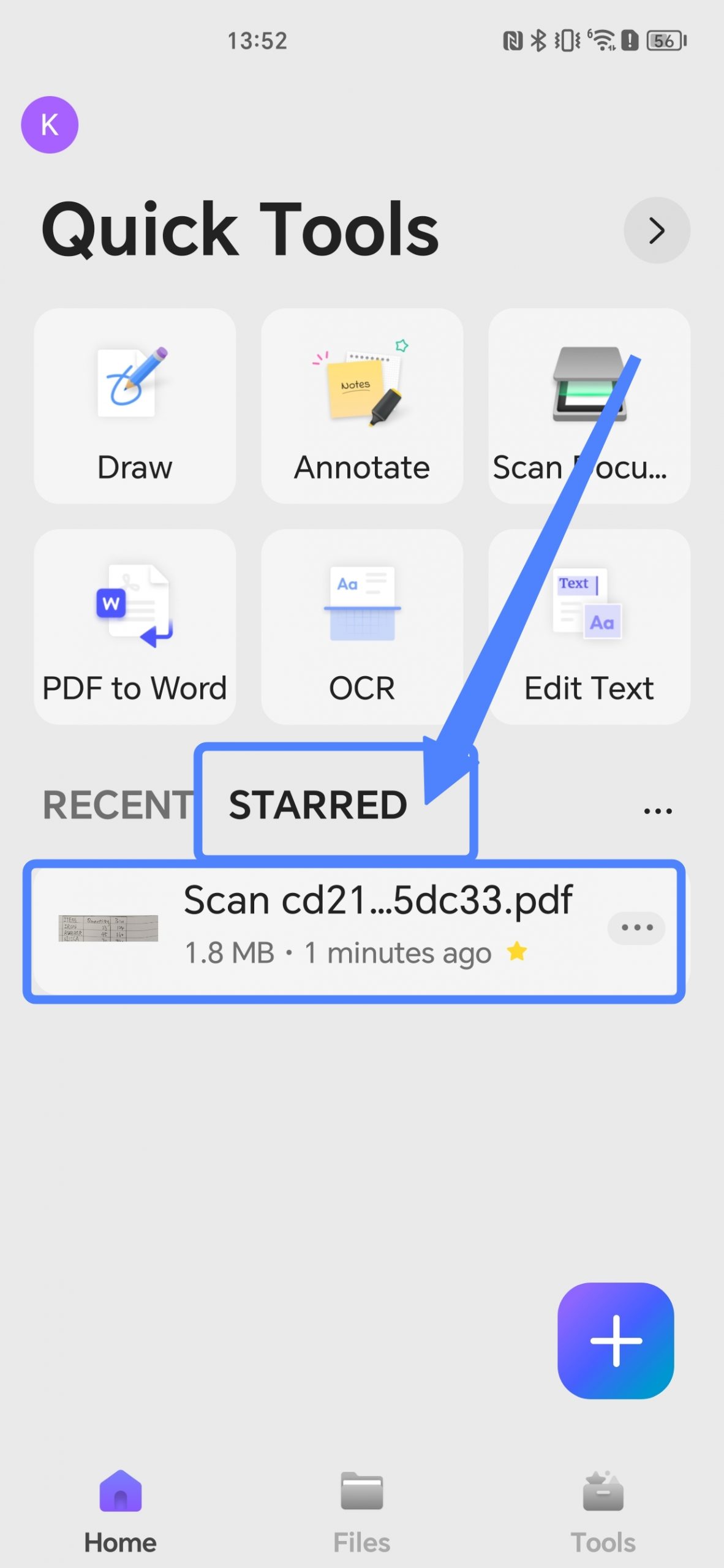
- Then, you can access this PDF any time when you are at the home interface as you only need to tap on "Starred".
11. Check the Info of a PDF Document
To know the details about the PDF,
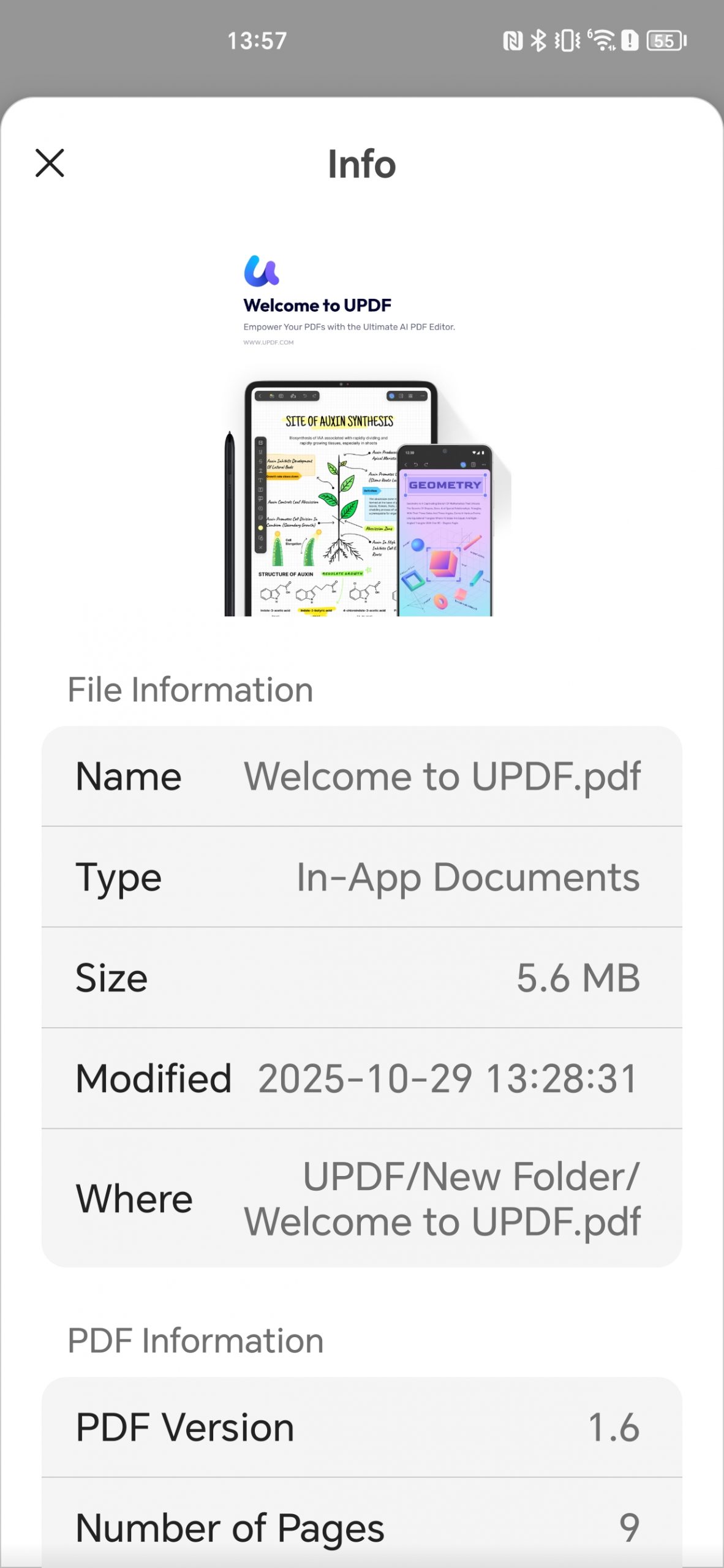
- you can click the right arrow icon of the PDF document.
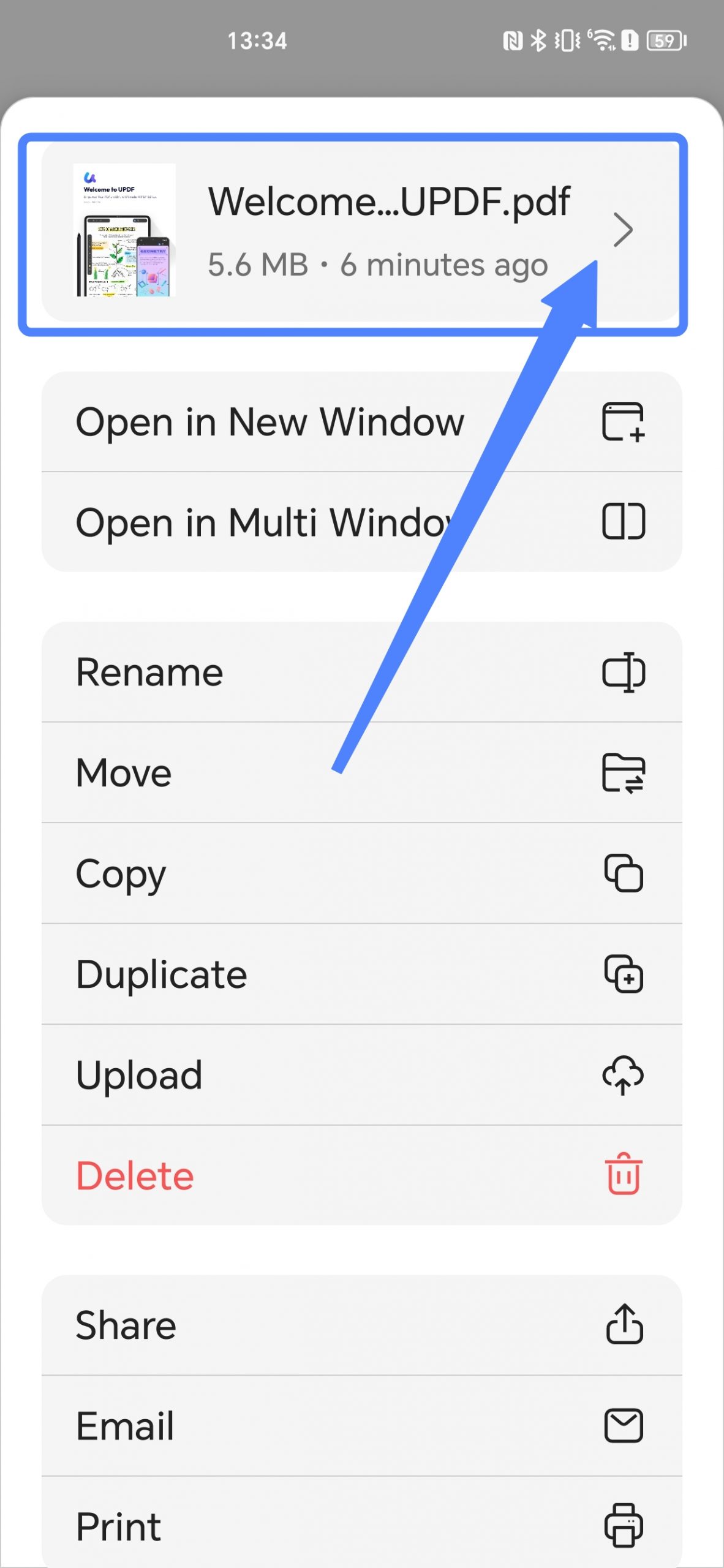
- You can check the info of the PDF information, including the Name, Type, Size, Modified info, Where it is stored, PDF version, Number of Pages, Page Size, Title, Author, Subject, Keywords, Create Date, Modify Date, Content Creator, Encoding Software and Security permission.
12. Create Folders
You can create and manage folders with UPDF.
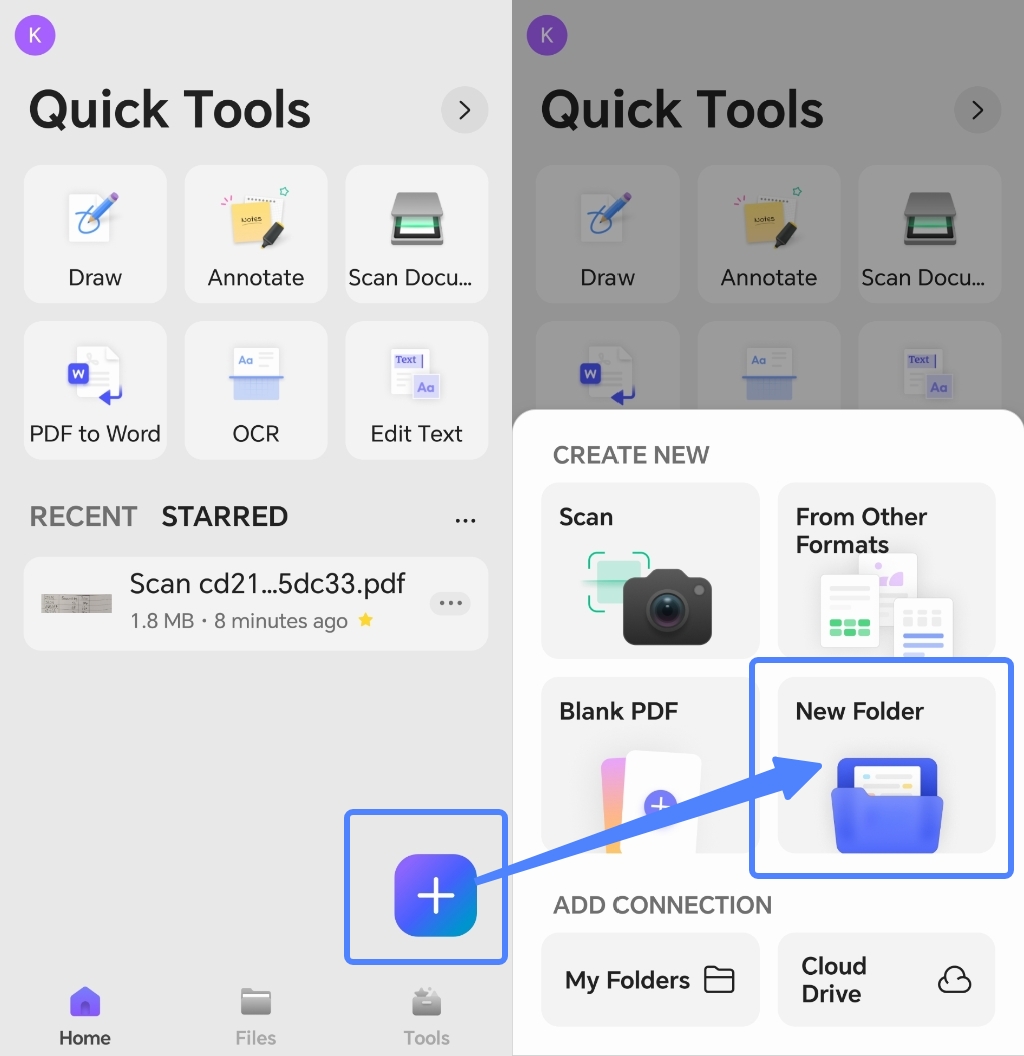
- To create a folder, click the "+" icon on the homepage interface and select "New Folder".
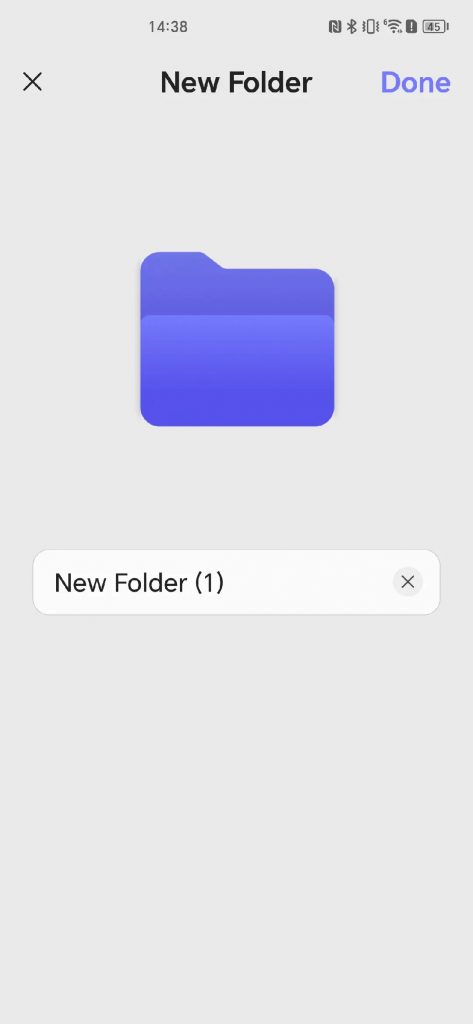
- You will be asked to rename the new folder. Once done, click "Done" to create a new folder.
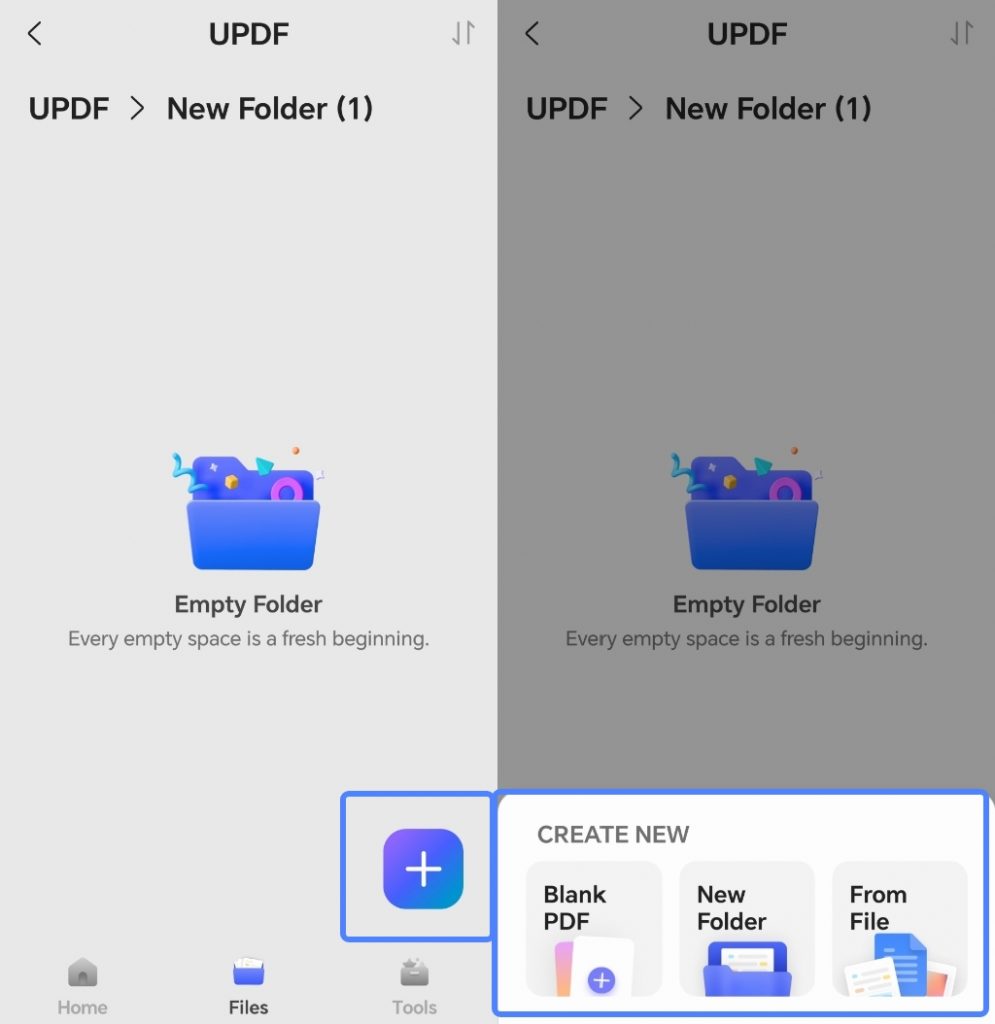
- Now, you can click the "+" button in the new folder interface to create a blank PDF, a new folder or import PDF files from Files in this new folder.
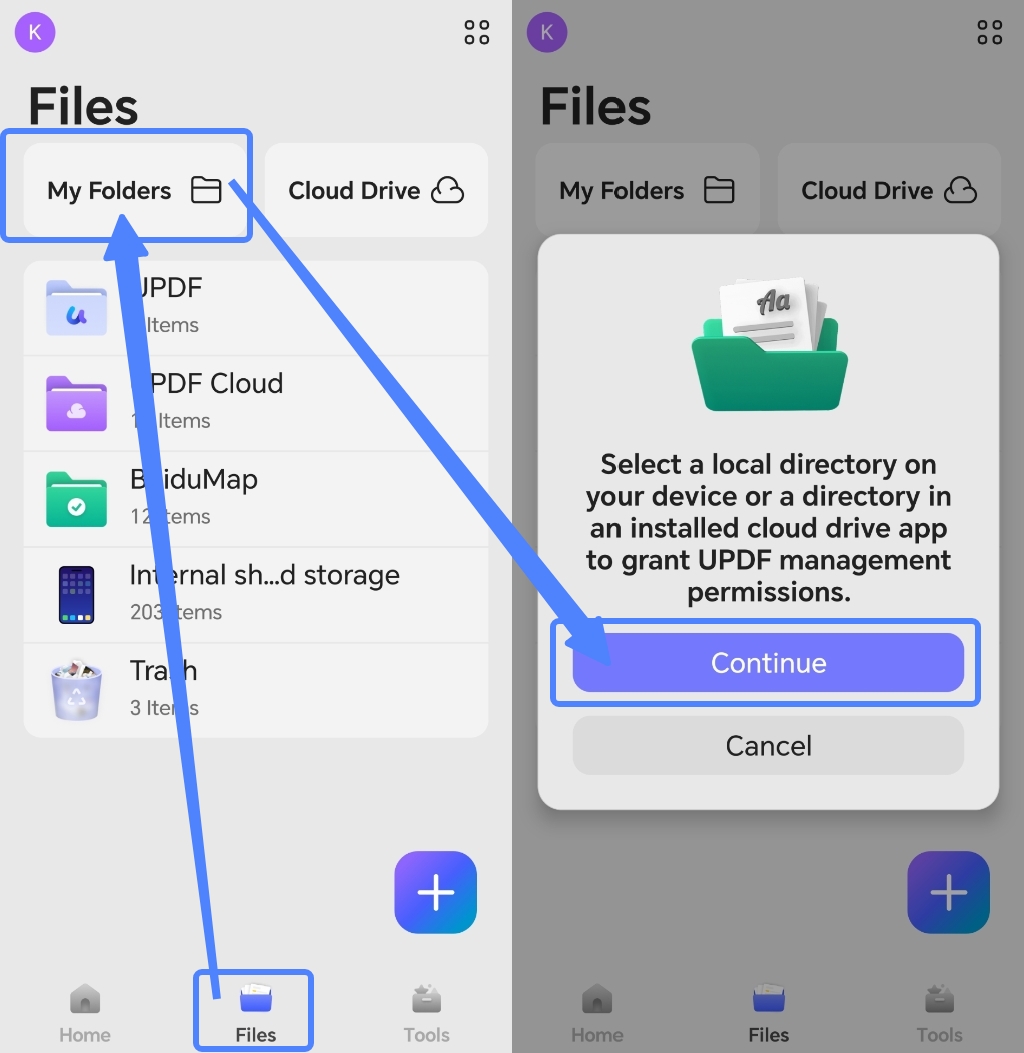
- If you want to create new folders from your Android device into UPDF, click "My Folders" in the "Files" interface. UPDF will ask you to grant it management permissions for a local directory on your device or a directory in an installed cloud drive app. Please click "Continue" to proceed to the next step.
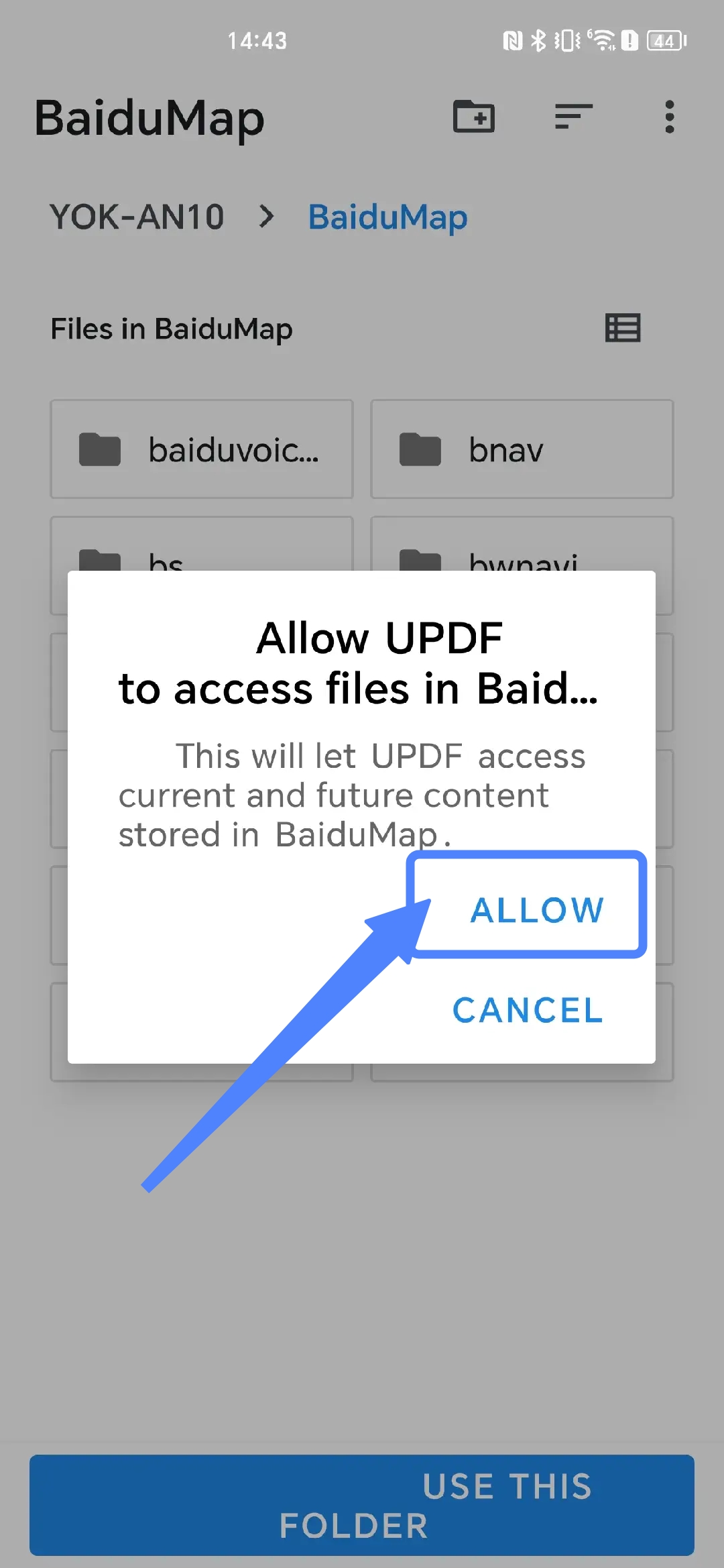
- Select a folder on your Android device. UPDF will ask you to allow UPDF to access files in this floder. Then, click "Allow".
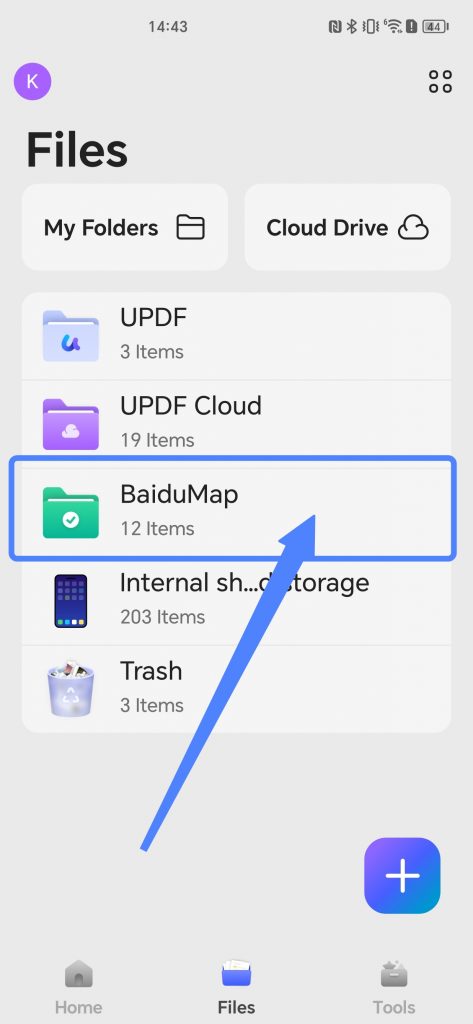
- You will see that this folder appears on your folder list.
There are so many features to help you manage PDF files, why not upgrade to UPDF Pro now.