UPDF
UPDF
 UPDF for Windows
 UPDF for Mac
 UPDF for iPhone/iPad
 UPDF for Android
 Nomostar
 UPDF AI Online
 UPDF Sign
 IvyCraft
 Edit PDF
 Annotate PDF
 Create PDF
 PDF Form
 Edit links
 Convert PDF
 OCR
OCR PDF to Word
 PDF to Image
 PDF to Excel
 Organize PDF
 Merge PDF
 Split PDF
 Crop PDF
 Rotate PDF
 Protect PDF
 Sign PDF
 Redact PDF
 Sanitize PDF
 Remove Security
 Read PDF
 UPDF Cloud
 Compress PDF
 Print PDF
 Batch Process
 About UPDF AI
 UPDF AI Solutions
 AI User Guide
 FAQ about UPDF AI
 Summarize PDF
 Translate PDF
 Chat with PDF
 Chat with AI
 Chat with image
 PDF to Mind Map
 Explain PDF
 PDF AI Tools
 Image AI Tools
 AI Chat Tools
 AI Writing Tools
 AI Study Tools
 AI Working Tools
 Other AI Tools
 AI Bookmark Generation
 AI Bookmark Summary
 AI Watermark Generation
 AI Background Generation
 AI Sticker Generation
 AI Stamp Generation
 AI Editing Suite
 UPDF Copilot
 AI Page Management
 AI Semantic Search
 PDF to Word
 PDF to Excel
 PDF to PowerPoint
 Enterprise Solution
 Enterprise Sign
 Enterprise AI
 Enterprise Plan
 Enterprise User Guide
 Enterprise Webinar
 IT
IT Education
 Construction
 Financial Service
 Healthcare
 Insurance
 Legal
Legal Manufacturing
 Government
 Researchers & PhDs
 Solopreneurs & Freelancers
 Lawyers & Legal Professionals
 Real Estate Agents & Brokers
 Education Solution
 Customer Stories
 User Guide
 UPDF Tricks
 FAQs
FAQs UPDF Reviews
 Download Center
 Blog
Blog Newsroom
 Tech Spec
 Updates
 UPDF vs. Adobe Acrobat
 UPDF vs. Foxit
 UPDF vs. PDF Expert

Tip
Windows • macOS • iOS • Android 100% secure
Receipt OCR (Optical Character Recognition) technology has become essential for anyone who deals with paper receipts—whether you're a freelancer tracking expenses, a small business owner managing accounting, or a developer building an expense automation app.
Example: When processing a batch of expense receipts, verify the merchant, date, tax, total, currency, and duplicates before importing the extracted data into accounting software. For a related workflow, see edit a scanned PDF after OCR.
But not all receipt OCR tools are created equal. Some are built for individuals who need to scan a few receipts occasionally. Others are enterprise-grade platforms designed to process thousands of documents daily. And then there are developer-focused APIs that let you build custom solutions.
The goal of this guide is not to push one tool over another. Instead, we'll help you understand what type of user you are, what each type of tool does best, and how to choose based on your specific needs, volume, and budget. Let's start by identifying who you are.
What Tool Type Suits You in Your User Profile?
Before diving into tools, let's figure out which category you belong to. Your needs, volume, and workflow will determine which type of receipt OCR solution is right for you.
| User Profile | Typical Volume | Primary Need | Recommended Tool Types |
|---|---|---|---|
| 👤 Individual / Freelancer | 5–50 receipts/month | Quick expense tracking, tax prep, occasional digitization | Mobile-First Apps or Free/Open-Source |
| 👥 Small Business Owner | 50–300 receipts/month | Accounting integration, employee reimbursement, document management | Accounting-Focused Platforms or All-in-One Document Tools (e.g., UPDF with batch OCR and AI) |
| 🏢 Accounting Firm / Bookkeeper | 300–2,000+ receipts/month | Batch processing, client management, high accuracy, multi-currency | Accounting-Focused Platforms |
| 💻 Developer / Product Team | Variable (API calls) | Build custom expense/automation features, integrate OCR into own app | Developer-First OCR APIs |
| 🏭 Enterprise | 5,000+ receipts/month | High-volume automation, compliance, custom workflows, SLA | Enterprise-Grade APIs or Platforms |
Still not sure? Ask yourself these questions:
- How many receipts do I process per month? (Volume determines pricing model and tool scalability)
- Do I need accounting software integration?
- Do I need line-item extraction or just header data? (merchant, date, total)
- Am I a developer building a product, or an end-user?
- Do I need additional document processing capabilities (editing, conversion, e-signatures) beyond receipt OCR?
Once you've identified your profile, proceed to Part 2 to explore the detailed characteristics of each tool type, along with specific product comparisons, pricing, and suitability.
4 Types of Receipt OCR Tools - Which Tool Fits You?
Based on your user profile, here are the main categories of receipt OCR tools available in 2026.
Type A: Mobile-First Receipt Scanner Apps
These are apps you install on your phone. You snap a photo of a receipt, and the app extracts key data (merchant, date, total, sometimes line items). Some also offer expense categorization and basic reporting.
Veryfi is widely regarded as one of the best receipt OCR apps available. With a 4.7/5 rating on G2 and 99.9% accuracy, it extracts over 150 fields from receipts, invoices, W-2s, and bank statements. Processing takes just 3–5 seconds.
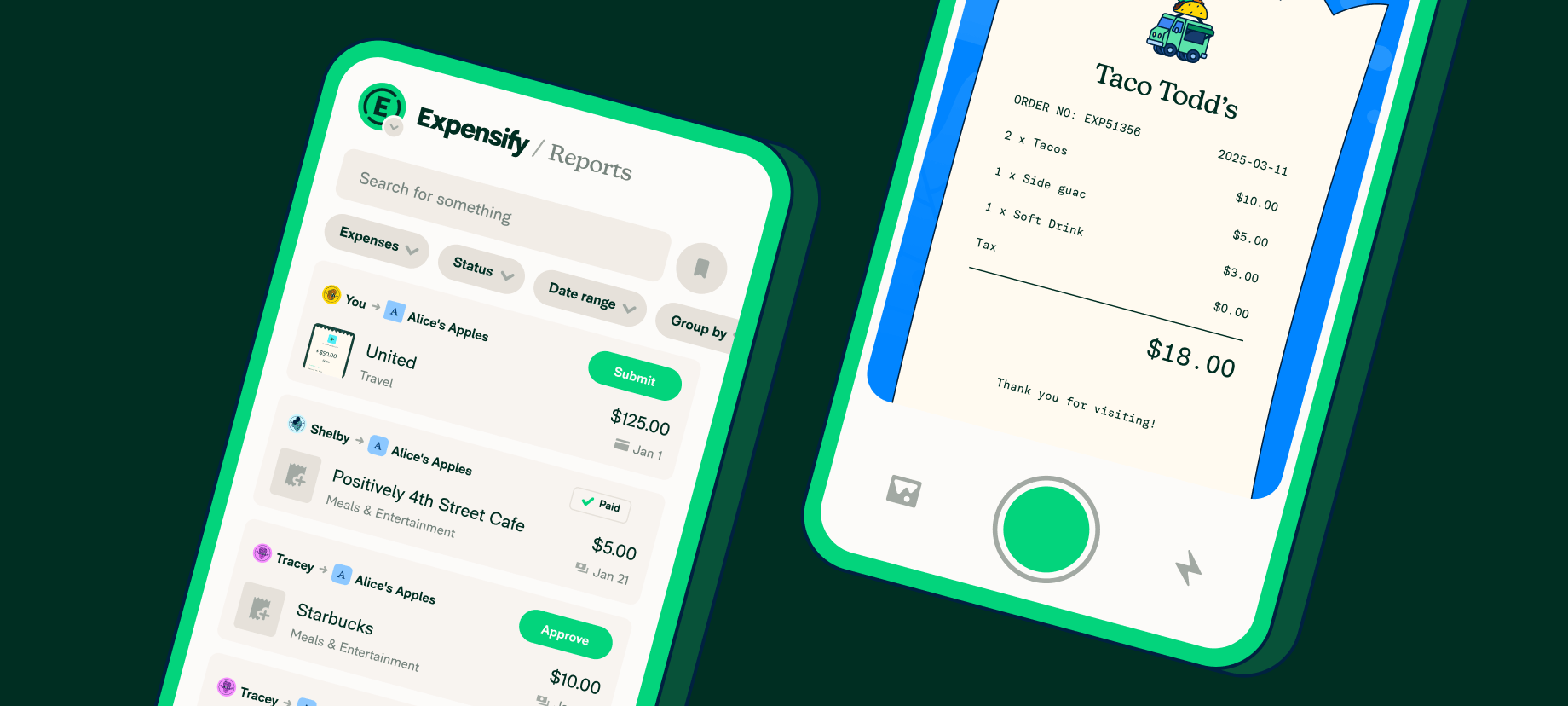
Expensify takes a different approach with per-user pricing at $5–$18/user/month. It's great for teams but has lower accuracy (~93%) and slower processing (2–5 minutes) compared to Veryfi.
If you're a freelancer or solopreneur who needs more than just receipt scanning, UPDF offers a compelling alternative. It combines OCR with full PDF editing, conversion, e-signatures, and AI assistance—all under one license that works across Windows, Mac, iOS, and Android. You can scan a receipt, extract text via OCR, and immediately edit or convert the resulting PDF without switching apps.
A single UPDF license supports up to four devices, including two desktop devices and two mobile devices, making it ideal for solopreneurs who work across multiple platforms.
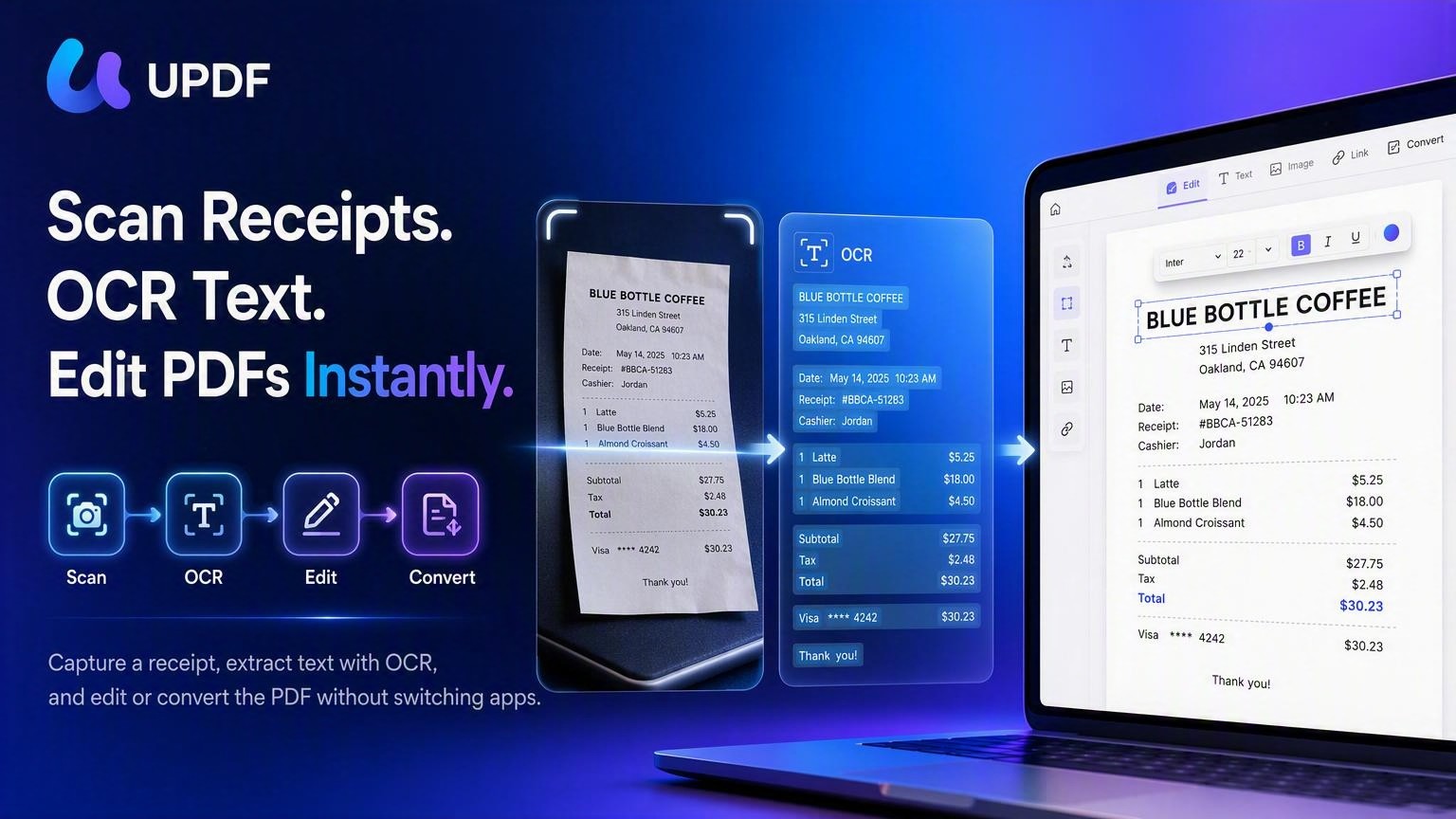
UPDF AI takes receipt processing further. Powered by GPT-5.6 and DeepSeek R1 models, you can ask the AI to extract specific information from a receipt—for example, "only extract the item names and their corresponding prices". It can also summarize receipts, translate them, answer questions about document content, and even turn PDFs into mind maps. This is particularly useful if you need to analyze spending patterns or prepare expense reports.
Type B: Accounting-Focused Receipt OCR Platforms
These tools go beyond OCR. They automatically categorize expenses, sync with your accounting software, and often include features like multi-currency support, tax detection, and client management.
Dext (formerly Receipt Bank) offers 97% accuracy at $24–$79/month but uses a per-document tier model. It's well-established but can become expensive at higher volumes.
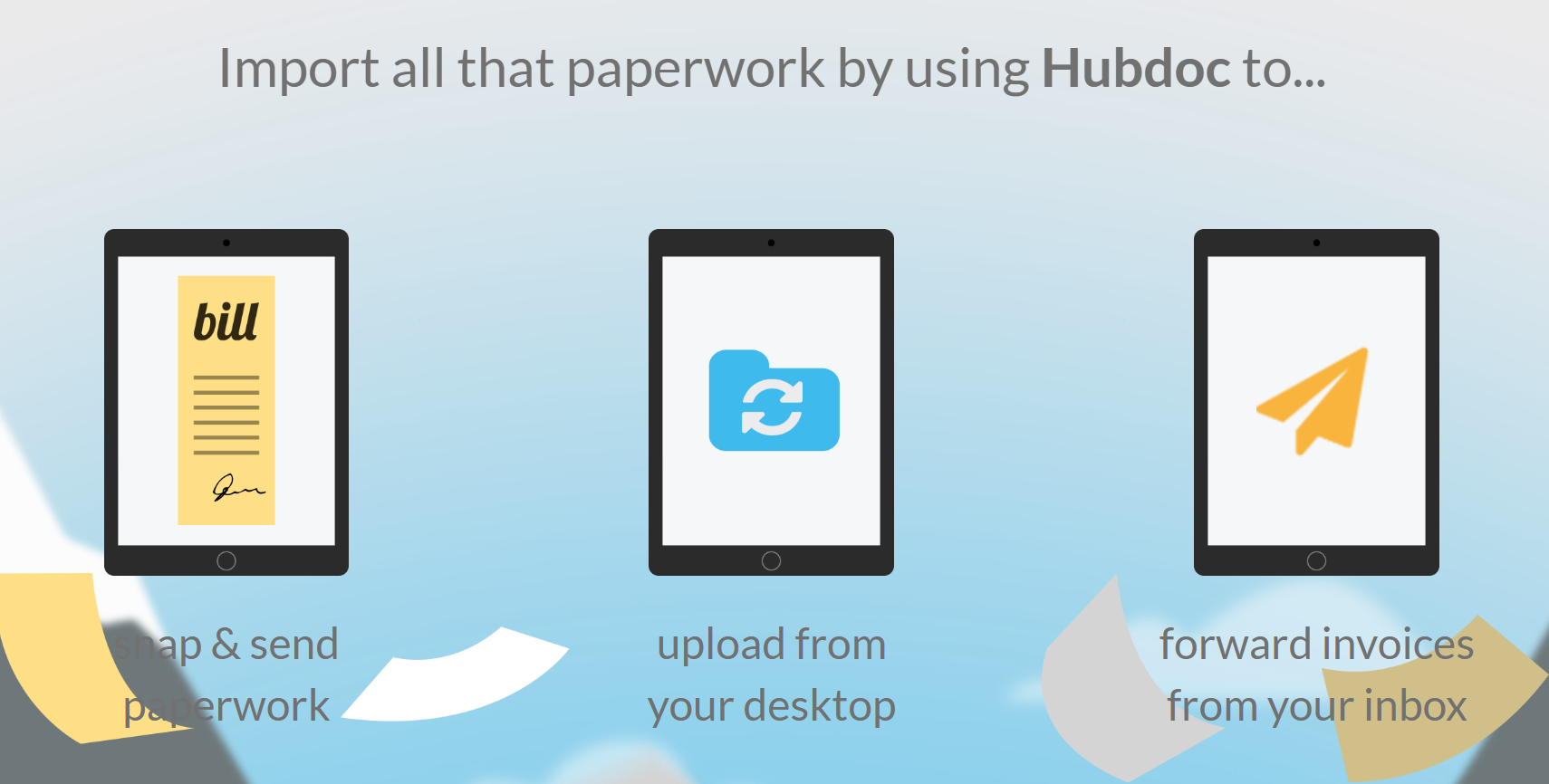
Hubdoc is free with Xero or QuickBooks Online subscriptions but has lower accuracy (94%).
Key consideration: If you process more than ~300 receipts/month, flat-rate pricing (like Zera's $79/month unlimited) typically beats per-document models.
Where UPDF fits: While UPDF doesn't have native QuickBooks/Xero integration, its Smart Invoice Parser offers similar automation for businesses that don't need full accounting software sync. It can automatically identify reimbursement receipt data, batch extract summary information, and export reimbursement sheets with one click. For solopreneurs and small businesses that use Excel or Google Sheets instead of QuickBooks, this workflow is often more practical.
Windows • macOS • iOS • Android 100% secure
Type C: Developer-First OCR APIs
These are APIs you integrate into your own software. You send a receipt image or PDF via API, and receive structured JSON data (merchant, date, total, line items, tax, etc.) in return.
| API Provider | Best For | Key Features | Accuracy | Pricing |
|---|---|---|---|---|
| Tabscanner | Receipt-specialized OCR, all languages | 99.99% accuracy, 1.5s processing, GDPR/PCI/HIPAA | 99.99% | Free: 200/month; Enterprise: volume discounts |
| Veryfi API | Enterprise-grade financial document AI | 150+ fields, line items, W-2/W-9 | 99.9% | Free (100 docs), Starter: $500/month |
| OCR.space API | General-purpose OCR, budget-friendly | Receipt scanning, table recognition, JSON output | Good | Free: 25k/mo; PRO: $30/mo |
| Taggun API | Receipt & invoice OCR for accounting | Structured JSON extraction | High | Pay-as-you-go: $0.08/scan |
Tabscanner has emerged as a strong player with a remarkable 99.99% accuracy claim and processing speeds under 1.5 seconds. It supports all languages and maintains GDPR, PCI, and HIPAA compliance.
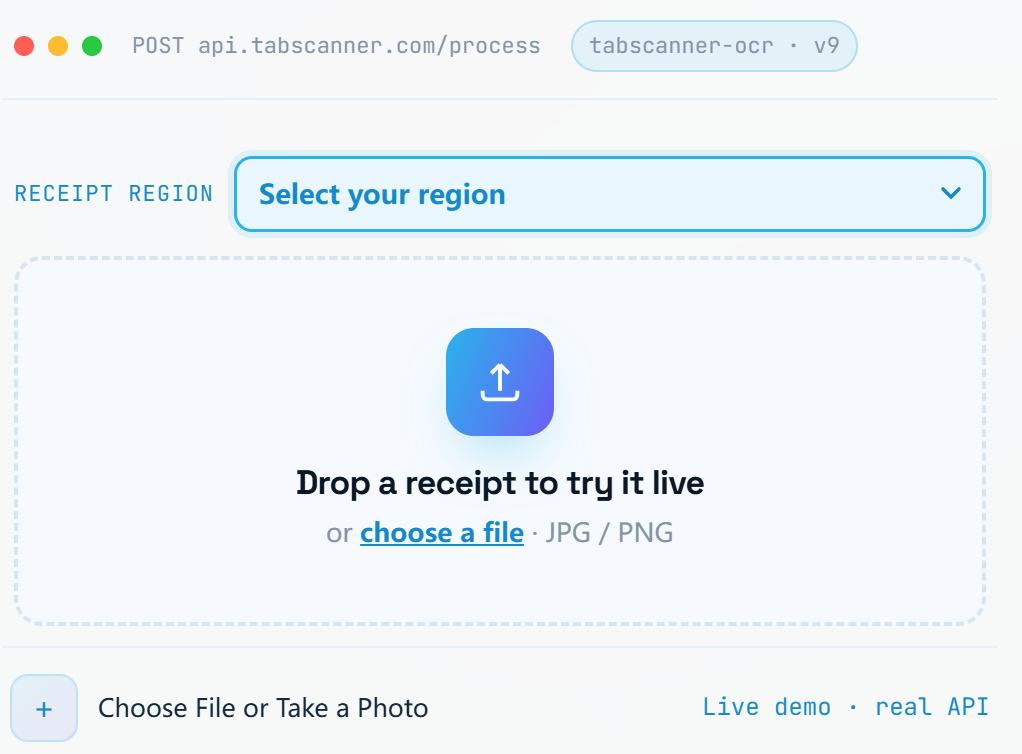
Most notably, Tabscanner introduced a free Starter Plan offering 200 receipt scans per month—making it the most generous free tier among receipt-specialized APIs.
Veryfi API starts at $500/month minimum for 6,250 receipts. It's enterprise-focused with broad document coverage (receipts, invoices, bank statements, W-2s, W-9s) and supports 150+ fields.
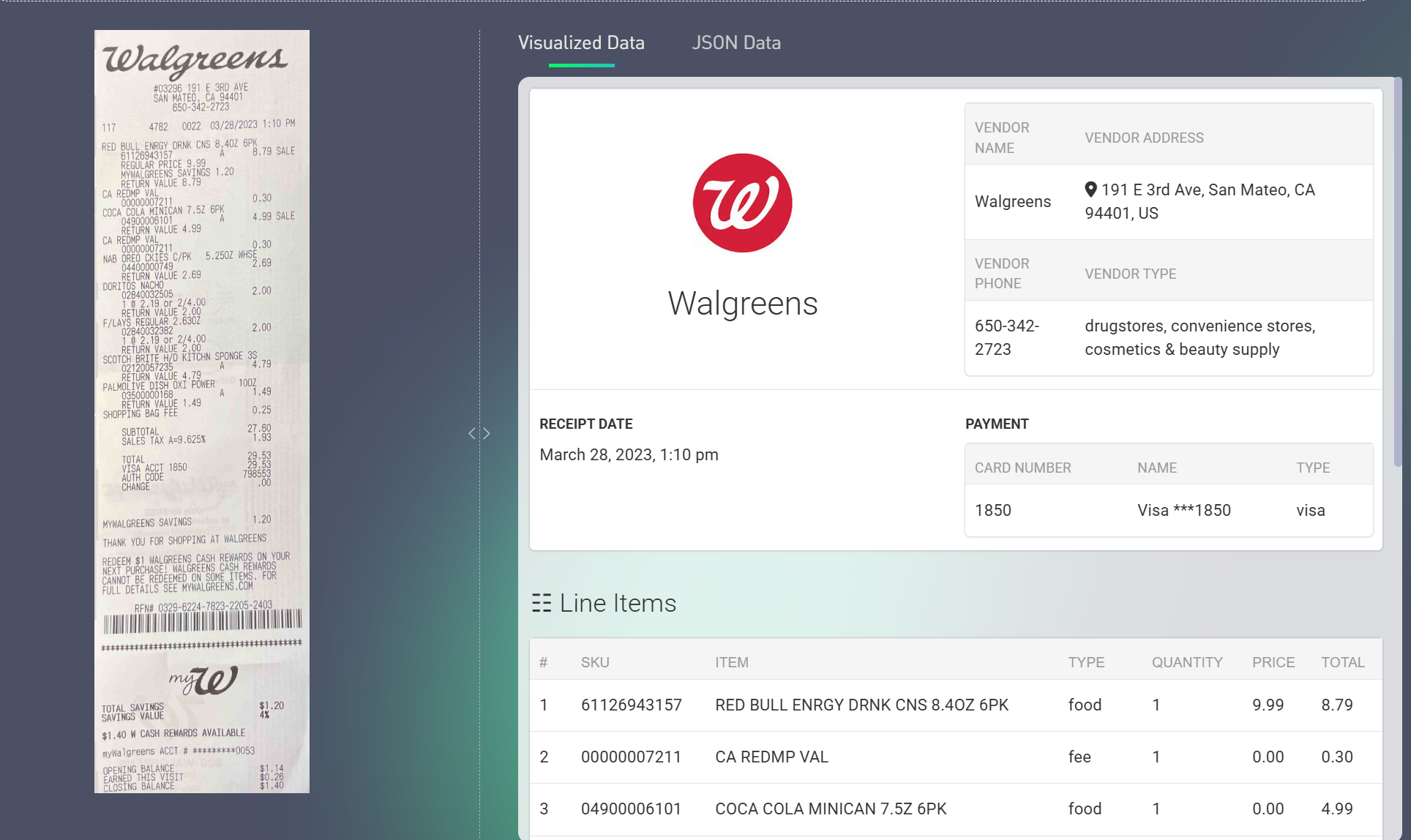
OCR.space offers a generous free tier of 25,000 requests per month, with PRO plans at $30/month for 300,000 requests. However, it's a general-purpose OCR API—not specialized for receipts—so structured data extraction may require additional parsing.
Taggun charges $0.08 per scan with pay-as-you-go pricing, making it flexible for low-volume projects.
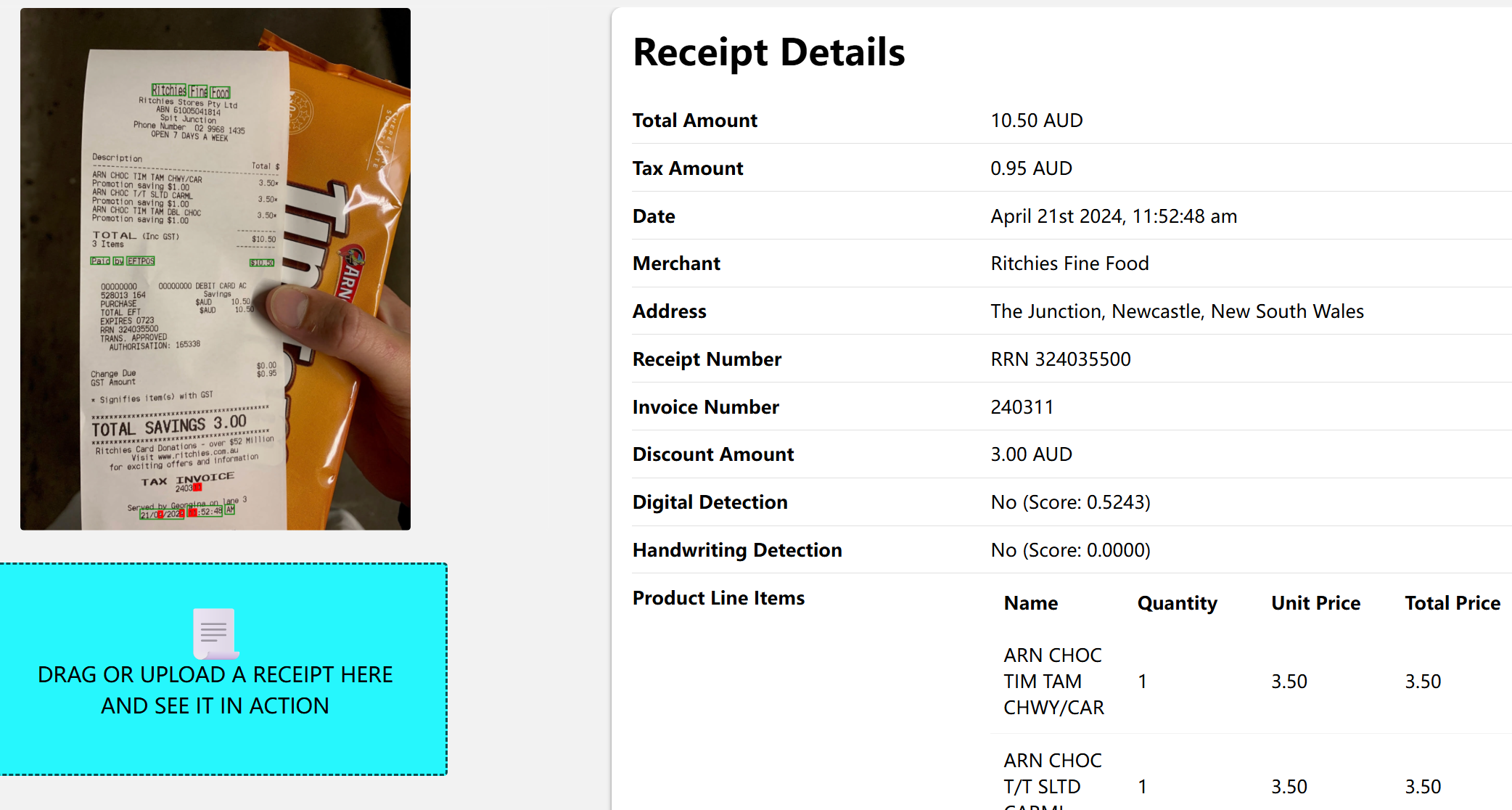
Type D: Free / Open-Source OCR Options
These are either free online services or open-source libraries you run locally. Best for hobbyists, students, developers experimenting with OCR, or anyone on a tight budget who doesn't need high accuracy or structured data extraction.
| Tool | Type | Key Features | Accuracy | Limitations |
|---|---|---|---|---|
| Tesseract | Open-source library | Free, 100+ languages, local deployment | ~60–80% on thermal receipts | Struggles with structure, complex layouts |
| OCR.space Free | Online API | 25,000 requests/month, JSON output | Good for clear documents | Remote processing, US servers only |
| Google Drive OCR | Built-in feature | Extract text from images in Drive | 94–96% | No structured data extraction, manual workflow |
| Adobe Scan | Mobile app | Free OCR, PDF creation, receipt scanning | Good | Limited to 100 OCR pages |
Tesseract is the most widely used open-source OCR engine. It's free and supports 100+ languages. However, accuracy on thermal receipts can drop to 60–80%, and it struggles with structured data extraction. You'll need to build your own parsing logic.
OCR.space Free offers 25,000 requests/month—very generous for testing or low-volume use. But it processes on remote US servers with a 1MB file limit on the free tier.
Google Drive OCR is built into Google Drive. Upload an image, open with Google Docs, and text is extracted. Accuracy is decent (94–96%), but you get raw text—not structured data.
Adobe Scan is free with OCR built in, supporting receipt scanning. The free tier limits OCR to 25–100 pages.
UPDF Free offers a limited but usable free tier: 5 OCR uses, 2 conversions per day, and a 2-file batch limit. While limited, it provides access to UPDF's 99% accuracy and 38-language support—far better accuracy than most free alternatives.
Windows • macOS • iOS • Android 100% secure
Free options work for low-volume, non-critical use. For professional or high-volume needs, paid tools are worth the investment.
How to OCR a Receipt with UPDF?
You can perform optical character recognition (OCR) of a receipt by using a dedicated receipt OCR software that can scan the receipt and pull out all the data. This is where UPDF steps in.
UPDF is an advanced AI-powered PDF editor and OCR software that performs accurate text extraction from physical or digital receipts. It can scan a receipt in 38 languages and create an editable and searchable PDF by extracting all the receipt content. Its advanced technology ensures up to 99% accuracy.
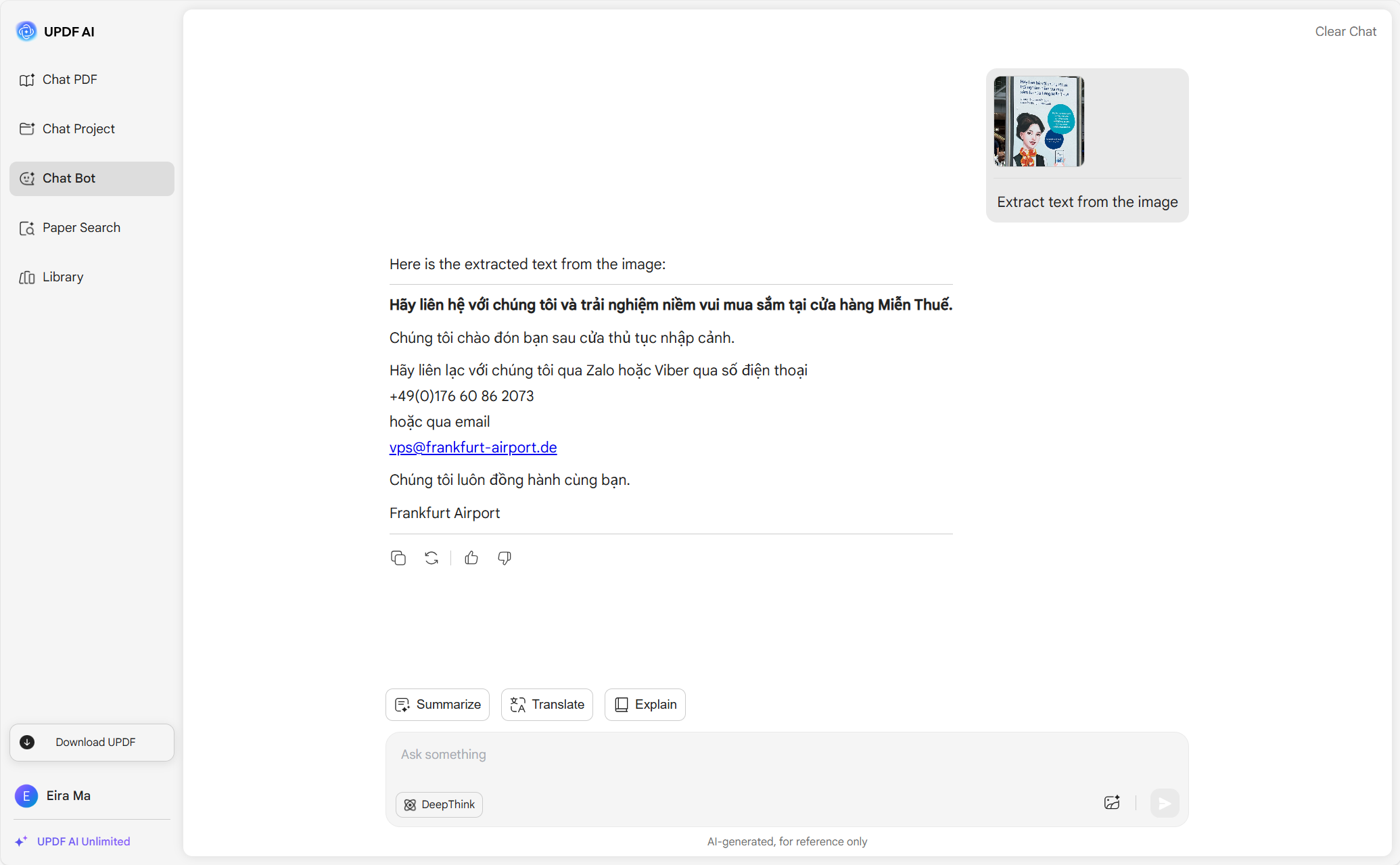
Other than the built-in OCR feature, UPDF also offers another way to extract text. You can use its AI assistant and ask to extract entire or specific text from the receipt. For example, if you only want to extract the list of items, you can ask AI to extract just the item names and their corresponding prices.
Try UPDF today and OCR your receipts within seconds!
Windows • macOS • iOS • Android 100% secure
Why Use UPDF for Receipt OCR?
UPDF is an all-in-one tool that handles the scanning process for almost any type of receipt. Here are the key features you can access with UPDF:
- AI-Powered OCR: Perform AI-backed OCR of receipts in 38 languages and generate accurate, editable and searchable PDFs.
- Preserve Layout: Preserve the layout and graphics of the receipt while performing OCR.
- Fast OCR Speed: Easily and quickly perform OCRs to any size file.
- OCR Multiple Receipts: Merge multiple receipts into a single PDF and then perform OCR simultaneously.
- OCR through AI Chat: Built-in AI assistant that can extract entire or specific text from the receipt.
- Convert to Other Formats: Convert receipts to other editable forms, such as Word, Excel, PPT, text, HTML, etc.
- Compatibility: Dedicated apps for Windows, macOS, iOS, and the web (AI chat feature only).
Feel impressed with UPDF's exceptional capabilities as a receipt OCR software? Below are the two methods and their detailed steps to use UPDF for receipt OCR:
Method 1. Use UPDF's OCR Feature
On Desktop (Windows/Mac)
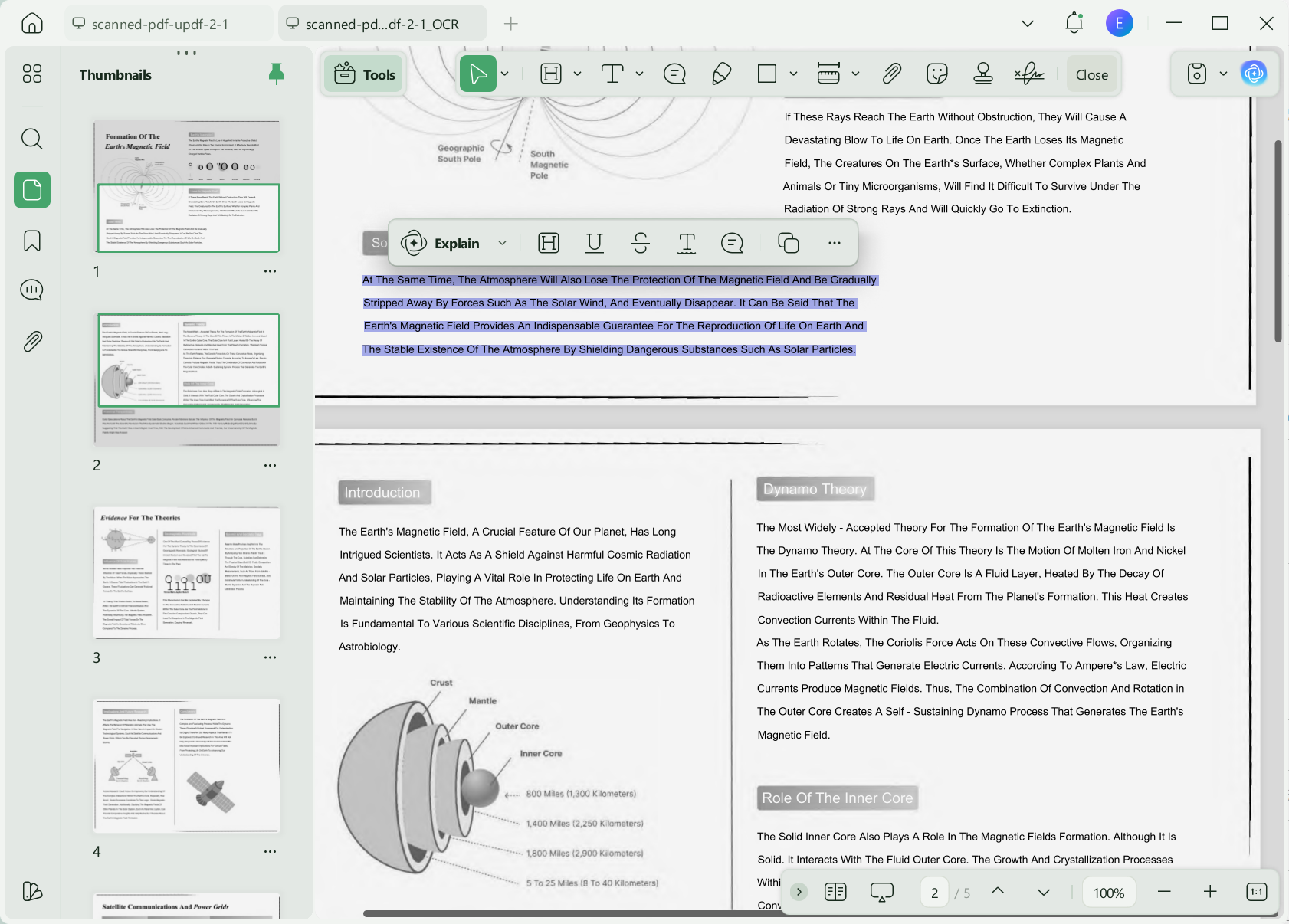
Step 1. Install and launch UPDF on your computer (Windows/Mac). Click File > Create > PDF from Image and select the single or multiple receipts.
Step 2. After generating the PDF, click the "OCR" option from the right panel and customize the following settings:
- Select "Searchable PDF" under the Document Type.
- Adjust the layout settings as per your preference, such as Text over the page image, Text under the page image, etc.
- Specify the document language and image resolution.
Once done, click "Perform OCR".
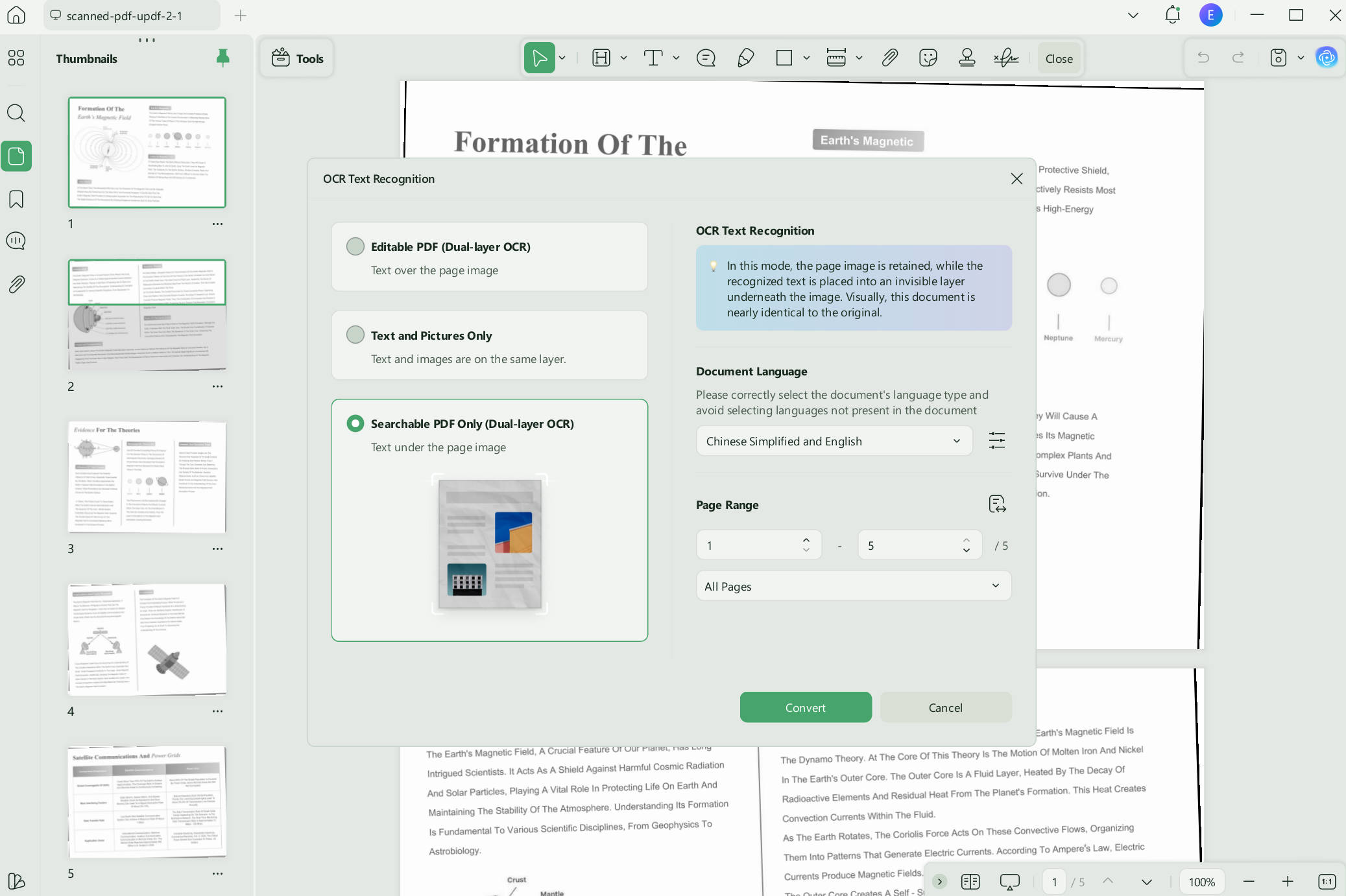
Within seconds, UPDF will generate a new PDF that includes editable and searchable receipt text.
On iPhone
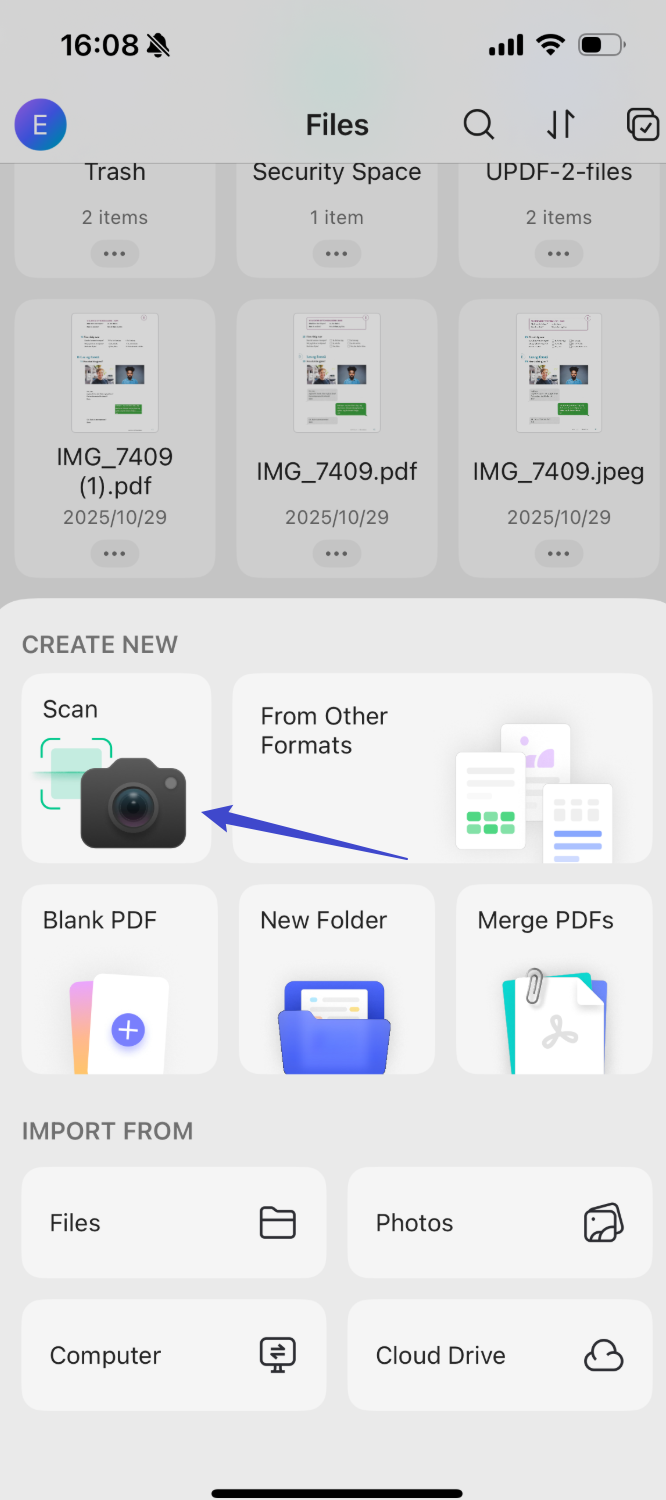
Step 1. Install and launch UPDF for iOS app from App Store. Select "Scanner" and then choose "Document mode".
Windows • macOS • iOS • Android 100% secure
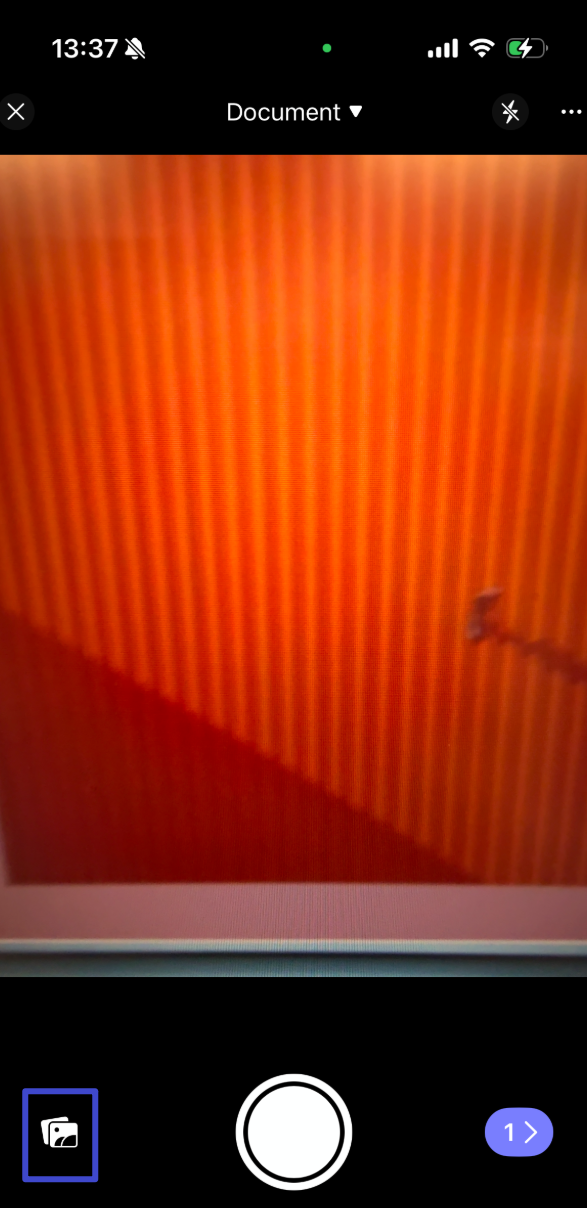
Step 2. Use your camera to capture the image of the receipt. The app will automatically capture and crop the image when the camera is placed over the receipt.
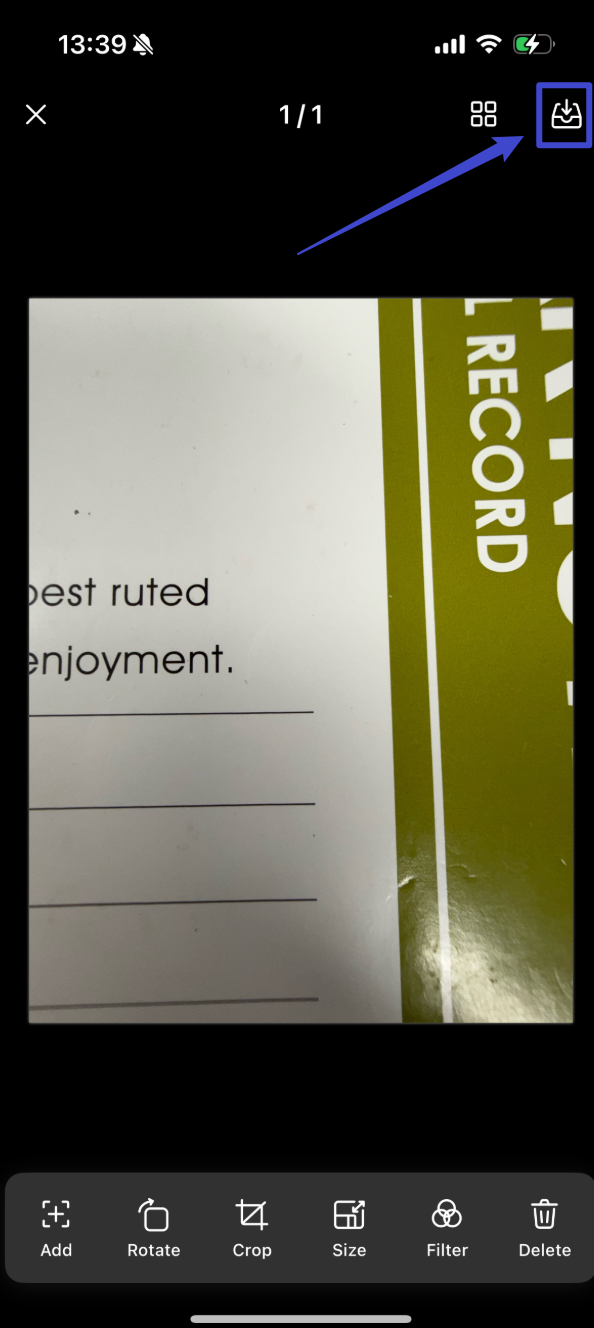
Step 3. In the next window, you can manually rotate, crop, resize, and do other edits. Afterward, click the "Download" icon from the top-right corner to save the document.
Step 4. When you return to the Scanner interface, click the three dots next to the file and tap "Convert to PDF" to get a PDF.
Step 5. Open the newly generated PDF, long-press on the opened file, and click "OCR".
Once the OCR is completed, you can easily select and copy any text from the receipt.
Method 2. Use UPDF's AI Chat Feature
Step 1. Launch UPDF and drag and drop the receipt into the tool to create a PDF.
Step 2. Click the "UPDF AI" icon in the upper right corner and then tap the "Chat" tab.
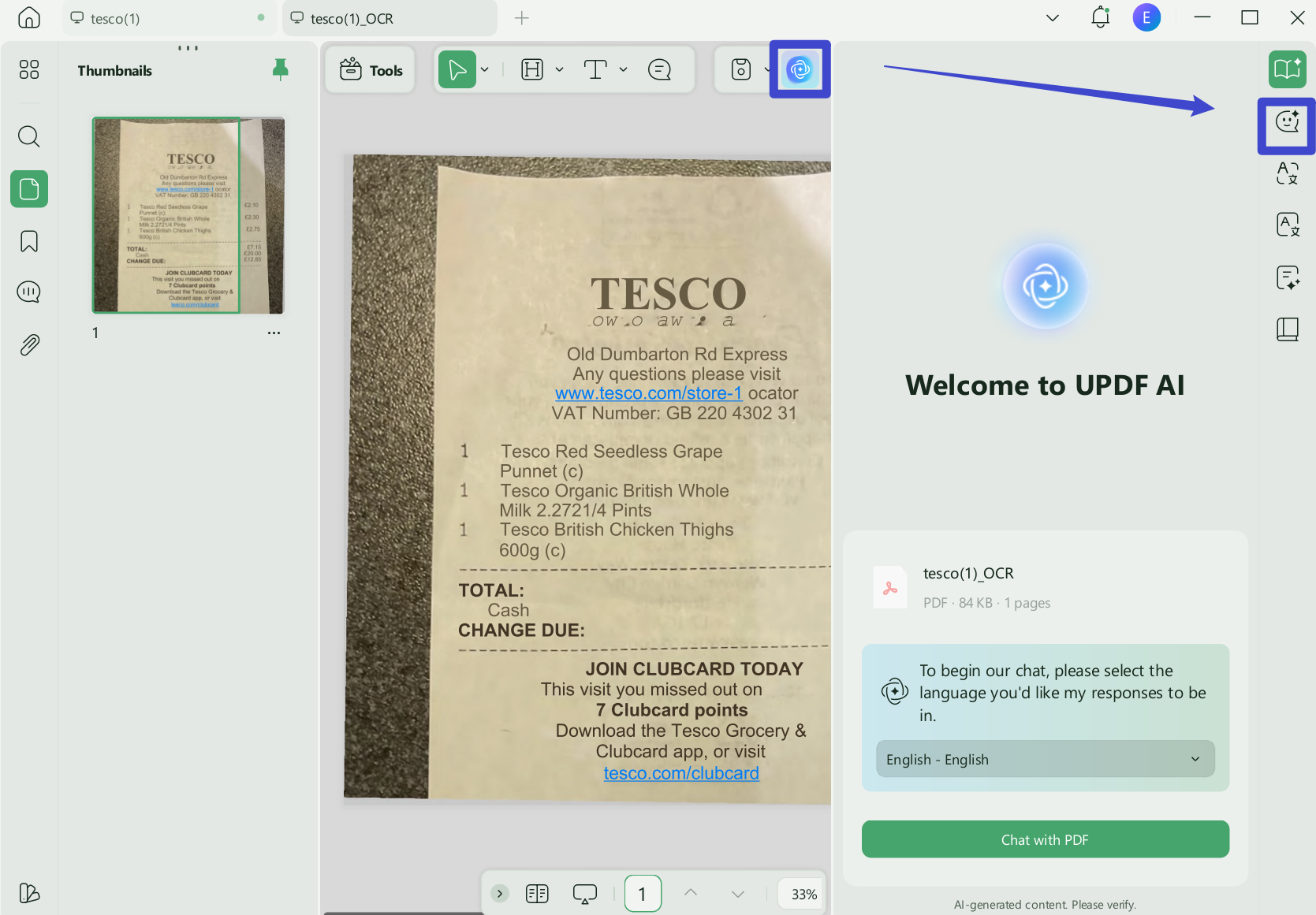
Step 3. Use the image icon in the chat box to upload the image and then enter the prompt asking the AI to extract text, such as "Extract the entire text from the receipt" or "Extract only the list of purchased items and their prices". The AI assistant will intelligently pull the required information.
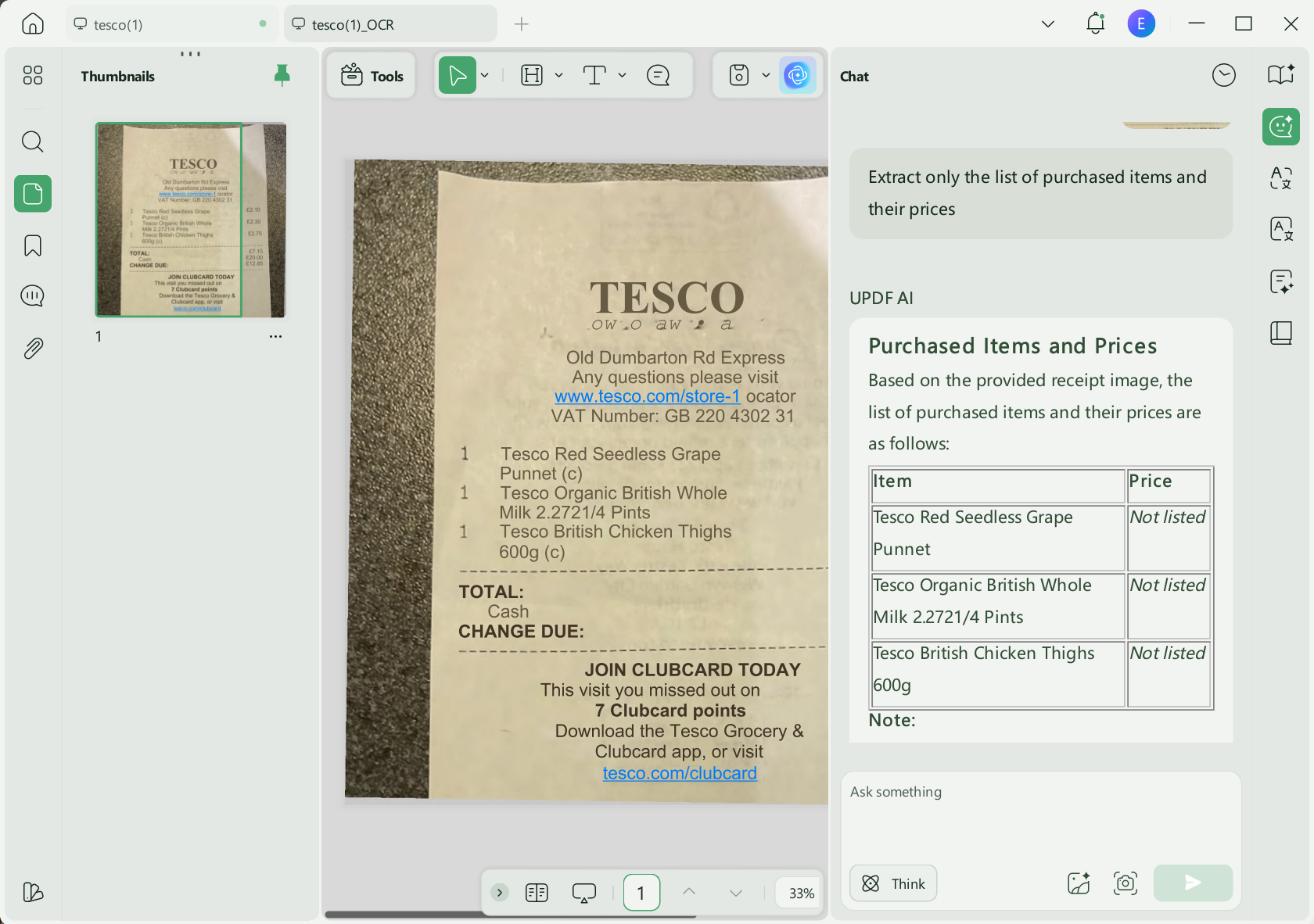
This way, UPDF's receipt OCR software provides multiple easy and fast ways to perform OCR on receipts and get editable files or pull the text. Download UPDF and give its AI assistant a try yourself.
Windows • macOS • iOS • Android 100% secure
Also Read: How to Edit a Receipt >>
FAQs About Receipt OCR
How accurate is receipt OCR?
Accuracy depends on image quality, layout, language, and handwriting. Always verify totals, dates, tax, and vendor names.
How can I improve OCR for a faded receipt?
Scan it flat in good light, increase contrast, avoid shadows, and use the correct OCR language before extraction.
Is receipt OCR safe for financial documents?
Use a provider with appropriate privacy and deletion practices, or process receipts offline when they contain sensitive financial information.
Conclusion
Receipt OCR is a perfect way to extract text from receipts and automate data entry, analysis, and other activities. Above, we have learned how UPDF's OCR and AI assistant provide a convenient and reliable way to pull out text from receipts with high accuracy and different customization options. Therefore, it's time for action! Install UPDF's desktop or mobile app and perform OCR on receipts with simple clicks.
Windows • macOS • iOS • Android 100% secure



 Enola Miller
 Delia Meyer
 Lizzy Lozano