 UPDF
UPDF
 UPDF for Windows
 UPDF for Mac
 UPDF for iPhone/iPad
 UPDF for Android
 UPDF AI Online
 UPDF Sign
 Edit PDF
 Annotate PDF
 Create PDF
 PDF Form
 Edit links
 Convert PDF
 OCR
OCR PDF to Word
 PDF to Image
 PDF to Excel
 Organize PDF
 Merge PDF
 Split PDF
 Crop PDF
 Rotate PDF
 Protect PDF
 Sign PDF
 Redact PDF
 Sanitize PDF
 Remove Security
 Read PDF
 UPDF Cloud
 Compress PDF
 Print PDF
 Batch Process
 About UPDF AI
 UPDF AI Solutions
 AI User Guide
 FAQ about UPDF AI
 Summarize PDF
 Translate PDF
 Chat with PDF
 Chat with AI
 Chat with image
 PDF to Mind Map
 Explain PDF
 PDF AI Tools
 Image AI Tools
 AI Chat Tools
 AI Writing Tools
 AI Study Tools
 AI Working Tools
 Other AI Tools
 PDF to Word
 PDF to Excel
 PDF to PowerPoint
 Enterprise Solution
 Enterprise Sign
 Enterprise AI
 Enterprise Plan
 Enterprise User Guide
 Enterprise Webinar
 Banking
 Healthcare
 Insurance
 Legal
Legal Manufacturing
 Government
 Education Solution
 Customer Stories
 User Guide
 UPDF Tricks
 FAQs
FAQs UPDF Reviews
 Download Center
 Blog
Blog Newsroom
 Tech Spec
 Updates
 UPDF vs. Adobe Acrobat
 UPDF vs. Foxit
 UPDF vs. PDF Expert

If you've ever worked with documents, you know that PDF size isn't just one thing, so you need different types of PDF size checkers to learn everything about your file. Let’s consider a scenario where your email client flashes a warning that an “attachment exceeds 25MB”, and you suddenly realize you have no idea about its file size.
A print shop comes back telling you your file is formatted for A3 paper, even though you specifically designed it for A4 output. Sound familiar? Here's what most people don't realize: PDF size actually refers to three very different things, including file size, measurement, and page size.
The good news is that you don't need to check each page manually. UPDF - All in one PDF size solution offers a simple solution to detect all three types of PDF size and correct any issues with just a few clicks. In this guide, we'll walk you through exactly how to do that, plus other methods worth knowing.
Windows • macOS • iOS • Android 100% secure
Part 1. How to Check PDF File Size?
Most people struggle with fulfilling the file size requirements set by online tools and forums. The quickest way to check a PDF file size is directly through your operating system. On Windows, right-click the file and access Properties to find the size under the General tab.
While using macOS, you need to right-click the PDF and choose Get Info. The file size appears right at the top of the info panel. Online tools can also help, but you probably don't want to upload them to a random website just to check the file size. So, use UPDF to check file size and page dimensions locally on your device.
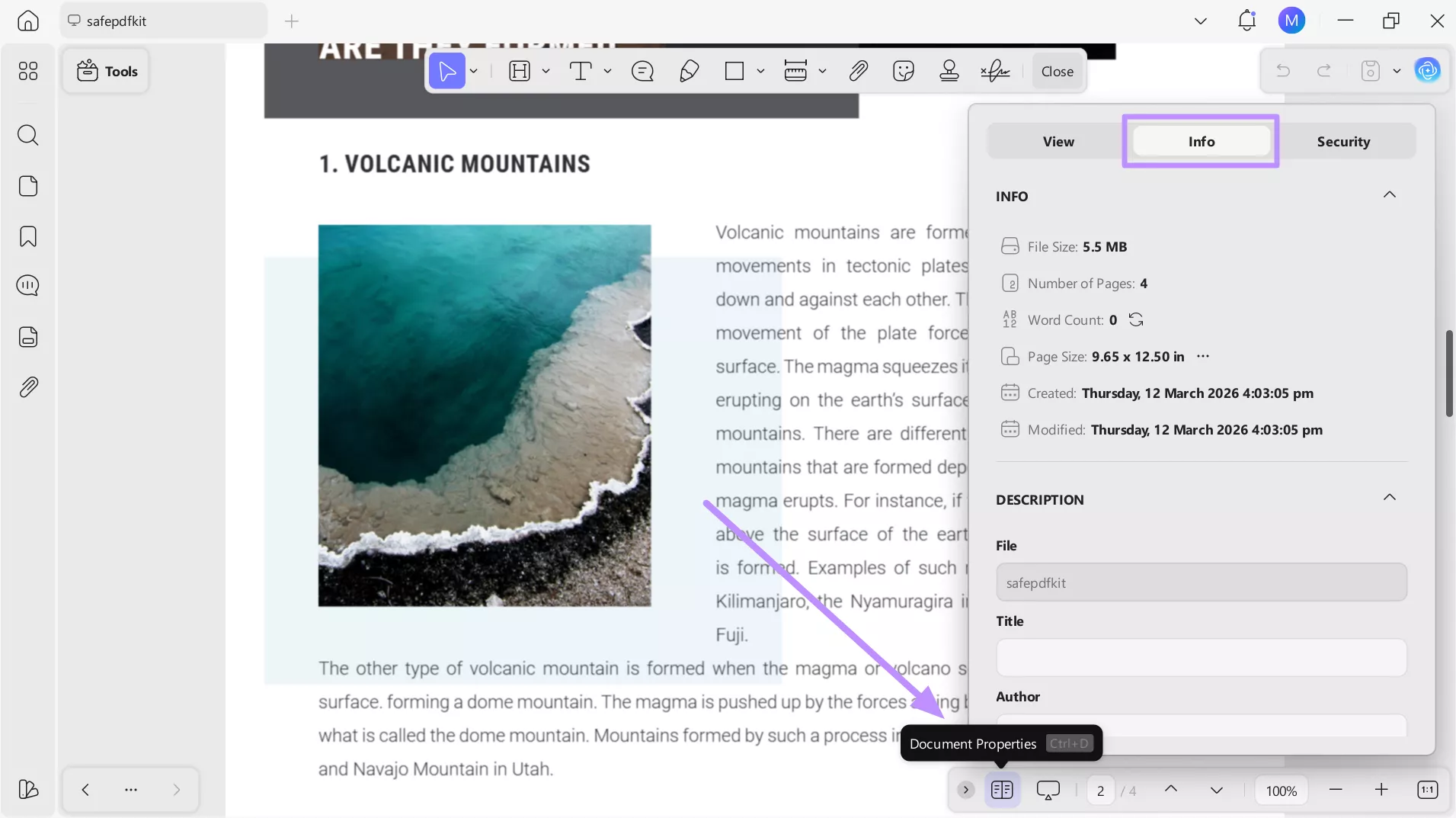
Here's how to check PDF size using UPDF:Instructions: Upon launching this tool, tap Open File to import the PDF whose file size you want to check. Then, click on the Document Properties icon and access the Info tab to see the file size along with other document metadata.
Part 2. How to Check and Measure PDF Lengths and Areas?
Apart from knowing the file size, you may also need to measure actual distances or areas within a PDF document. This is a common requirement for architects reviewing blueprints, engineers analyzing technical diagrams, or real estate teams studying floor layouts.
For this, UPDF includes a built-in measurement toolkit that gives you three precise methods to check the size of any picture, content, or diagram within a PDF. These three measurement tools include:
1. Distance Tool
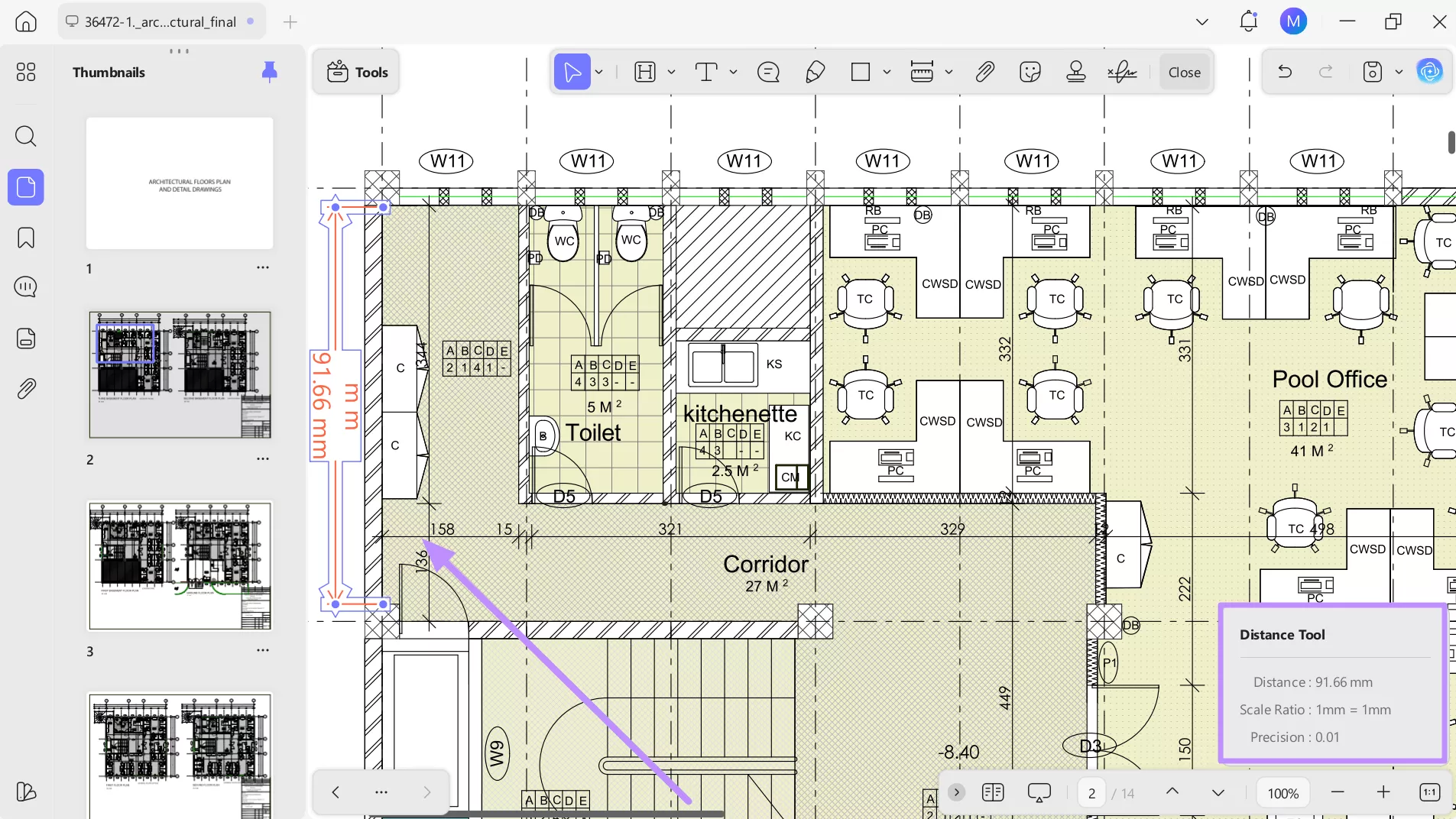
It lets you measure the straight-line distance between any two points in your PDF. This feature is ideal for checking dimensions on architectural drawings or engineering schematics where you need exact lengths.
2. Perimeter Tool
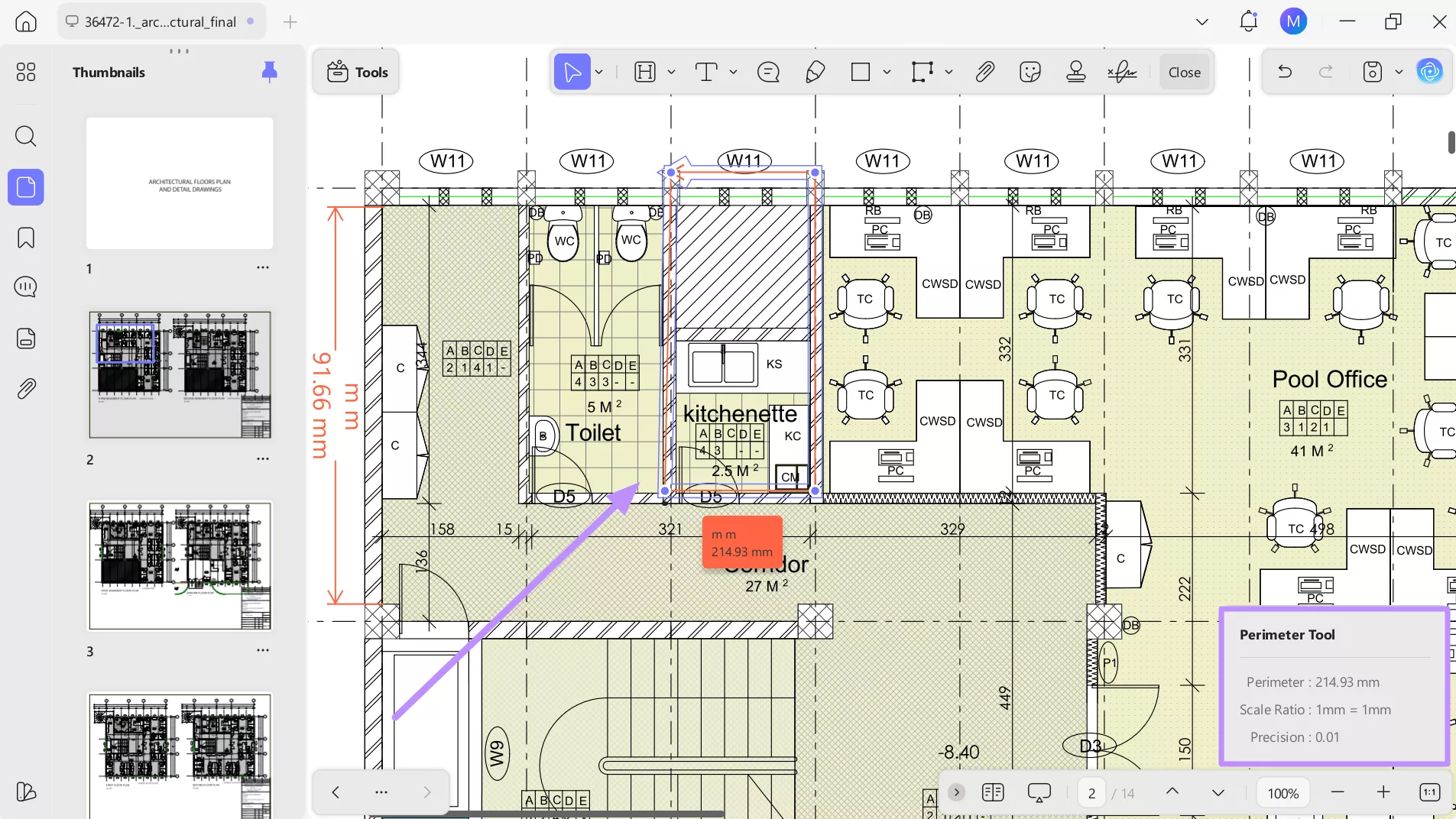
The Perimeter Tool measures the total boundary length of a shape. If you need to know the outer edge of a floor plan section, this is the tool you need.
3. Area Tool
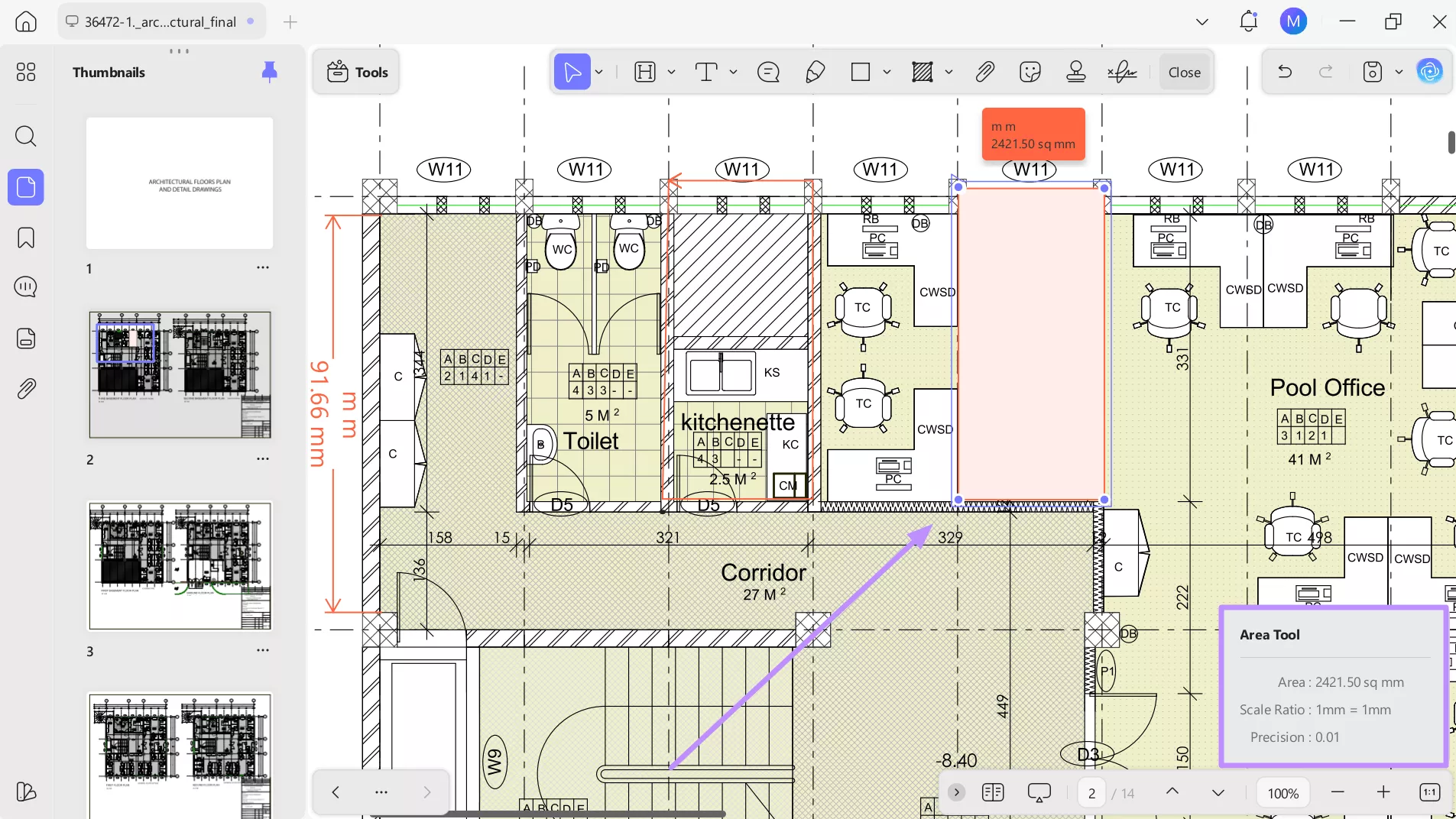
This tool helps you calculate the surface area of any closed region you define by clicking around its boundary points. It is perfect for measuring room areas, land plots, or any enclosed shape within a technical document.
Steps to Use UPDF for PDF Measurements
To learn how to use this PDF size checker, follow these detailed steps:
Windows • macOS • iOS • Android 100% secure
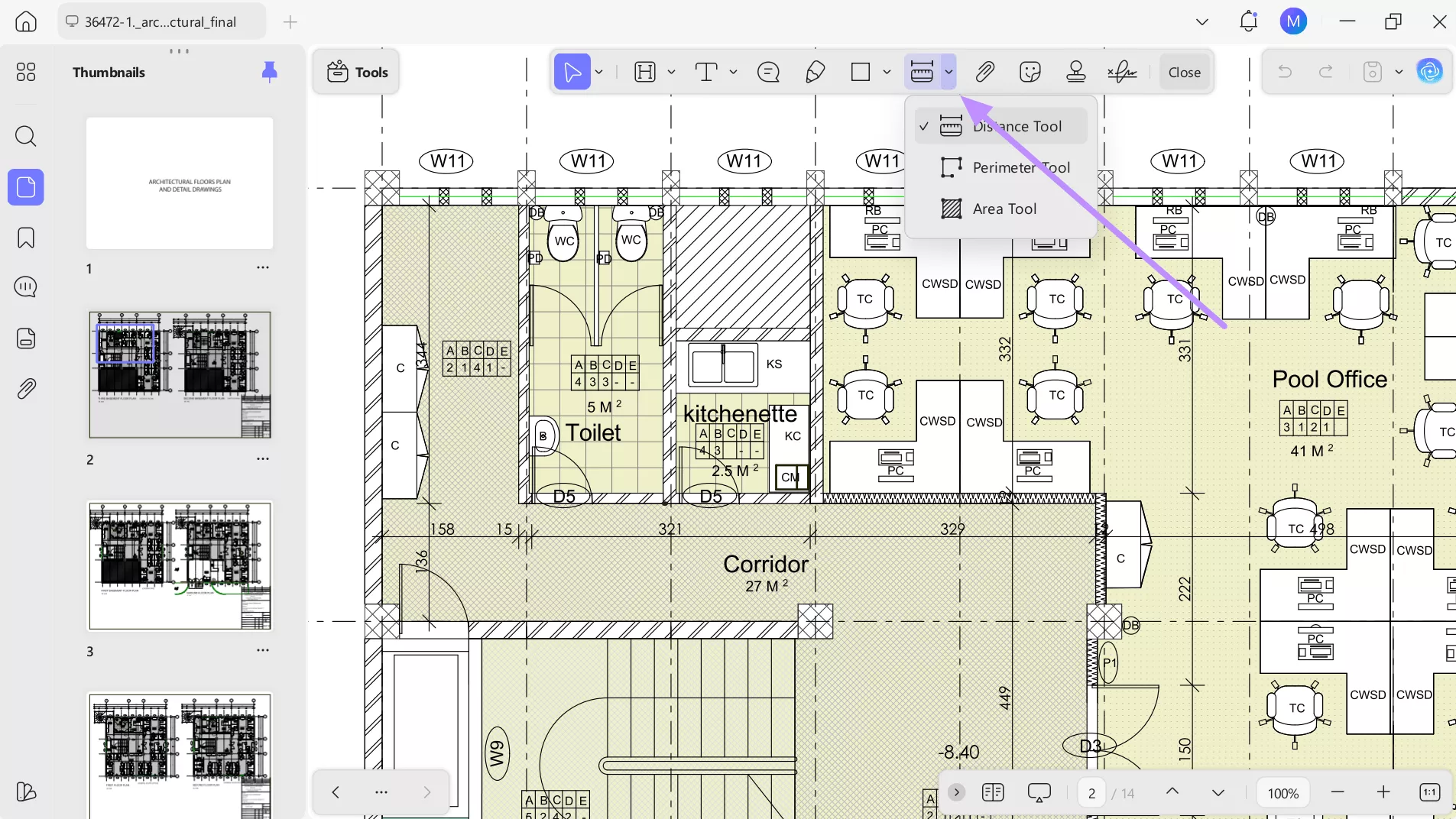
1. Start by launching UPDF and importing the PDF drawing or plan you want to measure. Now, look for the Measurement feature in the top toolbar. Then, tap the Downward icon to reveal the Distance, Area, and Perimeter tools.
2. Now, select the Distance Tool and click once at your starting point on the document, and click again at your endpoint. UPDF will draw a line between the two points and display the measured distance automatically.
3. To measure a perimeter, select the Perimeter Tool and tap on each corner or boundary point of the shape. UPDF will calculate the perimeter length as you add each point.
4. Finally, select the Area Tool and click around the boundary of the region you want to measure. Complete the shape by clicking back on your starting point, and UPDF will instantly display the calculated area.
Part 3. How to Check the Physical Dimensions of a PDF Page?
Generally speaking, page dimensions cause the most confusion at print shops and in professional workflows. Before we look at how to check and correct page size, it helps to know what the standard sizes actually are. Here's a quick reference table:
| Page Size | Dimensions (mm) | Dimensions (inches) | Common Usage |
| A4 | 210 × 297 mm | 8.27 × 11.69 in | Standard office/business documents worldwide |
| A3 | 297 × 420 mm | 11.69 × 16.54 in | Architectural drawings, posters, and large tables |
| US Letter | 215.9 × 279.4 mm | 8.5 × 11 in | Default page size in the United States |
| US Legal | 215.9 × 355.6 mm | 8.5 × 14 in | Legal contracts and court documents |
| A5 | 148 × 210 mm | 5.83 × 8.27 in | Booklets, flyers, notepads |
If your PDF doesn't match the size you intended, it can cause clipping at the printer, incorrect scaling, or misaligned margins. Here are four ways to check your page dimensions using the PDF size checkers online and offline.
Way 1: Professional PDF Editor — UPDF
Along with letting you check PDF page size, UPDF even helps you correct it on the spot. It's one of the few tools that combines a page size checker and a page size corrector in a single interface. Here's how to check and correct page size using UPDF:
Windows • macOS • iOS • Android 100% secure
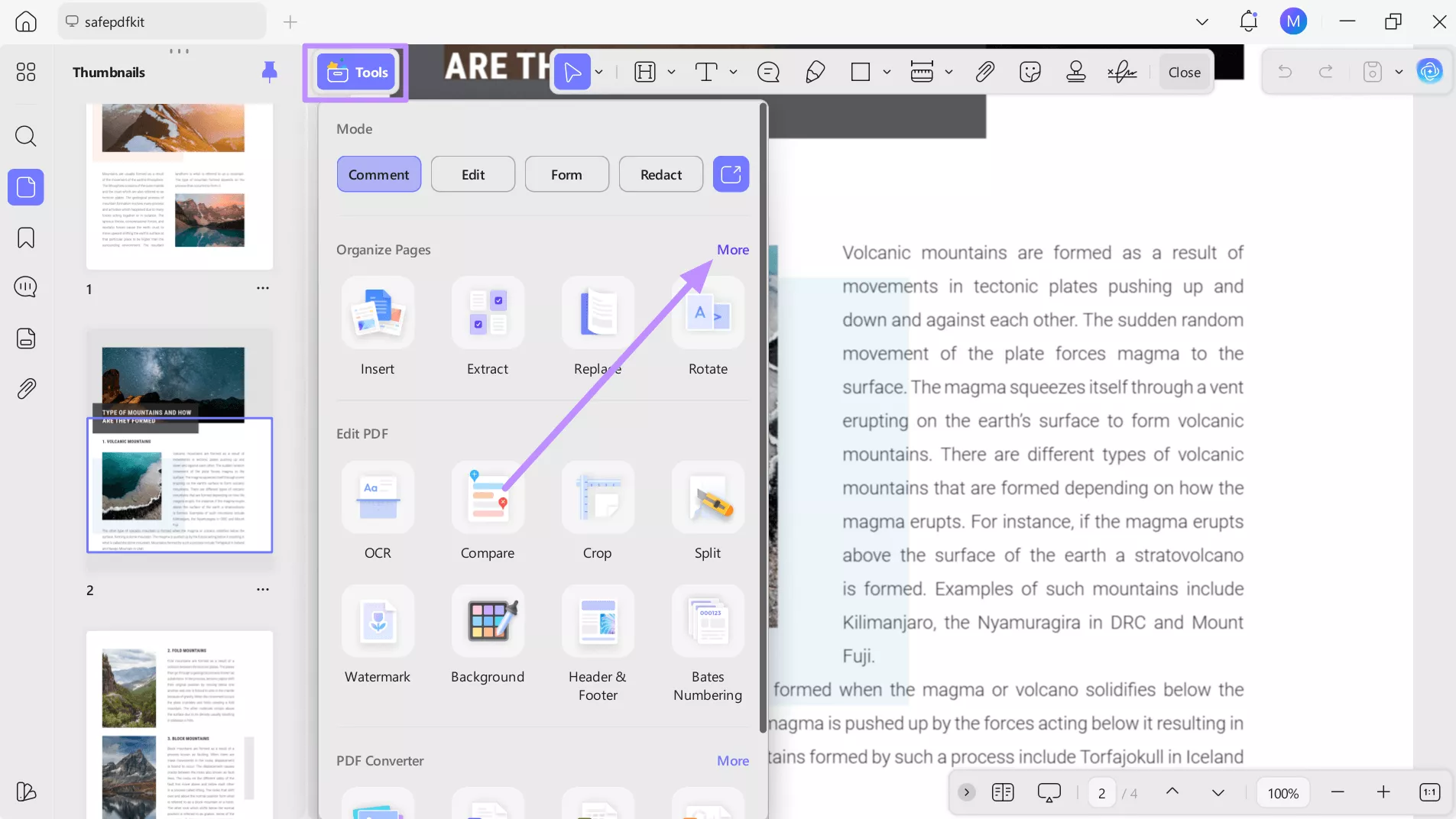
1. After importing the PDF whose page size you want to check, tap on Tools on the top-right of your screen and hit More to proceed with this task.
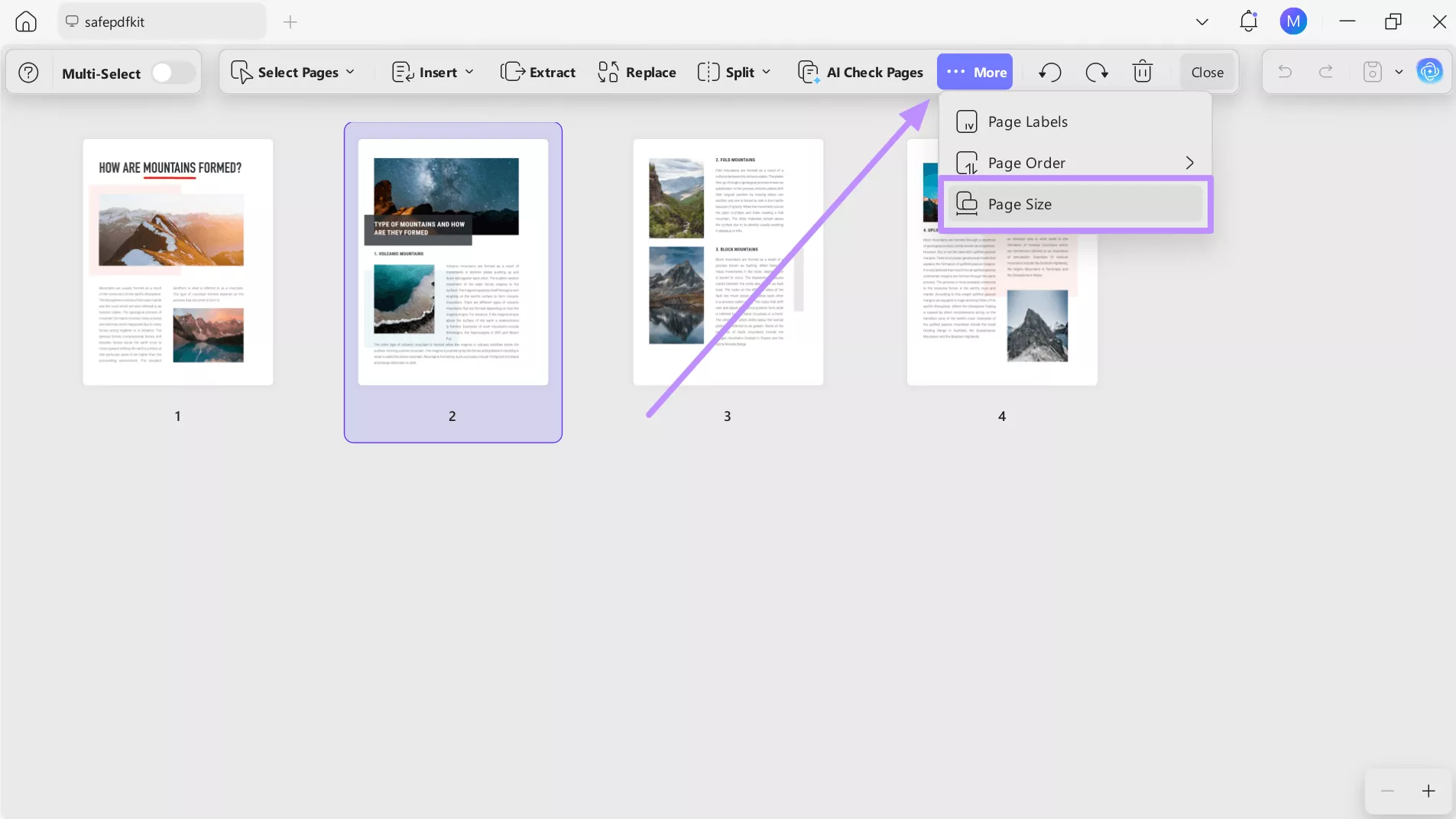
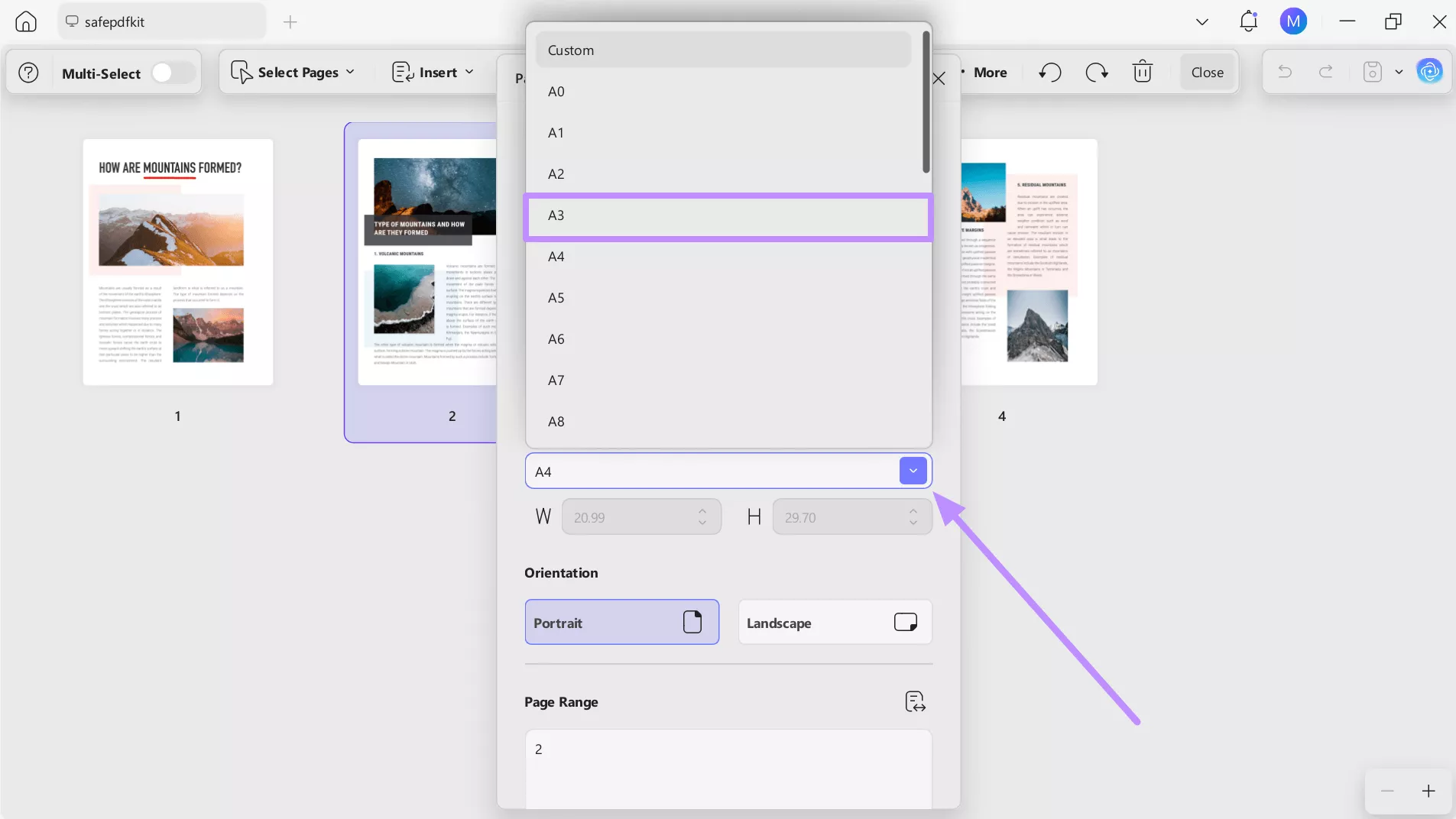
2. Moving forward, click on the page and hit More to access the Page Size feature from the dropdown menu. UPDF will open the page size settings panel for the selected pages.
3. In the Page Size Setting panel, you'll immediately see the current page dimensions listed.
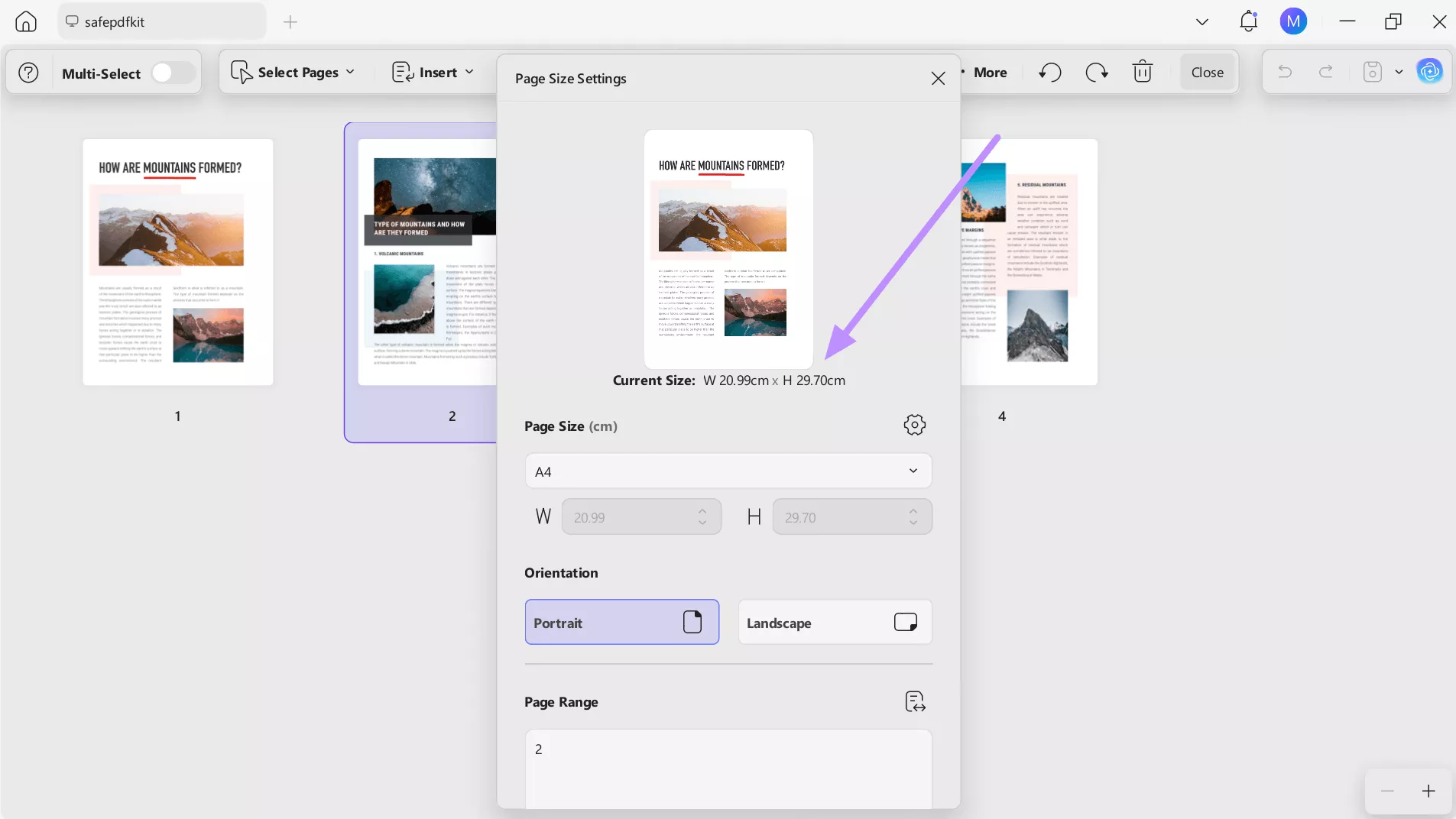
4. To correct the page size, click the Page Size dropdown menu and select your desired size from the list, including A4, A3, US Letter, US Legal, or any standard size. UPDF will resize the page to match your selection.
Key Features of UPDF Page Size Tool
- UPDF displays individual page dimensions for every page in the document at once. This way, you can spot inconsistent page sizes across a multi-page file.
- You can select multiple pages and change their size in a single operation to save time when standardizing a large document.
- Apart from standard presets, UPDF lets you enter custom width and height values for non-standard formats.
- When you adjust page size in UPDF, the original content is scaled or repositioned, so your text and images are preserved.
Way 2: Adobe Acrobat Reader
Adobe offers another reliable option for checking PDF page size, especially when you're already using it as your default viewer. While the free version doesn't let you change the page size, it does let you view the current dimensions.
Follow the steps given below to learn how to use this PDF file paper size checker:
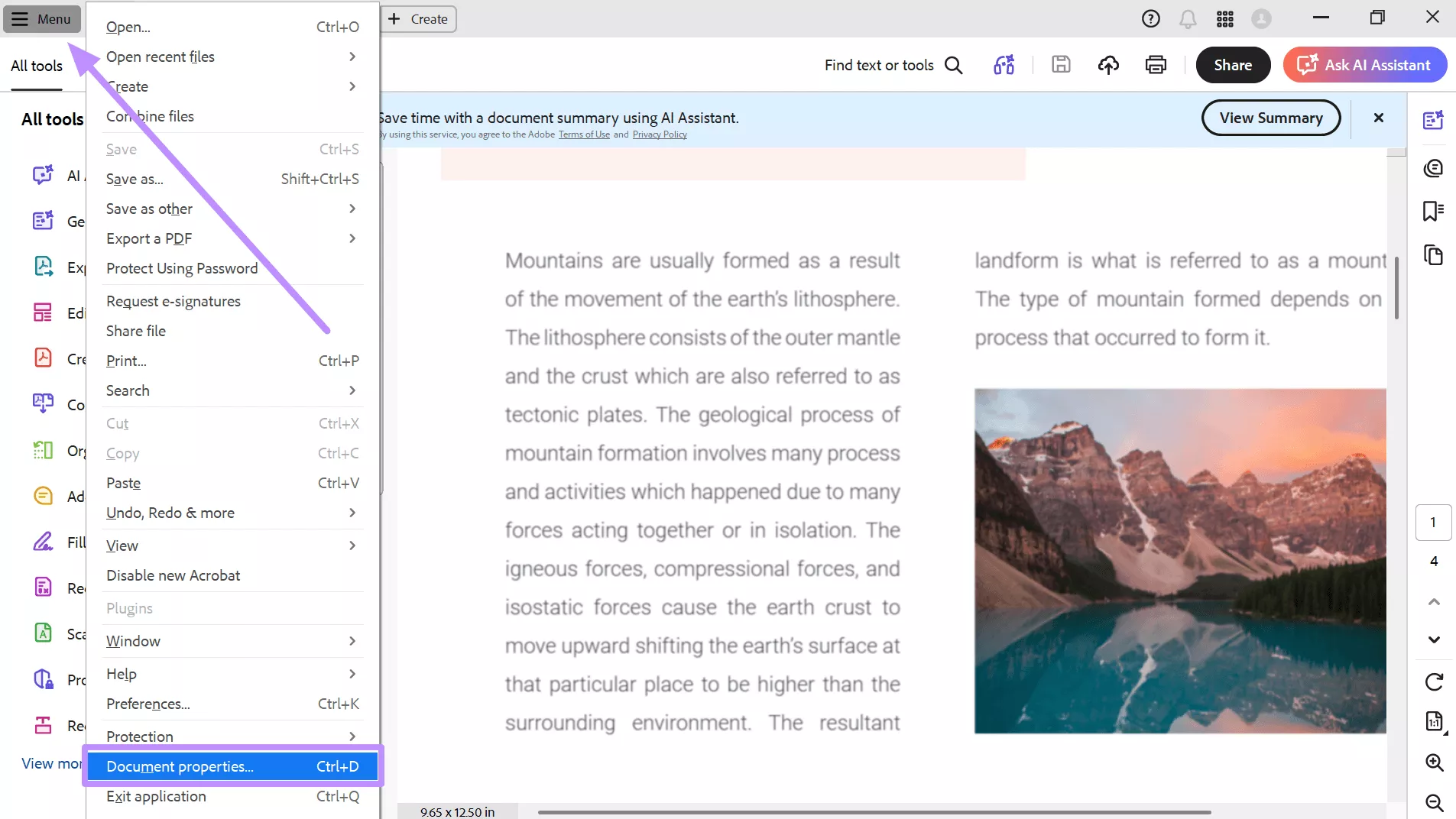
1. Once the file is imported, click Menu in the top-left corner and tap on the Document Properties option.
2. Within the Document Properties dialog box, see the Page Size field, which shows the width and height of your page in the units configured in your preferences.
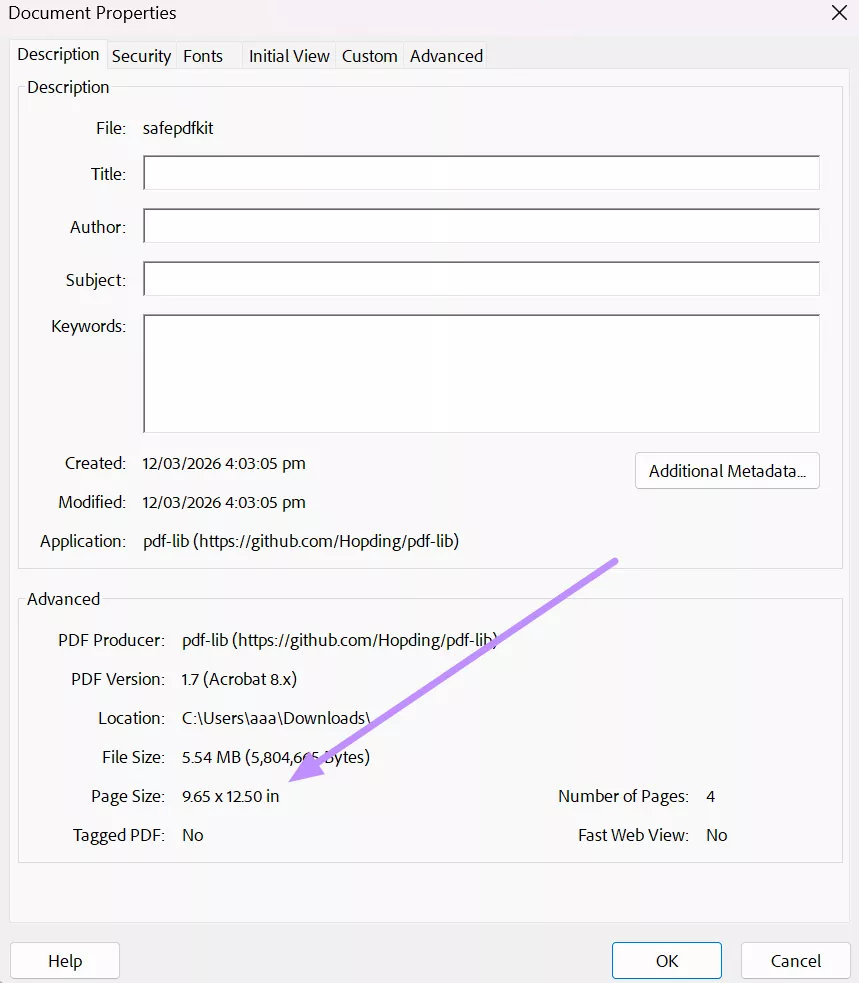
Keep in mind that Adobe Acrobat Reader only shows you the size of the first page by default. If your document has mixed page sizes, you'll need the full Adobe Acrobat Pro to inspect individual pages.
Way 3: View Indirectly Using the "Print" Dialog Box
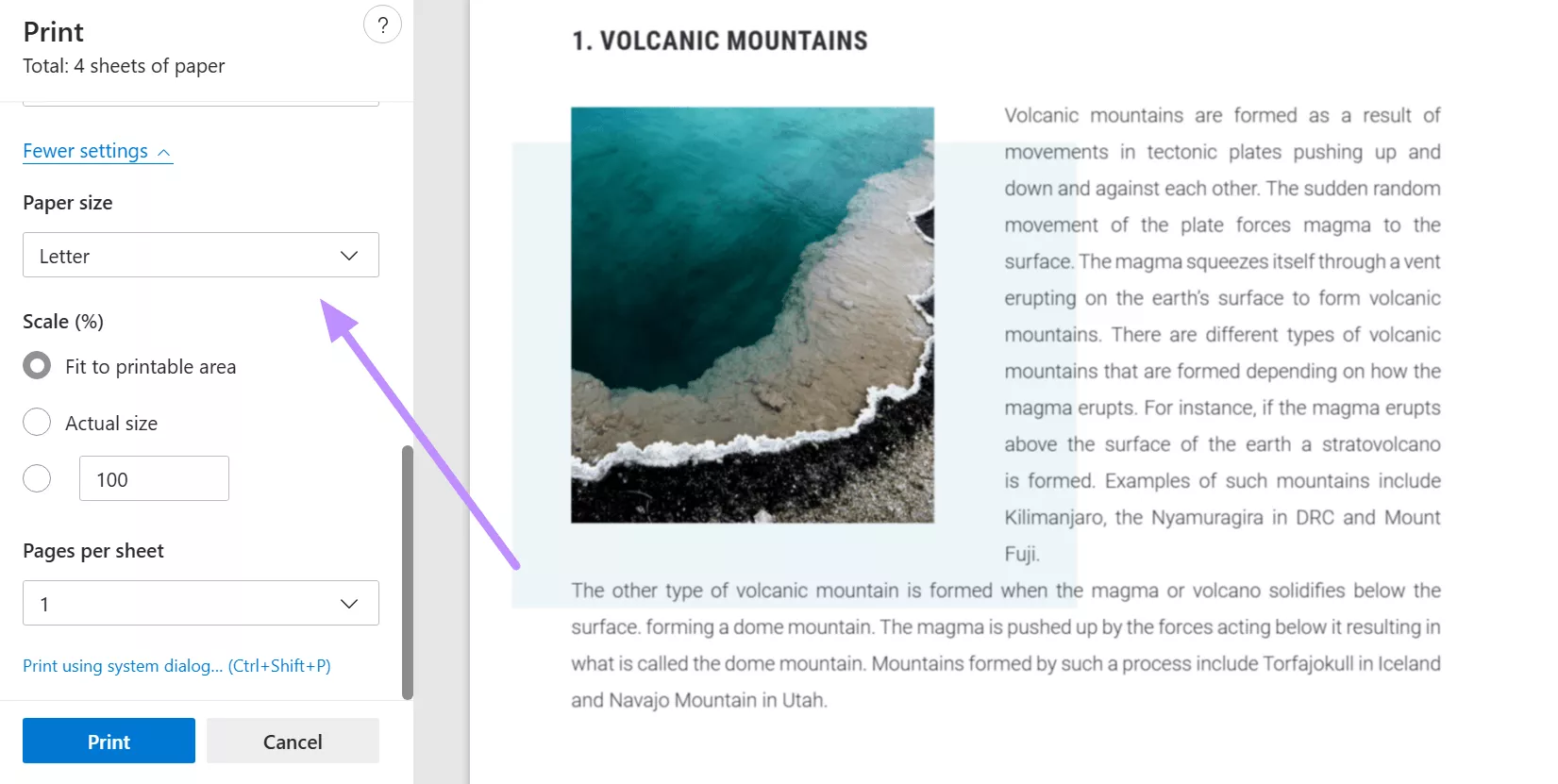
If you don't want to dig into document properties, the Print feature works as a quick, indirect method that works in almost any PDF viewer. To access this feature, you need to press Ctrl+P (Windows) or Cmd+P (Mac). The paper size field in the print dialog will reflect the page dimensions of your PDF. However, it's worth noting that this approach shows you what the print driver interprets as the page size, which can occasionally differ from the actual embedded dimensions in the PDF file.
Way 4: Check PDF Size Online Free
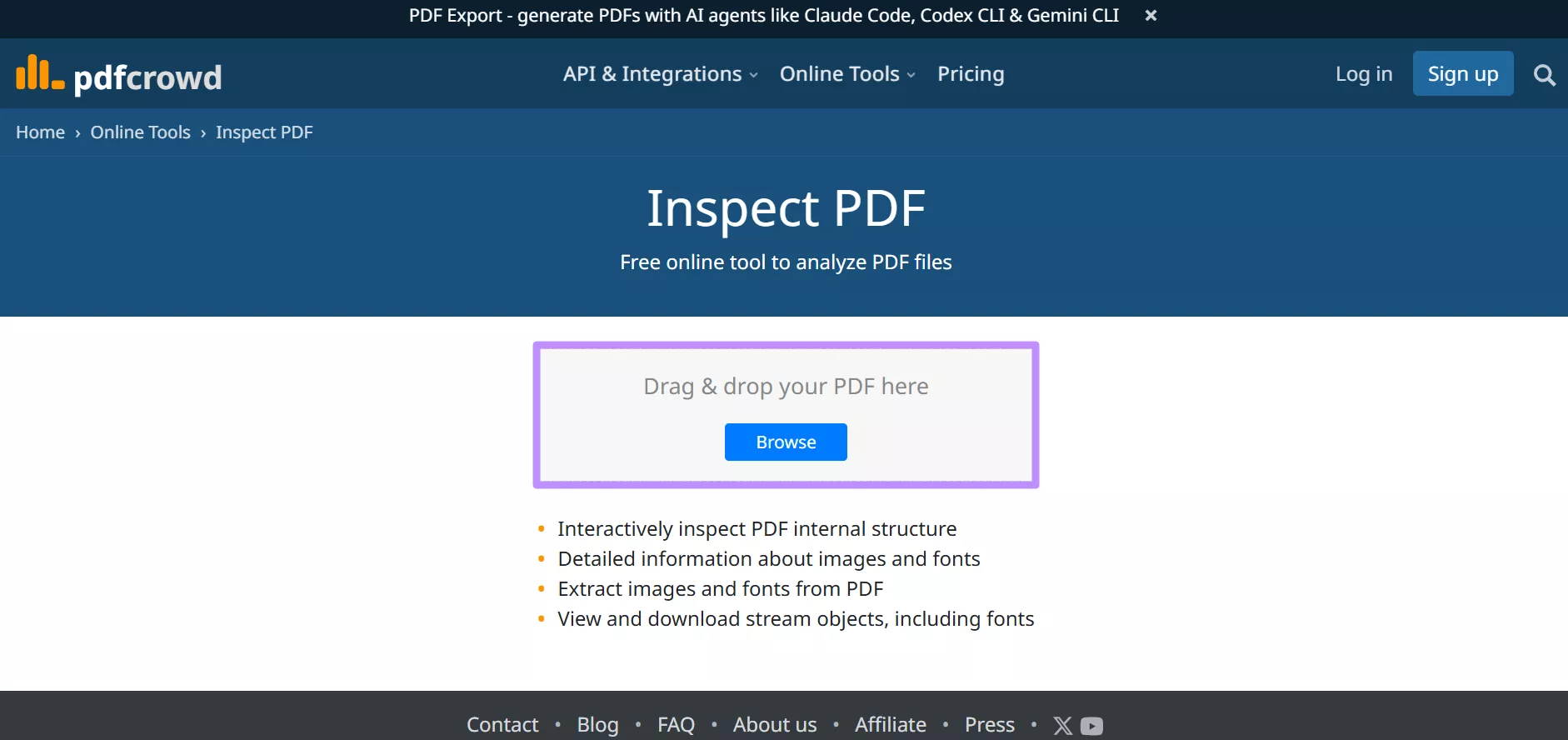
There are tools available that can help you check PDF page size online without installing any software. PDFcrowd is one such example, offering an Inspect PDF feature that reports the page dimensions of an uploaded document. Follow the steps given below to learn how to check PDF page size online:
1. Go to the PDFcrowd website and get access to the Inspect PDF tool. Here, click the Browse button and select your PDF file from your computer.
2. Once the file is processed, PDFcrowd will display the PDF information, including page size, number, and length, for each page in the document.
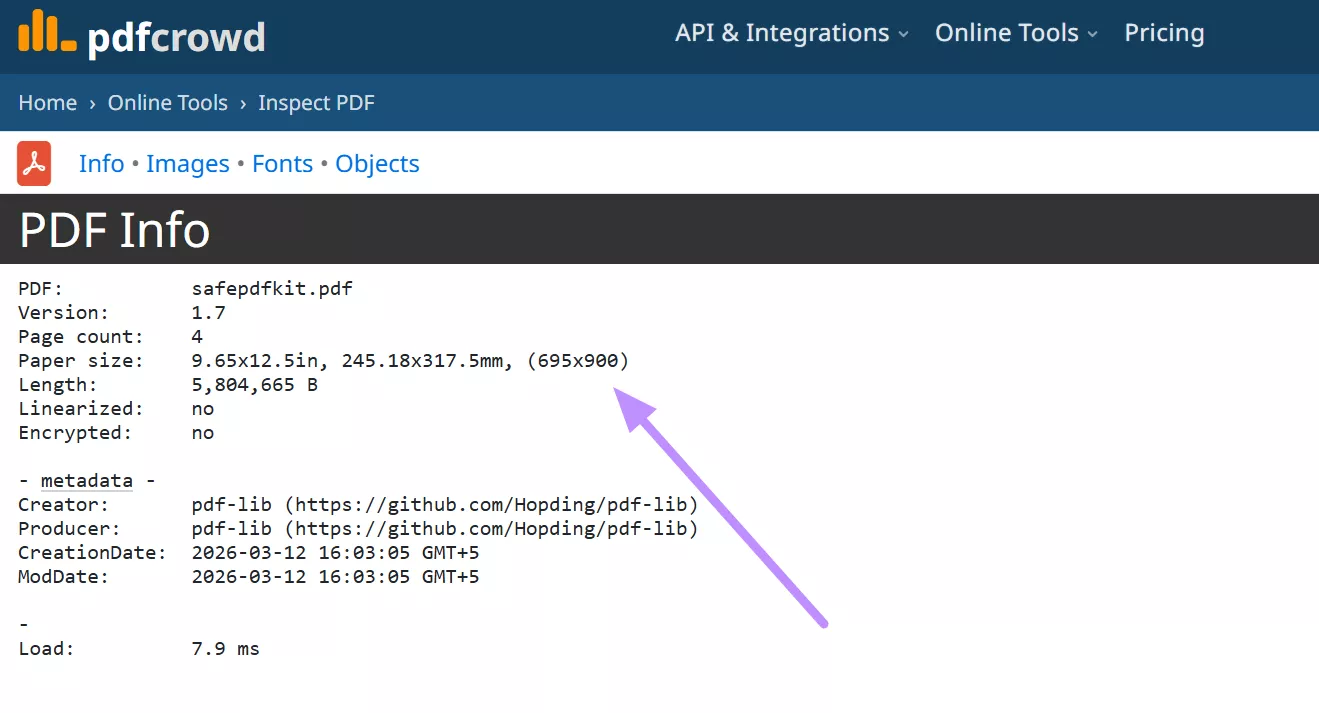
However, online tools like these come with real limitations that are worth considering. Privacy becomes the biggest concern when you upload a PDF to any online service. Plus, such tools have file size limits and may also struggle with password-protected PDFs.
Frequently Asked Questions
Why does the same PDF file display different file sizes in different places?
Sometimes, the same PDF displays different sizes because different systems measure or report file size slightly differently. Your operating system may show the size on disk, while a web browser or email client shows the actual byte count. Other than that, compression, metadata, and embedded resources can also affect how the file size appears.
What does it mean when a PDF page size is displayed as "Custom"?
A custom page size means the PDF doesn't match any of the standard preset dimensions like A4. This often happens when a document is exported from design software like Illustrator or Canva with a non-standard canvas size. You can use UPDF to convert a custom-sized page to any standard format.
Is it safe to check PDF dimensions online?
Online tools are generally safe and convenient for generic or public documents. However, for sensitive files, you should always use a local tool like UPDF, which processes everything on your device without sending any data to external servers.
How do I batch-check the page dimensions of multiple PDFs?
UPDF offers the Page Organization feature, which shows the dimensions of each page within a single document at a glance. For checking dimensions across multiple separate PDF files, you'd need to open each file individually.
Conclusion
PDF size isn’t as simple as it sounds, as it can mean different things depending on what you’re trying to do. Sometimes, you care about file size for sharing, other times it’s about page dimensions or even measuring elements inside the document. Each situation needs a slightly different approach, which can get confusing fast.
UPDF PDF Size Checker brings everything into one place, so you can check file size, review and adjust page dimensions, and even measure content directly within your PDF. Even better, it lets you fix page size issues on the spot. Download UPDF now to get an all-in-one PDF size checker to manage file size without switching apps.
Windows • macOS • iOS • Android 100% secure





 Lizzy Lozano
 Enrica Taylor

 Enola Miller