 UPDF
UPDF
 UPDF for Windows
 UPDF for Mac
 UPDF for iPhone/iPad
 UPDF for Android
 Nomostar
 UPDF AI Online
 UPDF Sign
 IvyCraft
 Edit PDF
 Annotate PDF
 Create PDF
 PDF Form
 Edit links
 Convert PDF
 OCR
OCR PDF to Word
 PDF to Image
 PDF to Excel
 Organize PDF
 Merge PDF
 Split PDF
 Crop PDF
 Rotate PDF
 Protect PDF
 Sign PDF
 Redact PDF
 Sanitize PDF
 Remove Security
 Read PDF
 UPDF Cloud
 Compress PDF
 Print PDF
 Batch Process
 About UPDF AI
 UPDF AI Solutions
 AI User Guide
 FAQ about UPDF AI
 Summarize PDF
 Translate PDF
 Chat with PDF
 Chat with AI
 Chat with image
 PDF to Mind Map
 Explain PDF
 PDF AI Tools
 Image AI Tools
 AI Chat Tools
 AI Writing Tools
 AI Study Tools
 AI Working Tools
 Other AI Tools
 AI Bookmark Generation
 AI Bookmark Summary
 AI Watermark Generation
 AI Background Generation
 AI Sticker Generation
 AI Stamp Generation
 AI Editing Suite
 UPDF Copilot
 AI Page Management
 AI Semantic Search
 PDF to Word
 PDF to Excel
 PDF to PowerPoint
 Enterprise Solution
 Enterprise Sign
 Enterprise AI
 Enterprise Plan
 Enterprise User Guide
 Enterprise Webinar
 IT
IT Education
 Construction
 Financial Service
 Healthcare
 Insurance
 Legal
Legal Manufacturing
 Government
 Researchers & PhDs
 Solopreneurs & Freelancers
 Lawyers & Legal Professionals
 Real Estate Agents & Brokers
 Education Solution
 Customer Stories
 User Guide
 UPDF Tricks
 FAQs
FAQs UPDF Reviews
 Download Center
 Blog
Blog Newsroom
 Tech Spec
 Updates
 UPDF vs. Adobe Acrobat
 UPDF vs. Foxit
 UPDF vs. PDF Expert

When you find yourself rummaging through Google Drive in search of a "Merge" button—or simply staring blankly at an empty right-click menu—remember this: you are not alone.
Google Drive is, at its core, an excellent cloud storage service; however, it does not feature a built-in function for merging PDFs. Any merging that appears to take place within the cloud is actually being handled behind the scenes by third-party applications.
Once you grow tired of the limitations of web-based tools, a more powerful and secure desktop PDF client becomes the inevitable choice for taking the next step. UPDF is here. You can click the button below to download UPDF and merge PDFs directly with it.
Windows • macOS • iOS • Android 100% secure
Part 1. How to Combine PDF Files in Google Drive with PDF Merge and Split?
One of the best features of Google Drive is that you can connect it with different applications. One of those applications is PDF Merge and Split, which Heroku provides on Google Workspace Marketplace. This application allows you to merge, split, rotate, or remove pages in PDF documents without having to go to any third-party software or online tool, since everything happens within Google Drive.
To use this method, you first integrate the app with Google Drive, and then Drive will open it in a new tab where you can merge your PDF documents within a few clicks. Here is a detailed guide on how you can combine PDF documents with the Google Drive Merge and Split application:
1. Open Google Drive and go to connect more apps
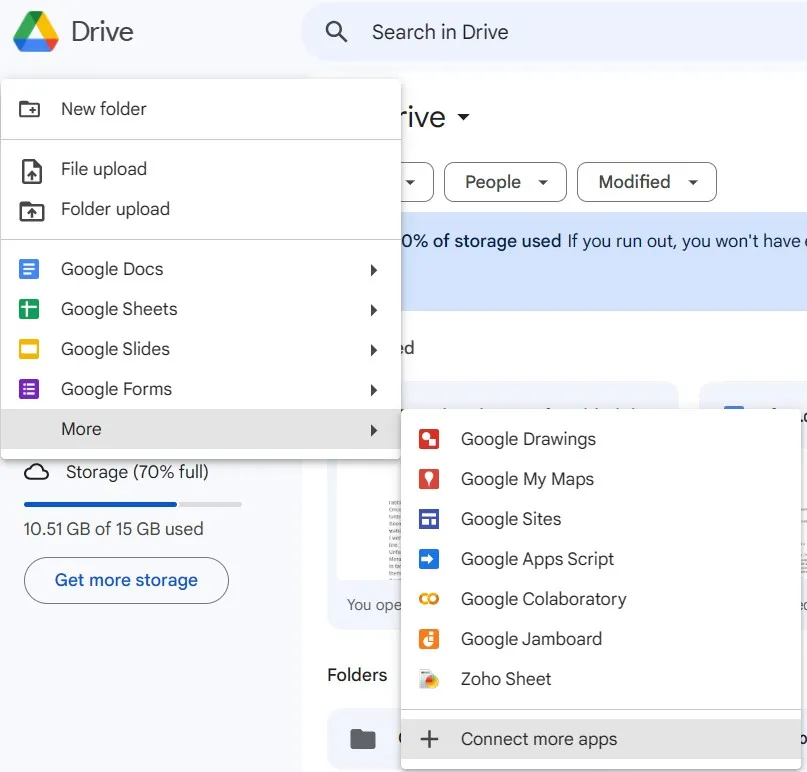
You will start this procedure by going to the Google Drive web app and clicking the "+ New" button. From the dropdown list, click "More" to open another dropdown list and click "Connect more apps." This button will take you to the Google Workspace Marketplace.
2. Search for and install Merge and Split
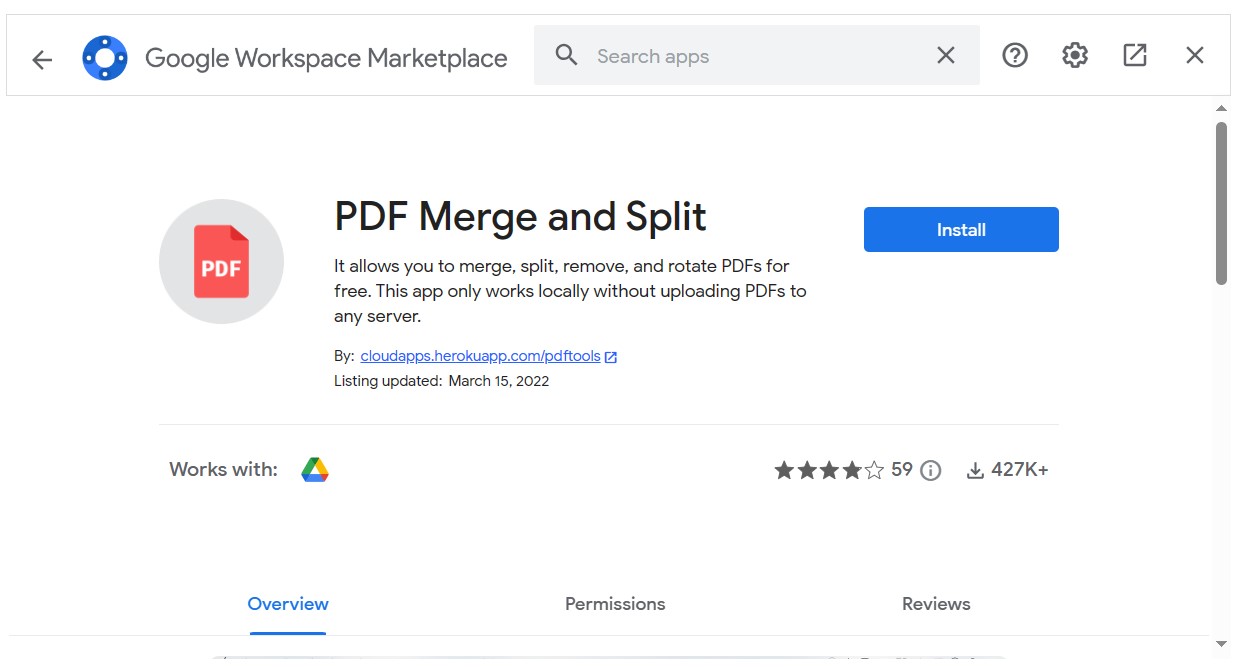
Now, you need to search for PDF Merge and Split in the Workspace Marketplace window. There may be multiple options, but you can go with the first one. Click "Install" and go through the on-screen steps/guides to finish the installation successfully.
3. Select all PDF files and open them with Merge and Split
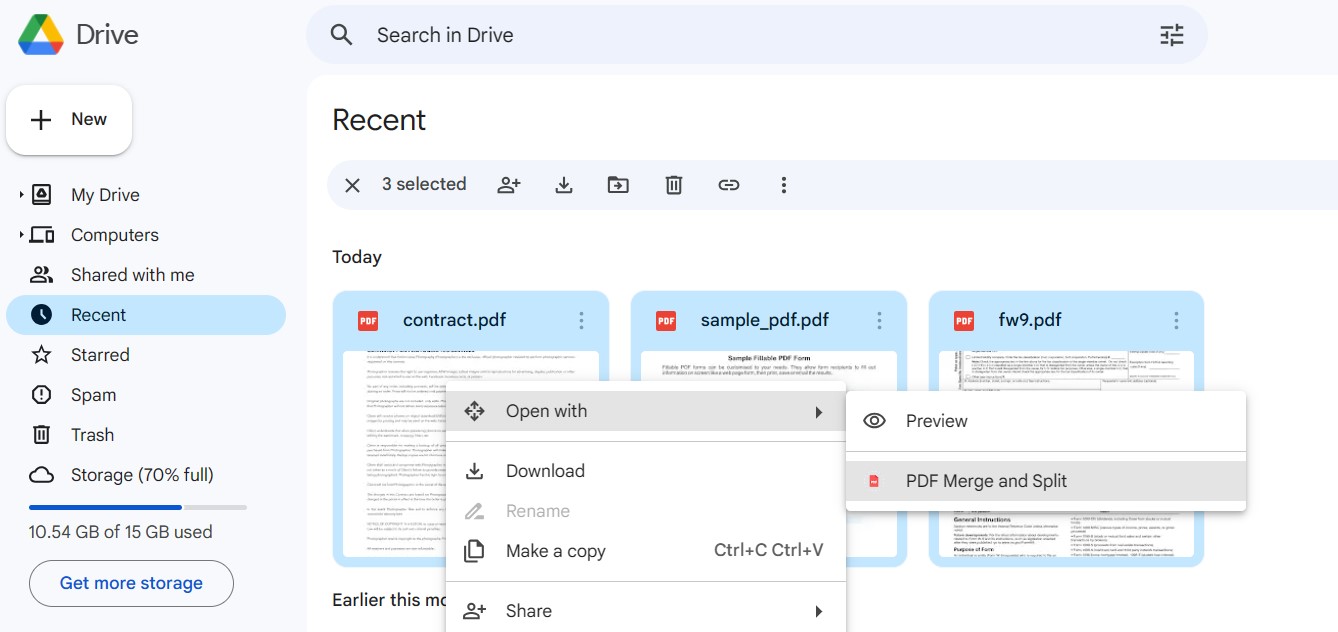
For this method to work, it is essential that your PDF files are uploaded to Drive, or you can upload them now by clicking the "+ New" button. After uploading them, go to the "Recent" tab from the left menu and select files. You can select multiple files by holding the "Ctrl" keyboard button and clicking every file. Once you have selected all files, right-click, select "Open With," and select "PDF Merge and Split."
4. Click Create PDF after uploading
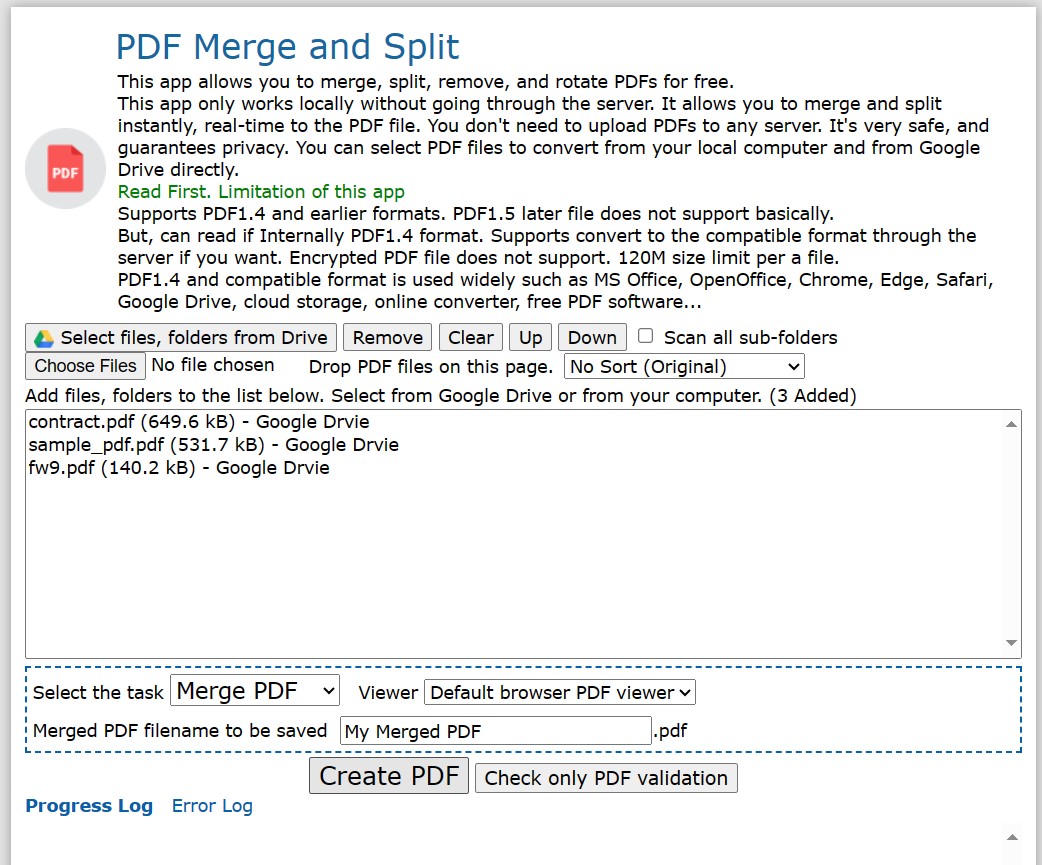
The tool will open your PDF documents, and once they are shown in the list, you can click "Create PDF" below. The Process log will show some details. If there are errors with the PDF documents, the tool will show a "Convert to supported format" button; click it to ensure that all PDF documents are supported for merging.
5. Click Merge PDF
Once the Progress and Error logs do not show any errors, you can click the "Merge PDF" button. It will do some processing and merge your PDF documents into one document.
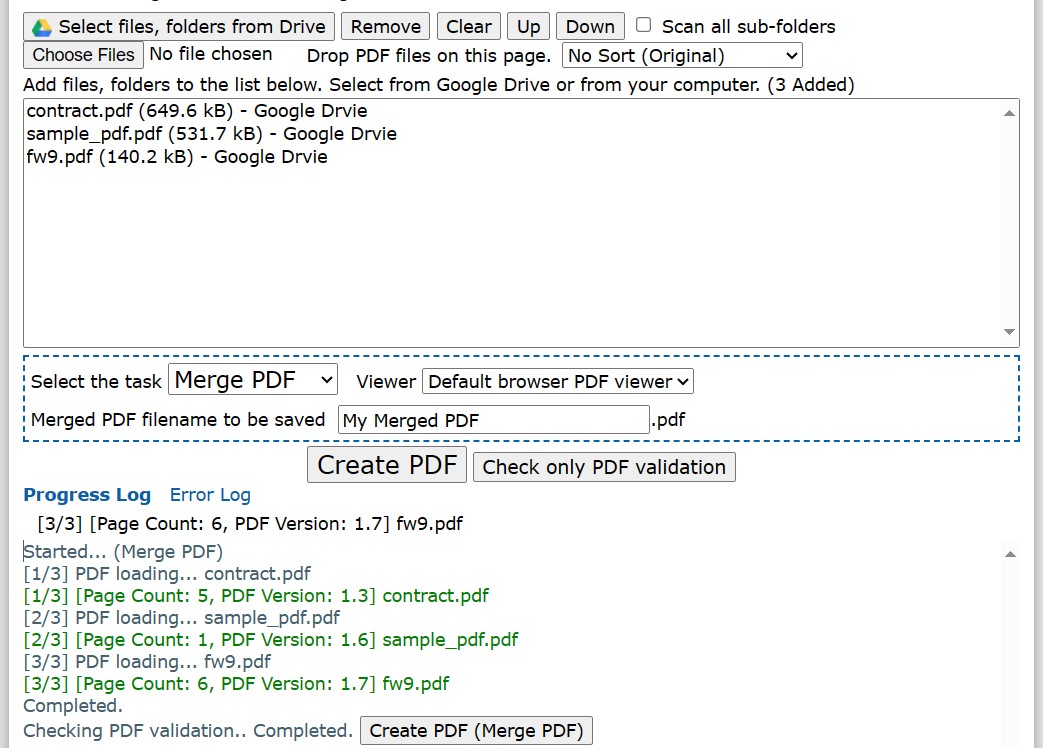
6. See the PDF preview and save it
A small PDF viewing window will appear at the bottom with multiple options. To save that merged PDF file to your offline storage, you may click "Download a PDF"; otherwise, use the other given options as per your requirements. For example, to save it back to Google Drive, you must click "Save to Drive."
Part 2. How to Merge PDFs with UPDF?
Rather than uploading your critical documents to some obscure, nameless Google Drive plugin merely for the sake of momentary convenience—only to face the triple threat of privacy breaches, formatting errors, and file size limitations that force you into endless rounds of rework—why not bring the merging process back to your local environment? By utilizing a more professional, secure, and powerful desktop editor, you can take complete control of the entire workflow and get the job done right—the first time.
UPDF is a suite of PDF processing and editing tools that can be used for multiple purposes like editing, reading, converting, sharing, and combining PDF documents. The feature that we will be focusing on here is combining different PDF documents since we want to merge them. While you can do the same with Google Drive using the method above, using UPDF is the better option for so many reasons, including:
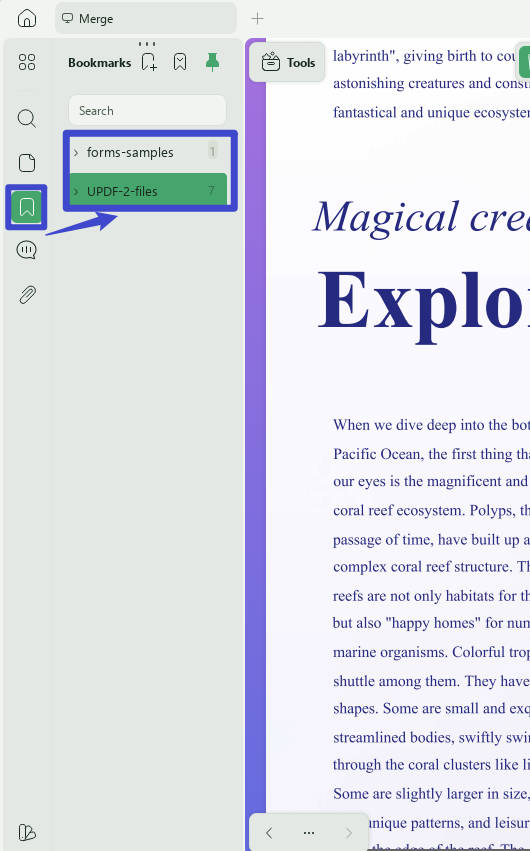
- UPDF supports setting the file names as bookmarks automatically when being merged.
- You do not need to upload your documents online
- Offline processing does not rely on your internet connection speed
- The process is significantly shorter and easier with UPDF
While these were a few reasons that make UPDF the better option, there are many more, along with other features offered by UPDF. So, you may download UPDF on your PC and try combining different PDF documents using the steps below:
Windows • macOS • iOS • Android 100% secure
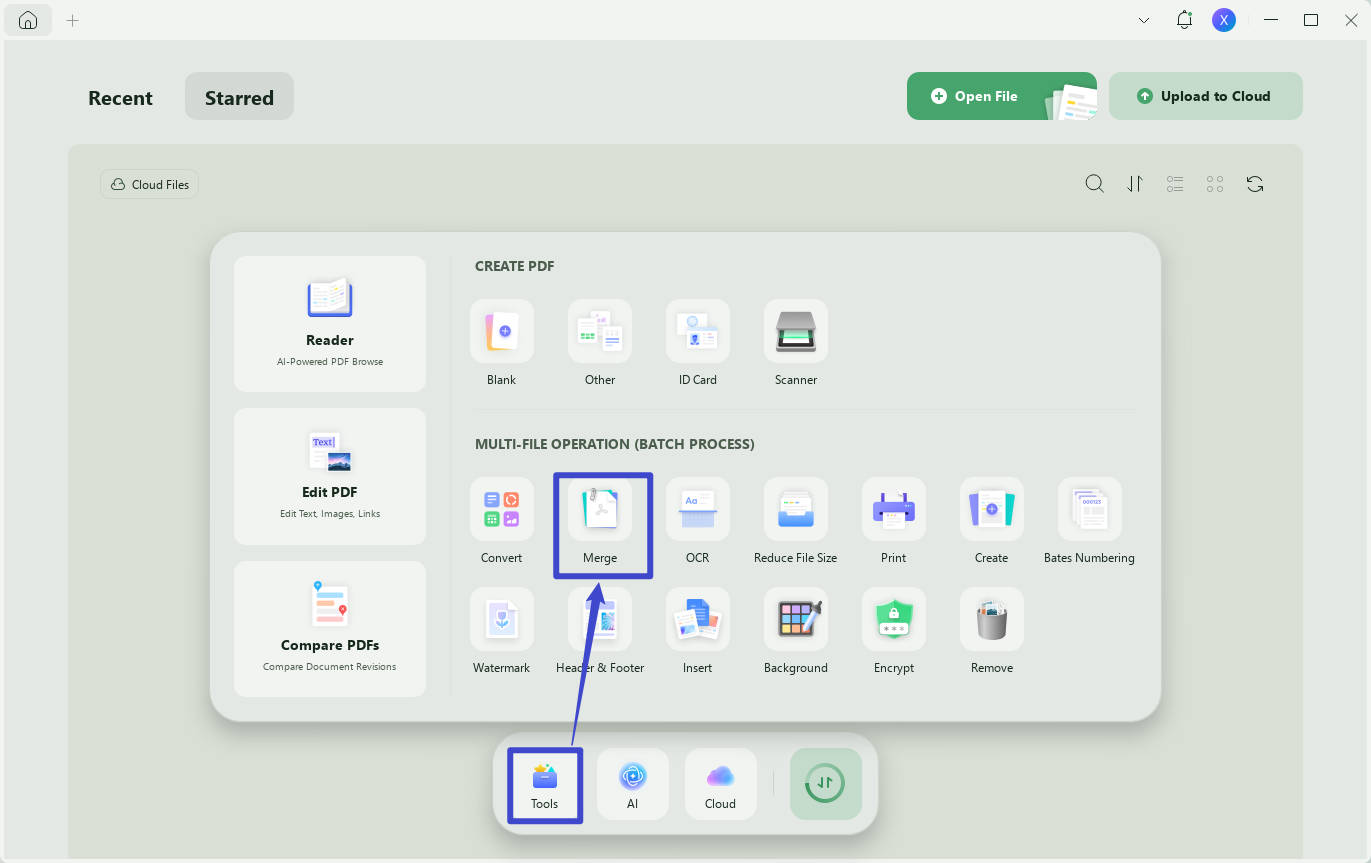
1. Open UPDF Batch Process and select Combine
Double-click the application icon of UPDF on your PC's desktop screen to run the tool. After it opens, click the "Tools" to choose the "merge" under Batch PDFs. It will take you to the feature where you can merge multiple PDF documents into one.
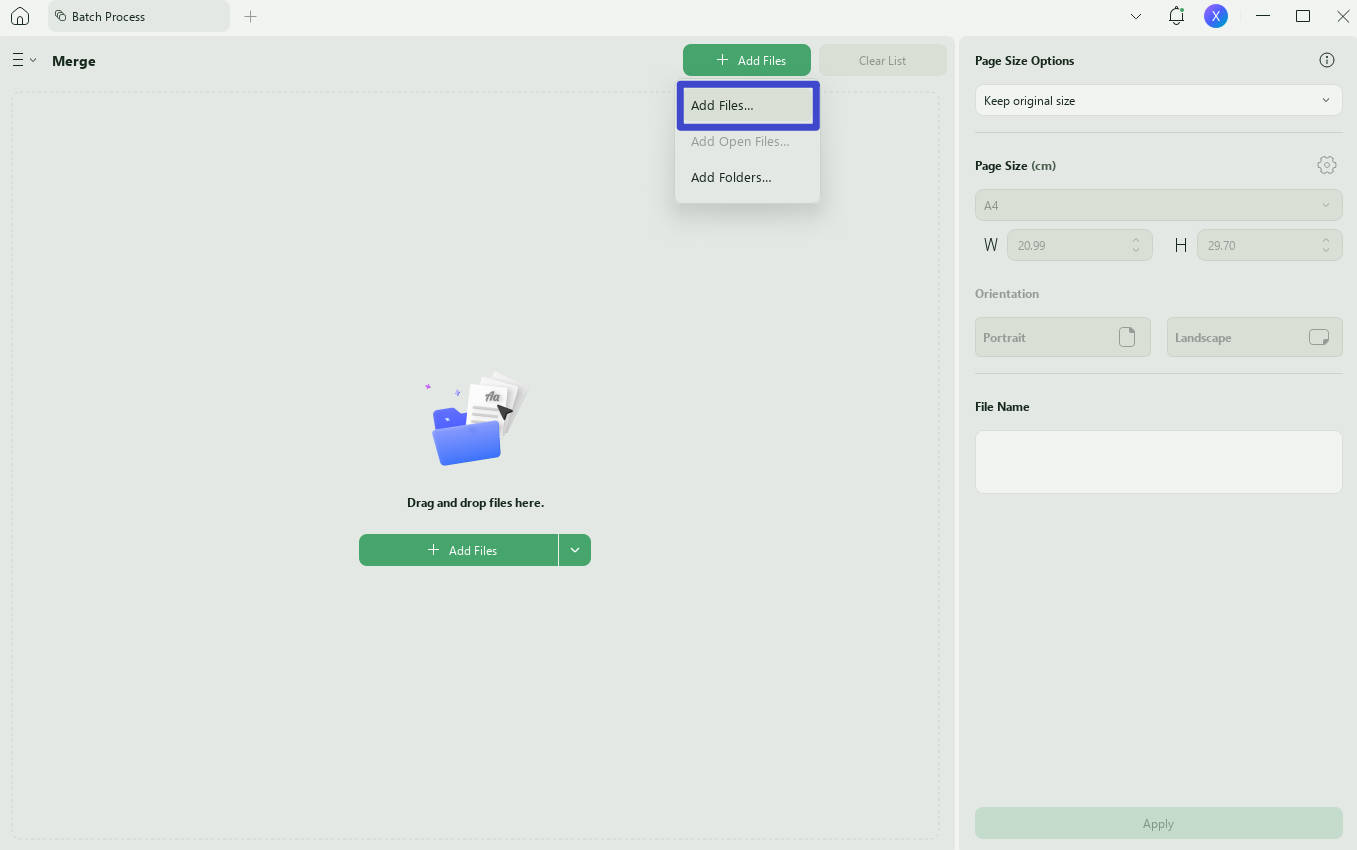
2. Add all PDF files that you want to combine and apply
Click the "Add Files" button to open a browse window and select all PDF files that you want to combine into one. You may add, remove, or rearrange files depending on how you want them to appear in the final PDF document.
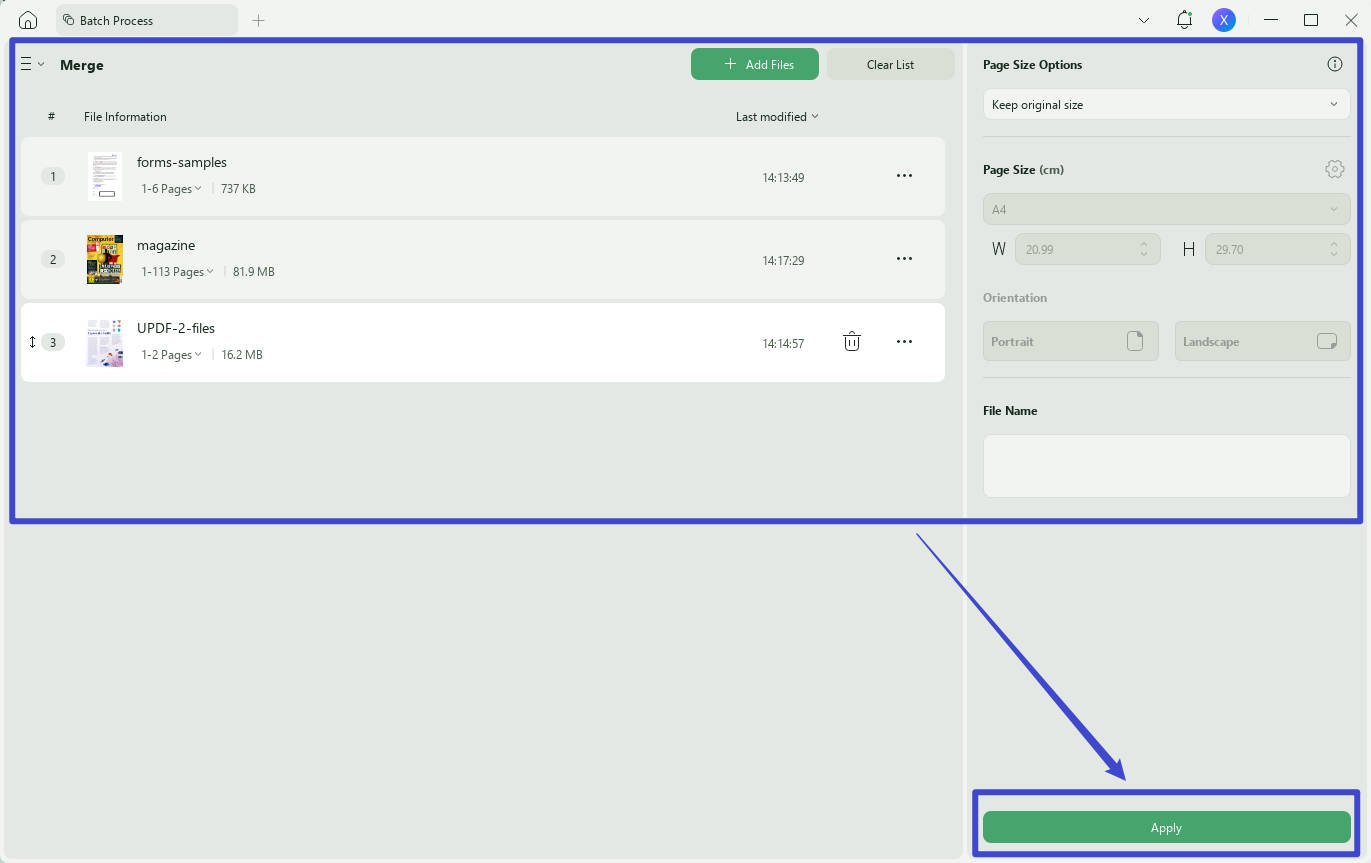
Once you are done adding and arranging files, and you can change the settings for merging files on the right side. Then click the "Apply" you will be done with the process.
Step 3. Open the Merged PDF
Now, you can open the merged PDF, click on the "Bookmark" icon at the left side panel and you will find the bookmarks are generated automatically from the file names. You can click the one you need to check if it is the correct file.
Key Features of UPDF
UPDF is packed with several features for working on a PDF file. Whenever you are working on one and you need some assistance from a tool, that feature will most probably be present in UPDF, which will significantly improve your experience. Here is the list of the top few features offered by UPDF:
- It comes with a built-in UPDF AI chatbot that will assist you in generating content, summarizing or translating text, or even reviewing PDF documents.
- The UPDF cloud feature ensures synchronization of your PDF documents across all devices you have connected with the same account. It is a dedicated and secure cloud storage space for your PDF documents.
- The Prepare Form feature of UPDF allows users to work with interactive PDF forms, whether they want to edit an old one or create new ones from scratch.
- UPDF offers a wide range of page-organizing tools and features
- A complete range of annotation features helps with taking notes and collaborating with your PDF documents.
- UPDF allows batch processing of documents with different functionalities.
- Users can convert to and from PDF documents, and it supports multiple formats for conversion.
When you choose UPDF as your main PDF viewing and processing tool, you can enjoy all of these basic and premium features. You can click the button below to download the free trial version. In the free trial version, it will add a watermark to the exported PDF. If you do not want it, you can upgrade to the pro version at a big discount by clicking here. You will not regret having it. You can read this review article to learn what the big media say about UPDF.
Windows • macOS • iOS • Android 100% secure
Part 3. FAQS About Combining PDF Files in Google Drive
Q1. What is the best PDF merger that works with Google Drive?
The best PDF merger that works with Google Drive is from Heroku. It is the best because it allows local file processing without requiring you to upload your PDF anywhere else than your Google Drive. Moreover, it provides merging, splitting, rotating, and page removal features for PDFs for free.
Q2. How do I combine two images into one PDF in Google Drive?
Upload the images to Google Drive by clicking the "+ New" button. Now click "+ New" > "Google Docs" > "Blank Document" to create a new document. Insert images by clicking "Insert" > "Image" > "drive" for both images. To save that document offline, you may click "File" > "Download" > "PDF Document." In this way, two images can be combined into a PDF with Google Drive.
Q3. What is the shortcut for merging in Google Drive?
If you are working on Google Sheets in Google Drive and you want to merge cells, you will first select the cells by clicking and dragging the cursor over them. Then you will press "Alt + O" > "M." Then choose the merging action from the options provided.
Final Words
There could be several instances where you need to combine or split PDF documents. If you have your documents saved on Google Drive, then combine PDFs in Google Drive directly by following the above guide. However, there are several drawbacks to this method, such as relying on the Internet.
All those drawbacks are solved when you use UPDF. It is a PDF editor tool that brings several capabilities, including combining PDF documents. As you try it with UPDF, you will enjoy an instant experience with a quick method and a few steps. So, download UPDF on your devices now to try to combine multiple PDF documents into one PDF document and see how well it performs.
Windows • macOS • iOS • Android 100% secure






 Enola Miller


 Lizzy Lozano