 UPDF
UPDF
 UPDF for Windows
 UPDF for Mac
 UPDF for iPhone/iPad
 UPDF for Android
 Nomostar
 UPDF AI Online
 UPDF Sign
 IvyCraft
 Edit PDF
 Annotate PDF
 Create PDF
 PDF Form
 Edit links
 Convert PDF
 OCR
OCR PDF to Word
 PDF to Image
 PDF to Excel
 Organize PDF
 Merge PDF
 Split PDF
 Crop PDF
 Rotate PDF
 Protect PDF
 Sign PDF
 Redact PDF
 Sanitize PDF
 Remove Security
 Read PDF
 UPDF Cloud
 Compress PDF
 Print PDF
 Batch Process
 About UPDF AI
 UPDF AI Solutions
 AI User Guide
 FAQ about UPDF AI
 Summarize PDF
 Translate PDF
 Chat with PDF
 Chat with AI
 Chat with image
 PDF to Mind Map
 Explain PDF
 PDF AI Tools
 Image AI Tools
 AI Chat Tools
 AI Writing Tools
 AI Study Tools
 AI Working Tools
 Other AI Tools
 AI Bookmark Generation
 AI Bookmark Summary
 AI Watermark Generation
 AI Background Generation
 AI Sticker Generation
 AI Stamp Generation
 AI Editing Suite
 UPDF Copilot
 AI Page Management
 AI Semantic Search
 PDF to Word
 PDF to Excel
 PDF to PowerPoint
 Enterprise Solution
 Enterprise Sign
 Enterprise AI
 Enterprise Plan
 Enterprise User Guide
 Enterprise Webinar
 IT
IT Education
 Construction
 Financial Service
 Healthcare
 Insurance
 Legal
Legal Manufacturing
 Government
 Researchers & PhDs
 Solopreneurs & Freelancers
 Lawyers & Legal Professionals
 Real Estate Agents & Brokers
 Education Solution
 Customer Stories
 User Guide
 UPDF Tricks
 FAQs
FAQs UPDF Reviews
 Download Center
 Blog
Blog Newsroom
 Tech Spec
 Updates
 UPDF vs. Adobe Acrobat
 UPDF vs. Foxit
 UPDF vs. PDF Expert

Quick Answer:
The best method depends on what matters more: layout control, privacy, or convenience. For a confidential network diagram or organization chart, keep the file on your computer and use Visio desktop. If the file is already in Microsoft 365, Visio for the web is the simplest browser-based route. Use an online converter only when the diagram is non-sensitive and you accept the service's upload and retention terms.
After conversion, open the PDF in UPDF to check every page, repair minor PDF-level issues, add comments, compress the file, or protect it before sharing.
Part 1. What is VSDX?
In simpler terms, a VSDX file is like a digital drawing made with a computer program called Microsoft Visio. Like drawing on paper, you can make shapes and lines and write text. Well, with Visio, you can do the same thing on your computer. The VSDX file is the format Visio uses to save your drawings. These drawings can be all sorts of things like flowcharts, which show the movement of things.
Moreover, they can also be processing diagrams explaining how something works, or tasks are done. Another common use is for organizational charts, which show how people or departments are organized in a company or organization.
Part 2. Why Do You Need to Convert Visio to PDF?
Converting Visio to a PDF option offers numerous benefits and advantages. PDF is a widely used file format known for its compatibility, security, and ease of use. Converting Visio to PDF ensures that the document can be viewed and shared on different platforms and devices without compatibility issues. Below are some key reasons why converting Visio to PDF is the best option:
- Universal compatibility across different OS.
- Preserves the layout of the original file.
- Provides a secure format for sharing sensitive information.
- Reduces file size while maintaining quality.
- Allows easy integration with other applications.
- Enables easy printing of Visio diagrams and drawings.
- Supports interactive elements, such as hyperlinks and bookmarks.
- Simplifies document archiving and long-term preservation.
Part 3. How to Convert Visio File to PDF Without Visio
As a PDF format user, alternative methods are available if you do not have Microsoft Visio installed on your computer but need to convert Visio files to PDF. Fortunately, several third-party tools and online services can convert Visio files to PDF without Visio itself. Below we will discuss the best tool available for this task.
1. How to Convert Visio File to PDF Using UPDF?
UPDF is an innovative PDF editor tool that offers a range of features to facilitate the conversion and editing of various file formats into PDF documents. One unique capability of UPDF is its ability to effortlessly convert Visio files to PDF without Visio. Using UPDF, users can quickly transform their Visio diagrams and drawings into professional-looking PDF files, ensuring easy compatibility across different devices.
Windows • macOS • iOS • Android 100% secure
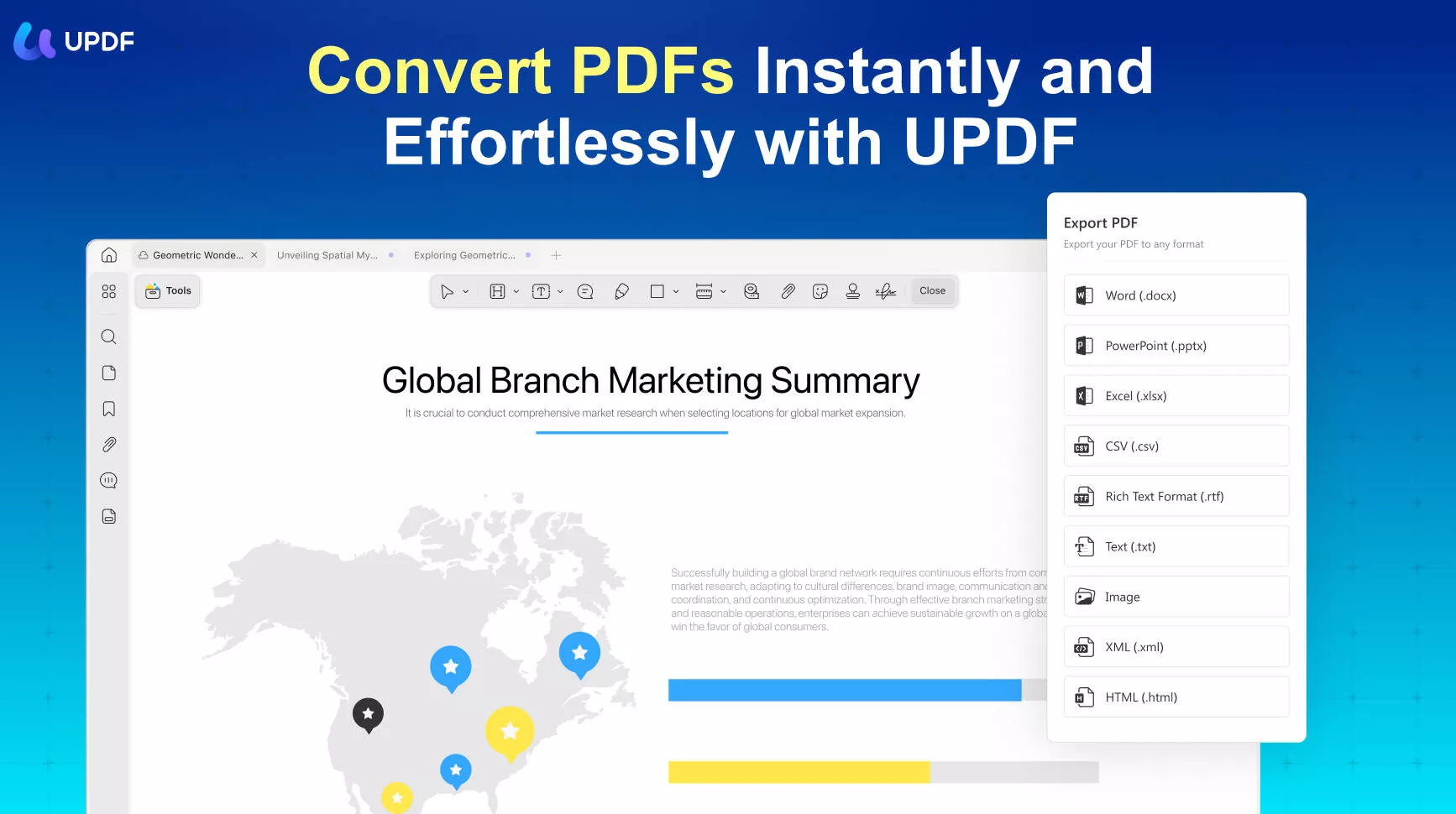
What sets UPDF apart is its intuitive functionalities and the ability to serve as VSDX to PDF converter. This enables users to convert multiple files into a single PDF document with just a few clicks. Additionally, UPDF allows users to edit the converted files directly within the platform, providing the flexibility to make necessary modifications or annotations.
Pros
- Comprehensive PDF Editing
- Swift Reading and Annotation
- Effortless PDF Conversion
- Robust PDF Protection
- Enhanced User-Interface Design
- Improved Performance
- Device Compatibility
Steps to Help You Convert VSDX Files into PDF Easily
To assist you in converting VSDX files effortlessly, we have outlined the detailed steps below:
Step 1: Import the Visio Files in UPDF
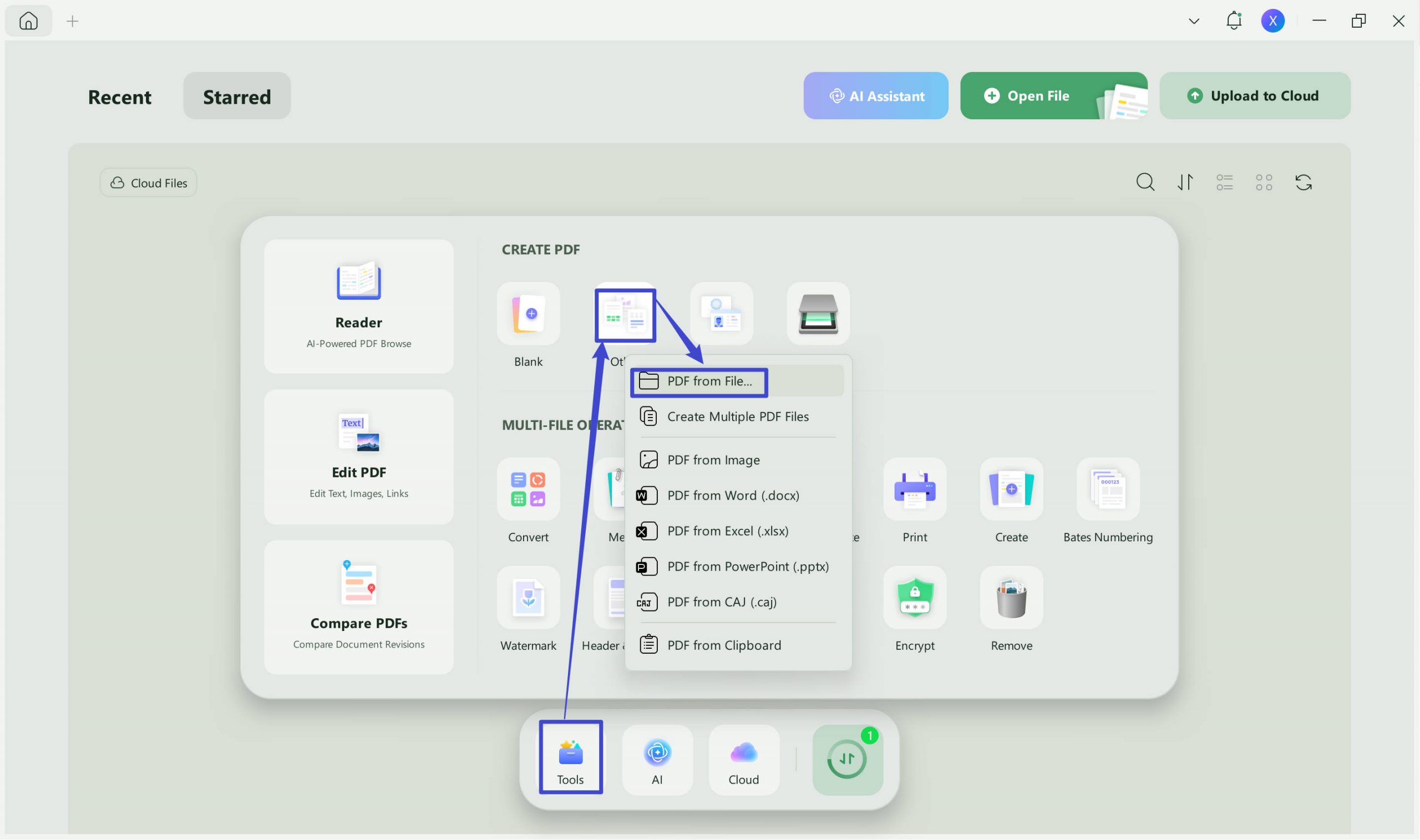
Find and open the UPDF tool on your preferred device. The simpler way is to select the Visio file and then drag and drop it onto the UPDF interface. However, the most professional way is to tap the "Tools" tab at the top left corner. Then from the drop-down menu, select "Other" and then choose the "PDF from File..." option. Next, select the VSDX file and hit the "Open" button to import it.
Step 2: Start Converting Visio File into a PDF
Afterward, UPDF will start converting the Visio file into PDF format. Once the conversion process is completed, you can make any necessary changes or annotations to your file.
What's more, UPDF is an excellent editor, which allows you to edit all kinds of converted PDFs from JSON, Image, Word, PowerPoint and other format.
2. How to Convert Multiple Microsoft Visio Files to One PDF Using UPDF?
However, if you want to merge multiple Microsoft Visio files into a single PDF document using UPDF, below is the instruction. By following this method, you can efficiently convert Visio to PDF free for easy sharing:
Instruction: Once you have opened UPDF, hit the "Tools" tab and select the "Other" option from the drop-down list. After that, tap the "PDF from File..." option, and it will open a dialog box. Select multiple files and then tap "Open." With that, UPDF will ask if you want to convert all files. Next, tap "Yes," and multiple Visio files will be converted to PDF.
Windows • macOS • iOS • Android 100% secure
3. How to Convert Visio to PDF Free Online?
Best for:
- A small, non-confidential diagram that you need to convert once.
Not for:
- You cannot approve an external upload or you expect every hyperlink, shape property, and data-linked element to survive.
Zamzar is a specialized file conversion and management software. It allows users to convert various file types, such as from VSDX to PDF, and other files, including documents, images, audio, and videos. The software also offers a cloud-based platform where administrators can easily drag and drop files for conversion.
Moreover, security is a priority for Zamzar. It protects data and files through transport layer security (TLS) protocols. This encrypts the communication between the user's device and the Zamzar servers. Additionally, Zamzar adheres to the GDPR protocols designed to safeguard personal data and privacy. Head to the steps below to use Zamzar efficiently:
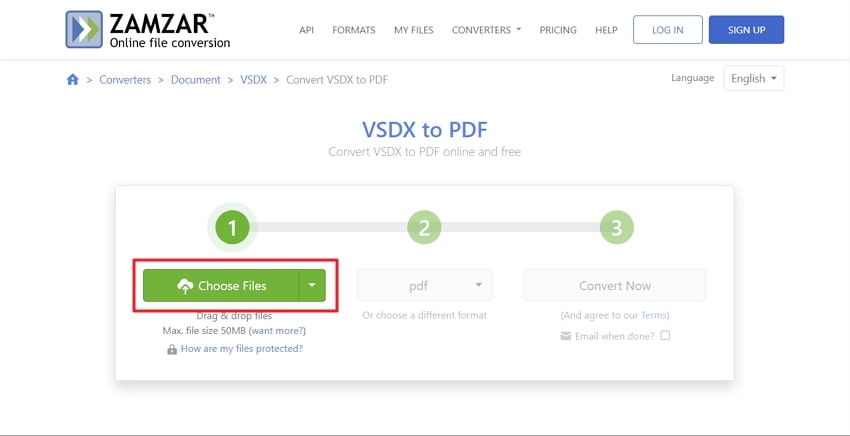
Step 1: Search for the Zamzar tool in your web browser and then head to the "Convert VSDX to PDF" option. Once you are there, tap the "Choose Files" button. Select the file from your device that you want to convert. Moreover, you can drag and drop files of a maximum of 50MB for free.
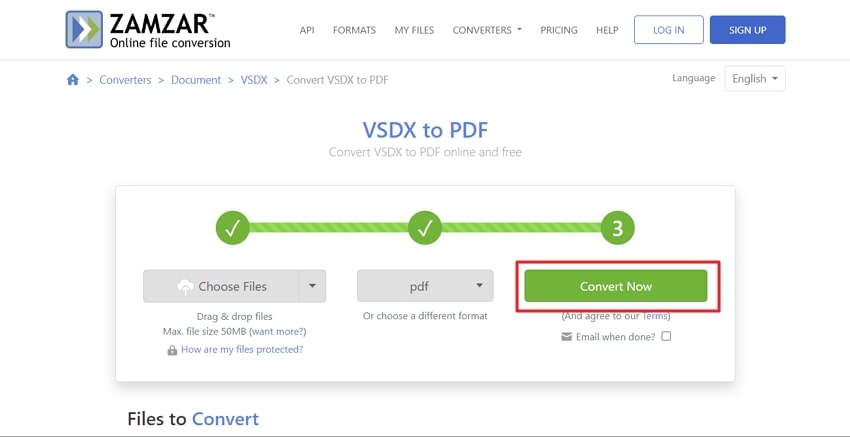
Step 2: Afterward, tap on the "Convert To" button and then from the list, choose the "PDF" option. After that, tap the "Convert Now" button, and the file will convert. Wait for a few seconds until the file conversion process is completed. Then tap the "Download" button, and the file will be downloaded in the desired folder in PDF format.
Part 4. How to Convert Visio to PDF With Visio
Best for:
- Multi-page diagrams, print-ready output, and sensitive business files.
Not for:
- You only have a VSDX file but no desktop Visio license—the export controls will not be available.
Converting a Visio file to PDF is a simple process that can be done directly within the Visio software. If you convert the Visio file to PDF, you can easily share your diagrams and ensure that others can view them, regardless of whether they have Visio installed on their computer. Moving on, let's have a look at the highlighted steps below that will help you with the converting process easily:
Step 1: First, open the Visio tool and open the specific Visio file you want to convert to PDF. Click on the "File" tab in the Visio window's top left corner. In the File menu, select "Export." This will open the Export options.

Step 2: Under the Export options, locate and click on "Create PDF/XPS Document." This will open the Create PDF/XPS Document dialog box. Within that, click on the "Create PDF/XPS" button. Afterward, the "Save As" window will appear on your screen. Next, select the location on your system where you want to save the converted PDF file.

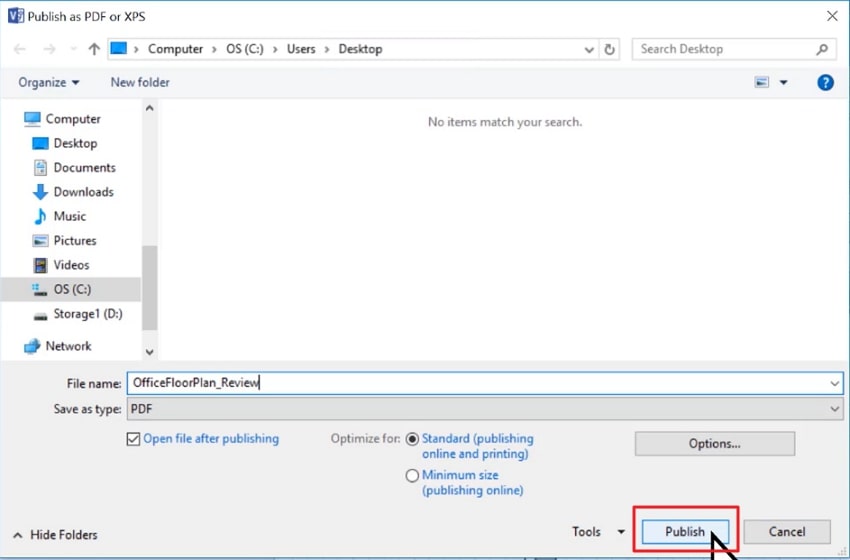
Step 3: Now, click on the "Options" button, which will allow you to choose additional settings for the PDF conversion. In the Options dialog box, you can determine which pages to include in the PDF file. By default, all pages will be included. If you want to include only specific pages, select an option under "Page Range."
Step 4: Once you have configured the options, navigate to the folder where you want to save the PDF file. Finally, click the "Publish" button to initiate the conversion process. Visio will convert the Visio file to PDF format and save it in the desired location.
FAQs
Q1: Can I convert VSDX to PDF on a Mac?
Yes. Use Visio for the web. Open the drawing in a supported Microsoft account and choose File > Save As > Download as PDF. You can also use an online converter for a non-sensitive file.
Q2: Does a PDF keep Visio layers and shape data editable?
No, not as a Visio drawing. PDF is designed to preserve the visible result. Keep the original VSDX whenever recipients may need to edit shapes, reconnect objects, or inspect shape data.
Q3: Why are my Visio hyperlinks missing from the PDF?
The export path may flatten them. Test every required link after conversion. If links are business-critical, export directly from Visio and compare the result with any PDF created through a print driver or third-party converter.
Q4: Is it safe to convert a VSDX file online?
Only if the content is suitable for upload. Review the converter's retention, deletion, security, and account terms first. Prefer a local workflow for infrastructure diagrams, floor plans, personnel charts, and client-confidential processes.
Conclusion
Use Visio desktop when you need the strongest page control and a local workflow. An online converter is a practical fallback for a small, non-sensitive file, but its privacy terms and rendering limits matter.
Whichever conversion path you choose, keep the VSDX as the editable master and review the PDF as a separate deliverable. Check every page, connector, label, and link before sharing it.
For the final review and PDF handoff, UPDF can keep annotation, editing, organization, compression, and protection in one workspace.
Download UPDF for free to finish your converted Visio PDF before sharing — installation is free, and Pro removes the trial watermark from exported files.
Windows • macOS • iOS • Android 100% secure








 Lizzy Lozano

 Enola Davis
 Enrica Taylor
  Enola Miller