 UPDF
UPDF
 UPDF for Windows
 UPDF for Mac
 UPDF for iPhone/iPad
 UPDF for Android
 Nomostar
 UPDF AI Online
 UPDF Sign
 IvyCraft
 Edit PDF
 Annotate PDF
 Create PDF
 PDF Form
 Edit links
 Convert PDF
 OCR
OCR PDF to Word
 PDF to Image
 PDF to Excel
 Organize PDF
 Merge PDF
 Split PDF
 Crop PDF
 Rotate PDF
 Protect PDF
 Sign PDF
 Redact PDF
 Sanitize PDF
 Remove Security
 Read PDF
 UPDF Cloud
 Compress PDF
 Print PDF
 Batch Process
 About UPDF AI
 UPDF AI Solutions
 AI User Guide
 FAQ about UPDF AI
 Summarize PDF
 Translate PDF
 Chat with PDF
 Chat with AI
 Chat with image
 PDF to Mind Map
 Explain PDF
 PDF AI Tools
 Image AI Tools
 AI Chat Tools
 AI Writing Tools
 AI Study Tools
 AI Working Tools
 Other AI Tools
 AI Bookmark Generation
 AI Bookmark Summary
 AI Watermark Generation
 AI Background Generation
 AI Sticker Generation
 AI Stamp Generation
 AI Editing Suite
 UPDF Copilot
 AI Page Management
 AI Semantic Search
 PDF to Word
 PDF to Excel
 PDF to PowerPoint
 Enterprise Solution
 Enterprise Sign
 Enterprise AI
 Enterprise Plan
 Enterprise User Guide
 Enterprise Webinar
 IT
IT Education
 Construction
 Financial Service
 Healthcare
 Insurance
 Legal
Legal Manufacturing
 Government
 Researchers & PhDs
 Solopreneurs & Freelancers
 Lawyers & Legal Professionals
 Real Estate Agents & Brokers
 Education Solution
 Customer Stories
 User Guide
 UPDF Tricks
 FAQs
FAQs UPDF Reviews
 Download Center
 Blog
Blog Newsroom
 Tech Spec
 Updates
 UPDF vs. Adobe Acrobat
 UPDF vs. Foxit
 UPDF vs. PDF Expert

PDFs can be password-protected for security. It prevents unauthorized users from accessing or modifying PDFs. Sometimes passwords may be bothersome if we forget them. This article will introduce six methods of how to unlock PDFs to delete the protection from the PDFs. Let us look at some of the best online and offline PDF password unlockers in this article.
Part 1. How to Unlock a PDF Document for Editing with Password?
If you are wondering how do I unlock a PDF for editing when you already know the password, UPDF is your best offline choice. Many PDF files are restricted with editing or permission passwords, preventing users from modifying text, copying content, or printing.
With UPDF, you can effortlessly remove password from PDF documents across Windows, Mac, iOS, and Android. Once unlocked, you can freely edit text, modify images, add annotations, or reorganize pages. (If your file is completely locked from viewing, check our guide on how to open password-protected PDF files first).
Windows • macOS • iOS • Android 100% secure
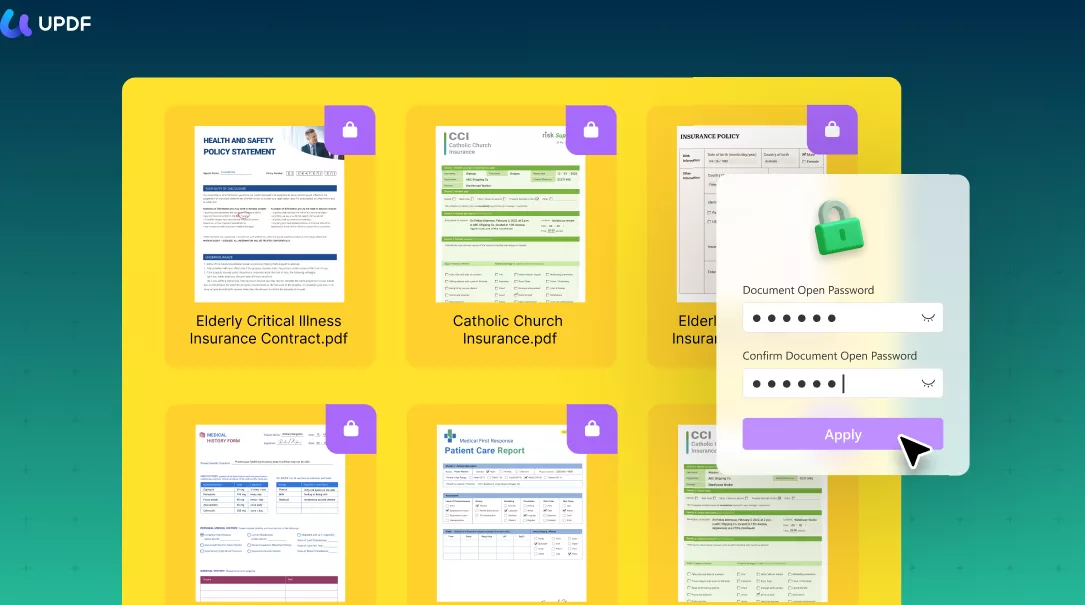
Steps on how to unlock a PDF to edit using UPDF:
Step 1: Open your locked document in UPDF.
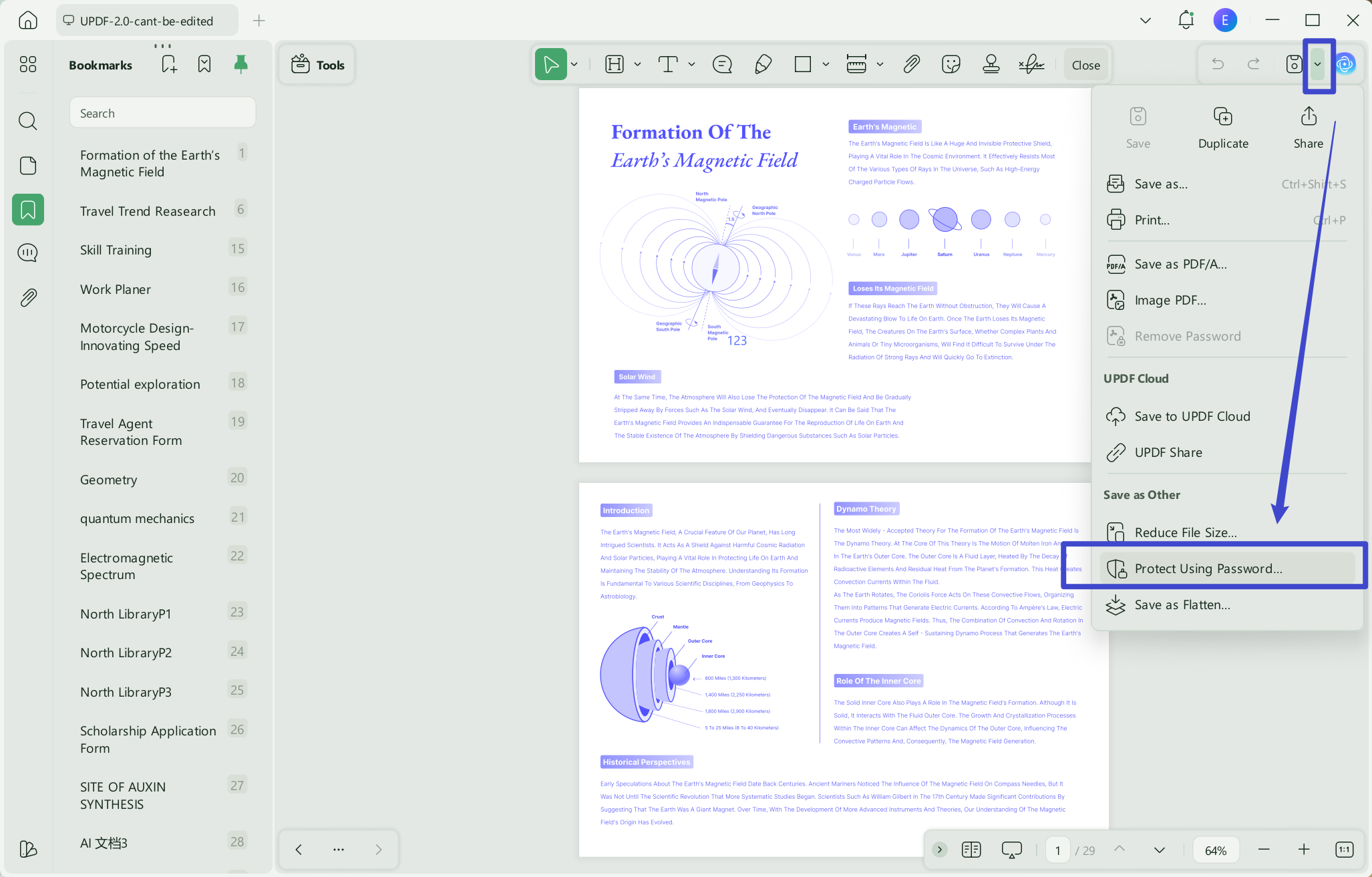
Step 2: Click the "Protect Using Password" icon on the right sidebar and select "Remove Security".
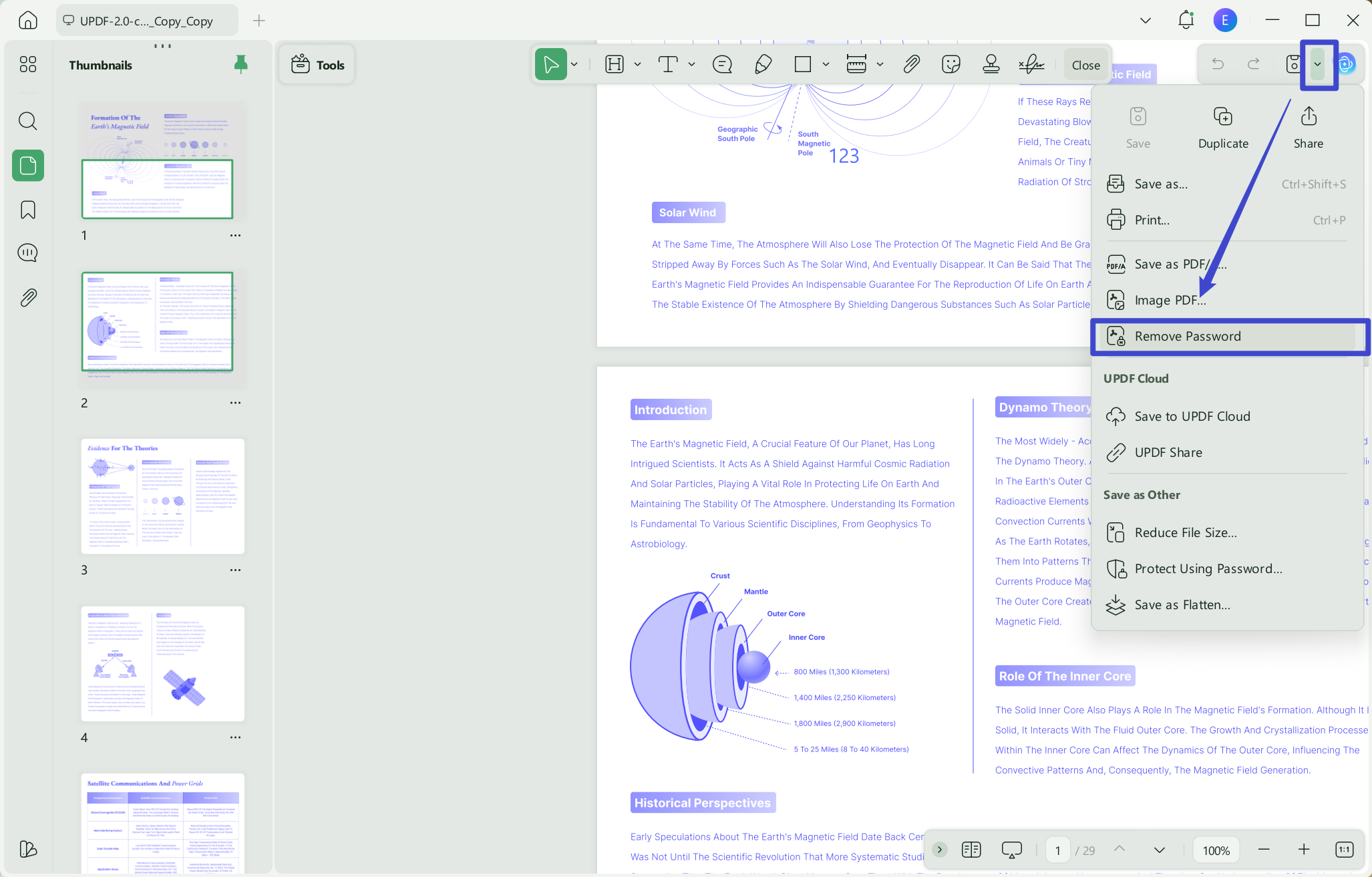
Step 3: Enter the permission password if prompted, click "Remove", and save the unlocked copy. You now know how to unlock a PDF for editing in just three clicks!
Now you simply remove the password from the PDF.
Part 2. How to Unlock PDF without Knowing the Password?
What if you forgot the permission credentials and need to figure out how do you unlock a PDF for editing without a password? In this scenario, a dedicated PDF password remover tool
like aJoysoft PDF Password Remover is essential.
It helps bypass editing, printing, and copying restrictions on encrypted PDFs instantly without needing the original owner password.
Step 1. Add Files
Import your PDFs by either clicking "Add Files" or through the standard file selection dialogue box. You can use the more direct drag-and-drop approach.

Wondering how to unlock PDF files in bulk and decrypt many files at once? Simply drag all the PDF files into the interface.
Step 2. How Can I Unlock PDF without Password
If your PDFs are not locked with open passwords, then you can simply move ahead to the next step and click "Remove Password". aJoysoft will remove the password and unlock your PDF.
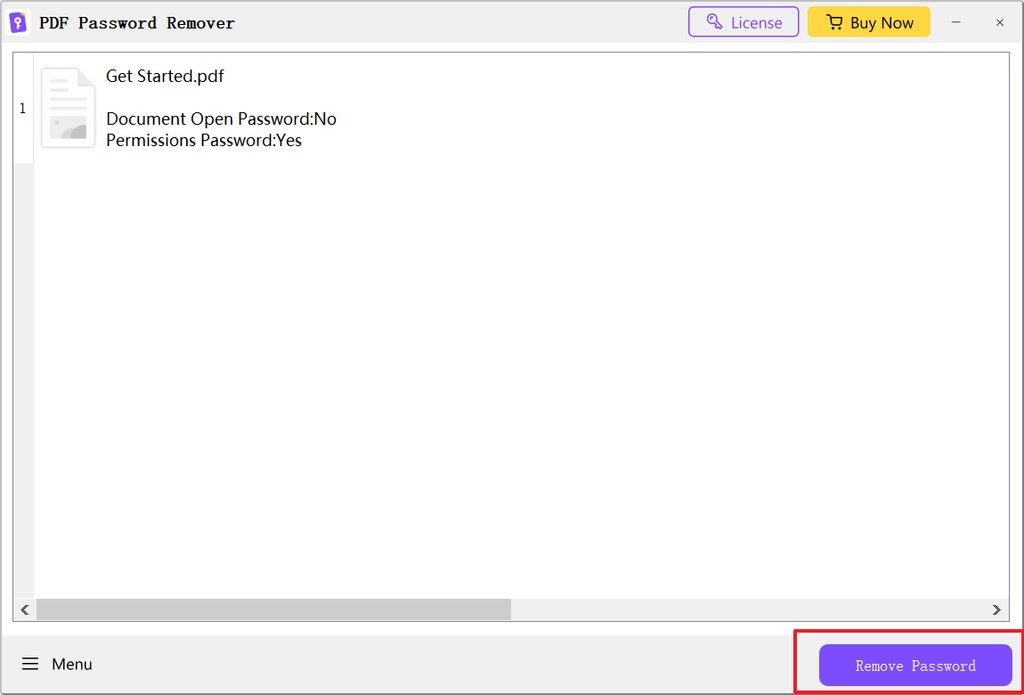
After selecting "Remove Password", specify the folder to save the newly unprotected files, you'll be free to do anything you choose with the document, including making copies, editing, and printing.
Step 3. Unlock PDF If there is an Open Password
If your PDF is protected with an Open or User password, there will be a padlock symbol. To unlock the PDF, you must first input the password.
Click the lock symbol, which will prompt a password. After entering the correct password, click "OK" to unlock the password.
Next, choose "Remove Password" to remove password protection, as shown in the previous section. Select a destination folder where unprotected copies of your imported files may be stored.

Part 3. Other Common Methods to Unlock PDFs (Online & Free
If you are looking for a quick fix without installing software, using a pdf unlock online service can be a temporary solution. Here is how to unlock a PDF document for editing using popular web-based tools:
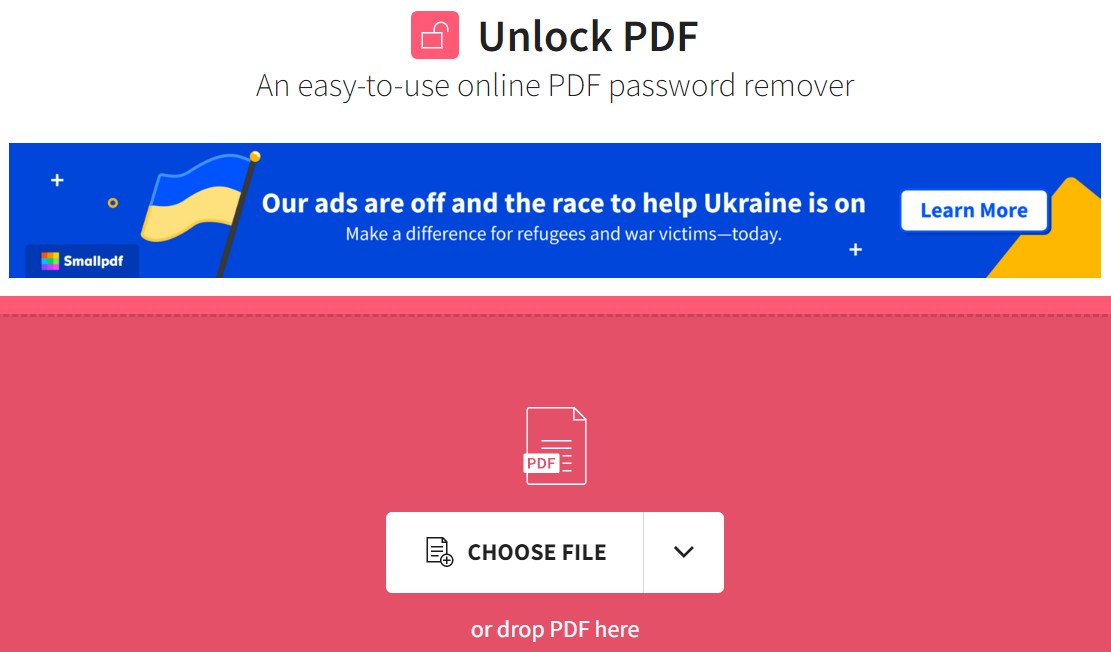
Method 1 - Unlock PDF File Online via Smallpdf
Smallpdf allows users to unlock PDF file online directly through a web browser. You simply drag and drop your protected document, confirm that you have the rights to access the file, and download the unlocked PDF.
Method 2 - PDF Unlock Online with iLovePDF
iLovePDF offers another popular way for pdf unlock online tasks. It helps strip away permission limitations so you can edit or print your files.

Just enter the password you set up to remove document protection and click the "Unlock" button.
⚠️ Security Warning:
- While online converters are convenient, uploading confidential or sensitive documents to cloud servers poses privacy risks. For high-security files, using offline desktop software like UPDF or aJoysoft is always recommended.
Method 3 - Unlock PDFs with Weeny Free PDF Password Remover
Weeny Free PDF Password Remover is a great tool to unlock PDF files. To begin eliminating passwords and limitations, add PDF files to the list, pick the output path, and click "Remove." If a PDF file requires a user password to open, this software will ask you to input it.
Check which actions should be allowed before sharing the document. You can follow the video below for an introduction to protecting PDFs in UPDF.

Weeny Free PDF Password Remover is not a PDF password cracking program and cannot be used to recover a forgotten password from a protected PDF file. Also, it cannot remove PDF DRM safeguards or protections from third-party plug-ins but it is compatible with 32-bit and 64-bit versions of Windows 7 and Windows 10.
Method 4 - Unlock PDFs with PDF Password Removal Tool by PDF Technologies
The PDF Password Remover can retrieve an "Owner" password-protected PDF file without the password. If a PDF file has an owner password, only the author may make modifications, such as filling out form fields or printing text. PDF owner credentials may be revoked using this program.

The Password Remover can't open user password PDFs but removes PDF owner passwords. This utility helps recover lost or forgotten PDF passwords. It may fix your files.
This PDF unlocker removes the PDF user password needed to open PDF files and the master password used to limit PDF access. It also removes all PDF limitations, such as printing, modifying the document, copying or extracting information, writing comments and form fields, completing or signing forms, content accessibility, and document assembly.
Part 4. A Comparison Chart for the 6 Methods to Unlock PDFs
| Tool | Pricing | Operating System | Limitations | Unlocking Speed | Stability Rating |
| UPDF | US$39.99/Year US$69.99/Perpetual (One purchase, all platforms) | Windows, Mac, Android, iOS | No Limitations | Excellent | 4.8 |
| aJoysoft PDF Password Remover | Annual Subscription: US$19.99 Perpetual License: US$19.99 | Windows, Mac | No Limitations | Excellent | 4.8 |
| SmallPDF | Pro: US$12/Month Pro: US$108/Year | Online Tool | Online Connection (Inconsistent Data), Featuring Ads, Trial Period too short, Difficult to select big Docs, Data Lost | Fair | 4.1 |
| iLovePDF | US$48/Year | Online Tool | Inconsistent, Unstable Connection, Permanent date lost | Fair | 4.2 |
| Weeny | Free | Windows | Can't Retrieve Lost Data, Don't give you signs of importing unprotected documents | Good | 4.3 |
| PDF Technologies | US$95/License | Windows | No Limitations | Good | 4.3 |
PDF security is the priority. That's why we won't recommend that you use online tools to unlock PDFs. If you really want to unlock your PDFs, use something to rely on. You can use UPDF or aJoysoft PDF unlocker. Both tools are authentic, completely reliable, and easy to use.
Conclusion
Knowing how to unlock a PDF to edit is crucial for maintaining an efficient workflow. While web tools offer pdf unlock online capabilities for basic tasks, offline software like UPDF and aJoysoft provide unmatched security, speed, and reliability.
If you need to remove editing restrictions with a known password while enjoying full PDF editing capabilities, UPDF is the ultimate solution. Additionally, if you need to secure your own documents after editing, learn how to protect a PDF with strong encryption using UPDF today!
Windows • macOS • iOS • Android 100% secure




 Lizzy Lozano
 Enrica Taylor
 Delia Meyer
 Enola Miller