 UPDF
UPDF
 UPDF for Windows
 UPDF for Mac
 UPDF for iPhone/iPad
 UPDF for Android
 Nomostar
 UPDF AI Online
 UPDF Sign
 IvyCraft
 Edit PDF
 Annotate PDF
 Create PDF
 PDF Form
 Edit links
 Convert PDF
 OCR
OCR PDF to Word
 PDF to Image
 PDF to Excel
 Organize PDF
 Merge PDF
 Split PDF
 Crop PDF
 Rotate PDF
 Protect PDF
 Sign PDF
 Redact PDF
 Sanitize PDF
 Remove Security
 Read PDF
 UPDF Cloud
 Compress PDF
 Print PDF
 Batch Process
 About UPDF AI
 UPDF AI Solutions
 AI User Guide
 FAQ about UPDF AI
 Summarize PDF
 Translate PDF
 Chat with PDF
 Chat with AI
 Chat with image
 PDF to Mind Map
 Explain PDF
 PDF AI Tools
 Image AI Tools
 AI Chat Tools
 AI Writing Tools
 AI Study Tools
 AI Working Tools
 Other AI Tools
 AI Bookmark Generation
 AI Bookmark Summary
 AI Watermark Generation
 AI Background Generation
 AI Sticker Generation
 AI Stamp Generation
 AI Editing Suite
 UPDF Copilot
 AI Page Management
 AI Semantic Search
 PDF to Word
 PDF to Excel
 PDF to PowerPoint
 Enterprise Solution
 Enterprise Sign
 Enterprise AI
 Enterprise Plan
 Enterprise User Guide
 Enterprise Webinar
 IT
IT Education
 Construction
 Financial Service
 Healthcare
 Insurance
 Legal
Legal Manufacturing
 Government
 Researchers & PhDs
 Solopreneurs & Freelancers
 Lawyers & Legal Professionals
 Real Estate Agents & Brokers
 Education Solution
 Customer Stories
 User Guide
 UPDF Tricks
 FAQs
FAQs UPDF Reviews
 Download Center
 Blog
Blog Newsroom
 Tech Spec
 Updates
 UPDF vs. Adobe Acrobat
 UPDF vs. Foxit
 UPDF vs. PDF Expert

A PDF drop-down can fail to behave as expected for three very different reasons: you may only need to choose another value, you may need to change the choices available to everyone, or the PDF may not contain an interactive drop-down at all. The correct fix depends on which task you are trying to complete.
This guide explains how to edit a drop-down list in a PDF, including how to add, remove, rename, and reorder options. For a straightforward desktop workflow, UPDF lets form authors create and modify drop-down fields on Windows and Mac while keeping the rest of the PDF workflow in one app.
Part 1. First, Identify What You Want to Change
| What you need to do | Required mode | Best route |
|---|---|---|
| Select a different existing answer | Fill or view mode | Click the field and choose an item |
| Add, delete, rename, or reorder choices | Form-editing mode | Open the field properties and edit its Options list |
| Add a drop-down to a static PDF | Form-authoring mode | Create a new Drop-down field, then add its choices |
| Edit a locked, signed, or XFA form | Depends on permissions and form type | Use an unlocked source copy or compatible software |
Important: If clicking the arrow already shows the correct choices, you do not need to edit the form design. Use fill mode and select a value. To change the list seen by future recipients, you need a PDF editor with form-authoring tools and permission to modify the document.
If you are building the entire form rather than fixing one field, see how to create a fillable PDF. You can also review the broader PDF form filling and signing workflow before distributing the document.
Part 2. How to Edit Drop-Down Options in a PDF with UPDF
UPDF is best for people who want to edit an existing drop-down or add one to a static PDF without navigating a complex form-authoring interface. On the desktop app, you can change the field name, tooltip, appearance, choices, default selection, actions, and other properties. Download UPDF first, then open a copy of your PDF so the original remains available as a backup.
Windows • macOS • iOS • Android 100% secure
If you prefer to see the form interface before starting, this official video demonstrates the general fillable-form workflow. Menu labels may evolve, but the form tools and process are similar.
Edit the choices in an existing drop-down
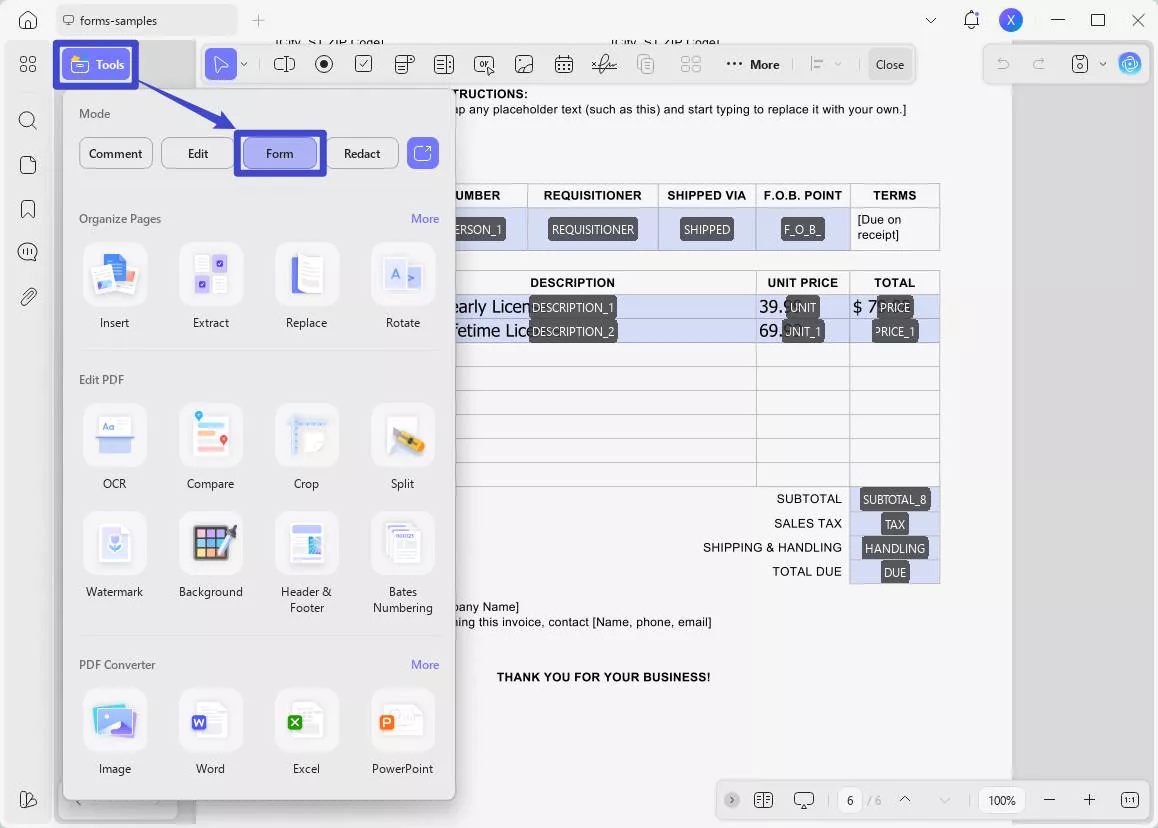
Step 1: Open the PDF in UPDF for Windows or Mac. Select Tools, then enter Form mode.
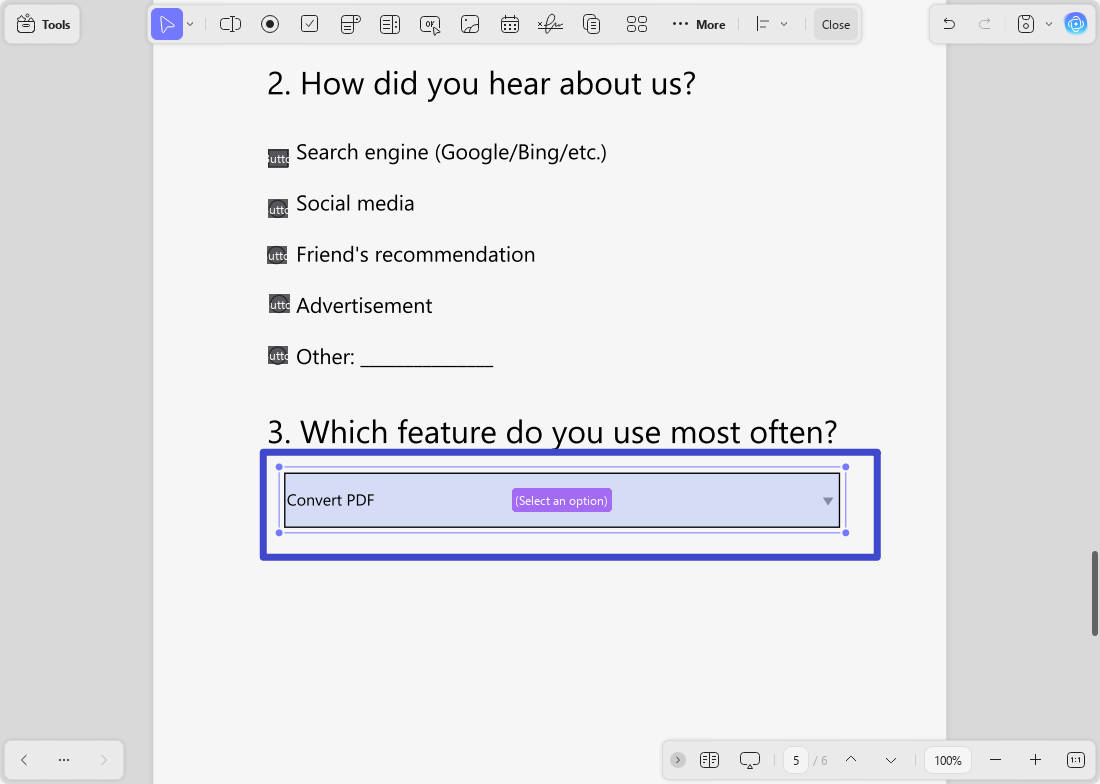
Step 2: Click the existing drop-down field. If its editing handles do not appear, double-click it or right-click and choose Show Field Properties.
Step 3: Open the Options settings. Type a new choice into the Item field and select Add Item. Select an existing item to delete it, or use the move controls to change its order.
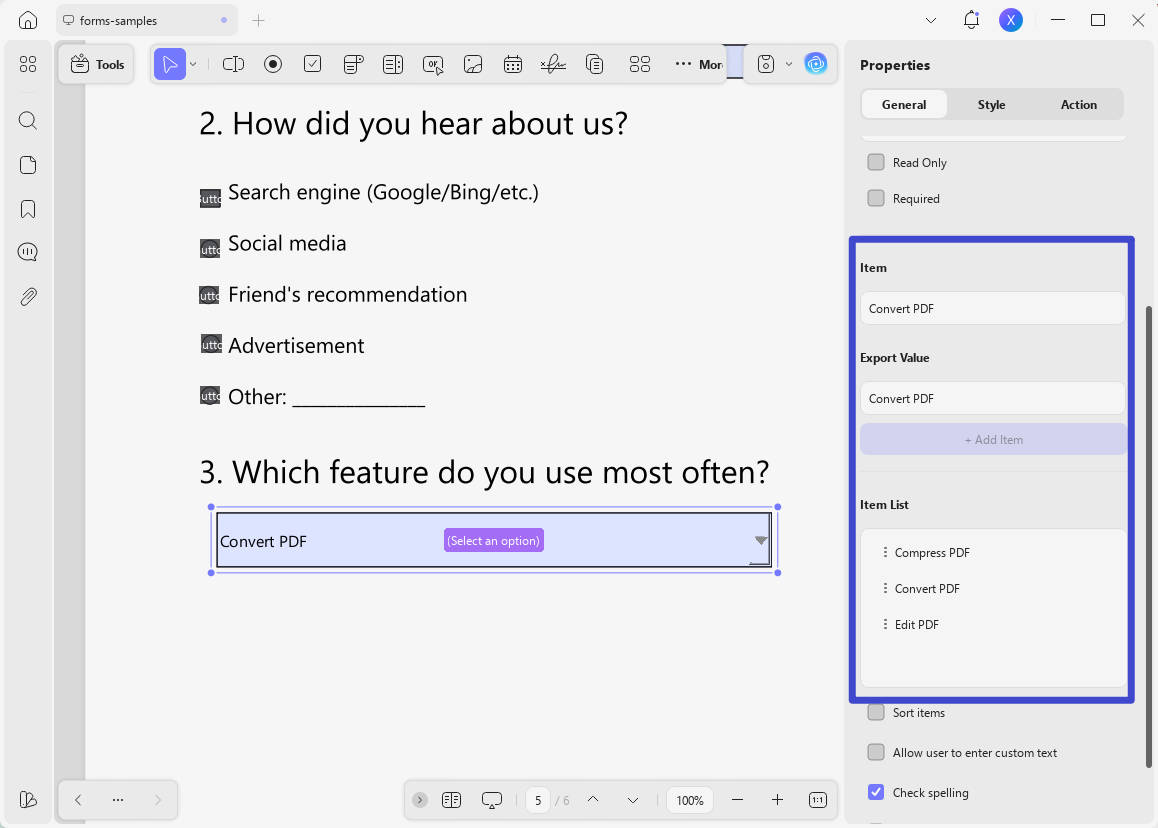
Step 4: Set the default selection if needed. Where the form sends data to another system, check the Export Value separately—the visible label and submitted value do not always have to match.
Step 5: Close the properties, exit form-editing mode, select the field, and test every important choice. Save a new copy and reopen it to confirm the options persist.
Need to add other controls at the same time? This guide explains how to add form fields to a PDF, including text boxes, checkboxes, radio buttons, signature fields, and buttons.
Part 3. How to Add a Drop-Down List to a Non-Fillable PDF
A static PDF may look like a form but contain only printed labels and lines. In that case, there is no list to edit—you must create an interactive field first.
Step 1: Open the static PDF in UPDF and choose Tools > Form.
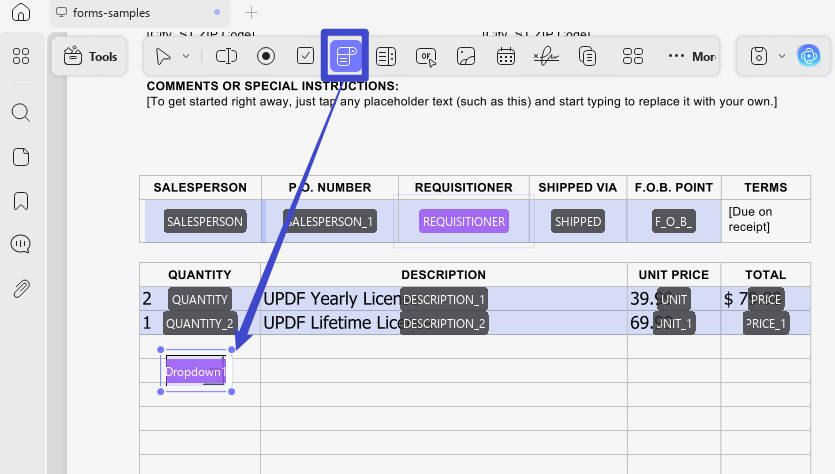
Step 2: Select Drop-down from the form toolbar, then drag on the page to place and size the field.
Step 3: Open Field Properties. Give the field a unique, descriptive name and add each allowed choice under Options.
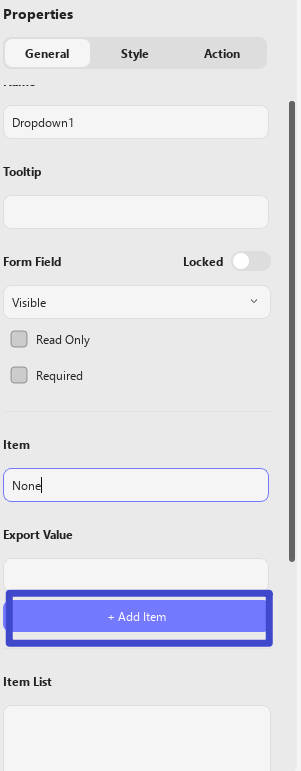
Step 4: Adjust the font, border, fill, alignment, and required-field setting. Add a tooltip for accessibility when the nearby label is not sufficiently clear.
Step 5: Exit form mode and test the field as a recipient would. Save, close, and reopen the PDF before sharing it.
A drop-down allows one compact selection, while a list box can display several choices at once. If the form has mutually exclusive answers such as Yes/No, radio buttons may be more appropriate.
Part 4. How to Edit a Drop-Down List in Adobe Acrobat
Adobe Acrobat Reader can normally select values in an existing form, but changing the available choices requires form-editing features in Acrobat Pro. Adobe calls this tool Prepare a Form.
Step 1: Open the PDF in Acrobat Pro and choose All tools > Prepare a form.

Step 2: Select the drop-down field and open Properties.

Step 3: Choose the Options tab. Add a new item, select an item to delete it, or move items up and down to reorder the list. Review the export value and custom-entry setting where applicable.
Step 4: Select Close, preview the form, test the field, and save a copy.
Adobe documents these settings in its official form-field settings guide. If you only have Reader and need to modify the choices, use a form editor such as UPDF instead of repeatedly trying to change the list in fill mode.
Part 5. What About Foxit, PDF-XChange, and Online Editors?
| Tool | Windows | Mac | Web | Edit existing choices | Create a new field |
|---|---|---|---|---|---|
| UPDF | Yes | Yes | No—use the desktop app | Yes, when the form and permissions allow it | Yes |
| Adobe Acrobat Pro | Yes | Yes | Limited | Yes | Yes |
| Foxit PDF Editor | Yes | Yes | Varies by web plan | Yes in the form editor | Yes |
| PDF-XChange Editor | Yes | No native Mac version | No | Yes in form-editing mode | Yes |
Foxit PDF Editor: Open the form editor, select the combo box, and use its properties/options panel to add or reorder items. Do not assume the browser version offers the same controls as the desktop editor; verify the current web plan before uploading a sensitive document.
PDF-XChange Editor: On Windows, use the Form tab to add or select a combo box, then open Properties and edit the Items list. It offers detailed controls, but it is not a native Mac option.
Online editors: Many web tools can fill an existing drop-down yet cannot change its underlying choices. Before uploading a file, confirm that the service offers form-field authoring rather than only form filling. For confidential files, a desktop editor avoids sending the document to an unrelated web service.
Part 6. Why Can’t I Edit the PDF Drop-Down List?
You can select a value but cannot change the choices
You are probably in fill mode. Switch to the editor's Form or Prepare Form mode. If the application only provides a reader, it may not include form-authoring tools.
The field is locked or the PDF has editing restrictions
Check the document's security properties. You may need the permission password or an unlocked source copy. Do not attempt to remove protection from a document you are not authorized to modify.
The PDF is signed or certified
Changing form structure after signing can invalidate a signature. Ask the document owner for an unsigned source copy, edit the form first, and sign only after the form design is final.
The form uses XFA
Some dynamic XFA forms do not behave like standard AcroForm PDFs and may not open correctly in every editor. Use software that supports the form type, or request a standard PDF version from the form owner.
Several fields change together
Duplicate field names may intentionally share a value. If each drop-down should work independently, give every field a unique name in its General properties.
The options disappear after saving
Save to a local folder under a new name, close the editor, and reopen the saved file. Test it in the application your recipients are likely to use. If the form is only needed for one submission, learn how to clear PDF form fields before making a clean master copy.
Part 7. Frequently Asked Questions
Can I edit drop-down choices in Adobe Acrobat Reader?
No. Reader can normally select an existing value, but changing the list items requires form-editing features such as Prepare a Form in Acrobat Pro or a form editor such as UPDF.
Why can I select an option but not edit the drop-down list?
You are likely in fill or view mode. Switch to Form or Prepare Form mode, then open the field properties and edit the Options list.
How do I add, remove, or reorder choices in a PDF drop-down?
Select the field in form-editing mode, open Properties, and use the Options panel. Add a new item, select an item to delete it, or use the move controls to change its order.
What is the difference between a drop-down and a list box?
A drop-down keeps the choices collapsed until the user opens it and generally allows one selection. A list box displays multiple choices and may allow more than one selection, depending on its settings.
Why are my PDF drop-down changes not saving?
Save to a local folder under a new name, then close and reopen the file. Also check editing permissions, signed or certified status, XFA compatibility, and whether you edited the field in form-authoring mode.
Conclusion
To edit a PDF drop-down successfully, first decide whether you are selecting a value, changing the available options, or creating a new field. UPDF provides a practical Windows and Mac workflow for both editing and creating drop-down fields, while Acrobat Pro remains a familiar option for existing Adobe subscribers.
For the fastest route, download UPDF, open a copy of the form, edit the field under Tools > Form, and test the saved PDF before sending it to recipients.
Windows • macOS • iOS • Android 100% secure







 Enola Miller

 Enola Davis