UPDF
UPDF
 UPDF for Windows
 UPDF for Mac
 UPDF for iPhone/iPad
 UPDF for Android
 Nomostar
 UPDF AI Online
 UPDF Sign
 IvyCraft
 Edit PDF
 Annotate PDF
 Create PDF
 PDF Form
 Edit links
 Convert PDF
 OCR
OCR PDF to Word
 PDF to Image
 PDF to Excel
 Organize PDF
 Merge PDF
 Split PDF
 Crop PDF
 Rotate PDF
 Protect PDF
 Sign PDF
 Redact PDF
 Sanitize PDF
 Remove Security
 Read PDF
 UPDF Cloud
 Compress PDF
 Print PDF
 Batch Process
 About UPDF AI
 UPDF AI Solutions
 AI User Guide
 FAQ about UPDF AI
 Summarize PDF
 Translate PDF
 Chat with PDF
 Chat with AI
 Chat with image
 PDF to Mind Map
 Explain PDF
 PDF AI Tools
 Image AI Tools
 AI Chat Tools
 AI Writing Tools
 AI Study Tools
 AI Working Tools
 Other AI Tools
 AI Bookmark Generation
 AI Bookmark Summary
 AI Watermark Generation
 AI Background Generation
 AI Sticker Generation
 AI Stamp Generation
 AI Editing Suite
 UPDF Copilot
 AI Page Management
 AI Semantic Search
 PDF to Word
 PDF to Excel
 PDF to PowerPoint
 Enterprise Solution
 Enterprise Sign
 Enterprise AI
 Enterprise Plan
 Enterprise User Guide
 Enterprise Webinar
 IT
IT Education
 Construction
 Financial Service
 Healthcare
 Insurance
 Legal
Legal Manufacturing
 Government
 Researchers & PhDs
 Solopreneurs & Freelancers
 Lawyers & Legal Professionals
 Real Estate Agents & Brokers
 Education Solution
 Customer Stories
 User Guide
 UPDF Tricks
 FAQs
FAQs UPDF Reviews
 Download Center
 Blog
Blog Newsroom
 Tech Spec
 Updates
 UPDF vs. Adobe Acrobat
 UPDF vs. Foxit
 UPDF vs. PDF Expert

Quick answer:
Before you start, decide whether you want one image on each PDF page or several images together on a page. Both produce a single PDF, but they serve different purposes: separate pages keep receipts and scanned documents readable, while a multi-image layout works better for a contact sheet or photo overview.
This guide covers the built-in Mac options, a batch workflow in UPDF, and the settings that affect image order, page size, and layout.
Part 1. Combine Images into a PDF with Finder
Finder is a built-in option for turning several images into one PDF without installing another app.
- Open the folder containing your images.
- Select the files in the order you want them to appear.
- Control-click the selection and choose Quick Actions > Create PDF.
- Open the new PDF and check its page order before sharing it.

Apple specifies that the resulting PDF follows the order in which you select the files. Numbered filenames such as 01-cover.jpg and 02-receipt.jpg can help you plan the sequence, but always check the actual output.
If you need several images on each page instead, use the Preview layout settings below.
Part 2. Combine Images and PDFs on Mac with UPDF
Use UPDF for Mac when your document contains both image files and existing PDFs, or when you need to edit the resulting document afterward. For example, you might combine photographed receipts with a PDF invoice, then add a heading or reorganize the pages.
Windows • macOS • iOS • Android 100% secure
Merge a Batch of Images and PDFs
Step 1: Open Merge
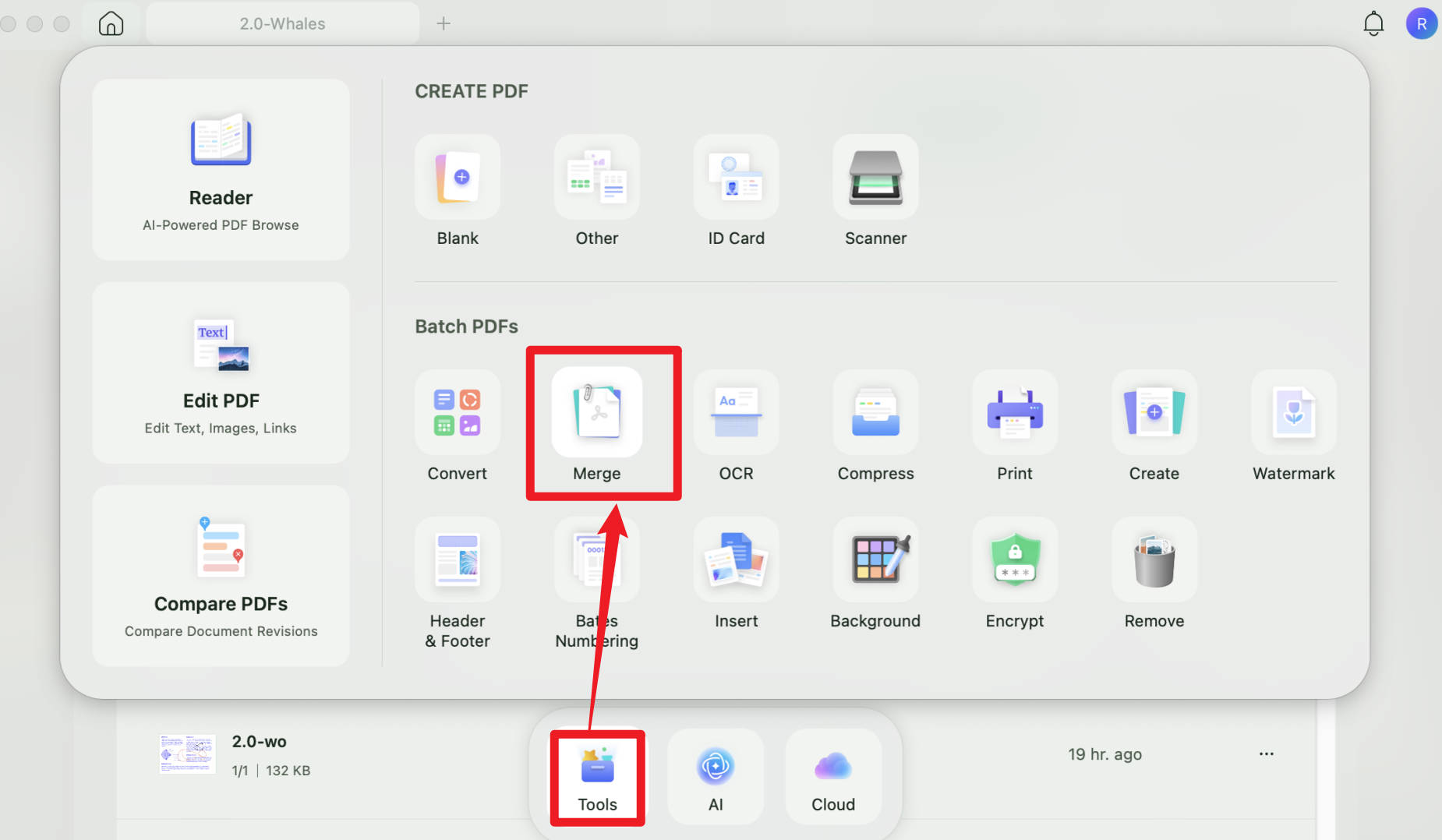
Open UPDF and select Tools from the home screen. Choose Merge under Batch PDFs.
Step 2: Add and Arrange Your Files
Click Add Files and import the images and PDFs you want to combine. Drag the files into the required order.
Step 3: Review Settings and Save
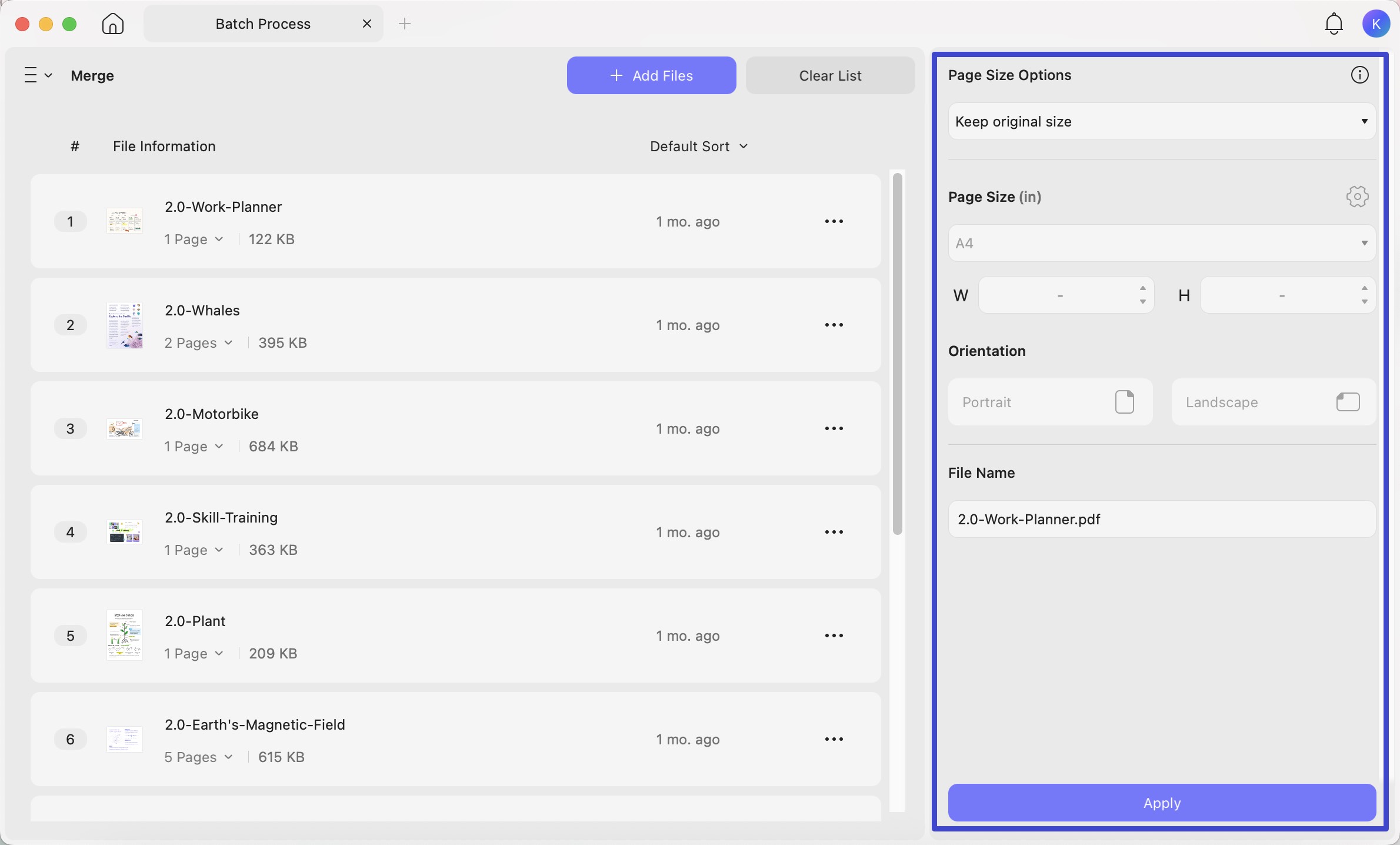
Review the available page-size options, orientation, and output filename. Click Apply, choose a destination, and click Save.
Open the saved PDF and check the page sequence, orientation, and image edges before sending it.
Need to combine receipts, screenshots, and existing PDF documents, then edit the result? Download UPDF for Mac to try this workflow with your own files.
Windows • macOS • iOS • Android 100% secure
Arrange Multiple Images on a PDF Page
Creating a blank PDF is useful when you want to position several photos on the same page rather than turn each image into a separate page.
Step 1: Create a Blank PDF
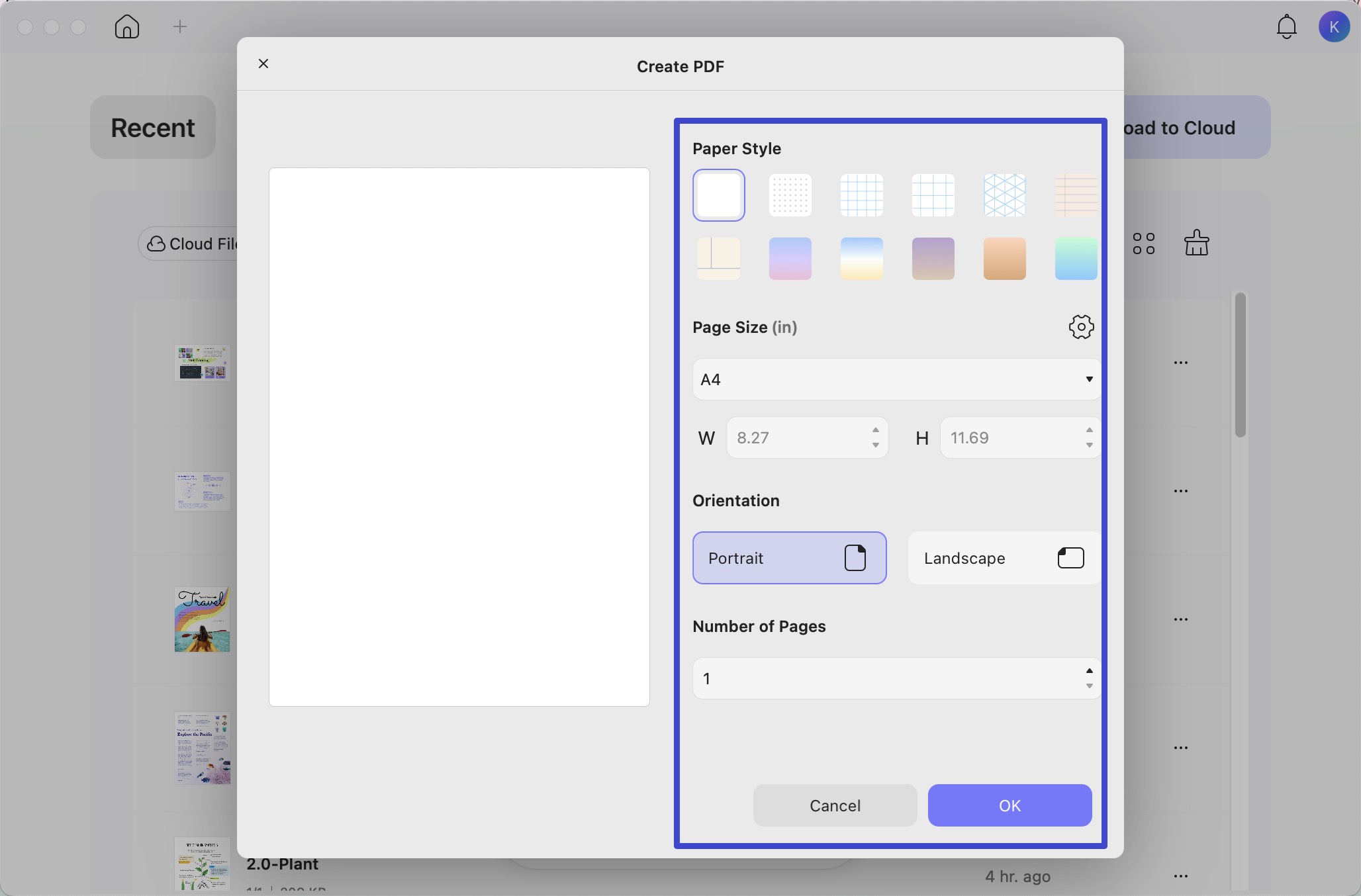
In UPDF, choose File > Create > Blank Page. Set the page size, orientation, and number of pages, then confirm the settings.
Step 2: Add and Position Your Images
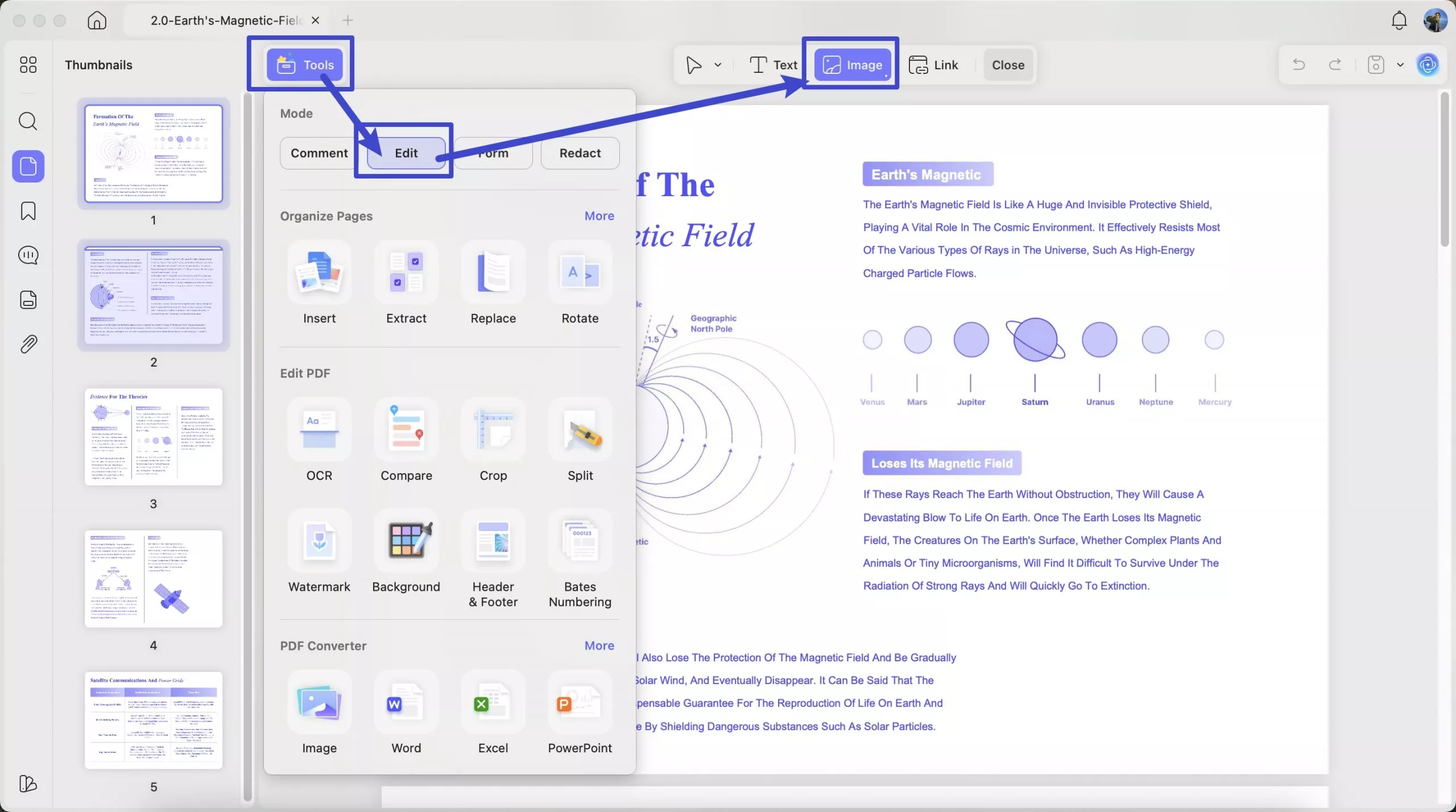
Open Tools > Edit and select Image. Click the page and choose an image from your Mac. Resize and position it, then repeat for the remaining images.
Step 3: Save the Document
Choose File > Save to save the document. This is a manual layout workflow. Use it for a small photo sheet or a page containing images and captions; use batch merging when you mainly need a sequence of document pages.
For more detail on positioning pictures, see how to insert a picture into a PDF on Mac.
UPDF for Mac: Video Overview
The existing UPDF video below provides a general overview of working with PDFs on Mac. For the merge and image-layout workflows, follow the written steps and official screenshots above; the video is not a step-by-step demonstration of every setting used here.
Need to place photos and captions on a page? Download UPDF to try the manual layout workflow on your document.
Windows • macOS • iOS • Android 100% secure
Part 3. Combine Images into a PDF with Preview
Preview is useful when you want to review the images and choose a print layout before saving a PDF.
- Select the images in Finder and open them with Preview. Make sure the images are together in one Preview window.
- Choose View > Thumbnails and check their sequence. Select the thumbnails you want to include.
- Choose File > Print and check that the print preview contains all intended images.
- Under Layout, choose the required Pages per Sheet setting.
- Check the paper size, orientation, and image fit.
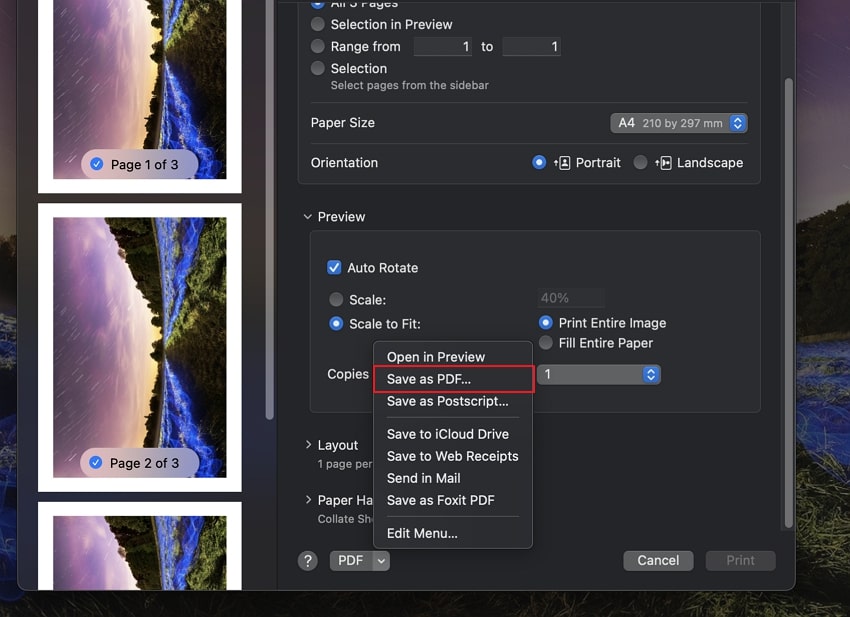
- Open the PDF menu, choose Save as PDF, and enter a filename and destination.
For a more detailed Preview walkthrough, see our guide to combining images into a PDF with Mac Preview.
One Image per Page or Several Images per Page?
Set Pages per Sheet to 1 for a separate output page for each image. Choose a higher available value to create a contact sheet.
Do not confuse this setting with Copies per page, which repeats the same image. If your menu offers 16 under Pages per Sheet, that describes the layout of one output sheet—not the total number of images allowed in the PDF.
For example, eight single-page images arranged two per sheet produce four output pages. The same eight images arranged one per sheet produce eight pages.
Part 4. Check Mixed Image Sizes Before Saving
A set of portrait receipts, landscape photos, and square screenshots will not necessarily fill the same paper size evenly. Decide whether keeping every edge visible matters more than filling the page.
In Preview’s print settings, Scale to Fit > Print Entire Image preserves the whole image within the available area. Fill Entire Paper can crop parts of it. White margins may be preferable to losing a receipt total or the edge of a scanned document.
Before sharing the PDF, check:
- Order: Does the document start with the correct image?
- Completeness: Are all intended images included?
- Orientation: Are portrait and landscape images readable?
- Edges: Is any text or image content cut off?
- Readability: Can you comfortably read the smallest text at normal viewing size?
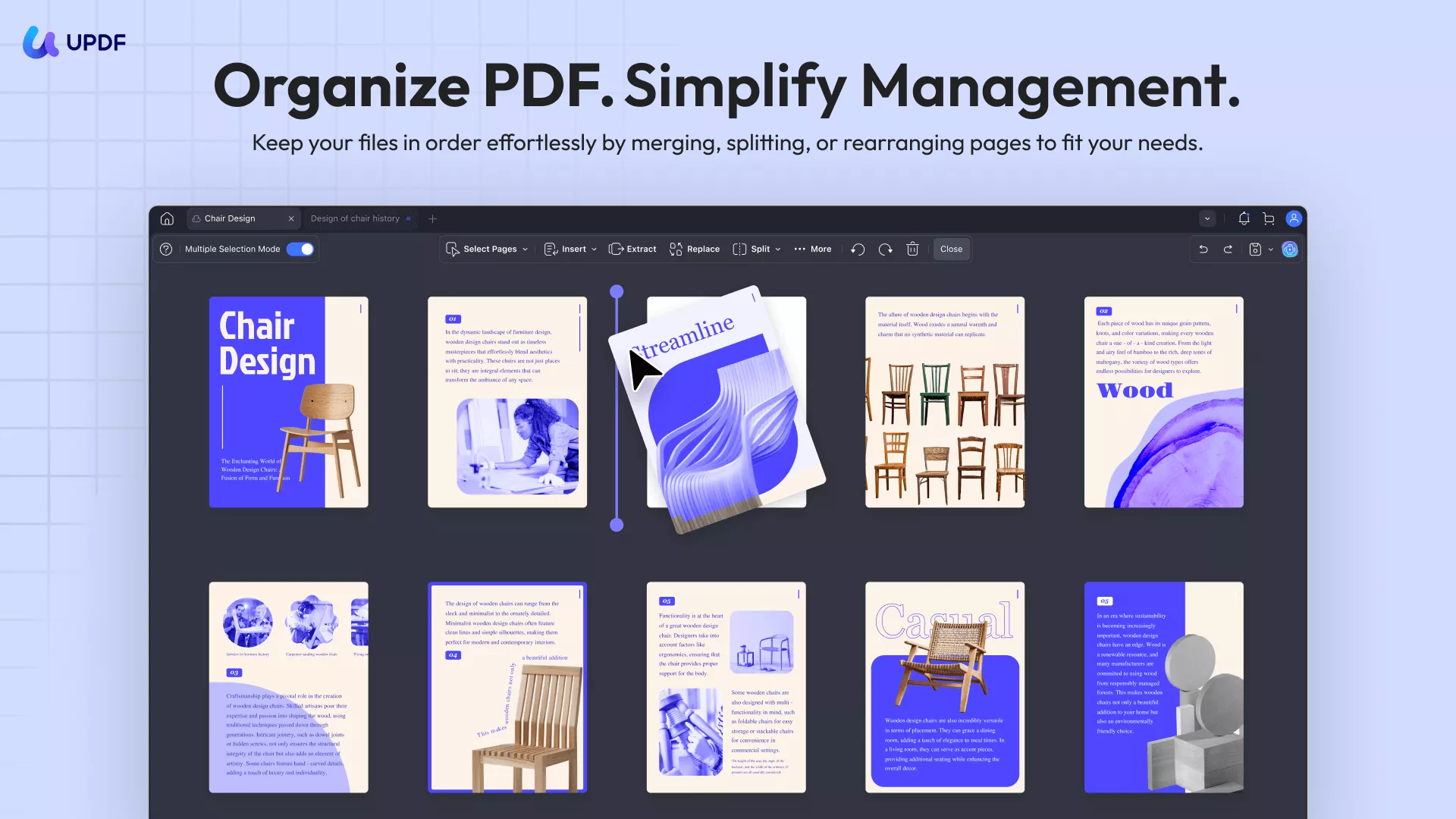
If you need to rearrange or remove pages afterward, explore UPDF’s PDF page organization tools.
Part 5. Which Workflow Fits Your Document?
| Your task | Suggested workflow | What to check |
|---|---|---|
| Put several images into one PDF quickly | Finder → Quick Actions → Create PDF | Selection order and final page sequence |
| Put several images on each PDF page | Preview → Print → Layout | Pages per Sheet and image readability |
| Combine image files with existing PDFs | UPDF → Tools → Merge | File order and output page settings |
| Place images and captions freely on a page | UPDF blank PDF → Tools → Edit | Image position, size, and spacing |
Conclusion
To combine images into one PDF on Mac, start with Finder for a quick merge or Preview for a multi-image page layout. Use UPDF when your workflow includes mixed image and PDF files or further editing.
Whichever method you choose, check the finished PDF rather than relying only on the source filenames: confirm the order, page count, orientation, and readability before sharing it.
For a document that needs both merging and follow-up editing, download UPDF for Mac and try the workflow on a copy of your files.
Windows • macOS • iOS • Android 100% secure





 Lizzy Lozano
 Enrica Taylor

 Enola Miller