 UPDF
UPDF
 UPDF for Windows
 UPDF for Mac
 UPDF for iPhone/iPad
 UPDF for Android
 Nomostar
 UPDF AI Online
 UPDF Sign
 IvyCraft
 Edit PDF
 Annotate PDF
 Create PDF
 PDF Form
 Edit links
 Convert PDF
 OCR
OCR PDF to Word
 PDF to Image
 PDF to Excel
 Organize PDF
 Merge PDF
 Split PDF
 Crop PDF
 Rotate PDF
 Protect PDF
 Sign PDF
 Redact PDF
 Sanitize PDF
 Remove Security
 Read PDF
 UPDF Cloud
 Compress PDF
 Print PDF
 Batch Process
 About UPDF AI
 UPDF AI Solutions
 AI User Guide
 FAQ about UPDF AI
 Summarize PDF
 Translate PDF
 Chat with PDF
 Chat with AI
 Chat with image
 PDF to Mind Map
 Explain PDF
 PDF AI Tools
 Image AI Tools
 AI Chat Tools
 AI Writing Tools
 AI Study Tools
 AI Working Tools
 Other AI Tools
 AI Bookmark Generation
 AI Bookmark Summary
 AI Watermark Generation
 AI Background Generation
 AI Sticker Generation
 AI Stamp Generation
 AI Editing Suite
 UPDF Copilot
 AI Page Management
 AI Semantic Search
 PDF to Word
 PDF to Excel
 PDF to PowerPoint
 Enterprise Solution
 Enterprise Sign
 Enterprise AI
 Enterprise Plan
 Enterprise User Guide
 Enterprise Webinar
 Banking
 Healthcare
 Insurance
 Legal
Legal Manufacturing
 Government
 Researchers & PhDs
 Solopreneurs & Freelancers
 Lawyers & Legal Professionals
 Real Estate Agents & Brokers
 Education Solution
 Customer Stories
 User Guide
 UPDF Tricks
 FAQs
FAQs UPDF Reviews
 Download Center
 Blog
Blog Newsroom
 Tech Spec
 Updates
 UPDF vs. Adobe Acrobat
 UPDF vs. Foxit
 UPDF vs. PDF Expert

Quick answer:
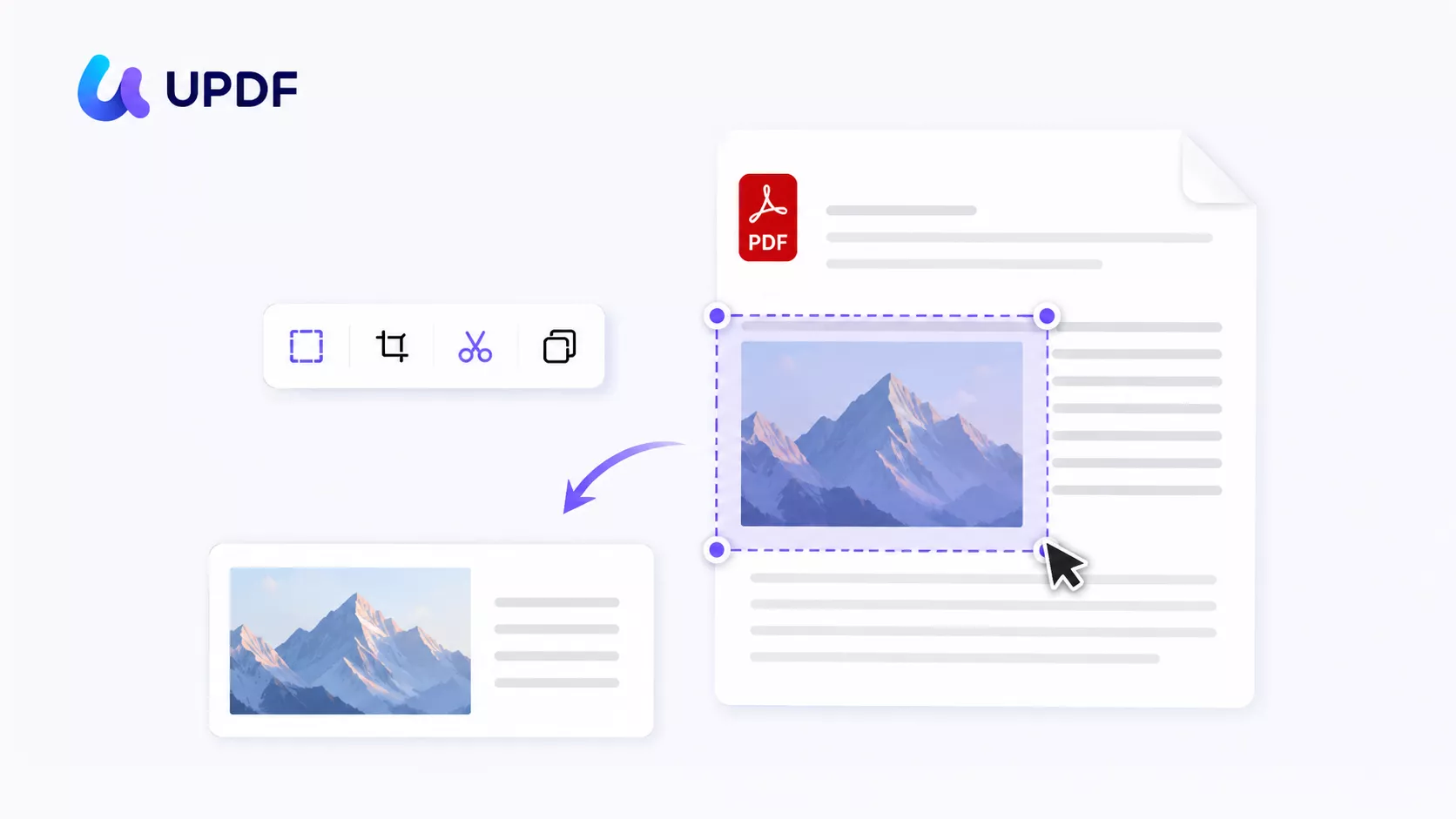
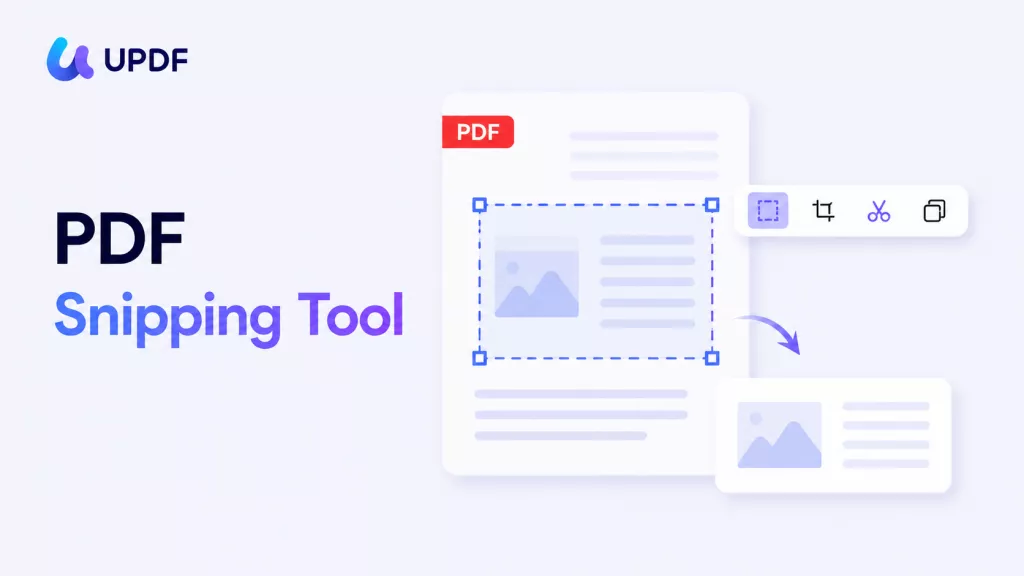
I do this constantly: I'm reading a long PDF report and I just need one chart, one table, or one paragraph out of it — not the whole file, just that one region — to drop into an email or a set of notes. That's the job a PDF snipping tool is supposed to make a two-second drag.
So I tested five of the most-recommended PDF snipping tools — UPDF, Adobe Acrobat, PDFgear, Foxit PDF Editor, and Nitro PDF Pro — on both Mac and Windows where I could. This isn't a feature-list roundup. It's what each tool actually did when I dragged a box around a region in a sample PDF and tried to (1) copy it as an image, (2) pull the text out of it, (3) ask an AI what it was, and (4) save it as its own PDF.
Part 1. The one distinction every snipping roundup skips
Before the tools, the single most useful thing I learned: "snip" means three unrelated jobs, and a tool can be great at one while silently failing the others.
- Copy-snip — drag a box, get an image (or text) on your clipboard to paste elsewhere. The classic snipping job.
- OCR-snip — drag a box, the tool reads the text inside it and gives you characters, not a picture. You usually can't save the image from this mode at all.
- Snip-to-PDF — drag a box, the captured area becomes a brand-new PDF document you can save and edit.
Think of it like a photocopier with three buttons that look identical: one makes a photo, one reads the page aloud, one prints a fresh sheet. Press the wrong one and you get an output you can't use. Most of the confusion in the tools below comes from a "snip" button that's secretly an OCR button.
Keep that lens as you read — it's the difference between the tools far more than price or interface is.
How I tested
I opened the same sample PDF in each app and ran four tasks:
| What I tried to do | Why it matters |
|---|---|
| Copy a region as an image | The everyday "grab this chart" job |
| Copy a region as text | Pull a quote or figure without retyping |
| Ask AI about the snipped region | Identify a diagram, extract a table, explain a figure |
| Turn the snip into a new PDF | Save just one section as its own file |
Which tool for which job (start here)
| If you want to… | Best pick | Why |
|---|---|---|
| Copy an image and pull text from the same drag, on Mac or Windows | UPDF | Right-drag gives both "Copy as Image" and "Copy as Text"; cross-platform |
| Ask an AI what a snipped diagram or figure is | UPDF | AI panel screenshot read my image correctly; Foxit's misfired |
| Turn a snip into a standalone PDF with a dedicated menu | UPDF / Adobe / Nitro | All three have a direct capture-to-PDF command |
| A free tool for occasional snips | PDFgear (Win) | Free, but Mac is limited to screenshot-to-OCR (no image save) |
Part 2. 1. UPDF — the only one that did all four jobs
UPDF was the only tool in the test that handled copy-as-image, copy-as-text, ask-AI, and snip-to-PDF without dropping one of them — and it did so on both Mac and Windows.
Copy a snip (image or text): On both the Mac and Windows desktop apps, you right-click and drag a box over any region. A small toolbar appears with two buttons: Copy as Image and Copy as Text. The first puts a picture on your clipboard; the second runs recognition on just that region and gives you editable text. One drag, your choice of output — which is exactly the ambiguity the other tools fumble.
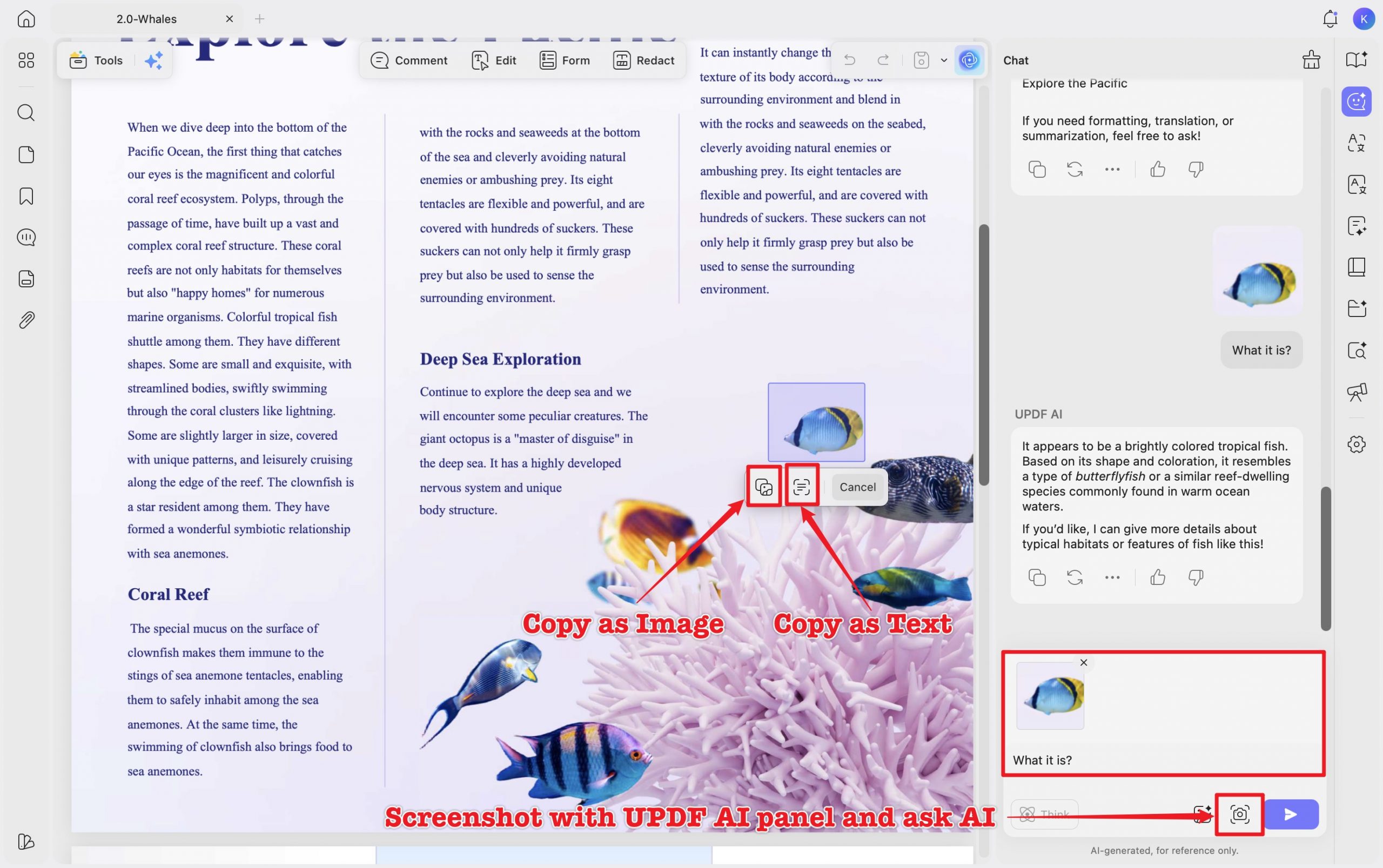
Ask AI about a snip: Open the UPDF AI panel (top-right UPDF AI button), use its screenshot button, and the captured area drops straight into the chat as the thing you're asking about. I snipped a tropical fish from the document and asked "What is it?" — UPDF AI correctly identified it as a tropical fish and narrowed it to a butterflyfish. One caveat worth knowing: the image captured inside the AI panel is meant as a question for the AI, so you can't save that particular screenshot to disk from there. Use Copy as Image (above) when you want to keep the file.
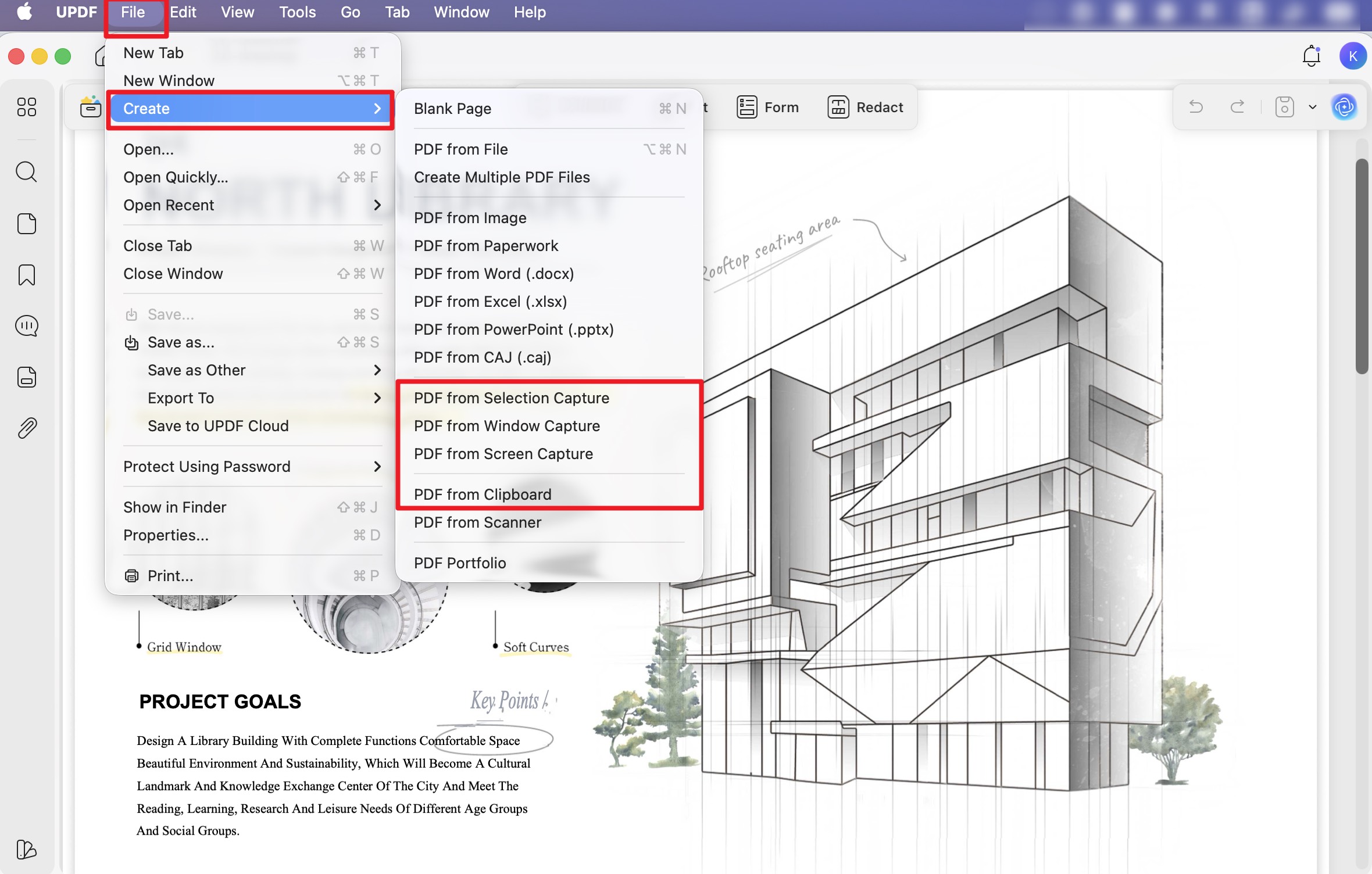
Turn a snip into a new PDF: Go to File → Create, and UPDF gives you four separate capture commands — PDF from Selection Capture, PDF from Window Capture, PDF from Screen Capture, and PDF from Clipboard. Drag your area and it opens as its own PDF in a new tab, ready to save.
Best for:
- anyone who isn't sure in advance whether they need an image, text, an AI answer, or a new PDF — UPDF covers all four from one app on Mac and Windows.
Not for:
- users who want to permanently save the image they fed into the AI panel — that specific capture is a question input, not a saved file, so use Copy as Image instead.
UPDF's free version lets you snip, copy, and use the capture tools; saving an edited document adds a trial watermark, and the free tier includes 100 AI questions and 5 OCR uses to try the recognition features. Download UPDF for free to try snipping a chart out of your own PDF, and Pro features are there when you need watermark-free export or unlimited AI.
Windows • macOS • iOS • Android 100% secure
Part 3. 2. Adobe Acrobat — capture-to-PDF that works, at the highest price
Adobe Acrobat handles both snipping jobs, through two different menus.
To copy a snip: search Take a Snapshot in the search box to enable it, then click a page for the whole page or drag a box for a region. The selection is copied to your clipboard, and right-clicking it offers Copy Selected Graphic, Select/Deselect all, Print, and Create link.
To turn a snip into a new PDF: go to File → Create, where Acrobat offers PDF from Screen Capture, PDF from Window Capture, PDF from Selection Capture, and PDF from Clipboard — drag a region and it becomes a new PDF.
Where Acrobat stops being attractive is cost. Acrobat Pro for individuals runs $19.99/month on the annual plan, about $239.88/year, and Adobe no longer sells a true perpetual license — the "one-time" Acrobat 2024 is a non-renewing three-year term, not a permanent license. For a job as light as snipping content out of PDFs, that's a heavy subscription to carry.
Best for:
- people already paying for Acrobat who want capture-to-PDF inside a familiar workflow.
Not for:
- anyone buying a tool primarily to snip — the price is hard to justify against free and one-time-purchase options.
Part 4. 3. PDFgear — free, but the Mac "snip" is really OCR
PDFgear is genuinely free, which is its main appeal. But it's the clearest example of the copy-snip vs OCR-snip trap, because the two platforms behave completely differently.
On Windows, PDFgear has a proper snipping tool. Open your PDF, click the Screenshot button, and drag a box over the area you want. A small toolbar appears under the selection with four options: a Pen icon to edit the snip in Paint, Copy to send it to your clipboard, Save to store it as a .png, and Done to copy it and pin it as a thumbnail on the left for later. That's a real copy-snip — you get an image you can save or paste.
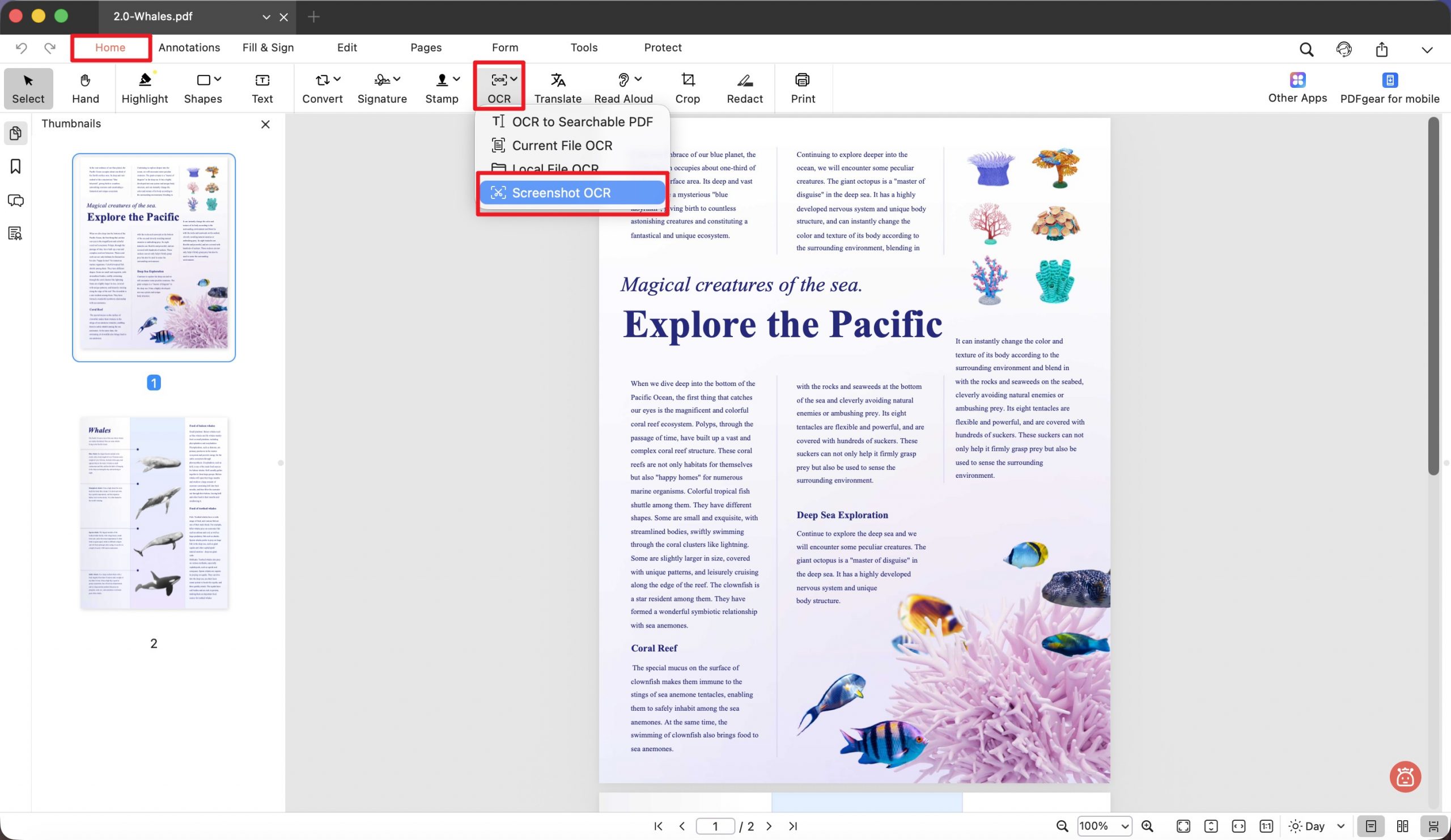
On Mac, PDFgear has no plain screenshot tool. What it has instead is Screenshot OCR (under the OCR dropdown on the Home tab). The catch: the area you box in that mode goes straight into OCR — the right pane returns recognized text with Export and Copy Text buttons, and there's no option to save the captured image itself. So on Mac, PDFgear's "snip" gives you text, not a picture.
Best for:
- Windows users who want a free, no-frills region screenshot from a PDF.
Not for:
- Mac users expecting to save a snipped image — the Mac path only produces OCR text, so you hit a wall the moment you need the picture.
Part 5. 4. Foxit PDF Editor — strong AI image editing, shaky AI reading
Foxit copies a snip fine: click Home → Snapshot, then drag a box over the area. The selected region is automatically copied ("the selected area has been copied"), with a pop-up offering Print, Select All, Ask AI, and Edit Image with AI. Where it gets interesting — and inconsistent — is the AI.
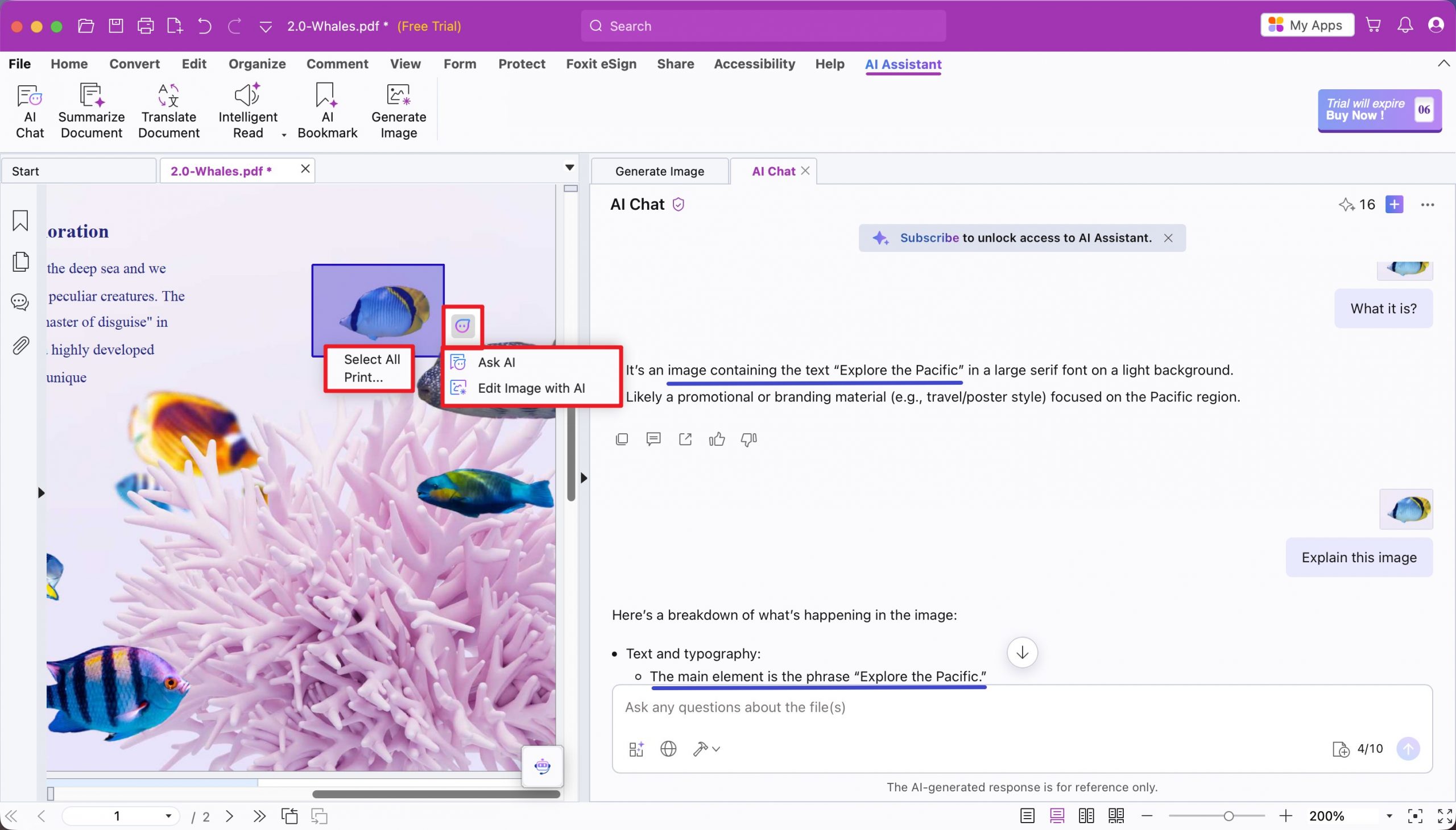
Ask AI worked when I asked it to extract text from a region: it cleanly pulled "Explore the Pacific" and added a short summary and analysis. But when I snipped the same tropical fish I'd given UPDF and asked what it was, Foxit's AI went off-topic and didn't identify the image — its picture-understanding was unreliable where UPDF's was accurate. Foxit's AI also sits behind a subscription prompt, so it isn't free to lean on.
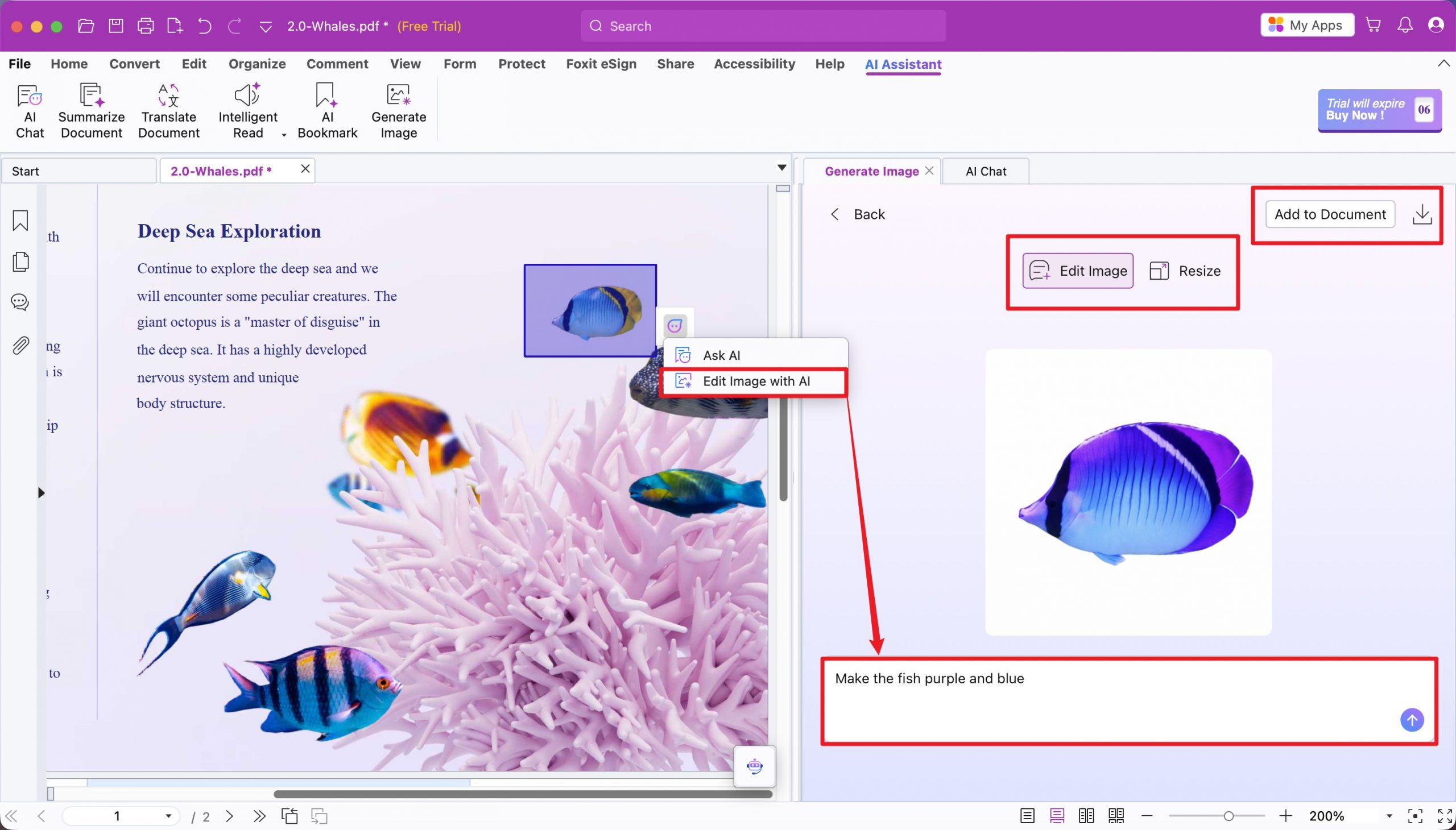
Edit Image with AI, on the other hand, was a pleasant surprise. I typed "make the fish purple and blue" and Foxit regenerated the image, with options to Add to Document or download, plus a Resize panel offering 1:1, 2:3, and 3:2 ratios. That's a genuinely different capability from plain snipping.
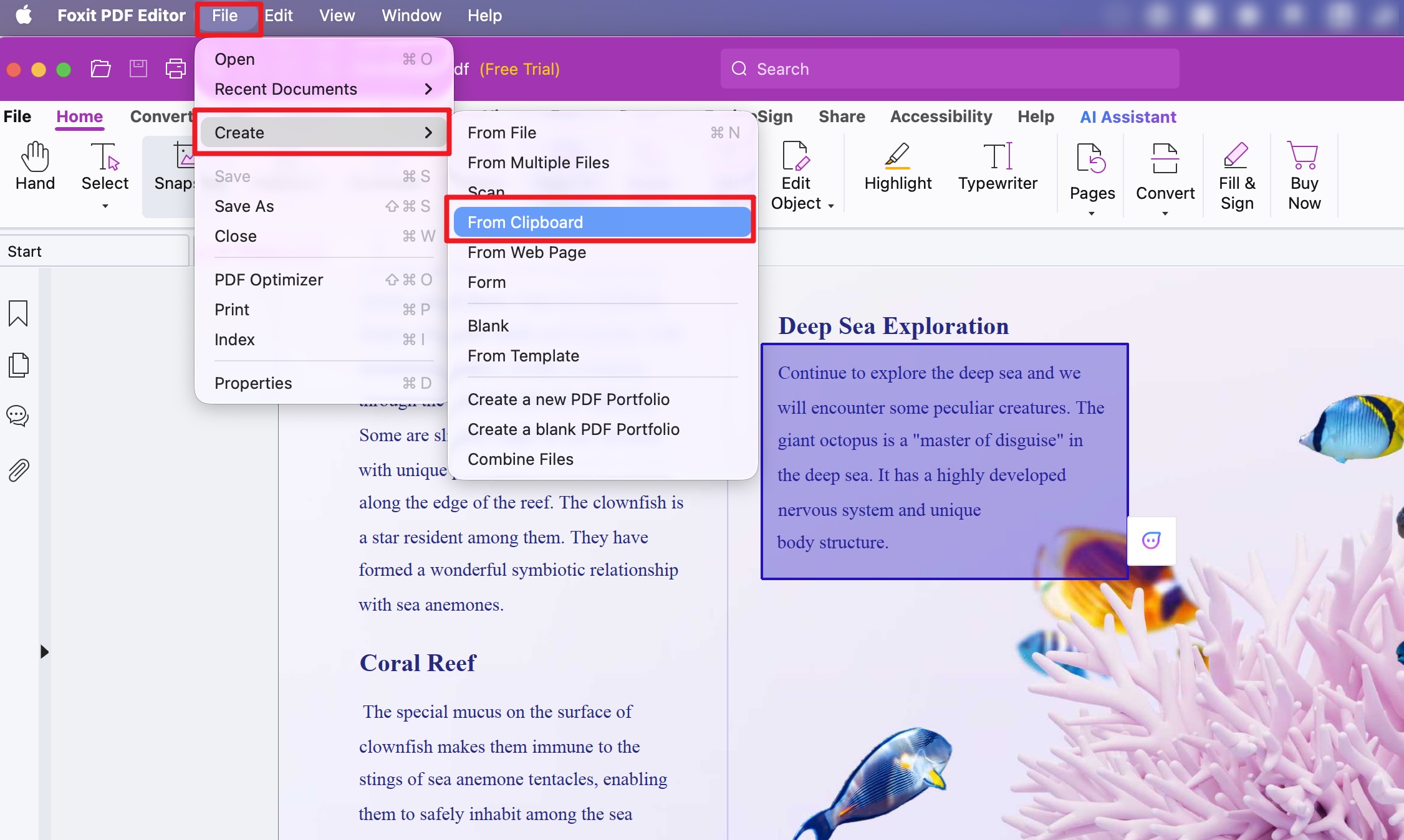
For snip-to-PDF, Foxit has no dedicated capture command like UPDF or Adobe — but since the selection is auto-copied, File → Create → From Clipboard gets you to a new PDF in one extra step.
On price, Foxit PDF Editor is $129.99/year (PDF Editor) or $159.99/year (PDF Editor+), with the AI Assistant an extra $49.99/year for 2,000 credits a month, plus a free trial (7-day for PDF Editor, 14-day for Editor+). Confirm current figures on Foxit's pricing page before buying.
Best for:
- users who want AI image editing (recolor, resize) on a snipped graphic, not just a flat copy.
Not for:
- anyone relying on AI to reliably identify or describe a snipped image — Foxit's reading misfired in testing.
Part 6. 5. Nitro PDF Pro — copy or convert a snip straight to a new PDF
Nitro PDF Pro handles the core jobs cleanly, but the steps differ by platform, so follow the path for your own OS.
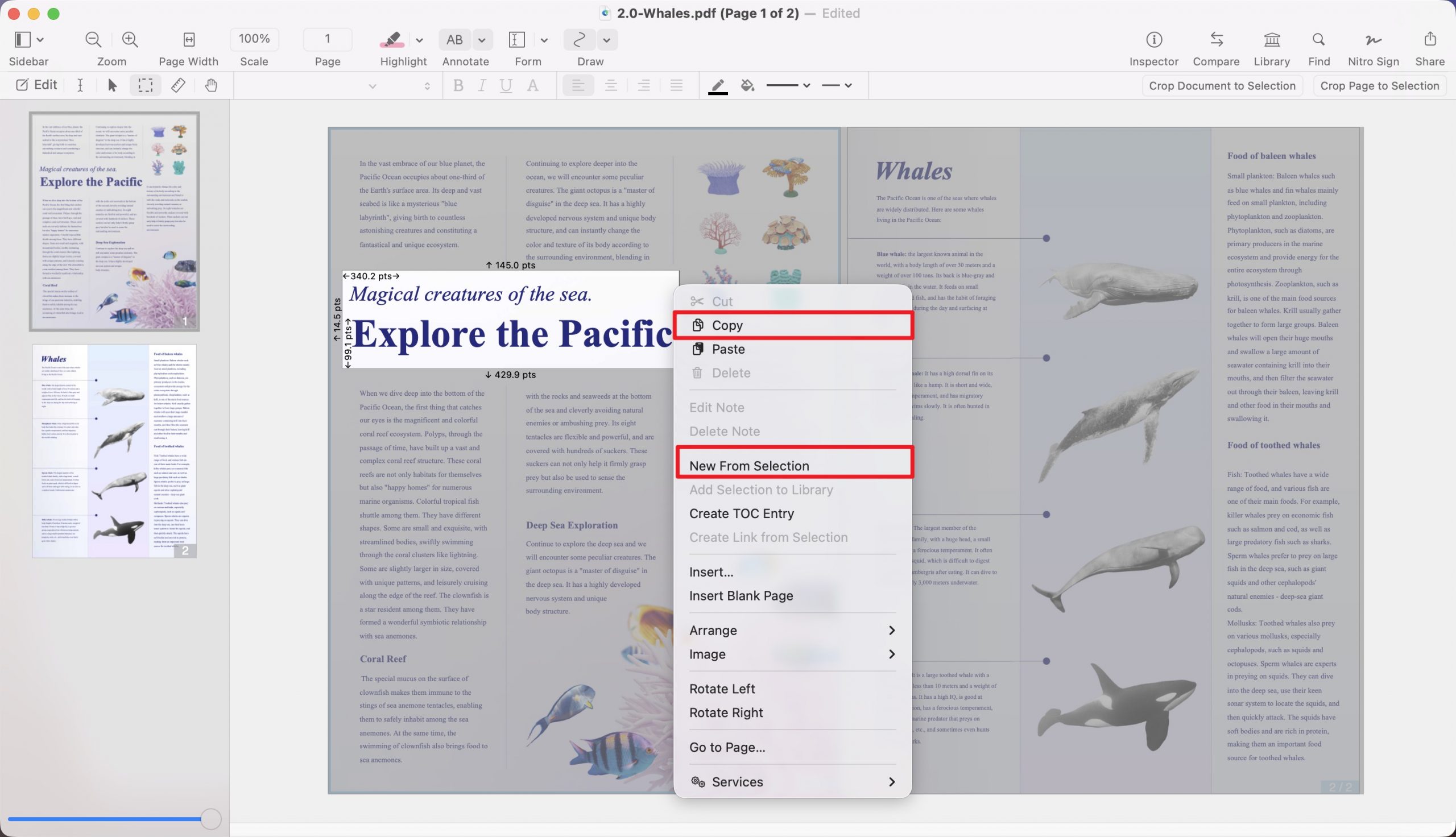
On Mac: pick the Select Rectangle Tool from the Editing bar (Command+4), then click and drag over the area (it can contain text or images). Once selected, the region can be copied and pasted elsewhere, used to crop the page, or turned into a new PDF document (New From Selection).
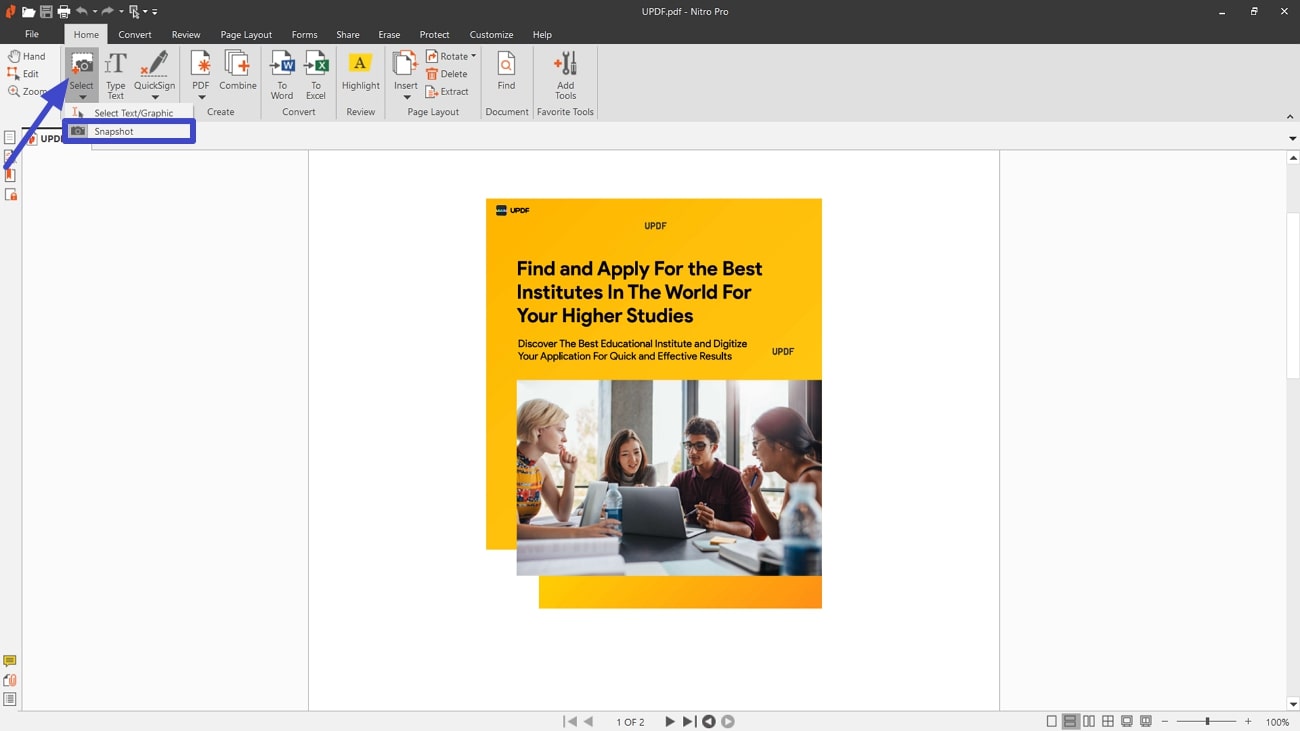
On Windows: open the Select tab, choose Snapshot from the dropdown, then drag the area you want. It's automatically copied to the clipboard, with no extra right-click snapshot options.
On price, Nitro PDF Standard is $15/user per month, or $180/year. There's also a Nitro PDF Classic three-year Windows license at $270 one-time, and a Plus tier for larger organizations via contact-sales. Note the free version watermarks PDFs you save.
Best for:
- Mac users who mostly want to snip a section and immediately save it as its own PDF.
Not for:
- anyone wanting to pay once and own it for good — Nitro has no true perpetual license. The "Classic" option is a three-year Windows-only term that stops working when it expires, so you're back to repurchasing or moving to the subscription.
Part 7. Side-by-side: what each tool actually does with a snip
| Capability | UPDF | Adobe Acrobat | PDFgear | Foxit PDF Editor | Nitro PDF Pro |
|---|---|---|---|---|---|
| Copy snip as image | ✓ (Mac + Win) | ✓ | ✓ Win; ✗ Mac (OCR only) | ✓ | ✓ (Mac) |
| Copy snip as text | ✓ ("Copy as Text") | Via clipboard | Mac via Screenshot OCR | ✓ (Ask AI → Extract text) | ✗ Not direct |
| AI image editing (recolor/resize) | ✗ | ✗ | ✗ | ✓ (Edit Image with AI) | ✗ |
| Snip → new PDF | ✓ (Selection/Window/Screen/Clipboard) | ✓ (Selection/Window/Screen/Clipboard) | ✗ No dedicated command | Via Clipboard only | ✓ (New From Selection) |
| Free tier | Snip + 100 AI / 5 OCR; watermark on edited-doc save | ✗ (paid only) | Fully free | Trial only (14 days) | Trial only (14 days) |
| Price | Pro $49.99/yr; Lifetime $79.99 one-time | ~$239.88/yr; no perpetual | Free | $129.99–$159.99/yr + $49.99 AI | $15/mo ($180/yr); Classic $270 (3-yr) |
The pattern is clear: every tool copies a snip in some form, but UPDF gave both image and text from one drag, read a snipped image correctly with AI, and converted a snip to a PDF — on both desktop platforms.
Windows • macOS • iOS • Android 100% secure
Part 8. Edge cases that trip people up
Failures that don't show up on a feature list — and aren't obvious until you hit them:
- Your snip is blurry even though the PDF looks sharp. Capturing while zoomed out grabs the screen at display resolution, not the document's. Zoom the page to 100% (or higher) before you drag the box — the capture samples what's rendered on screen, so a larger on-screen render means a crisper snip.
- You snipped a chart but only got half of it. A region that extends past the visible page edge stops at the window boundary, not the content boundary. Scroll so the entire target sits inside the viewport before capturing, or use a window/screen capture instead of selection capture.
- The text you snipped pastes as one run-on line. OCR-based text capture drops the original line breaks and column layout. For anything with columns or a table, snip it to a new PDF and run full OCR there, which preserves structure better than a quick region grab.
- A scanned (image-only) PDF returns nothing when you copy as text. There's no text layer to read from a raw scan until OCR has run. OCR the page first, then the copy-as-text capture has something to pull.
- Your saved snip has a different background tint than the page. Some PDFs sit on a colored or textured page background that gets captured along with your target. Crop tighter, or snip to a new PDF and edit the background out before saving.
Part 9. FAQs about PDF snipping tools
1. Is using a snipping tool on a PDF legal?
Capturing content for your own reference or fair-use purposes is generally fine. Reproducing or redistributing copyrighted PDF content without permission isn't — snipping changes the format, not your rights to the material. Treat a snip the same as a quote.
2. Can I snip from a password-protected PDF?
Only after you open it. If the PDF requires a password to view, you must enter it first; most editors disable capture on a document you can't open. If it's restricted from copying (a permissions password) rather than viewing, some tools still block the snip until the restriction is removed by someone authorized to do so.
3. What image format do snipping tools save in?
It varies and you don't always get a choice. PDFgear on Windows saves as .png with no format picker; capture-to-PDF tools output a PDF rather than an image. If you need a specific format like JPG or TIFF, snip to PDF first, then export the page to that image format.
4. Can I snip multiple pages into one file at once?
A single region capture grabs one area on one page. To combine several captures, snip each to a new PDF and merge them, or use a window/screen capture per page and combine the results. There's no single drag that spans multiple pages.
Conclusion
"PDF snipping tool" hides three different jobs — copying a region, OCR-reading it, and turning it into a new PDF — and most tools quietly do only one or two of them, with sharp Mac-versus-Windows differences. Across the five I tested, UPDF copied a snip as image or text, read a snipped image correctly through its AI panel, and converted a snip into a standalone PDF, on both desktop platforms.
Download UPDF for free to try snipping content out of your own PDF — installation is free, and Pro features are available when you need watermark-free export or advanced AI tools.
Windows • macOS • iOS • Android 100% secure
Test conditions (June 2026). All findings below come from hands-on testing in June 2026 with the versions listed. Software updates may change behavior, menus, or pricing after this date.
| Tool | Version tested |
|---|---|
| UPDF | v2.5.4 |
| Adobe Acrobat | v2026.001.21662 |
| PDFgear | v2.25 |
| Foxit PDF Editor | v2026.1.1.70276 |
| Nitro PDF Pro | v26.1.1 |






 Engelbert White