UPDF
UPDF
 UPDF for Windows
 UPDF for Mac
 UPDF for iPhone/iPad
 UPDF for Android
 Nomostar
 UPDF AI Online
 UPDF Sign
 IvyCraft
 Edit PDF
 Annotate PDF
 Create PDF
 PDF Form
 Edit links
 Convert PDF
 OCR
OCR PDF to Word
 PDF to Image
 PDF to Excel
 Organize PDF
 Merge PDF
 Split PDF
 Crop PDF
 Rotate PDF
 Protect PDF
 Sign PDF
 Redact PDF
 Sanitize PDF
 Remove Security
 Read PDF
 UPDF Cloud
 Compress PDF
 Print PDF
 Batch Process
 About UPDF AI
 UPDF AI Solutions
 AI User Guide
 FAQ about UPDF AI
 Summarize PDF
 Translate PDF
 Chat with PDF
 Chat with AI
 Chat with image
 PDF to Mind Map
 Explain PDF
 PDF AI Tools
 Image AI Tools
 AI Chat Tools
 AI Writing Tools
 AI Study Tools
 AI Working Tools
 Other AI Tools
 AI Bookmark Generation
 AI Bookmark Summary
 AI Watermark Generation
 AI Background Generation
 AI Sticker Generation
 AI Stamp Generation
 AI Editing Suite
 UPDF Copilot
 AI Page Management
 AI Semantic Search
 PDF to Word
 PDF to Excel
 PDF to PowerPoint
 Enterprise Solution
 Enterprise Sign
 Enterprise AI
 Enterprise Plan
 Enterprise User Guide
 Enterprise Webinar
 IT
IT Education
 Construction
 Financial Service
 Healthcare
 Insurance
 Legal
Legal Manufacturing
 Government
 Researchers & PhDs
 Solopreneurs & Freelancers
 Lawyers & Legal Professionals
 Real Estate Agents & Brokers
 Education Solution
 Customer Stories
 User Guide
 UPDF Tricks
 FAQs
FAQs UPDF Reviews
 Download Center
 Blog
Blog Newsroom
 Tech Spec
 Updates
 UPDF vs. Adobe Acrobat
 UPDF vs. Foxit
 UPDF vs. PDF Expert

A 90-page tender document arrives late afternoon, with the final response due early the next morning. Reading it from beginning to end was never the plan when time was already extremely limited. Finding the important clauses that decide whether to bid is the actual job that really matters. Doing all that work manually can easily cost an entire evening that nobody really has available.
Search engines still surface tools like Smallpdf or Acrobat Online when users need help with PDFs. Modern AI summarizers can understand document context, identify key points, and answer questions about content directly. They can also turn lengthy documents into short notes without requiring users to read everything manually. This guide explains how to summarize a PDF online for free with UPDF AI Online and 4 alternatives.
Need to summarize long PDFs or scanned documents online for free right now? Try UPDF AI Online in your browser!
Part 1. Method 1: How to Summarize a PDF Online Free Using UPDF AI Online (Recommended)
This browser method explains how to summarize PDFs quickly without installing software on your computer. Follow the steps below to upload your PDF and create clear notes within a browser:
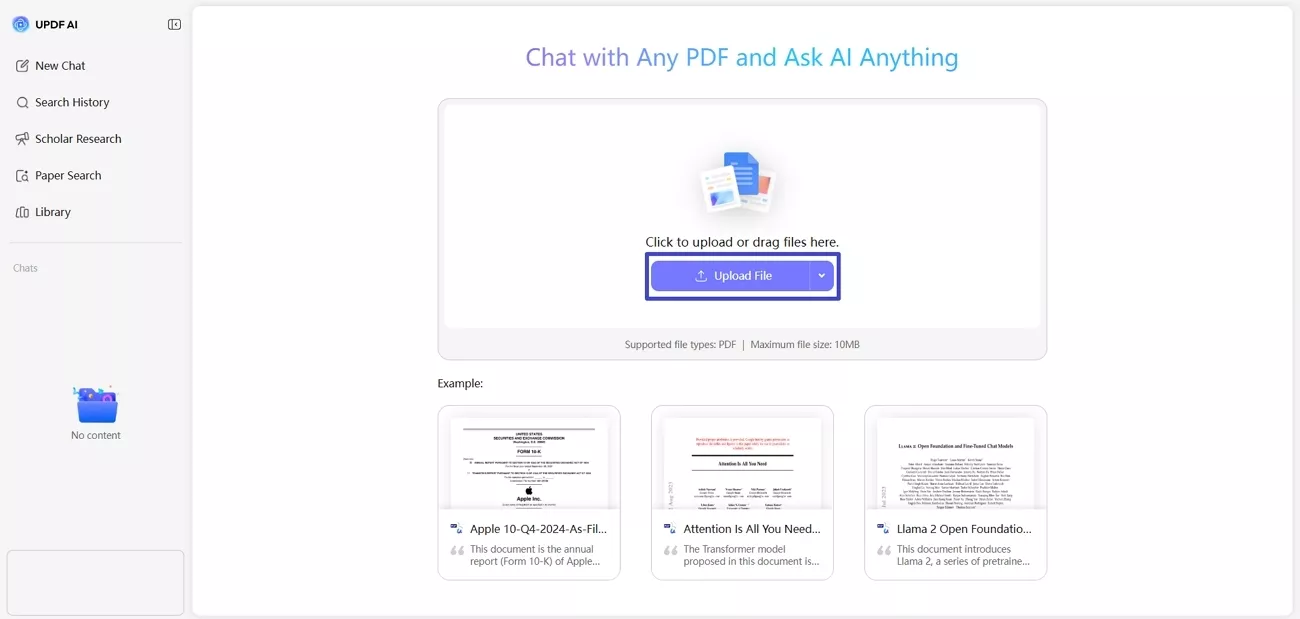
Step 1. Upload Your PDF Document (Including Scanned Files)
Open the UPDF AI workspace in your browser and drag your file into the upload area or press the "Upload File" button to upload the PDF. You don’t need to set up an account for your first upload.
The upload process includes 2 useful features that make difficult PDF files much easier. Scanned documents work directly because text recognition runs automatically without needing a separate OCR tool. With a free account, users can group up to 5 documents for cross-document questions.
For heavily image-based scans, paste screenshots into chat with prompts for cleaner summary results instead. Learn more about choosing an online PDF summarizer for your cloud-based document workflow before deciding.
Step 2. Generate an Instant Automated PDF Summary
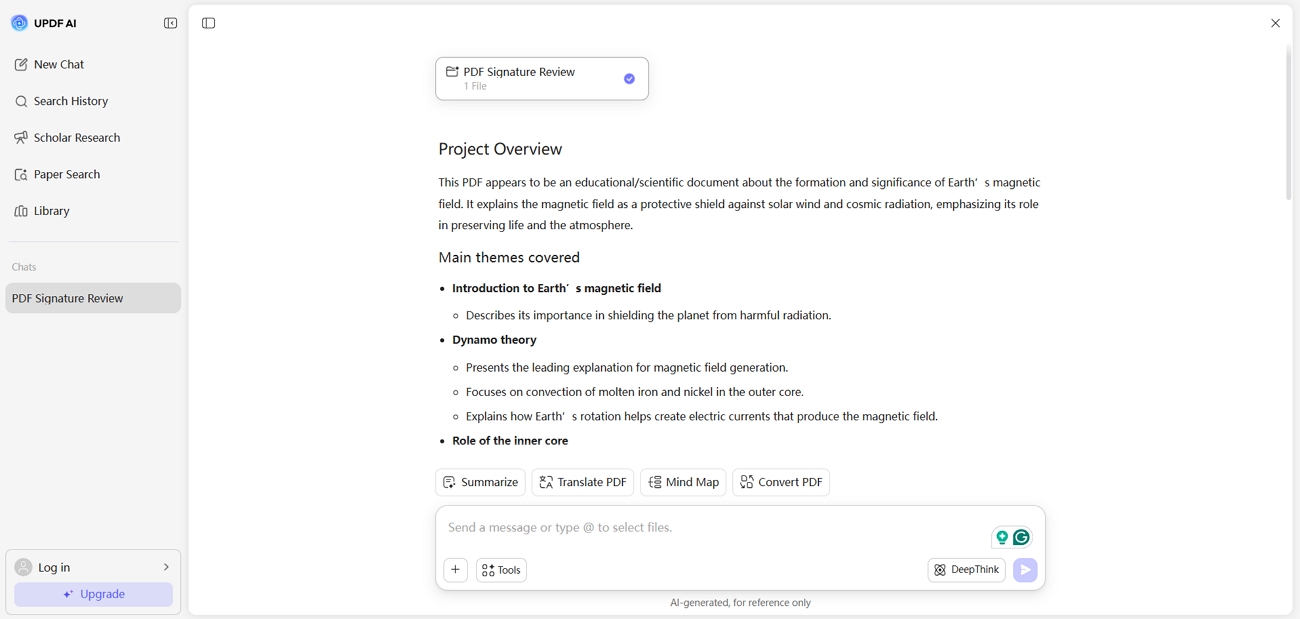
Analysis starts automatically after uploading, so users do not need to enter prompts manually. The summary provides an executive overview, main takeaways, and structured points from the document. UPDF automatically detects the document type and adjusts the generated summary format accordingly afterward. Reports receive concise overviews, while research papers include authors, keywords, affiliations, and findings.
Step 3. Use Prompt Commands to Summarize PDF in Detail
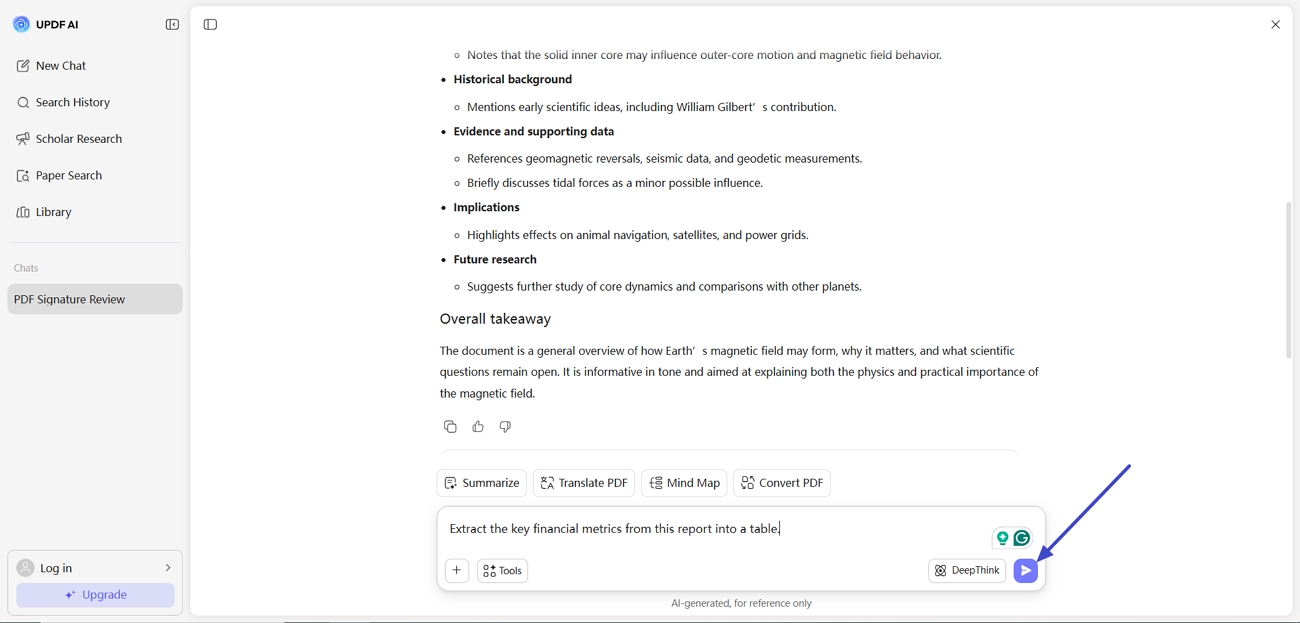
The automatic summary is a starting point rather than the finished product. Multi-turn prompts turn a general overview into useful information while keeping the earlier context. Enter the prompt and press "Send" to get a detailed summary.
- Summarize Chapter 2 into bullet points suitable for a briefing note.
- Extract the key financial metrics from this report into a table.
- List every deadline and deliverable mentioned, with its page number.
Output length and format respond to instructions too. Asking for a summary within a set word count, or in a specific structure, works as reliably as asking for the content itself.
Part 2. Alternative Methods: How to Summarize PDFs Online with Other AI Tools
Different AI tools summarize PDF files differently depending on your workflow, needs, and existing tools. Below are 4 useful options, while our PDF summarizer guide provides more details.
Method 2: How to Summarize a PDF Online Using ChatGPT (Browser)
Best For:
- Sustained reasoning across a long argument, where each follow-up builds on the previous answer.
Not For:
- Readers who want to interact directly with the PDF text and layout while reading it.
ChatGPT reads uploaded documents and keeps conversation context, making dense reports and academic papers manageable. Go through the steps below to create your first PDF summary directly in the browser:
Step 1. Once you open ChatGPT, press the "Attachment" icon and upload your PDF.
Step 2. Enter a prompt like "Summarize this PDF in one paragraph" and press the "Send" icon. This way, ChatGPT will provide you with a single-paragraph summary without missing any key detail.
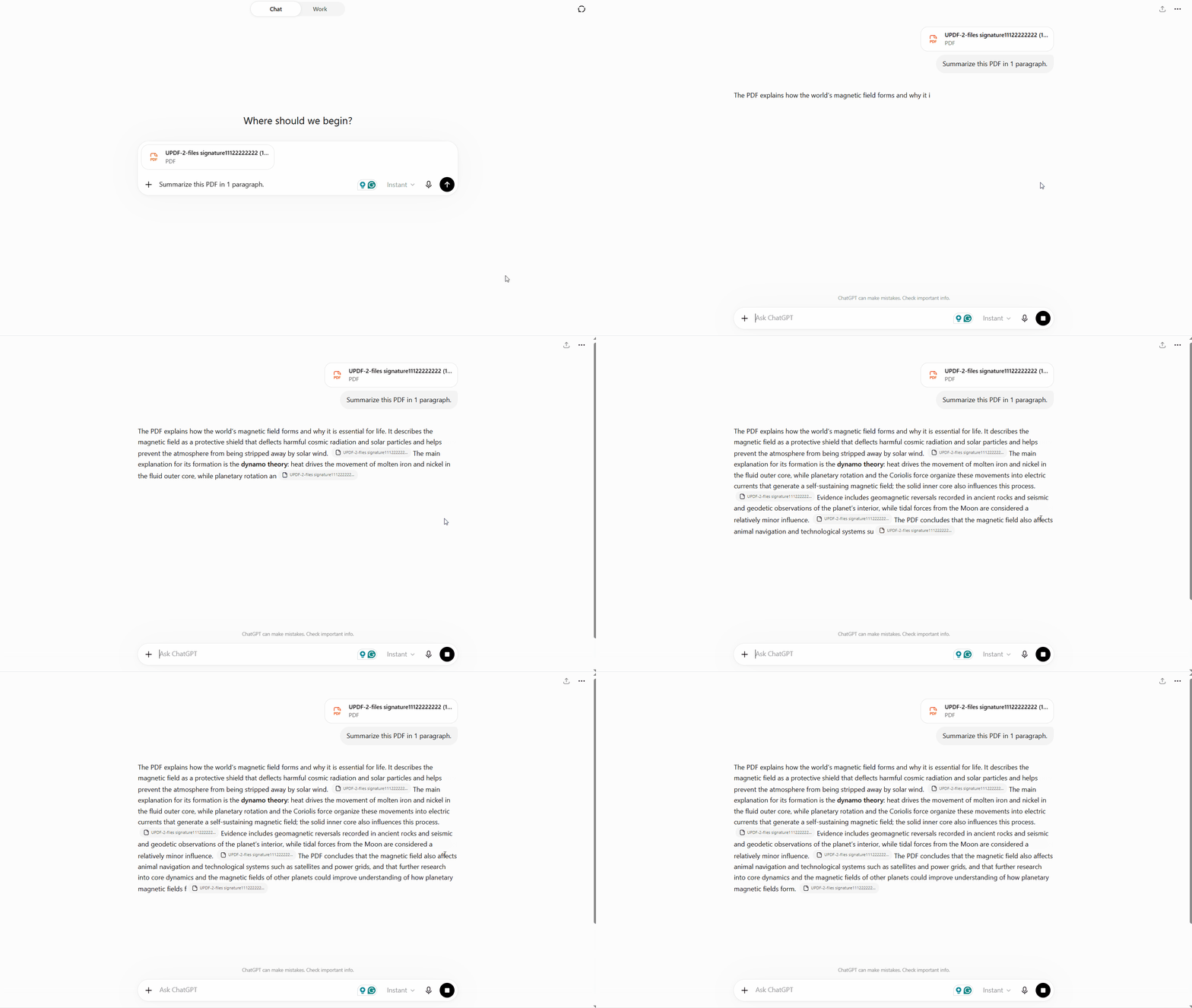
ChatGPT works through an external chat box without displaying the PDF for direct interaction. Specific text must be typed or copied manually when you need separate summaries there.
Method 3: How to Summarize a PDF Online Using ChatPDF
Best For:
- Quick single-file PDF checks where speed matters more than detailed analysis.
Not For:
- Frequent daily use, lengthy documents, or scanned files with unclear quality.
This is a browser tool that needs no account makes summarizing PDF files simple. The document stays beside the chat panel while you ask questions easily. Now, follow the steps below to move from your file to answers:
Step 1. After accessing the main interface, press "Upload" to upload your PDF file.
Step 2. Once uploaded, enter a prompt for summarization or ask any follow-up question. After that, press the "Send" icon to get summarized content for your PDF.
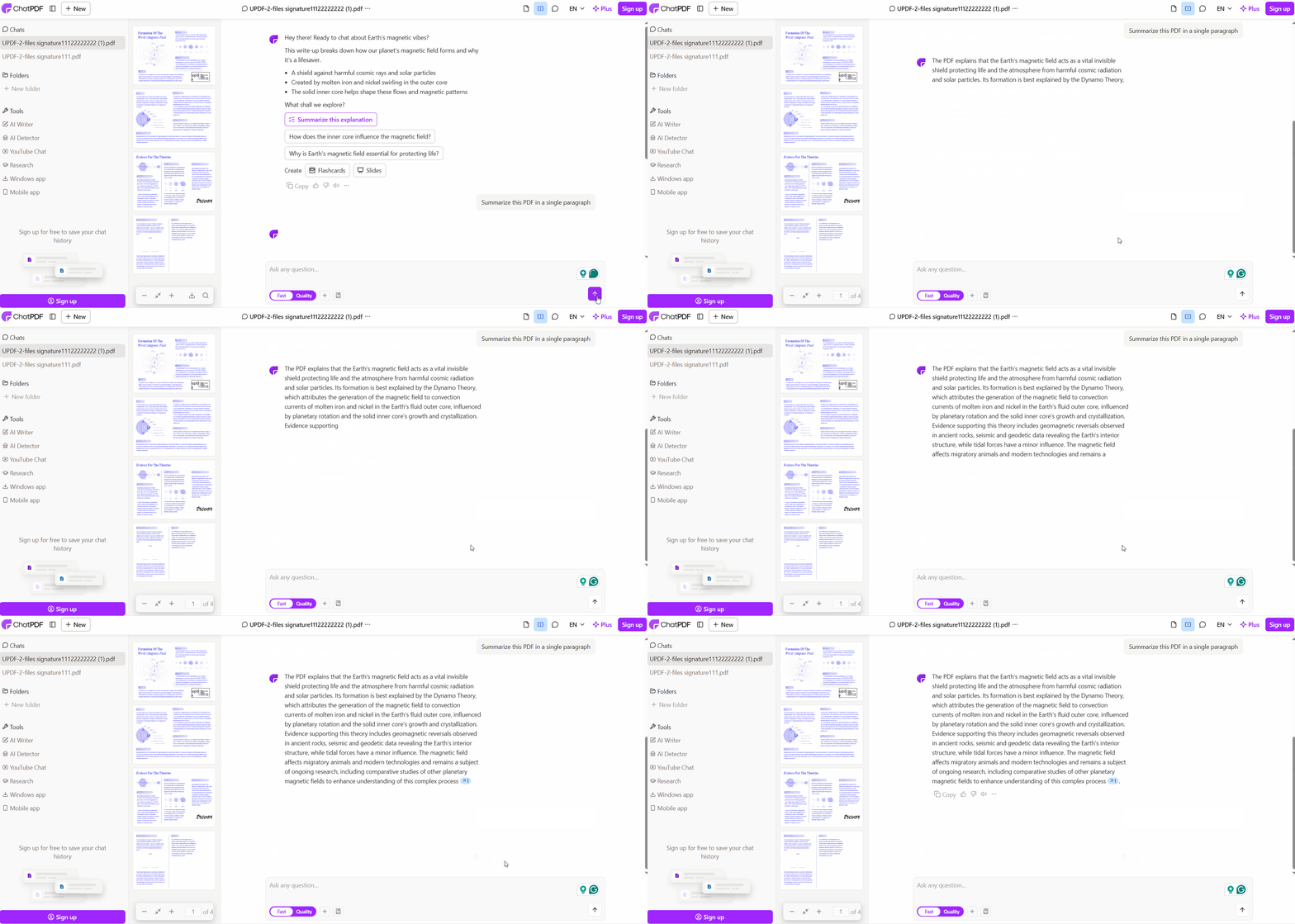
The free plan allows 2 PDFs daily, with 120-page limits and a 10 MB cap. Scanned and poor-quality documents work unevenly, so photographed contracts may perform worse than born-digital files.
Method 4: How to Summarize a PDF File Directly from Google Drive via Gemini
Best For:
- Workflows already using Google Workspace with files stored directly in Google Drive.
Not For:
- Long documents or files where numeric tables need to be read precisely.
Documents already stored in Drive need no separate upload before starting work. This setup helps teams summarize file content while staying within Google's ecosystem. Adhere to the steps below to connect Drive and begin summarizing your documents:
Step 1. Open your PDF saved in Google Drive and press the "Ask Gemini" icon at the top right corner.
Step 2. Then, head to the chat section in the right side panel and ask the chat to summarize the PDF.
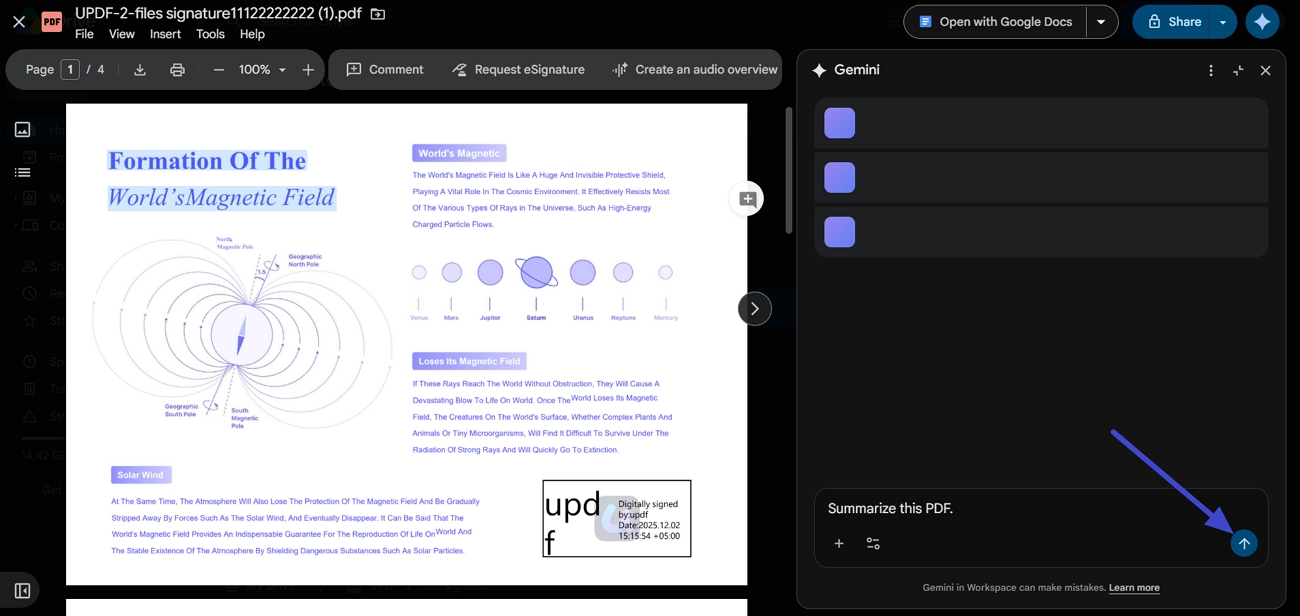
Long documents can be truncated by context limits, so summaries may not cover the full file. Complex tables can produce occasional errors, making verification useful when the document contains numeric information.
Method 5: How to Get a Quick PDF Summary Using iLovePDF AI
Best for:
- A quick summary alongside routine merge, compress, and convert jobs in one interface.
Not for:
- Advanced users needing multi-turn follow-up prompts or custom Markdown formatting.
iLovePDF adds PDF summarization alongside familiar tools for merging and compressing documents in one place. Use the simple steps below to summarize your PDF without learning a new workflow:
Step 1. First, press the "Select File" button and upload your PDF.
Step 2. Next, choose the summary length and "Processing Mode." After that, press the "Continue" button, and the tool will start generating the summary of your PDF.
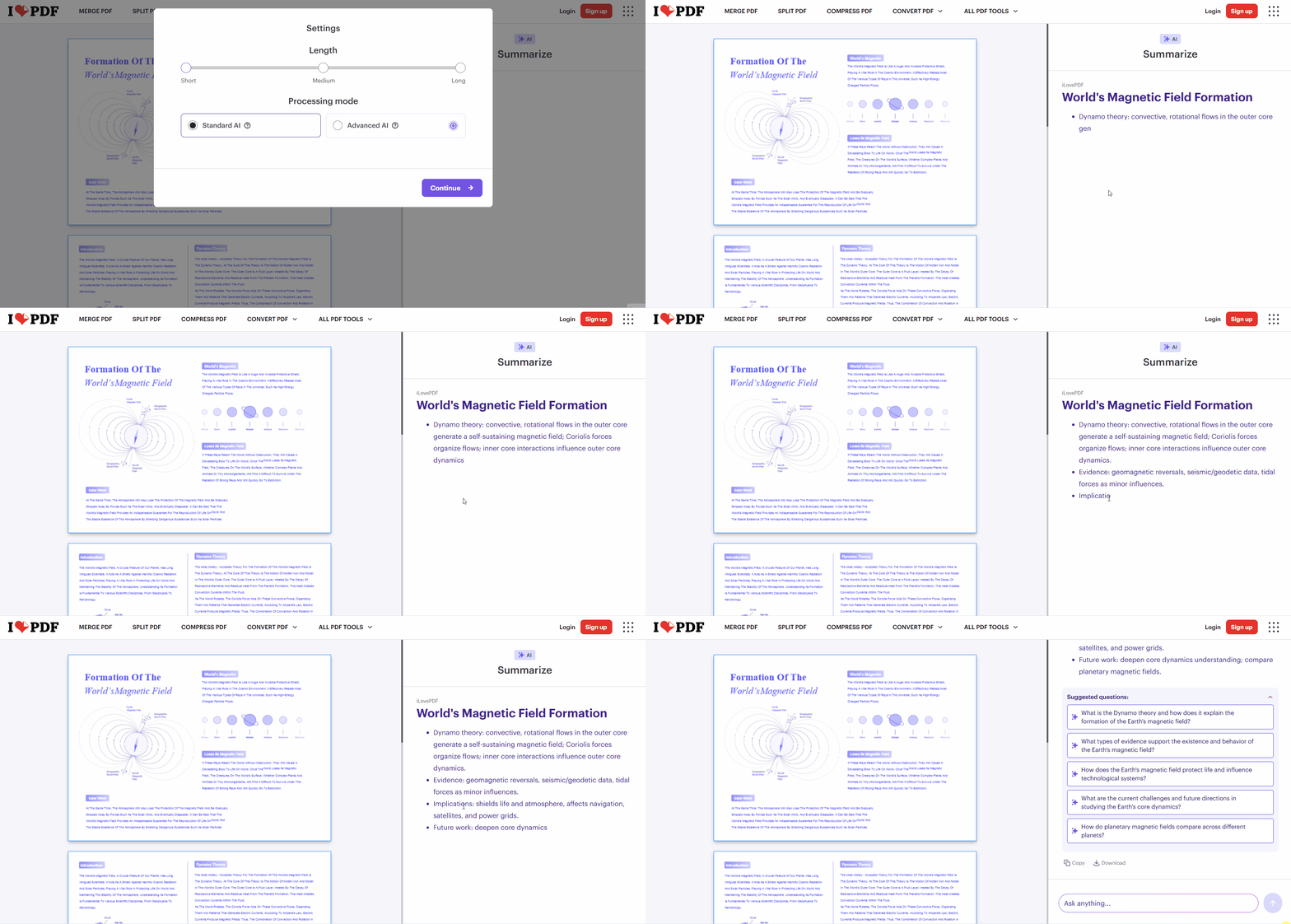
The free tier caps files at around 25 MB and applies daily task limits, with larger allowances sold through Premium. A text layer is also required, so scanned documents need to be run through OCR before the summarizer will read them.
Part 3. Advanced Method: How to Summarize PDFs Interactively on Desktop and Mobile
UPDF is an all-in-one PDF editor that includes integrated AI features for working with documents. However, UPDF AI Online provides the same AI summary engine directly through your web browser. Starting with the online version means you still get the same AI summarization capabilities.
The desktop and mobile apps add interactive features alongside free PDF editing and viewing tools. These features help summarize long PDF documents, while this summarize PDF guide explains each route.
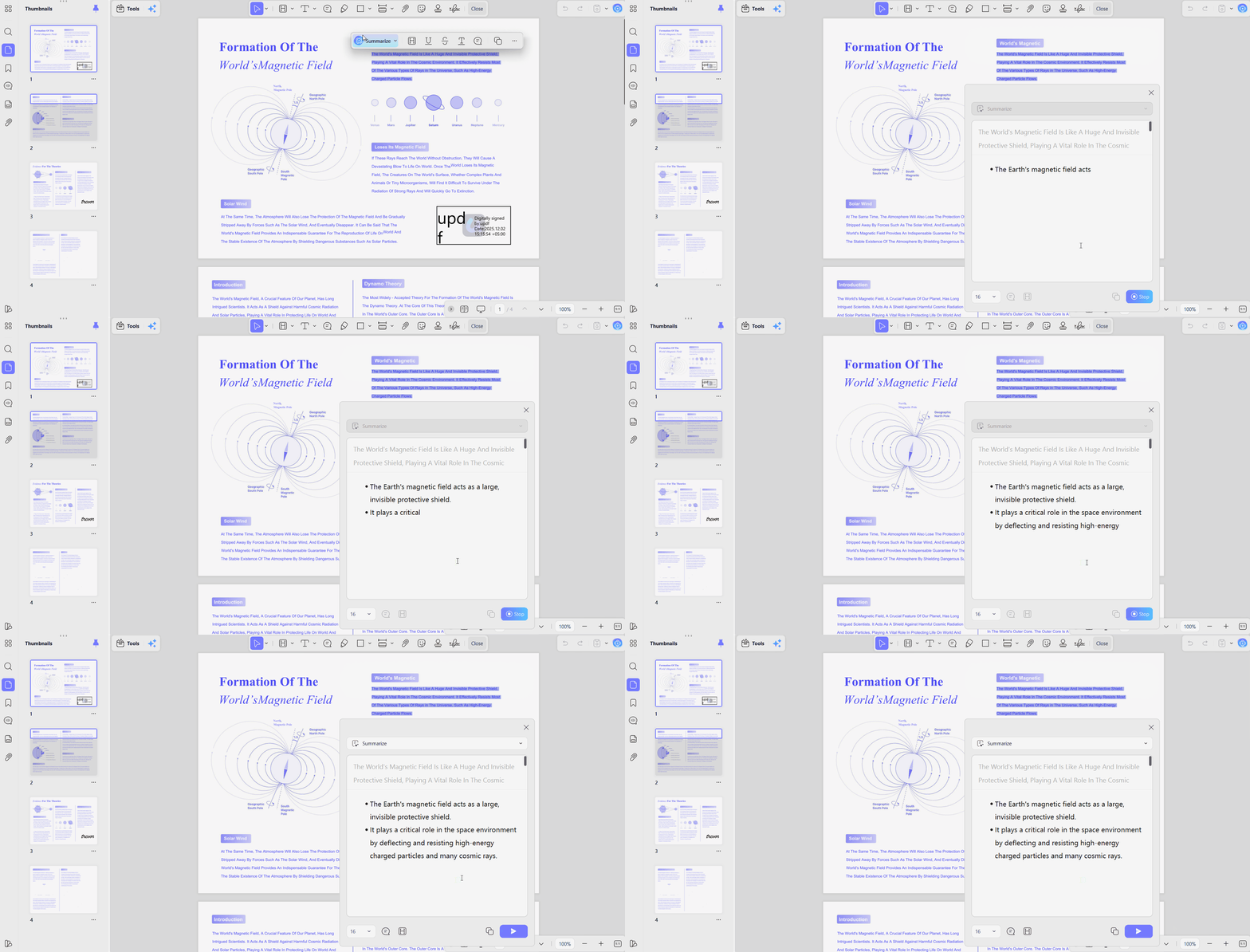
How to Use Select-to-Summarize
Highlight any sentence or paragraph directly on the page and a floating summary popup appears instantly. This is the fastest way to unpack a dense clause without losing your place, since the document stays open and scrolled where you left it.
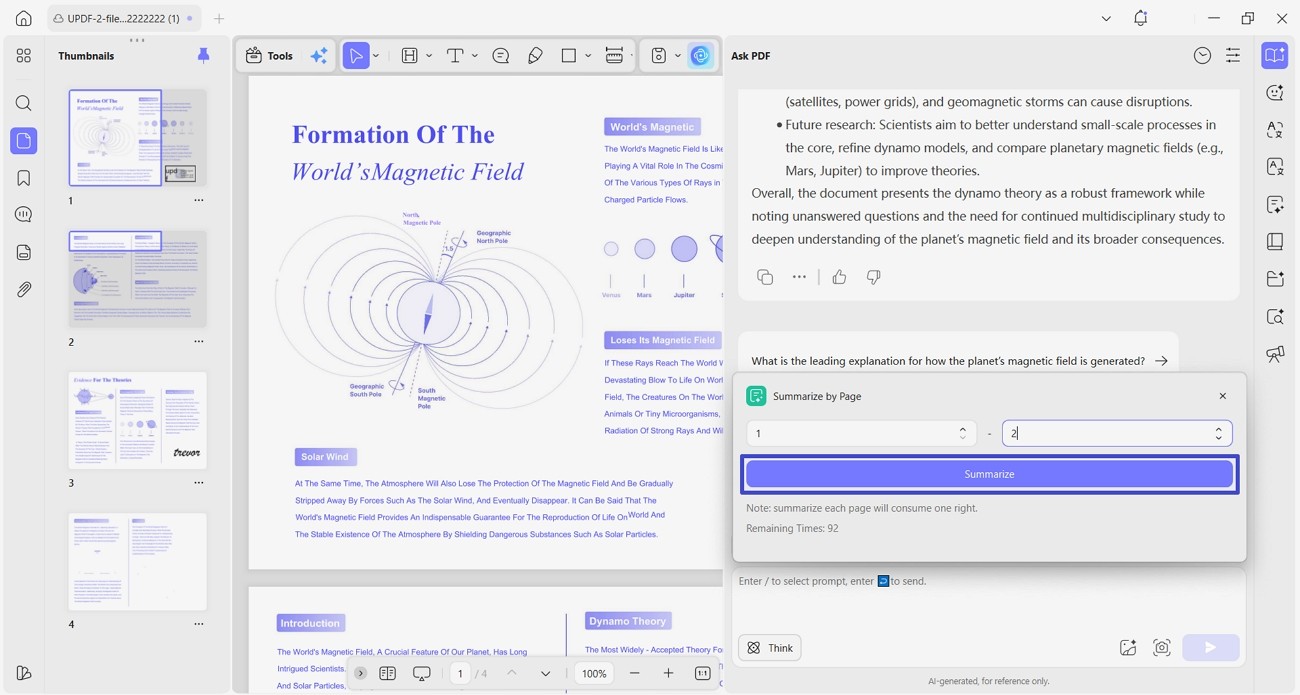
How to Summarize Specific PDF Pages
Rather than processing an entire file, you can summarize the active page or nominate a page range. This helps turn a specific section of a 300-page manual from PDF to short notes without summarizing everything. Reading on a phone or tablet works the same way, as set out under AI summarize PDF on mobile.
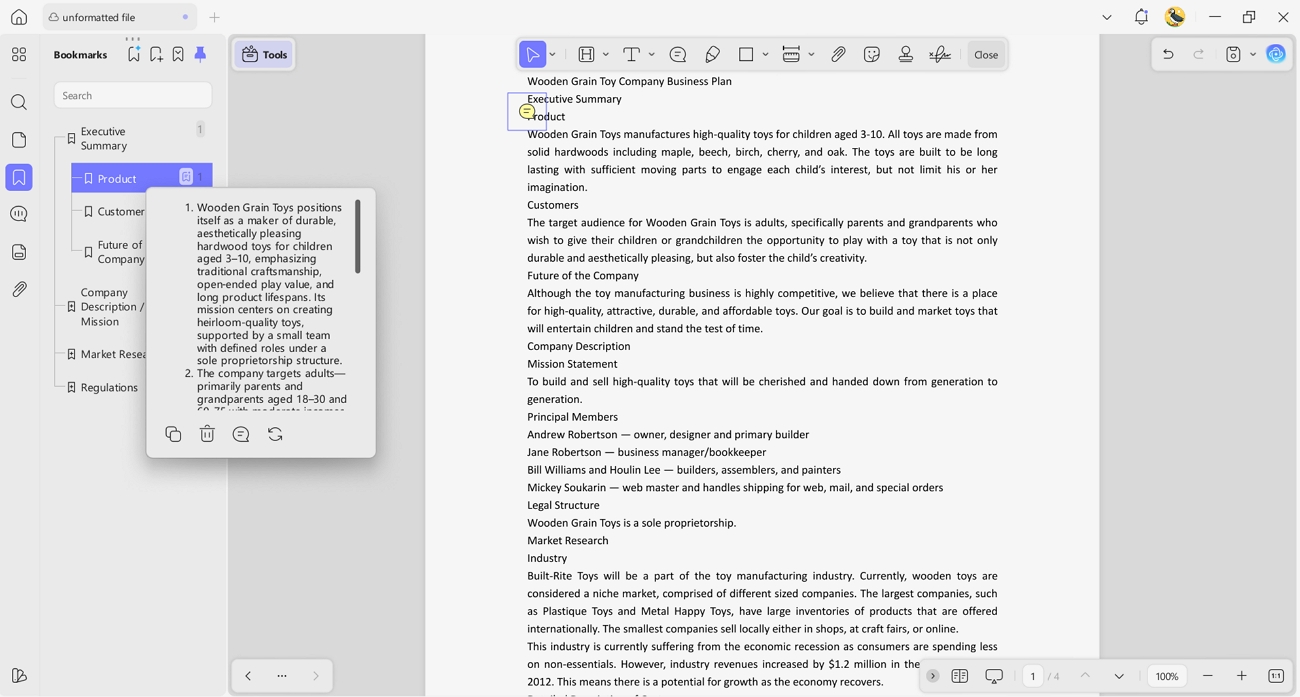
How to Generate AI Bookmarks for Long PDFs
Documents past a hundred pages usually arrive with no usable navigation at all. The AI bookmark agent reads the structure and builds a multi-level bookmark tree with chapter summaries attached. A wall of pages becomes something you can jump around.
Those bookmarks are native PDF bookmarks, so they stay available in any other reader once generated. Conversational follow-ups work alongside them, and the capabilities behind that are set out in our PDF AI chat overview.
Want to experience instant highlight-to-summarize and AI smart bookmarks on desktop or mobile? Download the UPDF app for free!
Windows • macOS • iOS • Android 100% secure
Part 4. Summary Matrix: Online PDF Summarizers Compared
Free-tier limits often separate each AI PDF summarizer free option during practical use. The table below compares their limits and support for handling scanned PDF documents:
| Method/Tool | Unique Tag | Free Tier Limits | Scanned PDF Support |
| UPDF AI Online | Best for: multi-document projects and scanned files | 5 docs per collection, 100 pages each, 100 free questions | Yes (OCR runs automatically) |
| ChatGPT | Not for: on-page highlight selection | Rate-limited on the free tier; account required | Yes |
| ChatPDF | Best for: quick single-file queries | 2 PDFs per day, 120 pages, 10 MB per file | Limited |
| Gemini with Google Drive | Best for: the Google Workspace ecosystem | Token truncation on very long documents | Yes |
| iLovePDF AI | Not for: deep conversational follow-ups | Around 25 MB per file, with daily task caps | No (needs a text layer) |
Frequently Asked Questions
How can I summarize a PDF online for free without signing up?
ChatPDF and UPDF AI Online accept files and provide summaries without requiring an account. However, ChatPDF suits short files, while UPDF handles longer files and multi-document project grouping easily.
Can AI summarize a scanned PDF file online?
Yes, UPDF AI Online recognizes text in scanned uploads without requiring separate OCR beforehand. For image-heavy pages, paste screenshots with prompts into chat for more reliable summary results.
How do I turn a PDF into short notes using AI?
Ask AI to convert any document section into 5 clear bullet points for notes. You can also request every action item with its related page reference for clarity. For long documents, AI bookmarks with chapter summaries organize notes by the document structure.
Conclusion
Learning to summarize PDF online for free saves hours during a week filled with dense reading. Tool differences become clearer with scanned files, multi-document projects, and documents exceeding 100 pages. UPDF AI Online provides a versatile browser workflow for scanned files and multi-document projects. The UPDF app adds interactive summarizing features that a browser workflow does not provide directly.
Start summarizing your PDFs in seconds! Try UPDF AI Online in your browser now, or download UPDF for free on desktop and mobile.
Windows • macOS • iOS • Android 100% secure







 Lizzy Lozano
 Enid Brown
 Engelbert White
 Enola Miller