 UPDF
UPDF
 UPDF for Windows
 UPDF for Mac
 UPDF for iPhone/iPad
 UPDF for Android
 Nomostar
 UPDF AI Online
 UPDF Sign
 IvyCraft
 Edit PDF
 Annotate PDF
 Create PDF
 PDF Form
 Edit links
 Convert PDF
 OCR
OCR PDF to Word
 PDF to Image
 PDF to Excel
 Organize PDF
 Merge PDF
 Split PDF
 Crop PDF
 Rotate PDF
 Protect PDF
 Sign PDF
 Redact PDF
 Sanitize PDF
 Remove Security
 Read PDF
 UPDF Cloud
 Compress PDF
 Print PDF
 Batch Process
 About UPDF AI
 UPDF AI Solutions
 AI User Guide
 FAQ about UPDF AI
 Summarize PDF
 Translate PDF
 Chat with PDF
 Chat with AI
 Chat with image
 PDF to Mind Map
 Explain PDF
 PDF AI Tools
 Image AI Tools
 AI Chat Tools
 AI Writing Tools
 AI Study Tools
 AI Working Tools
 Other AI Tools
 AI Bookmark Generation
 AI Bookmark Summary
 AI Watermark Generation
 AI Background Generation
 AI Sticker Generation
 AI Stamp Generation
 AI Editing Suite
 UPDF Copilot
 AI Page Management
 AI Semantic Search
 PDF to Word
 PDF to Excel
 PDF to PowerPoint
 Enterprise Solution
 Enterprise Sign
 Enterprise AI
 Enterprise Plan
 Enterprise User Guide
 Enterprise Webinar
 IT
IT Education
 Construction
 Financial Service
 Healthcare
 Insurance
 Legal
Legal Manufacturing
 Government
 Researchers & PhDs
 Solopreneurs & Freelancers
 Lawyers & Legal Professionals
 Real Estate Agents & Brokers
 Education Solution
 Customer Stories
 User Guide
 UPDF Tricks
 FAQs
FAQs UPDF Reviews
 Download Center
 Blog
Blog Newsroom
 Tech Spec
 Updates
 UPDF vs. Adobe Acrobat
 UPDF vs. Foxit
 UPDF vs. PDF Expert

Quick answer:
Need a PDF copy of a Word document—or a folder of documents ready to share? Start with UPDF below, then use the Word or Print alternatives if those better fit your workflow.
Keep your original Word files for future revisions. After conversion, compare the PDF with the source document, especially if it contains custom fonts, tables, or complex page layouts.
Method 1. Convert Word to PDF on Mac with UPDF
Choose drag-and-drop for a quick conversion, the creation menu to select a file, or batch creation for several documents.
Windows • macOS • iOS • Android 100% secure
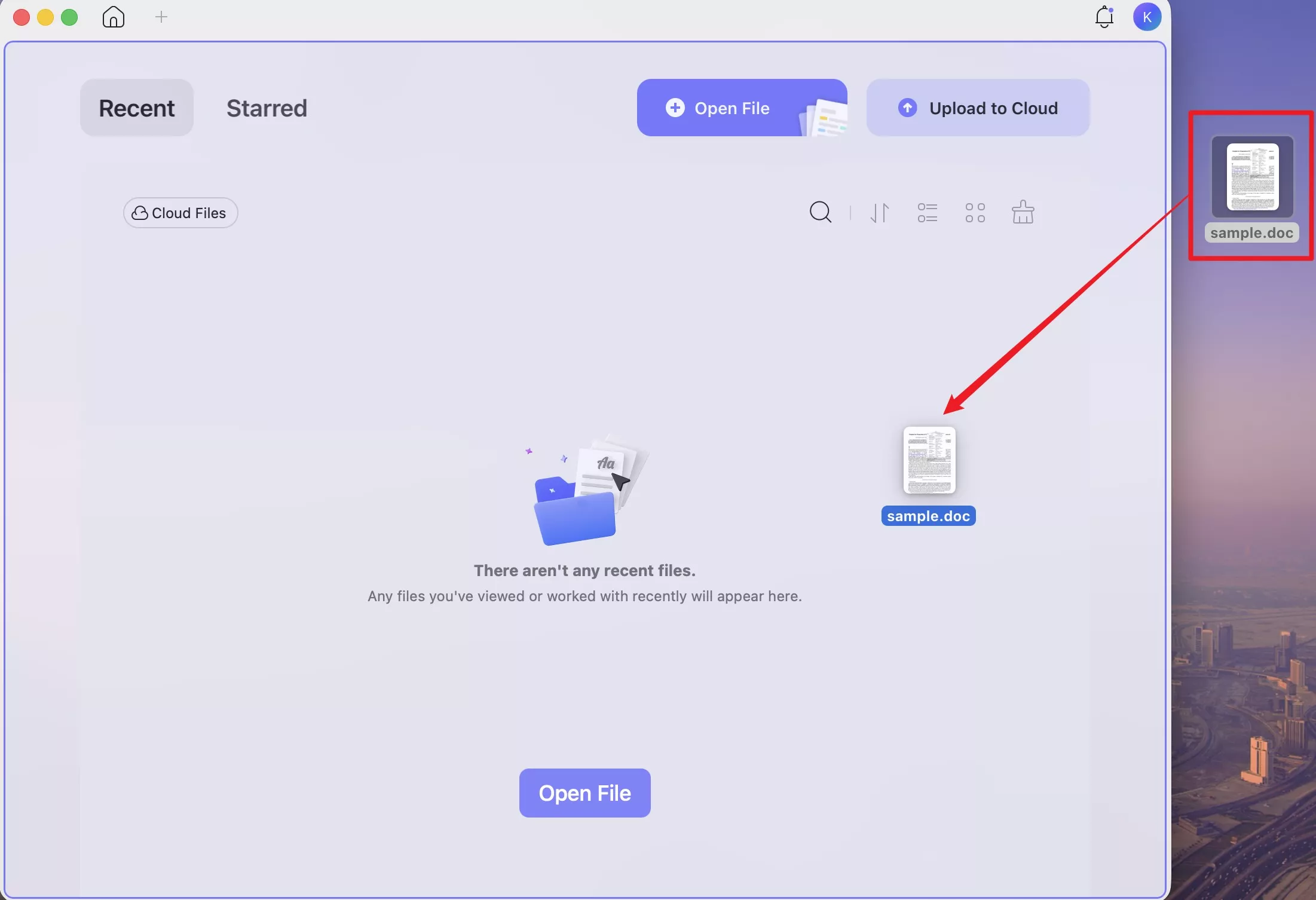
Option A. Drag a Word File into UPDF
1. Open UPDF on your Mac.
2. Drag the Word document from Finder into UPDF. The app automatically converts it to PDF.
3. Choose File > Save, name the PDF, and select a destination.
Option B. Use UPDF’s PDF Creation Tools
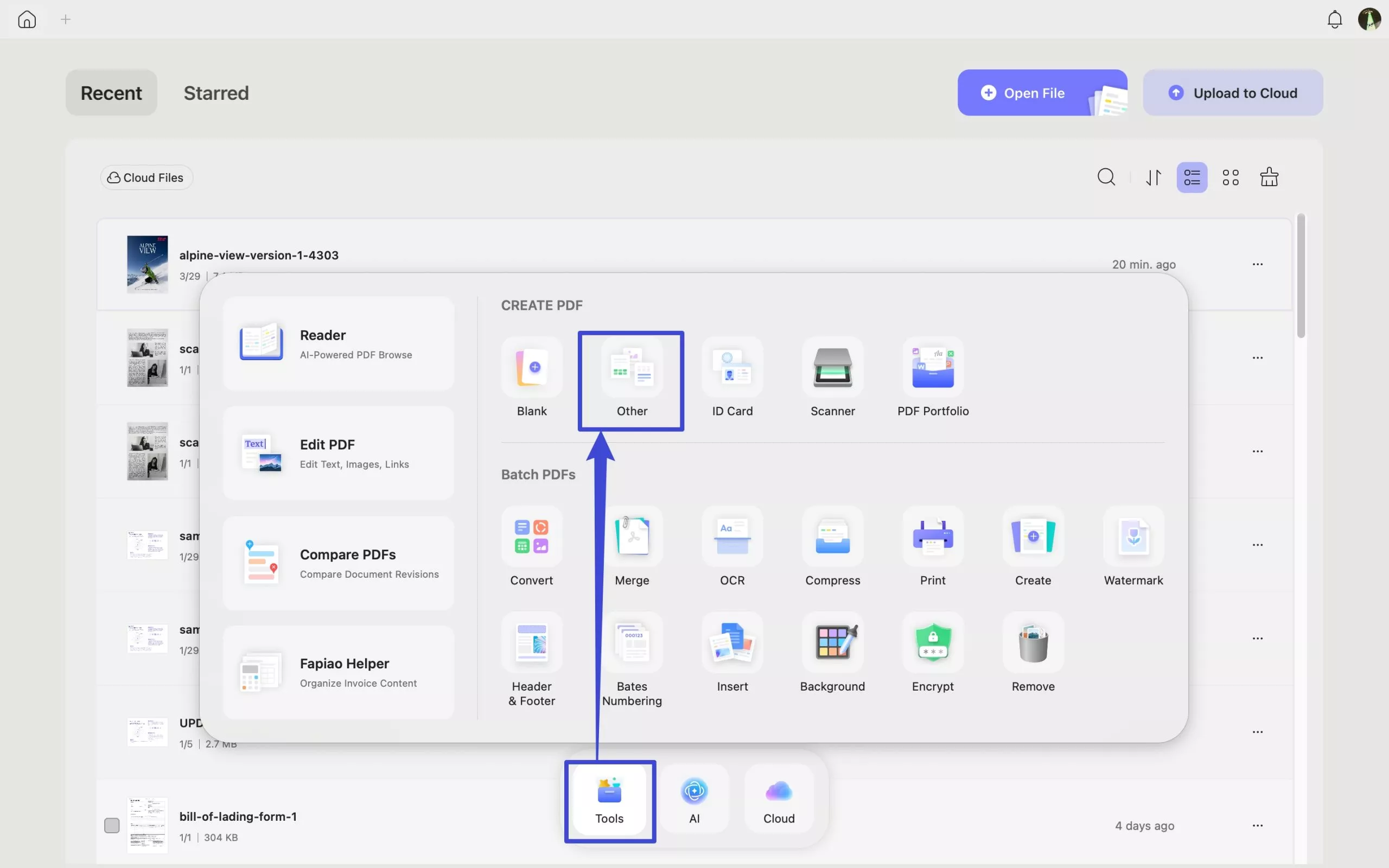
1. From UPDF’s home screen, open Tools and select Other under CREATE PDF.
2. Choose the appropriate document option, then click Select Files.
3. Select your Word document and click OK.
4. Save the generated PDF.
Option C. Batch Convert Word Documents to PDF
For several Word documents, use Batch Create, rather than converting each file individually.
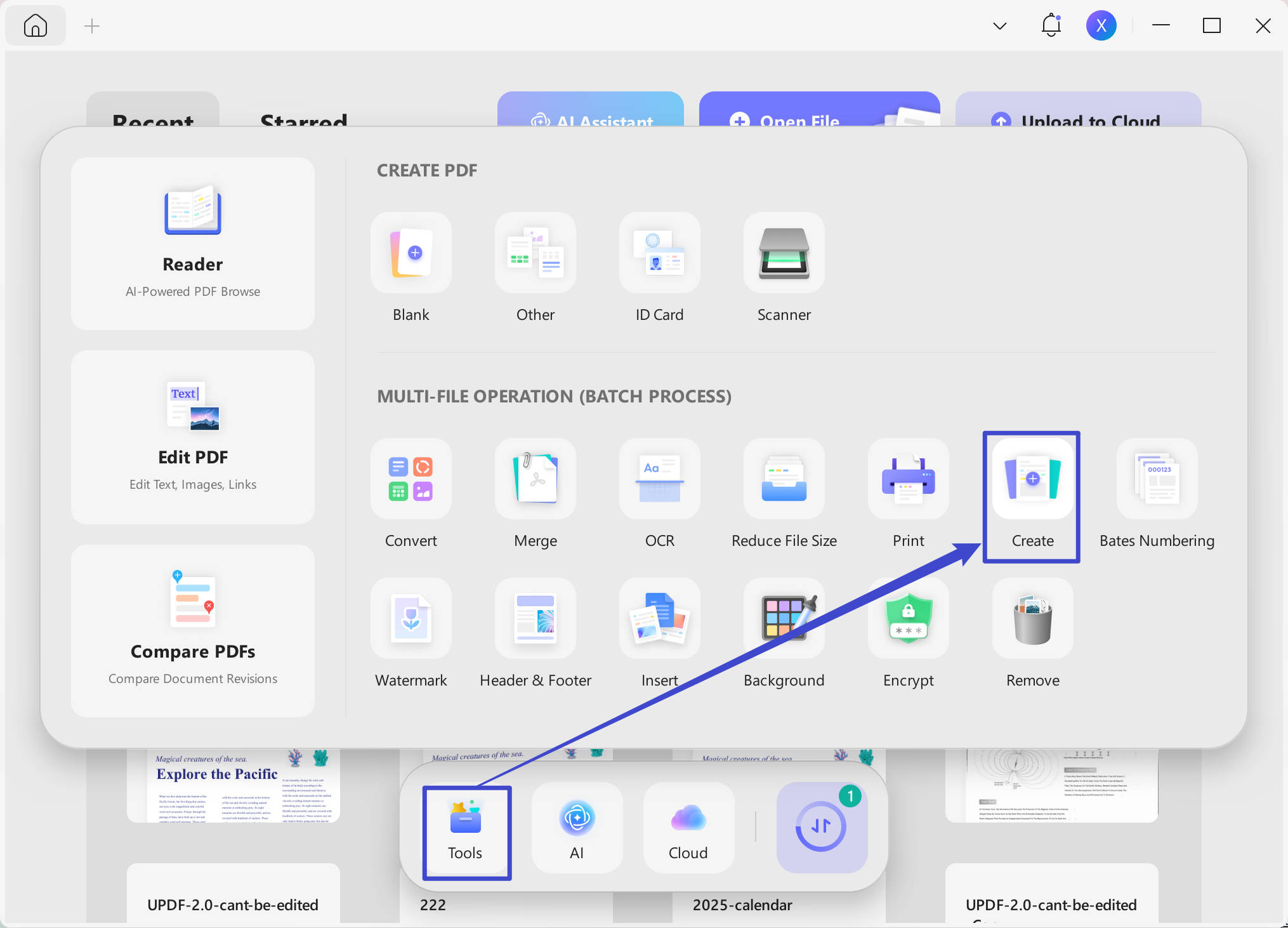
1. Open Tools from UPDF’s home screen and select Create in the Batch Process section.
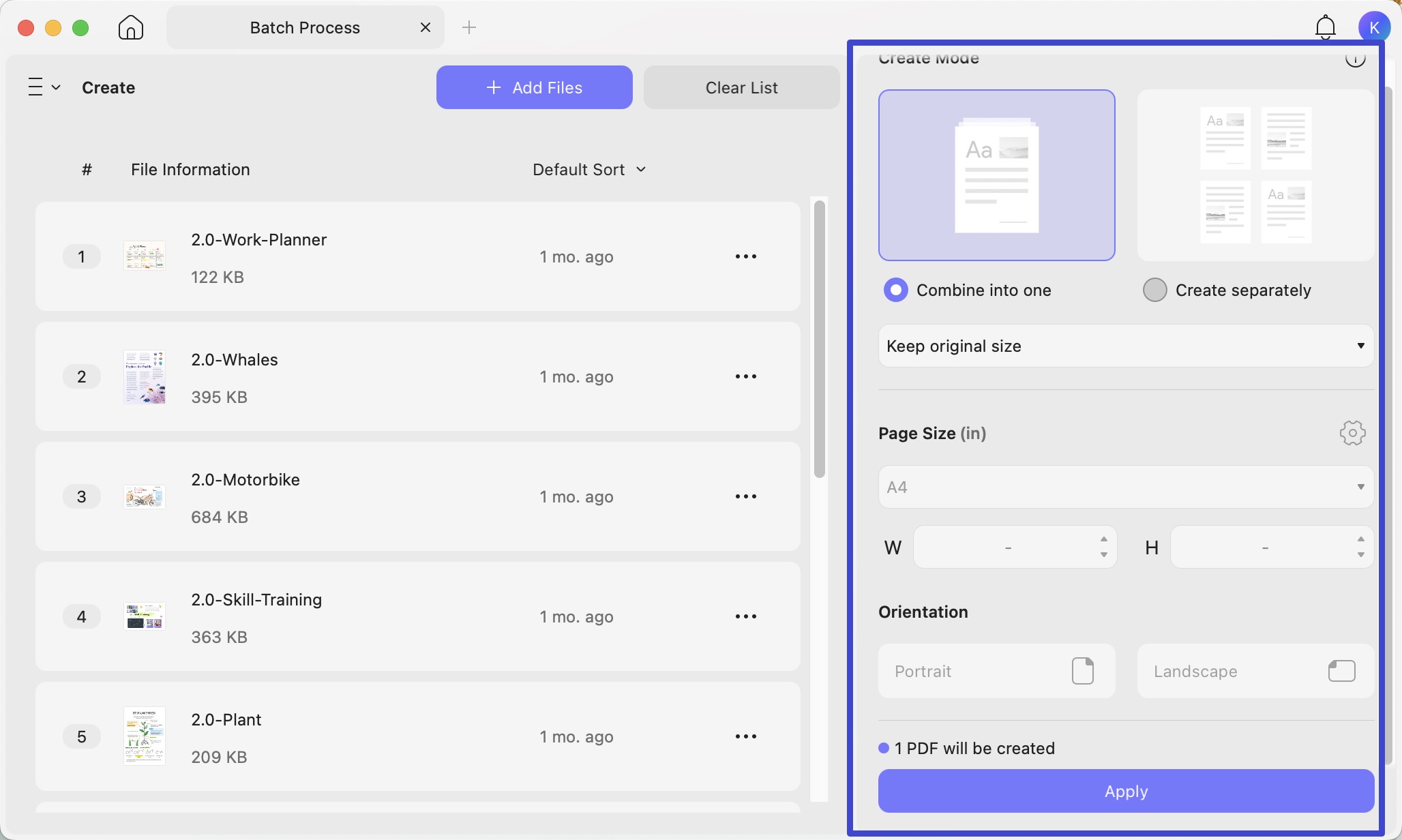
2. Click Add Files and select your Word documents.
3. Choose Create separately for an individual PDF per Word document, or Combine into one for a single document pack.
4. Click Apply and follow the prompts to choose the output location and save.
5. Review the generated PDFs before distributing them.
Important: Use Batch Create for this workflow. Batch Convert is a different tool for exporting existing PDFs to other formats.
Try UPDF with a sample Word document before processing a larger batch. Installation is free; saved files in the free version carry a trial watermark, and Pro removes it.
Windows • macOS • iOS • Android 100% secure
Method 2. Save a Word Document as PDF in Microsoft Word
If your document is already open in Microsoft Word, you can save a PDF copy directly.
1. Finish editing and save the original Word document.
2. Choose File > Save As.
3. Select PDF from the File Format menu.
4. Choose a name and destination, then click Export.
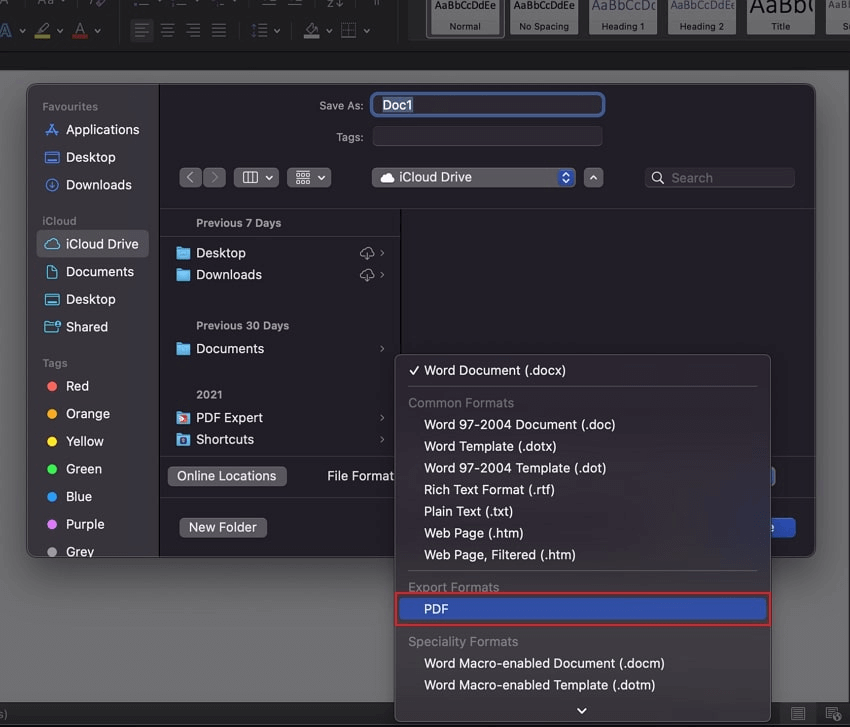
Keep the Word file as your editable original and use the PDF for sharing.
Method 3. Convert Word to PDF Using Print
Use this method when the document is open in an app that displays it correctly and supports printing.
1. Choose File > Print.
2. Check the page range, paper size, and orientation.
3. Open the PDF menu in the print dialog and choose Save as PDF.
4. Enter a name, choose a location, and save.
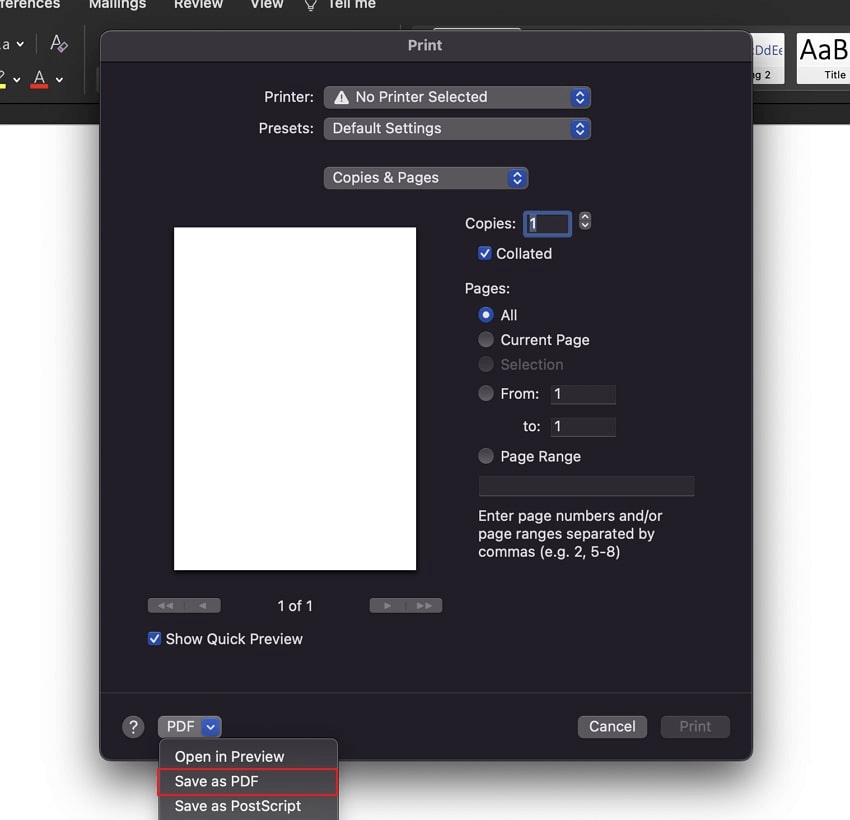
You do not need a physical printer. However, the document must first open correctly in a compatible app; the print dialog does not itself open or interpret Word files.
Check Your PDF Before Sharing
Open the saved PDF and compare it with the original Word document. Check page breaks, fonts, tables, images, headers, footers, and clickable links. For batch output, confirm that every expected file was created and that separate documents were not accidentally combined.
If something looks wrong, correct the source document and convert it again. If the finished PDF needs a small text correction or password protection, continue in UPDF using its PDF editing tools or PDF protection tools.
Need to make changes after conversion? Download UPDF for free to try editing a copy of your PDF. Pro removes the trial watermark from exported files.
🔥🔥🔥UPGRADE TO UPDF PRO NOW🔥🔥🔥
Windows • macOS • iOS • Android 100% secure
FAQs
1. Can Preview convert a Word document to PDF on Mac?
Not directly. Preview works with PDFs and supported image formats, not Word documents. Use one of the Word-to-PDF workflows above first. Preview can then open the resulting PDF; its ability to export PDFs and images does not make it a Word converter.
2. Can I convert a Word file by changing its extension to .pdf?
No. Renaming a file changes its name, not its internal format. A Word document renamed with a .pdf extension is still a Word document and may fail to open in a PDF reader. Use a conversion or export command to create a real PDF.
3. How do I create a Word-to-PDF file for screen-reader users on Mac?
Use an accessibility-aware export. In Word, run the Accessibility Checker and address its findings before exporting. Where available, choose “Best for electronic distribution and accessibility.” Microsoft states that this option uses an online conversion service, so check your organization’s document-sharing policy before using it for confidential files. Review the exported PDF’s accessibility rather than judging it only by appearance.
Conclusion
Start with UPDF if you want to convert Word documents and continue working with the resulting PDFs in one place. Microsoft Word’s PDF export and macOS Print remain alternatives for individual documents. Whichever route you choose, keep the original Word file and review the saved PDF before sharing.
For your next document, download UPDF for free and try the workflow that fits your file count. Explore more PDF conversion options when you need a different output format.
Windows • macOS • iOS • Android 100% secure





 Enola Davis
 Enid Brown