 UPDF
UPDF
 UPDF for Windows
 UPDF for Mac
 UPDF for iPhone/iPad
 UPDF for Android
 UPDF AI Online
 UPDF Sign
 Edit PDF
 Annotate PDF
 Create PDF
 PDF Form
 Edit links
 Convert PDF
 OCR
OCR PDF to Word
 PDF to Image
 PDF to Excel
 Organize PDF
 Merge PDF
 Split PDF
 Crop PDF
 Rotate PDF
 Protect PDF
 Sign PDF
 Redact PDF
 Sanitize PDF
 Remove Security
 Read PDF
 UPDF Cloud
 Compress PDF
 Print PDF
 Batch Process
 About UPDF AI
 UPDF AI Solutions
 AI User Guide
 FAQ about UPDF AI
 Summarize PDF
 Translate PDF
 Chat with PDF
 Chat with AI
 Chat with image
 PDF to Mind Map
 Explain PDF
 PDF AI Tools
 Image AI Tools
 AI Chat Tools
 AI Writing Tools
 AI Study Tools
 AI Working Tools
 Other AI Tools
 AI Bookmark Generation
 AI Bookmark Summary
 AI Watermark Generation
 AI Background Generation
 AI Sticker Generation
 AI Stamp Generation
 AI Editing Suite
 UPDF Copilot
 AI Page Management
 AI Semantic Search
 PDF to Word
 PDF to Excel
 PDF to PowerPoint
 Enterprise Solution
 Enterprise Sign
 Enterprise AI
 Enterprise Plan
 Enterprise User Guide
 Enterprise Webinar
 Banking
 Healthcare
 Insurance
 Legal
Legal Manufacturing
 Government
 Education Solution
 Customer Stories
 User Guide
 UPDF Tricks
 FAQs
FAQs UPDF Reviews
 Download Center
 Blog
Blog Newsroom
 Tech Spec
 Updates
 UPDF vs. Adobe Acrobat
 UPDF vs. Foxit
 UPDF vs. PDF Expert

The Chrome PDF viewer is a built-in browser tool. It opens PDF files directly inside Chrome without any extra software. Most people use it without thinking twice, until something goes wrong. Users usually complain about issues like clicking a PDF link only for Chrome to download it instead of opening it.
All such problems happen because Chrome's viewer was built for reading, not for working with PDFs. Anyone who needs more than basic reading will hit their limits fast. So in this article, we’ll see how to use Google Chrome as PDF viewer and how to fix the common problems and the ultimate solution - UPDF for needs more than basic reading and when Chrome PDF viewer not working.
Windows • macOS • iOS • Android 100% secure
Chrome PDF Viewer Overview
Most users know Chrome opens PDFs. Fewer know what this viewer tool actually includes. Here is a full look at its interface, shortcuts, and built-in operations.
1. Interface and Function Details
Opening a PDF in Chrome loads a toolbar at the top of the browser window. Each button has a fixed purpose:
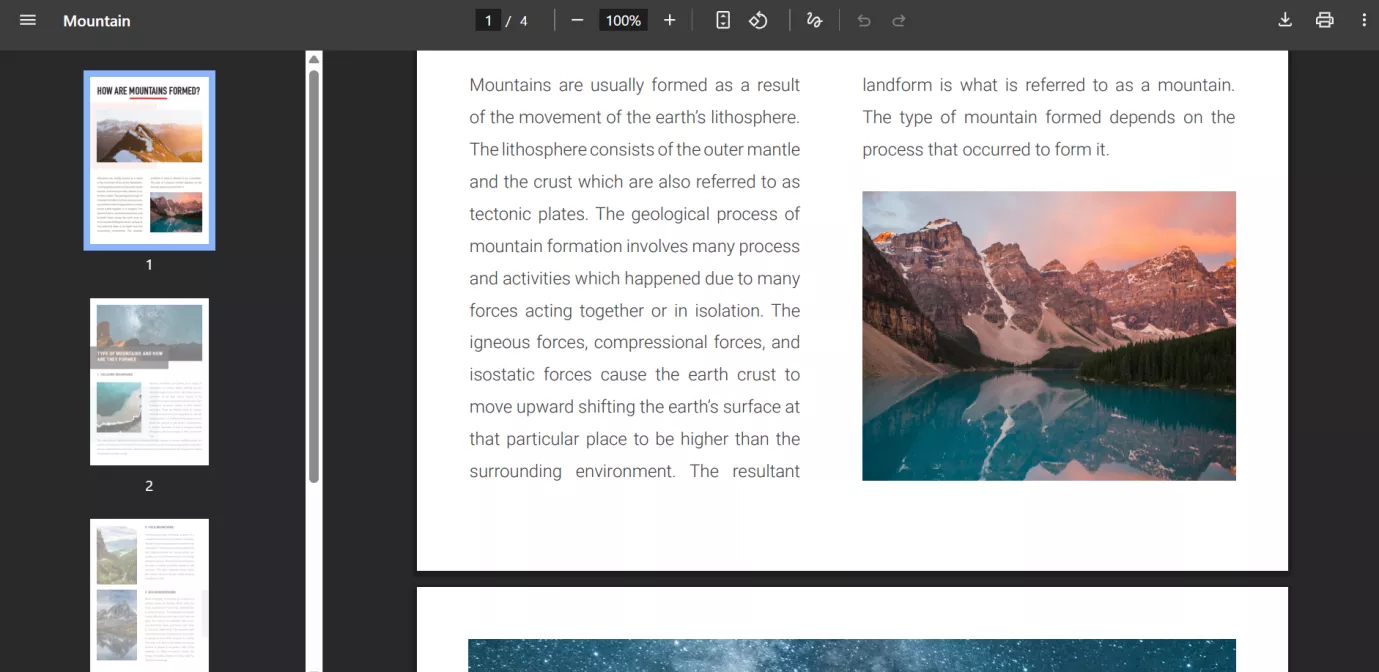
- Zoom Controls (- / +): Adjust the page size on screen. Type a percentage directly into the zoom field for a custom level.
- Fit to Page / Fit to Width: Toggle between full-page vertical fit or full-width horizontal stretch.
- Rotate Counterclockwise: Rotates the page 90 degrees. Useful for sideways-scanned documents.
- Draw: Let you annotate PDF files freehand.
- Download Button: Saves the PDF to your device.
- Print Button: Opens your system print dialog.
- Side Panel (Bookmarks): Shows a bookmark navigation panel when the PDF includes bookmarks. Click it to jump between sections.
Some of the common shortcut keys for Chrome PDF Viewer include:
| Action | Windows / Linux | Mac |
| Search in PDF | Ctrl + F | Cmd + F |
| Zoom In | Ctrl + + | Cmd + + |
| Zoom Out | Ctrl + - | Cmd + - |
| Next Page | Page Down | Page Down |
| Previous Page | Page Up | Page Up |
| First Page | Ctrl + Home | Cmd + Home |
| Last Page | Ctrl + End | Cmd + End |
| Ctrl + P | Cmd + P |
2. Common Operations and Techniques
Chrome's PDF viewer handles a short list of tasks well. Scrolling pages, running a keyword search with Ctrl + F, zooming in, and printing basic documents all work without issues. For a quick read, it is enough.
However, Chrome's built-in PDF viewer does not support highlighting, underlining, or comments. There is no text editing and no reliable form-saving. If you need those features inside Chrome, a PDF viewer Chrome extension is the next step.
But the extension only handles light annotation work. For legal contracts, lengthy academic papers, or multi-page reports that need real editing tools, UPDF is a better fit. It keeps files on your device and processes multiple PDFs at once.
Windows • macOS • iOS • Android 100% secure
3. Common Problems and Solutions
Chrome's PDF viewer has a set of recurring problems. Each one below has a clear cause and a direct fix.
PDF Displays Garbled Characters
Chrome cannot read the fonts embedded in some PDFs. This happens most with older files or documents made with non-standard tools. The text shows up as symbols or random characters.
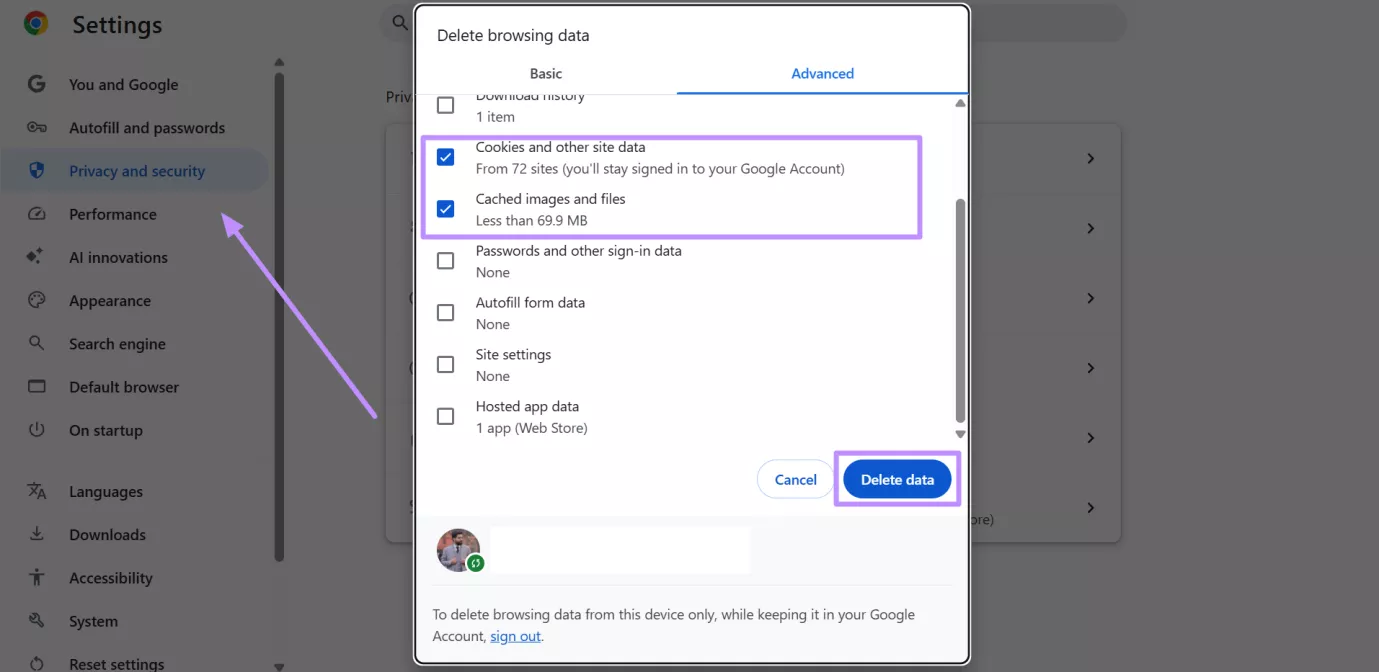
Solution: You can also clear Chrome's cache to get rid of this issue. For this, access the Settings menu and tap on the Privacy and Security tab.From the newly opened window, select cookies and cache option before tapping the Delete Data button.
Blank Pages or No Content Showing
The PDF loads, but every page is white and empty.
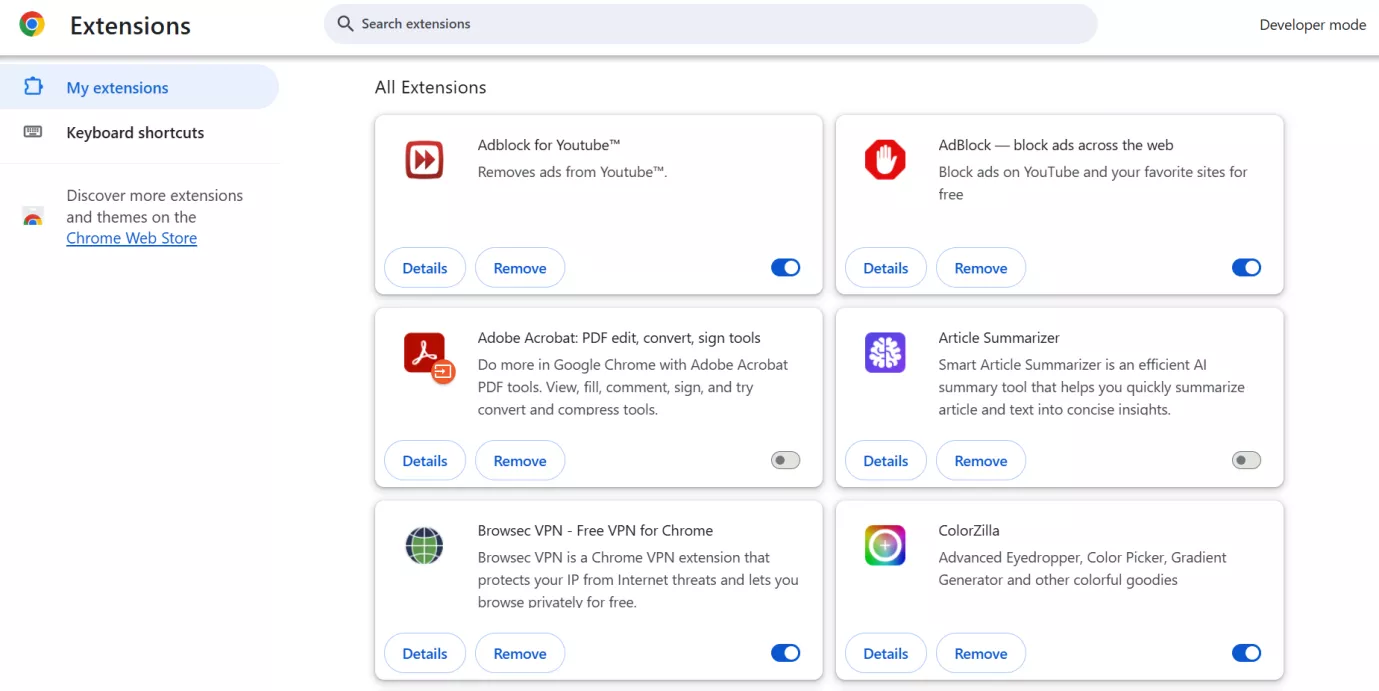
Solution: Refresh the page first. If pages stay blank, go to chrome://extensions/ and turn off your active extensions one by one. Ad blockers and script blockers can stop PDFs from rendering. If the PDF is still blank after that, the file may be corrupted.
Misaligned or Overlapping Content
Text and images stack on top of each other, making the document unreadable. Columns run together, and page elements appear in the wrong positions.
Solution: Chrome's renderer does not support all PDF layout features. Download the file and open it in UPDF. UPDF uses its own rendering engine and handles complex layouts accurately.
Clicking a Link Downloads the PDF Instead of Opening It
PDFs go straight to the downloads folder instead of opening in the browser. This is one of the most reported Chrome PDF viewer settings problems.
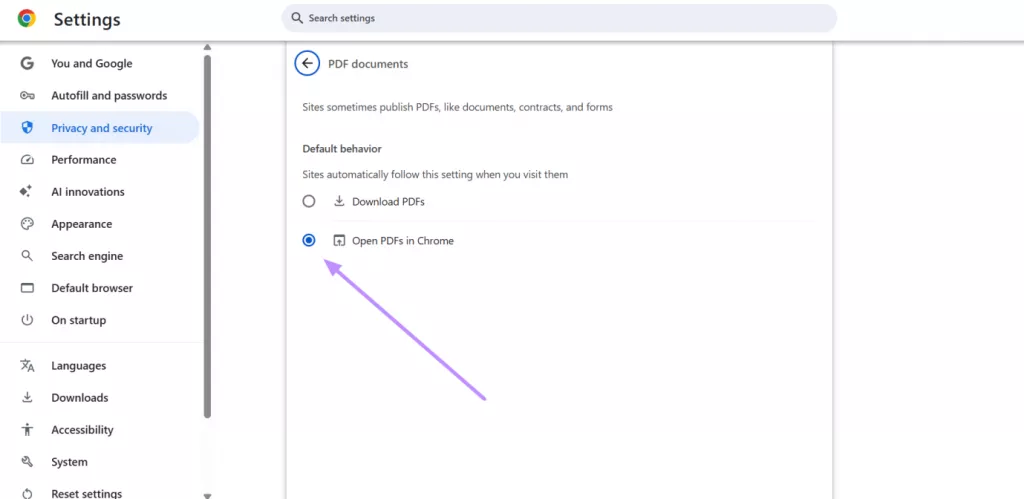
Solution: To solve this problem, go to Chrome Settings and tap Privacy and Security. After that, hit the Site Settings option to proceed. Now, tap on the Additional Content Settings dropdown and hit PDF Documents to toggle on Open PDFs in Chrome.
Inability to Save Completed Forms
You fill in a form, save the file, and reopen it. The fields are empty again.
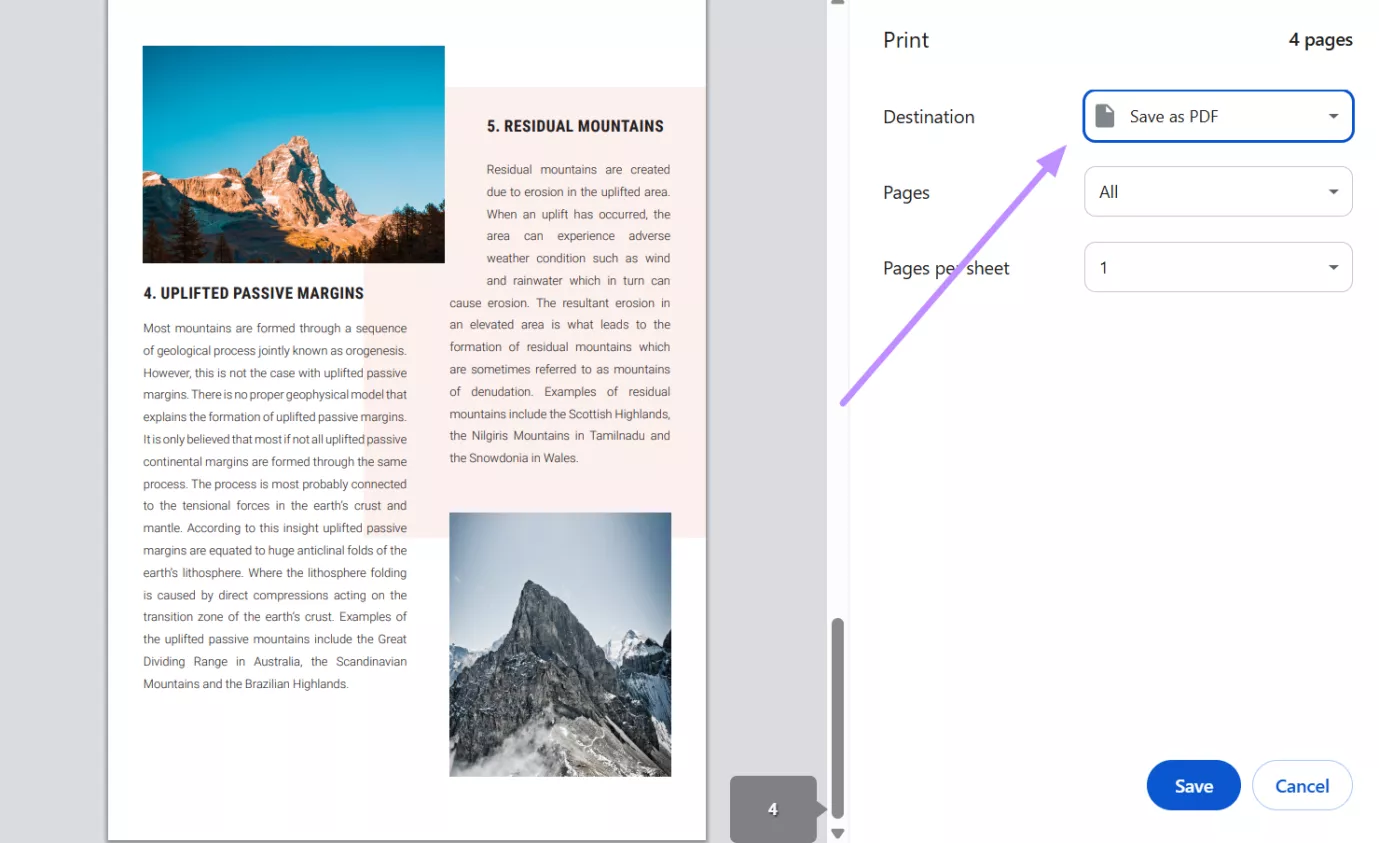
Solution: Chrome does not save form data reliably. A basic workaround is to use Print > Save as PDF after completing the form. This captures a static snapshot.
Slow PDF Loading
Large files with high-resolution images take a long time to load. Chrome may slow down or freeze during rendering.
Solution: Check your internet connection if you are viewing an online PDF. Closing unused tabs frees up memory and helps. For large files you use often, download and open them in UPDF instead.
For more troubleshooting steps, read this guide on PDF not opening in Chrome.
Ultimate Solution for Chrome PDF Viewer Not Working
Tweaking Chrome PDF Viewer settings only goes so far. When the PDF viewer not working issue keeps coming back, the real fix is a tool built for PDF work. UPDF is a professional PDF editor and manager, keeping all files on your device.
Your documents never touch an external server while running operations across multiple PDFs at once. The interface is clean and does not require any technical knowledge to use. Here are some features that make UPDF the right tool when Chrome falls short:
Windows • macOS • iOS • Android 100% secure
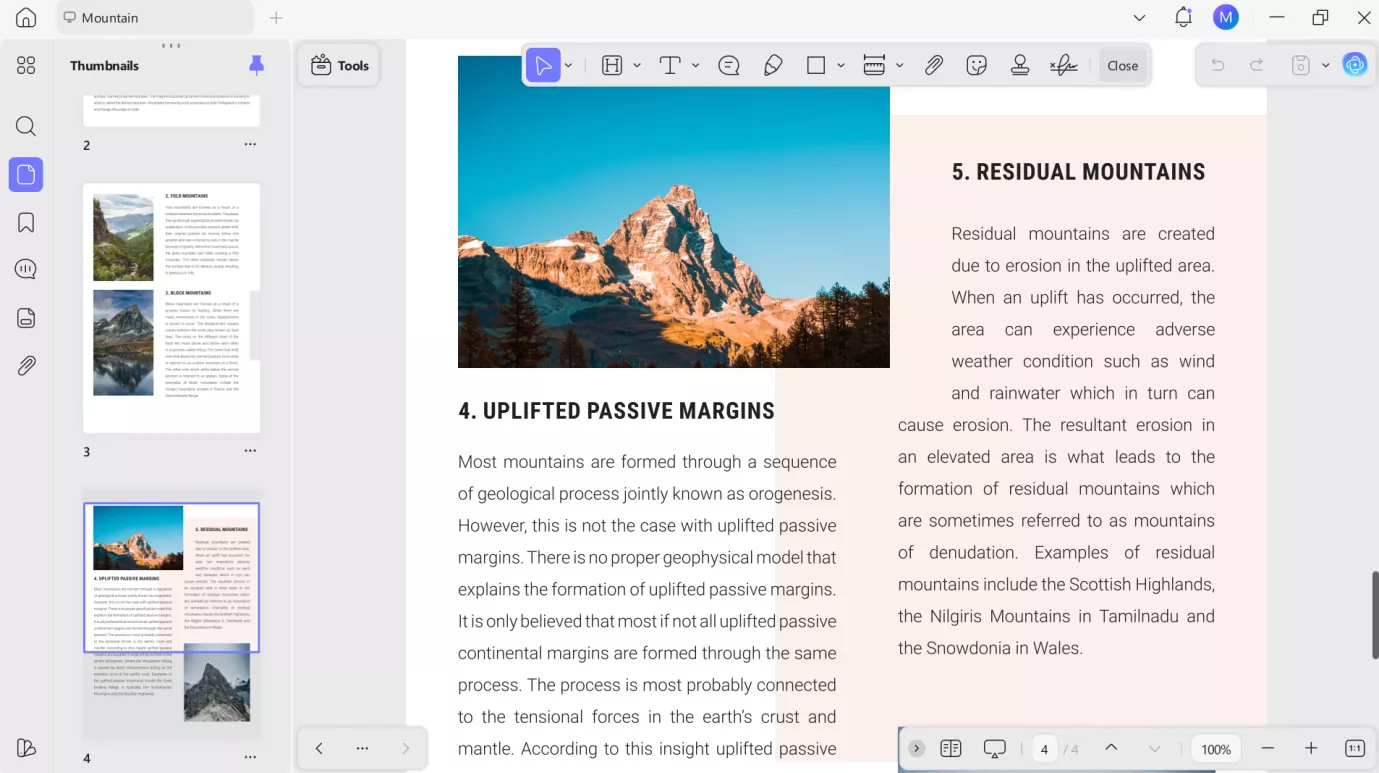
- Ask UPDF AI direct questions about any document. Get focused answers without reading through every page.
- Automatically detect and fix PDF page issues using AI. Identify blank, duplicate, or misplaced pages and reorganize them without manual effort.
- Annotation features to add highlights, underlines, strikethroughs, sticky notes, text boxes, stamps, shapes, and freehand drawings to any page.
- Let AI scan your PDF and generate structured bookmarks automatically. Summarize each section directly within the bookmark panel for faster document navigation.
- Edit text, images, and links inside a PDF directly. There is no need for re-uploading or reformatting. You can also use its AI text editor to proofread and optimize the content.
- Convert PDFs to Word, Excel, PowerPoint, and image formats. Tables, fonts, and columns stay intact.
When to Use Chrome and When to Use UPDF?
The right tool depends on the task you are trying to perform. Here is a direct breakdown of when to use which tool:
| Situation | Best Tool | Reason |
| Reading a short PDF from a website | Chrome PDF Viewer | No installation needed. Fast for one-time access. |
| Searching for a keyword in a PDF | Chrome PDF Viewer | Ctrl + F works well for basic keyword searches. |
| Annotating or highlighting a PDF | UPDF | Chrome has no markup tools. UPDF has a full set. |
| Filling out and saving a PDF form | UPDF | Chrome cannot save form data reliably. UPDF does. |
| Editing text or images inside a PDF | UPDF | Chrome is a viewer only. UPDF supports direct editing. |
| Converting PDF to Word or Excel | UPDF | Chrome has no conversion tools. UPDF supports many formats. |
| Processing multiple PDFs at once | UPDF | UPDF handles bulk operations in a single run. |
| Working with scanned or image-only PDFs | UPDF | UPDF's OCR turns image text into editable content. |
| Handling sensitive documents | UPDF | UPDF stores files locally. Chrome routes data through Google. |
| Signing a PDF digitally | UPDF | Chrome has no signing feature. UPDF has one built in. |
| Viewing a PDF on a shared computer | Chrome PDF Viewer | No install required. Good for quick read-only access. |
Final Words
Chrome PDF viewer does its job for basic reading and simple print tasks. Open a file, scroll through it, search for a word, and send it to a printer. That is what it was built for, and it does those things fine. The moment your work goes beyond reading, Chrome stops being useful.
UPDF is built for the work Chrome cannot handle. Within this tool, editing, annotation, OCR, batch processing, and local file storage are all included. If you are dealing with the “Chrome PDF viewer not working” problem, consider downloading UPDF now.
Windows • macOS • iOS • Android 100% secure






 Enrica Taylor
 Enola Miller

 Lizzy Lozano