 UPDF
UPDF
 UPDF for Windows
 UPDF for Mac
 UPDF for iPhone/iPad
 UPDF for Android
 Nomostar
 UPDF AI Online
 UPDF Sign
 IvyCraft
 Edit PDF
 Annotate PDF
 Create PDF
 PDF Form
 Edit links
 Convert PDF
 OCR
OCR PDF to Word
 PDF to Image
 PDF to Excel
 Organize PDF
 Merge PDF
 Split PDF
 Crop PDF
 Rotate PDF
 Protect PDF
 Sign PDF
 Redact PDF
 Sanitize PDF
 Remove Security
 Read PDF
 UPDF Cloud
 Compress PDF
 Print PDF
 Batch Process
 About UPDF AI
 UPDF AI Solutions
 AI User Guide
 FAQ about UPDF AI
 Summarize PDF
 Translate PDF
 Chat with PDF
 Chat with AI
 Chat with image
 PDF to Mind Map
 Explain PDF
 PDF AI Tools
 Image AI Tools
 AI Chat Tools
 AI Writing Tools
 AI Study Tools
 AI Working Tools
 Other AI Tools
 AI Bookmark Generation
 AI Bookmark Summary
 AI Watermark Generation
 AI Background Generation
 AI Sticker Generation
 AI Stamp Generation
 AI Editing Suite
 UPDF Copilot
 AI Page Management
 AI Semantic Search
 PDF to Word
 PDF to Excel
 PDF to PowerPoint
 Enterprise Solution
 Enterprise Sign
 Enterprise AI
 Enterprise Plan
 Enterprise User Guide
 Enterprise Webinar
 IT
IT Education
 Construction
 Financial Service
 Healthcare
 Insurance
 Legal
Legal Manufacturing
 Government
 Researchers & PhDs
 Solopreneurs & Freelancers
 Lawyers & Legal Professionals
 Real Estate Agents & Brokers
 Education Solution
 Customer Stories
 User Guide
 UPDF Tricks
 FAQs
FAQs UPDF Reviews
 Download Center
 Blog
Blog Newsroom
 Tech Spec
 Updates
 UPDF vs. Adobe Acrobat
 UPDF vs. Foxit
 UPDF vs. PDF Expert

Quick answer:
There is a trap in this task that sends a lot of people back to redo their work: a fillable text box and a text box annotation are not the same thing, and most tools use the words interchangeably. If you add the wrong one, the recipient opens your PDF and finds they can't type where you expected—or your note prints as fixed text no one can edit. This guide shows you how to add a true fillable text field with UPDF (manually and automatically), in Adobe Acrobat, and free online with Sejda, then how to fill the finished form on an iPhone or Android. If your goal is filling forms others send you rather than building them, see how to fill in a PDF form.
Check the fields in the finished PDF before sending it to someone else. For the next step, you can explore working with PDF forms in UPDF in the video below.
Part 1. Fillable Form Field vs. Text Box Annotation — Know Which You Need
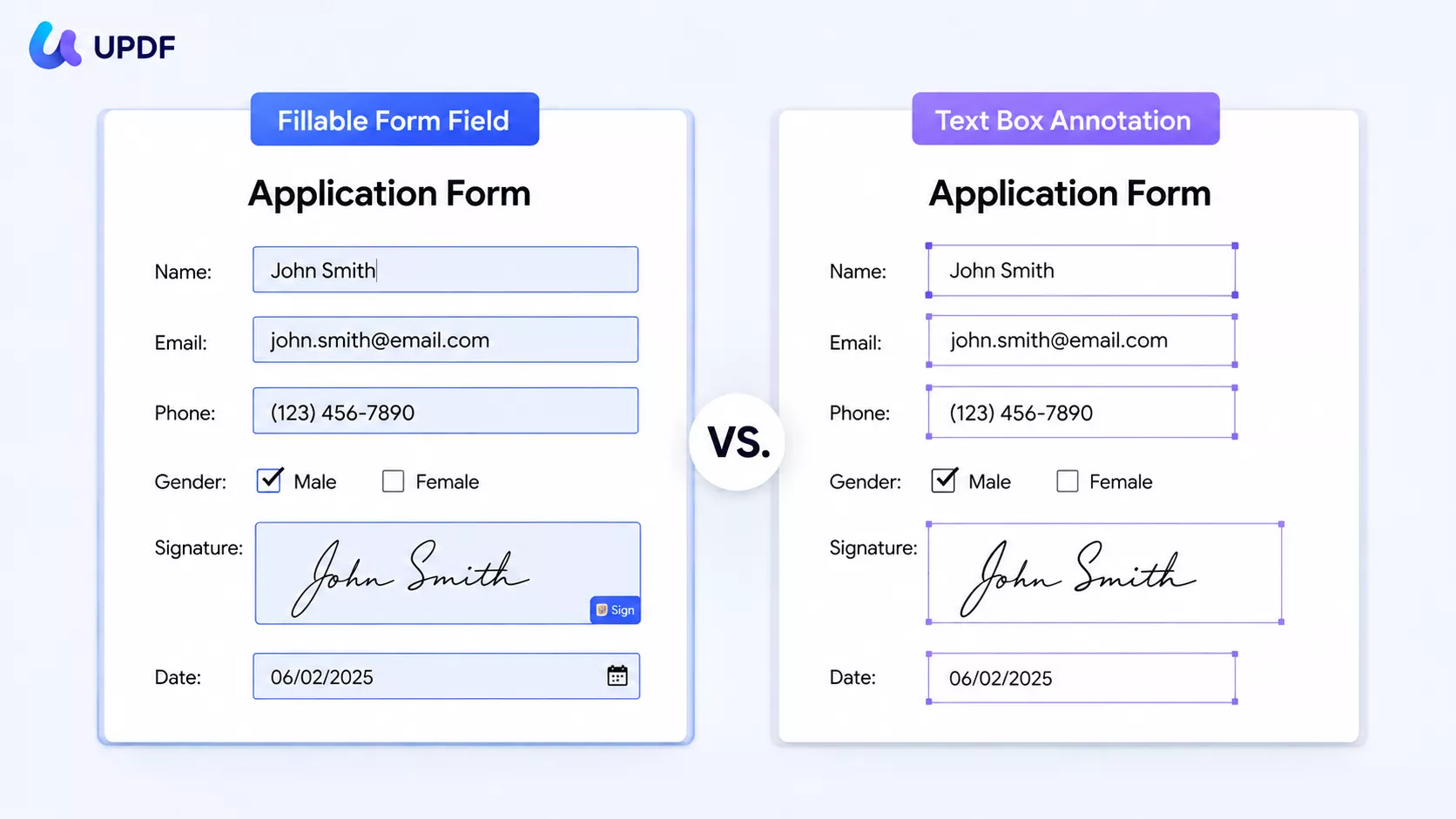
These two look similar on screen but behave in opposite ways.
- A fillable form field (a "text field") is an interactive input box. It's empty until someone clicks and types, the typed value can be saved and returned, and you can validate or calculate it. This is what you want for order forms, intake sheets, and contracts.
- A text box annotation is a comment you place on top of the page. You type into it while marking up the document; it's your content, baked in, not an empty slot for someone else.
Think of a form field as a blank line on a paper application—it's there for the other person's pen. A text box annotation is a sticky note you wrote and pressed onto the page. If you build a "form" out of annotations by mistake, recipients can't fill it, because there's nothing to fill. The rest of this guide builds real form fields.
Part 2. Add a Fillable Text Box with UPDF (Windows & Mac)
UPDF builds proper form fields two ways: place them one at a time by hand, or let it detect every blank on a form at once. Use manual for a contract that needs a name and a date; use automatic for a dense intake form.
Windows • macOS • iOS • Android 100% secure
Add a text field manually
Step 1. Open your PDF in UPDF, then click Form on the top. The form toolbar appears across the top with every field type—text field, checkbox, radio button, dropdown, and more.
Step 2. Select the Text Field tool, then click and drag where you want the box. Size doesn't have to be exact—drag any edge to resize afterward, or select the field and nudge it with the arrow keys for precise alignment.
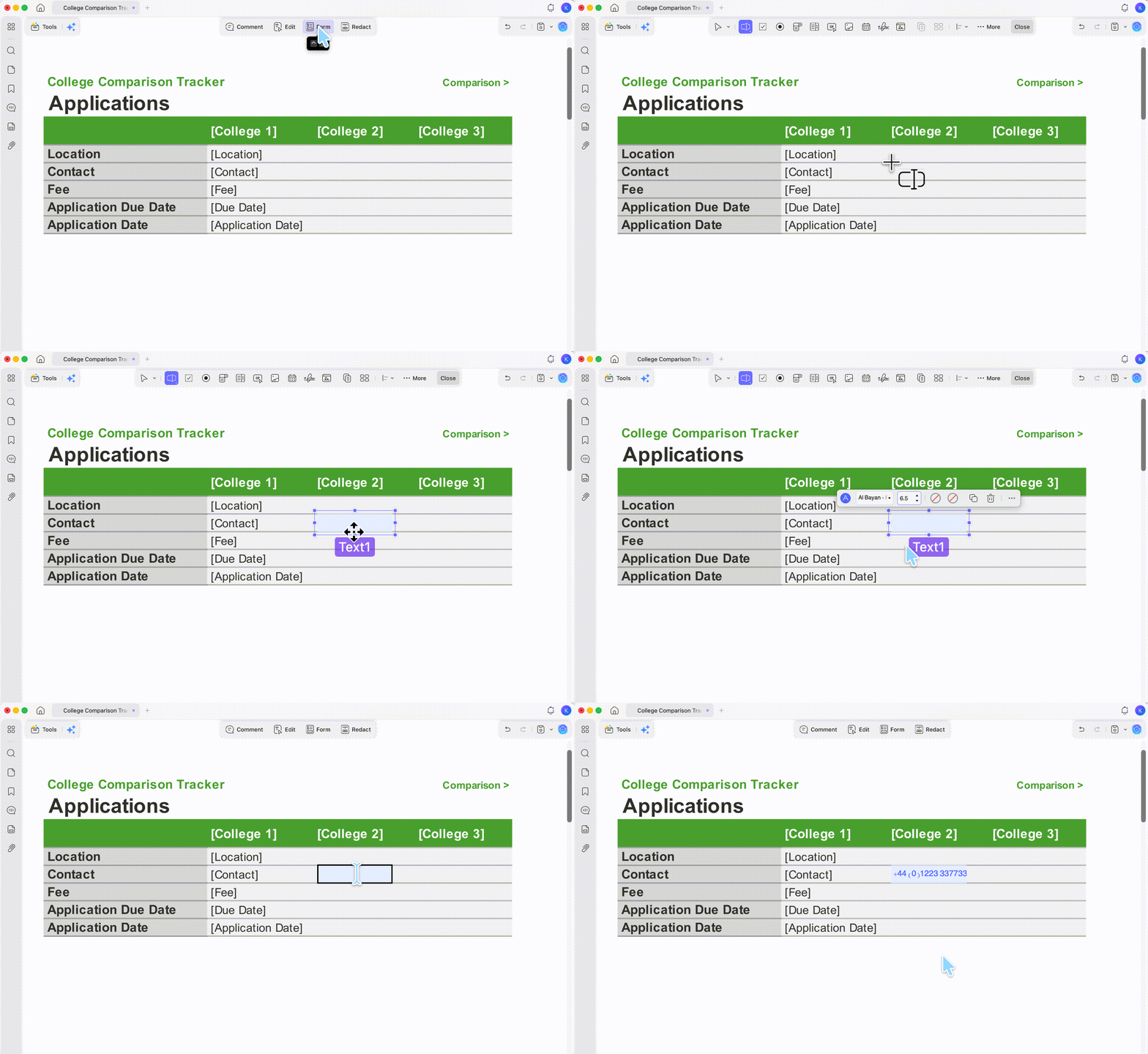
Step 3. Double-click the field to set its properties: name it (names matter if you'll calculate or reference fields later), set font size, and choose whether it allows multiple lines. Save a copy when you're done.
Add fields automatically on a form
Step 1. Open the form and go to Form.
Step 2. Run Form Field Recognition from the toolbar. UPDF warns that the action can't be undone—click Continue, and it scans the page and converts every detected blank into a fillable field at once.
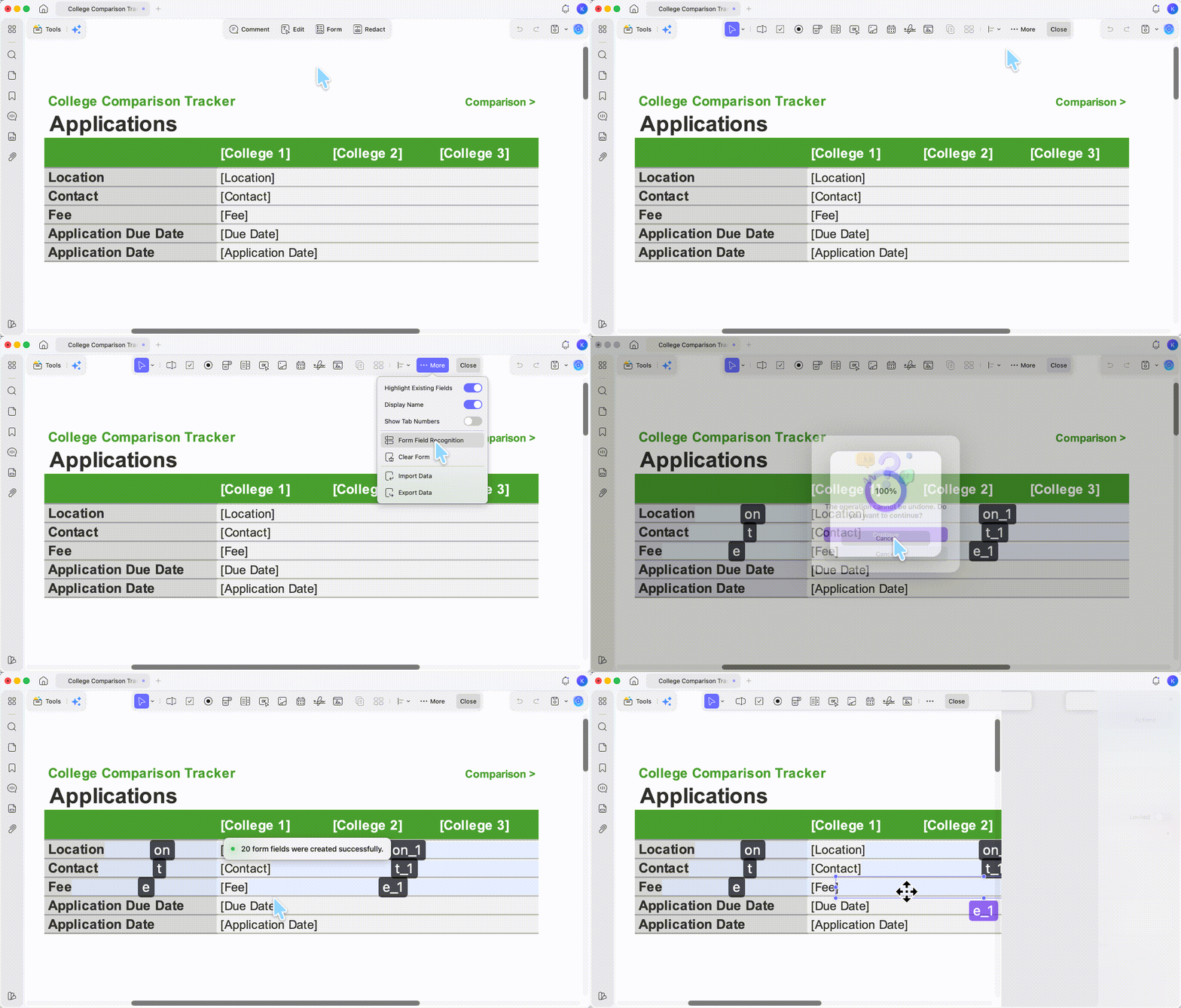
Step 3. Review the result. Recognition catches most blanks, but a merged cell or an unusual layout can leave one out—add those by hand with the Text Field tool. Save a new copy.
Best for:
- forms you need to reuse, send for signature, or keep offline—your file never leaves your computer.
Not for:
- a genuinely flat scan with no visible blanks to detect; recognition needs something to find, so on those you place fields manually.
UPDF's free tier lets you build and test the whole form; saved files carry a trial watermark until you upgrade, and UPDF Pro (US$49.99/year or US$79.99 lifetime) removes it. Download UPDF for free to add your first fillable text field—Pro unlocks watermark-free forms when you're ready to send them out.
Windows • macOS • iOS • Android 100% secure
Part 3. Add Fillable Text Boxes in Adobe Acrobat
If you already pay for Acrobat, it builds form fields too—but this is a paid feature, with Acrobat Pro running about US$239.88/year, so it only makes sense if you're already subscribed.
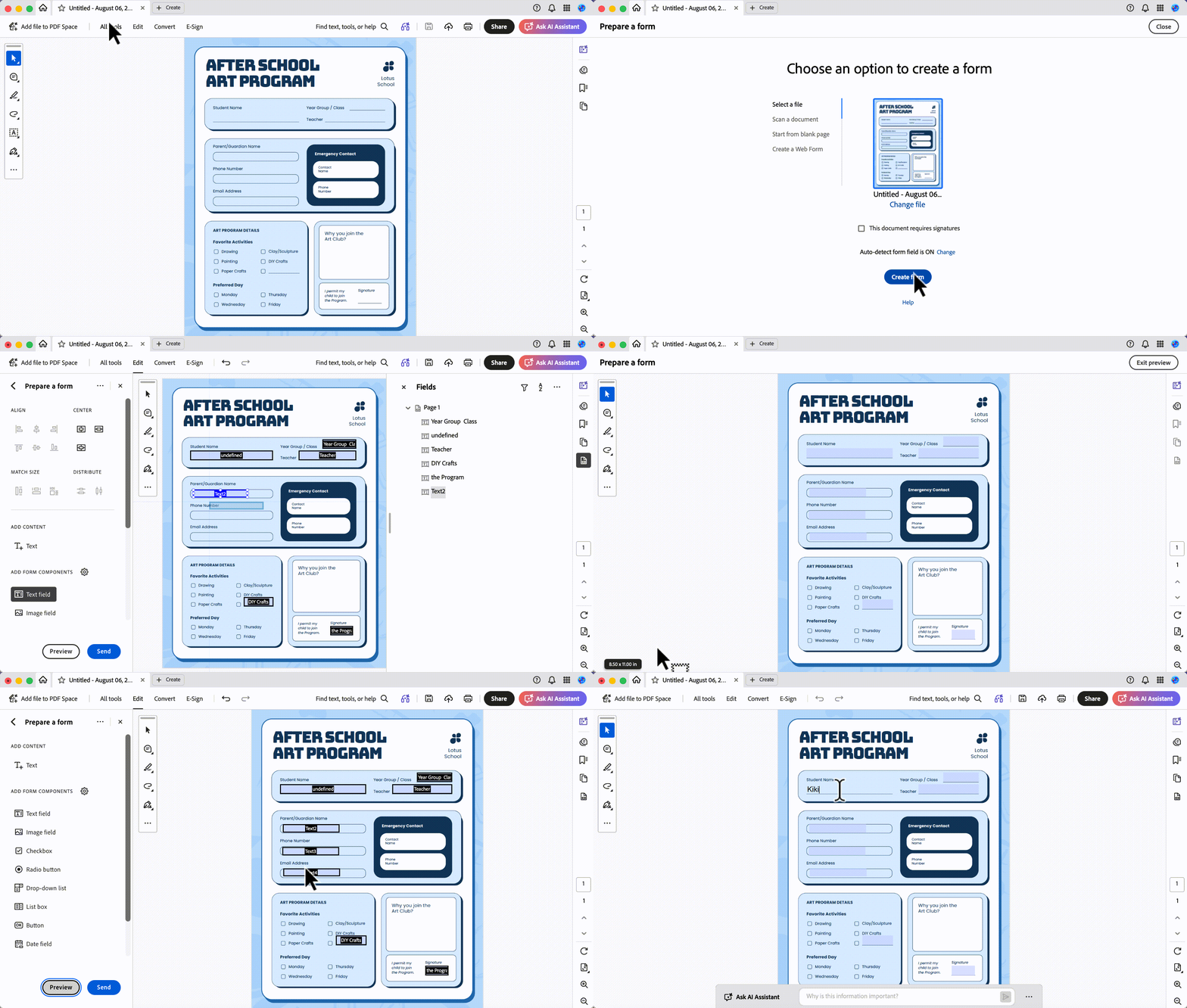
Step 1. Open Acrobat and choose All Tools → Prepare a Form, then select your file. Auto-detect is on by default.
Step 2. Click Create form. Acrobat analyzes the page and adds fields to the blanks it finds.
Step 3. To add one it missed, click the Text Field tool at the top and draw it in. Use Preview to test, then Save As to keep your new form.
Part 4. Add a Fillable Text Box Free Online with Sejda
If you only have browser access and the file isn't sensitive, Sejda adds fillable text fields online.
Step 1. Upload your PDF.
Step 2. From the top toolbar choose Text Field (or Text area for a taller multi-line box).
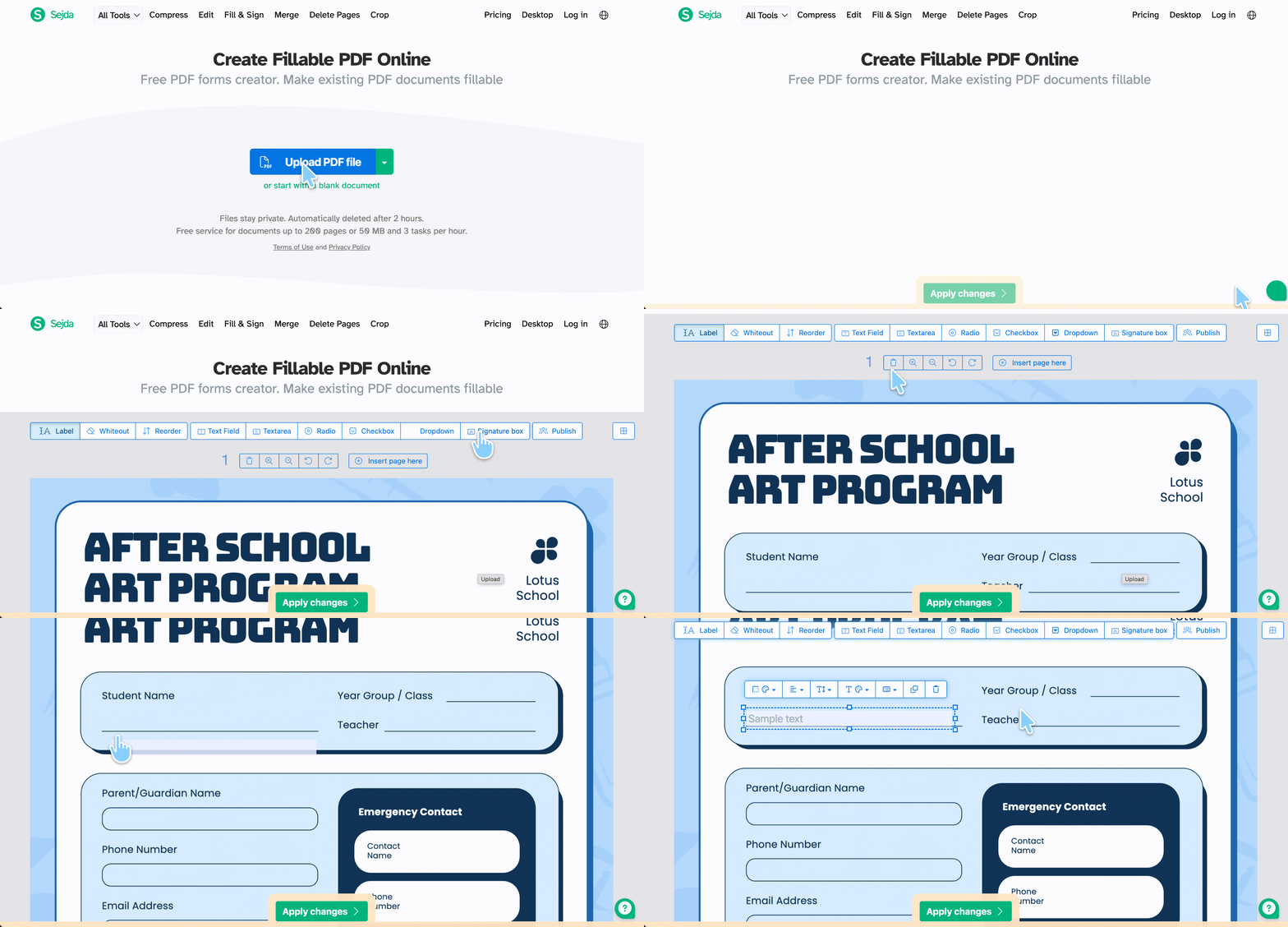
Step 3. Drag the field onto the page and position it; resize or adjust its attributes.
Step 4. Click Apply changes to download the finished form.
Know the limits first: Sejda's free tier allows 3 tasks per hour and caps files at 200 pages or 50 MB, and every upload goes to its servers—skip it for anything confidential. Desktop+Web Annual Plan removes the cap at US$63/year.
Part 5. Fill the Form on iPhone & Android
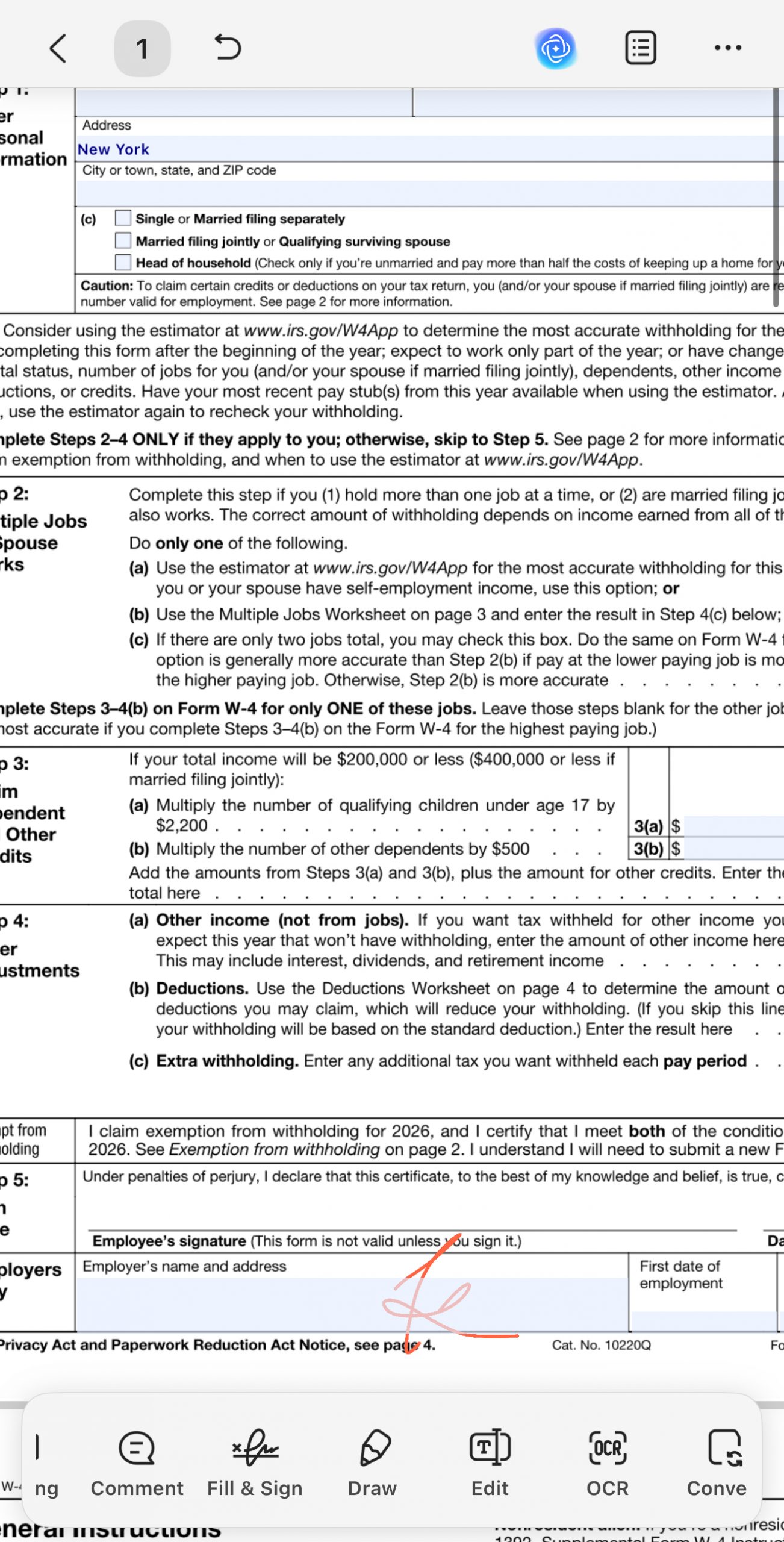
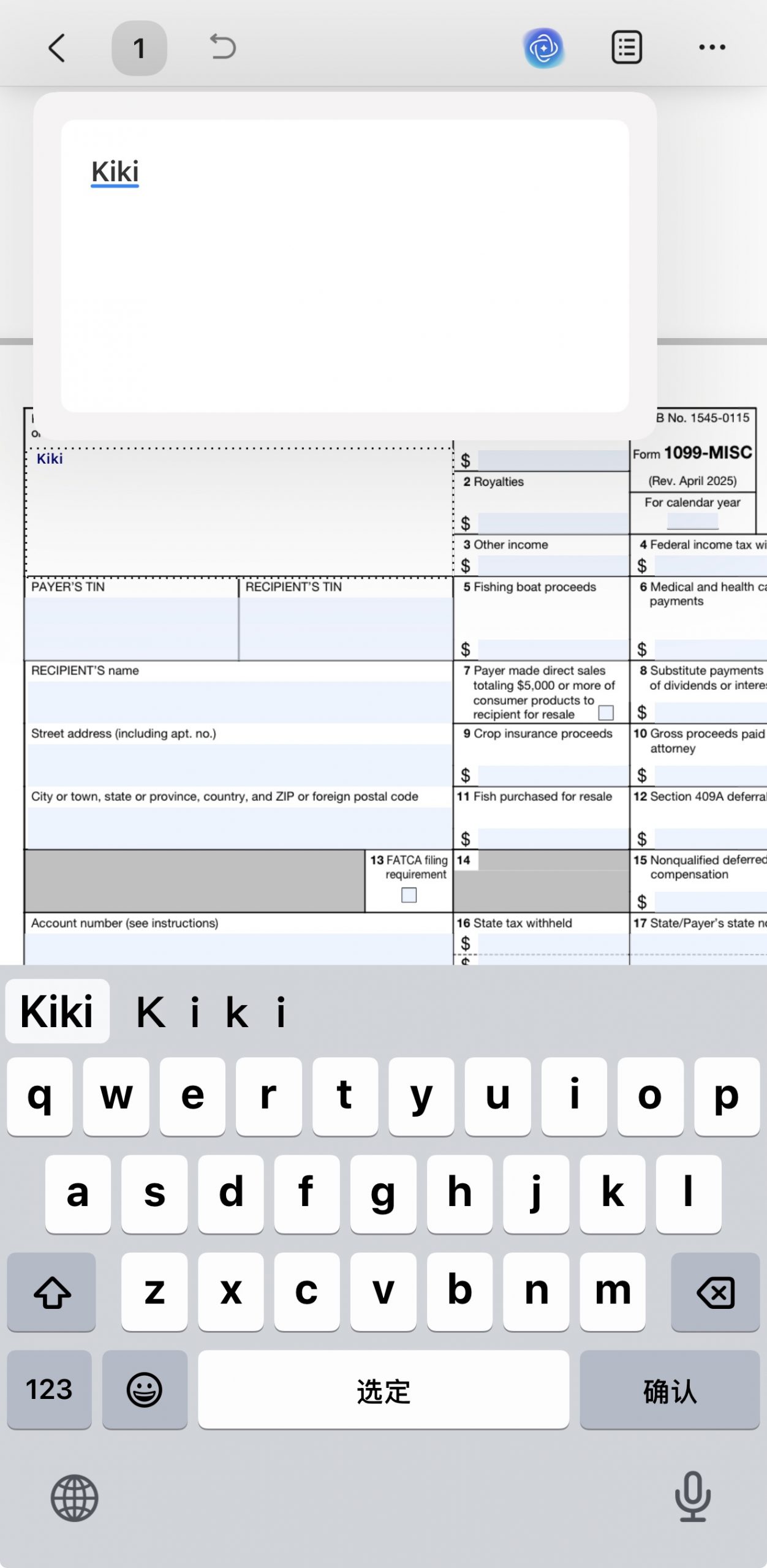
Here's the boundary that trips people up: on mobile, UPDF can fill a PDF that already has form fields, and can add text onto a flat page, but creating the fillable fields is a desktop job. Build the form on Windows or Mac (Part 2), then fill and return it from your phone.
On iPhone/Android: open the form in UPDF, tap Fill & Sign, tap any field and type, add a signature if needed, then save or share it back by email or cloud link.
Part 6. Edge Cases
- Recognition finds no fields. The page is a flat scan or image with no detectable blanks. Add fields manually with the Text Field tool instead.
- Your "form" can't be filled by the recipient. You likely placed text box annotations rather than form fields. Rebuild the inputs in Prepare Form.
- Two fields hold the same value. They share a field name. In Properties, give each a unique name—identical names are treated as one field and mirror each other.
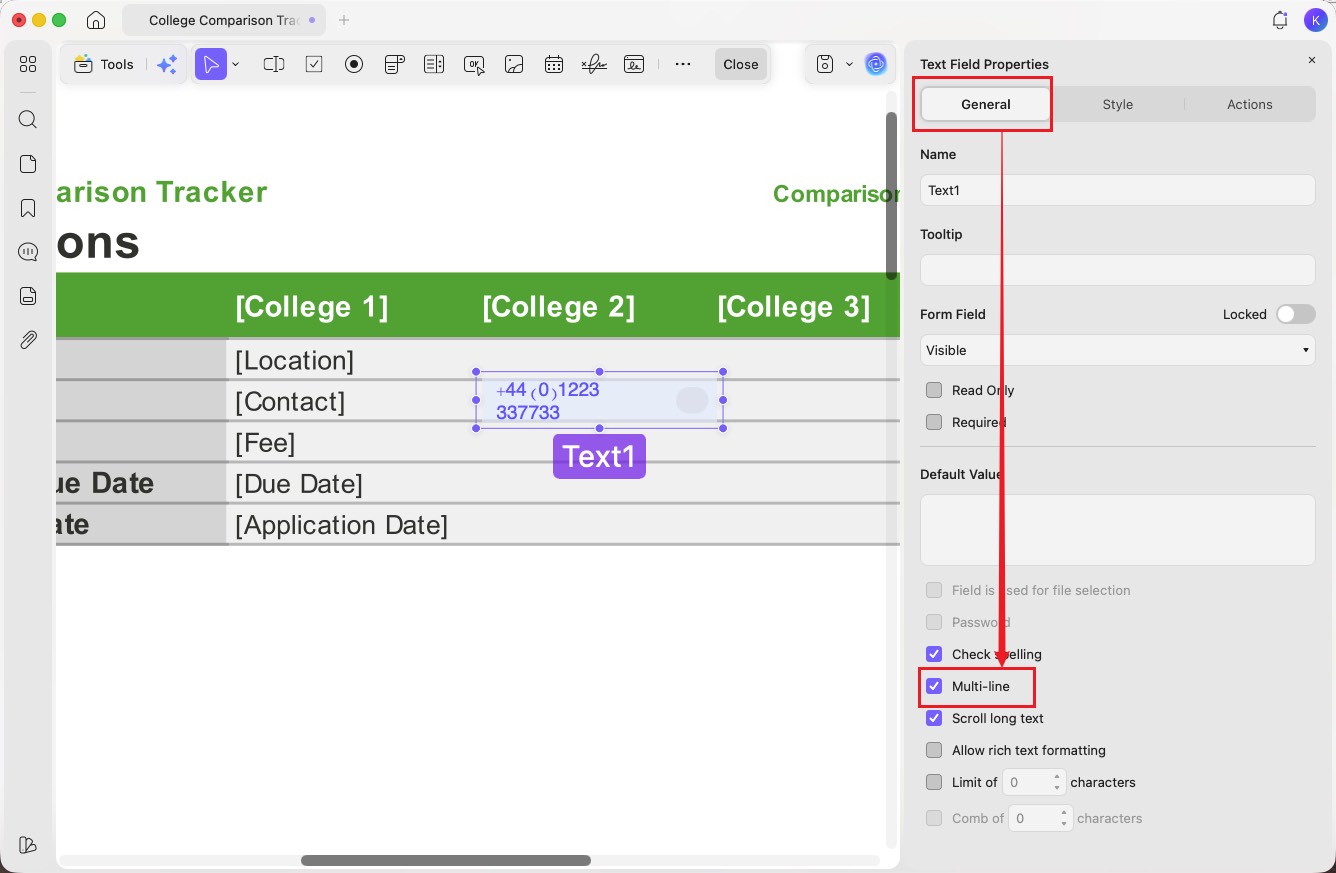
- A field looks right but won't accept multiple lines. Open its Properties and enable the Multi-line option; single-line is the default.
Part 7. FAQs
1. Can I convert a text box annotation into a fillable form field?
Not directly—they're different object types. Delete the annotation and add a real Text Field under Form mode where you need input. It takes seconds and guarantees the box is fillable.
2. How do I stop people from editing my form after they fill it?
Flatten the PDF once it's completed. Flattening merges the entered values into the page so the fields are no longer editable—useful before archiving or emailing a final copy.
3. Can I add a fillable text box to a scanned PDF form?
Yes. Place a PDF text field over the blank area of the scanned page, then save and test the form in a PDF reader. The printed words in the scan remain an image unless you run OCR separately.
Conclusion
Adding a fillable text box comes down to three things: pick a real form field (not an annotation), place it manually or let Form Field Recognition find every blank, then name and size it so it behaves. UPDF does all three in one app on Windows and Mac—and pairs with tools like the AI Editing Suite for fixing text after the fact—while Adobe and Sejda cover the subscription and browser-only cases. Download UPDF for free to build your first fillable form; Pro features are there when you need watermark-free output.
Windows • macOS • iOS • Android 100% secure






 Lizzy Lozano
  Enola Davis

 Enid Brown