UPDF
UPDF
 UPDF for Windows
 UPDF for Mac
 UPDF for iPhone/iPad
 UPDF for Android
 UPDF AI Online
 UPDF Sign
 Edit PDF
 Annotate PDF
 Create PDF
 PDF Form
 Edit links
 Convert PDF
 OCR
OCR PDF to Word
 PDF to Image
 PDF to Excel
 Organize PDF
 Merge PDF
 Split PDF
 Crop PDF
 Rotate PDF
 Protect PDF
 Sign PDF
 Redact PDF
 Sanitize PDF
 Remove Security
 Read PDF
 UPDF Cloud
 Compress PDF
 Print PDF
 Batch Process
 About UPDF AI
 UPDF AI Solutions
 AI User Guide
 FAQ about UPDF AI
 Summarize PDF
 Translate PDF
 Chat with PDF
 Chat with AI
 Chat with image
 PDF to Mind Map
 Explain PDF
 Scholar Research
 Paper Search
 AI Proofreader
 AI Writer
 AI Homework Helper
 AI Quiz Generator
 AI Math Solver
 PDF to Word
 PDF to Excel
 PDF to PowerPoint
 Enterprise Solution
 Enterprise Sign
 Enterprise AI
 Enterprise Plan
 Enterprise User Guide
 Enterprise Webinar
 Banking
 Healthcare
 Insurance
 Legal
Legal Manufacturing
 Government
 Education Solution
 Customer Stories
 User Guide
 UPDF Tricks
 FAQs
FAQs UPDF Reviews
 Download Center
 Blog
Blog Newsroom
 Tech Spec
 Updates
 UPDF vs. Adobe Acrobat
 UPDF vs. Foxit
 UPDF vs. PDF Expert

Have you ever tried opening a PDF sheet music file in MuseScore? If you haven't, I'm warning you—it will be in vain.
That’s because MuseScore only supports editing MSCZ files. But what if you found the perfect sheet music in PDF format? In that case, you have to convert the PDF to MSCZ format. After editing it, you can convert the MSCZ to PDF format.
In this article, we’ll show you the steps for both methods and discuss UPDF as a bonus tip. It's the best PDF reader and editor for everyday use. You can download UPDF now and try it yourself to see if it is the tool you need.
Windows • macOS • iOS • Android 100% secure
Part 1. Convert PDF to MSCZ
MuseScore is the world’s most popular software for sheet music. It allows musicians to create, edit, and share sheet music.
However, this tool has one major limitation. IT DOES NOT DIRECTLY IMPORT PDF FILES.
That’s where ScanScore comes in! It's a tool that can scan, edit, and convert sheet music from PDFs to MSCZ format. You can then use this file in MuseScore for further modifications.
Steps to Convert PDF to MSCZ with ScanScore
Step 1. Download and install ScanScore on your computer. Make sure you have the latest version.
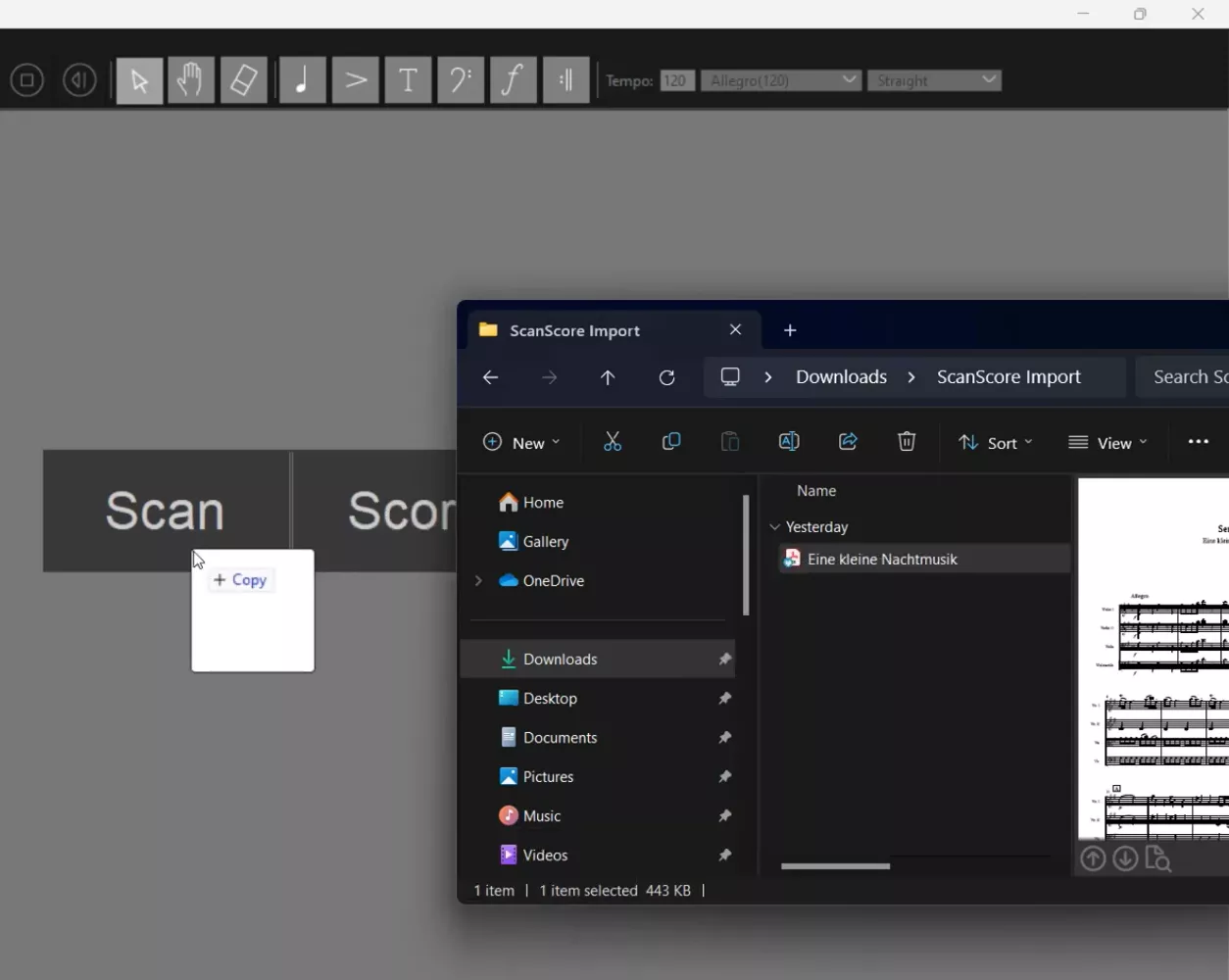
Step 2. Launch ScanScore and drag and drop your PDF sheet music file from your computer into ScanScore to open it. And then you can choose the page range you want to scan.
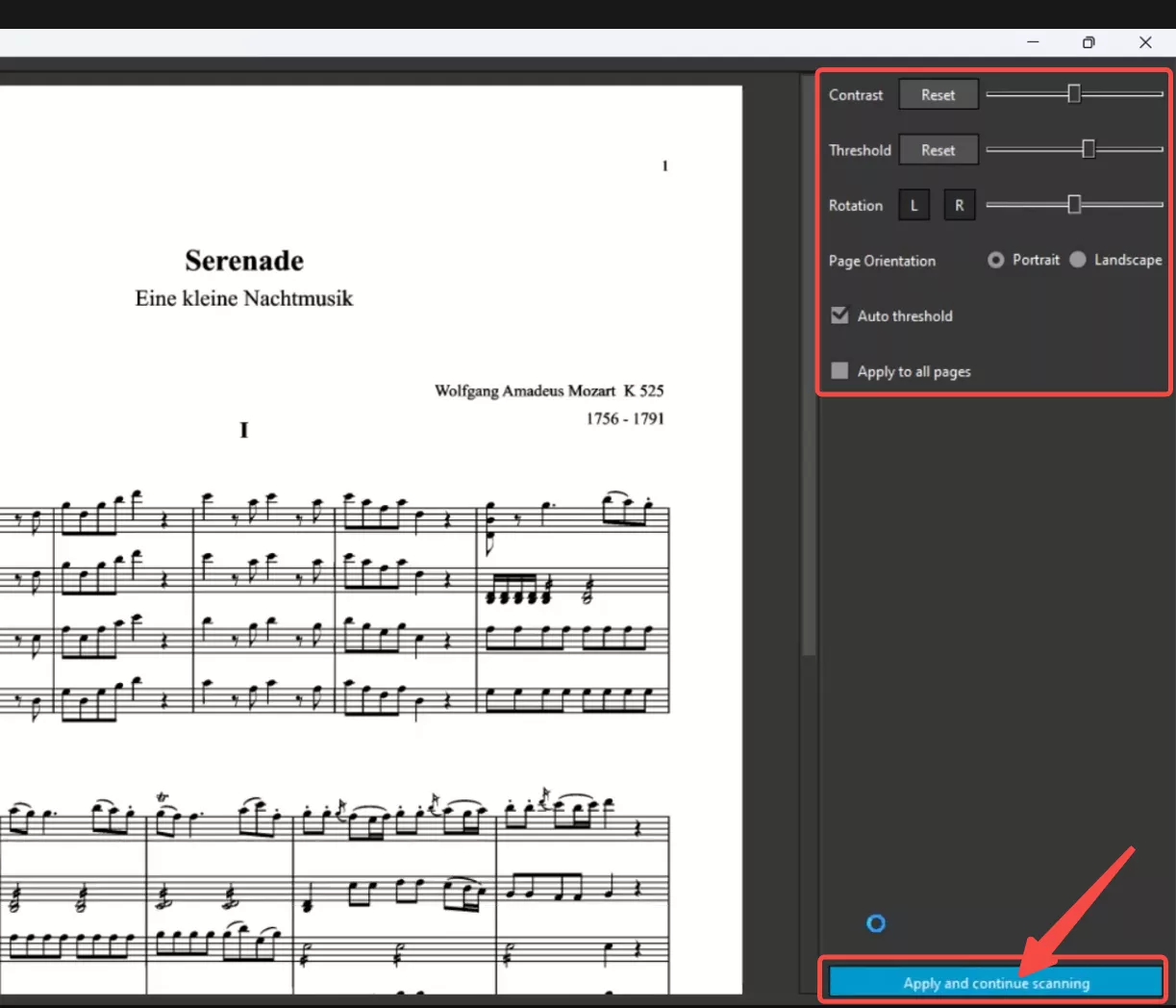
Step 3. Afterward, you will see the pre-scan window that show the PDF file you could do some editing, like change the threshold, change the page orientation. Once done, click "Apply and continue scanning".
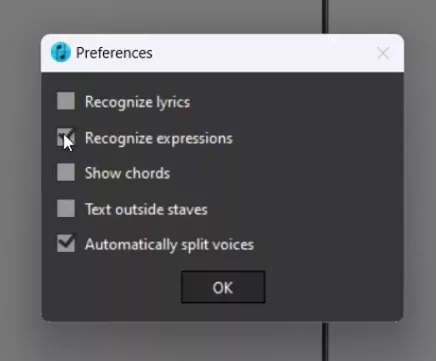
Step 4. Next, a pop-up window will appear. You can select the options shown on the screen. Once done, click "OK" to continue.
Step 5. Your screen will now show a side-by-side view of the original and digital versions. Use the highlighted mistake indicators to correct any scanning errors.
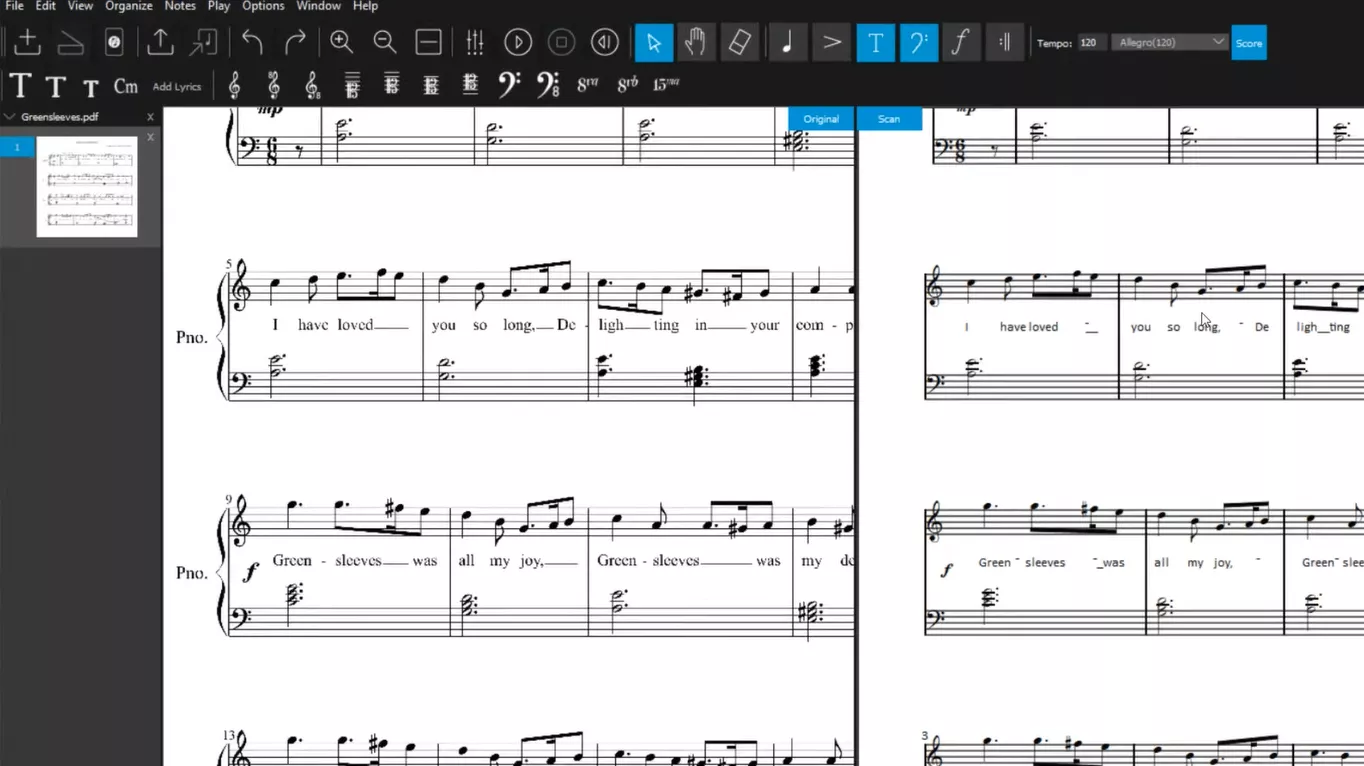
Note: You can use the zoom and playback features of ScanScore to verify the accuracy of your music.
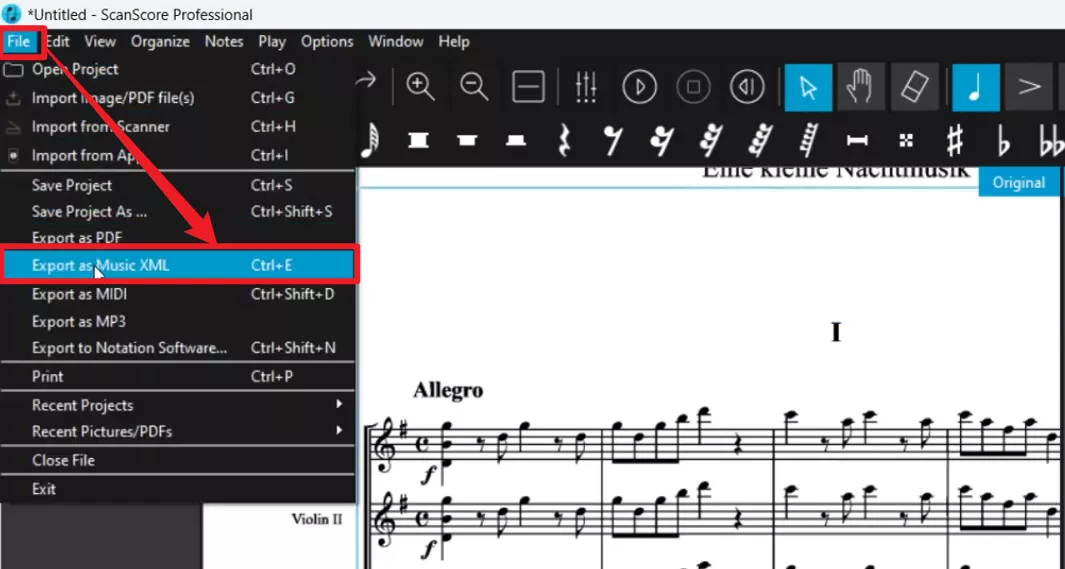
Step 6. Once done, click "File > Export as MusicXML" to save the file on your computer.
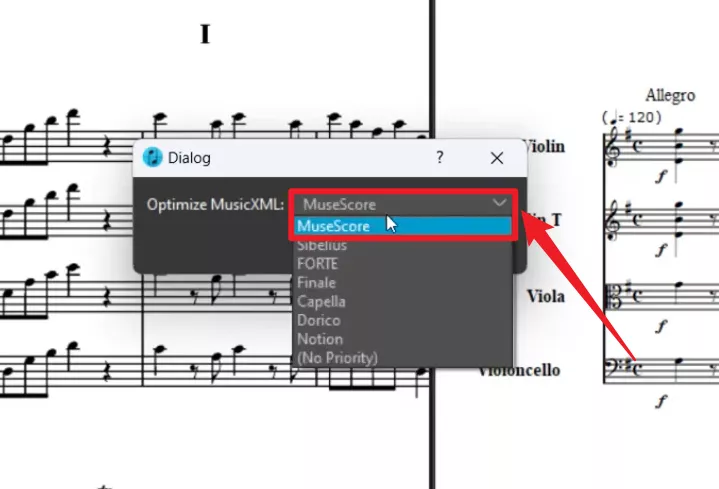
Step 7. A pop-up window will appear. From the drop-down menu, select MuseScore.
Step 8. Now open MuseScore and go to File > Open. Select the exported MusicXML file to load it into MuseScore.
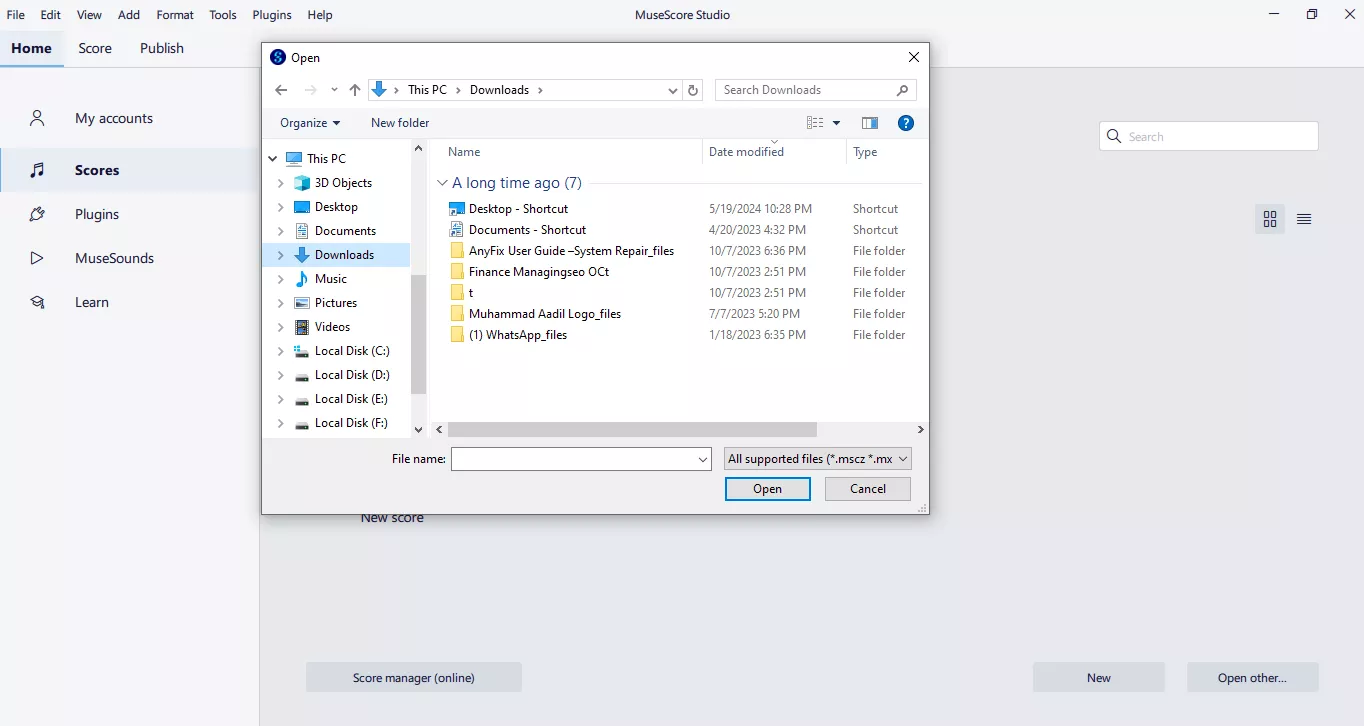
You can now edit in MuseScore and save the file as MSCZ.
Now let's move on and see the opposite side of the coin.
Part 2. Convert MSCZ to PDF Using MuseScore
Sometimes, you need your music sheet in PDF form. PDFs are perfect for printing, sharing, and viewing sheet music on any device, and they can be used to share sheet music with someone who doesn't use MuseScore.
However, you don't need to use a different software. MuseScore itself contains a feature to convert MSCZ to PDF.
Steps to Convert MSCZ to PDF in MuseScore
Step 1: Launch MuseScore and click File > Open. Select the MSCZ file you want to convert.
Step 2: Go to File > Export.
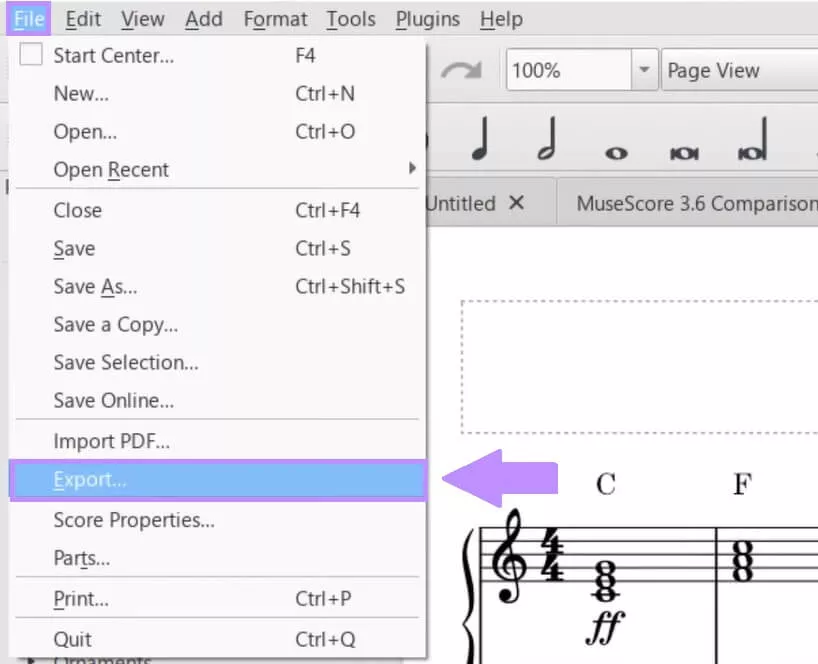
Step 3: Select the PDF file option in the “Export to" dropdown menu.
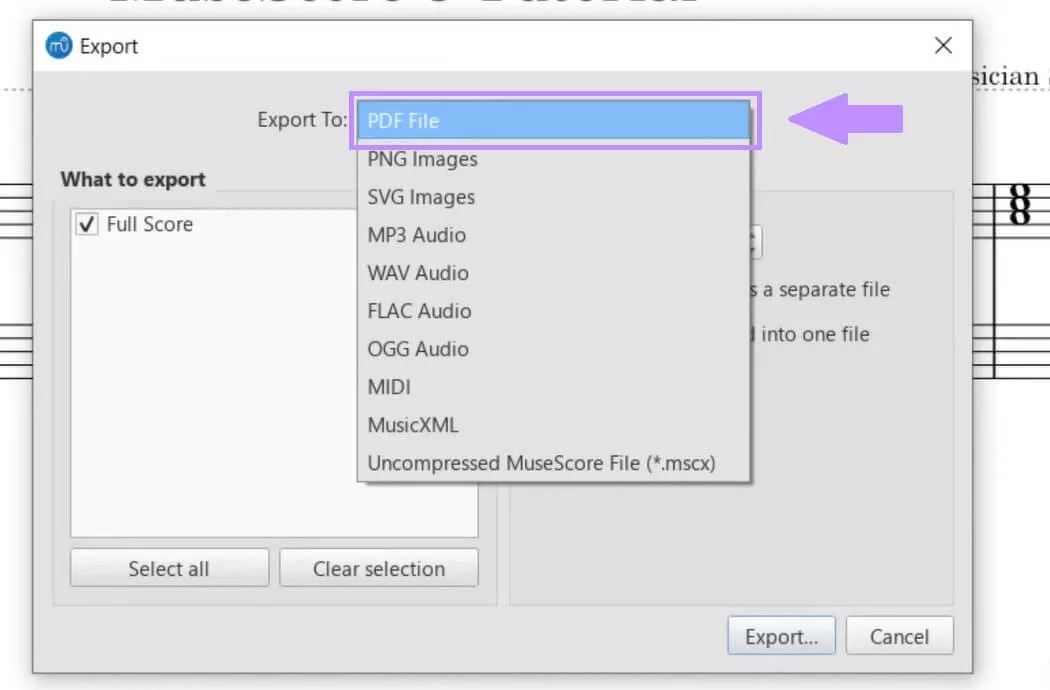
Step 4: Adjust the page and resolution settings. Then click Export at the bottom right corner of the menu.
Step 5: Set a destination folder and save your file.
That's it!
You now have a high-quality PDF version of your sheet music! Let's examine some common questions people have about MSCZ. We'll answer these questions simply.
Part 3. FAQS About MSCZ
Q1. What is an MSCZ File?
MuseScore's default file format is an MSCZ file. This special format contains all the settings for musical scores, such as sheet music, instrument arrangements, and playback settings. MSCZ files are also compressed files with all musical elements.
Q2. What App Opens MSCZ Files?
You can open an MSCZ file in MuseScore. It's freely available for Windows, Mac, and Linux. The desktop version of MuseScore can also edit MSCZ. However, you can use the mobile apps of MuseScore if you only need to view MSCZ files.
Q3. Is MuseScore Still Free?
Yes! MuseScore is a free and open-source app for music sheet editing. However, it also gives users a MuseScore PRO subscription. You can find all the essential tools for notation, playback, and exporting files in the free version. The pro version contains advanced features like premium soundfonts, additional cloud storage, and advanced score-sharing options.
When discussing MSCZ to PDF conversion, we should also check a PDF editor. Let's give you a bonus tip about the best PDF reader and editor.
Part 4. Bonus Tip: The Best PDF Reader and Editor - UPDF
If you need a reliable tool to read and edit PDF files, we highly recommend UPDF. It's a tool that contains all the features of managing PDF files. You can view your converted MSCZ files and even make some edits with advanced tools. Don't get surprised, UPDF even has an AI bot integrated with it. The UPDF AI can summarize, translate, or even give editing ideas for the converted MSCZ file.
Also, UPDF is much cheaper than other competitors in this field, but they don't compromise on the feature set.
Download UPDF today and experience the ease it brings!
Windows • macOS • iOS • Android 100% secure
Now, here are some of the key features that make UPDF stand out:
- View and Annotate
Various annotation tools like highlight, underline, add comments, add stickers and stamps, and more.
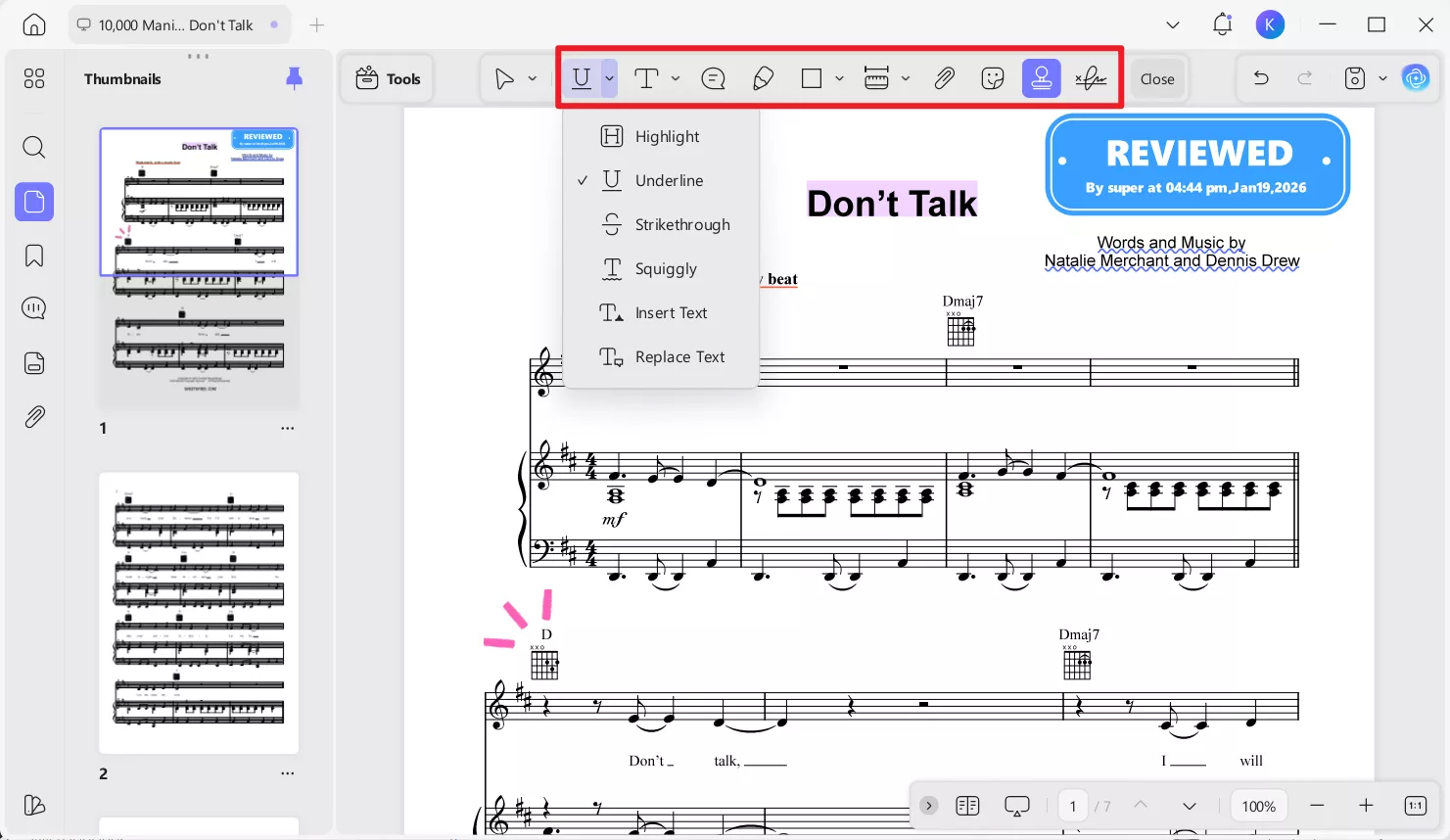
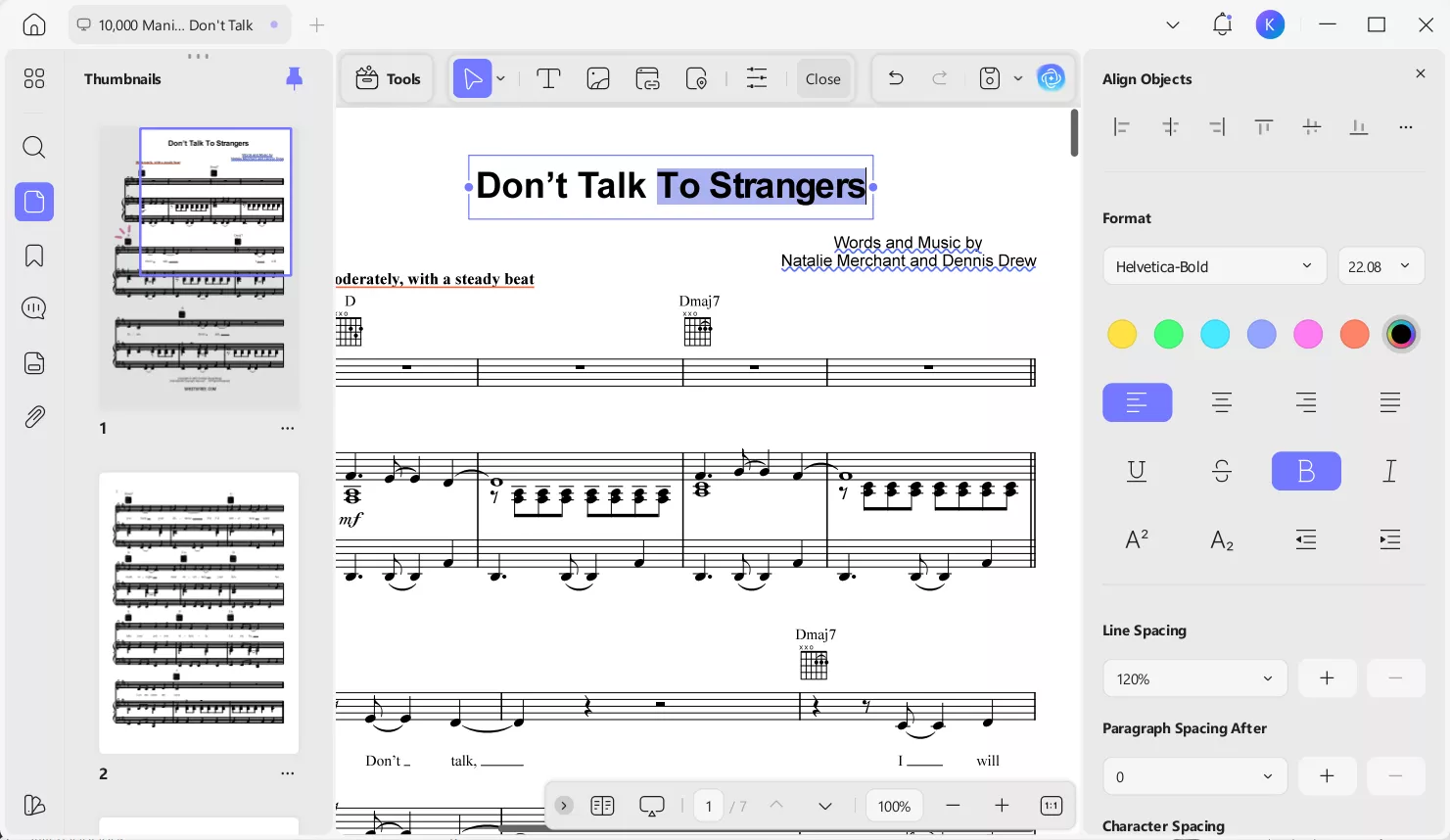
- Edit PDF Content
You can directly edit text and images within your PDF documents. You can modify fonts, sizes, and colors and rearrange content.
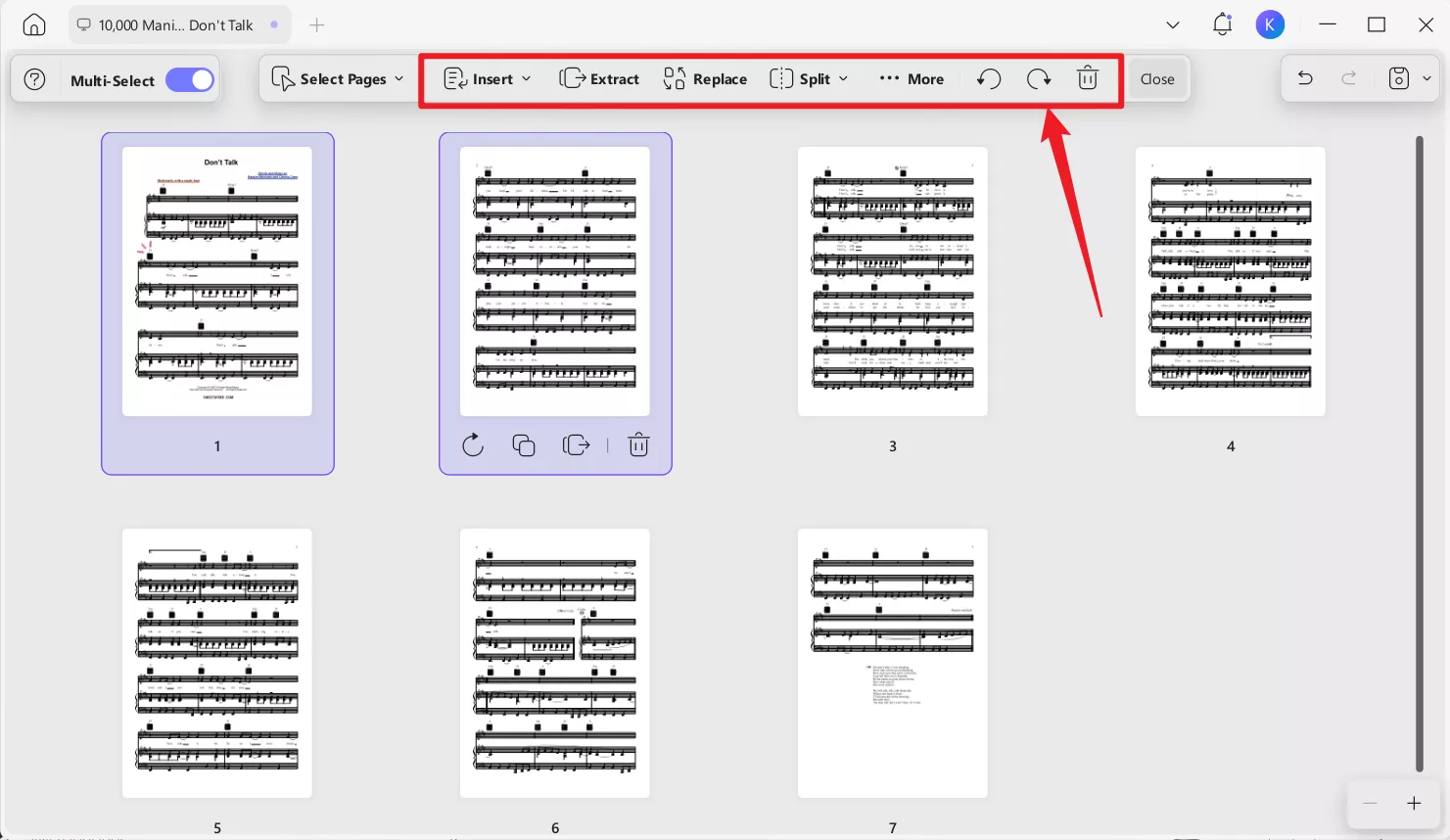
- Organize Pages
UPDF allows you to insert, replace, delete, rotate, reorder, split and extract pages from your PDF files.
- Convert PDFs
UPDF can convert PDFs into Word, Excel, PowerPoint, and more formats.

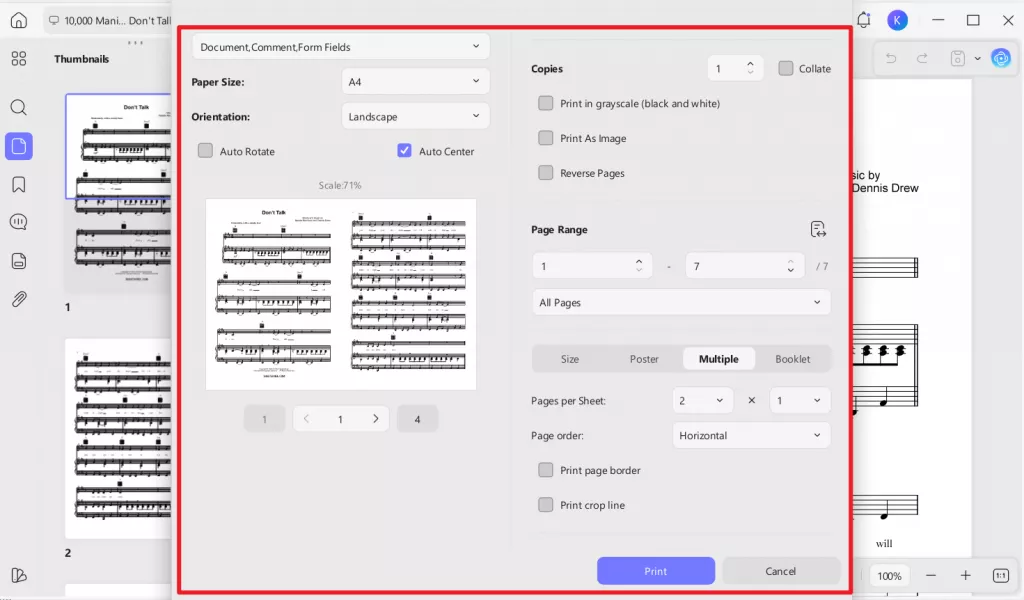
- Print Feature
UPDF Print offers a clear and flexible printing experience by combining comprehensive layout controls with real-time preview. Users can easily adjust paper size, orientation, scaling, and centering to ensure content fits perfectly on the page, while options like page range selection, grayscale printing, and reverse order provide practical control for different printing needs. The Multiple and Booklet modes make it especially convenient to print multi-page documents efficiently, such as placing several pages on one sheet or preparing book-style layouts. With an intuitive interface and instant visual feedback, UPDF Print helps users achieve accurate, well-formatted print results with minimal effort.
- Cross-Platform Compatibility
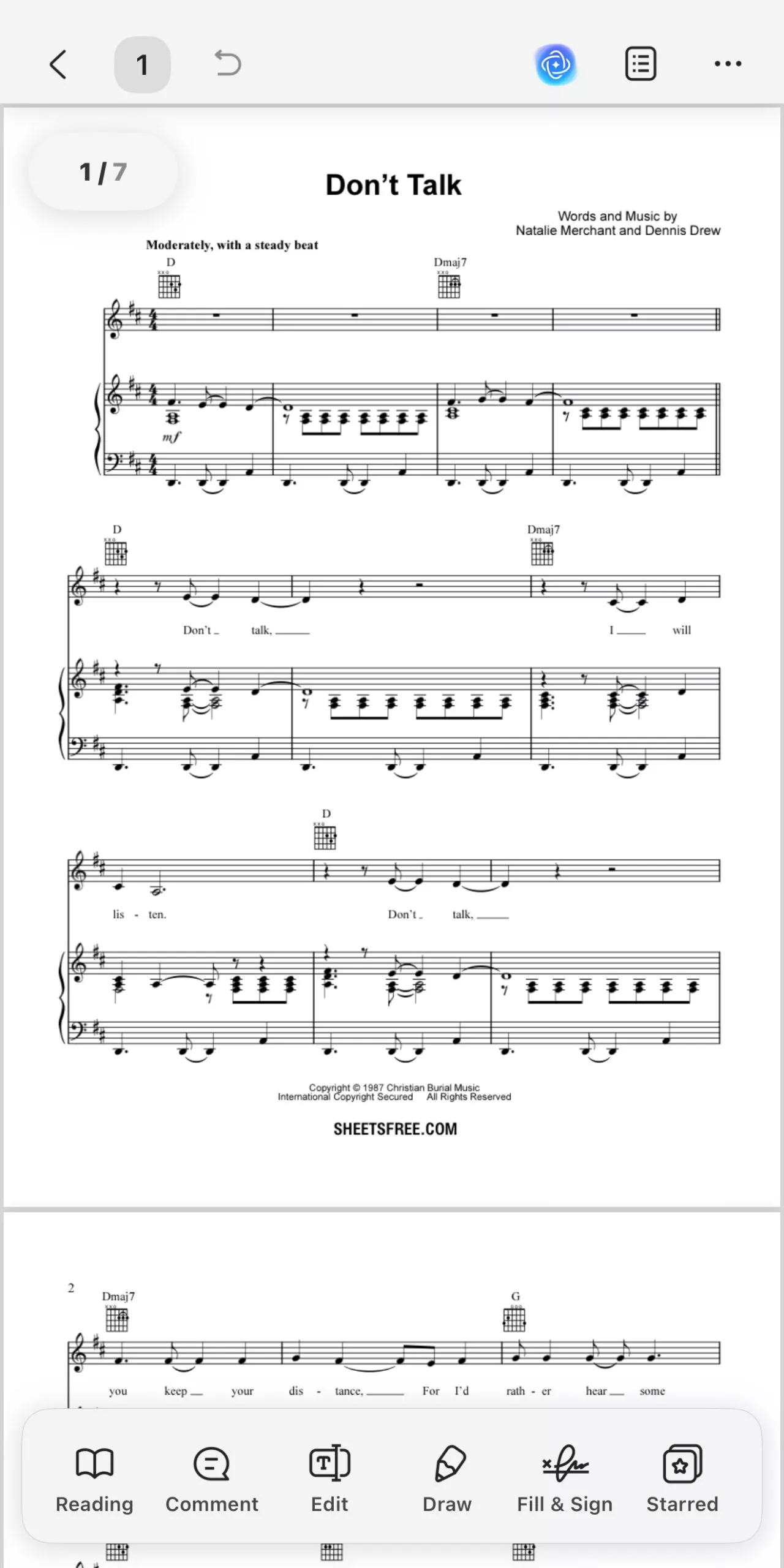
UPDF works perfectly on Windows, Mac, iOS, and Android devices. One license can be used on all platforms. With UPDF Cloud, you can sync your PDF files across devices for instant access and effortless workflow.
Windows • macOS • iOS • Android 100% secure
If you want to learn more about UPDF, check out this in-depth review article. You can also watch the video below.
In The End
The MSCZ file can be edited in MuseScore. PDFs, on the other hand, are perfect for sharing with others.
We have discussed detailed steps to convert PDF to MSCZ and then .mscz to PDF.
Also, for all your PDF reading and editing needs, you can use UPDF. It’s an excellent tool that even comes with an integrated AI. Download UPDF today and see how easily it handles PDF files.
Windows • macOS • iOS • Android 100% secure


 Lizzy Lozano
 Enola Davis