 UPDF
UPDF
 UPDF for Windows
 UPDF for Mac
 UPDF for iPhone/iPad
 UPDF for Android
 Nomostar
 UPDF AI Online
 UPDF Sign
 IvyCraft
 Edit PDF
 Annotate PDF
 Create PDF
 PDF Form
 Edit links
 Convert PDF
 OCR
OCR PDF to Word
 PDF to Image
 PDF to Excel
 Organize PDF
 Merge PDF
 Split PDF
 Crop PDF
 Rotate PDF
 Protect PDF
 Sign PDF
 Redact PDF
 Sanitize PDF
 Remove Security
 Read PDF
 UPDF Cloud
 Compress PDF
 Print PDF
 Batch Process
 About UPDF AI
 UPDF AI Solutions
 AI User Guide
 FAQ about UPDF AI
 Summarize PDF
 Translate PDF
 Chat with PDF
 Chat with AI
 Chat with image
 PDF to Mind Map
 Explain PDF
 PDF AI Tools
 Image AI Tools
 AI Chat Tools
 AI Writing Tools
 AI Study Tools
 AI Working Tools
 Other AI Tools
 AI Bookmark Generation
 AI Bookmark Summary
 AI Watermark Generation
 AI Background Generation
 AI Sticker Generation
 AI Stamp Generation
 AI Editing Suite
 UPDF Copilot
 AI Page Management
 AI Semantic Search
 PDF to Word
 PDF to Excel
 PDF to PowerPoint
 Enterprise Solution
 Enterprise Sign
 Enterprise AI
 Enterprise Plan
 Enterprise User Guide
 Enterprise Webinar
 Banking
 Healthcare
 Insurance
 Legal
Legal Manufacturing
 Government
 Education Solution
 Customer Stories
 User Guide
 UPDF Tricks
 FAQs
FAQs UPDF Reviews
 Download Center
 Blog
Blog Newsroom
 Tech Spec
 Updates
 UPDF vs. Adobe Acrobat
 UPDF vs. Foxit
 UPDF vs. PDF Expert

This guide covers all mainstream methods—free online tools and desktop software without losing quality—as well as solutions tailored to specific operating systems (Windows and Mac). We also compare the pros and cons of each approach to help you choose the best method for your needs.
✨If you're looking to convert PDFs to other formats – not just PNG – head over to our How to Convert PDFs complete guide.
Part 1: Which Conversion Method Suits Your Needs?
You can quickly find the appropriate solution for your specific needs in the table below. PDF to PNG converters online are convenient and installation-free but have privacy and quality limits, while desktop software delivers higher quality, better security, and more functions yet requires installation.
| Your Needs | Recommended Method | Go to |
| Convert PDF on the fly without installing software | Online tools (free, no registration required) | Part 2 |
| File contains sensitive information; privacy protection needed | Desktop software (local processing) | Part 3 |
| Need to batch convert every page of multiple PDFs | Desktop software (batch processing support) | Part 3 |
| Need precise control over resolution and color mode | Professional desktop software | Part 3 |
| Using a Mac and prefer a native solution | Preview app | Part 4 |
Online Tools
- Pros
- No installation required; accessible via any browser.
- Simple to use, ideal for quick, one-off conversions.
- Works across all devices with internet access.
- Cons
- Risk of data privacy leaks for confidential files.
- Limited control over resolution; output quality is often average.
- Restrictions on file size and batch processing for free versions.
- Dependent on a stable internet connection.
Desktop Software
- Pros
- Fully offline use; better security for sensitive documents.
- Full control over settings for high-quality, sharp output.
- Supports large files and efficient batch conversion.
- Stable performance, no network limitations.
- Cons
- Need to download and install programs in advance.
- Mostly takes up local storage space.
- Some professional tools require paid and expensive licenses, like Adobe, for consuming the budget with many overly specialized features.
But most advanced requirements (batch processing, privacy, high resolution) require desktop software. If you are looking for a solution that offers better value for money than Adobe while also delivering professional-grade conversion capabilities, UPDF is the perfect choice.
Using UPDF instead of Adobe Acrobat Pro DC for PDF-to-PNG conversion saves you at least $200 per year, or over $650 in three years, with the same high-quality output. Moreover, UPDF also has a lifetime license - $79.99! Download to have a free trial now! Let's check how to convert with online tools and professional software in the following sections together.
Windows • macOS • iOS • Android 100% secure
Part 2: How to Convert PDF to PNG Online (No Sign-up)
There is a vast array of free online tools available; some are paid services that offer a free tier, while others are free but come with numerous ads or frequent feature limitations. You can use the table below to select the tool that best suits your needs. You can click the tool's name and go to the place where you can convert PDF to PNG directly; the process and steps are simple and easy.
| Dimension | PDF2PNG | Drawboard | CloudConvert |
|---|---|---|---|
| File Size Limit | ≤100 MB | No clear limit (browser‑local processing) | ~100 MB (free tier) |
| Processing Method | Upload to cloud servers | Browser‑local processing – files never uploaded to any server | Upload to cloud servers |
| Output Quality | Lossless, pixel‑perfect | Full‑resolution lossless PNG | High‑quality output |
| Page Selection | Full document or page range | Single page or all pages | Full document or page range |
| Download Format | Single image or ZIP archive | Single image or ZIP archive | Single image or ZIP archive |
| Registration Required | ❌ No | ❌ No | ❌ No (free tier) |
| Watermark | ❌ No | ❌ No | ❌ No |
| Free Usage Limits | Completely free | Completely free | 25 files per day (free tier) |
| Extra Features | Supports JPEG, BMP, TIFF, and more output formats | Also offers merge, compress, split, and other PDF tools | Supports 200+ file format conversions |
| Best Suited For | Quick, large‑file PDF‑to‑PNG conversions | Users handling sensitive or confidential documents | Power users who need conversions across many formats |
For these three tools, you simply click "Upload PDF," click "Convert," and download the ZIP archive (for multi-page files). The entire process takes about one minute.
Limitations:
- File size and page count limits (usually only the first 10 pages can be converted).
- Privacy risks: Files must be uploaded to third-party servers.
- No precise control over resolution or color depth.
- Batch conversion usually requires payment or registration.
Once you've mastered PNG conversion, take your skills further with our How to Convert PDF hub – covering all major output formats.
If you need to handle large files, sensitive documents, or batch conversions, please continue reading the desktop software solutions.
Part 3: How to Convert PDF to PNG with Desktop Software (High Quality)
If you need to transform PDFs into standard PNG images for presentations, web use, or editing, desktop applications are your safest choice. This guide shows you how to complete the conversion with outstanding visual quality.
| Dimension | UPDF | Adobe Acrobat Pro | Nitro Pro | Foxit PhantomPDF |
|---|---|---|---|---|
| Output Quality & Fidelity | High – preserves original image quality, no blurring or resolution loss | High – professional-grade conversion ensures optimal image quality | Medium – may not fully preserve precise layout and formatting | High – preserves original layout, formatting, and content when converting to images |
| Batch Conversion | ✅ Supported – process multiple PDFs at once | ✅ Supported – export all pages in batch | ✅ Supported – convert full PDFs or individual pages | ✅ Supported – batch conversion available |
| Core Features | All-in-one – PDF editing, conversion, OCR, and AI Assistant built in | Industry standard – the benchmark for PDF editing and conversion, most comprehensive feature set | Professional editor – focused on PDF editing and document processing | Professional editor – focused on PDF editing, export, and team collaboration |
| Pricing Model | Great value – offers both one-time purchase and subscription | Premium – subscription only, higher cost | Mid-range – offers both one-time purchase and subscription | Mid-range – offers both one-time purchase and subscription |
| Platform Support | Cross-platform – Windows, macOS, iOS, Android | Windows, macOS | Windows, macOS | Windows, macOS |
Overall, UPDF offers a virtually flawless solution for converting PDFs to PNGs:
1: A balance of quality and functionality: It delivers high-quality PNG output comparable to Adobe Acrobat while offering a comprehensive feature set that combines conversion, editing, and OCR capabilities.
2: Efficient batch processing: Whether handling a few files or large volumes of documents, UPDF’s batch conversion feature significantly boosts productivity.
3: Excellent value for money: Compared to Adobe Acrobat Pro—which offers similar functionality—UPDF provides more competitive pricing; its one-time purchase option, in particular, results in lower long-term costs.
In short, if you are looking for a professional tool that handles PDF-to-PNG conversion with high quality and efficiency—all while offering comprehensive features at a reasonable price—UPDF is a choice well worth considering. Let's see how to use UPDF to convert PDF to PNG!
Professional Method - UPDF (Recommended, Cross-platform)
UPDF is your professional and secure choice.
✅ No file size limits (supports 2GB+)
✅ No page limits (convert all pages)
✅ Batch conversion; export all pages to PNG with a single click
✅ Customizable resolution (DPI), color mode (RGB/CMYK), and image quality
✅ 100% local processing—no uploads—ensuring privacy and security
✅ Supports Windows, Mac, iOS, and Android
Learn how to turn PDF pages into clear PNG on Windows. Download UPDF and check the simple steps for professional-grade output below.
Windows • macOS • iOS • Android 100% secure
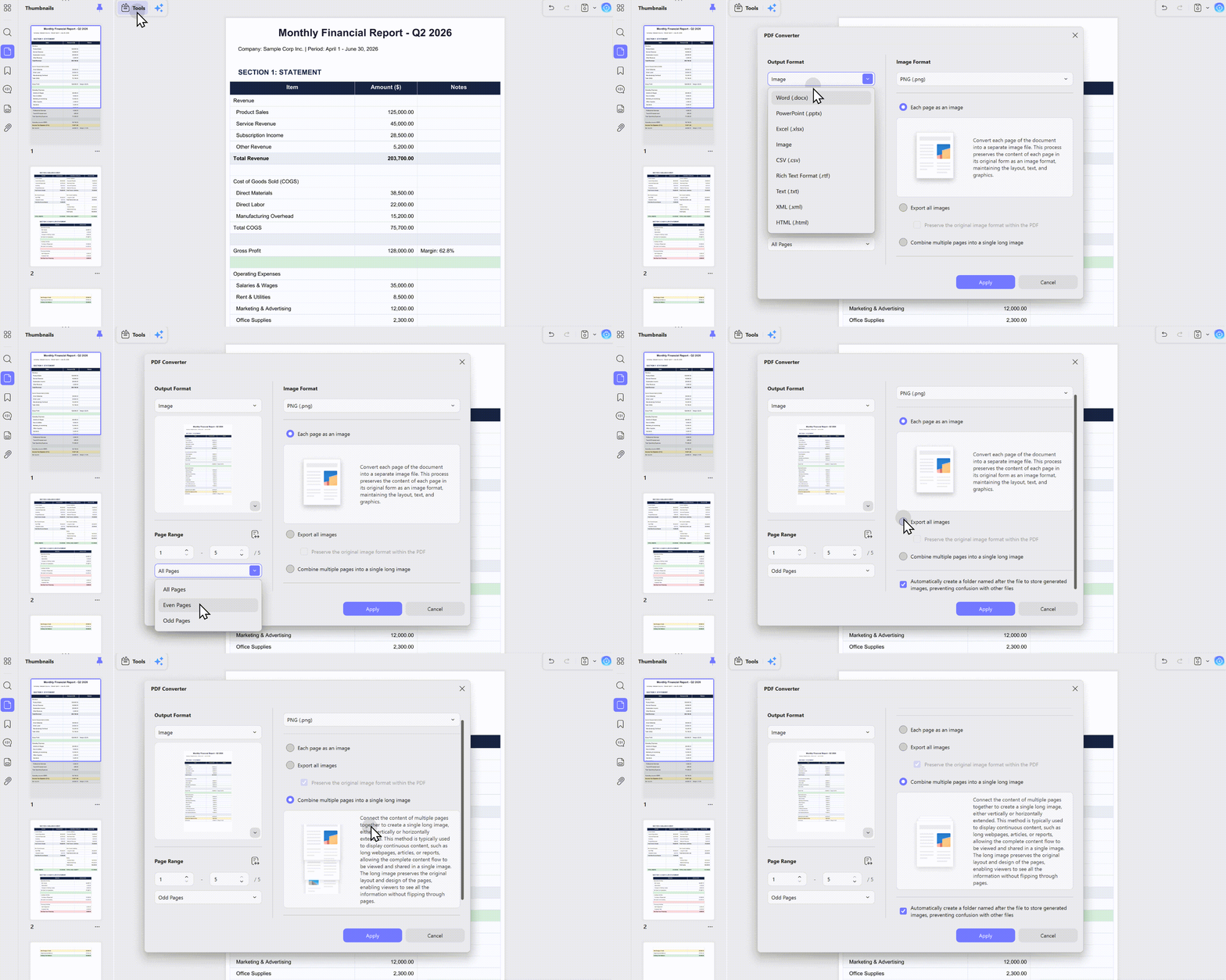
If you need to batch-process converting PDF to PNG, these are the steps you need!
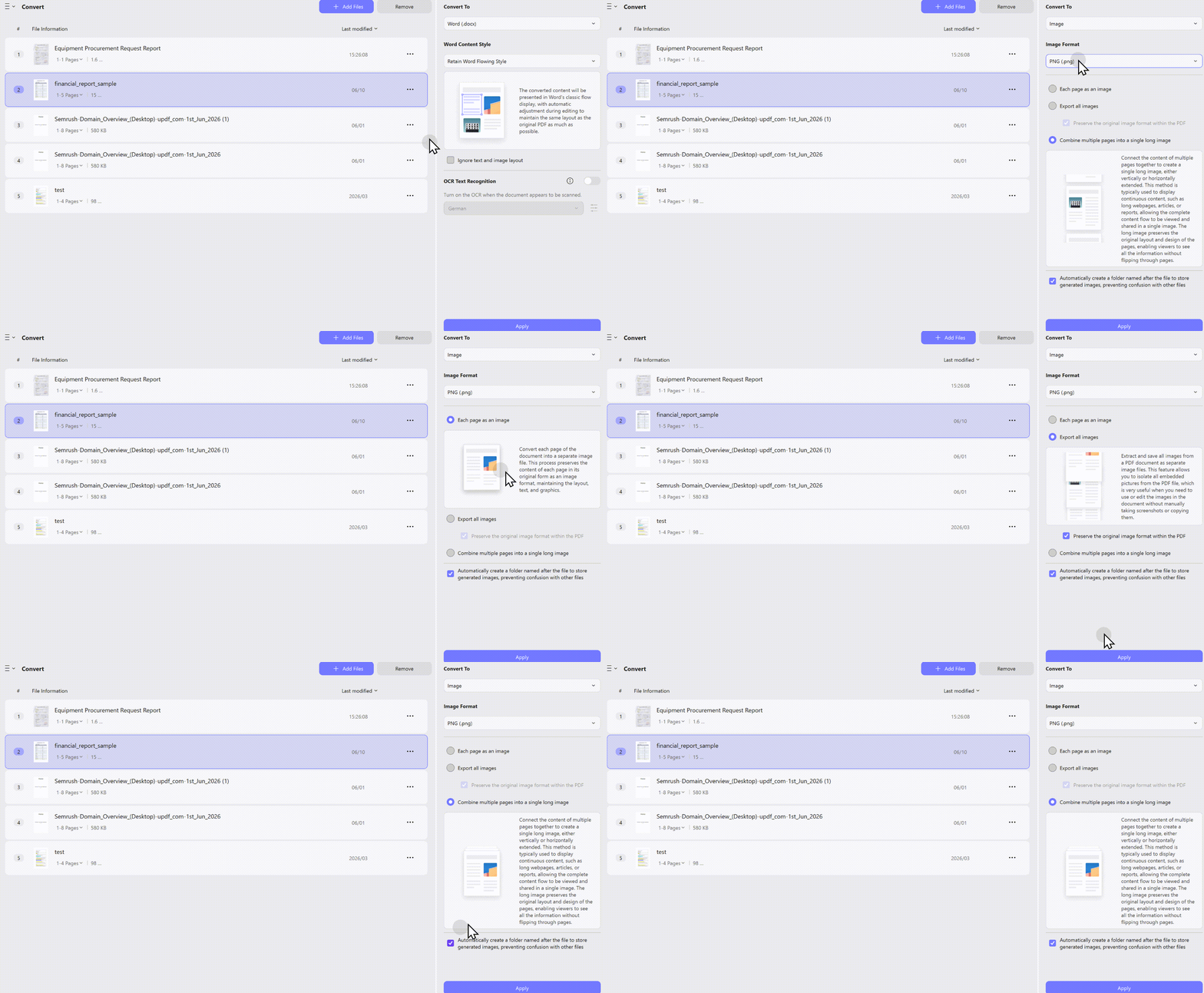
First open UPDF and find the Batch Process and click "Convert", then you can upload all your PDFs to be prepared to convert, you can click PNG as your image output format, there're three types you can choose: Each page as an image/export all images (you can choose Preserve the original image format within the PDF or not)/Combine multiple pages into a single long image, you can choose according to your true needs.
How to Convert PDF to PNG on Mac Preview?
If you are already converting PDF to PNG on Mac, do not need to batch-export all pages (but only specific ones), and do not require custom high-resolution settings, then the following steps are exactly what you need.
First, open the PDF in Preview. Click "File" → "Export…" and select "PNG" as the format. Then adjust the resolution (DPI) and click "Save." All Done!
Note: Preview can only export the currently displayed page (a single page); it cannot export all pages in a batch. If you need to export pages in bulk, please use UPDF.
Bonus: Why Convert PDF to PNG Matters?
Since you want to convert your PDF file to a PNG image, you must know why this is considered to be done. We will be looking into some potential reasons why you will convert your PDF to a PNG:
- If you wish to secure your file and avoid someone editing it while it is being shared, the best way to execute it is by converting your PDF file to a high-quality PNG. The content of the PDF can now only be viewed in the PNG format.
- There are different instances where you have to put up the option of integrating something important on a webpage. While you cannot set up a PDF document on the webpage, converting it to an image would do the trick. That is why you are looking to convert your PDF to PNG.
- To use a particular PDF document as your wallpaper, you must convert it to a PNG. Images from high-resolution cameras are usually sent to other users in PDFs, which need to be converted into an image format.
- A user who does not have a PDF viewer to open PDFs won't be able to see what is in the documents without it. Thus, it is best to convert the PDFs to PNG or other image file formats so that they can be viewed with ease.
FAQs on Converting PDF to PNG
We will now work on some essential questions that one might have while converting their PDF documents to PNG or other image formats:
1. How Do You Turn a PDF into a PNG?
If you wish to turn a PDF document into a PNG, UPDF provides a reliable conversion tool that converts your document into high-quality images.
2. How Do I Convert PDF to PNG without Acrobat?
As you want to avoid converting your PDF to PNG with Adobe Acrobat which is way too expensive? You can use the conversion feature of UPDF to convert your document without any difficulty. It even allows you to convert 2 files per day for free in the trial version. You can also check the comparison between Adobe Acrobat and UPDF.
3. What is the Best PDF to PNG Converter?
While searching for the best PDF-to-PNG converter, it is evident that UPDF provides the best services with batch processing.
Conclusion
Converting PDF to PNG doesn't have to be complicated. The right method depends entirely on your specific needs – file size, volume, quality requirements, and how often you’ll do this.
Ready to go beyond PNG? Start with our How to Convert PDF pillar page for a complete walkthrough of every conversion option.
Windows • macOS • iOS • Android 100% secure



 Engelbert White

 Enola Miller
 Delia Meyer