 UPDF
UPDF
 UPDF for Windows
 UPDF for Mac
 UPDF for iPhone/iPad
 UPDF for Android
 Nomostar
 UPDF AI Online
 UPDF Sign
 IvyCraft
 Edit PDF
 Annotate PDF
 Create PDF
 PDF Form
 Edit links
 Convert PDF
 OCR
OCR PDF to Word
 PDF to Image
 PDF to Excel
 Organize PDF
 Merge PDF
 Split PDF
 Crop PDF
 Rotate PDF
 Protect PDF
 Sign PDF
 Redact PDF
 Sanitize PDF
 Remove Security
 Read PDF
 UPDF Cloud
 Compress PDF
 Print PDF
 Batch Process
 About UPDF AI
 UPDF AI Solutions
 AI User Guide
 FAQ about UPDF AI
 Summarize PDF
 Translate PDF
 Chat with PDF
 Chat with AI
 Chat with image
 PDF to Mind Map
 Explain PDF
 PDF AI Tools
 Image AI Tools
 AI Chat Tools
 AI Writing Tools
 AI Study Tools
 AI Working Tools
 Other AI Tools
 AI Bookmark Generation
 AI Bookmark Summary
 AI Watermark Generation
 AI Background Generation
 AI Sticker Generation
 AI Stamp Generation
 AI Editing Suite
 UPDF Copilot
 AI Page Management
 AI Semantic Search
 PDF to Word
 PDF to Excel
 PDF to PowerPoint
 Enterprise Solution
 Enterprise Sign
 Enterprise AI
 Enterprise Plan
 Enterprise User Guide
 Enterprise Webinar
 IT
IT Education
 Construction
 Financial Service
 Healthcare
 Insurance
 Legal
Legal Manufacturing
 Government
 Researchers & PhDs
 Solopreneurs & Freelancers
 Lawyers & Legal Professionals
 Real Estate Agents & Brokers
 Education Solution
 Customer Stories
 User Guide
 UPDF Tricks
 FAQs
FAQs UPDF Reviews
 Download Center
 Blog
Blog Newsroom
 Tech Spec
 Updates
 UPDF vs. Adobe Acrobat
 UPDF vs. Foxit
 UPDF vs. PDF Expert

PDF is a universal format that keeps layout consistent and works across different devices. Apple Notes is useful for quick ideas, yet it lacks proper formatting for sharing and printing needs. Many users ask, "Can I save my Apple Notes as a PDF?"and search for how to save notes as a PDF when preparing files for sharing.
Yes, you can save notes using Print or Markup on iPhone, or Export as PDF on Mac. After converting notes, UPDF helps edit, merge, and sign documents while keeping everything organized in one place. Now, we will explore the ways to create clean PDFs and manage files.
- PDF files keep formatting consistent, making notes easier to share, print, and store.
- Apple Notes does not provide flexible editing options after exporting files as PDF.
- Using proper tools helps avoid formatting issues and improves document quality for sharing.
- Managing notes as PDFs ensures better compatibility, security, and long-term access everywhere.
Windows • macOS • iOS • Android 100% secure
Part 1. How to Save Notes as PDF on iPhone & iPad?
iPhone and iPad users need simple ways to convert notes into PDF files. Apple provides built-in options that help create PDFs without installing extra apps or tools. These methods keep formatting clean and make files ready for sharing, printing, and storage purposes. In this section, we will explore the native methods available for saving notes as PDFs.
Method 1. The Hidden "Print" Gesture
This method is best for long text notes because it keeps fonts, spacing, and rich formatting clean in the final PDF. It relies only on built-in iOS options to remove the need for extra apps and complex settings to learn how to save notes as a PDF. Now, follow the steps below to see how to turn an Apple Note into a polished PDF:
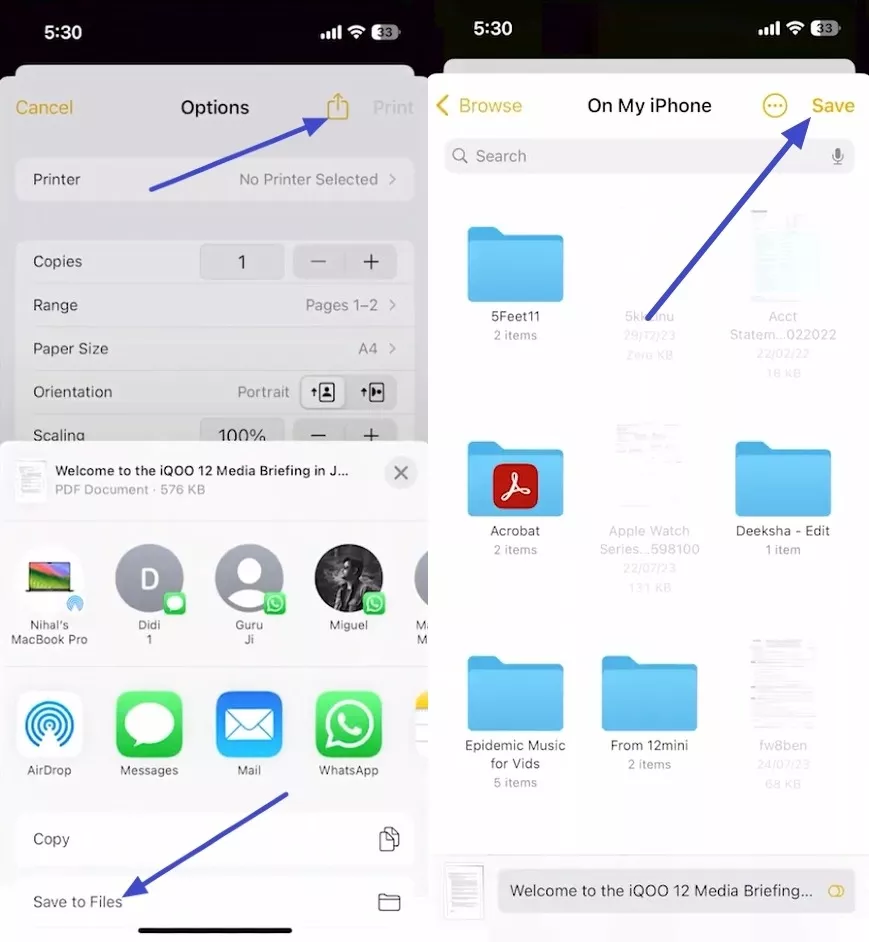
Step 1. Once you open a note in the Notes app, tap on the "Share" icon in the top left corner. Afterward, press the "Print"option in the menu.
Step 2. On the "Print"screen, use the "Share"icon again and tap on the "Save to File"option. Next, choose the target location and press the "Save" option to save notes as a PDF.
Method 2. The "Markup" Method
The Markup method is ideal when you want to add quick drawings and handwritten notes. It works best for sketch-heavy or visually focused notes where you care more about annotations than perfect text formatting. Go through the steps below to see how this method turns your Apple Note into a marked-up PDF:
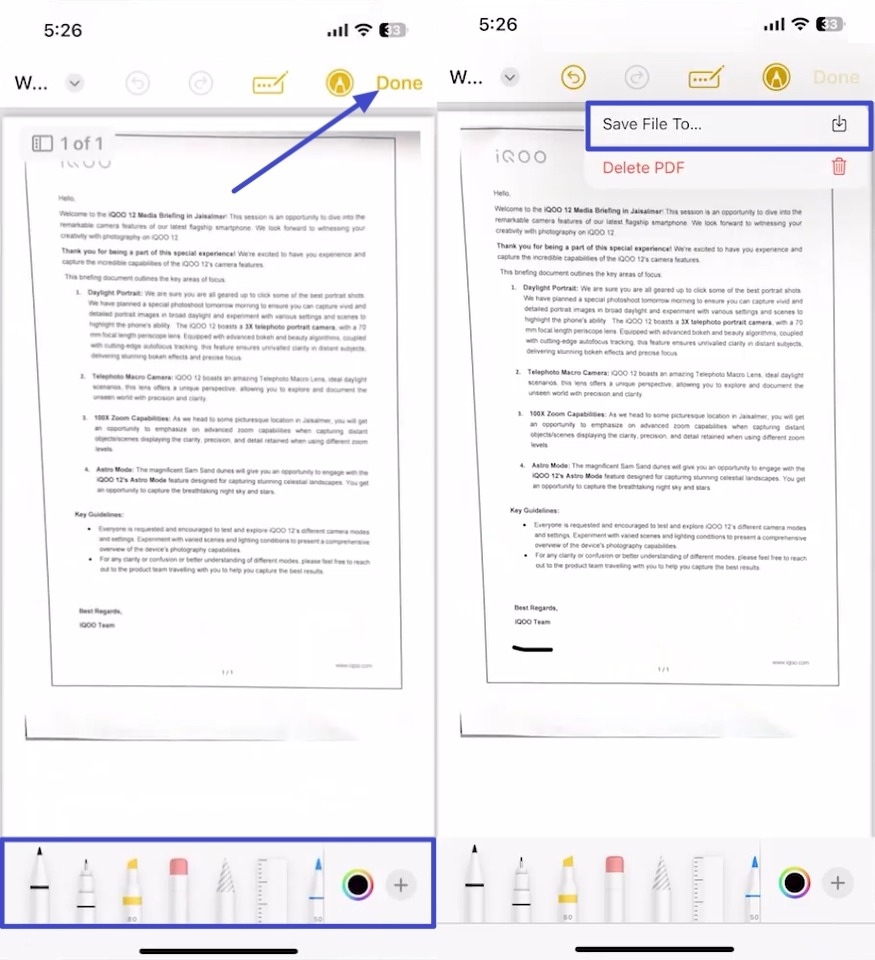
Step 1. First, open the Notes app and tap on the "Share"icon. Then, press the "Markup"option.
Step 2. Afterward, use the "Marker"or "Highlighter"tool to hide or highlight any text. Once done, tap on the "Done"option and press the "Save File To.."option.
Step 3. Next, choose the location and use the "Save"option to save the PDF.
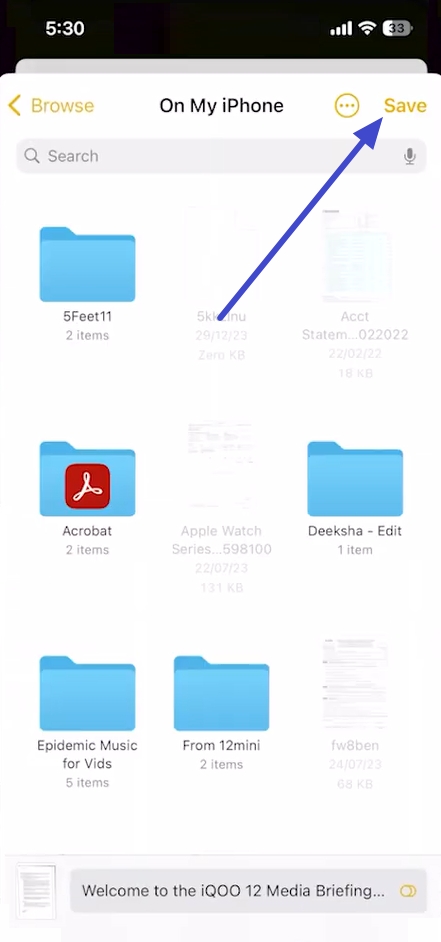
When you use the Markup tool and tap save, the content becomes locked and cannot be changed. If you find a typo or want a different font style, iOS blocks editing that text. To solve this, open the saved PDF in UPDF to freely edit text, images, and links.
Windows • macOS • iOS • Android 100% secure
Method 3. Copy to Pages or Third-Party Utilities
This method works well when you want more layout control or advanced formatting than Apple Notes provides. It is also useful if you already organize documents in Pages or another favorite productivity app. Follow the steps below to learn how to save notes as a PDF with more layout control:
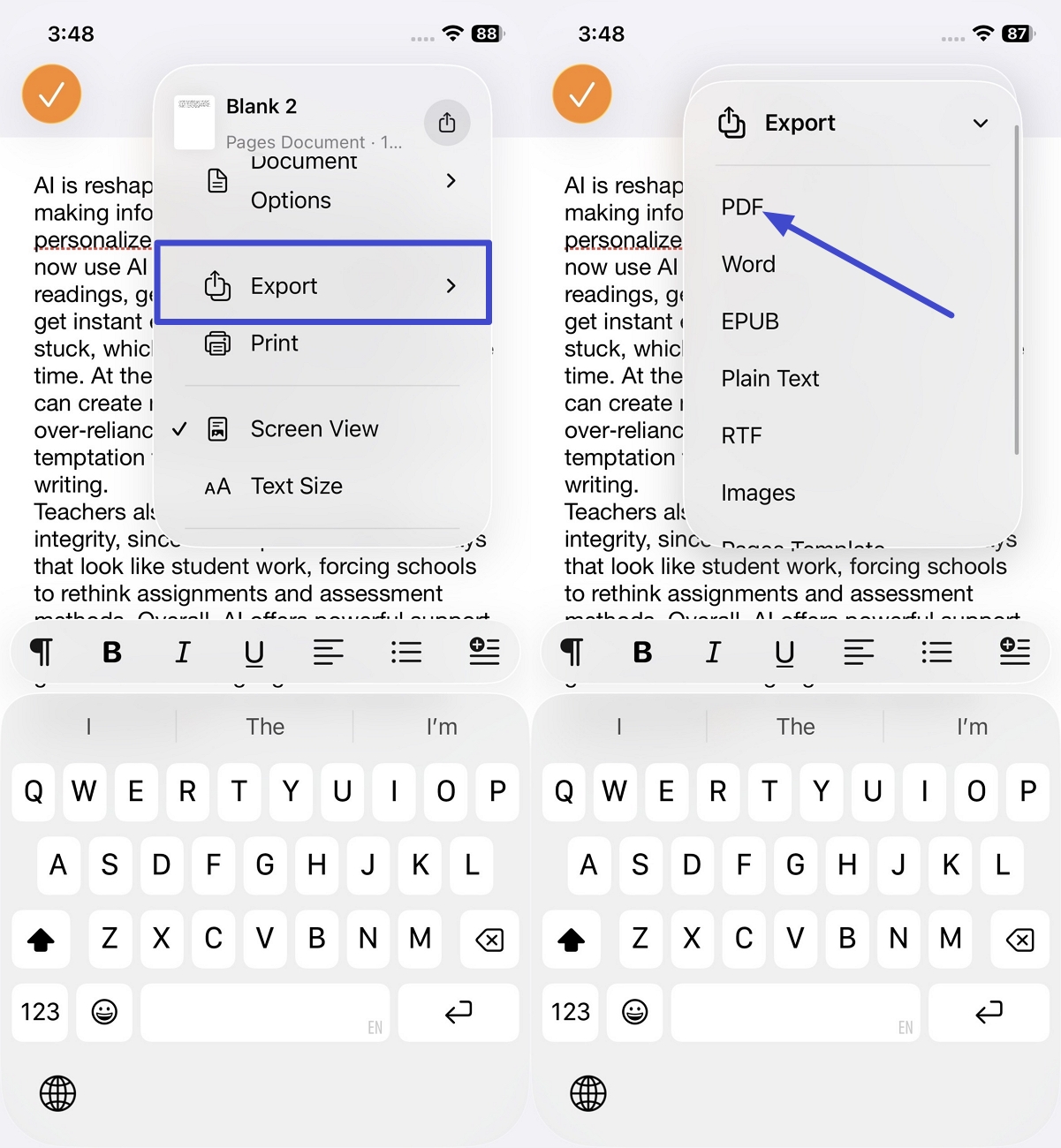
Step 1. Copy the text from the Notes app and open Apple Pages or any other third-party application. On Pages, tap the "Start Writing"option to create a new page and paste the text.
Step 2. Afterward, press the "Options"icon and tap on the "Export"option. Next, press the "PDF"option to save the file as a PDF.
Many readers also like having one clear place to learn more about Apple Notes. For more details, refer to this helpful guide on converting Apple Notes to PDF.
Part 2. Saving Notes to PDF on macOS
Many Mac users want an easy way to turn important notes into reliable PDF files for sharing. macOS includes built-in tools that convert notes into PDFs without needing complex settings and extra applications. Now, let's see how these native Mac options help you save notes as polished PDF documents:
Method 1: The Native "Export as PDF"Menu
The native Export as PDF menu on Mac gives clean, consistent results for text and image-heavy notes. It is great when you want a direct file from Notes with minimal clicks and fewer formatting surprises. Follow the steps below to learn how to save notes as a PDF using this built-in option:
Step 1. After opening a note in the Mac Notes app, click the "File"option in the top left corner and press the "Export as PDF"option.
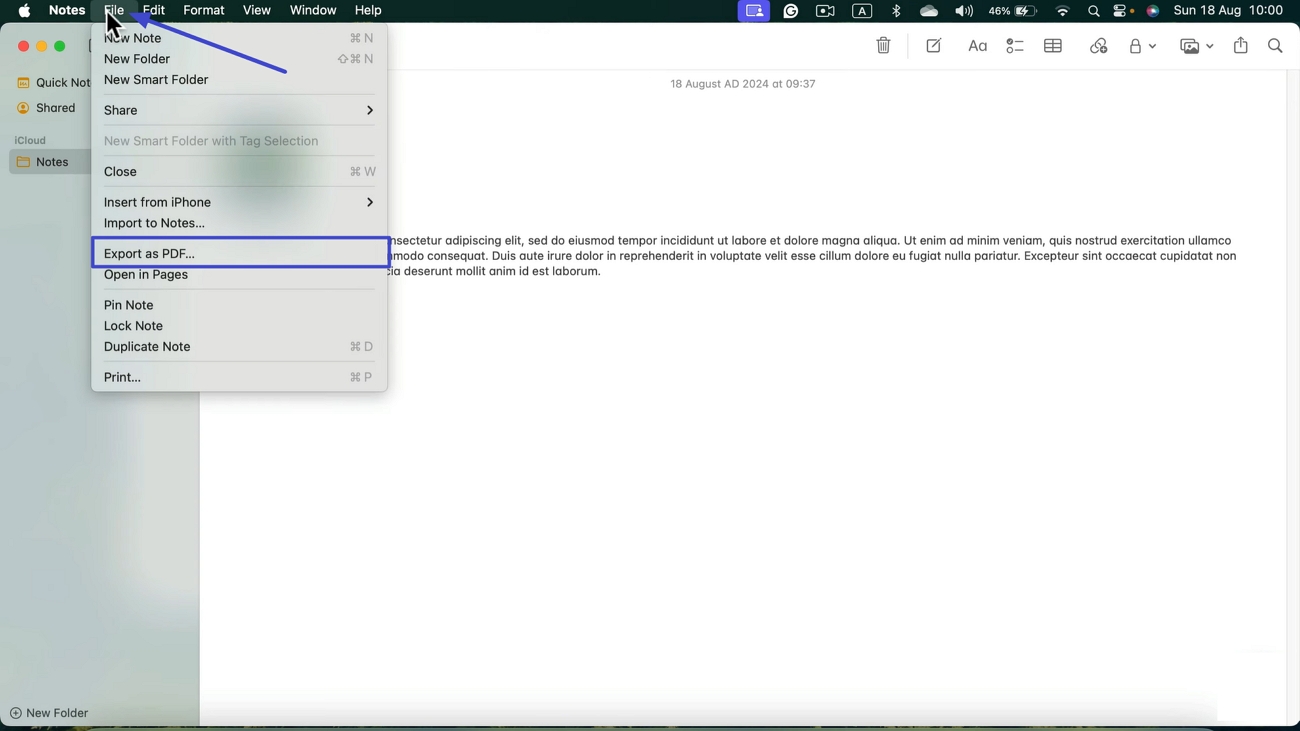
Step 2. Next, enter the new name and select the target location where the PDF will be saved. After that, click the "Save"button to save the PDF.
Method 2: The System Print Dialog
Many Mac users prefer the System Print dialog because it feels familiar across different apps and documents. It is useful when you already plan to print but instead decide to save a PDF copy. Go through the instructions below to understand how this method saves your Mac notes as reliable PDF files:
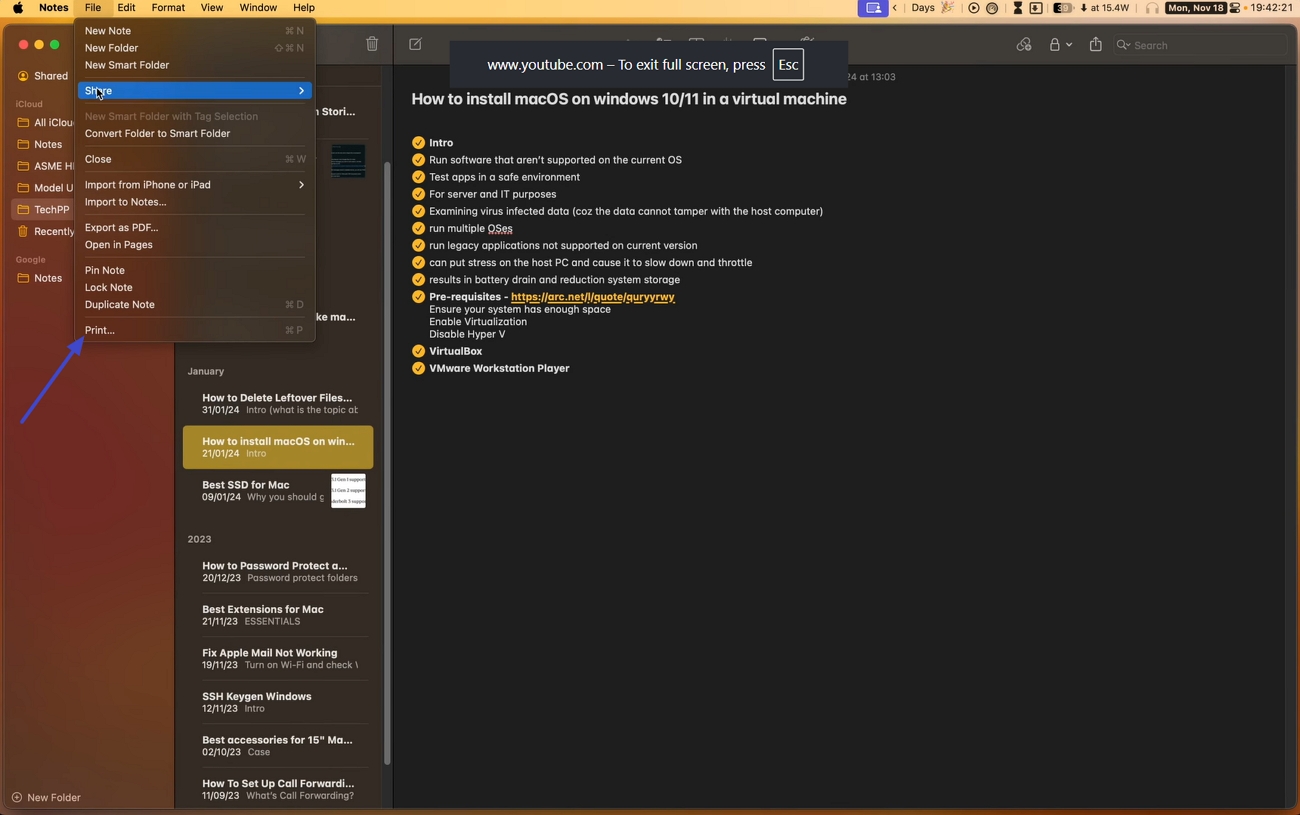
Instructions. Once you open notes, press the "File"option as we did in the previous method and click the "Print"option from the drop-down menu. Next, click the "PDF"option and choose the "Save as PDF"option from the menu. Afterward, select the location and click the "Save"button to save the PDF.
Part 3. Solving the "Unsupported File Format" & Advanced Workflow Gap
Many iPhone users see "unsupported file format"after exporting Notes, and their PDFs look broken or incomplete. From this point, UPDF comes in to give you a stable place to fix exported files. Instead of redoing the export over and over, UPDF lets you clean up layouts and keep text fully readable.
You can easily add highlights, comments, and extra details by using this clear guide on adding notes to a PDF. UPDF also helps when you learn how to save notes as PDF, but you still need deeper edits and polish. With one organized workspace for viewing, editing, and annotating, UPDF finally closes the workflow gap left by Apple Notes.
Windows • macOS • iOS • Android 100% secure
The Ultimate "Fix-to-Polish" Workflow with UPDF
This workflow helps you turn rough exported notes into clean, readable PDFs that are ready for real work. So, go through the steps below to see how UPDF can refine every exported note:
Step 1. Turn Scanned Notes into Editable PDF
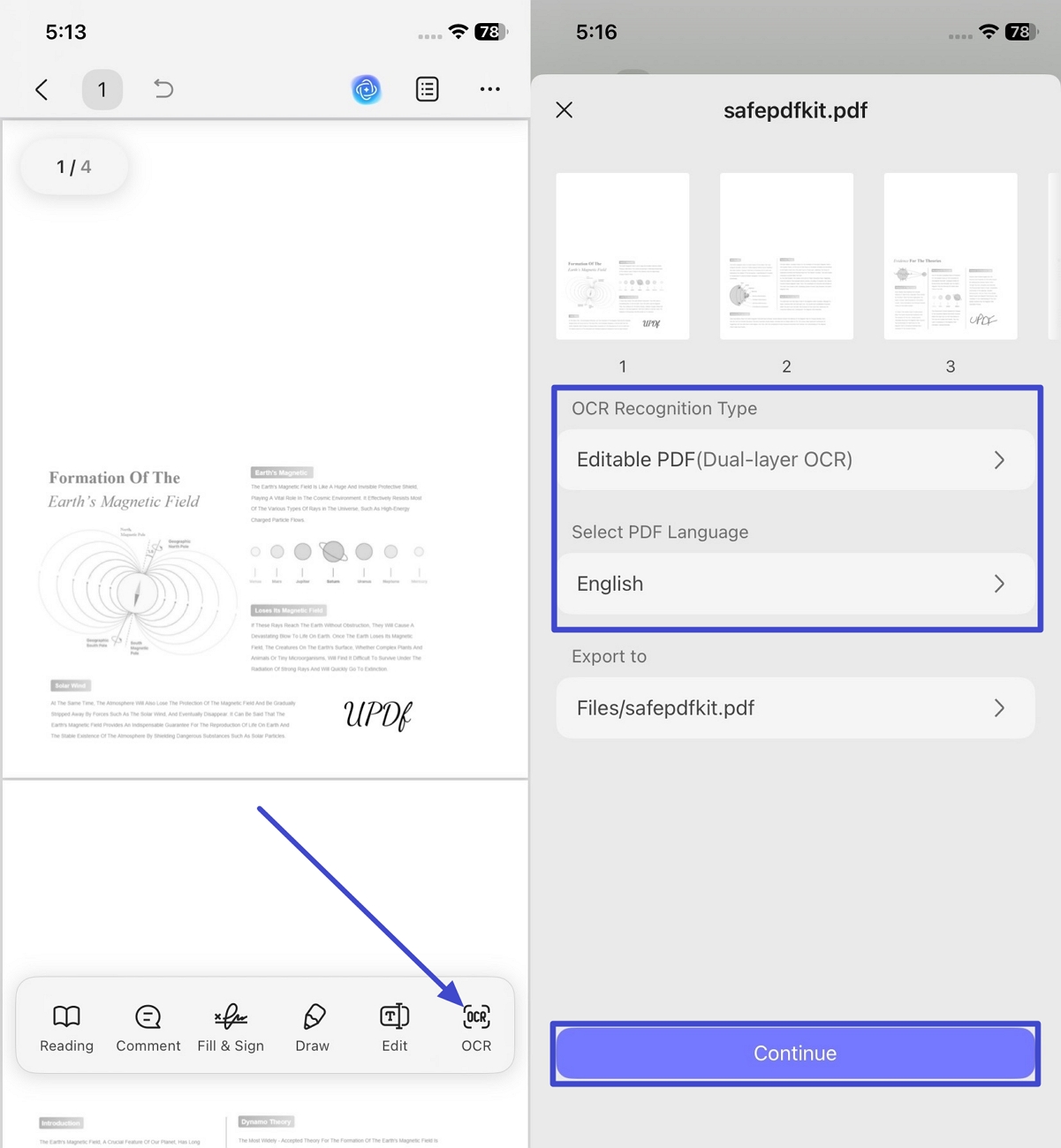
First, export your Apple Notes in a way that avoids errors. Pick the Print gesture to export before you start editing it. Next, import that scanned PDF into UPDF and tap on the "OCR"option. Afterward, choose the recognition type and PDF language. Now, press the "Continue"to begin the OCR process.
Step 2. Annotate and Highlight PDF
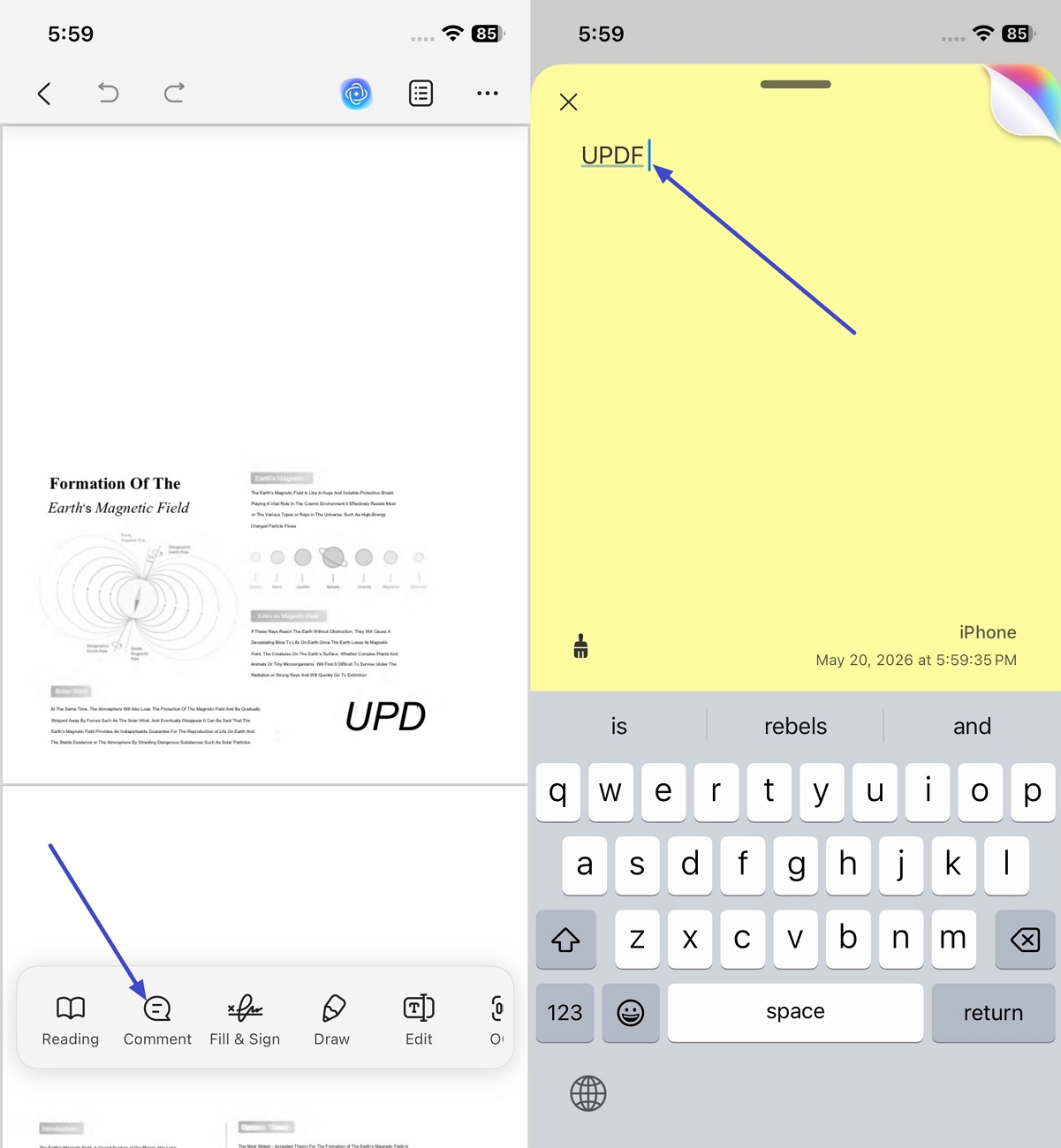
Once OCR is complete, tap the "Comment" option and select the "Highlight" tool to highlight the important text. To add a specific note, press the "Sticky Note" option and add a comment.
Step 3. Save The Final PDF
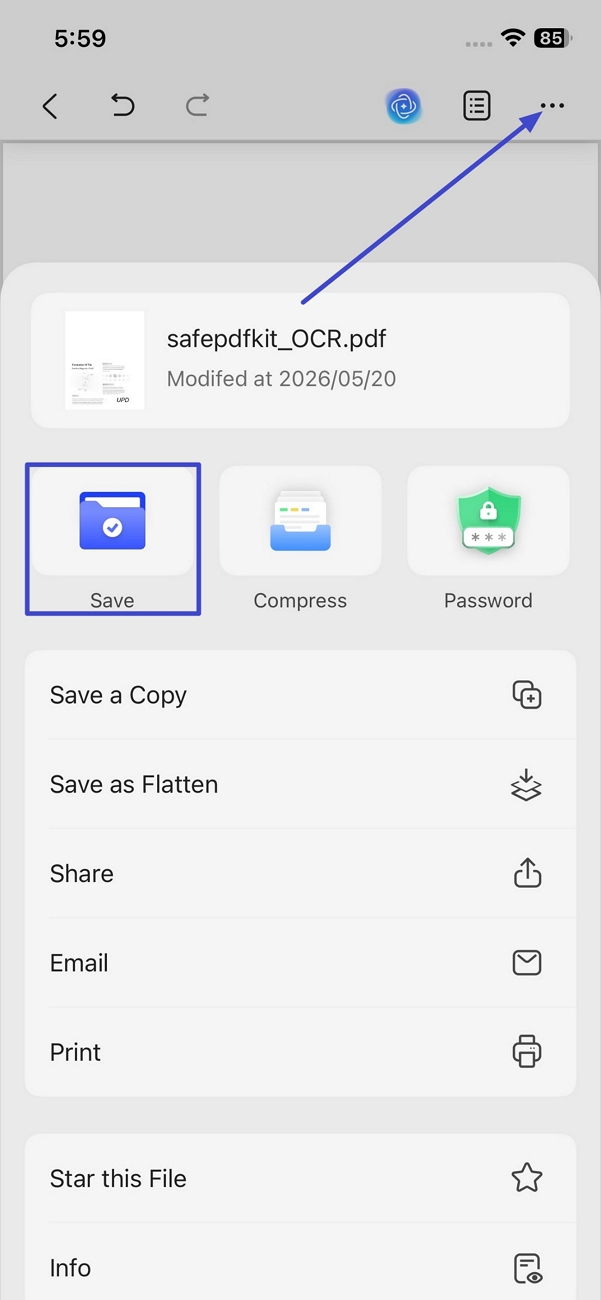
After the PDF is finalized, tap on the "Three-Dots" icon and choose the "Save" option to save the edited version.
To learn more about scanning iPhone Notes to searchable, editable PDFs with OCR, read our official guide "iPhone notes scan to PDF".
FAQs
How do I export all Notes from my iPhone to my PC?
You can share notes as PDFs or text files, then move them to your PC using cloud storage. Another way is to sync Notes with iCloud, then download everything directly from iCloud in your browser.
Is converting Notes to PDF free?
On iPhone, the built‑in Print‑to‑PDF feature lets you convert many Notes to PDF at no cost. Some tools, like UPDF, add better editing, OCR, and layout control, but full features might need payment.
What is the best way to convert Notes to PDF without losing image quality?
For best quality, open the note, use Print, choose full‑page view, then save as PDF. UPDF can also help keep images sharp by handling export, compression, and later edits more carefully than default tools.
Conclusion
This guide pulled together every step needed to understand how to save notes as a PDF. It showed how UPDF can help convert scans and polish your final documents. This simple process keeps your notes safe from mistakes and makes them look the same on all devices. If you want to manage and protect exported notes without clutter, we recommend using UPDF AI and PDF Editor.
Windows • macOS • iOS • Android 100% secure






 Enola Miller

 Enid Brown

 Lizzy Lozano