 UPDF
UPDF
 UPDF for Windows
 UPDF for Mac
 UPDF for iPhone/iPad
 UPDF for Android
 Nomostar
 UPDF AI Online
 UPDF Sign
 IvyCraft
 Edit PDF
 Annotate PDF
 Create PDF
 PDF Form
 Edit links
 Convert PDF
 OCR
OCR PDF to Word
 PDF to Image
 PDF to Excel
 Organize PDF
 Merge PDF
 Split PDF
 Crop PDF
 Rotate PDF
 Protect PDF
 Sign PDF
 Redact PDF
 Sanitize PDF
 Remove Security
 Read PDF
 UPDF Cloud
 Compress PDF
 Print PDF
 Batch Process
 About UPDF AI
 UPDF AI Solutions
 AI User Guide
 FAQ about UPDF AI
 Summarize PDF
 Translate PDF
 Chat with PDF
 Chat with AI
 Chat with image
 PDF to Mind Map
 Explain PDF
 PDF AI Tools
 Image AI Tools
 AI Chat Tools
 AI Writing Tools
 AI Study Tools
 AI Working Tools
 Other AI Tools
 AI Bookmark Generation
 AI Bookmark Summary
 AI Watermark Generation
 AI Background Generation
 AI Sticker Generation
 AI Stamp Generation
 AI Editing Suite
 UPDF Copilot
 AI Page Management
 AI Semantic Search
 PDF to Word
 PDF to Excel
 PDF to PowerPoint
 Enterprise Solution
 Enterprise Sign
 Enterprise AI
 Enterprise Plan
 Enterprise User Guide
 Enterprise Webinar
 IT
IT Education
 Construction
 Financial Service
 Healthcare
 Insurance
 Legal
Legal Manufacturing
 Government
 Researchers & PhDs
 Solopreneurs & Freelancers
 Lawyers & Legal Professionals
 Real Estate Agents & Brokers
 Education Solution
 Customer Stories
 User Guide
 UPDF Tricks
 FAQs
FAQs UPDF Reviews
 Download Center
 Blog
Blog Newsroom
 Tech Spec
 Updates
 UPDF vs. Adobe Acrobat
 UPDF vs. Foxit
 UPDF vs. PDF Expert

“Why does a page say it’s blank? Or why include a line like "This page was intentionally left blank.”These are common questions that come to mind when you see empty pages in a PDF. As discussed in this Reddit thread, such pages are included for professional purposes like helping maintain clarity, consistency, and proper formatting throughout the document. Beyond that, blank pages can also be useful for practical needs, such as creating forms, notes, or adding important work-related information.
However, many people don’t know how to actually download or create a blank PDF themselves. Don’t worry, in this article, I will tell you how to create and download a blank PDF with UPDF. With the help of this software, you can quickly create PDF, annotate PDF and manage files without any hassle. Keep reading to learn how to create and download empty PDF files with UPDF.
Windows • macOS • iOS • Android 100% secure
Part 1. What Does "This Page Intentionally Left Blank" Actually Mean?
If you see the message “This page is intentionally left blank,” it simply means: “Don’t worry, nothing is missing.” It might seem confusing at first, and many people wonder about it,but it doesn’t mean any information is lost. These pages are added on purpose for two main reasons: printing conventions and safety reasons. Let’s look at them one by one.
1. Printing Conventions
Books and manuals are printed in groups of pages, like 8 or 16 at a time. So if the content doesn’t perfectly fill all the pages, a few extra pages are left over. Instead of leaving them completely empty, they add that sentence to tell you it’s normal.
2. Page Integrity and Document Control
In important fields like the military or legal work, every single page must be checked and counted to make sure nothing is missing. If you see a totally blank page, you might think something is missing. But that’s not true; this message means this page is supposed to be empty.
Fun Fact: The moment they write that sentence, the page isn’t really blank anymore.
3. Modern Digital Use:
Even in digital PDFs, blank pages are added to make sure new chapters start on the correct side, just like in real books.
So, these are the common reasons why you see blank pages in documents.
Part 2. When Would You Actually Need to Download an Empty PDF?
Surprisingly, I actually needed a blank PDF in more situations than I expected. For example:
- As a Writing Canvas: I use blank pages as a writing Canvas to sketch diagrams, draft ideas and annotate PDFs. In this way, I don’t separately need to use Word or Notes.
- As a Print Buffer: I also use it as a print buffer when I want to match a specific format while printing documents. A blank page helps keep everything aligned properly, so the final print looks perfect.
- On Mobile: Downloading an empty PDF is perfect for adding a signature or stamp to a document, which is why I often need it on my phone while I’m on the go.
These are the main reasons why you should actually need to download blank PDFs.The good news is, you don’t need to download random blank files from the internet. You can use tools like UPDF that let you create a blank PDF instantly whenever you need it.
Part 3. 5 Ways to Create or Download a Blank PDF Document
Don’t know how to create or download a blank PDF document? Don’t worry — in this section, I’ll share my tested top 5 ways to create your own blank PDF files. Let’s get started!
Method 1: Create a Blank PDF from Scratch (Desktop)
You can use the UPDF desktop tool to create a blank PDF. Once the page is created, you can directly open it in UPDF’s editor to add text, annotations, form fields and more. For this process, you don’t need to switch apps at all. Let’s see how I created a blank PDF from scratch using UPDF.
Windows • macOS • iOS • Android 100% secure
1. After downloading the latest version, launch it on your device and go to the dashboard.
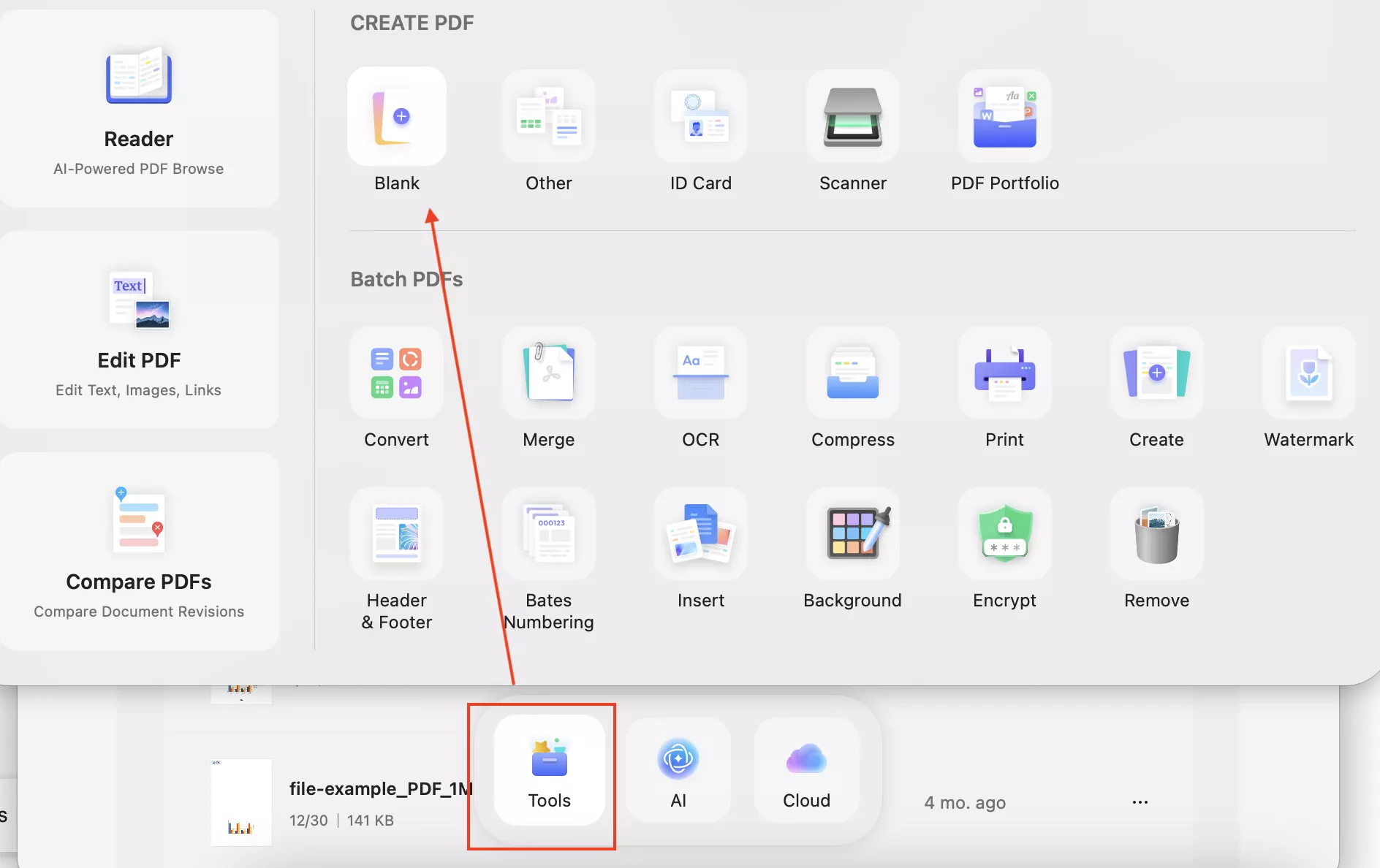
2. Now, from the dashboard, click the “Tools” option and hit the “Blank” button.
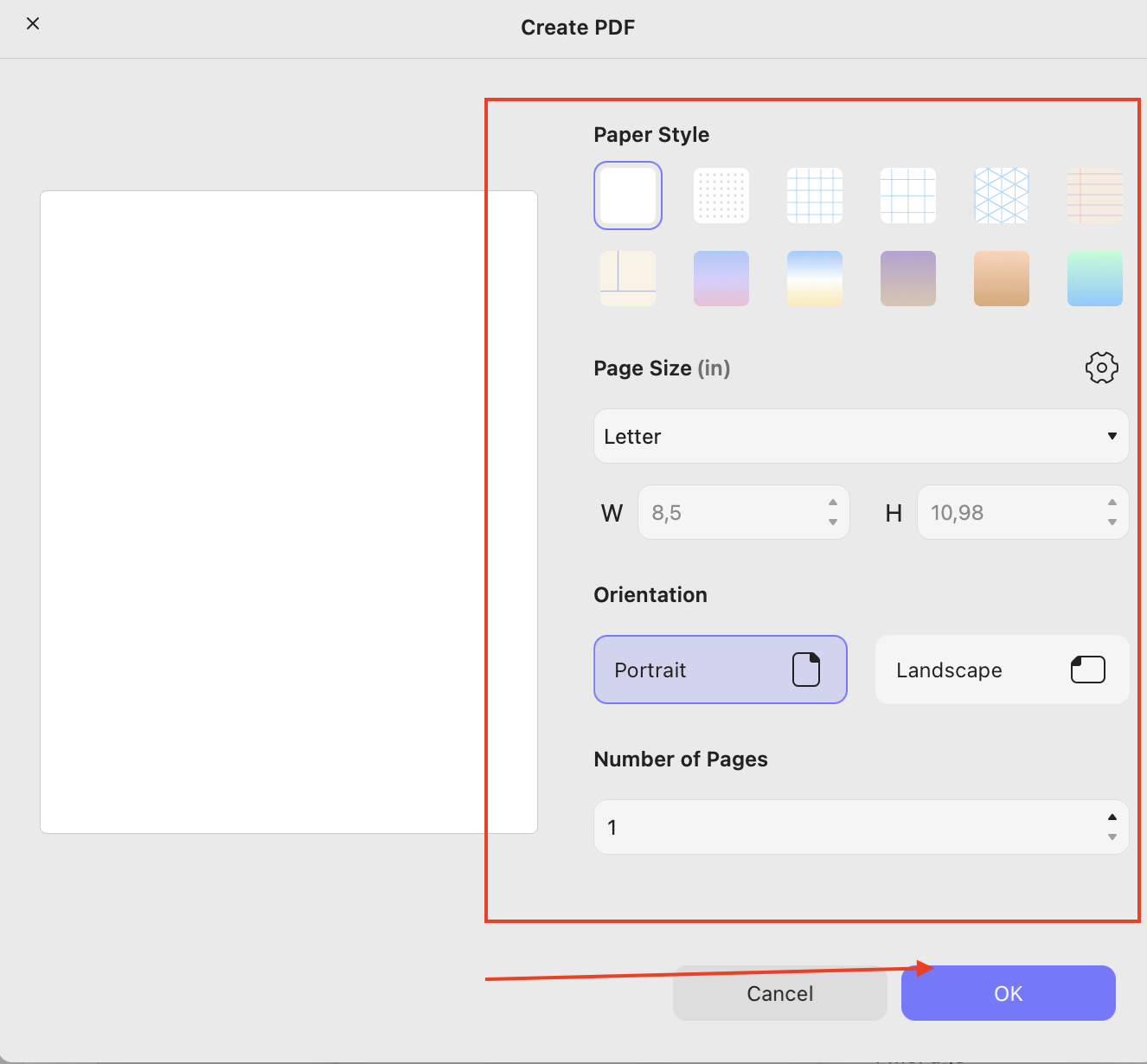
3. Next, choose page settings, such as Page Style, Number of Pages and more. Once you are done, click “OK” to create your blank PDF.
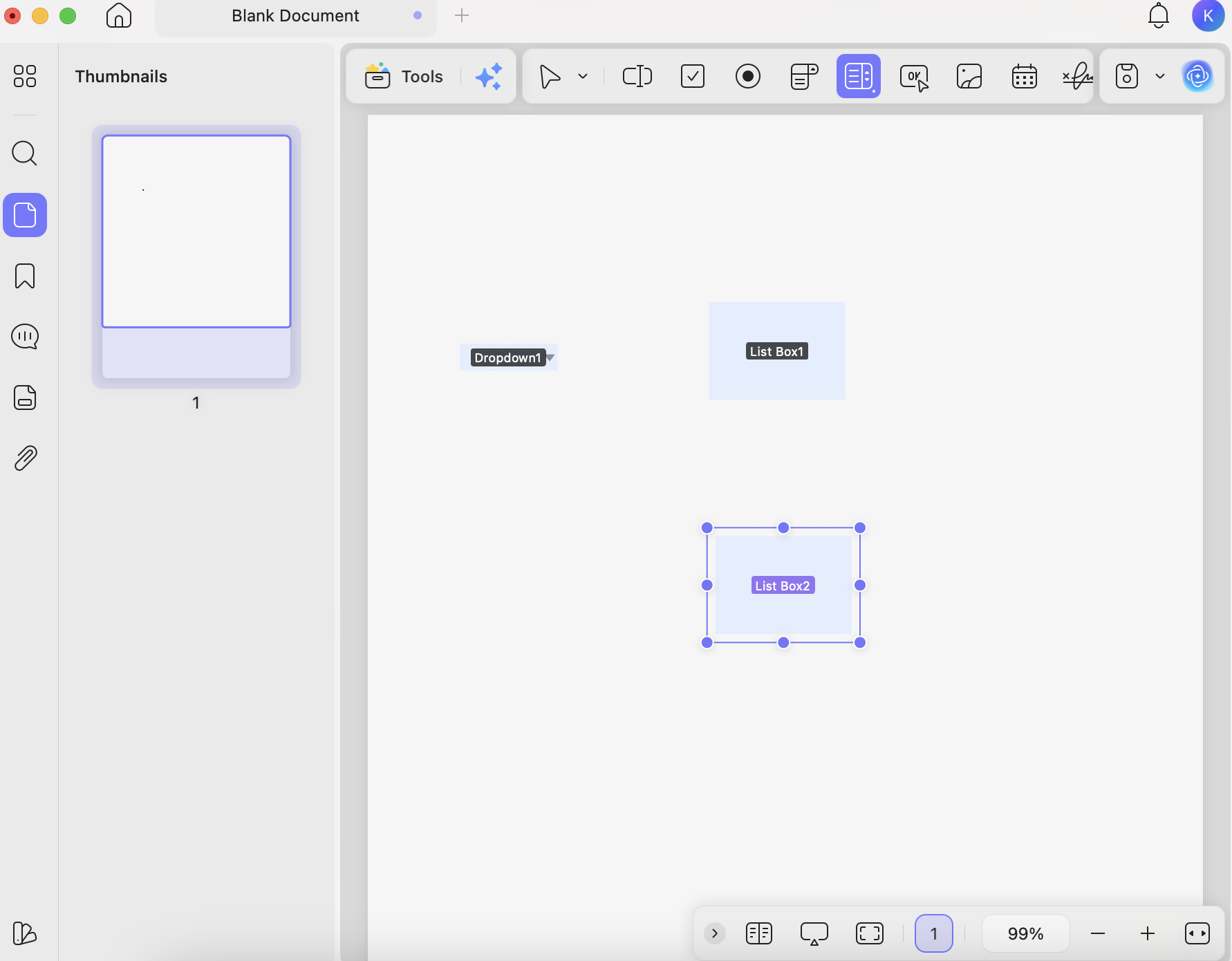
4. On the screen, you will see a blank page where you can add forms, comments and more.
Windows • macOS • iOS • Android 100% secure
Method 2: Insert a Blank Page into an Existing PDF (Desktop)
Apart from creating a blank page from Scratch, you can also insert a blank page into your existing PDF. Here is how it's done.
1. Open your uploaded PDF in UPDF and go to the “Thumbnails” option on the left side.
Windows • macOS • iOS • Android 100% secure
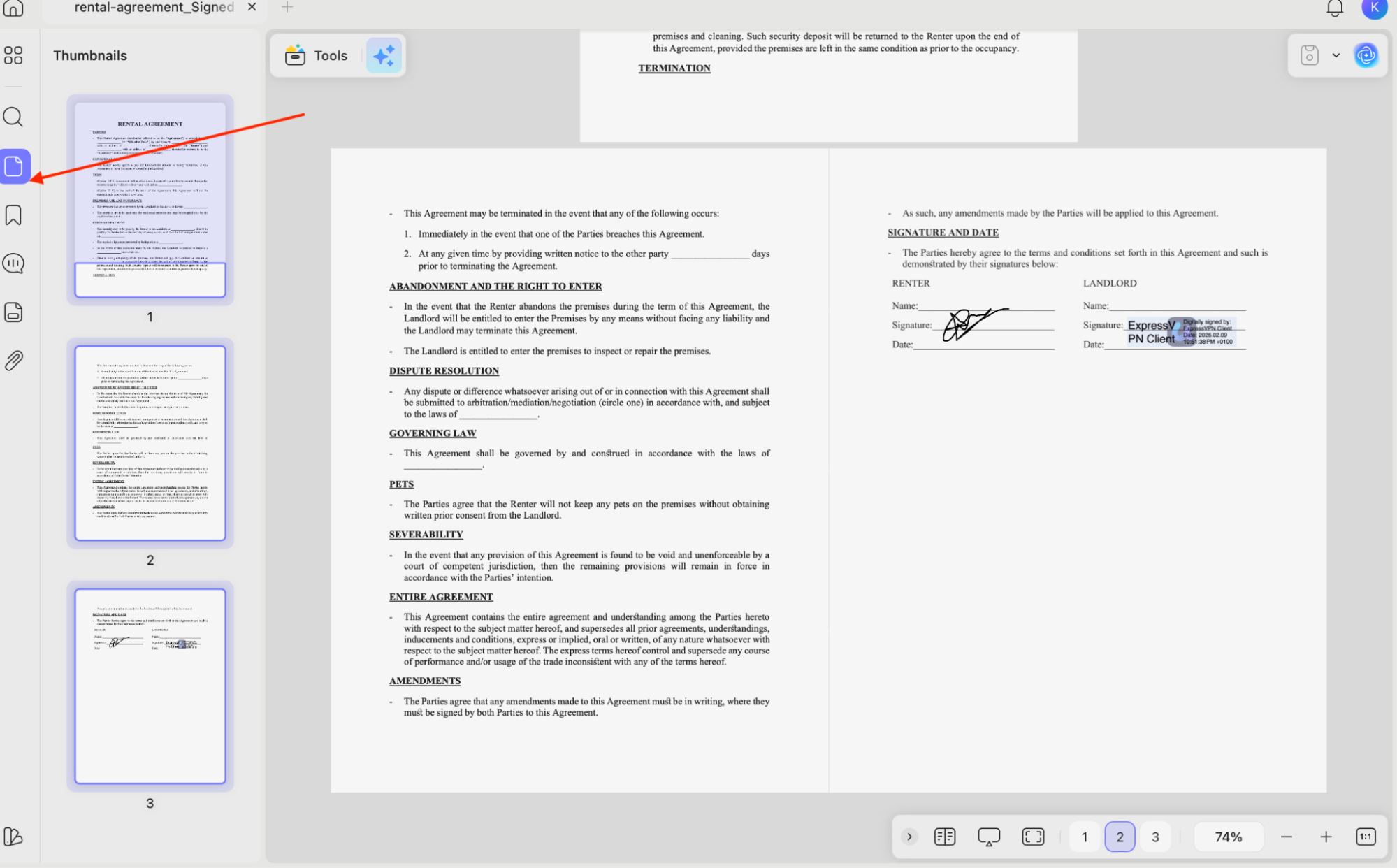
2. Now, right-click and select the “Insert Blank Page” option.
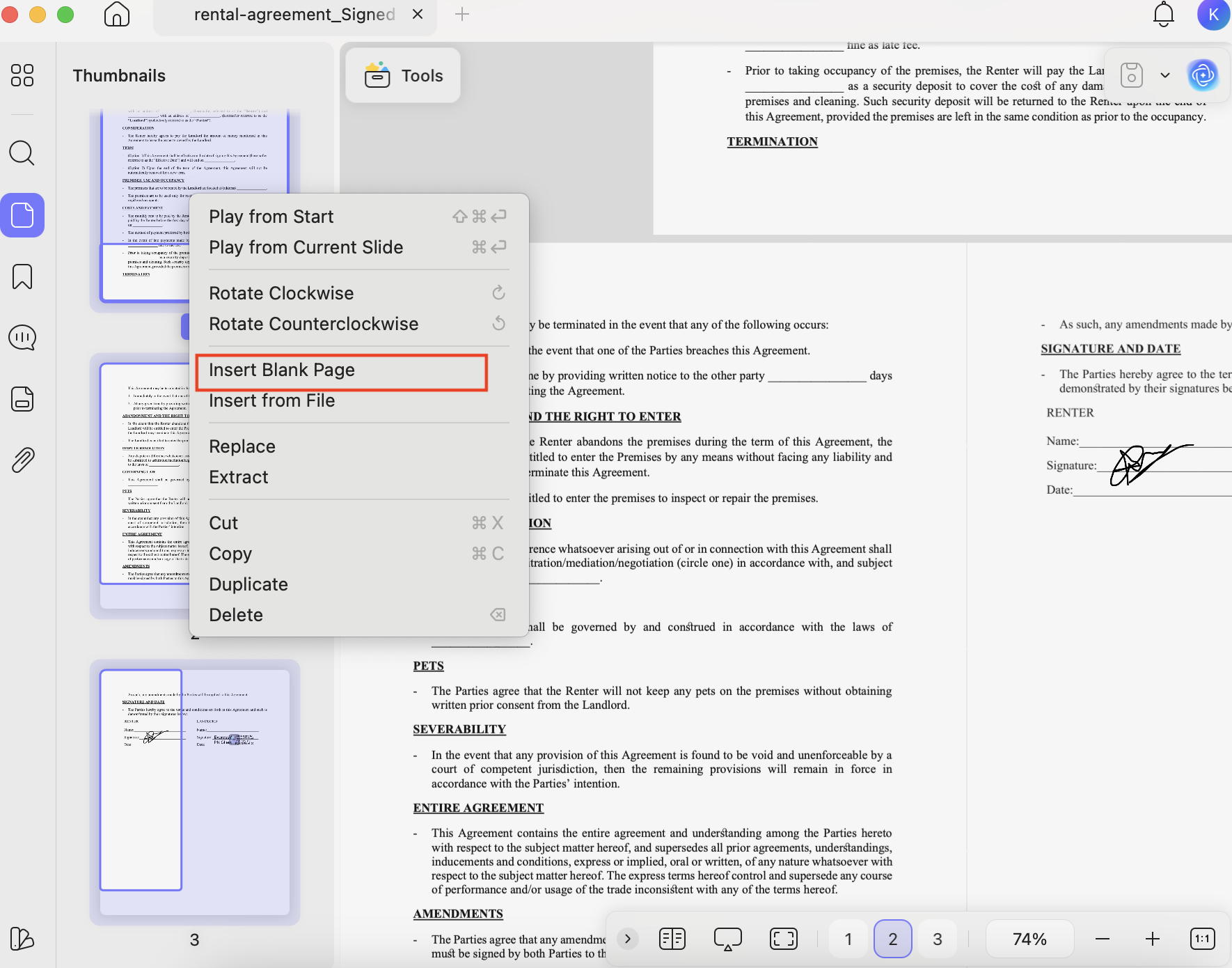
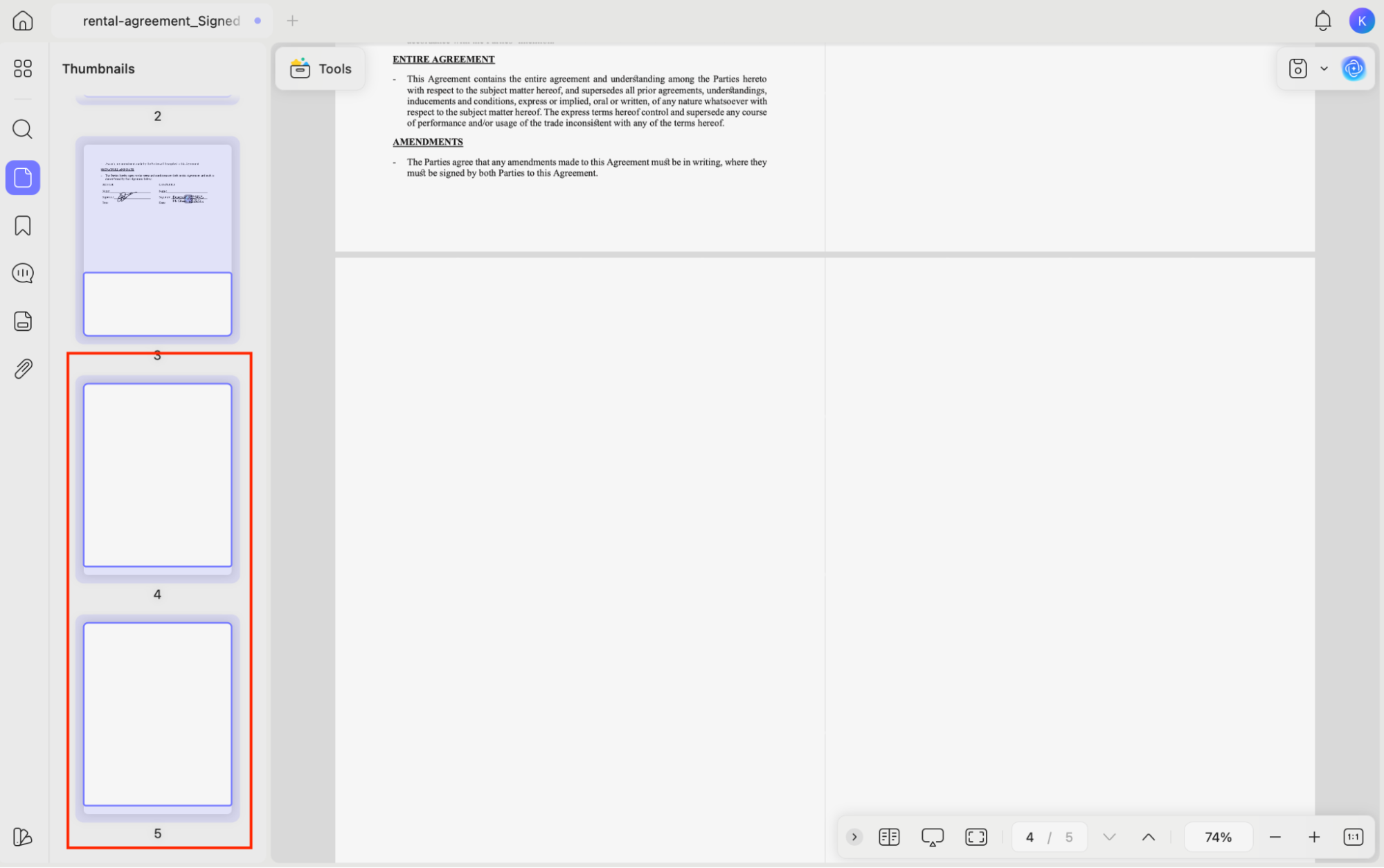
3. The tool will automatically add a new blank page to your existing PDF, as shown below.
Method 3: Create a Blank PDF on Mobile (iOS & Android)
You can also create a blank PDF on your mobile devices, including iOS and Android. However, for that, you first have to download the latest version of the UPDF app. After installing the app, you can follow the steps below.
Windows • macOS • iOS • Android 100% secure
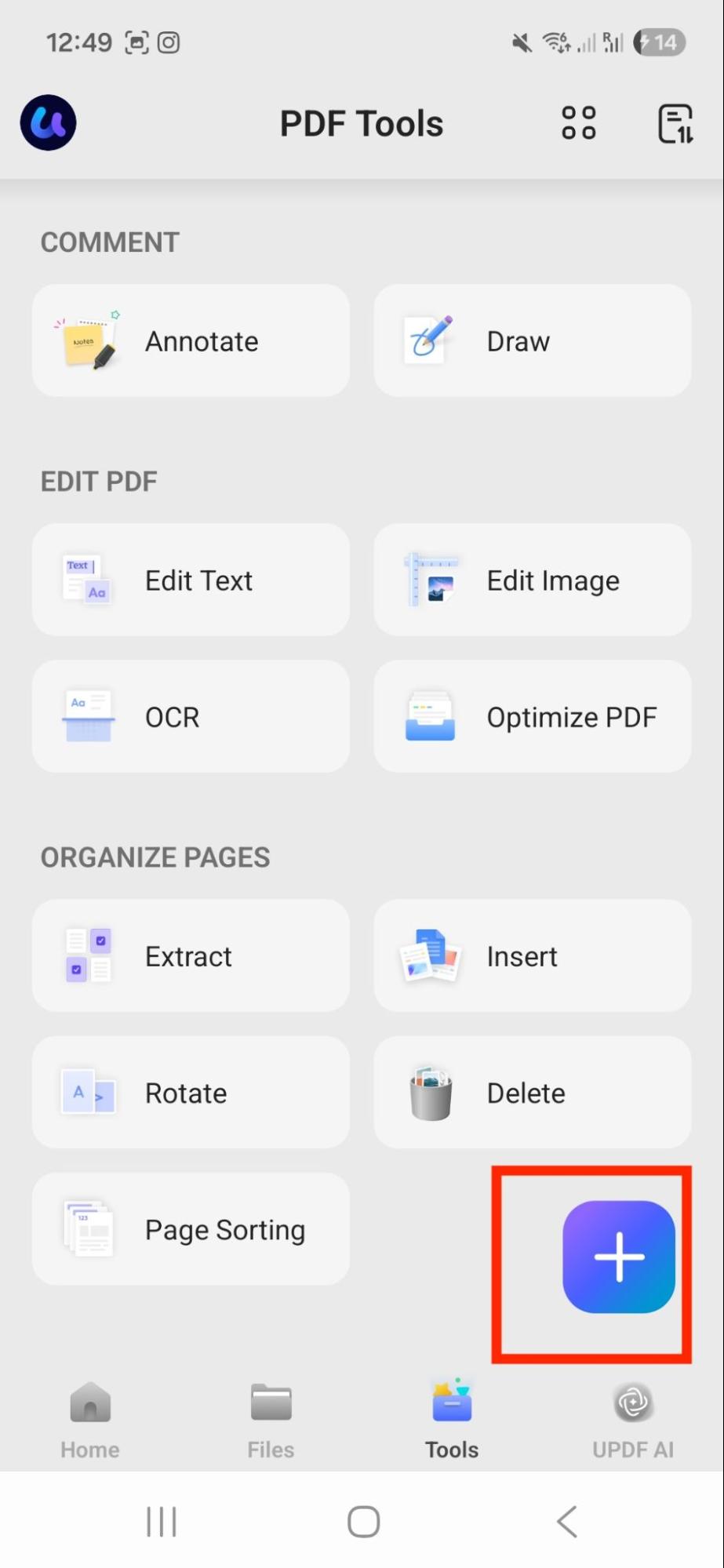
1. Open UPDF app on your mobile device and click the “+” icon to create a new PDF.
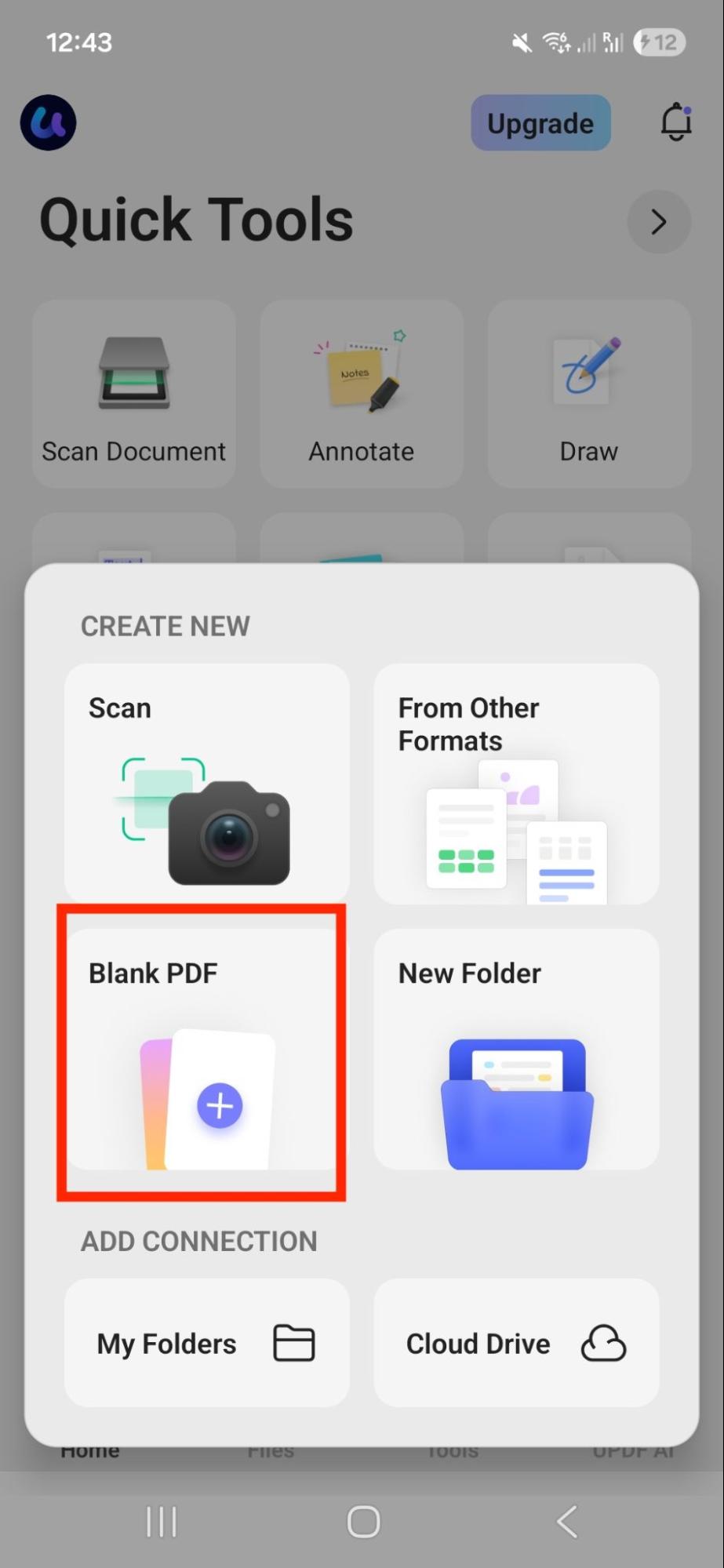
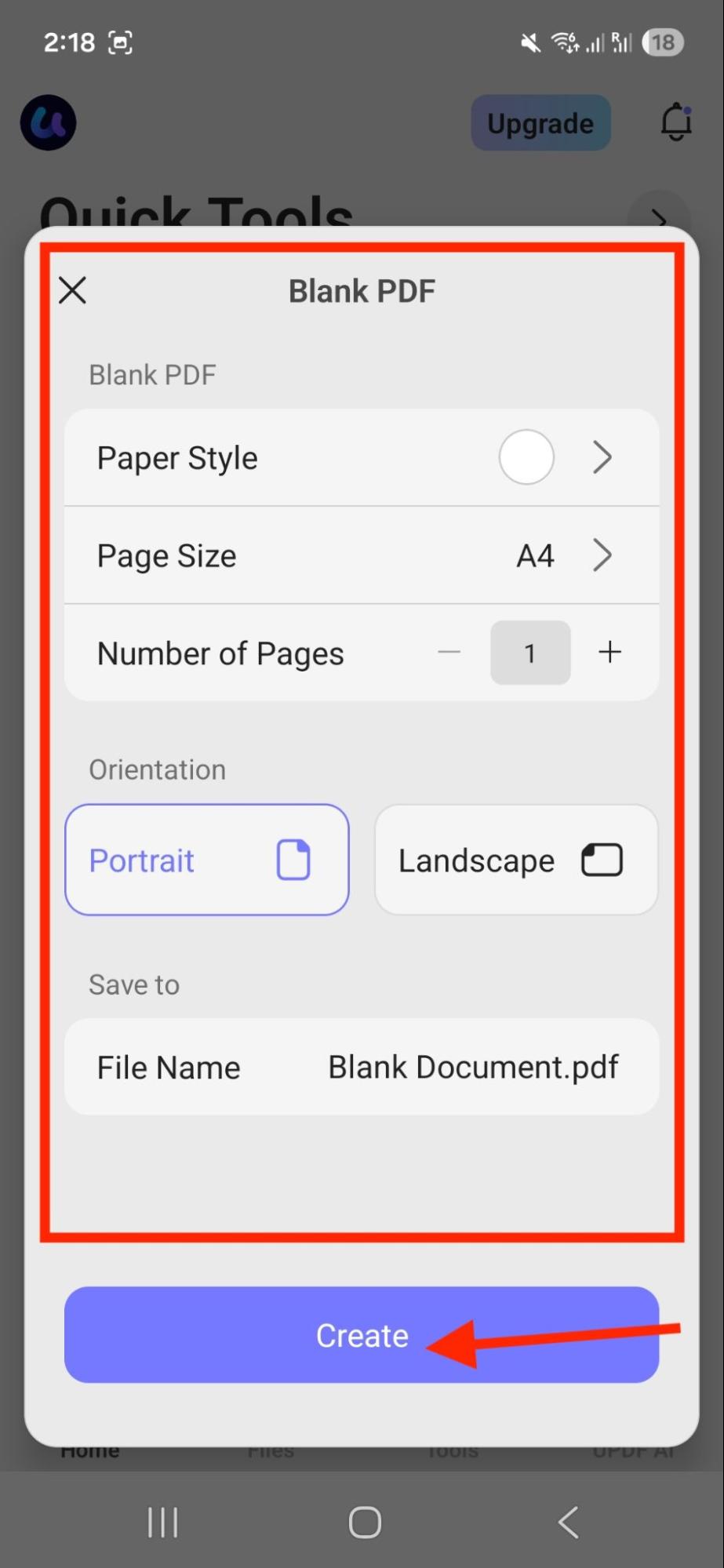
2. From the options, select the “Blank PDF” option.
3. Next, choose Blank PDF settings, such as page size, number of pages and more. Once done, click the “Create” option.
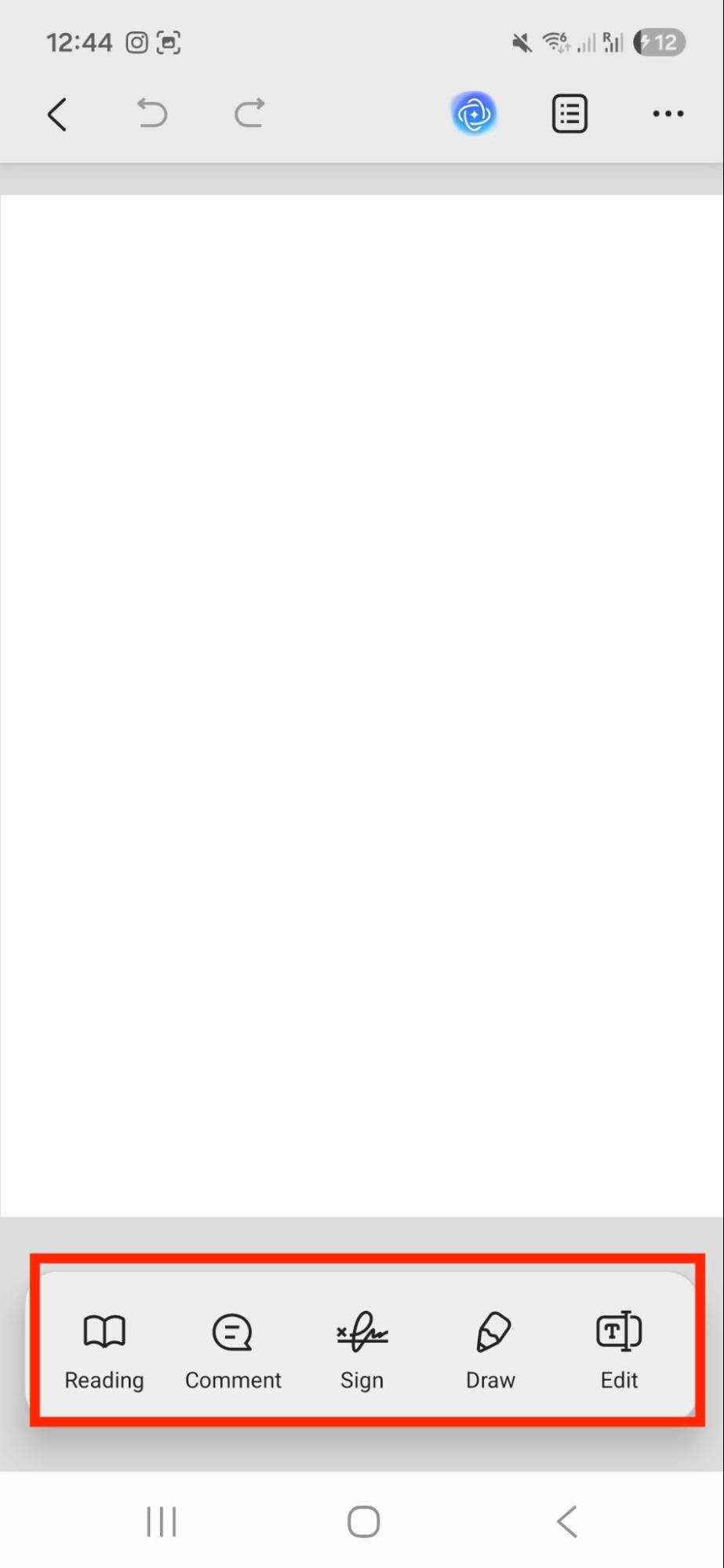
4. Your blank will be created where you can add comments, add signs, draw things and more.
Method 4: Insert a Blank Page into an Existing PDF (Mobile)
To insert a blank page into an existing PDF, you can follow the steps below.
1. Launch the UPDF mobile app and click the “Tools” option.
Windows • macOS • iOS • Android 100% secure
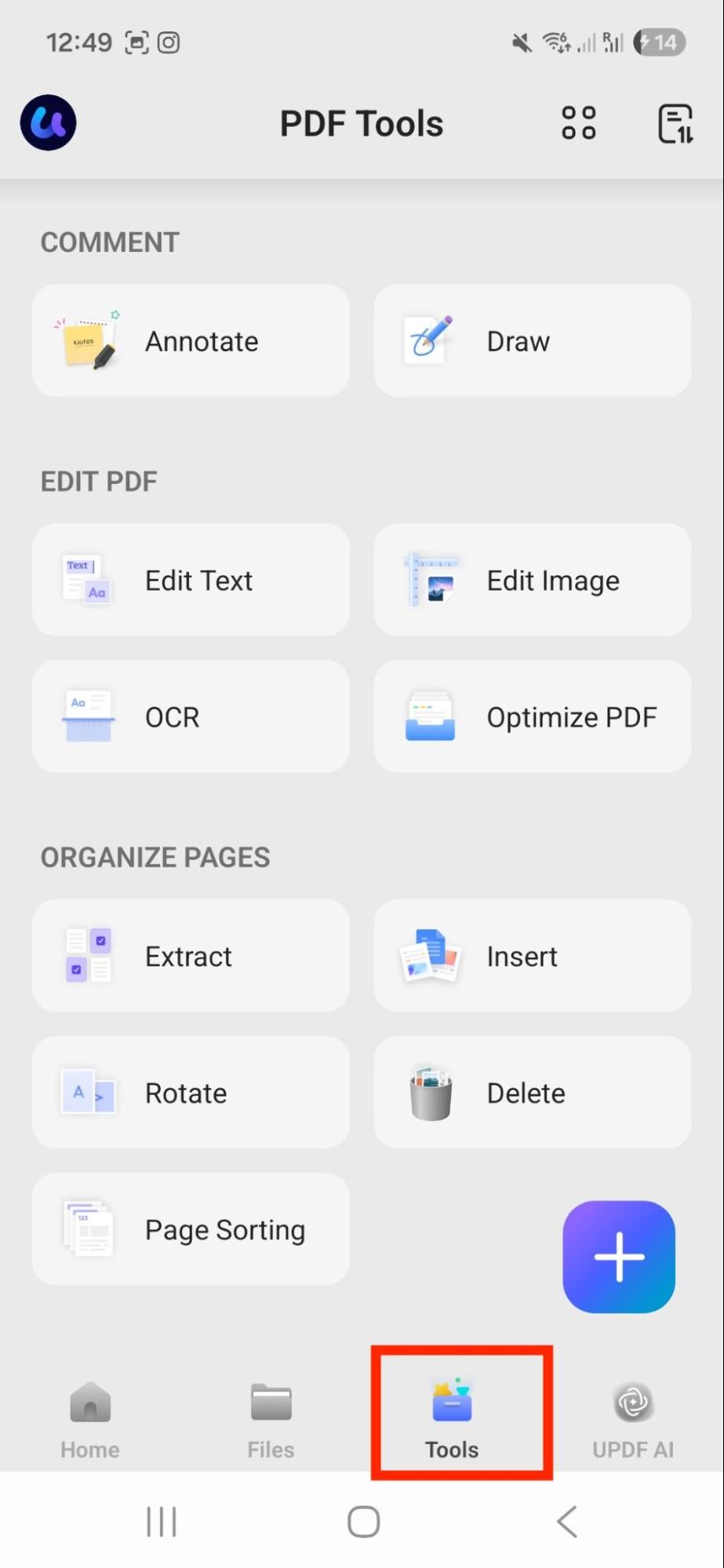
2. Scroll down to Organize Pages and click the “Insert” option.
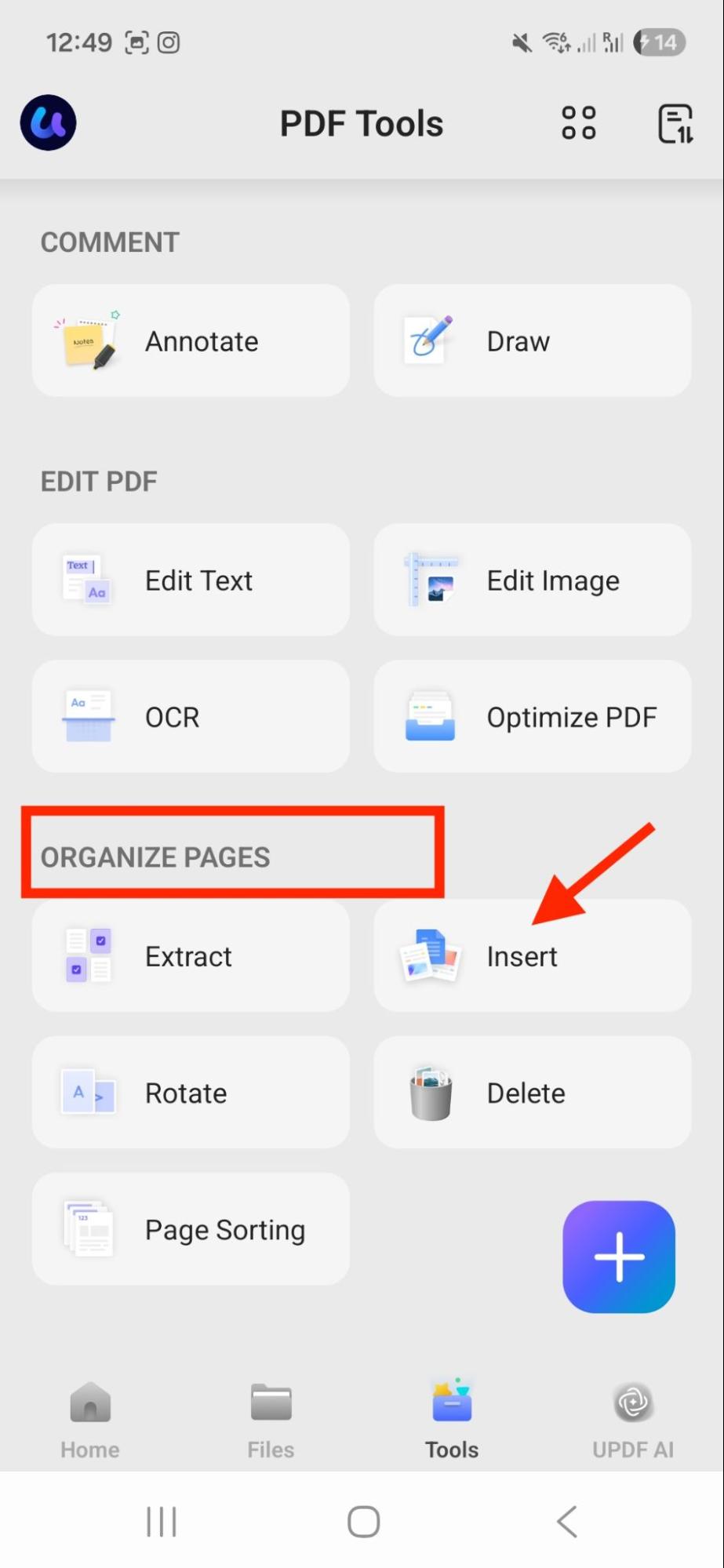
3. Next, choose your PDF where you want to add a blank page.
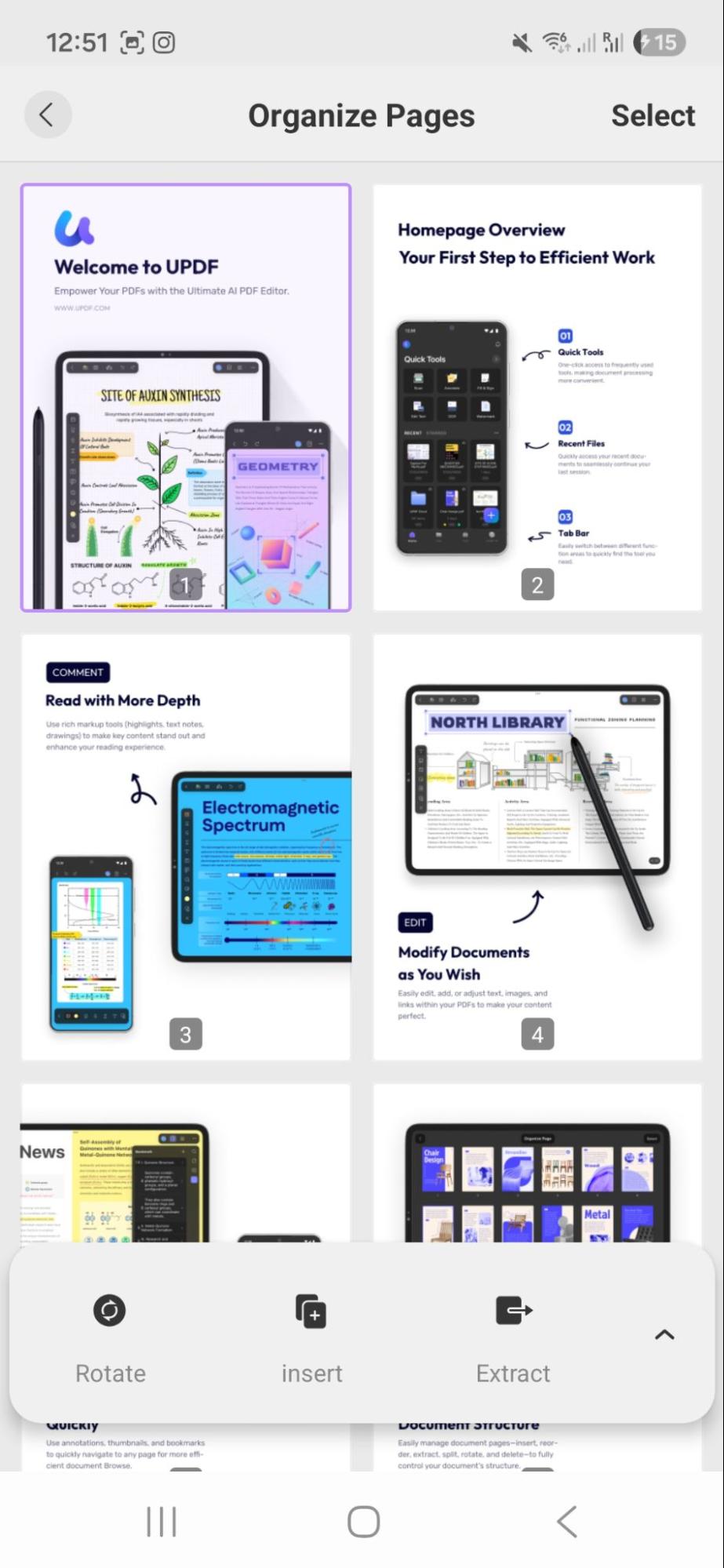
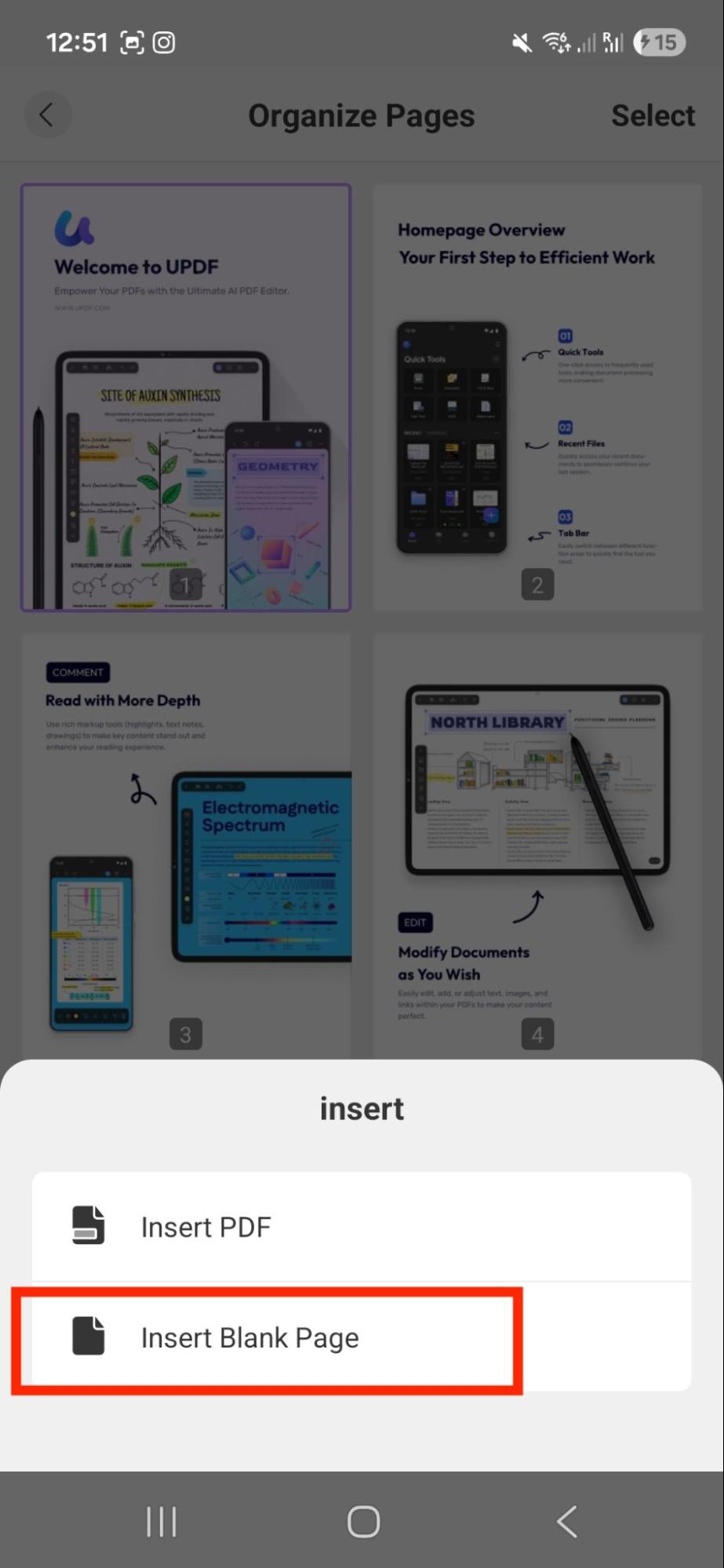
4. Click “Insert” and select the “Insert Blank Page” option as shown below.
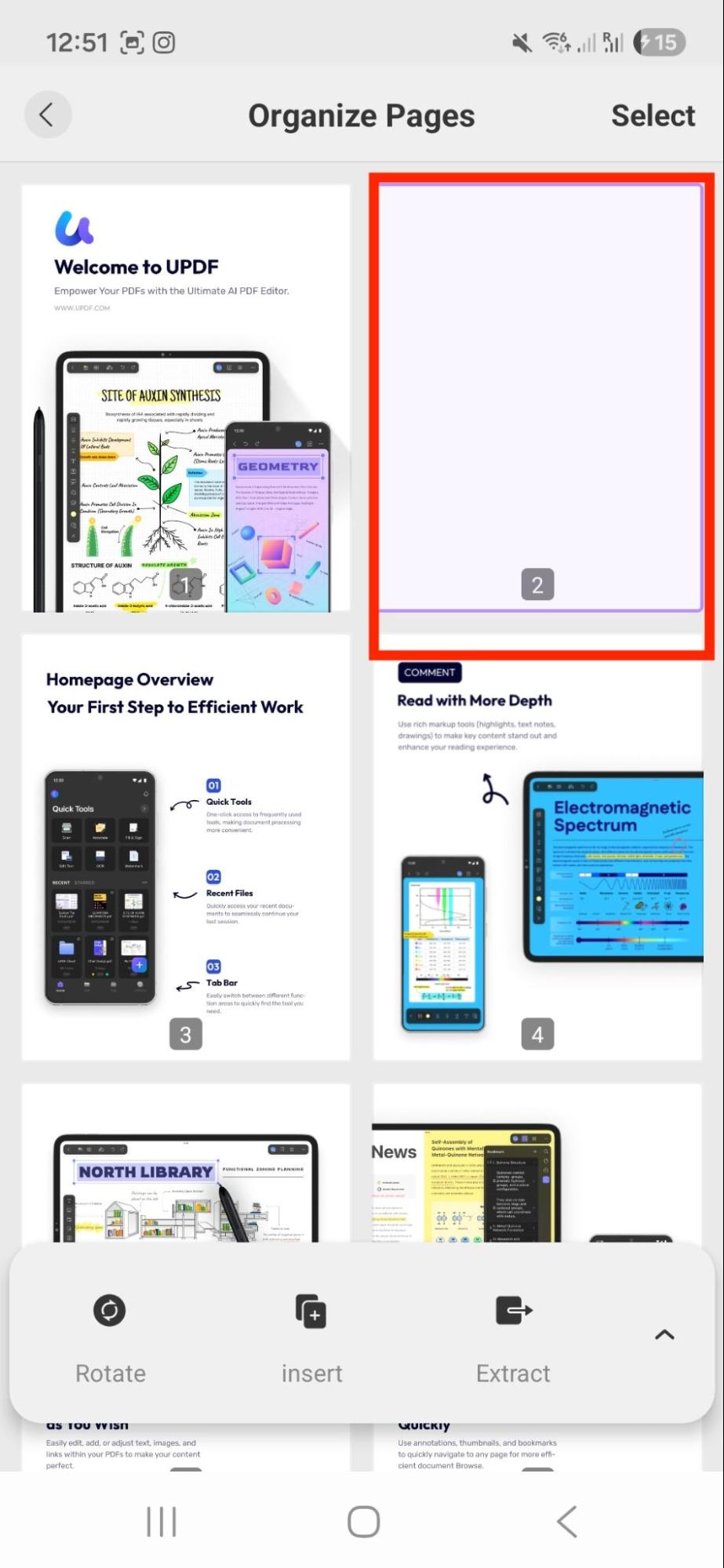
5. Finally, you have added a new blank page to your existing PDF.
Method 5: Download a Blank PDF Online
You can also simply download a ready-made blank PDF from the internet by clicking the link below.
Part 4. How to Detect and Manage Blank Pages in an Existing PDF
Sometimes you receive a PDF that has unwanted blank pages, and believe me, this can be frustrating. This often happens with scanned documents where every other page turns out empty, or have extra padding pages you don’t need. Manually finding and deleting these pages can be time-consuming, especially in long documents.
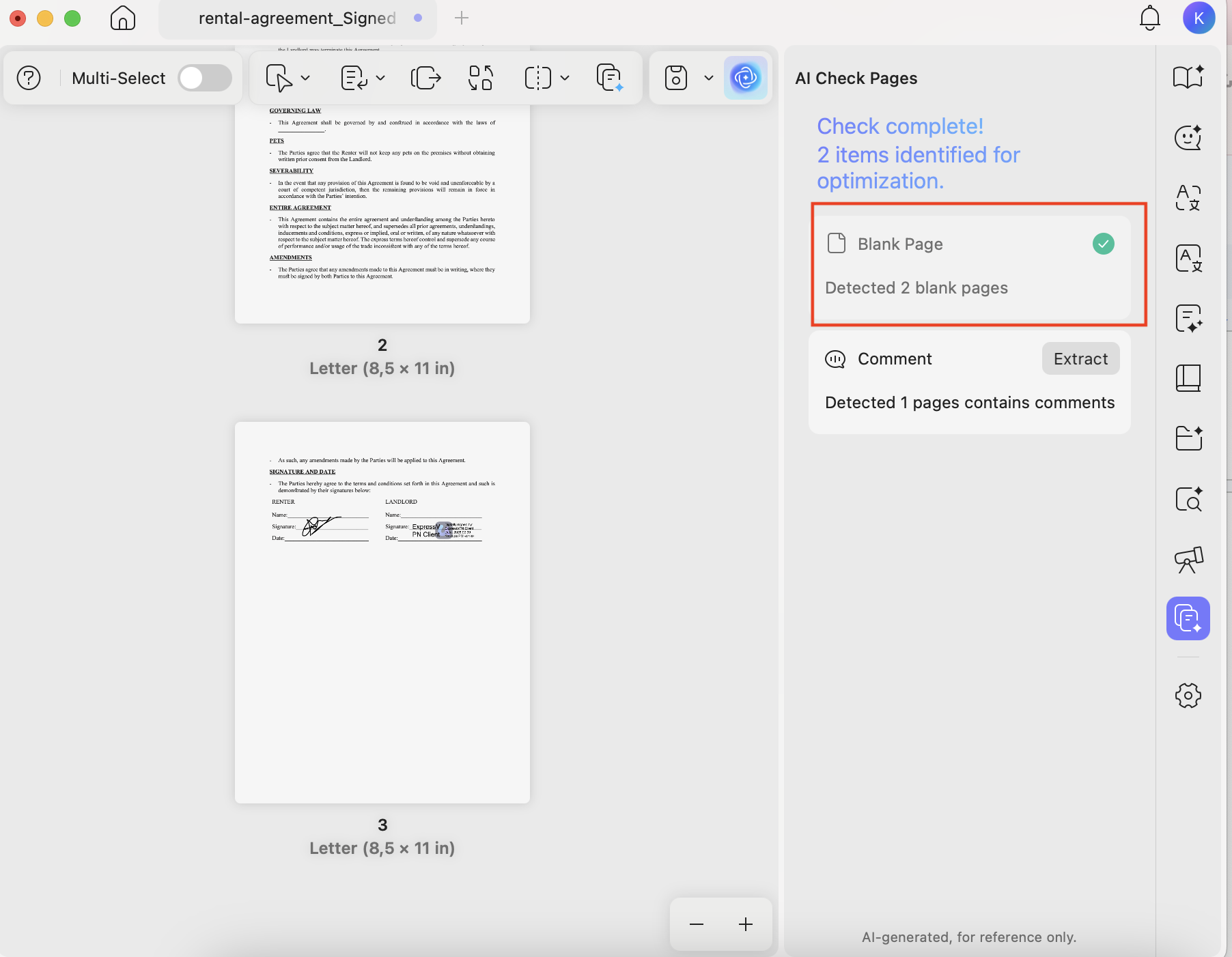
So, how do you detect and manage blank pages easily? You can use UPDF to organize your pages automatically. UPDF’s AI Page Organizer scans your PDF and checks blank pages for you. In addition, it can also detect other page issues like duplicate pages or pages that are out of order. Once everything is scanned, it gives you an option to delete blank pages with just one click. Let’s see how you can use UPDF’s AI Page Organizer to detect and manage blank pages.
1. Open your PDF in UPDF and click the “Tools” option from the top menu.
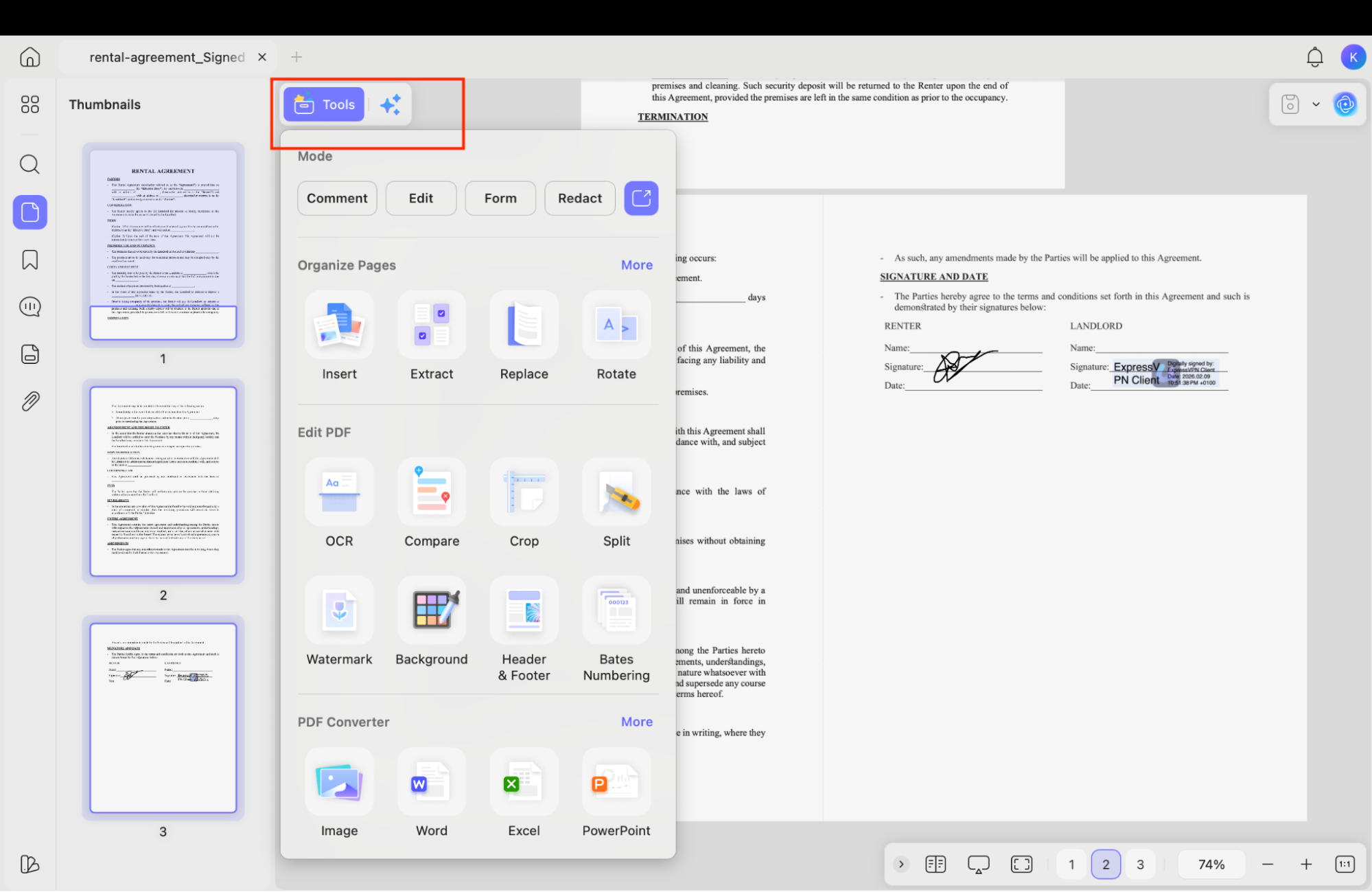
2. Next, go to the “Organize Pages” section and click “More” to open other options.
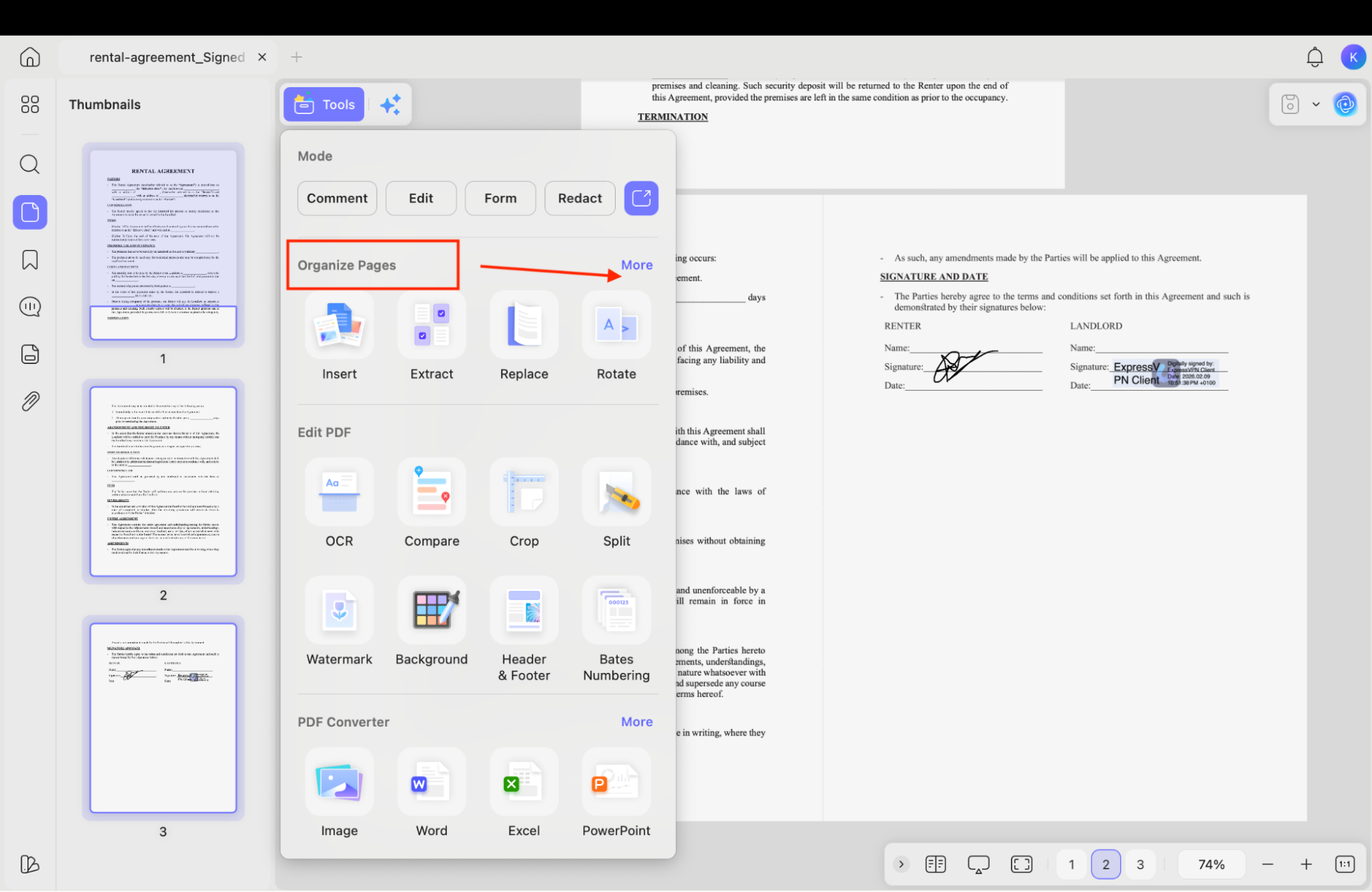
3. From there, click the “AI Check Pages” option and wait for the detection process.
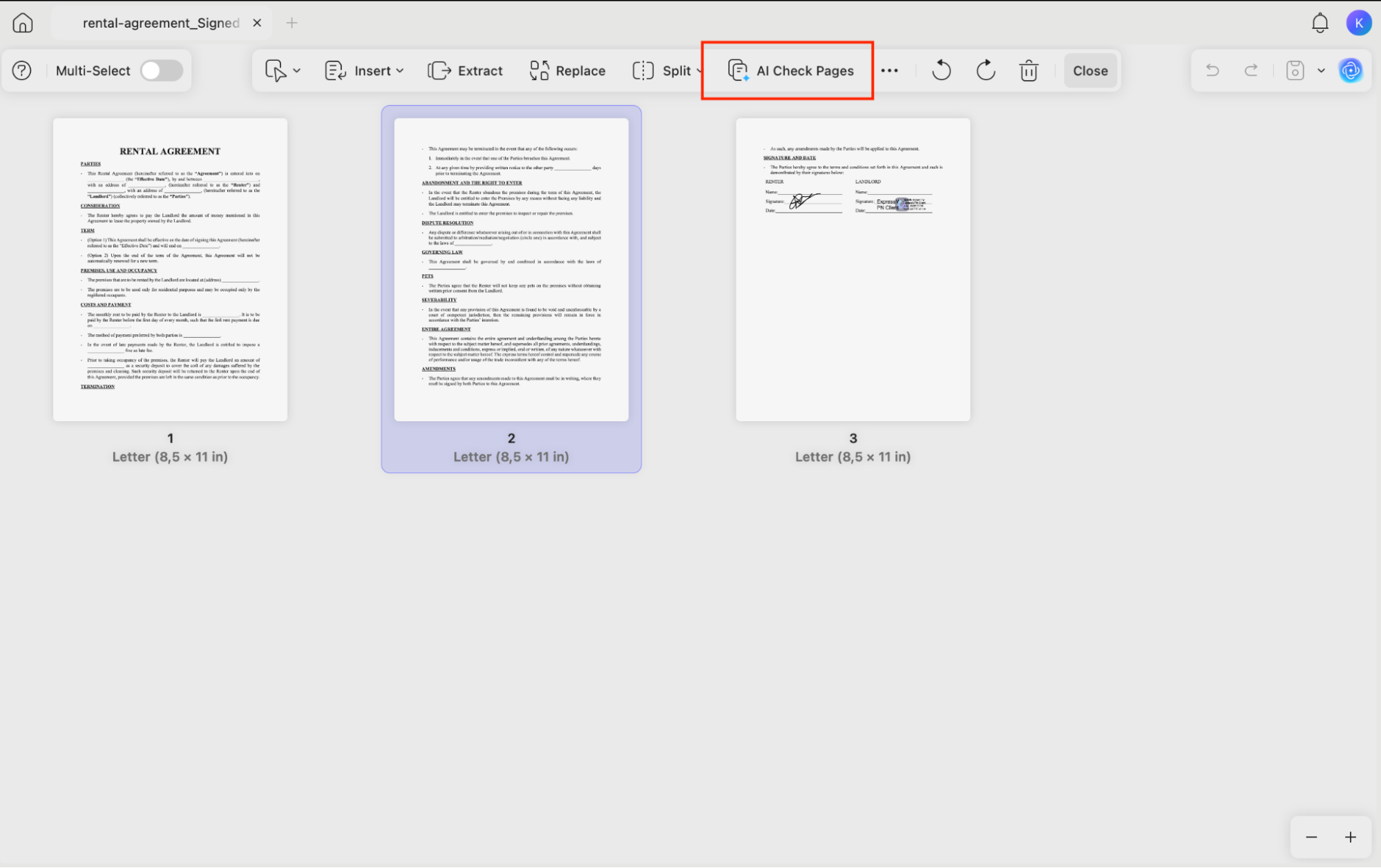
4. On your screen, you will see a list of blank pages.
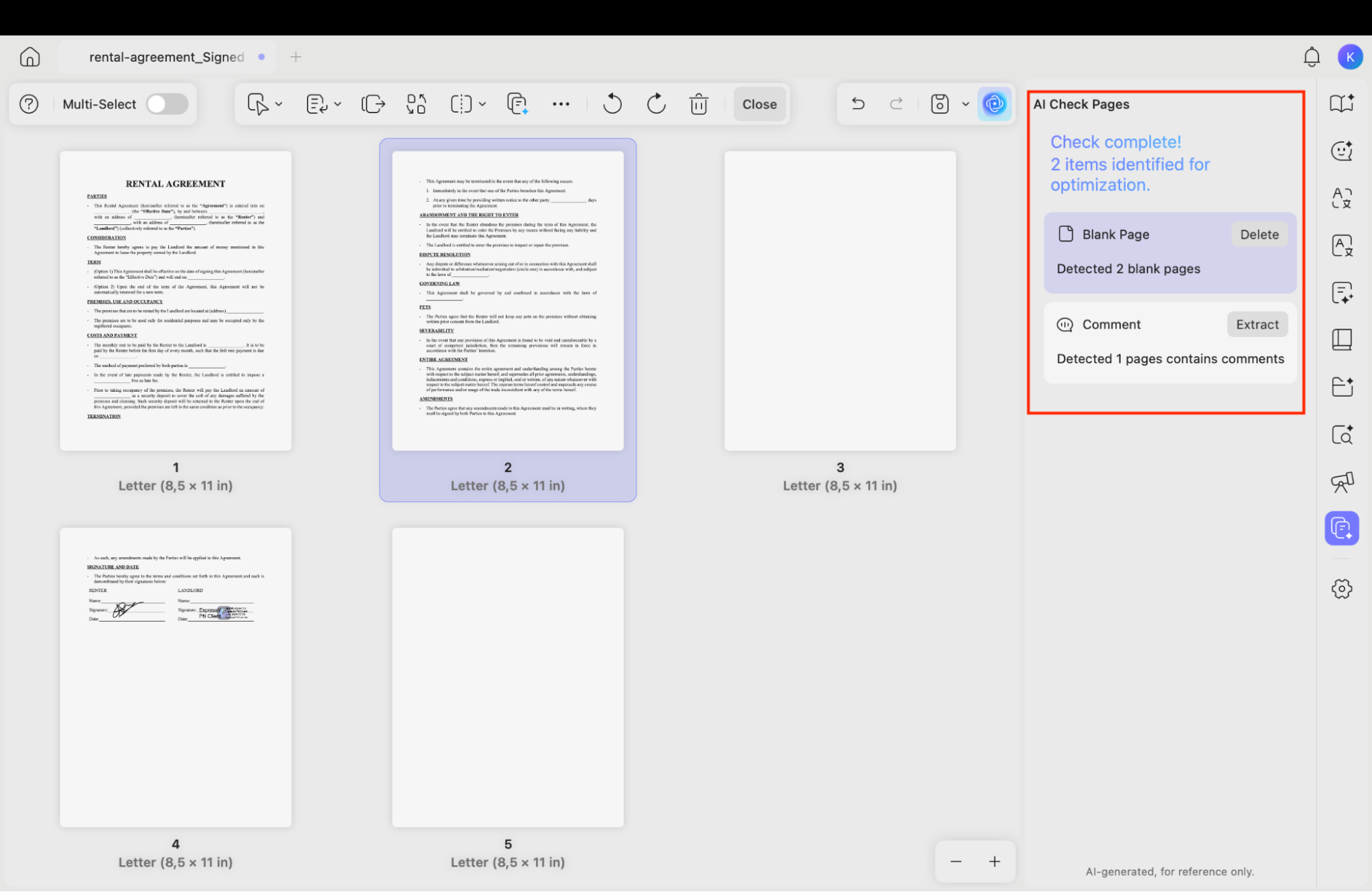
5. Click “Delete” to remove them all from your PDF.
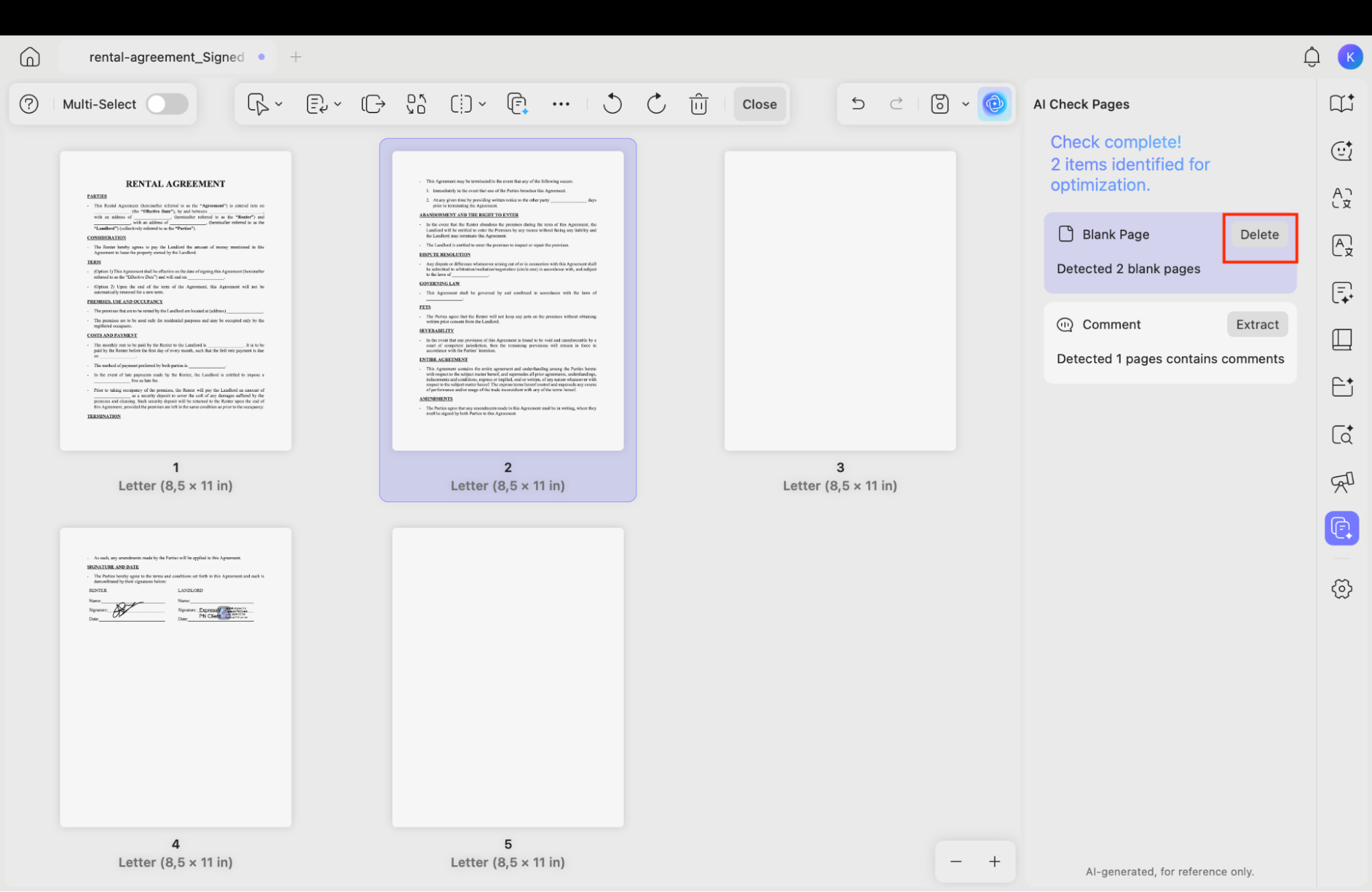
6. Within seconds, your PDF will be free of all unwanted blank pages.
Conclusion
Blank PDF pages may look confusing at first, but they play an important role in keeping your documents well-structured, properly formatted, and easy to read. In this article, I’ve explained how to create or download an empty PDF using UPDF. Along with that, I’ve also discussed how to quickly manage blank pages, organize PDFs, and handle PDFs more efficiently. Beyond this, UPDF also helps you edit PDF files, convert them into other popular formats, create PDF forms, and more.
Windows • macOS • iOS • Android 100% secure






 Enola Miller


 Enola Davis
 Engelbert White