UPDF
UPDF
 UPDF for Windows
 UPDF for Mac
 UPDF for iPhone/iPad
 UPDF for Android
 Nomostar
 UPDF AI Online
 UPDF Sign
 IvyCraft
 Edit PDF
 Annotate PDF
 Create PDF
 PDF Form
 Edit links
 Convert PDF
 OCR
OCR PDF to Word
 PDF to Image
 PDF to Excel
 Organize PDF
 Merge PDF
 Split PDF
 Crop PDF
 Rotate PDF
 Protect PDF
 Sign PDF
 Redact PDF
 Sanitize PDF
 Remove Security
 Read PDF
 UPDF Cloud
 Compress PDF
 Print PDF
 Batch Process
 About UPDF AI
 UPDF AI Solutions
 AI User Guide
 FAQ about UPDF AI
 Summarize PDF
 Translate PDF
 Chat with PDF
 Chat with AI
 Chat with image
 PDF to Mind Map
 Explain PDF
 PDF AI Tools
 Image AI Tools
 AI Chat Tools
 AI Writing Tools
 AI Study Tools
 AI Working Tools
 Other AI Tools
 AI Bookmark Generation
 AI Bookmark Summary
 AI Watermark Generation
 AI Background Generation
 AI Sticker Generation
 AI Stamp Generation
 AI Editing Suite
 UPDF Copilot
 AI Page Management
 AI Semantic Search
 PDF to Word
 PDF to Excel
 PDF to PowerPoint
 Enterprise Solution
 Enterprise Sign
 Enterprise AI
 Enterprise Plan
 Enterprise User Guide
 Enterprise Webinar
 IT
IT Education
 Construction
 Financial Service
 Healthcare
 Insurance
 Legal
Legal Manufacturing
 Government
 Researchers & PhDs
 Solopreneurs & Freelancers
 Lawyers & Legal Professionals
 Real Estate Agents & Brokers
 Education Solution
 Customer Stories
 User Guide
 UPDF Tricks
 FAQs
FAQs UPDF Reviews
 Download Center
 Blog
Blog Newsroom
 Tech Spec
 Updates
 UPDF vs. Adobe Acrobat
 UPDF vs. Foxit
 UPDF vs. PDF Expert

You need 4 pages from a 200-page report, yet the file refuses to release them. Whether extraction takes minutes or becomes impossible depends entirely on the type of password applied. Learning how to extract a PDF with a password starts by identifying the restriction protecting it. A Document Open Password prevents you from opening and viewing the protected PDF at all.
A Permissions Password allows normal reading but can block extracting, editing, copying, and printing content. When you know the password, UPDF removes restrictions and extracts pages, text, or tables easily. If the open password is lost, a dedicated utility like Ajoysoft may handle certain cases.
Need to remove password restrictions and extract pages or text instantly? Download UPDF for free to unlock and manage your PDFs securely.
Windows • macOS • iOS • Android 100% secure
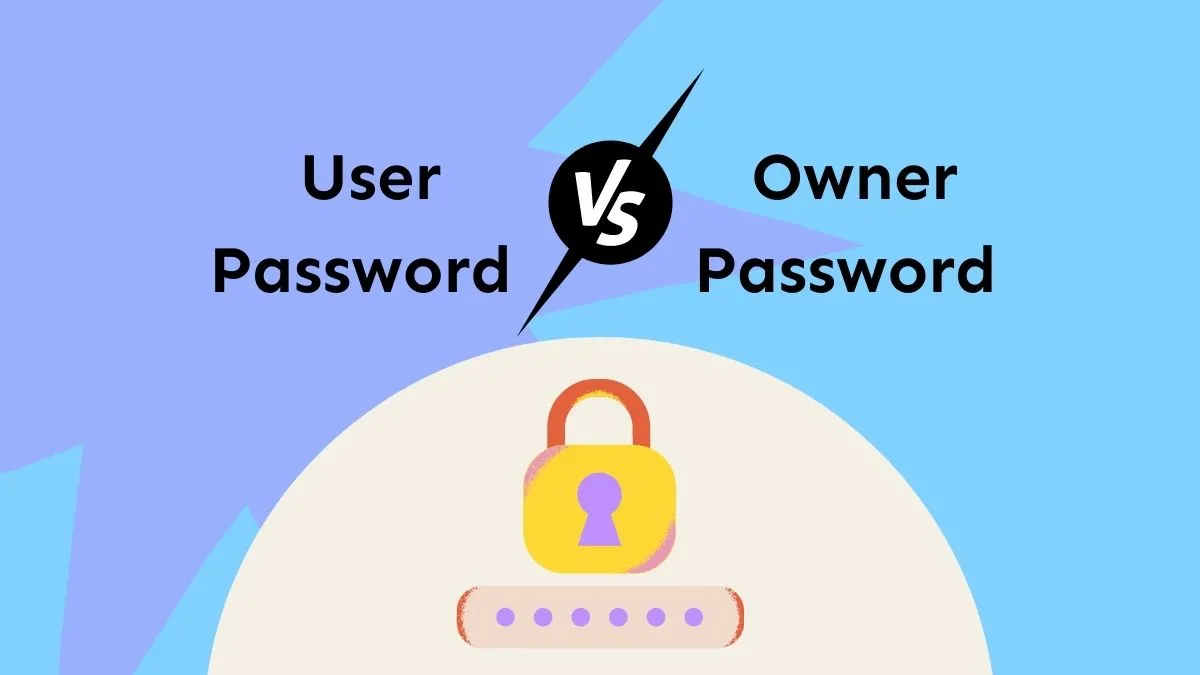
Identify Your PDF Password Type (Open Password vs. Permissions Password)
Identifying your PDF password type first helps you choose the correct extraction method easily. Learn more about both password types in how to protect PDF before checking their differences.
- Document Open Password: A password prompt appears immediately when you double-click the protected PDF file. No preview or content appears until you enter the correct password successfully.
- Permissions or Owner Password: The document opens normally, but certain actions remain unavailable or completely disabled. Extract Pages, Edit, Copy, and Print options usually appear grayed out here.
Most users searching for extraction help face the second password restriction type. Method 1 explains how to handle this situation and extract content safely.
Method 1: How to Extract Pages from a PDF When You Know the Password (via UPDF)
Best For:
This method covers 2 separate tasks for removing security and extracting selected PDF pages. Removing security first creates an unrestricted copy that you can access without limitations later. You can then extract pages from password-protected PDF files without facing restrictions again. Now, follow the steps below to complete both tasks quickly and safely:
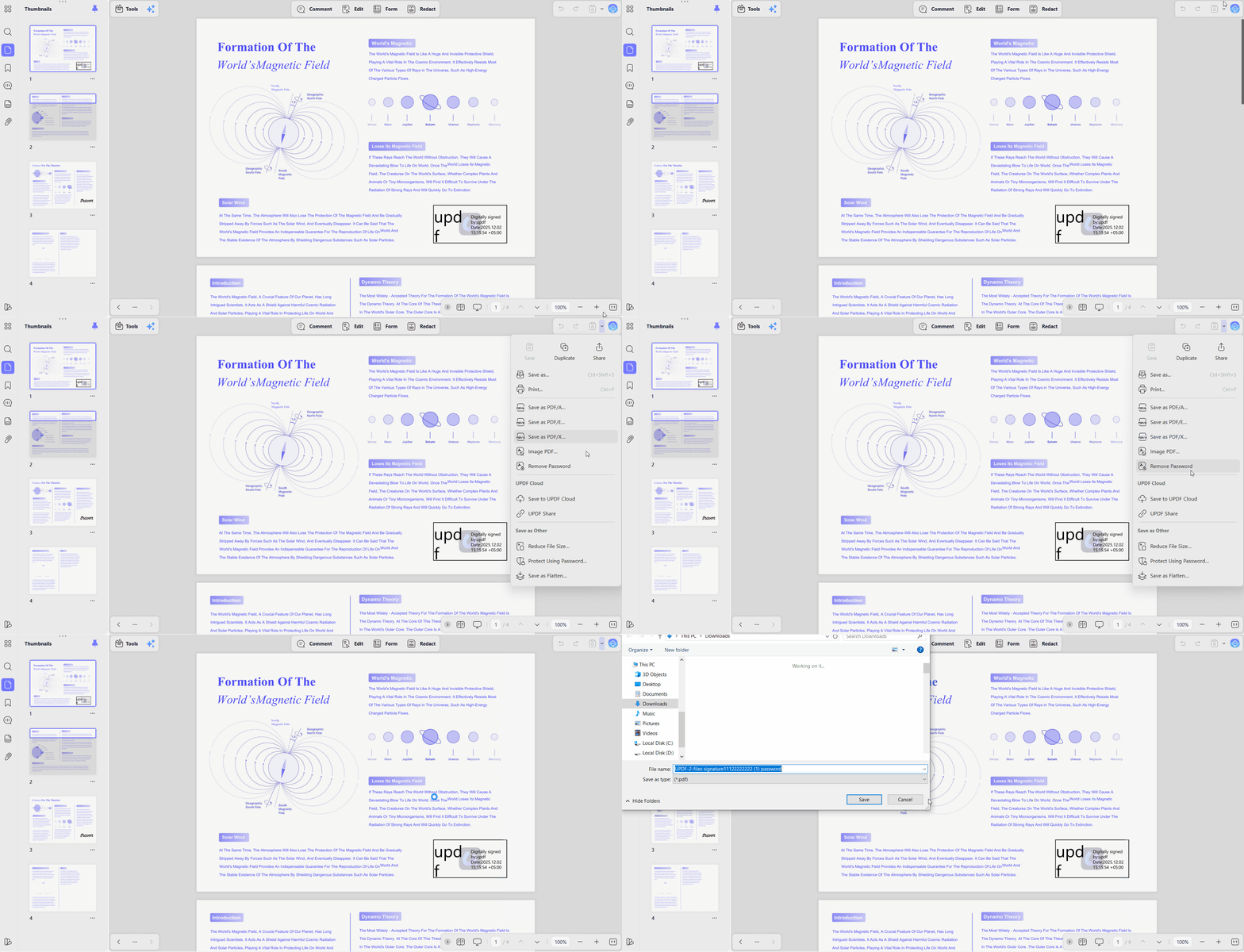
Remove the Restrictions and Save an Unlocked Copy
Step 1. Open a PDF in UPDF using the Document Open Password if prompted.
Step 2. Once done, press the "Arrow" icon beside the "Save" option and choose the "Remove Password" option.
Step 3. UPDF will ask you for the new location where the unlocked copy will be saved. Choose a location to save the new PDF.
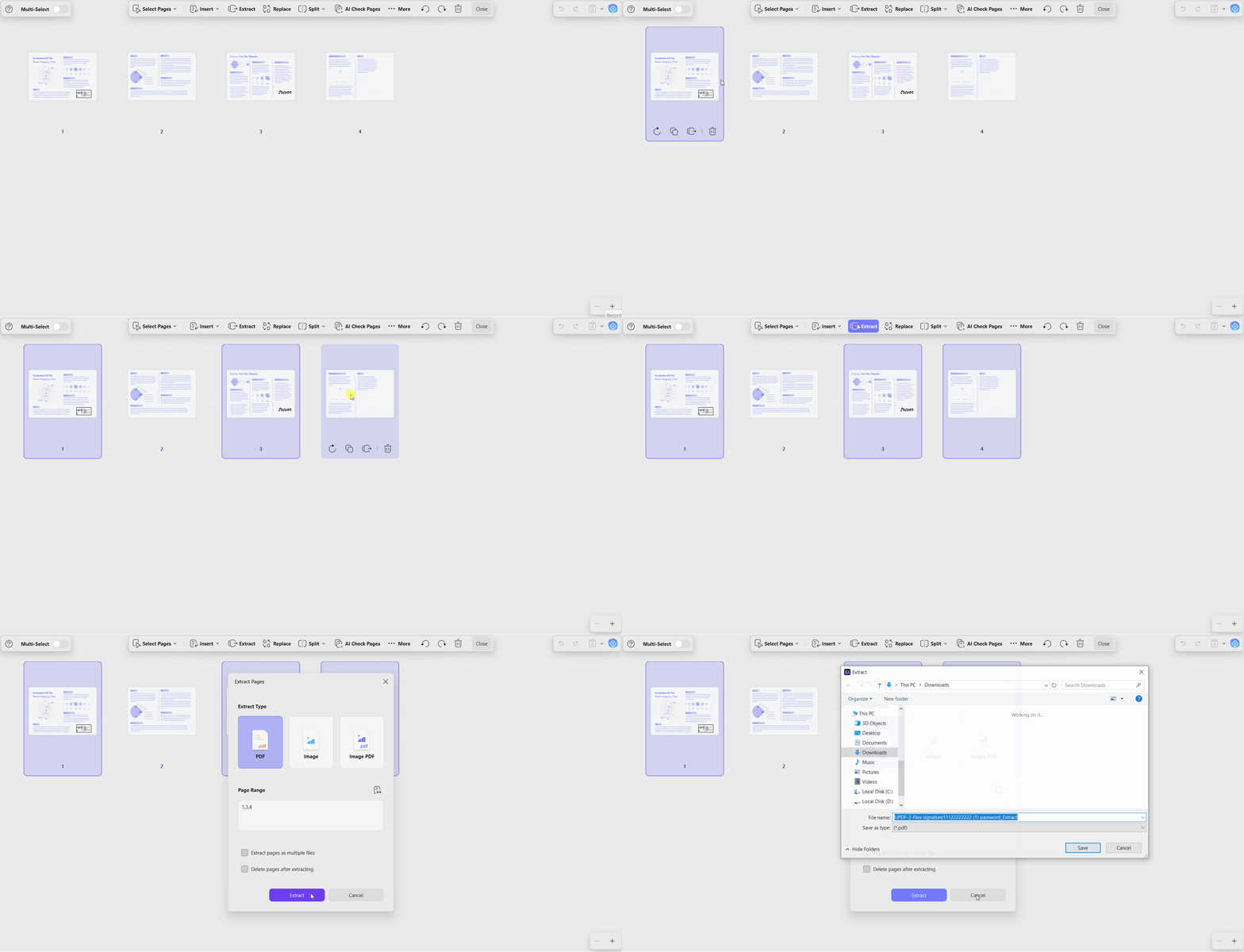
Extract the Pages You Need
Step 1. Now, open the unlocked copy of the PDF and press the "Organize Pages" option in the left-side toolbar.
Step 2. Select the specific pages you want to extract and press the "Extract" button in the top toolbar. UPDF will save a new copy of the selected pages.
Everything runs locally on your computer, keeping confidential documents away from outside servers during extraction. For more details, read our guide on how to extract pages from PDF safely.
Method 2: How to Extract Text, Data, or Tables From a Password-Protected PDF
Best For:
Extracting content differs from extracting pages because you work with information inside each page. After removing restrictions, 3 useful options become available for handling your PDF content. You can extract text from password-protected PDF files, tables, or scanned document content. Follow the simple steps below after opening the PDF file with your password:
Copy Text and Tables Directly
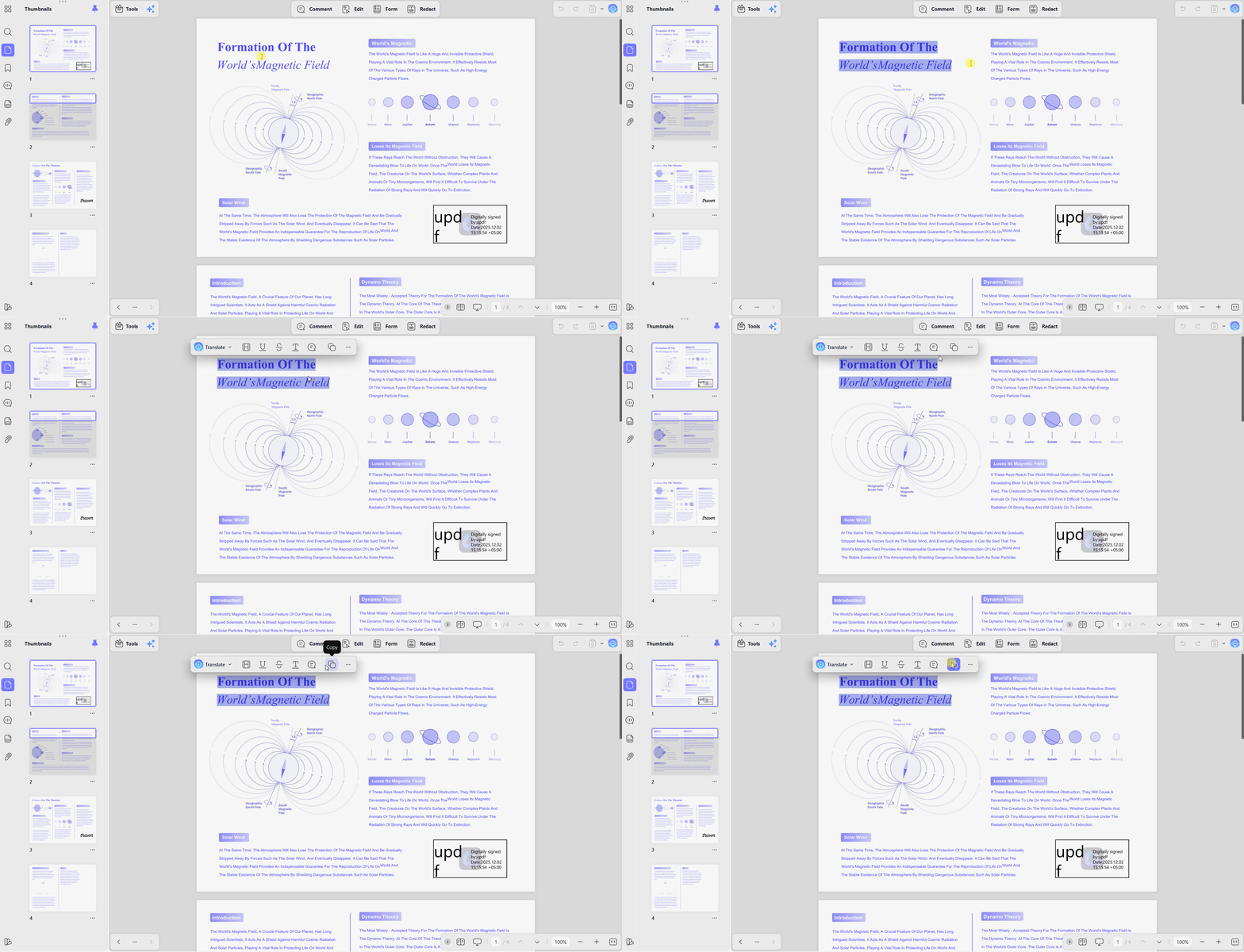
For a searchable PDF, selection works as it does anywhere else. Highlight the text or table you need, right-click, and choose the "Copy" option. This suits a quotation or a single table rather than a full document.
Run OCR on Scanned or Image-Based Pages
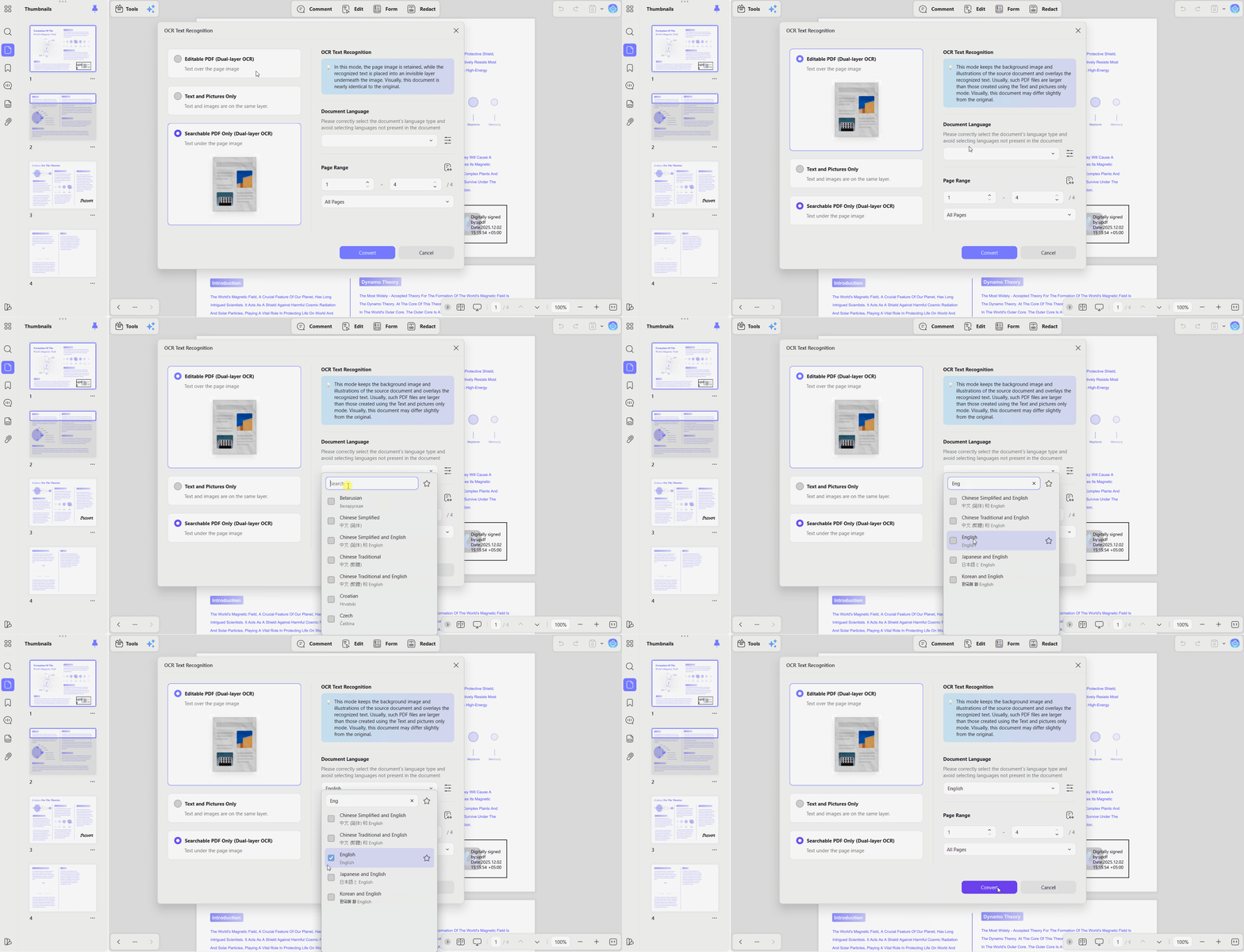
A scanned document holds pictures of words rather than words themselves, so selection tools find nothing to grab. Access "Tools" and press the "OCR" option. Then, choose the OCR mode, accurate language, and press the "Convert" button. It reads the printed characters and rebuilds them as a live text layer.
Export the Whole Document to Another Format
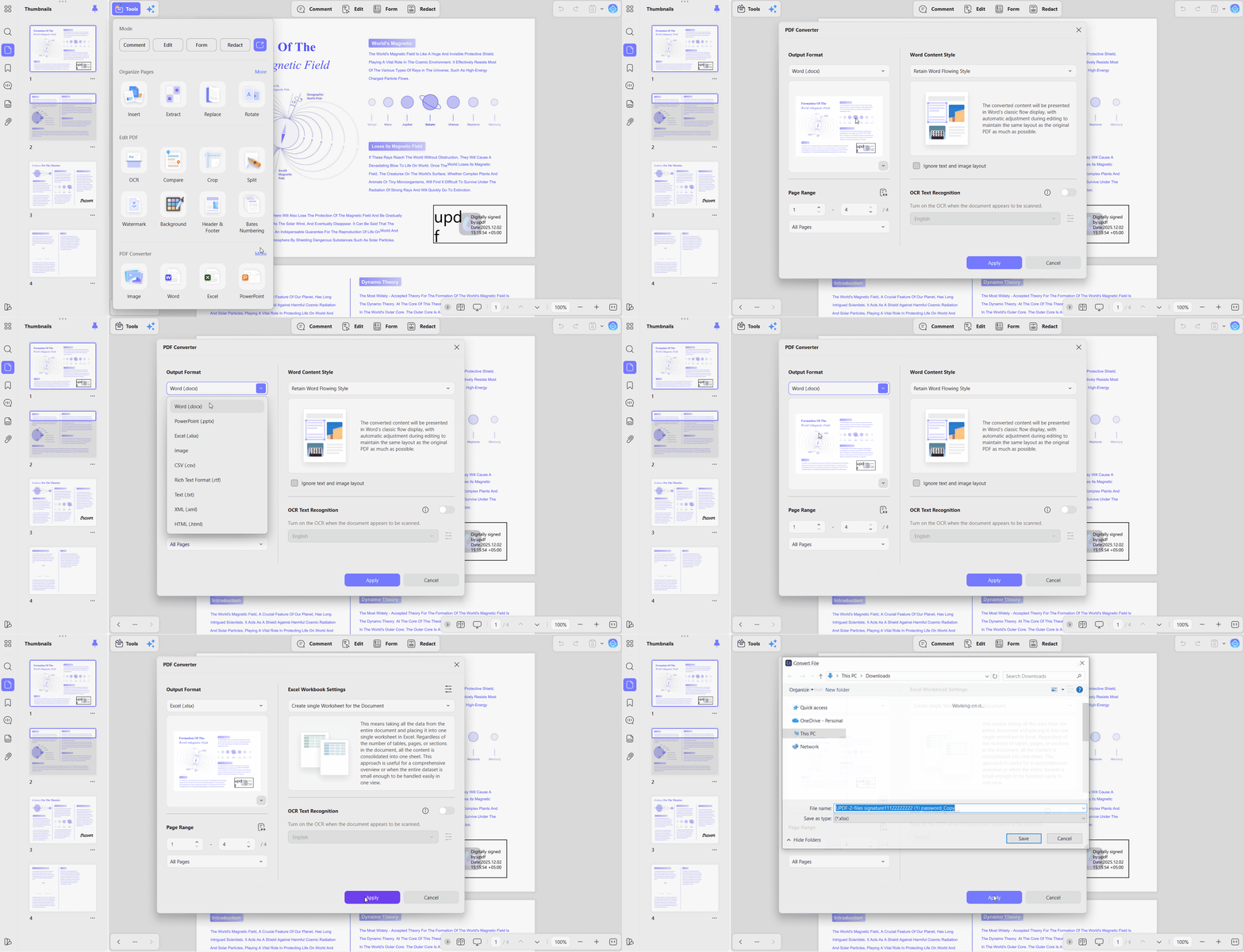
Step 1. In the "Tools" section, head to the "PDF Converter" section and choose a format you want to convert to.
Step 2. Choose a page range and press the "Apply" button. After that, select the location for the new format file to save it.
Learn more in our guide on how to convert a password-protected PDF to Word for locked files.
Method 3: What If You Forgot the Document Open Password? (Special Ajoysoft Benefit)
Best For: File owners who forgot open passwords or need restrictions removed from multiple documents.
UPDF handles editing, extraction, and security removal when you have the correct PDF password. However, Ajoysoft handles forgotten open passwords and comes bundled with several eligible UPDF Pro plans.
What Ajoysoft Actually Removes
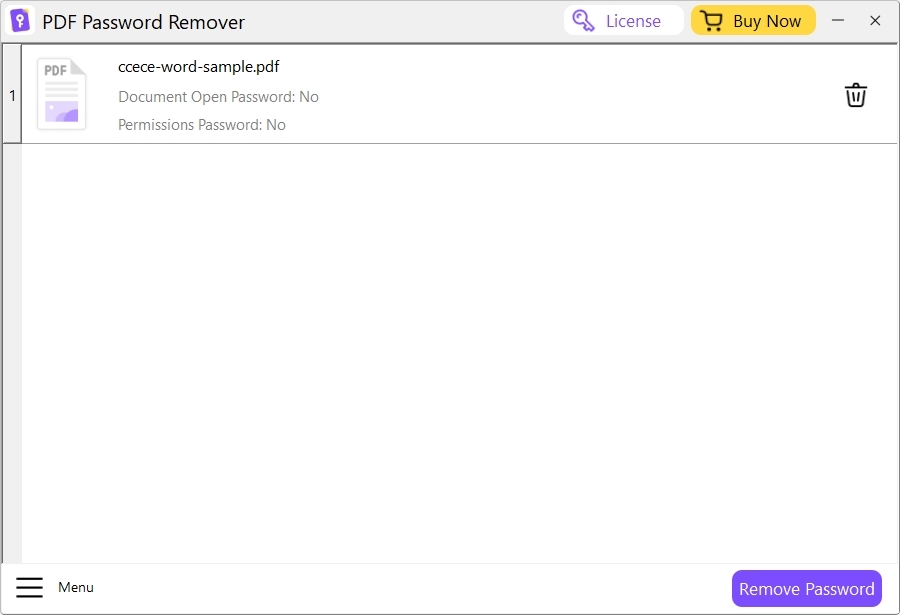
Ajoysoft removes permission and owner restrictions automatically, even when users do not know the original password themselves. It can also process batches containing up to 200 protected PDF documents during one removal session easily. Open passwords work differently because Ajoysoft requires the correct password before removing this type of protection.
This makes Ajoysoft a removal tool, not software designed to crack unknown or forgotten passwords directly. To remove PDF password protection when forgotten, check your password manager or contact the original sender. Banks and government offices may also provide password formulas for protected documents they issue to users.
How to Claim the Free Ajoysoft License
Ajoysoft is not sold separately as an independent password removal tool. Superace provides free lifetime access with selected eligible UPDF Pro plans:
- UPDF Pro Annual Plan
- UPDF Pro Perpetual Plan
- UPDF Pro Annual Bundle
- UPDF Pro Perpetual Bundle
Use the simple steps below to claim your free Ajoysoft license without difficulty:
Step 1. Buy one of the UPDF Pro plans listed above through the official store.
Step 2. Write to "[email protected]" from the address associated with your purchase.
Step 3. Customer support verifies the order and sends an Ajoysoft redemption code back to you.
Notice: Do not attach sensitive PDF files to that email. The offer applies strictly to the plans listed above.
Removing a password you know requires no extra software, as "How to Remove a Password from a PDF" explains. These 3 methods cover the main password problems that have practical solutions for PDF users.
Whether you know your PDF password or need a complete unlocking solution, UPDF provides all the tools you need in one secure desktop app. Download UPDF today!
Windows • macOS • iOS • Android 100% secure
Quick Comparison: Which Method Fits Your Scenario?
The table below compares methods to extract pages from password-protected PDF files for different situations:
| Your Scenario | Required Goal | Recommended Method | Key Advantage |
| Know the Open or Permissions Password | Extract pages or save an unlocked copy | UPDF (Method 1) | 100% offline, fast and secure |
| Need Text, Tables, or OCR Data | Copy text or export to Word and Excel | UPDF (Method 2) | Advanced OCR and multi-format export |
| Want Restrictions Stripped in Bulk | Clear permission locks, or open passwords you hold | Ajoysoft (Method 3) | Free lifetime license with eligible UPDF Pro plans |
| Need to Print or Edit a Restricted PDF | Remove permission restrictions | UPDF (Method 1) | Unlocks printing, editing, and copying in one pass |
Notice that 3 out of 4 scenarios resolve inside UPDF alone. Ajoysoft earns its place on volume and on stubborn permission locks rather than on recovering passwords nobody remembers.
Frequently Asked Questions
How to extract a PDF with a password?
Open the protected file in UPDF and enter your correct PDF password. Choose Protect Using Password, then Remove Security to clear existing file restrictions. Alternatively, use Organize Pages and Extract to save specific pages separately easily.
Can I extract pages from a PDF without removing the password completely?
Yes, open the document in UPDF using your correct password first. Go to Organize Pages, select your required pages, and click Extract there. The extracted file has no restrictions, while your original PDF remains unchanged.
How do I save a password-protected PDF without a password?
Open the protected PDF in UPDF using the password you currently hold. Choose the Remove Password option to remove PDF password protection. UPDF will ask you to save the resulting copy, which will open later without any password prompt.
How do you unlock a PDF if you forgot the password?
The solution depends entirely on which type of PDF password you forgot. Ajoysoft clears forgotten permissions restrictions without requiring the original owner password first. Forgotten open passwords remain harder because strong encryption prevents easy password guessing.
Is it safe to upload a password-protected PDF to an online converter?
Online converters are not recommended when your PDF contains sensitive information or records. These tools upload files onto third-party servers before processing the protected documents. Desktop software like UPDF keeps unlocking and extraction locally on your computer.
Conclusion
To summarize, learning how to extract a PDF with a password starts by identifying its restriction. UPDF handles unlocking, extraction, OCR, and conversion securely offline when the correct password is available. Eligible UPDF Pro plans include Ajoysoft, while forgotten open passwords can remain difficult to recover.
Start unlocking and extracting your PDF files safely today. Download UPDF for free or upgrade to UPDF Pro to claim your extra benefits!
Windows • macOS • iOS • Android 100% secure




 Enid Brown
 Enola Davis
  Enrica Taylor