 UPDF
UPDF
 UPDF for Windows
 UPDF for Mac
 UPDF for iPhone/iPad
 UPDF for Android
 Nomostar
 UPDF AI Online
 UPDF Sign
 IvyCraft
 Edit PDF
 Annotate PDF
 Create PDF
 PDF Form
 Edit links
 Convert PDF
 OCR
OCR PDF to Word
 PDF to Image
 PDF to Excel
 Organize PDF
 Merge PDF
 Split PDF
 Crop PDF
 Rotate PDF
 Protect PDF
 Sign PDF
 Redact PDF
 Sanitize PDF
 Remove Security
 Read PDF
 UPDF Cloud
 Compress PDF
 Print PDF
 Batch Process
 About UPDF AI
 UPDF AI Solutions
 AI User Guide
 FAQ about UPDF AI
 Summarize PDF
 Translate PDF
 Chat with PDF
 Chat with AI
 Chat with image
 PDF to Mind Map
 Explain PDF
 PDF AI Tools
 Image AI Tools
 AI Chat Tools
 AI Writing Tools
 AI Study Tools
 AI Working Tools
 Other AI Tools
 AI Bookmark Generation
 AI Bookmark Summary
 AI Watermark Generation
 AI Background Generation
 AI Sticker Generation
 AI Stamp Generation
 AI Editing Suite
 UPDF Copilot
 AI Page Management
 AI Semantic Search
 PDF to Word
 PDF to Excel
 PDF to PowerPoint
 Enterprise Solution
 Enterprise Sign
 Enterprise AI
 Enterprise Plan
 Enterprise User Guide
 Enterprise Webinar
 IT
IT Education
 Construction
 Financial Service
 Healthcare
 Insurance
 Legal
Legal Manufacturing
 Government
 Researchers & PhDs
 Solopreneurs & Freelancers
 Lawyers & Legal Professionals
 Real Estate Agents & Brokers
 Education Solution
 Customer Stories
 User Guide
 UPDF Tricks
 FAQs
FAQs UPDF Reviews
 Download Center
 Blog
Blog Newsroom
 Tech Spec
 Updates
 UPDF vs. Adobe Acrobat
 UPDF vs. Foxit
 UPDF vs. PDF Expert

Trying to translate a 200-page English PDF into Indonesian but worried about losing the formatting? You're not alone – most online tools break tables, scramble paragraphs, and limit file sizes.
Example: For an English product manual translated into Indonesian, test one safety-warning section first and verify measurements, button names, and warning strength before translating the full document. For a related workflow, see translate a PDF with Google Translate.
In this guide, we compare 3 methods to translate PDF English to Indonesian – from free online tools to AI-powered desktop solutions – so you can choose the one that fits your needs.
Part 1: How to Choose the Right Method to Translate PDF English to Indonesia?
Here you can choose the right tool according to your true needs.
| Your Needs | Recommended Method | Why |
|---|---|---|
| Only a few lines of text | Free workaround (Google Translate) | Fastest and free |
| Small files, layout loss acceptable | Online tools (Smallpdf) | Convenient, free tier available |
| Formal documents, need to preserve layout | Desktop software (UPDF) | Local processing, complete format retention |
| Sensitive / confidential documents | Desktop software (UPDF / Adobe) | Files never leave your device – secure |
| Need content understanding + translation + Q&A | AI Chat (UPDF AI Chat) | Interactive, context‑aware |
| Scanned PDF | Desktop software with OCR (UPDF) | OCR recognition before translation |
| Batch processing of multiple PDFs | Desktop software with batch support (UPDF) | Sensitive/confidential documents |
If you scan through the table, one name stands out: UPDF. It's recommended in five different scenarios – more than any other tool on this list. That's not because we're biased, but because UPDF is built to handle the widest variety of translation needs.
Whether you're dealing with sensitive contracts, scanned documents, or batch processing – or you simply want to chat with your PDF in Indonesian – UPDF has you covered. Here's why it's become the go‑to choice for professionals who need reliable, layout‑safe translations.
Windows • macOS • iOS • Android 100% secure
Part 2: How to Translate PDF English to Indonesia?
Now, let's look at how to use these different methods for translation.
Method 1 – Desktop Software (Professional, Secure, Layout‑Safe)
Before we dive into specific products, let's quickly recap why desktop software is the superior choice for serious PDF translation work:
| Consideration | Online Tools | Desktop Software |
|---|---|---|
| Does your file leave your device? | ✅ Yes – uploaded to servers | ❌ No – processed locally |
| File size limits | Usually ≤50MB | Unlimited |
| Layout preservation | ⚠️ Often breaks | ✅ Fully preserved |
| Batch processing | ❌ Not supported | ✅ Supported |
| Scanned PDF support | ⚠️ Limited | ✅ Supported (with OCR) |
| Suitable for sensitive documents | ❌ Not recommended | ✅ Secure |
| Internet required | ✅ Yes | ❌ No – works offline |
For professionals who handle sensitive documents, require layout integrity, or regularly process multiple files, desktop software is the only serious option.
Desktop Software Comparison – At a Glance
Here's how the four leading desktop PDF editors stack up against each other:
| Dimension | UPDF | Adobe Acrobat Pro | Foxit PDF Editor | PDF‑XChange Editor |
|---|---|---|---|---|
| Platforms | Win / Mac / iOS / Android | Win / Mac | Win / Mac | Win only |
| AI Translation | ✅ Yes (AI Chat + Translate) | ⚠️ Limited (no native AI translation) | ⚠️ Limited | ❌ No |
| AI Chat / Q&A | ✅ Yes – chat with your PDF | ❌ No | ❌ No | ❌ No |
| Layout Preservation | ✅ Full | ✅ Full | ✅ Full | ✅ Full |
| Batch Processing | ✅ Yes | ✅ Yes | ✅ Yes | ✅ Yes |
| OCR for Scanned PDFs | ✅ Yes | ✅ Yes | ✅ Yes | ✅ Yes |
| Local Processing | ✅ Yes | ✅ Yes | ✅ Yes | ✅ Yes |
| Pricing Model | One‑time $79.99 / Subscription $49.99/yr | Subscription $19.99/mo (~$240/yr) | Subscription / One‑time (~$129+) | One‑time from $46 |
| Unique Strength | AI‑powered translation + chat | Industry standard, most features | Lightweight, enterprise collaboration | Comprehensive, Windows‑focused |
What this table tells you:
- Adobe Acrobat Pro is the most feature‑complete, but you'll pay a premium – $240/year with no buyout option.
- Foxit PDF Editor is a solid enterprise choice, but lacks native AI translation and charges more than UPDF.
- PDF‑XChange Editor offers great value with a one‑time license starting at $46, but it's Windows‑only and has no AI capabilities at all.
- UPDF is the only tool that combines AI‑powered translation + AI Chat with cross‑platform coverage (Win/Mac/iOS/Android) and an affordable one‑time price – making it the most balanced choice for most users.
If you regularly translate English PDFs into Indonesian (or any other language) while keeping the layout intact, UPDF is built for exactly that workflow.
Windows • macOS • iOS • Android 100% secure
How to Use UPDF to Translate a PDF?
1: Copy and Translate
One of the easiest and most convenient ways to translate text with UPDF is to use the copy-and-translate method. The process is very straightforward and gives you translated text within seconds. Here’s how to do it:
Step 1: Open the PDF you want to translate in UPDF.
Step 2: Select and copy the text you want to translate from the PDF.
Step 3: Go to UPDF AI, select “Chat”, and enter the prompt “Translate to Indonesian.” Next, paste the content along with the prompt and hit enter.
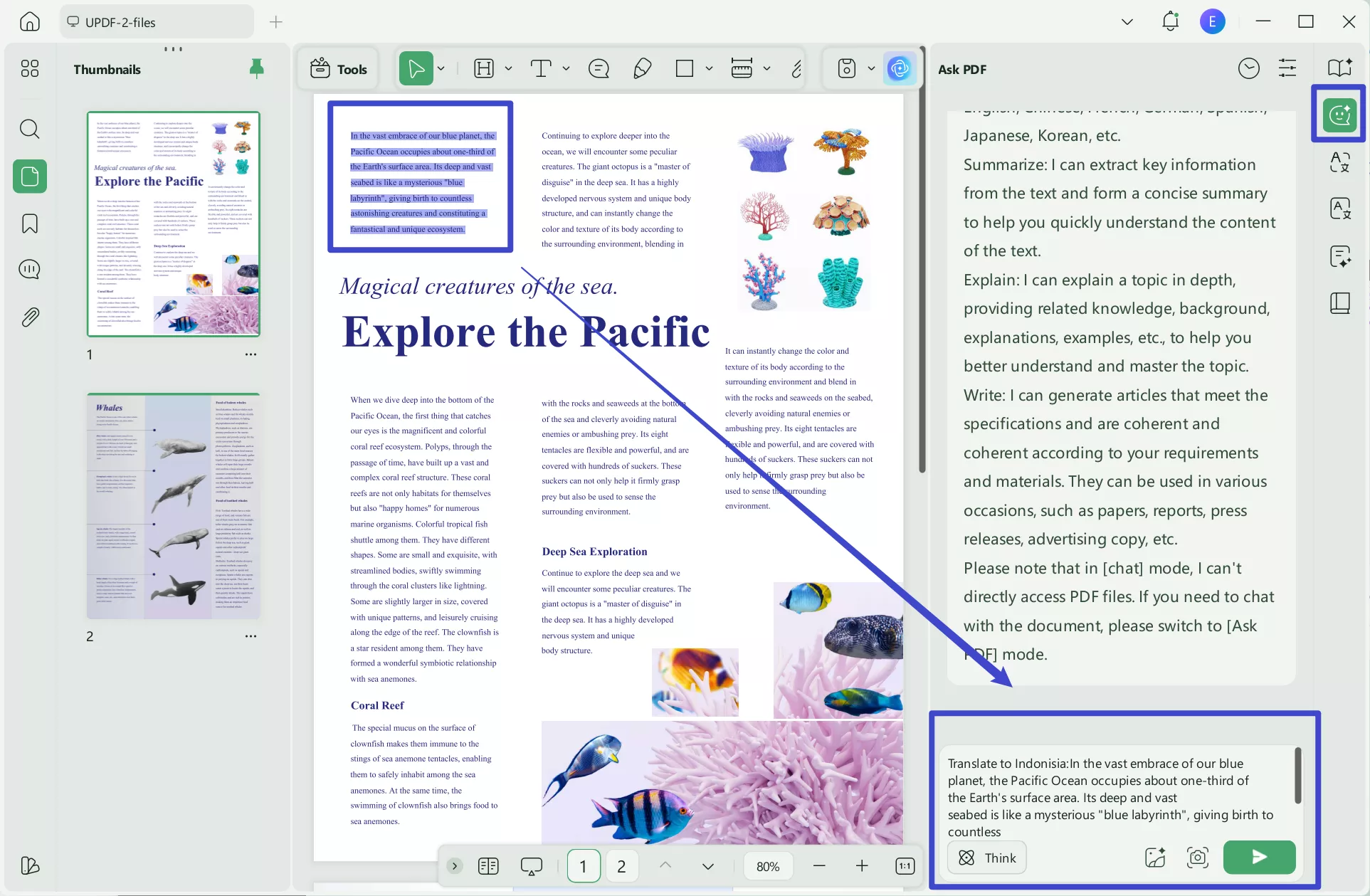
Step 4: Once the text is translated, you can copy and paste it wherever needed.
2: Screenshot and Translate
If the text in your PDF can't be selected (like pictures with text or a scanned PDF with text), you can also use the screenshot method to translate the text. Here’s how to do it:
Step 1: Open the PDF in UPDF.
Step 2: Click on UPDF AI and select “Chat.” Next, click on the screenshot icon located just below the prompt box.
Step 3: Draw a box around the area you want to translate, type the prompt "Translate the text into Indonesia”, and press enter.
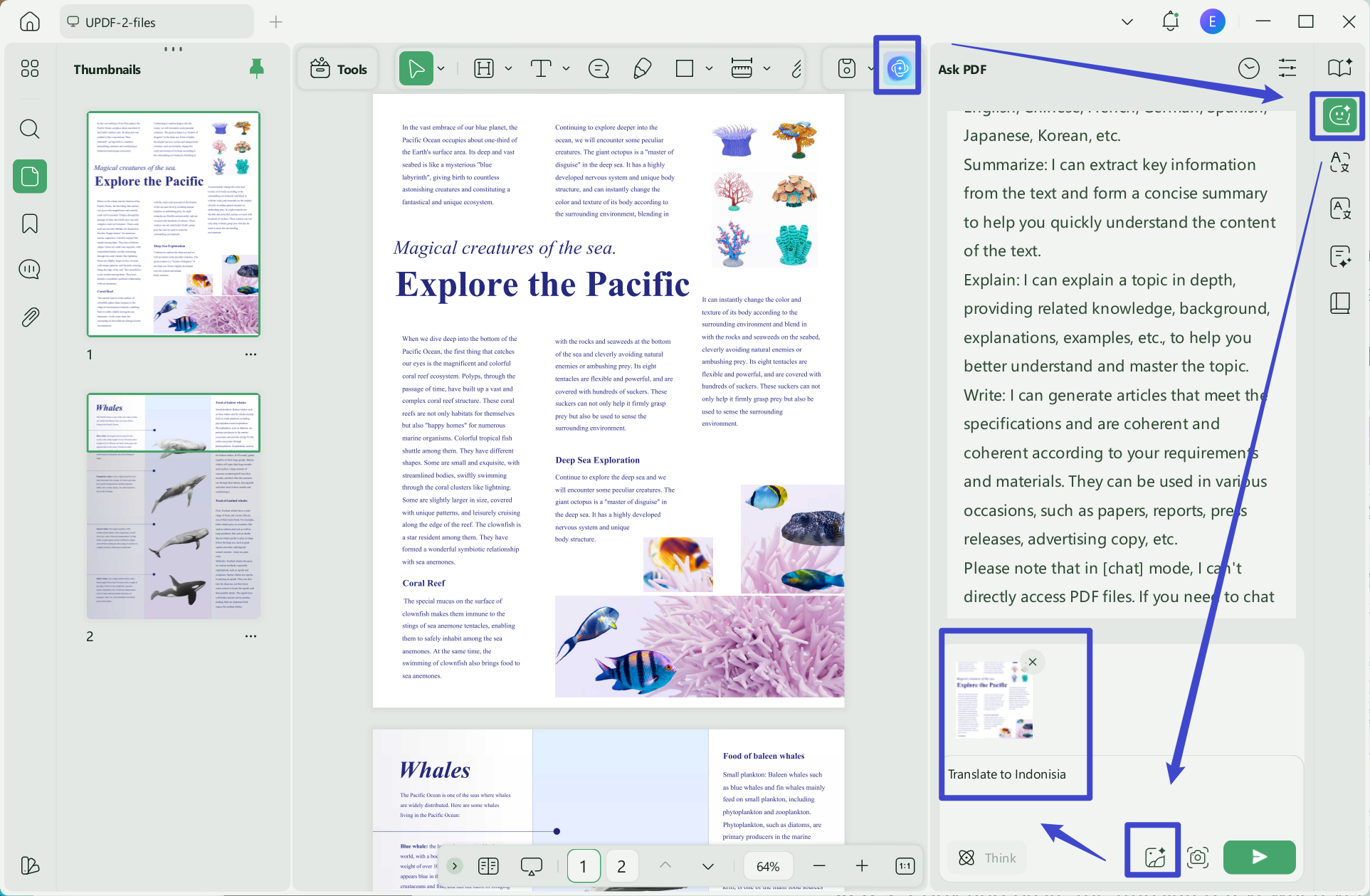
Step 4: Copy and paste the translated text wherever you want.
Bonus: You can submit up to 100 prompts to AI assistants and receive answers for free, available online, on desktops, and on mobiles. For unlimited access and additional benefits, please visit our pricing page.
3: Translate Scanned PDF English to Indonesia
If you have a scanned English PDF and want to translate it to Indonesia, you can also use UPDF. Just click the button below to download UPDF and follow the guide below.
Windows • macOS • iOS • Android 100% secure
Step 1: Start the UPDF PDF editor on your device. Click “Open File” and select the scanned PDF you want to translate.
Step 2: Since it’s a scanned document, use the OCR feature to convert the images into text. Click on "OCR", select the document language as English, and select “All Pages” under page range. Click on select "Convert."
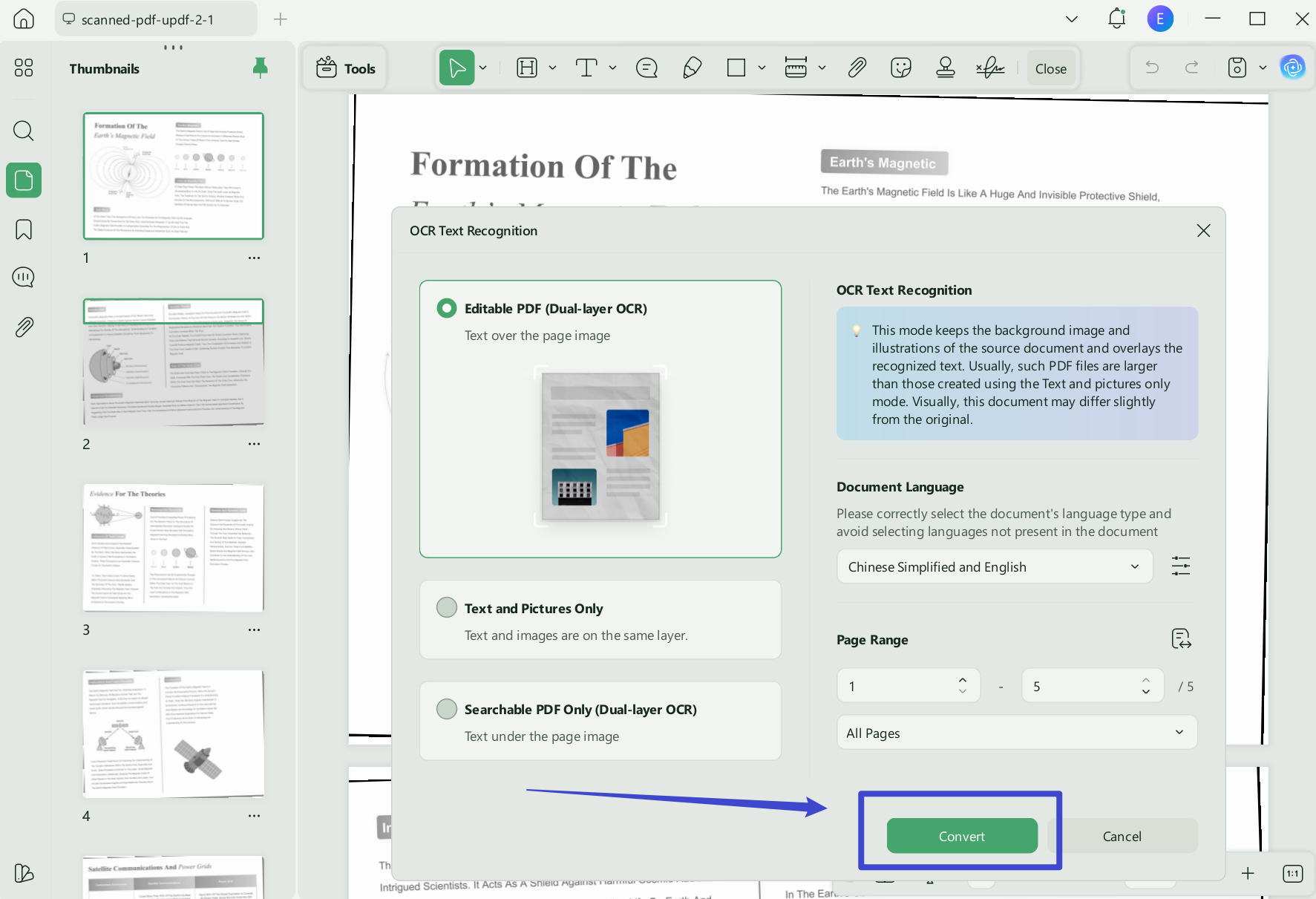
Step 3: After OCR, the editable PDF file will open in UPDF automatically. Then, pick the method that best suits your needs from the three options above.
Once your PDF is translated, you might want to ask follow‑up questions or clarify specific terms. That's where PDF AI Chat comes in – explore how it works in our complete guide.
Method 2 – Online PDF Translators (Fast but Limited)
Now, let's take a look at how to use online tools to translate an English PDF into an Indian language.
Representative tools: Smallpdf, GroupDocs, OpenL
Pros:
- No installation, works in any browser
- Free for small files (≤10-50MB)
- Support multiple formats including PDF, DOCX, PPT
Cons:
- ❌ Files leave your device – uploaded to third-party servers. Not suitable for contracts, IDs, or confidential business documents.
- ❌ Formatting often breaks – tables, fonts, and images may shift or disappear after translation.
- ❌ File size & page limits – most free tools cap at 10-50MB or a limited number of pages.
- ❌ No batch processing – you have to translate one file at a time.
- ❌ Scanned PDFs not supported – unless the tool has OCR capability.
Online tools are great for emergency, low-stakes translations – but if you need accuracy, layout preservation, or to handle sensitive content, you need a better solution.
Method 3 – Free Workarounds (Copy-Paste & Google Translate)
Representative Tools: Google Translate, DeepL
This basic translation method relies on manual text extraction. You first copy readable text from your PDF, paste the content into Google Translate or DeepL for machine translation, then copy the translated paragraphs and paste them into a brand-new blank document.
Limitations:
It has many obvious drawbacks. All original formatting like tables, fonts and images will be lost completely and must be rearranged manually. Copying text segment by segment wastes plenty of time on lengthy files. Besides, it cannot identify text from scanned PDFs. Free DeepL users also face a monthly limit of only three full document translations.
Suitable Scenarios:
It only works for short, one-time and informal translation demands. Avoid this method for multi-page PDFs or files that need the original layout preserved.
FAQ
Can English-to-Indonesian PDF translation preserve formatting?
Basic formatting may be preserved, but longer translated phrases can change line breaks, tables, and text-box size.
Should technical terms be translated into Indonesian?
Use the terminology expected by the audience and product. Keep interface labels consistent with the actual software or device.
How do I verify an Indonesian PDF translation?
Check warnings, measurements, names, numbers, and product terms against the source, then use a fluent reviewer for important material.
Conclusion
To sum up, you can use any of the methods mentioned above to translate English PDF to Indonesia. And the tool introduced here, UPDF, is an excellent tool for translating PDF files. It is precise, user-friendly, and compatible with both standard and scanned PDFs.
Download UPDF and try it for free today by clicking the button below. See how UPDF can make your PDF translations easier!
Core Pillar Page: PDF AI Chat – Talk to Your PDF Documents
Windows • macOS • iOS • Android 100% secure





 Lizzy Lozano
 Enya Moore
 Enid Brown
 Enola Miller