UPDF
UPDF
 UPDF for Windows
 UPDF for Mac
 UPDF for iPhone/iPad
 UPDF for Android
 Nomostar
 UPDF AI Online
 UPDF Sign
 IvyCraft
 Edit PDF
 Annotate PDF
 Create PDF
 PDF Form
 Edit links
 Convert PDF
 OCR
OCR PDF to Word
 PDF to Image
 PDF to Excel
 Organize PDF
 Merge PDF
 Split PDF
 Crop PDF
 Rotate PDF
 Protect PDF
 Sign PDF
 Redact PDF
 Sanitize PDF
 Remove Security
 Read PDF
 UPDF Cloud
 Compress PDF
 Print PDF
 Batch Process
 About UPDF AI
 UPDF AI Solutions
 AI User Guide
 FAQ about UPDF AI
 Summarize PDF
 Translate PDF
 Chat with PDF
 Chat with AI
 Chat with image
 PDF to Mind Map
 Explain PDF
 PDF AI Tools
 Image AI Tools
 AI Chat Tools
 AI Writing Tools
 AI Study Tools
 AI Working Tools
 Other AI Tools
 AI Bookmark Generation
 AI Bookmark Summary
 AI Watermark Generation
 AI Background Generation
 AI Sticker Generation
 AI Stamp Generation
 AI Editing Suite
 UPDF Copilot
 AI Page Management
 AI Semantic Search
 PDF to Word
 PDF to Excel
 PDF to PowerPoint
 Enterprise Solution
 Enterprise Sign
 Enterprise AI
 Enterprise Plan
 Enterprise User Guide
 Enterprise Webinar
 Banking
 Healthcare
 Insurance
 Legal
Legal Manufacturing
 Government
 Researchers & PhDs
 Solopreneurs & Freelancers
 Lawyers & Legal Professionals
 Real Estate Agents & Brokers
 Education Solution
 Customer Stories
 User Guide
 UPDF Tricks
 FAQs
FAQs UPDF Reviews
 Download Center
 Blog
Blog Newsroom
 Tech Spec
 Updates
 UPDF vs. Adobe Acrobat
 UPDF vs. Foxit
 UPDF vs. PDF Expert

Dropping a multi-page foreign contract, technical manual, or academic paper into a standard web translator usually leads to a frustrating dead end. These basic tools either reject your file for exceeding strict size limits, or they perform a blind word-for-word text replacement that completely breaks your layout—leaving you with overlapping paragraphs, displaced graphics, and broken charts. This happens because standard translation software cannot read the underlying layout code of your document.
To truly translate pdf to english without destroying your formatting, you need an intelligent document ecosystem that respects the document's original visual structure. UPDF solves this fundamental issue by reading your file's native coordinates, translating the content, and instantly generating a brand-new, standalone translated PDF document. This means you get a complete, independent English file where every layout element—from complex multi-column text flows to corporate design matrices—remains perfectly intact.
If you need to ask follow-up questions about the translated document, summarize sections, or check specific terms, use AI chat for PDF alongside the translation workflow.
To help you find the right tool for your specific file size and device setup immediately, we have mapped out the top solutions in the quick reference guide below.
Choose the Best Method to Translate Your PDF to English Instantly
Different file types and working environments require different translation workflows. A legal team reviewing a highly confidential acquisition contract at their office desks needs a completely different solution than a student trying to read a foreign reference article on a smartphone during a commute. To help you match your document size and active device to the right tool immediately, consult the quick reference table below.
| Your Current Scenario / Goal | Recommended Translation Path | Core Technical Edge / Key Constraint |
| 📚 Have a long non-English file and need to preserve the layout or view a side-by-side translation | Proceed to: Method 1 (UPDF Desktop App) | ✓ Generates standalone English PDFs ✓ Keeps native layouts ✓ Custom page ranges |
| 🔍 Reading a document and only want to check the English meaning of a few words or paragraphs | Proceed to: Method 2 (UPDF Selection Tool) | ✓ Highlight text to translate instantly ✓ Saves translations directly as sticky notes |
| 📂 Working on a restricted device and need to cross-reference multiple files in a unified web project | Proceed to: Method 3 (UPDF AI Online Workspace) | ✓ Browser-based ✓ Multi-document processing ✓ Interactive chat summaries |
Video Guide: Watch How to Translate PDF to English Without Losing Formatting
If you are managing tight deadlines and want to see the translation workflow in action instead of reading through manual steps, click below to watch our official product demonstration. You will see exactly how the AI processes multi-page documents and handles layout preservation instantly:
How to Translate PDF to English Using UPDF Desktop and Mobile Apps
Method 1: Full Document Automation and Layout Reconstruction (Desktop Exclusive)
Why Choose UPDF Desktop App?
Most free programs treat translations like a basic copy-paste text dump, which throws your layout into chaos. UPDF Desktop App features a layout reconstruction engine that reads the underlying geometry of your non-English file. UPDF translates the text into natural, professional English while preserving the original design, giving you a polished, print-ready document in seconds.
Step-by-Step Instructions:
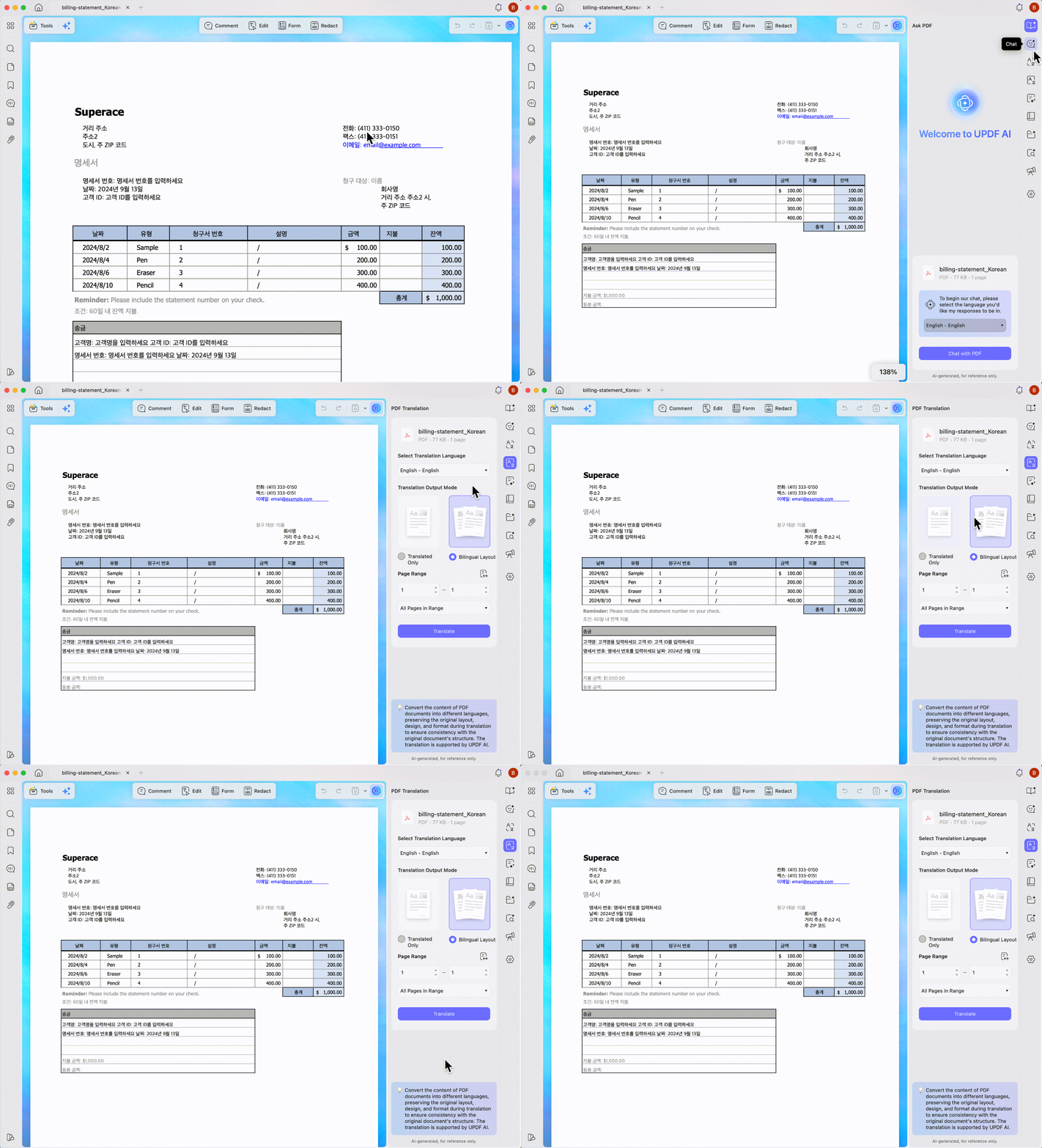
1. Open your non-English document inside the Windows or Mac version of UPDF, and locate the UPDF AI icon in the top-right corner of the interface.
Windows • macOS • iOS • Android 100% secure
2. In the AI side panel that appears, switch the top toggle from Ask PDF to PDF Translation mode.
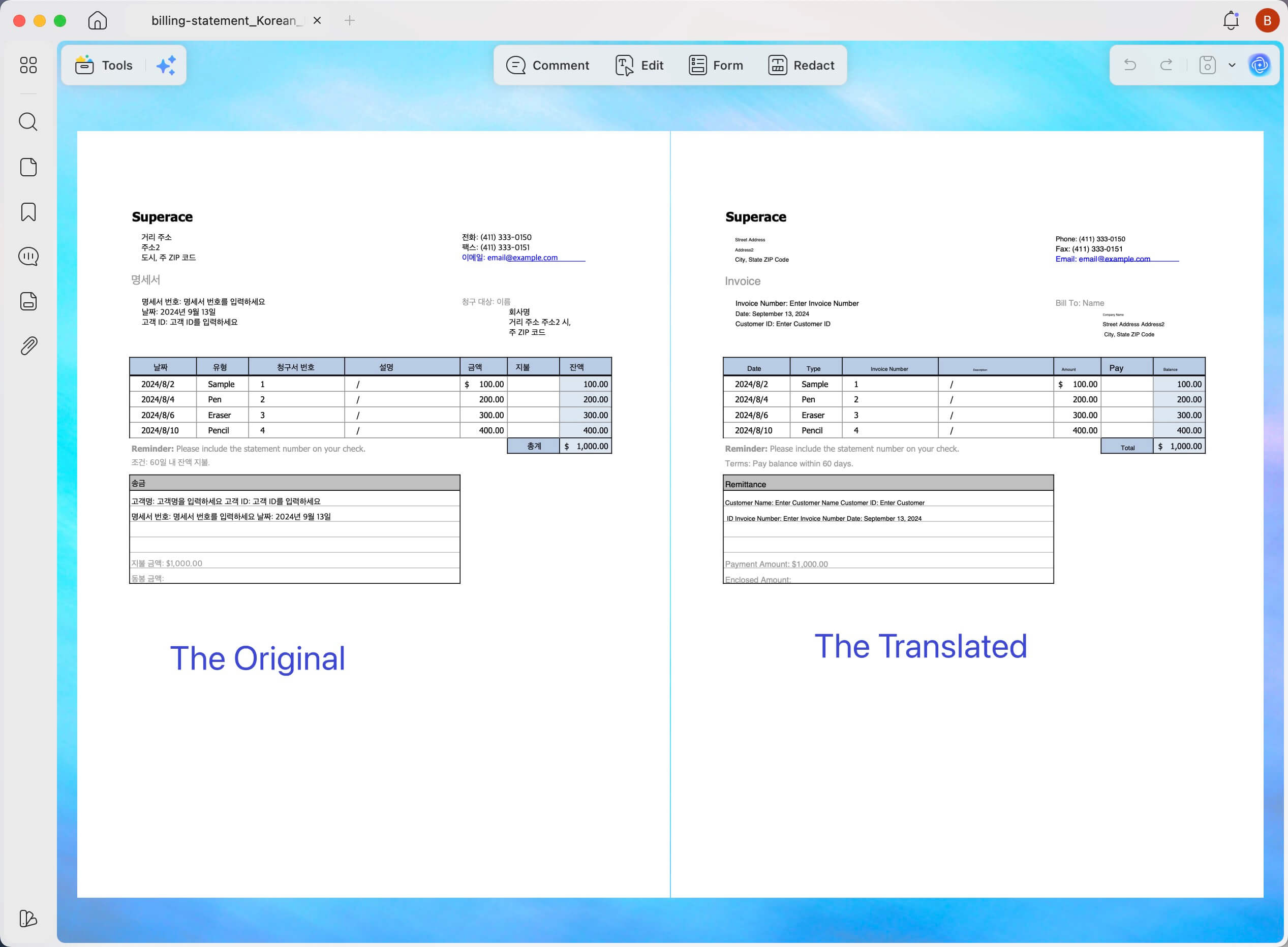
3. Choose English as your target language, and select your preferred output style. You can choose a clean, full-page English replacement or a Bilingual layout for side-by-side verification.
4. Define your custom page range (for instance, translating only pages 5 through 20 to save time) and hit the Translate button. UPDF will instantly generate a new, fully formatted English PDF file.
How the Translated Version Looks Like
Method 2: On-the-Fly Text Selection and Paragraph Translation (Desktop & Mobile)
Why Choose This Workspace?
This method blends translation directly into your natural reading flow. Instead of copying text, opening a browser tab, and pasting it into an external translation site, you can review sentences right inside your active workspace.
Step-by-Step Instructions:
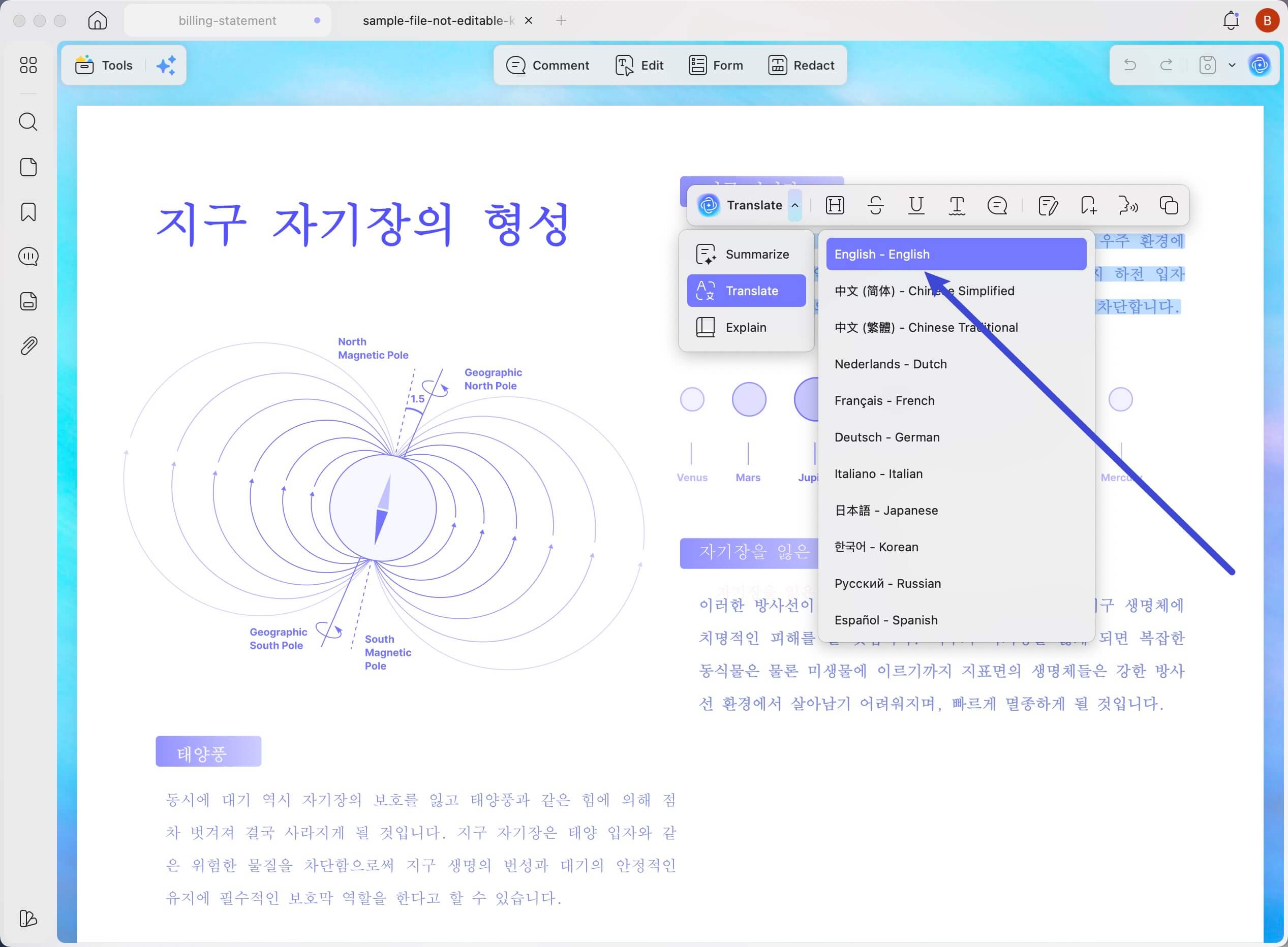
- On Your Desktop (Windows & Mac): Use your mouse cursor to highlight any word, phrase, or sentence block within your PDF. Click the Translate button on the floating quick-menu that pops up right next to your cursor. UPDF AI will instantly show the English translation in a compact overlay. From there, you can click to turn that translation into a Sticky Note or a Highlight Note for quick review later via the Comment panel.
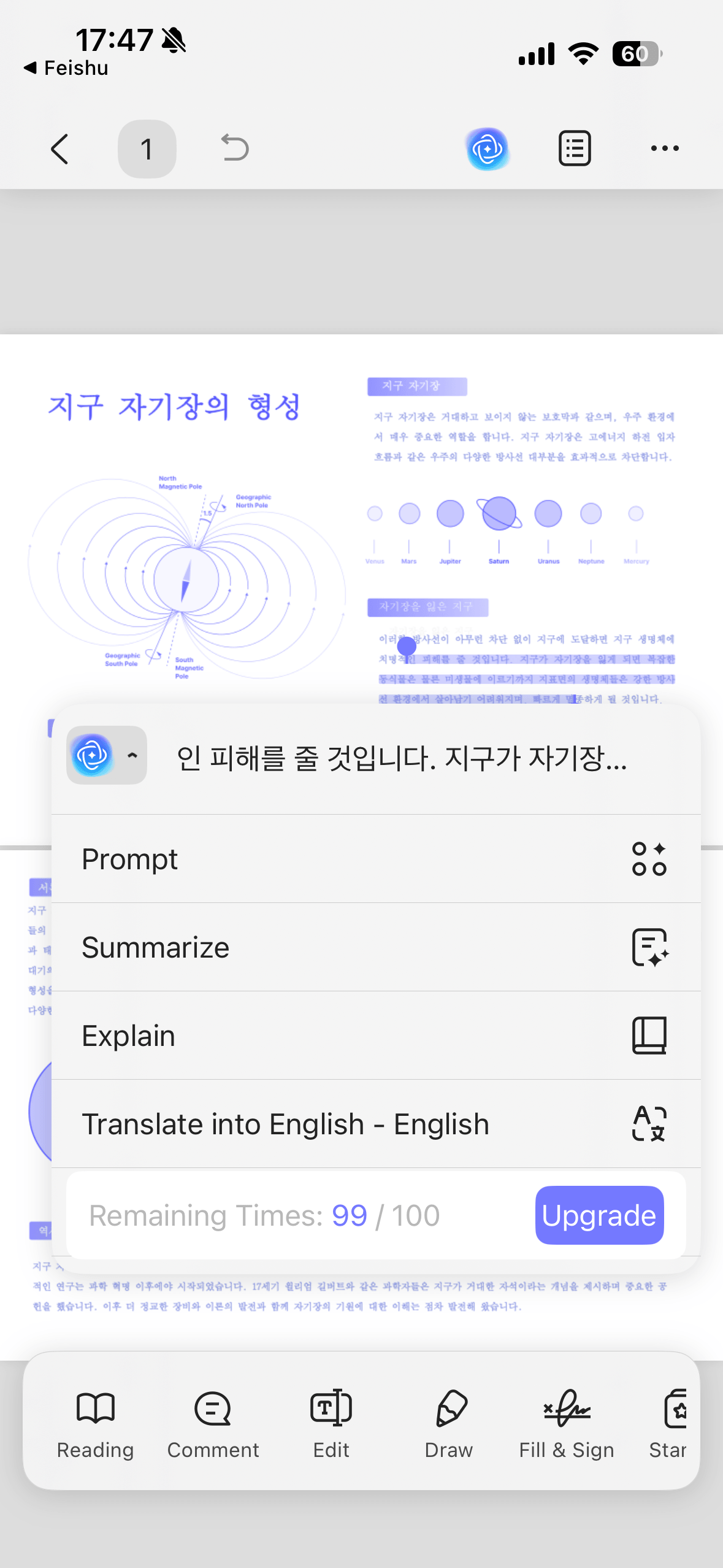
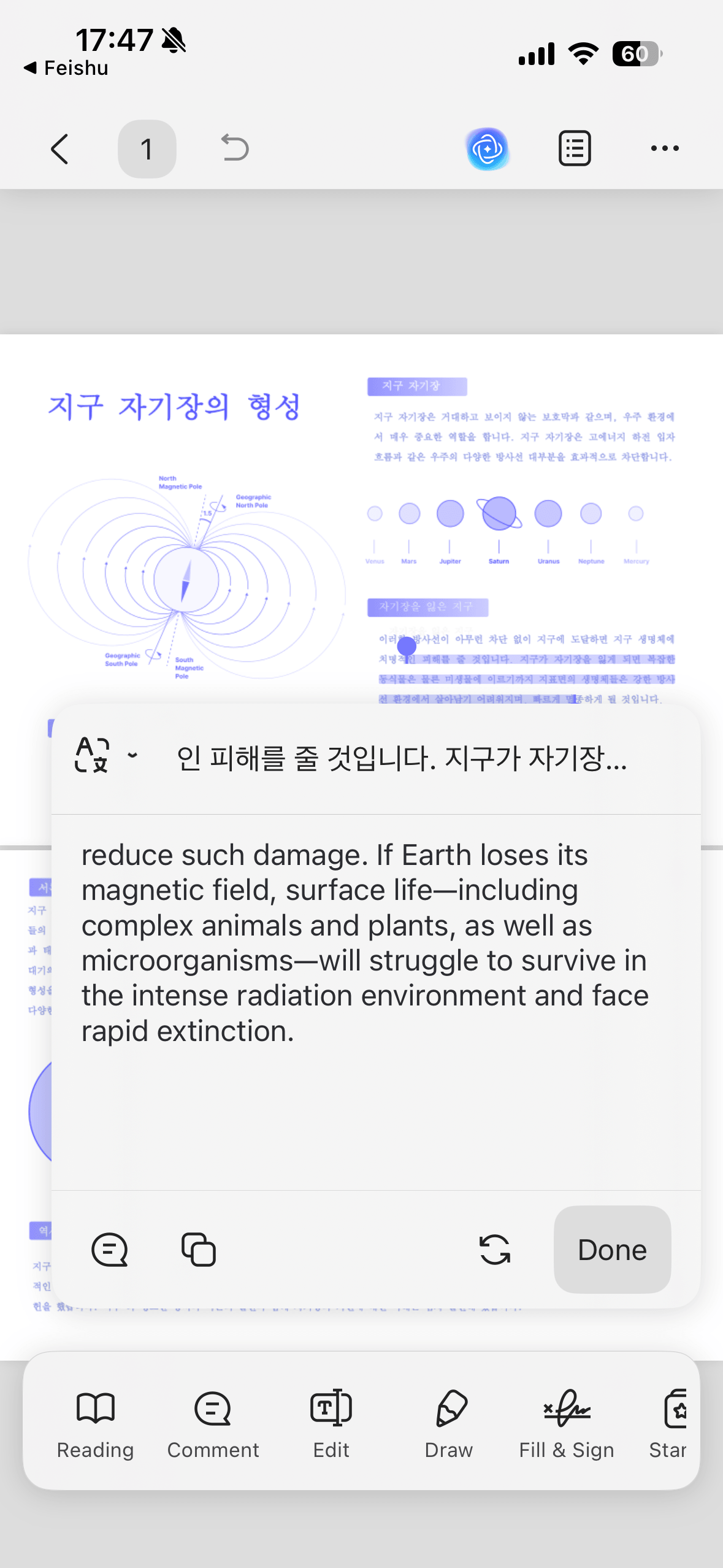
- On Your Smartphone (iOS & Android): Open your file in UPDF Mobile App, press down on the screen to highlight your target text sentences, and select Translate from the touch-menu options. The application will slide up a clean window displaying your English results instantly.
Convert and Translate Scanned PDFs into English
How to Free Translate PDF to English Online via Web Browsers
Method 3: Use UPDF AI Online via Split-Screen Views and Multi-File Projects
Why Choose UPDF AI Online?
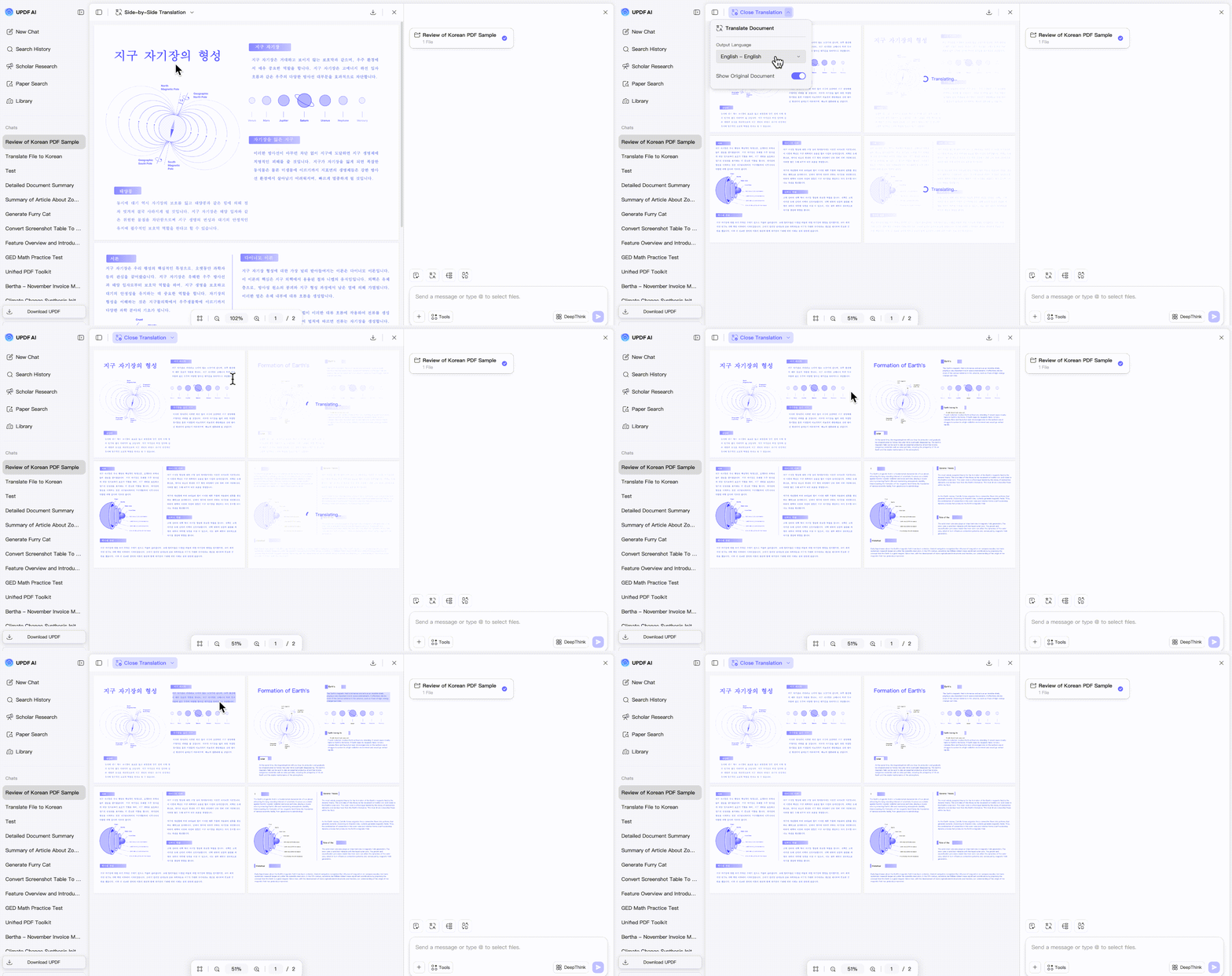
UPDF AI Online offers a completely browser-based workspace. UPDF AI Online is important to note that UPDF AI Online is a dedicated, cloud-driven intelligence platform focused entirely on PDF data processing, translation, and summaries; it does not contain the traditional PDF text editing or page layout tools found in the UPDF's desktop software. Its specialized Side-by-Side Translation interface lets you view your original file and the English translation simultaneously. When you highlight a sentence in your source document on the left, the corresponding translated English paragraph highlights automatically on the right.
Step-by-Step Instructions:
1. Launch your web browser, go to the official UPDF AI Online platform, and upload your document.
2. Select the Side-by-Side Translation mode to split your web workspace into two parallel lanes. Set the right-hand lane language preference to English.
3. As you scroll or highlight specific content blocks on the left, the right lane automatically displays the aligned English equivalent. You can download this freshly translated text whenever you are ready.
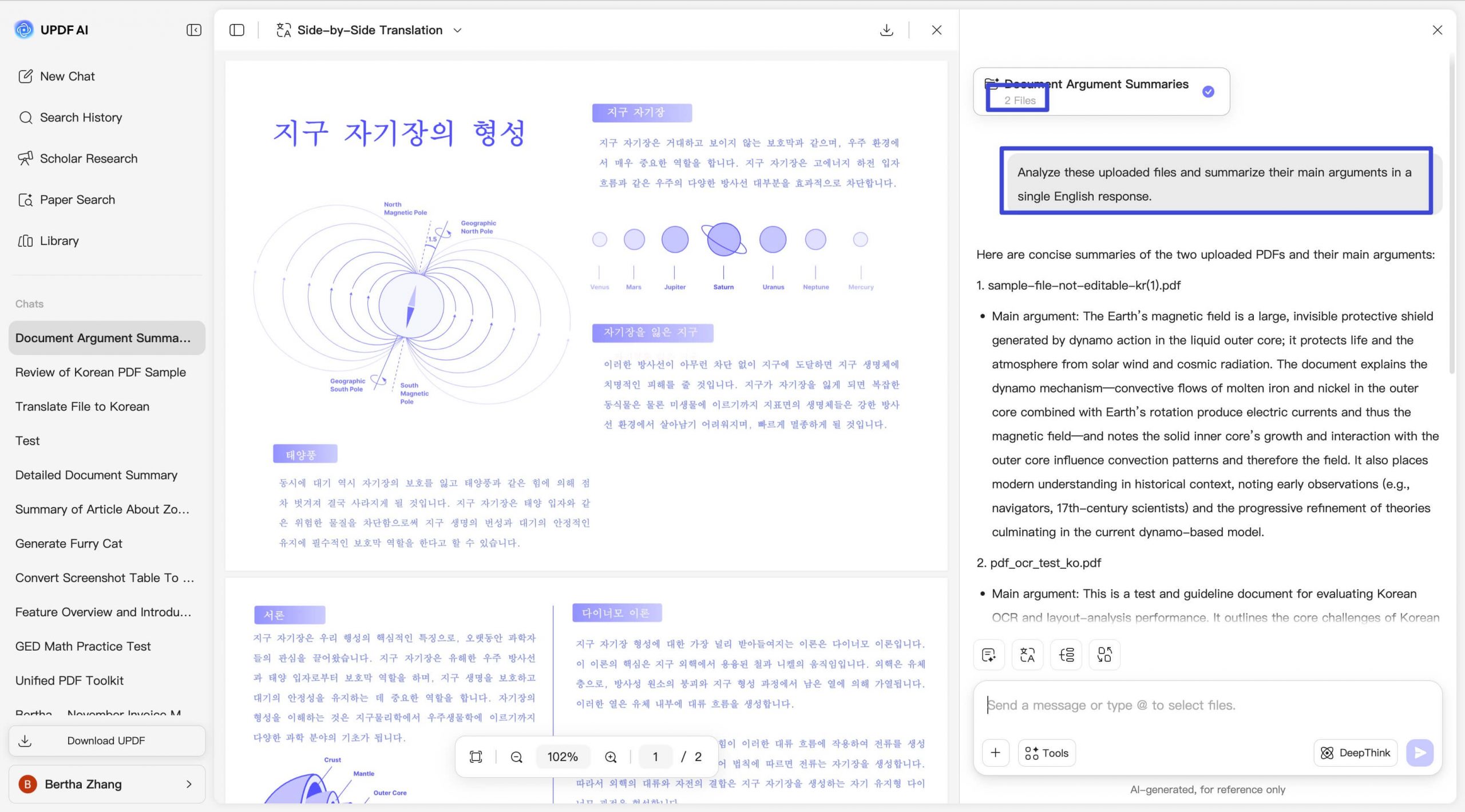
4. Use Multi-File Projects: If you have multiple connected files, click Create Project to group them into a single secure workspace. You can then chat with the online AI directly and type: "Analyze these uploaded files and summarize their main arguments in a single English response."
5. Alternative Web Approaches: If you are searching for independent cloud options or minimalist web utilities to extract summaries from shorter text strings, you can explore our analysis of top chatpdf alternative platforms or review our guide on how to summarize pdf online free.
UPDF AI Pricing Plans: Say Goodbye to Unpredictable Token Costs
Many online translation websites and third-party AI tools (including older web workarounds mentioned in our analysis of google translate pdf workflows) use confusing, expensive Token Billing Systems. Under those models, translating a highly detailed research paper or a multi-page business contract can quietly cost you dozens of dollars because you are charged for every single word or character processed.
UPDF completely removes this pricing stress. UPDF provides a highly generous free account tier that requires zero credit card commitments, alongside simple, flat-rate premium plans (starting at $29 quarterly or $79 annually) that grant you unlimited document translation access.
Take a look at how UPDF Free and UPDF Pro features compare below:
| Feature & Workspace Metrics | UPDF AI Free Plan | UPDF AI Paid Plan |
| Max PDF Document Uploads | Up to 5 separate files completely free | 100% Unlimited Document Processing |
| File Size Limit Per PDF | 10 MB/PDF | 2GB (App), 100MB (Online) |
| Page Count Limit Per PDF | 100 | Unlimited |
| AI Questions & Translation Prompts | 100 | Unlimited |
| Billing Model / Hidden Fees | Forever Free (No payment info required) | Flat subscription ($29/qtr, $79/yr) with zero token fees |
💰 Smart Budget Tip:
Frequently Asked Questions About PDF to English Translation
Why do my document layouts and tables get messy after translating them into English?
This happens because basic translation websites simply drop new text into the document without calculating the physical coordinate code of the page. To avoid broken formatting, you need an editor like UPDF built with a layout reconstruction engine. This swaps the raw text characters behind the scenes while keeping the fonts, tables, and borders exactly where they belong.
Can UPDF translate specific regional languages or rare foreign dialects into English?
Yes, absolutely. For full document transformations, the core UPDF AI engine supports direct 13-language native layout generation (including Spanish, French, German, Japanese, Arabic, and Chinese). If you use the highly interactive Chat mode to paste text strings directly, the underlying advanced AI model supports translation into standard English from almost all global languages.
Regional Language Guides: If you regularly coordinate international projects across specific regions, feel free to view our targeted language manuals, such as translate pdf english to indonesia or translate pdf arabic to english.
How can I make sure my proprietary business data stays safe when translating sensitive English contracts?
Avoid using unverified online converters that force you to upload your files to public cloud storage networks. The safest option is to process your documents locally using a professional desktop client like UPDF. This allows you to handle sensitive text blocks securely within a local sandboxed app environment on your computer.
To Wrap Up
Converting a non-English PDF into polished, accurate English shouldn't mean wasting hours rebuilding broken paragraphs or fixing warped tables from scratch. While quick browser utilities are fine for a sudden, small-scale emergency, handling professional reports, corporate contracts, or dense academic materials requires an application that respects your document's original formatting.
With its unique blend of full-page layout reconstruction, side-by-side web matching, and flat-rate pricing that removes token anxiety, UPDF offers a complete ecosystem for international document management. If you have a stack of multi-language documents waiting on your hard drive right now, feel free to download UPDF for free to streamline your translation workflows.
Windows • macOS • iOS • Android 100% secure
💡 Extended Reading & Next Steps
Once your document has been translated into English, you might need to perform final modifications or polish the existing layers. If you notice typos or need to rewrite sections within your newly formatted file, browse our master guide on how to edit a pdf. If you need to fix, realign, or replace any embedded graphics or images that were part of the original translation, refer to our walkthrough on how to edit images in pdf.



 Engelbert White
 Enola Davis
 Enola Miller
 Delia Meyer