 UPDF
 UPDF for Windows
 UPDF for Mac
 UPDF for iPhone/iPad
 UPDF for Android
 Nomostar
 UPDF AI Online
 UPDF Sign
 IvyCraft
 Edit PDF
 Annotate PDF
 Create PDF
 PDF Form
 Edit links
 Convert PDF
 OCR
 PDF to Word
 PDF to Image
 PDF to Excel
 Organize PDF
 Merge PDF
 Split PDF
 Crop PDF
 Rotate PDF
 Protect PDF
 Sign PDF
 Redact PDF
 Sanitize PDF
 Remove Security
 Read PDF
 UPDF Cloud
 Compress PDF
 Print PDF
 Batch Process

 About UPDF AI
 UPDF AI Solutions
 AI User Guide
 FAQ about UPDF AI
 Summarize PDF
 Translate PDF
 Chat with PDF
 Chat with AI
 Chat with image
 PDF to Mind Map
 Explain PDF
 PDF AI Tools
 Image AI Tools
 AI Chat Tools
 AI Writing Tools
 AI Study Tools
 AI Working Tools
 Other AI Tools
 AI Bookmark Generation
 AI Bookmark Summary
 AI Watermark Generation
 AI Background Generation
 AI Sticker Generation
 AI Stamp Generation
 AI Editing Suite
 UPDF Copilot
 AI Page Management
 AI Semantic Search
 PDF to Word
 PDF to Excel
 PDF to PowerPoint
 Enterprise Solution
 Enterprise Sign
 Enterprise AI
 Enterprise Plan
 Enterprise User Guide
 Enterprise Webinar
 IT
 Education
 Construction
 Financial Service
 Healthcare
 Insurance
 Legal
 Manufacturing
 Government
 Researchers & PhDs
 Solopreneurs & Freelancers
 Lawyers & Legal Professionals
 Real Estate Agents & Brokers
 Education Solution
 Customer Stories
 User Guide
 UPDF Tricks
 FAQs
 UPDF Reviews
 Download Center
 Blog
 Newsroom
 Tech Spec
 Updates
 UPDF vs. Adobe Acrobat
 UPDF vs. Foxit
 UPDF vs. PDF Expert


Quick Answer
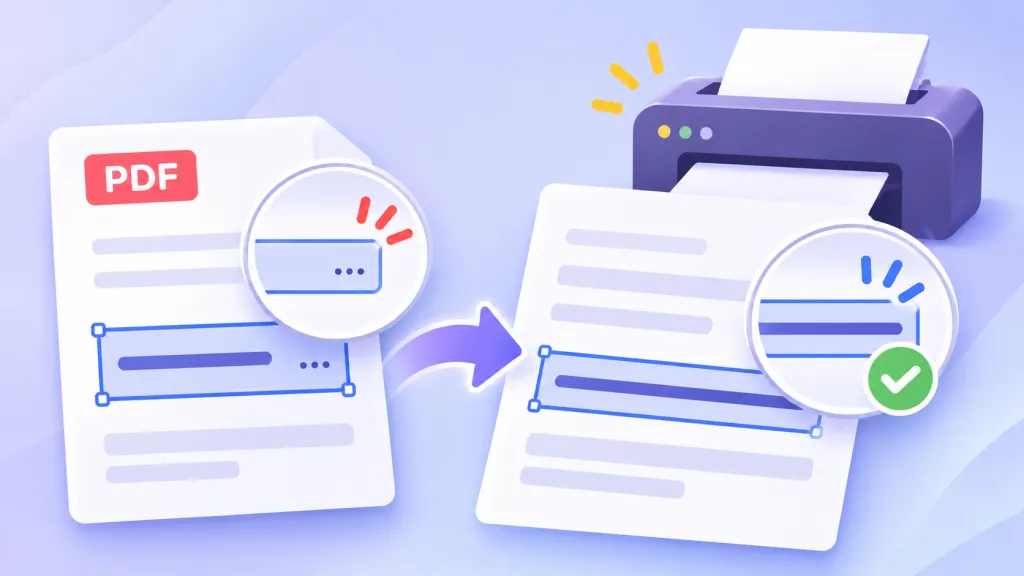
You type six lines of delivery instructions into a PDF order form. You can scroll through all six in the text field. Then you open print preview and see only four.
An Etsy seller raised a version of this problem in Reddit’s r/pdf community. They wanted buyers to fill out a PDF on screen and print it at home. Should they add fillable fields to the print layout or provide two versions? One commenter suggested setting a default font and size for each text field, then testing to find a practical character limit. They mentioned Helvetica and Arial as starting points and noted that PDF viewers can still substitute fonts.
If the Delivery Notes label prints with nothing underneath, check the field’s visibility. If the first few lines print and the rest disappear, check how the text fits inside the field.
Part 1. If the whole answer is missing, check whether the field is set to print
Open the PDF in UPDF and choose Form from the top. Add a text field or double-click the existing text field to open Text Field Properties. Under General → Form Field, check the visibility setting.
Windows • macOS • iOS • Android 100% secure
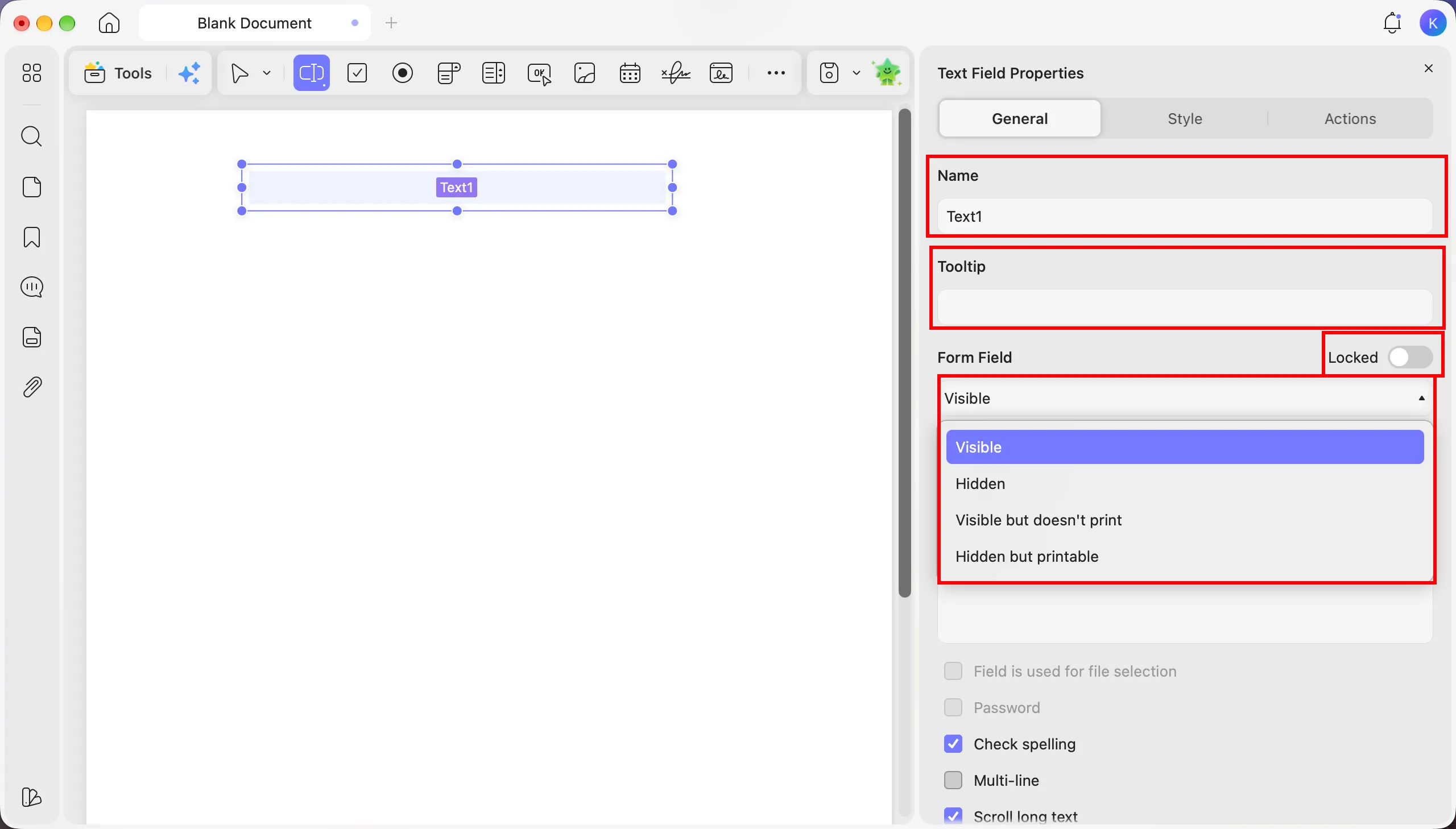
| Field setting | On screen | In print |
|---|---|---|
| Visible | ✅ | ✅ |
| Hidden | ❌ | ❌ |
| Visible but doesn't print | ✅ | ❌ |
| Hidden but printable | ❌ | ✅ |
Choose Visible for names, dates, and notes that need to print. Use Visible but doesn't print for a field that only displays an instruction on screen. Labels that are part of the PDF page still print as usual.
Part 2. If the last few lines are cut off, adjust how the text fits
1. Enable multiple lines and check the scroll setting
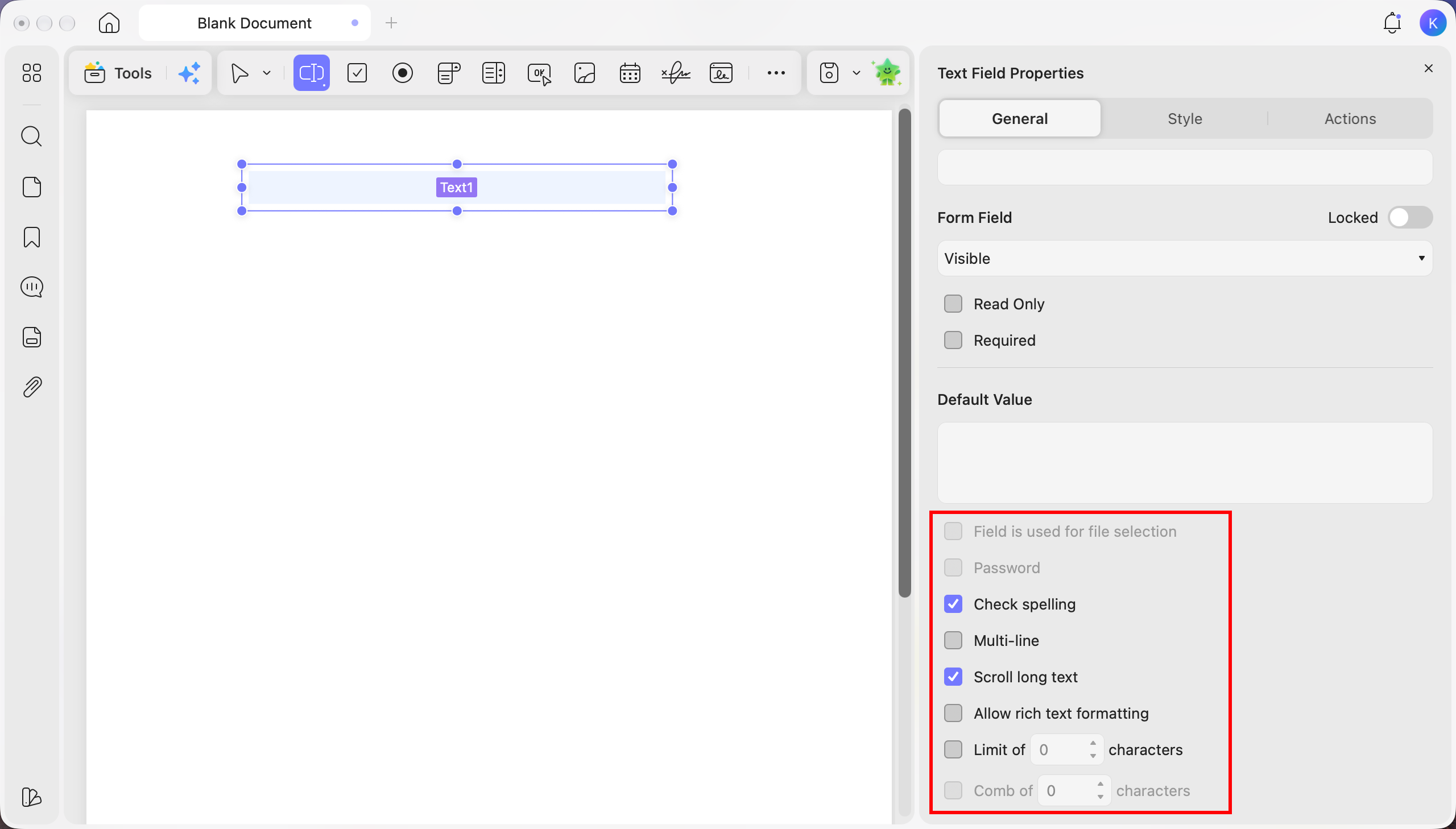
Under Text Field Properties → General, turn on Multi-line. With Scroll long text enabled, users can enter more text than the field can show at once and scroll to read the rest. If the entire answer needs to print, try turning off scrolling and test how much the field can hold. Enlarge the field if a typical answer runs out of room.
Windows • macOS • iOS • Android 100% secure
2. Choose a font and size, then resize the field
In Text Field Properties → Style, choose a font for the text users enter and set its size in the box beside it. For an English-language form, try Helvetica or Arial. Check a printed sample for readability.
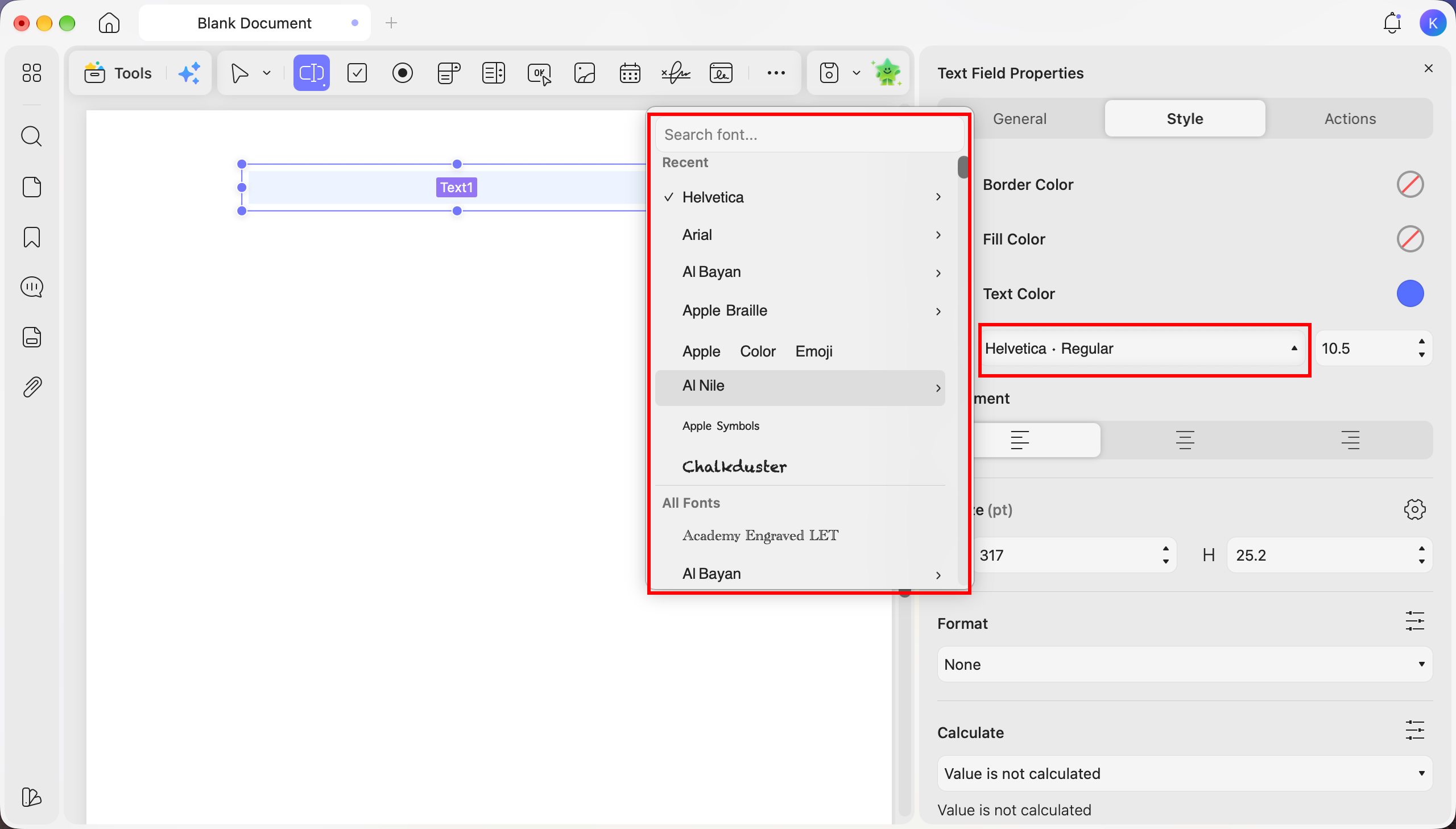
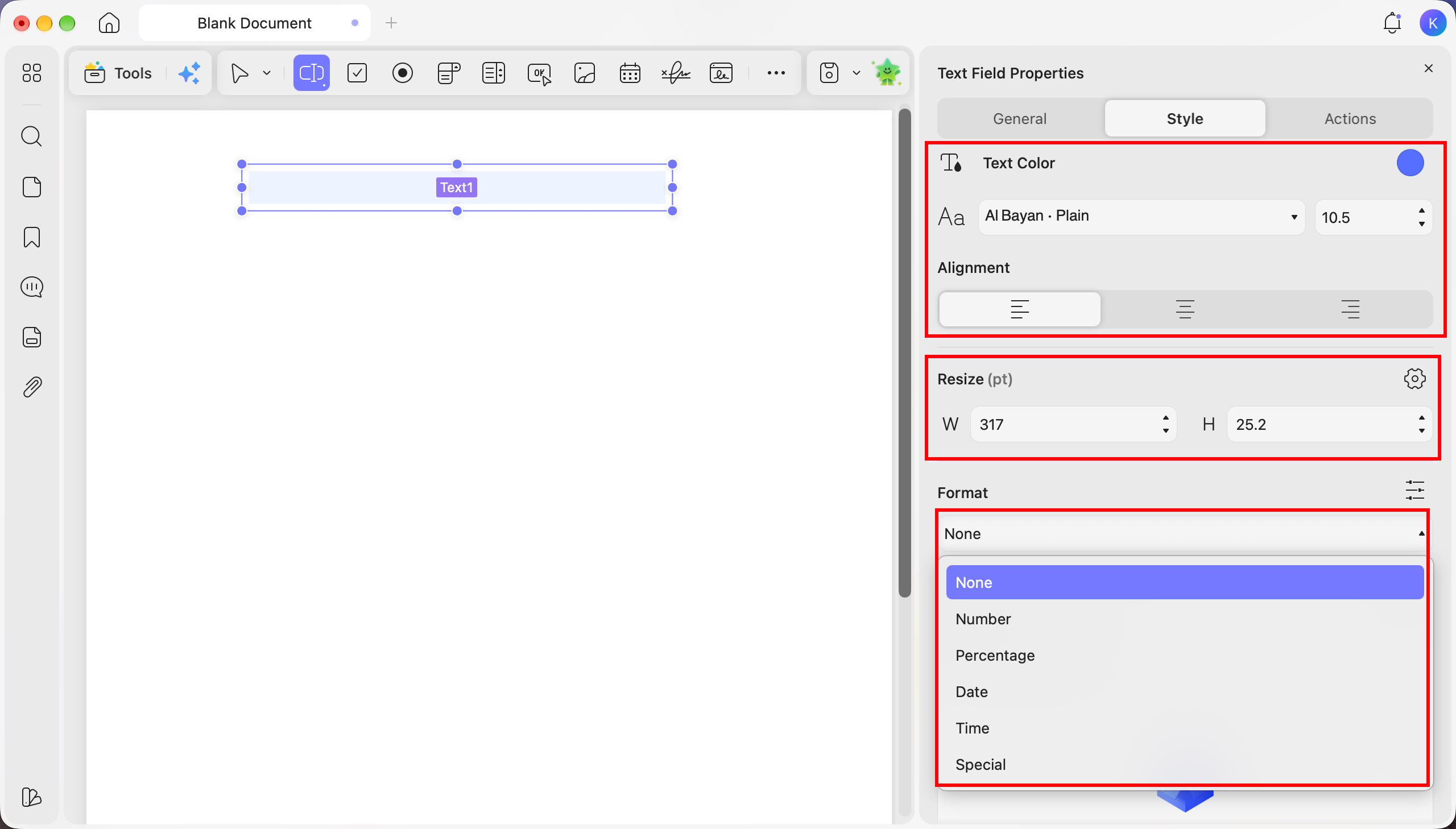
If a viewer substitutes a font, a note that fits in five lines may take six. Leave some room at the bottom of the field and test in the viewer your recipients are likely to use. Under Resize (pt), increase the height for multiline answers or widen the box for long names and addresses. Check that the new box leaves room for the next label or signature line.
3. Set a character limit using realistic answers
Once the font, size, and dimensions are in place, use General → Limit of characters if the layout has a fixed amount of space. A delivery note with a unit number, time window, and pickup instructions is a better test than “Leave at the door.” Try long words and manual line breaks because answers with the same character count can occupy different numbers of lines. If longer answers are common, state the limit on the form and provide a continuation area.
Windows • macOS • iOS • Android 100% secure
Part 3. Compare the same answer in print preview
Keep a copy of the form from before you changed the field. Enter the same delivery note in both versions and end it with a sentence you can spot easily, such as “Please ring the bell at the side entrance.” Click outside the field, save each file, and open print preview.
Check whether the final sentence appears in full and whether the text crowds the border or the next label. If recipients usually fill out the form in a browser, test the full sequence there too. Print one page at the intended size before sending the form out.
Print-preview comparison checklist for the same delivery note in both versions:
| Original field | Adjusted field |
|---|---|
| Can you read the final sentence? | Does the same sentence fit in full? |
| Does the text reach the field border? | Is there room between the text and border? |
Part 4. Frequently asked questions
1. Why does the field label print when the text I entered is missing?
The label may be part of the PDF page, while your answer is stored in a separate form field. Confirm that the answer was saved and that the field is set to Visible. Reopen the saved PDF in the viewer you plan to print from and check whether the answer appears in print preview.
2. Will flattening the PDF restore text that was cut off?
Flattening can preserve the field’s current appearance, including any clipping. Adjust the field until the entire answer is visible in print preview. Save a separate flattened copy for printing or archiving and keep the fillable original for future edits.
Conclusion
Before you distribute a fillable PDF, test it with the longest answer you realistically expect to receive. In UPDF, set the text field to Visible, choose a readable font and size, and give the text enough room to wrap. If the layout has to stay fixed, use those test answers to set a character limit.
Open the saved PDF in the viewer your recipients are likely to use and print a sample. If the last line is readable on paper, the same PDF can serve as both the fillable form and the print copy. If longer answers still get cut off, add a continuation area or provide a separate print layout with more room.
Windows • macOS • iOS • Android 100% secure







 Enrica Taylor
 Enola Miller
 Enid Brown
 Enola Davis