 UPDF
UPDF
 UPDF for Windows
 UPDF for Mac
 UPDF for iPhone/iPad
 UPDF for Android
 Nomostar
 UPDF AI Online
 UPDF Sign
 IvyCraft
 Edit PDF
 Annotate PDF
 Create PDF
 PDF Form
 Edit links
 Convert PDF
 OCR
OCR PDF to Word
 PDF to Image
 PDF to Excel
 Organize PDF
 Merge PDF
 Split PDF
 Crop PDF
 Rotate PDF
 Protect PDF
 Sign PDF
 Redact PDF
 Sanitize PDF
 Remove Security
 Read PDF
 UPDF Cloud
 Compress PDF
 Print PDF
 Batch Process
 About UPDF AI
 UPDF AI Solutions
 AI User Guide
 FAQ about UPDF AI
 Summarize PDF
 Translate PDF
 Chat with PDF
 Chat with AI
 Chat with image
 PDF to Mind Map
 Explain PDF
 PDF AI Tools
 Image AI Tools
 AI Chat Tools
 AI Writing Tools
 AI Study Tools
 AI Working Tools
 Other AI Tools
 AI Bookmark Generation
 AI Bookmark Summary
 AI Watermark Generation
 AI Background Generation
 AI Sticker Generation
 AI Stamp Generation
 AI Editing Suite
 UPDF Copilot
 AI Page Management
 AI Semantic Search
 PDF to Word
 PDF to Excel
 PDF to PowerPoint
 Enterprise Solution
 Enterprise Sign
 Enterprise AI
 Enterprise Plan
 Enterprise User Guide
 Enterprise Webinar
 Banking
 Healthcare
 Insurance
 Legal
Legal Manufacturing
 Government
 Researchers & PhDs
 Solopreneurs & Freelancers
 Lawyers & Legal Professionals
 Real Estate Agents & Brokers
 Education Solution
 Customer Stories
 User Guide
 UPDF Tricks
 FAQs
FAQs UPDF Reviews
 Download Center
 Blog
Blog Newsroom
 Tech Spec
 Updates
 UPDF vs. Adobe Acrobat
 UPDF vs. Foxit
 UPDF vs. PDF Expert

Sign PDF on Android
Signing PDFs has become crucial for ensuring the personalization of your content, managing credibility issues, or simply signing digital contracts. Understanding this, UPDF for Android now enables signing PDFs. Let's delve into this guide to explore how you can sign PDFs on the go with just a few taps.
If you're looking to e-sign a PDF on Android or send it to multiple recipients for signatures, try UPDF Sign. With similar features to Docusign, UPDF Sign offers convenient options for sending, tracking, and signing documents. Registered UPDF users can log in directly to UPDF Sign without needing a separate registration. Give it a try today for free!
How to Add a Handwritten/Image Signature to a PDF
Here is how you can access this feature:
- Launch UPDF and open the PDF that you want to sign.
- Once opened, tap the Sign icon on the bottom toolbar.
- From the banner displayed, tap on the Signature button.
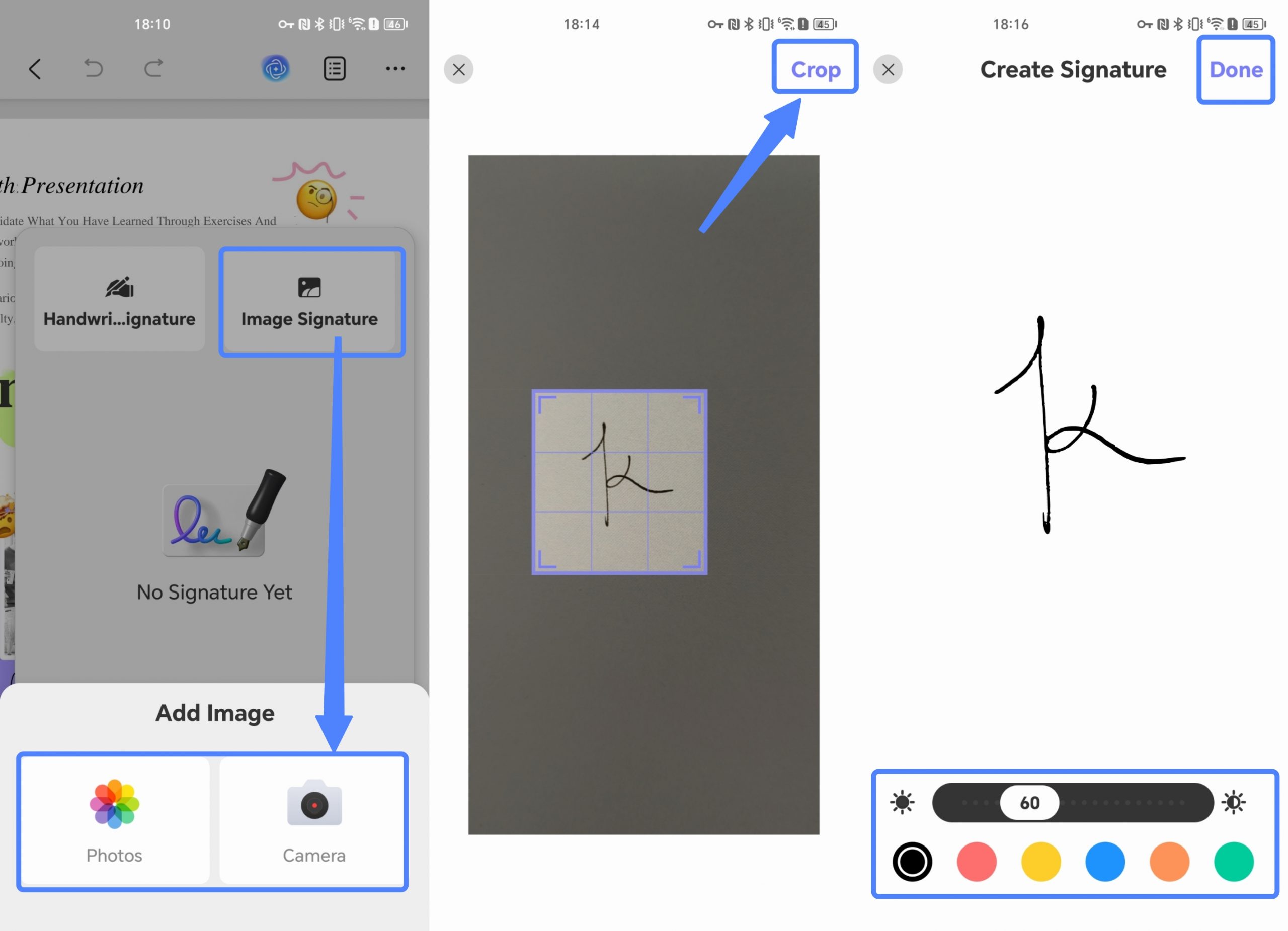
Here, you have the option to either create and insert a handwritten signature or add an image as your signature.

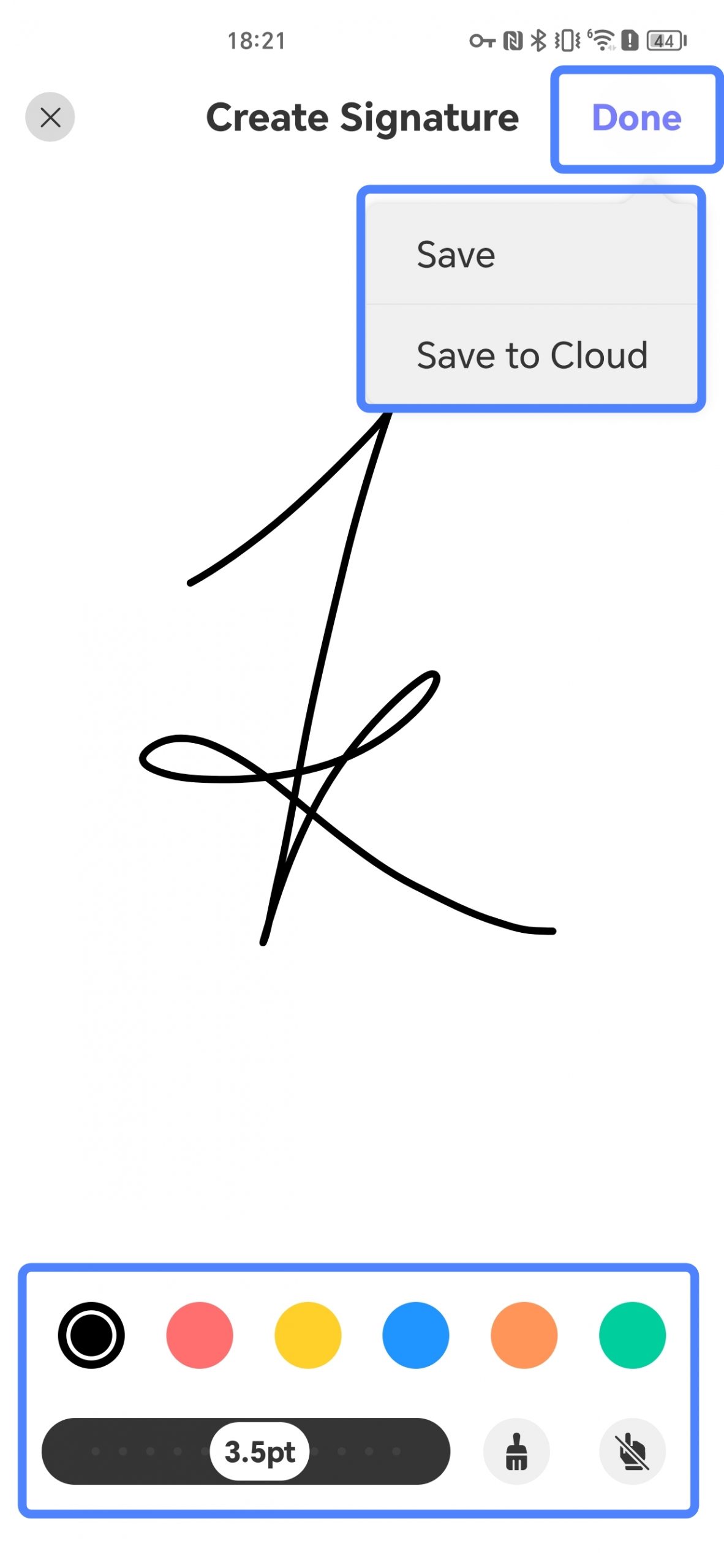
- If you choose Handwrite Signature, on the new screen, write your Signature on the blank page and customize the Signature. Hit the Done button to save the signature in UPDF or UPDF Cloud.
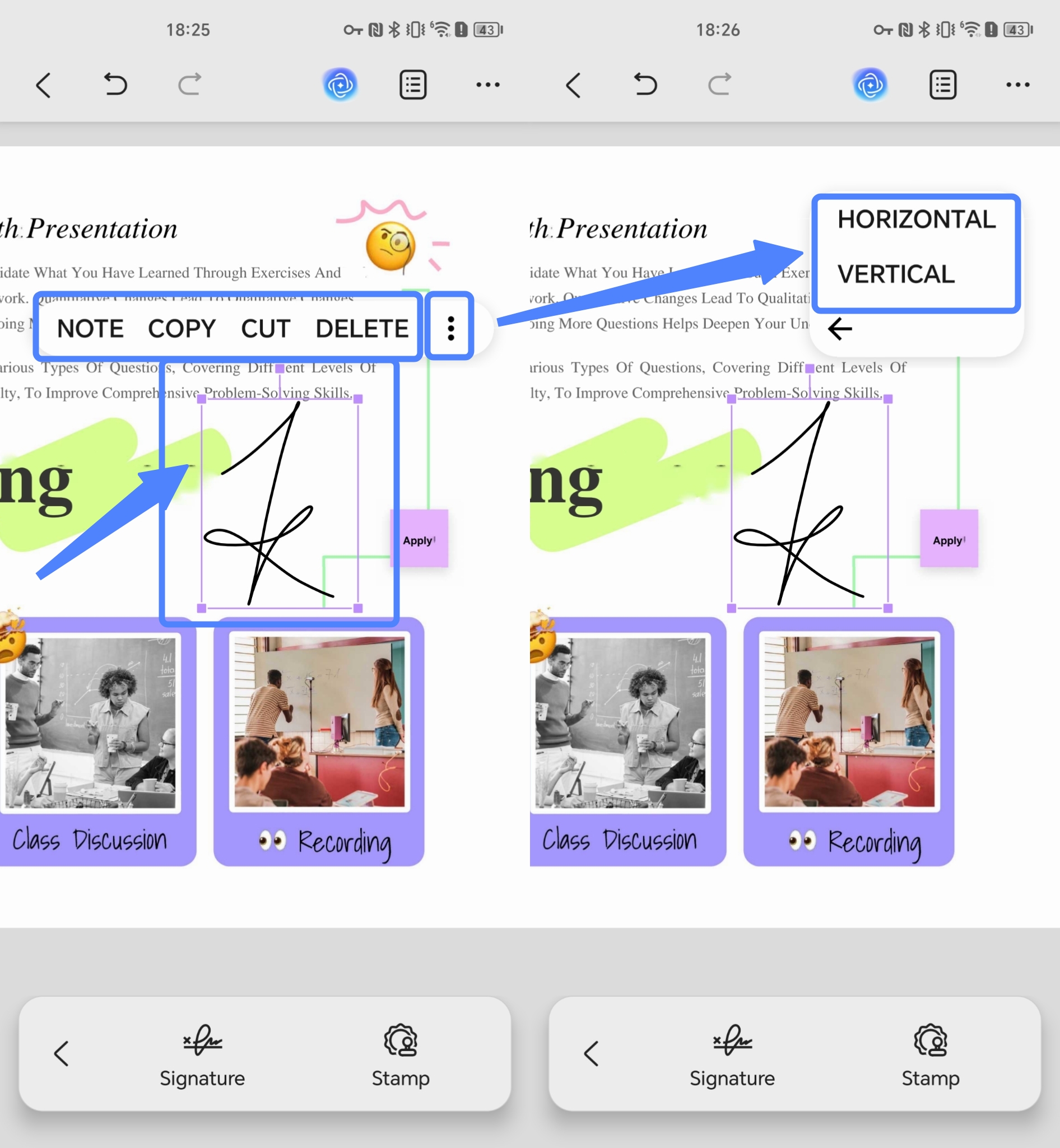
- UPDF will automatically return to your PDF page. Now, simply click on the desired location, and your signature will be placed there. You can then click on the signature to perform further actions, such as copying, cutting, deleting, resizing it by dragging its corners, or moving it by dragging.
Tips for Adding a Handwritten Signature
- When creating a handwritten signature, you can choose from different font colors and writing thicknesses.
- If you want to clear the signature pad, simply hit the Brush icon on the bottom right of the screen.
- After creating the signature, you can tap on the Palm button and then move it left, right, up, and down. To continue modifying the signature, tap the Palm button again.
- If you choose Image Signature, UPDF allows you to import a signature image from your Photos or take a new one. After taking or importing a signature photo, UPDF will prompt you to crop the image to keep only the necessary part for signature recognition. Once cropped, click "Crop" to proceed. UPDF will then recognize the signature and import it onto a clean background. Here, you can freely adjust the color and exposure of your signature. After making adjustments, click "Done" to save the signature in UPDF or UPDF Cloud.
Now, simply click on the desired location, and your signature will be placed there.