 UPDF
UPDF
 UPDF for Windows
 UPDF for Mac
 UPDF for iPhone/iPad
 UPDF for Android
 Nomostar
 UPDF AI Online
 UPDF Sign
 IvyCraft
 Edit PDF
 Annotate PDF
 Create PDF
 PDF Form
 Edit links
 Convert PDF
 OCR
OCR PDF to Word
 PDF to Image
 PDF to Excel
 Organize PDF
 Merge PDF
 Split PDF
 Crop PDF
 Rotate PDF
 Protect PDF
 Sign PDF
 Redact PDF
 Sanitize PDF
 Remove Security
 Read PDF
 UPDF Cloud
 Compress PDF
 Print PDF
 Batch Process
 About UPDF AI
 UPDF AI Solutions
 AI User Guide
 FAQ about UPDF AI
 Summarize PDF
 Translate PDF
 Chat with PDF
 Chat with AI
 Chat with image
 PDF to Mind Map
 Explain PDF
 PDF AI Tools
 Image AI Tools
 AI Chat Tools
 AI Writing Tools
 AI Study Tools
 AI Working Tools
 Other AI Tools
 AI Bookmark Generation
 AI Bookmark Summary
 AI Watermark Generation
 AI Background Generation
 AI Sticker Generation
 AI Stamp Generation
 AI Editing Suite
 UPDF Copilot
 AI Page Management
 AI Semantic Search
 PDF to Word
 PDF to Excel
 PDF to PowerPoint
 Enterprise Solution
 Enterprise Sign
 Enterprise AI
 Enterprise Plan
 Enterprise User Guide
 Enterprise Webinar
 IT
IT Education
 Construction
 Financial Service
 Healthcare
 Insurance
 Legal
Legal Manufacturing
 Government
 Researchers & PhDs
 Solopreneurs & Freelancers
 Lawyers & Legal Professionals
 Real Estate Agents & Brokers
 Education Solution
 Customer Stories
 User Guide
 UPDF Tricks
 FAQs
FAQs UPDF Reviews
 Download Center
 Blog
Blog Newsroom
 Tech Spec
 Updates
 UPDF vs. Adobe Acrobat
 UPDF vs. Foxit
 UPDF vs. PDF Expert

After scanning a paper document, you might want to convert it into an editable Word file. But retyping everything manually can be mentally exhausting.
Fortunately, OCR technology helps you convert your scans into editable text automatically. Therefore, this article shares five effective methods to scan text into Word with OCR.
However, not all can scan a paper document directly into Word or handle multiple files at once. UPDF makes this possible with its cross-platform OCR solution and built-in batch processing tools. Download it now to try these features for free.
Windows • macOS • iOS • Android 100% secure
Part 1. How to Scan Text into Word (100% Working)
To scan text into Word, you will first need to recognize text from the image using OCR. OCR or Optical Character Recognition can identify the specific shapes of numbers and characters in a scanned image and convert them into printable text.
Below is a quick comparison of platform-specific scanning methods to help you choose the right one for your needs.
| Scanning Method | Core Features | Applicable Scenarios |
| Mobile Apps | Camera-based scanning, direct text recognition | On-the-go capture |
| Desktop Software | Advanced OCR, multi-language support, batch processing, layout preservation, direct Word export | Complex layouts, large files, professional workflows |
| Online Tools | Browser-based OCR and Word conversion | Converting scanned images to Word with any installation |
| Microsoft Built-in Tool (OneNote) | Built-in OCR, copy and paste text into Word | Basic text extraction |
| Built-in phone features (Google Lens) | AI-powered text detection, copy and paste to Word | Quick text capture from printed or handwritten content |
Now let’s review how these methods help you scan written text into a Word document.
Method 1. Desktop Software (UPDF)
If you frequently work with scanned documents, you will need a tool that isn't limited to one platform for scanning text into Word. As a cross-platform PDF solution, UPDF works across Windows, Mac, iOS, and Android. So you can access its OCR tool anywhere you need.
Moreover, UPDF offers a built-in scanner tool to help you directly scan any paper document, run OCR, and convert it into a Word format. You can also keep the original text layout during the conversion.
Here’s how to scan text into a Word document using it.
Windows • macOS • iOS • Android 100% secure
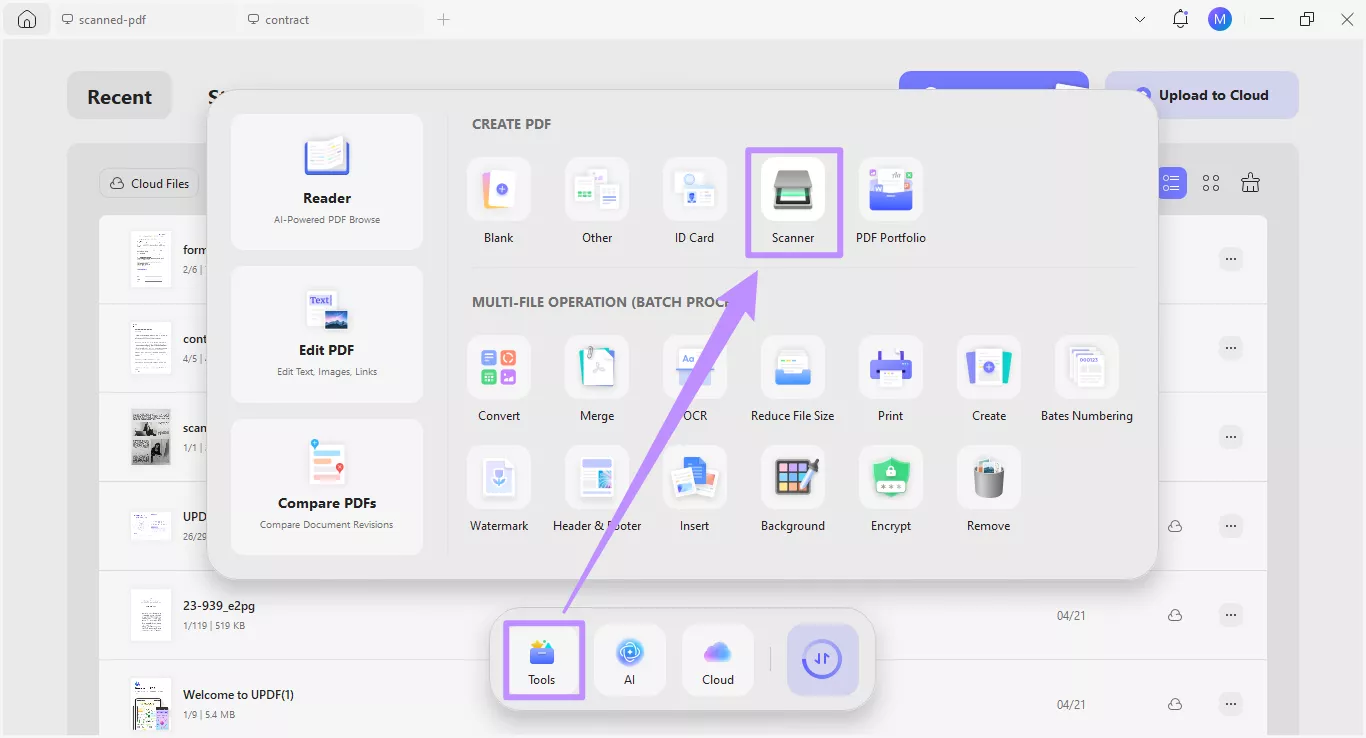
Step 1. Open UPDF and click “Tools” at the bottom. Then, select “Scanner” under the Create PDF section.
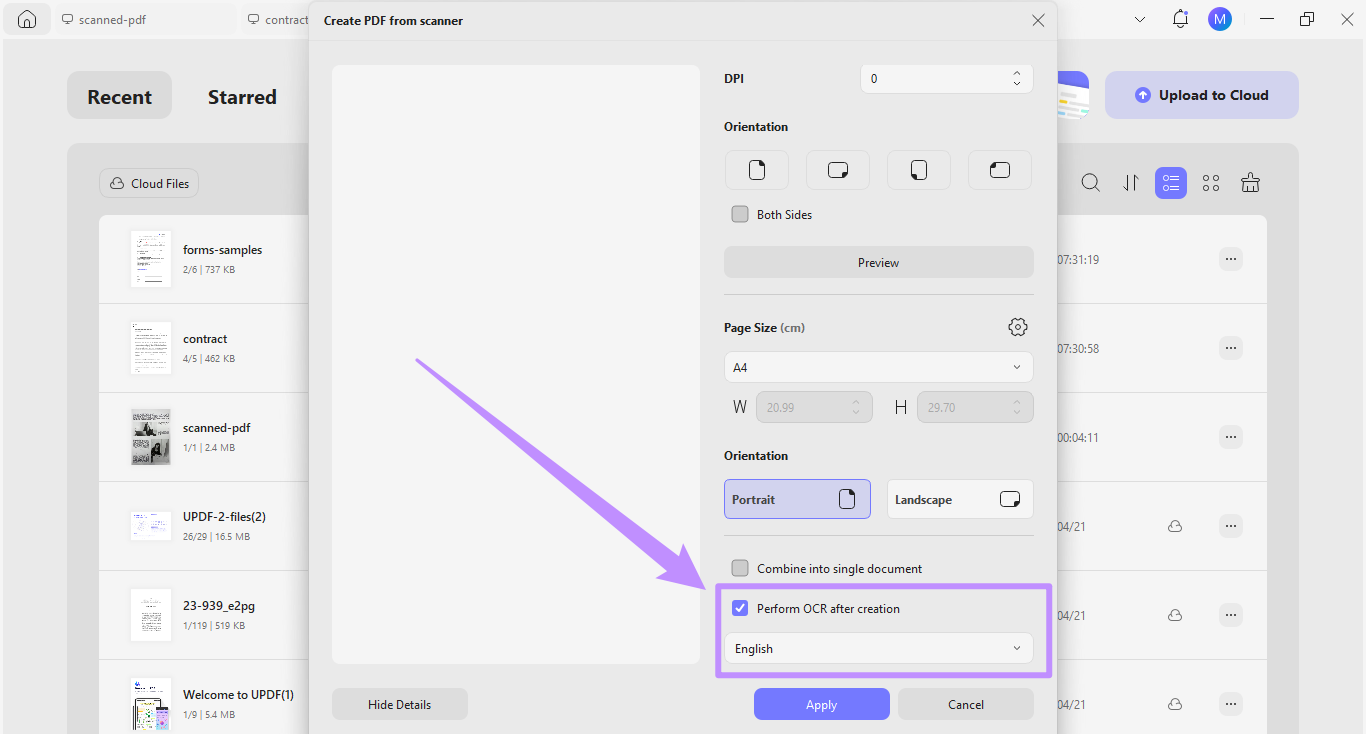
Step 2. Wait for the scanner to analyze your document. Then adjust your scan settings, including scanner type, mode, resolution, page size, orientation, and more. Select “Perform OCR after creation” and choose the document’s language. Finally, click “Apply.”
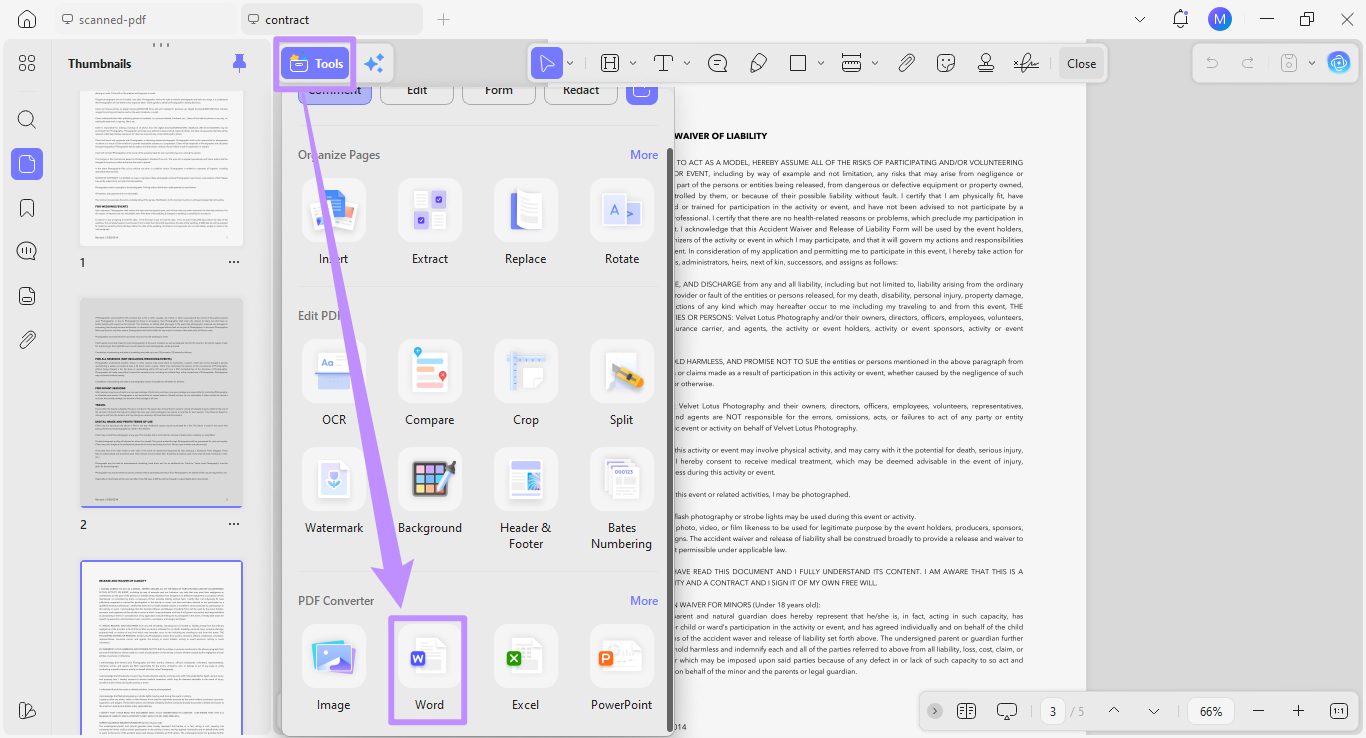
Step 3. Click “Scan Completed” to open the file in UPDF. Then, click “Tools” from the top and select “Word” under PDF Converter.
From the new window, click the Word Content Style dropdown and choose “Retain Word Flowing Style.” Otherwise, select “Retain Word TextBox Style” to preserve the original text layout. Then click “Apply” to save your file.
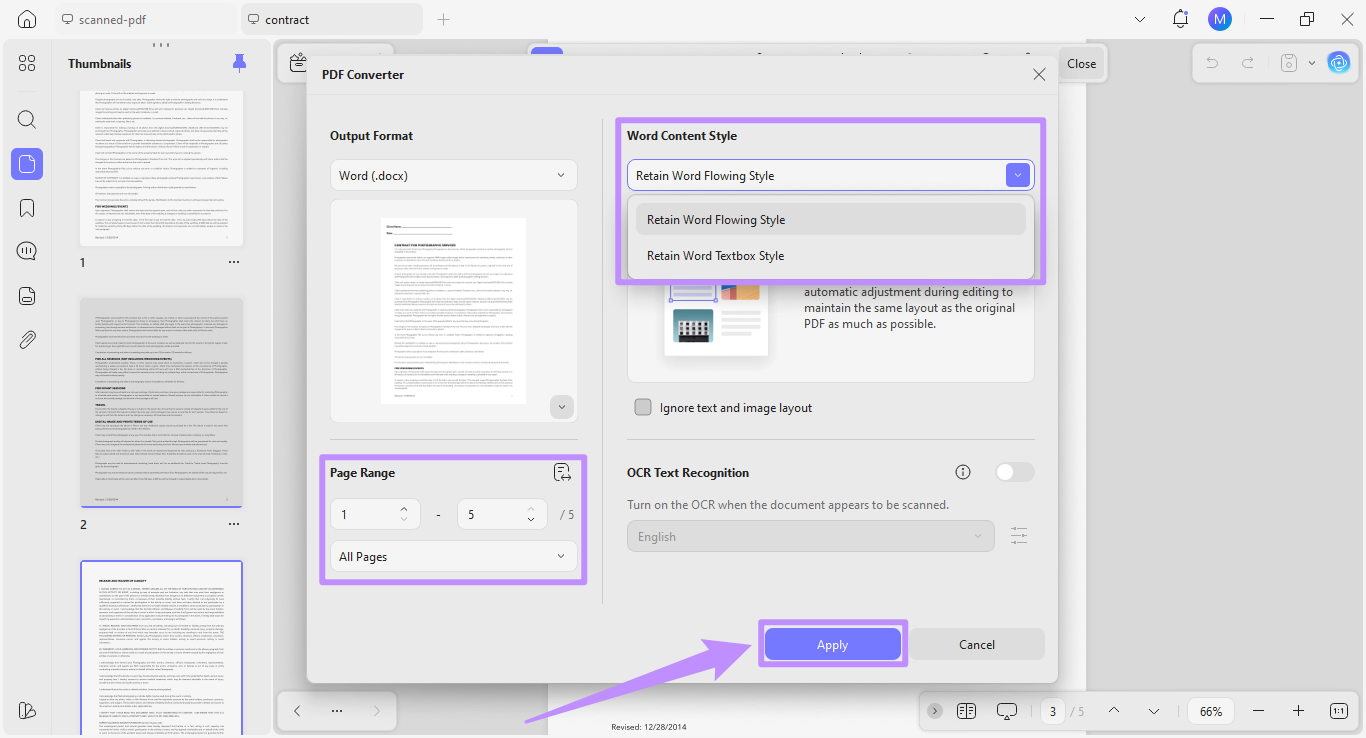
Tip: To convert a previously scanned PDF into Word, open it in UPDF. Then click “Tools” and choose “Word” under PDF Converter. Then, enable “OCR Text Recognition” and choose the document’s language. Finally, click “Apply” to convert scanned text into Word.
Method 2. Mobile Apps
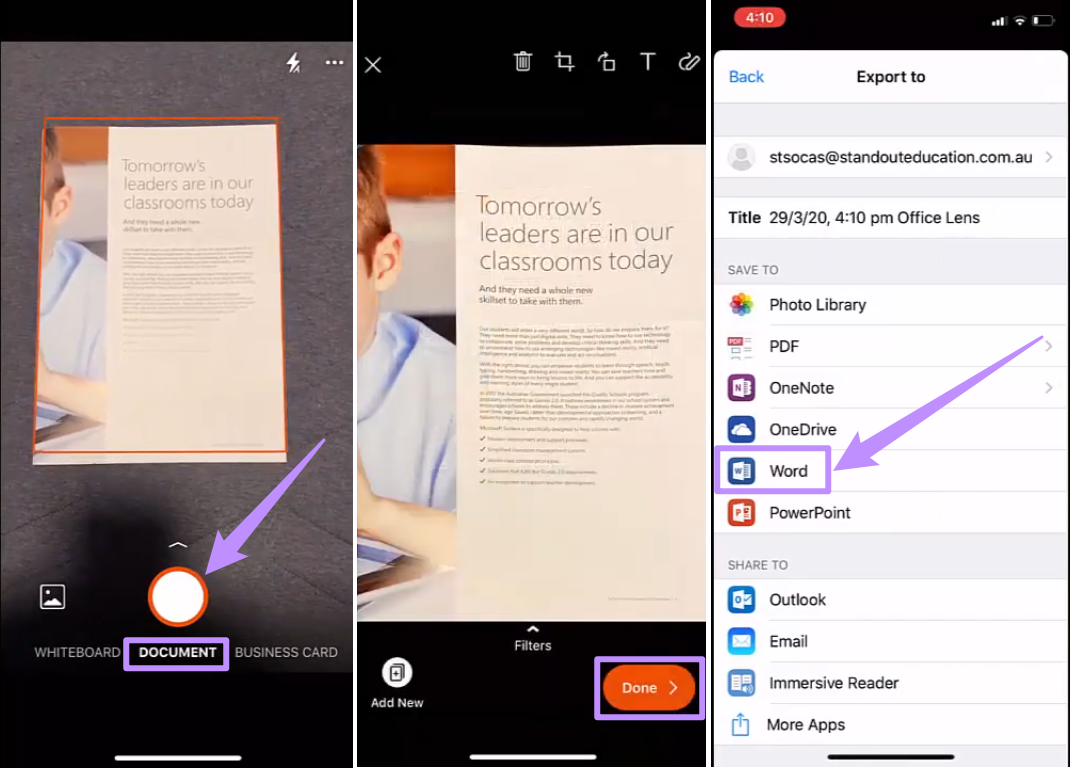
UPDF can also be downloaded on iOS and Android devices and has the same process as the method 1. So here let’s see Microsoft Lens offers a simple yet effective way to scan printed text into Word. However, be aware that the official app has been discontinued, although apk files still exist on third-party platforms.
Here's how to use it.
- Open Microsoft Lens on your phone.
- Above the shutter button, select the "Document" mode.
- Take a picture of your document, and Microsoft Lens will automatically highlight the text
- Tap “Done” and then select “Word” as your output format.
Method 3. Online Tools
You can use online tools such as UPDF AI (Upload your scanned text images to UPDF AI and ask AI to extract text for you and then save as PDF, then convert PDF as Word free online, the whole process can be easy and free!) and Online-Convert to scan text from images into Word. To do this:
- Click “Choose File” to upload your scanned image or PDF.
- Select “Text Recognition” from the dropdown for OCR Method.
- Select the document’s language. Then, click “Start.”
- Click the “Download” button to save your Word file.
Method 4. Microsoft Built-in Tool (OneNote)
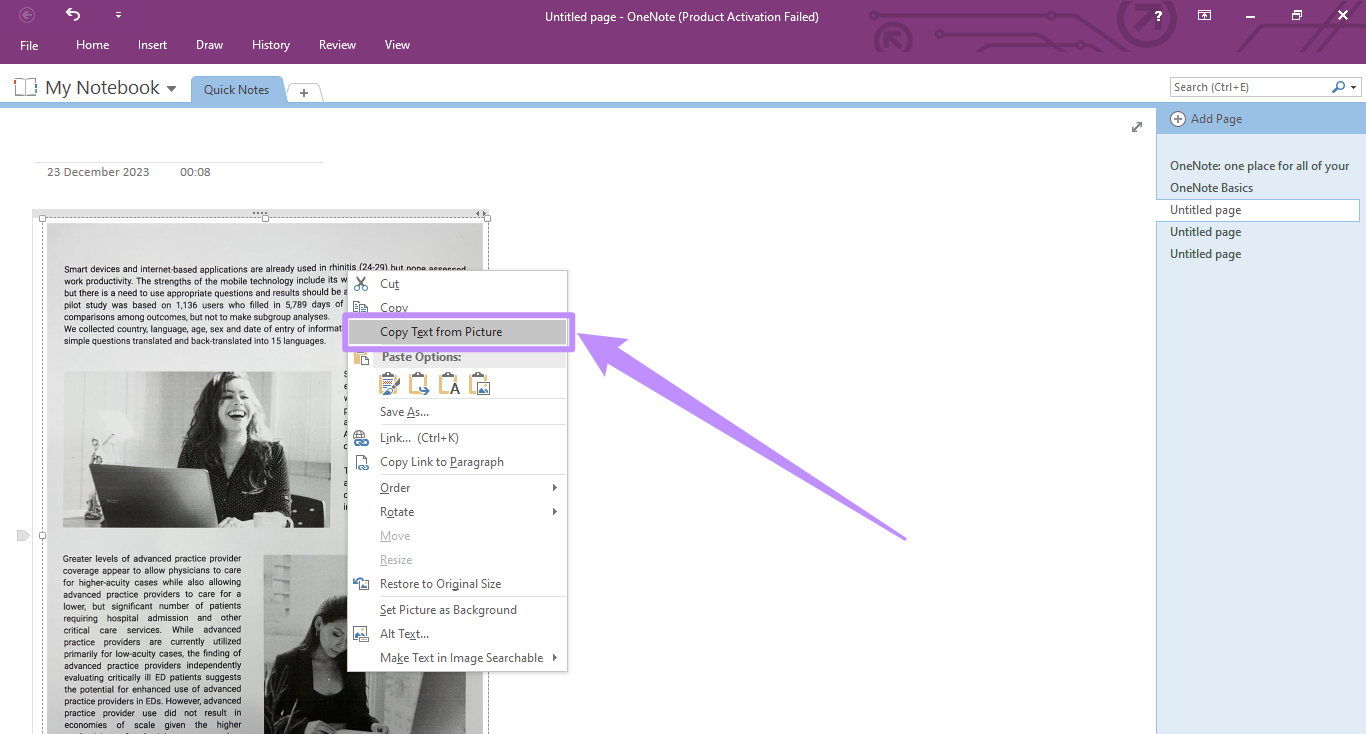
OneNote has a built-in OCR feature, but it does not export directly to Word. You’ll need to copy the extracted text to your clipboard for manual pasting.
Here are the steps.
- Open OneNote and go to Insert > Pictures to add your scanned image.
- Right-click the image and select “Copy Text from Picture.”
Method 5. Built-in Phone Features (Google Lens)
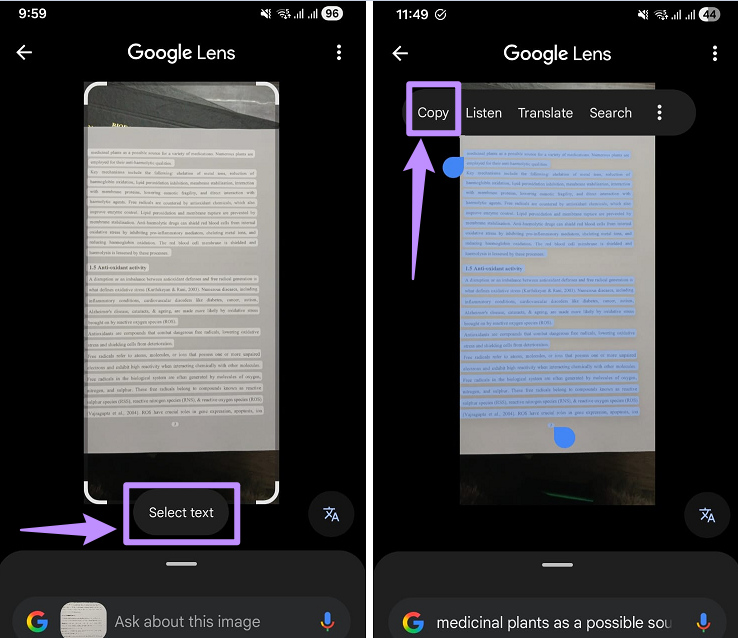
Google Lens is a built-in feature on both Android and iOS. Like OneNote, it copies text to your clipboard rather than producing a Word file directly. After opening Google Lens, you can simply point your camera at the text. Then, select and copy the text to paste into Word.
Part 2. Advanced Guide to Scan Text to Word
If you want to recognize text from multiple scanned PDFs or scan a handwritten document into Word, UPDF makes it possible. You can use UPDF’s online or built-in AI assistant to extract handwriting from images or scanned PDFs. Moreover, its batch processing tools allow you to convert multiple scanned documents into editable and searchable Word files. You just need to enable OCR during the conversion.
Windows • macOS • iOS • Android 100% secure
Steps to Convert Handwriting into Text
Step 1. Open UPDF and click “Open File” to import your scanned PDF.
Step 2. Once uploaded, click the “UPDF AI” icon from the top right. Then, select the “Chat” mode from the right sidebar.
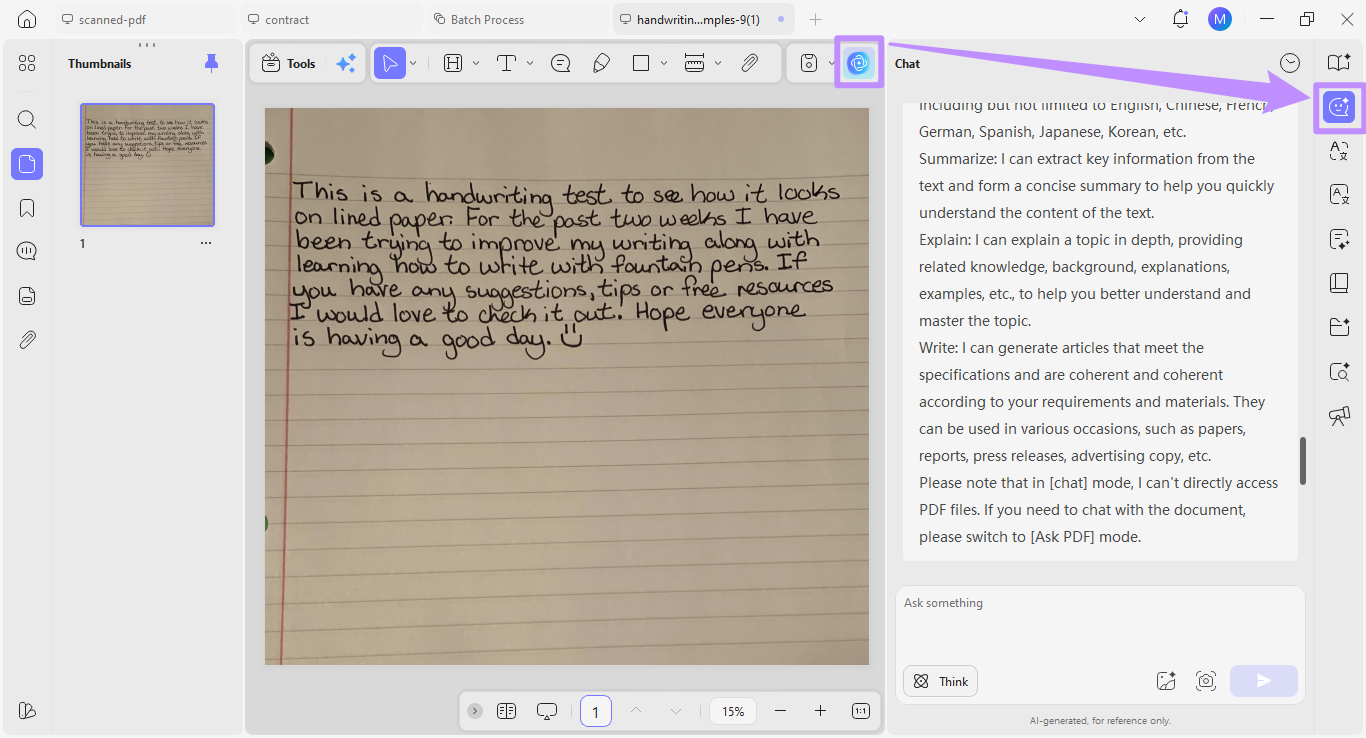
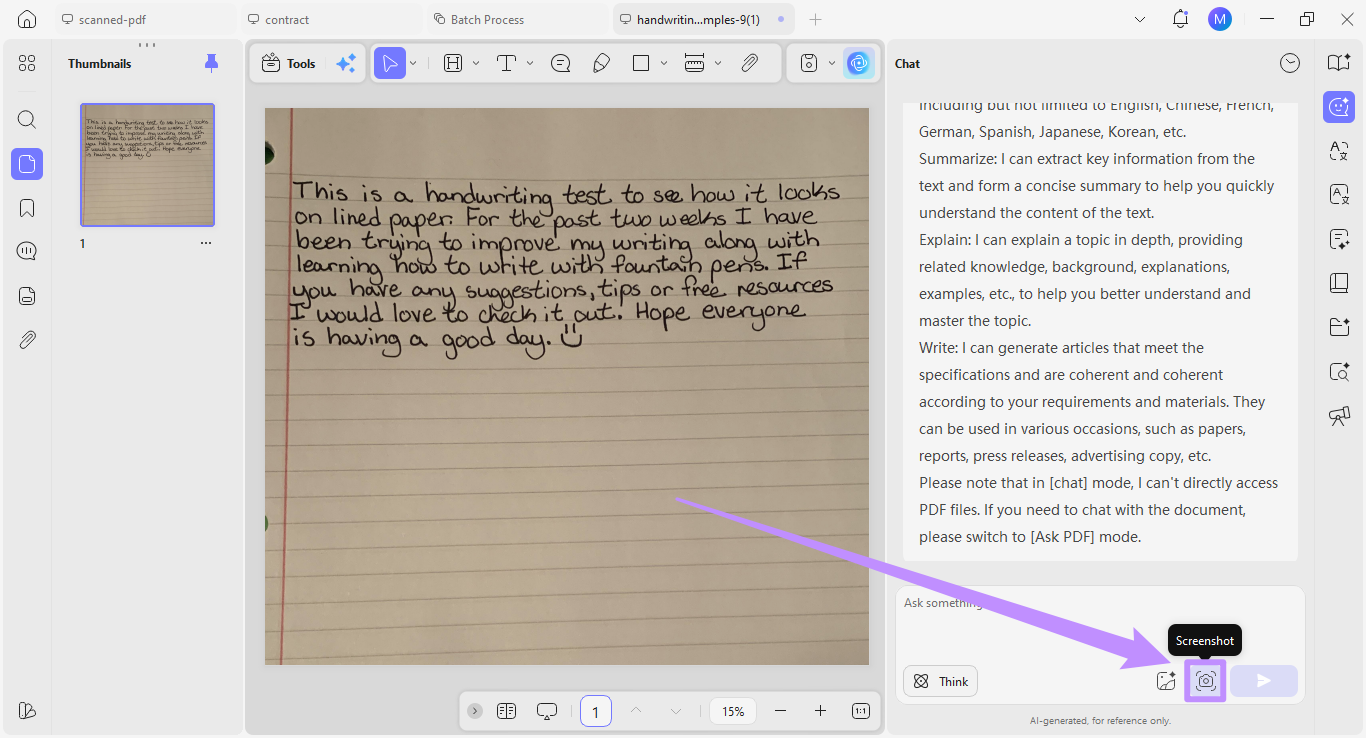
Step 3. Click the “Screenshot” button inside the prompt box. Then, capture the desired handwriting from the opened PDF and upload it into the AI chat box.
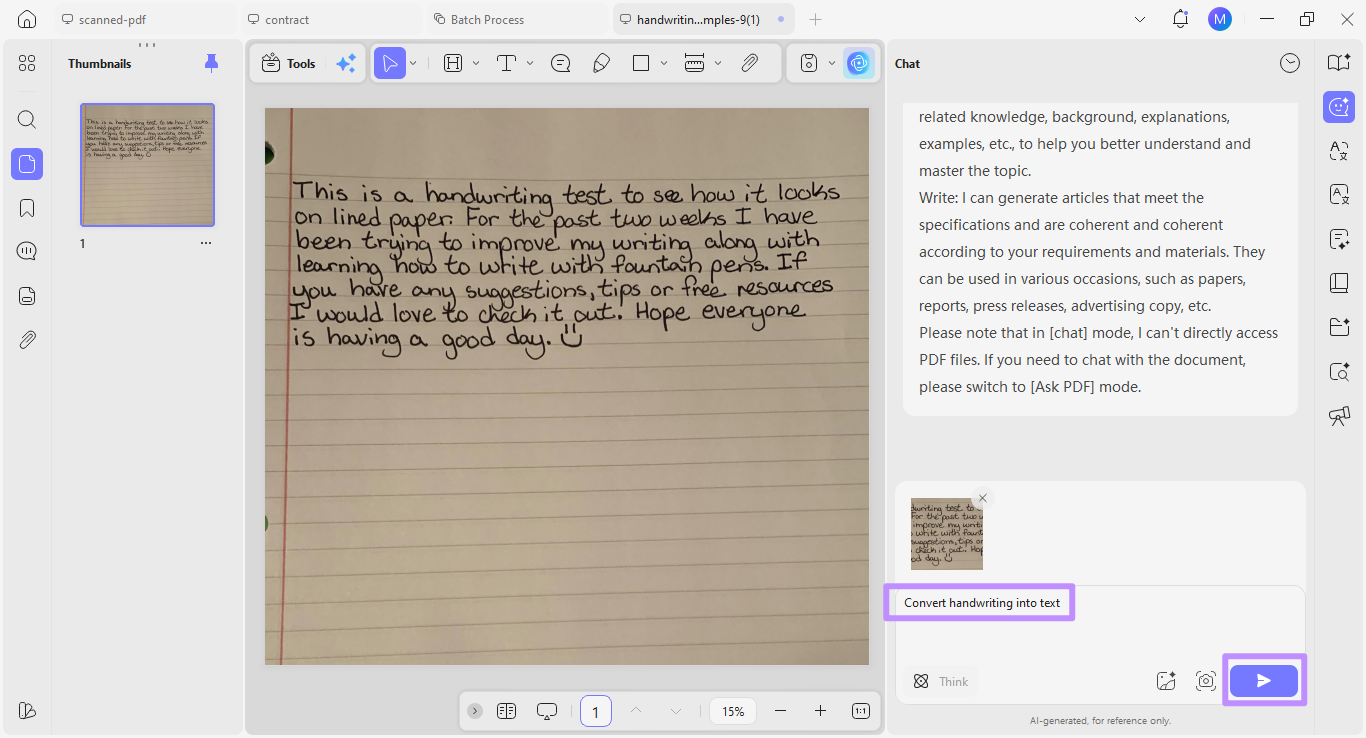
Step 4. Write a prompt to “Convert handwriting into text” and click the “Send” button.
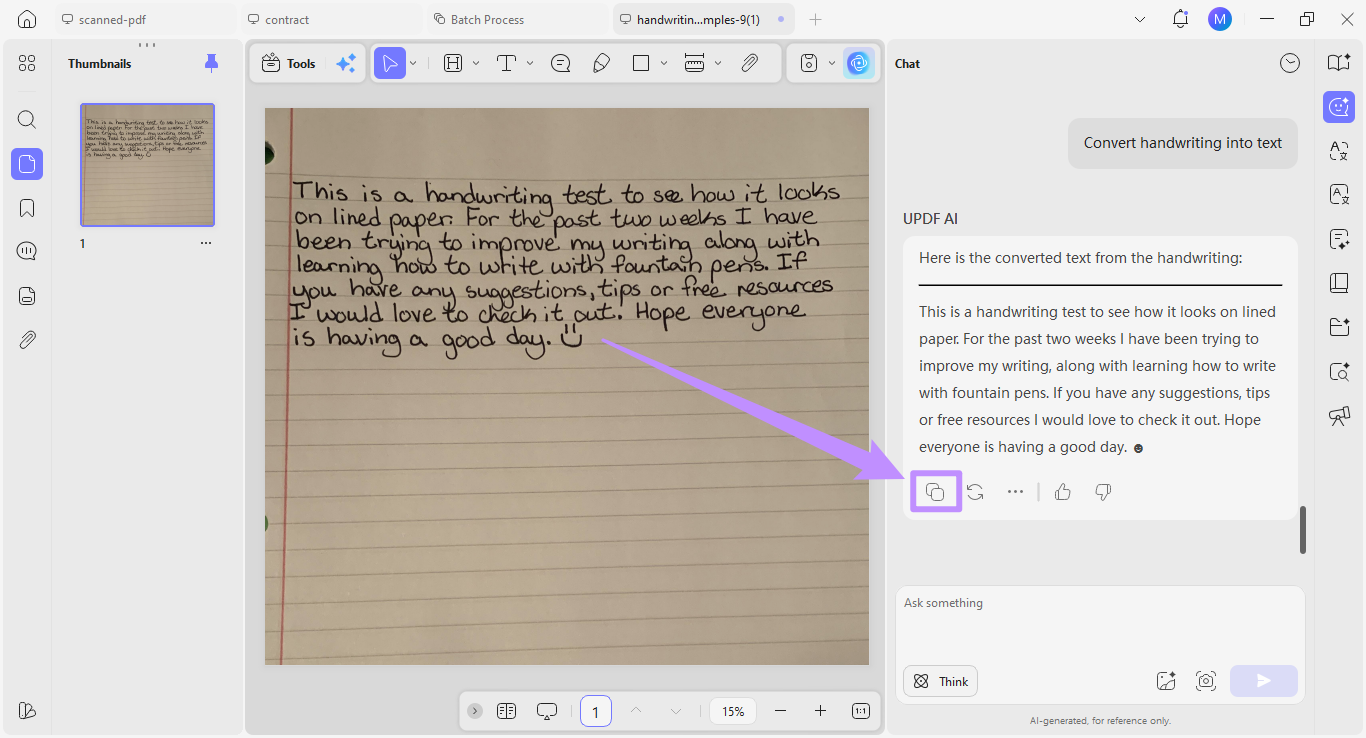
Step 5. UPDF AI will extract the text from the handwriting image. You can click the “Copy” icon to copy and paste it into Word.
Steps to Batch-Convert Scans into Word
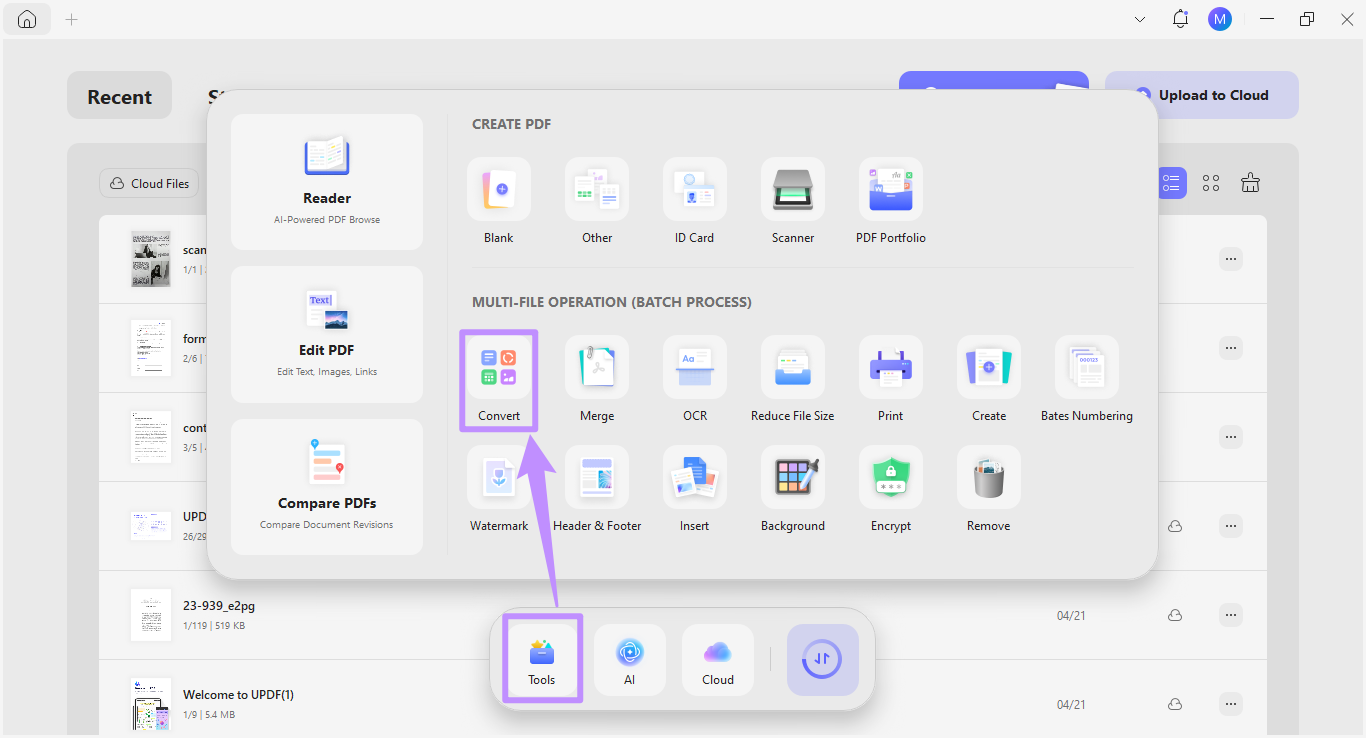
Step 1. Click “Tools” from the Home interface and select “Convert.”
Step 2. Click “Add Files” to upload multiple scanned PDFs and images.
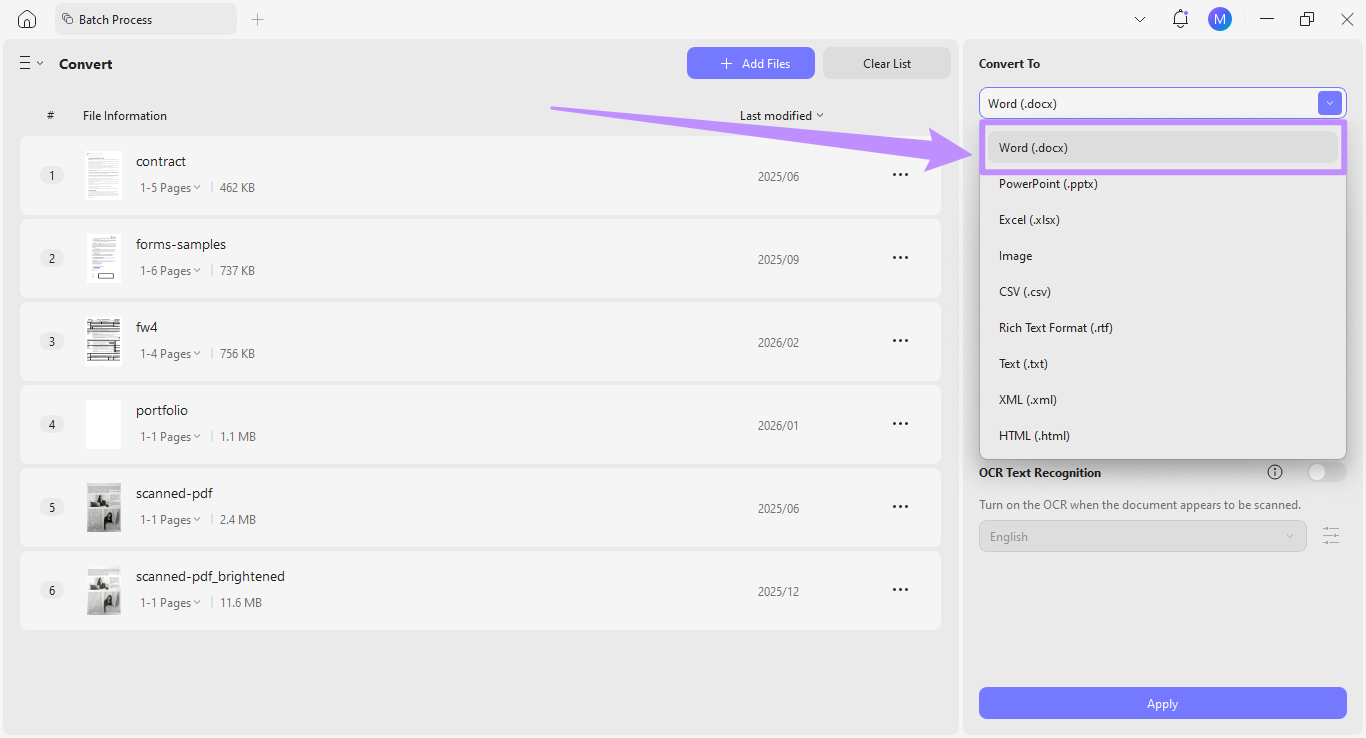
Step 3. Once uploaded, go to the right panel. Then, select “Word (.docx)” from the Convert To dropdown.
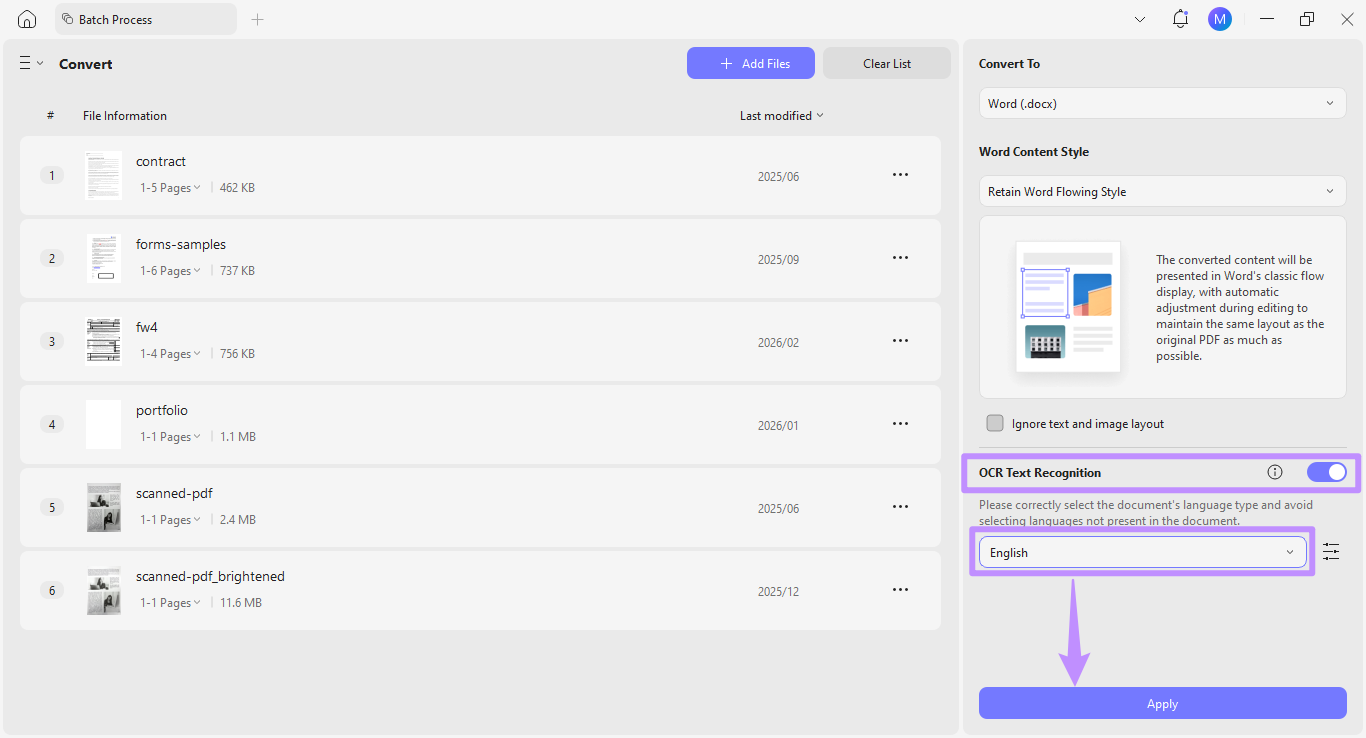
Step 4. Select your desired Word Content Style. Then, enable “OCR Text Recognition” and choose the document language. Then, click “Apply” to convert all scanned files into Word.
FAQs
Q1. Why is the recognized text garbled?
The recognized text might be garbled due to poor image quality, which can result from low resolution, dim or uneven lighting, or pages that are not flat. These factors make it harder for the OCR system to read characters correctly.
Q2. Can the scanning results be 100% accurate?
No. The scanning results are not always accurate, depending on image quality, how clear the fonts are, and the complexity of the language. A clear and high-resolution scan of standard printed text can achieve very high accuracy compared to handwritten text or decorative fonts.
Q3. Are there any tips for taking photos with a mobile phone to improve the recognition rate?
To get better results, take the photo in bright natural light and hold your phone steady directly above the document. Make sure the entire document is visible within the frame. Moreover, use your phone’s highest resolution setting to improve text recognition.
Conclusion
To scan text into Word, you do not have to take photos and retype everything manually. Whether you work from a desktop, phone, or browser, the right OCR tool makes the process fast and accurate. If you want a more comprehensive solution, UPDF offers a built-in scanner, advanced OCR, and direct Word export all in one place. Plus, you can use it on any platform. So, download it now to get started for free!
Windows • macOS • iOS • Android 100% secure








 Enola Davis
 Engelbert White

 Delia Meyer