 UPDF
UPDF
 UPDF for Windows
 UPDF for Mac
 UPDF for iPhone/iPad
 UPDF for Android
 Nomostar
 UPDF AI Online
 UPDF Sign
 IvyCraft
 Edit PDF
 Annotate PDF
 Create PDF
 PDF Form
 Edit links
 Convert PDF
 OCR
OCR PDF to Word
 PDF to Image
 PDF to Excel
 Organize PDF
 Merge PDF
 Split PDF
 Crop PDF
 Rotate PDF
 Protect PDF
 Sign PDF
 Redact PDF
 Sanitize PDF
 Remove Security
 Read PDF
 UPDF Cloud
 Compress PDF
 Print PDF
 Batch Process
 About UPDF AI
 UPDF AI Solutions
 AI User Guide
 FAQ about UPDF AI
 Summarize PDF
 Translate PDF
 Chat with PDF
 Chat with AI
 Chat with image
 PDF to Mind Map
 Explain PDF
 PDF AI Tools
 Image AI Tools
 AI Chat Tools
 AI Writing Tools
 AI Study Tools
 AI Working Tools
 Other AI Tools
 AI Bookmark Generation
 AI Bookmark Summary
 AI Watermark Generation
 AI Background Generation
 AI Sticker Generation
 AI Stamp Generation
 AI Editing Suite
 UPDF Copilot
 AI Page Management
 AI Semantic Search
 PDF to Word
 PDF to Excel
 PDF to PowerPoint
 Enterprise Solution
 Enterprise Sign
 Enterprise AI
 Enterprise Plan
 Enterprise User Guide
 Enterprise Webinar
 IT
IT Education
 Construction
 Financial Service
 Healthcare
 Insurance
 Legal
Legal Manufacturing
 Government
 Researchers & PhDs
 Solopreneurs & Freelancers
 Lawyers & Legal Professionals
 Real Estate Agents & Brokers
 Education Solution
 Customer Stories
 User Guide
 UPDF Tricks
 FAQs
FAQs UPDF Reviews
 Download Center
 Blog
Blog Newsroom
 Tech Spec
 Updates
 UPDF vs. Adobe Acrobat
 UPDF vs. Foxit
 UPDF vs. PDF Expert

If you’ve ever tried to delete the 2nd page in Word by repeatedly pressing Backspace, only to watch absolutely nothing happen, you’re not alone. I’ve been there more times than I’d like to admit. Sometimes the page just refuses to go. Sometimes you can delete whatever is causing it, and then the formatting of your whole document changes in ways you didn’t expect. For example, headers change, margins shift, and fixing the new mess takes longer than the original problem.
In this guide, I’ll show you the quickest ways to fix built-in Word problems. Then I’ll show you how I use the UPDF method by default when the Word method doesn’t work or when I want zero risk of messing up my formatting.
Download UPDF to Clean Up Your Documents Instantly.
Windows • macOS • iOS • Android 100% secure
Part 1. How to Delete the 2nd Page Directly in Word?
When I first tried to delete the second page in Word, I thought it would be simple. I just pressed Backspace and expected the page to disappear. But Word doesn’t always behave that way. Sometimes the extra page is caused by hidden formatting marks, section breaks, or even tables that push content onto a new page. Here’s the method I use to fix it directly in Word.
If the 2nd Page Is Blank
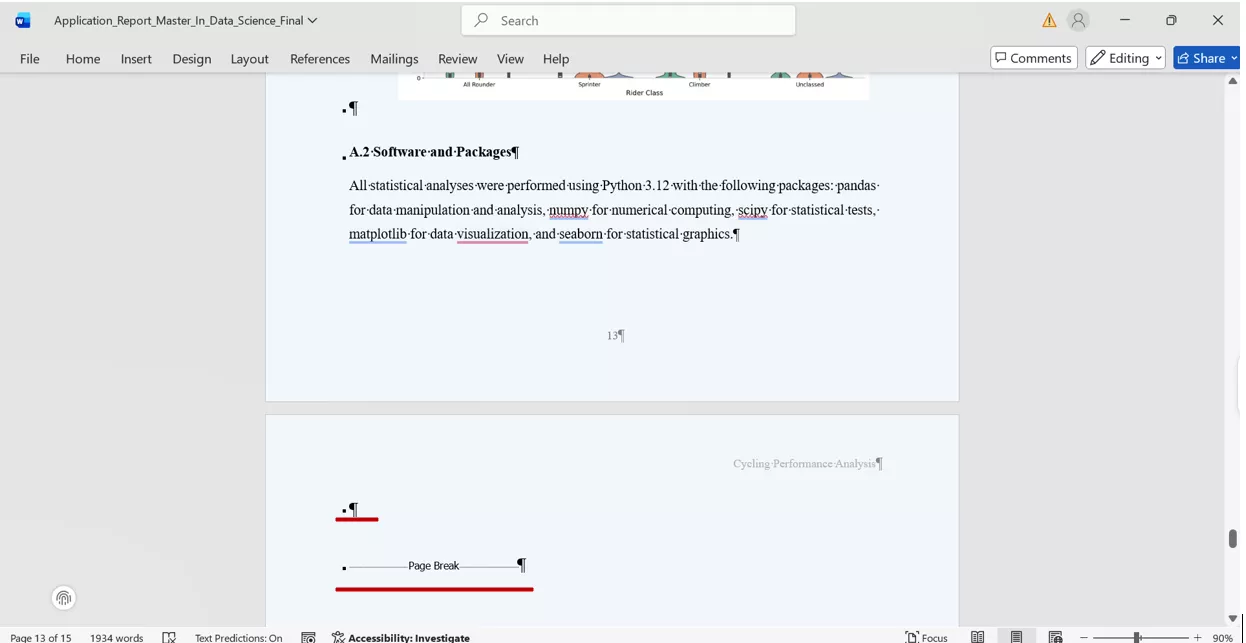
- Press “Ctrl + Shift + 8” on Windows (or “⌘ + 8” on Mac) to reveal hidden formatting marks.
- Look for paragraph marks (¶) or a Page Break label on the second page.
- Select them and press “Delete”.
- If a stubborn final paragraph mark is forcing a new page, I select it, change the font size to 1pt, and the paragraph collapses back onto the previous page.
If the 2nd Page Has Content You Want to Remove
If there is actual text or images on the page, the most direct way is to select the content and delete it.
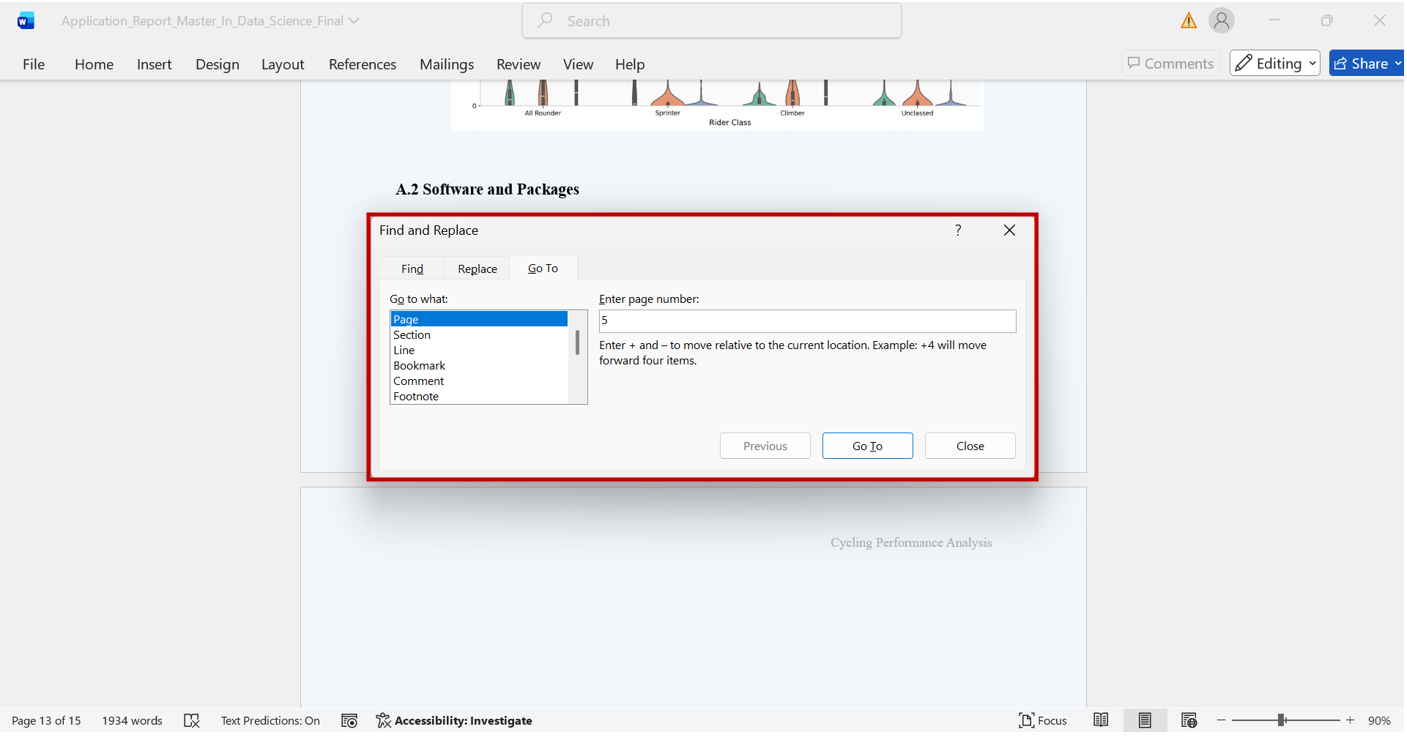
- Press (Ctrl + G) in Windows or (Option + ⌘ + G) in Mac.
- Select the page and “Enter page number” in the box, and hit “Enter” to select the entire page’s content.
- Close the box, select text, and press “Delete”.
An Honest Caveat
I’ve experienced this method fail more than once, specifically when the second page is being held open by a section break. Deleting a section break in Word doesn’t just remove a page but reformat the headers, footers, or margins of the surrounding pages in ways that are hard to undo cleanly. When this happens, I stop fighting Word and switch to the UPDF method. It’s faster and safer, and it doesn’t change your formatting at all. Let me show you how that works.
Windows • macOS • iOS • Android 100% secure
Also read: How to Delete Empty/Blank Page in Word on Windows/Mac
Part 2. The UPDF Method — Delete the 2nd Page Without Touching Word’s Formatting
When the normal MS Word approach keeps breaking things and gives you a headache, I take a different route entirely. I take help, open the document in UPDF, delete the unwanted page, and convert it back to Word. Why does this work? It is because PDF pages are discrete units with no hidden paragraph marks, section breaks, or formatting logic lurking underneath. Now I have got used to this technique and recommend it to others for deleting the 2nd page in Word without risking a formatting disaster.
Windows • macOS • iOS • Android 100% secure
Step by Step (Desktop — Windows & Mac)
Step 1: Open the Word Document in UPDF
Launch UPDF and click “Open File”. Select your Word document, and UPDF automatically converts it to PDF for editing. I mostly drag and drop the Word file straight into the UPDF interface, and it starts converting it into a PDF. Just like this:

Step 2: Delete the 2nd Page
You have two options:
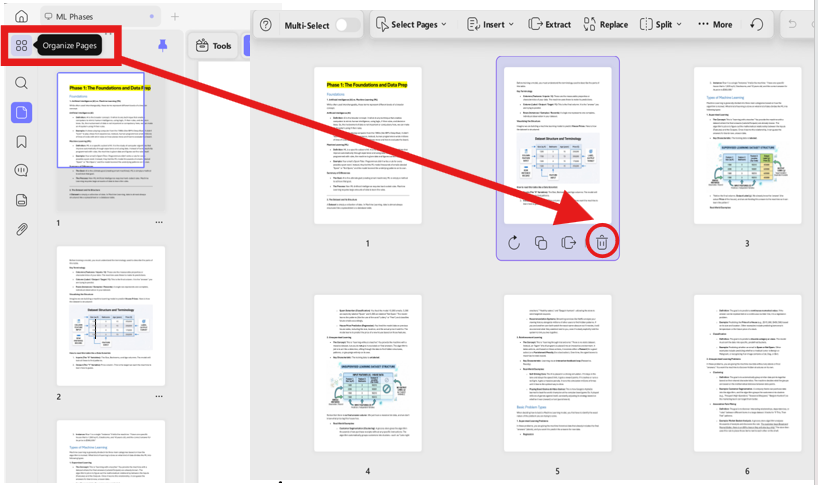
Option A — Organize Pages: Click the “Organize Pages” icon in the left toolbar. Select the thumbnail of page 2, then hit the “Delete” icon (trash can) or press the “Delete” key.
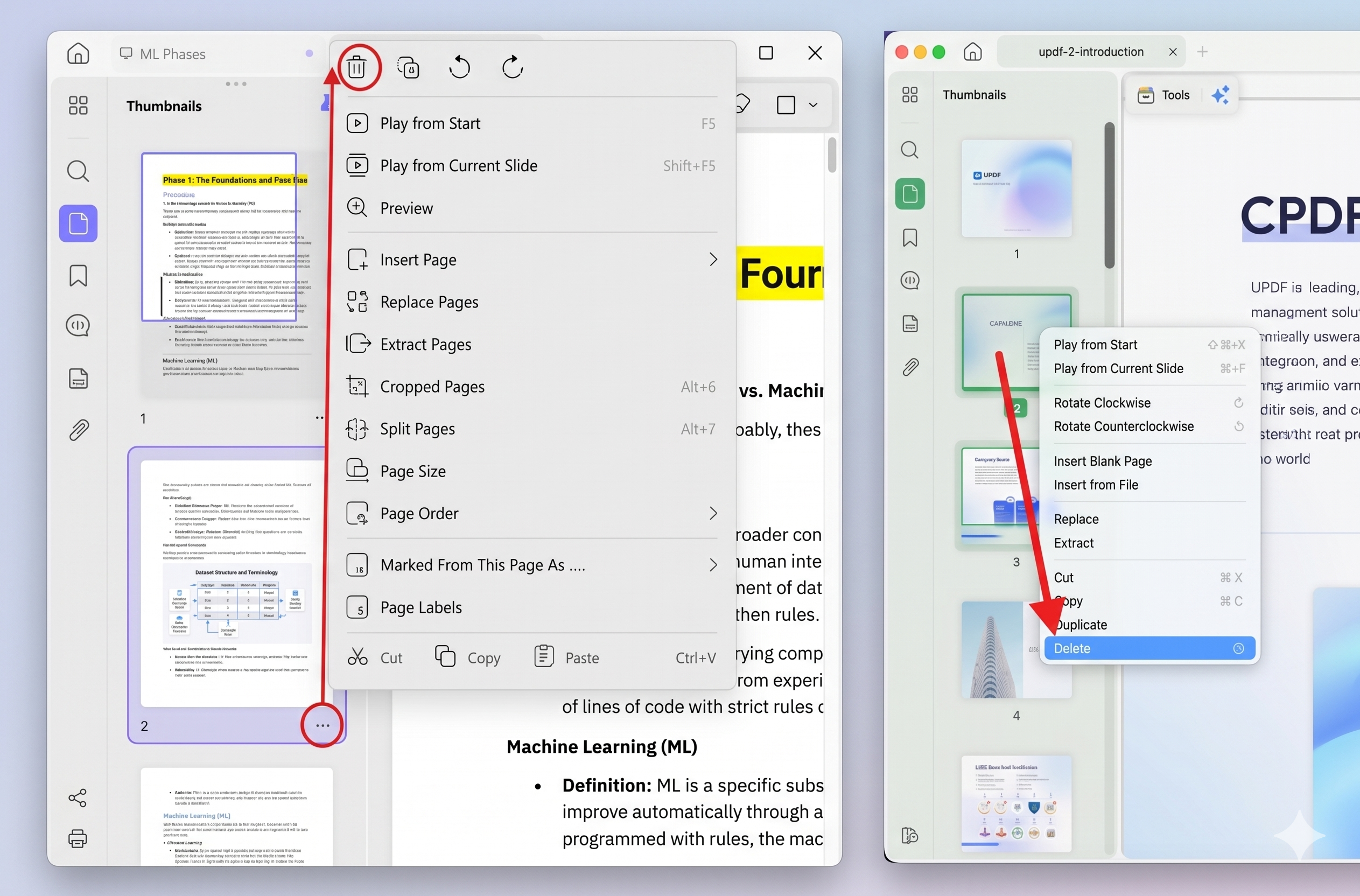
Option B — Thumbnail Panel: Right-click the page 2 thumbnail in the sidebar and choose “Delete”.
Step 3: Convert Back to Word
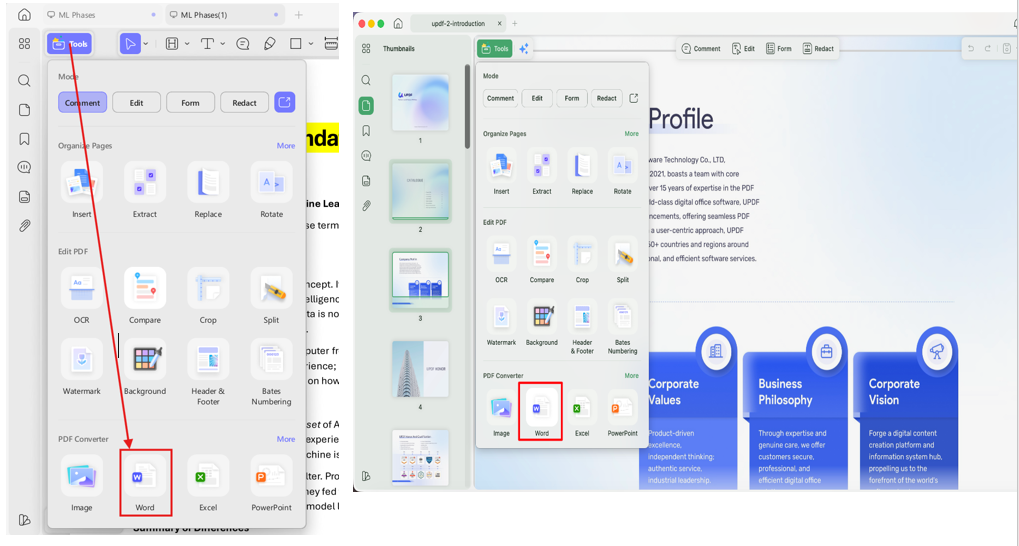
Click “Tools” > “PDF Converter” > “Word” from the top menu. UPDF converts the cleaned PDF back into a Word document with your headers, footers, and margins exactly as they were.
Windows • macOS • iOS • Android 100% secure
Step-by-Step (Mobile — iOS & Android)
Step 1: Open the Word Document in UPDF
Tap the “+” button in the UPDF mobile app and import your Word file.
Step 2: Delete the 2nd Page
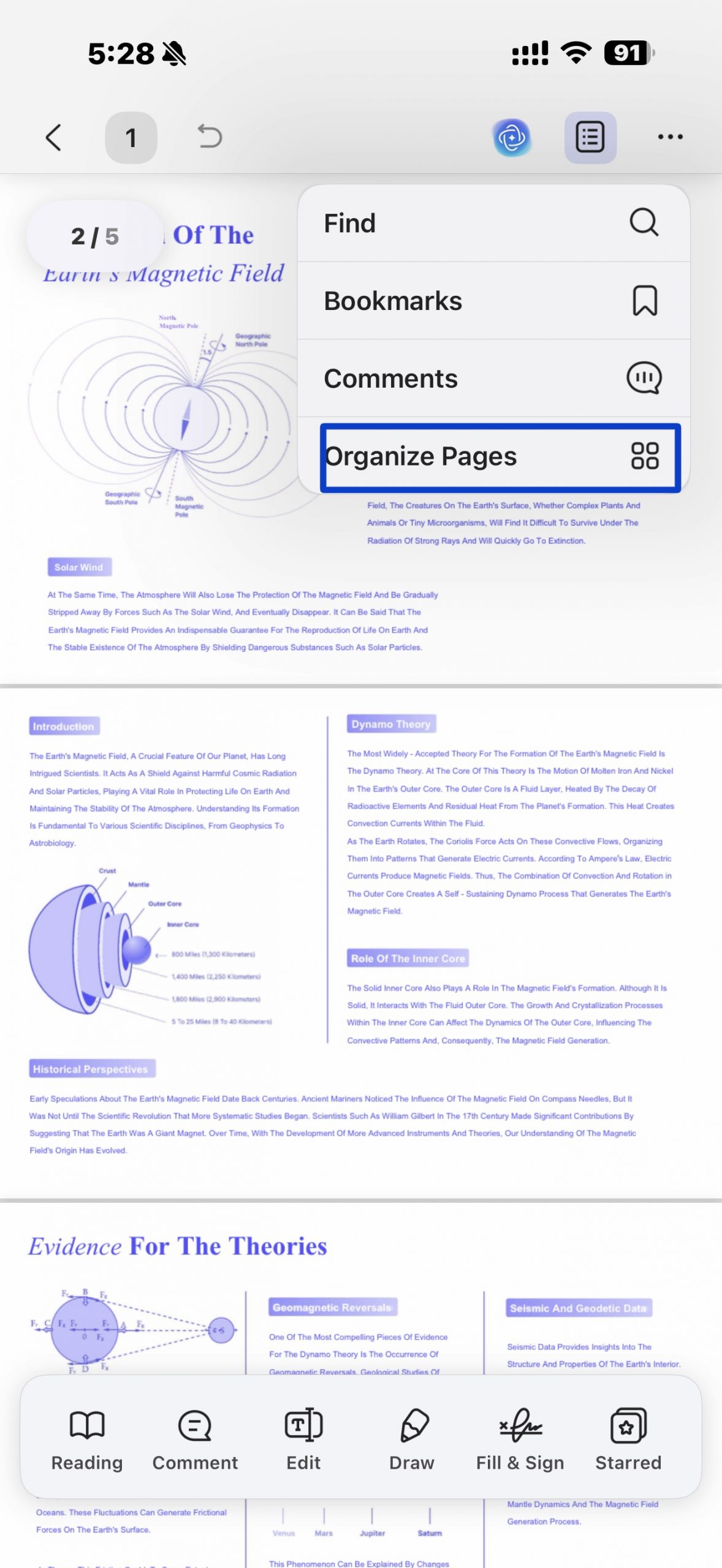
Tap the “Thumbnai” icon at the top toolbar. Select “Organize Pages”, then select the desired pages and click “Delete”.
Step 3: Convert Back to Word
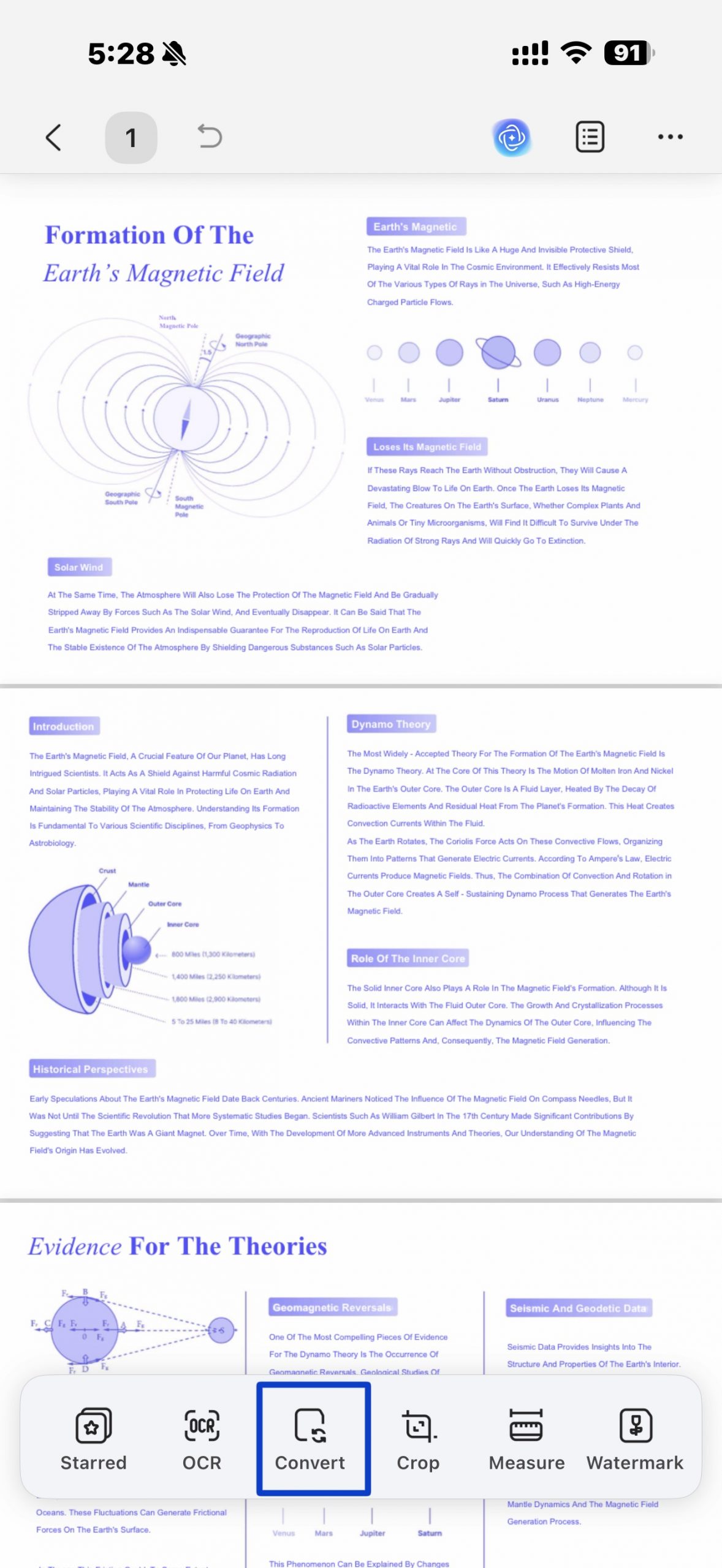
Tap the “Convert” icon at the bottom, choose Word (.docx), and save the file.
Why This Works Better for Complex Documents
PDF pages have no paragraph marks, section breaks, or hidden formatting. Deleting page 2 is a clean and effortless way he content on page 1, and every page that follows remains completely unaffected. In Word, there is proper formatting that can be disrupted when deleting a middle page. However, there’s zero risk of accidentally resetting headers, footers, or margin settings that you spent time configuring in Word.
Windows • macOS • iOS • Android 100% secure
Part 3. When to use which method (quick summary table)
Not sure which method fits your situation? Sometimes Word’s built-in fix works fine, but other times it just makes things worse. That’s why I rely on UPDF for a cleaner solution. Here’s a quick summary of what I’ve found: Here’s a simple way to think about it:
| Situation | Best Method |
| Simple blank page from extra paragraph marks | Word method |
| Blank page from a section break | UPDF method |
| Content-filled 2nd page to remove | Either, but UPDF is safer |
| Multiple specific pages to delete | UPDF method |
| Received a PDF (not Word) with an unwanted 2nd page | UPDF directly — no conversion needed |
| Need to delete a page from a document on your phone | UPDF mobile method |
Windows • macOS • iOS • Android 100% secure
Part 4. Bonus Tip: The Fastest Way to Find and Remove Blank Pages in Any Document
Sometimes I receive Word documents that were converted from another format, maybe a scanned PDF, an older file type, or an exported report, and they end up with a mysterious blank page. I can’t always tell if it’s caused by a page break, extra returns, or something hidden in the formatting.
Instead of hunting through the entire file, I use the AI Page Organizer in UPDF, which automatically scans the entire document to flag any blank pages. It then presents a simple, one-click Delete button for each one. It’s a massive time-saver because there is zero guesswork involved.
Windows • macOS • iOS • Android 100% secure
How to Use It — Step by Step
Step 1: Open Your Document in UPDF
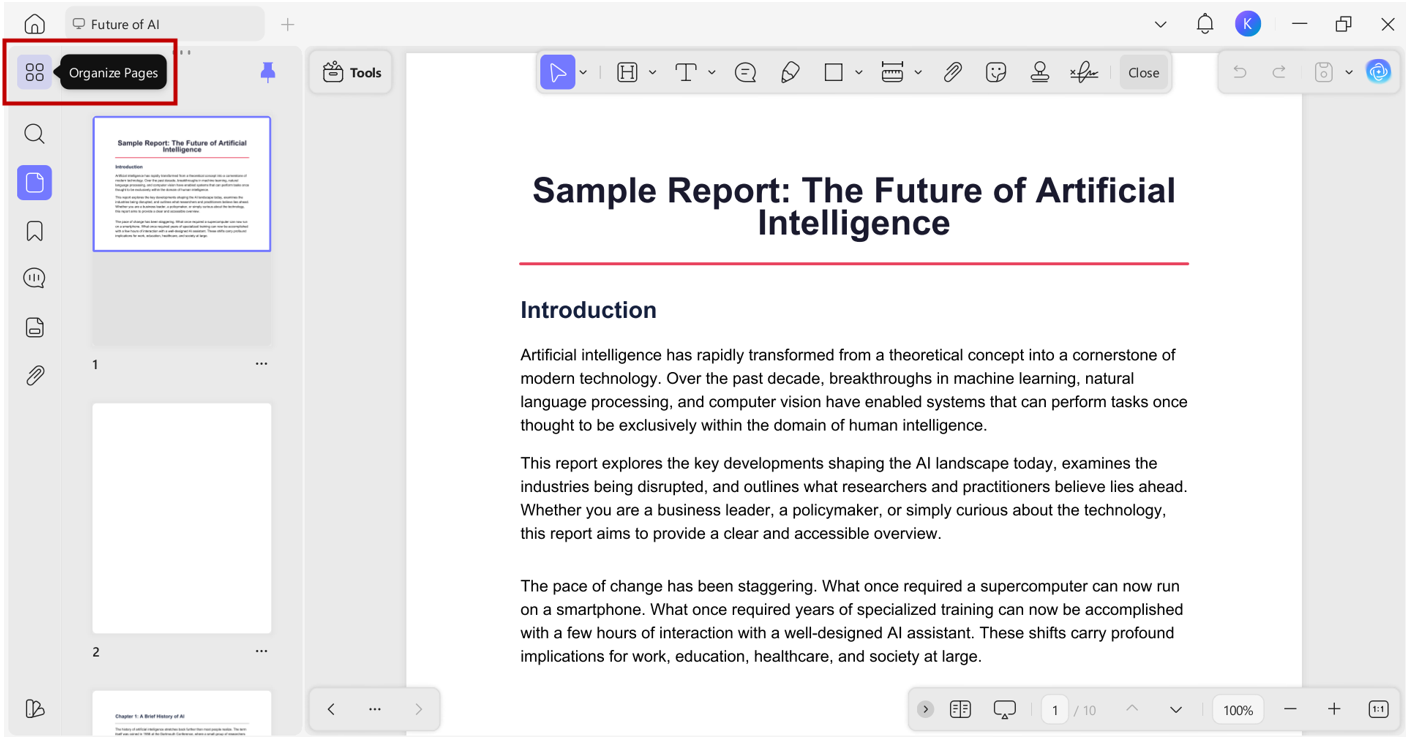
Launch UPDF and open the document you want to clean up in UPDF, either a Word file or a PDF. If it’s a Word file, UPDF converts it automatically when you open it. Once your document is open, click the “Organize Pages” button in the left sidebar.
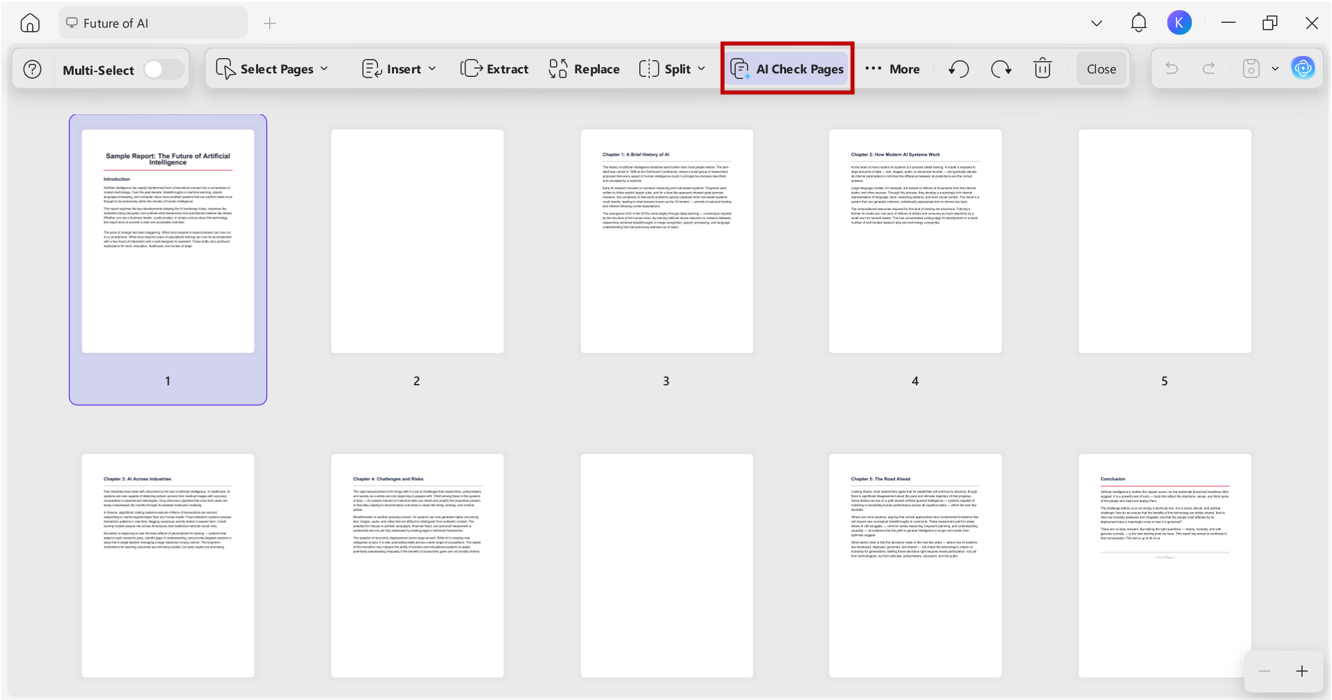
Step 2: Select AI check pages
Once the document is organized, select “AI Check Pages”from the top menu. UPDF will immediately begin scanning your document from the first page to the last.
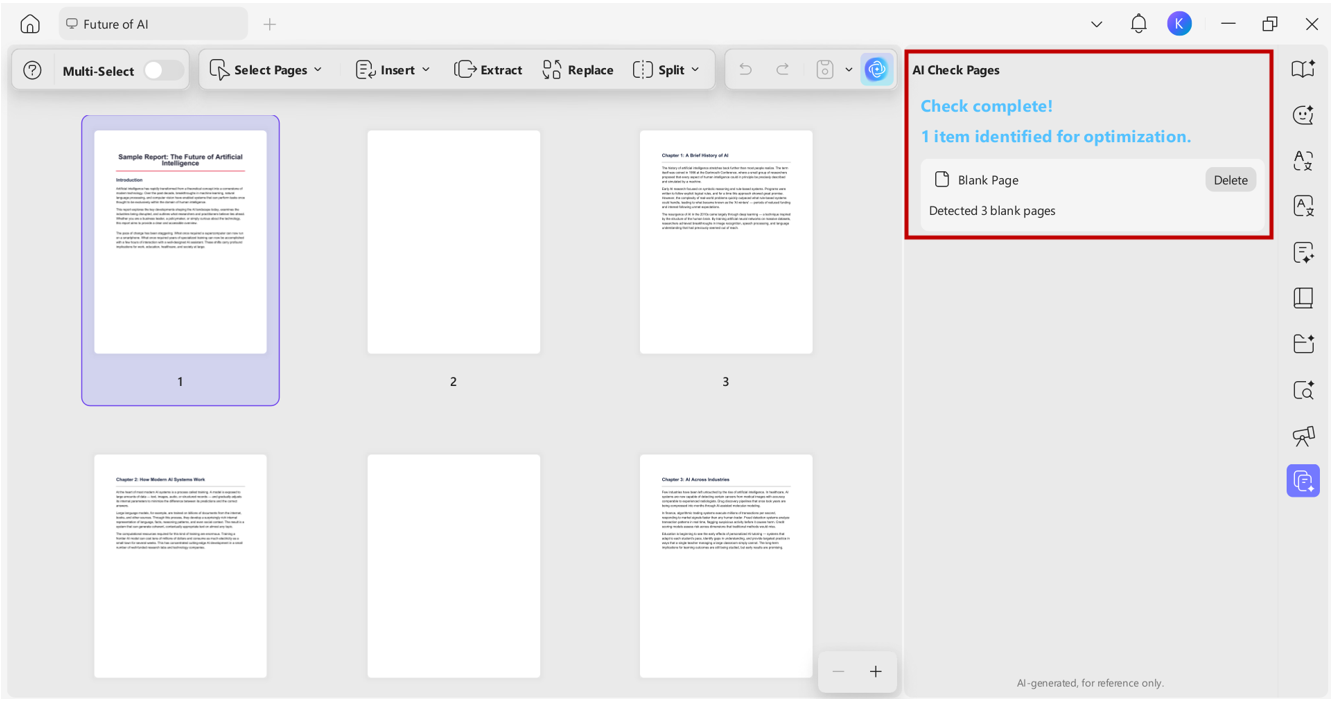
Step 3: Review and Delete:
Within seconds, UPDF automatically flags and highlight blank pages. You can see at a glance how many blank pages are in the document, exactly where they are, and delete them with a single button.
Part 5. FAQs
Why can’t I delete a page in Pages?
Sometimes you can’t delete a page because of the type of document you’re using (word-processing vs. page layout). In a Word Processing document, you must delete all the text on the page to make it disappear. In a Page Layout document, you can simply select the page thumbnail in the sidebar and hit Delete.
Why is deleting a page in Word so difficult?
Word doesn’t actually see “pages” the way we do; it sees a continuous flow of text and formatting marks. Hidden paragraph marks, section breaks, or tables can force content onto a new page, even if that page looks empty to you. Deleting them often changes headers, footers, or margins unexpectedly. That’s why I prefer the UPDF method when I want a clean, risk-free deletion.
How do I insert an unnumbered page in Word?
To insert a blank page, you can place your cursor where you want the new page to start and select Insert > Blank Page or press Ctrl + Enter. If you want that page to have different numbering (or no number at all), you must insert a Section Break (Next Page) instead of a standard page break. This allows you to “unlink” the headers and footers from the rest of the document.
Conclusion
Deleting the 2nd page in Word doesn’t have to be a headache. For simple cases, such as extra paragraph marks or a stray page break, the Word method works well. Still, when formatting issues like a section break, a converted file, or something else hiding beneath the surface, the Word-native approach can create more problems than it solves. That’s exactly why I keep UPDF in my workflow. With UPDF, I can delete pages without worrying about breaking headers, margins, or layouts. Plus, the AI Page Organizer makes it effortless to spot and remove blank pages throughout a document.
I highly recommend keeping UPDF in your toolkit because it is fast, reliable, and handles the “heavy lifting” of document management so you can get back to your actual work.
Windows • macOS • iOS • Android 100% secure






 Engelbert White
 Enola Davis
 Enola Miller
