 UPDF
UPDF
 UPDF for Windows
 UPDF for Mac
 UPDF for iPhone/iPad
 UPDF for Android
 UPDF AI Online
 UPDF Sign
 Edit PDF
 Annotate PDF
 Create PDF
 PDF Form
 Edit links
 Convert PDF
 OCR
OCR PDF to Word
 PDF to Image
 PDF to Excel
 Organize PDF
 Merge PDF
 Split PDF
 Crop PDF
 Rotate PDF
 Protect PDF
 Sign PDF
 Redact PDF
 Sanitize PDF
 Remove Security
 Read PDF
 UPDF Cloud
 Compress PDF
 Print PDF
 Batch Process
 About UPDF AI
 UPDF AI Solutions
 AI User Guide
 FAQ about UPDF AI
 Summarize PDF
 Translate PDF
 Chat with PDF
 Chat with AI
 Chat with image
 PDF to Mind Map
 Explain PDF
 Scholar Research
 Paper Search
 AI Proofreader
 AI Writer
 AI Homework Helper
 AI Quiz Generator
 AI Math Solver
 PDF to Word
 PDF to Excel
 PDF to PowerPoint
 Enterprise Solution
 Enterprise Sign
 Enterprise AI
 Enterprise Plan
 Enterprise User Guide
 Enterprise Webinar
 Banking
 Healthcare
 Insurance
 Legal
Legal Manufacturing
 Government
 Education Solution
 Customer Stories
 User Guide
 UPDF Tricks
 FAQs
FAQs UPDF Reviews
 Download Center
 Blog
Blog Newsroom
 Tech Spec
 Updates
 UPDF vs. Adobe Acrobat
 UPDF vs. Foxit
 UPDF vs. PDF Expert


Managing a large number of files—often in different formats—can quickly become inefficient and confusing. A PDF Portfolio solves this problem by allowing you to combine multiple documents into a single, well-organized container without merging them into one PDF. Whether you are preparing academic materials, sharing project files with clients, or organizing internal documents, using a PDF Portfolio helps streamline file management, improve accessibility, and maintain a clear structure.
In this article, you'll learn how to create a PDF portfolio using different tools. We'll start with UPDF, which offers a straightforward and efficient way to build and manage PDF portfolios on Windows, followed by other commonly used options for comparison. By the end, you'll be able to choose the method that best fits your workflow and file management needs.
Get UPDF for Windows and Start Organizing Your Files More Efficiently.
Windows • macOS • iOS • Android 100% secure
What Is a PDF Portfolio?
Before we actually start learning how to create a PDF Portfolio, we first have to know what it is. A PDF Portfolio is simply multiple files being collected into a single PDF file. However, unlike merging files, a PDF Portfolio gives you the ability to keep the different file types including text, documents, emails, spreadsheets, drawings, presentations, and even multimedia file types. All of these stay inside the PDF Portfolio and are all accessible and can be edited.
For example, you can read, open, edit, and reformat each file without affecting the others within the portfolio. This makes PDF Portfolios very versatile and an ideal choice when it comes to educational materials, project collaborations, and even professional portfolios.
By learning how to make a PDF Portfolio, you won't have to worry about editing your PDF files on another software and risk disconnection or losing some of them when sharing your work. Instead, all of them are in an editable and secure space. This integrated file allows for seamless distribution and ensures the recipient gets the complete set of materials. Whether sending to a colleague, client, or instructor, PDF portfolios provide a polished way to consolidate multiple documents.
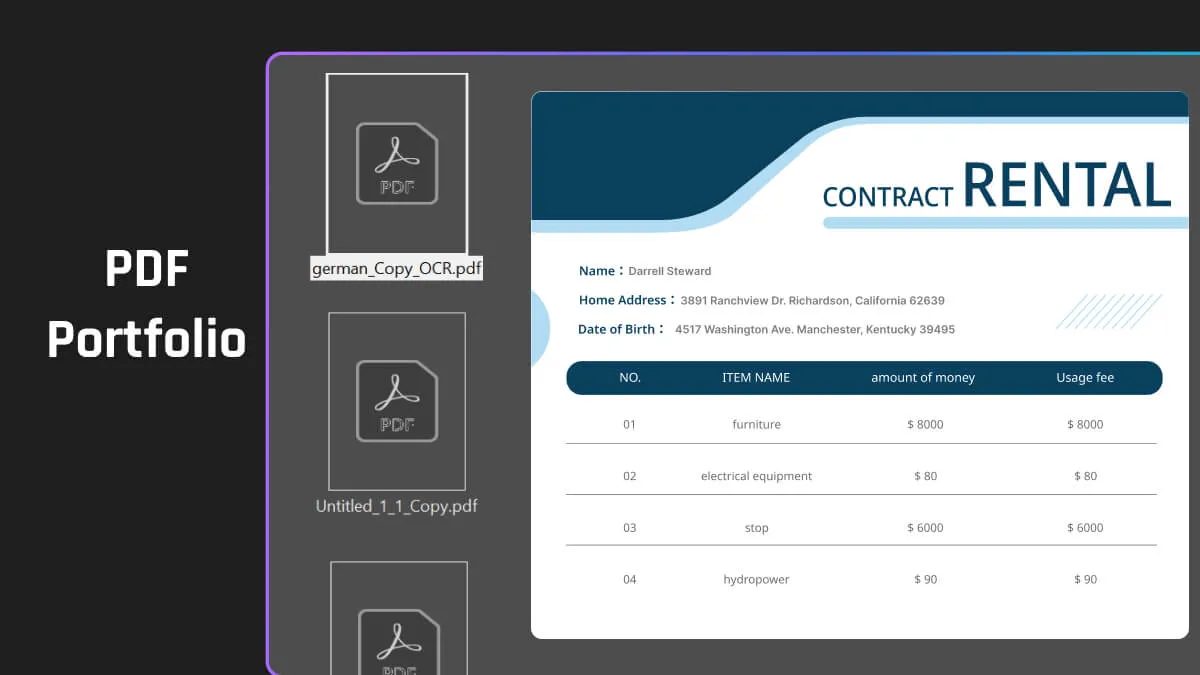
Advantages of Creating a PDF Portfolio
Now that you know what a PDF Portfolio is, you must also be knowledgeable on why you should use it in the first place. Creating a PDF portfolio has many advantages over simply merging multiple files into one PDF document. Some key benefits include:
Easy file management
With a PDF portfolio, you can easily add, remove, or rearrange files without having to find and select all pages from a specific file. Which means organizing your files has never been smoother.
Preview files quickly
PDF portfolios also let you quickly preview files without opening them in their native applications, saving time and effort.
Edit files seamlessly
You can even edit individual files inside the PDF portfolio without changing the other files. This includes renumbering pages, making edits, or even editing non-PDF files in their native apps from the PDF portfolio.
Share files comprehensively
Another benefit is that PDF portfolios ensure that when you share your work, others receive all parts in one organized package, eliminating missing or disconnected files.
Categorize and sort files
You can sort and categorize files within a PDF portfolio, making it easier to organize and navigate content.
Flexible printing
PDF portfolios allow the printing of all PDFs or only selected ones, giving more control over printing.
Search capabilities
You can search across one or all files in a PDF portfolio, including non-PDFs, helping you locate information faster.
File independence and Reusability
Source files used to create a PDF portfolio remain unchanged, allowing moving or sharing without losing components. In addition, the same file can be included in multiple PDF portfolios, eliminating redundant file storage.
Additionally, PDF portfolios provide a professional and cohesive way to package different file types together. This integrated format enhances the overall presentation and makes it easier for others to access and navigate the various components. For students, professionals, or anyone working with multiple documents, PDF portfolios streamline organization and collaboration. You can check out examples of PDF portfolios to see their usefulness.
How to Create a PDF Portfolio with UPDF
With recent updates, UPDF now supports creating PDF Portfolios on Windows, offering a more flexible and lightweight alternative to traditional tools like Adobe Acrobat.
UPDF is an all-in-one PDF editor designed for creating, organizing, and managing PDF documents. Its PDF Portfolio feature allows users to combine multiple files into a single structured collection, while still keeping each file separate and accessible.
Why Choose UPDF to Create a PDF Portfolio?
Compared with other tools, UPDF offers several advantages:
- One-time license option instead of mandatory subscriptions
- Simple and intuitive creation process
- Supports adding individual files or entire folders
- Easy portfolio navigation with multiple viewing modes
- Built-in tools to manage, extract, and search portfolio content
The Mac version of UPDF will also support PDF Portfolio creation in an upcoming update.
How to Create a PDF Portfolio Using UPDF for Windows
- Download and install UPDF for Windows.
Windows • macOS • iOS • Android 100% secure
- Launch UPDF and click Tools.
- Under Create PDF, select "PDF Portfolio."
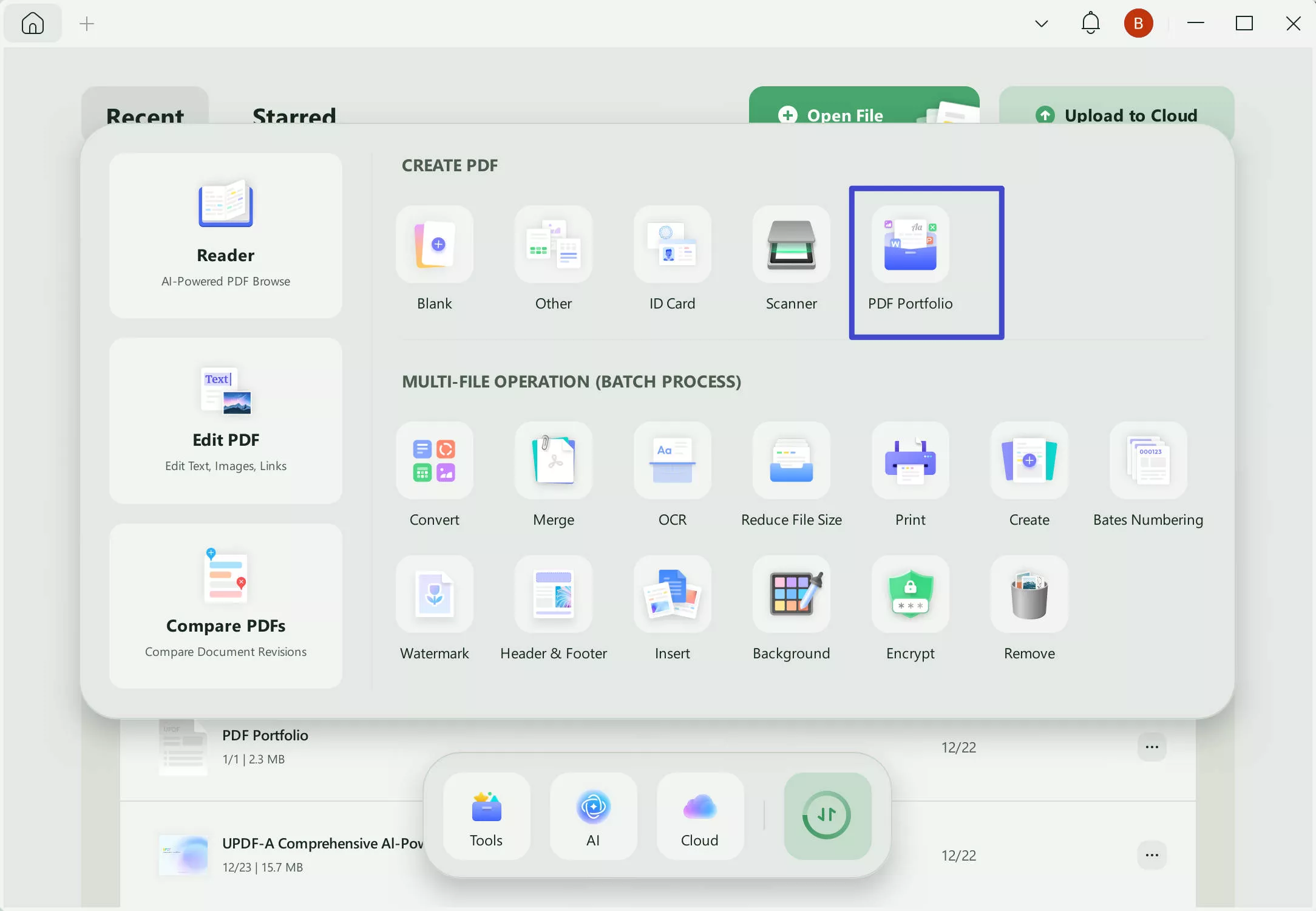
- Add files to the portfolio: select individual files one by one, or choose an entire folder to include all files at once.
- Click Save and choose a location to store the PDF Portfolio.
How to Manage and View a PDF Portfolio in UPDF
After creating the PDF Portfolio, you can open it directly in UPDF and manage its contents efficiently.
- Switch between List View and Thumbnail View to browse files
- Use the search feature to quickly locate specific documents, even in large portfolios with hundreds or thousands of files
- Select any individual file to: extract it from the portfolio, print it, delete it, view it seperately.
These management features make UPDF especially useful for handling large document collections.
While UPDF provides a modern and easy-to-use way to create PDF Portfolios, some users may still prefer other tools. Below are additional methods you can consider.
How to Create a PDF Portfolio with Adobe Acrobat
Adobe Acrobat is a very popular PDF software that was introduced by Adobe. Using it, you can view, create, edit, and manage your PDFs with ease. However, another good use it has is that Adobe Acrobat is a great PDF portfolio maker.
Here are the necessary steps you should take to create PDF Portfolios using Adobe Acrobat:
1. The first step is to open Adobe Acrobat by signing up for their free trial or purchasing one of their paid plans. Once you've accessed Adobe Acrobat, you can go to the "Tools" menu and then select "Create PDF".
2. In the new window, click "Multiple Files" and then choose "Create PDF Portfolio". Once you've reached that option, you will have to select "Add Files" which you can find in the top left.
3. Choose files or folders to include - individual files, whole folders, scanned pages, web pages, or clipboard items.
4. Then click "Create" to add your selections to the PDF portfolio.
5. Finally, a new window will show the included portfolio files.
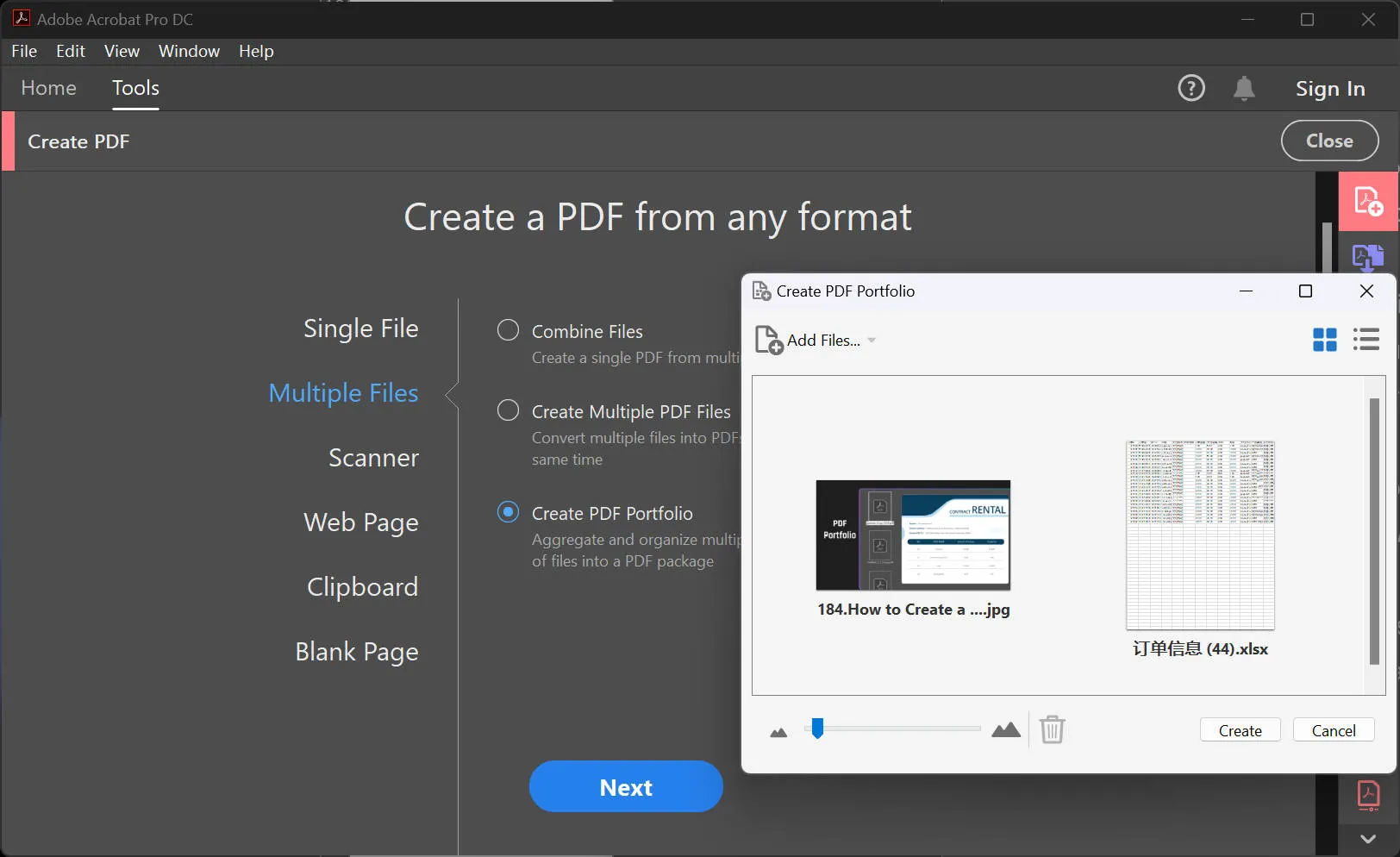
Additionally, Acrobat lets you create folders in your portfolio, delete/extract component files and folders, edit file names and descriptions, and convert multimedia to PDF within the portfolio.
How to Create a PDF Portfolio with Nitro Pro
Aside from Adobe Acrobat, Nitro Pro is a decent option when it comes to PDF tools. It functions the same as Adobe Acrobat as well which means it can create PDF Portfolios.
To create one, follow these easy steps:
1. Similar to Adobe Acrobat, sign up for its free trial or purchase one of its subscription plans to gain access to Nitro Pro. Once done, open Nitro Pro and go to the "Convert" tab, then click "Portfolio" in the "Create" group.
2. Under "Files to include," select:
- "Add Files" to choose individual files
- "Add Folder" to include an entire folder's contents
- "Add Open Files" to add open PDFs in Nitro Pro
3. Click "Create" to import your selections into a new portfolio.
4. Once created, right-click any portfolio file to access options like:
- Opening the file in its native app
- Extracting from the portfolio
- Switching view modes
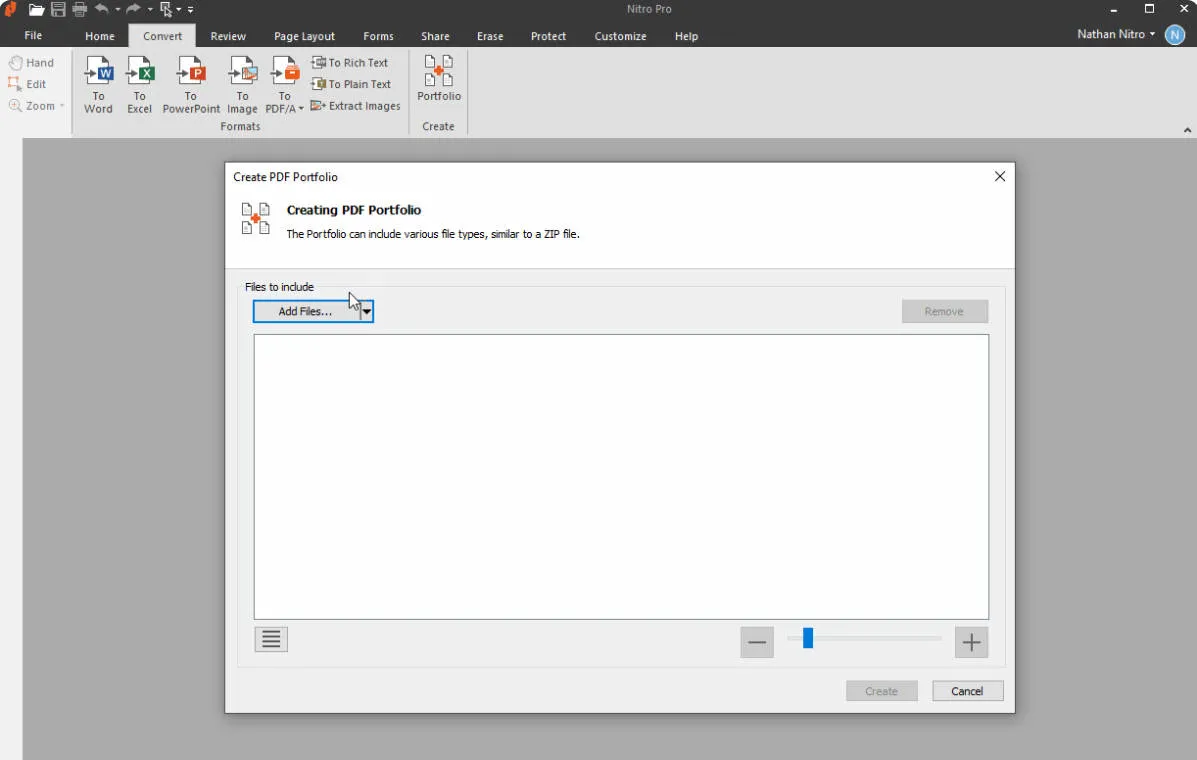
Nitro Pro's portfolio feature efficiently manages multiple files in one PDF container for easier sharing and collaboration. Aside from Nitro Pro and Adobe Acrobat, there are also online PDF Portfolio generators.
Bonus Tip: UPDF Works More Than a PDF Portfolio Creator
While working with PDF documents, having a powerful PDF editor is crucial. UPDF is an ideal all-in-one AI PDF editor. Beyond creating PDF portfolios, UPDF also supports editing, annotating, organizing, and chatting with PDFs across Windows, Mac, iOS, and Android. It has tons of amazing functions and some of them can't be found in any other PDF editing software including Adobe Acrobat and Nitro Pro. So what are you waiting for? Download and try UPDF now.
Windows • macOS • iOS • Android 100% secure
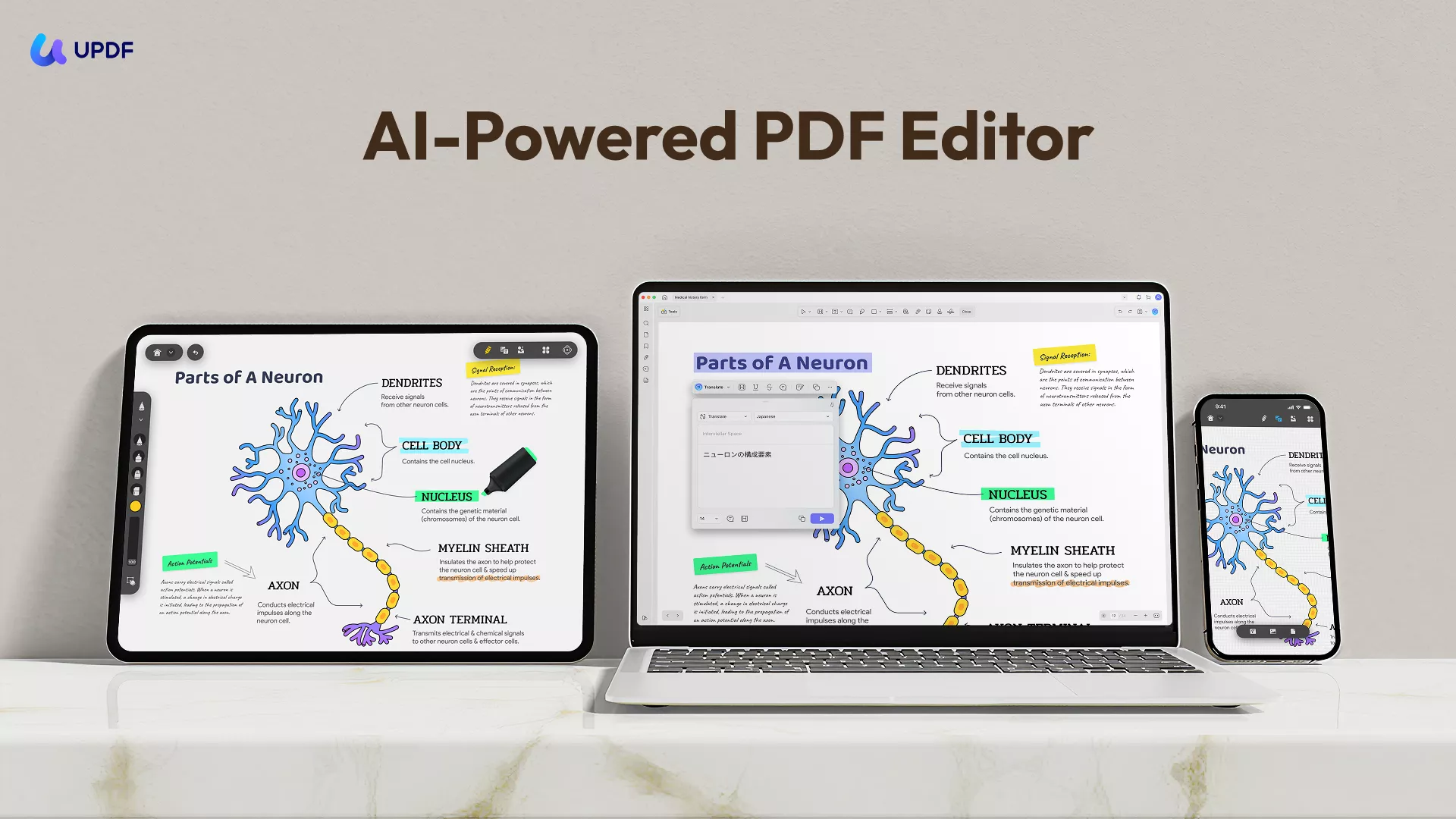
Edit and Annotate PDFs
UPDF simplifies editing PDFs through its user-friendly interface. Easily edit text, images, links, and other content to ensure professional-looking documents. Add annotations like comments, highlights, underlines, stickers, and sticky notes for reviews and collaboration.
UPDF AI
A standout UPDF feature is its AI capabilities. UPDF AI, a powerful assistant, can summarize, translate, and even let you chat with PDF documents, boosting productivity. With AI-powered tools, you can quickly extract key information, understand content in different languages, and get answers to questions directly from the PDF text.
Convert PDFs
UPDF also excels at file conversion, allowing PDF to Word, Excel, PowerPoint, and numerous formats with just a few clicks. Share and collaborate seamlessly across apps and platforms. No longer worry about compatibility issues when working with multiple file types - UPDF has you covered.
Protect PDFs
Ensuring data confidentiality, UPDF offers robust security. Password-protect, redact, and watermark PDFs to control access and modifications. Keep sensitive information safe by redacting text or adding dynamic watermarks.
Sign PDFs
Electronic and digital signatures are supported, enabling signing documents electronically or with verified IDs, streamlining workflows authentically. Sign contracts, agreements, and other paperwork without printing, scanning, or using a pen.
OCR
Moreover, UPDF's OCR capabilities convert scanned documents and images into searchable, editable PDFs for easier content repurposing from various sources. Unlock information trapped in paper or image-based files by making the text selectable and searchable.
Cross-Platform Versatility
One of the biggest advantages of UPDF is its cross-platform versatility. With a single purchase, you can use UPDF seamlessly on Windows, Mac, iOS, and Android devices. There are no extra fees for different platforms - everything is included in one affordable package. Work on PDF portfolios and documents from anywhere using UPDF.
The software is frequently updated with new features and performance enhancements. UPDF's developers are committed to providing a top-quality PDF editing experience powered by AI and innovative technologies.
What's better is that UPDF is on sale, get UPDF Pro lifetime at a discounted price now. With only one purchase, you can use UPDF on all platforms, Windows, Mac, iOS, and Android at the same time. Unlike other tools, it won't charge separately for different platforms, and you can use it on 4 devices at the same time. 2 desktops and 2 mobiles!
If you want to learn more about UPDF, you can read the UPDF review on the high-authority website makeuseof. Or watch the video below for more information about UPDF!
Conclusion
A PDF Portfolio is an effective way to organize and share multiple files without merging them into a single PDF. It keeps documents structured, searchable, and easy to manage.
With UPDF for Windows, creating and managing PDF portfolios becomes simpler and more flexible. Users can choose different views, search large portfolios, and manage individual files easily—all in one place. Mac support is also coming soon.
👉 Download UPDF for Windows and create your PDF portfolio with ease!
Windows • macOS • iOS • Android 100% secure





 Enola Miller
 Lizzy Lozano

 Delia Meyer
 Enid Brown