 UPDF
UPDF
 UPDF for Windows
 UPDF for Mac
 UPDF for iPhone/iPad
 UPDF for Android
 UPDF AI Online
 UPDF Sign
 Edit PDF
 Annotate PDF
 Create PDF
 PDF Form
 Edit links
 Convert PDF
 OCR
OCR PDF to Word
 PDF to Image
 PDF to Excel
 Organize PDF
 Merge PDF
 Split PDF
 Crop PDF
 Rotate PDF
 Protect PDF
 Sign PDF
 Redact PDF
 Sanitize PDF
 Remove Security
 Read PDF
 UPDF Cloud
 Compress PDF
 Print PDF
 Batch Process
 About UPDF AI
 UPDF AI Solutions
 AI User Guide
 FAQ about UPDF AI
 Summarize PDF
 Translate PDF
 Chat with PDF
 Chat with AI
 Chat with image
 PDF to Mind Map
 Explain PDF
 Scholar Research
 Paper Search
 AI Proofreader
 AI Writer
 AI Homework Helper
 AI Quiz Generator
 AI Math Solver
 PDF to Word
 PDF to Excel
 PDF to PowerPoint
 Enterprise Solution
 Enterprise Sign
 Enterprise AI
 Enterprise Plan
 Enterprise User Guide
 Enterprise Webinar
 Banking
 Healthcare
 Insurance
 Legal
Legal Manufacturing
 Government
 Education Solution
 Customer Stories
 User Guide
 UPDF Tricks
 FAQs
FAQs UPDF Reviews
 Download Center
 Blog
Blog Newsroom
 Tech Spec
 Updates
 UPDF vs. Adobe Acrobat
 UPDF vs. Foxit
 UPDF vs. PDF Expert


Filling out a PDF form should be simple—but it often isn't. Many people receive PDF forms by email for work, school, or official paperwork, only to find they can't type into them, especially on mobile devices like an iPhone.
Whether you're dealing with an interactive PDF form or a non-fillable document, using the right tool makes all the difference. In this guide, we'll show you the best way to fill out PDF forms using UPDF, including a step-by-step solution for filling out a form emailed to you on an iPhone.
Part 1. Best Tool for Filling Out Interactive PDF Forms: UPDF
Now that we know about the importance of collecting data through forms, let's discover the best tool to help you do so. UPDF stands out as an excellent choice for users wanting to learn how to fill and sign in a PDF form. The intelligent field recognition algorithms accurately highlight the existing fields, allowing users to focus on completing their forms without the hassle of manually identifying where to input data.
With UPDF, users can navigate through various interactive fields, including dropdown menus for predefined options, text fields for detailed answers, and checkbox menus for quick selections. Once the forms are completed, UPDF enables you to export the data into various formats, such as Excel or CSV. By exporting the data into such formats, you can quickly perform statistical analysis or create graphs that support your findings.
Key Benefits of Adopting UPDF
- Users can seamlessly add digital signatures within the forms for authentication or verification purposes.
- In addition to filling out forms, you can even generate fillable PDFs by adding nine types of form fields.
- To prevent unauthorized access to sensitive information, the tool lets you set an open or editing password.
- UPDF provides you the option to set an expiration time for the shared fillable PDF to ensure that access to the document is limited.
Part 2. How Do I Fill Out a Form Emailed to Me on iPhone?
Many users run into this exact situation: you receive a PDF form by email on your iPhone, open it, and realize you can't type into it at all. Sometimes the form looks editable, but there's no keyboard. Other times, iOS only lets you preview the file without any way to fill it out.
This is a common issue discussed by iPhone users online, especially when dealing with job applications, school forms, medical documents, or government paperwork. The problem isn’t the form itself—it's that iPhone's built-in tools don't fully support filling out interactive PDF forms.
The easiest solution is to use a dedicated PDF editor like UPDF for iOS.
How to Fill Out a PDF Form Emailed to You on iPhone Using UPDF
Follow these simple steps:
Step 1. Install UPDF from the App Store and launch the app on your iPhone.
Windows • macOS • iOS • Android 100% secure
Step 2. Open the email, tap the PDF attachment, then choose Share > Open in UPDF to import the form.
Step 3. UPDF automatically detects fillable fields in interactive PDF forms. Tap on the "Fill & Sign" option to enter the form filling mode.
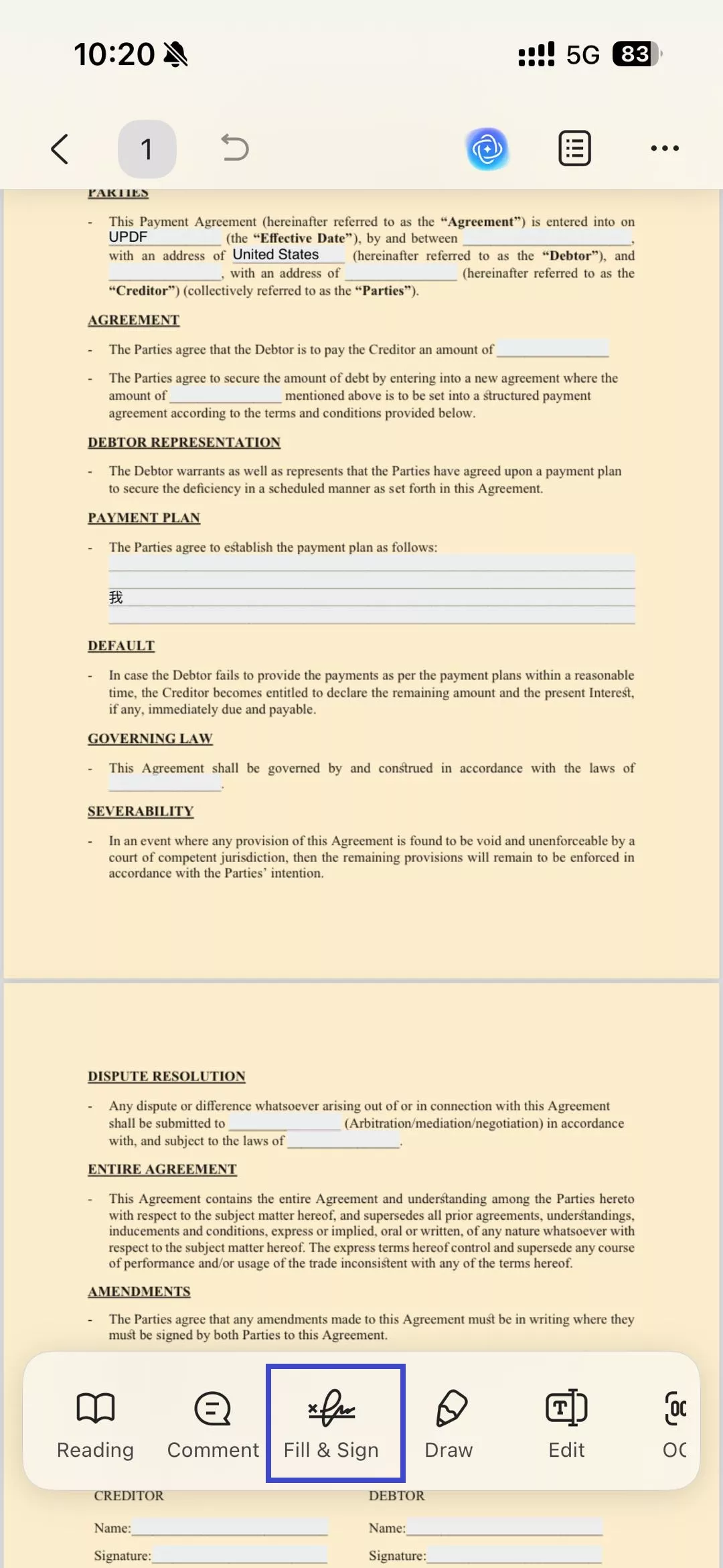
Step 4. Tap on any field and start typing.
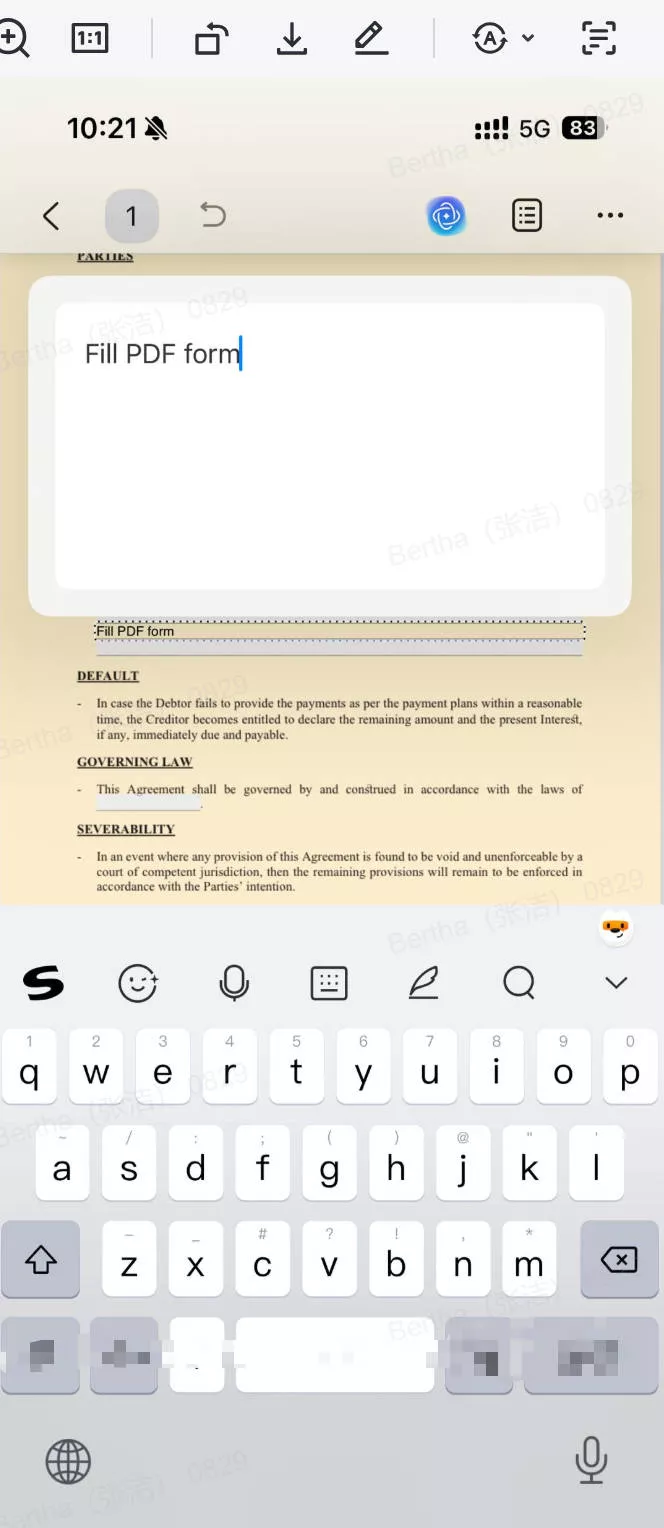
Step 5. Once finished, save the file or share it directly via email, Messages, or cloud services.
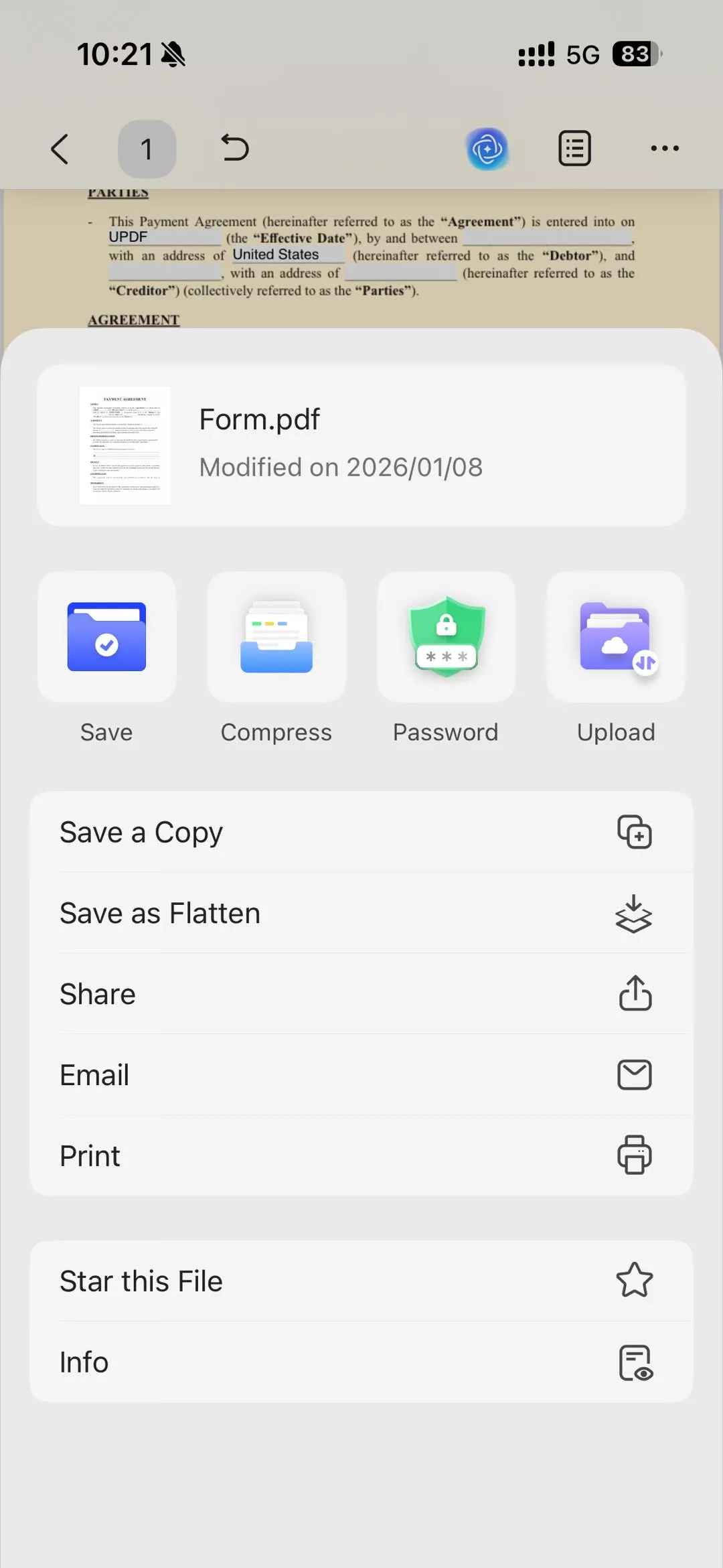
With UPDF for iOS, you can complete and return PDF forms directly from your iPhone—no printing, scanning, or computer required.
Part 3. Step-Wise Guide to Fill in a PDF Form on Windows/Mac
If you are using a Windows/Mac computer, then follow this guide to efficiently complete interactive forms with UPDF:
Step 1. Import the Fillable PDF Form
The first step is to install and launch the recent version of UPDF for Windows or Mac on your device. After accessing its main interface, click on the "Open File" button to import the PDF form to fill out in the tool.
Windows • macOS • iOS • Android 100% secure
Step 2. Fill Out the Form Text Field
After analyzing the document, under the "Prepare Form" mode, you can enable field recognition in order to identify the fillable fields.
To fill out the form, you will have to switch to the Comment or Reader mode and click the field to fill out the required information. Once you've filled it, you can proceed to other fields.
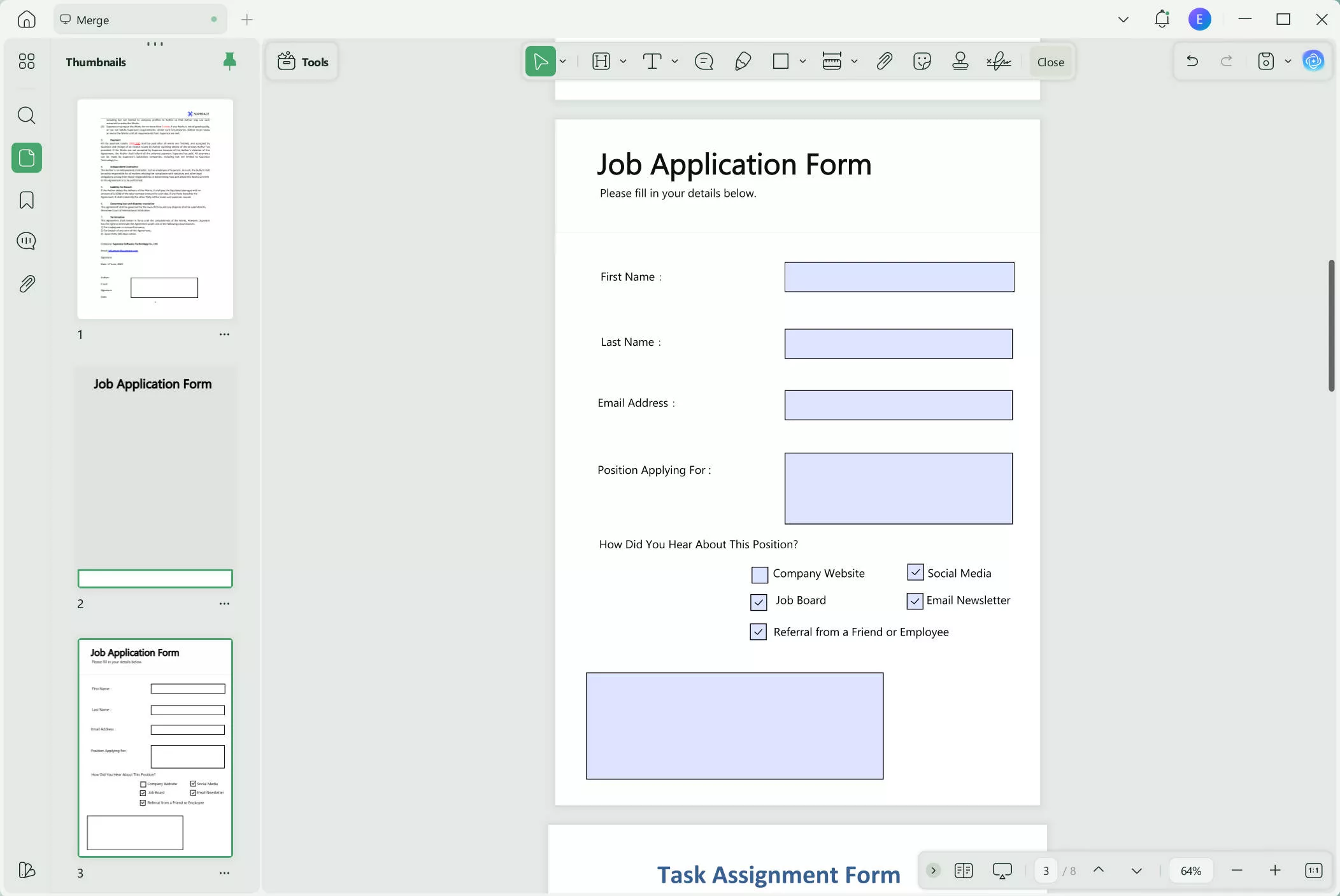
Step 3. Select Your Preferred Option From the Dropdown Menu and Add the Date
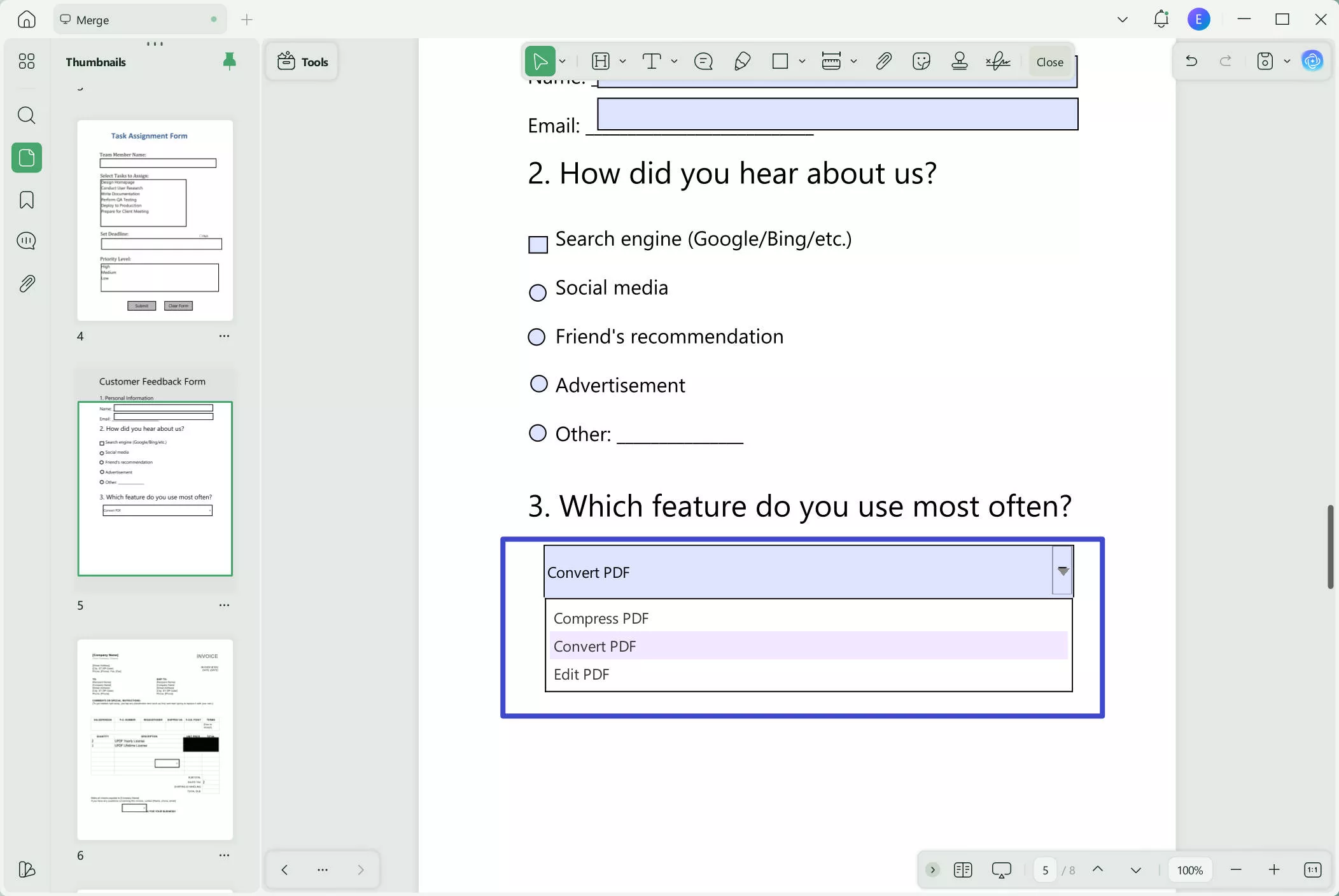
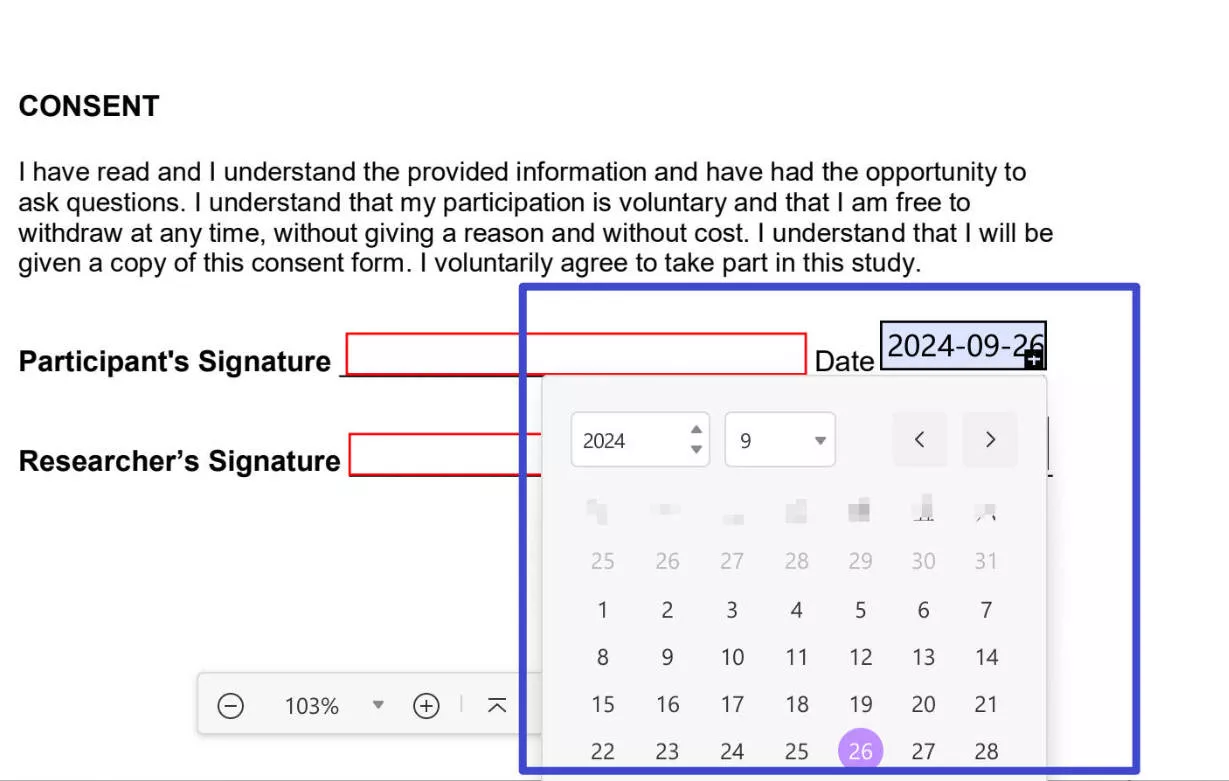
Next, advance to any dropdown menu within the form and click the ”Arrow Down" icon to see available options. Scroll through the list and select your desired option with the dropdown menu. Similarly, access the "Date" field by clicking on its arrow to choose a date from the calendar.
Step 4. Fill Out the Form Signature Fields
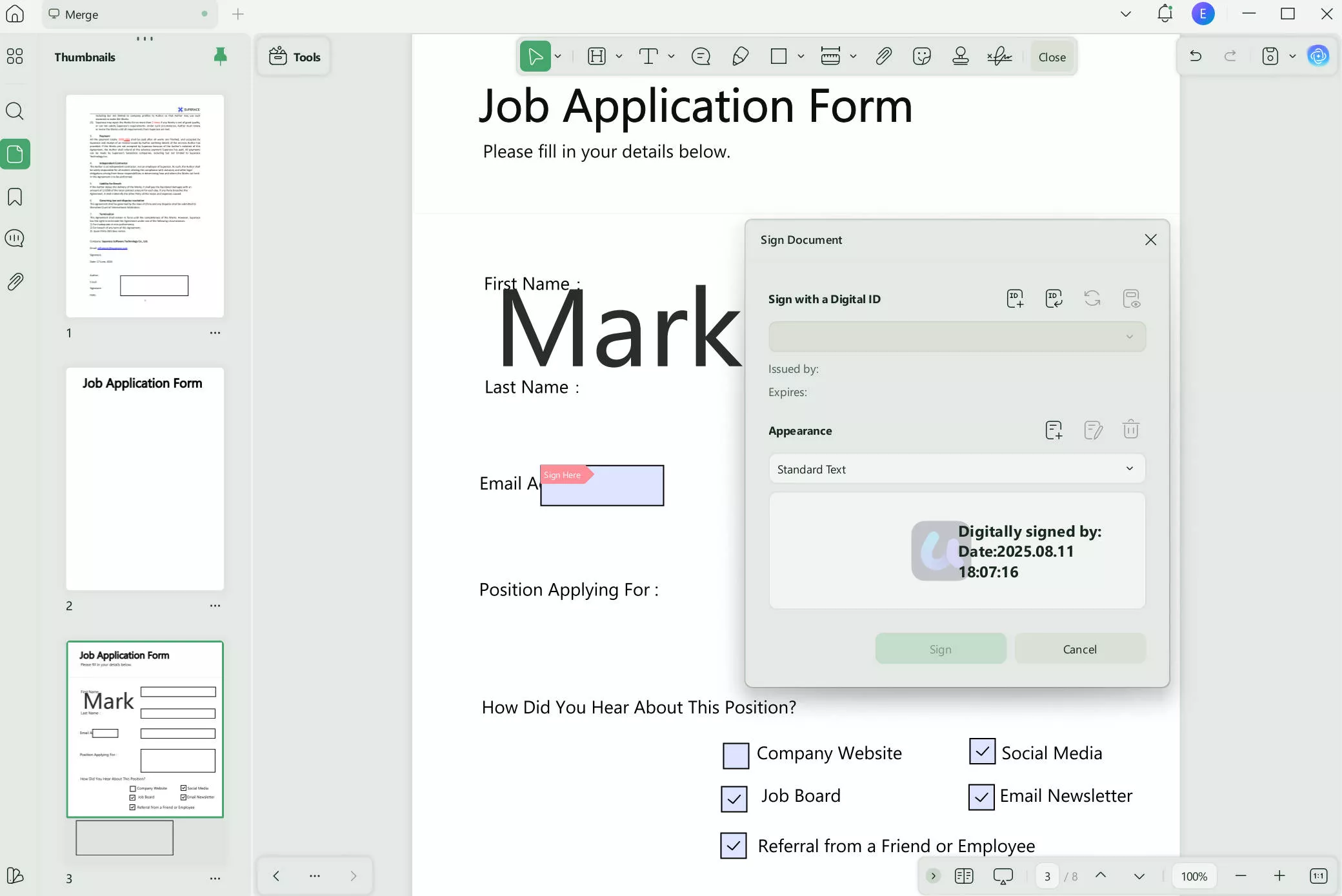
After filling in the rest of the fields, select the Signature field to access a "Sign Document" pop-up window. Here, press the "Create" icon to add the identity information and apply a password to protect your digital ID. Once you've input the relevant information and set the password, press the "Sign" button to apply your signature to the form.
Step 5. Insert Image Across the Respective Form Field
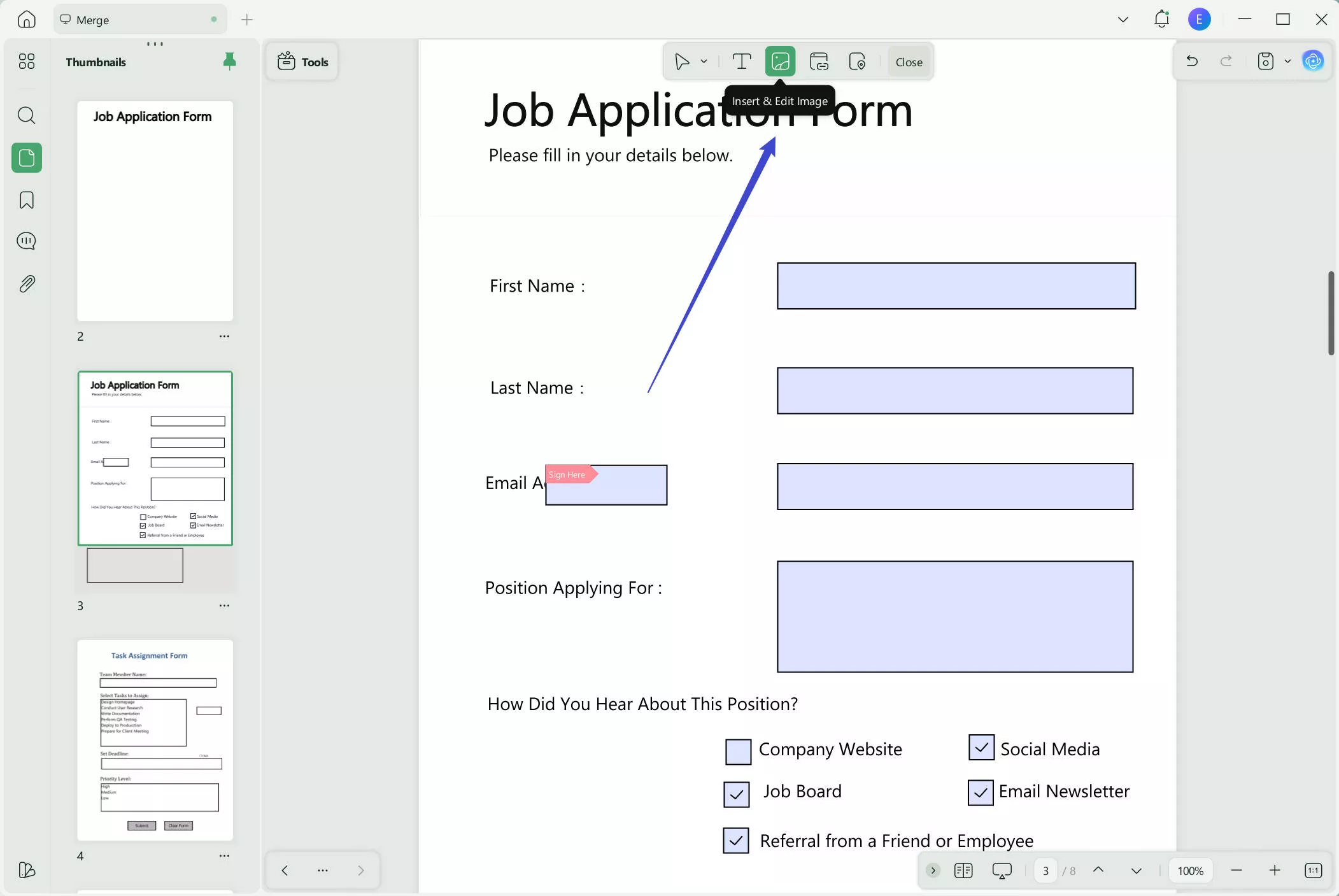
While learning how to fill in a PDF form on Mac/Win, move forward to the image field and click the designated area. Afterward, select the option to browse your files and choose the photo you wish to add within the field. When the image is selected, tap on the "Open" button to incorporate the photo.
Step 6. Export the Filled PDF Form to CSV Format
Once you've completed filling out the form, go to the "Tools" menu at the top-left corner of the interface. Find the "PDF Converter", click "More" and pick "CSV" from the extended menu. This will allow you to save the filled form for analysis or record-keeping. You can also save it as a PDF by clicking the Save option.
UPDF is compatible with four platforms, including Windows, Mac, iOS, and Android. This cross-platform compatibility allows users to fill out interactive forms seamlessly from any operating system. For detailed instructions on using UPDF to fill out and sign PDFs, you can refer to the related user guide or watch the video below for more information about its fill-and-sign features.
Part 4. Bonus Tips
1. How do you sign in a filled PDF form?
To learn how to fill in a PDF form on Mac, import the PDF file on UPDF and click the "Form" option from the toolbar. After that, hit the "Digital Signature" option and insert the field in the desired area. Head to the "Reader" mode from the toolbar and click the textbox to access the "Sign Document" screen, where you have to press "Sign" to fill in the information.
2. How do you send a filled PDF form back?
After filling out the form, share it through UPDF by tapping the "Share" icon and choosing whether you want to share via link or email. Toggle the disabled copy or print if needed and set the expiration date. After that, you will be able to share your filled PDF form with others without having compatibility issues.
3. Why can't I fill in a PDF form?
If you are unable to fill the PDF form, it might not be designed as an interactive form as it lacks fillable fields. Another reason could be the usage of outdated software or a non-compatible PDF viewer, affecting your ability to fill out the forms. Plus, your PDF forms might have security settings that restrict you from filling in the credentials.
Conclusion
Filling out PDF forms doesn’t have to be complicated. With the right tool, you can easily complete interactive forms or add text to non-fillable PDFs on any device.
Whether you're filling out a form on your computer or trying to complete a PDF that was emailed to you on your iPhone, UPDF provides a simple and reliable solution across platforms.
Download UPDF today and fill out PDF forms quickly—no printing, scanning, or extra tools required.
Windows • macOS • iOS • Android 100% secure







 Enya Moore
 Enola Miller
 Enid Brown

 Lizzy Lozano