 UPDF
UPDF
 UPDF for Windows
 UPDF for Mac
 UPDF for iPhone/iPad
 UPDF for Android
 Nomostar
 UPDF AI Online
 UPDF Sign
 IvyCraft
 Edit PDF
 Annotate PDF
 Create PDF
 PDF Form
 Edit links
 Convert PDF
 OCR
OCR PDF to Word
 PDF to Image
 PDF to Excel
 Organize PDF
 Merge PDF
 Split PDF
 Crop PDF
 Rotate PDF
 Protect PDF
 Sign PDF
 Redact PDF
 Sanitize PDF
 Remove Security
 Read PDF
 UPDF Cloud
 Compress PDF
 Print PDF
 Batch Process
 About UPDF AI
 UPDF AI Solutions
 AI User Guide
 FAQ about UPDF AI
 Summarize PDF
 Translate PDF
 Chat with PDF
 Chat with AI
 Chat with image
 PDF to Mind Map
 Explain PDF
 PDF AI Tools
 Image AI Tools
 AI Chat Tools
 AI Writing Tools
 AI Study Tools
 AI Working Tools
 Other AI Tools
 AI Bookmark Generation
 AI Bookmark Summary
 AI Watermark Generation
 AI Background Generation
 AI Sticker Generation
 AI Stamp Generation
 AI Editing Suite
 UPDF Copilot
 AI Page Management
 AI Semantic Search
 PDF to Word
 PDF to Excel
 PDF to PowerPoint
 Enterprise Solution
 Enterprise Sign
 Enterprise AI
 Enterprise Plan
 Enterprise User Guide
 Enterprise Webinar
 IT
IT Education
 Construction
 Financial Service
 Healthcare
 Insurance
 Legal
Legal Manufacturing
 Government
 Researchers & PhDs
 Solopreneurs & Freelancers
 Lawyers & Legal Professionals
 Real Estate Agents & Brokers
 Education Solution
 Customer Stories
 User Guide
 UPDF Tricks
 FAQs
FAQs UPDF Reviews
 Download Center
 Blog
Blog Newsroom
 Tech Spec
 Updates
 UPDF vs. Adobe Acrobat
 UPDF vs. Foxit
 UPDF vs. PDF Expert

Quick Answer:
A PDF that will not open is not necessarily corrupted. An incomplete download, a faulty reader installation, a password prompt, or a zero-byte attachment can produce a similar symptom. Identifying the cause before attempting repair gives you the best chance of recovering the document without damaging the only available copy.
Part 1. Why Won't the PDF Open?
Use the error and the file’s behavior to choose the right first step.
| What you see | Most likely cause | Best first action | What not to do |
|---|---|---|---|
| The file size is 0 KB | The file contains no recoverable data | Download it again or ask the sender for another copy | Do not buy a repair tool for the empty copy |
| The file is much smaller than expected | The download or transfer was interrupted | Obtain a clean copy from the source | Do not overwrite the source file |
| One reader fails, but another opens the PDF | Reader compatibility, cache, or installation problem | Save a new copy from the working reader | Do not describe the file as repaired until you verify every page |
| Every reader rejects the same duplicate | The PDF structure may be damaged | Restore a backup or try a reputable repair method | Do not repeatedly save over the original |
| The PDF asks for a password | The file is encrypted, not corrupted | Enter the correct open password or contact the owner | Do not use a corruption-repair tool |
| The PDF opens but the text cannot be selected | The pages may be scanned images | Use OCR after confirming every page displays correctly | Do not expect OCR to repair file structure |
| The attachment was unexpected or looks suspicious | The file may be unsafe rather than damaged | Scan it and verify the sender before opening it | Do not upload or open it merely to test it |
If the file is confidential, start with local methods: obtain a clean copy, try another desktop reader, and check an existing backup. Online repair services require you to upload the document to another company’s server.
Also Read: PDF File Errors and Solutions
How to Open a Corrupted PDF File
The following are some of the most effective solutions to open a corrupted PDF file;
- Try Using a Different Reader
If you find that you are unable to open the file using Adobe Reader, this doesn’t automatically mean that the file is corrupt. There could be a problem with the reader. This is why the first thing we recommend before attempting any other solution is to try using a different PDF application.
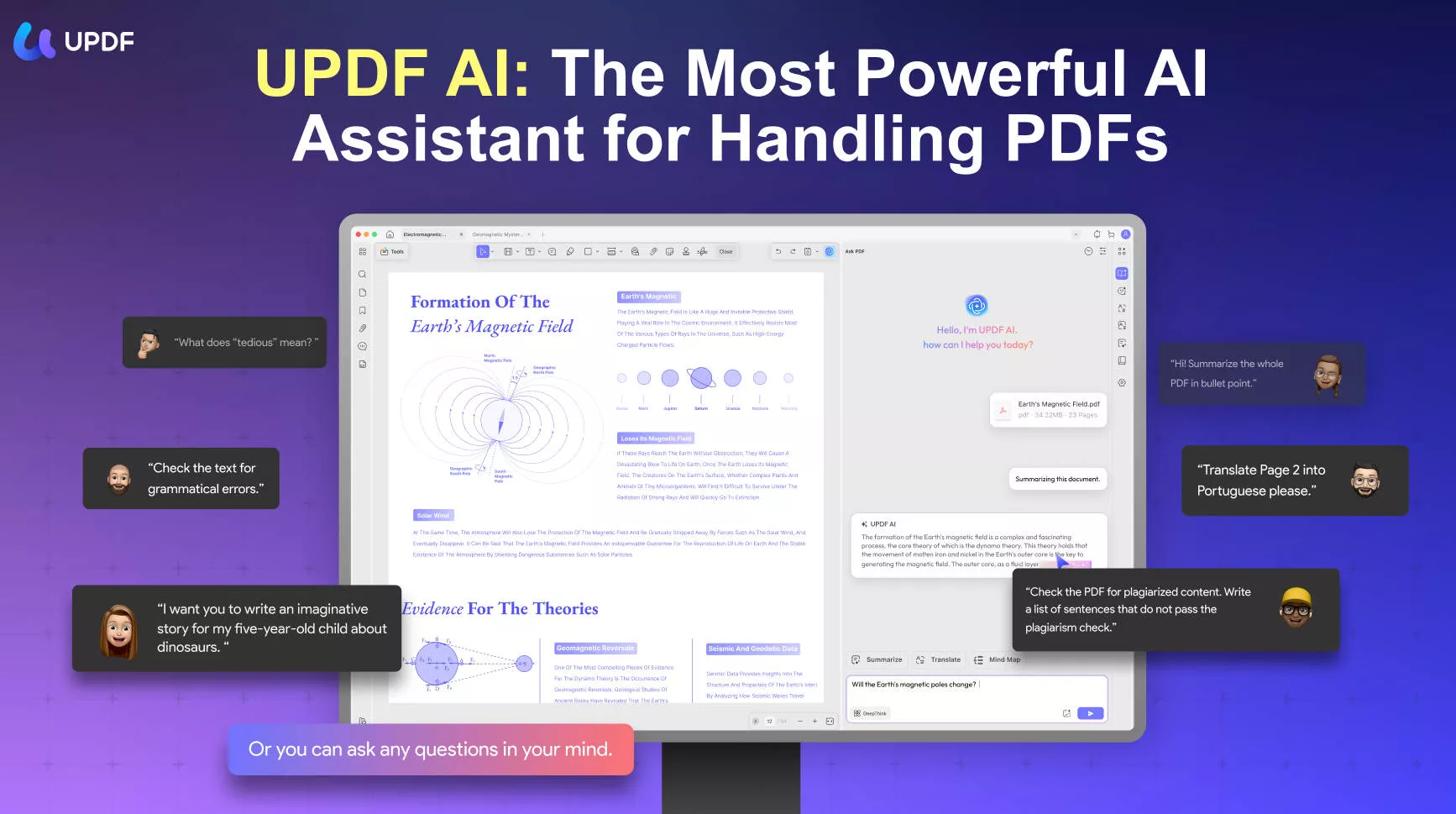
There are many other solutions that you could try, we will recommend UPDF for you since it is free to use if you only need to read PDF. Just download UPDF and open the PDF to fix the corrupted issues.
Windows • macOS • iOS • Android 100% secure
- Restore the File to a Previous Version
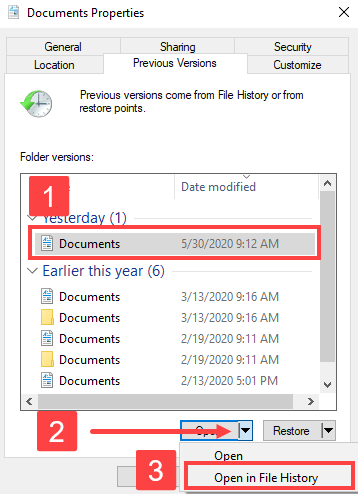
Since this problem can be caused by issues in the computer system, you can try to restore the file to a previous version. Windows has a feature that automatically stores previous versions of the files you create in anticipation of this very problem.
Use the following steps to access the previous version of your PDF file;
Step 1: Find the corrupted PDF file and right-click on it
Step 2: From the options that appear, select "Properties"
Step 3: In the "Properties" window that opens, click on the "Previous Versions" tab and select the version of the file you would like to restore.
Step 4: Click "Restore" and this older version will replace the corrupted document.
- Fix Adobe Acrobat Reader
Adobe Acrobat is usually a very reliable PDF reader, but it is not without its issues and sometimes these issues can make it difficult to read the PDF file. So, if you are still unable to open the file even after restoring it to a previous version, try the following steps to repair Adobe Acrobat Reader;
Step 1: Before anything else, make sure that the version of Adobe Acrobat Reader you are using is the most updated. To do that, open Adobe Acrobat Reader and then click on "Help > Check for Updates." If an update is available, install it.
Step 2: Once the update process is complete, go to "Help" again, and this time select "Repair Installation". This will allow the program automatically check for any errors and apply any repairs.

- Use an Online tool to Repair the File
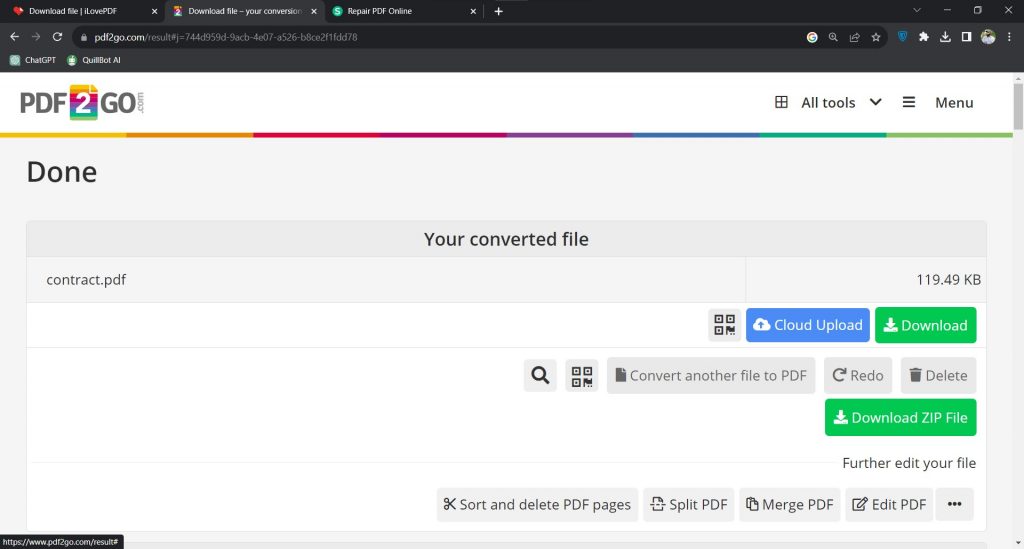
You can also choose to use one of the many online PDF repair tools to repair the corrupted file. Most work similarly, but for this tutorial, we will show you how to use PDF2GO.
Step 1: Go to the website of PDF2GO on any browser to access the repair tool.
Step 2: Click on the "Choose File" button to upload the corrupted file

Step 3: Then simply click on the "Save Changes" button at the bottom and PDF2GO will begin repairing the file immediately. You should be able to download the file once the repair is complete.
A Productive and Delightful PDF Reader and Editor
It is usually the tool you choose to create or read the PDF file that may cause problems like this one. It is therefore very important that the PDF reader and editor you choose be a reliable, effective, and easy-to-use solution. One of the few PDF readers and editors that fits this description is UPDF.
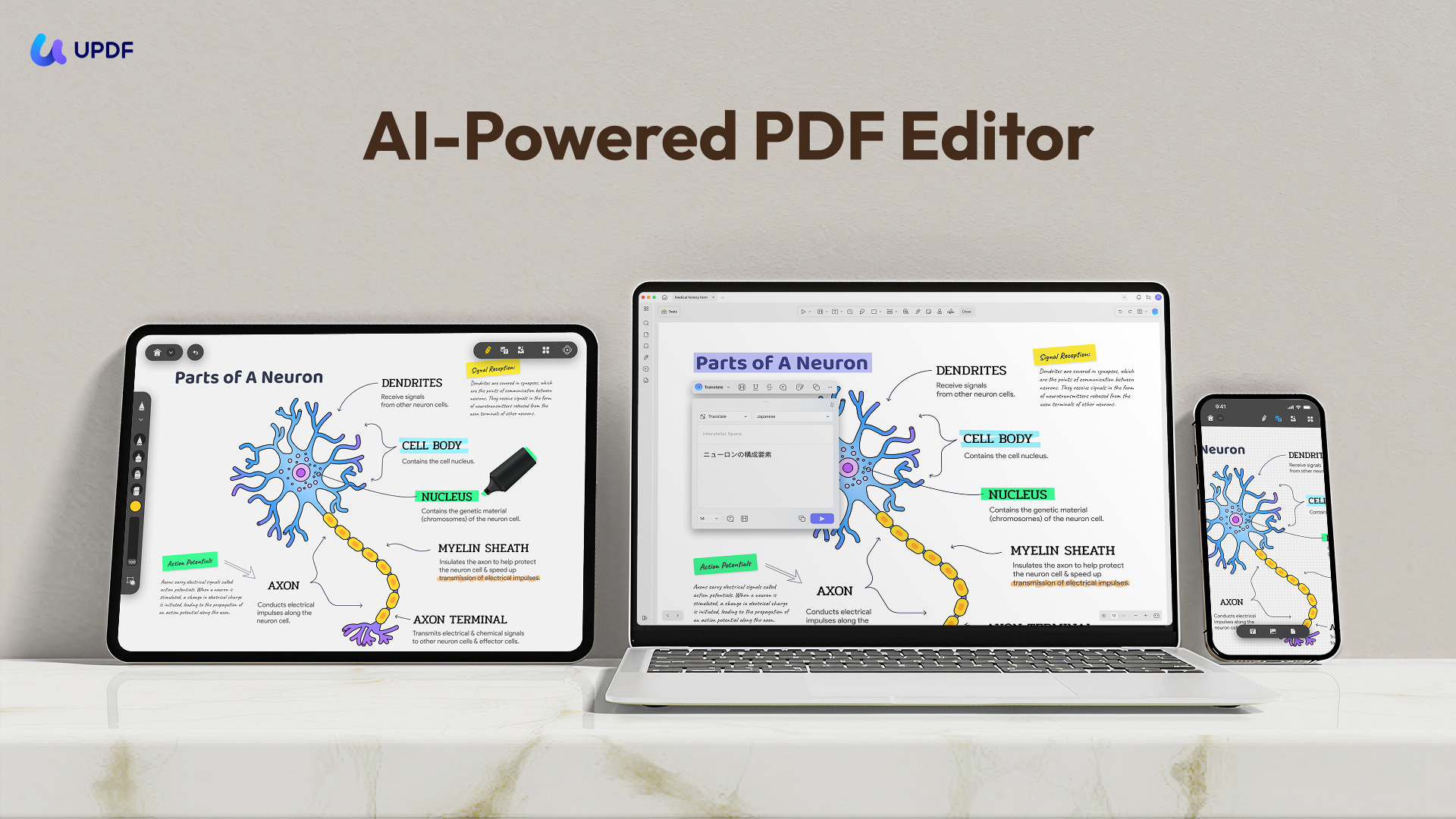
Here's a list of some of the features that you can expect to enjoy if you choose UPDF;
- UPDF provides a streamlined and intuitive PDF reading experience. When reading the document, you can choose a page layout that you desire or even choose a dark mode.
- It is also one of the best ways to edit PDF. You can easily edit the text on the document by choosing to change the font size and color. You can also use the built-in image editor to edit any images on the PDFs.
- UPDF also has numerous PDF annotation features for easier collaboration. These features allow you to add comments, stamps, and stickers to the document. You can even add a valid signature to the document.
- UPDF can also be used to convert scanned PDF files to various other editable formats including Word, Excel, PowerPoint, or even images.
- You can also use it to organize the PDF pages by quickly adding, rotating, replacing, extracting, and rearranging the pages on the document to suit your purposes.
- UPDF facilitates the easy sharing of PDF documents, allowing the recipient to see the file as is and avoid file corruption problems.
Advantages of Using UPDF
- It is a very simple tool to use. All tools are easily accessible whether you are editing, converting, or annotating the file.
- You don't need to leave the program to edit the document.
- It is 100% safe to use and unlikely to corrupt the PDF file.
- You can access your PDF file on numerous devices as UPDF is accessible on Windows, Mac, iOS, and Android devices.
If you want to know more about UPDF, you can download UPDF via the below button, and watch the below review video.
Windows • macOS • iOS • Android 100% secure
FAQs
Q1: How Do I Fix a Damaged PDF File that Won't Open?
The two best options to fix a damaged file are to restore a previous version of the file or use an online PDF repair tool as we have seen above. When both solutions are not an option for you, then the only viable solution is to recreate the file.
Q2: Can I repair a PDF by renaming its file extension?
No. Renaming does not repair the file. Changing .pdf to another extension only changes the filename; it does not rebuild PDF objects or restore missing data.
Q3: How Do I Make an Unreadable PDF Readable?
If the file is password protected, then you will need to enter the password that was used to lock the document.
If on the other hand, the file is a scanned document, you may need UPDF using OCR to convert it into a readable and editable format, the you can enjoy your journey.
Conclusion
All in all, in case of any inevitable destruction caused by a corrupted PDF file, UPDF is the safe and sensible choice for users that secure the environment of opening, reading, and editing documents. Besides, the features of UPDF are diverse, and all of them give reliable outcomes for your files according to your needs. What are you waiting for? Download the app today, and enjoy the amazing journey!
Windows • macOS • iOS • Android 100% secure







 Lizzy Lozano
 Enola Davis
 Enid Brown