 UPDF
UPDF
 UPDF for Windows
 UPDF for Mac
 UPDF for iPhone/iPad
 UPDF for Android
 UPDF AI Online
 UPDF Sign
 Edit PDF
 Annotate PDF
 Create PDF
 PDF Form
 Edit links
 Convert PDF
 OCR
OCR PDF to Word
 PDF to Image
 PDF to Excel
 Organize PDF
 Merge PDF
 Split PDF
 Crop PDF
 Rotate PDF
 Protect PDF
 Sign PDF
 Redact PDF
 Sanitize PDF
 Remove Security
 Read PDF
 UPDF Cloud
 Compress PDF
 Print PDF
 Batch Process
 About UPDF AI
 UPDF AI Solutions
 AI User Guide
 FAQ about UPDF AI
 Summarize PDF
 Translate PDF
 Chat with PDF
 Chat with AI
 Chat with image
 PDF to Mind Map
 Explain PDF
 PDF AI Tools
 Image AI Tools
 AI Chat Tools
 AI Writing Tools
 AI Study Tools
 AI Working Tools
 Other AI Tools
 AI Bookmark Generation
 AI Bookmark Summary
 AI Watermark Generation
 AI Background Generation
 AI Sticker Generation
 AI Stamp Generation
 AI Editing Suite
 UPDF Copilot
 AI Page Management
 AI Semantic Search
 PDF to Word
 PDF to Excel
 PDF to PowerPoint
 Enterprise Solution
 Enterprise Sign
 Enterprise AI
 Enterprise Plan
 Enterprise User Guide
 Enterprise Webinar
 Banking
 Healthcare
 Insurance
 Legal
Legal Manufacturing
 Government
 Education Solution
 Customer Stories
 User Guide
 UPDF Tricks
 FAQs
FAQs UPDF Reviews
 Download Center
 Blog
Blog Newsroom
 Tech Spec
 Updates
 UPDF vs. Adobe Acrobat
 UPDF vs. Foxit
 UPDF vs. PDF Expert

Canva is a great tool for graphic design. You can be a student, an artist, or a marketing professional but you will find it useful for various scenarios. Once you have created the design of your choice, you would want to save it as a PDF to print it or send it off. But you may not know how to save Canva as PDF. Here we will discuss some ways to download Canva as PDF online, on laptop, on Android, or iPhone and also without paying for the paid template.
But is this truly the finish line? No—quite the contrary—your work of breathing "life" into your PDF has only just begun. This restricted PDF file downloaded from Canva remains effectively locked away in your drafts folder, unable to fulfill its intended practical value. UPDF comes to save you, transforming them into true deliverable products by editing text, images, and even links, converting PDF to Word/Excel/PPT, or tackling image-based or scanned PDFs.
Windows • macOS • iOS • Android 100% secure
Part 1. How to Save Canva as PDF Online/Laptop/Computer?
Working with Canva online is fun. You have access to so many templates and tools. If you are wondering how to convert Canva to PDF online, here are some simple steps.
Step 1. Open your Canva design
Launch Canva online and open the design you want to save as a PDF. You can make any last- minute changes if you want.
Step 2. Save Canva as PDF
Click on the "Share" button towards the right side of the screen. A menu bar will open with some options. If you scroll down, you will be able to see the "Download" option. Or you can copy the link and share it everywhere you want.
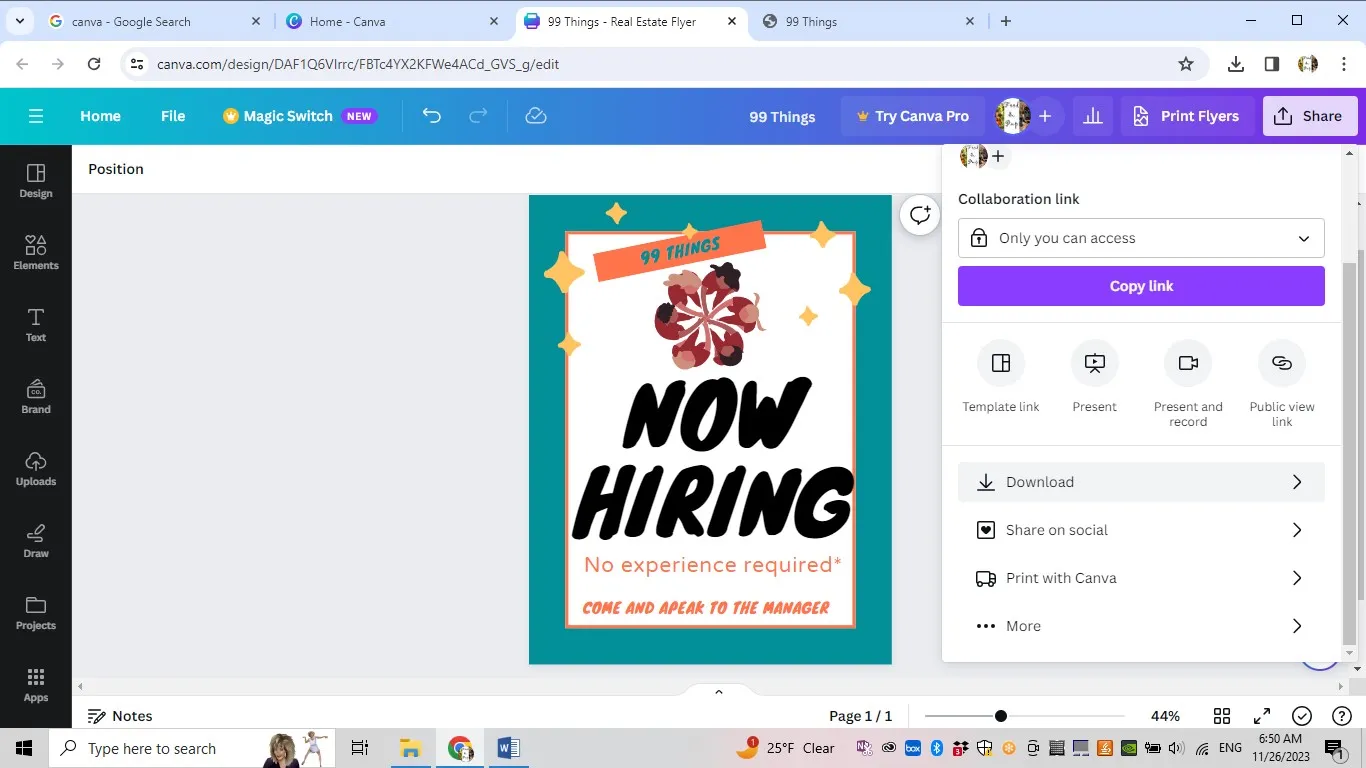
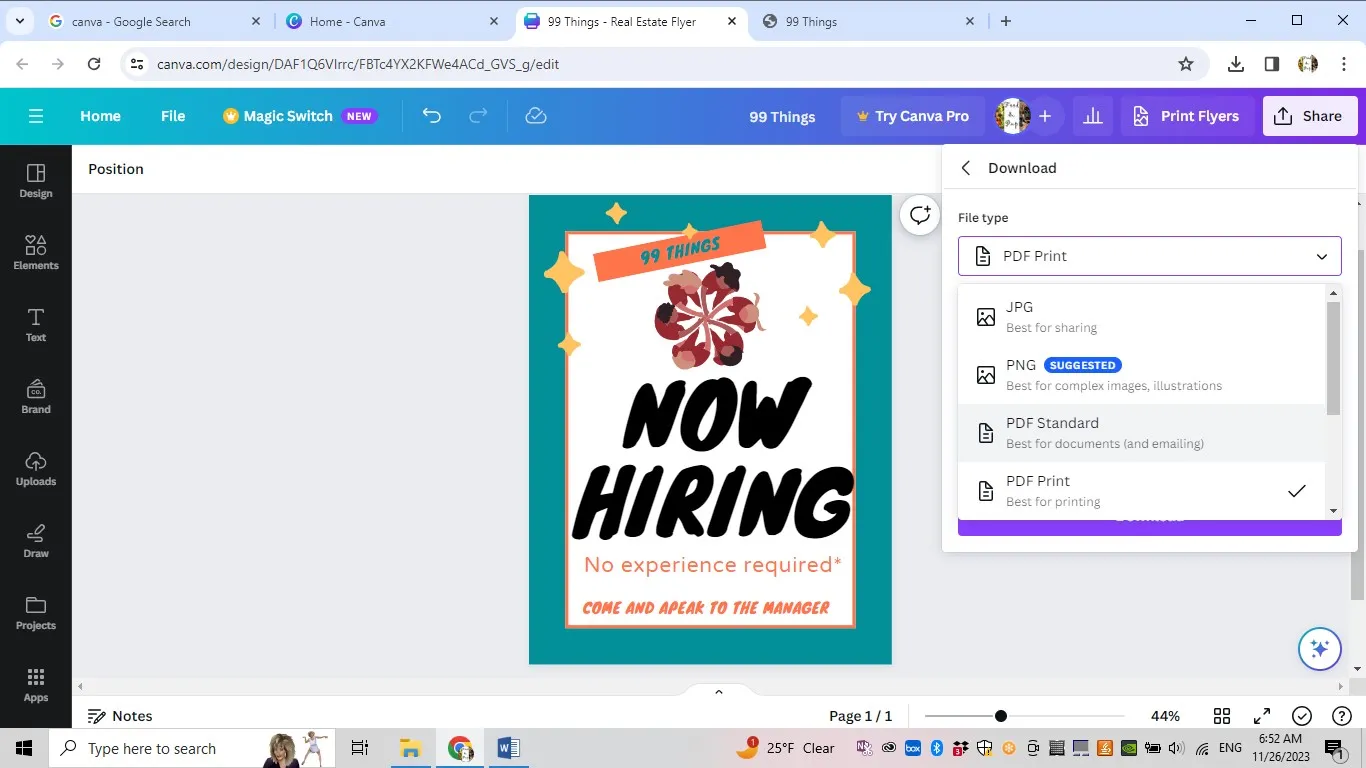
Click on "Download", it will ask you to pick a file type from the dropdown menu. Select "PDF Standard" or "PDF Print" depending on your quality requirements. Hit the "Download" button at the bottom and your Canva will be downloaded and saved as PDF.
Note: If you want to save Canva as PDF to print, then PDF Print is your option. Designed specifically for printing, this format generates high-resolution (300 DPI) PDF files that include bleed and crop marks, and support the CMYK color mode. Although the resulting file sizes are relatively large, this ensures the precise reproduction of colors and details, thereby meeting a wide range of printing requirements.
PDF Standard is optimized for screen-based distribution and reading. This option generates PDF files utilizing the RGB color mode, featuring higher compression rates and smaller file sizes. Furthermore, if the design incorporates transparency or gradient effects, this format delivers superior processing results compared to the former option.
Part 2. How to Save Canva as PDF on Android?
You may not be using your computer for Canva projects but using a Tablet or your Android phone. If you want to know how to turn a Canva into a PDF on an Android device, here are the steps:
Step 1. Launch Canva and open your project
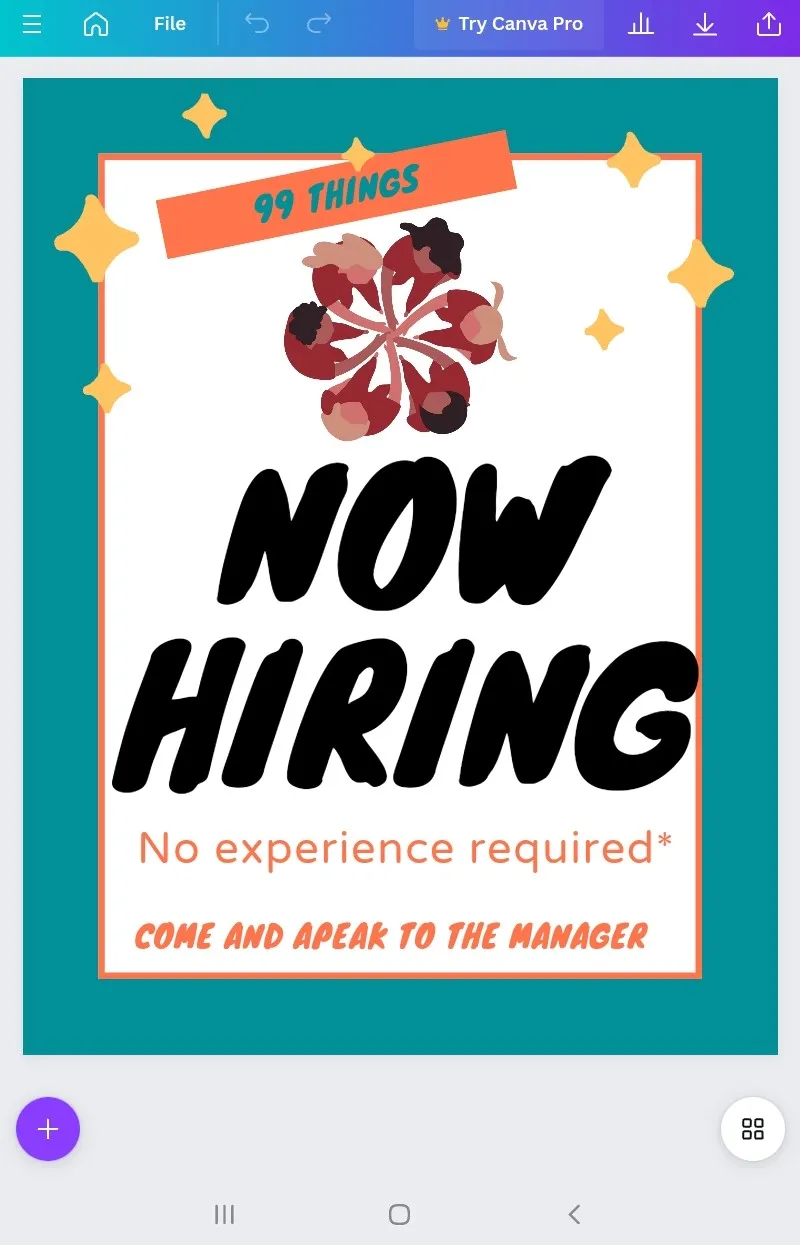
Launch the Canva app on your Android device and open the project you want to convert to PDF.
Step 2. Download Canva as PDF
Towards the right corner of your screen, click on the "Share" button. You will see a new screen with a "Download" option towards the bottom.
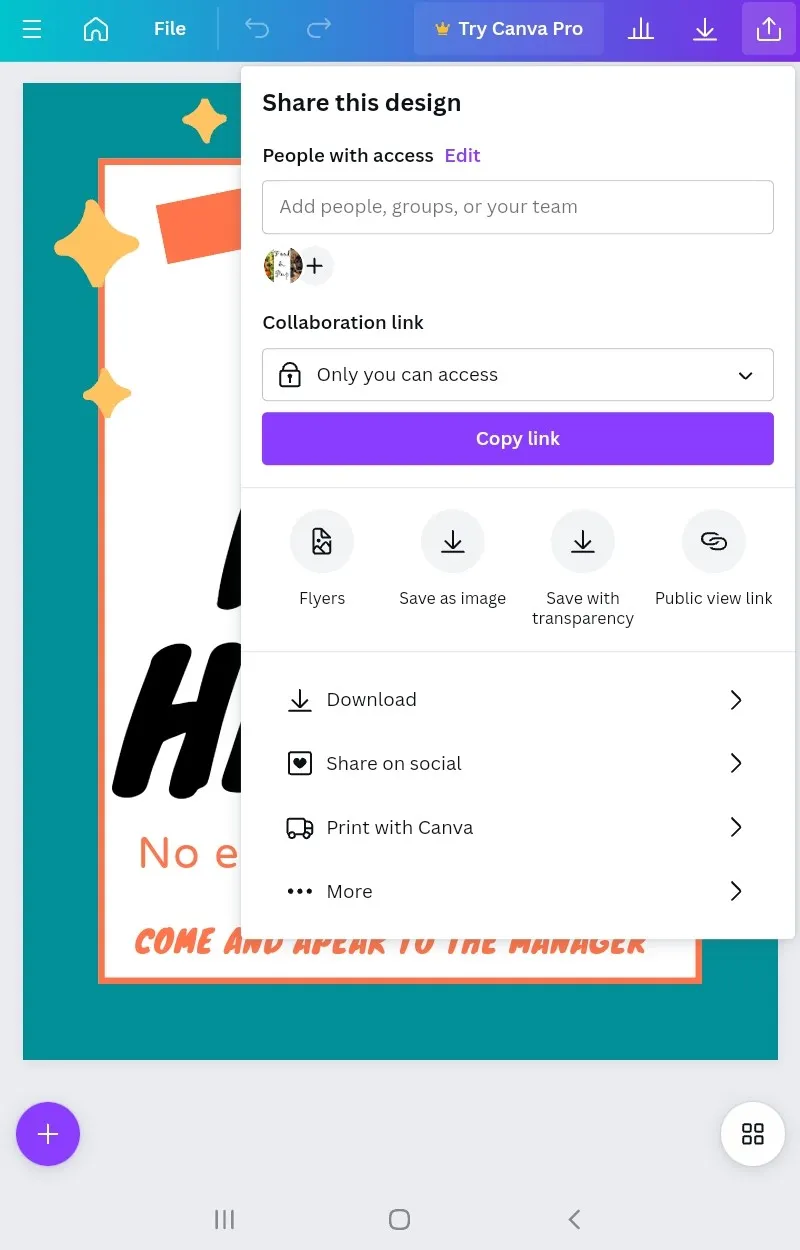
If you click the "Download" button, you will see a new screen with the option to select the file format. Select PDF and hit the "Download" button.
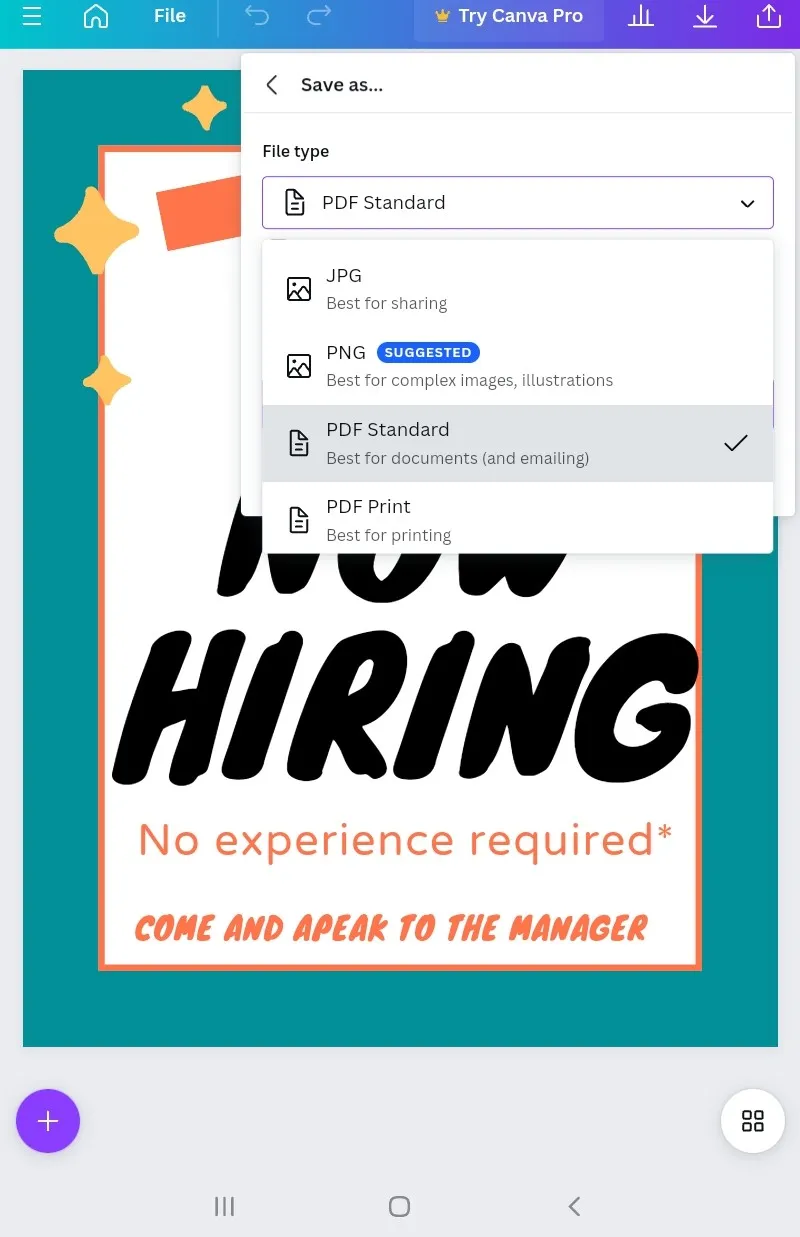
Your file will be downloaded and saved in your Tab "Download Folder" or wherever you have assigned your download files to save.
Part 3. How to Save Canva as PDF on iPhone?
Having Canva on your iPhone makes life very easy, you can work on your project whenever and wherever you want. But you may be wondering how to save a Canva design as a PDF on an iPhone. Here are a few easy steps to follow:
Step 1. Open your Canva project
Open the Canva app on your iPhone and open the project you want to save.
Step 2. Download Canva as PDF
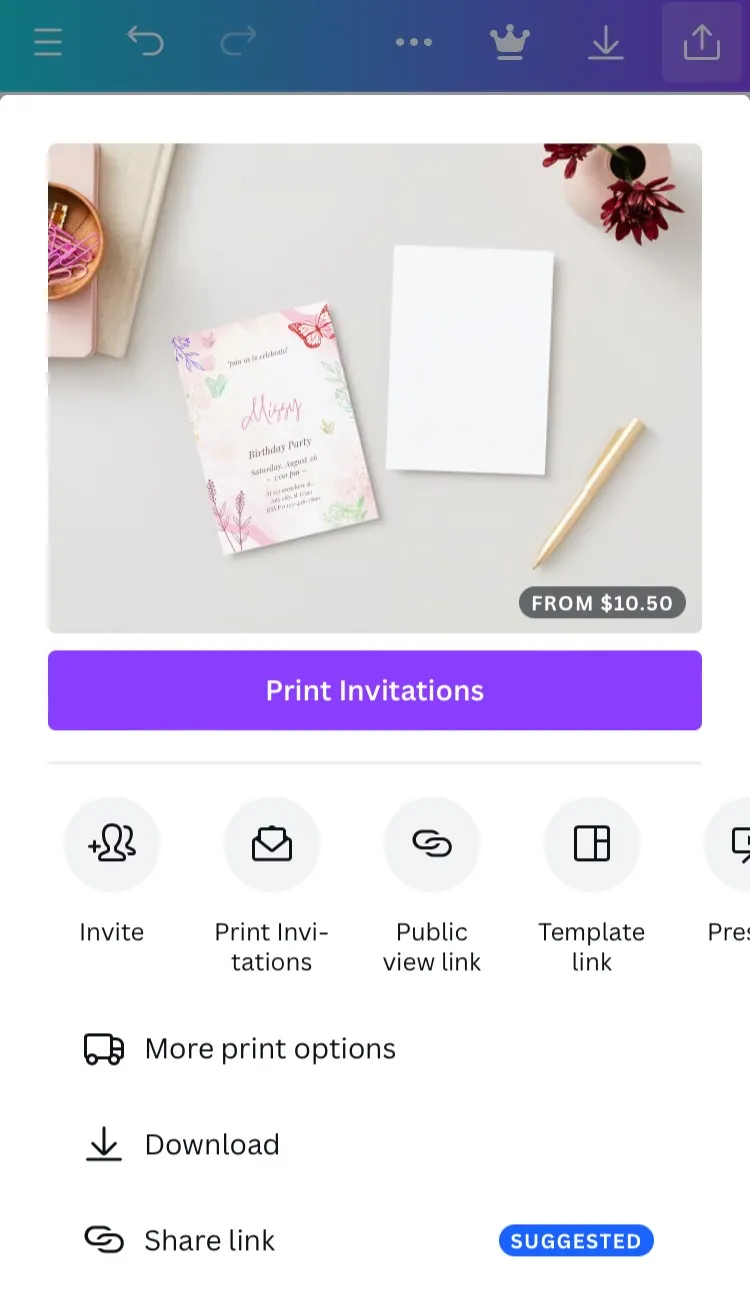
Click on the "Share" icon in the top right corner of your Canva screen.
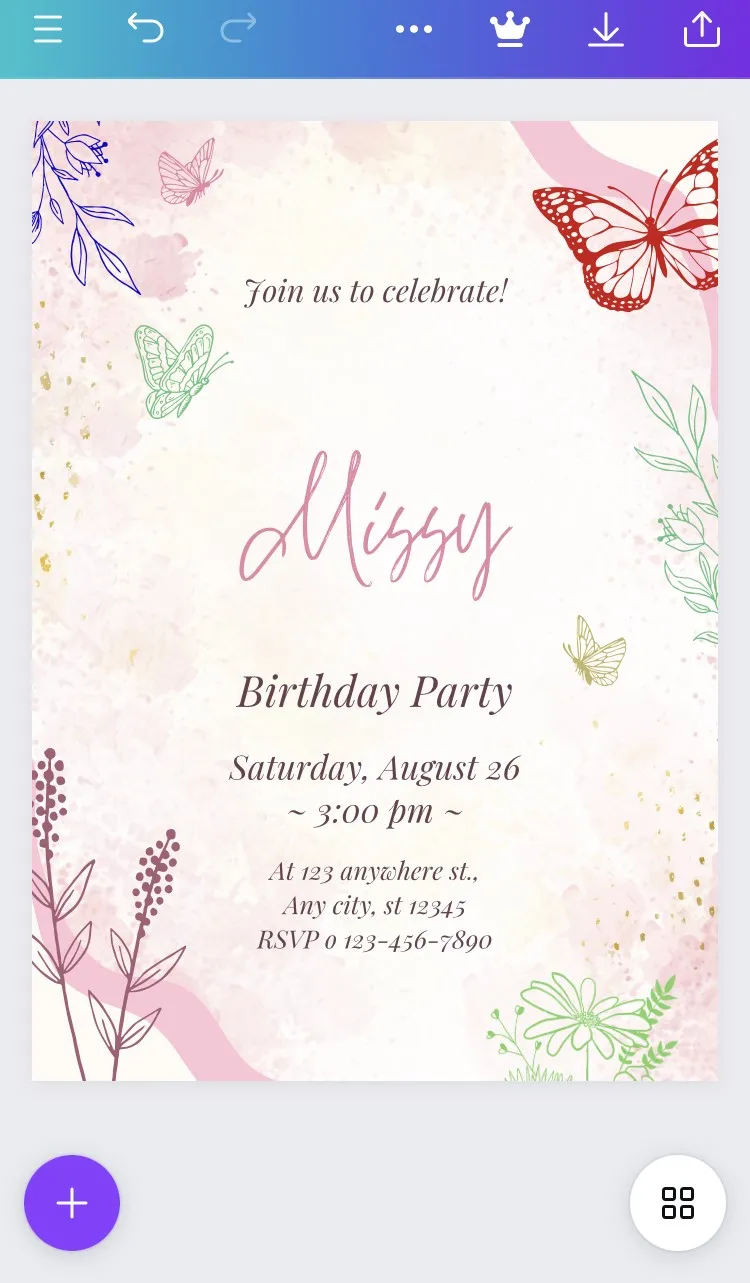
You will see a new screen. Click on the "Download" option towards the bottom of the screen.
A new screen will appear with a dropdown menu to choose the file format. Choose PDF.
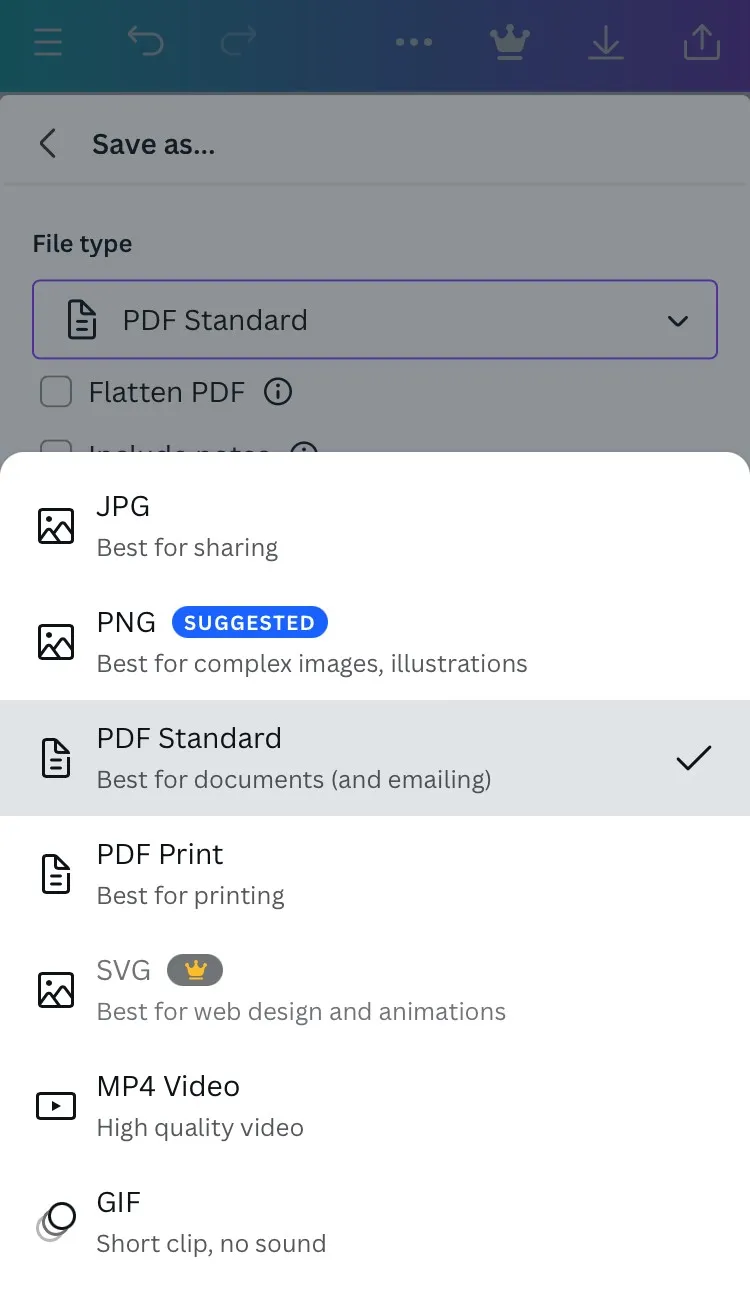
Hit "Download" at the bottom of the screen and your file will be downloaded and saved.
Also Read: What is Canva PDF Editor? Complete Review & Its Better Alternative
Part 4. How do I Download a PDF from Canva without Paying?
The above method will work fine if you use one of Canva’s free templates. If you have used a premium Canva template, you will be asked for a payment to download it as PDF. If it is for personal use only and you do not wish to pay, there is a way to save the design as PDF. Follow these steps:
Step 1. Screenshot the design and paste in a document
Open the design page and to take the screenshot press "PrtSc" on your keyboard. Save the screenshot by pasting it into the "Paint" app on your computer.
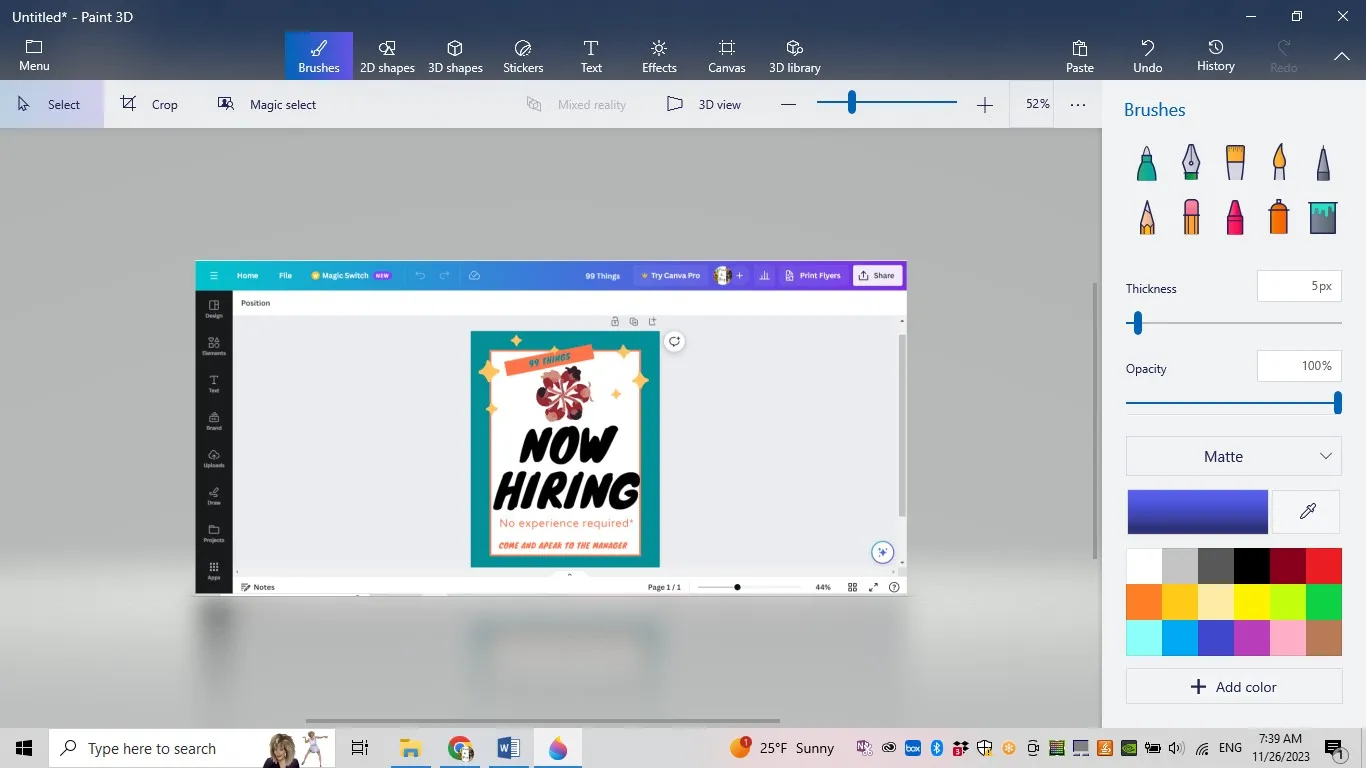
Crop the image to remove the unwanted stuff from the Canva image. And then save the file as an image file.
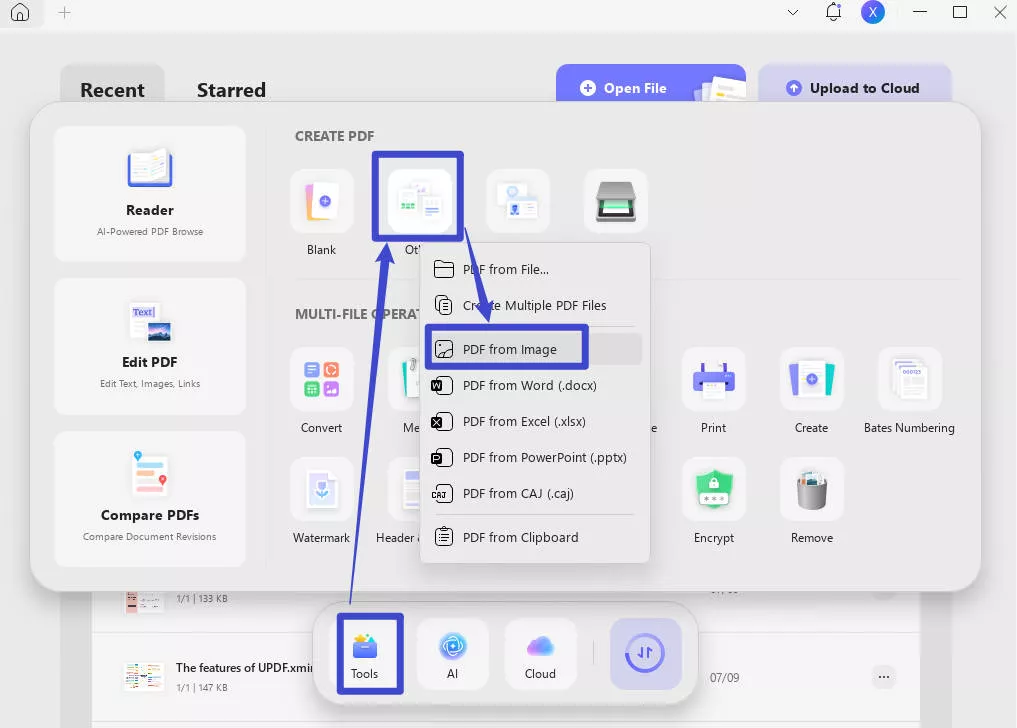
Step 2. Convert image to PDF using UPDF
For this step, you will need a PDF editor/reader to convert the image to PDF. Using UPDF. You can download it for free right now and have a free trial by clicking the link below. Once downloaded, launch the UPDF, click on the "Tools" tab to open the menu, select "Others" and then click on "PDF from image". You will be asked to select the image file you made in Step-1 from the saved folder. Once you click "Apply" the image will be converted to PDF.
Windows • macOS • iOS • Android 100% secure
Part 5. Bonus Tip: How to Edit Saved PDF?
Once you have the Canva saved as PDF, you may want to make some edits or may want to give someone feedback so you would need a nice PDF editor that offers all the editing and annotation tools and at the same time is not hard on your pocket. UPDF fits that criterion perfectly. It is almost ten times cheaper than its biggest competitor Adobe Acrobat and has so many features to offer.
To edit the downloaded PDF, you need to download UPDF. Here are some simple steps:
Windows • macOS • iOS • Android 100% secure
Step 1. Open the Downloaded PDF with UPDF
Open the UPDF app and open your downloaded Canva document converted to PDF by going to the "File" menu and clicking on the "Open" option.
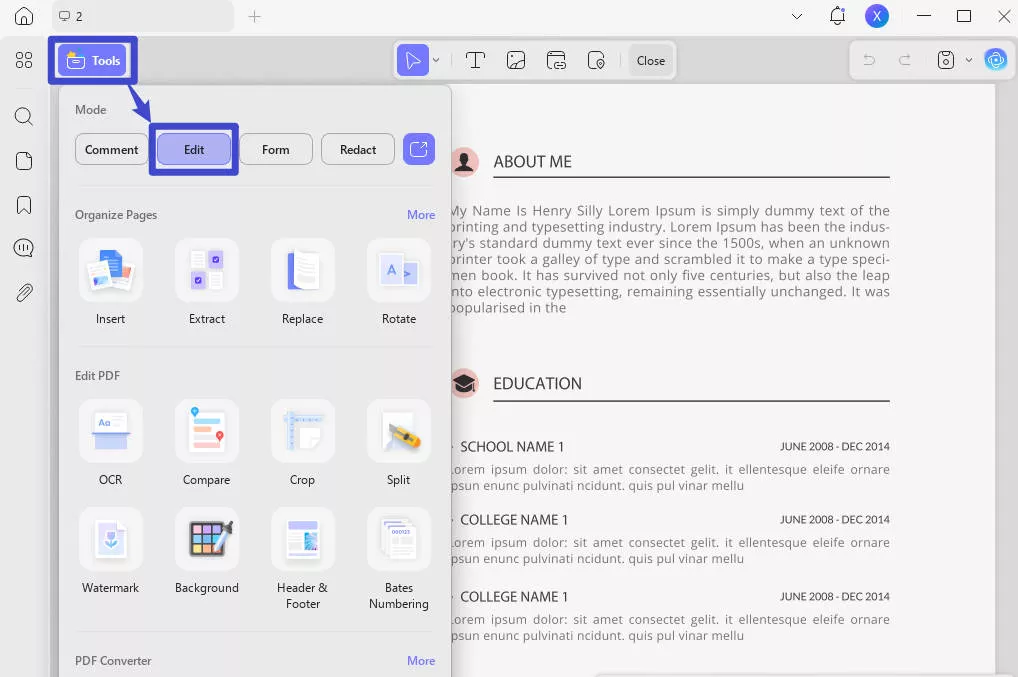
Step 2. Edit PDF
On the left side of the document, you will see the "Edit" tab in "Tools". Click on it and you will be able to see a banner of options on the top. From the Edit PDF top menu, you can insert text with the "Text" tool. Change the image orientation, or do other image editing like crop, replace, etc with the "Image" tool. Also there is a "link" tool to link your file to a webpage or another page.
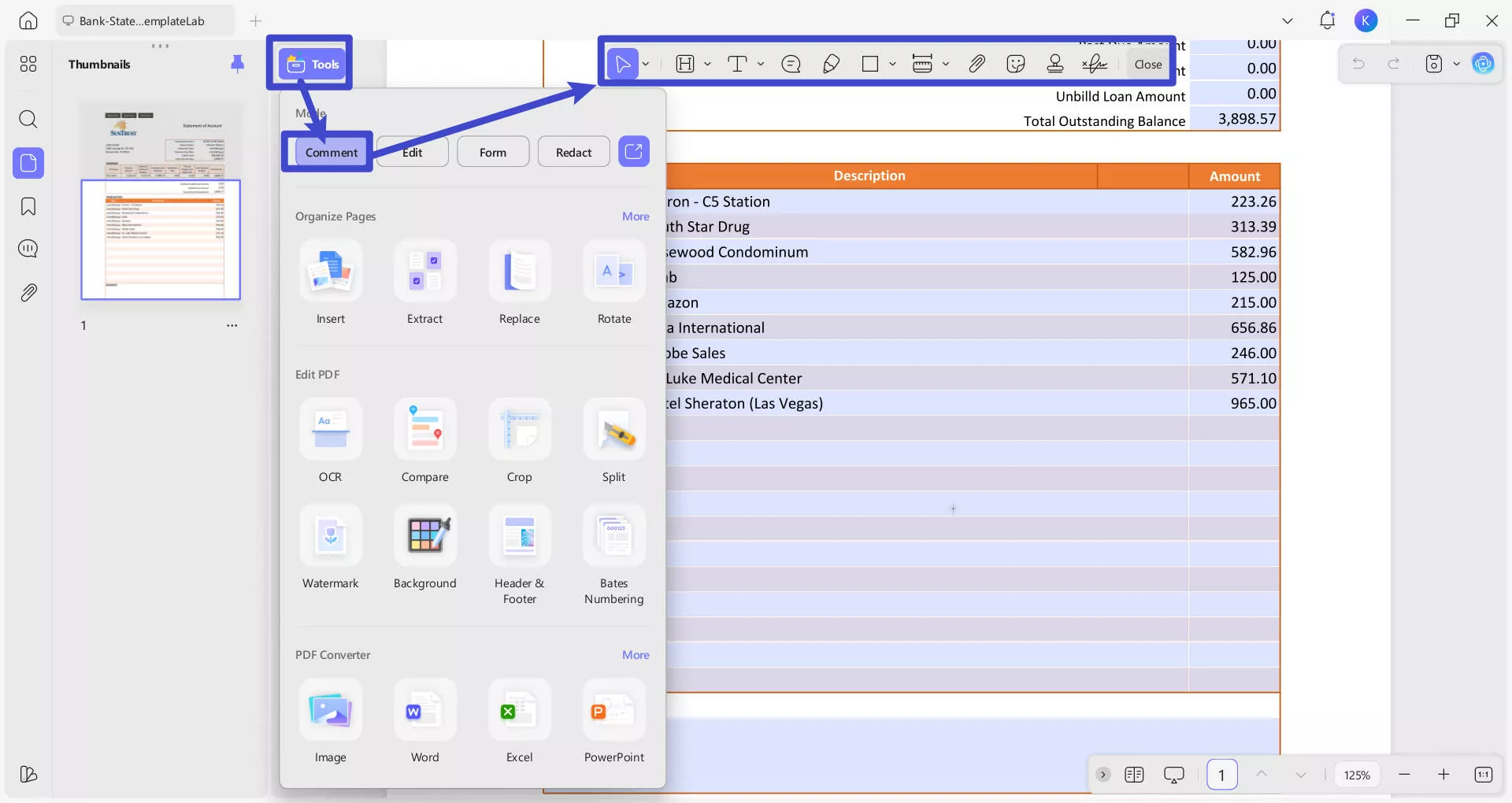
There is also a "Comment" tab in "Tools", which allows all sorts of annotation viz. sticky note, highlight underline, text box and callouts, pencil, eraser, shapes, stickers, attachment, stamps and signatures. You can use any of them and then save the changes.
Video guide on how to Edit PDF with UPDF:
Apart from its editing capabilities, UPDF is also exceptionally outstanding in other aspects. Next, I will introduce some of its unique features to you.
- You can highlight content, drop a comment, draw a shape, and mark up your PDF however you like.
- It is compatible with any system like Windows, Mac, iOS and Android.
- If the document is a scanned file, OCR features can convert the file to an editable and text-searchable file without changing its layout.
- UPDF’s AI assistant already masters summarizing, translating, searching academic papers and other needs—but the new UPDF 2.5 takes it further with 10 groundbreaking AI Agents. Powered by ChatGPT and DeepSeek R1, this update introduces specialized tools like AI Semantic Search, smart bookmarking, and AI watermarking to redefine how you consume PDF content.
With these wonderful features, UPDF is making its mark in the world of PDF editors and is turning heads around. Or, you can know more about UPDF 2.5 through the video below.
Conclusion
Just a few minutes back, you were trying to figure out "How to Save Canva as PDF". Now you know the answer to that, plus you know that you can use a handy tool like UPDF to even edit those PDFs. You can click the link below and download UPDF on your computer (Windows or Mac), iPhone, or Android phone.
Windows • macOS • iOS • Android 100% secure





 Engelbert White
 Enid Brown
 Lizzy Lozano

 Enola Miller