 UPDF
UPDF
 UPDF for Windows
 UPDF for Mac
 UPDF for iPhone/iPad
 UPDF for Android
 UPDF AI Online
 UPDF Sign
 Edit PDF
 Annotate PDF
 Create PDF
 PDF Form
 Edit links
 Convert PDF
 OCR
OCR PDF to Word
 PDF to Image
 PDF to Excel
 Organize PDF
 Merge PDF
 Split PDF
 Crop PDF
 Rotate PDF
 Protect PDF
 Sign PDF
 Redact PDF
 Sanitize PDF
 Remove Security
 Read PDF
 UPDF Cloud
 Compress PDF
 Print PDF
 Batch Process
 About UPDF AI
 UPDF AI Solutions
 AI User Guide
 FAQ about UPDF AI
 Summarize PDF
 Translate PDF
 Chat with PDF
 Chat with AI
 Chat with image
 PDF to Mind Map
 Explain PDF
 PDF AI Tools
 Image AI Tools
 AI Chat Tools
 AI Writing Tools
 AI Study Tools
 AI Working Tools
 Other AI Tools
 AI Bookmark Generation
 AI Bookmark Summary
 AI Watermark Generation
 AI Background Generation
 AI Sticker Generation
 AI Stamp Generation
 AI Editing Suite
 UPDF Copilot
 AI Page Management
 AI Semantic Search
 PDF to Word
 PDF to Excel
 PDF to PowerPoint
 Enterprise Solution
 Enterprise Sign
 Enterprise AI
 Enterprise Plan
 Enterprise User Guide
 Enterprise Webinar
 Banking
 Healthcare
 Insurance
 Legal
Legal Manufacturing
 Government
 Education Solution
 Customer Stories
 User Guide
 UPDF Tricks
 FAQs
FAQs UPDF Reviews
 Download Center
 Blog
Blog Newsroom
 Tech Spec
 Updates
 UPDF vs. Adobe Acrobat
 UPDF vs. Foxit
 UPDF vs. PDF Expert

Google Drive sync issues are one of the most disruptive cloud storage problems — especially when you're mid-project and a file you edited on one device simply isn't showing up on another. The causes range from a full storage quota to a stuck proxy setting, and the fix is rarely obvious from the error state alone.
This guide covers 12 tested solutions to fix Google Drive not syncing on Windows and Mac, ordered from the quickest checks to the more involved resets. If you've already tried the standard fixes without success, Part 3 covers UPDF Cloud as a reliable sync alternative specifically for PDF documents — no syncing errors, no storage quota headaches.
Windows • macOS • iOS • Android 100% secure
Part 1: Why Is Google Drive Not Syncing? Common Causes
Google Drive sync failures typically trace back to one of these root causes:
- Weak or unstable internet connection — sync requires a stable connection; packet loss or VPN interference can silently stall uploads.
- Google server outage or maintenance — if Google's servers are down, no client-side fix will help until the service recovers.
- Full storage quota — once your Google account storage (shared across Drive, Gmail, and Photos) hits its limit, new files stop syncing.
- Insufficient local disk space — if your computer's drive is full, Google Drive for Desktop cannot write synced files to it.
- Incorrect proxy or firewall settings — corporate or VPN proxy configurations can block Google Drive's sync processes.
- Outdated Google Drive for Desktop app — older versions may fail to authenticate or communicate properly with current Google servers.
- File conflicts or unsupported file types — certain file names (with special characters) or file sizes exceeding Google's limits can cause sync to stall on specific items.
- Account authentication issues — an expired session or account disconnection silently stops sync without a clear error message.
Part 2: 12 Fixes for Google Drive Not Syncing on Windows and Mac
The solutions below are ordered from quickest to most involved. Work through them in sequence — most sync issues resolve within the first four or five fixes.
Solution 1. Check the Server
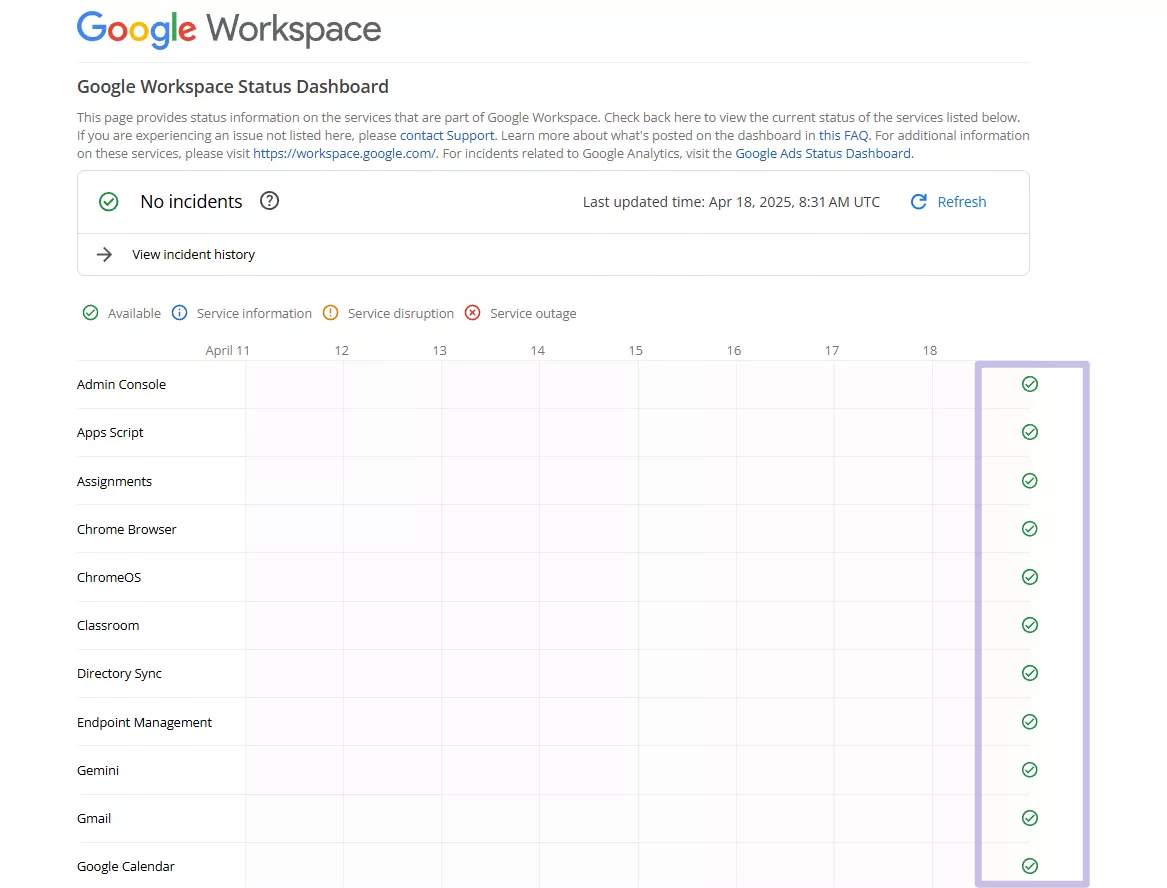
Before trying any other fix, check whether Google Drive's servers are experiencing an outage. Visit the Google Workspace Status Dashboard to see real-time status for all Google services. If Google Drive is listed as "Service Disruption" or "Outage," the issue is on Google's end — wait for it to resolve before troubleshooting further. If all services show green, move to the next solution.
Solution 2: Check the Internet Connection
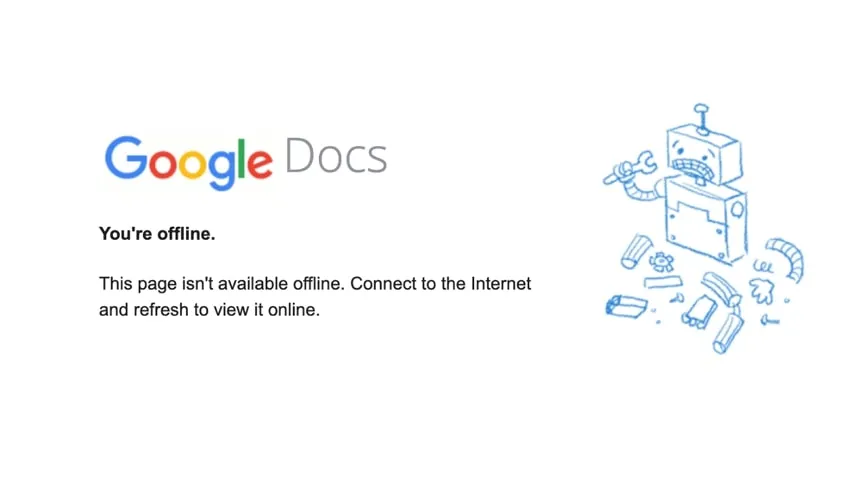
A dropped or throttled connection is one of the most common causes of sync stalls. Try the following in order:
- Open a browser and load a page you haven't visited before to confirm connectivity.
- If the page loads slowly or not at all, restart your router or modem (unplug for 30 seconds, then reconnect).
- If you are connected via VPN, try temporarily disabling it — some VPN configurations block Google's sync servers.
- Switch from Wi-Fi to a wired Ethernet connection if available; unstable Wi-Fi can cause partial sync failures that are hard to diagnose.
Solution 3: Pause and Resume Syncing
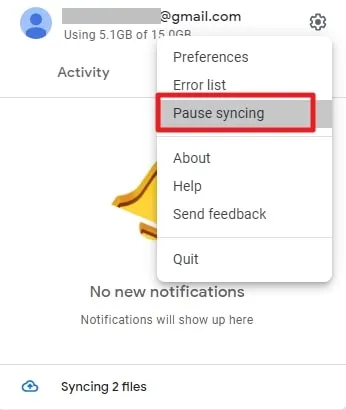
If sync has stalled on a specific file, a pause-and-resume cycle forces Google Drive for Desktop to re-evaluate all pending items and retry any stuck transfers.
Step 1: Click the Google Drive icon from the Taskbar on Windows (On Mac, it appears in the menu bar) and tap the "Gear" icon.
Step 2: Select "Pause Syncing" to pause the syncing, and after a few moments (wait 15–20 seconds), choose "Resume Syncing." Watch whether the sync status indicator starts moving.
Solution 4: Restart Google Drive
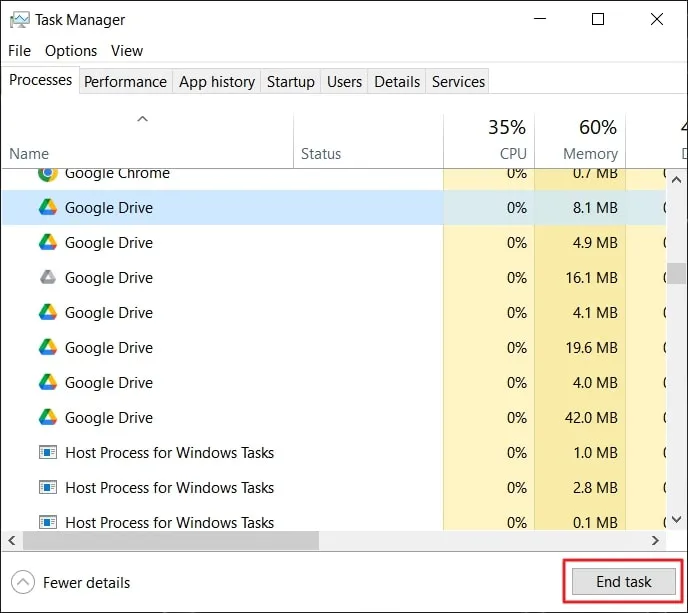
You may need to restart the Google Drive app on your system if Google Drive is not syncing is still unresolved. Restarting it will force Google Drive to look for un-synced files and synchronize them. Use these steps to restart Google Drive:
Step 1: On Windows: right-click the taskbar → Task Manager → find Google Drive in the list of processes → click End Task.
On Mac: open Activity Monitor (Spotlight → type "Activity Monitor") → find "Google Drive" → click the Force Quit (✕) button.
Step 2: Relaunch Google Drive from the Start menu (Windows) or Applications folder (Mac). Wait about 60 seconds for the initial sync check to complete.
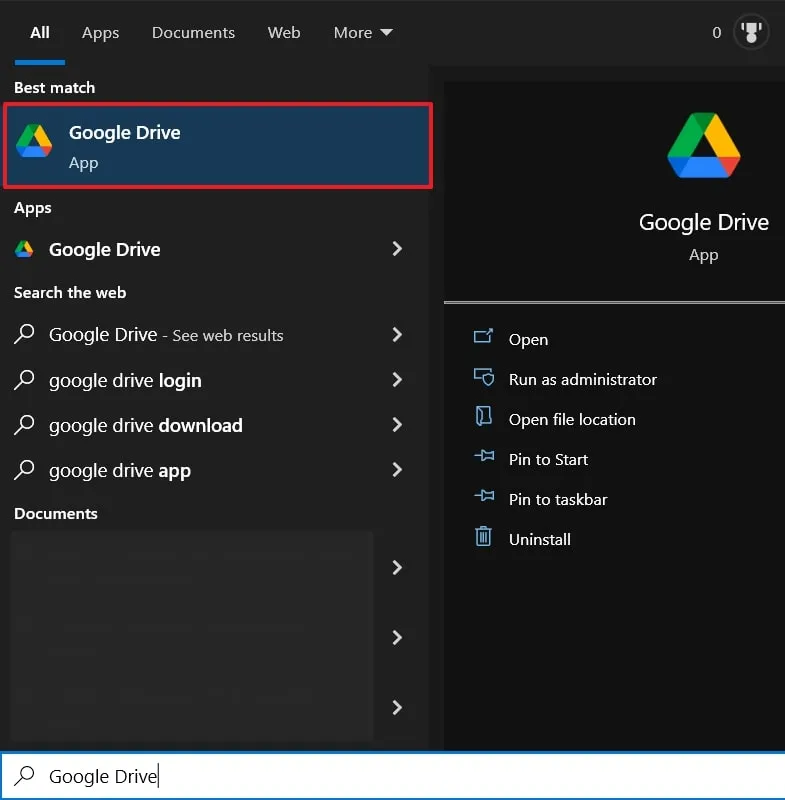
Solution 5: Run Google Drive as Administrator
This fix applies to Windows only. If Google Drive lacks permission to write files to a protected folder (such as a folder in Program Files or a network-mapped drive), syncing will silently fail for those specific locations. Running Google Drive as Administrator grants it elevated access.
Step 1: Search for Google Drive in the Windows search bar and once it appears, select "Run as administrator." It will launch Google Drive with administrator privileges. Confirm any UAC (User Account Control) prompt that appears.
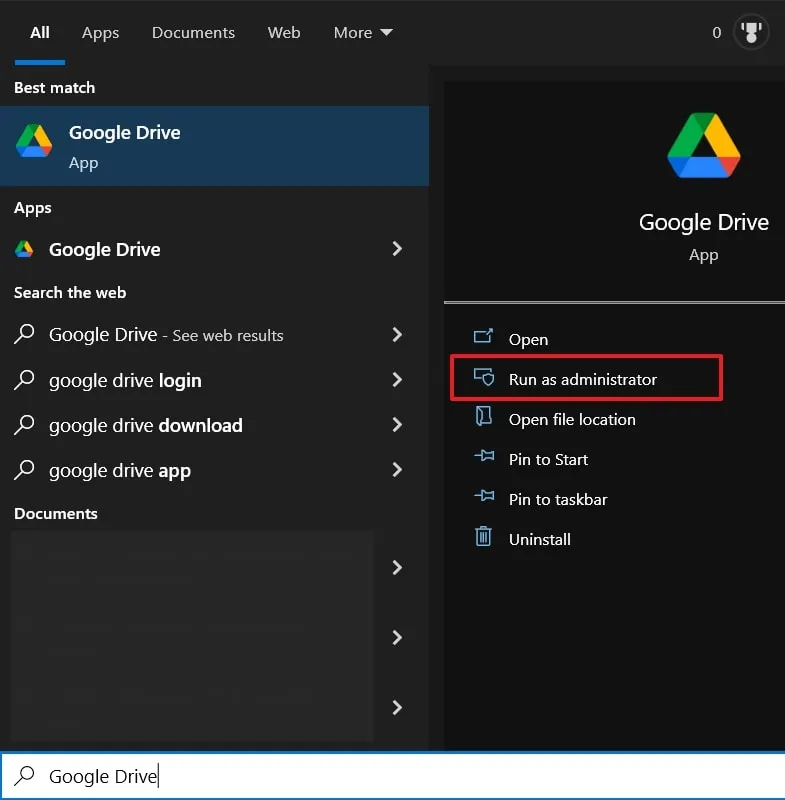
Step 2: Check whether the previously stuck files now begin syncing.
Solution 6: Reconnect Your Google Account
It is also possible that the problem behind the Google Drive files not showing up issue lies with your Google Account. Thus, you should try disconnecting and reconnecting the Google Account from the Google Drive app. Follow these steps to disconnect and reconnect your Google Account:
Step 1: Click the Google Drive icon in the system tray and tap the "Gear" icon. Here, press "Preferences," and on the next screen, click the gear icon again inside Preferences to open "Settings".
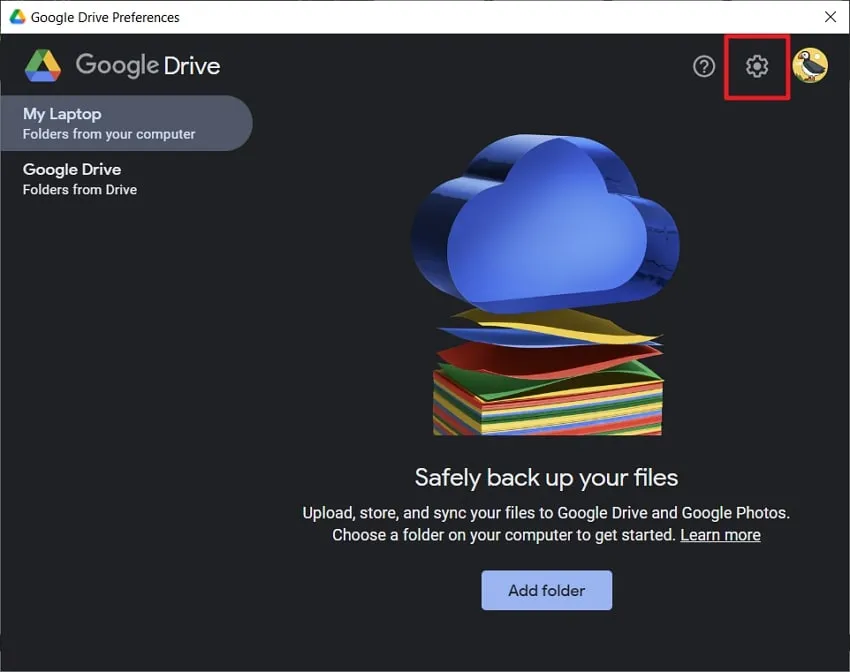
Step 2: Click "Disconnect Account" and confirm your action through "Disconnect."
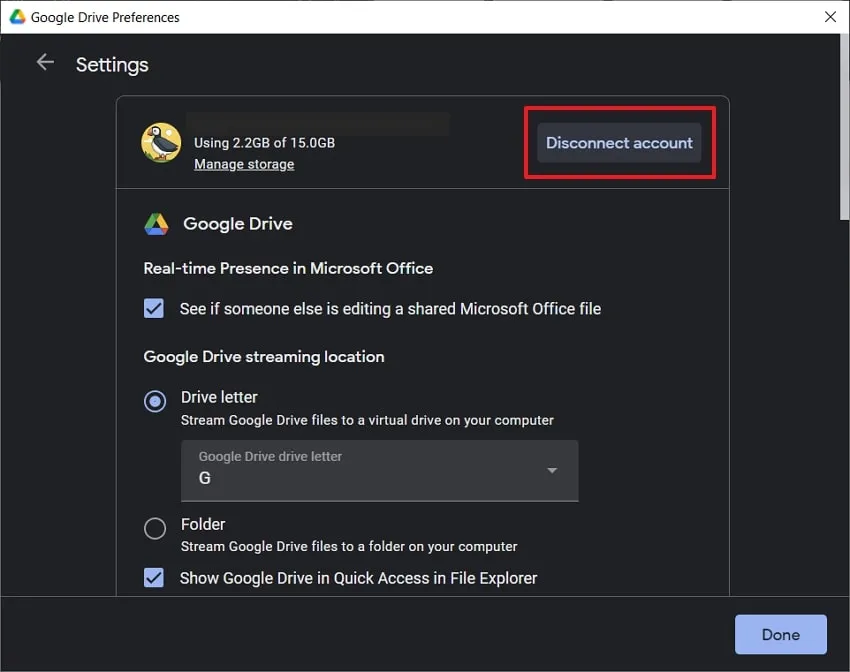
Step 3: Relaunch Google Drive from the "Start" menu (Windows) or "Applications" folder (Mac) → click "Sign in with browser" → complete the sign-in process in the browser that opens. Google Drive will re-authenticate and restart syncing.
Solution 7: Change Google Drive Proxy Settings
Sometimes, the issue behind Google Drive not syncing can relate to the proxy settings of Google Drive. Changing the proxy setting should resolve the problem if that is the case. Use the following steps to change Google Drive proxy settings:
Step 1: Open Google Drive Preferences (gear icon in system tray → Preferences → gear icon inside → Settings).
Step 2: Scroll down to find "Proxy Settings." Now change the "Proxy Settings" from "Auto-detect" to "Direct Connection" and check if the issue is resolved.
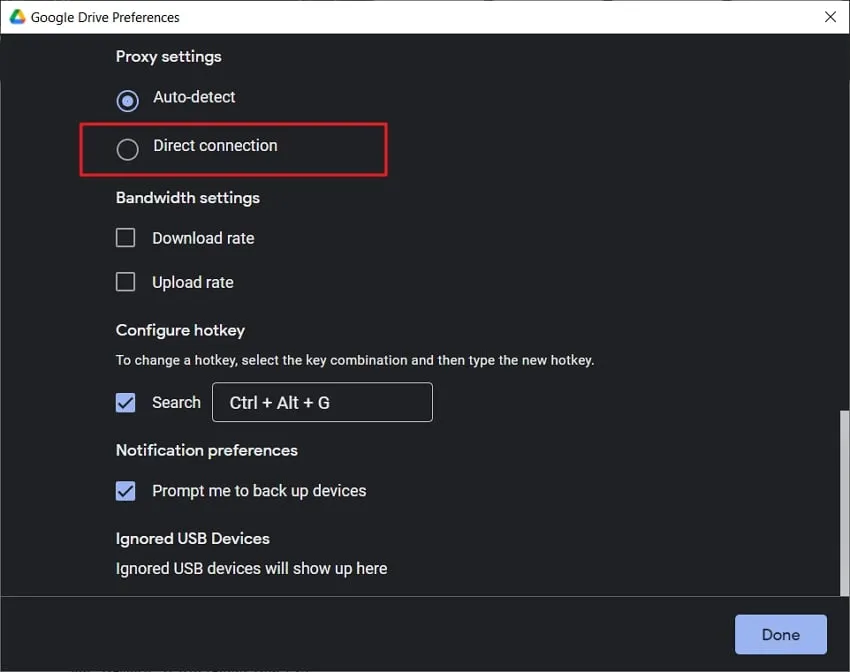
Step 3: Click Done and allow Google Drive to restart. If sync resumes, the proxy configuration was the culprit. If not, you can revert this setting and try the next solution.
Solution 8: Check That All Folders Are Enabled for Sync
Not selecting all folders when giving your computer access to Google Drive can also cause the Google Drive folder not to sync issue. To remedy this problem, you will need to change settings in the "Folders from Drive" part with these steps:
Step 1: Start by clicking the Google Drive icon on the Taskbar and tapping the "Gear" icon to access "Preferences." Here, select "Google Drive" from the left side.
Step 2: Under sync mode, you have two options:
- Mirror Files — all files are stored both on your local disk and in the cloud. Switch to this mode if you need all files to be consistently available offline and sync reliably.
- Stream Files — files are stored in the cloud and downloaded on-demand; if your connection is poor, some files may not sync immediately.
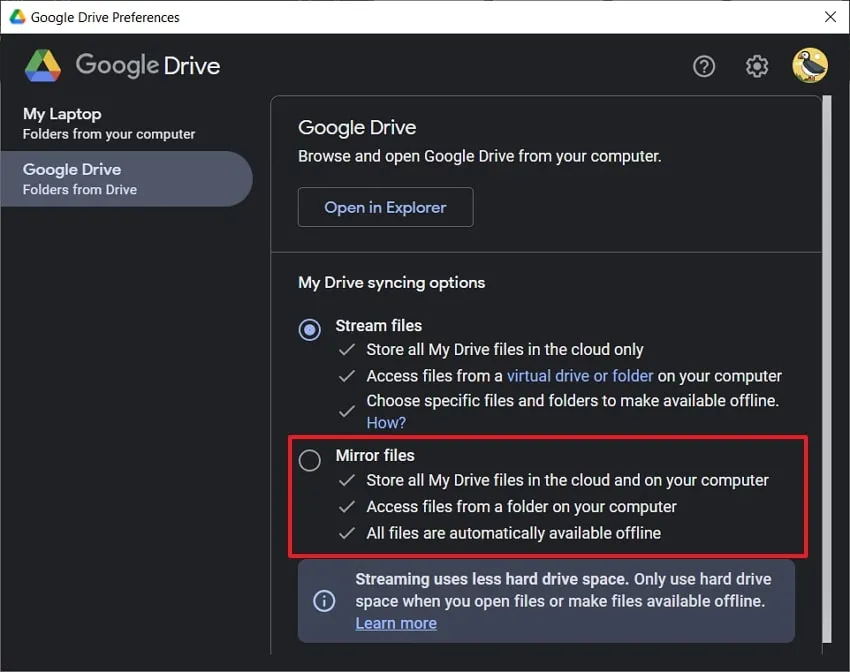
Step 3: If you switch modes, Google Drive will restart and re-sync. This may take some time depending on your total file count.
Solution 9: Restart Your Computer
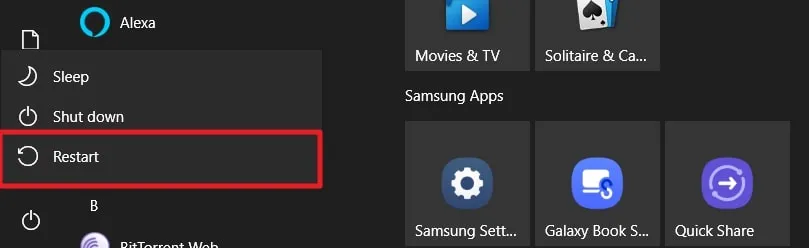
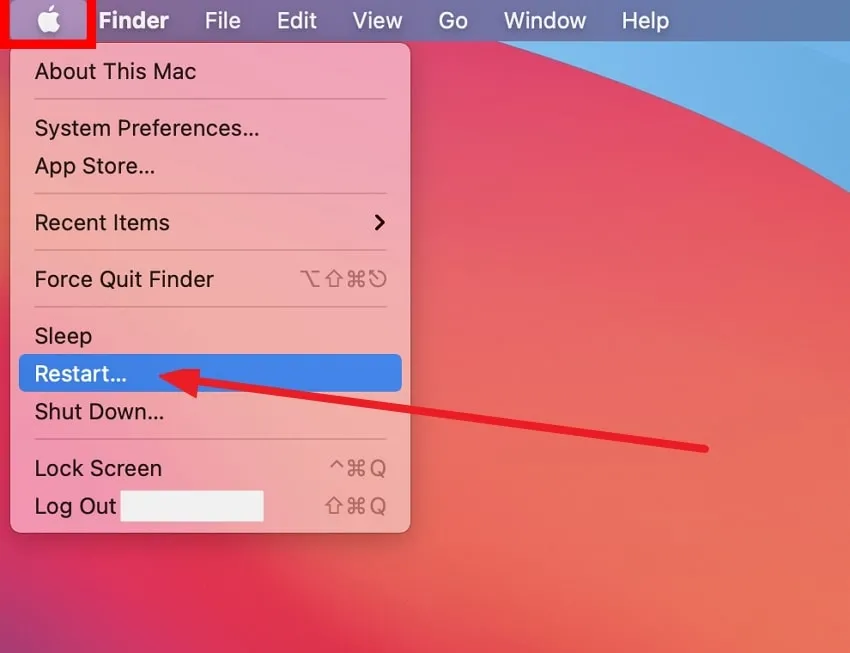
Temporary system bugs and glitches in your computer or Mac can also prevent the Google Drive sync process. In such situations, it is better to restart your device to flush out all temporary system bugs and reset all processes. Given below are the steps for rebooting your system:
Windows: Click the "Start" menu to access the "Power" menu and tap "Restart."
Mac: Click the "Apple" logo from the top left corner and select "Restart" to reboot the device.
Solution 10: Free Up or Expand Google Drive Storage
If syncing has stopped for new or modified files, a full storage quota is a common culprit. Google account storage (15 GB free) is shared across Google Drive, Gmail, and Google Photos.
Check your current usage: Open drive.google.com → scroll to the bottom-left to see your storage usage bar.
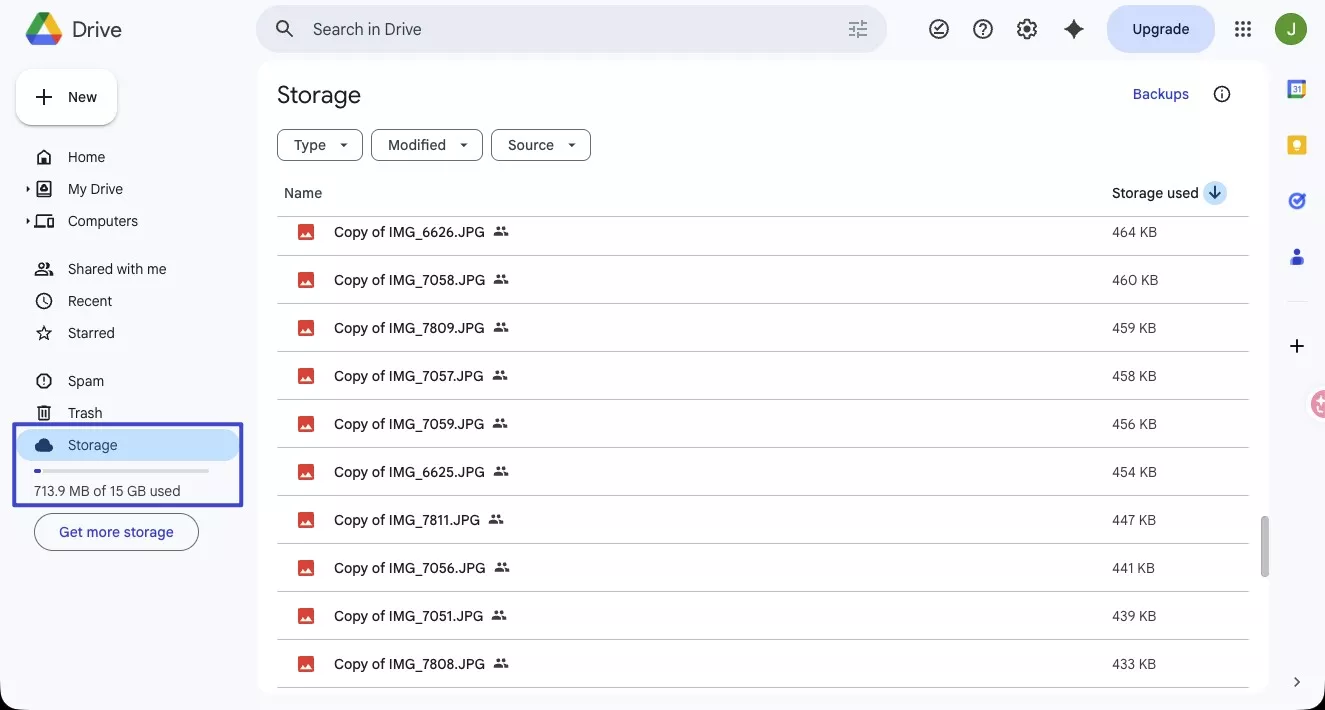
To free up space without paying:
- In Google Drive, sort files by size (Storage → Large files) and delete what you no longer need.
- Empty the Google Drive trash: click Trash in the left sidebar → Empty Trash.
- In Gmail, delete large attachments and empty Gmail's trash.
- In Google Photos, remove high-resolution photos or videos you have backed up elsewhere.
To expand your storage:
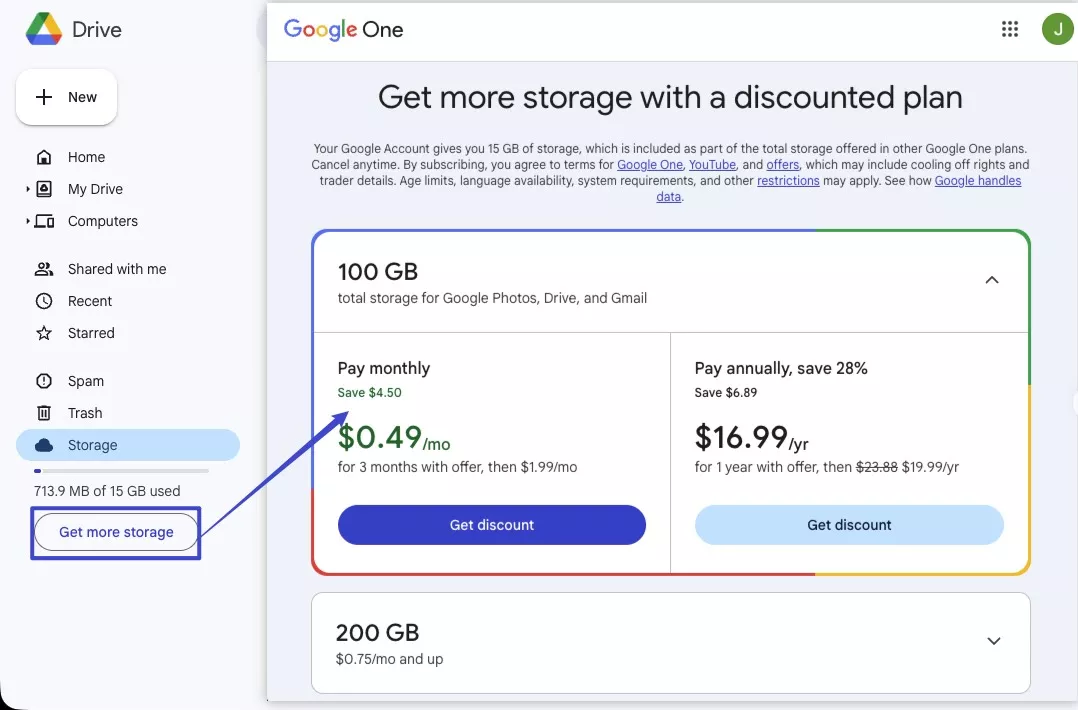
Open drive.google.com → scroll to the bottom-left and click "Get more storage", choose a Google One plan starting from 100 GB. Plans are available monthly or annually.
Solution 11: Reinstall Google Drive
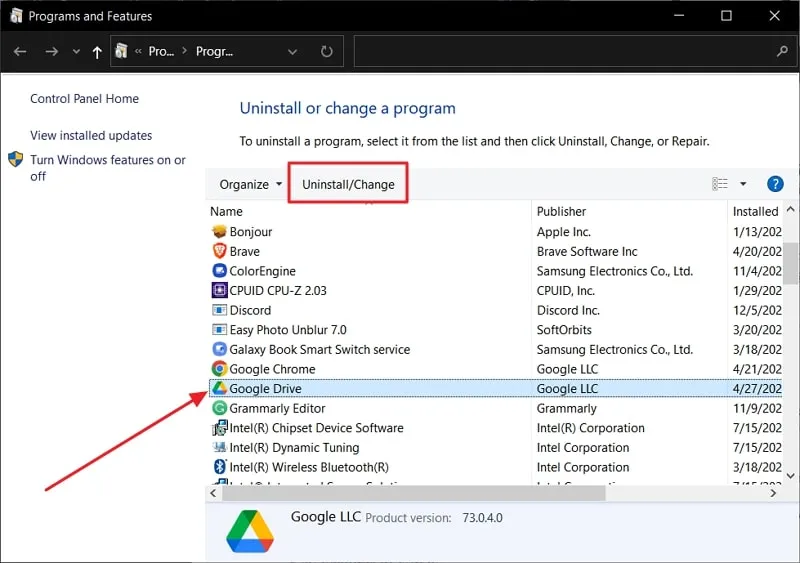
Finally, if no solution has worked so far, it is best to remove and reinstall Google Drive on your computer to resolve the Google Drive desktop not syncing issue. Reinstalling Google Drive will help remove all the system issues that were preventing the sync. Here is the guide to uninstall and reinstall Google Drive on your PC:
Windows:
Step 1: Press Win + R → type "appwiz.cpl" → press Enter to open Programs & Features. Find Google Drive → click Uninstall → follow the prompts.
Step 2: Restart your computer after uninstallation.
Step 3: Download the latest version of Google Drive for Desktop from https://workspace.google.com/products/drive/#download. Install and sign in — sync will resume automatically.
Mac:
Step 1: Open Finder → Applications → drag Google Drive to the Trash → Empty the trash.
Step 2: Restart your Mac.
Step 3: Download and install the latest version from https://workspace.google.com/products/drive/#download. Sign in to complete the reinstall.
Solution 12. Update Google Drive for Desktop to the Latest Version
An outdated client can fail to authenticate with Google's servers or encounter API compatibility issues that silently break sync. Google periodically updates the authentication protocols for Google Drive for Desktop — running an outdated version can cause sync to stop without any clear error.
Check and update on Windows or Mac:
- Click the Google Drive icon in the system tray (Windows) or menu bar (Mac).
- Click the gear icon → About Google Drive.
- If an update is available, you will see a prompt to install it. Click to update and restart the app.
If no update prompt appears, your app is current. Compare the version shown with the latest release listed at support.google.com/drive/answer/10838124 to confirm.
Part 3: Still Having Issues? Use UPDF Cloud for Reliable PDF Document Sync
If you primarily use Google Drive to store, share, and access PDF documents — and persistent sync issues are getting in the way — UPDF Cloud offers a simpler, more focused alternative that's worth considering alongside (or instead of) Google Drive for your PDF workflow.
Unlike Google Drive, which is a general-purpose cloud platform prone to the sync conflicts and quota issues described above, UPDF Cloud is purpose-built for PDF document management: it syncs automatically across Windows, Mac, iOS, and Android whenever a file is modified, with no desktop client to configure and no sync daemon to restart.
Windows • macOS • iOS • Android 100% secure
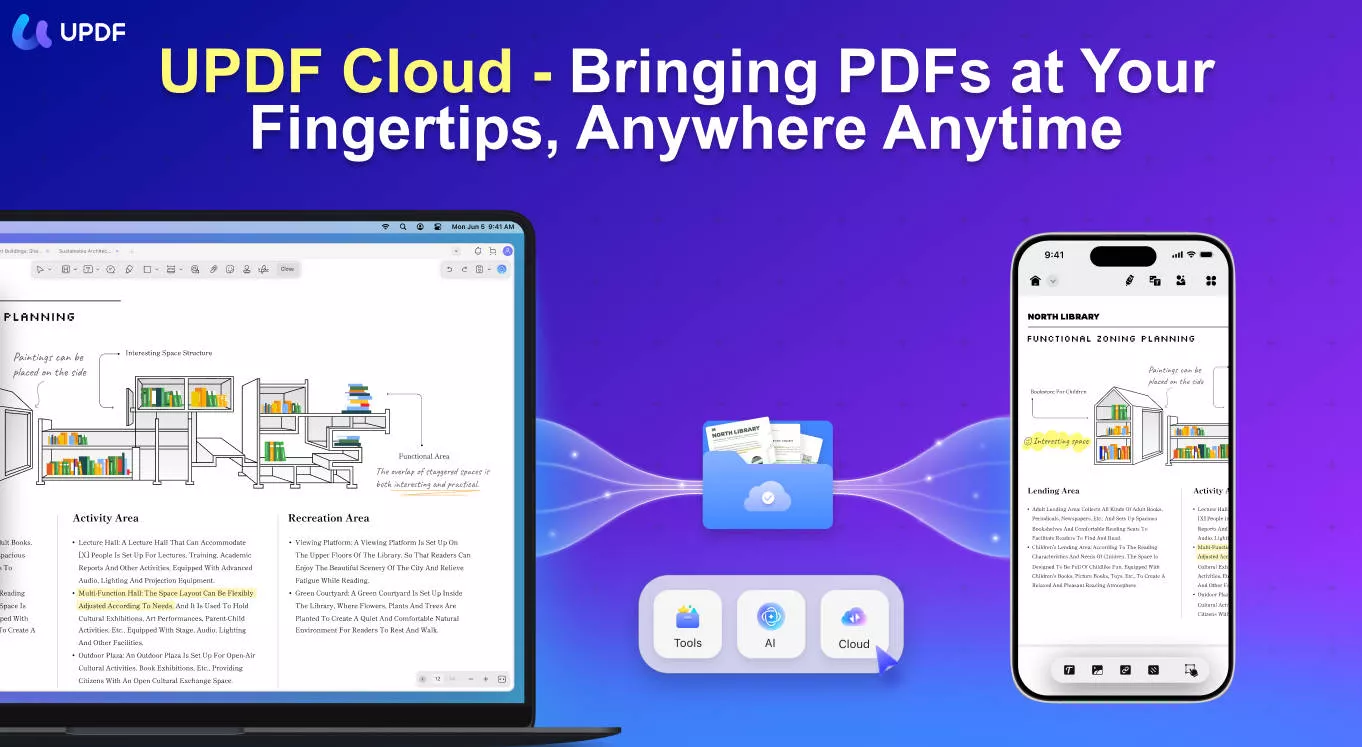
UPDF Cloud key advantages:
- Automatic real-time sync: Any PDF you save in UPDF on one device is immediately available on all others — Windows, Mac, iOS, and Android — without manually uploading or managing versions.
- Military-grade encryption: Files stored in UPDF Cloud are protected with AES-256 encryption in transit and at rest.
- No storage quota conflicts: UPDF Cloud storage is separate from your Google account quota, so it won't compete with your Gmail, Photos, or other Google Drive content for space.
- No sync client to maintain: Unlike Google Drive for Desktop (which requires a background process and periodic updates), UPDF Cloud sync is handled entirely through the UPDF app with no separate daemon.
Beyond cloud sync — what UPDF brings to your PDF workflow:
When you store PDFs in UPDF Cloud, you also have access to UPDF's full PDF editing and AI toolkit directly from the same app:
Windows • macOS • iOS • Android 100% secure
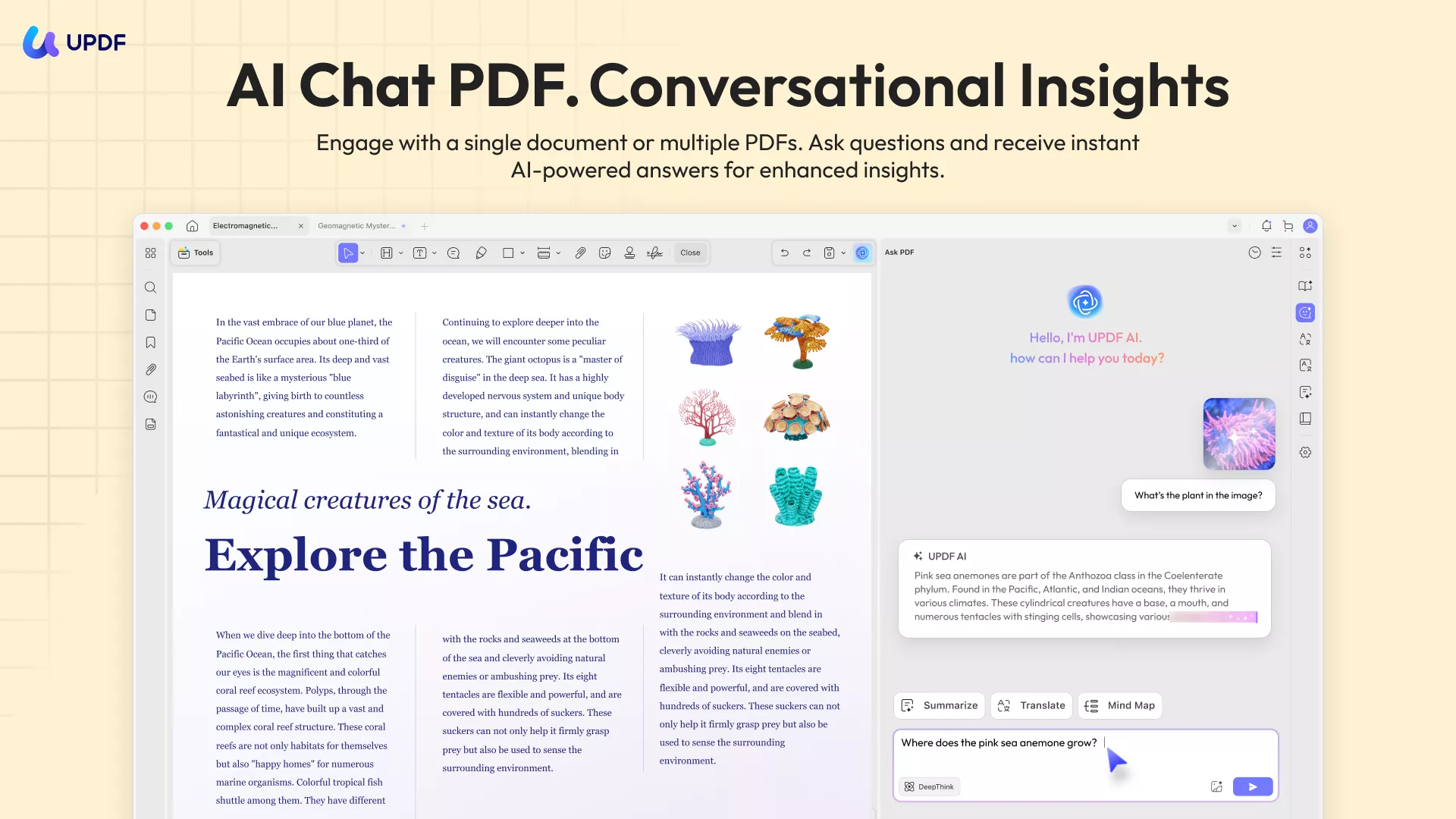
- Chat with PDF / Summarize / Translate: Ask questions about any PDF stored in UPDF Cloud, get AI-generated summaries, or translate documents into another language — all from within the same app you use to sync your files.
- PDF Editing: It provides a complete package of tools for editing PDF files. You can add or delete text, change the font and size, and even adjust the color of the text. It also lets you resize and move images within the PDF document. Additionally, you can edit hyperlinks and add new ones, and even edit watermarks, and backgrounds.
- AI Editing Suite: Need to update the text inside a PDF that's stored in UPDF Cloud — correcting a clause in a contract, updating a project brief, or refining a report summary? The AI Editing Suite lets you rewrite, rephrase, or adjust the tone of any text block directly within the PDF, then auto-syncs the updated version to all your devices.
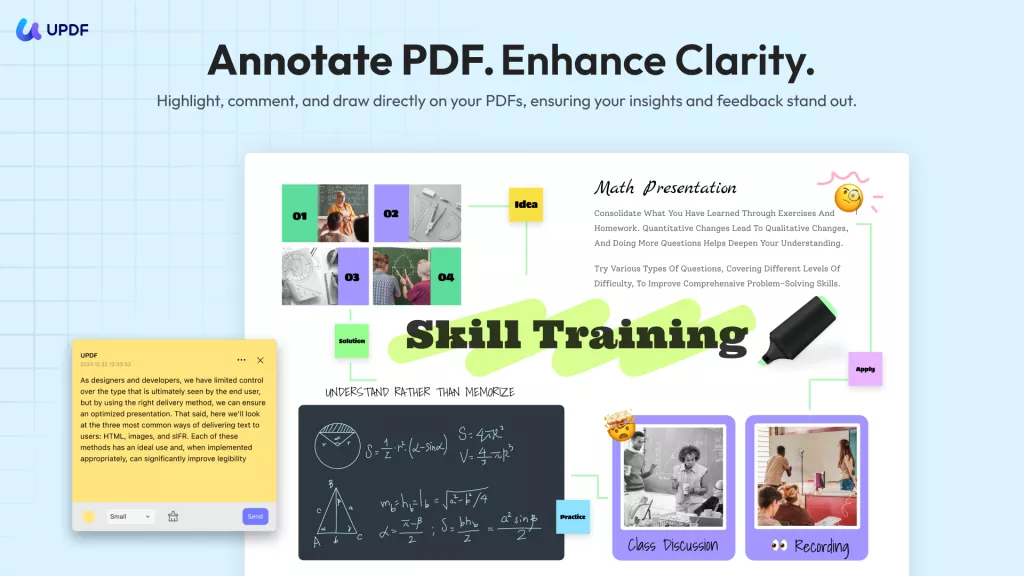
- PDF Annotation: UPDF provides a wide range of tools to annotate your PDF documents. Using it, you can annotate your documents by comments, highlighting text, drawing shapes and lines, and adding stickers. Moreover, you can also add stamps and signatures to PDFs.
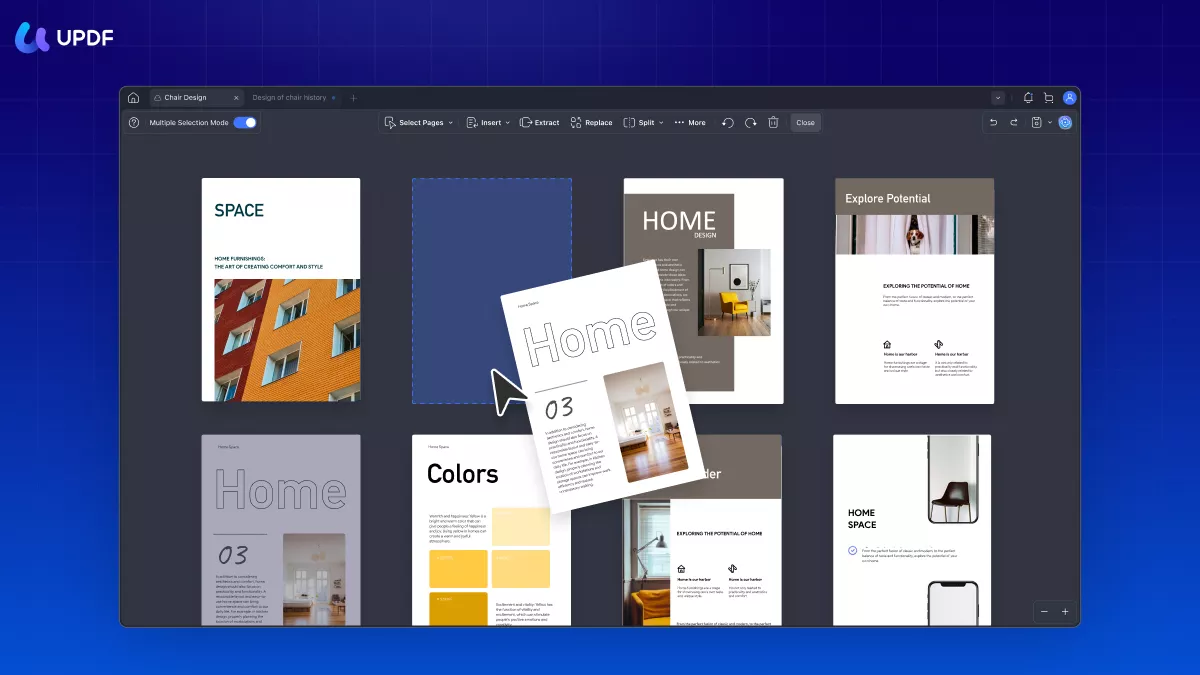
- PDF Organize: Using this tool allows you to arrange PDF pages within a document, rotate pages, and extract pages from a PDF. You can also add new blank pages, merge PDFs, and divide a single PDF into many files. Furthermore, you can add bookmarks, create tables of contents, and add headers and footers.
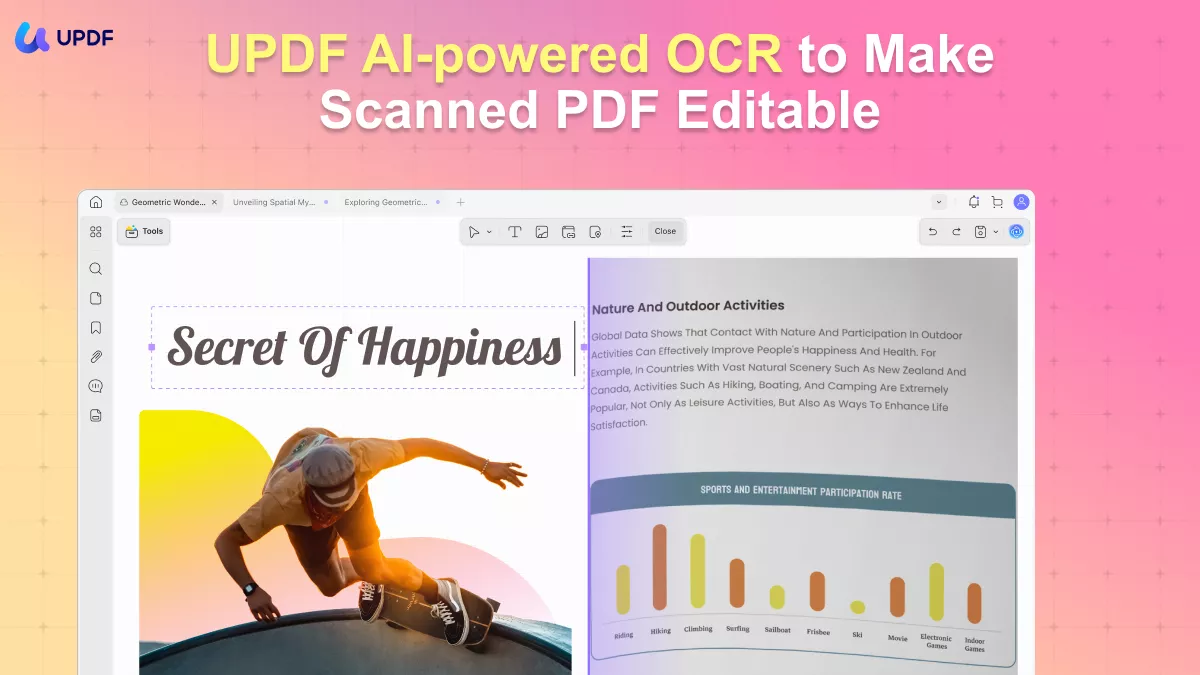
- PDF OCR: One of the unique features of UPDF is its powerful Optical Character Recognition (OCR) technology. It allows you to convert scanned documents into searchable and editable PDFs. This feature allows you to quickly convert printed or handwritten documents into digital text that you can edit, search, and copy.
Except for the features mentioned above, UPDF has many other features. You can learn about them in detail with this UPDF review article from Laptopmedia and the YouTube video review of UPDF.
Windows • macOS • iOS • Android 100% secure
Conclusion
To sum up, there are various solutions that you can attempt when addressing Google Drive not syncing problems. From checking the server status to reinstalling the Google Drive app, these tips can help ensure that your files are syncing correctly.
If PDF document sync is your primary concern and Google Drive's reliability is getting in the way, UPDF Cloud offers a simpler, purpose-built alternative — with the added advantage of UPDF's AI tools built directly into the same workflow.
Download UPDF for free and try UPDF Cloud on your next PDF document — no subscription required to get started.
Windows • macOS • iOS • Android 100% secure




 Enola Davis
 Enola Miller
 Lizzy Lozano
 Enid Brown