UPDF
UPDF
 UPDF for Windows
 UPDF for Mac
 UPDF for iPhone/iPad
 UPDF for Android
 Nomostar
 UPDF AI Online
 UPDF Sign
 IvyCraft
 Edit PDF
 Annotate PDF
 Create PDF
 PDF Form
 Edit links
 Convert PDF
 OCR
OCR PDF to Word
 PDF to Image
 PDF to Excel
 Organize PDF
 Merge PDF
 Split PDF
 Crop PDF
 Rotate PDF
 Protect PDF
 Sign PDF
 Redact PDF
 Sanitize PDF
 Remove Security
 Read PDF
 UPDF Cloud
 Compress PDF
 Print PDF
 Batch Process
 About UPDF AI
 UPDF AI Solutions
 AI User Guide
 FAQ about UPDF AI
 Summarize PDF
 Translate PDF
 Chat with PDF
 Chat with AI
 Chat with image
 PDF to Mind Map
 Explain PDF
 PDF AI Tools
 Image AI Tools
 AI Chat Tools
 AI Writing Tools
 AI Study Tools
 AI Working Tools
 Other AI Tools
 AI Bookmark Generation
 AI Bookmark Summary
 AI Watermark Generation
 AI Background Generation
 AI Sticker Generation
 AI Stamp Generation
 AI Editing Suite
 UPDF Copilot
 AI Page Management
 AI Semantic Search
 PDF to Word
 PDF to Excel
 PDF to PowerPoint
 Enterprise Solution
 Enterprise Sign
 Enterprise AI
 Enterprise Plan
 Enterprise User Guide
 Enterprise Webinar
 IT
IT Education
 Construction
 Financial Service
 Healthcare
 Insurance
 Legal
Legal Manufacturing
 Government
 Researchers & PhDs
 Solopreneurs & Freelancers
 Lawyers & Legal Professionals
 Real Estate Agents & Brokers
 Education Solution
 Customer Stories
 User Guide
 UPDF Tricks
 FAQs
FAQs UPDF Reviews
 Download Center
 Blog
Blog Newsroom
 Tech Spec
 Updates
 UPDF vs. Adobe Acrobat
 UPDF vs. Foxit
 UPDF vs. PDF Expert

Quick answer: An XFA form is an XML-based PDF form originally built with Adobe form-design tools. A static XFA keeps a fixed page layout, while a dynamic XFA can add, remove, or rearrange content as a user enters data. Dynamic XFA files often show a “Please wait…” page in Chrome, Edge, Preview, or other PDF viewers because those viewers cannot render the XFA layer.
The safest approach is to download the original file and open it in a supported desktop version of Adobe Acrobat or Acrobat Reader. If you later convert or flatten the file into a normal PDF, you can use UPDF to edit, annotate, organize, sign, OCR, or work with standard PDF form fields. This guide explains the difference, current compatibility, and the steps that help prevent lost form data.
Part 1. What Is an XFA Form?
XFA stands for XML Forms Architecture. Instead of relying only on ordinary PDF page objects and form fields, an XFA PDF contains an XML-driven form definition that controls the layout, field behavior, validation rules, calculations, and data exchange. These forms were commonly created with Adobe LiveCycle Designer, now known as AEM Forms Designer.
There are two main types:
- Static XFA: The page layout is fixed when the form is generated. Fields can still be interactive, but the number and position of pages do not change in response to the entered data.
- Dynamic XFA: The form can reflow at runtime. Sections may expand, repeat, appear, or disappear, and scripts may validate entries or calculate values.
This flexibility made XFA useful for government applications, tax documents, insurance forms, and enterprise workflows. It also created a compatibility problem: many modern PDF viewers understand ordinary PDF forms but do not implement the XFA rendering engine.
Part 2. XFA vs. AcroForm vs. Static PDF
These three formats can look similar when opened, but they behave differently. The following comparison helps you identify what kind of file you have and choose the correct workflow.
| PDF type | How it works | Can the layout change? | Typical compatibility | Best use |
|---|---|---|---|---|
| XFA form | XML-based form definition, often with scripts and data binding | Yes for dynamic XFA; no for static XFA | Most reliable in supported Adobe desktop software | Complex legacy or enterprise forms |
| AcroForm | Standard PDF fields placed over a regular PDF page | No | Broad support in desktop and mobile PDF editors | Modern fillable forms, signatures, checkboxes, and calculations |
| Static PDF | Fixed page content with no interactive form fields | No | Opens in nearly any PDF viewer | Reading, printing, archiving, or manual annotation |
If you need to create or edit fields in a broadly compatible document, an AcroForm is usually safer than XFA. UPDF supports creating and filling standard PDF form fields such as text boxes, checkboxes, radio buttons, dropdowns, list boxes, buttons, and signature fields.
Part 3. Why Does an XFA PDF Say “Please Wait”?
The “Please wait…” message is usually not the form itself. It is a fallback page inside the PDF wrapper. The actual form depends on an XFA-aware renderer, so a browser or app that cannot process the XML template shows only that fallback page.
- Download the original PDF instead of continuing in the browser preview.
- Open the downloaded file in the latest desktop Adobe Acrobat or Acrobat Reader.
- If the form came from a trusted organization, allow only the features required to complete it.
- Save a working copy before entering important information.
Important: Do not print or save the blank “Please wait” preview over the original. Doing so can discard the XFA layer or leave you with a useless flattened page. Keep the untouched source file until you have verified the completed copy.
Part 4. Best XFA PDF Readers: What They Actually Support
“XFA support” does not mean the same thing in every PDF app. Some software can render and fill dynamic XFA, while other tools support only static XFA or convert it into standard AcroForm fields. For an important form, match the reader to the exact XFA type instead of assuming that any PDF editor will work.
1. Adobe Acrobat or Acrobat Reader Desktop — Best for Opening and Filling Dynamic XFA
Best for: Opening and completing legacy dynamic XFA forms on Windows or macOS.
Adobe’s desktop applications remain the safest first choice when a dynamic XFA form shows “Please wait” in a browser. Acrobat or Reader may render and fill the form, run its validation, and preserve its interactive behavior. This does not mean Acrobat Pro can redesign the underlying XFA template: Adobe states that Acrobat Pro 2020 and later cannot directly edit the XFA XML structure.
2. Foxit PDF Editor — Best for Converting and Editing Static XFA
Best for: Users who have confirmed that the document is a static XFA form and want to edit it as an AcroForm.
Foxit’s current Windows documentation says PDF Editor can edit static XFA forms. The app asks you to save a copy before continuing, then treats the copy as an AcroForm. That support should not be generalized to every dynamic XFA file; test the converted copy and keep the original.
3. Browser and Built-In Viewers — Useful Only for a Quick Compatibility Check
Best for: Checking whether a static XFA happens to render without installing software.
Chrome, Edge, and macOS Preview are not dependable dynamic XFA readers. If the real form does not appear immediately, stop using the preview, download the original, and move to a supported desktop reader. Do not rely on old instructions that recommend enabling a Chrome XFA flag, because availability and behavior vary by browser version.
Part 5. XFA PDF Reader Compatibility
XFA support differs by form type, platform, and software version. The table below reflects current documented support and should not be read as a guarantee for every legacy form.
| Reader or platform | Static XFA | Dynamic XFA | What to expect |
|---|---|---|---|
| Acrobat/Reader desktop | Best-supported option | Best-supported option | Use for viewing and filling when the file requires XFA. Direct editing of the underlying XFA XML is not available in Acrobat Pro 2020 and later. |
| Acrobat on the web | Limited; file-dependent | Not supported for Fill & Sign | Adobe lists dynamic LiveCycle Designer/XFA PDFs as unsupported online. |
| Acrobat mobile | Not supported | Not supported | Adobe states that both static and dynamic XFA forms are unsupported on mobile. |
| Chrome and Edge PDF viewers | Some static files may display | Often unsupported | A dynamic form commonly shows the fallback “Please wait” page. Browser behavior can change by version. |
| macOS Preview | File-dependent | Not fully supported | Use Acrobat/Reader desktop if Preview shows a blank page or fallback message. |
| UPDF | Not supported as XFA | Not supported as XFA | Use UPDF after the form is safely converted or flattened into a normal PDF or AcroForm. |
Adobe’s current documentation confirms that dynamic XFA files are not supported by Acrobat web Fill & Sign (updated April 1, 2026) and that Acrobat mobile does not support static or dynamic XFA forms (updated August 18, 2026). For files that contain scripts, submit buttons, or connections to external systems, behavior can also depend on the organization that issued the form.
Part 6. How to Open, Fill, and Save an XFA Form Safely
Step 1. Confirm that the PDF is an XFA form
Common signs include the “Please wait” message in a browser, a document creator such as Adobe LiveCycle Designer or AEM Forms Designer, and a file that displays correctly only in Acrobat/Reader desktop. An ordinary fillable PDF that works in several editors is more likely an AcroForm.
Step 2. Download the original file
Use the issuer’s official download link and store the original separately. Avoid third-party “XFA viewer” sites for forms containing tax, medical, financial, or identity information unless your organization has approved that service.
Step 3. Open it in Acrobat or Reader desktop
Update the application first, then open the local file. If the document requests scripts, network access, or submission permissions, approve them only when you trust both the sender and the file.
Step 4. Save and reopen a working copy
Complete required fields, run any built-in validation, and use Save As to create a filled copy. Close and reopen that copy before submitting it to confirm that the entered values remain visible. For general guidance on standard forms, see how to fill in a PDF form.
Step 5. Keep three versions when the form is important
- The untouched original XFA file.
- The completed interactive copy.
- A verified flattened PDF for sharing or archiving, if the recipient accepts it.
Part 7. Can You Edit or Convert an XFA Form?
You can usually fill a supported XFA form in Acrobat/Reader desktop, but that is different from redesigning its template. Adobe states that Acrobat Pro 2020 and later cannot directly edit the XML structure of XFA forms (updated April 30, 2026). Template-level changes normally require the original form-design environment and source assets.
Adobe documents printing to Adobe PDF or saving to EPS as workarounds, but both create a flattened result. Flattening can remove form fields, layers, buttons, scripts, and other interactive objects. Therefore, convert only a copy and verify every page, field value, signature, and calculation afterward. Our separate guide explains the practical options to convert XFA to PDF.
A safer conversion workflow
- Archive the untouched XFA source.
- Fill and validate it in supported Adobe desktop software.
- Save the completed interactive copy.
- Create a flattened copy only if the destination requires a regular PDF.
- Compare the flattened copy with the completed original before sharing it.
Use UPDF after conversion for everyday PDF work
UPDF does not currently open or fill XFA forms. Once you have a verified normal PDF or standard AcroForm, however, UPDF gives you a clearer cross-platform workflow: edit text and images, annotate pages, organize or crop them, add signatures, create and fill standard form fields, and use PDF OCR when a flattened copy is scanned rather than searchable.
If that matches the file you now have, download UPDF and try the standard PDF form tools for free.
Windows • macOS • iOS • Android 100% secure
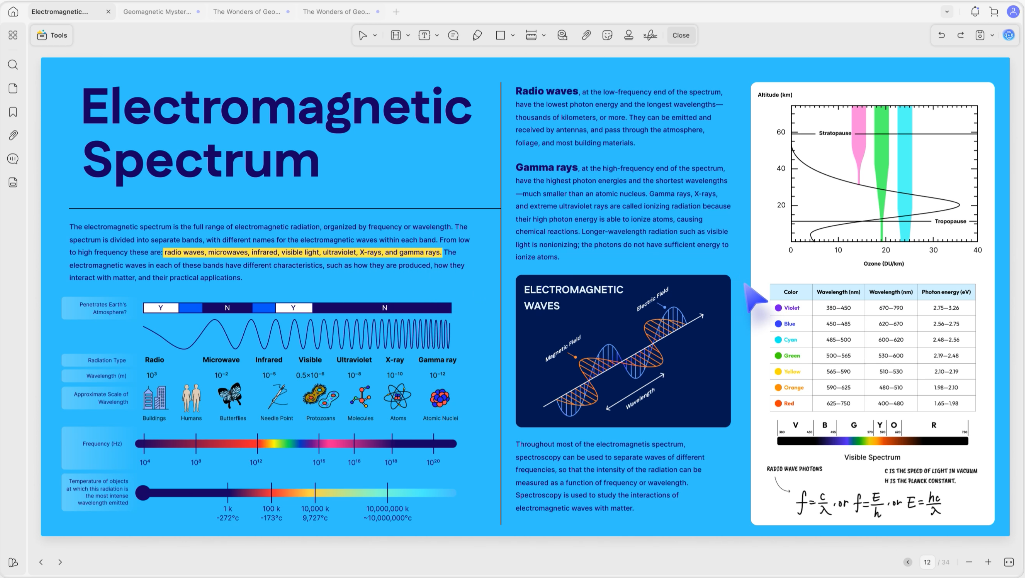
The following video demonstrates UPDF’s standard PDF form workflow. It does not demonstrate XFA support, but it is useful after a file has been safely converted to a regular PDF or when you start with an AcroForm.
Video: How to Create and Fill a Standard PDF Form
Part 8. XFA Form FAQs
Is XFA the same as a regular fillable PDF?
No. XFA uses an XML-based form definition and may include dynamic layout changes, scripts, and data binding. Most regular fillable PDFs use AcroForm fields placed over a fixed PDF page, which gives them broader reader compatibility.
Can Chrome or Edge open an XFA PDF?
Some static XFA files may display, but dynamic XFA forms commonly show a ‘Please wait’ fallback page. Download the original file and use supported Adobe Acrobat or Acrobat Reader desktop software instead of relying on the browser preview.
Can Adobe Acrobat edit an XFA form?
Acrobat or Reader desktop may view and fill supported XFA forms, but Adobe says Acrobat Pro 2020 and later cannot directly edit the XFA XML structure. Printing or exporting can flatten the document and remove interactive features.
Does UPDF support XFA forms?
No. UPDF currently supports standard PDFs and AcroForms, not XFA. After you safely convert or flatten an XFA file into a normal PDF, UPDF can edit, annotate, organize, sign, OCR, and create or fill standard form fields.
How can I avoid losing data when converting an XFA form?
Keep the original XFA file, fill and validate it in supported Adobe desktop software, save a completed interactive copy, and convert only a duplicate. Reopen the flattened result and compare every page, value, signature, and calculation before sharing it.
Conclusion
An XFA form is not simply another fillable PDF. Its XML-based static or dynamic structure requires a compatible renderer, which is why browser and mobile viewers may show only “Please wait.” Use supported Adobe desktop software for the original XFA, keep an untouched copy, and treat flattening as a one-way conversion that can remove interactive behavior. After you have a verified regular PDF or AcroForm, UPDF provides a practical workspace for the rest of the document workflow.






 Enola Davis
 Engelbert White
 Lizzy Lozano