 UPDF
UPDF
 UPDF for Windows
 UPDF for Mac
 UPDF for iPhone/iPad
 UPDF for Android
 UPDF AI Online
 UPDF Sign
 Edit PDF
 Annotate PDF
 Create PDF
 PDF Form
 Edit links
 Convert PDF
 OCR
OCR PDF to Word
 PDF to Image
 PDF to Excel
 Organize PDF
 Merge PDF
 Split PDF
 Crop PDF
 Rotate PDF
 Protect PDF
 Sign PDF
 Redact PDF
 Sanitize PDF
 Remove Security
 Read PDF
 UPDF Cloud
 Compress PDF
 Print PDF
 Batch Process
 About UPDF AI
 UPDF AI Solutions
 AI User Guide
 FAQ about UPDF AI
 Summarize PDF
 Translate PDF
 Chat with PDF
 Chat with AI
 Chat with image
 PDF to Mind Map
 Explain PDF
 PDF AI Tools
 Image AI Tools
 AI Chat Tools
 AI Writing Tools
 AI Study Tools
 AI Working Tools
 Other AI Tools
 AI Bookmark Generation
 AI Bookmark Summary
 AI Watermark Generation
 AI Background Generation
 AI Sticker Generation
 AI Stamp Generation
 AI Editing Suite
 UPDF Copilot
 AI Page Management
 AI Semantic Search
 PDF to Word
 PDF to Excel
 PDF to PowerPoint
 Enterprise Solution
 Enterprise Sign
 Enterprise AI
 Enterprise Plan
 Enterprise User Guide
 Enterprise Webinar
 Banking
 Healthcare
 Insurance
 Legal
Legal Manufacturing
 Government
 Education Solution
 Customer Stories
 User Guide
 UPDF Tricks
 FAQs
FAQs UPDF Reviews
 Download Center
 Blog
Blog Newsroom
 Tech Spec
 Updates
 UPDF vs. Adobe Acrobat
 UPDF vs. Foxit
 UPDF vs. PDF Expert

Need to batch process scanned PDFs into Word? Worried about the cost of Adobe Acrobat or privacy risks of online tools? Open-source GitHub projects offer a free alternative, so this article we will delve deeper into whether this method is truly suitable for us, as well as its advantages, disadvantages, and detailed operating steps. And if you need a lightweight, easy-to-use, and secure professional OCR tool, this article helps you choose the right OCR approach.
Part 1. GitHub PDF to Word OCR Overview
GitHub PDF to Word OCR tools scan pages and recognize text to create editable Word documents from scans. They are flexible and private but harder to install, less accurate, and weaker at keeping complex layouts. Most options work through command-line steps and scripts to help users get comfortable with technical workflows. Now, we will explore how these tools work, where they help, and where they still struggle.
Technical Principles
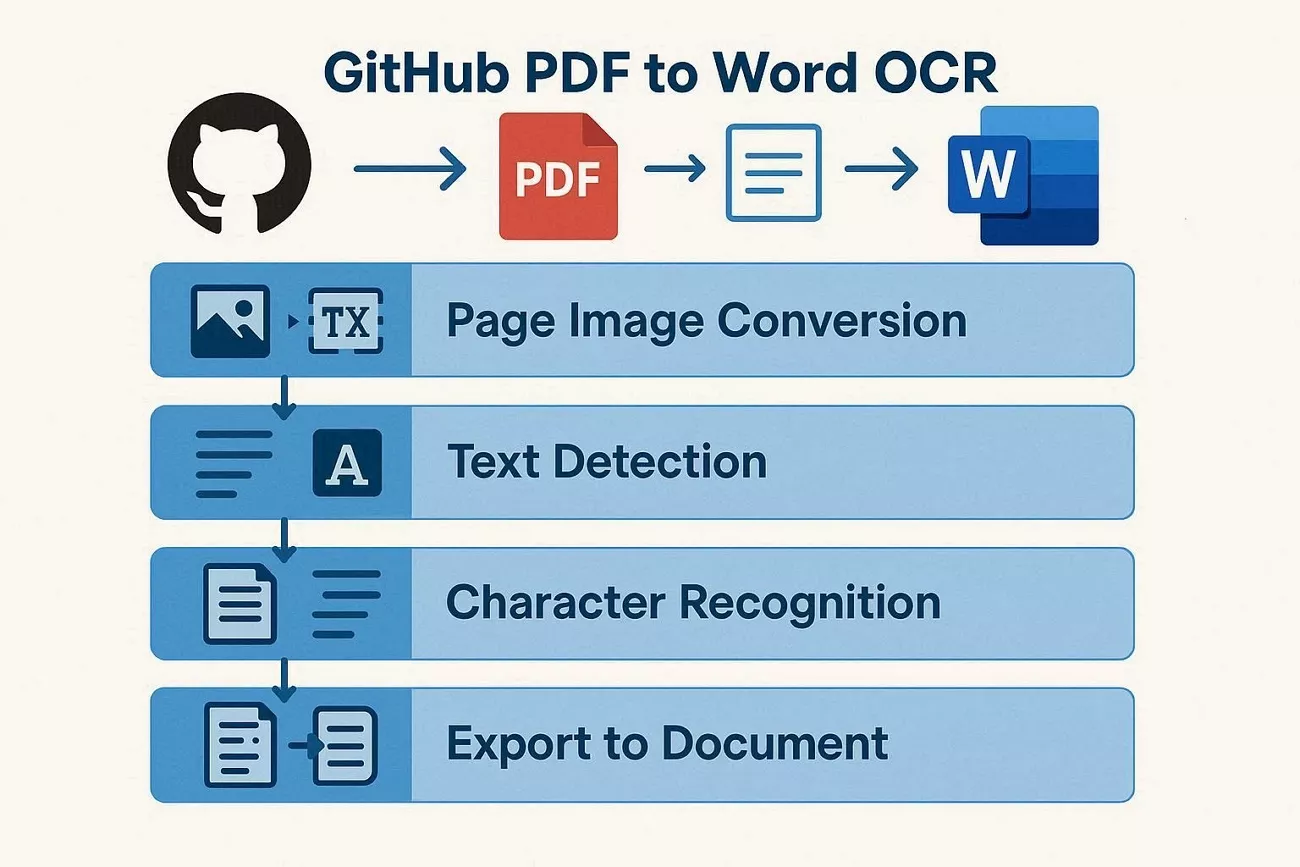
These tools turn each PDF page into images and then recognize the text inside them. Let’s break their working process into a few simple technical steps.
- Page Image Conversion: At the start, the program changes every PDF page into a clear image. This gives the OCR engine clean visual data, ready for further analysis.
- Text Detection: Next, the engine scans each image to find paragraphs, individual lines, and possible text blocks. Non-text elements like photos and graphics are filtered out to keep focus on writing.
- Character Recognition: During this stage, the model studies letter and number shapes, then maps them to real characters. Learning language patterns helps reduce mistakes and make entire words and phrases more accurate.
- Export to Document: In the final step, recognized text is saved into formats that Word and other editors understand. The once-locked scanned file becomes a fully editable document, ready for updates and formatting.
Pros and Cons
Having discussed how the PDF to Word GitHub tools work, let’s highlight their main strengths and weaknesses:
Pros
- Works fully offline for confidential contracts and internal business documents.
- Automates scripting to process large batches of similar PDFs efficiently.
- Often supports multiple languages through community-trained OCR models and configs.
- Users can integrate it into existing dev pipelines, like CI tasks.
Cons
- Installation often breaks due to dependencies, versions, and missing system libraries.
- Complex layouts with tables and columns export as messy, misaligned text.
- Handwritten notes and low-quality scans are recognized poorly, needing manual corrections.
- Command-line and config files confuse non-technical users, increasing setup and usage time.
Open-source OCR projects on GitHub provide a free solution, but they suffer from poor accuracy, severe layout distortions, and require coding knowledge. Why not try UPDF to solves these problems in one integrated package.
Windows • macOS • iOS • Android 100% secure
Comparison with Professional PDF OCR Tools
Professional OCR tools focus on accuracy, layout preservation, and simple interfaces. UPDF follows this professional approach, combining strong OCR, modern design, and everyday PDF tools in a single place. Now let’s compare these options with typical GitHub - PDF to Word OCR projects to see where each one fits best:
| Feature | GitHub OCR Projects | UPDF | Adobe Acrobat/ABBYY |
| Ease of Setup | Hard, needs scripts and CLI | Simple installer, guided setup | Standard installer, guided |
| Interface | Minimal or none | Clean, modern, user-friendly | Professional but more complex |
| OCR Accuracy | Good on basic pages | High on most documents | High, enterprise-level |
| Layout Preservation | Often weak on complex layouts | Strong on text, images, and tables | Document-focused |
| Batch Processing | Depends on scripts | Built-in batch features | Built-in batch tools |
| Offline Privacy | Yes | Yes, works offline | Yes, but cloud features exist |
| Extra PDF Features | Limited | AI bookmark generation, Copilot assistant, AI editing | Full editing and management |
| Learning Curve | Steep for non-developers | Easy for general users | Complex menus |
Part 2. Quickly Set up PDF to Word OCR on GitHub
After finding the best PDF to Word GitHub tools, let’s choose smartly and quickly:
- OCRmyPDF: This tool adds a hidden text layer inside scanned PDFs after processing pages. Great when you mainly need searchable PDFs before converting them into Word documents.
- PaddleOCR: Provides high‑accuracy OCR plus good multi‑language support for tricky or messy documents. Best when you feel okay running Python scripts and building custom workflows.
- Tesseract: A long‑standing OCR engine with strong community backing and many integration examples. Helpful for basic OCR jobs or adding OCR to existing software tools.
- EasyOCR: A lightweight Python library that keeps installation and first tests very straightforward. Nice choice for quick experiments or small projects that still need solid OCR.
- Pdf2docx: Designed specifically to convert PDF content directly into editable Word DOCX files. Useful when you care most about preserving layout and formatting inside Word.
- DocTR: Uses deep‑learning models to recognize text in complex, structured document layouts. Ideal for forms, reports, and multi‑column pages that confuse simpler OCR engines.
Example Setup Plans
Many users want clear examples of how to combine tools into a working GitHub OCR pipeline. Now, let’s outline 2 simple plans that show different ways to build this kind of workflow.
Plan A: OCRmyPDF + Pandoc
This plan first uses OCRmyPDF to add searchable text to scanned PDF files locally. After that, pandoc converts the OCR-processed PDF into a basic Word document you can open and edit. Look at the steps below to understand the flow:
Step 1. Install OCRmyPDF and Pandoc on your computer using their official installers or instructions.
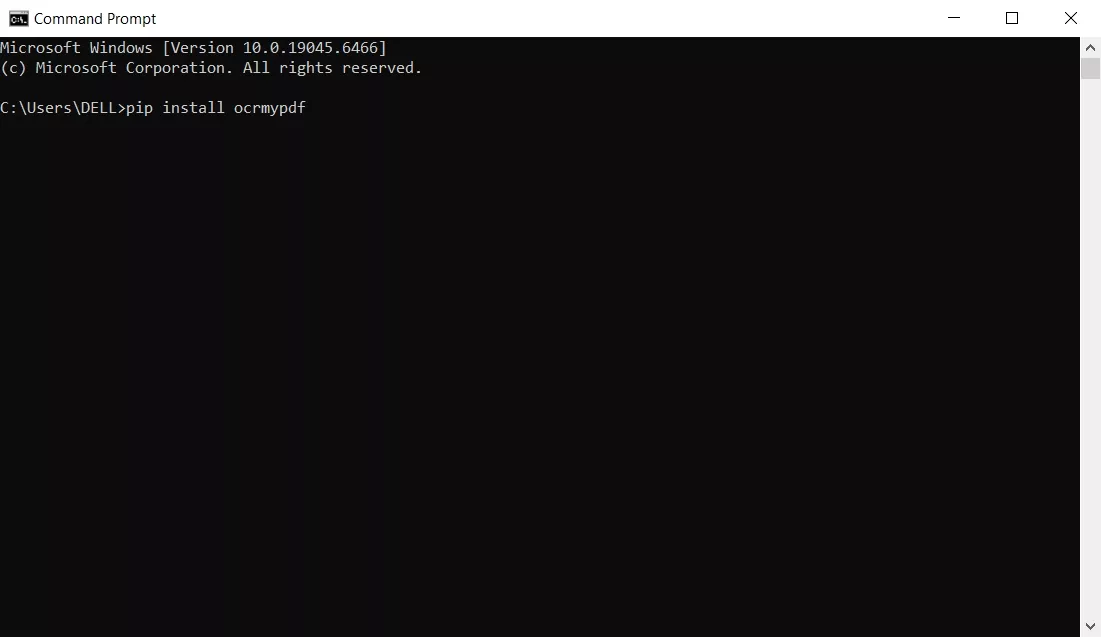
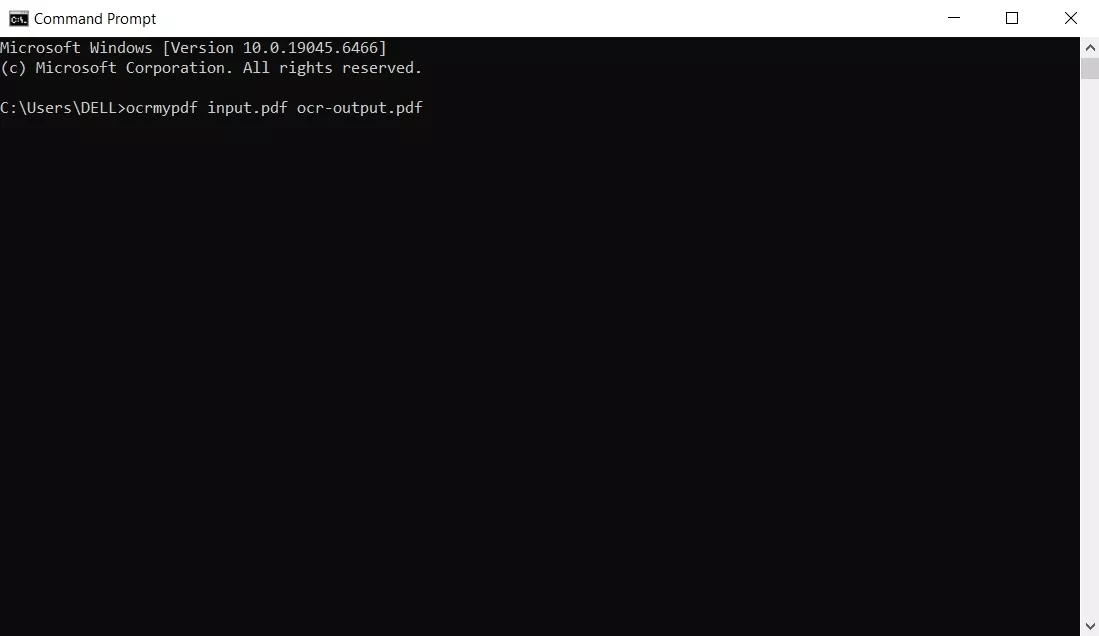
Step 2. Place a scanned PDF in a simple folder and run OCRmyPDF to create an OCR’d PDF. Afterward, use Pandoc on that OCR’d PDF to generate a basic Word file.
Plan B: PaddleOCR + Python-docx
This plan uses OCR PDF Python workflows to read text from scanned pages with PaddleOCR. The recognized text is then added into a new Word document programmatically using the python-docx library. Let’s see how this setup can help users who are comfortable writing and running simple Python scripts:
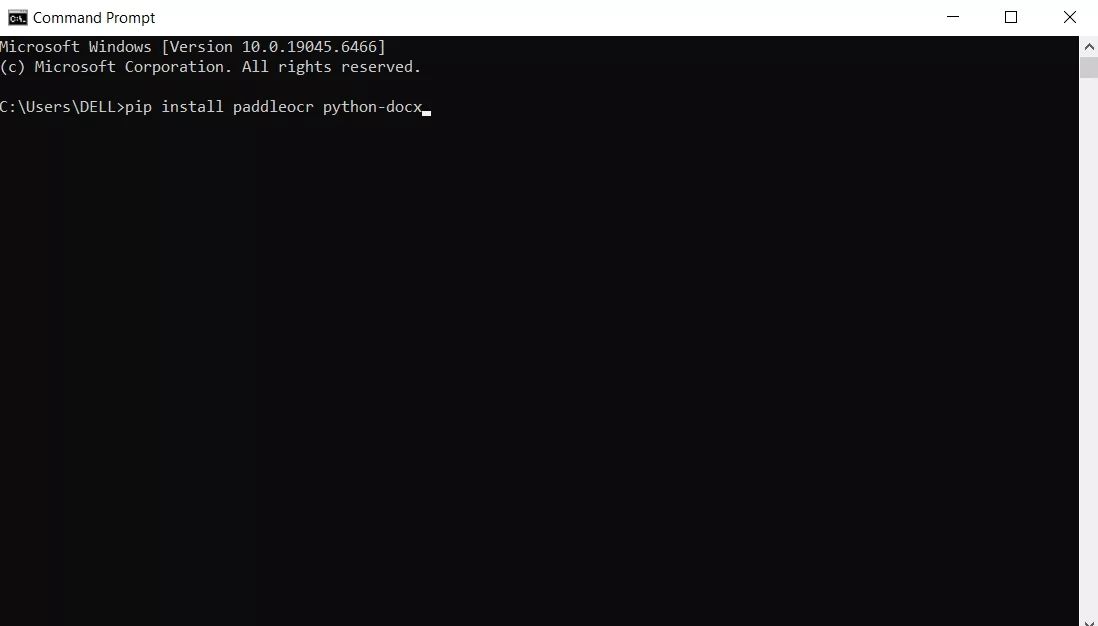
Step 1. Install PaddleOCR and python-docx in Python using pip.
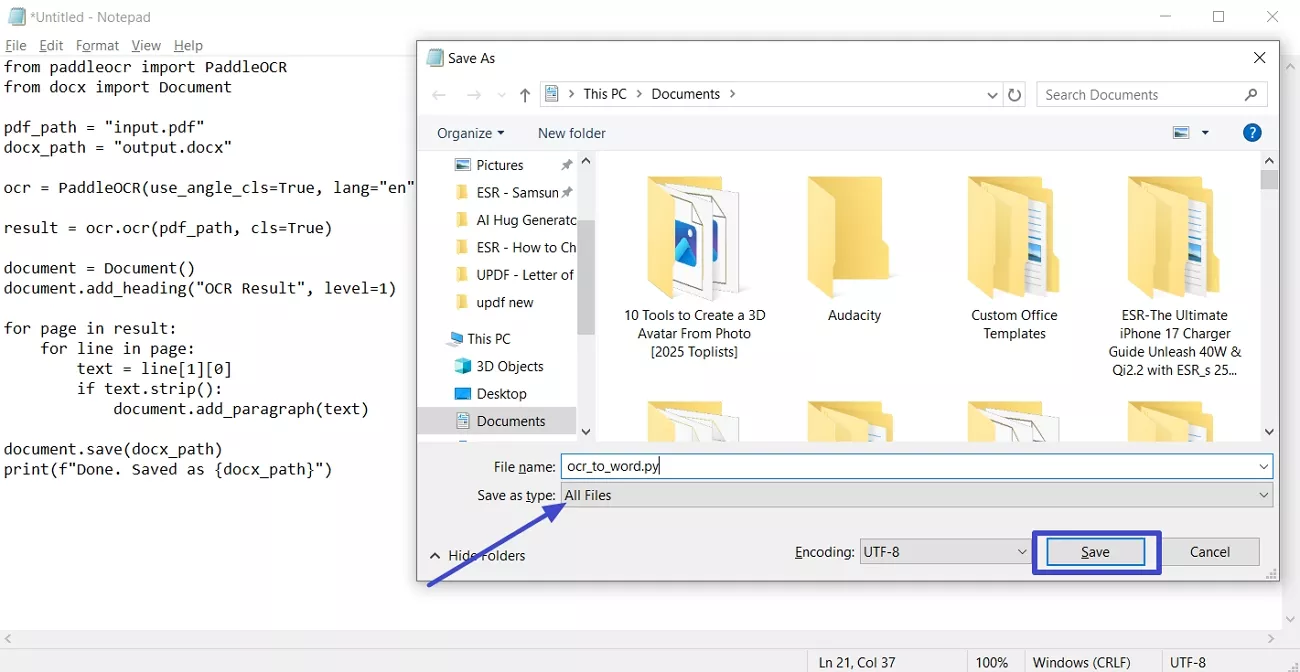
Step 2. Open Notepad and paste the script. Next, set the file name, choose the “All Files” option, and click the “Save” button.
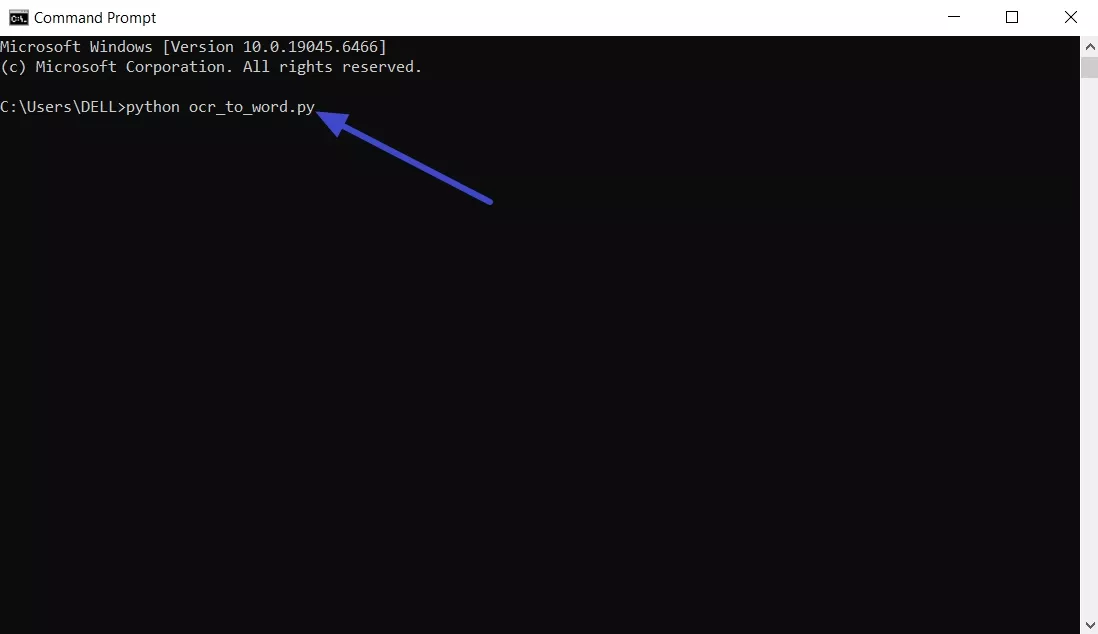
Step 3. Put your scanned PDF on the desktop, then run python ocr_to_word.py to create the editable Word file from your scanned pages.
Part 3. Bonus: PDF to Word OCR Professional Tool
Many users struggle with scanned PDFs that refuse to convert cleanly into editable documents. Free converters often break formatting, miss text, or completely ignore pages with low‑quality scans. This is where UPDF comes in, offering a user‑friendly, professional solution for reliable OCR conversion.
It combines powerful OCR with a clean interface to help non‑technical users work without worrying. Unlike complex PDF to Word GitHub setups, UPDF keeps everything in one place with guided, visual workflows.
Key Features
- Compact Output: Produces smaller‑sized files while keeping high visual quality after OCR.
- Language Support: Recognizes 38 languages for accurate OCR across diverse documents.
- High Accuracy: Advanced technology ensures up to 99% text recognition accuracy on clear scans.
- Format Support: Exports to editable Word, Excel, PowerPoint, and TXT text formats.
- Batch Processing: Uploads and converts multiple files to editable text in a single click.
- UPDF AI OCR Conversion: Allows users to turn image‑based text into editable Word files with one click.
Ultimate Guide: Turn Scanned PDFs into Word with OCR
Once you have explored a strong alternative to GitHub PDF to Word OCR tools, you might wonder how to actually use it. Follow the steps below to convert your scanned PDF into an editable Word document using UPDF:
Windows • macOS • iOS • Android 100% secure
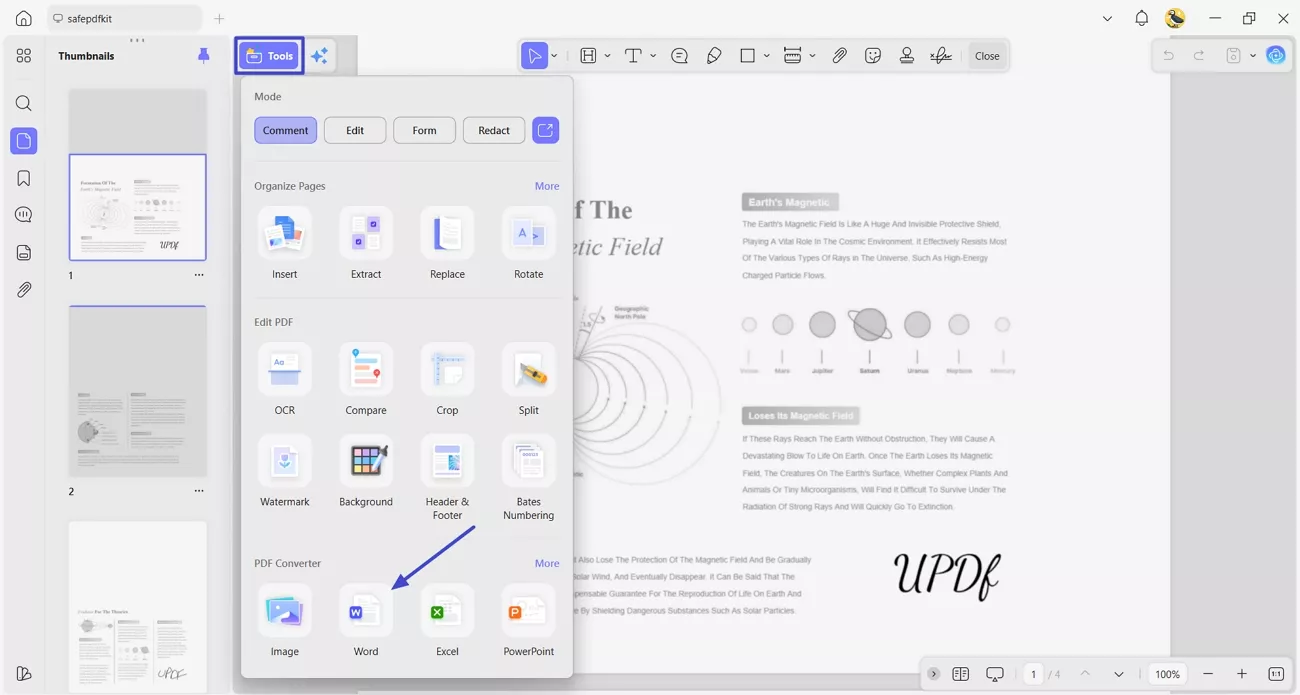
Step 1. Access the PDF to Word Converter
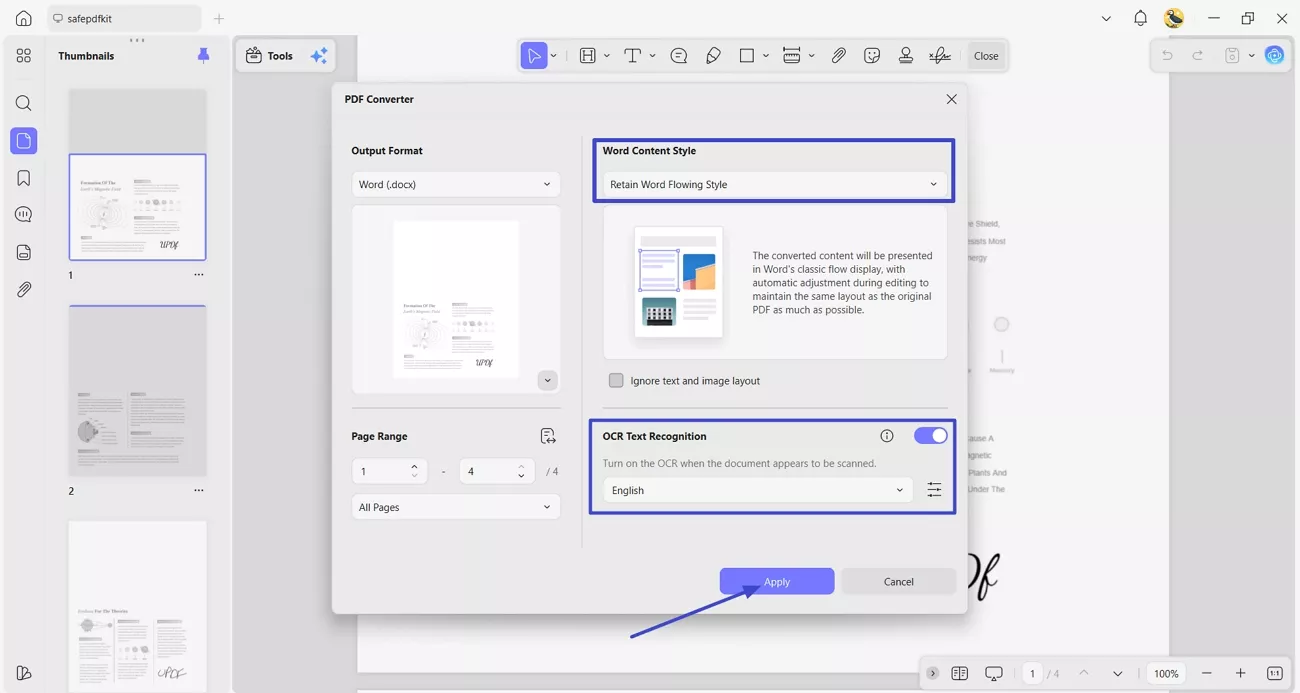
Once you import a PDF, click the “Tools” option and press the “Word” icon under the “PDF Converter” section.
Step 2. Enable OCR Text Recognition
Afterward, in the pop-up window, choose a page range and select an appropriate “Word Count Style.” Next, turn on the “OCR Text Recognition” and choose the correct languages. Once done, click the “Apply” button to start conversion.
Step 3. Review the Converted Word File
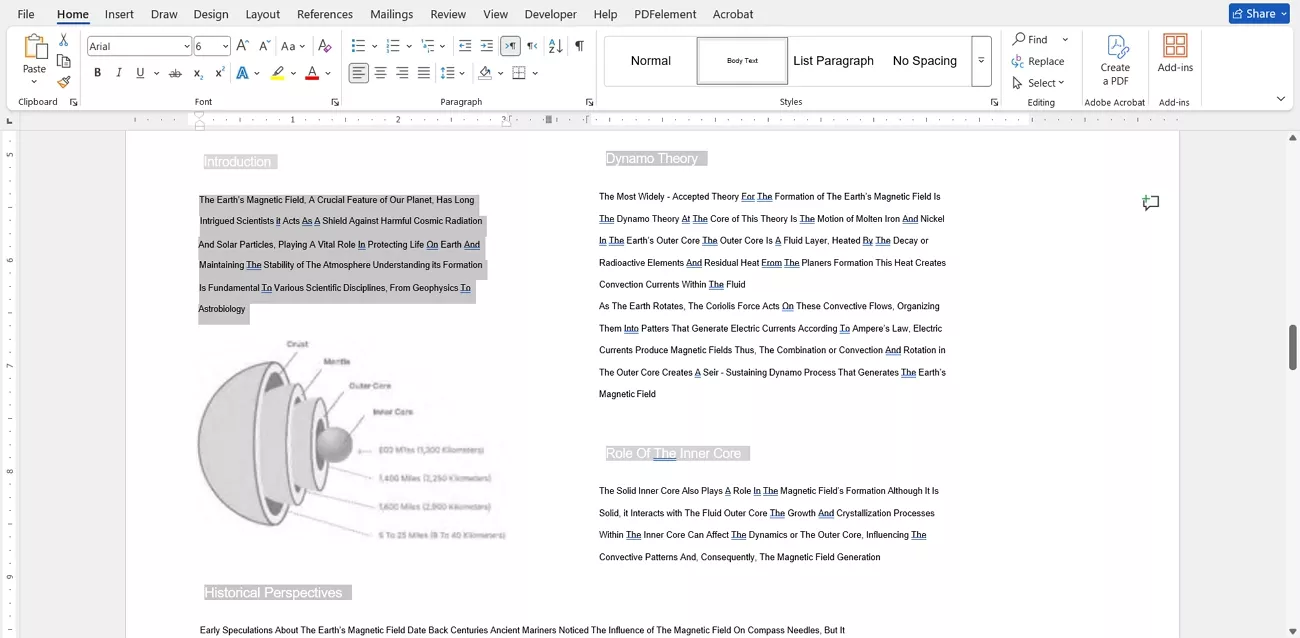
Next, open the converted file and check if the text is editable or not.
Final Words
In conclusion, open‑source GitHub - PDF to Word OCR tools give power and control but demand patience. They still struggle with tricky layouts, big batches, and non‑technical users who just want results fast. If you care more about accuracy, simplicity, and reliable everyday conversions from scans, try UPDF for your next PDF‑to‑Word job.
Windows • macOS • iOS • Android 100% secure





 Bruna Almeida
 Lizzy Lozano
  Engelbert White
 Delia Meyer
 Enrica Taylor