 UPDF
UPDF
 UPDF for Windows
 UPDF for Mac
 UPDF for iPhone/iPad
 UPDF for Android
 Nomostar
 UPDF AI Online
 UPDF Sign
 IvyCraft
 Edit PDF
 Annotate PDF
 Create PDF
 PDF Form
 Edit links
 Convert PDF
 OCR
OCR PDF to Word
 PDF to Image
 PDF to Excel
 Organize PDF
 Merge PDF
 Split PDF
 Crop PDF
 Rotate PDF
 Protect PDF
 Sign PDF
 Redact PDF
 Sanitize PDF
 Remove Security
 Read PDF
 UPDF Cloud
 Compress PDF
 Print PDF
 Batch Process
 About UPDF AI
 UPDF AI Solutions
 AI User Guide
 FAQ about UPDF AI
 Summarize PDF
 Translate PDF
 Chat with PDF
 Chat with AI
 Chat with image
 PDF to Mind Map
 Explain PDF
 PDF AI Tools
 Image AI Tools
 AI Chat Tools
 AI Writing Tools
 AI Study Tools
 AI Working Tools
 Other AI Tools
 AI Bookmark Generation
 AI Bookmark Summary
 AI Watermark Generation
 AI Background Generation
 AI Sticker Generation
 AI Stamp Generation
 AI Editing Suite
 UPDF Copilot
 AI Page Management
 AI Semantic Search
 PDF to Word
 PDF to Excel
 PDF to PowerPoint
 Enterprise Solution
 Enterprise Sign
 Enterprise AI
 Enterprise Plan
 Enterprise User Guide
 Enterprise Webinar
 IT
IT Education
 Construction
 Financial Service
 Healthcare
 Insurance
 Legal
Legal Manufacturing
 Government
 Researchers & PhDs
 Solopreneurs & Freelancers
 Lawyers & Legal Professionals
 Real Estate Agents & Brokers
 Education Solution
 Customer Stories
 User Guide
 UPDF Tricks
 FAQs
FAQs UPDF Reviews
 Download Center
 Blog
Blog Newsroom
 Tech Spec
 Updates
 UPDF vs. Adobe Acrobat
 UPDF vs. Foxit
 UPDF vs. PDF Expert

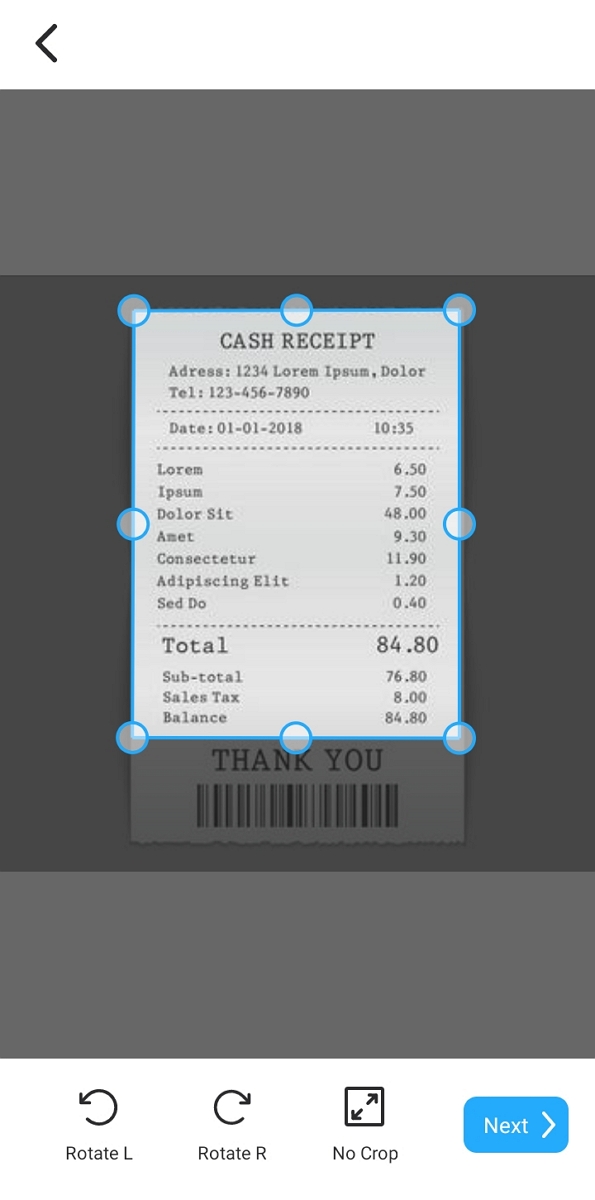
Scanned by TapScanner turns paper into clear, shareable PDFs in just a few seconds. TapScanner’s smart edge detection, filters, OCR text reading, and easy sharing help users handle bills, IDs, forms, and study notes.
By contrast, many TapScanner PDFs are static, making later text editing, layout changes, and data extraction harder for detailed work. This article explores TapScanner’s strengths and limits, explains how to fill the editing gap, and reviews prices, user feedback, and alternatives.
Part 1. TapScanner Latest Overview & Review
Tap Scanner online aims to give mobile users quick, clean scans and simple PDF handling. It focuses on turning everyday papers into neat digital files that are easy to save, share, and store. Look at the table below to see the main features TapScanner offers for everyday scanning needs:
| Function Type | Capability |
| Smart Scanning | Auto capture and enhance pages |
| OCR Text Recognition | Read and detect text from images |
| PDF Editing & Management | Organize and handle PDF files |
| Format Conversion | Change files between PDF and image |
| Cloud Backup | Save scans safely in cloud storage |
| Security | Protect access to important scans |
What These Features Do
- Smart Scanning: It finds page edges, fixes angles, and improves clarity so scans look clean. Users get readable pages even from quick hand shots with uneven lighting.
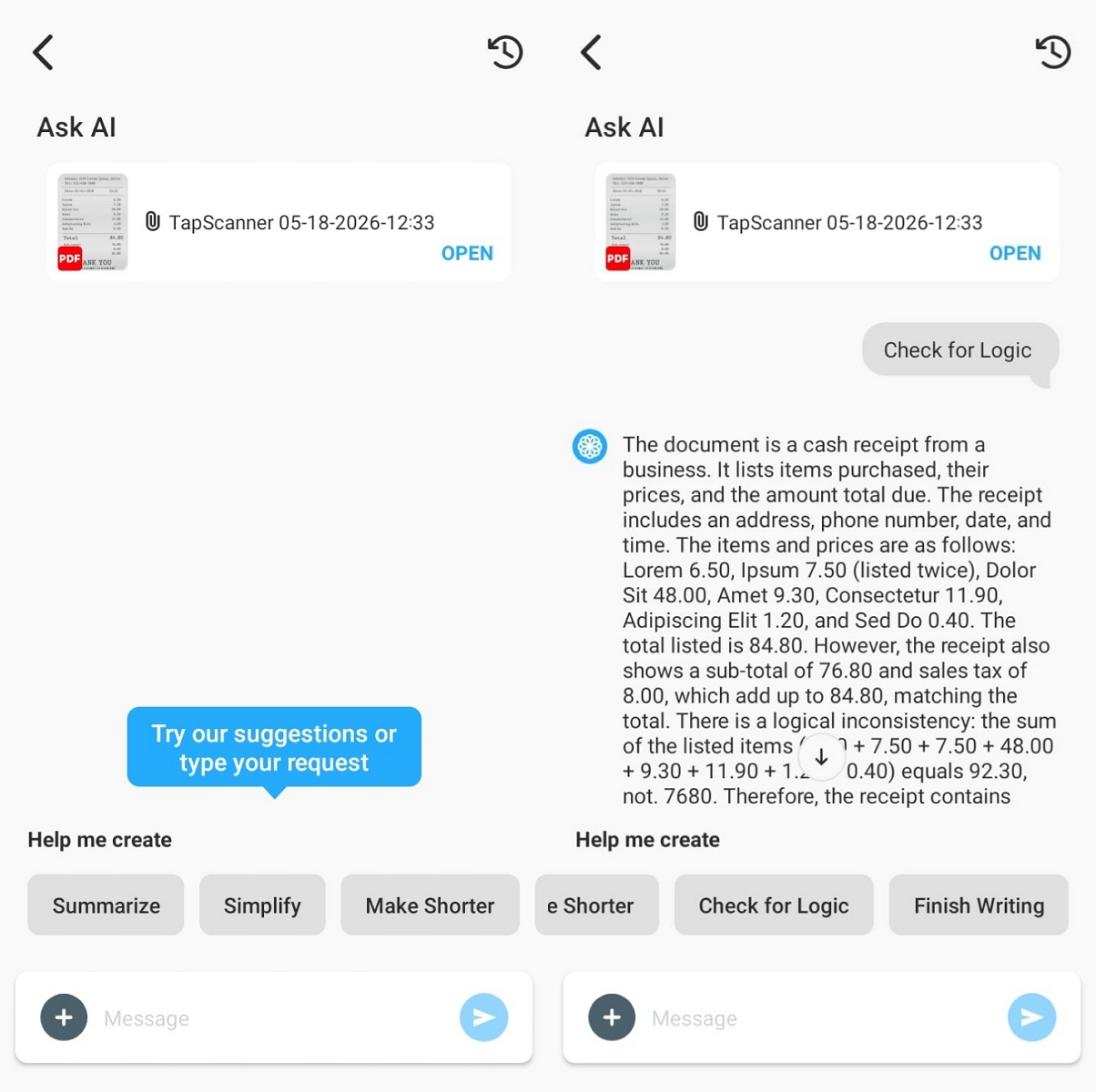
- OCR Text Recognition: The tool reads printed text inside scans to turn it into selectable digital characters. People can search and reuse words instead of retyping from paper pages.
- PDF Editing and Management: It lets users name and group PDFs to make files easy to find. You can reorder pages, remove extras, and keep related scans neatly together.
- Format Conversion: Scans can be saved as PDFs or images based on what the user needs. This helps when sending files to apps and people who prefer certain formats.
- Cloud Backup: The app uploads scans to online storage to protect them after the phone stops working. Users can open their saved files from other devices using the same account.
- Security: It includes options to limit access so only trusted people can open sensitive scans. This helps protect IDs, contracts, or medical papers stored inside the application.
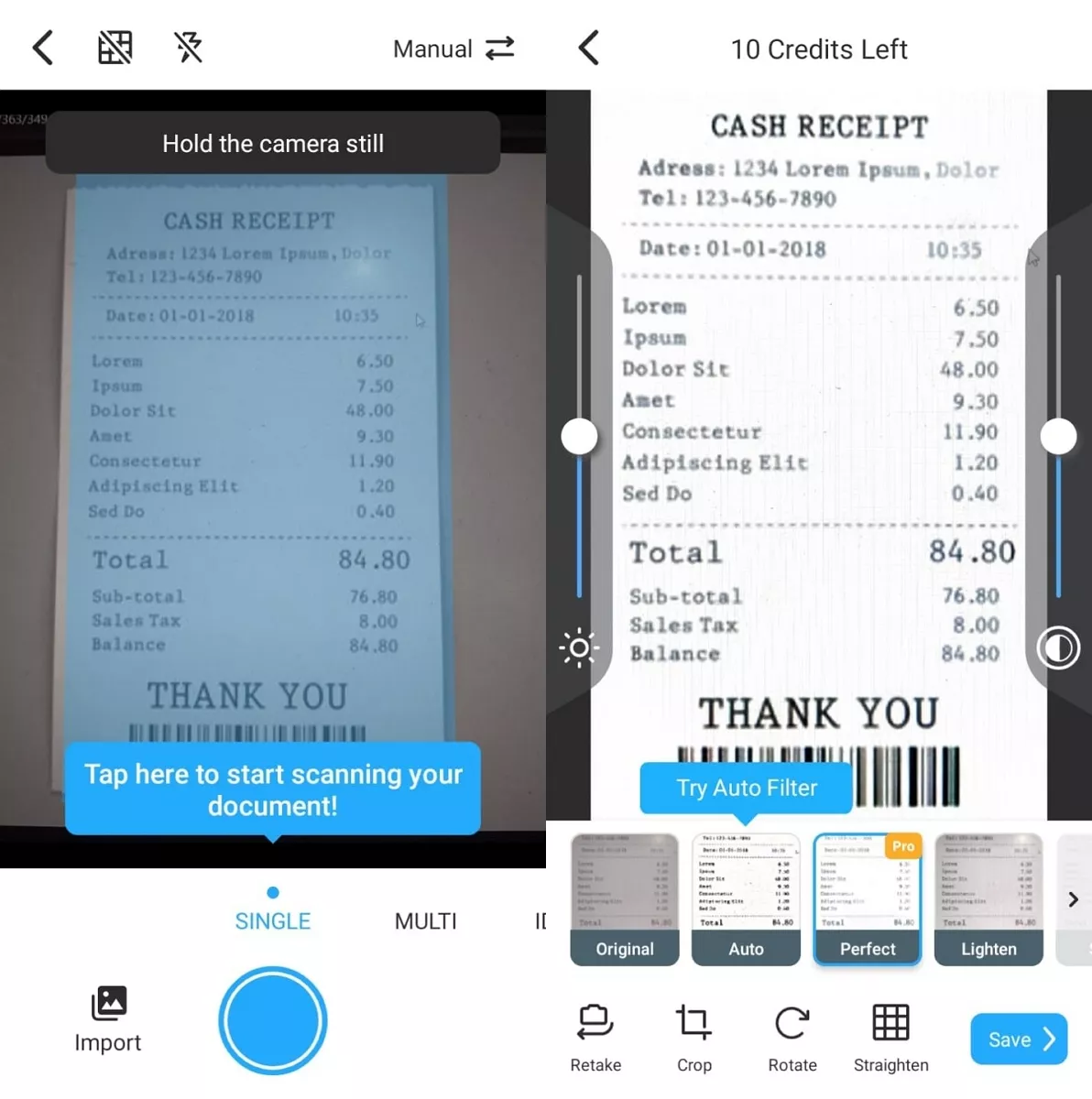
Many people have installed the app and often praise its clear scans, easy handling, and helpful everyday features. At the same time, some users mention mixed feelings about pricing, subscriptions, and value for long‑term use.
TapScanner Pricing
Scanned by TapScanner appears on free exports, while paid plans remove this mark and unlock more tools. Now, the table below shows the main monthly plans and how they differ in price and usage level:
| Plan Type | Price | Key Access Level Description |
| Free | $0 | Basic use with limited tasks, watermark, standard compression, and slower email support. |
| Pro | $12/month | Full features, unlimited tasks, better compression and OCR, shared workspaces, and faster help. |
| Business | $16/user/month | Team‑focused tools, central billing, advanced controls, and priority support for organizations. |
These prices come from TapScanner’s official pricing page at the time of writing. Actual costs can change over time or by region, so users should always confirm the latest figures themselves.
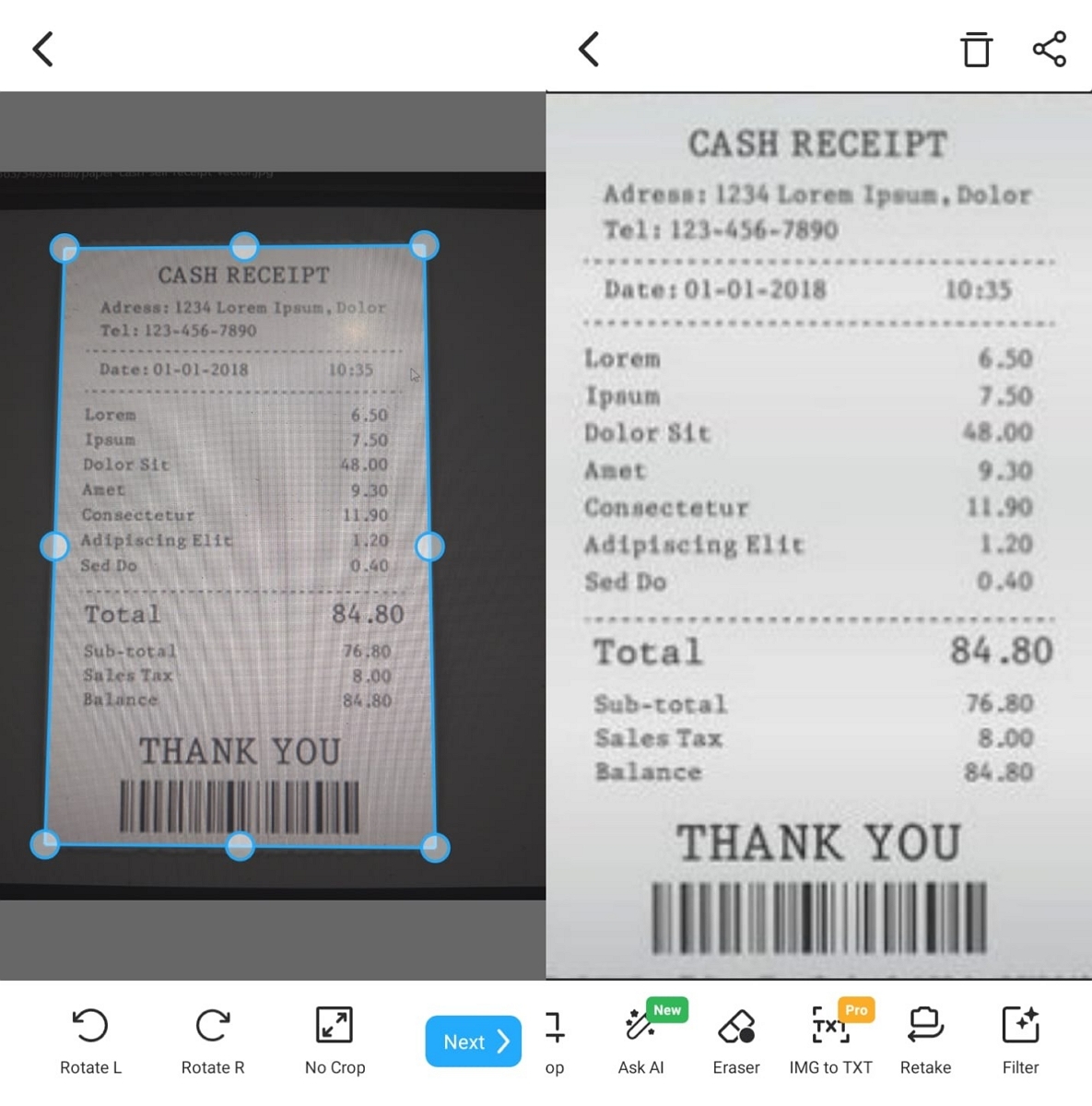
TapScanner’s Review from Real Users
Many users share very different experiences with TapScanner, from smooth daily use to frustrating payment and design issues. Let’s see what real comments reveal about its strengths and weaknesses in scanning workflows:
Positive Reviews
- Easy Setup: One App Store reviewer explains that installing the app felt easy, and the first long scan ran smoothly. In that same review, they say scanning many pages needed almost no instructions, and sending the final file felt simple.
- Friendly Free Tier: On Google Play, another person writes that the interface looks clear and basic scanning stays quick for beginners. They also note in their Google Play feedback that the free credits before paying make this app their best option so far.
Negative Reviews
- Hidden Limits: A Google Play comment describes how, after importing many pages and skipping suggestions, saving failed because the file exceeded the allowed limits. The reviewer argues that strong restrictions should appear clearly at the start instead of only showing up at the very end.
- Dark Patterns: In another Google Play review, someone complains about constant AI prompts and nudges toward an expensive yearly subscription. After ignoring upsells, the export still forces a watermark unless the user decides to pay.
Users say the scanner by TapScanner delivers sharp scans, accurate OCR, and reliable automatic edge detection. At the same time, quite a few reviews describe the subscription pricing as high for long‑term everyday use. Anyone who wants strong AI‑powered scanning quality, but watches spending, should carefully consider whether the ongoing price feels reasonable.
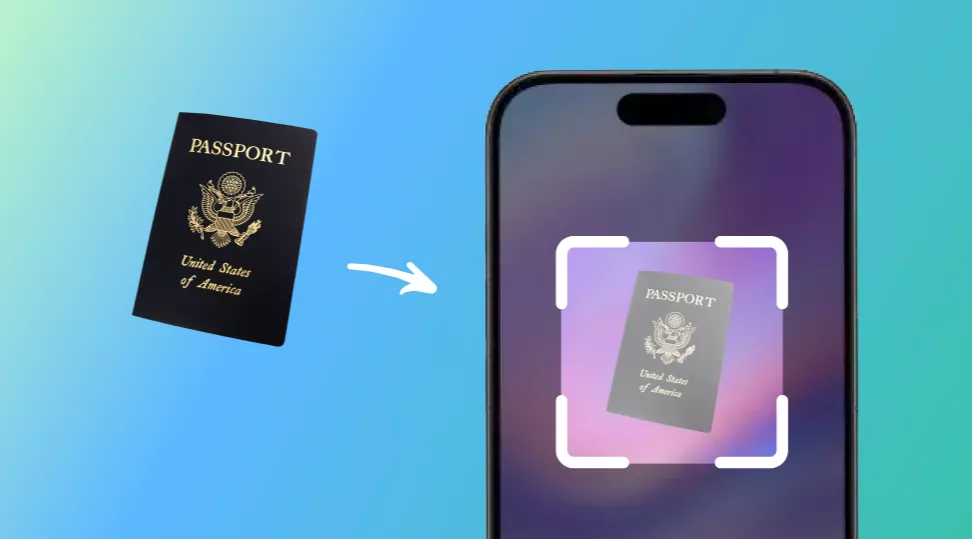
Let me introduce you to a newly released, excellent tool for scanning to PDF. NomoStar is a compact, portable scanner that focuses on quick document capture and text translation. It is capable of transforming scanned photos of passports, IDs, and receipts into high-quality digital copies. One of its key features is instant translation support for 12 languages. This makes it especially useful for travelers or professionals who frequently handle multi-language documents. It offers a streamlined way to convert physical papers into a well-organized digital library.
Part 2. Competitor Comparison: TapScanner's Market Position
TapScanner competes with several popular scanning and PDF tools used for more advanced workflows. Each alternative focuses on different strengths, such as rich editing, deep ecosystem integration, and simple built‑in scanning. Looking at them side by side helps show where TapScanner stands strong and where others may suit certain users better. The table below gives a quick view of how these tools compare across key practical points:
| Tool | OCR Accuracy | Subscription Pricing | File Output Options | Supported Platforms | Key Features | Privacy Emphasis |
| TapScanner | High for clear scans | Freemium with paid subscription plans | PDF, images, sometimes text | Android, iOS | Smart scanning, OCR, PDF tools, cloud backup | Standard app permissions |
| UPDF | High, document‑focused | Free + paid plans, multi‑device licenses | PDF and other formats with exports | Windows, macOS, iOS, Android | Full PDF editing, annotations, file management | Emphasis on local editing |
| Adobe Scan | Accurate OCR | Free app, advanced via Adobe subscriptions | PDF within Adobe ecosystem | Android, iOS | Scan to PDF, Adobe Cloud integration | Backed by a large provider |
| Apple Notes | Basic but useful | Free on Apple devices | Notes, PDFs, images | iOS, macOS | Built‑in scanner, quick note capture | Tied to Apple’s ecosystem |
| CamScanner | Good general OCR | Freemium with optional premium tiers | PDF, images | Android, iOS | Batch scanning, filters, cloud sync | Past concerns, now improved |
UPDF: A Full PDF Editing Alternative to TapScanner
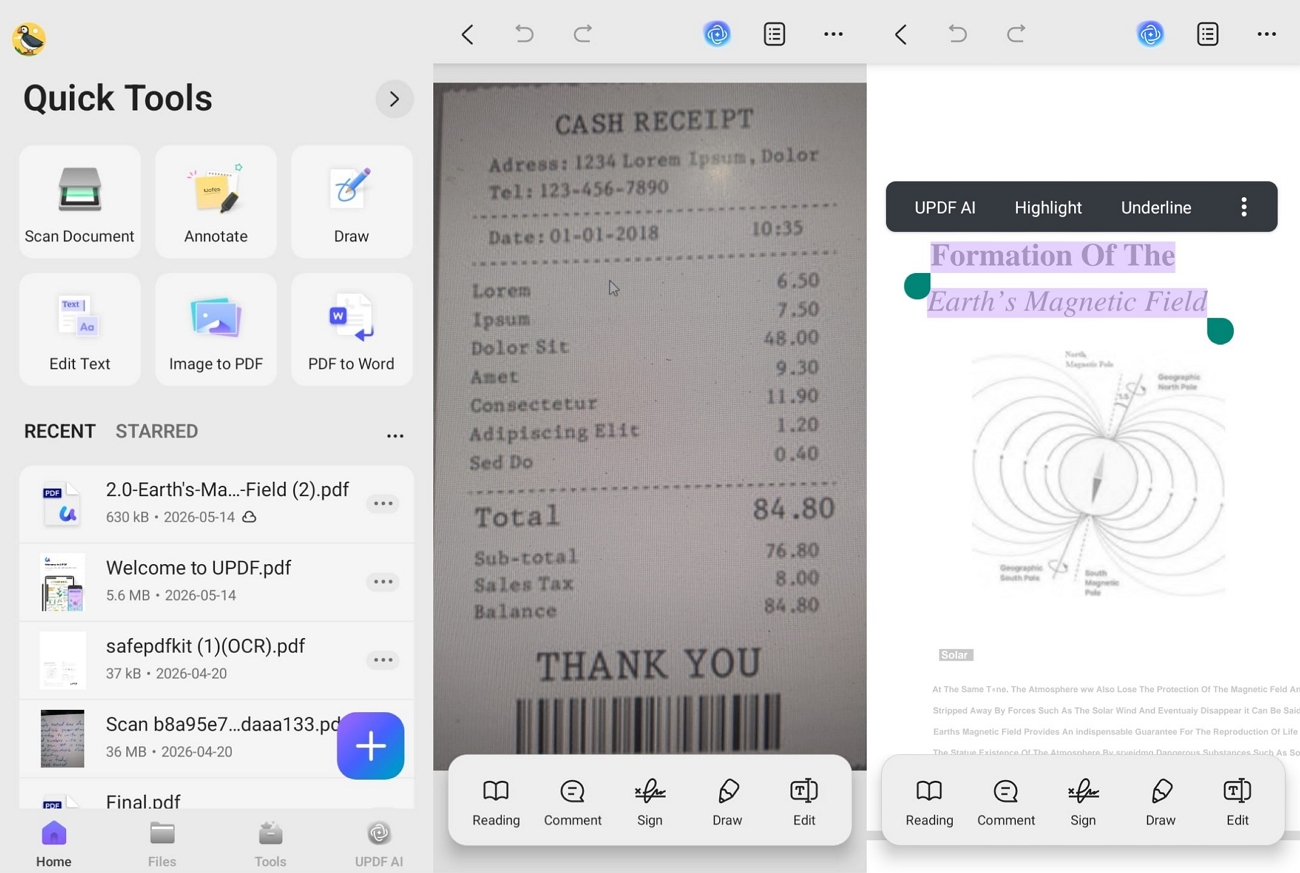
Many users feel stuck when scanner apps create static PDFs that are hard to edit or reuse later. This is where UPDF steps in, giving one place to edit text, comment, organize pages, and protect files. It also runs on Android and iOS, helping people keep the same PDFs updated.
UPDF also adds AI features, format conversion, and secure options, which support deeper, ongoing document and study work. TapScanner is great for quick mobile scans, while UPDF is better for full PDF editing and AI help.
Windows • macOS • iOS • Android 100% secure
Part 3. How to Remove Scanned by TapScanner?
Some readers feel annoyed when “Scanned by TapScanner” appears on every page of their exported PDFs. This usually happens because they used the TapScanner web or the mobile app without an active paid license. Now, let’s look at how to remove scans by TapScanner and a manual workaround you can try.
Option 1: Upgrade to Remove the Watermark
Paying for a TapScanner subscription is the official way to remove watermarks from future exported files. After upgrading inside the app, new scans normally save without the “Scanned by TapScanner” text at the bottom. Check your account status, restart the app, then export a fresh scan to confirm the mark has disappeared.
Option 2: Crop the Watermark Area Manually
If you cannot pay right now, a simple workaround is cropping the page area containing the watermark. You can use TapScanner or another PDF or image editor to trim the lower margin on each page. Keep in mind that this method may cut useful content, and it still does not change older embedded marks.
FAQs
- What are the limitations of the free version of TapScanner?
The free version usually adds a watermark, limits advanced features, and may restrict bulk or large‑page scanning. Users also see ads and cannot fully access tools like batch export, deeper editing, or extended cloud storage.
- How effective is TapScanner’s OCR recognition?
TapScanner’s OCR works well on clear documents with good lighting, making printed text easily selectable and searchable. However, results can drop when pages are blurry, handwritten, badly lit, or scanned at awkward angles or distances.
- If I cancel my subscription, will my scanned files be lost?
Your existing scans usually remain on your device or connected cloud, even after a subscription ends. However, premium features and some cloud options may stop working, so always back up important files beforehand.
- Are there any scanning tools that offer better value than TapScanner?
For people who mainly edit and organize PDFs across devices, UPDF offers better value than ongoing subscriptions. If someone only needs simple capturing, Tap Scanner online alternatives like Adobe Scan or Apple Notes may be enough.
Conclusion
In conclusion, this article showed where documents scanned by TapScanner work well and where they feel limited. It also explained how UPDF combines scanning, OCR, editing, and cloud tools in one stronger toolkit. For easier PDF management, editing, and protection across devices, UPDF stands out as the better long‑term choice.
Windows • macOS • iOS • Android 100% secure





 Enrica Taylor
 Enid Brown

 Delia Meyer