UPDF
UPDF
 UPDF for Windows
 UPDF for Mac
 UPDF for iPhone/iPad
 UPDF for Android
 UPDF AI Online
 UPDF Sign
 Edit PDF
 Annotate PDF
 Create PDF
 PDF Form
 Edit links
 Convert PDF
 OCR
OCR PDF to Word
 PDF to Image
 PDF to Excel
 Organize PDF
 Merge PDF
 Split PDF
 Crop PDF
 Rotate PDF
 Protect PDF
 Sign PDF
 Redact PDF
 Sanitize PDF
 Remove Security
 Read PDF
 UPDF Cloud
 Compress PDF
 Print PDF
 Batch Process
 About UPDF AI
 UPDF AI Solutions
 AI User Guide
 FAQ about UPDF AI
 Summarize PDF
 Translate PDF
 Chat with PDF
 Chat with AI
 Chat with image
 PDF to Mind Map
 Explain PDF
 PDF AI Tools
 Image AI Tools
 AI Chat Tools
 AI Writing Tools
 AI Study Tools
 AI Working Tools
 Other AI Tools
 PDF to Word
 PDF to Excel
 PDF to PowerPoint
 Enterprise Solution
 Enterprise Sign
 Enterprise AI
 Enterprise Plan
 Enterprise User Guide
 Enterprise Webinar
 Banking
 Healthcare
 Insurance
 Legal
Legal Manufacturing
 Government
 Education Solution
 Customer Stories
 User Guide
 UPDF Tricks
 FAQs
FAQs UPDF Reviews
 Download Center
 Blog
Blog Newsroom
 Tech Spec
 Updates
 UPDF vs. Adobe Acrobat
 UPDF vs. Foxit
 UPDF vs. PDF Expert

Converting a PDF to PNG on Mac is a daily necessity for designers, students, and professionals alike. Whether you need to insert a document page into a Keynote presentation, share a high-quality visual on social media, or archive crisp snippets of a report, the method you choose matters.
While macOS has built-in tools, they often fall short when it comes to maintaining high DPI or handling dozens of files at once. That’s where UPDF for Mac steps in. It bridges the gap between simple conversion and professional-grade output.
Why Choose UPDF for Mac for Image Conversions?
Before we dive into the methods and steps, it’s worth noting why UPDF for Mac is becoming the go-to choice for macOS users:
- Resolution Control: Unlike standard converters, UPDF ensures your PNGs stay sharp and pixel-perfect.
- Format Versatility: Easily switch between PNG, JPG, BMP, and TIFF.
- Apple Silicon Optimized: Runs natively on M1, M2, and M3 chips for lightning-fast processing.
Method 1: Convert a Single PDF to PNG on Mac
If you need a single page or a specific document turned into an image, UPDF makes the process feel like a natural part of your workflow.
Follow these steps to convert a single PDF to PNG using UPDF on Mac:
Step 1. Download and launch UPDF on your Mac and use the "Open File" button to import the PDF you want to convert. Select your file and ensure that it is ready for conversion.
Windows • macOS • iOS • Android 100% secure
Step 2. Next, navigate to the Tools menu at the top left and select Image under the 'Convert To' section.
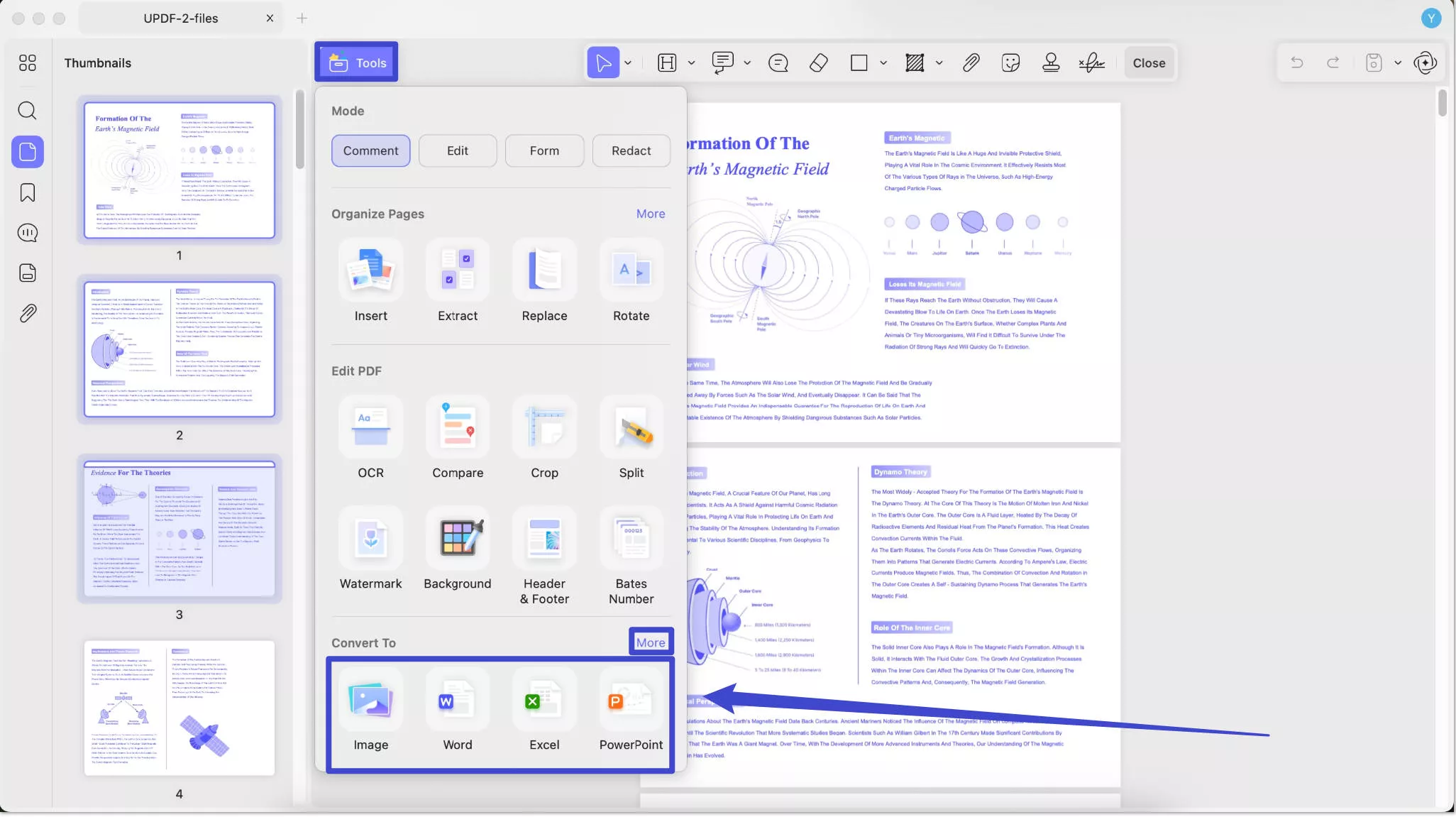
Step 3. Now, select your desired page range and set the Image Format to PNG. You can choose to convert each page into an individual image, combine multiple pages into a single long image, or extract all images from the PDF. Once you’ve finalized your settings, click Convert to start the process and choose a location to save the converted images.
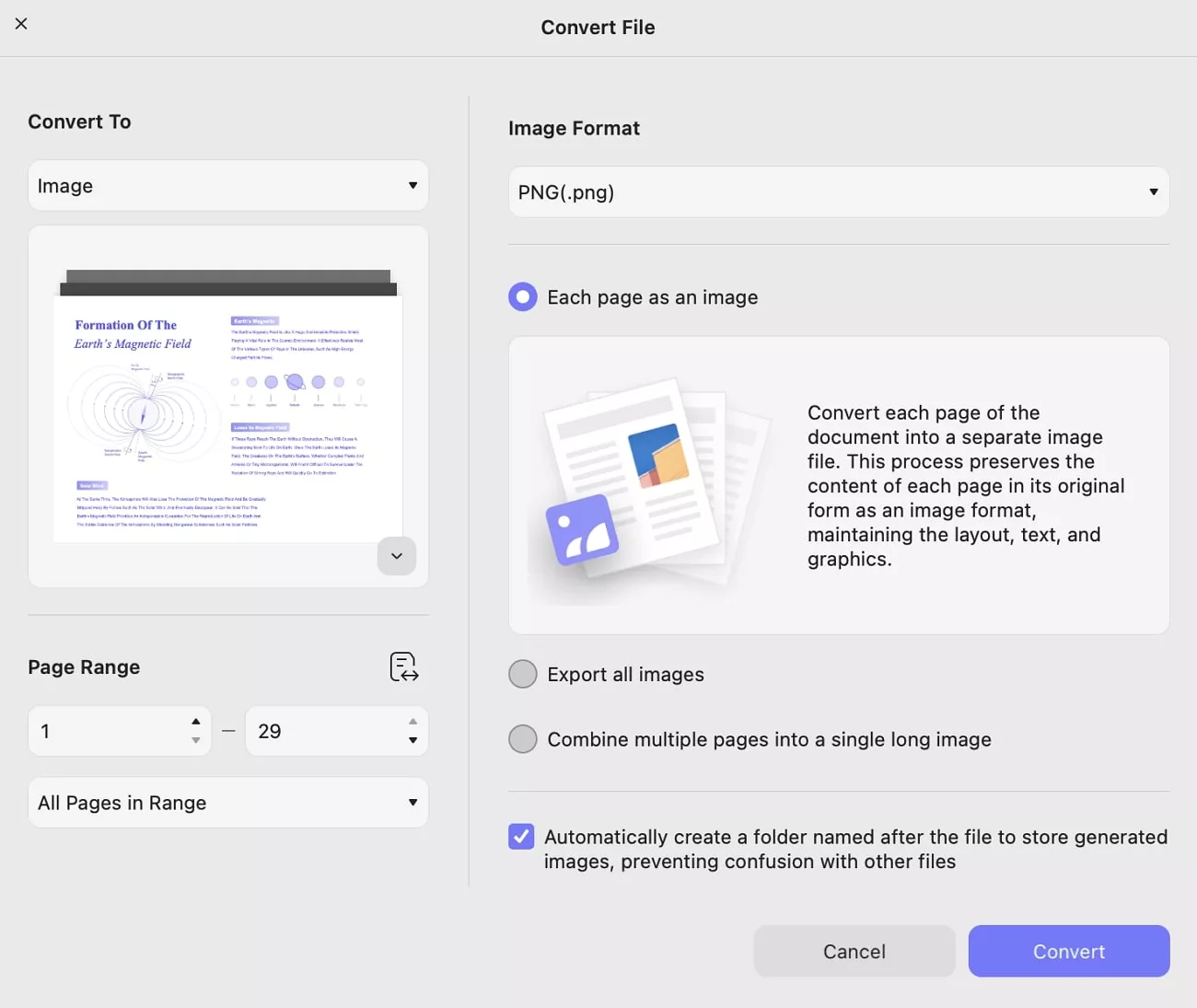
UPDF supports converting PDFs to PNG and various other formats. Watch the video below to explore UPDF’s full range of conversion capabilities.
Method 2: Batch Convert Multiple PDFs to PNGs on Mac
For those managing large projects, converting files one by one is a bottleneck. UPDF’s Batch Process is specifically engineered to save you hours of manual work.
Here's how you can convert multiple PDFs to PNGs in a few simple steps:
Step 1. From the home interface, click Tools and select the Convert option.
Step 2. Click Add Files, or simply drag and drop your PDFs into the UPDF window. If you already have documents open in UPDF, you can use the Add Open Files option. To process an entire directory at once, choose Add Folders.
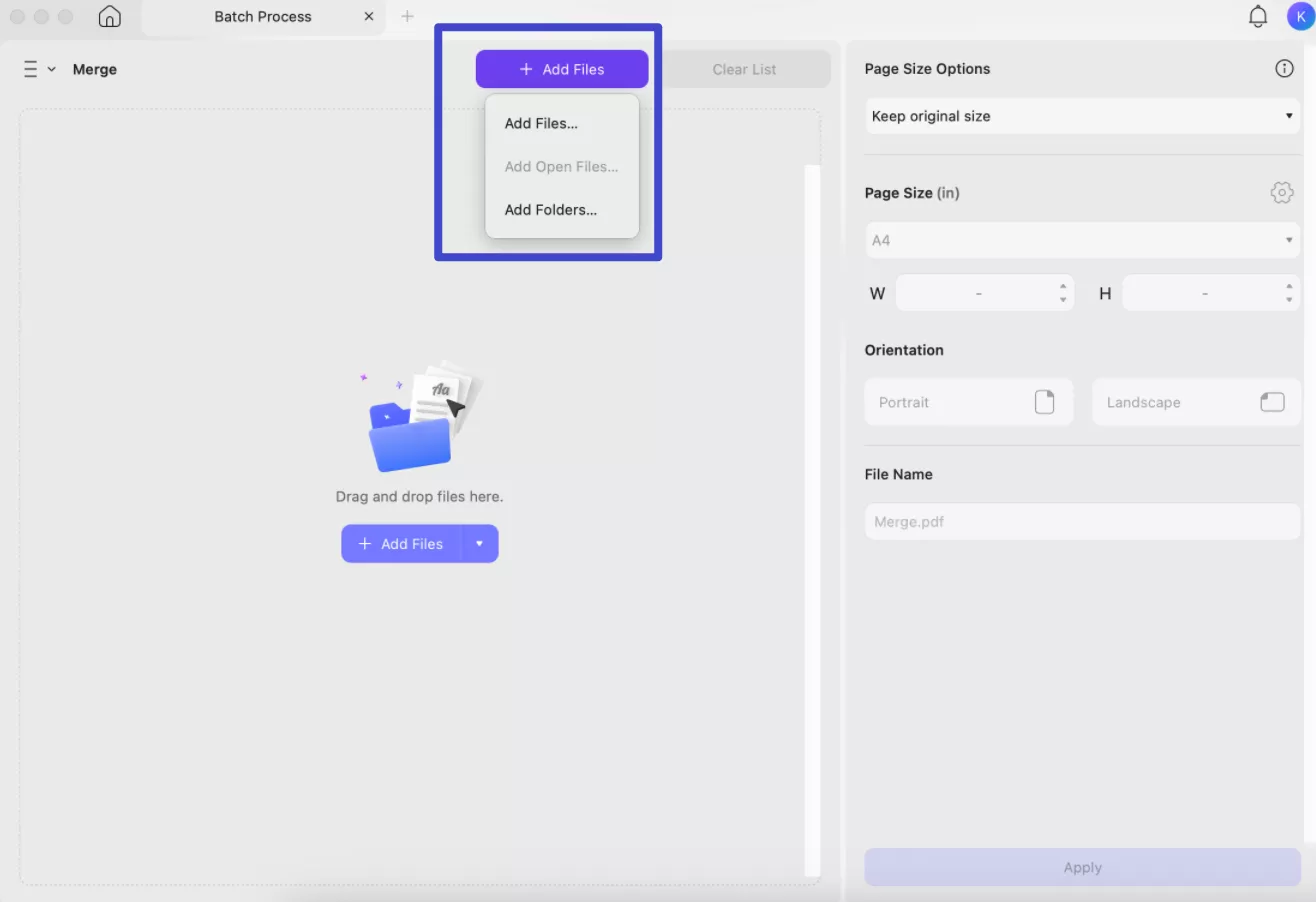
Step 3. UPDF’s versatility allows you to choose the output format that best suits your needs. Open the Output Format dropdown menu, select Image, and then choose PNG from the available formats.
Step 4. Once you have customized your settings, click Apply to start the process. Finally, designate a destination for your converted files by clicking Select Folder to choose where your new images will be saved.
Batch conversion with UPDF is quick, efficient, and reliable. Try it out to save time and effort on your projects!
Windows • macOS • iOS • Android 100% secure
Bonus Tip: Can I Convert PNG to PDF on Mac?
Yes, you can easily convert PNG images to PDF on Mac, and UPDF is the perfect tool for the job. Whether you're converting a single image or multiple PNGs, UPDF offers a straightforward and efficient solution. It even provides options to merge multiple images into a single PDF or save them as separate documents.
Here's how you can create a PDF from PNG on Mac:
Step 1. Launch UPDF and navigate to the Tools section.
Step 2. Click the Other option to open the creation menu. From here, select Select Files to generate a PDF from any supported file format.
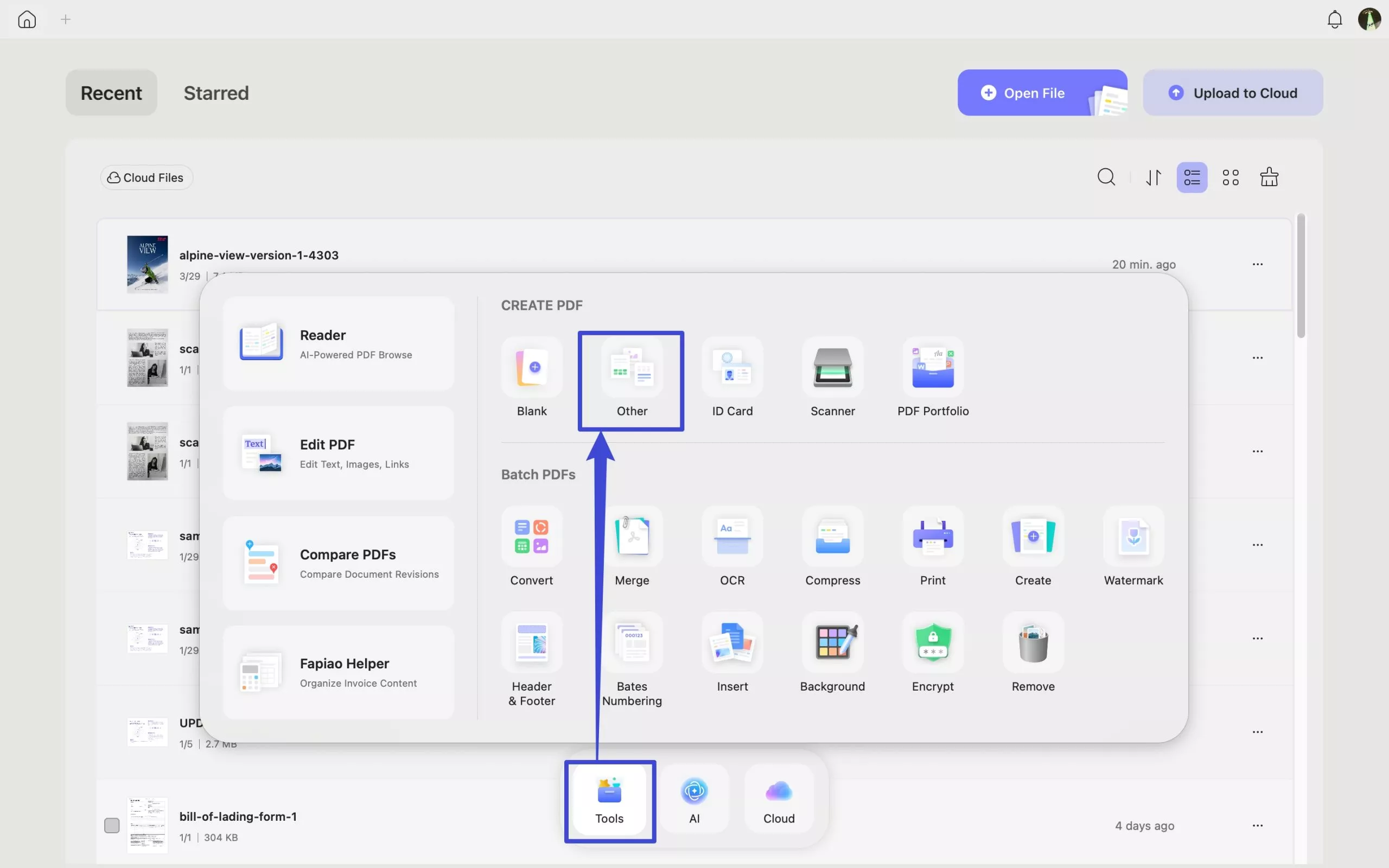
Step 3. A window will prompt you to choose a document from your device. Once selected, click Open (or OK), and UPDF will automatically convert the file into a PDF.
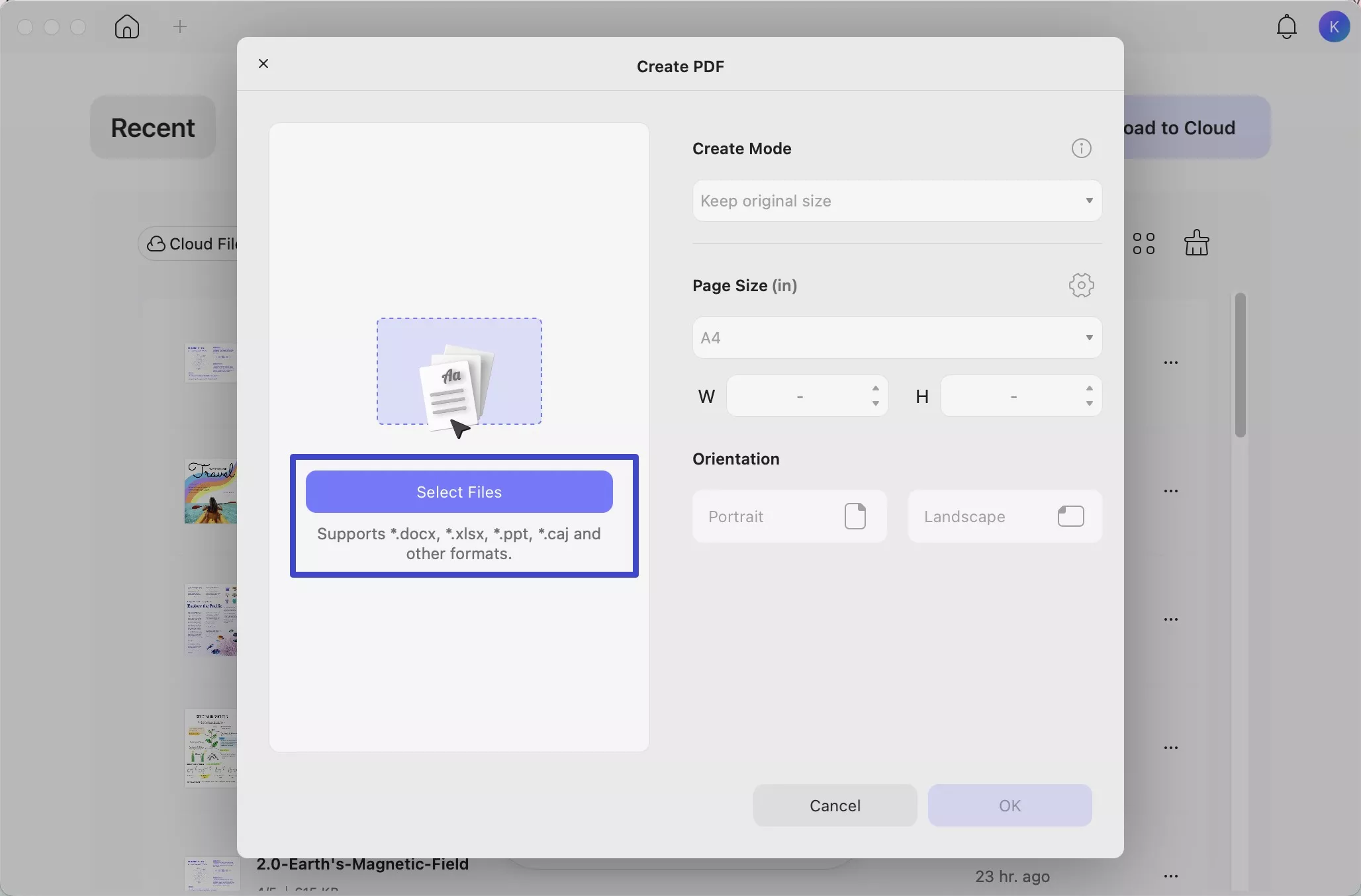
Shortcut: You can also drag and drop any file directly into the UPDF interface to convert it to PDF instantly.
To process multiple files, simply drag and drop them all at once; UPDF will generate individual PDFs for each. If you prefer to merge multiple files into a single PDF, use the Batch Create function found under the Tools menu on the homepage.
Finally, navigate to File > Save in the macOS menu bar, or click the Save icon within UPDF to choose your storage location.
Converting PNGs to PDFs on Mac with UPDF is simple and versatile. Whether you're handling individual files or creating multi-page PDFs, UPDF ensures professional results every time.
Frequently Asked Questions (FAQ)
Will the image quality drop after converting PDF to PNG?
Not with UPDF. While online converters often compress files, UPDF preserves the original vector data, ensuring the resulting PNG is high-resolution.
Can I convert password-protected PDFs to PNG?
Yes. Once you enter the password in UPDF to open the file, you can export it to any image format seamlessly.
Conclusion
Converting PDFs to PNGs on Mac has never been easier thanks to UPDF's simple yet powerful features. Whether you need to convert a single file or a batch, UPDF provides a seamless solution. Its versatility extends beyond conversions, offering advanced PDF tools to meet all your document needs. Don't stop at converting—unlock UPDF's full potential to edit, annotate, and manage your PDFs effortlessly. Download UPDF today to streamline your document workflows and experience the ultimate PDF solution!
Windows • macOS • iOS • Android 100% secure






 Lizzy Lozano