 UPDF
UPDF
 UPDF for Windows
 UPDF for Mac
 UPDF for iPhone/iPad
 UPDF for Android
 UPDF AI Online
 UPDF Sign
 Edit PDF
 Annotate PDF
 Create PDF
 PDF Form
 Edit links
 Convert PDF
 OCR
OCR PDF to Word
 PDF to Image
 PDF to Excel
 Organize PDF
 Merge PDF
 Split PDF
 Crop PDF
 Rotate PDF
 Protect PDF
 Sign PDF
 Redact PDF
 Sanitize PDF
 Remove Security
 Read PDF
 UPDF Cloud
 Compress PDF
 Print PDF
 Batch Process
 About UPDF AI
 UPDF AI Solutions
 AI User Guide
 FAQ about UPDF AI
 Summarize PDF
 Translate PDF
 Chat with PDF
 Chat with AI
 Chat with image
 PDF to Mind Map
 Explain PDF
 PDF AI Tools
 Image AI Tools
 AI Chat Tools
 AI Writing Tools
 AI Study Tools
 AI Working Tools
 Other AI Tools
 PDF to Word
 PDF to Excel
 PDF to PowerPoint
 Enterprise Solution
 Enterprise Sign
 Enterprise AI
 Enterprise Plan
 Enterprise User Guide
 Enterprise Webinar
 Banking
 Healthcare
 Insurance
 Legal
Legal Manufacturing
 Government
 Education Solution
 Customer Stories
 User Guide
 UPDF Tricks
 FAQs
FAQs UPDF Reviews
 Download Center
 Blog
Blog Newsroom
 Tech Spec
 Updates
 UPDF vs. Adobe Acrobat
 UPDF vs. Foxit
 UPDF vs. PDF Expert

If Android keeps opening PDFs in an app you don’t want — like Google Drive or a built-in viewer — and you want a different PDF viewer by default, you can change it. Android lets you change default apps, but the exact screens or steps can vary by device and version. This guide walks you through reliable ways to reset or select your preferred PDF viewer without developer-level knowledge.
Before you change your default setting, you can first download the best PDF viewer for Android - UPDF.
Windows • macOS • iOS • Android 100% secure
Part 1: How to Change Default PDF Viewer Android (Typical Paths)?
The first question to discuss for this specific task is to get an answer on how to change the default PDF viewer with ease. If you have been uncomfortable using the PDF viewer across your Android, you can look to change it for good. For this, we have targeted a step-by-step guide explaining how to change the default PDF viewer in Android.
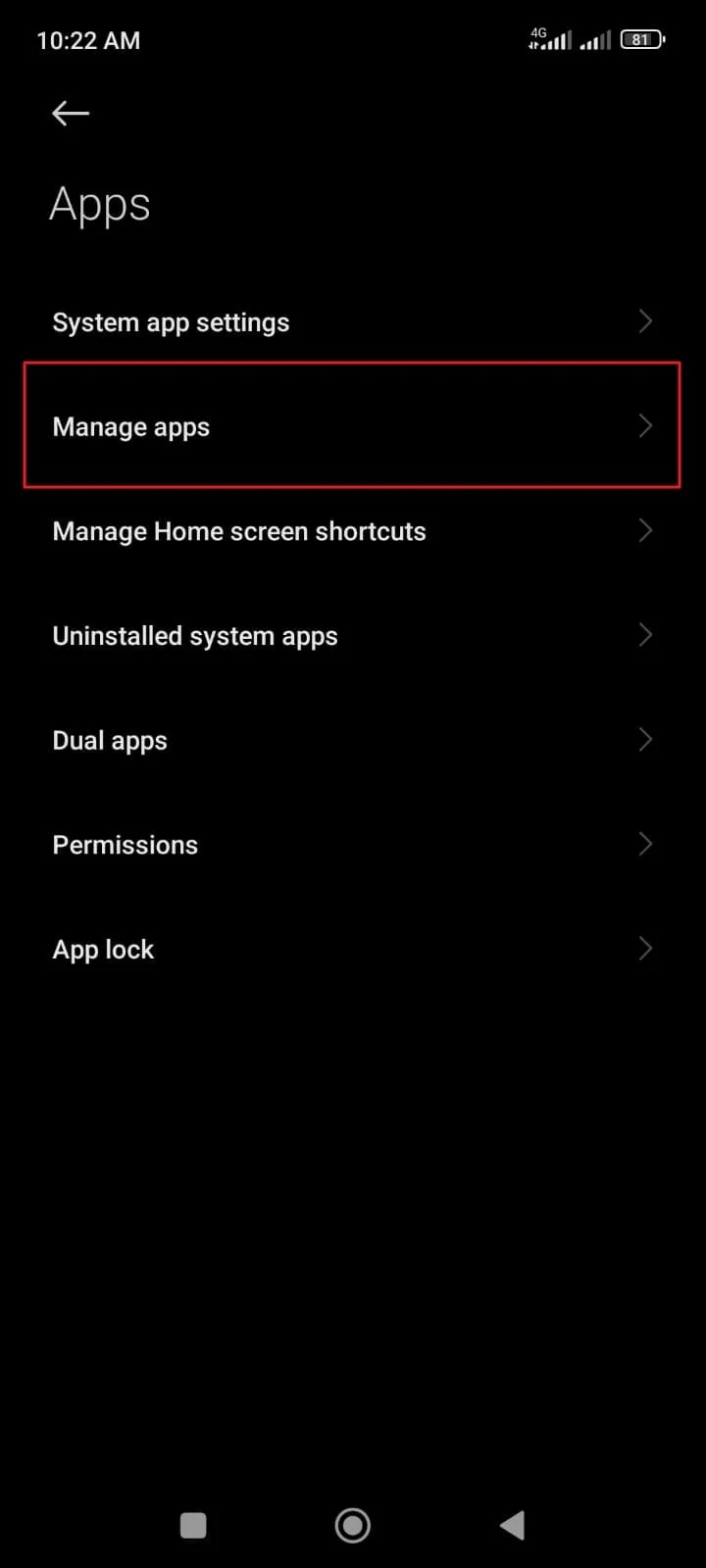
Step 1: Open Android Settings and Go to Apps or App Settings
To start with the process, direct into the "Settings" of your Android device and look for the "Apps" section from the available list. As you proceed to the next screen, you will find the "Manage apps" option.
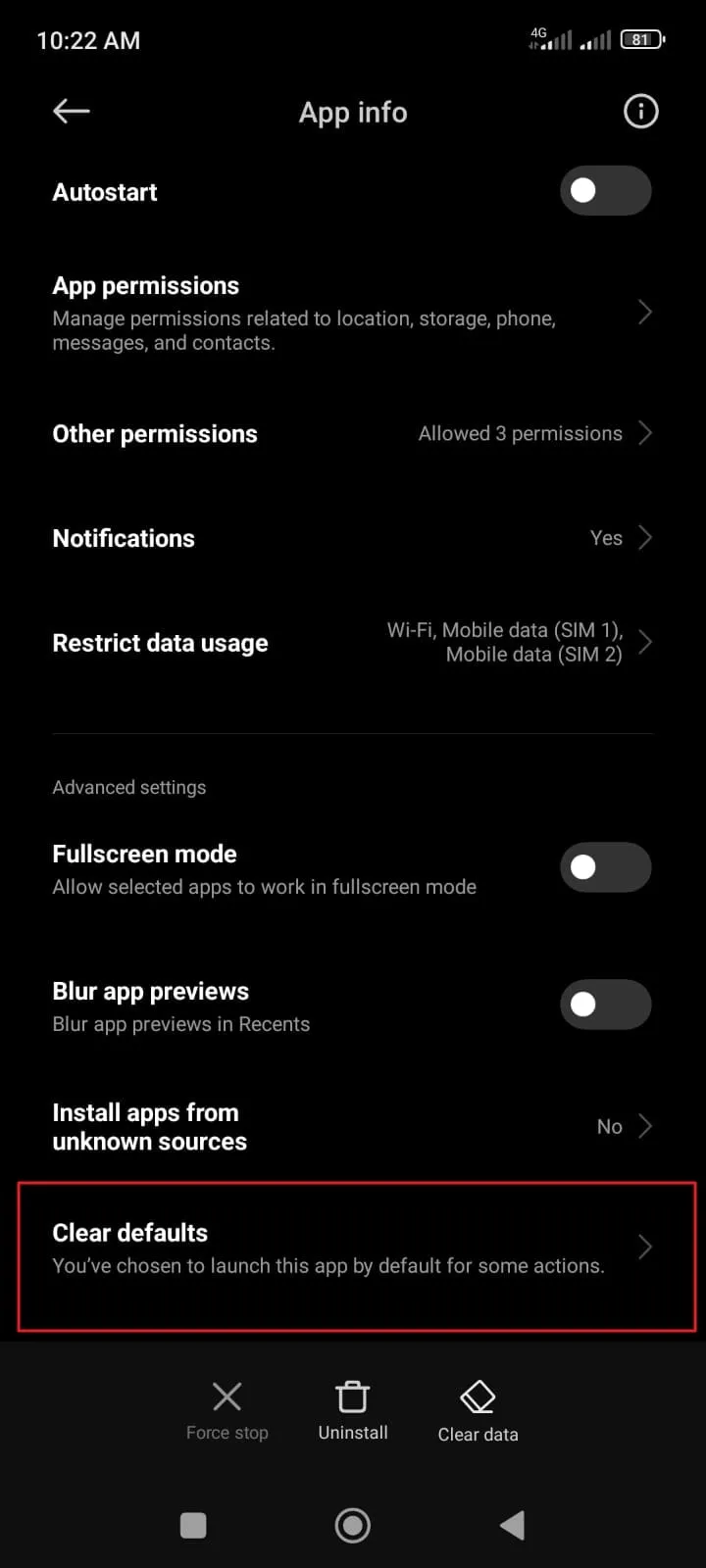
Step 2: Find Your Current PDF Viewer App and Clear the Default Setting
After that, look for the PDF viewer set as default on your Android. As you access the application, lead to its dedicated settings and select "Clear defaults."
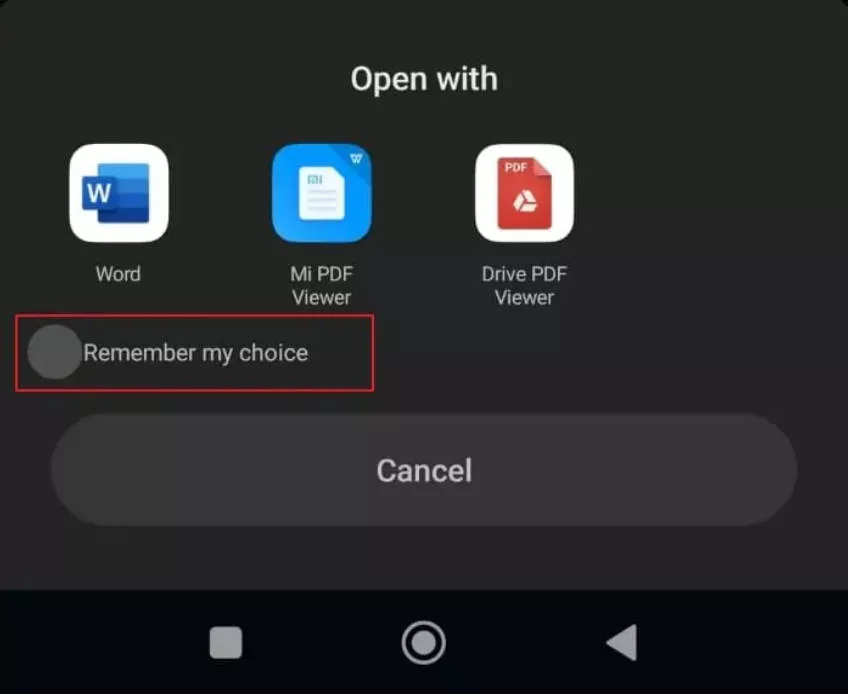
Step 3: Open a PDF File Again
As you are done, open the PDF document and observe a pop-up asking you to select a PDF viewer for reading the document. Select the respect PDF viewer and tap "Remember my choice" to make it your default viewer on Android.
Note
After learning how to change the default viewer on android, you can also learn more about how to open PDF files on android with UPDF if needed.
Part 2: What's the Best PDF Viewer for Android?
When finding a suitable PDF viewer for your Android device, you might get confused for several reasons. There are many aspects to judge for discovering the best PDF viewer for Android. While looking to change the default app for PDF Android, you should come across a state-of-the-art PDF viewer and editor that provides the required features.
To make your choice more accessible, we have listed multiple features and aspects as a scale of judgment. This scale will help us assess which tool is a great option as a PDF viewer on Android.
1. A Perfection of Features
For a good PDF viewer, it should have such features that help users manage PDF files with ease. As most users would open existing PDF files on their Android devices, it should contain annotation tools to help you mark the important things in a PDF file. This way, you will never have to take your PDF files on the computer, saving you time.
Following this, a good PDF viewer should be a good PDF manager, allowing users to put their files in different folders. As this enhances PDF management, the user feels more secure while working with the tool on their Android. A good PDF viewer should contain different viewing options, making it a preferred choice.
2. User-Friendly Interface
Talking about the interface, this is another commendable fact that makes a tool better than other market competitors. An impeccable PDF viewer enhances user functionality with user-friendly options. Catering to the outlook of a smartphone, it should contain simple buttons that can be accessed for executing multiple functions. This is what makes a PDF viewer user-friendly to work with.
Following this, the interface should have readable content with defining and self-explanatory features. Anything that can be understood with ease gives the perfect platform to a user for managing their work.
3. A Look into the Cost
A great tool is a depiction of a reasonable price. Although people prefer free tools to work with, they are pretty limited in functionality. If a particular PDF viewer charges for its features, it should not be absurdly high. Most free PDF viewers include watermarks in the PDF files after editing, which is not often preferred. Thus, look for a tool that provides the most and best services at an economical price.
A tool that provides accessibility to the features for free under specific provisions is also recommended in the market. You should always look into the details to find the best possible scenario in PDF management.
4. Availability on Platforms
While you verify the PDF tool's features, quality, and cost, you should also observe the tool's availability on platforms. Although you are finding a PDF viewer for your Android, it should also provide access to other platforms, including iOS, Windows, Mac, and more platforms. This allows you to cater to every situation, as you can manage your PDF files on more platforms.
5. Document Processing Speed
A perfect PDF viewing tool should cover the user's essential requirements, including a blazing-fast experience in managing PDF files. A tool that provides a swift system of opening PDF files and executing different processes is always the highest preference. While finding a tool for your Android, look for one that gives you a good document processing speed with no lags.
Part 3: Why Should You Change Your Default PDF Viewer to UPDF?
Changing UPDF for Android to your default PDF viewer might come as a great decision. With all the points mentioned above, it is evident that UPDF caters to these points to perfection. Just download UPDF via the below button or go to Google Play, and change your default PDF viewer to UPDF. However, if you are still confused about why UPDF should get the rightful chance of becoming the default PDF viewer on Android, you should consider looking into the following reasons in detail:
Windows • macOS • iOS • Android 100% secure
1. Better Features Than Most Android PDF Viewers
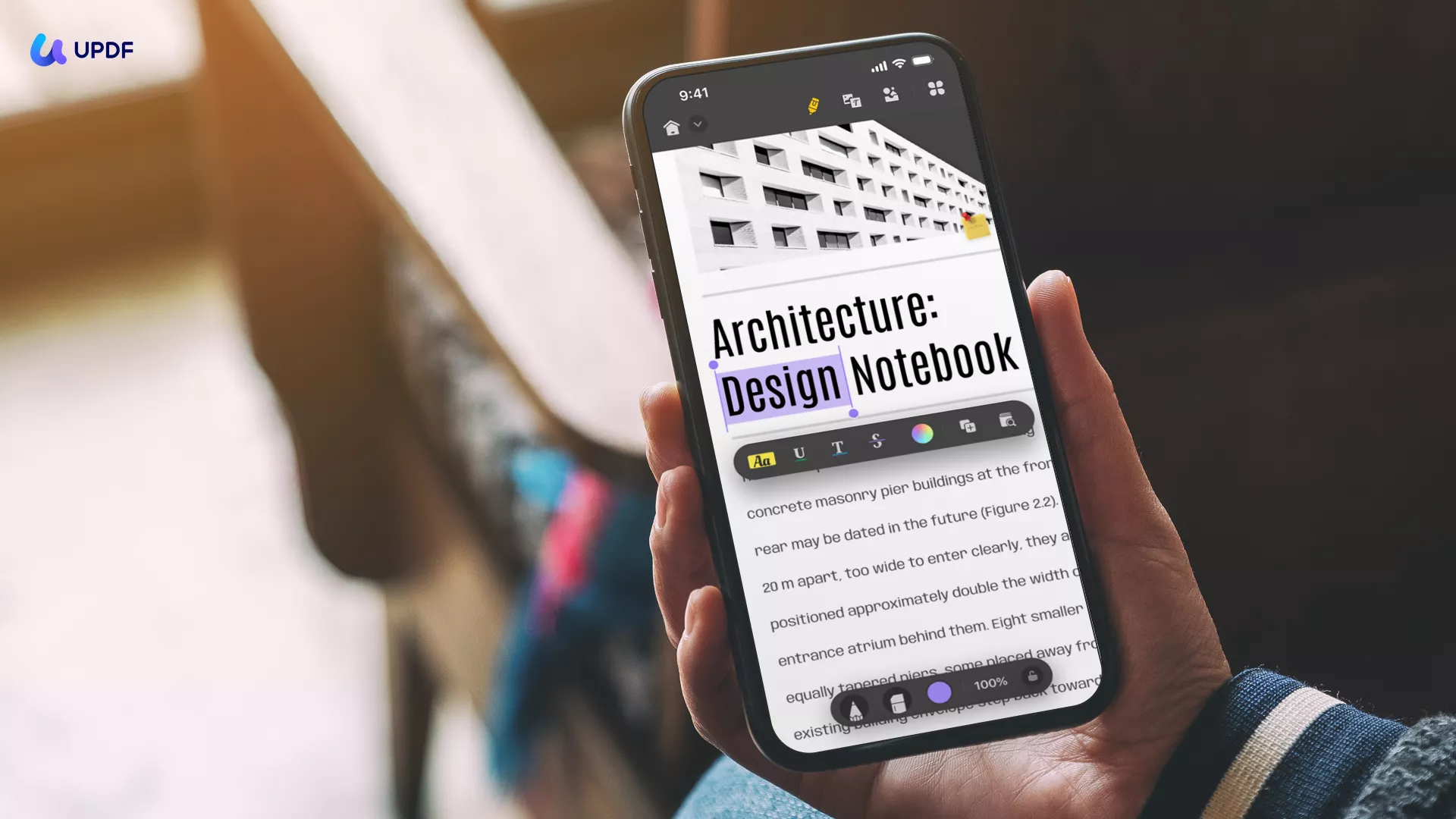
Many prominent functionalities can be observed in UPDF for Android. While viewing the best PDF viewing tool, you must find out the following functions:
- Wide Range of Annotation: The availability of multiple annotation tools is a promising point about UPDF. The tool offers a wide variety of highlighting of the critical parts of the PDF document. From highlighting to underlining and adding stickers on PDF files, annotating PDF on Android with UPDF is super easy.
- OCR on Android is robust: UPDF’s optical character recognition supports over 38 languages and turns scanned or image-based PDFs into editable/searchable text — a clear advantage over many viewers that only offer basic OCR or none at all.
- Edit PDF Text and Image on Android: There are only a few Android PDF apps that support editing the existing text and images in a PDF document. UPDF can do it! You can easily edit PDFs on Android in a snap.
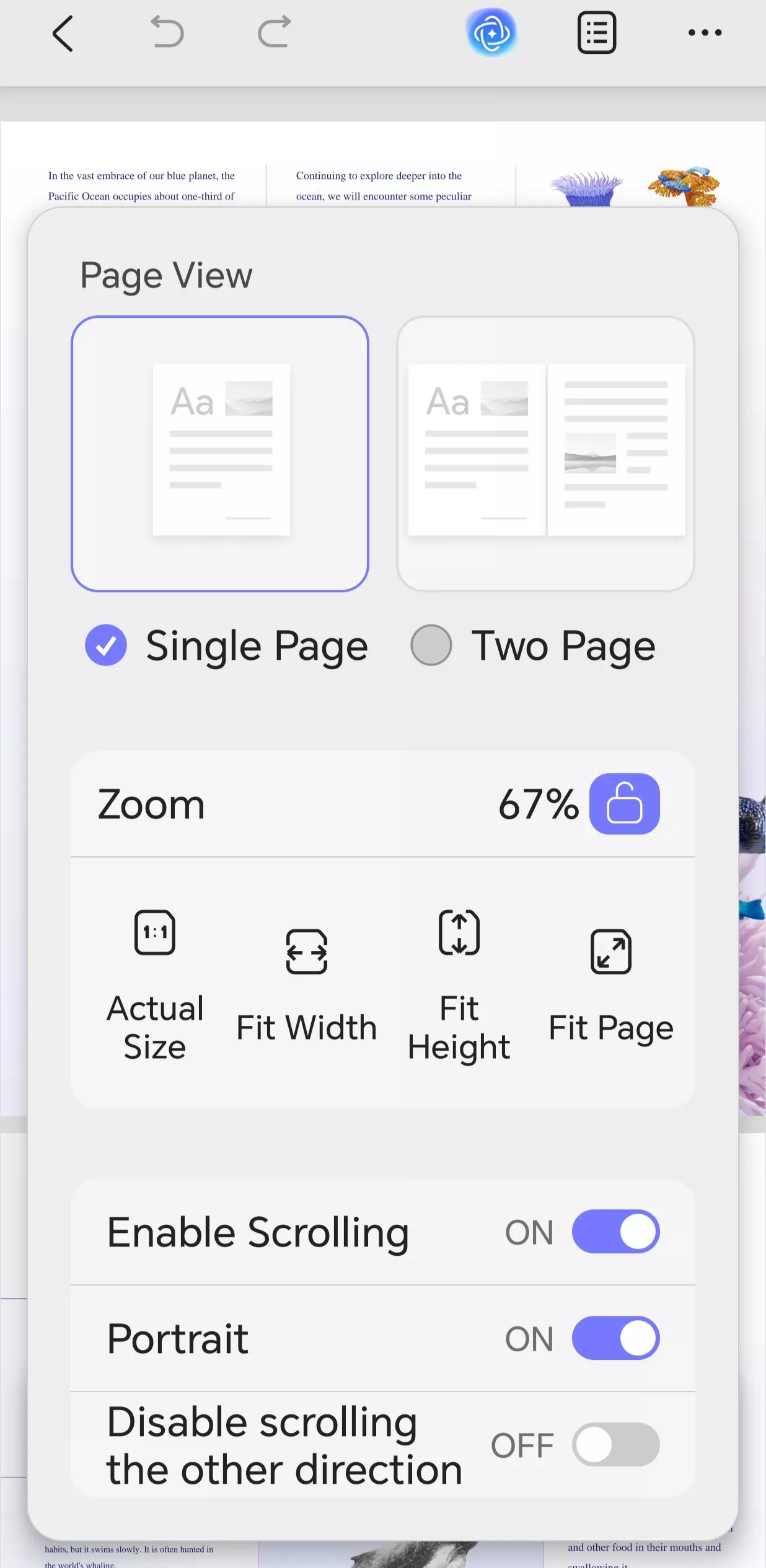
- Superior PDF Viewing Experience: Choose how pages are displayed (single‑page or multi‑page views), enable scrolling and adjust view size quickly with smart zoom options like “Fit Page,” “Actual Size,” and more.
- Convert PDFs to Word, Excel, PowerPoint, or image formats, and create PDFs from other files.
- Cloud integration — easily upload, sync, and share via UPDF Cloud or connect Dropbox.
- Compression tools to reduce file size for sharing or storage.
- Save in Folders: To make document management easy and effective, UPDF allows you to save your PDF files in folders through itself. This makes your management qualities better and more controlled in many different aspects.
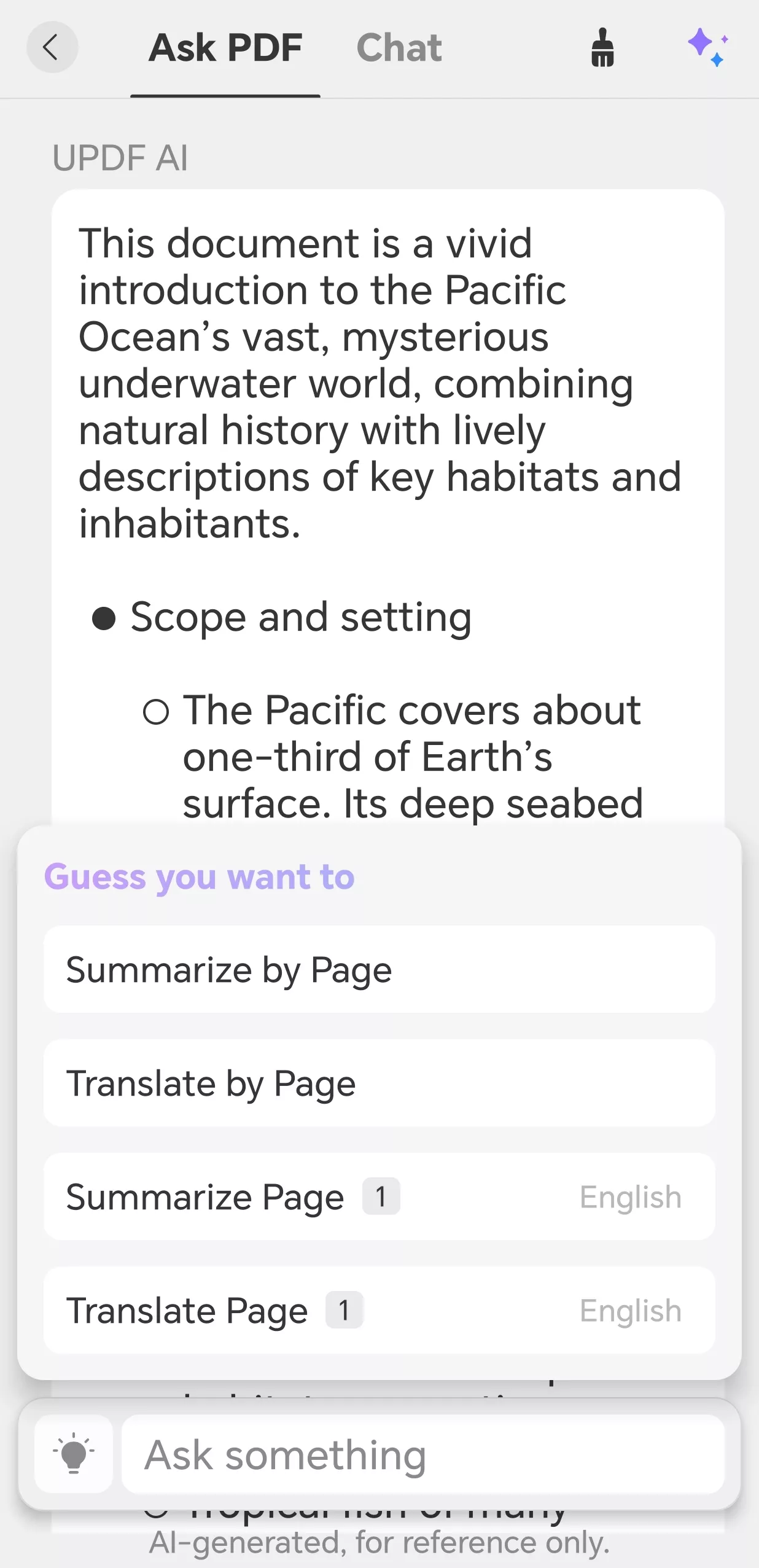
- AI feature set goes beyond simple summarization: UPDF AI on Android helps you summarize lengthy documents instantly, translate text inside PDFs page by page, and chat about content inside a PDF like a personal tutor.
- Price + licensing is exceptionally competitive: UPDF offers annual and lifetime plans that cost significantly less than Adobe Acrobat or other paid editors — with a single license usable across all platforms (Mac, Win, Android and iOS) instead of separate purchases. This makes UPDF a consistent PDF solution whether you’re on mobile or desktop.
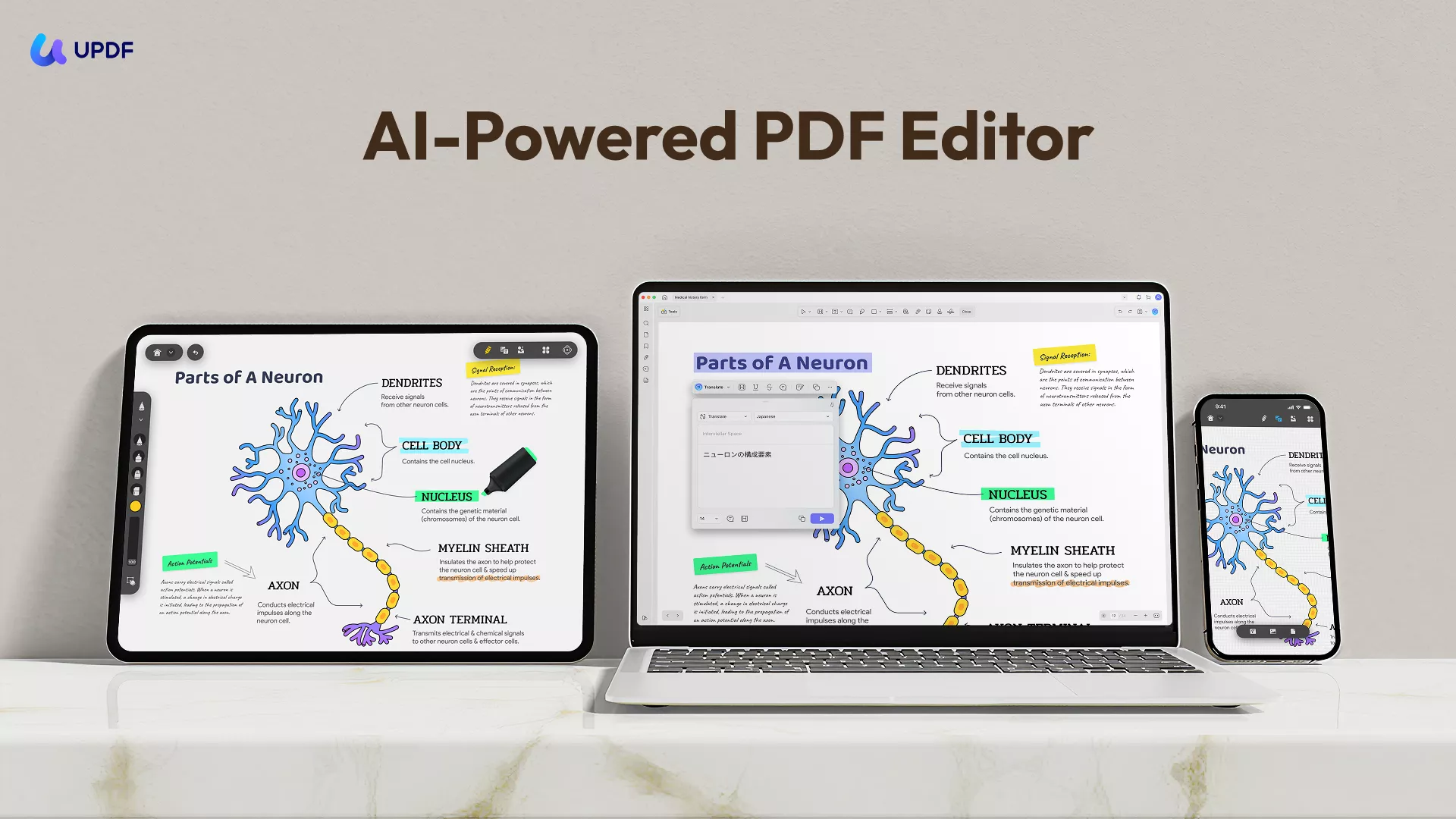
Download UPDF for Android now to annotate, edit, OCR, convert, and manage PDFs effortlessly — all with a smooth viewing experience, cloud integration, AI-powered tools, and affordable cross-platform licensing.
Windows • macOS • iOS • Android 100% secure
2. The Quality of Interface
If you observe the interface of UPDF and other PDF editors on Android devices, you will find a clear difference between the tools. UPDF covers a variety of features in a simple and effective interface. While you have to select a particular document section you wish to edit, the interface is worth the penny for the users.
3. System Operations and Management
As discussed, UPDF comes with support on multiple systems apart from Android. The ability of this tool comes as a great pleasure when it is seen that UPDF allows its users to access the tool from any platform after they buy its license. For clarification, you can access the premium version of UPDF from any system after you purchase a license for the tool. To get UPDF for Android, you can download and install it from Google Play Store.
Windows • macOS • iOS • Android 100% secure
Part 4: FAQs About Changing Default PDF Viewer Android
1. Where is the PDF Viewer on Android?
A few smartphones have default PDF viewers installed on the device, such as Xiaomi devices with a "Mi Viewer." At times, there are Android devices that do not have any PDF viewer installed, so it entirely depends on the device you are using.
2. Which PDF Viewer is Best on Android?
Since you want to change the default PDF viewer Android on your smartphone, UPDF is the best option for its extensive features and basic environment. You can use it to read PDF on android with multiple modes and also can make annotations on PDF when reading.
3. Is There Any Chrome PDF Viewer on Android?
No, there is no PDF viewer associated with Chrome available on Android devices. You must have a dedicated PDF viewer like UPDF to open files on Android.
Conclusion
This article has centered its discussion on the PDF viewers available on Android. Following this, a comprehensive guide was provided on how to change the default PDF viewer in Android. To make the selection easier, UPDF was mentioned among the best tools that can be used to view PDF files to perfection. Those who are confused about finding the right tool should consider using UPDF. Download UPDF here to view PDF now.
Windows • macOS • iOS • Android 100% secure



 Enola Davis


 Enola Miller