UPDF
UPDF
 UPDF for Windows
 UPDF for Mac
 UPDF for iPhone/iPad
 UPDF for Android
 Nomostar
 UPDF AI Online
 UPDF Sign
 IvyCraft
 Edit PDF
 Annotate PDF
 Create PDF
 PDF Form
 Edit links
 Convert PDF
 OCR
OCR PDF to Word
 PDF to Image
 PDF to Excel
 Organize PDF
 Merge PDF
 Split PDF
 Crop PDF
 Rotate PDF
 Protect PDF
 Sign PDF
 Redact PDF
 Sanitize PDF
 Remove Security
 Read PDF
 UPDF Cloud
 Compress PDF
 Print PDF
 Batch Process
 About UPDF AI
 UPDF AI Solutions
 AI User Guide
 FAQ about UPDF AI
 Summarize PDF
 Translate PDF
 Chat with PDF
 Chat with AI
 Chat with image
 PDF to Mind Map
 Explain PDF
 PDF AI Tools
 Image AI Tools
 AI Chat Tools
 AI Writing Tools
 AI Study Tools
 AI Working Tools
 Other AI Tools
 AI Bookmark Generation
 AI Bookmark Summary
 AI Watermark Generation
 AI Background Generation
 AI Sticker Generation
 AI Stamp Generation
 AI Editing Suite
 UPDF Copilot
 AI Page Management
 AI Semantic Search
 PDF to Word
 PDF to Excel
 PDF to PowerPoint
 Enterprise Solution
 Enterprise Sign
 Enterprise AI
 Enterprise Plan
 Enterprise User Guide
 Enterprise Webinar
 IT
IT Education
 Construction
 Financial Service
 Healthcare
 Insurance
 Legal
Legal Manufacturing
 Government
 Researchers & PhDs
 Solopreneurs & Freelancers
 Lawyers & Legal Professionals
 Real Estate Agents & Brokers
 Education Solution
 Customer Stories
 User Guide
 UPDF Tricks
 FAQs
FAQs UPDF Reviews
 Download Center
 Blog
Blog Newsroom
 Tech Spec
 Updates
 UPDF vs. Adobe Acrobat
 UPDF vs. Foxit
 UPDF vs. PDF Expert

Many PDF documents need protection before you share them with others. A quick method to do this is with a PDF watermark adder that adds text and image watermarks. Watermarks protect sensitive legal contracts and copyrighted educational materials while strengthening your brand.
If the document needs a quick cleanup first, remove a stray line of text and replace an old logo. Do this before applying the final watermark to keep your document professional throughout. A full-featured PDF editor or a tool to erase text in PDF lets you finish everything in one session.
Most watermark tools only support plain text, yet AI watermark generators create custom watermark designs instead. Describe your watermark in plain language, and it creates a custom, visually striking brand seal automatically. The design is much harder to copy or remove than a standard text watermark.
Part 1. PDF Watermark Feature Matrix: Choosing Your Best Match
Not every PDF watermark tool offers the same features or flexibility. Compare the top PDF watermark tools below before deciding which one suits your needs:
| Your Security Need | Target Audience | Watermark Type | Recommended Solution |
| Maximum Security and Batch Watermarking | Businesses, legal professionals, and teams | AI-generated, text, image, and PDF watermarks | Jump to UPDF |
| Quick Watermark for non-sensitive PDFs | Students, freelancers, and casual users | Basic text and image watermarks | Jump to iLovePDF |
| Enterprise PDF Workflows | Large organizations and Creative Cloud users | Standard text and image watermarks | Jump to Adobe Acrobat Pro |
Part 2. Deep-Dive Review: The Best PDF Watermark Adder Tools
Every PDF watermark adder offers different watermarking capabilities. Let's explore the top options and see how they compare in real-world testing.
1. UPDF (The AI-Powered & Batch Offline Watermarker)
Best for:
The Game-Changing AI Watermark Agent
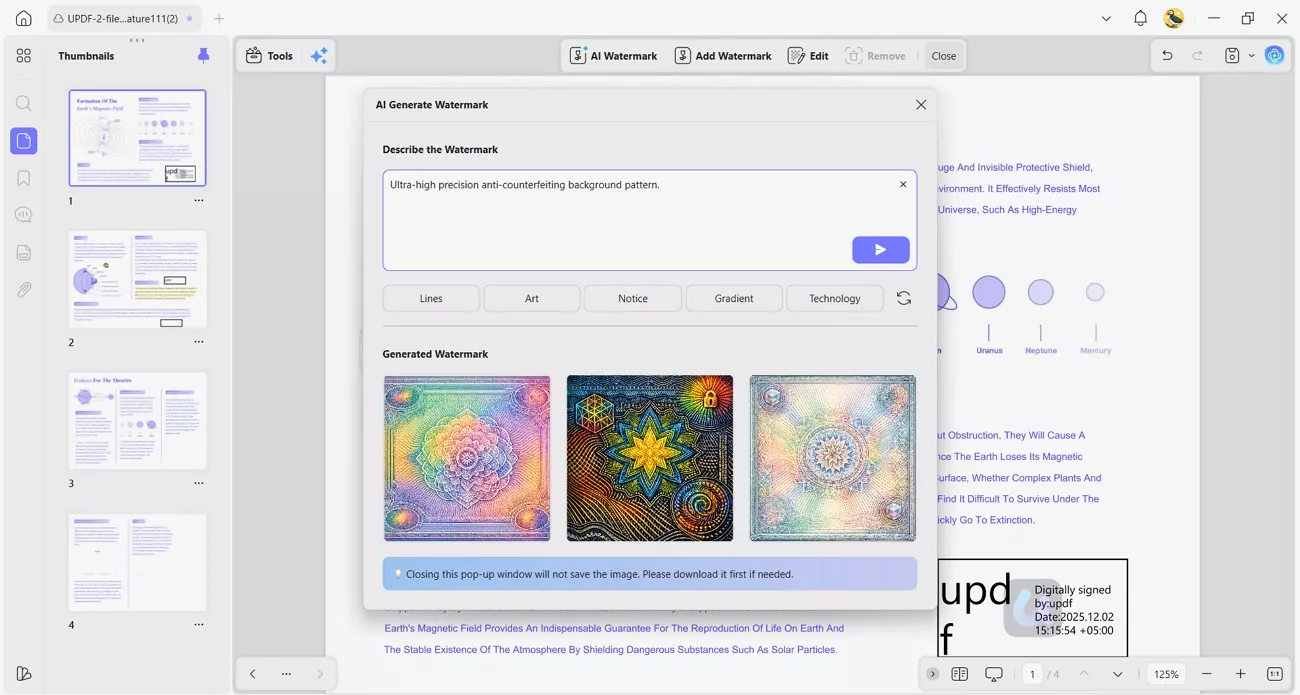
UPDF's AI Watermark Agent was tested using a prompt requesting a semi-transparent copyright seal with a geometric border. Entering the word "SAMPLE" produced a realistic copyright watermark suitable for testing purposes. Within seconds, this agent generated several high-resolution watermark designs ready for immediate use.
One generated design was downloaded and applied directly to the PDF without leaving the software. Compared with manual watermark creation, the entire workflow saved significant time while requiring very little effort.
Full-Spectrum Native Watermark Controls
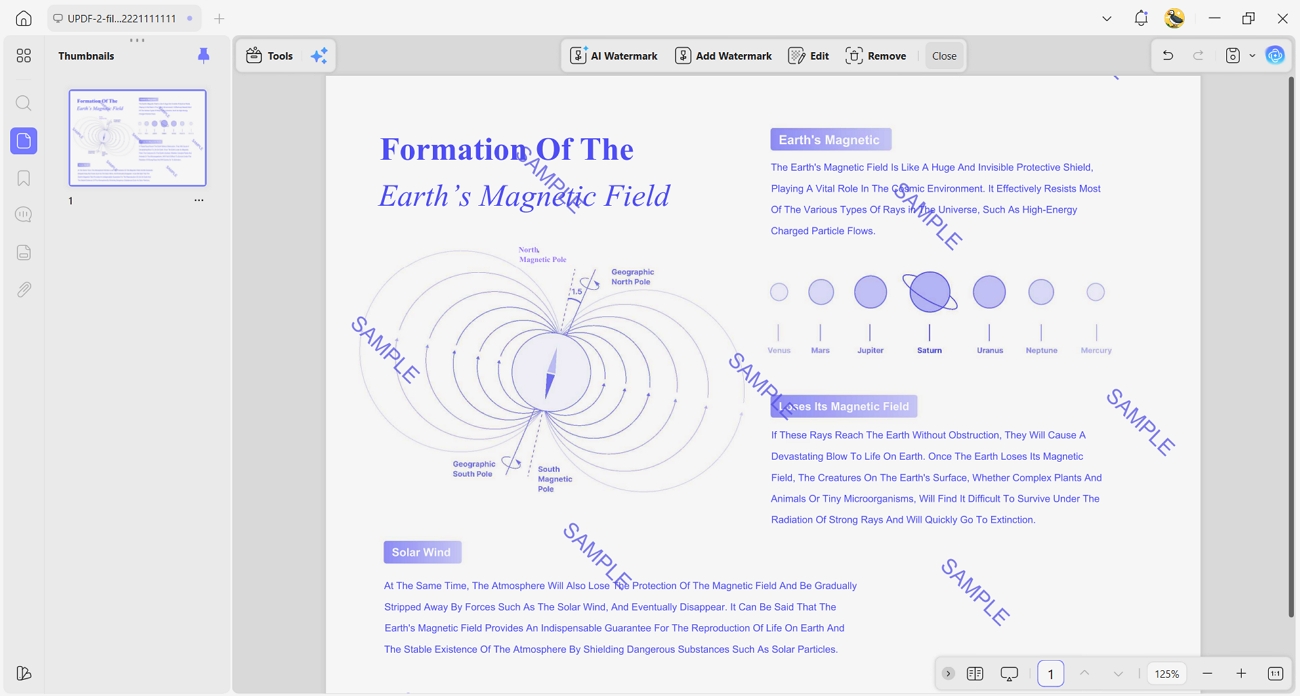
On the traditional side, UPDF's built-in watermark tool was tested with text, image, and PDF watermark options from "Page Tools" > "Watermark" throughout. Switching between watermark types stayed smooth while font, color, opacity, and rotation settings were adjusted without unnecessary configuration changes. Selected page ranges worked correctly and made it easy to exclude the cover page during watermark application.
The 6 built-in tiling presets created repeating watermarks across entire documents, while live preview reflected every adjustment before saving. A watermark layout was starred as a favorite for instant reuse across future documents with ease.
How to Add a Watermark in UPDF
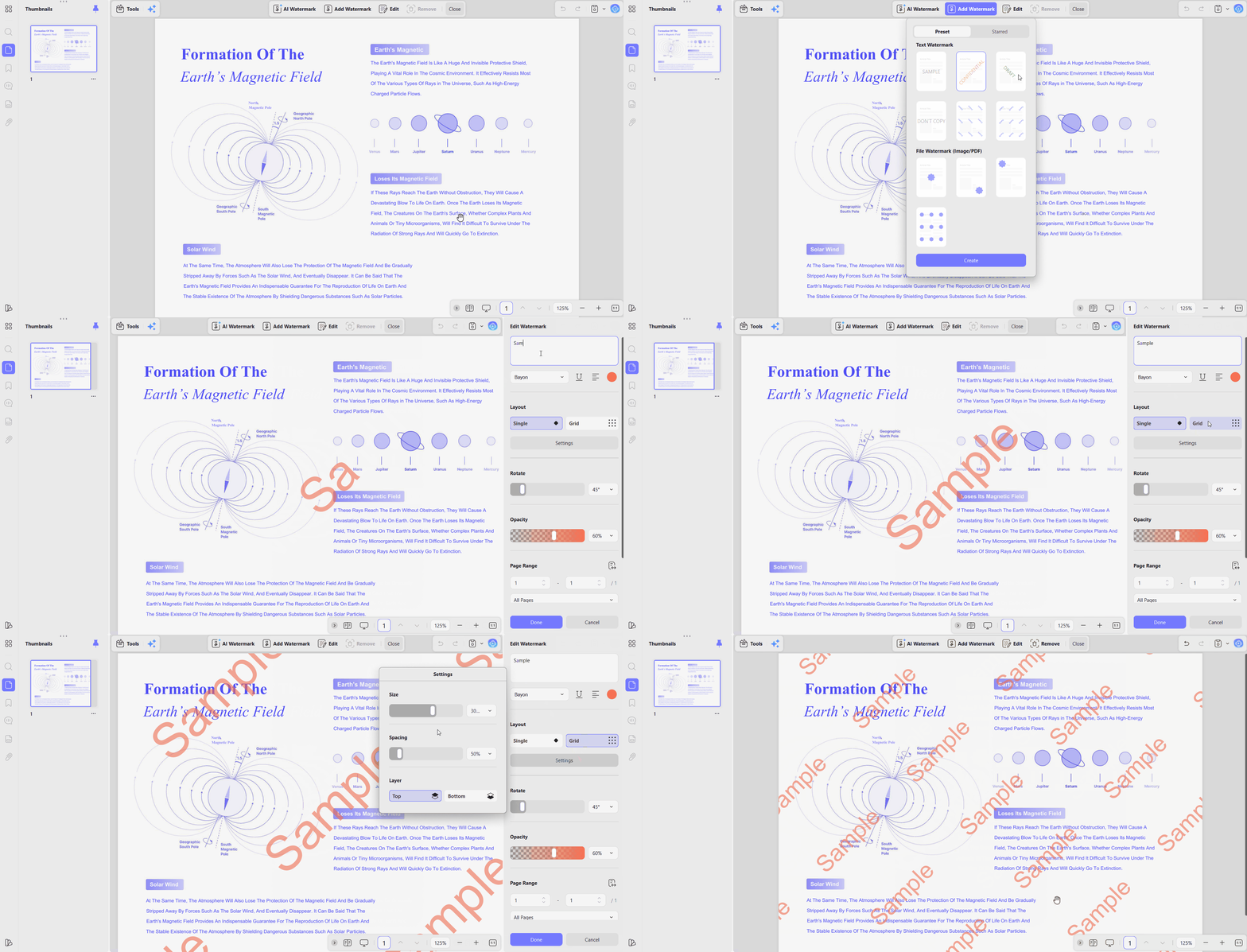
To see how UPDF adds professional watermarks to PDFs, follow the simple steps below:
Step 1. Once you import a PDF into UPDF, press the "Tools" option.
Step 2. After that, choose the "Watermark" option under the "Edit PDF" section. Press the "Add Watermark" section and choose the watermark type you want to add.
Step 3. If you selected a text watermark, enter the text, set the font, color, layout, and opacity. Then, choose the page range and press "Done" to apply the watermark.
2. iLovePDF (Best Lightweight Online Alternative)
Best for:
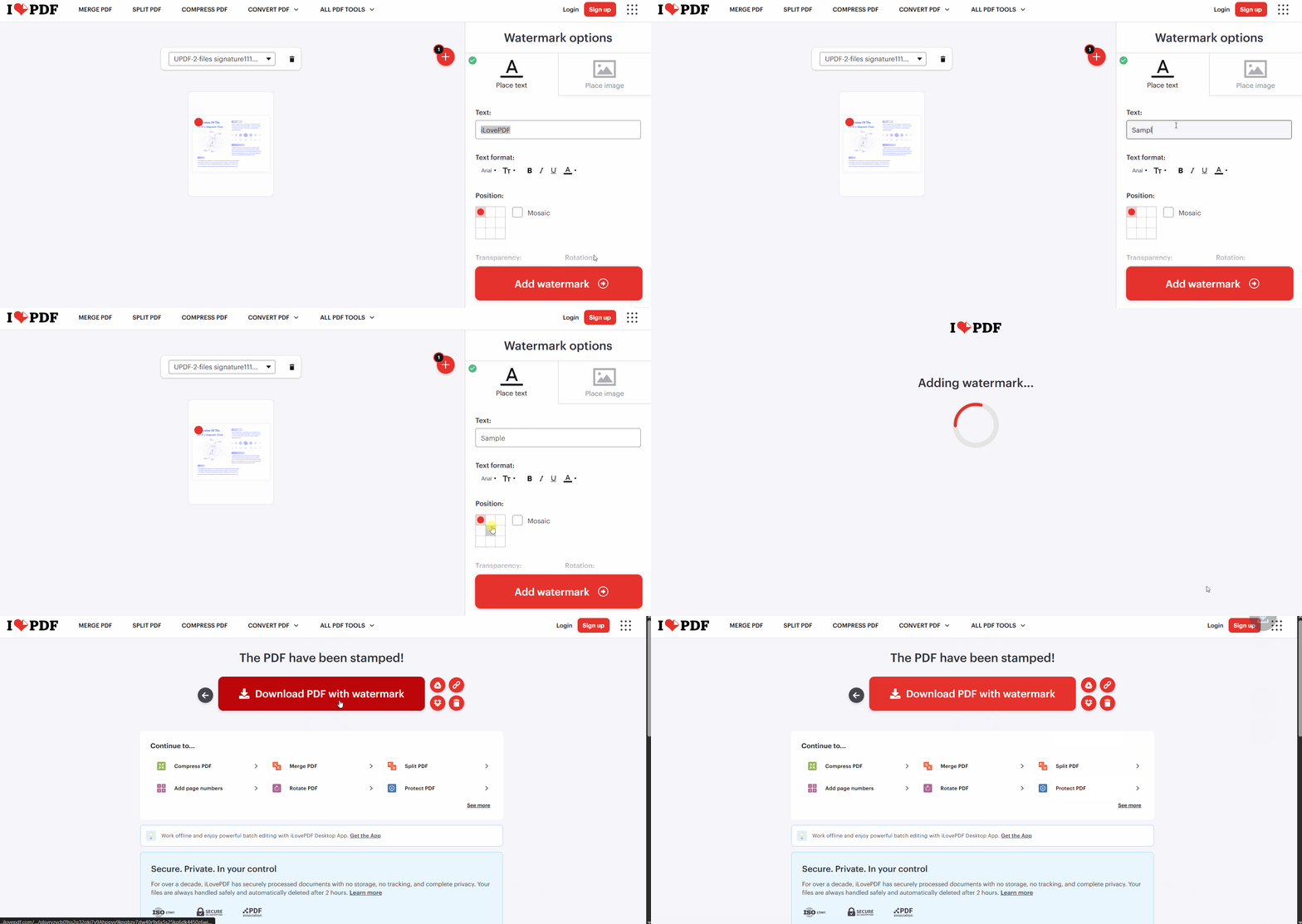
Testing started by uploading a sample PDF through iLovePDF's online PDF watermark adder. Text and image watermarks were added without any installation or account requirements. Opacity and watermark position were adjusted easily before downloading the finished PDF. The overall process felt simple for adding a basic "DRAFT" stamp, but it lacks AI design and intelligent pattern generation.
The biggest limitation is that every document must be uploaded to iLovePDF's cloud servers for processing. According to iLovePDF's policy, uploaded files are deleted within 2 hours, but documents still leave your device. This makes it suitable for public files but unsuitable for financial statements, corporate secrets, or personal identification data.
For a closer look at these and similar no-install options, see our guide to add a watermark to a PDF online.
3. Adobe Acrobat Pro (The Traditional Enterprise Standard)
Best for:
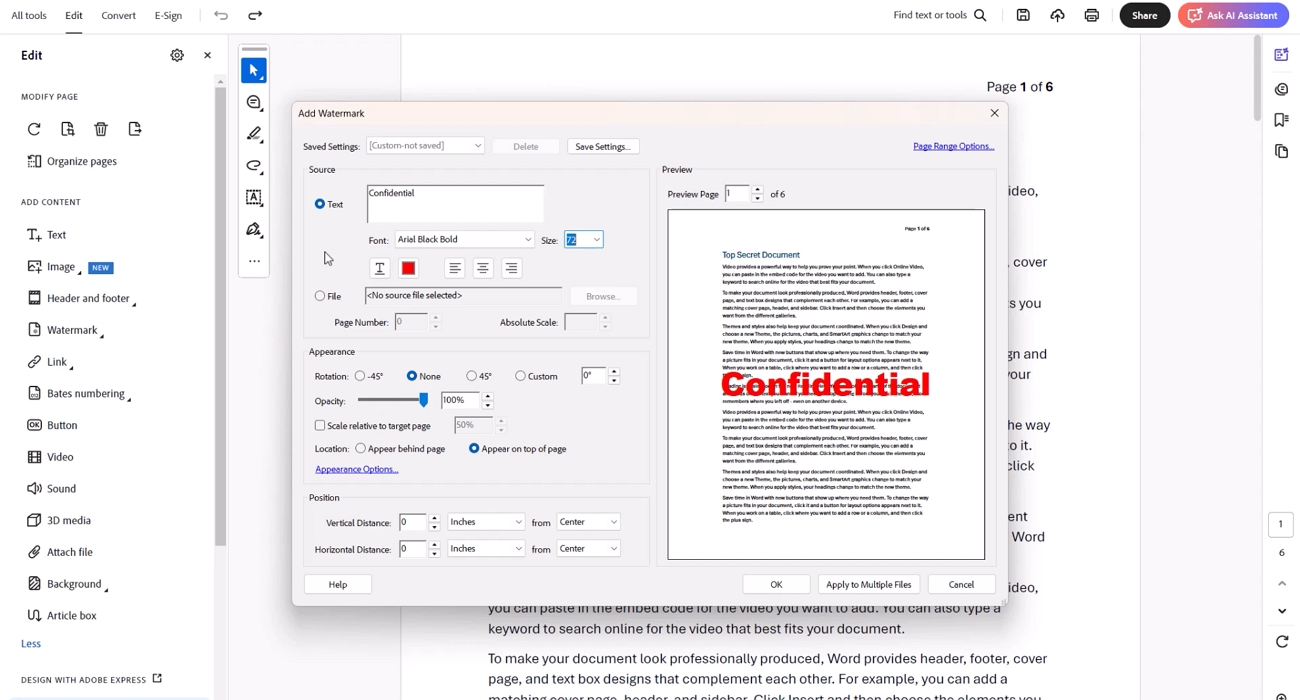
We tested by adding a watermark through "Edit" > "Watermark" > Add using a sample PDF document. Text and image watermark options worked smoothly with precise controls for opacity, rotation, and watermark placement. Batch watermarking also worked reliably through Acrobat's Action Wizard after completing a few additional setup steps. Compared with UPDF, Acrobat's PDF watermark adder felt more traditional and required more navigation before reaching watermark settings.
Acrobat does not include AI watermark generation for creating custom watermark designs. Custom watermark graphics must be created in Illustrator before importing them for use. Its $20 to $30 monthly subscription is expensive unless your organization already uses Creative Cloud.
Part 3. Beyond Watermarking: UPDF as Your All-in-One AI PDF Companion
UPDF is more than a PDF watermark remover and includes many other useful PDF tools.
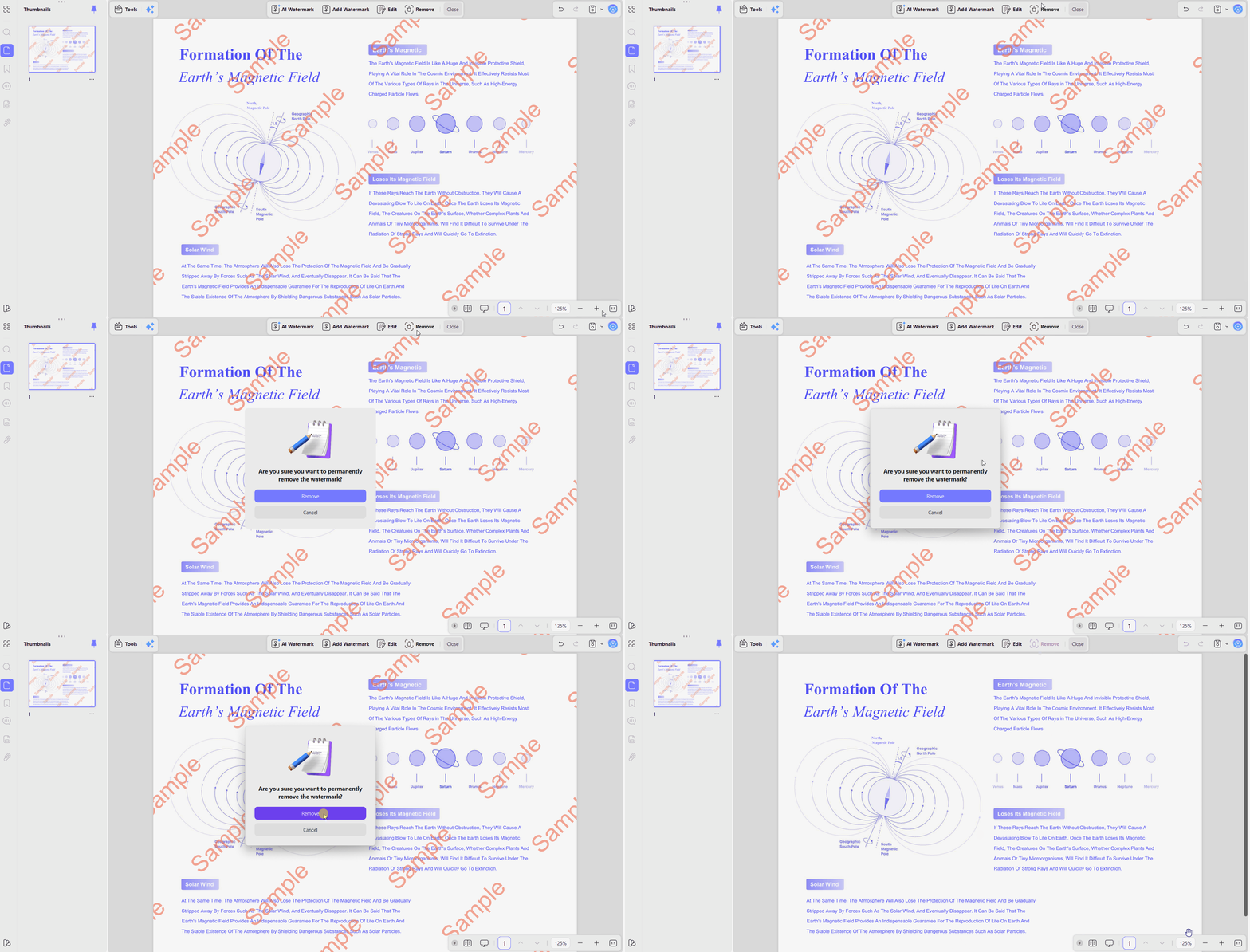
- Watermark Removal: UPDF removes watermarks from PDFs with a single click using UPDF's watermark removal tool. This feature cleans documents before sharing and applying new branding across important files.
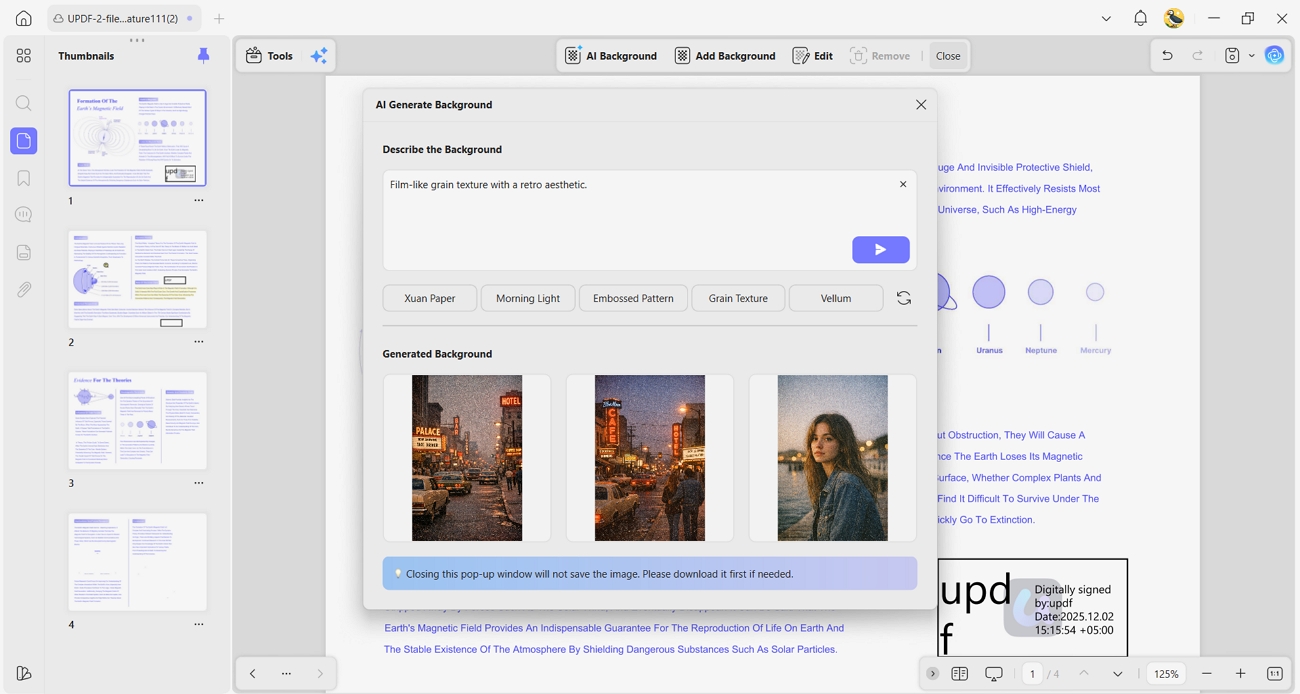
- AI Backgrounds & Customization: Customize PDF backgrounds using solid colors, imported images, or AI-generated designs created from simple prompts. These background options help create professional documents without relying on separate design software or additional editing tools.
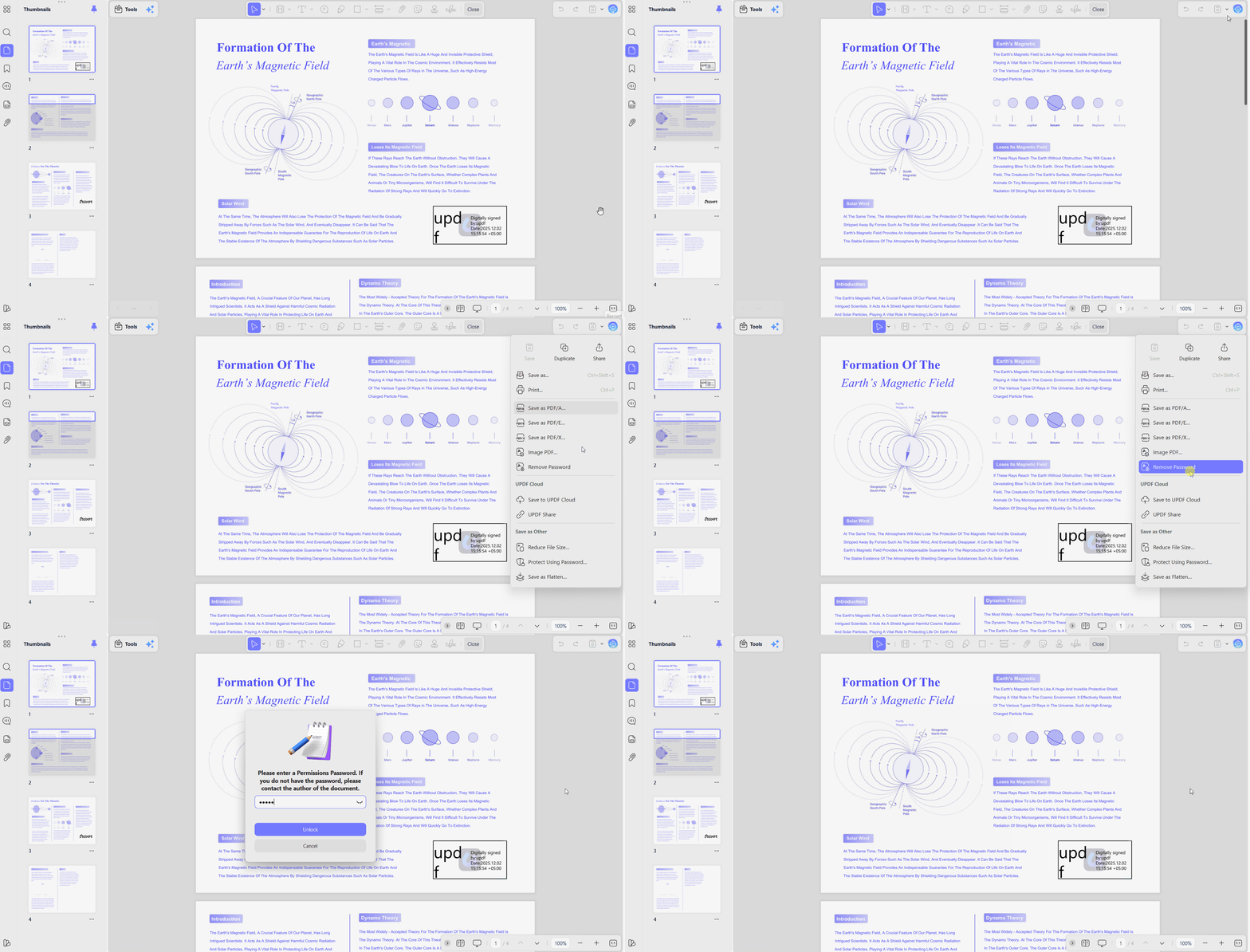
- Advanced Security Cleanup: Remove passwords and editing restrictions from authorized PDF documents using UPDF's professional remove password tool. This makes protected documents easier to edit before sharing updated versions with colleagues or trusted clients.
For a broader look at fitting UPDF into a team's workflow, see the UPDF for professional workflows guide or this walkthrough video:
Part 4. Frequently Asked Questions
How do I add a logo watermark to a PDF for free?
To do this, use UPDF and open "Page Tools, " access "Watermark, " and import your logo image. Adjust its position and size, then save the PDF with the watermark applied.
Can someone easily remove a watermark from my PDF?
Standard watermarks can sometimes be removed with the right PDF editor. Use UPDF to add your watermark, then select Flatten PDF before exporting. This permanently places the watermark into the page and prevents easy removal.
What is an AI PDF watermark creator?
An AI PDF watermark creator lets you describe the watermark you want using simple text. UPDF's AI Watermark Agent then creates a custom copyright seal or protection label ready to use.
Conclusion
In conclusion, a PDF watermark adder helps protect documents, but free online tools like iLovePDF are best for quick, non-sensitive edits. For professional workflows, batch processing, and AI-powered branding, UPDF stands out as the best choice. Ready to secure your intellectual property? Download UPDF today and get started.
Windows • macOS • iOS • Android 100% secure






 Enrica Taylor
 Engelbert White
 Lizzy Lozano
 Enola Miller