 UPDF
UPDF
 UPDF for Windows
 UPDF for Mac
 UPDF for iPhone/iPad
 UPDF for Android
 Nomostar
 UPDF AI Online
 UPDF Sign
 IvyCraft
 Edit PDF
 Annotate PDF
 Create PDF
 PDF Form
 Edit links
 Convert PDF
 OCR
OCR PDF to Word
 PDF to Image
 PDF to Excel
 Organize PDF
 Merge PDF
 Split PDF
 Crop PDF
 Rotate PDF
 Protect PDF
 Sign PDF
 Redact PDF
 Sanitize PDF
 Remove Security
 Read PDF
 UPDF Cloud
 Compress PDF
 Print PDF
 Batch Process
 About UPDF AI
 UPDF AI Solutions
 AI User Guide
 FAQ about UPDF AI
 Summarize PDF
 Translate PDF
 Chat with PDF
 Chat with AI
 Chat with image
 PDF to Mind Map
 Explain PDF
 PDF AI Tools
 Image AI Tools
 AI Chat Tools
 AI Writing Tools
 AI Study Tools
 AI Working Tools
 Other AI Tools
 AI Bookmark Generation
 AI Bookmark Summary
 AI Watermark Generation
 AI Background Generation
 AI Sticker Generation
 AI Stamp Generation
 AI Editing Suite
 UPDF Copilot
 AI Page Management
 AI Semantic Search
 PDF to Word
 PDF to Excel
 PDF to PowerPoint
 Enterprise Solution
 Enterprise Sign
 Enterprise AI
 Enterprise Plan
 Enterprise User Guide
 Enterprise Webinar
 IT
IT Education
 Construction
 Financial Service
 Healthcare
 Insurance
 Legal
Legal Manufacturing
 Government
 Researchers & PhDs
 Solopreneurs & Freelancers
 Lawyers & Legal Professionals
 Real Estate Agents & Brokers
 Education Solution
 Customer Stories
 User Guide
 UPDF Tricks
 FAQs
FAQs UPDF Reviews
 Download Center
 Blog
Blog Newsroom
 Tech Spec
 Updates
 UPDF vs. Adobe Acrobat
 UPDF vs. Foxit
 UPDF vs. PDF Expert

Quick Answer:
Do you have important PDF documents that need to be protected from unauthorized access? PDF format remains the most effective way to create and share PDF documents. Yet, sometimes it is necessary to ensure that the PDF documents you create do not fall into the wrong hands. The best way to do that is to password-protect the PDF document.
Adobe Reader and Adobe Acrobat, the most popular PDF tools in the market can help you protect PDF documents in this way. This article looks at how you can password-protect a PDF with and without Adobe Acrobat.
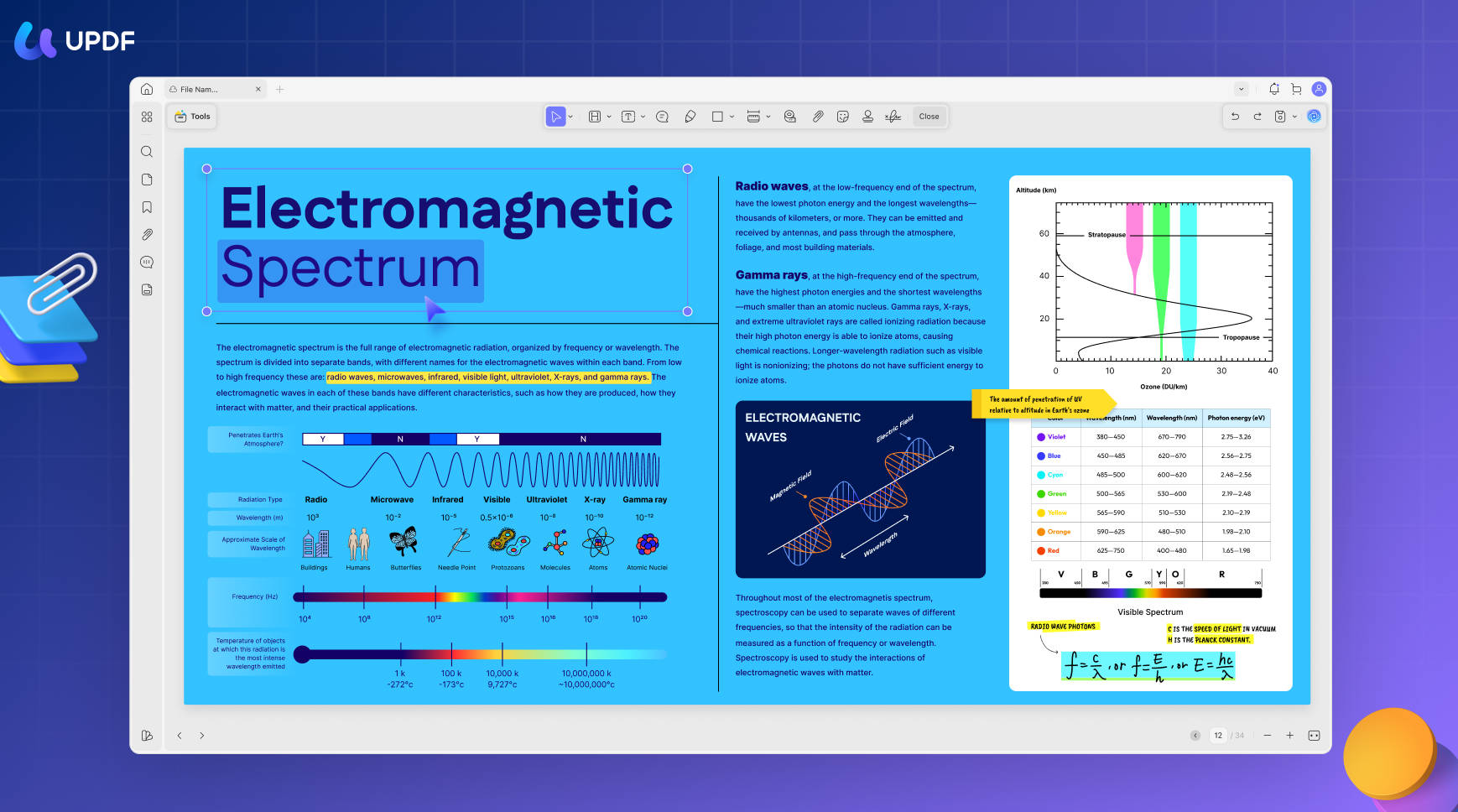
It helps to distinguish opening the PDF from making changes to its contents. You can use the following video as a visual guide to protecting PDFs in UPDF.
Part 1. Which Password-Protection Method Should You Use?
| Your situation | Best route | What it can protect | Main limitation |
|---|---|---|---|
| You only have free Acrobat Reader | Adobe Acrobat online | Opening the PDF | Uploads the file; no granular print/edit/copy controls |
| You already subscribe to Acrobat Pro | Acrobat Pro desktop | Opening plus editing/printing/copying | Paid desktop workflow |
| You want both password types without uploading the PDF | UPDF desktop | Opening plus editing/printing/copying | Free saved output may carry a trial watermark |
If the PDF contains a contract, financial statement, ID document, or other confidential material, prefer a local desktop method. An online tool must receive the file before it can encrypt it.
Part 2: Can You Password-Protect PDFs with Acrobat Reader for Free?
No. The free Adobe Acrobat Reader is mainly for viewing, commenting on, filling, signing, and printing PDFs. It can ask you for a password when you open a protected PDF, and it respects restrictions set by the file's author, but it does not create password security for a PDF.
There is also no product called "Adobe Reader Pro." The paid desktop product is Adobe Acrobat Pro. If Reader shows an upgrade prompt when you choose an advanced protection tool, that prompt is directing you to Acrobat, not unlocking a hidden free Reader feature.
Best for:
- opening and reading a PDF that someone else has already protected.
Not for:
- adding a new open password or permissions password to a PDF you created.
Part 3. How to Password Protect a PDF for Free Without Acrobat
As we've mentioned in the previous part, Adobe Reader does not provide an option to password-protect PDFs. And if you don't have access to Adobe Acrobat, UPDF is a good alternative. This software has numerous features to help you manage PDFs in all ways, including password protection for documents with open passwords or permissions passwords, checking the security of your documents, editing, annotating, OCR, summarizing, etc. Try this PDF password protector now by downloading it.
Windows • macOS • iOS • Android 100% secure
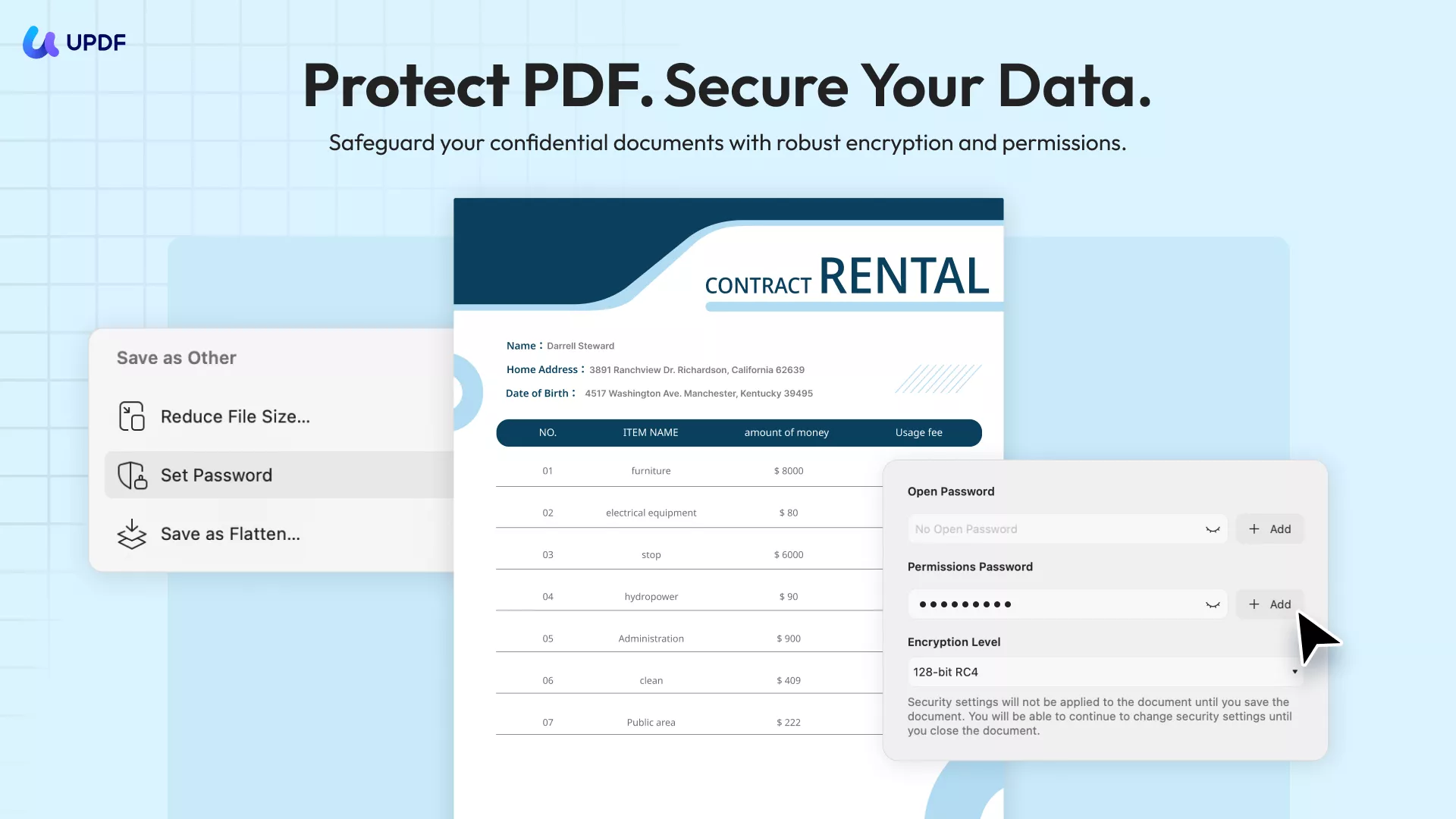
Password protecting a PDF document using UPDF is very easy, and just use these simple steps:
Step 1: Open UPDF on your computer and then open the PDF document that you want to password-protect by clicking the "Open File" button.
Step 2: With the document opened, click on the narrow next to "Save" and choose the "Protect Using Password" icon on the right toolbar.
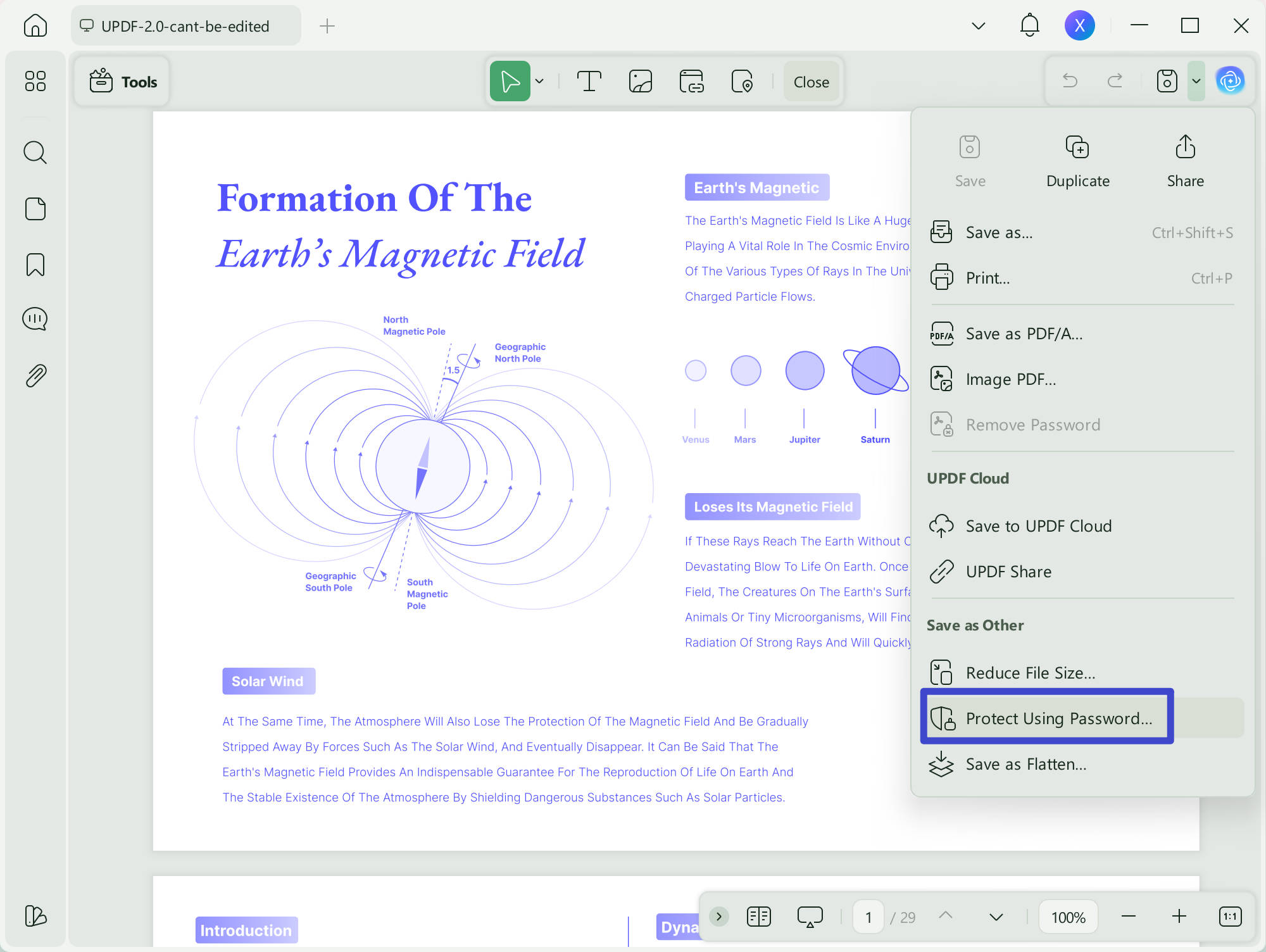
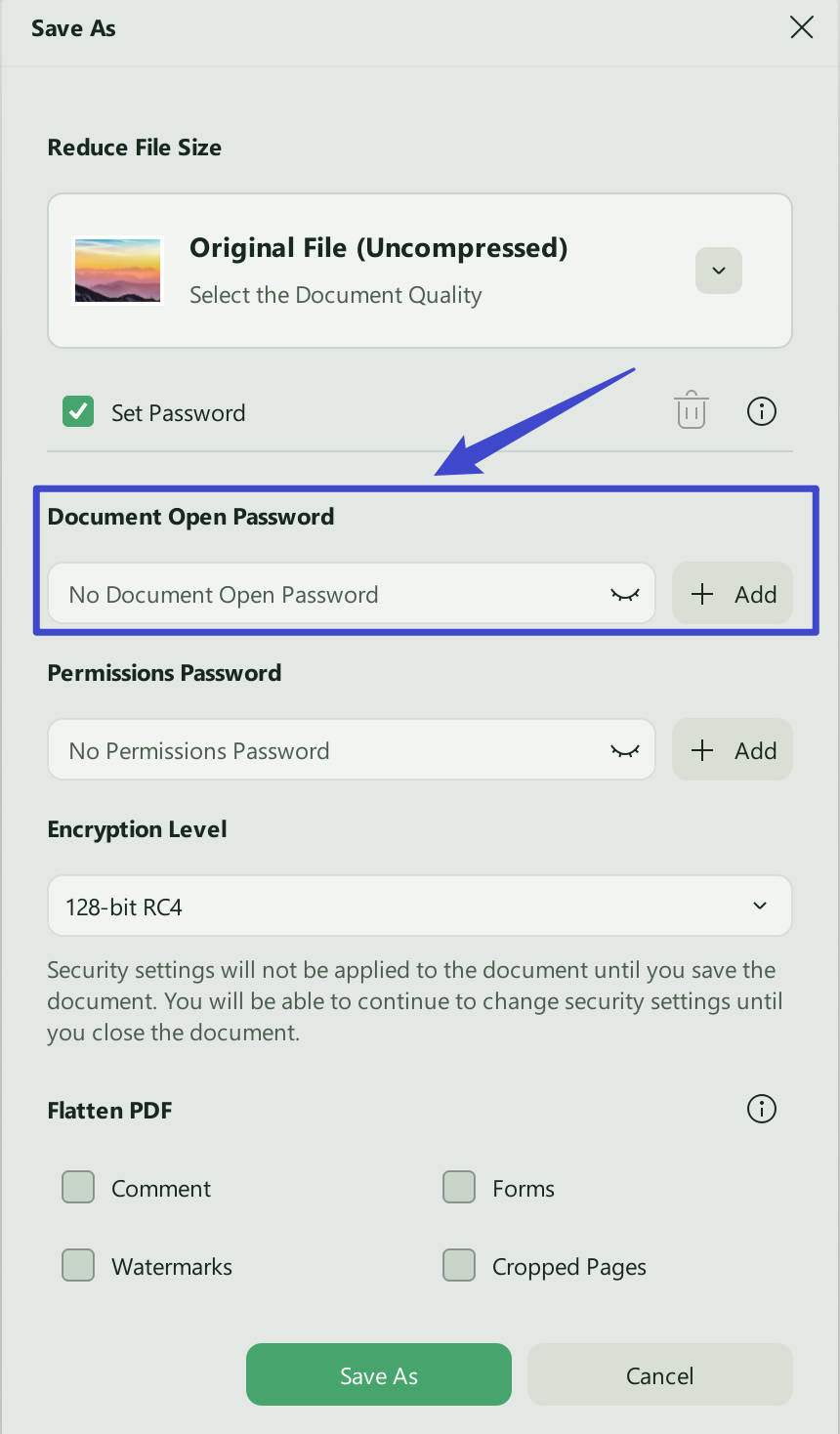
Step 3: To add an Open Password to the PDF, select the "Document Open Password" option in the popup that appears.
Step 4: If you want to add a permissions password that will restrict editing, choose the "Permissions Password" option in the popup.
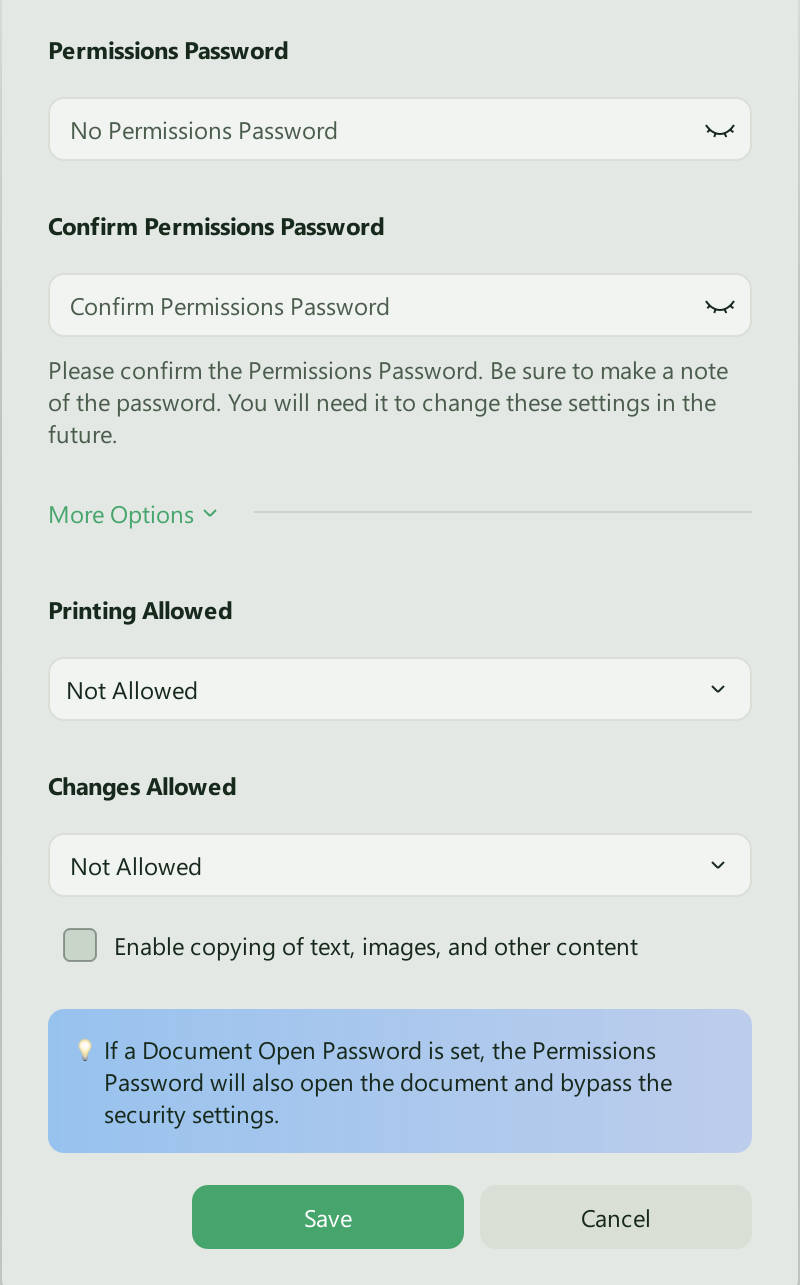
The Permissions Password restricts various functions including printing, editing, and copying by default. If you would like to customize this option, click on "More Options" to add more restrictions or even set permissions for editing, printing, and copying separately.
Most importantly, you can enter the password with UPDF on iOS and Android because UPDF is compatible with Windows, Mac, iOS, and Android.
In addition to the password protection feature, UPDF offers a range of other valuable functions for enhanced PDF management. Here are some of the key features you can access with UPDF:
- It is one of the best PDF readers in the market with intuitive navigation tools and annotation tools including text boxes, shapes, and highlighters.
- It offers many different editing tools to edit the text, images, links, font, font color, font size, and background in the PDF.
- It supports creating, filling, and signing PDF forms digitally.
- With the accurate OCR feature, you can turn the scanned PDFs into editable format.
- It is also a good way to organize the pages on any PDF document, allowing you to reorder, replace, rotate, delete, and even add new PDF pages to the PDF document.
- It converts PDF to other formats, such as Word, Excel, PPT, HTML, XML, Image, etc.
- It has a UPDF AI feature to help you analyze, summarize, translate, explain, and rewrite your PDF easily.
After learning about UPDF's key features, why not give it a try? Download and test out the features now!
Windows • macOS • iOS • Android 100% secure
Part 4: How to Password Protect PDF with Acrobat Online for Free
Best for:
- a non-sensitive PDF that only needs an open password and a quick browser workflow.
Not for:
- restricting printing, copying, or editing, or keeping the entire process on your device.
You can also use the free Adobe online tool to add a password to your PDF document. Here's how it works:
Step 1: Go to the Acrobat online protection tool on any browser to access the password protection tool you need.
Step 2: Click "Select a File" to import the PDF file you want to protect.
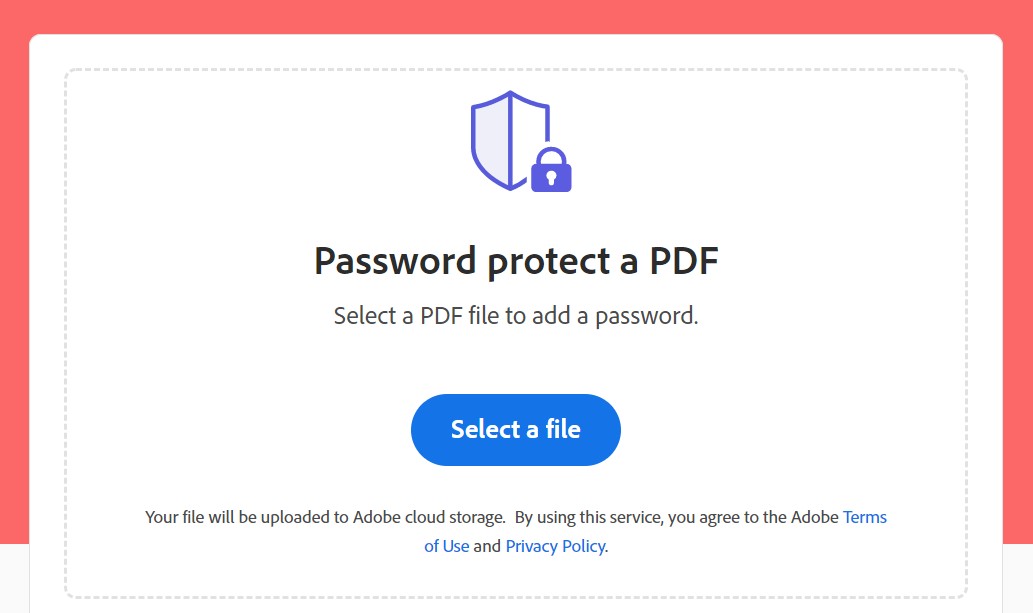
Step 3: On the next screen, set a password to protect the PDF. Enter the password again to confirm and then click "Set Password".
Step 4: You can then click on "Download" to get the password-protected PDF on your computer.
Part 5: How to Password Protect a PDF with Adobe Acrobat
Best for:
- existing Acrobat Pro subscribers who need Adobe's full desktop security settings.
Not for:
- users expecting the free Reader app to create encryption.
In addition to the two free methods mentioned above, there is a paid option to apply password protection to PDFs using Adobe Acrobat. Follow these steps to utilize this method:
Step 1: Open the PDF file that you want to protect in Acrobat. With the document open, choose "Tools > Protect." And then choose "Protect Using Password".
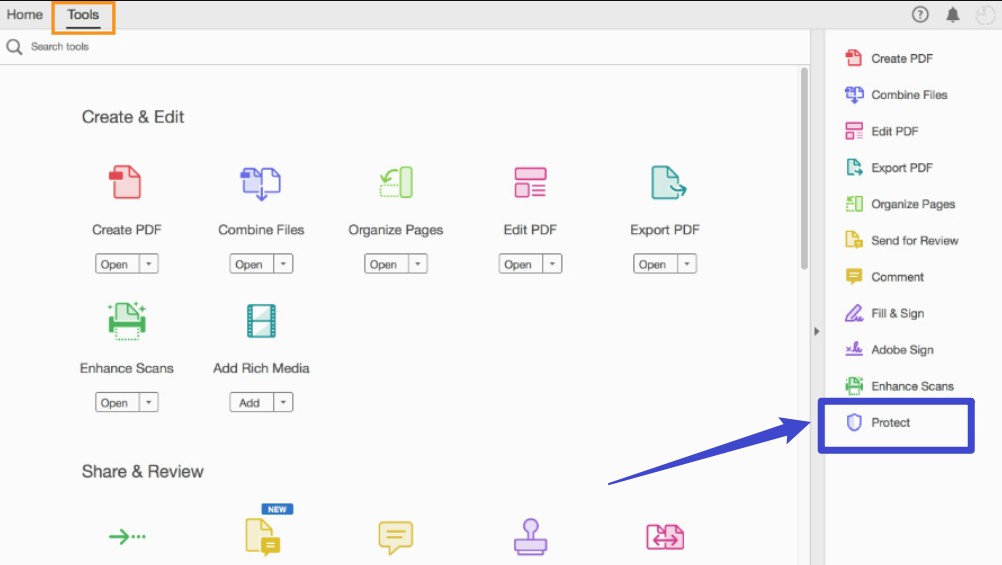
Step 2: Choose if you want to simply restrict editing with a password or if you would like to encrypt the entire file with a password or viewing.

Step 3: Set the password you would like to use as desired.
Step 4: Click "Apply" to save the changes made to the document.
Part 6. Open Password vs. Permissions Password
| Password type | What the recipient experiences | Use it when | Security boundary |
|---|---|---|---|
| Open password (user password) | The PDF will not open without the password | The file contents must stay private | Anyone given the password can view and potentially reshare the content |
| Permissions password (owner password) | The PDF opens, but selected actions are blocked | Recipients may read but should not edit, copy, or print | Some tools may ignore or remove restrictions; screenshots cannot be prevented |
| Both | The recipient must unlock the PDF, then follows the permitted-action rules | You need access control and usage restrictions | Passwords do not permanently remove sensitive information |
Think of an open password as the lock on the front door and a permissions password as rules posted inside the room. If information must never reach the recipient, remove it with true redaction before adding either password.
Part 7. Adobe Reader, Acrobat Pro, Adobe Online, or UPDF?
| Tool | Add open password | Add permissions password | Local processing | Cost fit |
|---|---|---|---|---|
| Adobe Acrobat Reader | No | No | Yes | Free viewer only |
| Adobe Acrobat online | Yes | No | No | Free browser task |
| Adobe Acrobat Pro | Yes | Yes | Yes | Paid Adobe workflow |
| UPDF desktop | Yes | Yes | Yes | Free trial; clean final output requires Pro |
Choose based on the protection you actually need. Reader is suitable for consuming protected files, Adobe online is convenient for a basic open password, and Acrobat Pro or UPDF is the correct route for local encryption with permissions controls.
FAQs
Q1: Is Adobe's online PDF password tool really free?
Yes, the basic online tool is free. It adds an open password in a browser. Because the PDF is uploaded for processing, use a local tool for documents that should remain on your device.
Q2: Does a PDF password stop copying and printing?
Only a permissions password can restrict those actions. An open password controls access to the file; it does not define what an authorized reader may do after opening it.
Q3: Can I remove a PDF password later?
Yes, if you know the password and have authorization. Open the secured PDF in a compatible editor, remove its security settings, and save a new copy.
Conclusion
You cannot password protect a PDF in the free Adobe Acrobat Reader app. Use Adobe Acrobat online for a basic open password, Acrobat Pro for Adobe's full local controls, or UPDF when you need local open-password and permissions-password settings without an Acrobat subscription.
For sensitive files, choose the local route, retain an unprotected master, and send the password through a different channel from the PDF.
Download UPDF for free to add the right password type on your device — installation is free, and Pro removes the trial watermark from exported files.
Windows • macOS • iOS • Android 100% secure




 Enrica Taylor
  Enid Brown
 Enola Davis