 UPDF
UPDF
 UPDF for Windows
 UPDF for Mac
 UPDF for iPhone/iPad
 UPDF for Android
 Nomostar
 UPDF AI Online
 UPDF Sign
 IvyCraft
 Edit PDF
 Annotate PDF
 Create PDF
 PDF Form
 Edit links
 Convert PDF
 OCR
OCR PDF to Word
 PDF to Image
 PDF to Excel
 Organize PDF
 Merge PDF
 Split PDF
 Crop PDF
 Rotate PDF
 Protect PDF
 Sign PDF
 Redact PDF
 Sanitize PDF
 Remove Security
 Read PDF
 UPDF Cloud
 Compress PDF
 Print PDF
 Batch Process
 About UPDF AI
 UPDF AI Solutions
 AI User Guide
 FAQ about UPDF AI
 Summarize PDF
 Translate PDF
 Chat with PDF
 Chat with AI
 Chat with image
 PDF to Mind Map
 Explain PDF
 PDF AI Tools
 Image AI Tools
 AI Chat Tools
 AI Writing Tools
 AI Study Tools
 AI Working Tools
 Other AI Tools
 AI Bookmark Generation
 AI Bookmark Summary
 AI Watermark Generation
 AI Background Generation
 AI Sticker Generation
 AI Stamp Generation
 AI Editing Suite
 UPDF Copilot
 AI Page Management
 AI Semantic Search
 PDF to Word
 PDF to Excel
 PDF to PowerPoint
 Enterprise Solution
 Enterprise Sign
 Enterprise AI
 Enterprise Plan
 Enterprise User Guide
 Enterprise Webinar
 IT
IT Education
 Construction
 Financial Service
 Healthcare
 Insurance
 Legal
Legal Manufacturing
 Government
 Researchers & PhDs
 Solopreneurs & Freelancers
 Lawyers & Legal Professionals
 Real Estate Agents & Brokers
 Education Solution
 Customer Stories
 User Guide
 UPDF Tricks
 FAQs
FAQs UPDF Reviews
 Download Center
 Blog
Blog Newsroom
 Tech Spec
 Updates
 UPDF vs. Adobe Acrobat
 UPDF vs. Foxit
 UPDF vs. PDF Expert

Quick Answer:
The important choice is whether the file must stay on the Linux device. Ghostscript processes the PDF locally and gives you direct control over compression quality. Smallpdf avoids terminal commands but uploads the document for processing.
Part 1. Which Linux PDF Compression Method Should You Use?
| Your PDF and priority | Recommended method | Main limitation | Best for |
|---|---|---|---|
| Scanned or image-heavy PDF; size matters most | Ghostscript | Rewrites the PDF and may reduce image quality | Scanned reports, slide decks, portfolios |
| No terminal access; browser upload is acceptable | Smallpdf | File leaves the device; stronger modes require Pro | Personal, non-sensitive PDFs on any Linux distro |
| You also work on Windows, Mac, iOS, or Android | UPDF | No native Linux desktop version | A visual four-level workflow across supported devices |
Use Ghostscript when privacy or local control matters. Use Smallpdf only after deciding that uploading the document is appropriate.
Part 2. Compress PDF on Linux with Command Line
The first method you can try to compress PDF in Linux is using Ghostscript. This is a command-line tool that comes in Debian or Ubuntu. This software recognizes the file type and makes it compatible so your Linux device can read it.
Best for:
- reducing an image-heavy 'site_audit_photos.pdf' before an email or portal upload.
Not for:
- a signed, form-enabled, or heavily linked PDF when every interactive element must remain unchanged; Ghostscript tries to preserve non-page information, but not every PDF object survives reconstruction.
You can follow the steps given below to compress PDF with the command line.
Step 1: First, open the terminal of your Linux system by pressing "Ctrl + Alt + T."
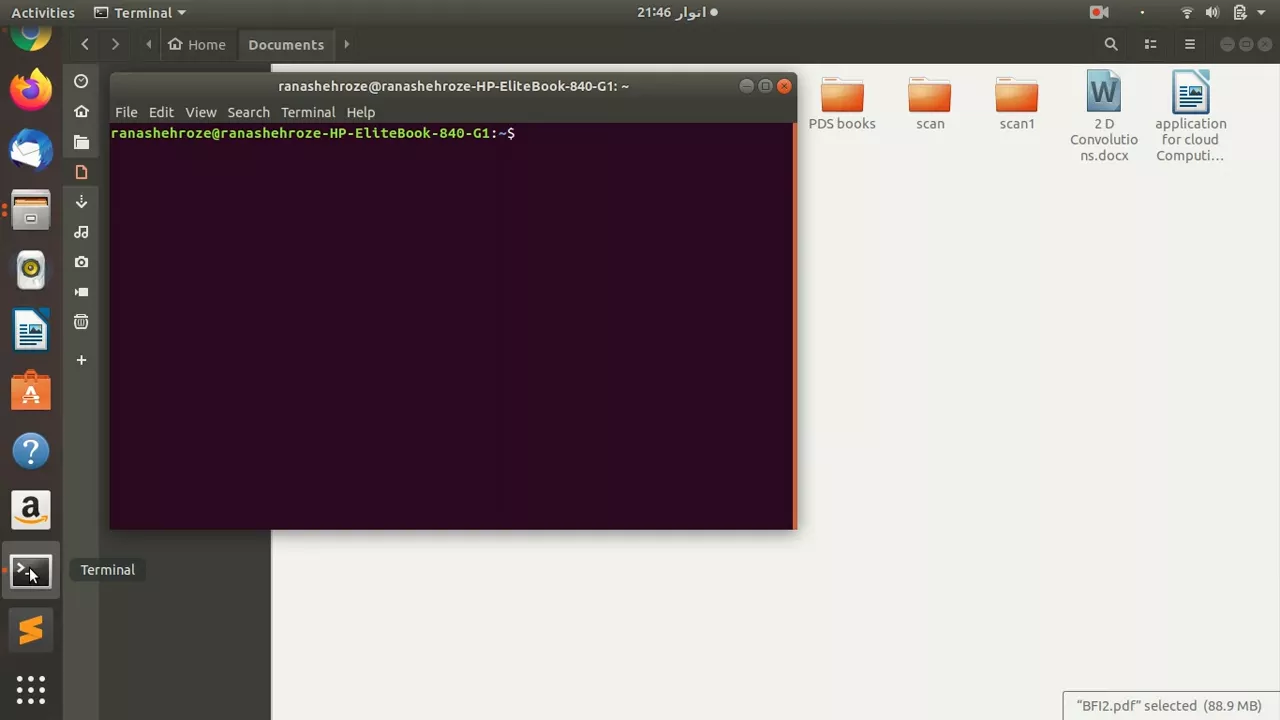
Step 2: If you don't have Ghostscript installed on your system, insert the following command and hit enter. It might ask for your password.
Command: sudo apt-get install ghostscript
Step 3: You can enter the "cd" command to open the directory containing your PDF file.
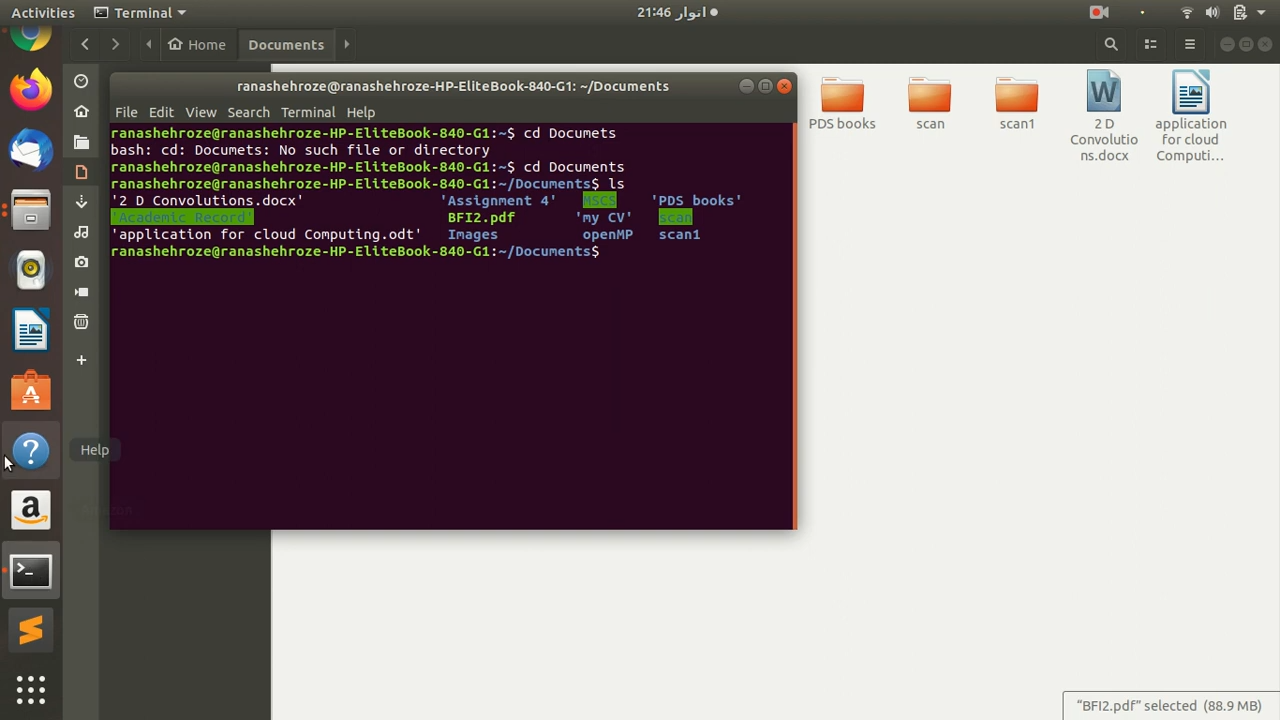
Step 4: Then, enter the following command. Replace the "input.pdf" with the file name you want to compress and "output.pdf" with the desired output name.
Command: gs -sDEVICE=pdfwrite -dCompatibilityLevel=1.4 -dPDFSETTINGS=/screen -dNOPAUSE -dQUIET -dBATCH -sOutputFile=output.pdf input.pdf
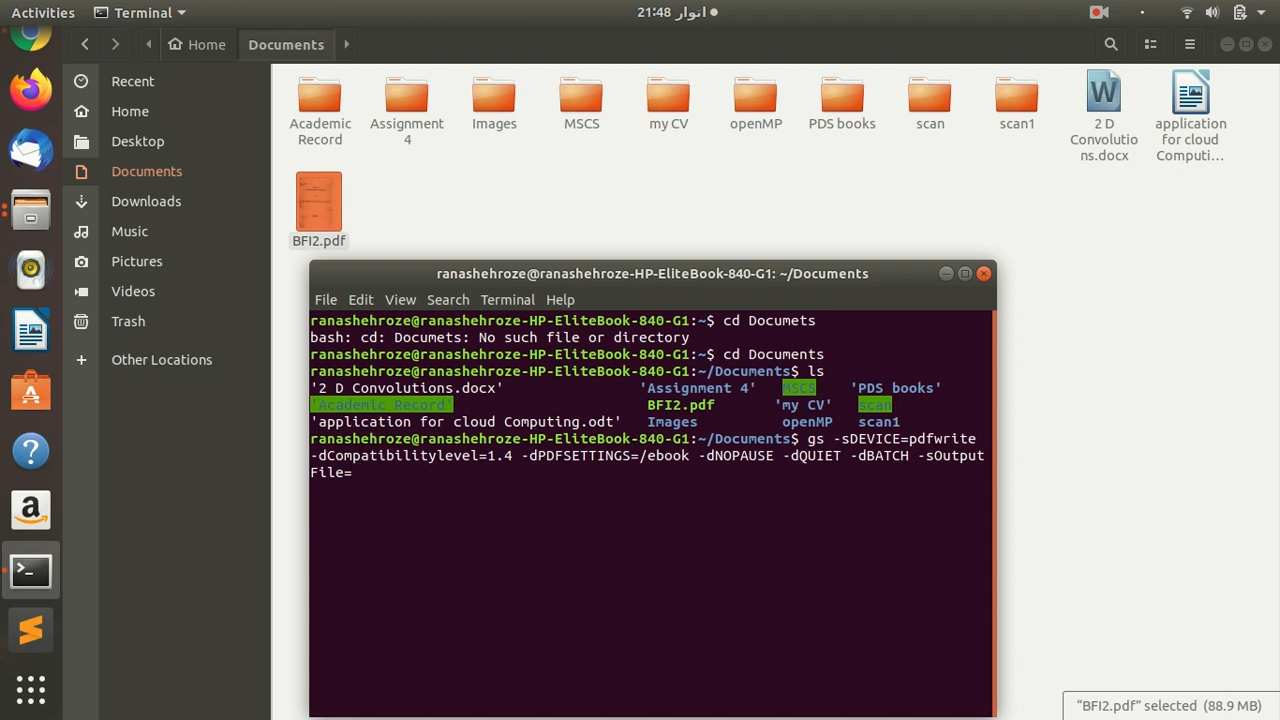
Step 5: Once the command runs, you will find your compressed PDF file in the same directory.
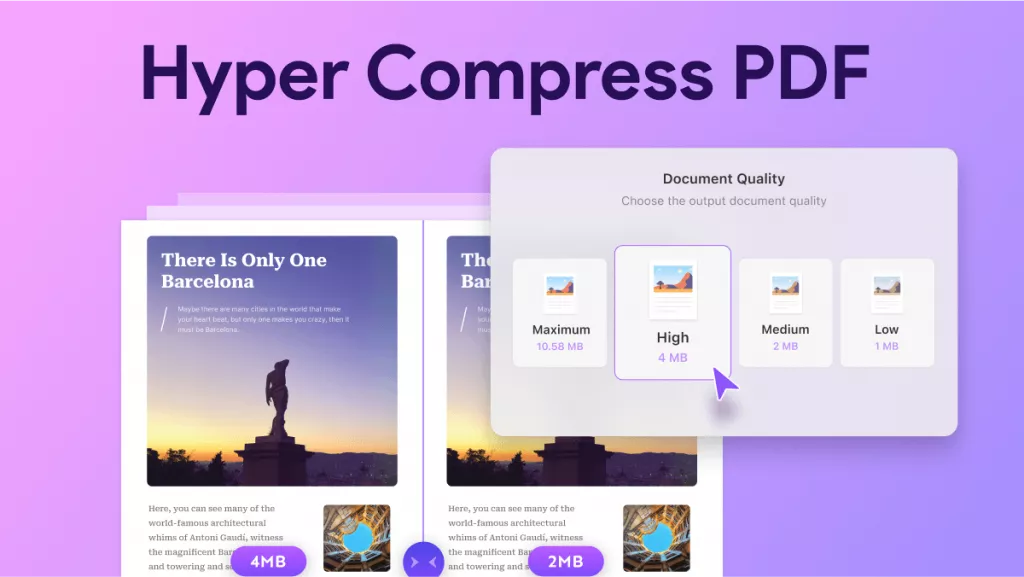
If you regularly move PDFs between Linux and a supported phone or desktop, UPDF provides a visual alternative with four output-quality levels.
Download UPDF for free to try reducing a PDF on Windows, macOS, iOS, or Android — installation is free, and Pro removes the trial watermark from exported files.
Windows • macOS • iOS • Android 100% secure
Part 3. Compress PDF on Linux without Commands
Smallpdf works in a Linux browser and currently offers Basic, Moderate, and Strong compression. Basic compression is available without Pro; Moderate and Strong are Pro options. Smallpdf states that uploaded files use TLS encryption and are automatically deleted after one hour, but the PDF still leaves the Linux device during processing.
Best for:
- a non-sensitive PDF when you cannot install packages or use a terminal.
Not for:
- confidential contracts, medical records, IDs, unreleased financial documents, or any environment that prohibits third-party uploads.
Here is how to compress PDF on Linux without the command line:
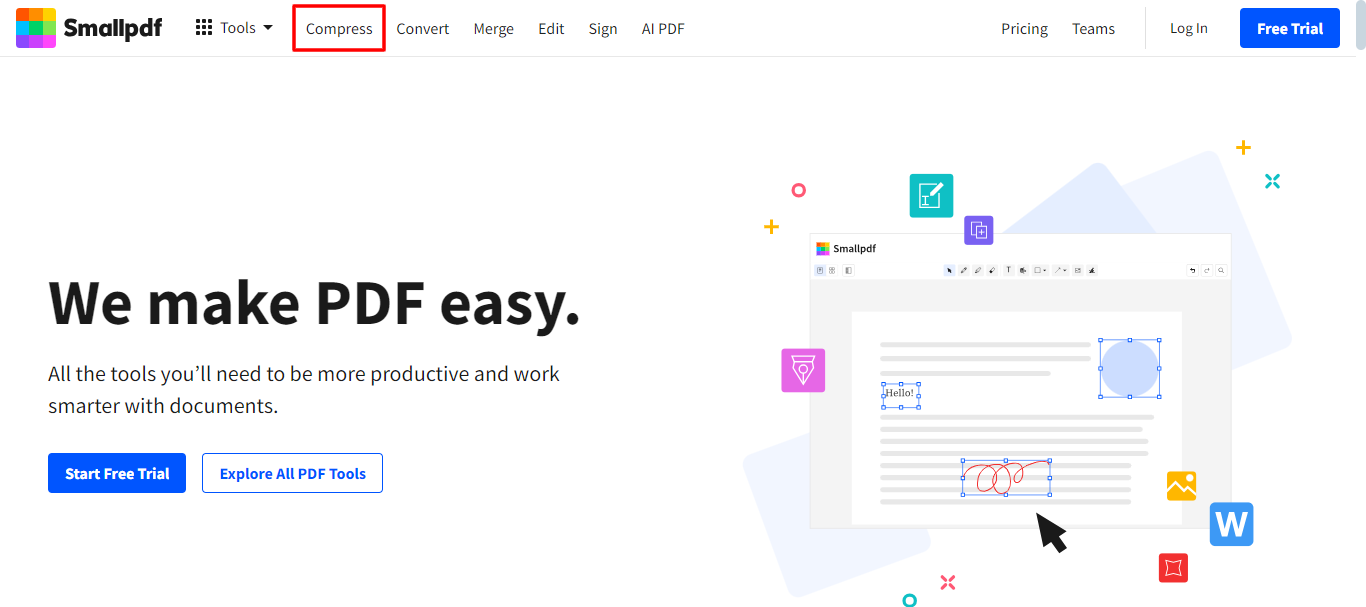
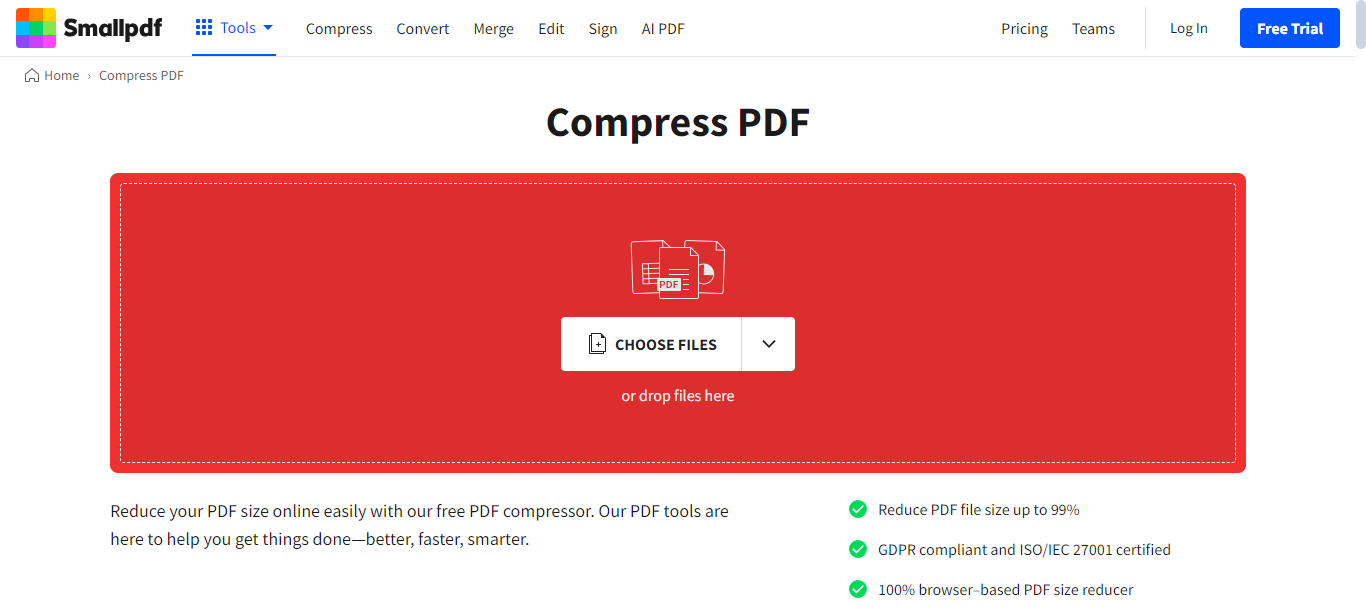
Step 1: Open any browser on your Linux system and visit the official Smallpdf website. Then, click the "Compress" option in the top menu bar.
Step 2: Click the "Choose Files" button to upload the PDF file you want to compress. You can also drag and drop it here.
Step 3: Once the PDF file is successfully uploaded, you will see this interface. Select the compression intensity from "Basic" or "Strong" and click the "Compress" button. It will start compressing your file.
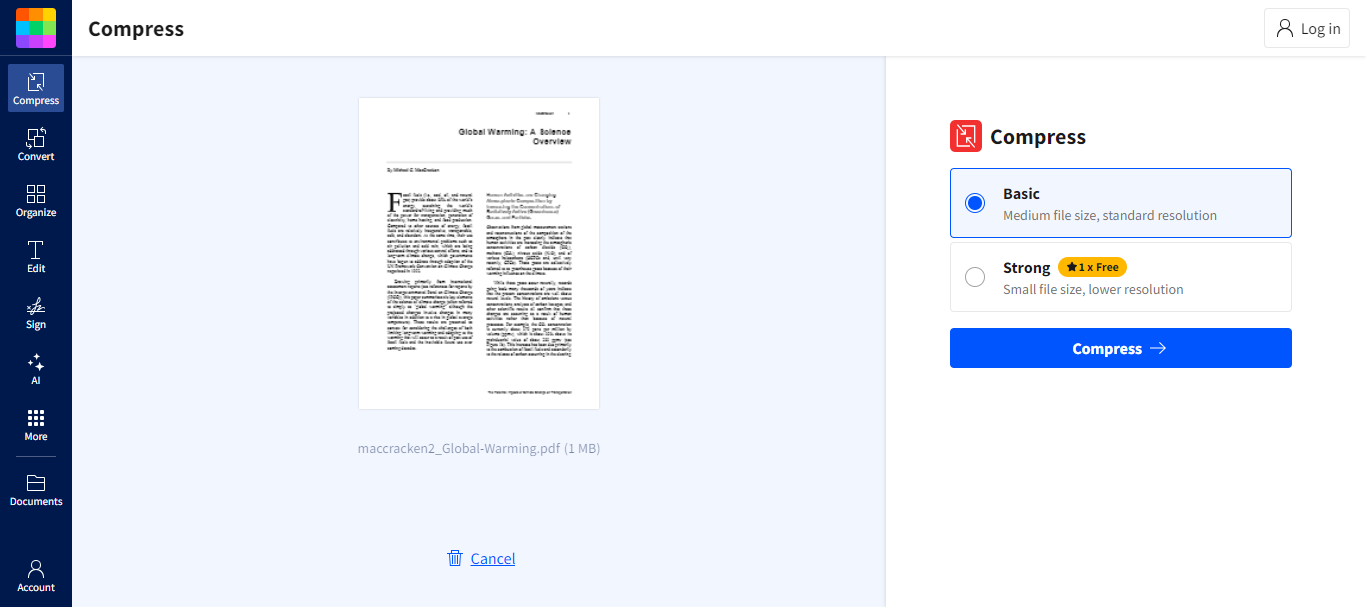
(Note: For strong compression, you need to use the paid version of Smallpdf. However, you can use it for free once.)
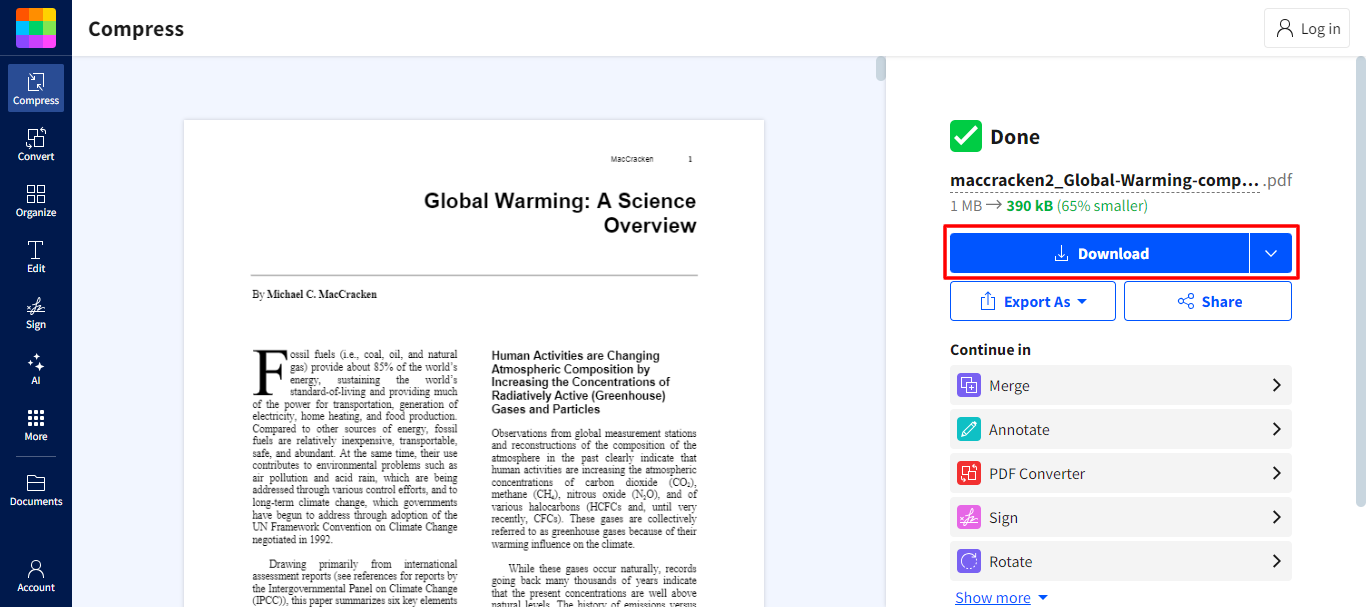
Step 4: When the compressing process is completed, you can click the "Download" button to download the file. You can also click "Export As" to export it in other formats.
Did you see how easy it is to compress PDF in Linux? With these types of tools, you can perform all PDF-related tasks with just a click. They are not only limited to Linux. If you are also a Windows or Mac OS user, we have another amazing option for you!
Let's explore how to compress the PDF file on Windows or Mac!
Also Read: How to Edit PDFs on Linux: A Guide to Master Document Modifications
Part 4. Bonus Tip: Compress PDF File on Windows and Mac
If you need to compress PDF files on Windows and Mac, you can use UPDF. This tool offers a range of other features for managing your PDFs. UPDF provides a free trial, making it easy to test out before purchasing.
The price is very affordable, and a single license works on both Windows and Mac, making it a great value! UPDF also offers an AI Assistant to make your experience even better.
Steps to Compress PDF on Windows/Mac Using UPDF
If you have downloaded the UPDF app, you can follow the instructions given below:
Windows • macOS • iOS • Android 100% secure
(We are using Windows OS)
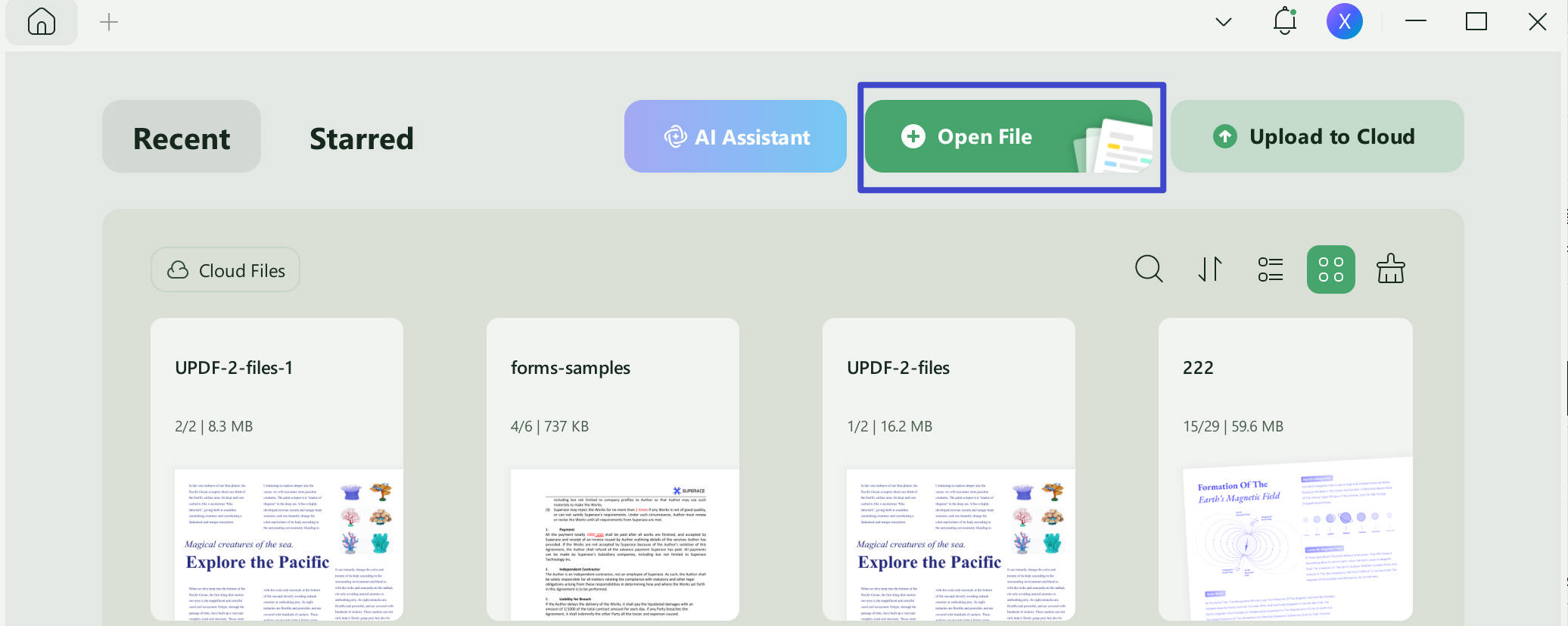
Step 1: Open the UPDF app on your desktop, and click "Open File" to open your PDF document. You can also drag and drop it here.
Step 2: When your PDF file is opened, click the narrow next to save button in the right panel. Then, select the "Reduce File Size" option.
Step 3: Now, you are supposed to choose the output quality of your document from highest to lowest and click "Save As."
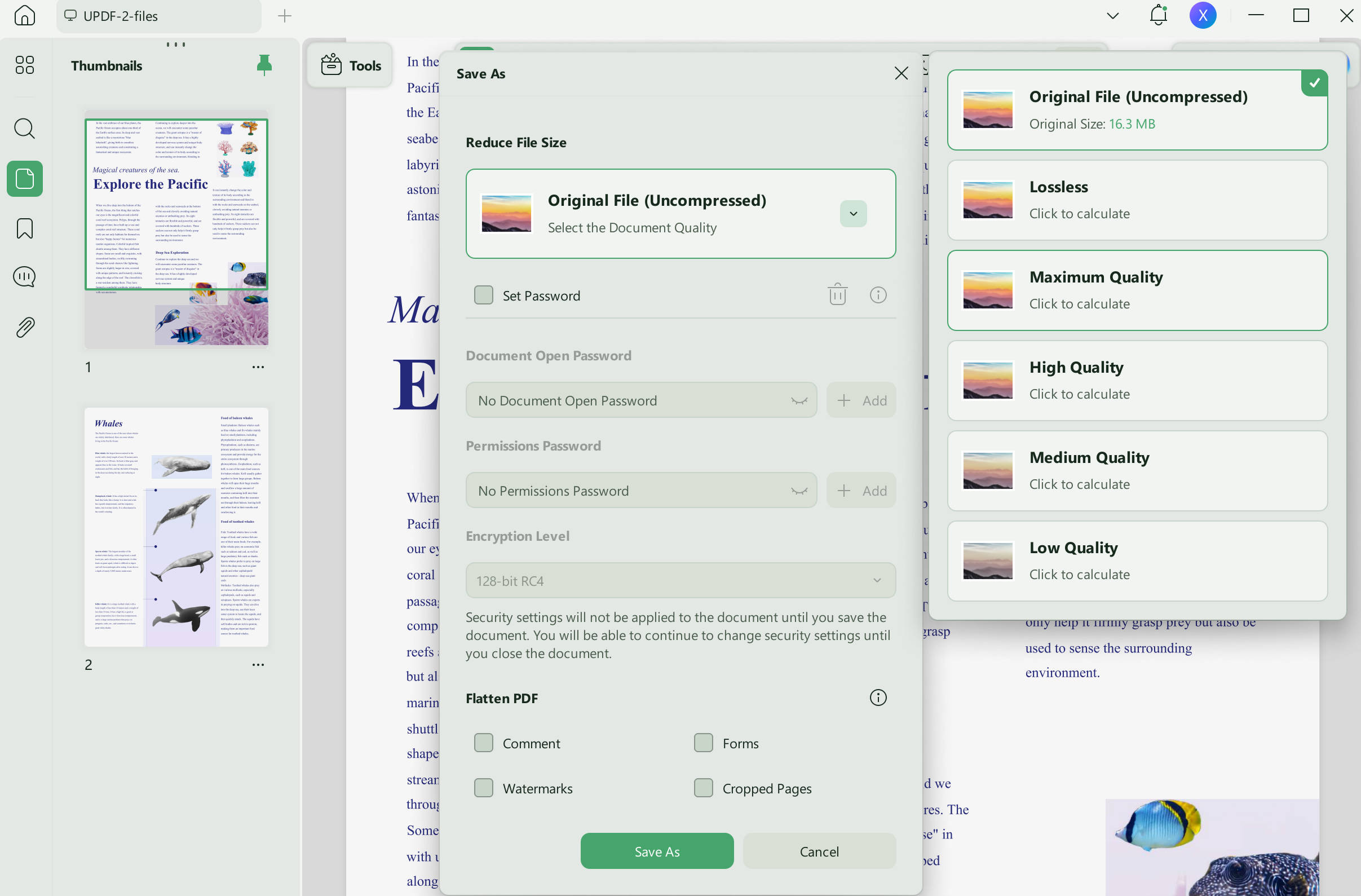
After clicking the save as button, you will be asked for the location where you want to save your compressed document. Choose the location and save it.
So, are you ready to try UPDF? If yes, then download it today and explore its capabilities. Furthermore, if you want to see it in action? Check out this informative video:
Windows • macOS • iOS • Android 100% secure
FAQs
Q1. Can I compress a password-protected PDF on Linux?
Only if you are authorized and know the password. Encryption can block Ghostscript or an online service from reading and rewriting the content. Decrypt an authorized working copy, compress the copy, and restore protection afterward if required.
Q2. Can I batch-compress multiple PDFs on Linux?
Yes, but write results to a separate folder. A shell loop can apply Ghostscript to every PDF in a directory. Never use the same path for input and output. If you later process the files on a supported device, see the batch PDF compression guide for a visual workflow.
Q3. Does compressing a PDF reduce print quality?
Image downsampling can reduce print quality. Ghostscript /ebook and /screen may lower effective resolution, so use /printer or /prepress for print-focused output and inspect a proof before production.
Conclusion
Use Ghostscript when a PDF needs private, local compression, and Smallpdf when a browser workflow is worth the upload trade-off. Keep the original and verify both appearance and interactive content after every compression run.
If the PDF also moves to Windows, macOS, iOS, or Android, UPDF provides four visual compression levels and avoids Linux command syntax.
Download UPDF for free to choose a PDF quality level on a supported device — installation is free, and Pro removes the trial watermark from exported files.
Windows • macOS • iOS • Android 100% secure


 Enya Moore
 Enrica Taylor
 Enid Brown