UPDF
UPDF
 UPDF for Windows
 UPDF for Mac
 UPDF for iPhone/iPad
 UPDF for Android
 Nomostar
 UPDF AI Online
 UPDF Sign
 IvyCraft
 Edit PDF
 Annotate PDF
 Create PDF
 PDF Form
 Edit links
 Convert PDF
 OCR
OCR PDF to Word
 PDF to Image
 PDF to Excel
 Organize PDF
 Merge PDF
 Split PDF
 Crop PDF
 Rotate PDF
 Protect PDF
 Sign PDF
 Redact PDF
 Sanitize PDF
 Remove Security
 Read PDF
 UPDF Cloud
 Compress PDF
 Print PDF
 Batch Process
 About UPDF AI
 UPDF AI Solutions
 AI User Guide
 FAQ about UPDF AI
 Summarize PDF
 Translate PDF
 Chat with PDF
 Chat with AI
 Chat with image
 PDF to Mind Map
 Explain PDF
 PDF AI Tools
 Image AI Tools
 AI Chat Tools
 AI Writing Tools
 AI Study Tools
 AI Working Tools
 Other AI Tools
 AI Bookmark Generation
 AI Bookmark Summary
 AI Watermark Generation
 AI Background Generation
 AI Sticker Generation
 AI Stamp Generation
 AI Editing Suite
 UPDF Copilot
 AI Page Management
 AI Semantic Search
 PDF to Word
 PDF to Excel
 PDF to PowerPoint
 Enterprise Solution
 Enterprise Sign
 Enterprise AI
 Enterprise Plan
 Enterprise User Guide
 Enterprise Webinar
 IT
IT Education
 Construction
 Financial Service
 Healthcare
 Insurance
 Legal
Legal Manufacturing
 Government
 Researchers & PhDs
 Solopreneurs & Freelancers
 Lawyers & Legal Professionals
 Real Estate Agents & Brokers
 Education Solution
 Customer Stories
 User Guide
 UPDF Tricks
 FAQs
FAQs UPDF Reviews
 Download Center
 Blog
Blog Newsroom
 Tech Spec
 Updates
 UPDF vs. Adobe Acrobat
 UPDF vs. Foxit
 UPDF vs. PDF Expert

Quick answer:
A Preview app alternative should solve a specific limitation—not simply add more features. Editing the original text in a PDF is different from adding a note, and browsing a folder of images is different from managing a photo collection.
Before installing another app, identify what you need: PDF content editing, a better reading and annotation workflow, or dedicated image tools. The five options below address these different tasks, with their costs and limitations made explicit.
Part 1: Which Preview Alternative Fits Your Workflow?
Start with the task you need to complete. These recommendations compare workflow fit, not measured speed or benchmark performance.
| What you need | Suggested option | Main limitation to check |
|---|---|---|
| Edit existing PDF text, images, and links; convert documents | UPDF | Trial watermark; OCR depends on your Mac and installation source |
| Work with PDFs across a Mac, iPhone, and iPad | PDF Expert | Device coverage differs between annual and lifetime plans |
| Read research papers and organize annotations | Skim | Not a full PDF content editor |
| View images with a minimal interface | qView | Not a photo-editing or image-management suite |
| Organize images and perform batch conversions | XnView MP | Company use requires a paid license |
| Add occasional PDF notes, signatures, or rearrange pages | Keep Preview | Does not directly rewrite existing PDF text |
You can also use different apps for PDFs and images. Replacing Preview for one file type does not mean replacing it for every task.
Part 2: When Is Preview Enough—and When Do You Need More?
Preview is useful for everyday PDF markup, signatures, page organization, and basic image tasks. If those are your main needs, installing another application may add little value.
The important distinction is between annotating a PDF and editing its original contents. A text box adds new content over the page; it does not rewrite the paragraph underneath. Apple’s documentation confirms that Preview cannot directly edit existing PDF text.
Text recognition is a separate capability. Apple’s current Preview guide describes an Embed Text option that recognizes text in image-based PDFs and adds selectable text. That does not make Preview a full PDF content editor, and availability should be checked against the version on your Mac.
Consider an alternative when you need to replace existing text, convert PDFs into editable Office files, manage research notes, or organize and batch-process image collections.
If your task is specifically changing a document’s contents, see how to edit a PDF on Mac.
Part 3: 5 Preview App Alternatives for Mac
Each option below replaces a different part of Preview’s workflow. Compare what you need to accomplish, what the app actually supports on Mac, and what happens when you save or share the result.
1. UPDF — For PDF Editing, Conversion, and OCR
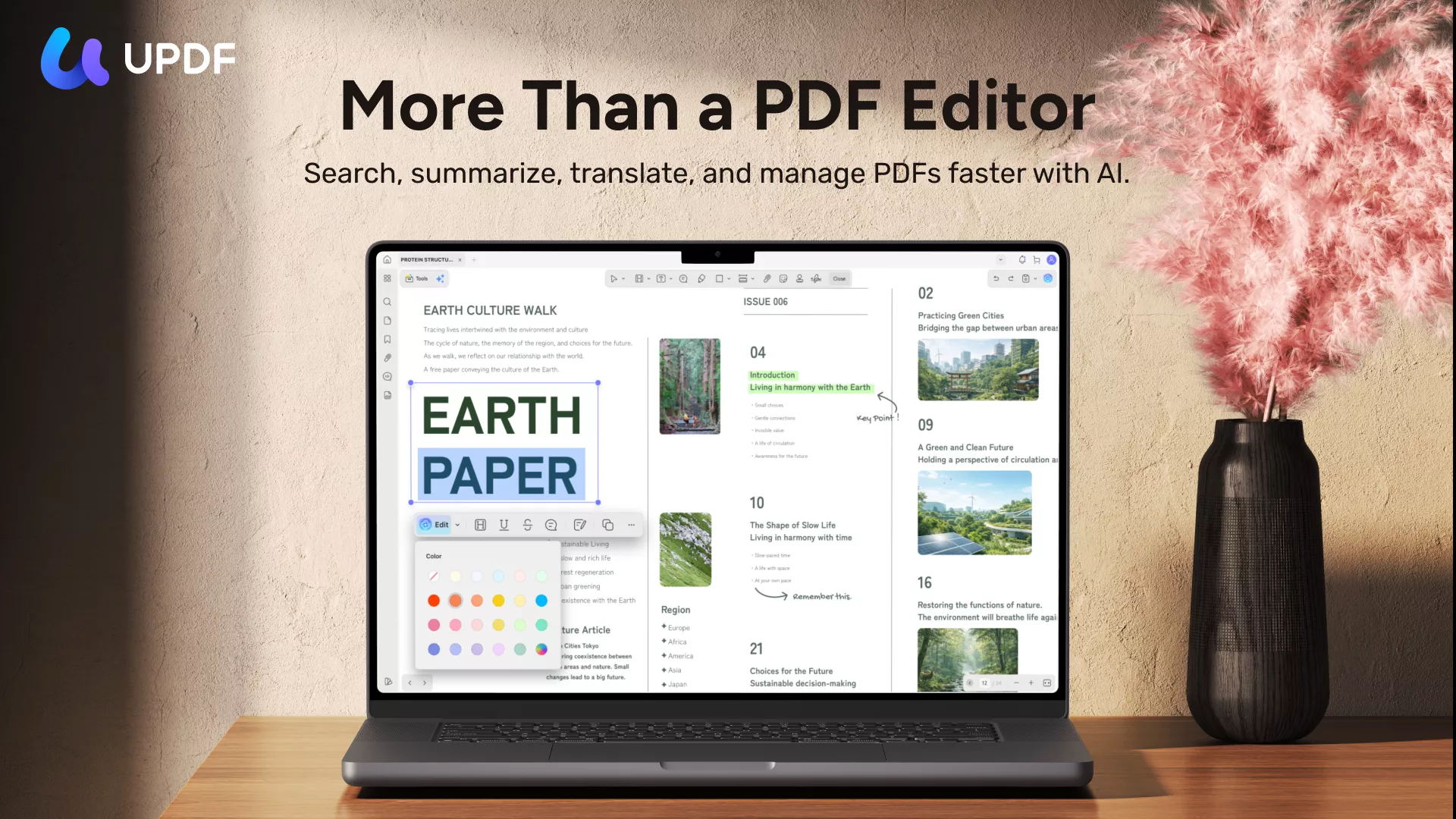
UPDF is a relevant Preview alternative when you need to change a PDF’s original contents rather than place annotations over the page. It supports editing existing text, images, and links, alongside PDF conversion and page organization.
Windows • macOS • iOS • Android 100% secure
For example, correcting a paragraph in a digital report requires content editing. Working with a scanned report may require OCR before the text becomes editable. These are different workflows, so check your document type before choosing a tool.
Key capabilities
- Edit existing PDF text, images, and links.
- Add comments, highlights, drawing marks, and other annotations.
- Convert PDFs into supported formats, including Word and Excel.
- Organize PDF pages and process supported tasks in batches.
- Recognize scanned text with OCR on supported Mac installations.
Mac compatibility and trial limits
UPDF’s current technical specifications list macOS 11.0 or later. Its Mac documentation states that OCR is available in the official website version for Apple silicon Macs, but not in the Intel Mac or Mac App Store versions.
The free version adds a trial watermark when saving files. The official FAQ also lists five OCR uses, two conversions per day, and a two-file batch-processing limit. Review the current UPDF plans before upgrading.
Pros:
- Best for: Editing existing PDF content and combining conversion, annotation, and page organization in one app.
Cons:
- Skip if: You need OCR on an Intel Mac or in the Mac App Store version, or expect trial exports without a watermark.
Need to change the contents of a PDF rather than add another annotation? Try UPDF’s PDF editing tools on a copy of your document. Installation is free, and Pro removes the trial watermark.
Windows • macOS • iOS • Android 100% secure
2. PDF Expert — For PDF Work Across Apple Devices
PDF Expert is an alternative to consider when your PDF workflow spans a Mac, iPhone, and iPad. Its paid offering includes PDF text, image, and link editing, annotation, conversion, and OCR.
The main purchasing distinction is device coverage. The annual plan includes Mac, iPhone, and iPad versions, while the lifetime option is for Mac only. A one-time Mac purchase should not be described as a lifetime license for every Apple device.
Mac compatibility and pricing
The official pricing page lists macOS Monterey or later. PDF Expert offers annual and Mac-only lifetime plans, with prices localized by region. Check the current plan details for your location. The lifetime plan also notes that additional new features may cost extra.
Pros:
- Best for: Users who want PDF editing and annotation across Apple devices and are comfortable choosing a plan based on device coverage.
Cons:
- Skip if: You expect the Mac-only lifetime license to include iPhone and iPad access or every future feature at no additional cost.
3. Skim — For Research Reading and Notes
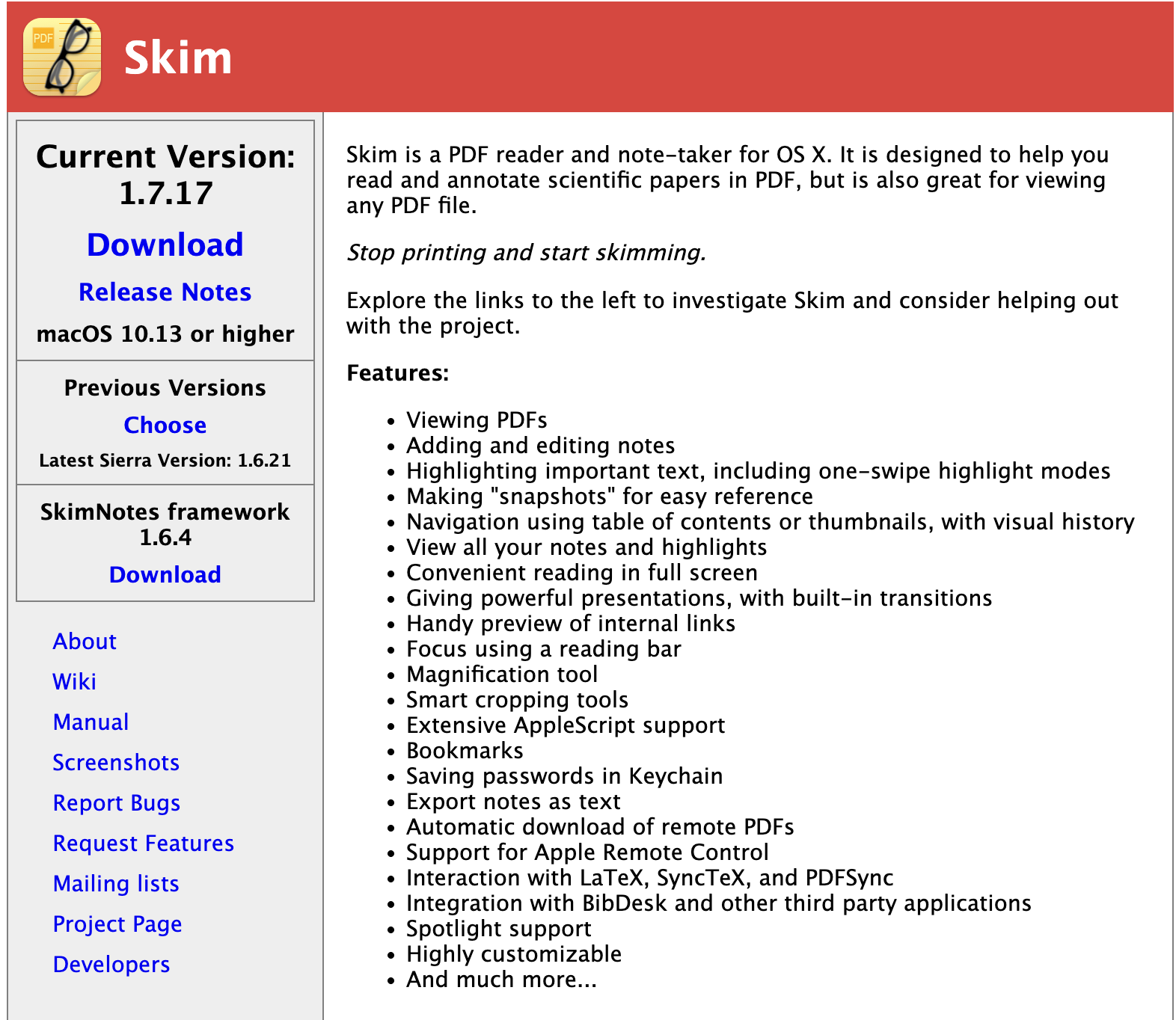
Skim focuses on reading PDFs and taking notes, especially for scientific papers and reference-heavy documents. Its features include highlights, notes, a reading bar, snapshots, and integration with LaTeX-related workflows.
Choose it when your main challenge is working through a paper and keeping track of important passages—not rewriting the original document. This gives Skim a distinct role alongside full PDF editors.
Mac compatibility and pricing
Skim is free. Its current download page lists version 1.7.17 and requires macOS 10.13 or later.
Pros:
- Best for: Reading research papers, keeping detailed notes, and navigating reference-heavy PDFs.
Cons:
- Skip if: You need to rewrite existing PDF paragraphs or use a full document-conversion workflow.
4. qView — For Minimal Image Viewing
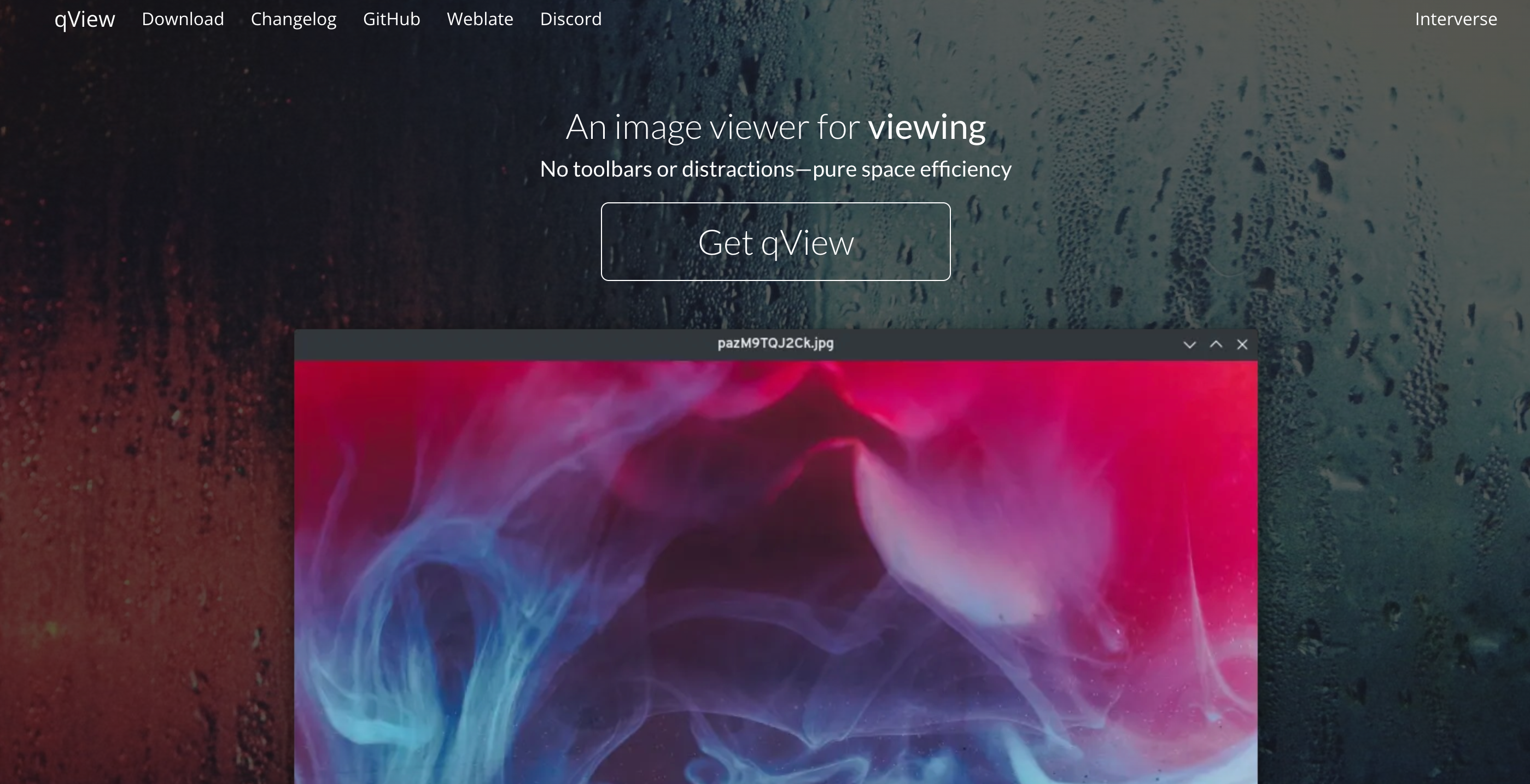
qView is an image-focused Preview alternative for users who want a minimal viewing interface. It supports common image formats and includes features such as animated GIF controls, file history, and rotation or mirroring.
Its appeal is a focused viewing workflow rather than a long editing-tool list. Choose it when you mainly want to open and browse images without moving into a photo-editing or catalog-management application.
Availability and pricing
qView is free and open source, with a Mac download available. Use the stable release offered on the official download page rather than assuming a nightly build is suitable for everyday work.
Pros:
- Best for: Viewing images in a minimal interface without adopting a full image-management suite.
Cons:
- Skip if: You need PDF annotations, detailed photo retouching, or a catalog for managing a large image collection.
5. XnView MP — For Image Management and Batch Conversion
XnView MP is the more relevant option when your image workflow extends beyond opening individual files. It combines image browsing and organization with batch conversion, renaming, and other image-processing tools.

Compared with a minimal viewer, its value is handling collections and repeated tasks. For example, preparing a folder of images in another format is a different requirement from simply viewing one picture.
Mac availability and licensing
Choose XnView MP for Mac, not the Windows-only Classic edition. Check the requirements of the specific Mac download before installing.
XnView is free for private or educational use, including nonprofit organizations. Company use requires a license; the official site currently lists €29 for a single license.
Pros:
- Best for: Organizing image collections and performing batch conversions or renaming tasks.
Cons:
- Skip if: You only want a minimal viewer, need to edit PDF text, or assume company use is covered by the free license.
Still choosing for a PDF task?
Test the operation you actually need: replacing a paragraph, converting a document, or recognizing a scanned page. Being able to open a file does not prove that an app can complete the editing workflow.
If those are your main requirements, download UPDF and evaluate a representative PDF. Check Mac OCR eligibility first, and remember that files saved with the free version carry a trial watermark.
Windows • macOS • iOS • Android 100% secure
Part 4: FAQs About Switching from Preview
1. Can I use one default app for PDFs and another for images on Mac?
Yes. macOS lets you choose a default application for each file type. You can use a PDF editor for documents while keeping Preview or another viewer for images. There is no need to replace Preview for every supported format.
2. Why are my Skim annotations missing in another PDF viewer?
Skim normally stores notes and highlights as extended attributes rather than inside the PDF data. When sharing, export a PDF copy with embedded notes and check that copy in the recipient’s viewer before sending it.
3. Will a different PDF app remove copying or editing restrictions?
Do not assume that switching apps will remove a document’s restrictions. Some PDFs require an appropriate password or permission from the owner before copying or changes are allowed. Request authorized access rather than choosing a viewer as a way around those controls.
Conclusion
The right Preview app alternative depends on what you need to do next. Choose UPDF for PDF content editing and conversion, PDF Expert for PDF work across Apple devices, Skim for research reading, qView for minimal image viewing, or XnView MP for image management and batch processing.
Keep Preview if its built-in markup and page tools already meet your needs. If you need to edit a PDF’s original contents, try UPDF on a representative document and check the saved result before choosing a plan.
Installation is free, and Pro removes the trial watermark. For OCR, confirm that your Mac and installation source are supported.
Windows • macOS • iOS • Android 100% secure







 Enola Davis
 Enrica Taylor

 Lizzy Lozano