 UPDF
UPDF
 UPDF for Windows
 UPDF for Mac
 UPDF for iPhone/iPad
 UPDF for Android
 Nomostar
 UPDF AI Online
 UPDF Sign
 IvyCraft
 Edit PDF
 Annotate PDF
 Create PDF
 PDF Form
 Edit links
 Convert PDF
 OCR
OCR PDF to Word
 PDF to Image
 PDF to Excel
 Organize PDF
 Merge PDF
 Split PDF
 Crop PDF
 Rotate PDF
 Protect PDF
 Sign PDF
 Redact PDF
 Sanitize PDF
 Remove Security
 Read PDF
 UPDF Cloud
 Compress PDF
 Print PDF
 Batch Process
 About UPDF AI
 UPDF AI Solutions
 AI User Guide
 FAQ about UPDF AI
 Summarize PDF
 Translate PDF
 Chat with PDF
 Chat with AI
 Chat with image
 PDF to Mind Map
 Explain PDF
 PDF AI Tools
 Image AI Tools
 AI Chat Tools
 AI Writing Tools
 AI Study Tools
 AI Working Tools
 Other AI Tools
 AI Bookmark Generation
 AI Bookmark Summary
 AI Watermark Generation
 AI Background Generation
 AI Sticker Generation
 AI Stamp Generation
 AI Editing Suite
 UPDF Copilot
 AI Page Management
 AI Semantic Search
 PDF to Word
 PDF to Excel
 PDF to PowerPoint
 Enterprise Solution
 Enterprise Sign
 Enterprise AI
 Enterprise Plan
 Enterprise User Guide
 Enterprise Webinar
 IT
IT Education
 Construction
 Financial Service
 Healthcare
 Insurance
 Legal
Legal Manufacturing
 Government
 Researchers & PhDs
 Solopreneurs & Freelancers
 Lawyers & Legal Professionals
 Real Estate Agents & Brokers
 Education Solution
 Customer Stories
 User Guide
 UPDF Tricks
 FAQs
FAQs UPDF Reviews
 Download Center
 Blog
Blog Newsroom
 Tech Spec
 Updates
 UPDF vs. Adobe Acrobat
 UPDF vs. Foxit
 UPDF vs. PDF Expert

In my work, I kept running into moments where a plain Word file suddenly felt way too exposed. The first time I emailed a signed contract outside my company, I realized anyone could open or forward it. That’s what pushed me to learn how to encrypt a Word document.
Encryption adds a simple password gate, so even if the file lands in the wrong inbox, it stays unreadable. In this article, I’ll show the exact steps on Windows and Mac, and what actually works on phones. I’ll also walk through when I stopped relying on Word and instead turned the document into an encrypted PDF with UPDF.
Windows • macOS • iOS • Android 100% secure
Part 1. How to Encrypt a Word Document on Windows?
On my Windows PC, I rely on Word’s built‑in password feature to lock sensitive documents. It is a simple way for me to stop casual access when sharing files inside and outside work. This option is built in for Windows PC users utilizing Microsoft 365 or Word. So, I will share the steps below on how to encrypt a Word document safely:
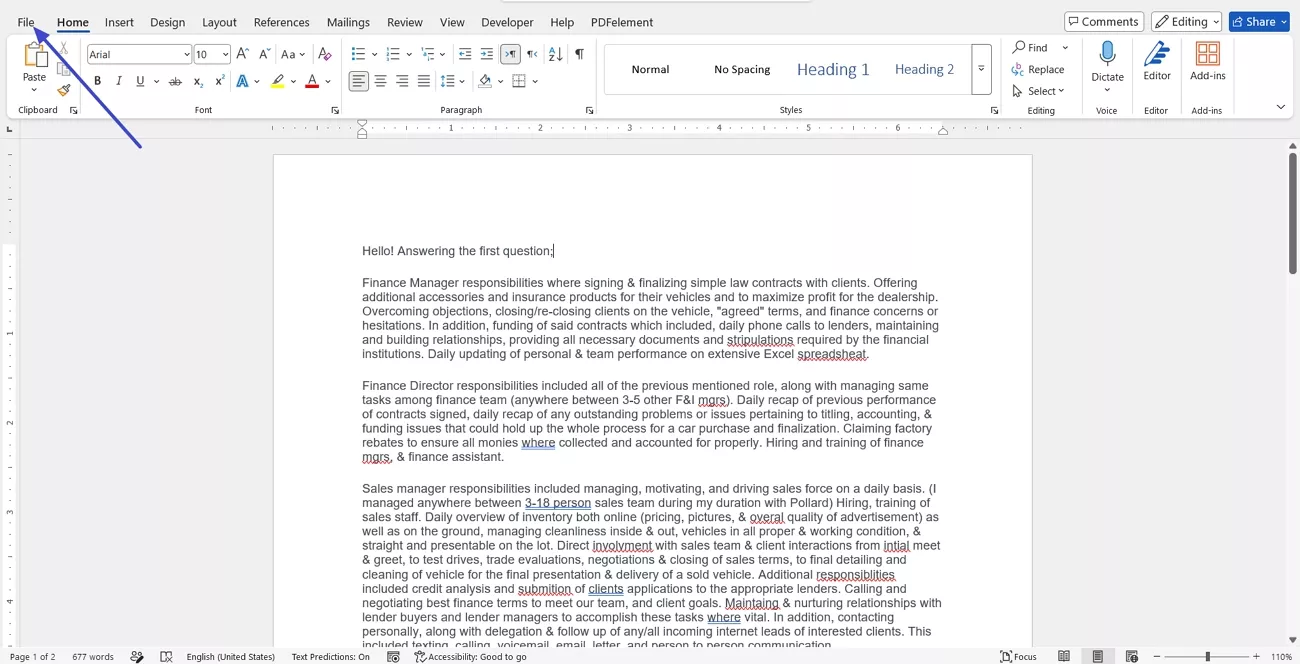
Step 1. Once you open a Word document, click the “File” option in the top left corner.
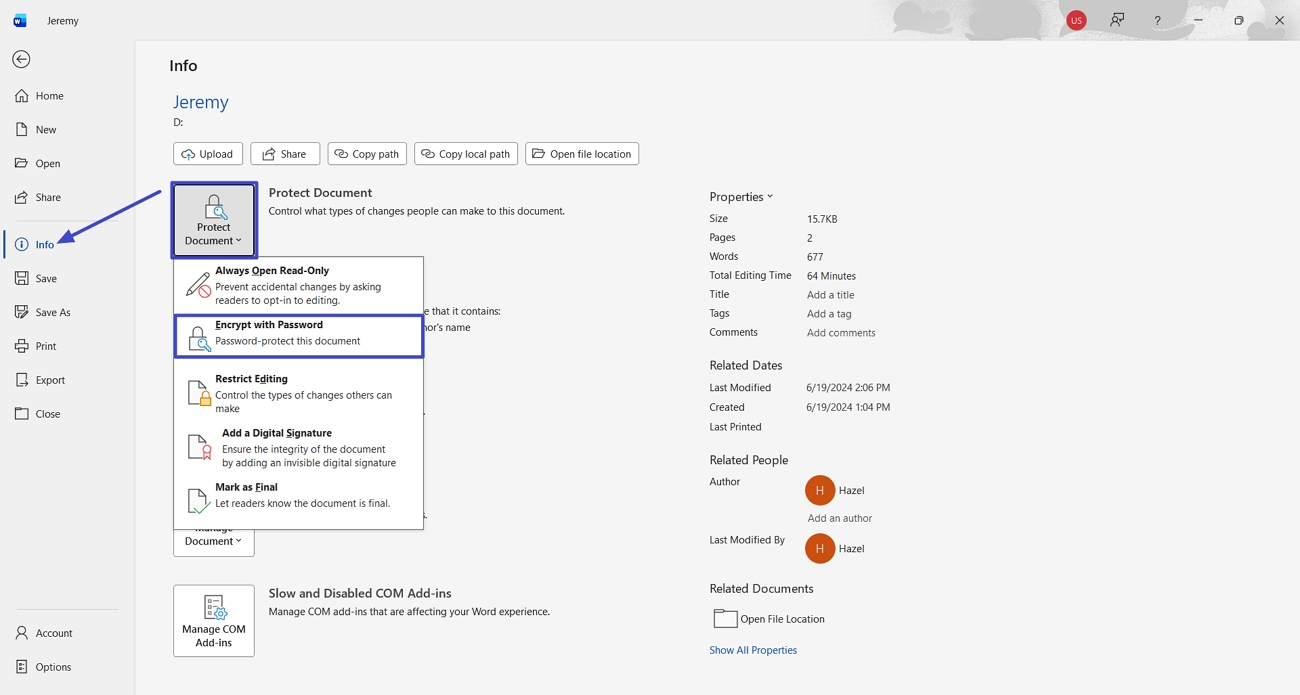
Step 2. Afterward, click the “Info” option in the left side panel and choose the “Protect Document” option. From the drop-down menu, click the “Encrypt with Password” option.
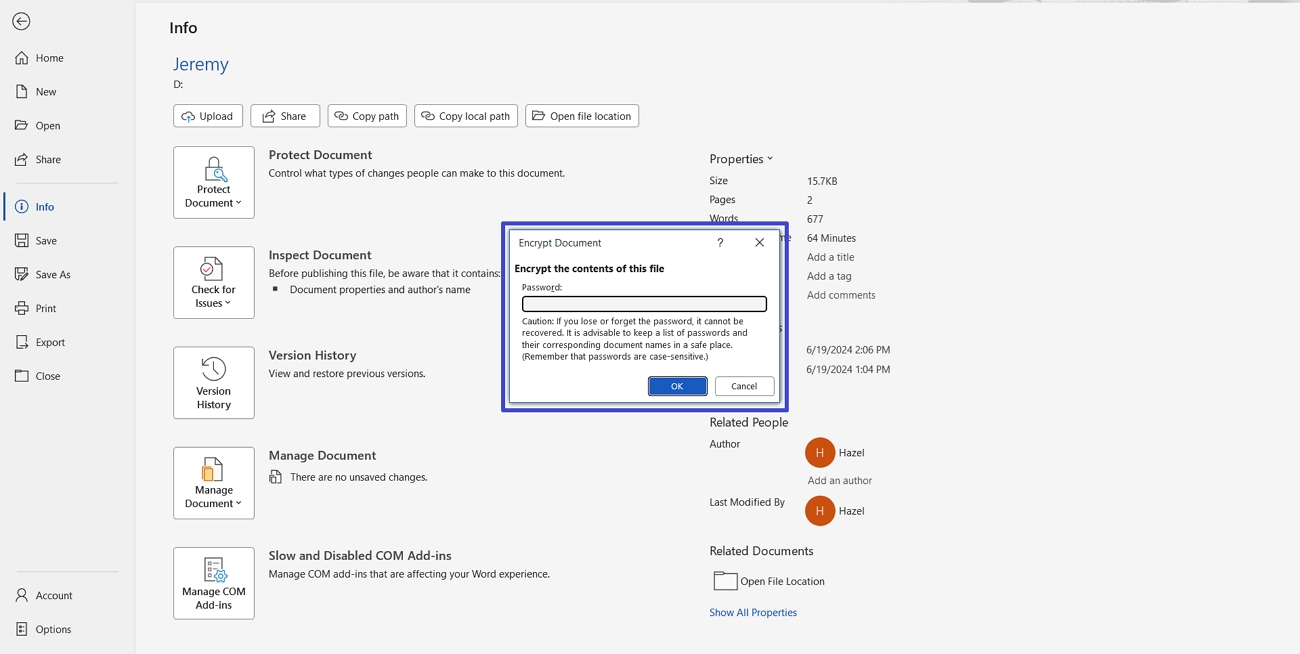
Step 3. In the “Encrypt Document” dialogue box, enter the password you want to encrypt with. This way, your PDF will be protected with a password.
Forgetting the password means I cannot open the locked Word file again, and I lose access completely. Word doesn’t offer any built‑in way to recover a lost password for protected documents. Next up is Mac, where the same idea applies, but Word’s menu layout changes the process.
Part 2. How to Encrypt a Word Document on Mac?
While using Mac, Word lets me lock documents so only people with the password can open them. This works well when I share contracts and private notes with clients and teammates on macOS. People using Word for Mac on newer systems like Sonoma or Sequoia can use this same protection. Look at the steps below to learn how to encrypt a Word document in Word for Mac:
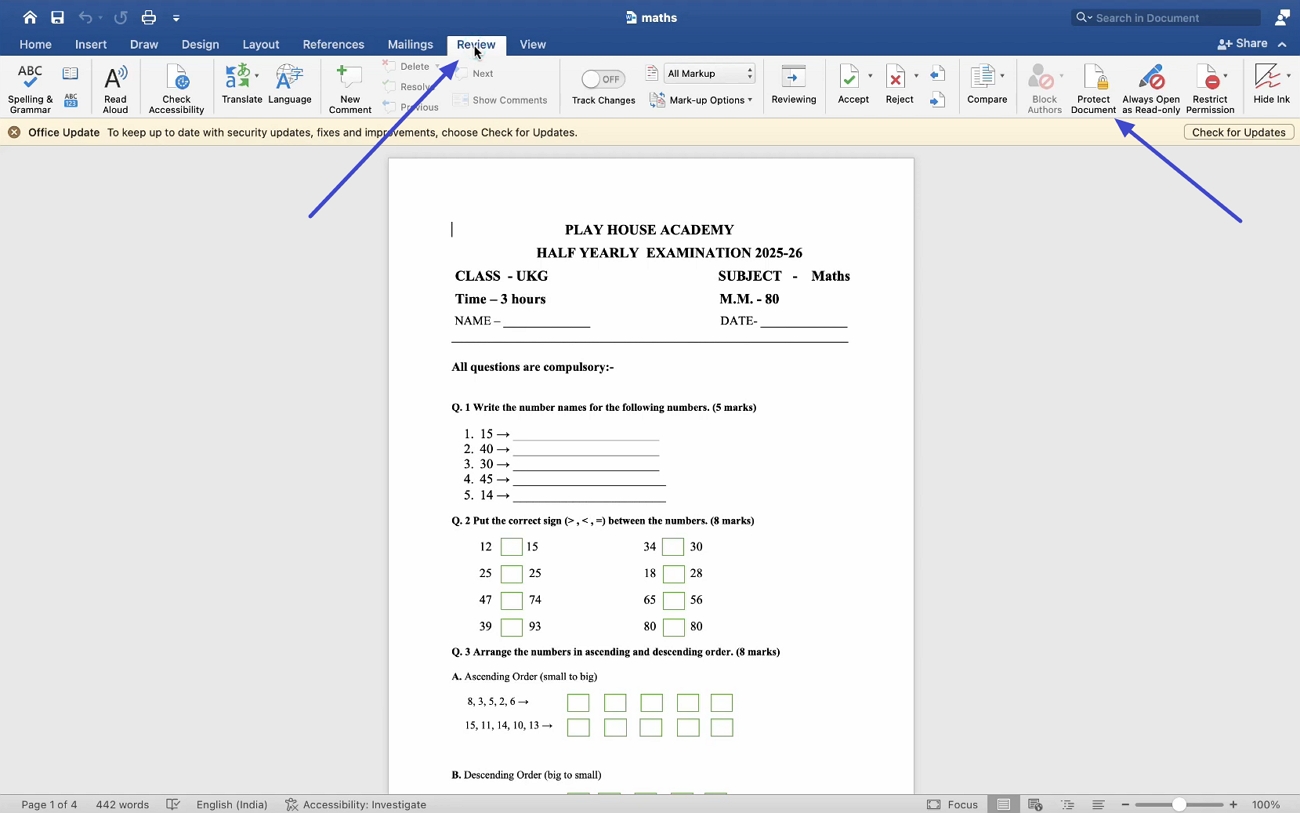
Step 1. First, open a Word document on your Mac and click the “Review” tab in the ribbon bar. Now, click the “Protect Document” option.
Step 2. Afterward, enter the passwords to open and modify the document and click the “OK” button. Enter the password again to encrypt the Word document. Save the edited version to apply the changes.
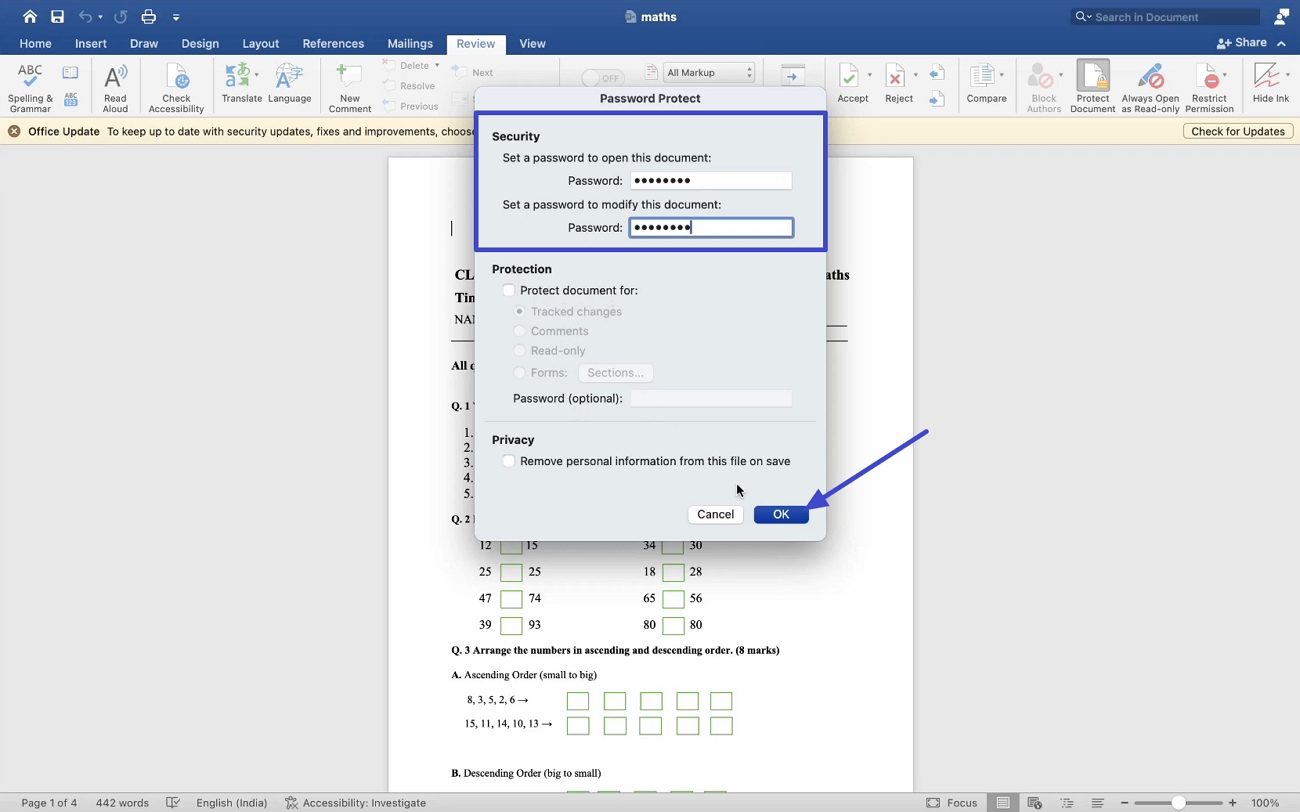
On my Mac, the password is case‑sensitive, so “Password” and “password” count as different passwords. Word for Mac also limits me to 15 characters, so I cannot use very long phrases. This part covers computers, and next, I talk about what happens when you use a phone.
Part 3. What about iPhone, iPad, and Android?
On my phone and tablet, the Word mobile apps cannot add a password to lock a document. Even Word Online in the browser cannot create a new password‑encrypted file when I upload something. That means I can open protected files on mobile, but I cannot turn protection on there.
So, when I only have my phone or tablet, I cannot truly secure a fresh document. To understand how to encrypt a Word document, I still need a computer.
Practical Takeaway for Phones and Tablets
If I must lock a file right now and only have a mobile, I have two choices. I either wait until I can reach a computer, or I use another tool that protects files.
Limitations of Word Encryption
- It locks the file, but the opened content can still be copied, screenshotted, or shared easily.
- On basic apps, .docx files can break, lose formatting, and fail to open.
- Once someone knows the password, they can send the open file anywhere.
- A .docx file works best in apps that fully support Word documents.
Part 4. Encrypt Word File as a PDF with UPDF
When I first used Word encryption, I was still worried about how people would open my file. Some contacts could not open .docx files easily, or they lost formatting when using other apps. This is where UPDF changes the way I share sensitive documents across different devices.
Instead of sending a locked .docx, I turn my Word file into a secure PDF in UPDF. That PDF then opens on almost any device or reader, without strange layout issues or errors. For me, UPDF works well when I need simple, clear tools to protect and send important files.
Windows • macOS • iOS • Android 100% secure
Key Advantages of Using UPDF
After learning how to encrypt a Word document, let me share why I now rely on UPDF.
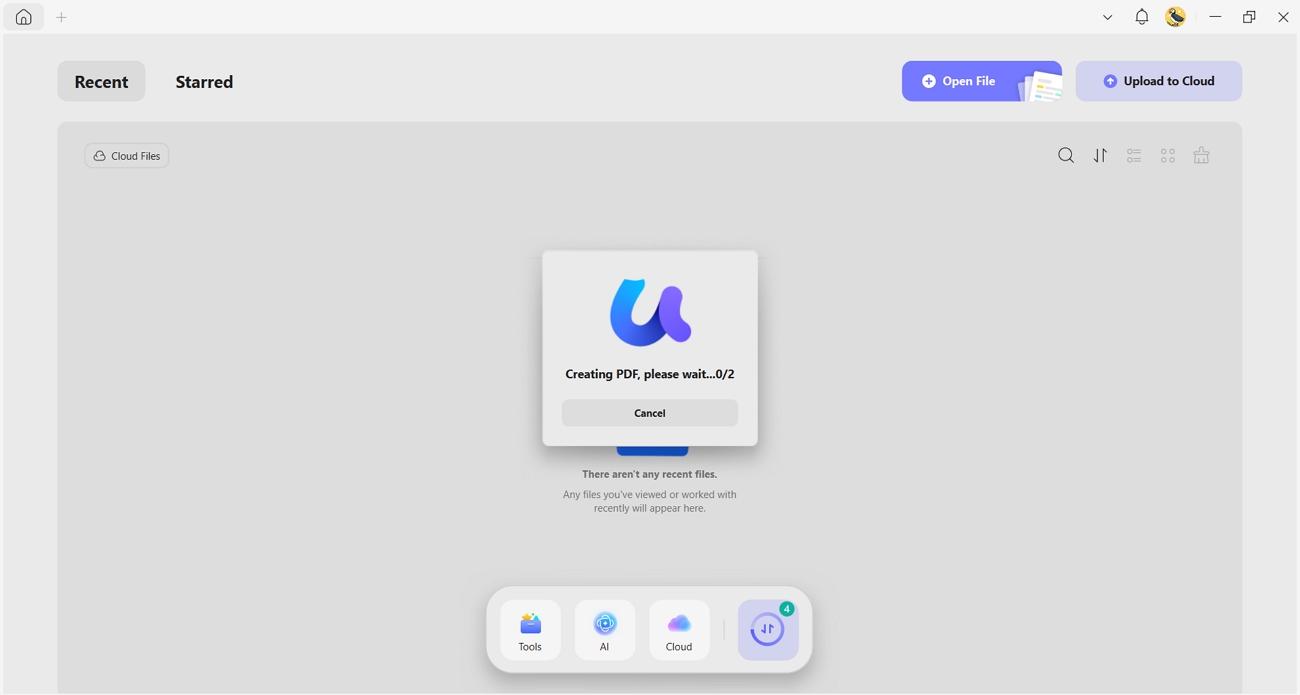
1. Convert to PDF: I can drag my Word file into the UPDF desktop app, and it auto‑converts to PDF. The same simple drag‑and‑drop flow works for Excel, PowerPoint, and image files, too.
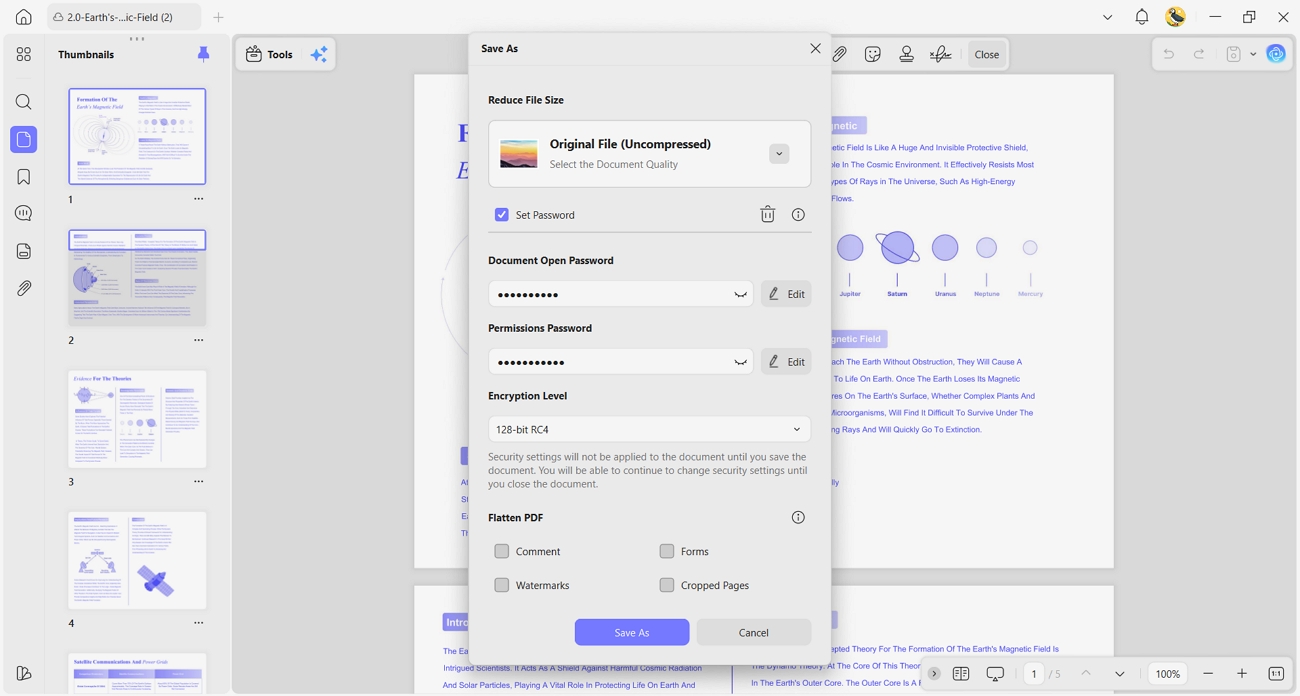
2. Double Protection: An open password blocks anyone from viewing the PDF without entering that password. Moreover, a permissions password separately controls editing, printing, copying, and extracting after the PDF is opened.
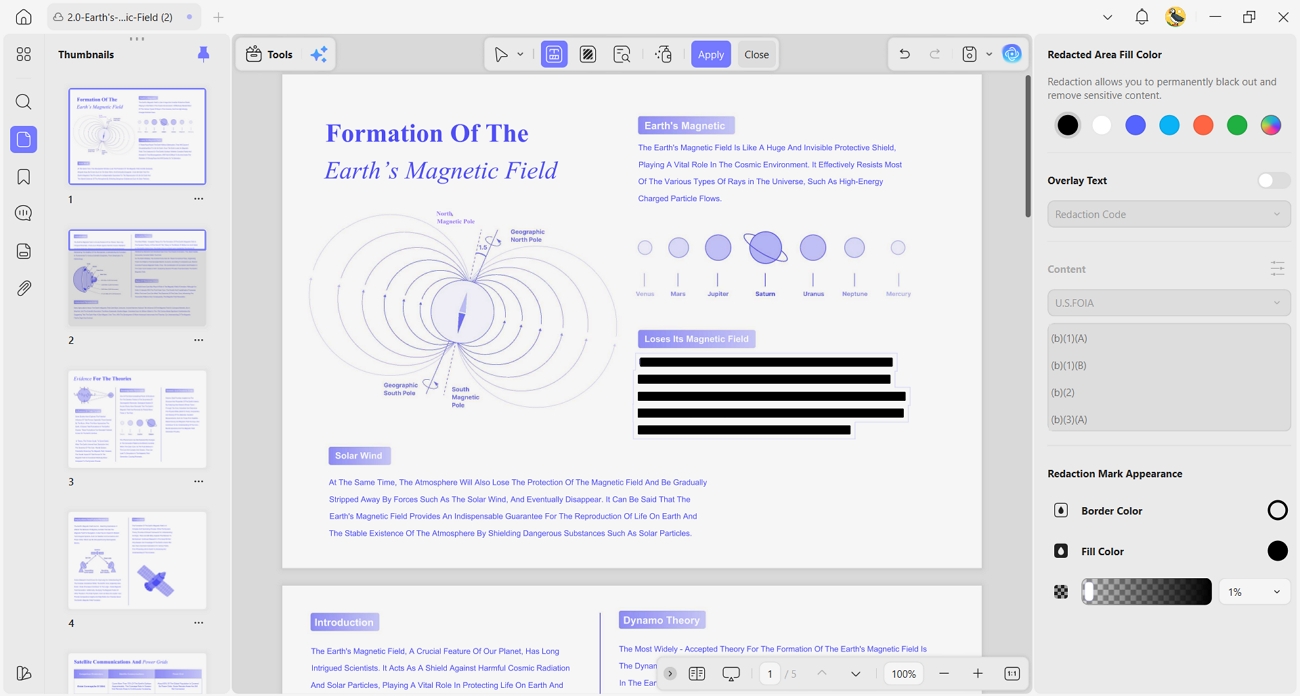
3. Redaction for Sensitive Details: UPDF lets me redact salary figures, addresses, or other secrets by permanently blacking them out. After redaction, the hidden text is removed and cannot be brought back.
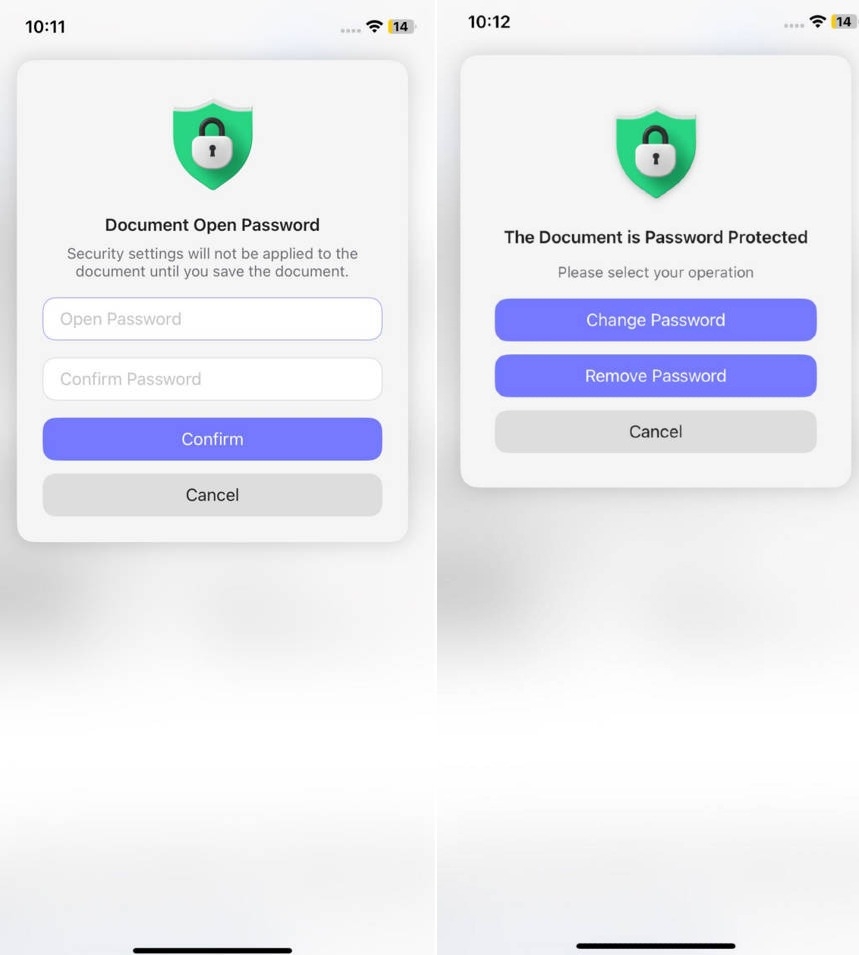
4. Protection on UPDF Mobile: To protect a PDF on iPhone and Android, I can add an open password before sharing. That means important PDFs can be protected when working only on a phone.
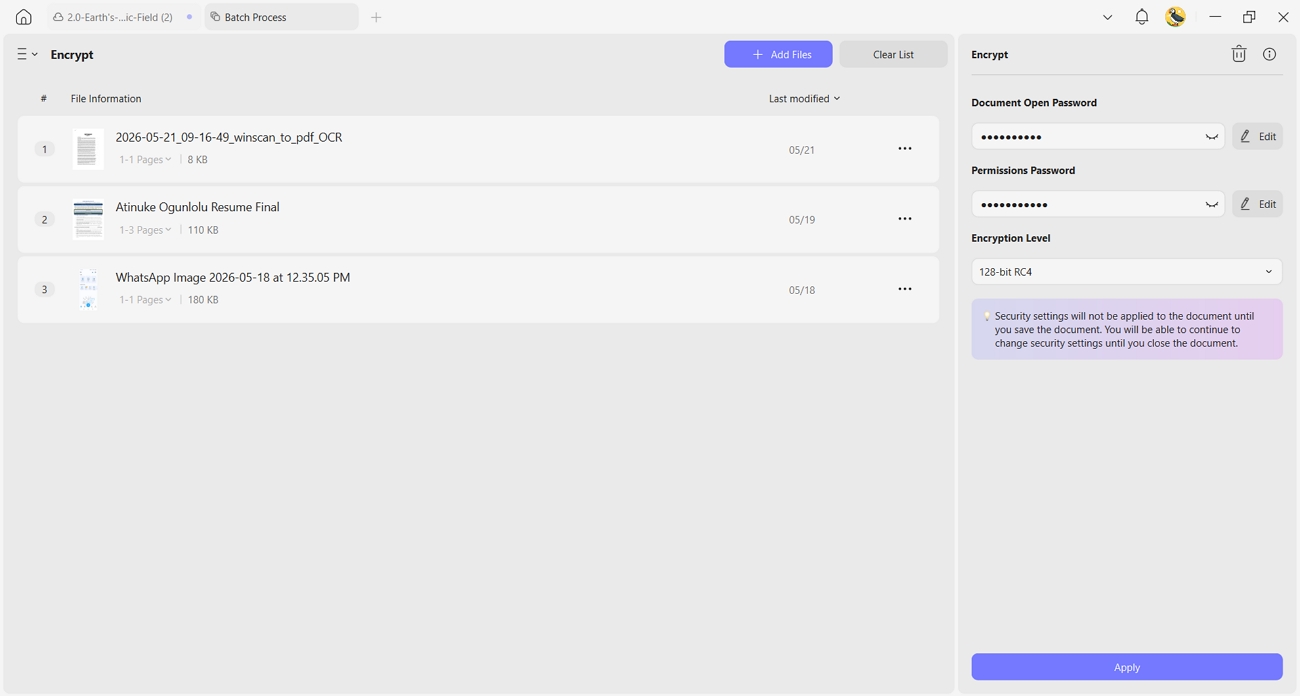
5. Batch-encrypt PDFs: UPDF can protect many PDFs at once rather than securing each file separately. This saves time when a whole folder of documents needs the same password protection.
UPDF Free vs. Paid Plans
I first tried the free version, but the export watermark quickly became a real problem. Upgrading to a paid plan removed that watermark and made my exported PDFs look professional. With a Pro plan, I can use all the protection tools without limits across my documents. So, go through the table below to see which pricing plan fits your needs:
| Plan | Price |
| UPDF Pro | $49.99/year |
| UPDF Pro Perpetual | $79.99/one-time |
| AI Assistant Add-on | $79/year |
Part 5. FAQs
1. Is a password-protected .doc file as secure as a .docx?
A modern .docx with strong encryption is generally safer than an older .doc file. For better security, I convert older .doc files to .docx or a protected PDF.
2. Does the encryption stay on the file if I upload it to OneDrive or email it?
Yes, Word’s password encryption stays with the file when you upload or attach it. Anyone who downloads it still needs the password, whether it comes from OneDrive, email, or elsewhere.
3. Can someone open my encrypted Word file without Microsoft Word?
Some other office tools can open encrypted Word files, but compatibility and features are not guaranteed. When I need more control, I protect the document as a PDF instead, using UPDF.
Conclusion
In this article, I showed how to encrypt a Word document and where Word’s limits appear. I walked through what works on desktop and why phones make things harder for protection. For documents that only need reading, I prefer turning them into PDFs and locking them carefully. So, I recommend using UPDF to add strong, simple passwords and share sensitive PDFs safely.
Windows • macOS • iOS • Android 100% secure




 Engelbert White


- acertenay