 UPDF
UPDF
 UPDF for Windows
 UPDF for Mac
 UPDF for iPhone/iPad
 UPDF for Android
 Nomostar
 UPDF AI Online
 UPDF Sign
 IvyCraft
 Edit PDF
 Annotate PDF
 Create PDF
 PDF Form
 Edit links
 Convert PDF
 OCR
OCR PDF to Word
 PDF to Image
 PDF to Excel
 Organize PDF
 Merge PDF
 Split PDF
 Crop PDF
 Rotate PDF
 Protect PDF
 Sign PDF
 Redact PDF
 Sanitize PDF
 Remove Security
 Read PDF
 UPDF Cloud
 Compress PDF
 Print PDF
 Batch Process
 About UPDF AI
 UPDF AI Solutions
 AI User Guide
 FAQ about UPDF AI
 Summarize PDF
 Translate PDF
 Chat with PDF
 Chat with AI
 Chat with image
 PDF to Mind Map
 Explain PDF
 PDF AI Tools
 Image AI Tools
 AI Chat Tools
 AI Writing Tools
 AI Study Tools
 AI Working Tools
 Other AI Tools
 AI Bookmark Generation
 AI Bookmark Summary
 AI Watermark Generation
 AI Background Generation
 AI Sticker Generation
 AI Stamp Generation
 AI Editing Suite
 UPDF Copilot
 AI Page Management
 AI Semantic Search
 PDF to Word
 PDF to Excel
 PDF to PowerPoint
 Enterprise Solution
 Enterprise Sign
 Enterprise AI
 Enterprise Plan
 Enterprise User Guide
 Enterprise Webinar
 IT
IT Education
 Construction
 Financial Service
 Healthcare
 Insurance
 Legal
Legal Manufacturing
 Government
 Researchers & PhDs
 Solopreneurs & Freelancers
 Lawyers & Legal Professionals
 Real Estate Agents & Brokers
 Education Solution
 Customer Stories
 User Guide
 UPDF Tricks
 FAQs
FAQs UPDF Reviews
 Download Center
 Blog
Blog Newsroom
 Tech Spec
 Updates
 UPDF vs. Adobe Acrobat
 UPDF vs. Foxit
 UPDF vs. PDF Expert

Quick Answer
Windows • macOS • iOS • Android 100% secure
You can redact a PDF without Adobe Acrobat Pro using a desktop PDF editor, a Mac-native tool, or an online service. However, make sure the tool permanently removes the underlying content rather than simply placing a black or white box over it.
This guide explains how to redact a PDF without Adobe Pro and compares four practical alternatives so you can choose the right method for your document.
3 Best Ways to Redact a PDF Without Adobe Pro
Don't want to pay $20/month for solving how to redact in Adobe Acrobat Pro? Here's exactly how to redact it — for free, online, securely, and without uploading your files to unknown servers.
| Tool | Best For | Manual Redaction | Search-Based Redaction | Offline | Main Limitation |
|---|---|---|---|---|---|
| UPDF | Desktop PDF workflows | Yes | Yes | Yes | Free/trial restrictions |
| Preview | Basic Mac PDF tasks | Yes | Limited | Yes | Fewer advanced controls |
| PDFescape | Basic online editing | Limited | No | No | Whiteout/shape workflow is not the same as full redaction |
| Redactable | Online redaction | Yes | Yes | No | Requires an online workflow |
The right choice depends less on the number of features and more on what you're protecting and how you need to work with the document afterward.
The easiest options are:
- UPDF: Best for a desktop PDF editor with built-in redaction and search-based redaction.
- Preview: Best for basic PDF work on a Mac.
- Online redaction tools: Convenient for non-sensitive documents, but review their privacy and security policies before uploading files.
If the PDF contains highly sensitive personal, legal, financial, or business information, don't choose a tool based on price alone. Make sure it can permanently remove the underlying content, not simply cover it visually.
1. UPDF: Best for Desktop PDF Redaction
UPDF is a practical alternative if you want a dedicated PDF editor rather than a browser-based tool.
Its current redaction workflow supports manually marking text or images and using Search & Redact to find information across a document. You can also adjust redaction properties before applying the changes.
Why Use UPDF?
- Redact text and images manually
- Search for repeated text and redact multiple occurrences
- Redact pages
- Customize redaction properties
- Work within a broader PDF editing application
- Available across desktop and mobile platforms, with feature availability varying by platform
UPDF's current pricing page also shows that its free/trial experience has restrictions, including conversion limits and watermarks, while paid plans provide broader access. Therefore, don't describe the free version as completely unlimited.
How to Redact a PDF with UPDF
Step 1: Open your PDF in UPDF and select Tools → Redact.
Step 2: Select the text or image you want to remove.
Step 3: For repeated information, choose Search & Redact and search for the relevant word or phrase.
Step 4: Review the marked results carefully.
Step 5: Adjust the redaction properties if needed.
Step 6: Apply the redactions and save the result as a new PDF.
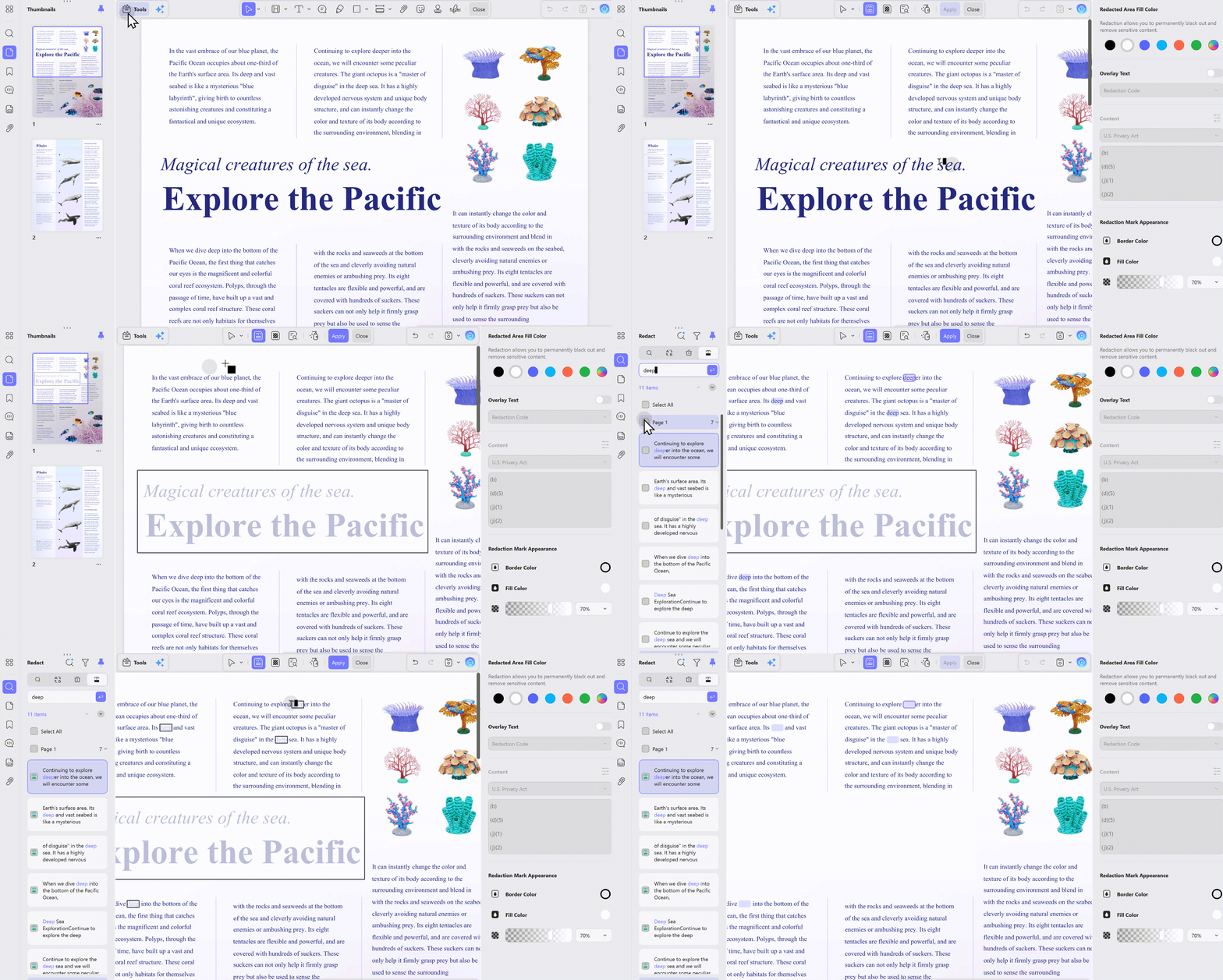
UPDF's current guide documents both manual redaction and Search & Redact workflows.
UPDF is a good fit if you regularly edit, annotate, convert, OCR, and protect PDFs in addition to redacting sensitive information.
A visual cover and permanent removal are different operations, so choose the one your document requires. The demonstration below gives some context for protecting PDFs in UPDF.
What Else UPDF Can Do
Beyond redaction, UPDF is a complete PDF toolkit:
- Edit text and images — modify content directly in your PDF
- Annotate — highlight, underline, add sticky notes, and more
- Convert — export to Word, Excel, PowerPoint, and image formats
- Organize — merge, split, reorder, and delete pages
- AI features — summarize, translate, and chat with your PDF
- Cross-platform — Windows, Mac, iOS, Android
2. Preview: Best Free Option for Mac Users
Mac users can use Apple's built-in Preview for many basic PDF tasks without installing another application.
Redacting PDF in Preview is convenient because it is already included with macOS. However, it should be treated as a basic option rather than a full replacement for a professional PDF security workflow.
This way, you can redact the PDF with Preview. However, there are a few limits with Preview you should know about:
Cons:
- It provides a basic redaction support.
- It is accessible only to Mac systems.
- It is only usable in macOS 11 or newer versions.
- It does not provide the option to select and redact text on multiple pages.
- It does not allow customizing the redaction properties.
In short, Preview is a handy way to redact information on PDF without Adobe Pro if you are using macOS and want to fulfill basic redaction needs.
Preview makes sense when:
- You use a Mac
- You have a small number of PDFs
- Your redaction needs are basic
- You don't need advanced search-based or batch workflows
Limitations
Compared with dedicated PDF editors, Preview provides a more limited workflow for advanced redaction, document processing, and security management.
If you're dealing with legal, financial, medical, or other highly sensitive documents, verify that your version of macOS and Preview provides the exact redaction behavior you need before relying on it.
3. Online PDF Redaction Tools: Best for Convenience
Online tools can be useful when you need to redact a PDF quickly without installing desktop software.
However, online redaction introduces a different consideration:
You may need to upload the document to a third-party service.
For a non-sensitive document, this may be acceptable. For confidential documents, review the provider's privacy, retention, processing, and deletion policies before uploading the file.
1. PDFescape
PDFescape provides browser-based PDF editing features, including whiteout and shape-based ways to cover content. Its current free-plan limitations listed by UPDF include a 10 MB file limit and fewer than 100 pages, and it does not provide the same search-based multi-page redaction workflow as dedicated redaction tools.
For that reason, treat PDFescape as a basic PDF editing option rather than automatically assuming that every whiteout or rectangle operation is equivalent to secure redaction.
Follow the below steps to learn how to redact a PDF without Adobe Pro using the PDFescape online tool:
- Go to the PDFescape website and upload the PDF you want to redact.
- Click the "Insert" icon from the left sidebar and choose "Whiteout".
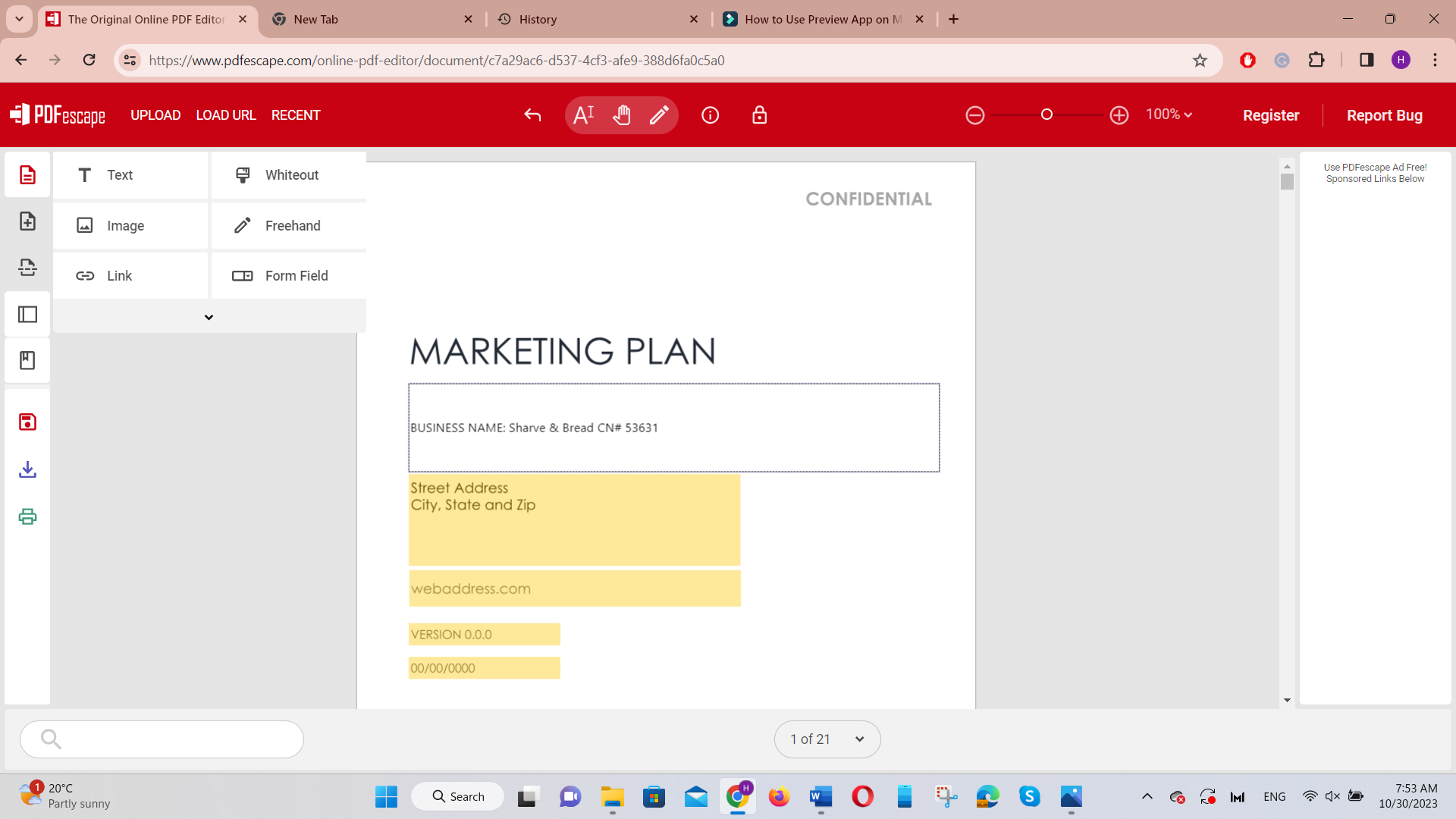
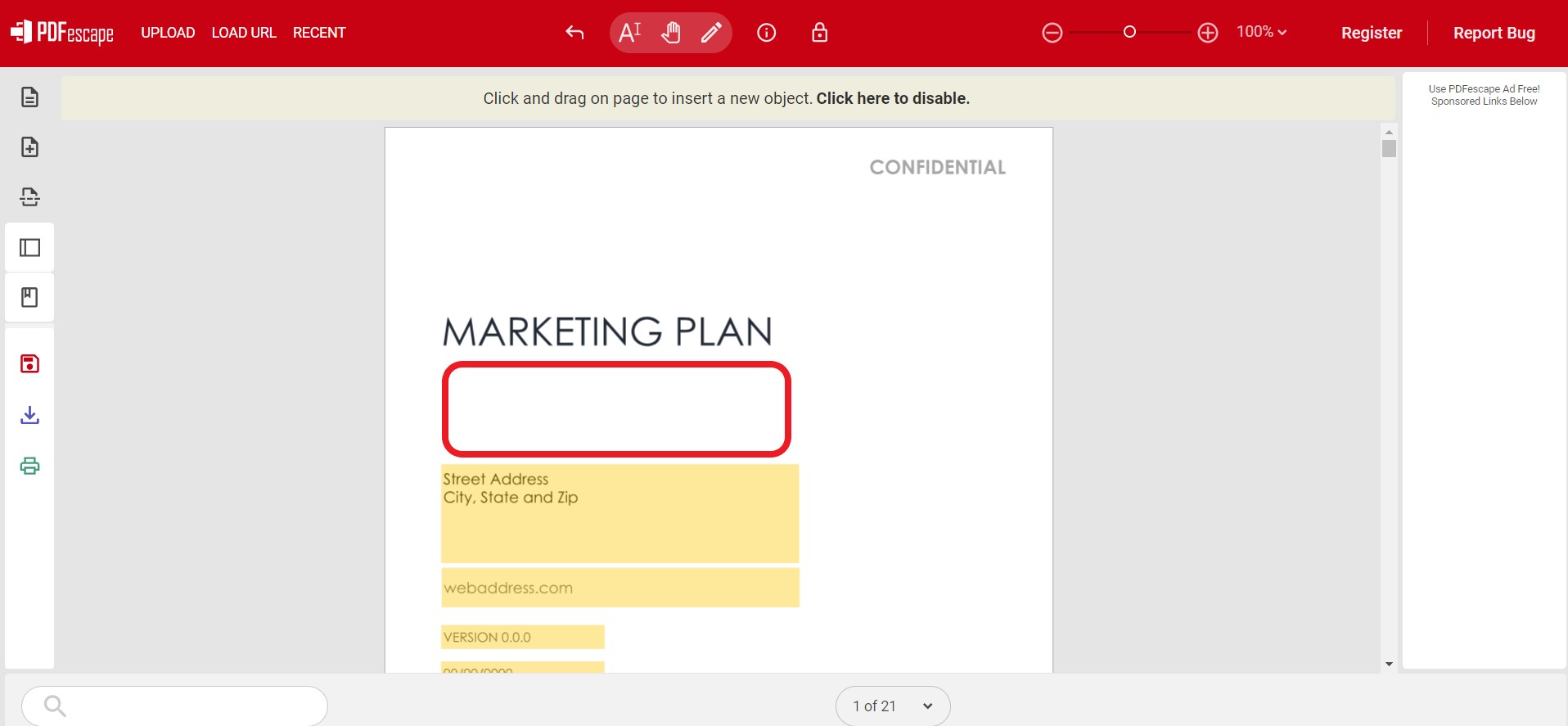
- Drag the cursor over the text to whiteout.
- You can also redact by inserting the rectangle. Click the second tap from the left sidebar and choose "Rectangle".
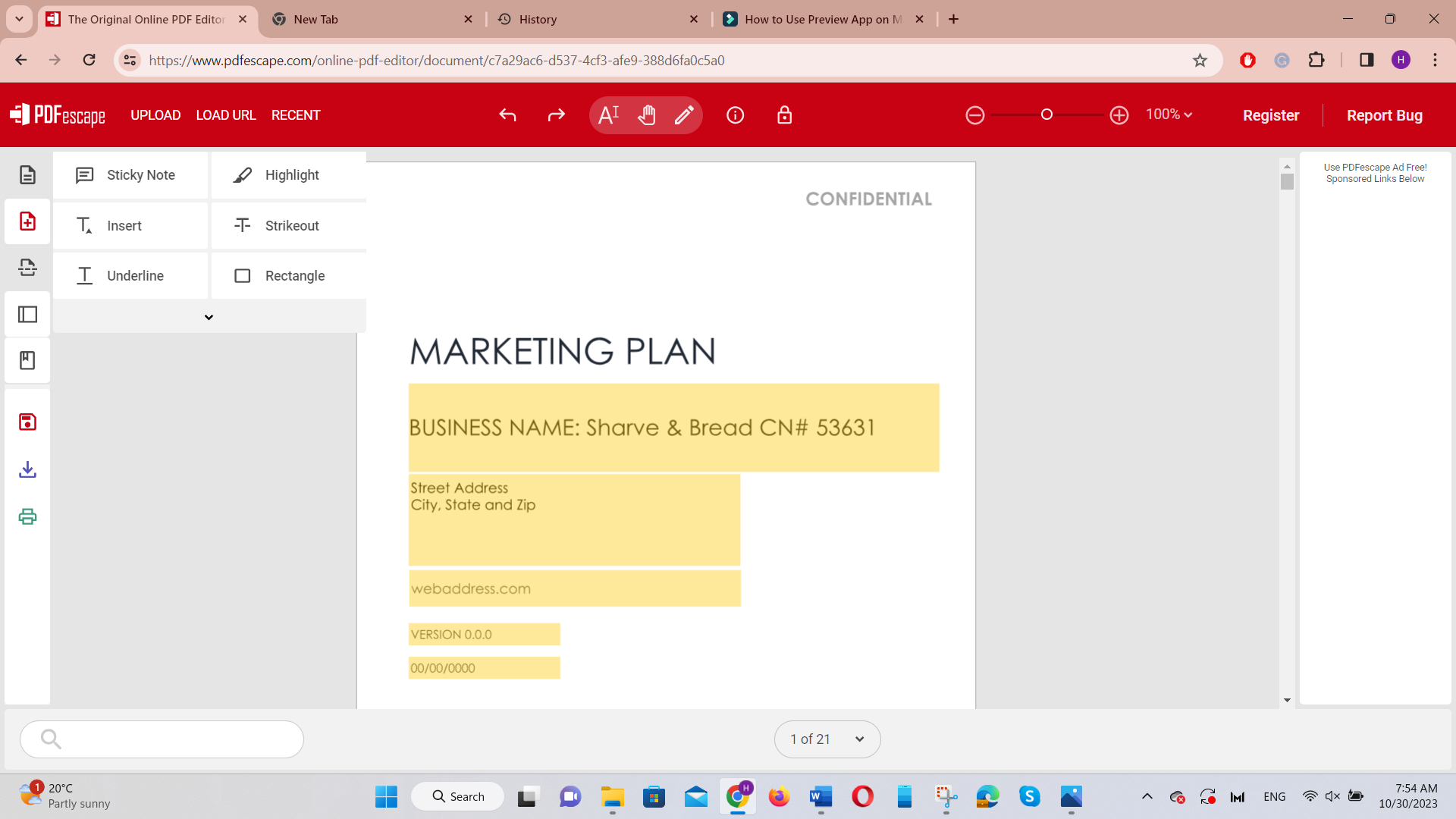
- Drag the cursor over the text/image where you want to add the rectangle. Afterward, you can change the color of the rectangle if you want.
Although PDFescape provides an easy way to redact PDFs, there are a few cons associated with it, as follows:
Cons:
- It provides a file limit of 10 MB and less than 100 pages under a free plan.
- Its interface requires a bit of a learning curve.
- It offers no option to search and redact text on multiple pages.
- It requires a proper network connection.
- Its "whiteout" feature does not allow you to change color or other properties.
In short, PDFescape provides a basic level of PDF redaction support. So, it is recommended to use only when you need to redact a few text/images in a small PDF file.
2. Redactable
Redactable is another online option focused specifically on PDF redaction. The workflow supports manual, search-based, and pattern-based redaction.
Its main trade-off is that the document is handled through an online service, so privacy requirements should be considered before uploading confidential files.
It allows you to redact text in the PDF manually, search-based, pattern-based, or autonomous. Follow the below steps to learn how to redact a PDF without Adobe Pro using Redactable:
- Go to the Redactable website, sign up, and upload the PDF to redact.
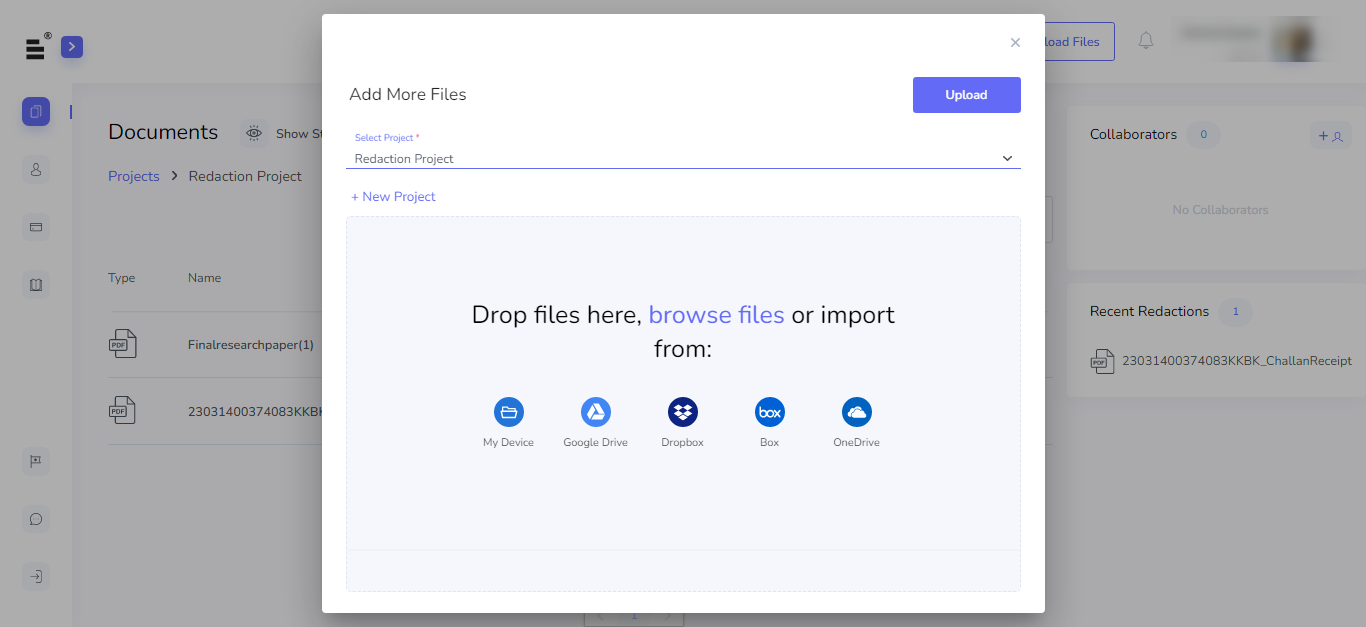
- Choose what type of redaction you want to perform.

- Drag the cursor to redact the text you want. You can redact manually or use its search or pattern-based options to redact text quickly.
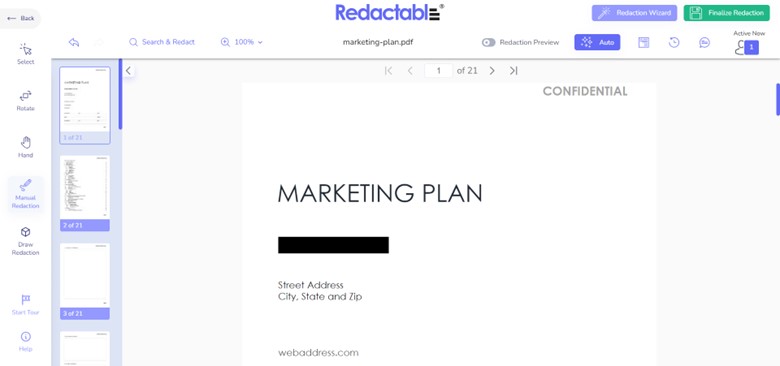
- Once you have completed the redaction, click the "Finalize Redaction" to apply the redaction permanently and then download the file.
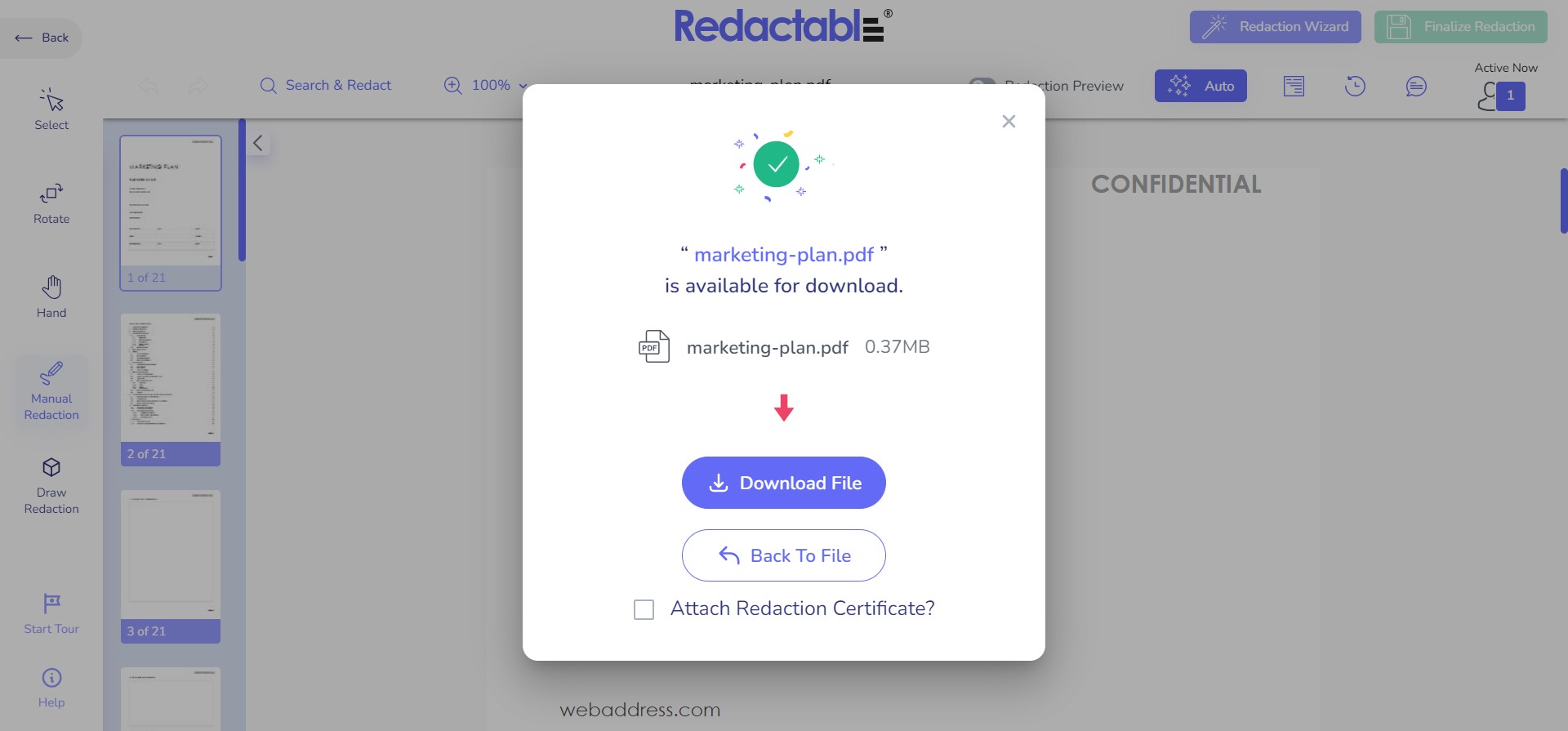
This way, you can redact PDFs with Redactable. However, you will notice some redaction limits while using Redactable, as follows:
Cons:
- You don't get the direct option to customize redaction properties.
- You might struggle to redact some texts.
- You need a reliable internet connection.
In short, Redactable is useful if you just want to do basic redaction on small to large PDF files.
Now that we have looked into the above three alternatives, we can see that all have some limits/cons. File size limit, lack of search-based redaction, incompatibility to customize redaction colors, and similar others are major cons of many of them.
However, UPDF has no such cons. It provides the most intuitive, feature-rich, and limitless redaction support to redact easily and effectively. Therefore, why think more? Download UPDF and install the best PDF redaction alternative of Adobe Pro.
Windows • macOS • iOS • Android 100% secure
How to Redact a PDF Safely
Regardless of which tool you choose, follow the same basic process.
Before Redacting
- Make a copy of the original PDF.
- Identify every piece of sensitive information.
- Search for repeated names, numbers, or phrases.
- Check whether sensitive information also appears in images.
- Decide whether hidden information needs to be sanitized.
After Applying Redactions
- Save the redacted document under a new filename.
- Close and reopen the PDF.
- Search for the information you removed.
- Check the redacted pages manually.
- Verify that hidden information does not need additional sanitization.
Adobe specifically recommends saving a separate copy and provides a sanitization workflow for hidden information.
FAQ
1. Why can't I redact in PDF?
If you are unable to redact a PDF, then you have to inspect if the file has some permissions set. Most likely, the file has set permission to prohibit adding comments. If so, you must contact the permission creator to remove the restriction. Besides that, another reason is that the PDF tool does not have the redaction feature.
2. How to do PDF redaction in Adobe Acrobat Pro DC?
Follow the below steps to redact PDF in Adobe Acrobat Pro DC:
Open the PDF in Adobe.
Click Tools > Redact.
Click the "Edit" menu and select "Redact Test & Images".
Select the text or image to redact, right-click, and select "Redact".
To redact the same text on multiple pages, use the "Find Text & Redact" option.
Once all the redaction is completed, click "Apply".
Should I sanitize a PDF after redacting it?
For sensitive documents, consider it. Sanitization can remove hidden data such as metadata, comments, attachments, and hidden layers.
Is an online PDF redaction tool safe for confidential documents?
It depends on the provider's security and data-handling practices. For highly confidential files, an offline application may be a better choice.
Conclusion
PDF redaction is useful to protect sensitive information before sending the file to others. Adobe Acrobat Pro is one powerful tool to protect PDFs with redaction, but its costly subscription and interface complexity hinder the experience.
Therefore, this guide has listed a few alternative tools for users looking for how to redact a PDF without Adobe Pro. Out of all the alternatives, UPDF seems the best choice. Its click-based interface, no learning curve, feature-rich redaction options, and complete FREE redaction experience make it the ideal and best alternative to Adobe Pro.
Windows • macOS • iOS • Android 100% secure



 Enid Brown
 Delia Meyer
  Enya Moore
 Enrica Taylor