 UPDF
UPDF
 UPDF for Windows
 UPDF for Mac
 UPDF for iPhone/iPad
 UPDF for Android
 Nomostar
 UPDF AI Online
 UPDF Sign
 IvyCraft
 Edit PDF
 Annotate PDF
 Create PDF
 PDF Form
 Edit links
 Convert PDF
 OCR
OCR PDF to Word
 PDF to Image
 PDF to Excel
 Organize PDF
 Merge PDF
 Split PDF
 Crop PDF
 Rotate PDF
 Protect PDF
 Sign PDF
 Redact PDF
 Sanitize PDF
 Remove Security
 Read PDF
 UPDF Cloud
 Compress PDF
 Print PDF
 Batch Process
 About UPDF AI
 UPDF AI Solutions
 AI User Guide
 FAQ about UPDF AI
 Summarize PDF
 Translate PDF
 Chat with PDF
 Chat with AI
 Chat with image
 PDF to Mind Map
 Explain PDF
 PDF AI Tools
 Image AI Tools
 AI Chat Tools
 AI Writing Tools
 AI Study Tools
 AI Working Tools
 Other AI Tools
 AI Bookmark Generation
 AI Bookmark Summary
 AI Watermark Generation
 AI Background Generation
 AI Sticker Generation
 AI Stamp Generation
 AI Editing Suite
 UPDF Copilot
 AI Page Management
 AI Semantic Search
 PDF to Word
 PDF to Excel
 PDF to PowerPoint
 Enterprise Solution
 Enterprise Sign
 Enterprise AI
 Enterprise Plan
 Enterprise User Guide
 Enterprise Webinar
 IT
IT Education
 Construction
 Financial Service
 Healthcare
 Insurance
 Legal
Legal Manufacturing
 Government
 Researchers & PhDs
 Solopreneurs & Freelancers
 Lawyers & Legal Professionals
 Real Estate Agents & Brokers
 Education Solution
 Customer Stories
 User Guide
 UPDF Tricks
 FAQs
FAQs UPDF Reviews
 Download Center
 Blog
Blog Newsroom
 Tech Spec
 Updates
 UPDF vs. Adobe Acrobat
 UPDF vs. Foxit
 UPDF vs. PDF Expert

Across the internet, users have been getting to grips with artificial intelligence (AI) and its multitude of uses. ChatGPT brings AI into mainstream use, with a conversation-like user interface that allows users to generate, summarize, translate, and explain text in just a few clicks. With so many uses for this fantastic software, the need to share, edit, and present ChatGPT conversations is everywhere.
Exporting ChatGPT conversations to HTML, PDF, Word, Excel, or image files lets you archive, share, print, and build on your AI-generated content in ways that simply aren't possible inside ChatGPT itself. This guide walks you through every method, step by step. We also introduce UPDF AI Online. Hit the Download button below to visit and test it!
How to Export ChatGPT Conversation to HTML
Exporting a ChatGPT conversation to HTML is the most complete archiving method available — it preserves the full conversation history, including code blocks and formatted output, and lets you view everything in any browser. It's also the foundation for converting to other formats, since the zip file ChatGPT sends contains the raw HTML files.
Follow these steps to export ChatGPT history to HTML:
Step 1. Open your web browser and open ChatGPT. You might need to re-enter your login details. Open the conversation that you want to export as HTML from the panel of saved chat conversations on the left side of the screen.
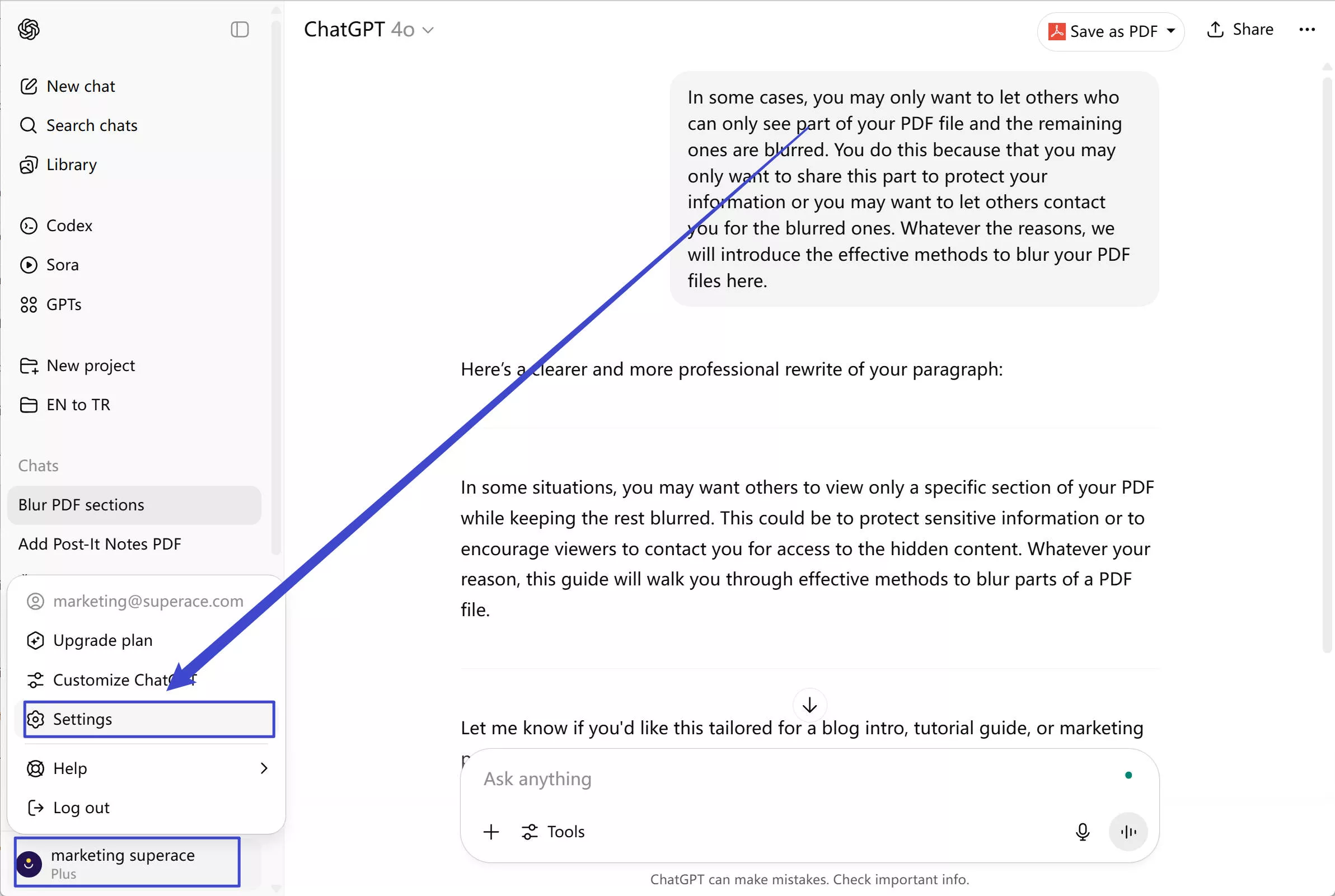
Step 2. At the bottom left of the page, click your profile, then click "Settings".
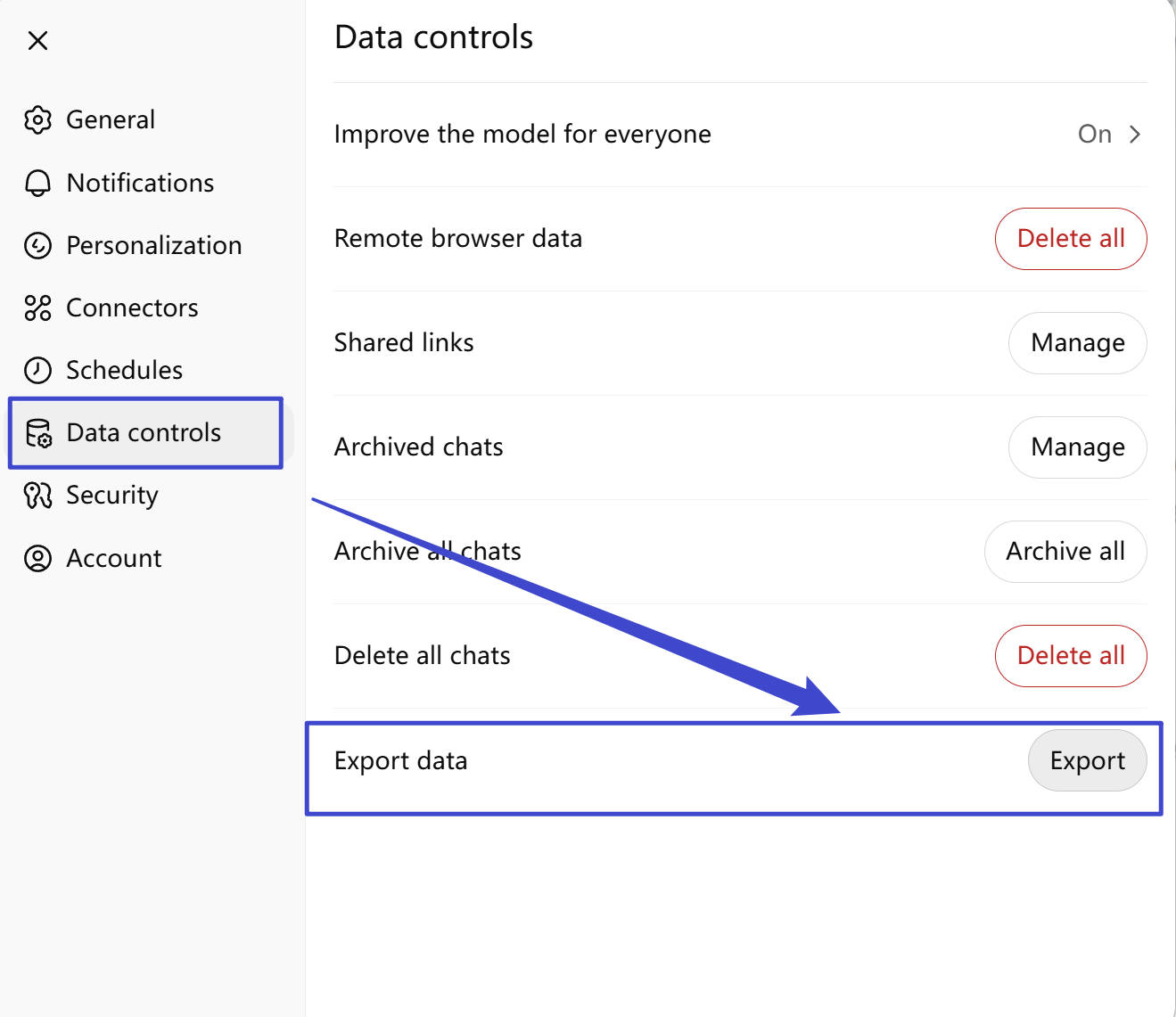
Step 3. Select "Data Controls" from the panel on the left-hand side.
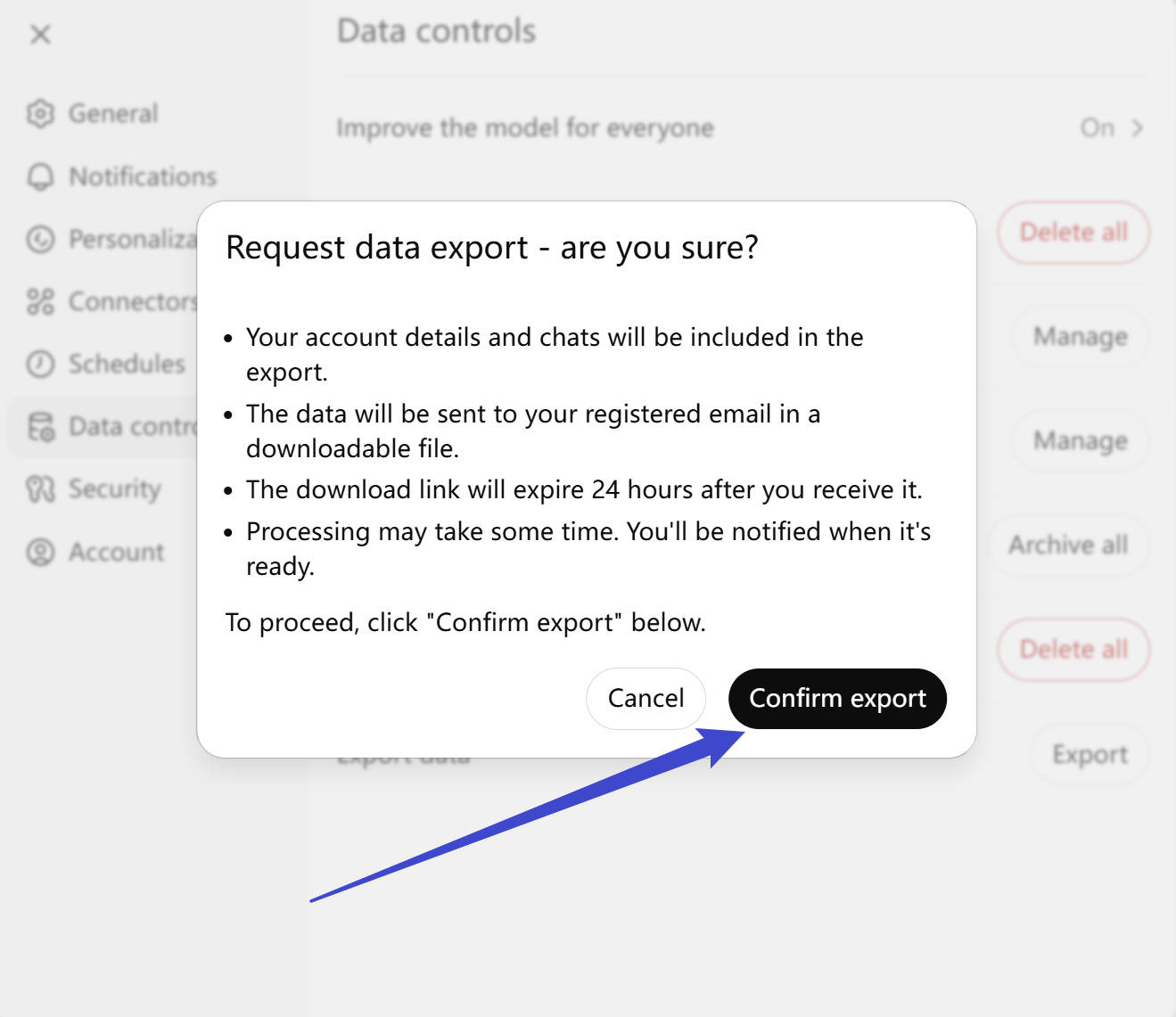
Step 4. Click "Export". After you've read the prompt that appears, select "Confirm Export". The exported data will be sent to the registered email on your account, in the form of a downloadable zip file. Note that this link to download your conversation history expires 24 hours after you receive it.
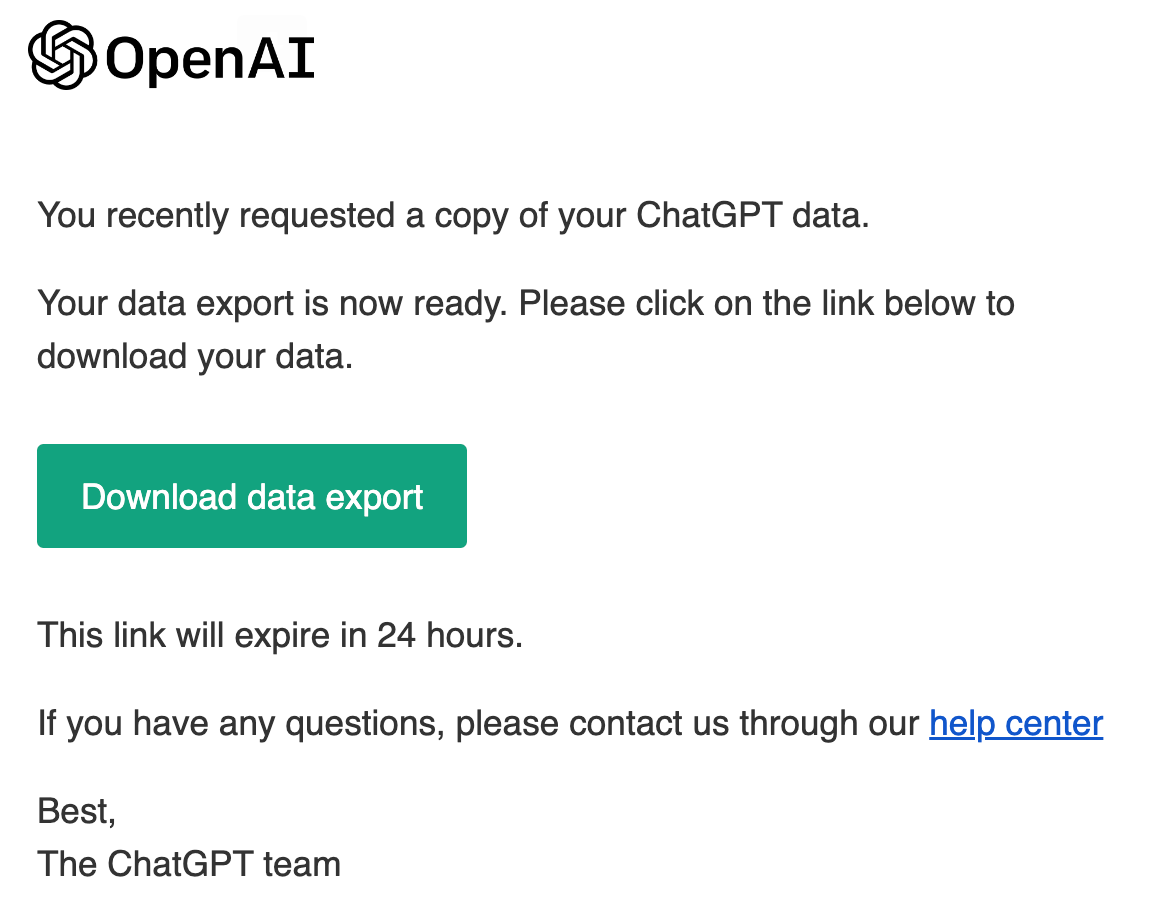
Step 5. When you receive the email, click "Download data export", and save the file to your device.
Once you have your exported conversation history in HTML form, you can use it as you wish. From here you can convert to another format, like PDF format, or use the HTML form directly.
Also Read: How to Use ChatGPT for Excel? (Easy Guide)
How to Export ChatGPT Conversation to PDF
While ChatGPT automatically stores your previous conversations in the sidebar, those are only accessible online and through your ChatGPT account. Exporting to PDF format solves this: it gives you a portable, printable, offline-ready copy of any conversation.
Make sure your browser is up to date before you begin, then follow these steps:
Step 1. Open your web browser, visit ChatGPT, and open the conversation that you would like to save. Your saved conversations are accessible on the left side of the screen and are automatically named by ChatGPT so that you can identify them easily.
Step 2. If you're on a Windows device, press the key combination Ctrl + P to bring up the print dialog. You can also right-click anywhere on the conversation and click "Print".
If you're on a Mac device, press the key combination Command + P.
Step 3. In the 'Destination' field, select 'Save as PDF'. Edit any other settings that you'd like to change, then click 'Save'.
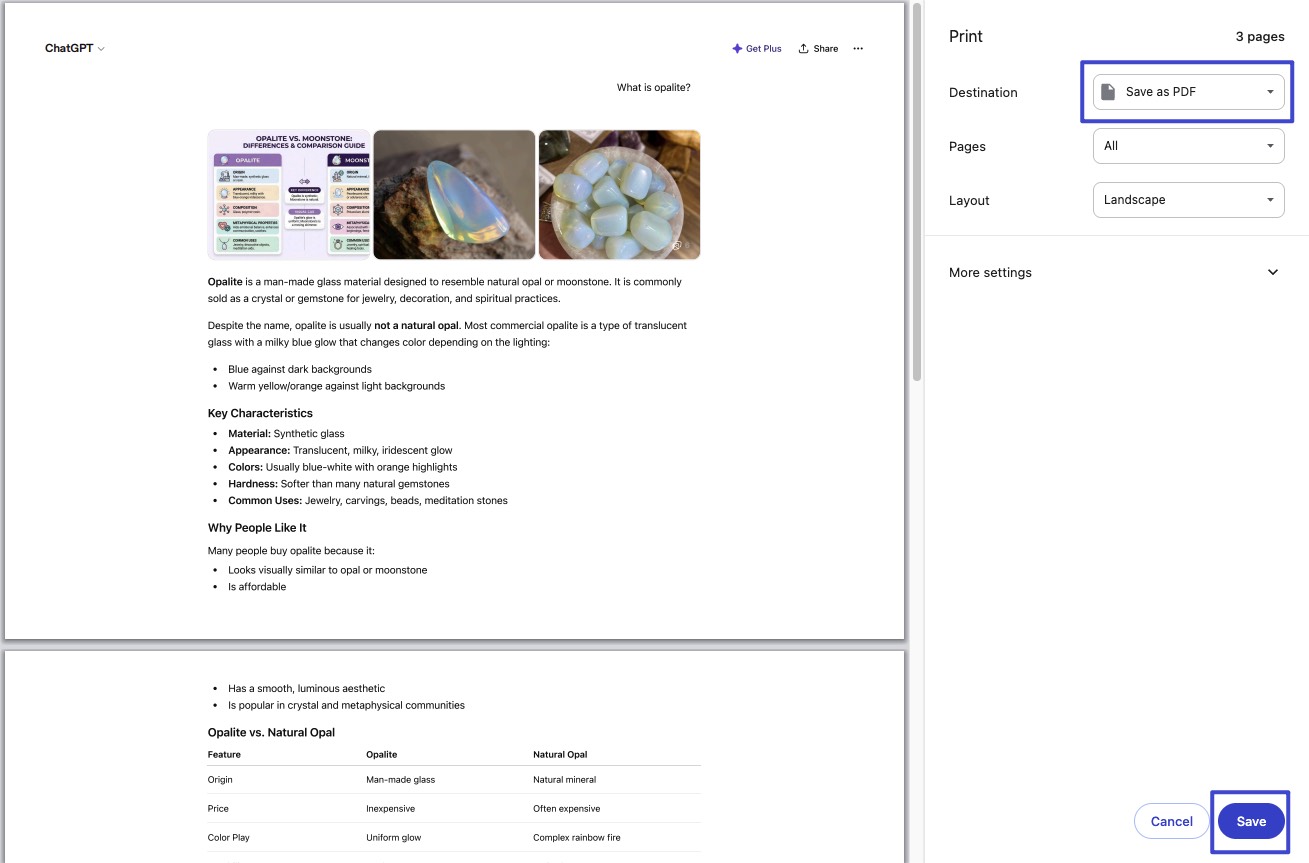
Step 4. Write a file name and save the PDF document to your device.
Once you've saved your file in the location of your choosing, you can refer back to it and open it whenever you need, even if you don't have an internet connection.
For more ways to convert ChatGPT conversation to PDF, you should check this guide.
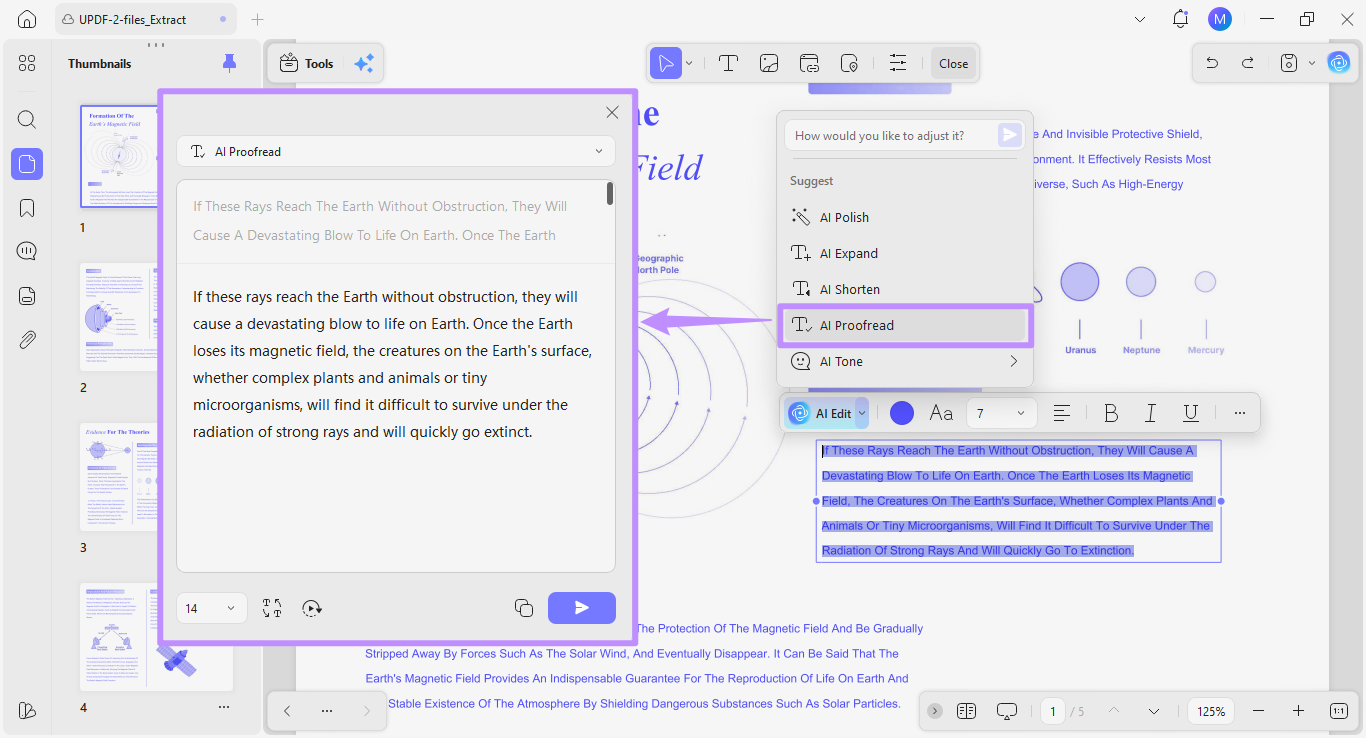
Want to edit, annotate, or search your exported PDF? Download UPDF — it includes a full PDF editor, AI chat, OCR, and UPDF's AI Editing Suite that lets you rewrite and polish text directly inside a PDF text box, without switching apps.
Windows • macOS • iOS • Android 100% secure
How to Export ChatGPT Conversation to Word
The quickest way to get a ChatGPT conversation into Microsoft Word is to copy and paste the text directly — but this loses all formatting. For a clean, properly formatted Word document that preserves structure and layout, use UPDF's PDF-to-Word converter. Here's how:
Windows • macOS • iOS • Android 100% secure
Follow these simple steps:
Step 1. Export the ChatGPT conversation as a PDF document by clicking Ctrl + P (or Command + P on a Mac device) and then following the print dialog instructions to "Save as PDF".
Step 2. Open UPDF and load your PDF via the "Open File" button or by dragging the file onto the UPDF window.

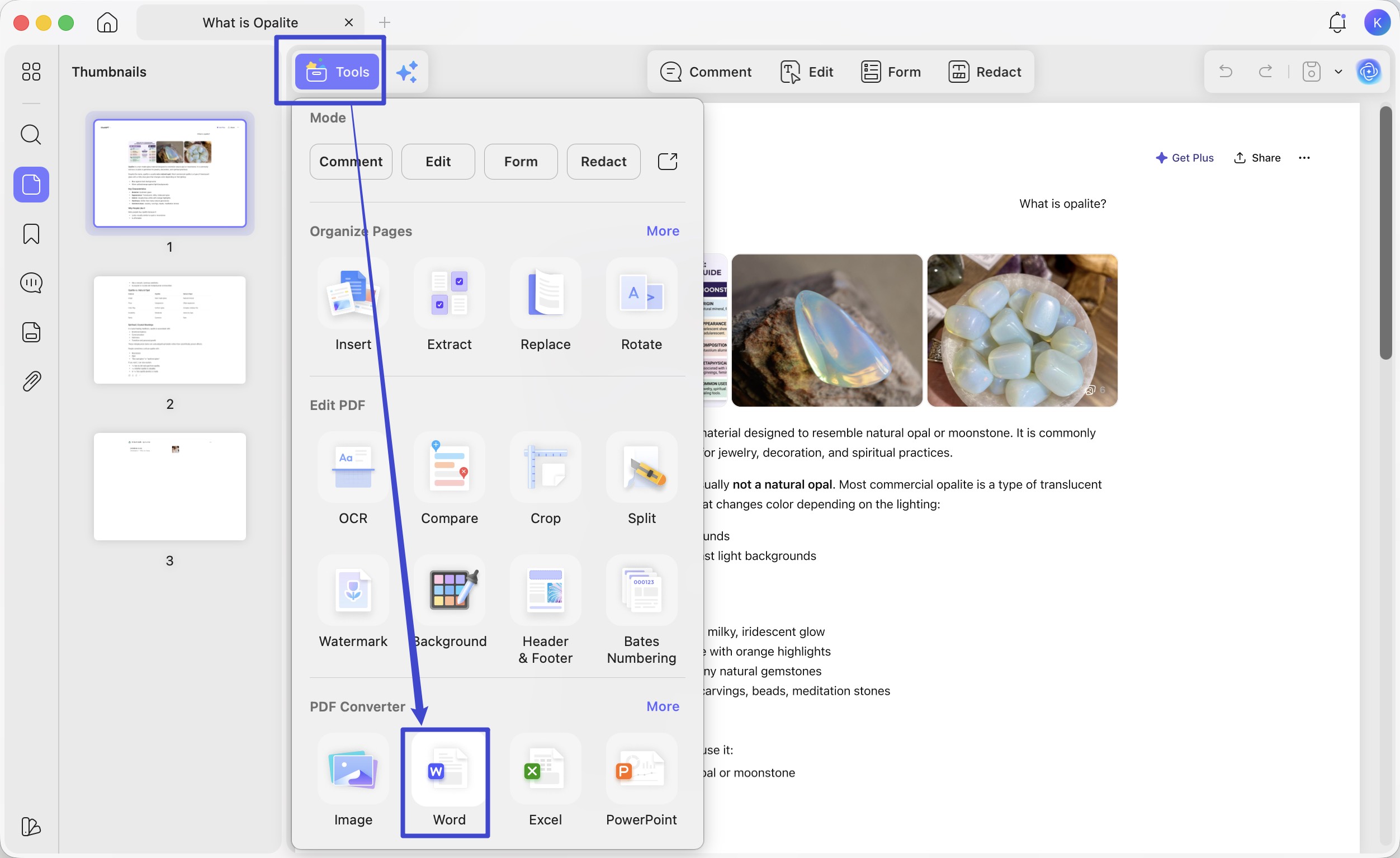
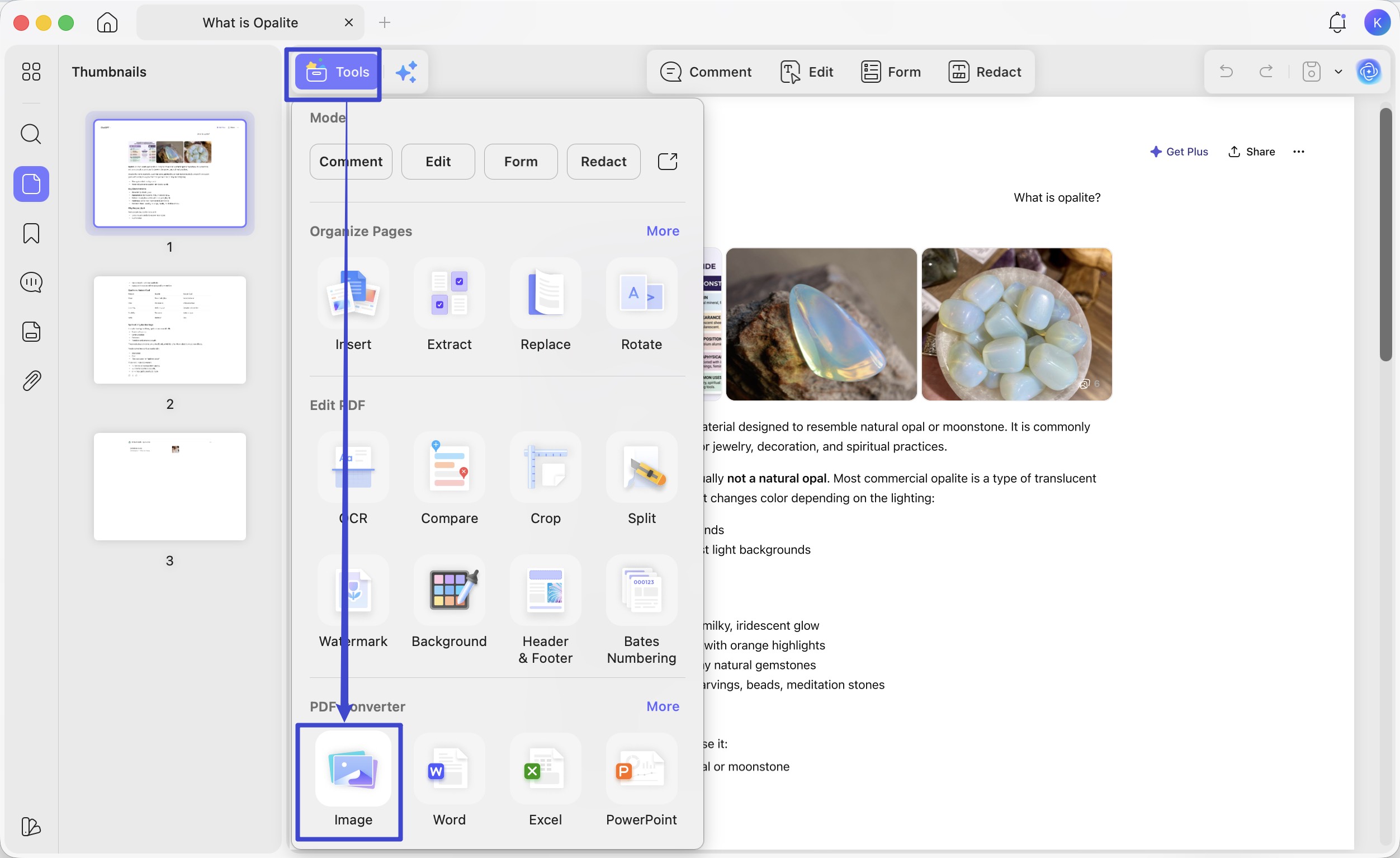
Step 3. Click"Tools" in the top menu bar of UPDF and choose "Word" in the PDF Converter section.
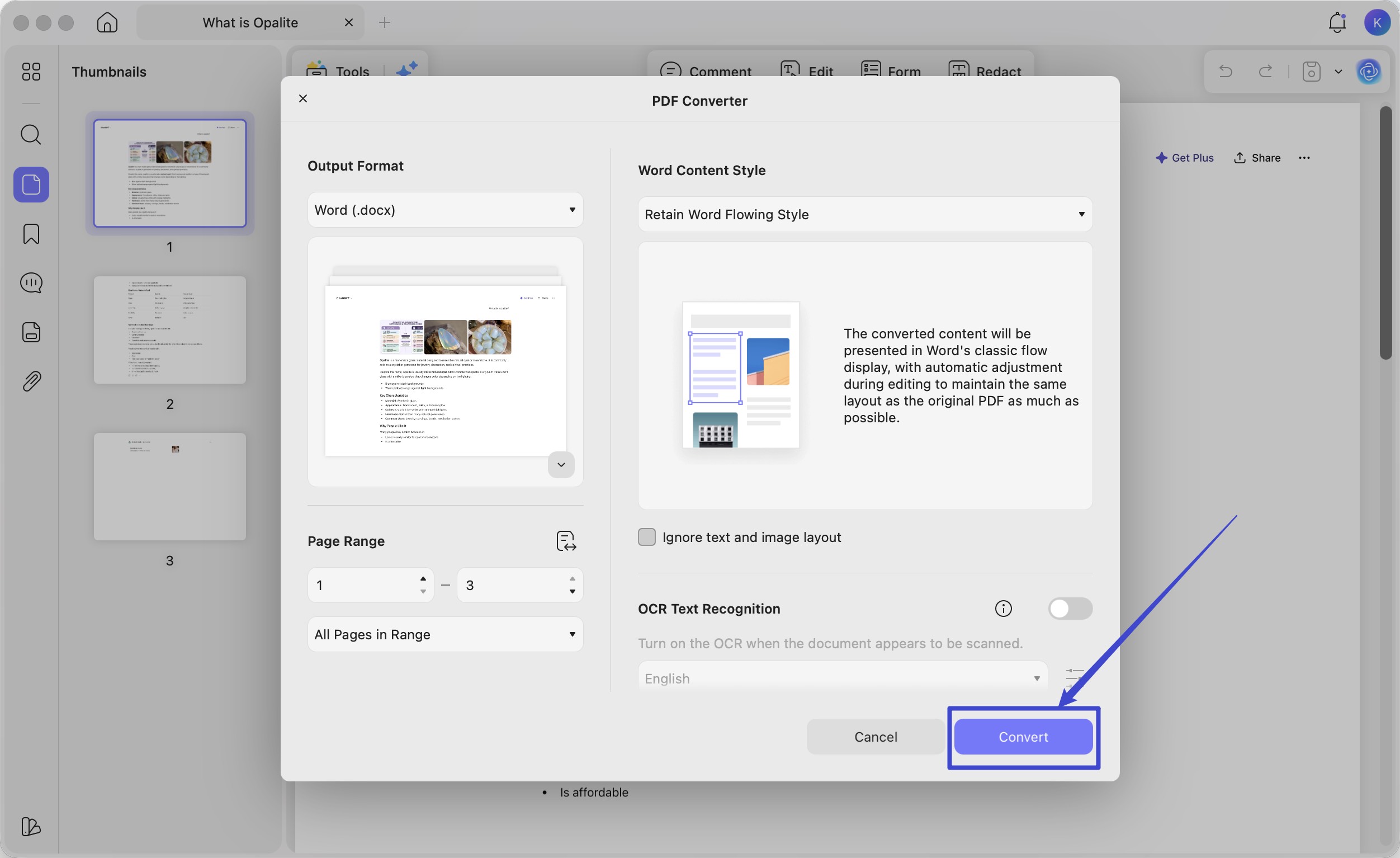
Step 4. Click "Convert" in the new pop-up window and select the location where you want to save the file.
Step 5. Now, you can open the converted file in Word.
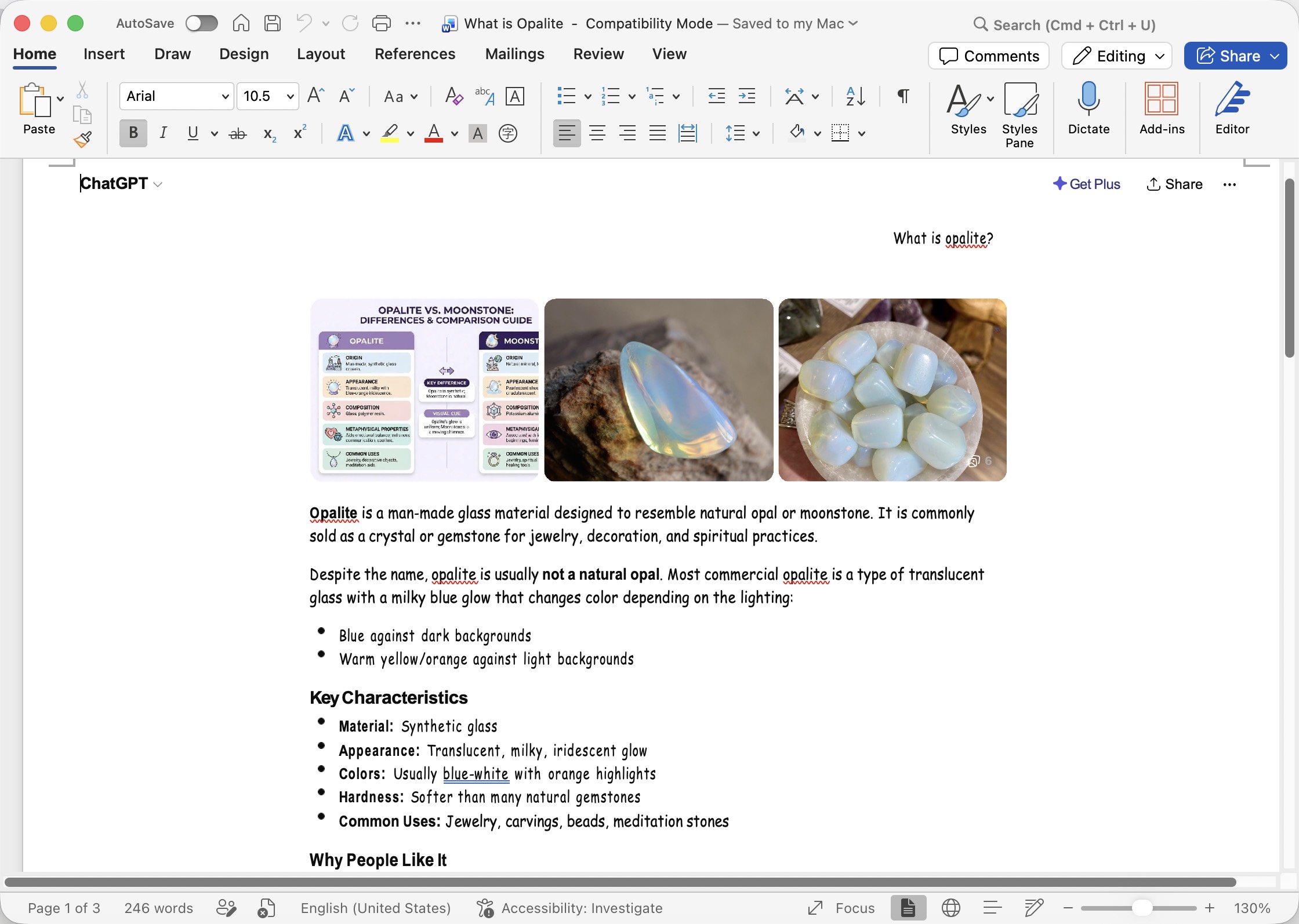
How to Export ChatGPT Conversation to Excel
If you use ChatGPT to generate data tables, structured lists, or financial outputs, exporting that content to Excel can save significant time compared to manual copying.
ChatGPT now supports two reliable methods for this, depending on your subscription:
Method 1: Use ChatGPT's Built-In Data Analysis Tool (ChatGPT Plus / Pro)
Step 1. Open your ChatGPT conversation containing the data you want to export.
Step 2. If your data isn't already in table format, ask ChatGPT: "Format this data as a table I can download as a CSV."
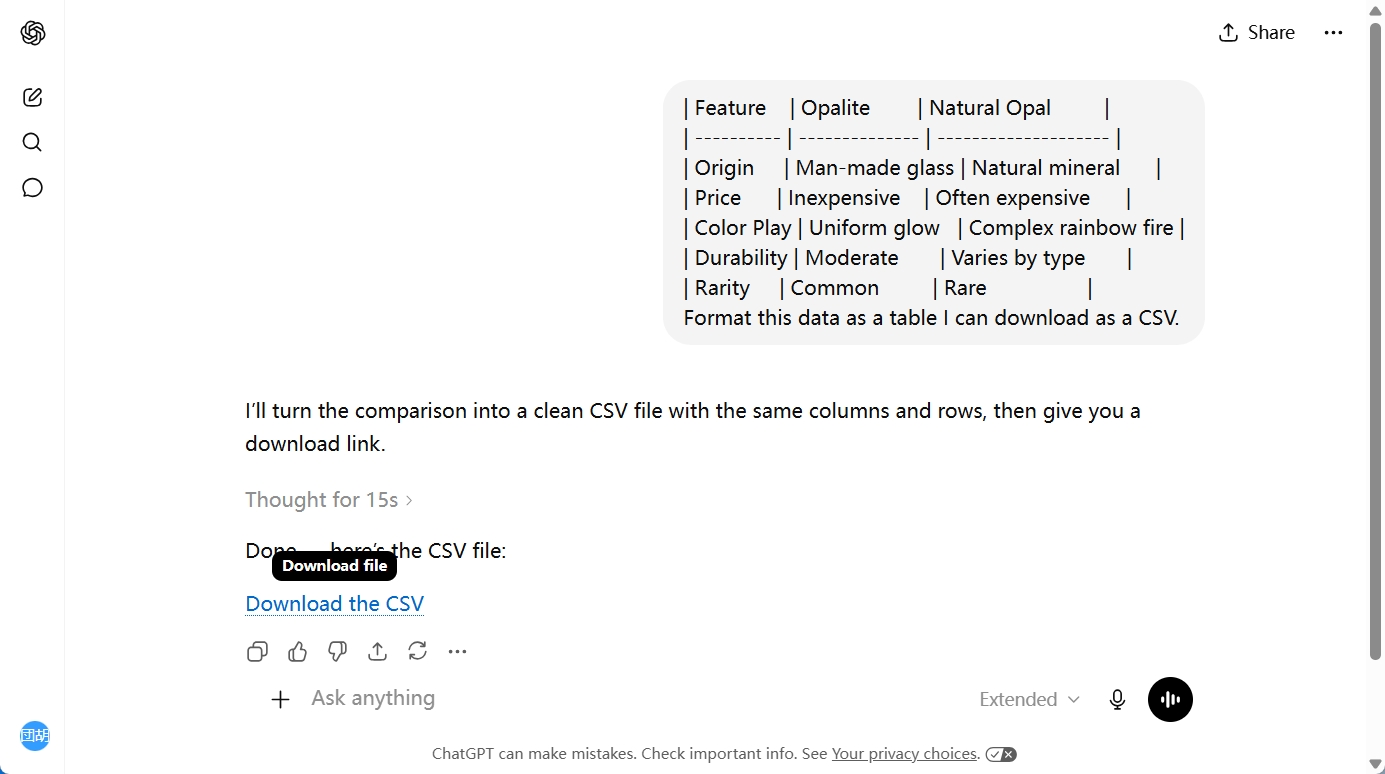
Step 3. ChatGPT will generate the table and offer a Download link for the CSV file directly in the chat. Click the link to save the file.
Step 4. Open the downloaded CSV in Microsoft Excel. You can then save it as an .xlsx file from Excel's File → Save As menu.
Method 2: Copy Table and Paste into Excel (Free users)
Step 1. Ask ChatGPT to present your data in a formatted table.
Step 2. Select the entire table in the ChatGPT conversation, then copy it (Shortcuts: Ctrl + C on Windows, Command + C on Mac).
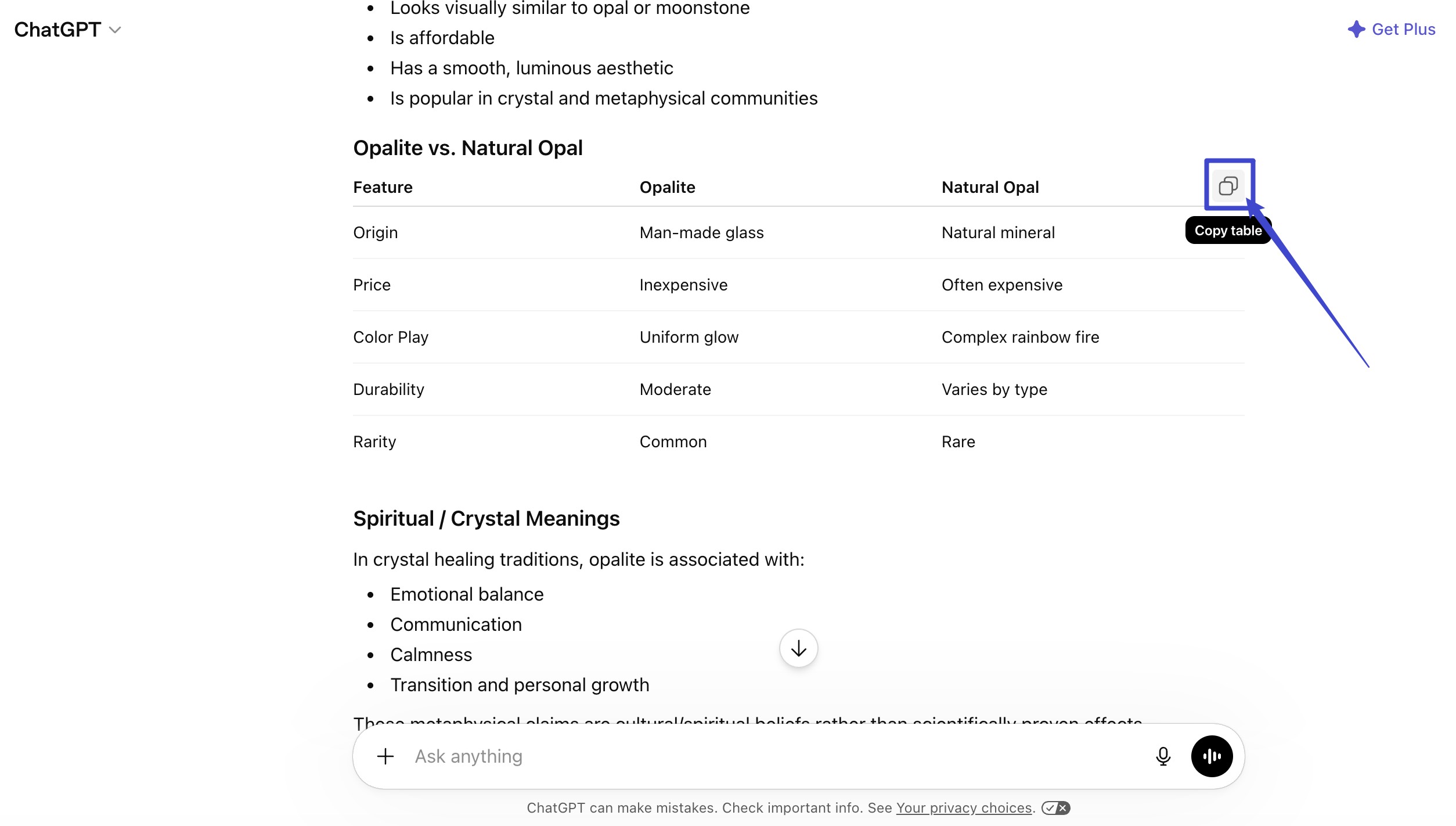
Step 3. Open Microsoft Excel, right-click on a cell, and use Paste Special → HTML → to paste the structured data.
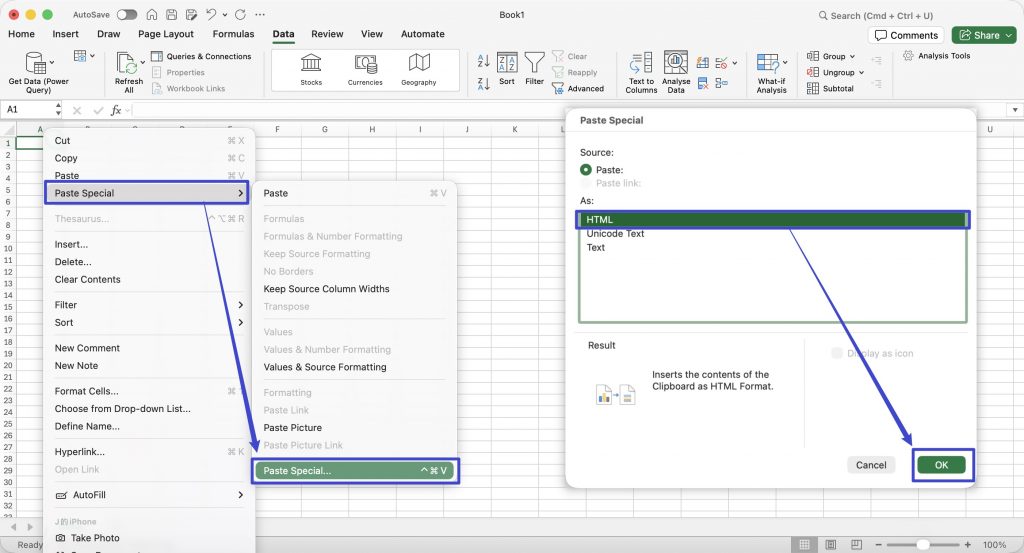
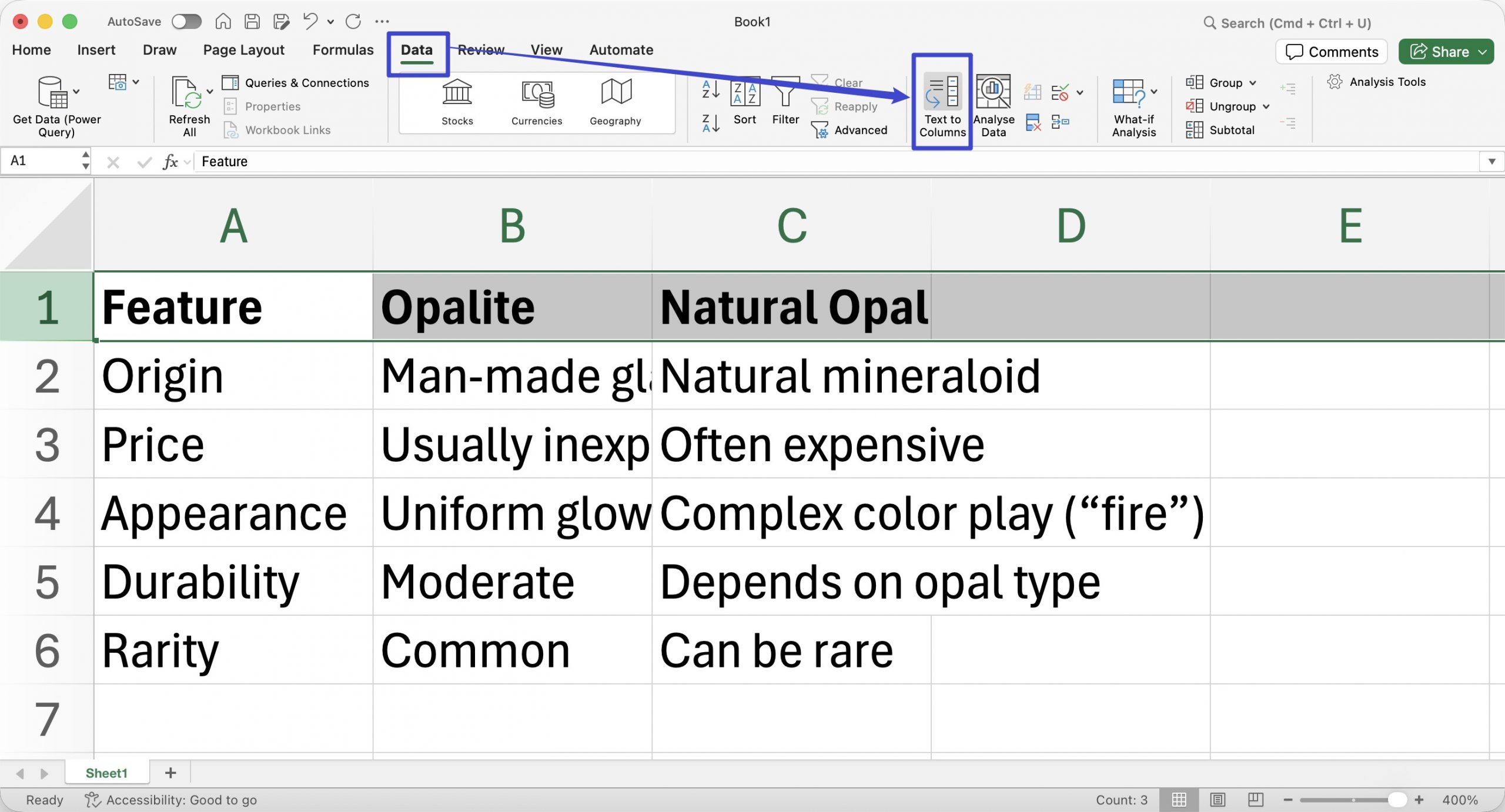
Step 4. Excel will parse the columns automatically in most cases. Use Data → Text to Columns if the formatting needs adjustment.
How to Save ChatGPT Conversation as an Image
Saving a ChatGPT conversation as an image is useful for social media posts, presentations, design projects, or when you want to share a snapshot without giving someone access to the full document.
One way to do this is by taking screenshots:
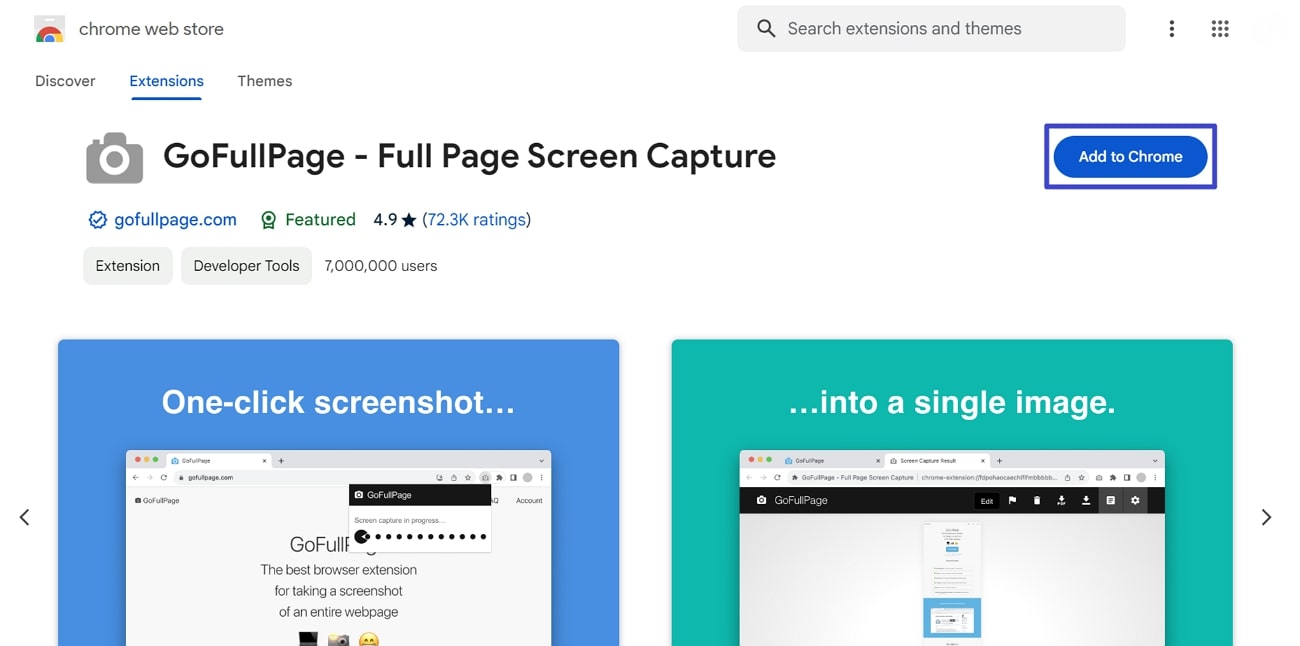
Step 1. From the Chrome Web Store, access the GoFullPage extension. Integrate this extension into your browser by pressing the "Add to Chrome" button. After successful processing, you can see this extension in the top right toolbar of your browser.
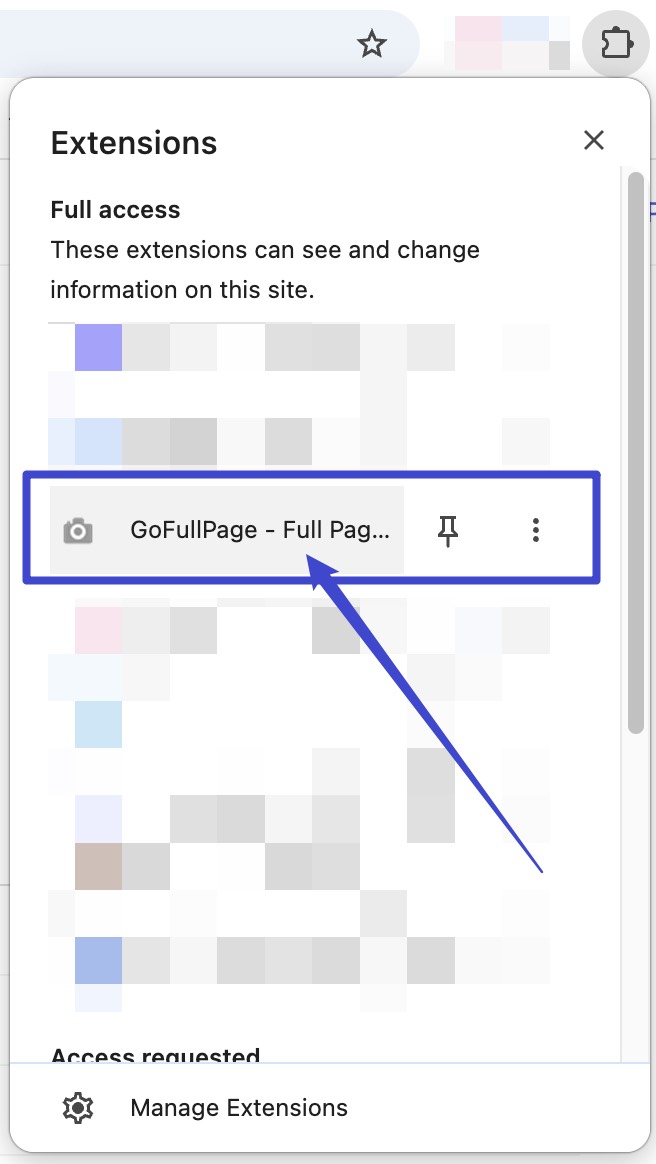
Step 2. Now, switch to the tab where your ChatGPT conversation is open, click the Extensions icon, and select GoFullPage to capture a full-page screenshot of the conversation.
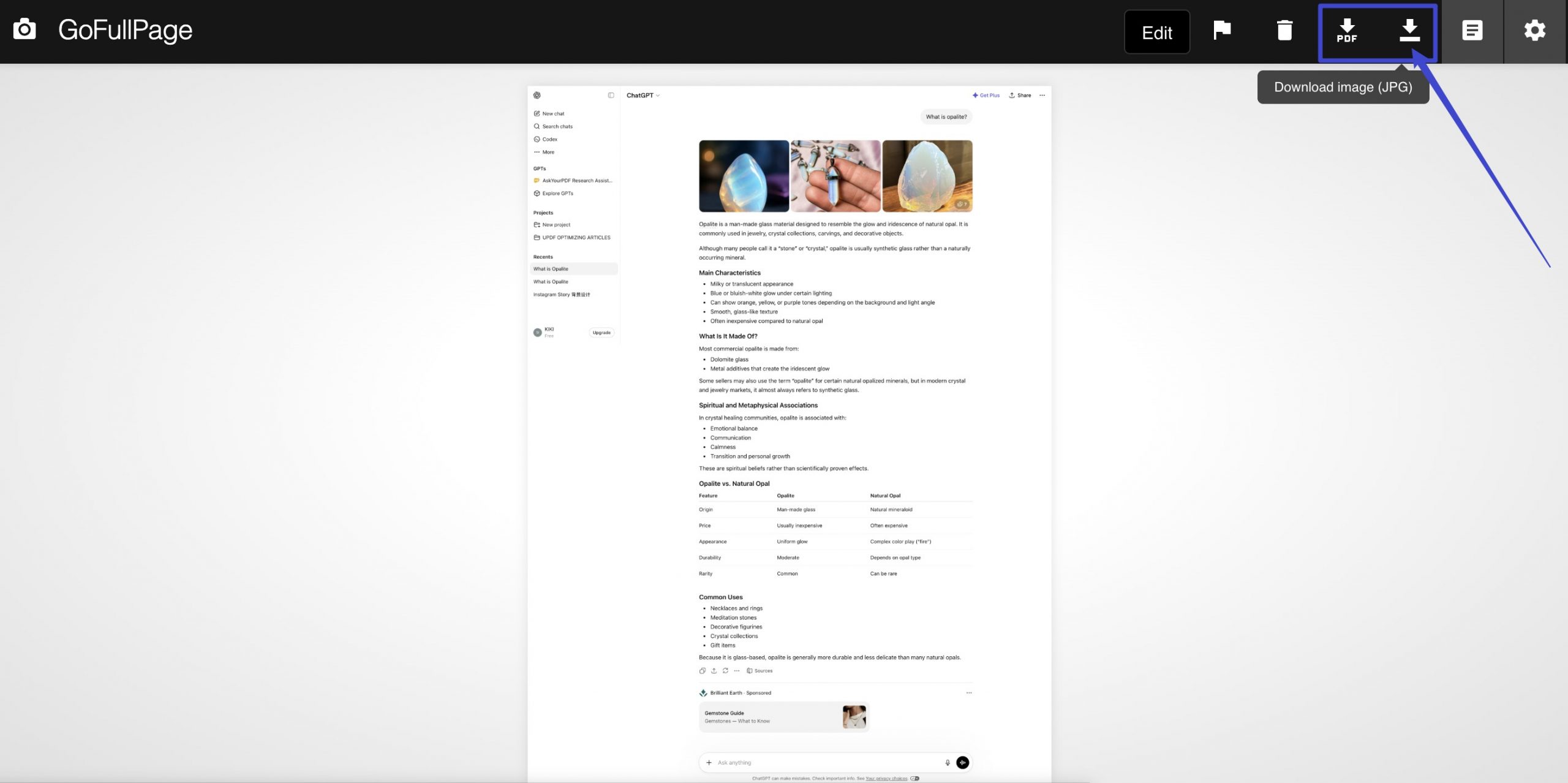
Step 3. GoFullPage will automatically take a scrolling screenshot and open it on a new tab. Within this window, you can save it in either image format (PNG/JPG) or as a PDF by selecting the download icon, appearing at the top right.
Another method is:
Step 1. Follow the instructions above for how to ChatGPT export conversation to PDF by using the print dialog box.
Step 2. Use a PDF conversion tool like UPDF to convert your exported PDF into an image or multiple images.
Step 3. Save the image(s) to your device.
A Powerful AI Alternative to ChatGPT
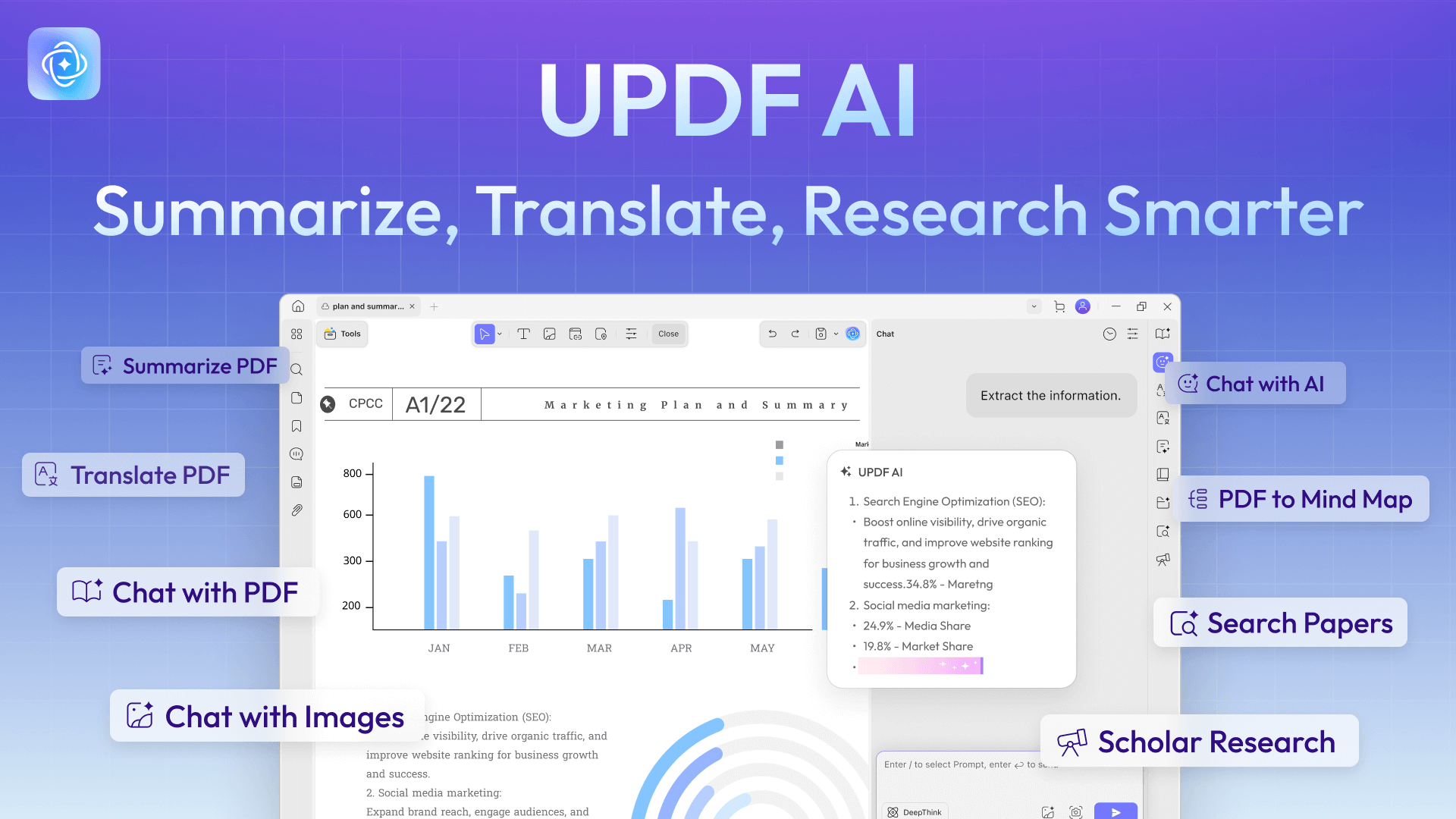
ChatGPT is a powerful AI, but it wasn't built for document workflows. If you're regularly exporting conversations and working with the resulting files, UPDF AI Online is a purpose-built alternative with a suite of AI tools — including GPT-5 and DeepSeek R1 — to handle everything from document chat to format conversion in one place.
UPDF AI Online's free plan gives you 100 AI uses to start, with no credit card required.
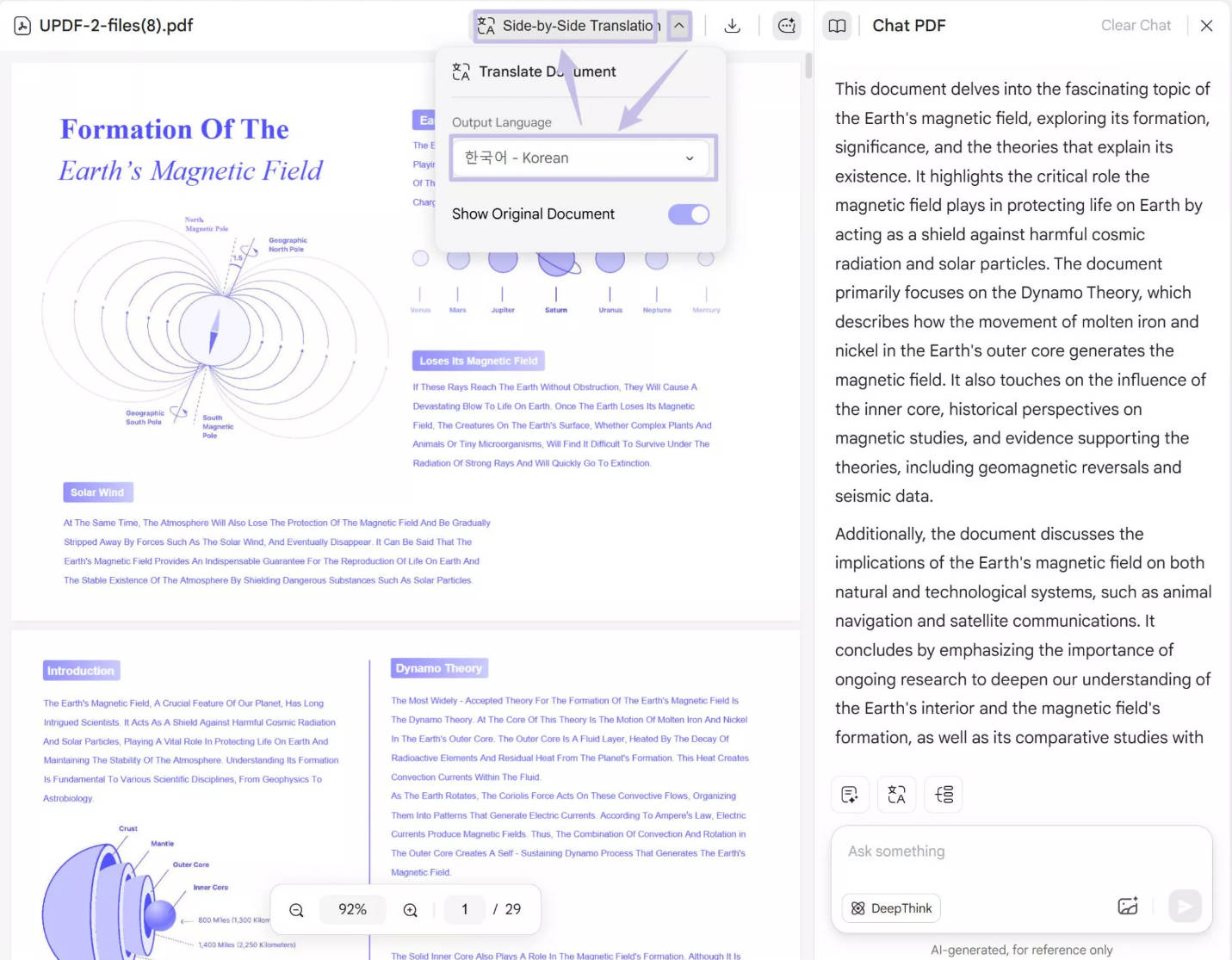
PDF Translations
Translate the whole PDF to the language you need without losing the format. Moreover, it can help translate PDFs page by page.
PDF Summaries
Condense hundreds of pages of a PDF document into a simple paragraph in seconds with this handy feature. Use this tool to shorten large chunks of text, condense complex information into key bullet points, and explain data tables in a simple yet effective way.
PDF Explanations
Use the Explain feature to make complex text, diagrams, and charts easy to understand. Produce definitions and generate source information at the click of a button.
PDF Text Writing
Let AI write text for you from scratch with the chatbot feature. Brainstorm ideas, write new text, check spelling and grammar, and more with this powerful feature.
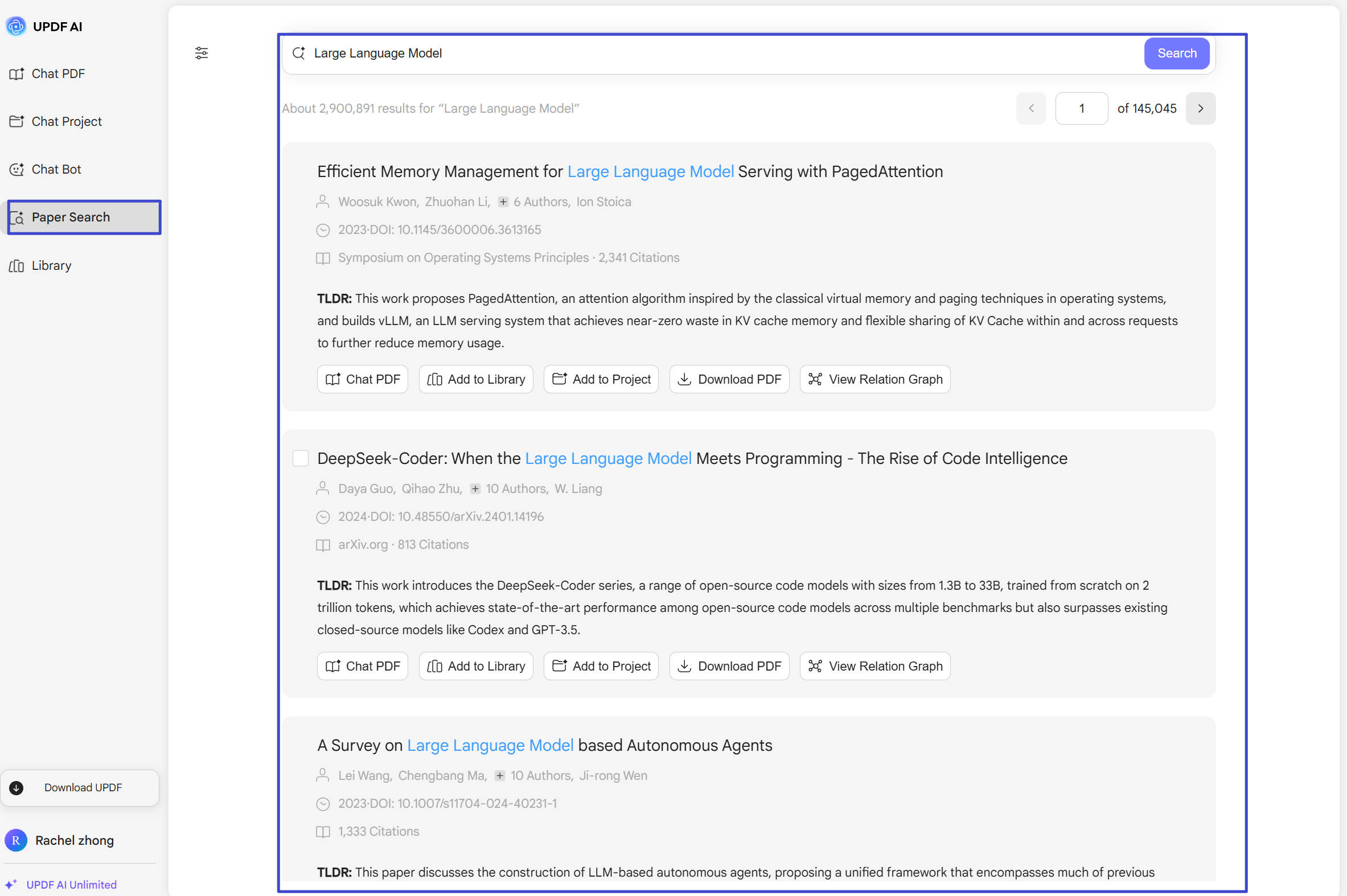
Paper Search
With this feature, you can find the papers you need in seconds, find the relations between the different papers and help you find more related papers, summarize and chat with the found papers to improve your reading efficiency.
UPDF AI Agents That Make Exported ChatGPT Files More Useful
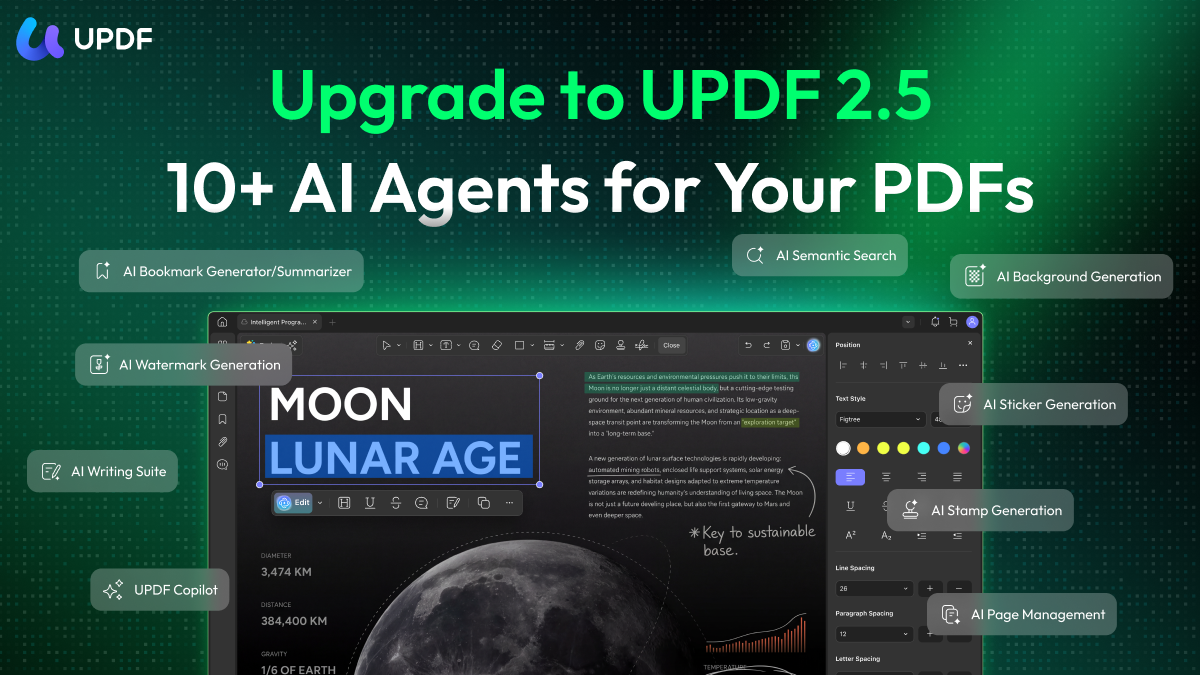
Once you've exported your ChatGPT conversation to PDF, UPDF's suite of specialized AI agents can take it further. For example:
AI Editing Suite: After exporting a ChatGPT conversation to PDF, you may want to rewrite sections, adjust the tone, or fix grammar before sharing the document. UPDF's AI Editing Suite lets you do this directly inside the PDF text box — rewrite, refine tone, or correct grammar without ever leaving UPDF.
AI Semantic Search If you've archived many ChatGPT conversations as PDFs, finding a specific one by keyword alone is slow. UPDF's AI Semantic Search understands the meaning behind your query — not just the exact words — so you can locate the right conversation even if you don't remember the precise phrasing.
Windows • macOS • iOS • Android 100% secure
Watch the video below to learn more about UPDF AI:
FAQs on Exporting ChatGPT Conversation
Can you export ChatGPT conversations?
Yes — ChatGPT supports exporting your conversation history as a zip file containing HTML files (via Settings → Data Controls → Export). From there, you can convert to PDF, Word, Excel, or image formats using the methods described in this guide. For the most versatile conversion and editing workflow, UPDF handles all of these formats in one place.
Can ChatGPT export to PDF?
ChatGPT does not export directly to PDF. Its built-in export (Settings → Data Controls → Export) produces a zip file containing HTML files. To get a PDF, use your browser's print dialog: open the conversation, press Ctrl + P (or Command + P on Mac), set the Destination to 'Save as PDF,' and save. For a more polished result with editing capabilities, open the PDF in UPDF afterward.
How do I download ChatGPT chat to my computer?
There are two built-in ways to download a ChatGPT conversation: as an HTML file via Settings → Data Controls → Export → Confirm Export (you'll receive a download link by email), or as a PDF using your browser's print dialog (Ctrl + P → Destination → Save as PDF → Save). You can also take a screenshot or convert to Word or Excel using the methods in this guide.
What is the best tool for editing an exported ChatGPT PDF?
UPDF is the most capable option for editing exported ChatGPT conversations in PDF format. It includes a full PDF text and image editor, AI-powered grammar and tone refinement via the AI Editing Suite, and conversion tools for Word, Excel, and more — all in a single application.
Conclusion
Exporting ChatGPT conversations to HTML, PDF, Word, Excel, or images unlocks a level of flexibility that the ChatGPT interface alone simply can't provide — from offline access and printing to editing, sharing, and archiving your AI-generated content long-term.
And once you have your exported files, UPDF is the most capable tool for taking them further. Edit PDFs directly with the AI Editing Suite, translate/summarise/explain the document with UPDF AI, search archived conversations semantically, and convert between formats — all in one app, starting for free. Click the button below to try it now.
Windows • macOS • iOS • Android 100% secure






 Enola Miller

 Enrica Taylor

 Enya Moore