 UPDF
UPDF
 UPDF for Windows
 UPDF for Mac
 UPDF for iPhone/iPad
 UPDF for Android
 Nomostar
 UPDF AI Online
 UPDF Sign
 IvyCraft
 Edit PDF
 Annotate PDF
 Create PDF
 PDF Form
 Edit links
 Convert PDF
 OCR
OCR PDF to Word
 PDF to Image
 PDF to Excel
 Organize PDF
 Merge PDF
 Split PDF
 Crop PDF
 Rotate PDF
 Protect PDF
 Sign PDF
 Redact PDF
 Sanitize PDF
 Remove Security
 Read PDF
 UPDF Cloud
 Compress PDF
 Print PDF
 Batch Process
 About UPDF AI
 UPDF AI Solutions
 AI User Guide
 FAQ about UPDF AI
 Summarize PDF
 Translate PDF
 Chat with PDF
 Chat with AI
 Chat with image
 PDF to Mind Map
 Explain PDF
 PDF AI Tools
 Image AI Tools
 AI Chat Tools
 AI Writing Tools
 AI Study Tools
 AI Working Tools
 Other AI Tools
 AI Bookmark Generation
 AI Bookmark Summary
 AI Watermark Generation
 AI Background Generation
 AI Sticker Generation
 AI Stamp Generation
 AI Editing Suite
 UPDF Copilot
 AI Page Management
 AI Semantic Search
 PDF to Word
 PDF to Excel
 PDF to PowerPoint
 Enterprise Solution
 Enterprise Sign
 Enterprise AI
 Enterprise Plan
 Enterprise User Guide
 Enterprise Webinar
 IT
IT Education
 Construction
 Financial Service
 Healthcare
 Insurance
 Legal
Legal Manufacturing
 Government
 Researchers & PhDs
 Solopreneurs & Freelancers
 Lawyers & Legal Professionals
 Real Estate Agents & Brokers
 Education Solution
 Customer Stories
 User Guide
 UPDF Tricks
 FAQs
FAQs UPDF Reviews
 Download Center
 Blog
Blog Newsroom
 Tech Spec
 Updates
 UPDF vs. Adobe Acrobat
 UPDF vs. Foxit
 UPDF vs. PDF Expert

You have a folder of PDFs that need to become one file, and you don't want to pay for Acrobat or upload your documents to a website.
That's where PDFBinder comes in. It's been the default answer for over a decade — a tiny, free, open-source Windows utility whose only job is to merge PDFs. For a lot of people, that's enough. This article is about the moment when it isn't.
PDFBinder Download for Windows 11: The Tool Is Still There, and It Still Works
PDFBinder is not abandoned in the way you might expect from a tool whose last stable release was version 1.2 in November 2021. It still runs on modern Windows, including Windows 11, and it's still one of the smallest PDF utilities you can install — roughly 1.7MB, with no bundled software and no ads interrupting the merge process.
The download itself is straightforward. The safest source is the official GitHub repository (github.com/schourode/pdfbinder), which avoids the bundled installers that sometimes appear on third-party download sites. The current installer is PDFBinder-v1.2.msi, and it installs in seconds.
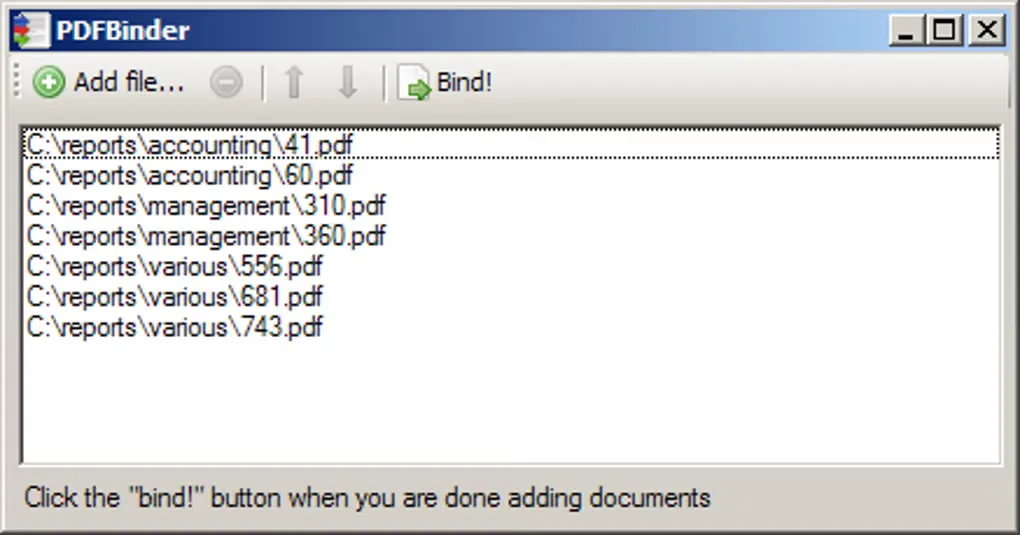
What you get is a blank window with an Add button, a file list, and a Bind! button. Drag PDFs in, reorder them with up/down arrows, click Bind. It preserves original formatting and annotations, and it can handle password-protected PDFs by prompting for credentials. For a free tool that does exactly one thing, that's a clean package.
PDFBinder Limitations before Merging You Should Know
PDFBinder's limitations are not bugs. They are the reason it's 1.7MB and free.
The tool has no built-in preview. You see filenames in a list, not the pages themselves, so if you need to confirm what's actually inside each file before merging, you're opening a separate PDF viewer. It has no editing features — you can't change page orientation, edit text, or modify pages after the merge. It cannot convert other formats into PDF; inputs must already be PDFs. And it's Windows-only, with no mobile app.
This is the honest trade-off. PDFBinder finishes the merge and hands you a file. What it doesn't do is help you with anything that comes after the merge — and that "after" is usually where the real work begins.
After the Merge: The File Exists, but It's Not Organized Yet
Here's what a merged PDF often looks like in practice. You combined a cover letter, three invoices, a scanned contract, and a report appendix. The file opens. But the page order is slightly off, one section is landscape when everything else is portrait, and the scanned pages have no searchable text layer. You have a single PDF, and now you need to fix it.
This is where the pdfbinder workflow usually splits into a second search: "how to edit PDF page order," "how to rotate PDF pages," "how to OCR a scanned PDF." The merge solved one problem and created three smaller ones.
UPDF picks up at that exact point. It is not a competing merger — it's the application you open after PDFBinder produces the combined file.
Windows • macOS • iOS • Android 100% secure
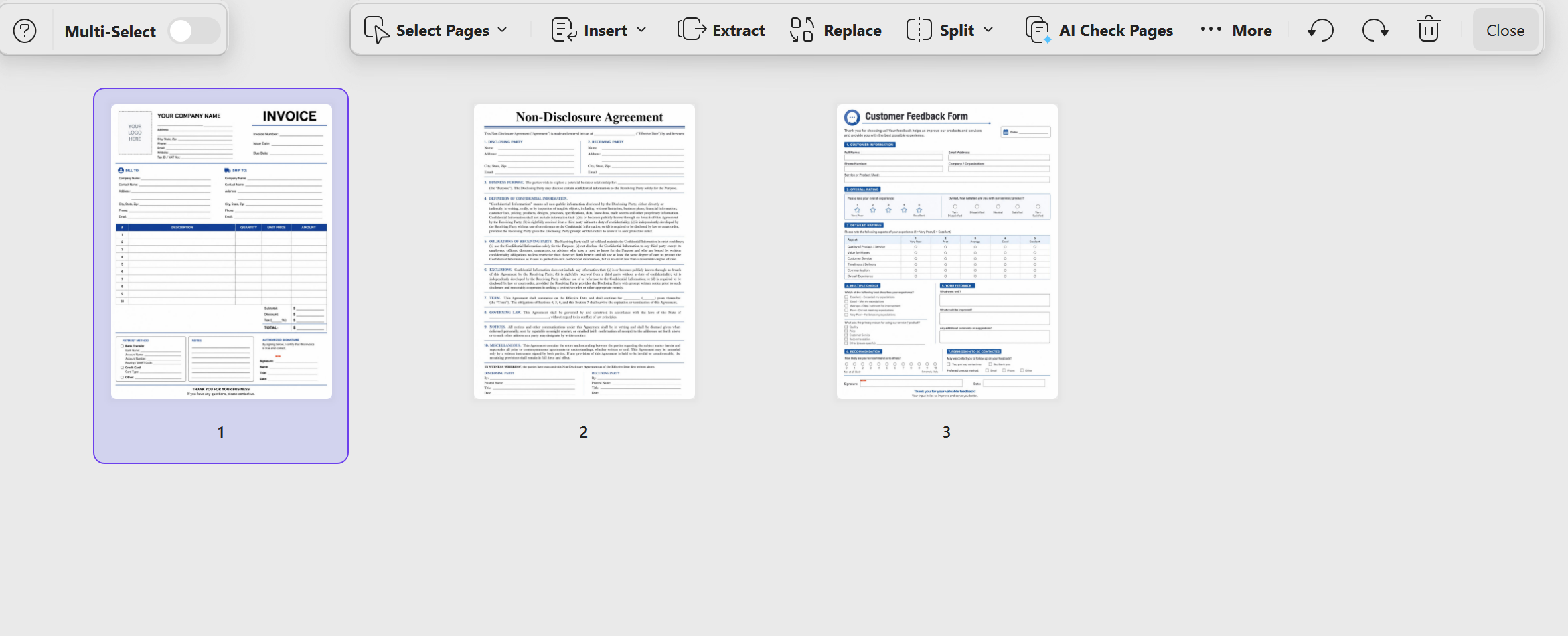
Page-level organization after the merge. UPDF lets you reorder pages, delete pages, rotate individual pages, and extract specific pages from the merged document — without returning to the original source files. If PDFBinder put the appendix before the report body, you fix it in UPDF.
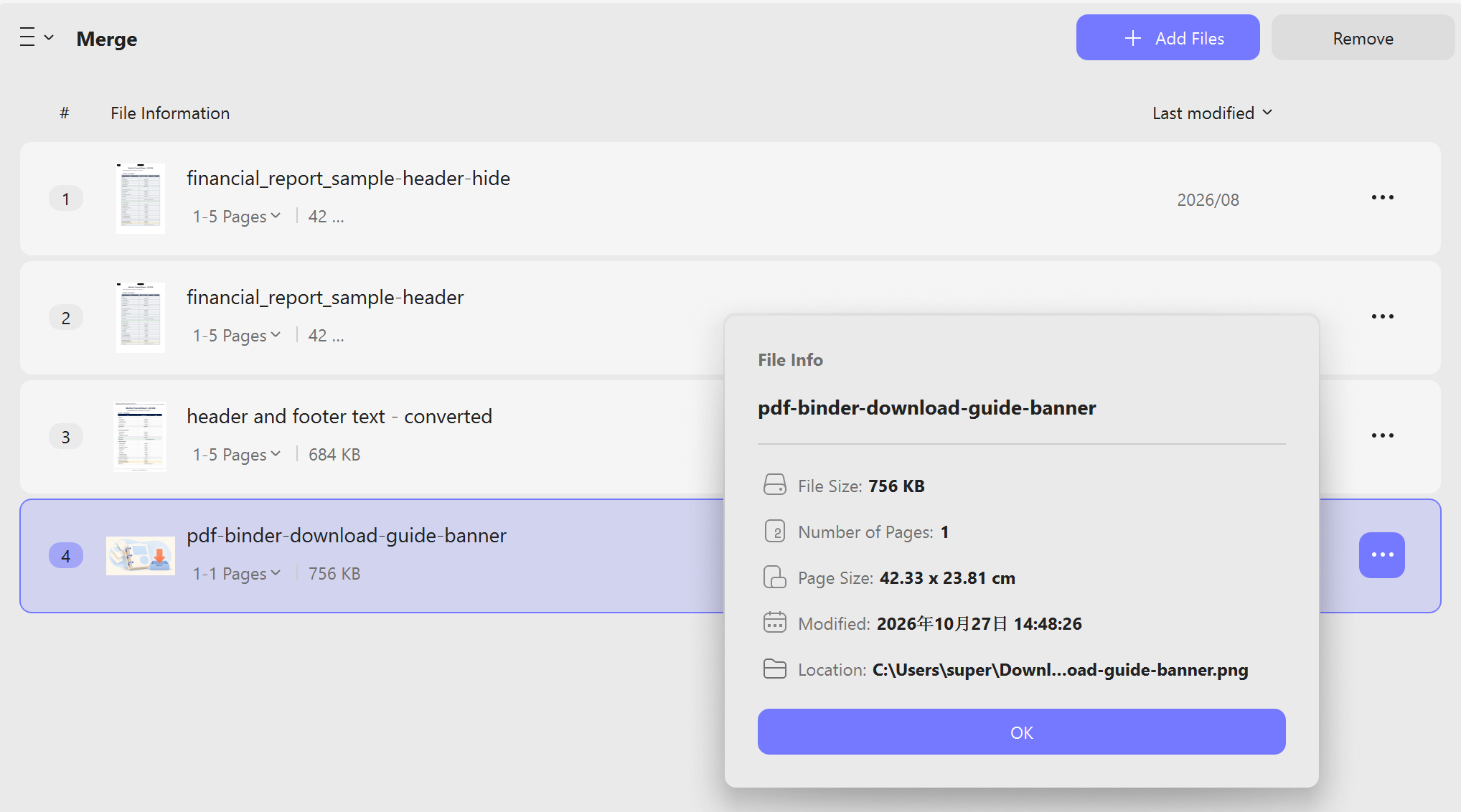
Images alongside PDFs. PDFBinder only accepts PDF inputs. UPDF's merge function accepts PDFs and images (JPG, PNG, TIFF) in the same operation, so a scanned receipt photo and a digital invoice can end up in the same merged file without a separate conversion step.
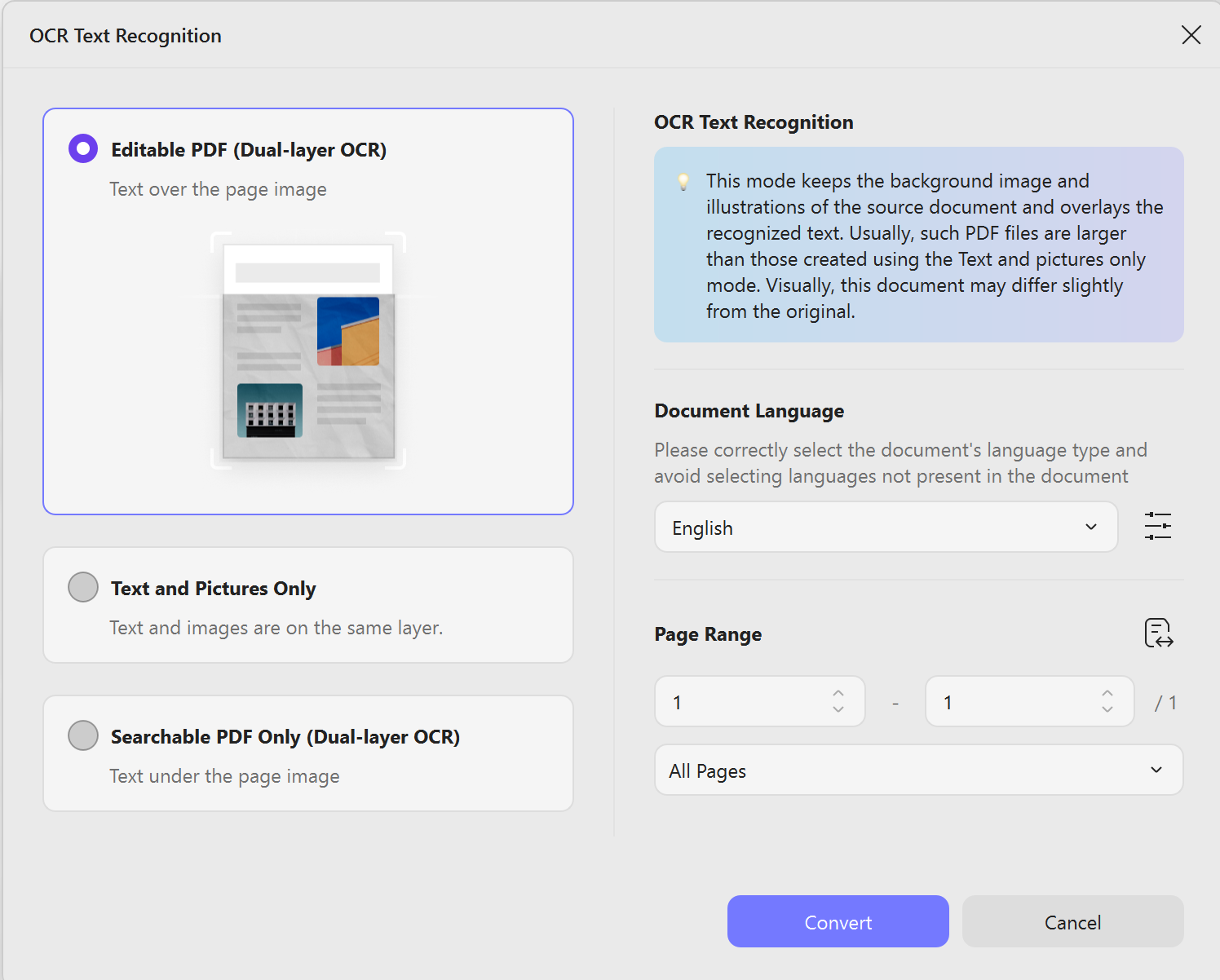
Searchable text from scanned pages. If the merged file contains scanned pages with no text layer, UPDF's OCR converts them into searchable, selectable content. The file you just "bound" becomes a file you can actually search.
Understanding what's inside the combined document. UPDF AI can summarize the merged PDF, generate a mind map of its structure, and answer questions about specific sections. When you've combined six sources into one 80-page file, this is how you figure out what you're actually holding without reading it page by page.
What About “Ultimate Life Binder PDF Free Download”?
This related search points to something completely different from a PDF merger — and it's worth clarifying because it changes the workflow.
The "Ultimate Life Binder" is a printable planner system: a set of PDF pages for home management, budgets, recipes, emergency contacts, and daily routines, sold on Etsy and lifestyle blogs. People download these PDFs, print them, and put them in a physical three-ring binder. The "PDF" part is the format the planner comes in, not a software tool.
But there's a useful overlap. If you've downloaded multiple planner PDFs — a budget section, a meal-planning section, a morning-routine section — PDFBinder can merge them into one master planner file, and UPDF can then organize the pages, add a consistent page order, and make the combined file searchable. The physical binder still exists. The digital version just became one file instead of twelve.
Best for:
Warning:
Conclusion
PDFBinder is a good tool at what it does. It's small, free, and honest about its scope: merge PDFs, nothing else.
But a merged PDF is not a finished document. It's a pile of pages in a single container — often with the wrong order, a scanned section that can't be searched, and no clear structure. PDFBinder gets you the container. UPDF makes the container usable.
Download PDFBinder for the merge. Open UPDF for everything that comes after.
Windows • macOS • iOS • Android 100% secure




 Enid Brown
 Lizzy Lozano
  Enola Miller
 Enrica Taylor