 UPDF
UPDF
 UPDF for Windows
 UPDF for Mac
 UPDF for iPhone/iPad
 UPDF for Android
 Nomostar
 UPDF AI Online
 UPDF Sign
 IvyCraft
 Edit PDF
 Annotate PDF
 Create PDF
 PDF Form
 Edit links
 Convert PDF
 OCR
OCR PDF to Word
 PDF to Image
 PDF to Excel
 Organize PDF
 Merge PDF
 Split PDF
 Crop PDF
 Rotate PDF
 Protect PDF
 Sign PDF
 Redact PDF
 Sanitize PDF
 Remove Security
 Read PDF
 UPDF Cloud
 Compress PDF
 Print PDF
 Batch Process
 About UPDF AI
 UPDF AI Solutions
 AI User Guide
 FAQ about UPDF AI
 Summarize PDF
 Translate PDF
 Chat with PDF
 Chat with AI
 Chat with image
 PDF to Mind Map
 Explain PDF
 PDF AI Tools
 Image AI Tools
 AI Chat Tools
 AI Writing Tools
 AI Study Tools
 AI Working Tools
 Other AI Tools
 AI Bookmark Generation
 AI Bookmark Summary
 AI Watermark Generation
 AI Background Generation
 AI Sticker Generation
 AI Stamp Generation
 AI Editing Suite
 UPDF Copilot
 AI Page Management
 AI Semantic Search
 PDF to Word
 PDF to Excel
 PDF to PowerPoint
 Enterprise Solution
 Enterprise Sign
 Enterprise AI
 Enterprise Plan
 Enterprise User Guide
 Enterprise Webinar
 IT
IT Education
 Construction
 Financial Service
 Healthcare
 Insurance
 Legal
Legal Manufacturing
 Government
 Researchers & PhDs
 Solopreneurs & Freelancers
 Lawyers & Legal Professionals
 Real Estate Agents & Brokers
 Education Solution
 Customer Stories
 User Guide
 UPDF Tricks
 FAQs
FAQs UPDF Reviews
 Download Center
 Blog
Blog Newsroom
 Tech Spec
 Updates
 UPDF vs. Adobe Acrobat
 UPDF vs. Foxit
 UPDF vs. PDF Expert

Quick Answer:
Is your Word to PDF hyperlinks not working? You have changed your Word document to PDF but the links are not working in it.
There can be various reasons your hyperlinks in PDF are not working. But, changing the PDF tool for converting and reading can resolve the issue. Otherwise, you can edit the links and update the tool to resolve the issue.
Let's delve into the details.
Part 1: Why Are Word-to-PDF Hyperlinks Not Working?
Start with the symptom. It tells you whether the problem is in the Word file, the conversion, or the PDF reader.
| What you see | Most likely cause | First action |
|---|---|---|
| Every link worked in Word but none works in the PDF | The conversion did not preserve link annotations | Export again with Word's Save As/Export command |
| The PDF links work in one reader but not another | The links exist, but the first viewer is blocking or not activating them | Use a different reader or update the original one |
| Only one or two links fail everywhere | The stored URL is incomplete, outdated, or incorrect | Edit the hyperlink in Word or repair it in UPDF |
| The text is blue and underlined but was never clickable in Word | It is styled text, not a real hyperlink | Create a hyperlink with Insert > Link |
| The problem appears on Word for Mac with “Best for printing” | A Microsoft-documented Mac conversion issue | Save as PDF without using “Best for printing” |
| A table of contents or “jump to page” link fails | The internal bookmark or heading destination was not preserved | Rebuild the source link or add a page link in UPDF |
Before changing anything, click the same link in the original .docx file. Then open the exported PDF in a second capable PDF reader. This two-minute test prevents you from rebuilding links that are already present.
Part 2: 4 Ways to Fix Word to PDF Hyperlinks Not Working on Mac and Windows
I am going to tell you four methods of fixing Word to PDF hyperlinks on Mac and Windows. The four methods are:
- Using another tool to Convert Word to PDF.
- Use another PDF reader.
- Edit Word Links.
- Update the PDF reader.
So now, let's delve into the details of these methods with pictures so that you can apply them without any difficulty.
Way 1. Use Another Tool to Convert Word to PDF Again.
You have used a PDF converter to convert Word to PDF but your hyperlinks are not working in your PDF file. It can mean that your PDF converter has an issue and you should change it. Here, we suggest you use the UPDF tool for Windows and Mac. This tool has different features such as PDF editing, reading, converting, and much more. It is an all-in-one PDF solution that can handle your PDF files perfectly.
So, how can you convert your Word to PDF file again with this tool to fix Word to PDF links not working issues? Well, you should follow the step-by-step method to do it.
- Download the UPDF on your Mac or Windows via the below button.
Windows • macOS • iOS • Android 100% secure
- Now, open the app and choose "Tools".
- Click on "Other" and go to "PDF from Word". Choose any Word document you want to change into PDF.
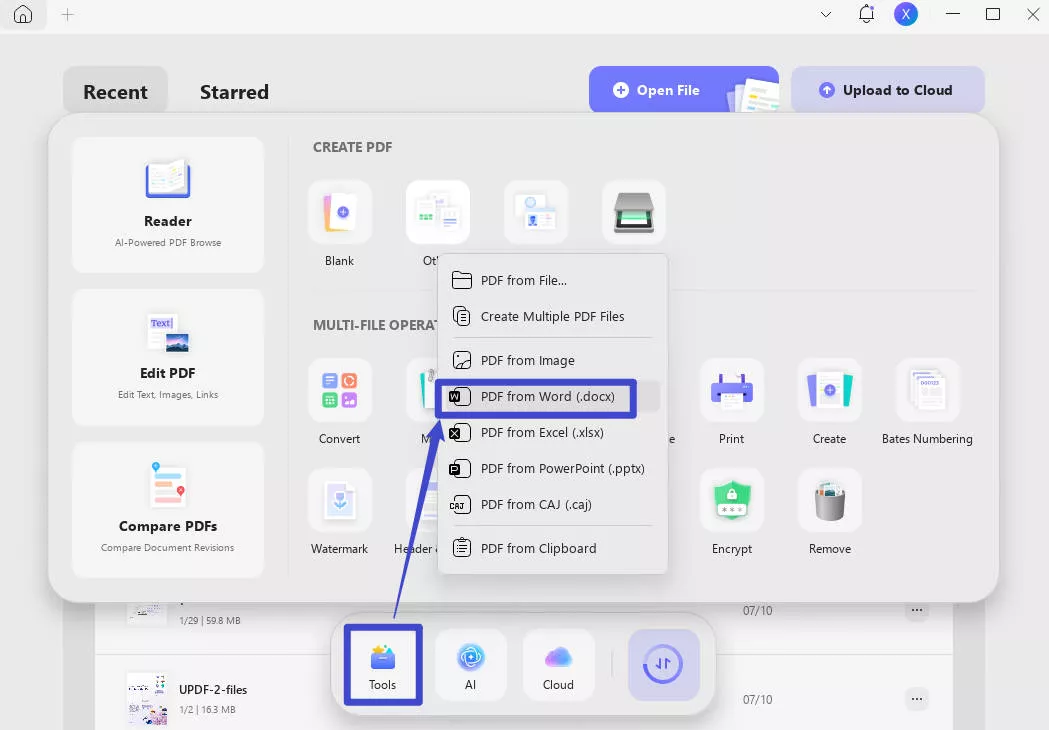
- When you open the file, it will be in PDF format. Click "Save" from the right panel.
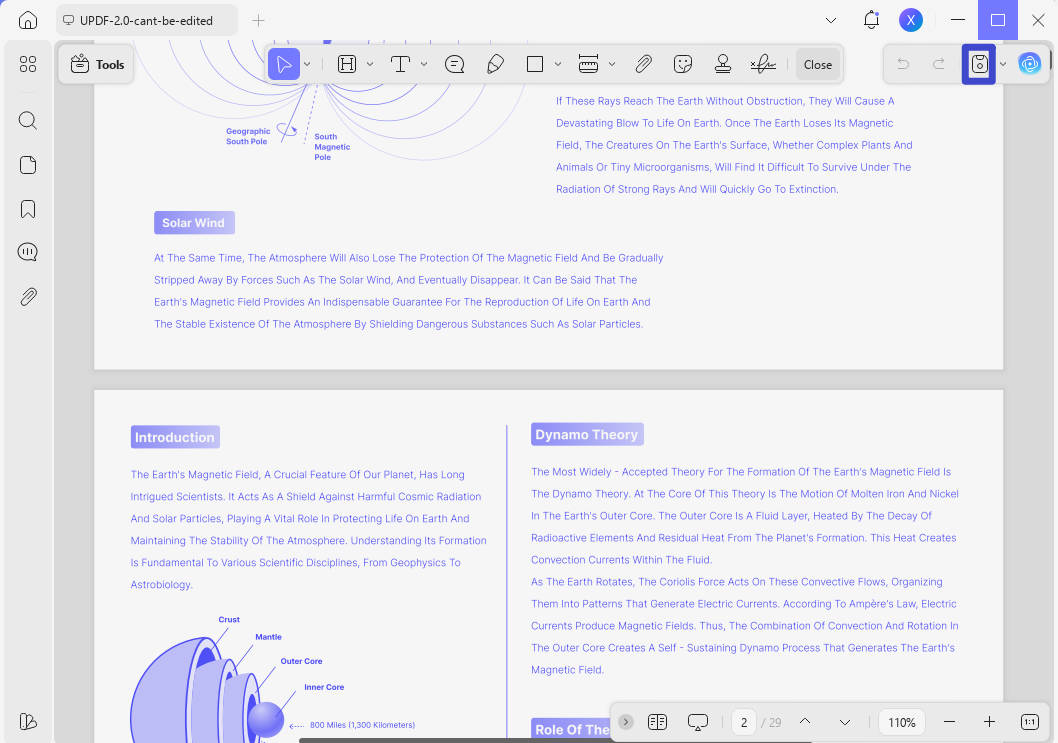
That's it! After doing all these steps, you will have a new PDF file whose hyperlinks are working.
Way 2. Use Another Tool to Read the PDF
If the first method doesn't work, it may be the reason that you are not using the correct PDF readers. There are a lot of PDF readers who don't support hyperlinks. So, if you are reading PDF files from them, you may be unable to get clickable links. Here, we are again going to suggest you use UPDF. We recently used it for general reading of PDF files. It allows you to zoom in or out, jump to the page you want, and present your PDF as slideshow. Moreover, it is not only a PDF reader, but also a PDF editor, converter, compressor and more.
Moreover, it has integrate with AI feature. So, you will not only enjoy PDF reading with active hyperlinks, but can also ask AI to summarize, translate, and explain the PDF file. Due to these features, we are suggesting UPDF to you. Now, we are going to discuss the method of reading general PDF files with UPDF.
- Download the UPDF app via the below button. Click on the "Open File" button on the interface. Or, you can also drag the file directly into the user interface.
Windows • macOS • iOS • Android 100% secure
- When you open your file, now, you can click the hyperlinks in the PDF and it can work well.
That's it! These are the steps to fix the PDF hyperlinks not working issues.
Way 3. Edit Word Links
If you have done the first two methods, and are still unable to resolve your issue. Then, you should go for editing the Word links. It can happen that you have put corrupted or incomplete links in your Word document.
To check your links, you can copy-paste them in the search bar of your Chrome. If the original website opens, then there is no issue with your link. But, if they don't, it means that your link is corrupted or fake.
And, it can happen that sometimes you miss the "www" and "https" parts of the link while adding them to your Word document. This missing part can also make your link broken and non-clickable. So, you should also make sure that you have added a complete link to the document.
To fix hyperlinks in PDF not working because of this reason, you can open the original word file, and update the hyperlinks via right clicking on the link and choose edit the hyperlink to update the links. Once done, you can use UPDF to create PDF from the Word.
Way 4. Update the PDF Reader
The fourth method is to update your PDF reader. Sometimes, your PDF reader has an old version so you need to update it. It is easy to update PDF reader. Taking UPDF as example, you can go into the Help section and can find the check for update option there. Or, you can download the latest version UPDF from the below button.
Windows • macOS • iOS • Android 100% secure
FAQs
Q1: Does saving a Word document as PDF keep hyperlinks?
Usually, if you use Save As or Export. Word's PDF export can preserve real hyperlink fields, but print-based conversion and certain platform settings may omit them. Always test the exported file in a dedicated PDF reader.
Q2: Why are links blue in the PDF but not clickable?
The styling survived, but the link may not have. Blue underlining is visual formatting; clickability requires a PDF link annotation with a valid destination. Add the hyperlink in Word or draw a link area in a PDF editor.
Q3: Why do Word hyperlinks fail only on Mac?
Check the PDF optimization choice. Microsoft identifies hyperlinks converting incorrectly with Word for Mac's Best for printing option as a known issue. Use Save As/Save a Copy with PDF and select the electronic distribution/accessibility option when available.
Conclusion
When Word-to-PDF hyperlinks are not working, diagnose the failure before reconverting the document. If every link disappeared, use Word's Save As/Export workflow and avoid Best for printing on Mac. If the PDF works in another reader, troubleshoot the first viewer. If only certain destinations are broken, repair them in Word or add the missing annotations directly in UPDF.
For a final PDF whose layout is already approved, download UPDF for free to test, add, or correct its links—installation is free, and Pro removes the trial watermark from exported files.
Before sharing the PDF, click at least one external URL, one email link, and one internal page link if the document contains them. A 30-second check is easier than recalling a proposal, résumé, report, or client handout after distribution.








 Enola Miller
 Enola Davis
 Delia Meyer