 UPDF
UPDF
 UPDF for Windows
 UPDF for Mac
 UPDF for iPhone/iPad
 UPDF for Android
 Nomostar
 UPDF AI Online
 UPDF Sign
 IvyCraft
 Edit PDF
 Annotate PDF
 Create PDF
 PDF Form
 Edit links
 Convert PDF
 OCR
OCR PDF to Word
 PDF to Image
 PDF to Excel
 Organize PDF
 Merge PDF
 Split PDF
 Crop PDF
 Rotate PDF
 Protect PDF
 Sign PDF
 Redact PDF
 Sanitize PDF
 Remove Security
 Read PDF
 UPDF Cloud
 Compress PDF
 Print PDF
 Batch Process
 About UPDF AI
 UPDF AI Solutions
 AI User Guide
 FAQ about UPDF AI
 Summarize PDF
 Translate PDF
 Chat with PDF
 Chat with AI
 Chat with image
 PDF to Mind Map
 Explain PDF
 PDF AI Tools
 Image AI Tools
 AI Chat Tools
 AI Writing Tools
 AI Study Tools
 AI Working Tools
 Other AI Tools
 AI Bookmark Generation
 AI Bookmark Summary
 AI Watermark Generation
 AI Background Generation
 AI Sticker Generation
 AI Stamp Generation
 AI Editing Suite
 UPDF Copilot
 AI Page Management
 AI Semantic Search
 PDF to Word
 PDF to Excel
 PDF to PowerPoint
 Enterprise Solution
 Enterprise Sign
 Enterprise AI
 Enterprise Plan
 Enterprise User Guide
 Enterprise Webinar
 IT
IT Education
 Construction
 Financial Service
 Healthcare
 Insurance
 Legal
Legal Manufacturing
 Government
 Researchers & PhDs
 Solopreneurs & Freelancers
 Lawyers & Legal Professionals
 Real Estate Agents & Brokers
 Education Solution
 Customer Stories
 User Guide
 UPDF Tricks
 FAQs
FAQs UPDF Reviews
 Download Center
 Blog
Blog Newsroom
 Tech Spec
 Updates
 UPDF vs. Adobe Acrobat
 UPDF vs. Foxit
 UPDF vs. PDF Expert

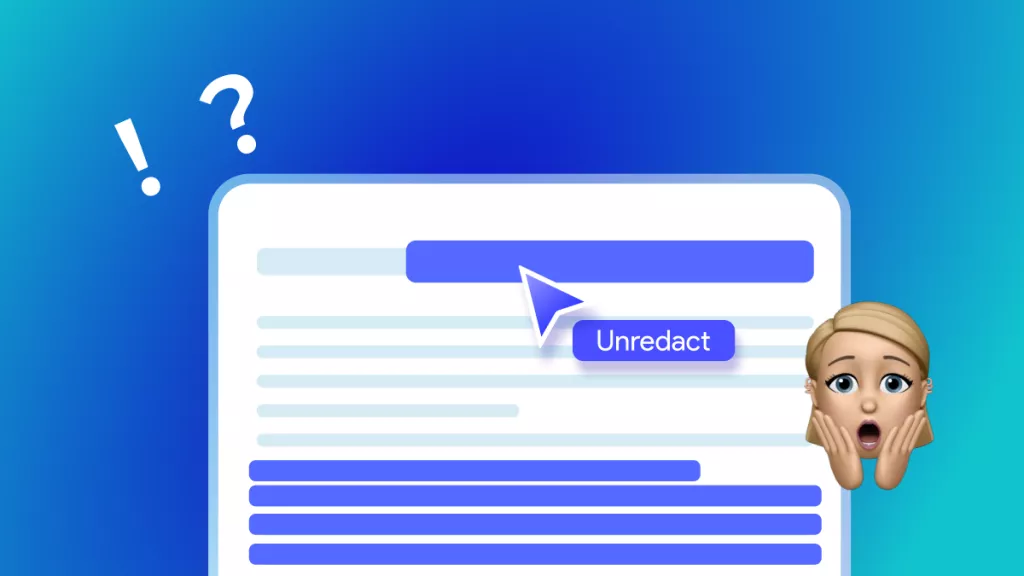
Here's the part most roundups skip: every online redactor in this article uploads your file to a third-party server before it removes a single character. For a marketing deck, that's fine. For a signed employment contract, a patient intake form, or a bank statement, that upload is itself the disclosure you were trying to prevent — and no amount of black boxes undoes it after the fact.
This article covers what each tool actually does when you use it: file caps, whether you can drag over text or only draw a box, whether the black bar color can change, and how long the file sits on their servers— and which one gets a one-page form out the door fastest if your deadline is in twenty minutes. Part 6 covers the desktop route for files that shouldn't leave your machine, including redacting whole page ranges at once — something none of the four online tools can do. If you are choosing a local app rather than a browser workflow, compare the options in our PDF redaction tool guide.
⚠️ Before you start:
Part 1. Which Online Redaction Tool Fits Your File
One table, four tools, honest limits.
| What you're redacting | Best pick | Why |
|---|---|---|
| A one-page form with a couple of names on it | FreePDFRedactor | No account, drag straight over text, done in a minute |
| A 90 MB scanned report | DocHub (100 MB) or AvePDF (128 MB) | Only two tools here accept files that large |
| A file where the black bar must match brand or match a template | AvePDF | The only one with a hex/color-picker for redaction fill |
| A document already sitting in Google Drive or Gmail | DocHub | Native Google Workspace import and export |
| Mixed text and photos, wanting one cursor for both | Smallpdf | Cursor auto-switches between text and freeform |
| A contract, medical form, ID, or anything under NDA | None of them — see Part 6 | All four require uploading the file to their servers |
| 40 pages that must be blanked entirely | None of them — see Part 6 | No online tool here redacts by page range |
Part 2. FreePDFRedactor — Fastest for a Single Small File
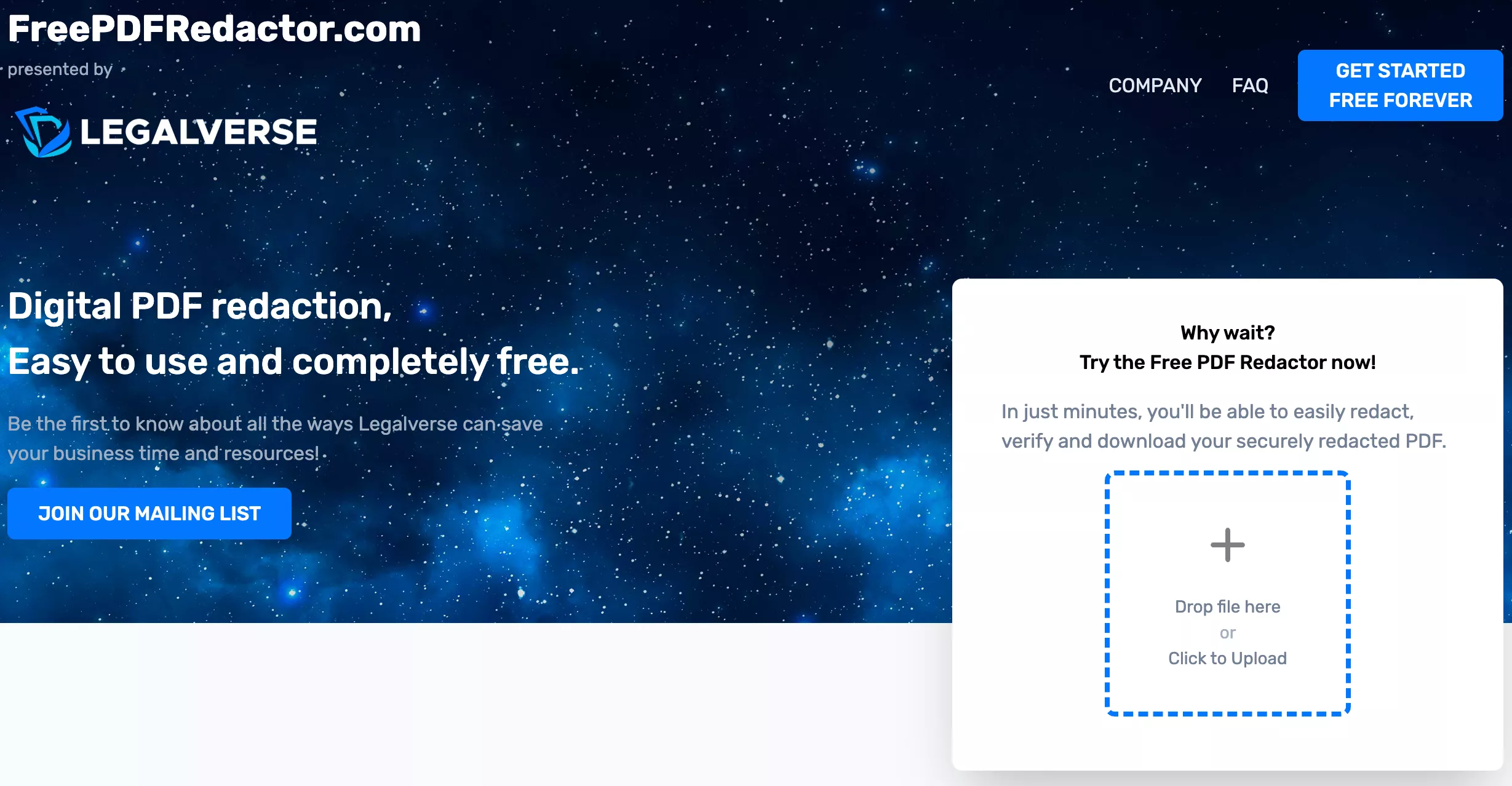
FreePDFRedactor is the least ceremonious of the four: land on the page, drop a file, redact, download. No account, no upsell wall in the middle of the job.
It offers two redaction modes: text redaction (drag across the words themselves) and freeform redaction (draw a box over any area). Having both matters more than it sounds — text mode snaps to the actual characters, so you don't leave a sliver of a surname peeking out from under a hand-drawn rectangle.
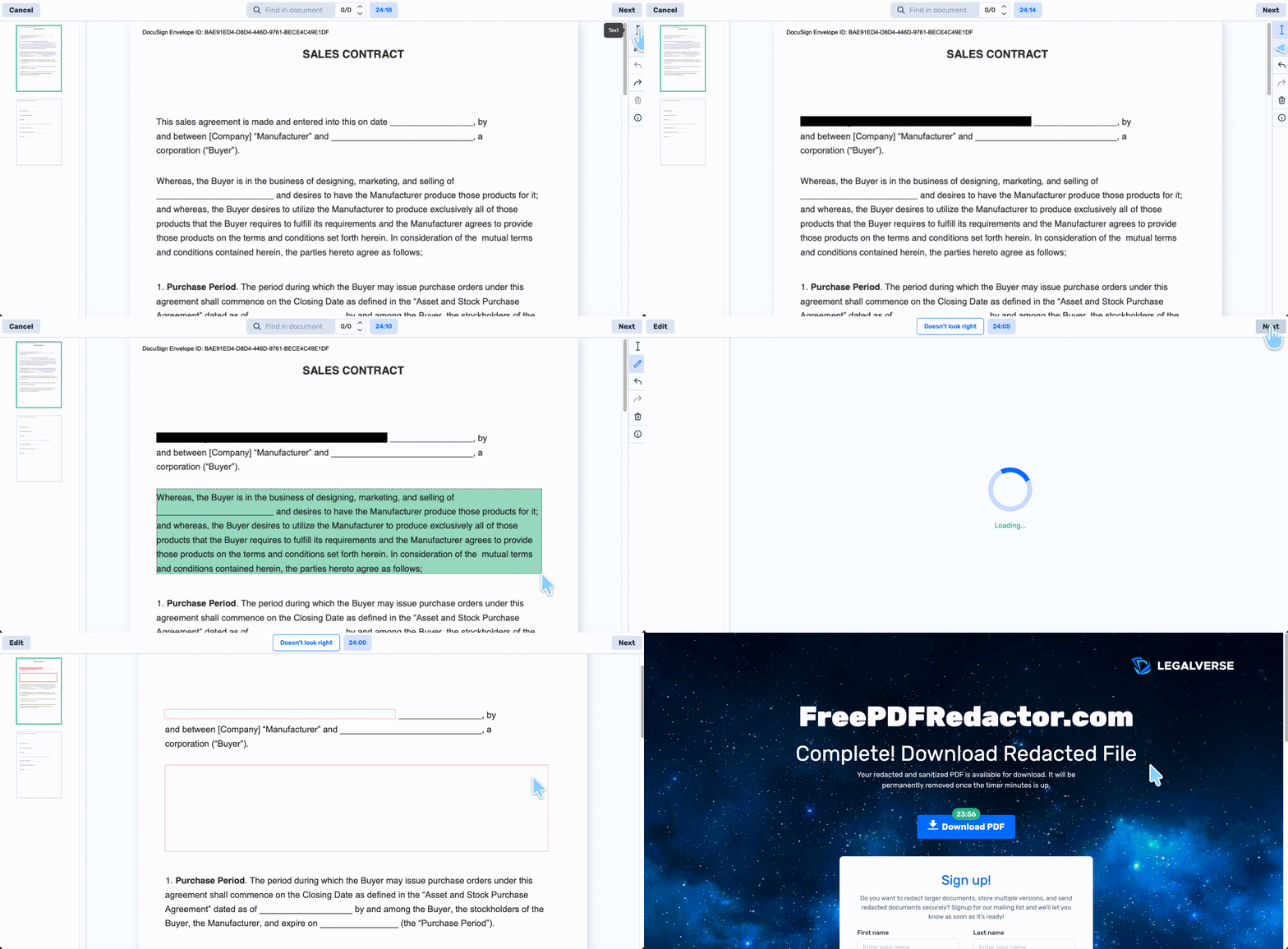
Step 1. Go to FreePDFRedactor.com and upload the PDF.
Step 2. Choose Text redaction and drag across the words to remove, or switch to Freeform and draw a box over the area.
Step 3. Repeat across every page — there is no search-and-redact here.
Step 4. Click Next in the top-right corner to apply the redactions.
Step 5. Click Download to save the file.
Best for:
- a single short document — a one-page offer letter, a two-page invoice, a scanned form with three fields to blank.
Not for:
- the moment you drop in a 40-page scanned contract and it bounces off the 5 MB ceiling before you've redacted anything. Also not for the person who needs the bar in any color but black — the fill is fixed.
Part 3. AvePDF — The Only One With a Color Picker
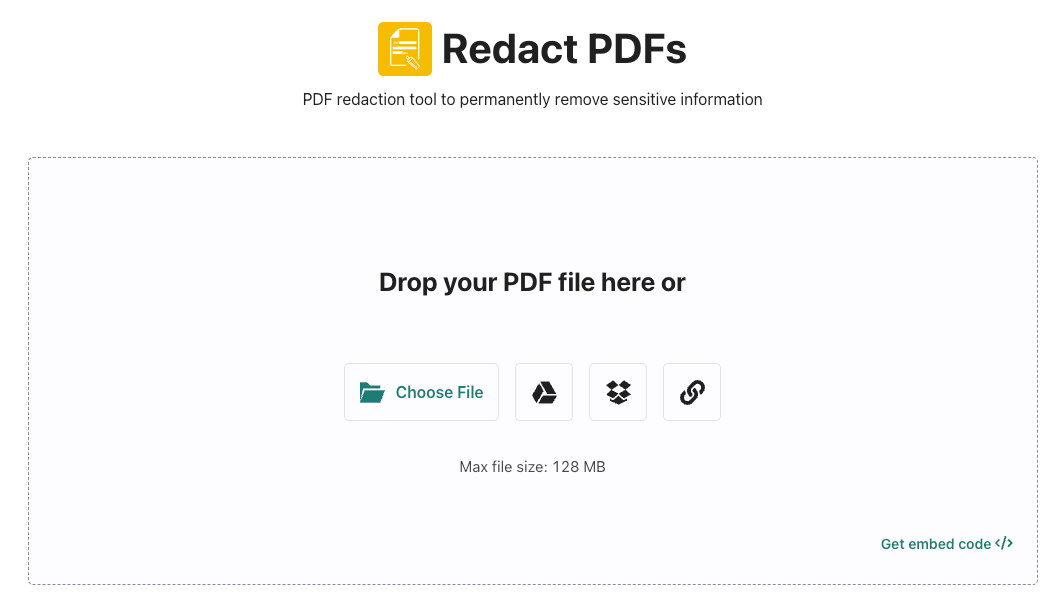
AvePDF handles the largest files of the four and is the only tool here that lets you choose what the redaction mark looks like.
That color picker is not decoration. Publishers and legal teams often need redaction bars in a specific shade to match a house style or to distinguish redaction categories — privilege in one color, PII in another. AvePDF gives you a full color picker with hex code entry, so you can set the fill to any value rather than accepting default black.
The trade-off: AvePDF has only one redaction mode. You click Add redaction marks and then hand-draw an area. There is no drag-across-the-text mode, which means precision on tight line spacing is entirely down to your mouse hand.
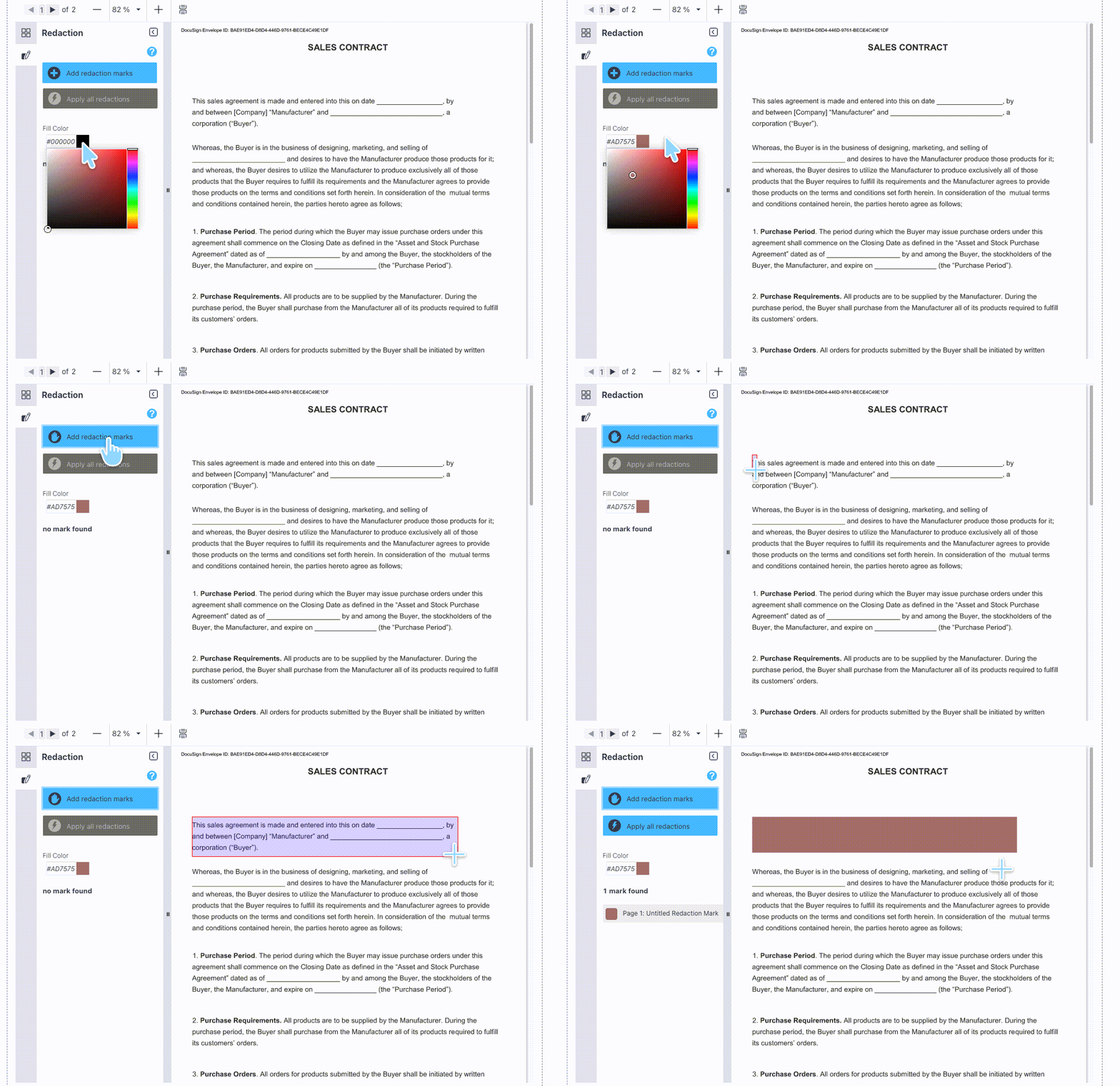
Step 1. Go to avepdf.com/redact-pdf and upload the PDF from your device, Google Drive, Dropbox, or a web URL.
Step 2. Click Add redaction marks in the left sidebar.
Step 3. Drag the cursor to draw a box over each piece of content to remove.
Step 4. To change the mark color, open the color picker and enter a hex code or select from the color field.
Step 5. Click Apply all redactions.
Step 6. Click Save > Download.
Free access:
⚠️ Read this before uploading anything sensitive:

Best for:
- large non-confidential documents where the redaction mark needs a specific color — a public-records release, a redacted report for publication.
Not for:
- anyone who reaches for it with a confidential file and only afterwards reads the model-training clause. Also awkward on dense body text, where hand-drawn boxes on 9-point lines either clip a descender or swallow the line above.
Part 4. DocHub — Best If You Live in Google Drive
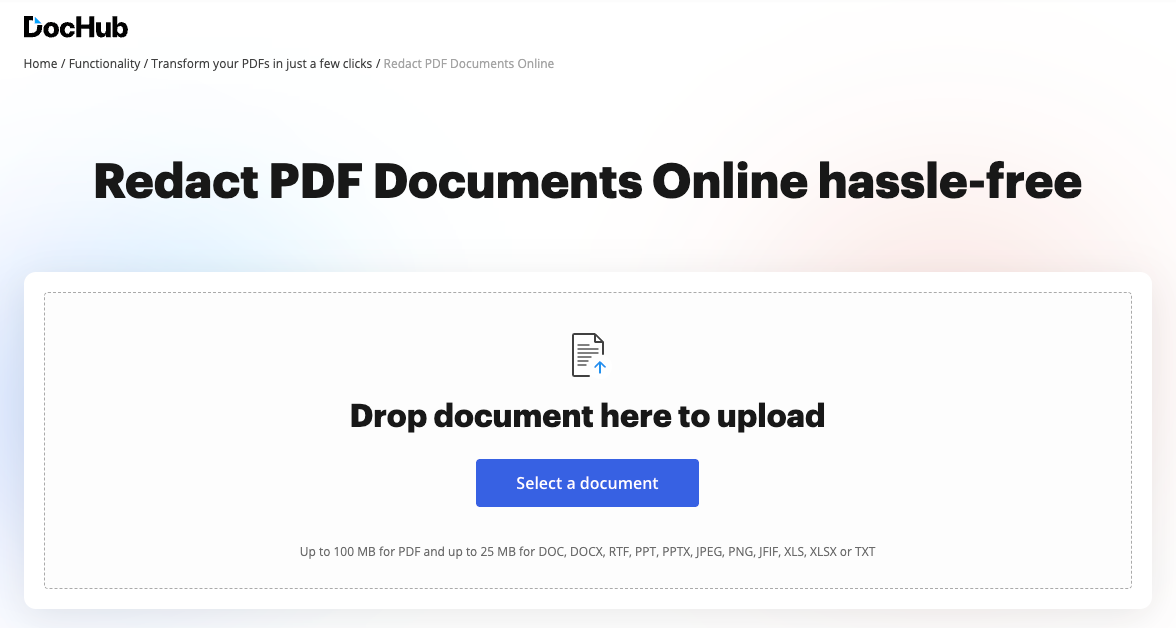
DocHub's advantage is where your files already are. It integrates with Google Workspace, so you can import, edit, and sign straight from Gmail, Google Drive, and Dropbox, then export back to Drive or share with contacts from your Google Address Book. If the file you need to redact is already in Drive, DocHub removes the download-redact-reupload round trip.
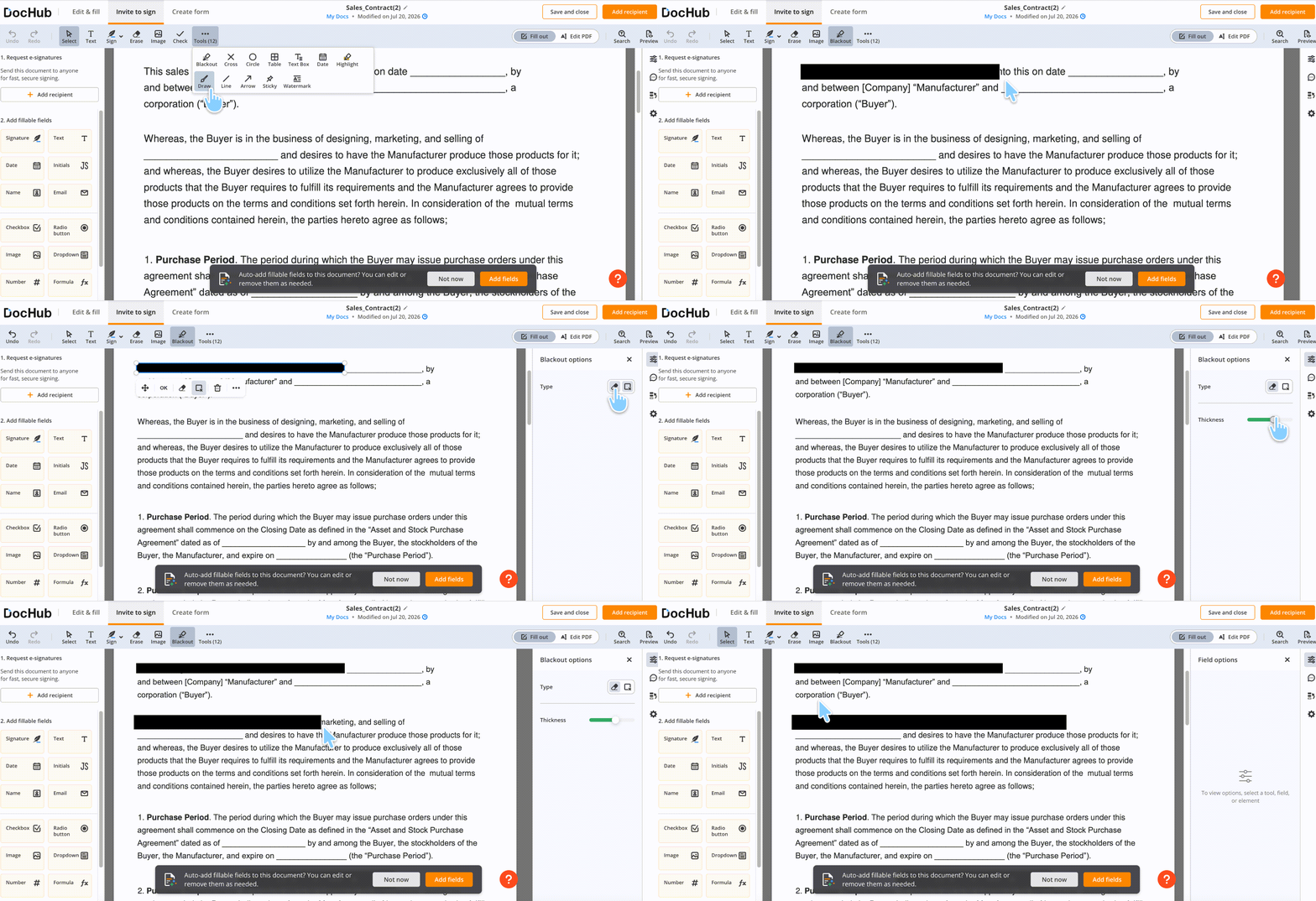
DocHub also offers two redaction modes, but both have a quirk worth knowing before you start. The simple blackout tool draws a line whose thickness you adjust to match the text height — but because the line is drawn freehand rather than bound to the text, if you overshoot the end of a word you cannot drag backwards to shrink it. You undo and redraw. The rectangular blackout tool works the conventional way: draw an area, done.
A note on ownership: DocHub was acquired by airSlate in July 2022, the same company behind pdfFiller and signNow. If you've compared DocHub against pdfFiller expecting two independent opinions, they're siblings under one roof.
Step 1. Go to dochub.com and click Select a document, or open the file directly from Google Drive.
Step 2. Click the Invite to Sign > three-dot More tab at the top and choose Blackout.
Step 3. Drag over the text or image to redact. Click OK in the pop-up to apply.
Sensitive details need careful handling when you prepare a document for sharing. For a practical example of blurring PDF content, watch the walkthrough below.
Step 4. For the line tool, set thickness to match the text height first — you can't trim an overshoot afterwards, only undo and redraw.
Step 5. Repeat on every page that needs redaction.
Step 6. Click Save and close at the top to save the file.
Free access:
Best for:
- Google-native teams redacting a handful of documents a month, where the file already lives in Drive.
Not for:
- the freelancer who redacts client invoices weekly and hits the 3-document ceiling on the 9th of the month with three more jobs waiting. Also not for anyone who needs pixel-tight control — the freehand line tool's no-backtrack behavior costs you redraws on tight paragraphs.
Part 5. Smallpdf — Smoothest Cursor Behavior
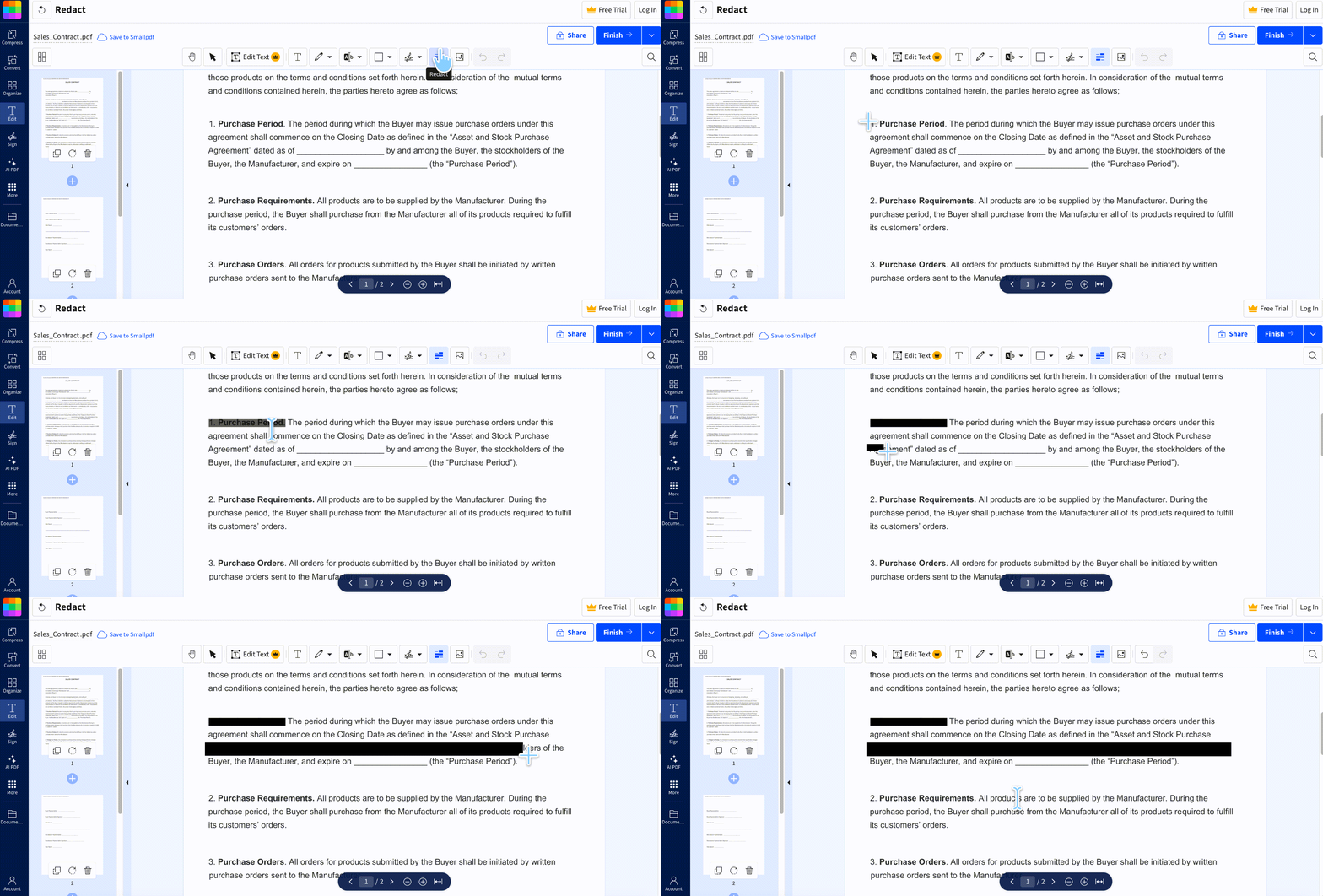
Smallpdf's redaction editor has the best interaction design of the four, and it comes down to one detail: you never switch modes. Hover over a text region and the cursor becomes a text-redaction cursor; move to a non-text area and it becomes a freeform draw cursor. The tool decides based on what's under your pointer, so redacting a paragraph and then the photograph next to it takes no toolbar trip in between.
On a mixed document — a scanned ID page with a photo and printed fields, say — that saves a genuine amount of clicking versus AvePDF's draw-only approach or DocHub's tool switching.
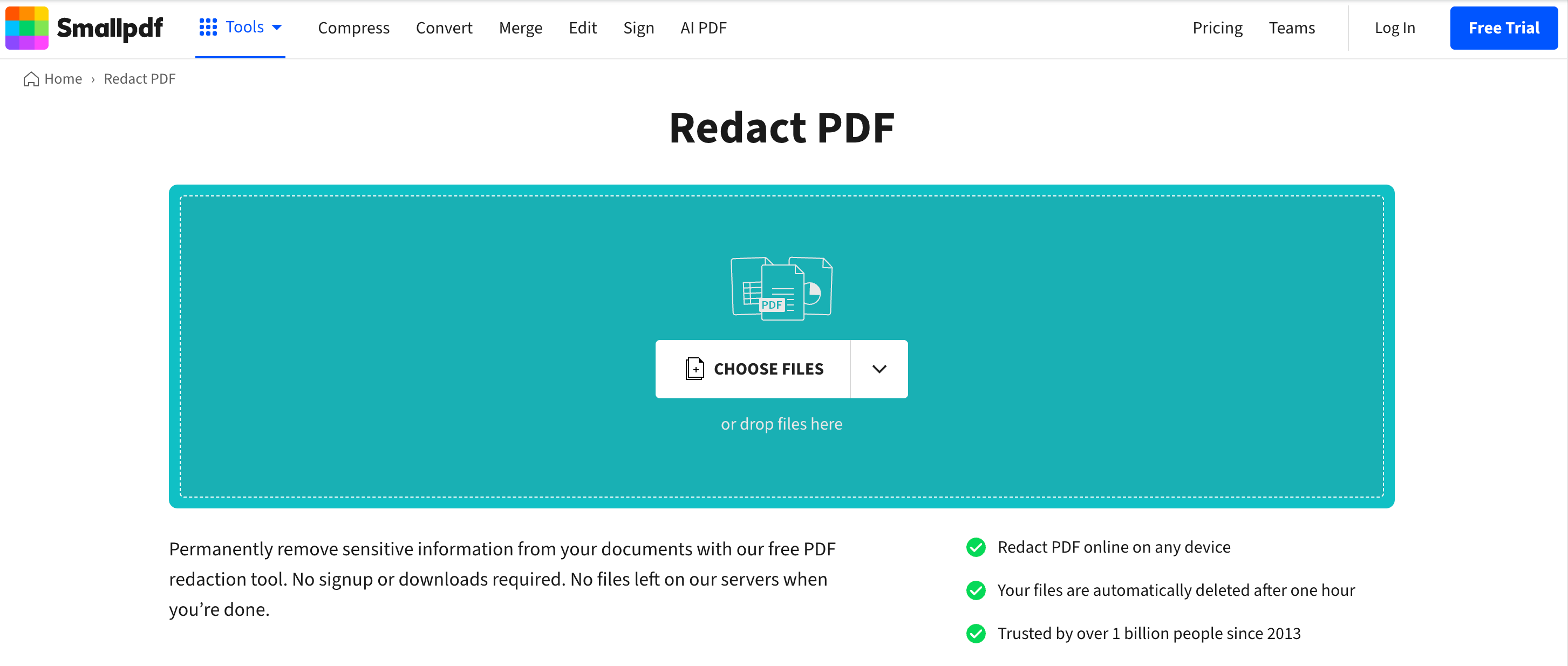
Step 1. Go to smallpdf.com/redact-pdf and upload the file from your device, Smallpdf storage, Dropbox, Google Drive, or OneDrive.
Step 2. Select Redact from the top. Hover over text and drag across the words — the cursor switches to text redaction automatically.
Step 3. Move to an image or blank area and drag to draw a freeform redaction box. No mode toggle needed.
Step 4. Repeat across the document.
Step 5. Click Finish and download the redacted file.
Free access:
Best for:
- documents mixing text and images, where mode-switching would otherwise slow you down; and for teams that need a named compliance certification to point at.
Not for:
- batch work. Even with the smoothest cursor in the group, you're still redacting one file at a time in a browser tab, and the daily download cap on free will interrupt a run of several documents.
Part 6. Redacting Without Uploading: UPDF on Desktop
Everything in Parts 2–5 has the same structural cost. The file leaves your machine. For a public report that's irrelevant; for a signed contract, an HR file, or a patient record, the upload happens before the redaction does — you have already transmitted the unredacted document to a third party in order to redact it.
UPDF processes redaction locally on your computer. Nothing uploads. It also does two things none of the four online tools can: it finds sensitive terms by meaning rather than exact spelling, and it redacts entire page ranges in one action.
Step 1. Open the document in UPDF — if you don't have it yet, download UPDF for free and install it in under a minute — then select Redact.
Windows • macOS • iOS • Android 100% secure
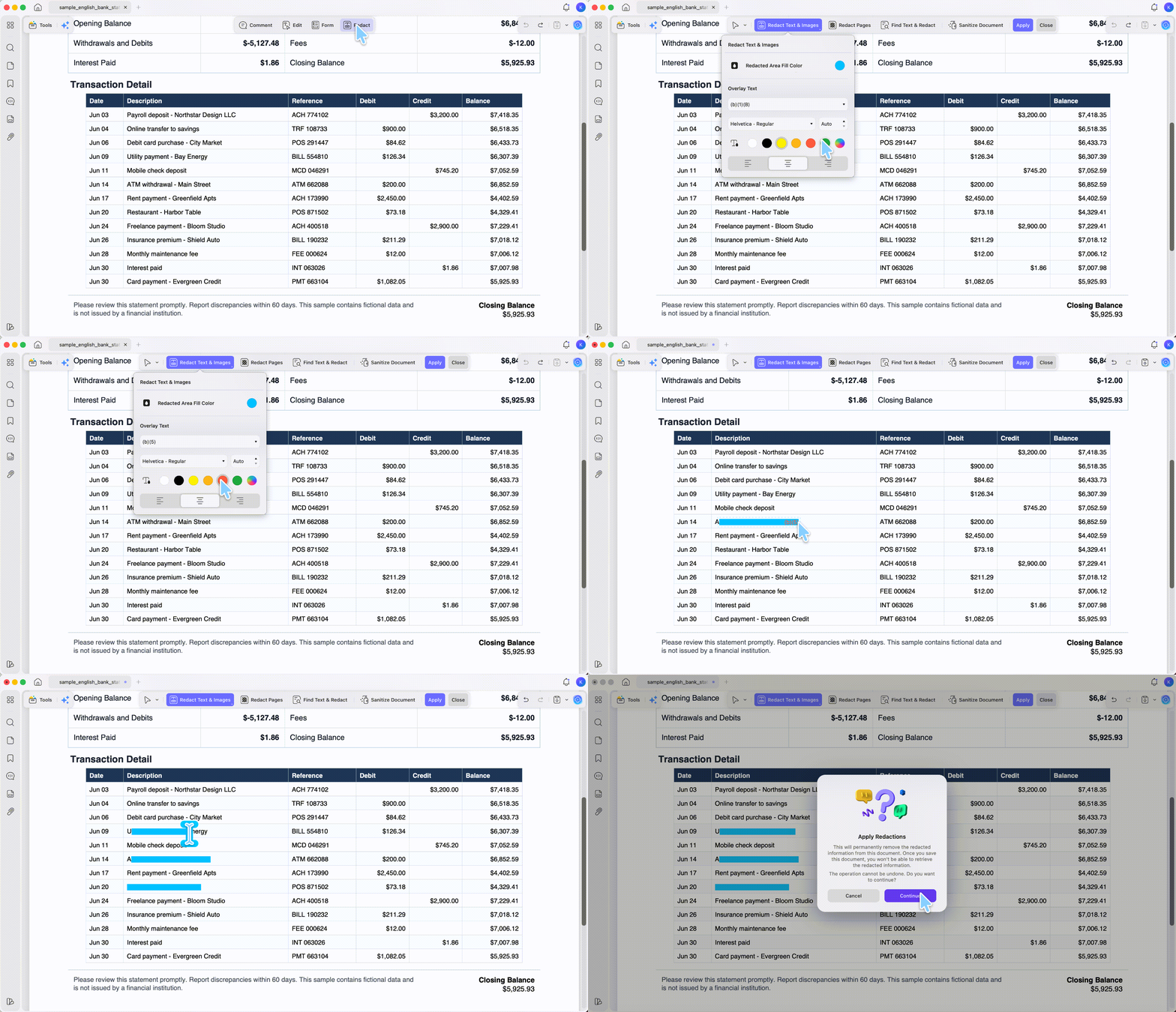
Step 2. Redact specific text. Click Redact Text & Image in the top toolbar and drag across the words to remove. You can set Redacted Area Fill Color, Overlay Text, and Redaction Mark Appearance (color, font, opacity). Click Apply, then Continue to permanently remove the selected content.
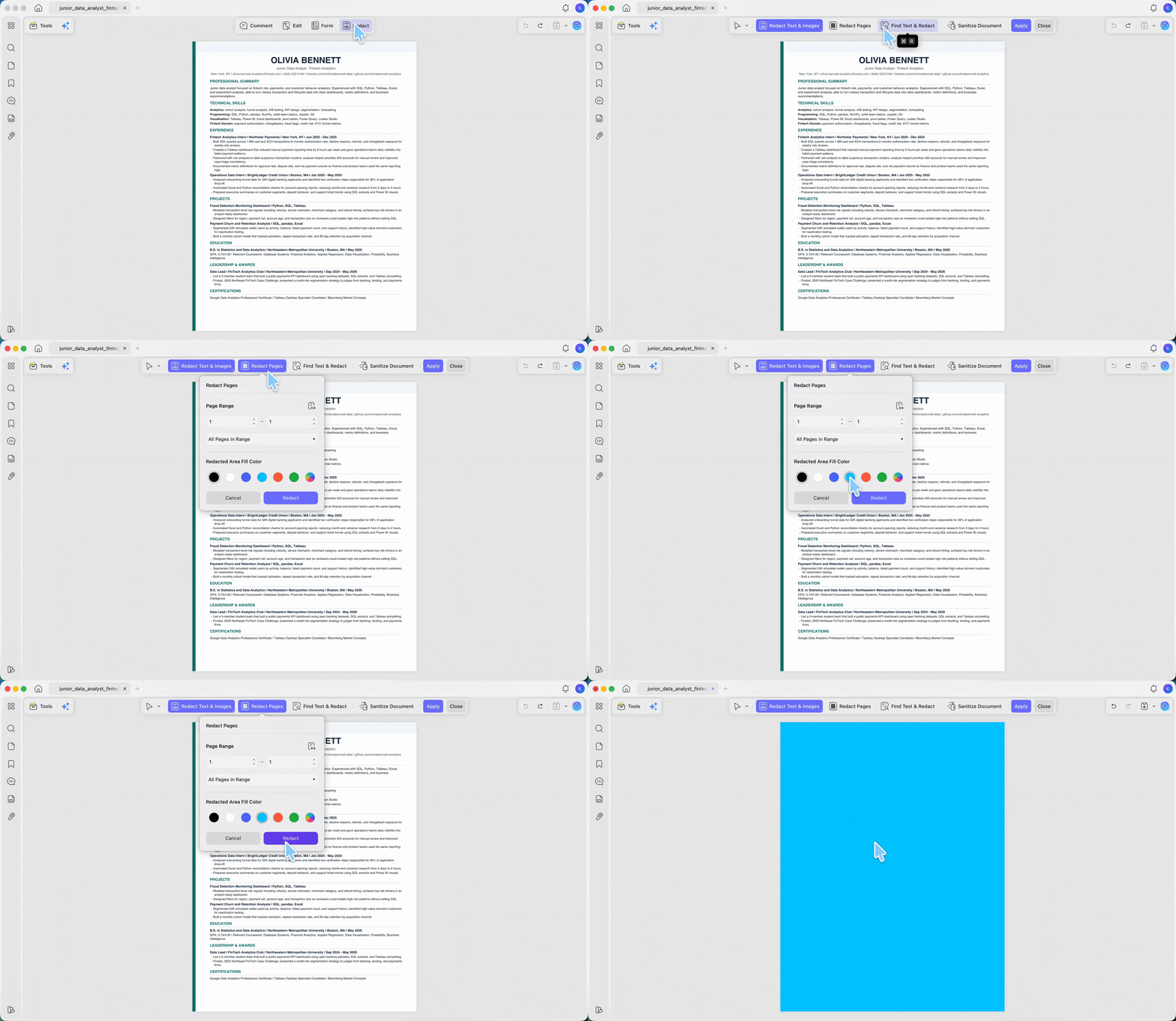
Step 3. Redact whole pages by range. Click Redact Pages in the top toolbar and set the page range. The All pages dropdown lets you choose All Pages, Even, Odd, Landscape or Portrait pages, then choose the fill color and click Redact. This is the one that has no browser equivalent — blanking pages 12 through 47 of an appendix is one action here and 36 manual box-drawings anywhere else.
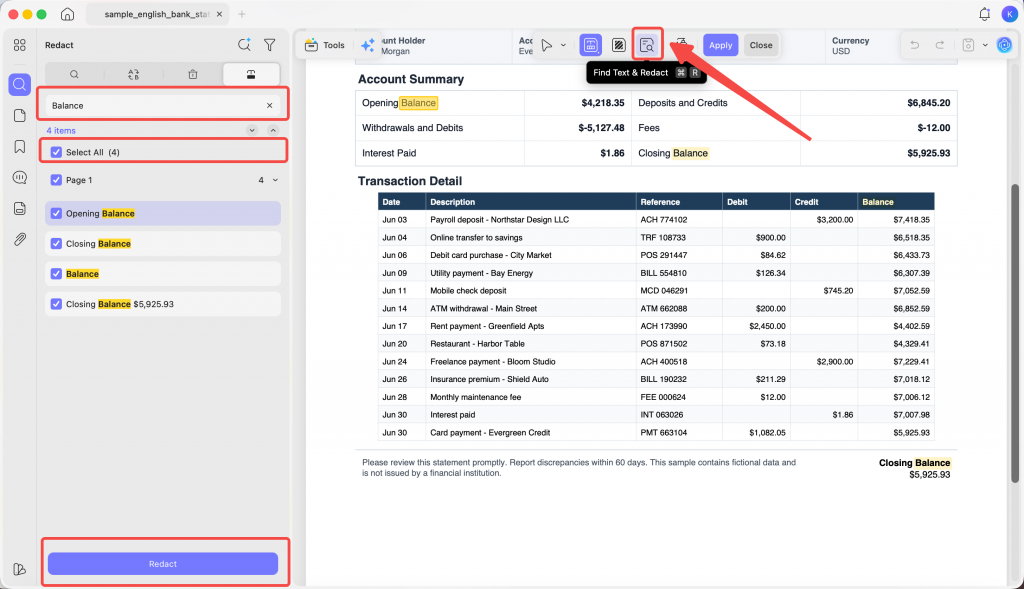
Step 4. Find and redact every instance of a term. Click the Find Text and Redact icon in the top toolbar, type the keyword, and use Select All or select specific pages, then apply. A supplier name appearing 14 times across 60 pages is handled once instead of fourteen times.
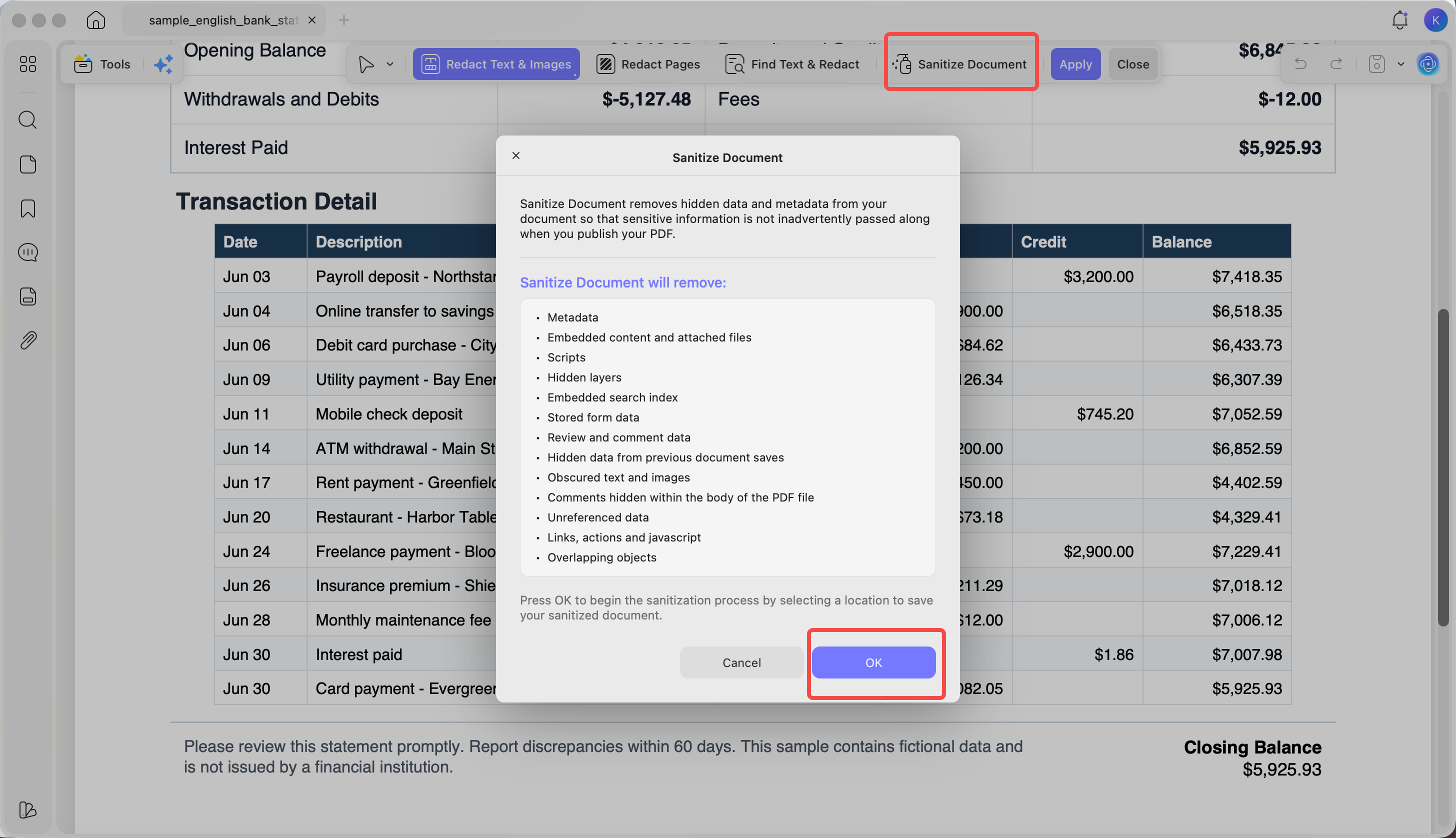
Step 5. Strip the hidden data too. Click Sanitize PDF in the top toolbar and click OK to remove hidden data and metadata — author name, revision history, embedded properties — so the file doesn't leak through fields nobody looks at. Online redactors black out what you can see; they leave document metadata alone.
If you handle contracts, medical forms, or personnel files, download UPDF for free and try redaction on a copy first — installation is free, and Pro features are available when you need export or advanced tools.
Windows • macOS • iOS • Android 100% secure
Finding What You'd Otherwise Miss: AI Semantic Search & Redact
Search-and-redact only catches what you think to type. If a contract says "Acme Corp" in the header, "Acme" in clause 4, and "the Supplier" in clause 19, a keyword search for "Acme Corp" leaves two of them on the page.
UPDF's AI Semantic Search also surfaces synonyms when you search — so results include not just exact matches but also related terms. Click Search in the left sidebar, select the AI Search icon at the top of the panel, type your term, and click Send. Matched content is highlighted in blue in a results list; click any result to jump to that page. From the top toolbar you can then replace, delete, or redact the identified terms directly from the search results.
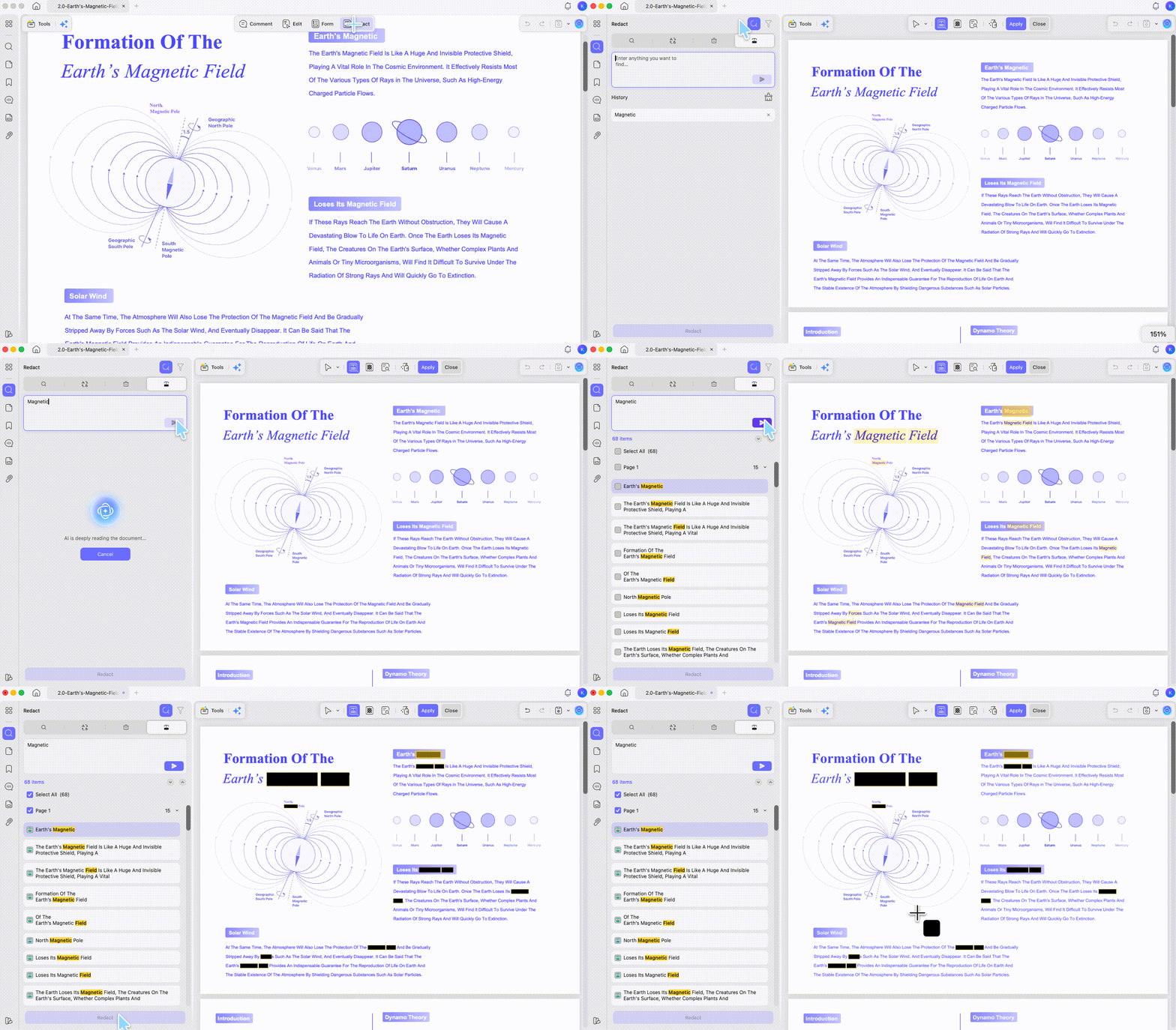
For a reviewer whose real job is "make sure the client's name doesn't appear anywhere in this 80-page bundle," that's the difference between one pass and four keyword searches that still miss the paraphrase.
Free access:
Windows • macOS • iOS • Android 100% secure
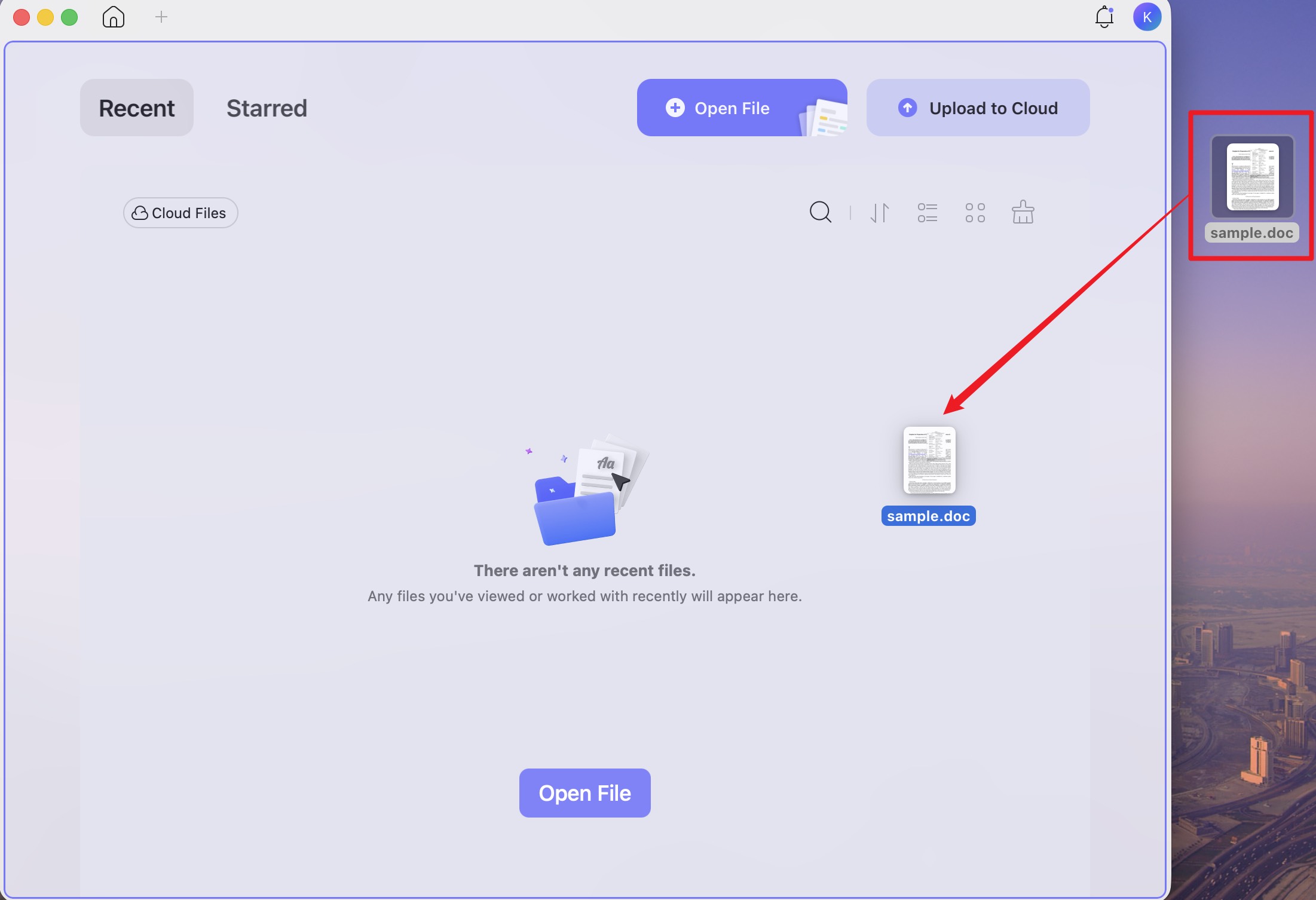
One workflow note: dragging a Word, Excel, PowerPoint, or image file directly onto the UPDF window converts it to PDF automatically — useful when the sensitive document arrives as a .docx and you want it redacted as a PDF without a separate conversion step.
Part 7. Comparison: All Five Options, Limits Included
| Tool | Max file size | Redaction modes | Custom mark color | Page-range redact | Free-tier limit | File handling |
|---|---|---|---|---|---|---|
| FreePDFRedactor | 5 MB / 20 pages | Text + freeform | ✗ (black only) | ✗ | Free; caps as listed | SSL; removed after 30-min session |
| AvePDF | 128 MB | Freeform only | ✓ — hex + picker | ✗ | Free | 30 min; free-tier files used for model training |
| DocHub | 100 MB PDF / 25 MB other | Line + rectangle | ✗ | ✗ | 3 documents / rolling 30 days | Uploaded; airSlate-owned |
| Smallpdf | Varies by plan | Auto-switching text + freeform | ✗ | ✗ | Daily download limit | Deleted after 1 hour; ISO/IEC 27001, GDPR |
| UPDF (desktop) | No upload cap | Text + area + page range + AI semantic | ✓ — fill, overlay text, opacity | ✓ — All/Even/Odd/Landscape/Portrait | Watermark on export; 100 AI uses | Local — file never uploads |
Windows • macOS • iOS • Android 100% secure
Where UPDF costs you something: it's a desktop install, not a browser tab, so a borrowed or locked-down computer rules it out — and so does a Chromebook, iPad, or phone. If a browser is all you have, Parts 2–5 are your list; pick by the file-handling column and avoid uploading anything under NDA. Exports on the free tier carry a trial watermark until you upgrade. And redaction is a desktop feature — the mobile apps aren't the place for this job.
Part 8. Edge Cases: When Redaction Goes Wrong
"The tool redacted the text but I can still search for the name." The tool applied an annotation, not a redaction— a black box drawn over text, with the content stream untouched underneath. Run the 10-second verification test on any redacted file before sending it: (1) Ctrl+F for the redacted word — it should return zero hits; (2) drag-select across the blacked-out area, copy, and paste into a text editor — nothing should come out. If the word pastes out or the search hits, redo the job with a tool that permanently removes content.
"The file is a scan, so drag-across-text mode does nothing." On a scanned page there is no text layer to select — the whole page is one image. Every online tool here falls back to freeform box-drawing, and search-and-redact finds nothing because there are no characters to search. The fix is OCR first, then redact; on a scan, area-drawing is the only safe route until the text layer exists.
"The PDF is password-protected and the redactor won't open it." Permissions-encrypted files are rejected by most browser tools at upload. Remove the restriction first — only where you're authorized to — then redact.
"I redacted the visible text but the metadata still names the client." Author fields, revision history, and embedded document properties survive visual redaction entirely. None of the four online tools strip them. Sanitize the file after redacting.
"Redaction applied, but the black bar sits slightly above the text on export." Usually a font-embedding mismatch: the viewer substituted a font with different metrics after the mark was placed. Re-open the finished file in a different reader and verify the redaction covers the intended area before sending.
FAQ
1. Is online PDF redaction actually permanent?
Yes, if the tool truly redacts. Each of the four tools here removes the underlying content rather than covering it.
2. Can I redact the same name across 200 pages at once online?
No online tool here has search-and-redact. All four require manual marking page by page. Desktop tools with a search-and-redact function handle it in one pass.
3. Does redacting a PDF reduce its file size?
Rarely, and never reliably. Redaction removes specific content objects but the page structure, fonts, and images remain. If size matters, compress after redacting, not before.
4. Should I keep the unredacted original after exporting a redacted PDF?
Keep the original in a restricted location if your retention rules require it. Send only the saved, reopened, verified redacted copy. Give that copy a distinct filename so you do not attach the original by mistake.
5. Can I redact a PDF in Adobe Acrobat?
Only with Acrobat Pro — the free Acrobat Reader has no redaction feature. In Pro: Edit > Redact a PDF, mark the content, then Apply to remove it permanently. Step-by-step: How to Redact in Adobe Acrobat. Don't substitute a black rectangle drawn in Reader — the underlying text stays in the file and can be copied straight out.
Conclusion
Four browser tools redact a PDF competently within their limits: FreePDFRedactor for a quick single file, AvePDF for large documents and custom mark colors, DocHub for anything already in Google Drive, Smallpdf for mixed text-and-image pages. All four share the same ceiling — manual page-by-page marking, no page-range redaction, and an upload to someone else's server before the redaction happens.
For contracts, medical forms, personnel records, and anything else that shouldn't be transmitted to redact, UPDF handles it locally: Redact Pages blanks a page range in one action, Redact Search clears every instance of a term at once, AI Semantic Search catches the variants a keyword search misses, and Sanitize PDF strips the metadata that visual redaction leaves behind.
Download UPDF for free to try redacting a page range on a copy of your file — installation is free, and Pro features are available when you need watermark-free export or advanced tools.
Windows • macOS • iOS • Android 100% secure
Disclaimer
All tools in this article were tested in July 2026. File size caps, free-tier limits, redaction modes, pricing, and data-retention policies change as products update — verify current details on each tool's official site before relying on them for sensitive documents.



 Enid Brown
 Enrica Taylor

Free access: