 UPDF
UPDF
 UPDF for Windows
 UPDF for Mac
 UPDF for iPhone/iPad
 UPDF for Android
 Nomostar
 UPDF AI Online
 UPDF Sign
 IvyCraft
 Edit PDF
 Annotate PDF
 Create PDF
 PDF Form
 Edit links
 Convert PDF
 OCR
OCR PDF to Word
 PDF to Image
 PDF to Excel
 Organize PDF
 Merge PDF
 Split PDF
 Crop PDF
 Rotate PDF
 Protect PDF
 Sign PDF
 Redact PDF
 Sanitize PDF
 Remove Security
 Read PDF
 UPDF Cloud
 Compress PDF
 Print PDF
 Batch Process
 About UPDF AI
 UPDF AI Solutions
 AI User Guide
 FAQ about UPDF AI
 Summarize PDF
 Translate PDF
 Chat with PDF
 Chat with AI
 Chat with image
 PDF to Mind Map
 Explain PDF
 PDF AI Tools
 Image AI Tools
 AI Chat Tools
 AI Writing Tools
 AI Study Tools
 AI Working Tools
 Other AI Tools
 AI Bookmark Generation
 AI Bookmark Summary
 AI Watermark Generation
 AI Background Generation
 AI Sticker Generation
 AI Stamp Generation
 AI Editing Suite
 UPDF Copilot
 AI Page Management
 AI Semantic Search
 PDF to Word
 PDF to Excel
 PDF to PowerPoint
 Enterprise Solution
 Enterprise Sign
 Enterprise AI
 Enterprise Plan
 Enterprise User Guide
 Enterprise Webinar
 Banking
 Healthcare
 Insurance
 Legal
Legal Manufacturing
 Government
 Researchers & PhDs
 Solopreneurs & Freelancers
 Lawyers & Legal Professionals
 Real Estate Agents & Brokers
 Education Solution
 Customer Stories
 User Guide
 UPDF Tricks
 FAQs
FAQs UPDF Reviews
 Download Center
 Blog
Blog Newsroom
 Tech Spec
 Updates
 UPDF vs. Adobe Acrobat
 UPDF vs. Foxit
 UPDF vs. PDF Expert

While working on a long report with multiple sections, I once struggled to quickly jump between related pages. That experience led me to learn how to hyperlink in Word to another page in the same document and use internal links to navigate content effortlessly. In this article, I shared how to hyperlink in Word to another page in the same document.
The article also explains how these links improve readability, save time, and make long documents easier to manage. Moreover, it also highlighted how tools like UPDF can be useful when you need to add similar internal links after converting Word files into PDFs. If smoother navigation matters to you, read till the end for practical insights and click the button below to download UPDF.
Windows • macOS • iOS • Android 100% secure
Part 1. Why Hyperlink to Another Page Within a Word Document?
Before learning how internal links work, I started questioning why they mattered so much in everyday documents. Mentioned below are some of the reasons why you need to hyperlink to another page within a document:
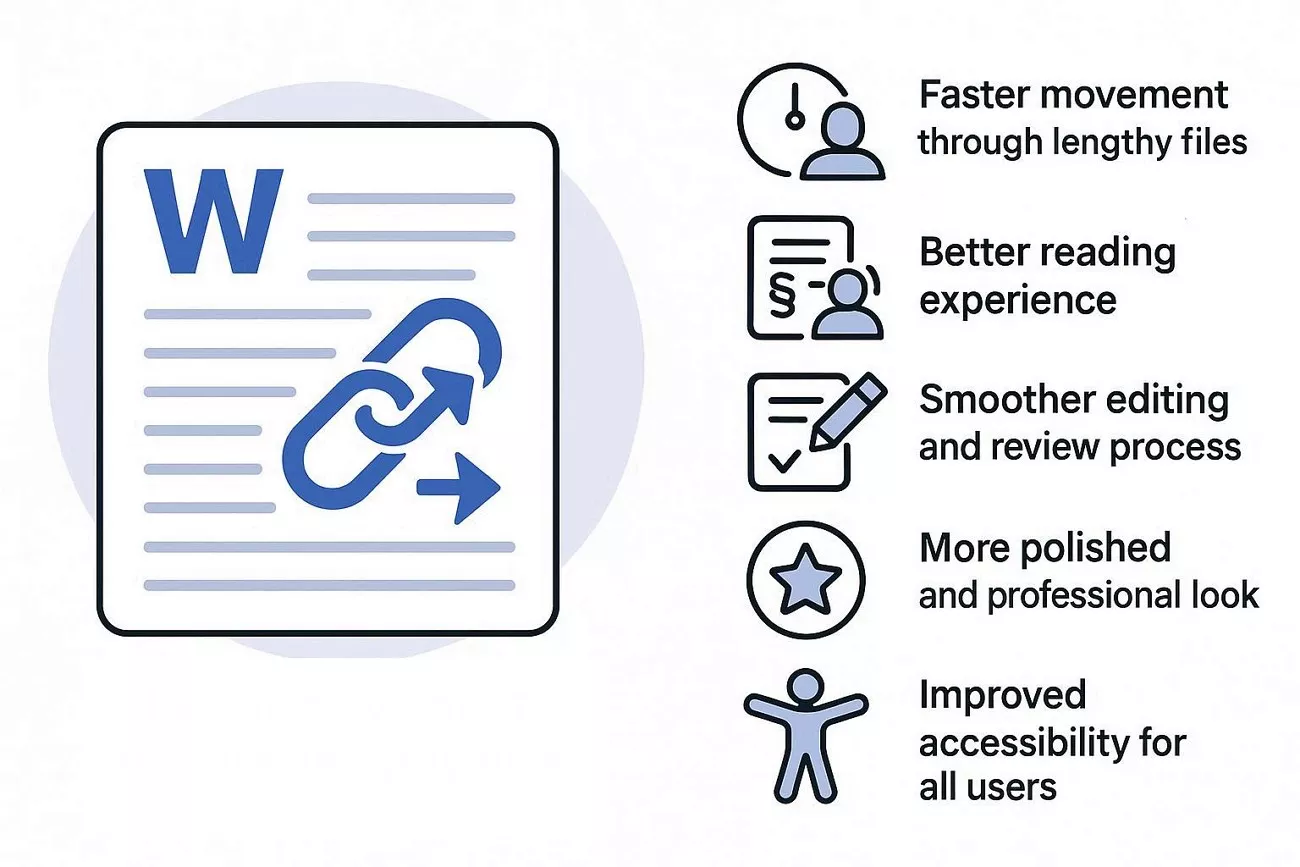
- Faster Movement Through Lengthy Files: While working with long reports and guides, I noticed how internal hyperlinks allowed me to jump straight to relevant sections without endless scrolling. This was especially helpful when moving from a table of contents to a specific chapter.
- Better Reading Experience: From my experience, hyperlinks made Word documents feel more interactive and easier to use. Being able to click directly to the needed information reduced frustration and kept the reading flow smooth.
- Easy Section and Content Referencing: When I reference figures, tables, or other sections, learning how to hyperlink in Word to another page in the same document saved me time by providing direct access. Instead of searching manually, I could click references like “See Figure 5” and reach the exact spot instantly.
- Smoother Editing and Review Process: During editing and review, internal links helped me move quickly between related sections. This made updating content, checking references, and reviewing connected parts far more efficient.
- More Polished and Professional Look: I found that documents with internal hyperlinks looked more organized and professional. They resembled modern digital reports rather than plain text files.
- Improved Accessibility for All Users: I also realized that hyperlinks support accessibility, as screen readers can detect them easily, helping users navigate the document more comfortably.
Part 2. How to Hyperlink in Word to Another Page in the Same Document
Once I understood the benefits of internal links, I discovered that there isn’t just one way to do it. While working in Word, I found two reliable methods to hyperlink to another page in the same document, and each works well in different situations. Below, I’ve explained both approaches step by step so you can choose the one that fits your document best:
Method 1. Hyperlinking a Bookmark
This method lets you link the bookmark on one page to the text on another. To learn how to use this method, follow the steps mentioned below:
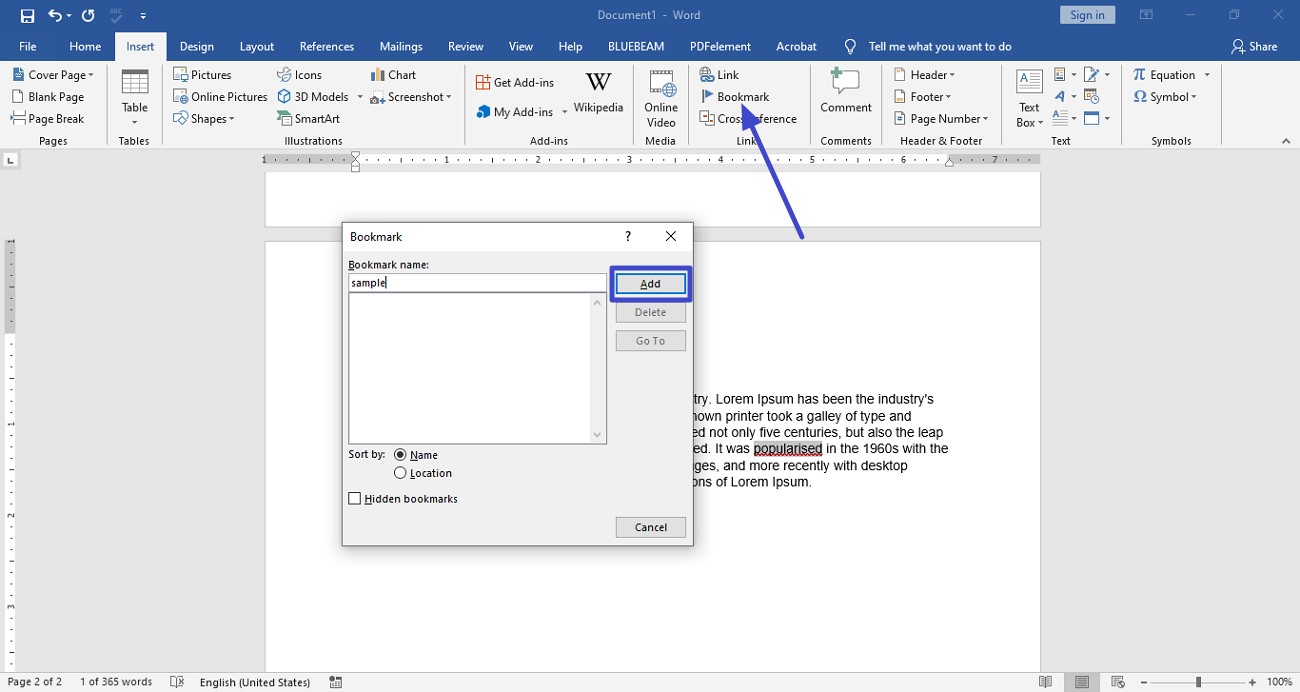
Step 1. Begin by opening the document within the tool’s interface and selecting the text you want to create as a bookmark. Now, access the “Insert” tab and choose the “Bookmark” option. Next, name the bookmark and press the “Add” button.
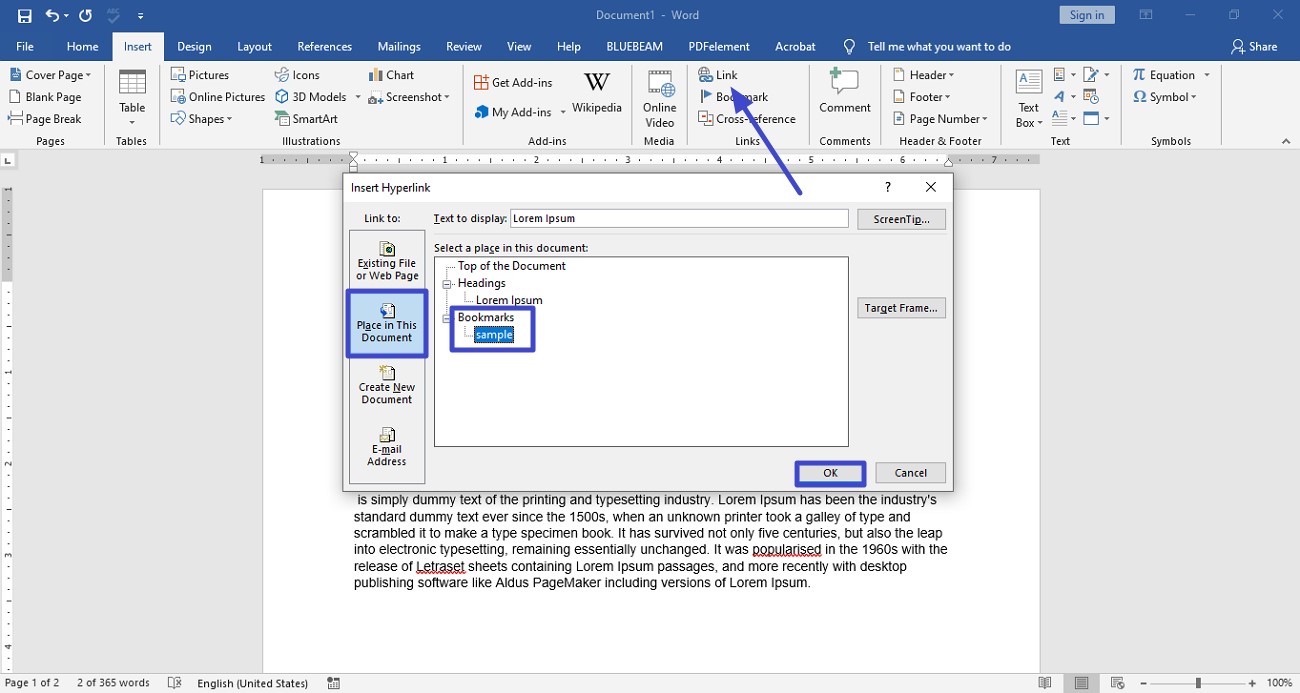
Step 2. Now, select the text on the other page and press the “Link” option from the “Insert” tab. Next, acquire the “Place in This Document” section and click on the text that you bookmarked. Press the “Ok” button to insert the hyperlink.
Method 2. Hyperlinking a Heading
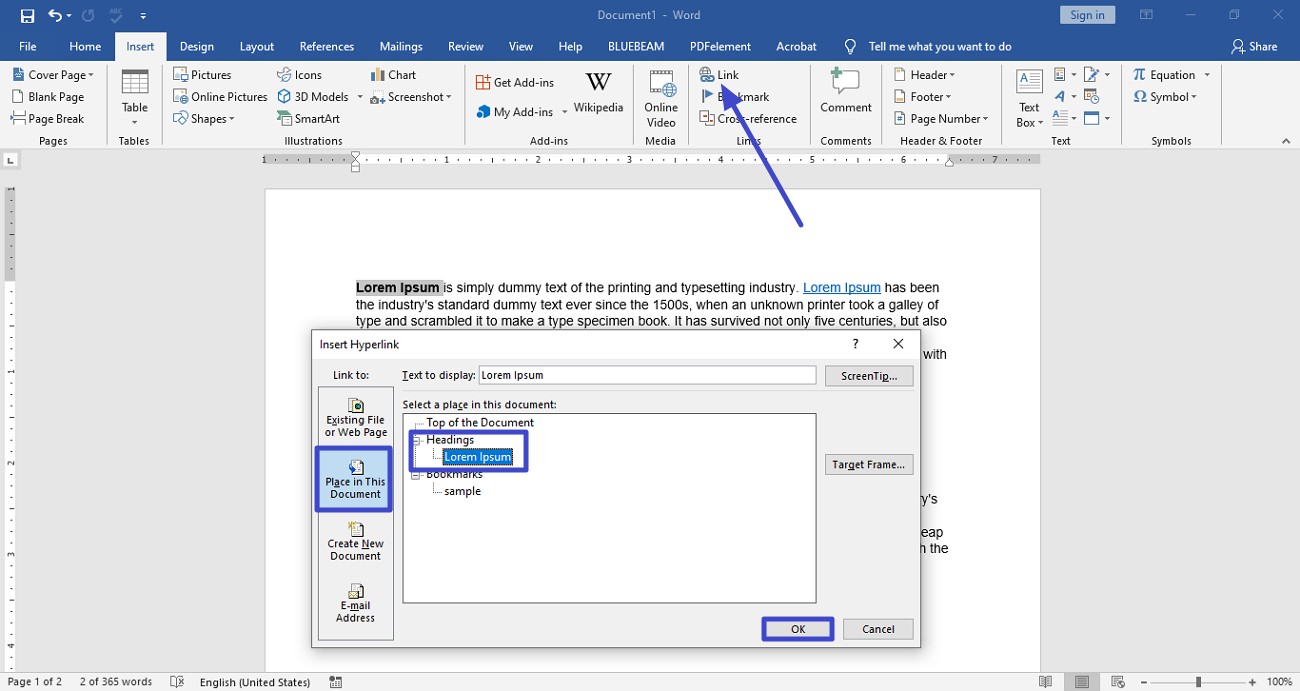
Users get the ability to link any heading within the document to ump directly to the heading. Follow the instructions mentioned next to learn how to use this method:
Instructions: To hyperlink a heading, select the text and press the “Link” option within the “Insert” section. Now, select the heading from the next page and press the “Ok” button to confirm the selection.
Part 3. Effortless Internal Linking: An Alternative Method
When working on long Word documents, I often find that readers need to jump between sections without scrolling endlessly. That’s where learning how to hyperlink in Word to another page in the same document becomes a lifesaver. One alternative method I use is creating bookmarks first and then linking it to those bookmarks, which keeps navigation seamless.
Often, the final document needs to be shared as a PDF. I’ve noticed that hyperlinks in Word don’t always carry over perfectly after conversion. That’s why I rely on UPDF. With UPDF, I can convert my Word files to PDF and create internal links to any page, whether I’m on mobile or desktop. This ensures that readers can jump directly to the referenced sections, maintaining smooth navigation no matter what the device or PDF reader they use.
Windows • macOS • iOS • Android 100% secure
Step-by-Step Guide To Hyperlink Using UPDF on Desktop
UPDF provides an intuitive interface to convert the document and hyperlink its content in no time. To learn how to hyperlink in Word to another page in the same document, read the steps mentioned below:
Step 1. Begin by Opening File
Drag and Drop your Word file into UPDF to open the Word file as a PDF.
Step 2. Access Edit Option
Once the document is opened, head to the toolbar at the top and press the “Edit” option.
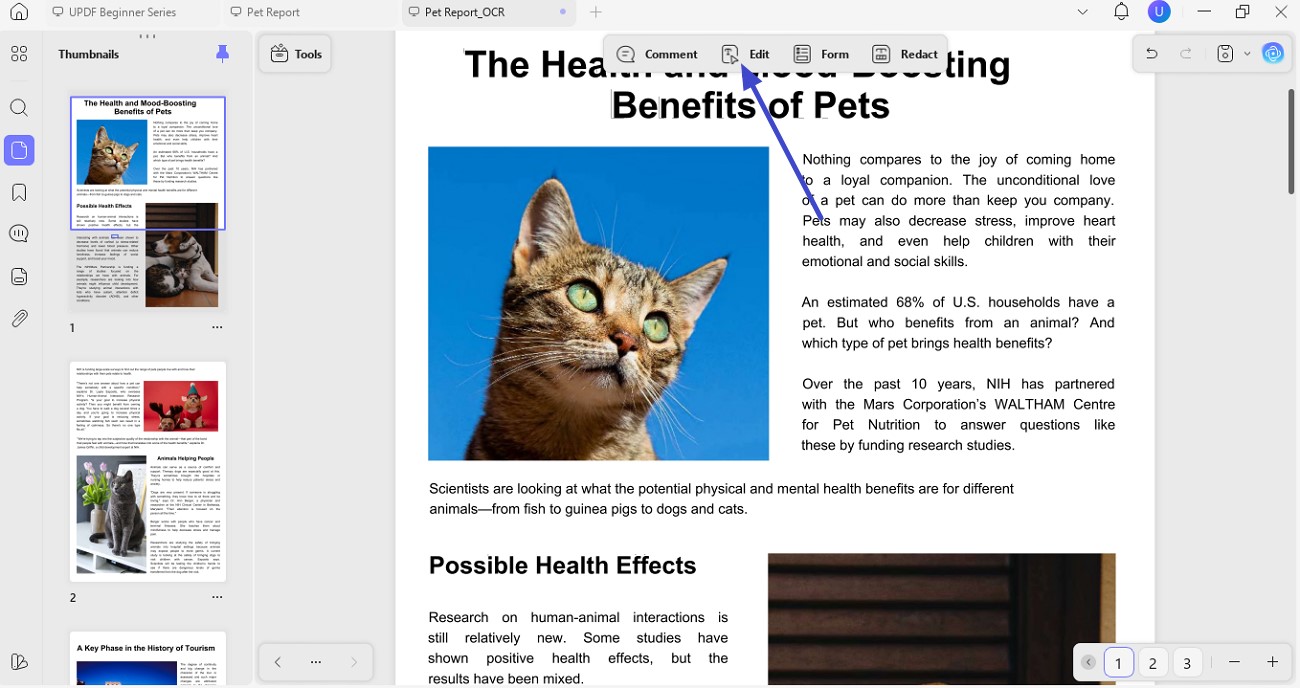
Step 3. Insert Link to Other Page
Head to the toolbar at the top and select the “Insert & Edit Link Page” option. Choose the area within the document that you want to link to the other page and press the “Page Index Settings” option Select the page and press the “Done” button to complete the process.
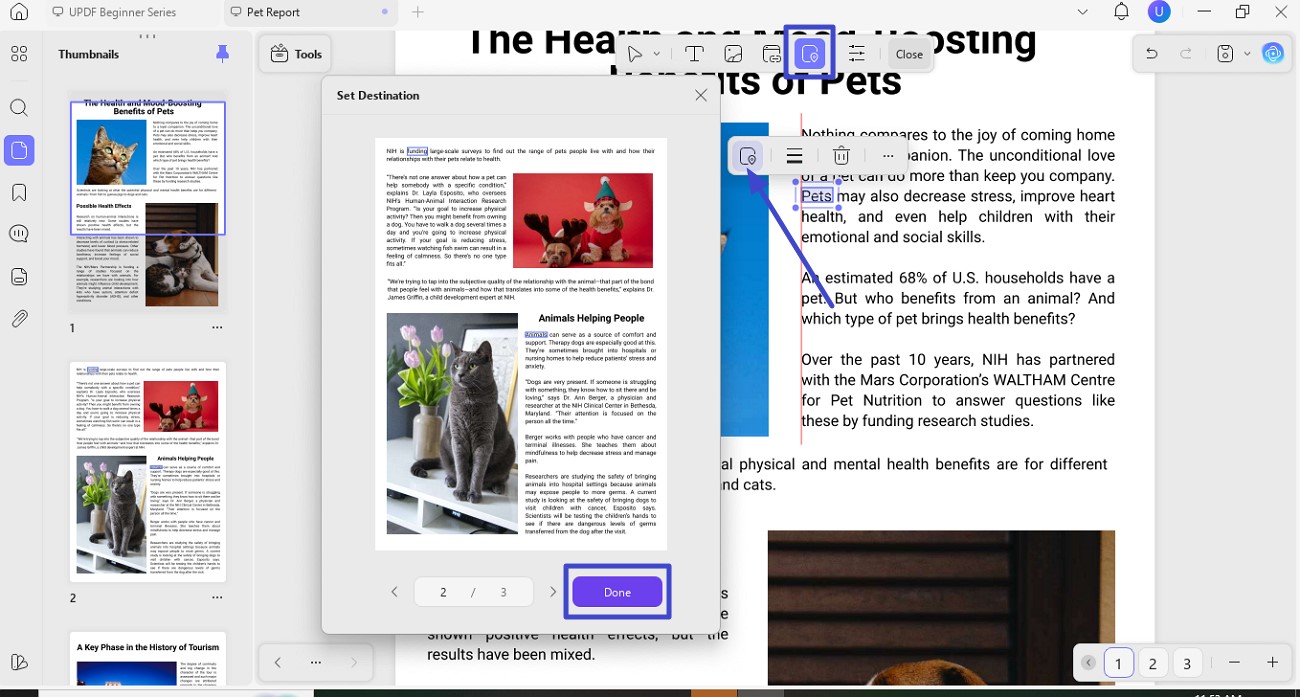
Step-by-Step Guide to Hyperlink Using UPDF on Mobile
As I discussed earlier, UPDF also provides a dedicated mobile application to manage documents effortlessly. Here is a step-by-step guide on how to hyperlink in Word to another page in the same document on UPDF mobile (iOS&Android):
Windows • macOS • iOS • Android 100% secure
Step 1. Begin by Accessing Document
After opening the application, press the “+” icon to import the document to the tool’s interface.
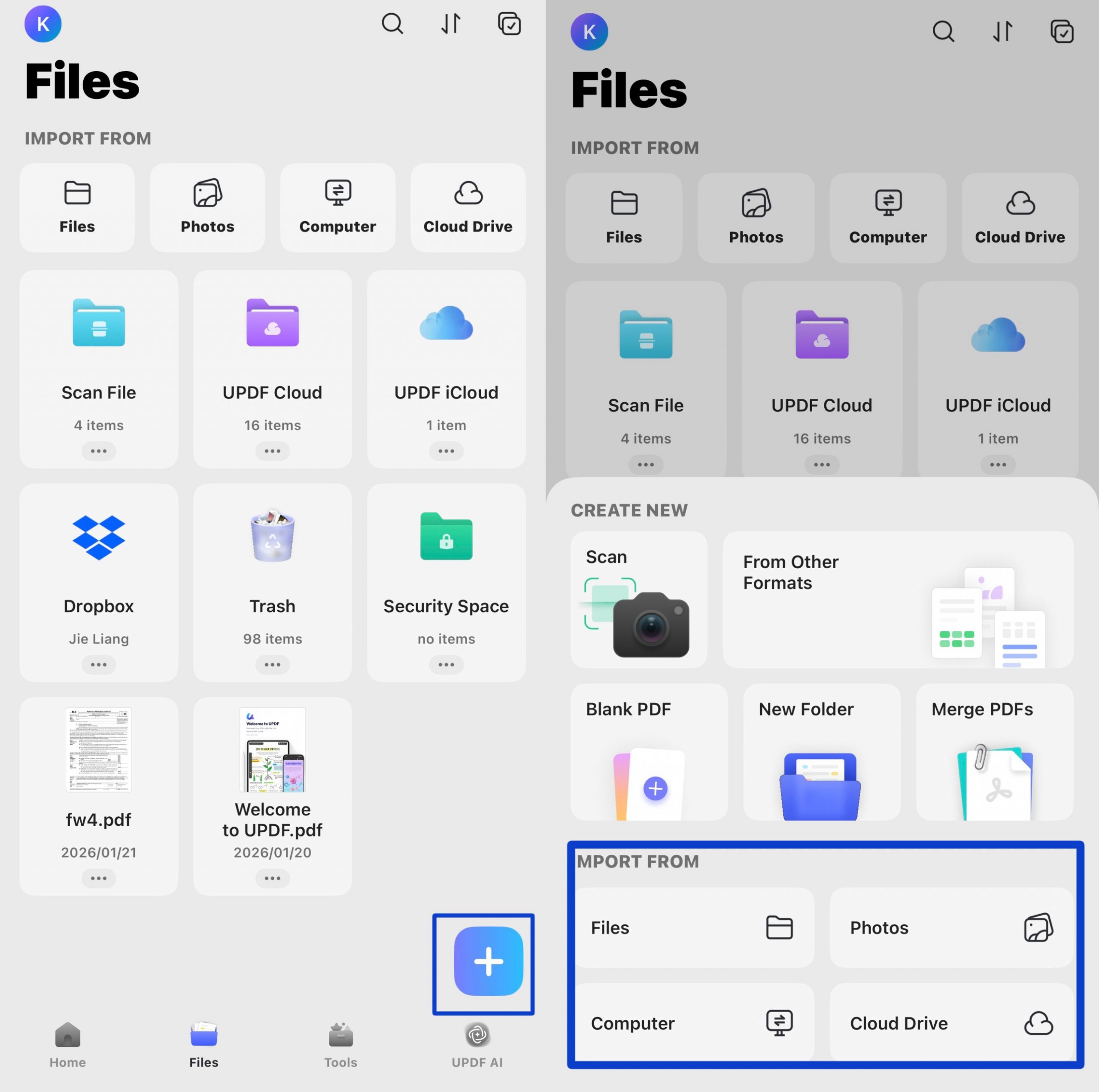
Step 2. Select Area for Linking
Long press the text to select the part you want to add a link to, and select the “Add link > Link to Page” option from the floating toolbar.
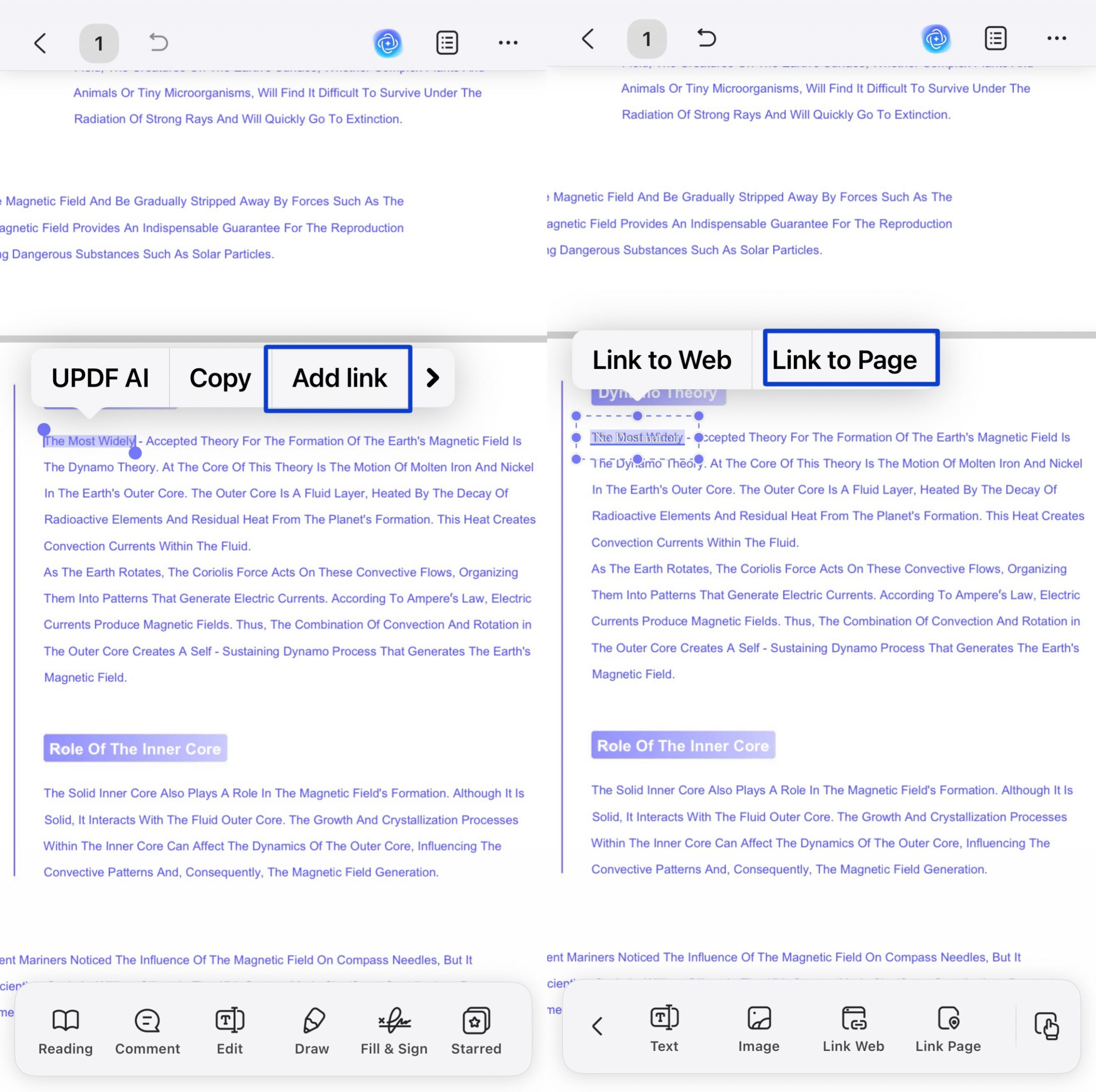
Alternatively, you can enter “Edit” mode from the bottom toolbar and select “Link Page”. Then, tag or drag the area on the page that you want to link to another page.
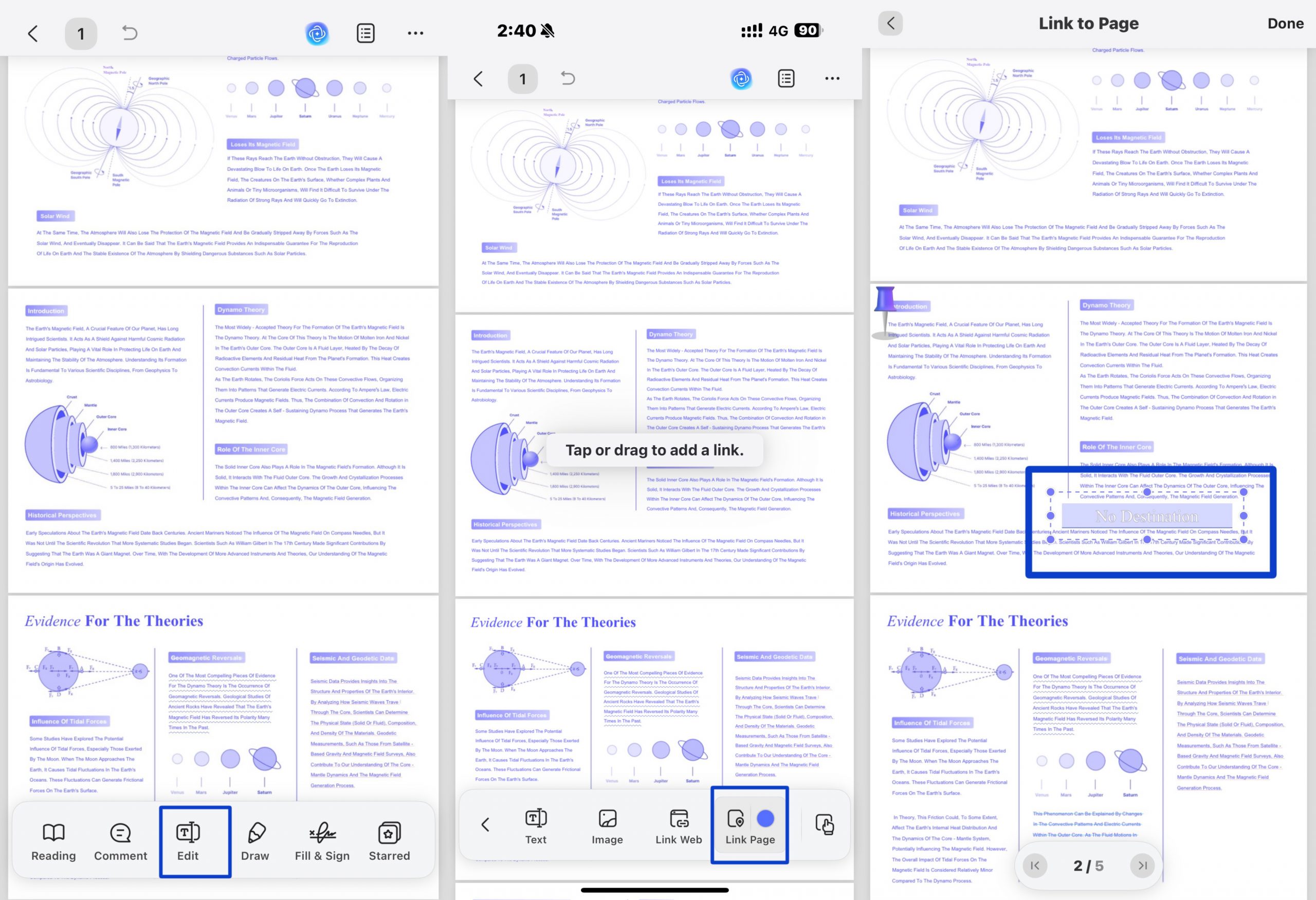
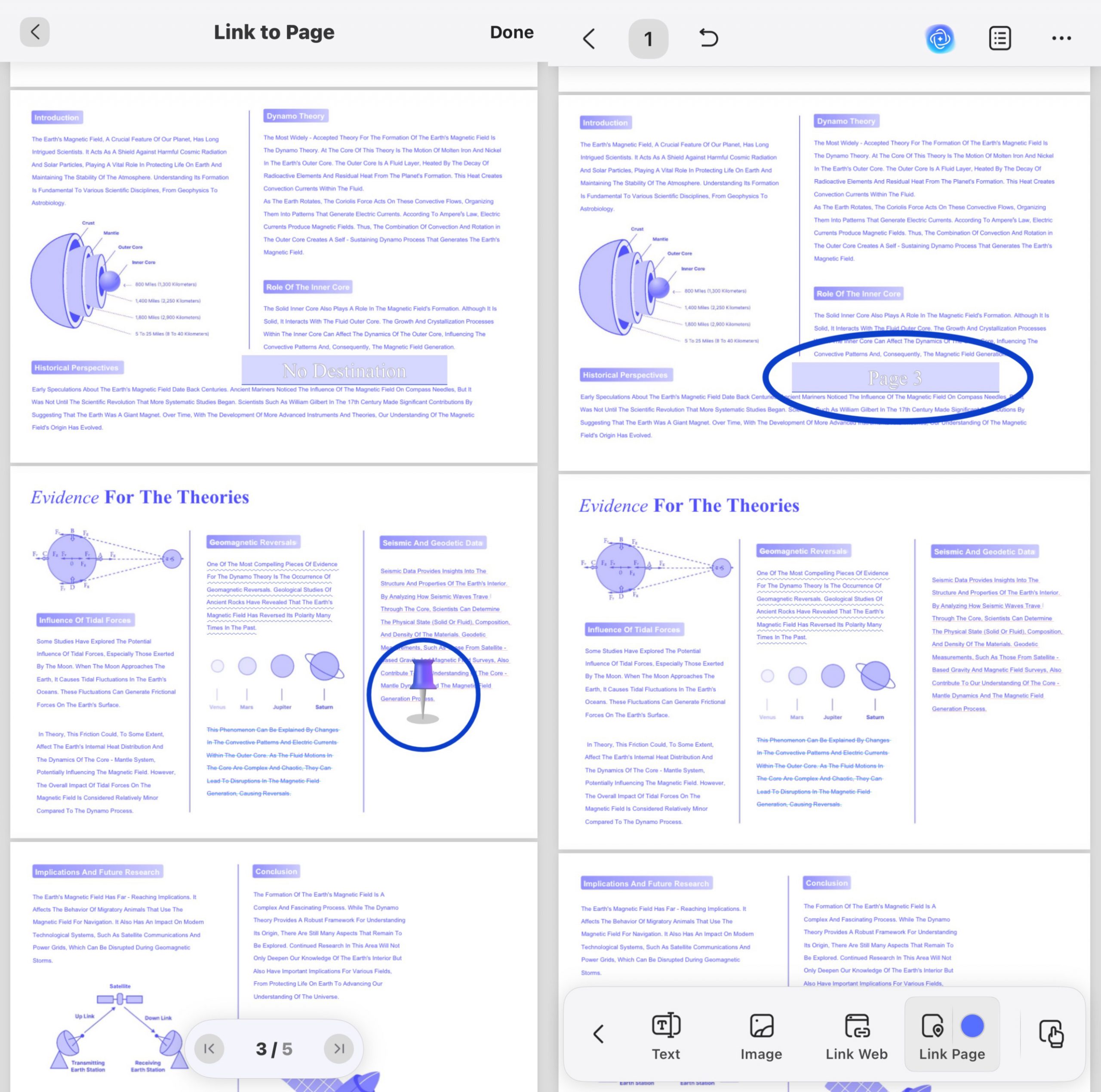
Step 3. Move the Pin Icon
Now, tap on the other page where you want to add the link. The Pin icon will appear on that page, indicating that the text or area you previously selected can now link to the page marked with the Pin. Press the “Done” button to make the confirmation.
Other Features Offered by UPDF
After converting and linking my document, I usually need more than just basic navigation. This is where UPDF stands out for me. It doesn’t feel like a limited PDF tool; it feels like a complete document workspace that covers everything I typically rely on Adobe Acrobat for, but with a simpler and more flexible experience.
Windows • macOS • iOS • Android 100% secure
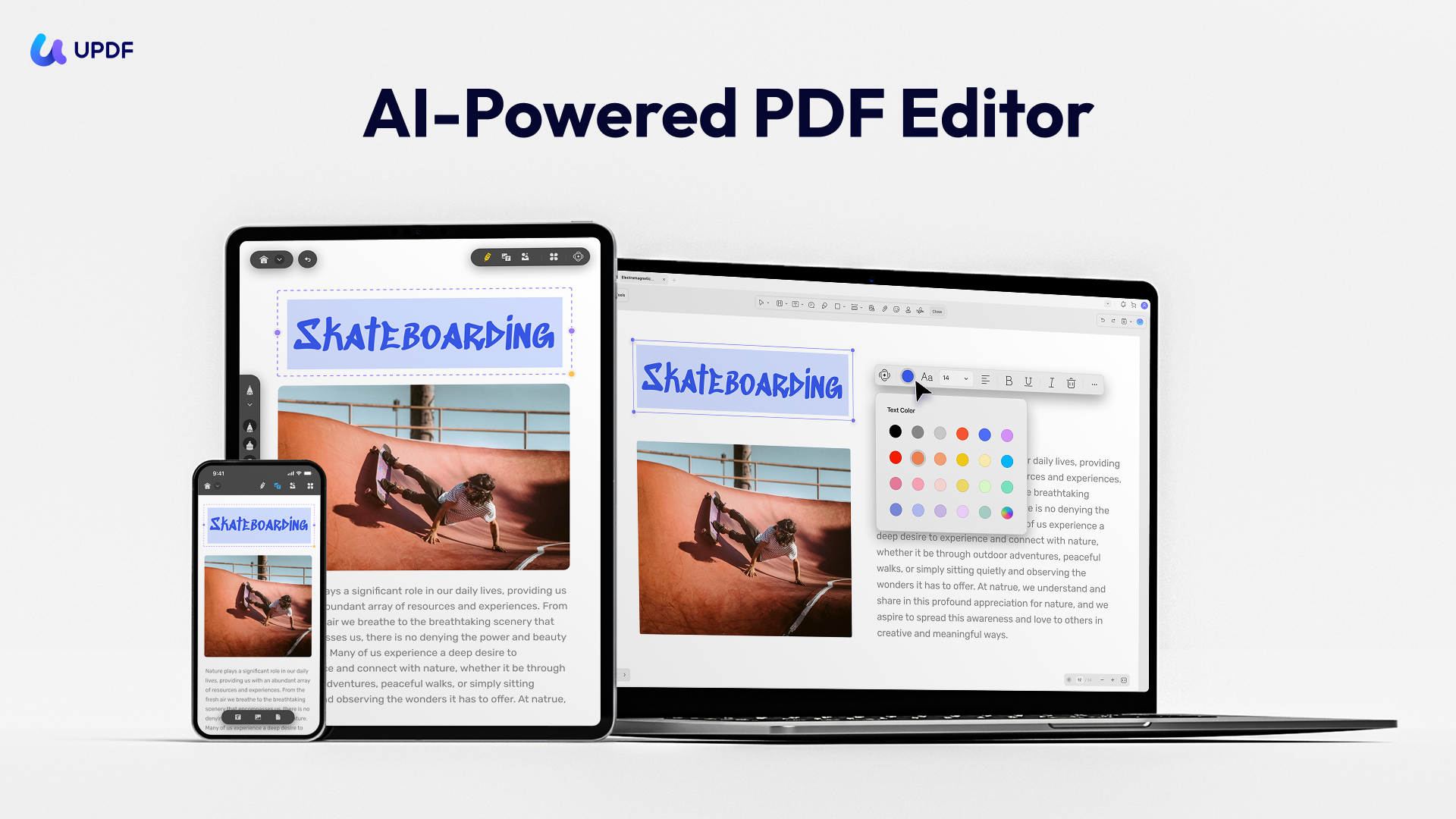
- Advanced Editing: UPDF allows direct editing of text, images, and links within PDFs without affecting the original layout. This makes last-minute corrections or content updates quick and precise.
- Powerful OCR (Optical Character Recognition): Scanned PDFs can be converted into searchable and editable documents with high accuracy. This feature is especially useful for digitizing paper-based files.
- High-Fidelity Conversion: UPDF converts Word, Excel, and other files to PDF while preserving fonts, spacing, and formatting. The original document structure remains intact after conversion.
- Document Management: Pages can be merged, split, extracted, deleted, or rotated with ease. UPDF also supports adding watermarks, headers, and footers for better organization.
- Security & Signing: Sensitive documents can be protected with passwords and redaction tools. Electronic and digital signatures help ensure authenticity and compliance.
- Annotation Tools: Built-in annotation features enable highlighting, commenting, and markup for clear feedback. These tools simplify collaboration during reviews and approvals.
- Device Flexibility: One UPDF license works across four devices, including desktop and mobile platforms. This ensures consistent access and productivity regardless of the device used.
For more information about UPDF, you may watch the following video.
Conclusion
To wrap it up, learning how to hyperlink in Word to another page in the same document is a simple yet powerful way to improve navigation, readability, and user experience, especially in long or reference-heavy files. Whether links are added directly in Word or finalized after conversion, the goal remains the same: helping readers reach the right section instantly.
For documents that need to be shared as PDFs, UPDF offers a reliable solution by preserving internal links while providing advanced editing, conversion, and document management features. With its cross-device support and all-in-one toolkit, UPDF makes it easier to deliver polished, professional documents without extra complexity.
Windows • macOS • iOS • Android 100% secure




 Delia Meyer
 Lizzy Lozano
 Enola Davis
 Engelbert White
- _afoan