 UPDF
UPDF
 UPDF for Windows
 UPDF for Mac
 UPDF for iPhone/iPad
 UPDF for Android
 Nomostar
 UPDF AI Online
 UPDF Sign
 IvyCraft
 Edit PDF
 Annotate PDF
 Create PDF
 PDF Form
 Edit links
 Convert PDF
 OCR
OCR PDF to Word
 PDF to Image
 PDF to Excel
 Organize PDF
 Merge PDF
 Split PDF
 Crop PDF
 Rotate PDF
 Protect PDF
 Sign PDF
 Redact PDF
 Sanitize PDF
 Remove Security
 Read PDF
 UPDF Cloud
 Compress PDF
 Print PDF
 Batch Process
 About UPDF AI
 UPDF AI Solutions
 AI User Guide
 FAQ about UPDF AI
 Summarize PDF
 Translate PDF
 Chat with PDF
 Chat with AI
 Chat with image
 PDF to Mind Map
 Explain PDF
 PDF AI Tools
 Image AI Tools
 AI Chat Tools
 AI Writing Tools
 AI Study Tools
 AI Working Tools
 Other AI Tools
 AI Bookmark Generation
 AI Bookmark Summary
 AI Watermark Generation
 AI Background Generation
 AI Sticker Generation
 AI Stamp Generation
 AI Editing Suite
 UPDF Copilot
 AI Page Management
 AI Semantic Search
 PDF to Word
 PDF to Excel
 PDF to PowerPoint
 Enterprise Solution
 Enterprise Sign
 Enterprise AI
 Enterprise Plan
 Enterprise User Guide
 Enterprise Webinar
 Banking
 Healthcare
 Insurance
 Legal
Legal Manufacturing
 Government
 Researchers & PhDs
 Solopreneurs & Freelancers
 Lawyers & Legal Professionals
 Real Estate Agents & Brokers
 Education Solution
 Customer Stories
 User Guide
 UPDF Tricks
 FAQs
FAQs UPDF Reviews
 Download Center
 Blog
Blog Newsroom
 Tech Spec
 Updates
 UPDF vs. Adobe Acrobat
 UPDF vs. Foxit
 UPDF vs. PDF Expert

If you get this error, “No Text Could Be Extracted From This File” while uploading a PDF, you’re not alone. This issue usually occurs when the PDF is scanned or not in a text-extractable format. Instead of repeatedly trying to upload the file, the fastest solution is to use UPDF. Its powerful OCR feature quickly converts scanned pages into editable text. Simply click the button below to download and have a try! You can also use UPDF AI Online, which now applies automatic OCR when parsing documents.
Windows • macOS • iOS • Android 100% secure
Continue reading this article, as I will tell you everything about the “No Text Could Be Extracted From This File” ChatGPT error and how to fix it with.
Part 1. No Text Could Be Extracted From This File
Just like the above user, if you also see this error, then there could be many reasons for it. Some of the top ones are discussed below.
- Your scanned PDF contains only images, so ChatGPT can’t extract the text.
- Uploading larger PDF files can cause extraction failures, which is the main reason for getting this error.
- ChatGPT doesn’t extract text from scanned or handwritten PDFs.
- Some third-party apps save PDFs in formats that aren't fully supported by ChatGPT.
- You may be uploading a PDF that’s partially corrupted, which prevents ChatGPT from reading or extracting its contents.
These are the common reasons why you see the “No Text Could Be Extracted From This File” error. Continue reading as I will tell you how to fix this error in no time.
Part 2. How To Fix ChatGPT No Text Could Be Extracted From This File
If ChatGPT can’t extract text from your PDF because it only contains scanned images, don’t worry—there are two reliable ways to resolve this problem. The first option is to use UPDF, which includes a powerful OCR feature capable of converting scanned or image-based PDFs into fully editable text. UPDF uses reliable OCR technology, which supports around 38 languages. That means you can scan your document into multiple languages. It also uses MCR technology to reduce PDF size without compromising the quality. Moreover, you can use the batch mode to scan your PDF files at the same time.
The second method involves using UPDF AI Online, which automatically applies OCR during the document-parsing process. Let’s discuss how to use UPDF OCR feature and UPDF AI Online tool to convert your PDF files into editable and searchable texts.
Method 1: Use UPDF OCR to Convert the Scanned PDF to Editable Text
Here is how you can use UPDF OCR to convert your scanned PDF into searchable text.
Step 1: Launch your UPDF app and drag-and-drop your scanned PDF file.
Windows • macOS • iOS • Android 100% secure
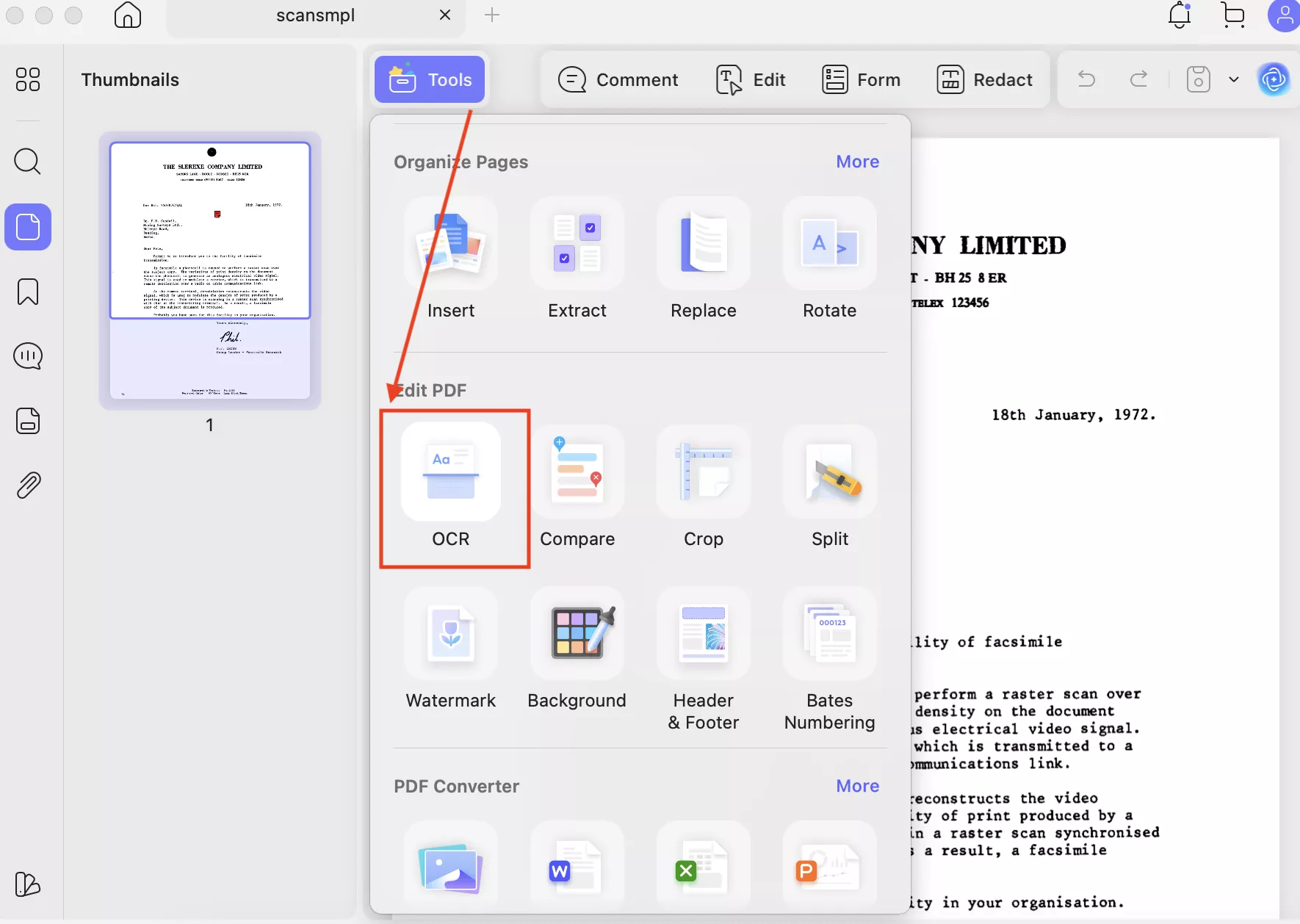
Step 2: Click the “Tools” option and under the Edit PDF section, choose the “OCR” option.
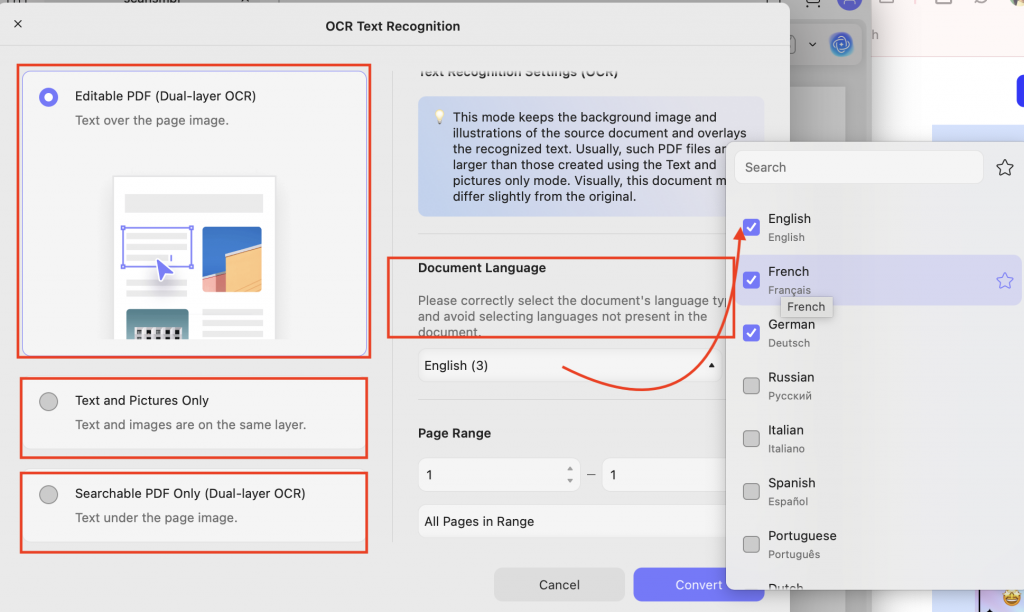
Step 3: On the screen, you will see different options like Editable PDF, Text and Pictures Only and so on. Select “Editable PDF” and choose your desired language, such as English, German, or French.
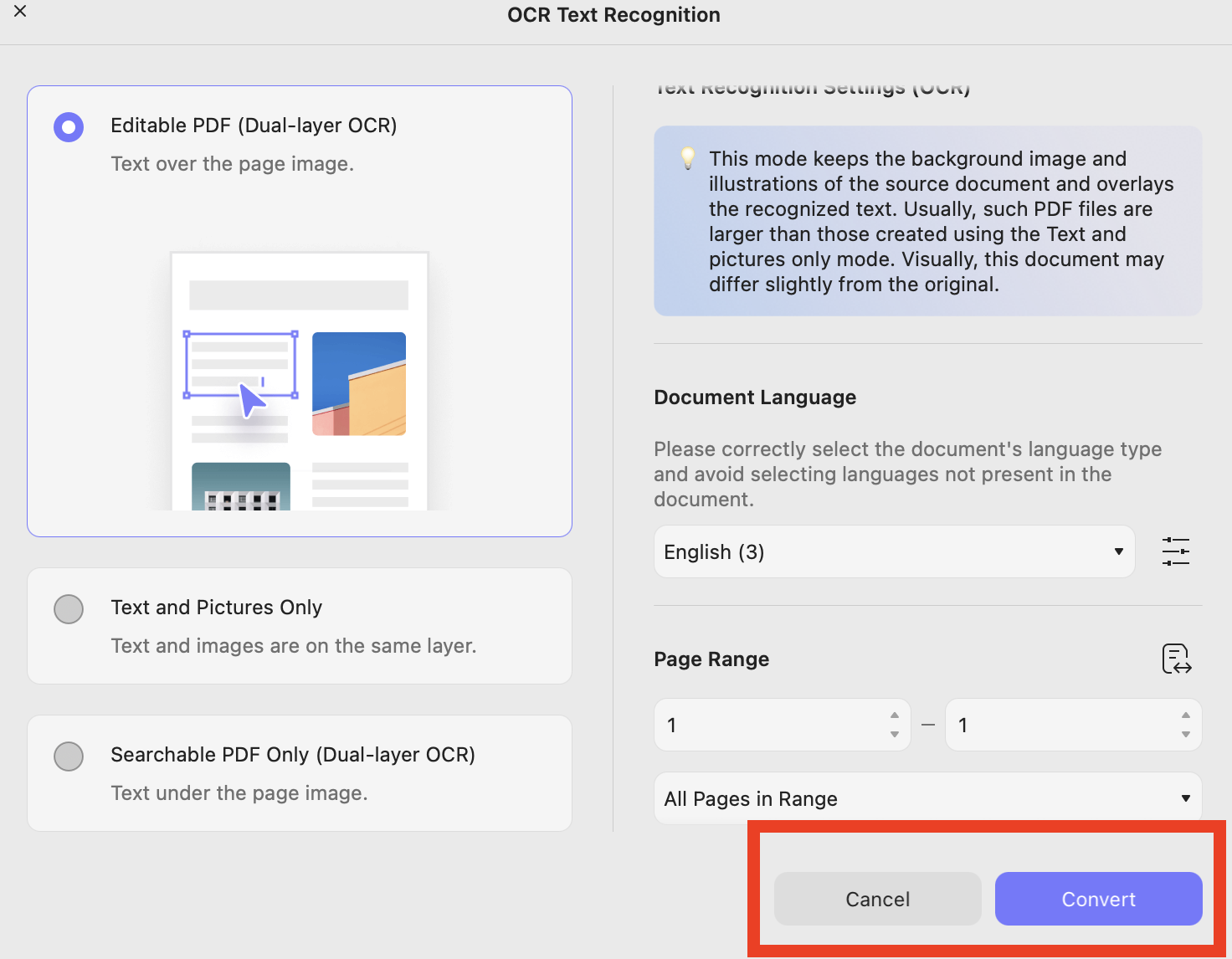
Step 4: Click the “Convert” option and let UPDF run its OCR. Once done, upload the OCR PDF to ChatGPT.
Method 2: Use UPDF AI Online Automatic OCR
If you don’t want to install the app, then you can use UPDF AI Online to automatically OCR PDF files. Here is how this tool works.
Step 1: Visit https://ai.updf.com/ and upload your scanned PDF. You can also click the button below to visit UPDF AI online directly.
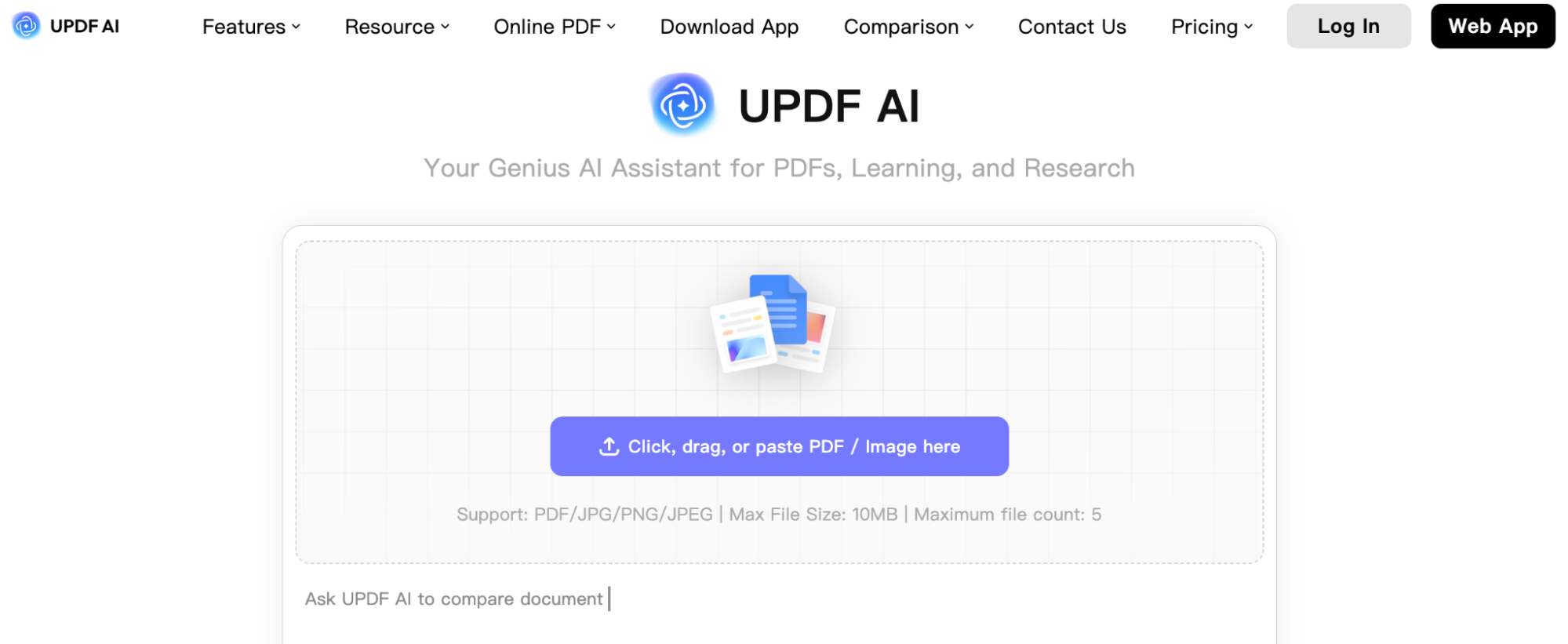
Step 2: Once your PDF file is uploaded, the tool will automatically apply OCR as part of parsing.
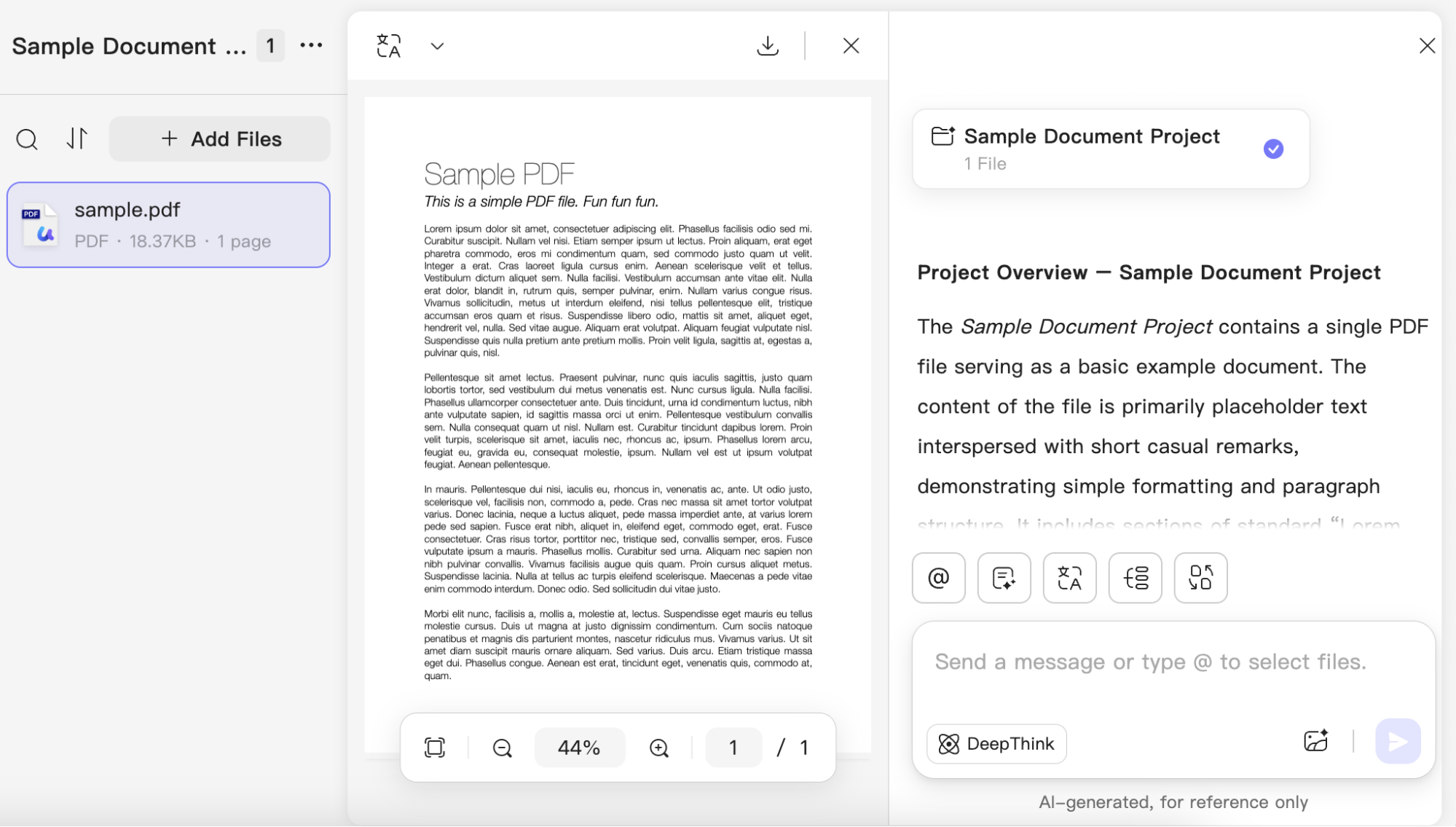
Step 3: Once the text is extracted, you can directly chat with the document and ask questions, extract passages, generate mind maps, and more. You can also translate it into different languages.
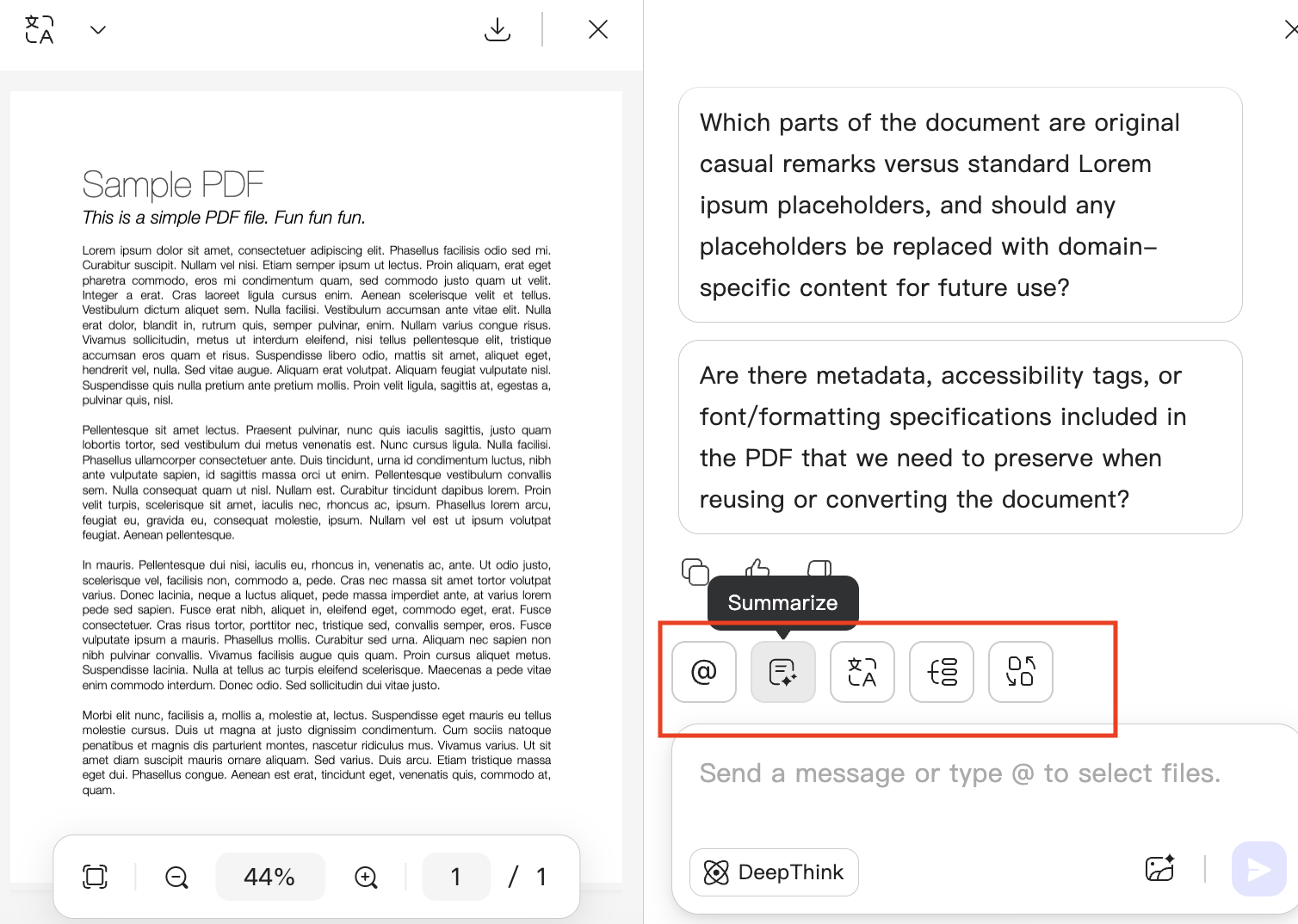
Below, I have attached the screenshots of things that you can do with this tool.
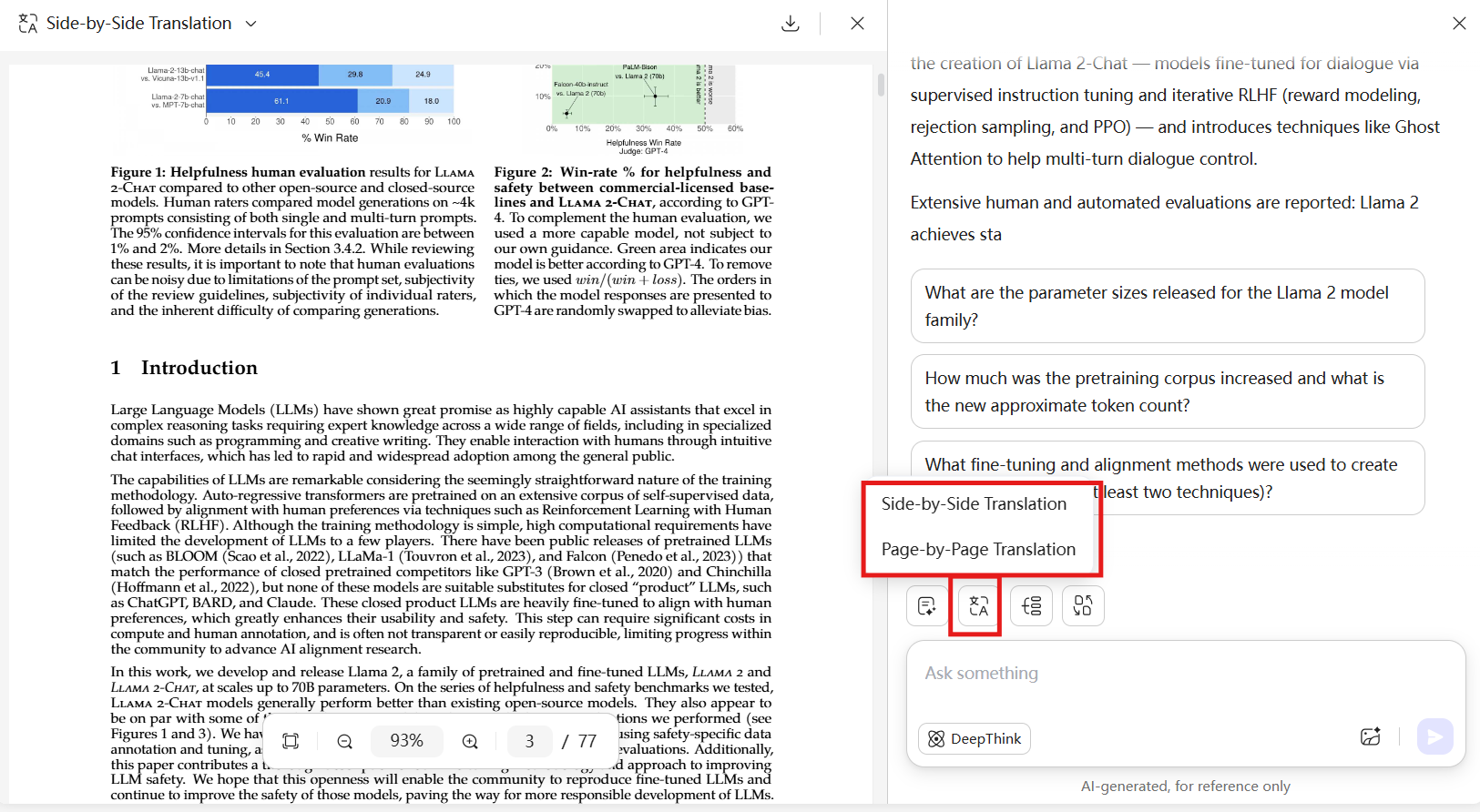
- Translate PDF
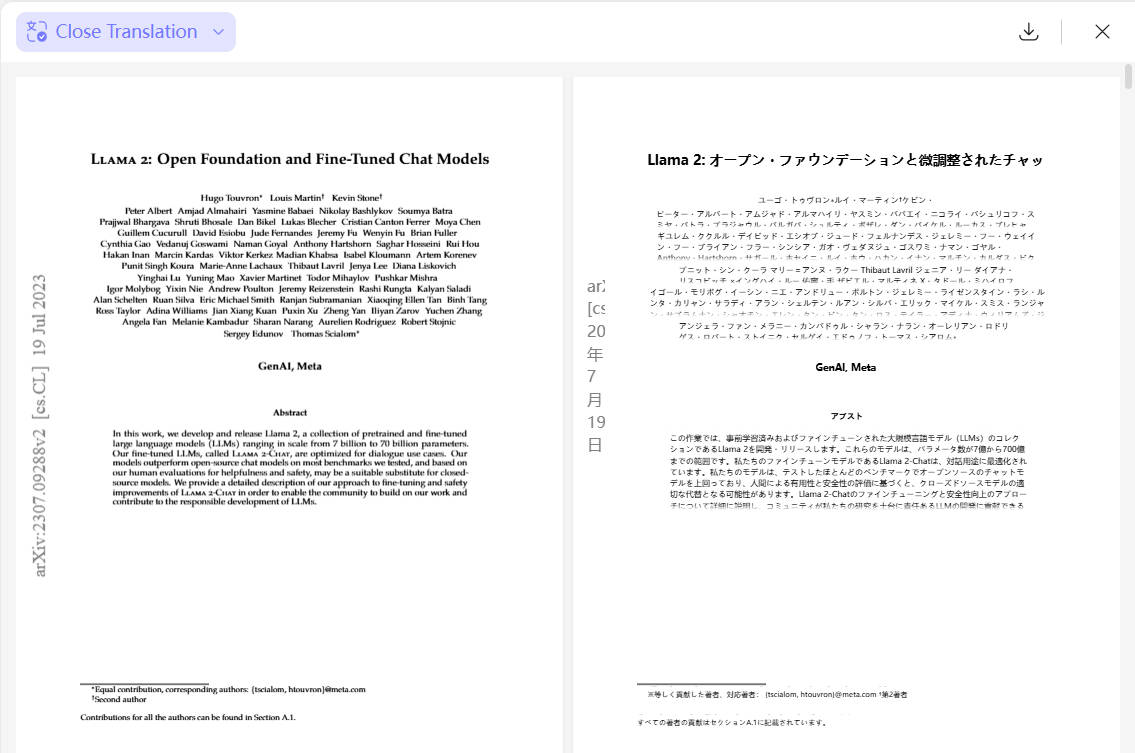
You can click the “Translate” icon to translate your PDF file. UPDF supports side-by-side translation and page-by-page translation.
You can also use the top menu to enable side-by-side translation easily and choose your desired language for translation.
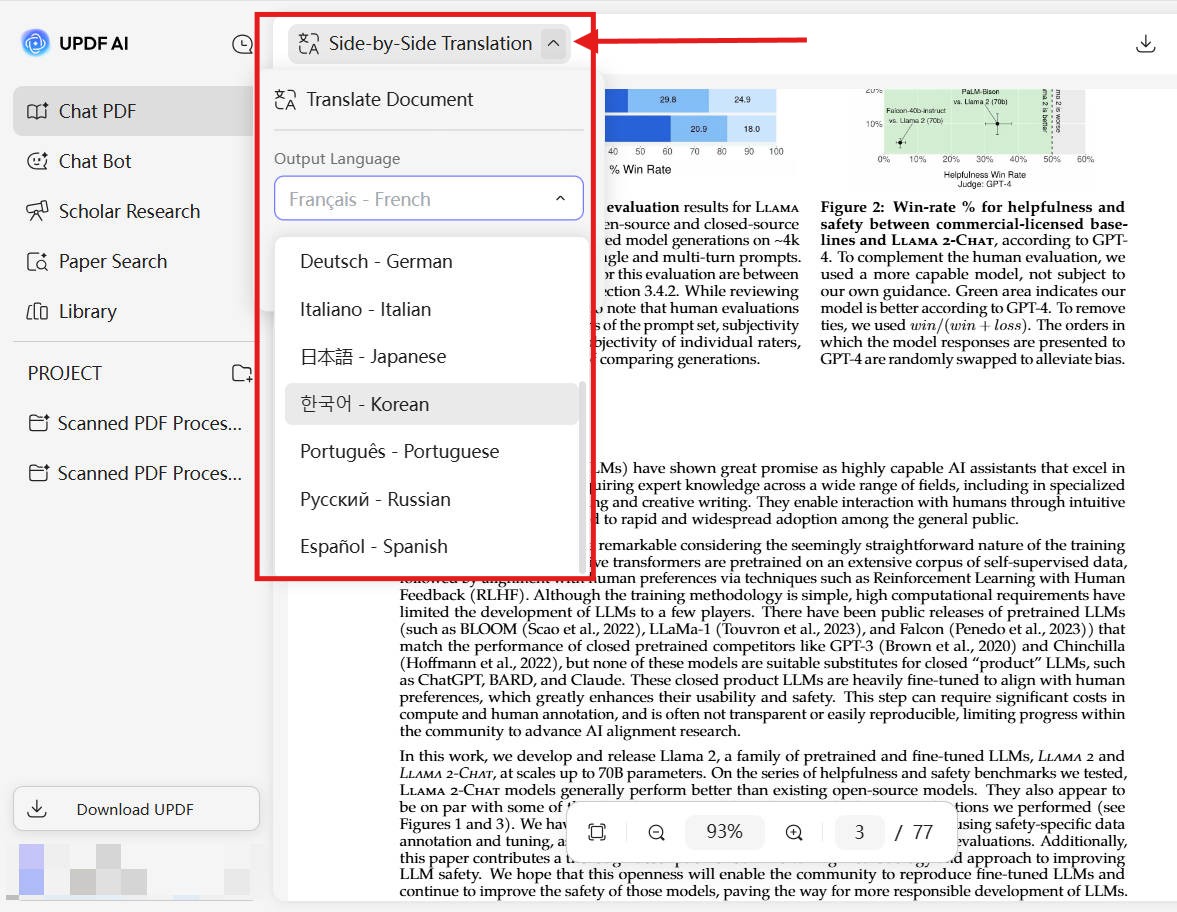
This is how the side-by-side interface looks like once the PDF file is translated.
- Mind Map
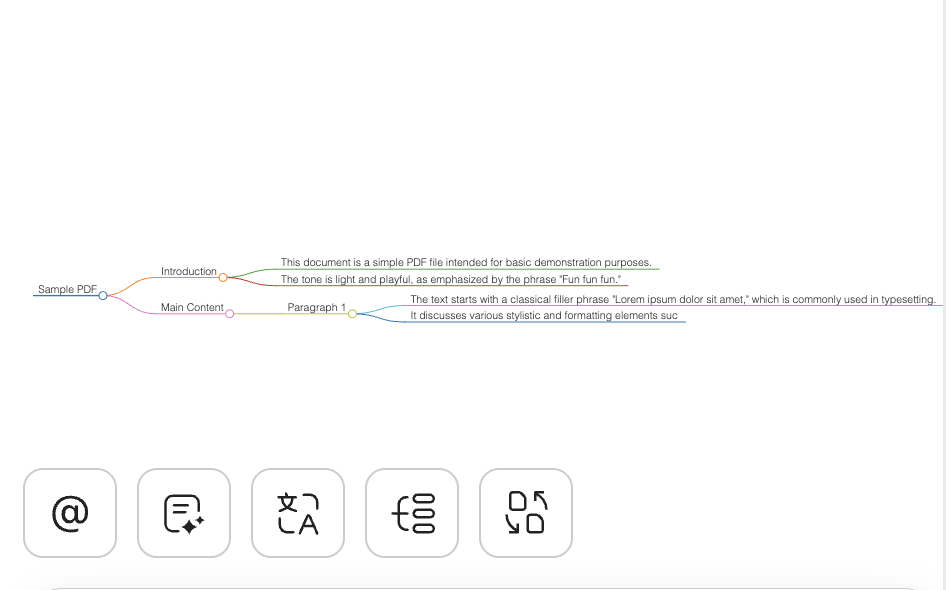
The Mind Map feature helps you break down your PDF into headings, smaller paragraphs and create branches for related points, forming a structured layout.
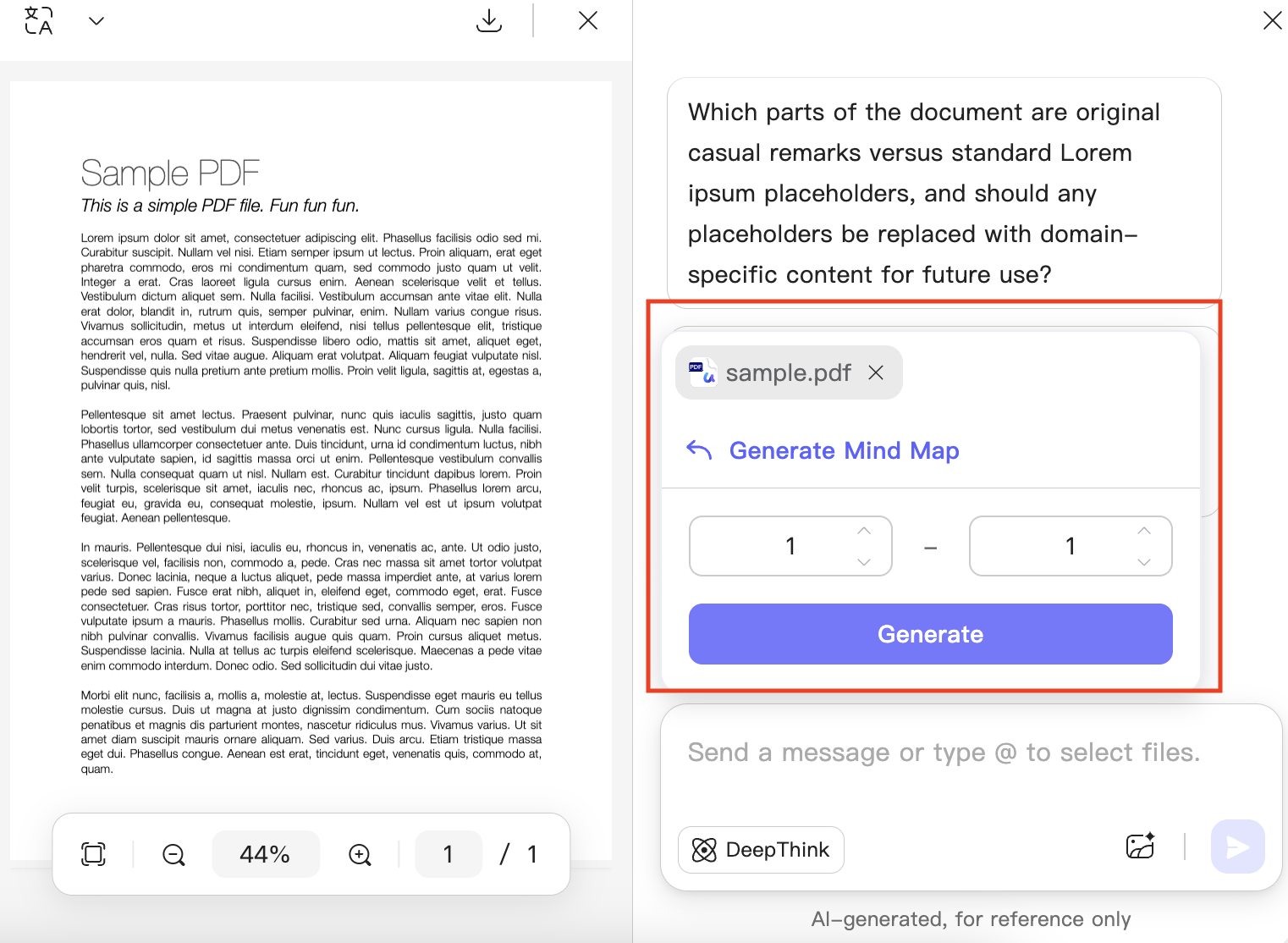
Here is how it breaks down the PDF file into different categories.
- Convert PDF
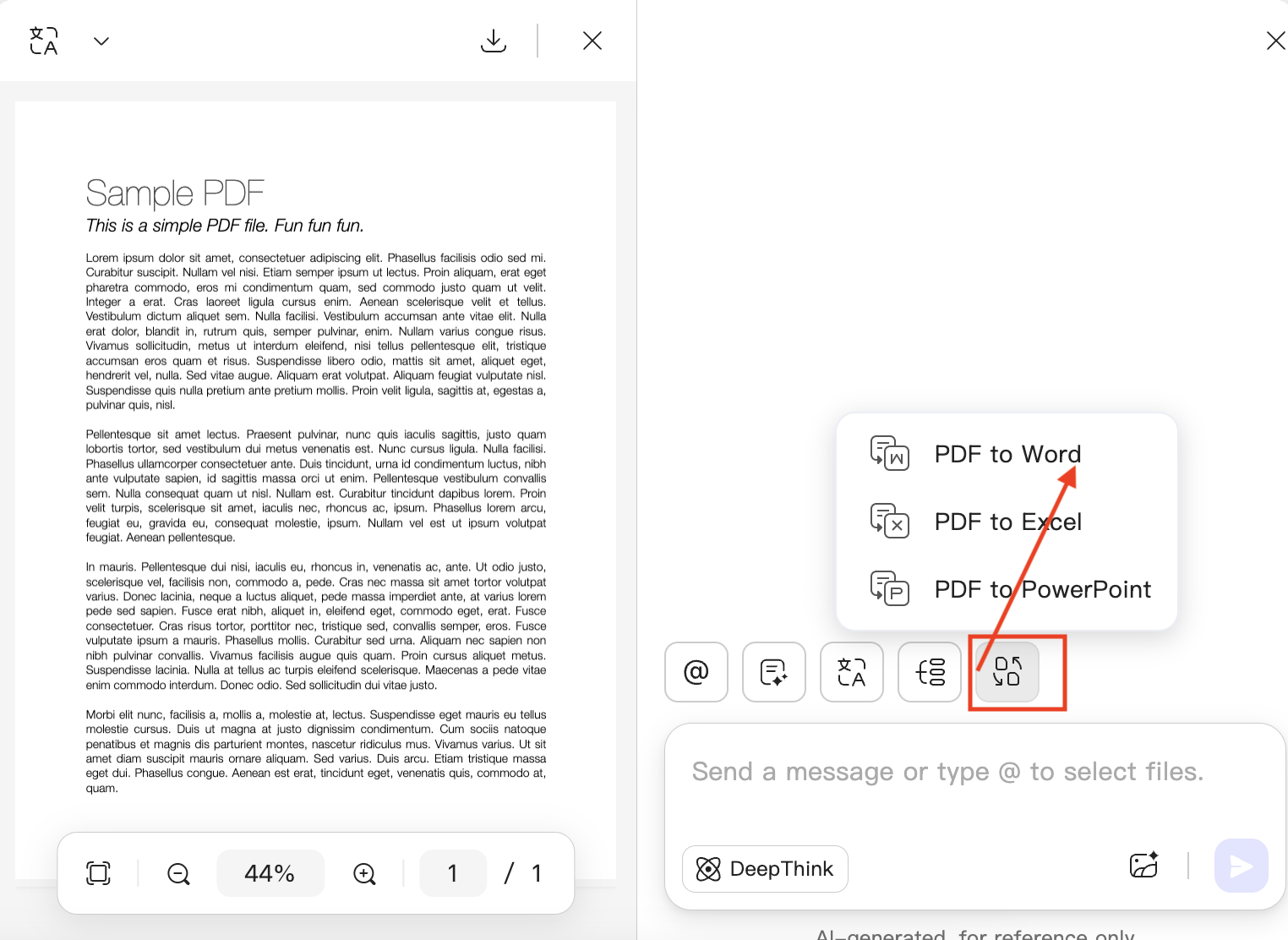
You can also use the convert option to convert PDF into different formats, such as Word, Excel and PowerPoint.
You can also use UPDF desktop app to access UPDF AI Online. Open your tool and click the “AI” option as shown in the image below.
Windows • macOS • iOS • Android 100% secure
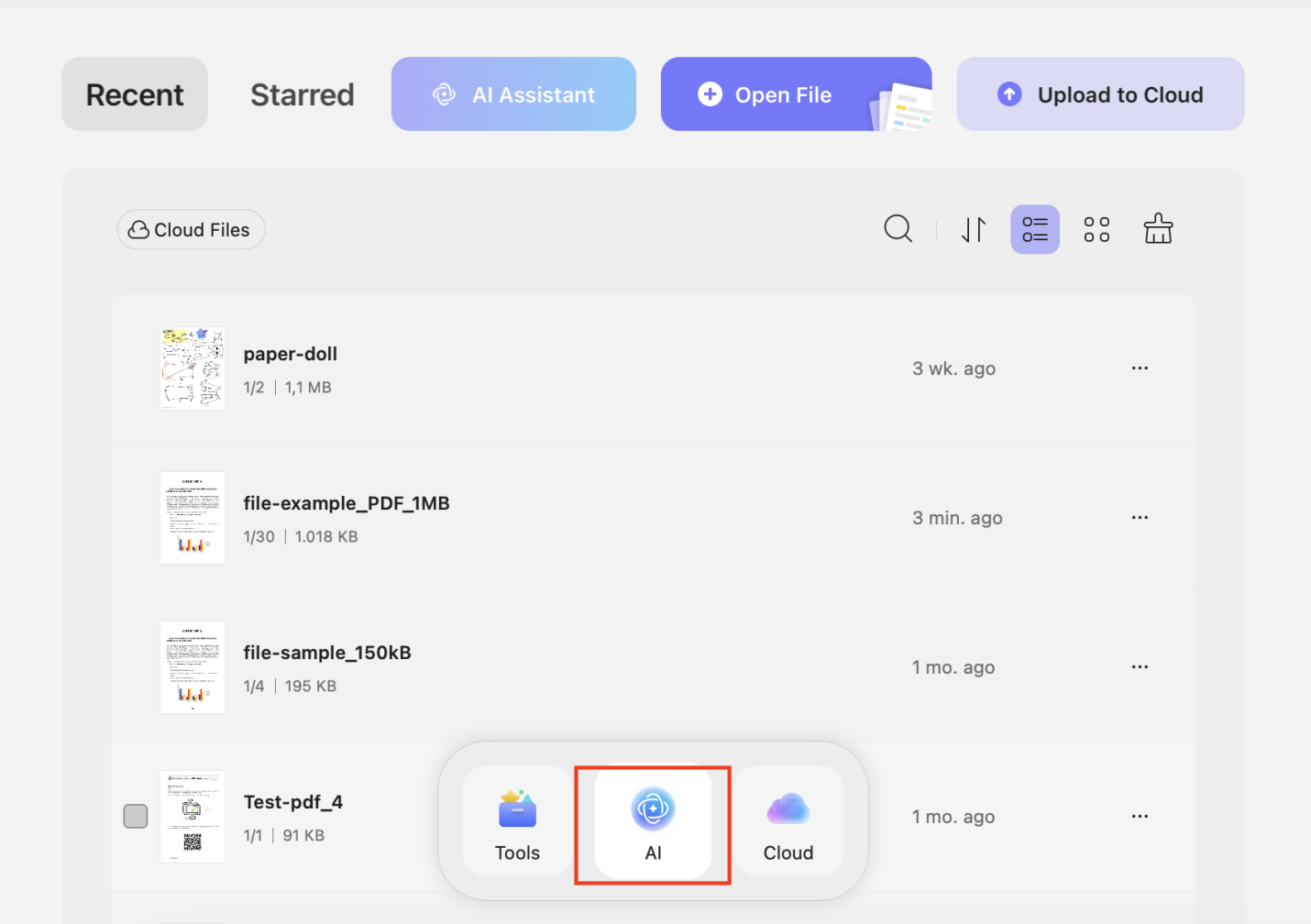
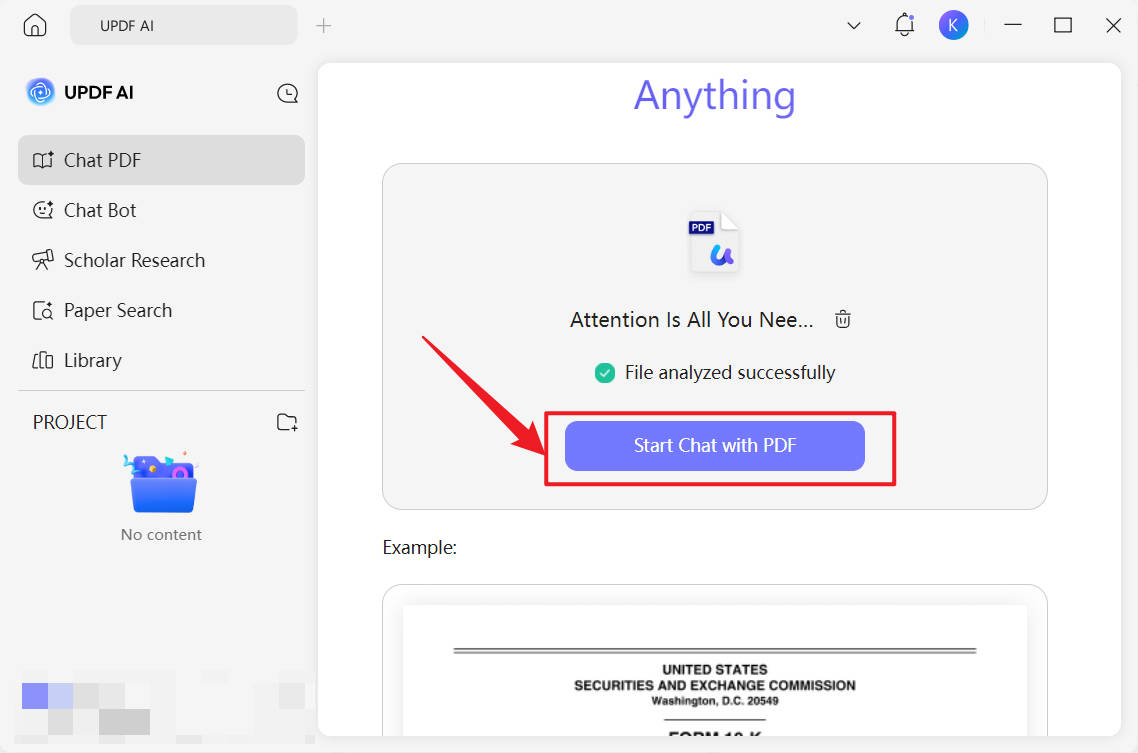
Now, from the upload window, upload your PDF file. Once you have uploaded the PDF, click the “Start Chat with PDF” option to start the process.
Top Other Features of UPDF AI
- UPDF AI is powered by GPT-5 and Deepseek R1, enabling more accurate and efficient processing of users’ documents.
- You can use the Project feature in the left sidebar to upload multiple PDF documents and chat with UPDF AI seamlessly.
- The tool offers two features: Scholar Research and Paper Search to access a wider range of academic resources and research materials. The Scholar Research feature helps you quickly explore and access a wide variety of academic resources. Paper Search allows users to efficiently find relevant research papers.
With all these powerful features available in one platform, you don’t need to switch between multiple software applications. So, download UPDF today to enjoy all the amazing features. Also,consider upgrading to a UPDF Premium license to unlock all premium features.
Windows • macOS • iOS • Android 100% secure
Conclusion
By following the above methods, you can quickly solve the “No Text Could Be Extracted From This File” error in ChatGPT. Apart from that, you can use two powerful toolsUPDF and UPDF AI Online, to make your scanned or image-based PDFs editable, searchable, and easier to work with. UPDF also offers other features like Edit PDF, Annotate, Create, Organise PDF, Convert PDF and much more. Download UPDF today and enjoy all its amazing features.
Windows • macOS • iOS • Android 100% secure







 Delia Meyer
 Lizzy Lozano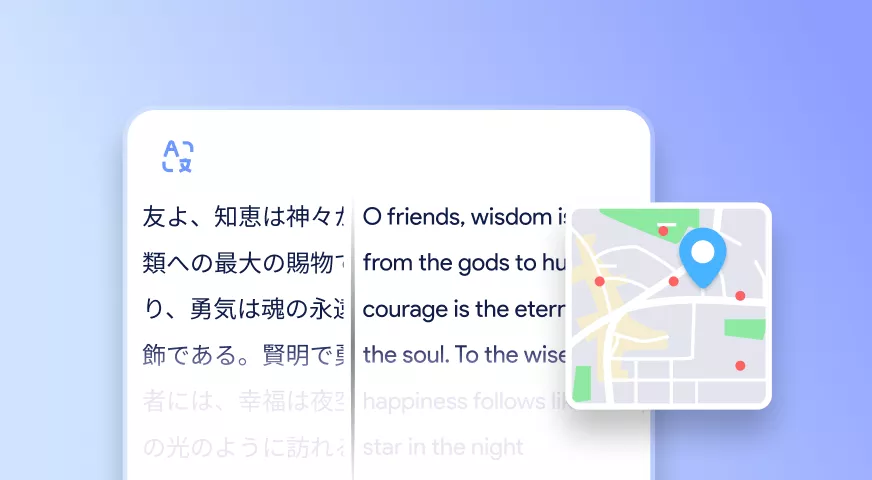

 Enid Brown
-gpathy