 UPDF
UPDF
 UPDF for Windows
 UPDF for Mac
 UPDF for iPhone/iPad
 UPDF for Android
 Nomostar
 UPDF AI Online
 UPDF Sign
 IvyCraft
 Edit PDF
 Annotate PDF
 Create PDF
 PDF Form
 Edit links
 Convert PDF
 OCR
OCR PDF to Word
 PDF to Image
 PDF to Excel
 Organize PDF
 Merge PDF
 Split PDF
 Crop PDF
 Rotate PDF
 Protect PDF
 Sign PDF
 Redact PDF
 Sanitize PDF
 Remove Security
 Read PDF
 UPDF Cloud
 Compress PDF
 Print PDF
 Batch Process
 About UPDF AI
 UPDF AI Solutions
 AI User Guide
 FAQ about UPDF AI
 Summarize PDF
 Translate PDF
 Chat with PDF
 Chat with AI
 Chat with image
 PDF to Mind Map
 Explain PDF
 PDF AI Tools
 Image AI Tools
 AI Chat Tools
 AI Writing Tools
 AI Study Tools
 AI Working Tools
 Other AI Tools
 AI Bookmark Generation
 AI Bookmark Summary
 AI Watermark Generation
 AI Background Generation
 AI Sticker Generation
 AI Stamp Generation
 AI Editing Suite
 UPDF Copilot
 AI Page Management
 AI Semantic Search
 PDF to Word
 PDF to Excel
 PDF to PowerPoint
 Enterprise Solution
 Enterprise Sign
 Enterprise AI
 Enterprise Plan
 Enterprise User Guide
 Enterprise Webinar
 IT
IT Education
 Construction
 Financial Service
 Healthcare
 Insurance
 Legal
Legal Manufacturing
 Government
 Researchers & PhDs
 Solopreneurs & Freelancers
 Lawyers & Legal Professionals
 Real Estate Agents & Brokers
 Education Solution
 Customer Stories
 User Guide
 UPDF Tricks
 FAQs
FAQs UPDF Reviews
 Download Center
 Blog
Blog Newsroom
 Tech Spec
 Updates
 UPDF vs. Adobe Acrobat
 UPDF vs. Foxit
 UPDF vs. PDF Expert

XDW to PDF conversion is most reliable when you use FUJIFILM Business Innovation’s DocuWorks tools. XDW is a proprietary DocuWorks document format, not the similarly named XWD image format. Many search results lead to XWD converters that cannot process an actual .xdw file, so checking the extension before uploading is essential.
This guide explains two reliable ways to convert XDW files to PDF. After conversion, you can use UPDF to OCR scanned pages, edit content, organize pages, add annotations, and protect the resulting PDF. If you regularly create or process documents in different formats, visit our PDF creation guides for related workflows.
Windows • macOS • iOS • Android 100% secure
Part 1. What Is an XDW File?
An XDW file is a DocuWorks Document created for FUJIFILM Business Innovation’s DocuWorks document-management environment. The format was originally associated with Fuji Xerox, the company’s former name. XDW files are still used in office, government, scanning, and approval workflows, particularly in Japan and other Asian markets.
An XDW document can contain scanned page images, recognized text, annotations, stamps, sticky notes, hyperlinks, and embedded document information. Because it is a proprietary format, most browsers and general PDF readers cannot open it directly. DocuWorks or the free DocuWorks Viewer Light is normally required to view the file correctly.
XDW should therefore be described as a format with limited support outside the DocuWorks ecosystem, rather than an obsolete format. Converting it to PDF is useful when recipients do not have DocuWorks or when the document needs to be edited, archived, printed, or shared more widely.
Part 2. XDW vs. XWD: Check the Extension First
| Extension | What It Is | Typical Software |
|---|---|---|
| .XDW | FUJIFILM DocuWorks document | DocuWorks, DocuWorks Viewer Light |
| .XWD | X Window Dump image from Unix/Linux systems | Image converters and X11 utilities |
The names differ by only one letter, but the formats are unrelated. A page labeled “XWD to PDF” does not necessarily support XDW. If an online converter describes the source file as an X Window screenshot, it is the wrong tool for a DocuWorks document. Renaming .xdw to .pdf or .xwd also does not convert the underlying file.
Part 3. How to Convert XDW to PDF
Method 1. Convert XDW to PDF with DocuWorks
Recommended when: Users who have DocuWorks installed and want the most dependable conversion with the document’s pages and visible annotations preserved.
FUJIFILM’s official DocuWorks workflow includes a “Conversion to PDF (DocuWorks PDF)” function. The exact labels can vary slightly by DocuWorks version, but the process is straightforward:
- Launch DocuWorks Desk and locate the XDW document.
- Select the file you want to convert.
- Click Conversion to PDF (DocuWorks PDF) on the toolbar or work bar. You can also print the document using DocuWorks PDF as the printer.
- Review the paper size, orientation, resolution, security, and other available conversion settings.
- Click OK, then choose where to save the PDF.
Before saving, check whether stamps, notes, and other annotations are visible. The official DocuWorks Start Guide documents this PDF conversion workflow.
Method 2. Convert XDW to PDF with DocuWorks Cloud
Recommended when: Organizations that already use DocuWorks Cloud and need a managed browser-based workflow.
DocuWorks Cloud can convert supported files, including XDW and XBD, to PDF. The official product specifications list a maximum file size of 100 MB for PDF conversion. Availability, interface options, and licensing can differ by country, region, and organization, so this is not a universal free online converter.
- Sign in to the DocuWorks Cloud service provided by your organization.
- Upload or select the XDW file in the workspace.
- Choose the available PDF conversion or export action.
- Review and download the converted PDF.
Avoid uploading confidential XDW files to an unknown third-party website simply because it advertises “online conversion.” Check that the service explicitly supports XDW/DocuWorks, not XWD, and review its retention and deletion policy first.
Part 4. How to Open an XDW File
If you only need to read or print the file, use the official DocuWorks Viewer Light. It can display DocuWorks documents and binders, show or hide annotations, search recognized text, copy page images, and print files. Download the viewer from FUJIFILM Business Innovation or an official app store instead of an unofficial software portal.
Full creation and editing workflows are primarily handled through DocuWorks on Windows. Mobile viewer availability and supported functions may vary. If the recipient cannot install DocuWorks, ask the sender to provide a PDF copy—the most practical option for cross-platform viewing and sharing.
Part 5. How to Edit and Manage the PDF After Converting XDW
Converting an XDW file to PDF makes it easier to open and share, but the resulting document may still need further work. For example, a PDF created from a scanned XDW file may contain image-only pages, while a business document may need corrections, comments, page organization, or security protection before distribution. This is where UPDF becomes useful.
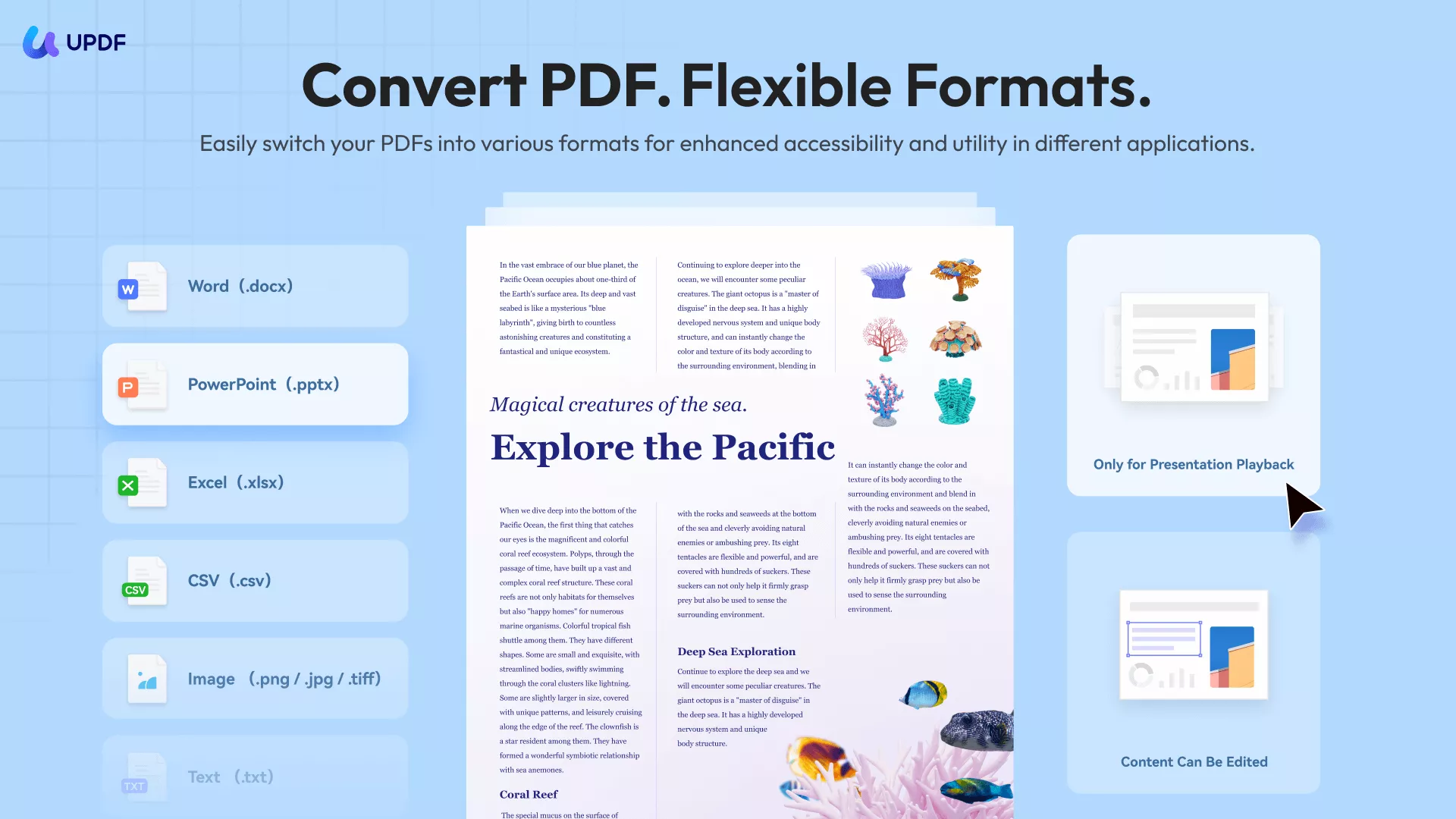
- Make scanned content searchable or editable: If the converted PDF contains image-only pages, use UPDF’s OCR to recognize the text. Depending on the required result, you can create a searchable layer or an editable PDF. Learn more about OCR for scanned PDFs.
- Correct or update the document: Edit text, images, and links without recreating the PDF. This is useful for correcting dates, names, contact details, or outdated information. See the complete guide on how to edit a PDF.
- Review and organize the pages: Highlight important content, add comments, reorder or remove pages, and combine the converted document with other PDFs.
- Protect the final copy: Add an open or permission password, apply a watermark, or permanently redact confidential information before sharing.
- Work with long or multilingual documents: Use UPDF AI to summarize, translate, explain, or answer questions about the converted PDF.
If you regularly receive DocuWorks files, UPDF can help turn the converted PDFs into editable, searchable, and share-ready documents. Download UPDF for a free trial and test the workflow with your converted file.
Windows • macOS • iOS • Android 100% secure
Limited-time offer: Save up to 66% on UPDF and unlock its complete PDF editing, OCR, conversion, organization, and protection tools. Check the pricing page for the current offer.
Part 6. Why Can’t I Convert an XDW File to PDF?
| Problem | What to Check |
|---|---|
| The converter rejects the file | Confirm that the tool supports XDW, not XWD. |
| The file will not open | Check whether it is damaged, password-protected, or created by an incompatible DocuWorks version. |
| Annotations or stamps are missing | Show all required annotations in DocuWorks before conversion and review the PDF output. |
| The PDF cannot be edited | The XDW may contain scanned page images. Run OCR on the converted PDF. |
| Fonts or layouts look different | Use the official DocuWorks PDF conversion function and check its output settings. |
| The file is too large for cloud conversion | Use DocuWorks locally, reduce the source size if appropriate, or check your service limits. |
Part 7. Why Convert XDW to PDF?
- Wider compatibility: PDF opens in browsers and common document apps on Windows, Mac, iOS, and Android.
- Easier sharing: Recipients do not need DocuWorks simply to read the document.
- More editing options: After conversion, PDF software can edit, annotate, organize, sign, redact, compress, and protect the file.
- Better searchability: OCR can add searchable text to scanned pages.
- Practical archiving and printing: PDF is easier to include in common records, approval, and print workflows.
Conclusion
The safest way to convert XDW to PDF is to use DocuWorks or an authorized DocuWorks Cloud workflow. Always distinguish XDW DocuWorks files from unrelated XWD images, especially when evaluating online converters. Once the PDF is created, open it in UPDF to run OCR, correct content, annotate pages, organize the document, or protect it before sharing.
Windows • macOS • iOS • Android 100% secure







 Enola Miller

 Enid Brown
 Enola Davis